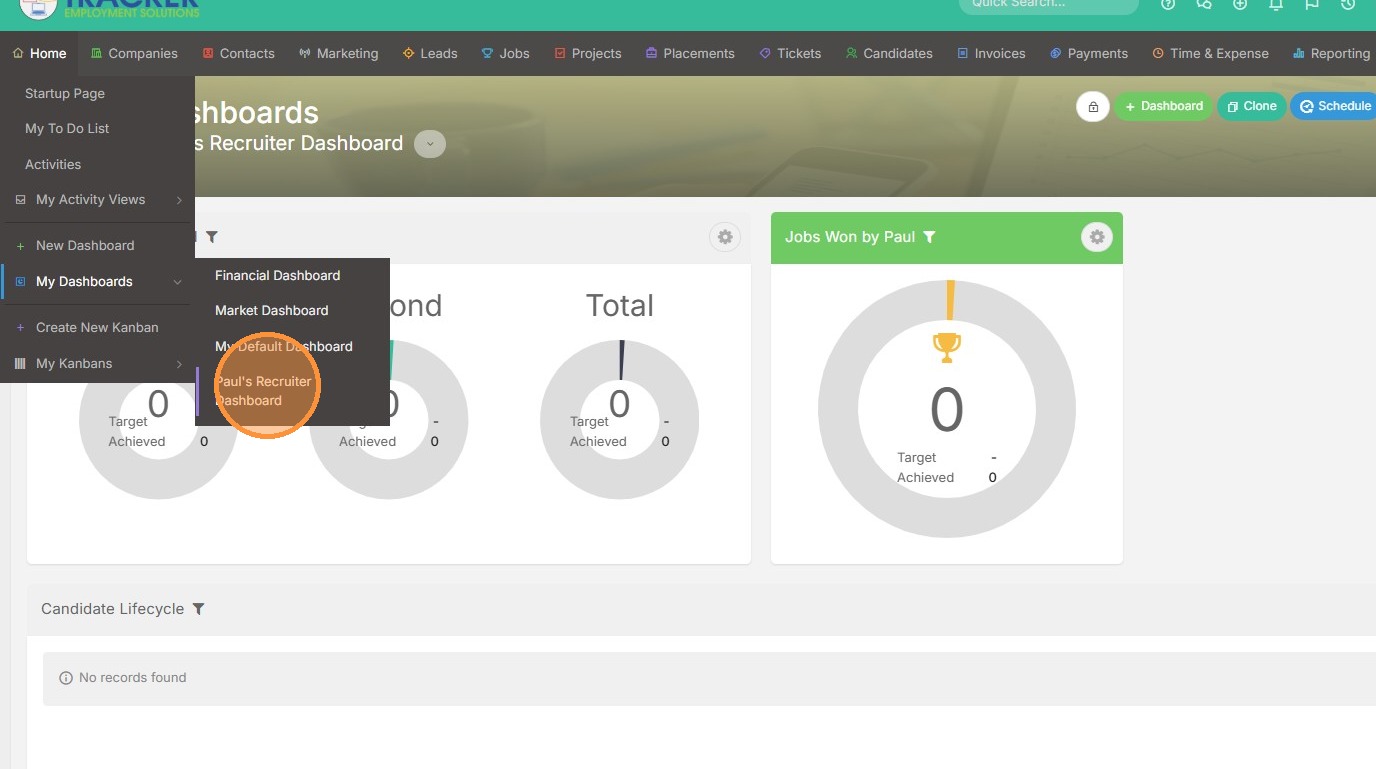
1. To create a new Dashboard, hover over the Home tab.
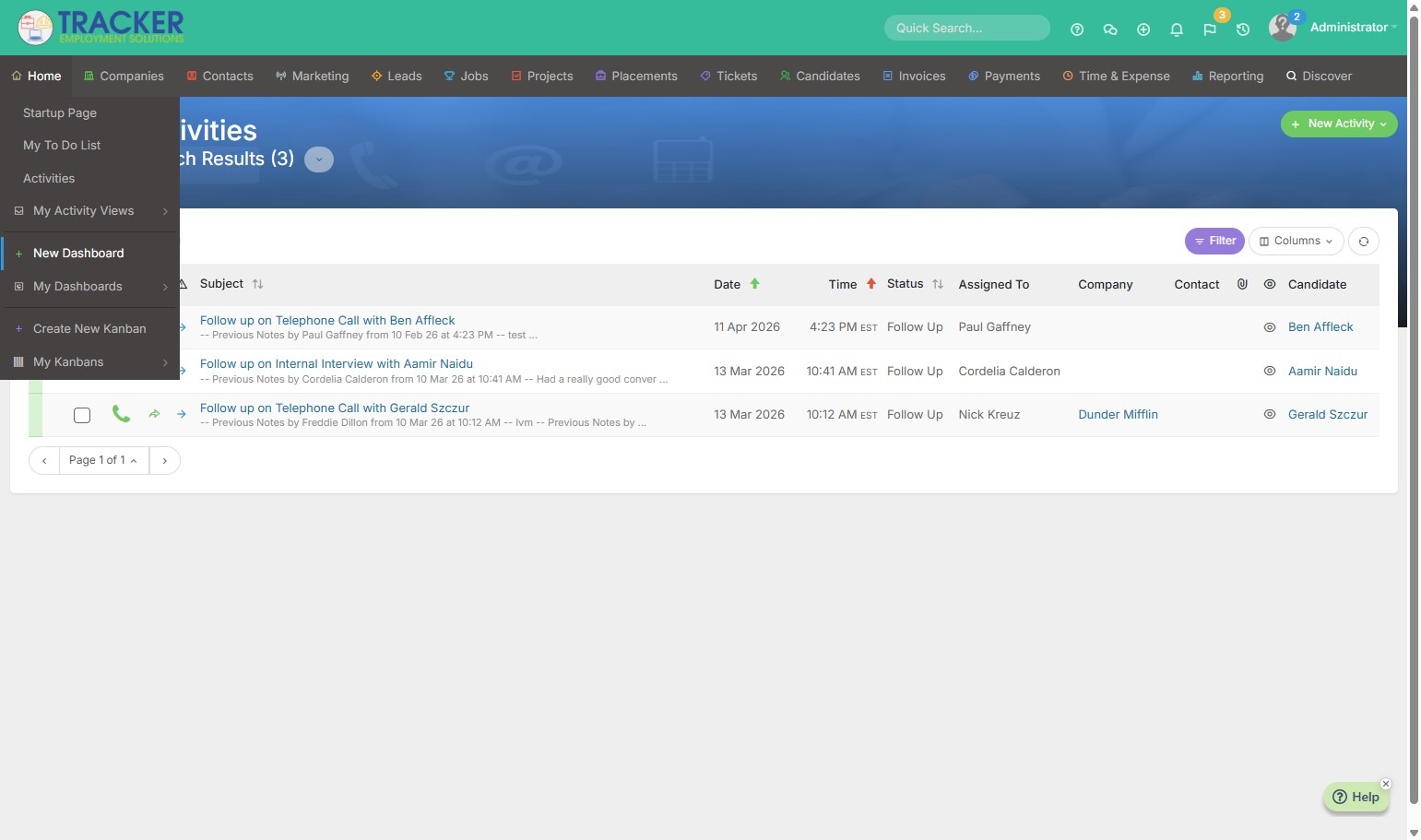
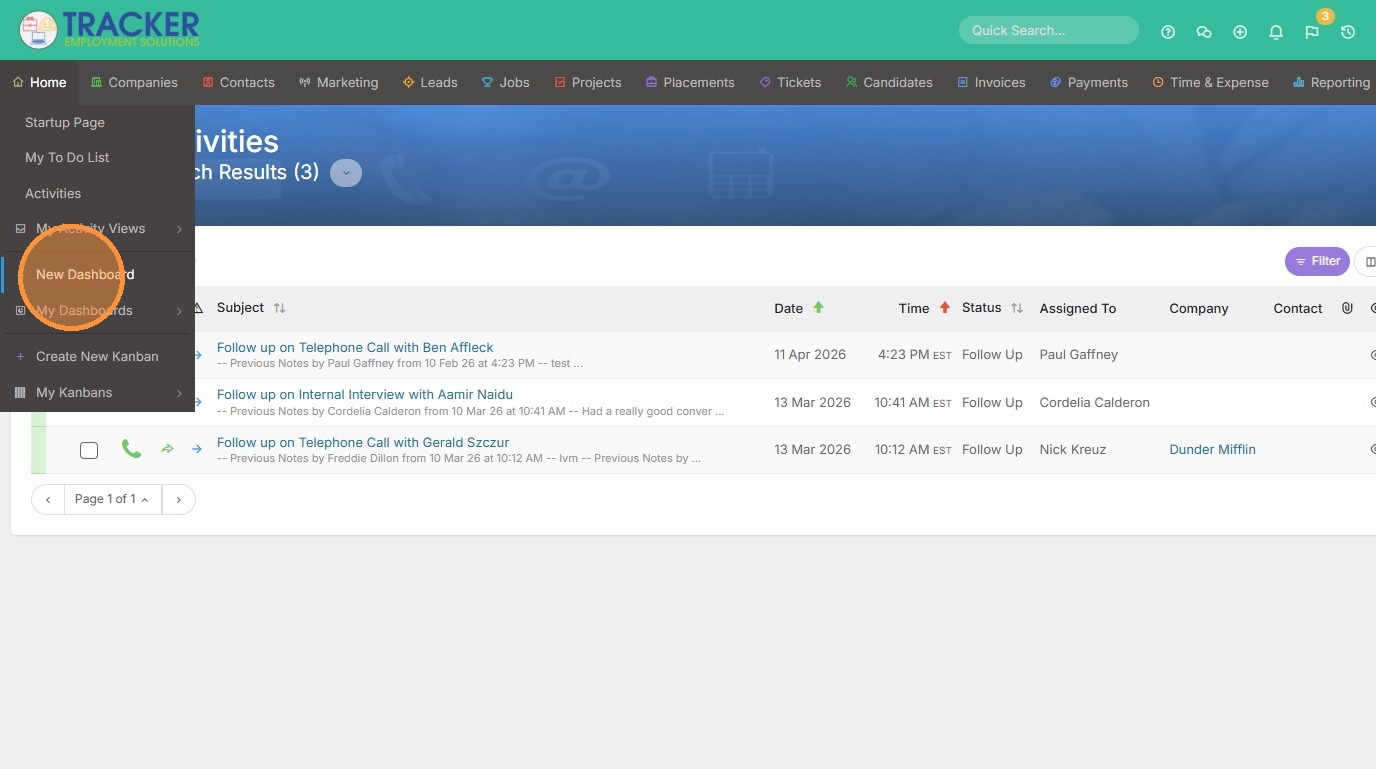
2. Click "New Dashboard"
3. From here you can add an array of widgets, reports, or saved list views.
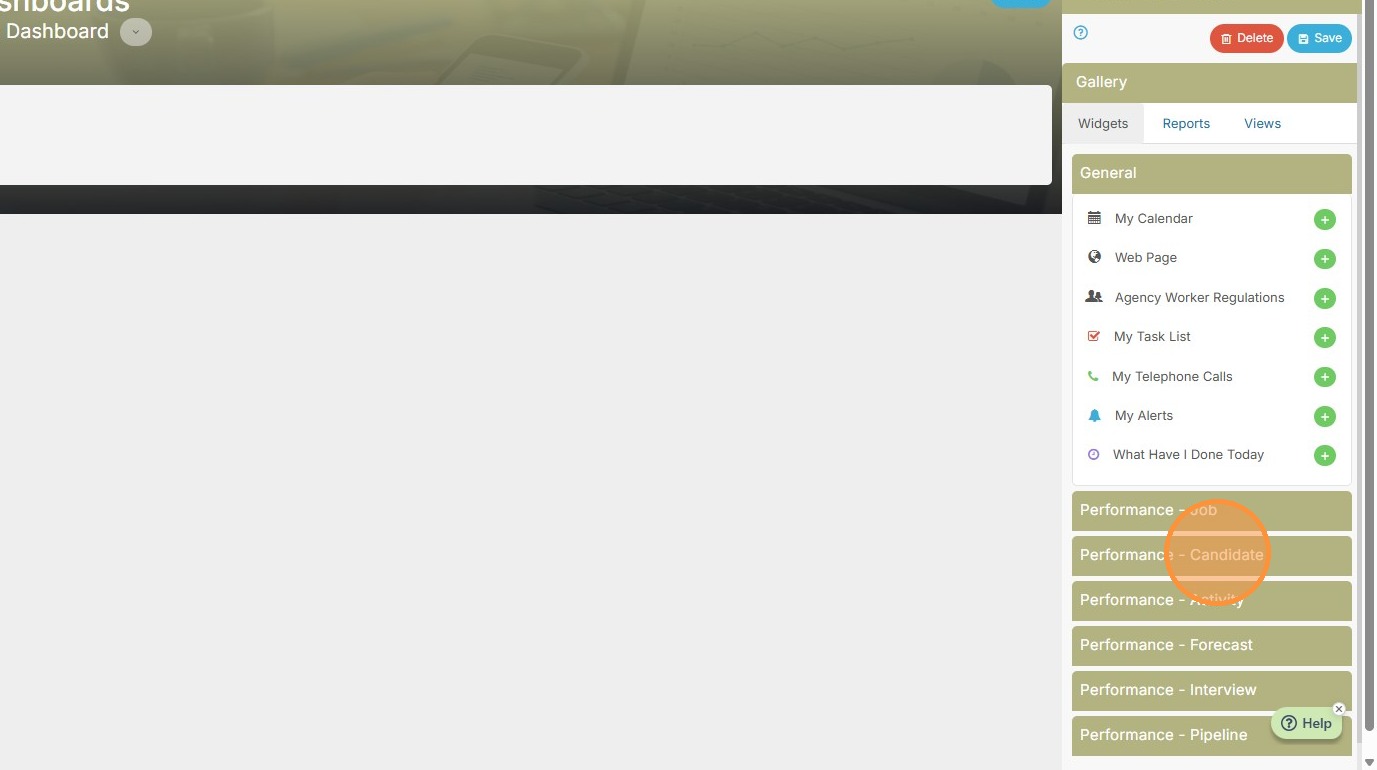
4. For a recruiter dashboard, you may want to open the Performance-Candidate tab and add Internal Submittals.
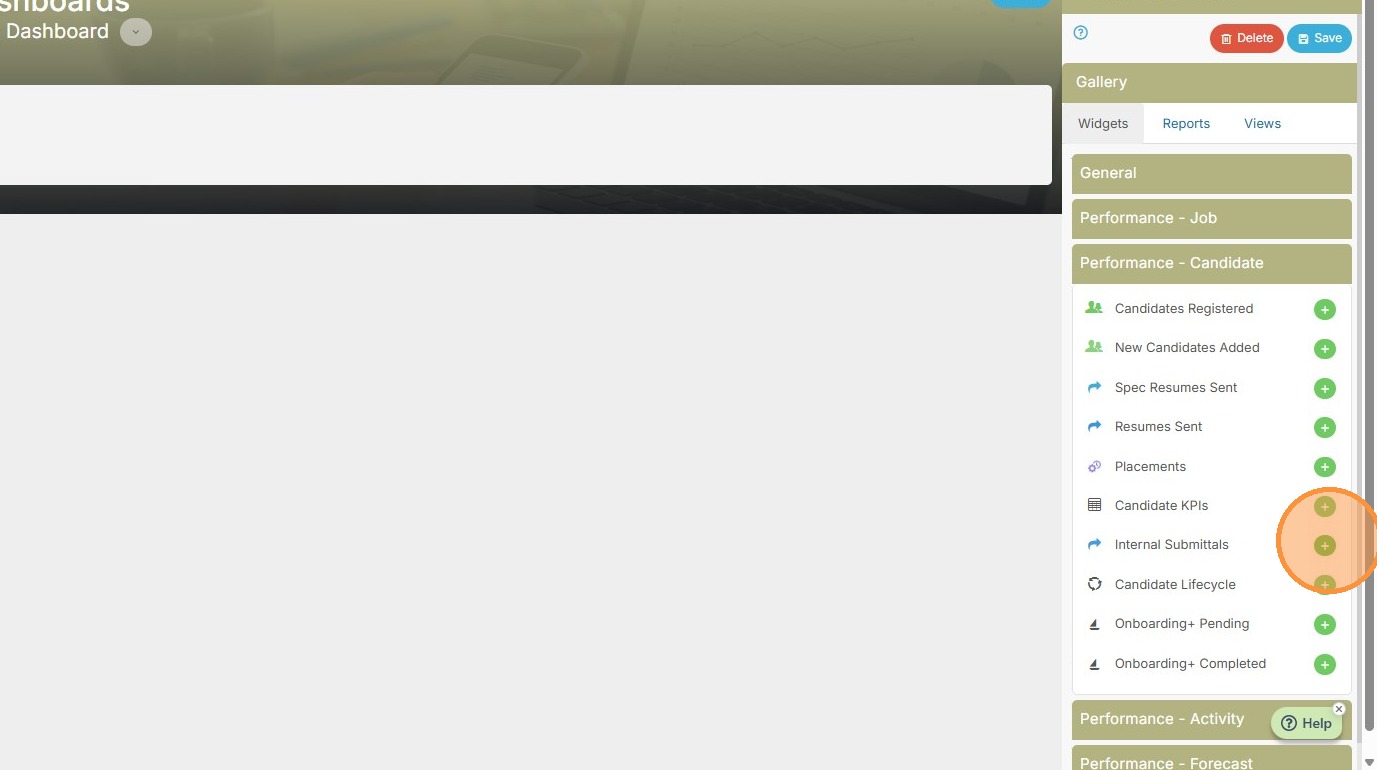
5. Resumes Sent to Client.
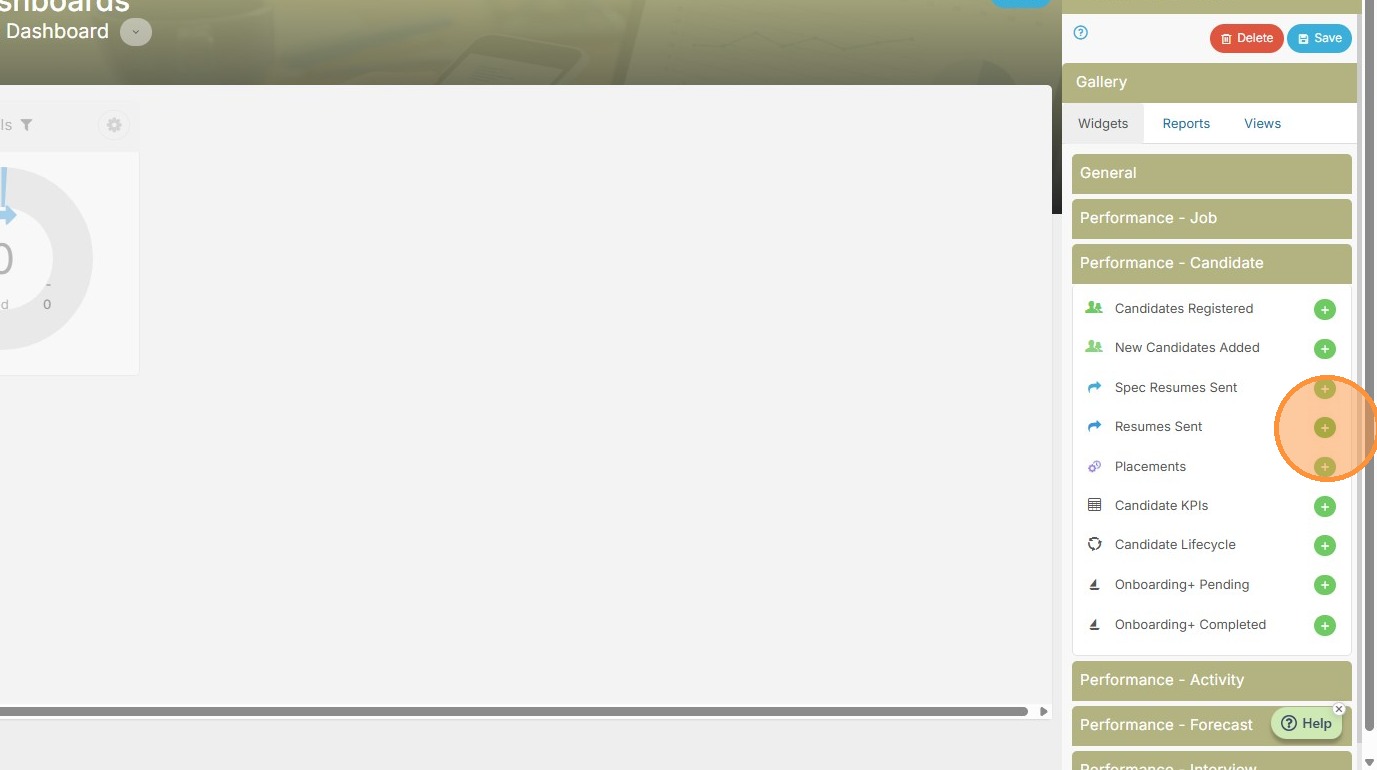
6. Placements Made.
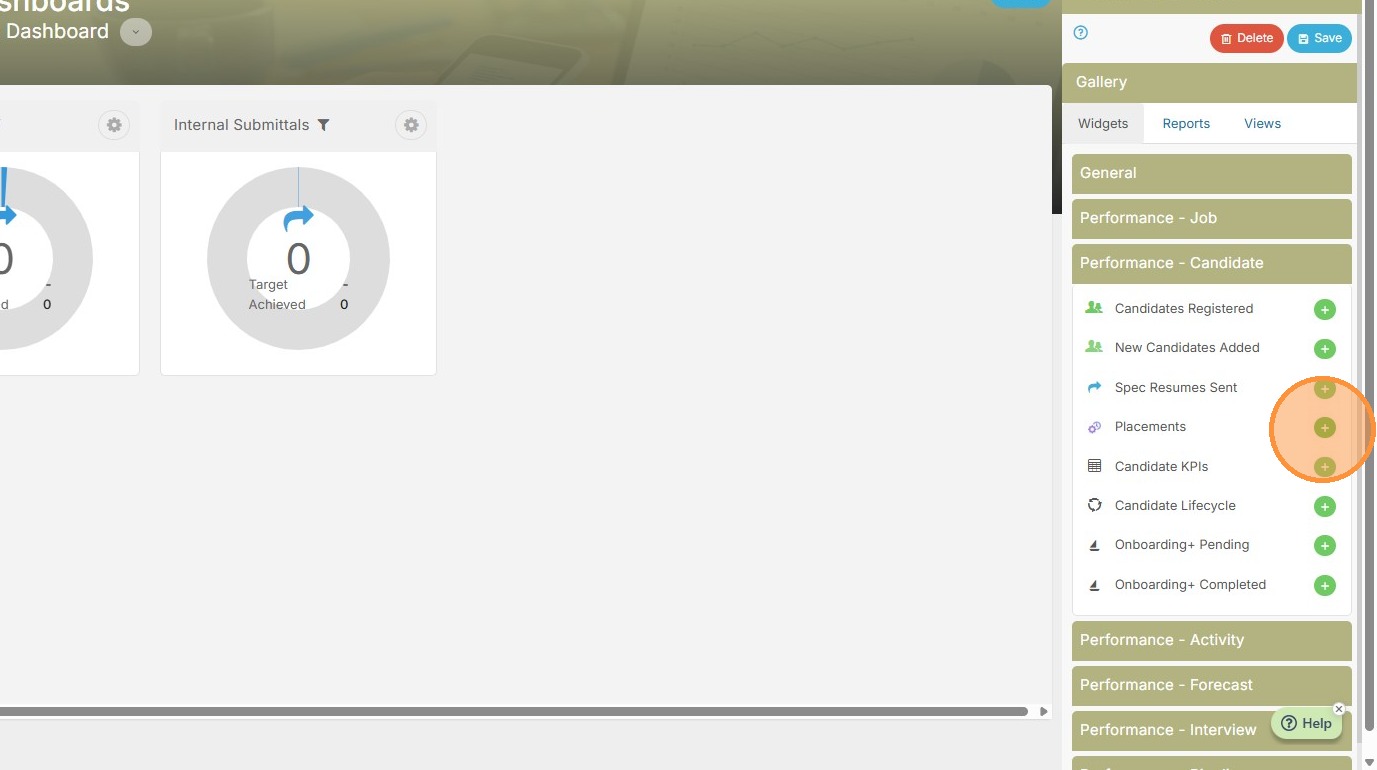
7. New Candidates Added to Tracker.
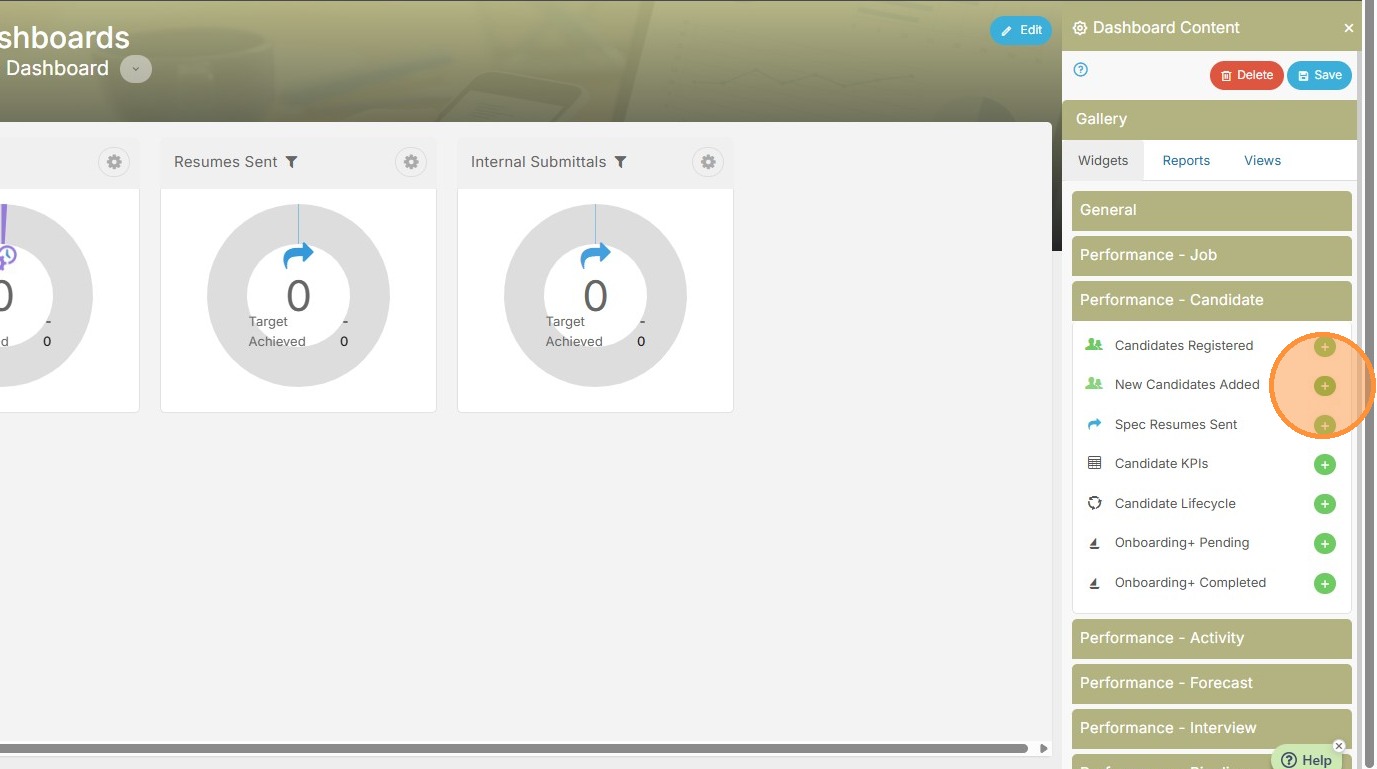
8. Candidate Lifecycle.
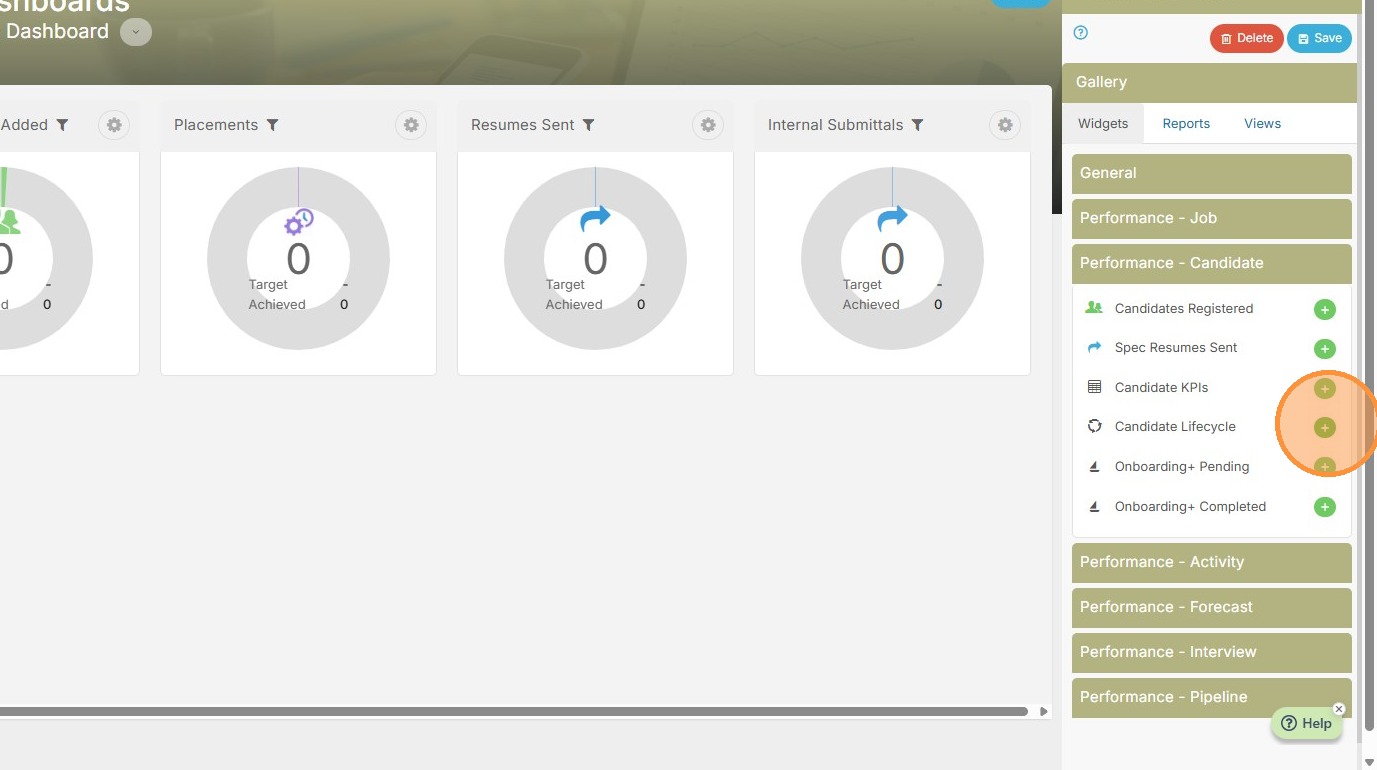
9. Then you may want to add more widgets from the Performance-Activity tab.
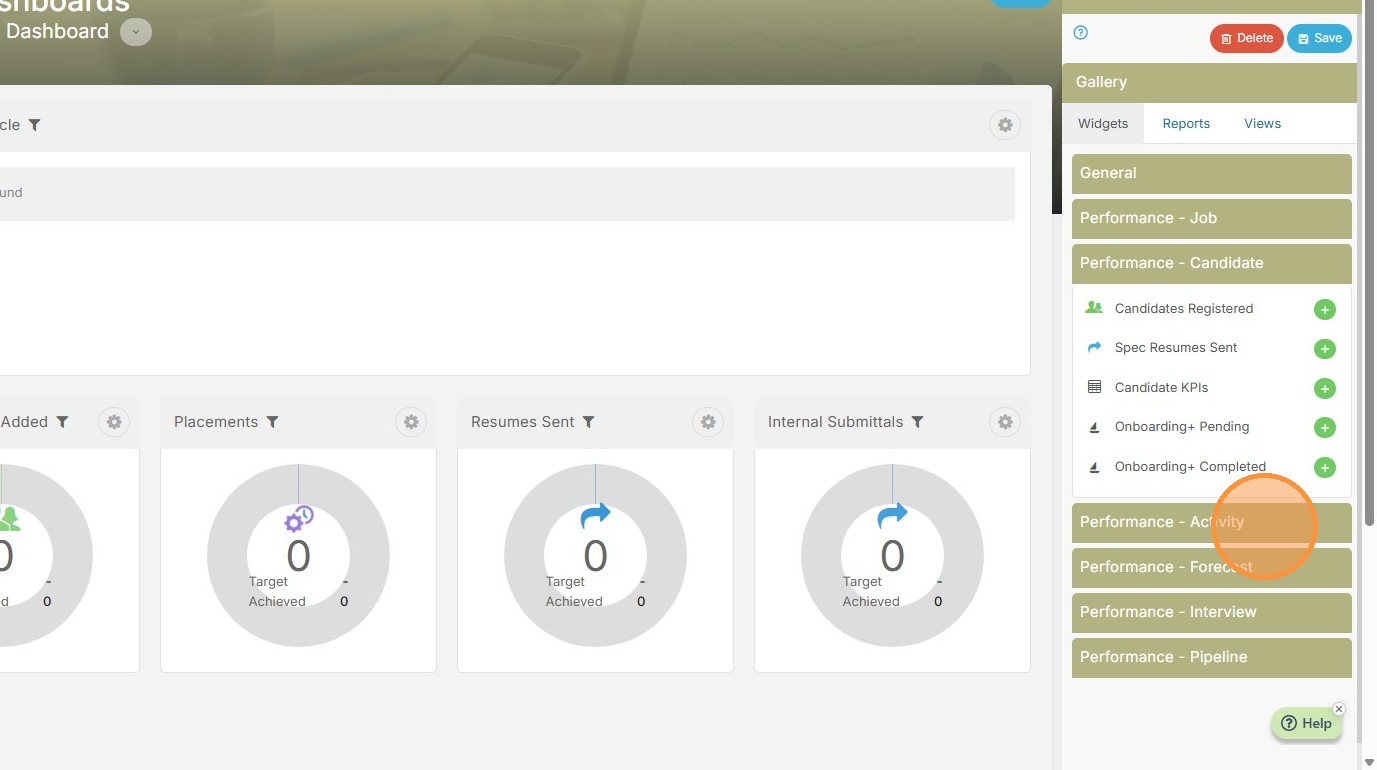
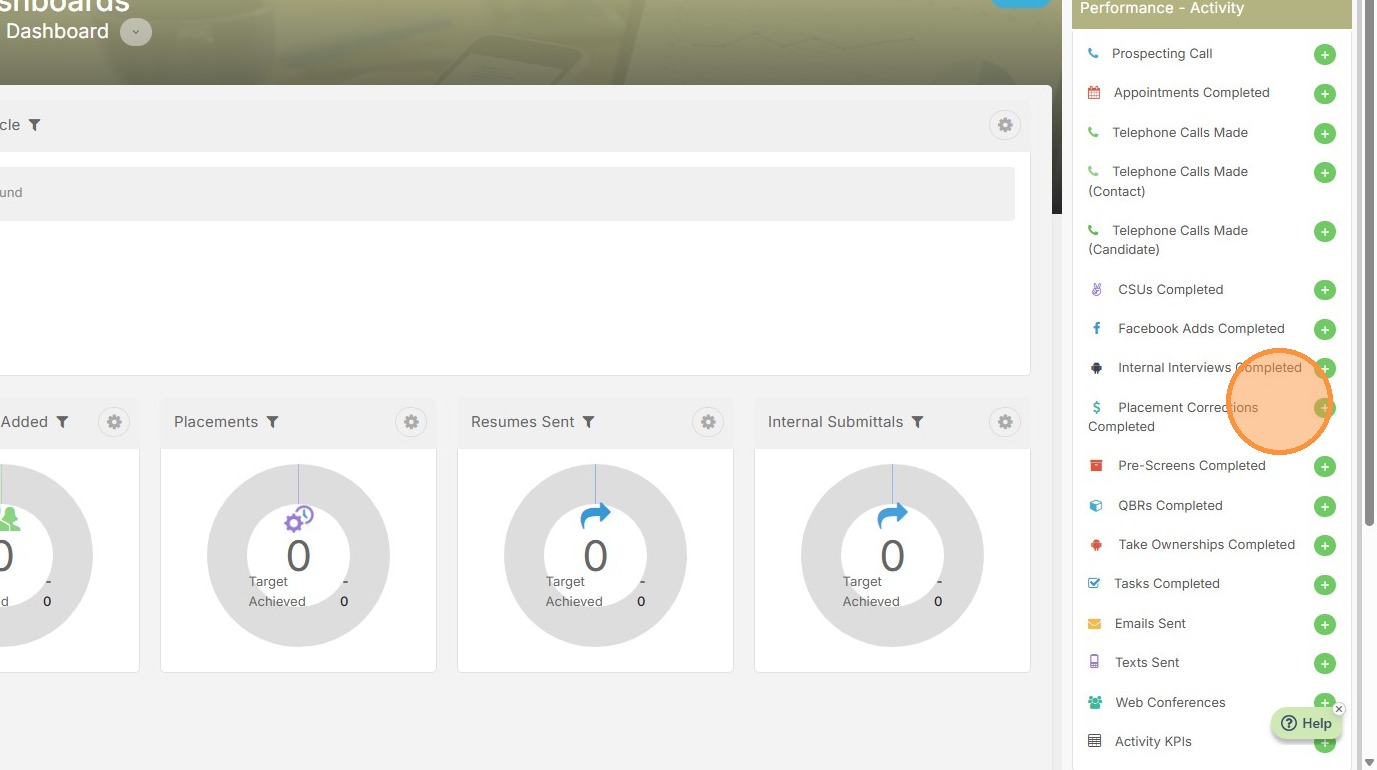
10. This tab will include any standard and custom activities you have in Tracker. Telephone calls, tasks, emails sent etc.
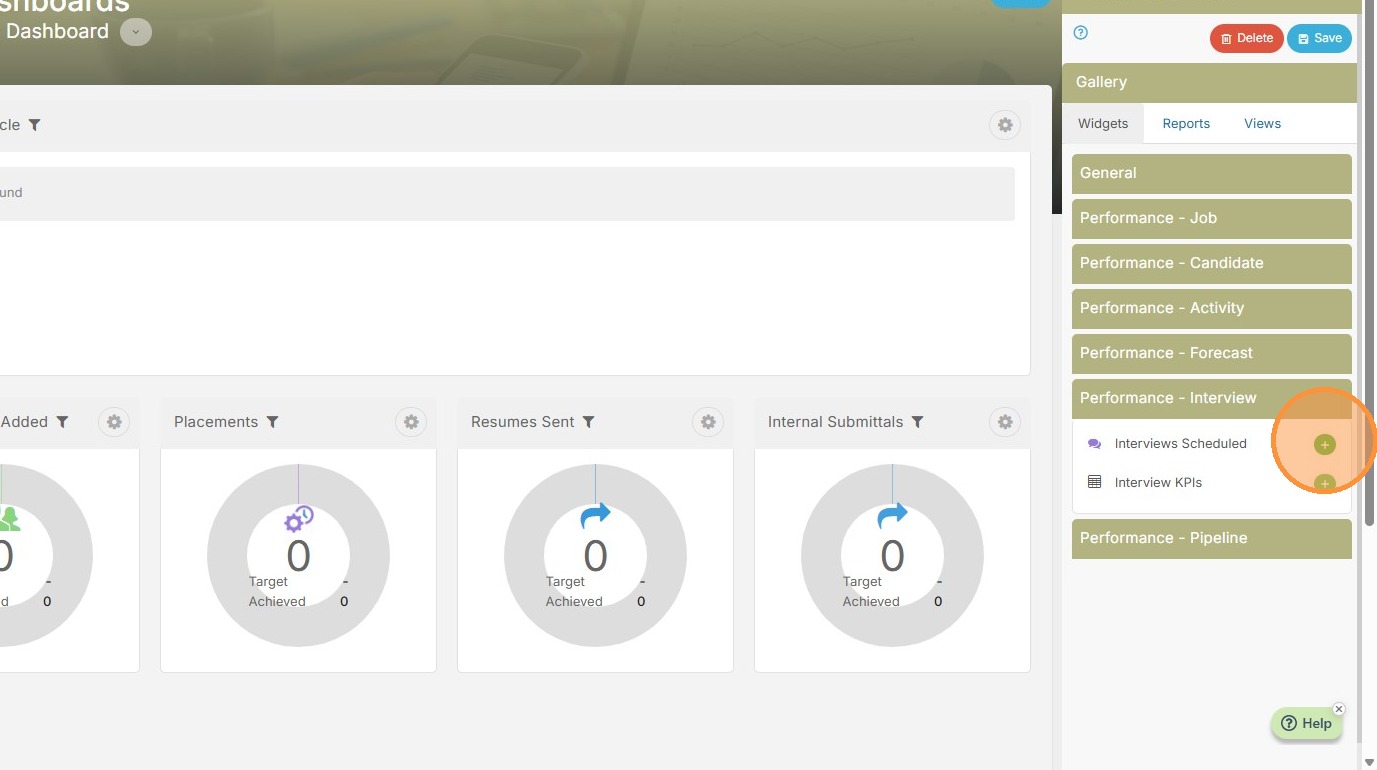
11. Next, open the Performance-Interview tab.
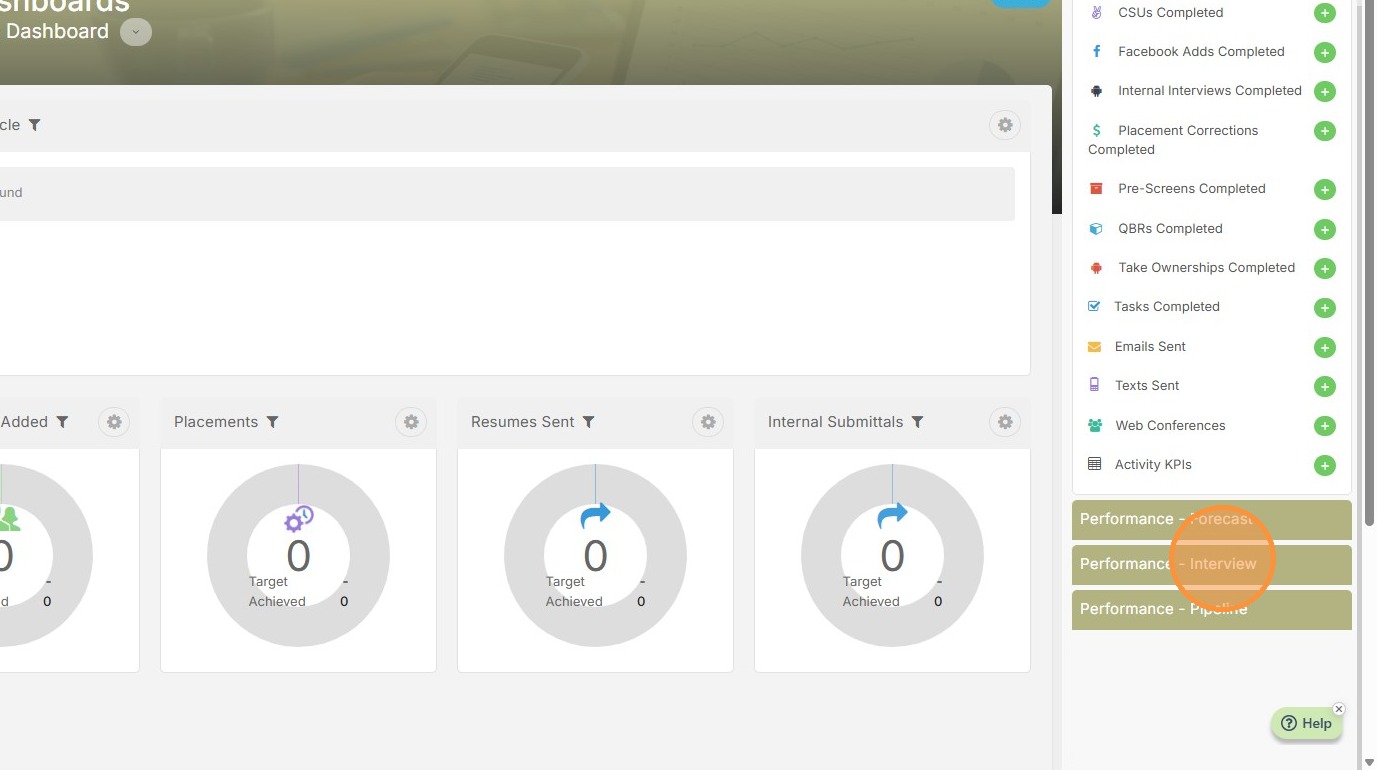
12. Here a solid widget to add may be the Interviews Scheduled.
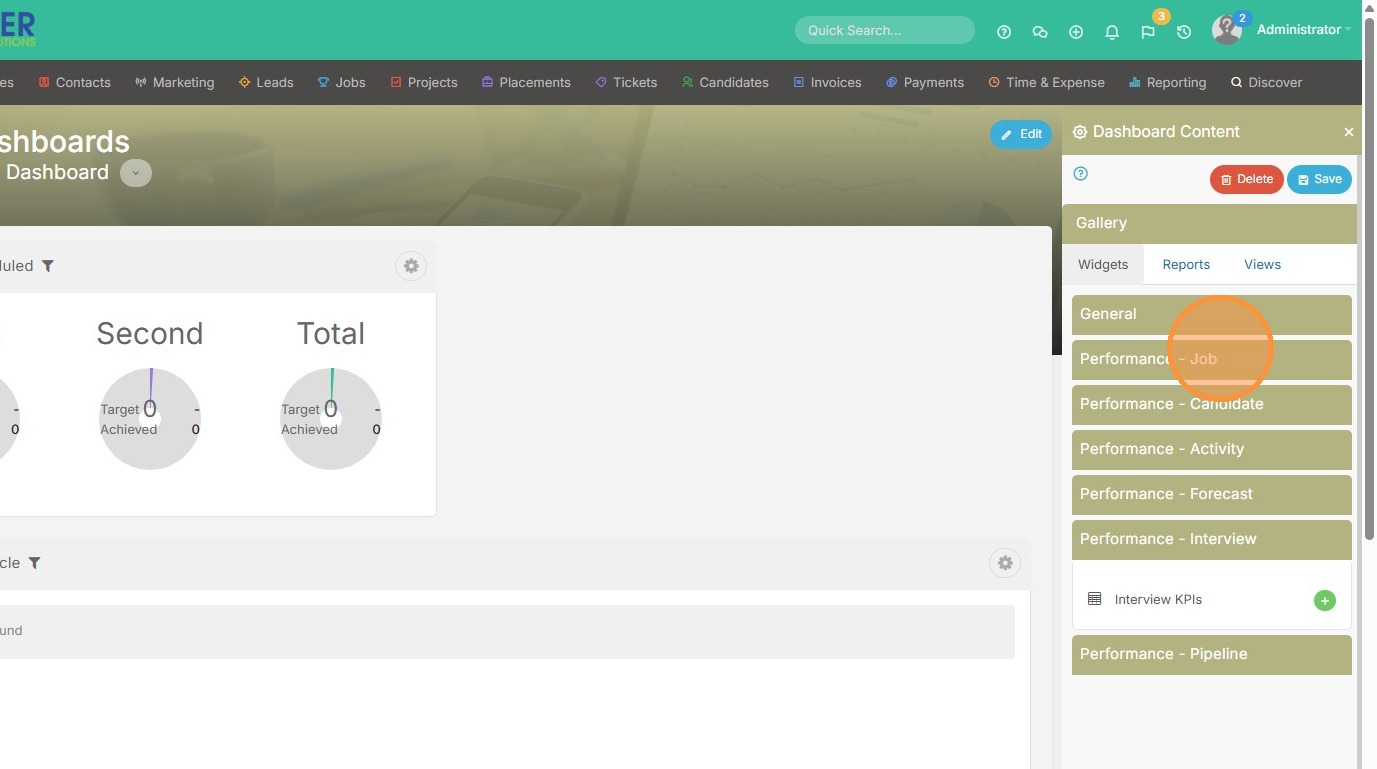
13. Click "Performance - Job" to view these next widgets.
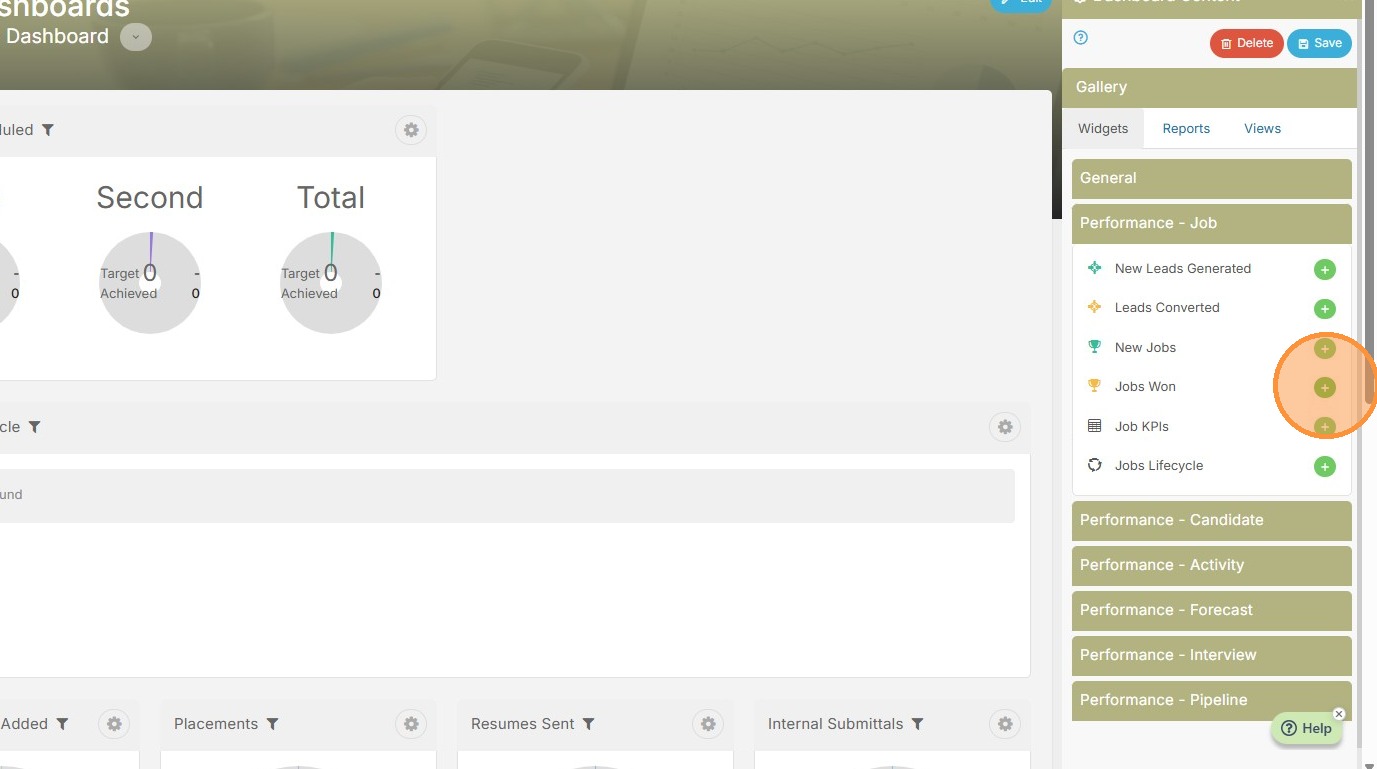
14. On this one, it may be beneficial to add Jobs Won.
15. In every widget, there is a wheel icon that you can click open.
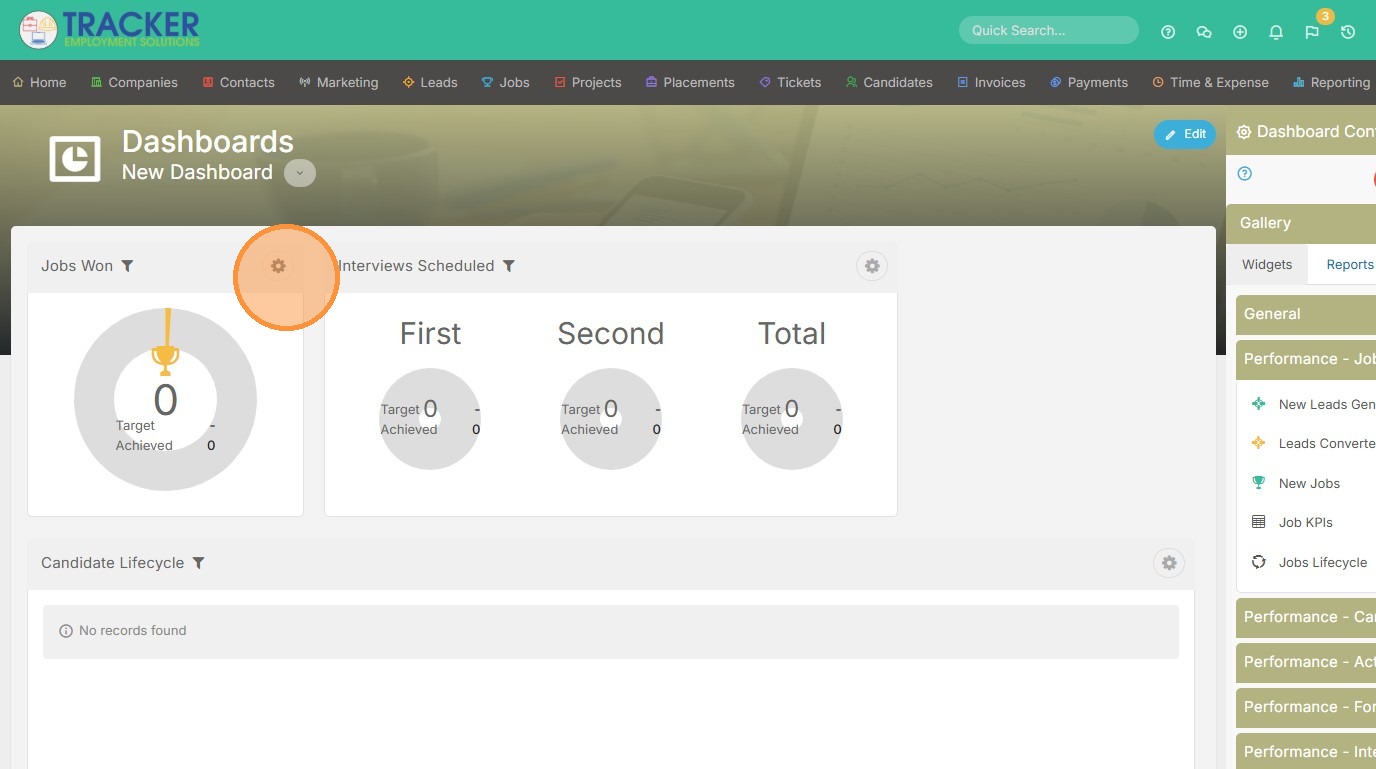
16. This will allow you to delete the widget, or click this edit button to change the title.
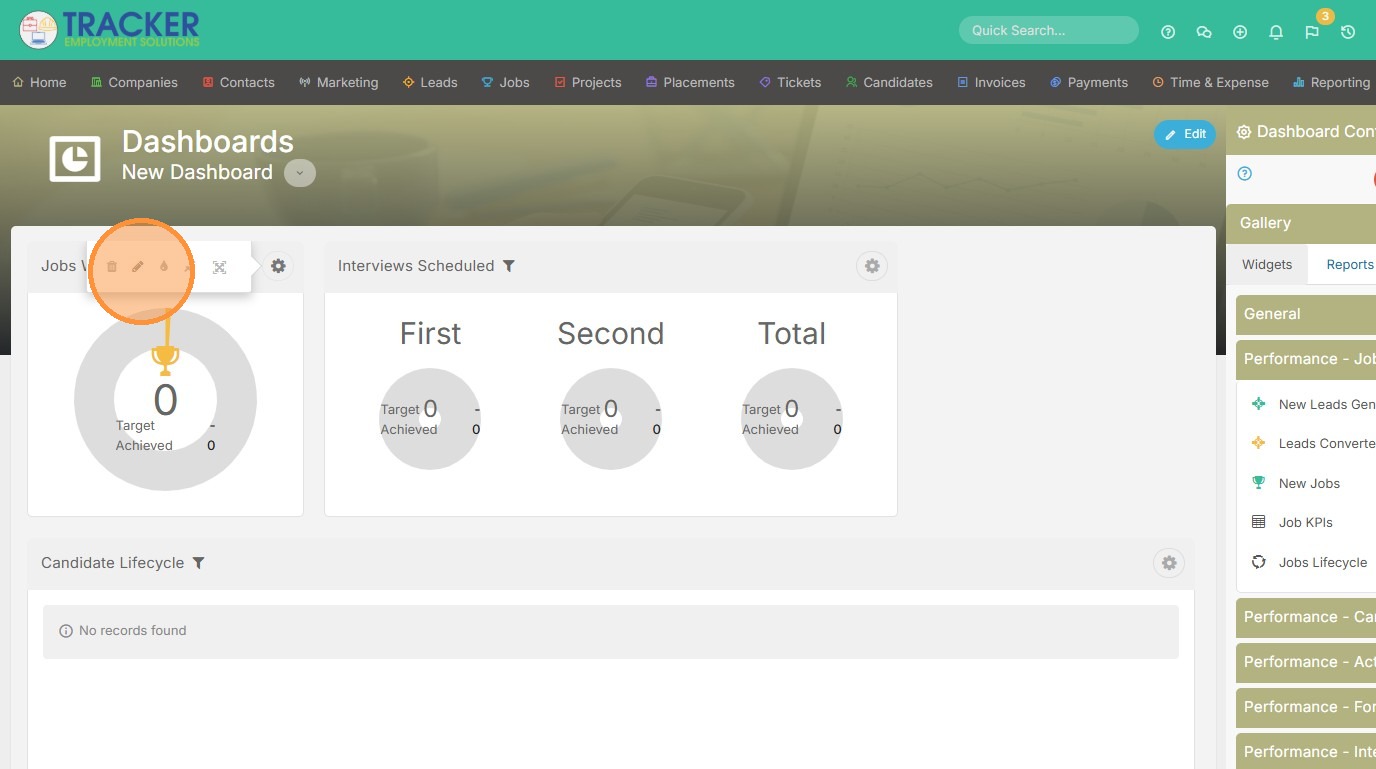
17. For example, I could change it to Jobs Won by Paul since this will be his recruiter dashboard.
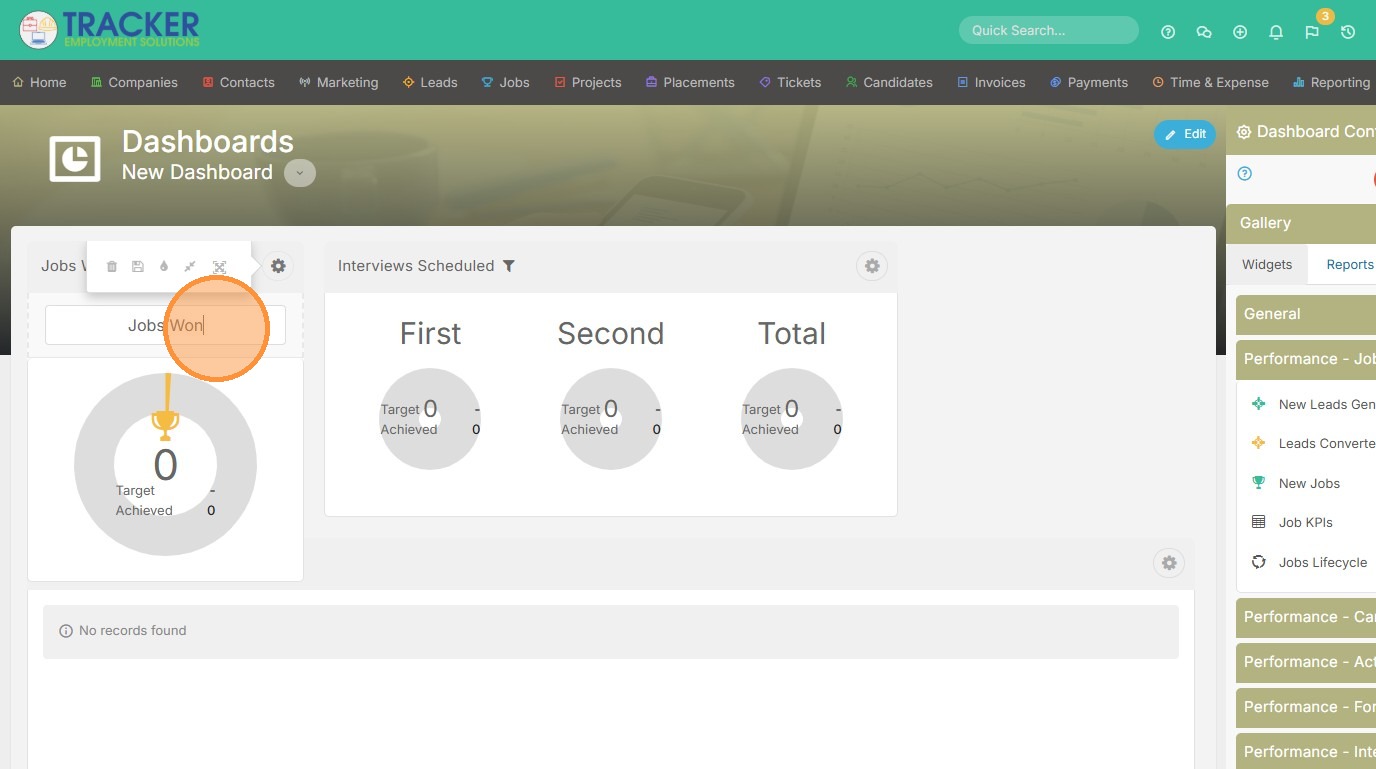
18. Then click Save.
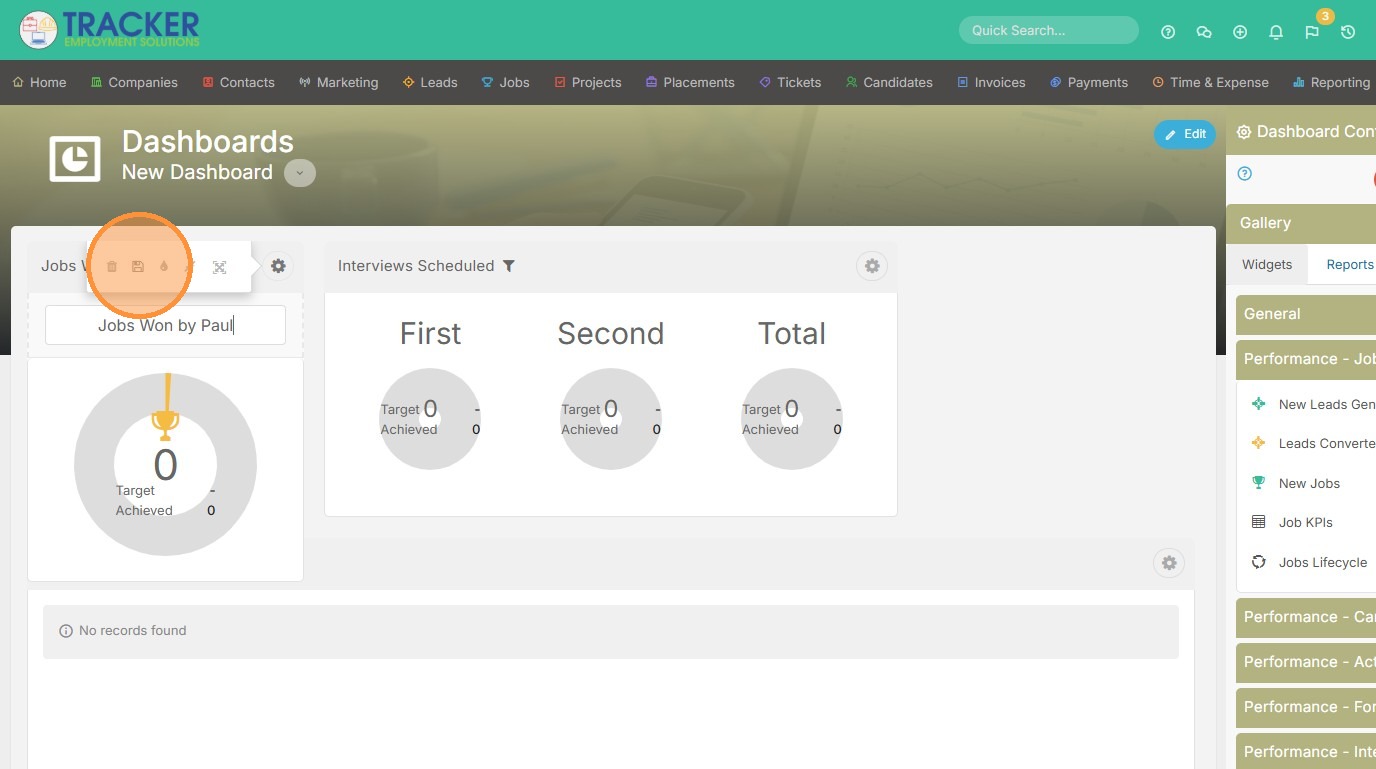
19. Click the drop icon to change the color.
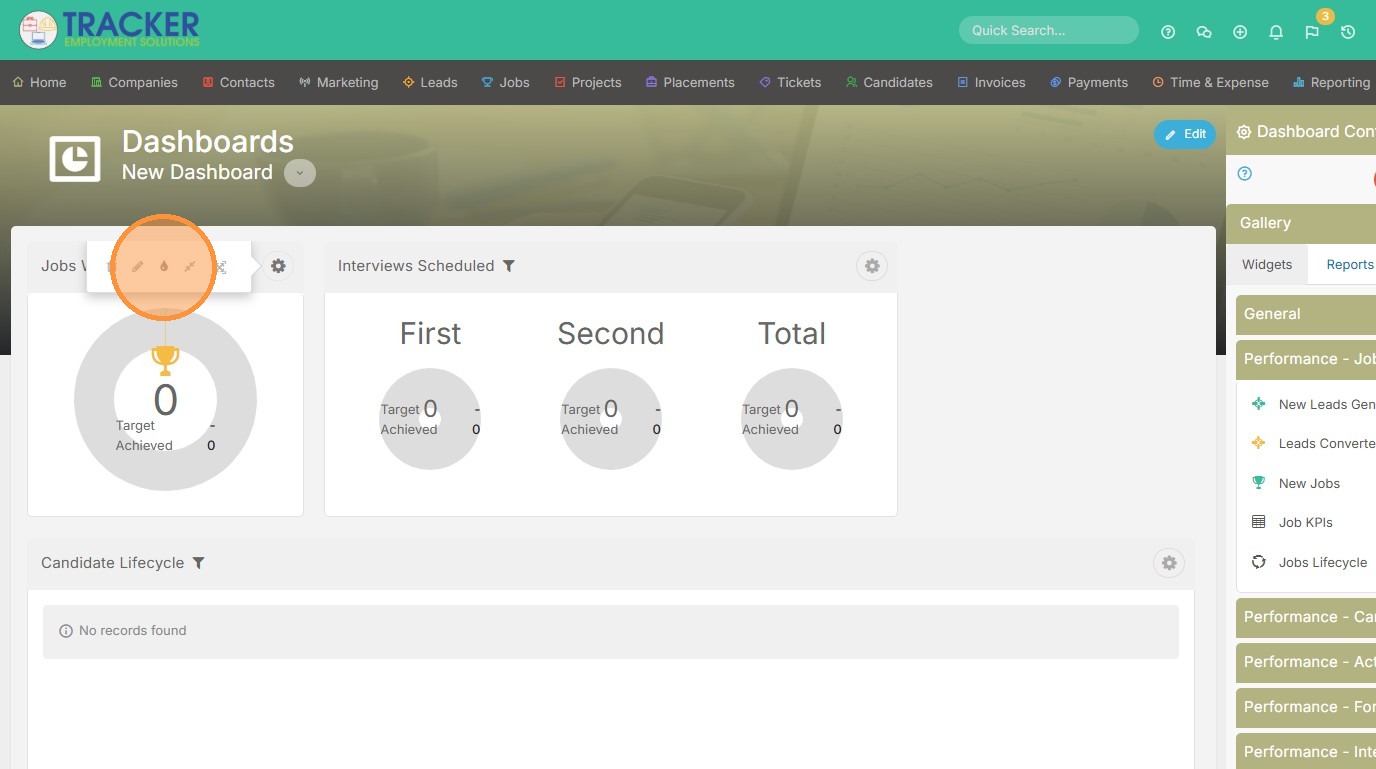
20. Pick your color.
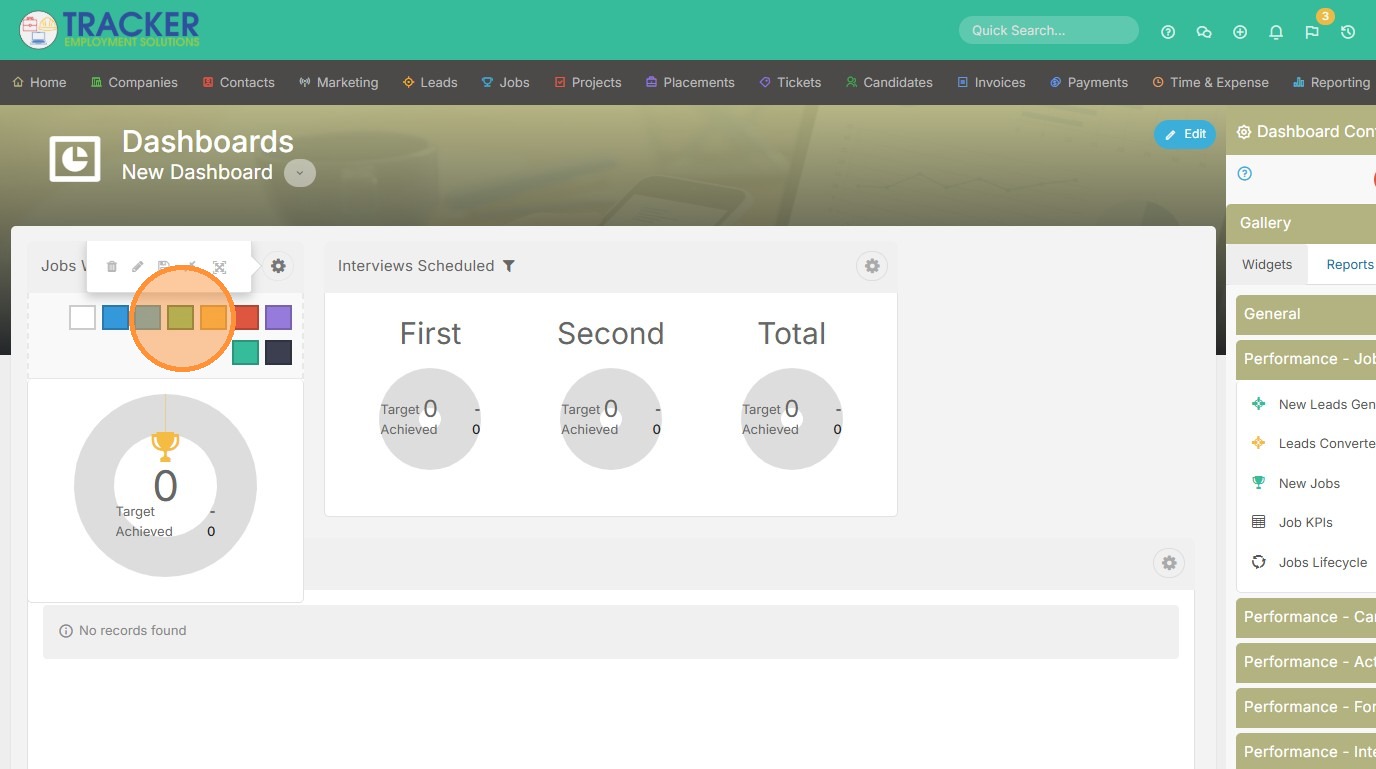
21. Then hit Save.
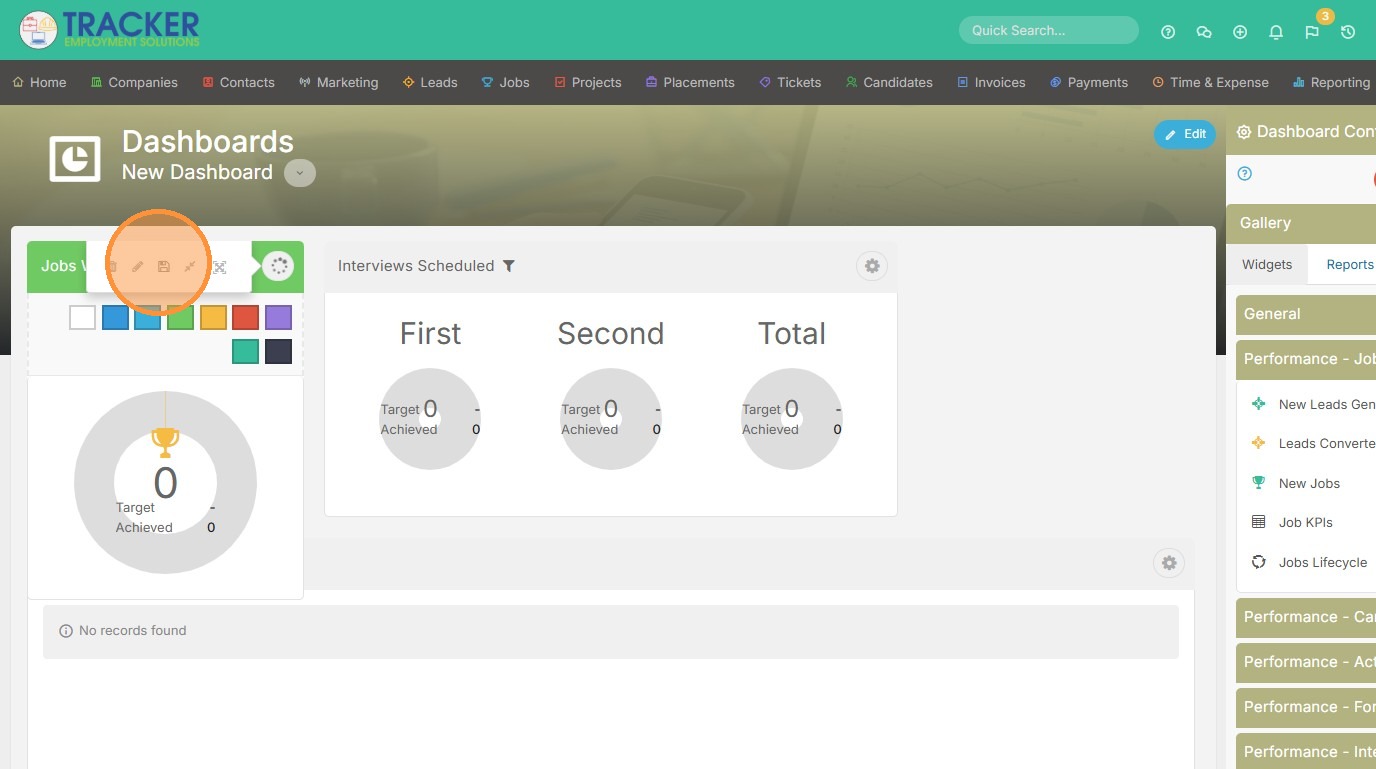
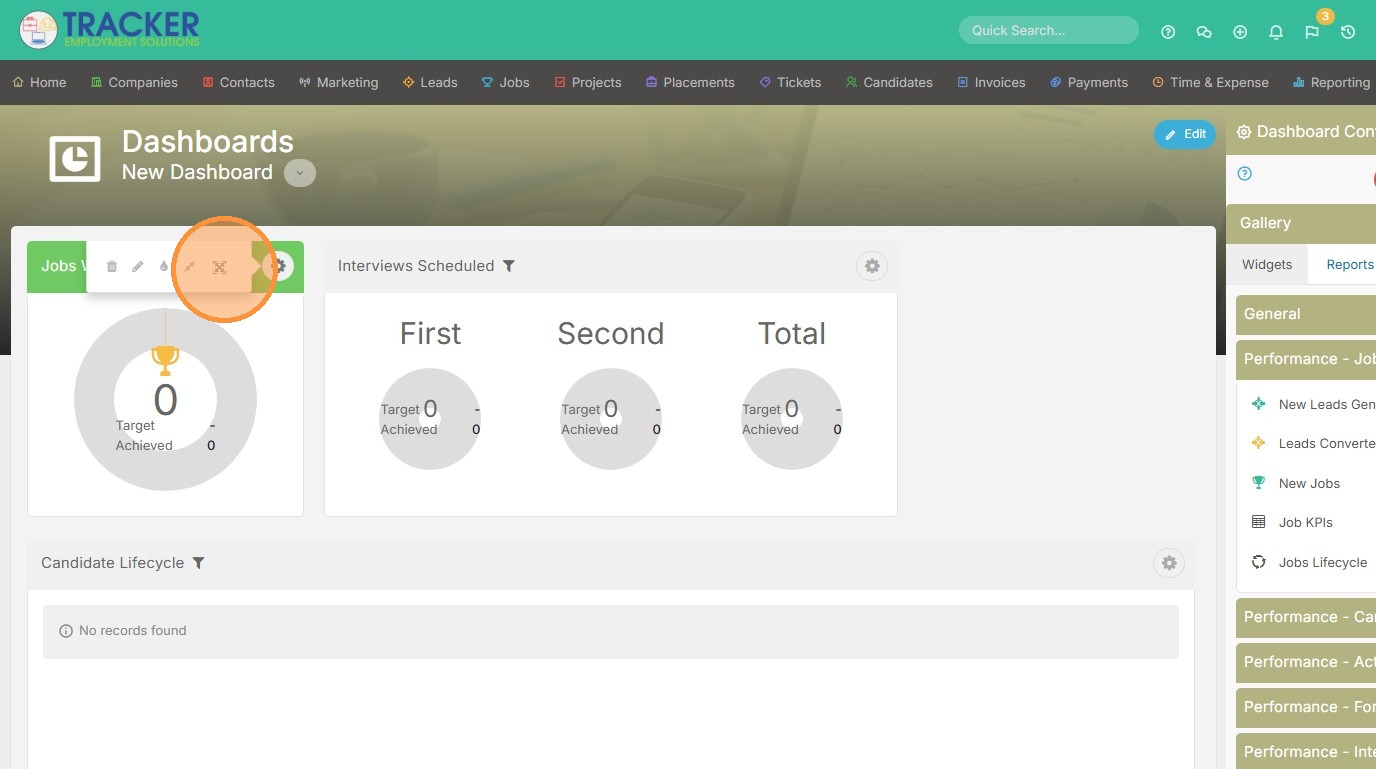
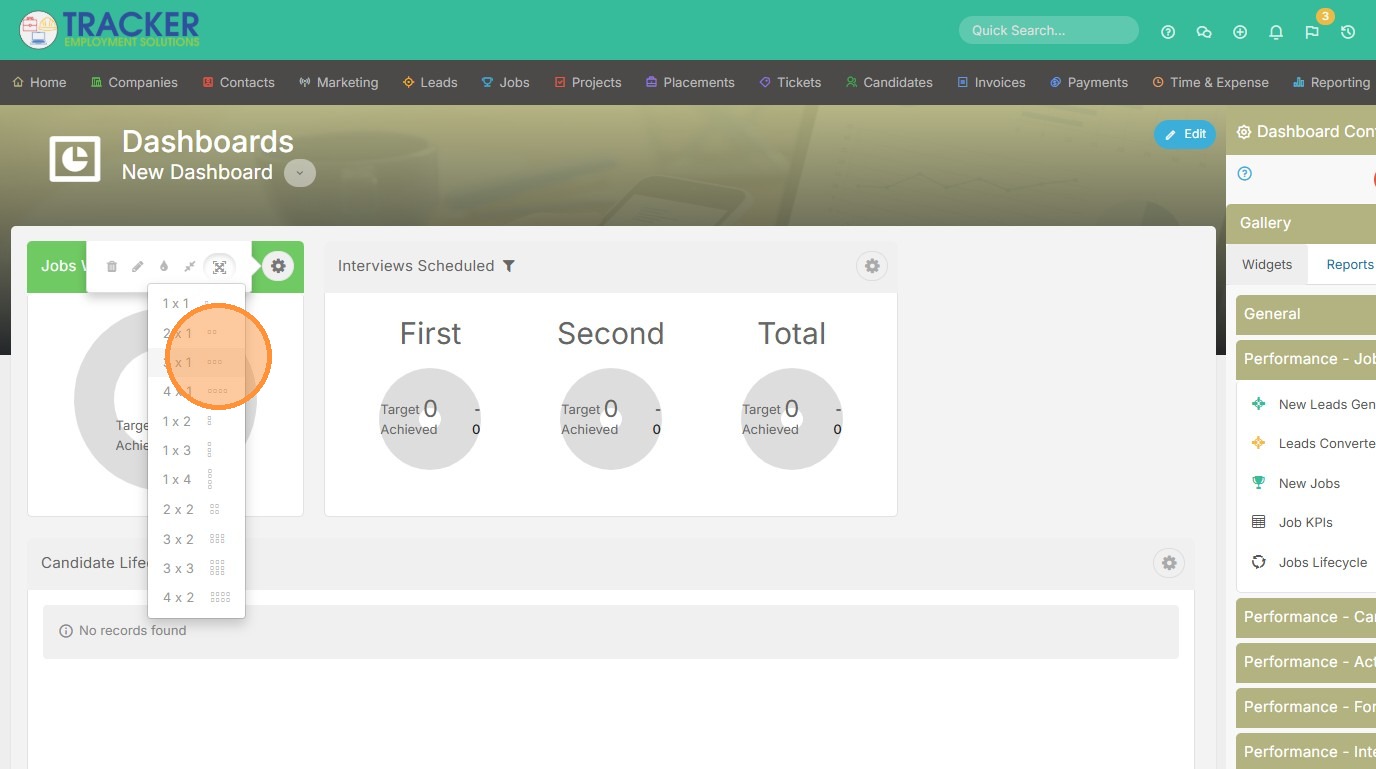
22. Next, you can also change the size (very helpful for Reports or Saved List Views that you add to dashboards).
23. Pick a size.
24. Voila.
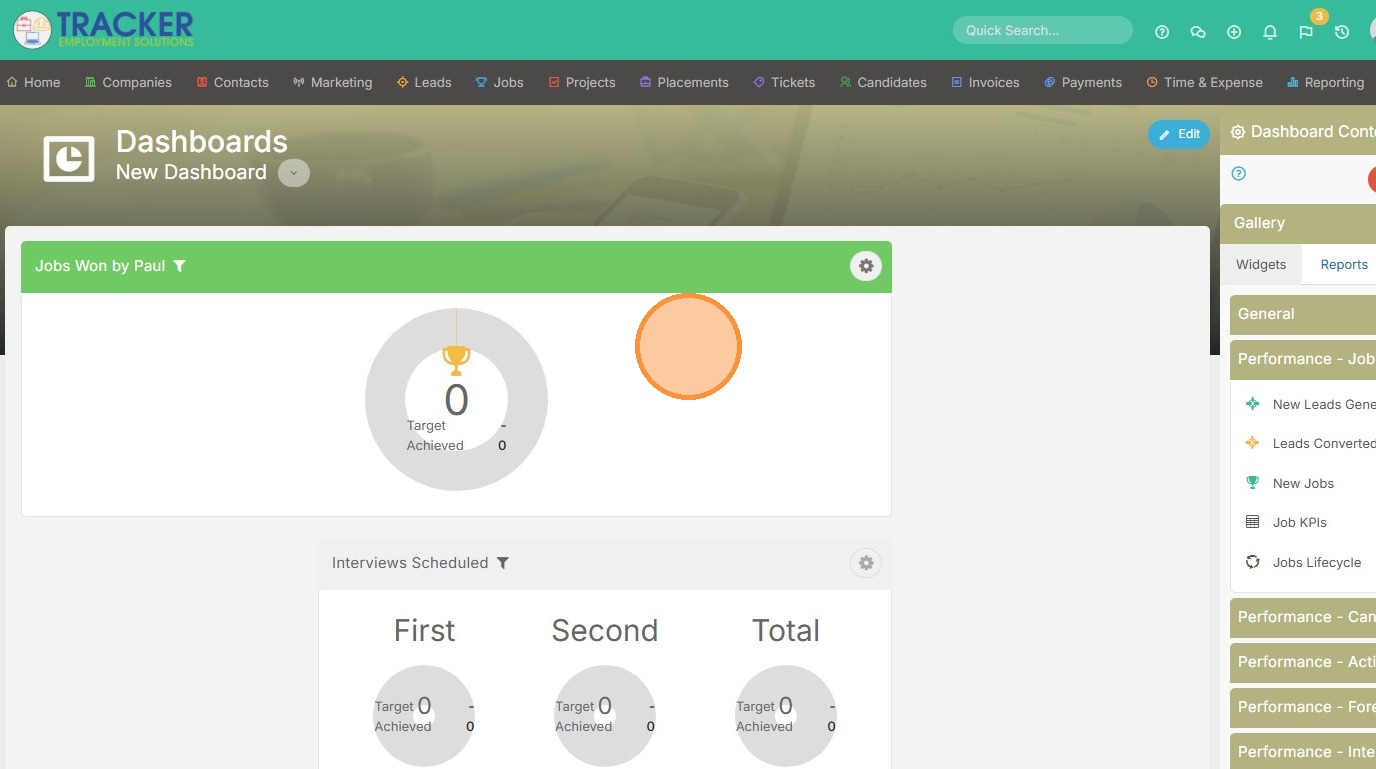
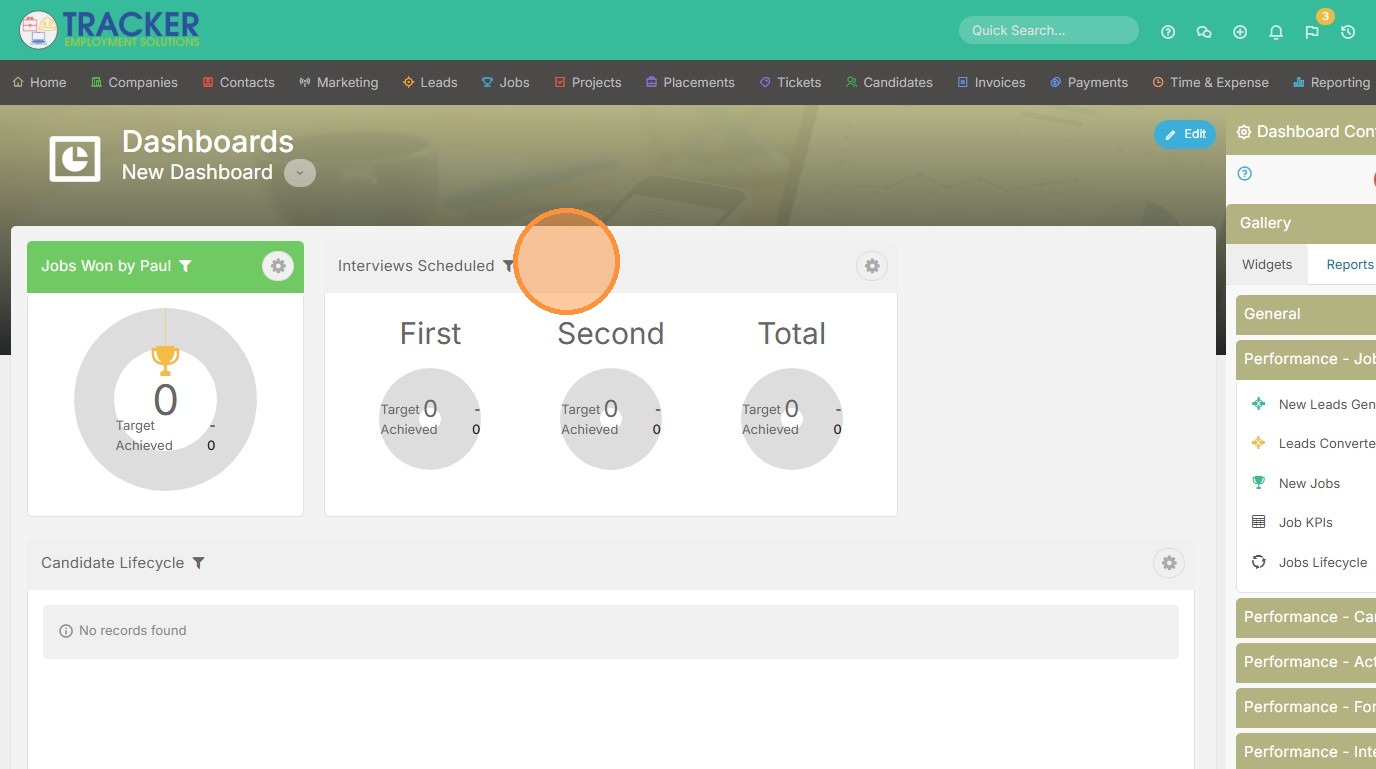
25. To move items around, just click the top / title area and drag the widget.
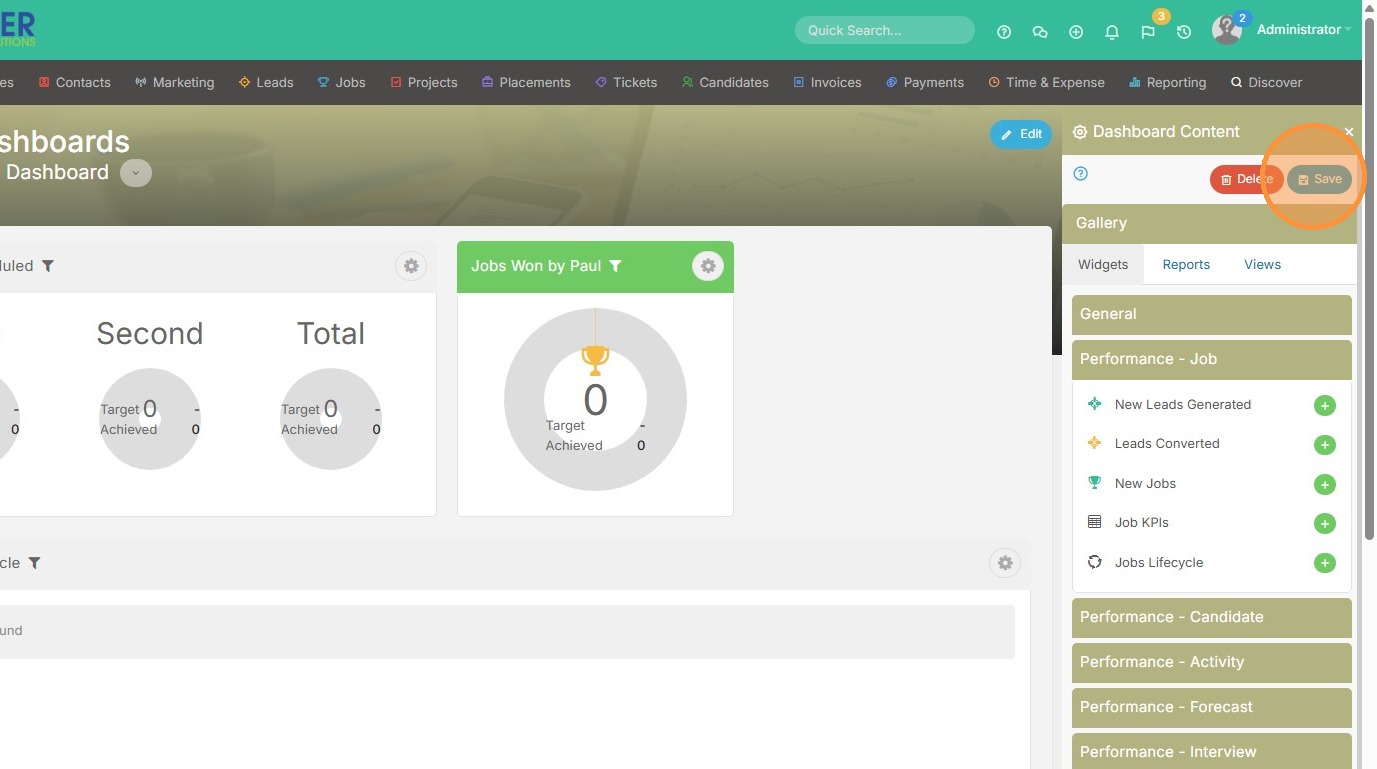
26. Then, click the blue save button to complete your work.
27. Here you can name the dashboard.
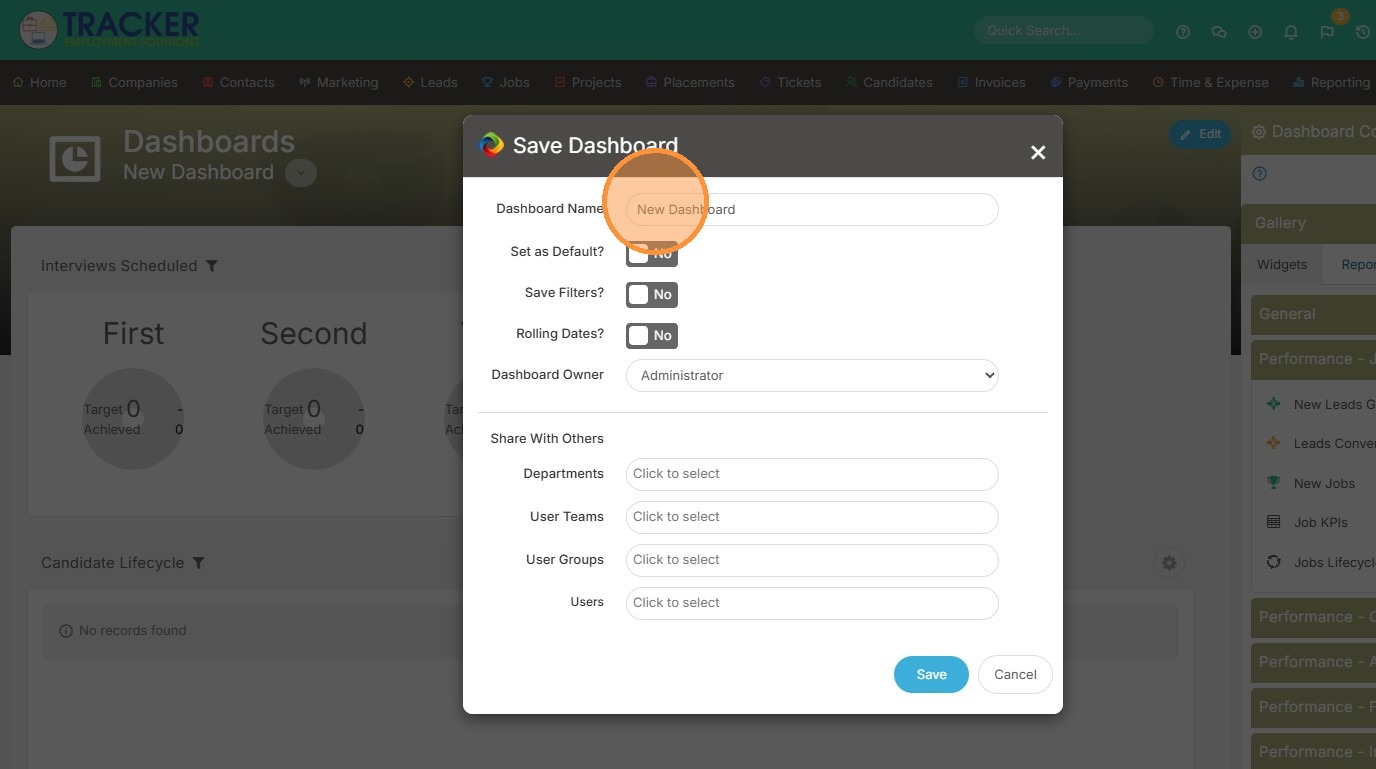
28. You can set it as a Default Dashboard, so any time you login to Tracker it's the first thing you see.
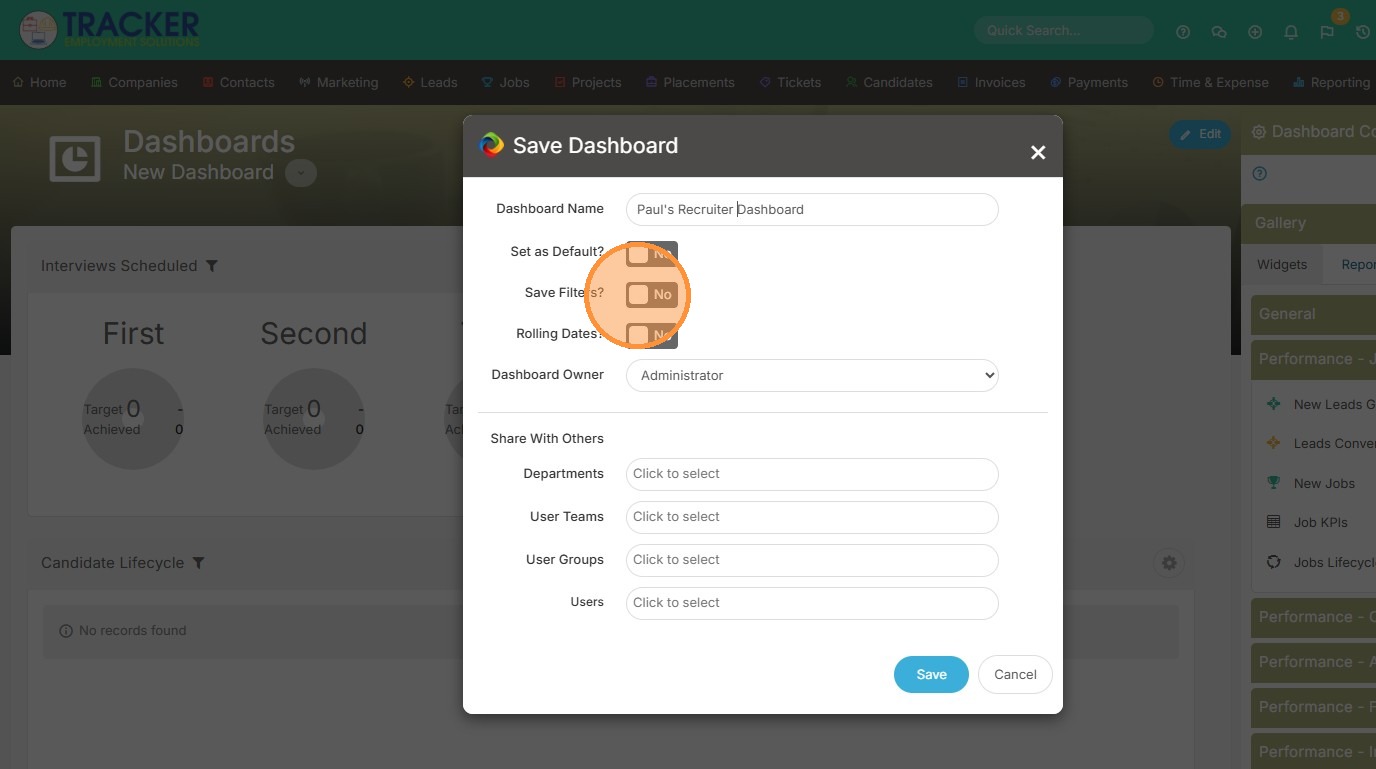
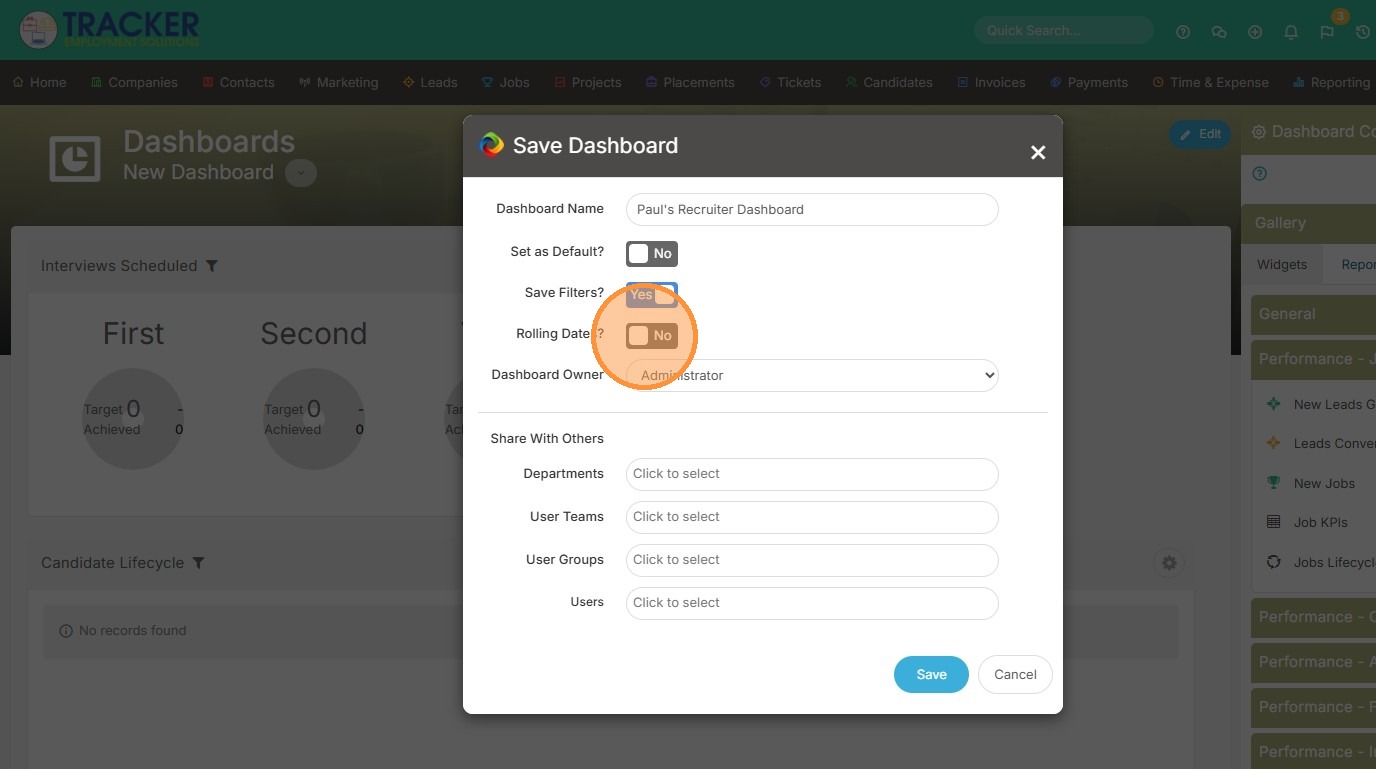
29. You will want to save your Filters, and Rolling Dates will make it so you never have to edit the date range in the dashboard. For example, if this month is March, and April comes around, it will automatically show April's new data.
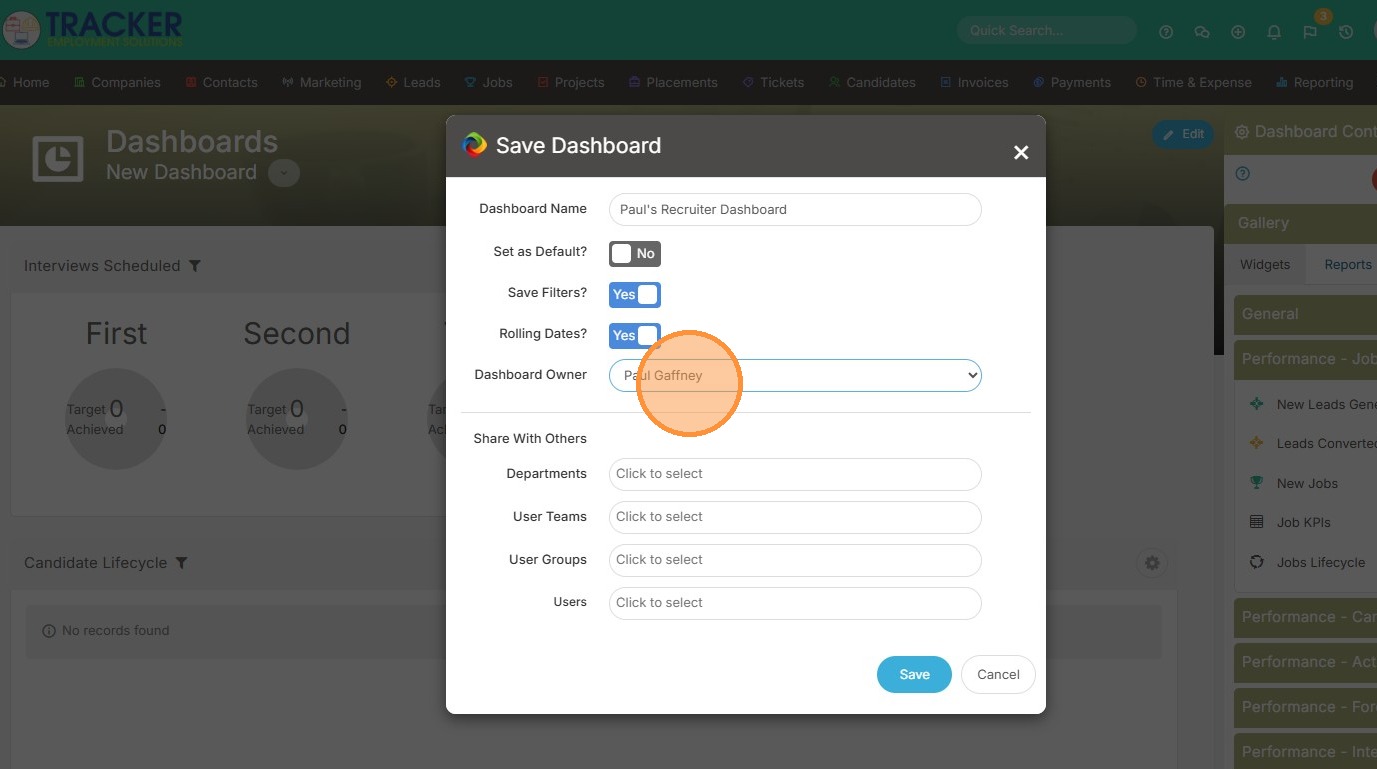
30. You can change the Dashboard Owner to someone else, so they can make edits.
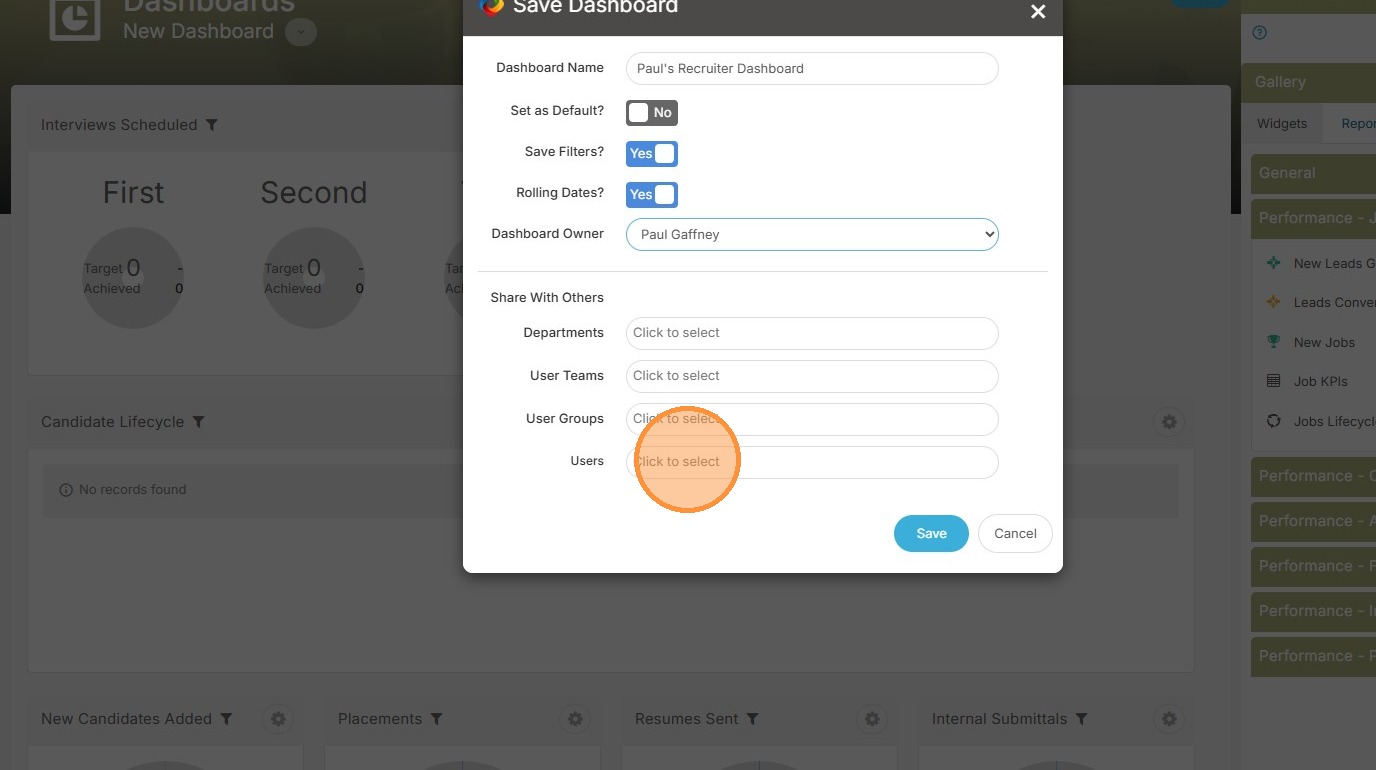
31. You can also share the dashboard with other departments/user teams/user groups or a specific user. These users won't be able to edit the dashboard, just view.
32. Click "My Dashboards" to view the new dashboard any time.
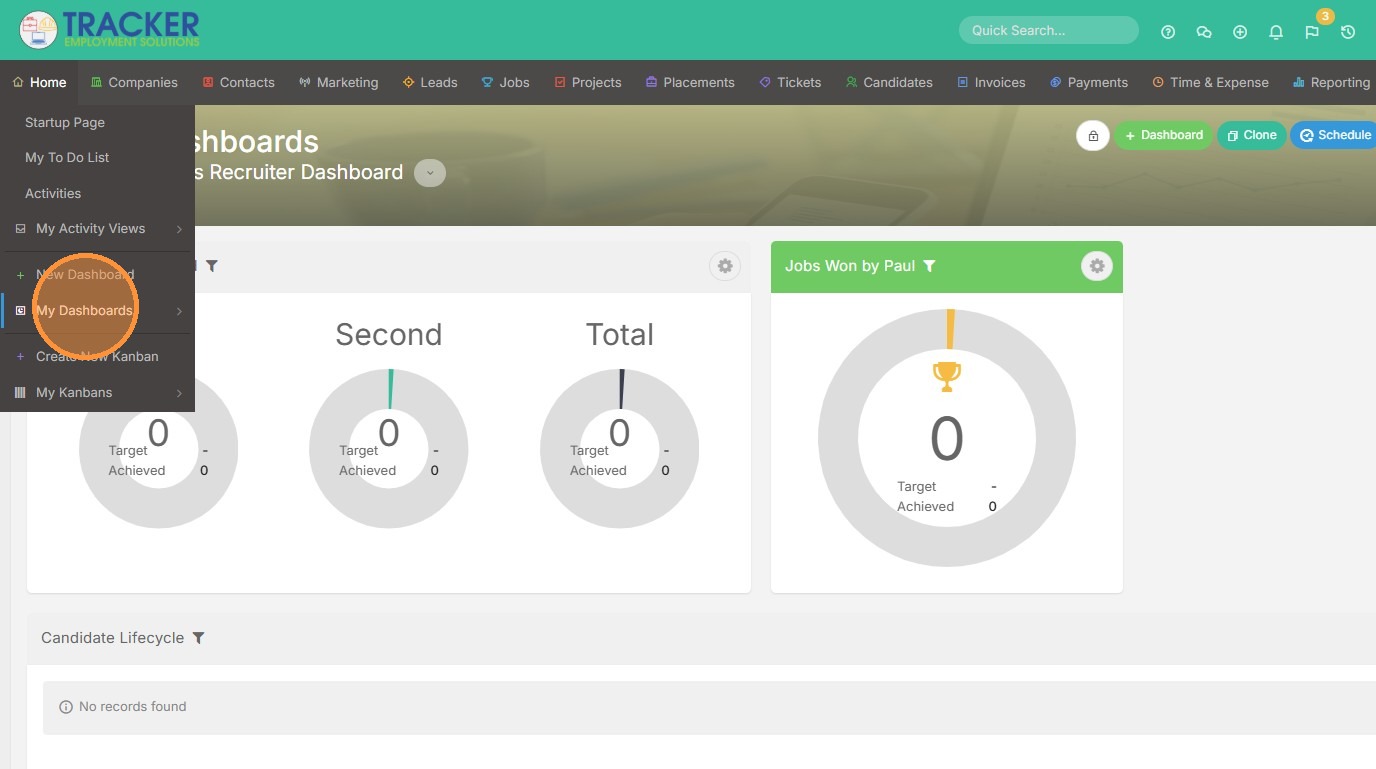
33. Click "Paul's Recruiter Dashboard"