1. Open up the candidates list view. Here you can filter by certain types of candidates that you want to assign to a specific job.

2. Then you can check all the candidates off or select one by one using the white check boxes.

3. Click "Action"

4. Click "Assign to Job"

5. Right now this is going to display all my jobs that I am the owner of.

6. For example.

7. I can toggle this to show ALL jobs in the system, owned by everyone. (You may not see this option depending on your user group privileges).

8. Click here
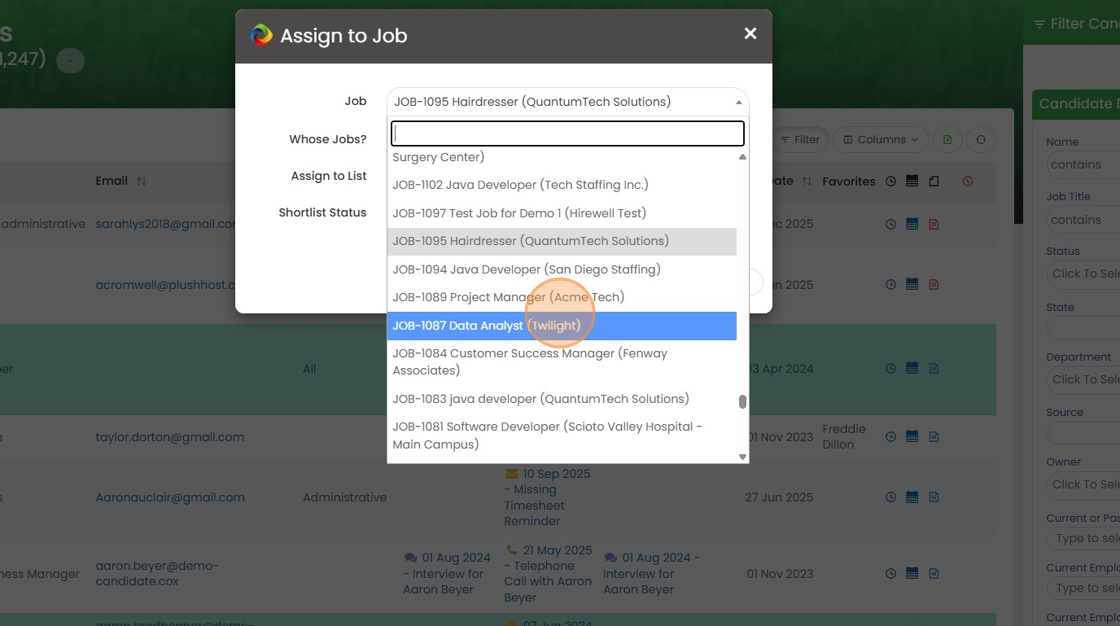
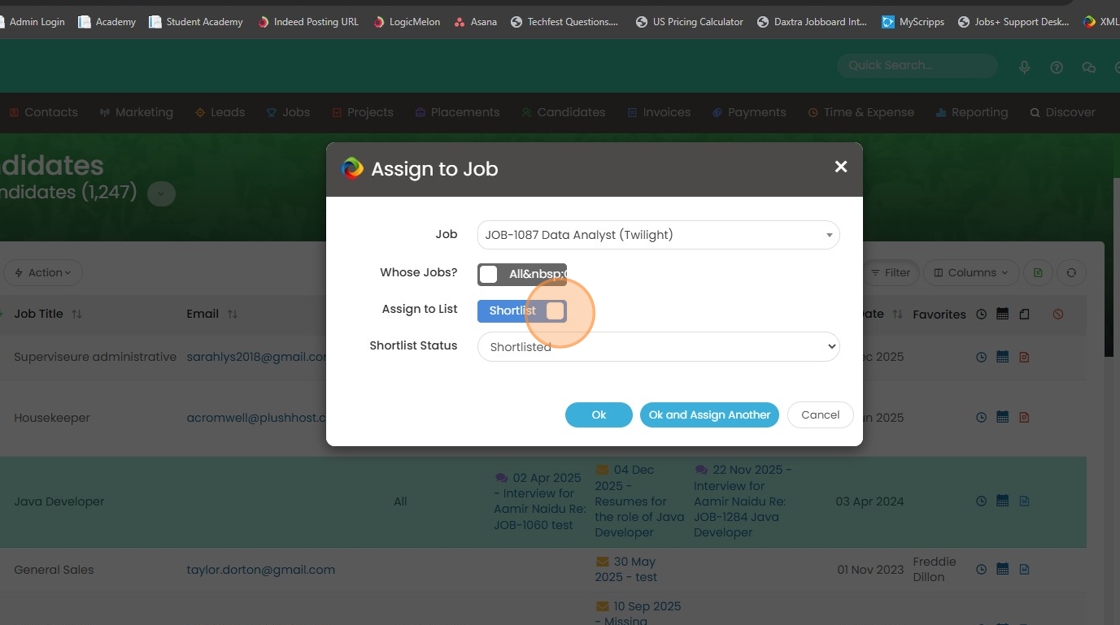
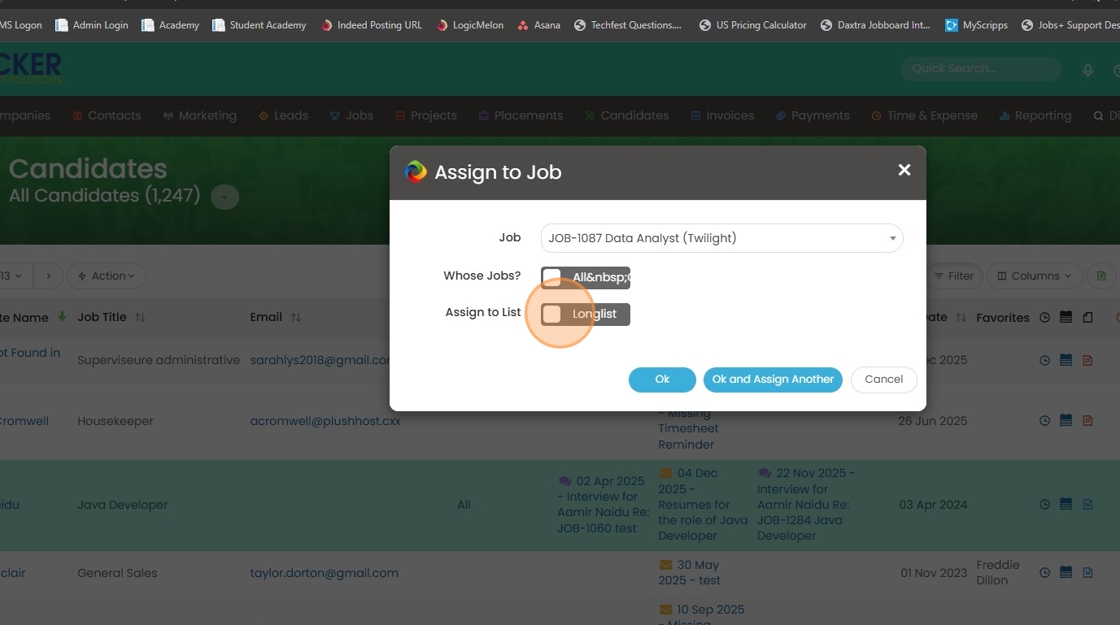
9. You can either Shortlist or Longlist these candidates by selecting this toggle.
10. You may want to Longlist them to vet them further.
11. If you choose to shortlist them you will need to select a shortlist status to put them into.

12. For example, Pre-Screen is an option in my database.

13. Click "Ok" to assign these 3 candidates to this job, in the Shortlist under the status "Pre-Screen".
