Report Selection
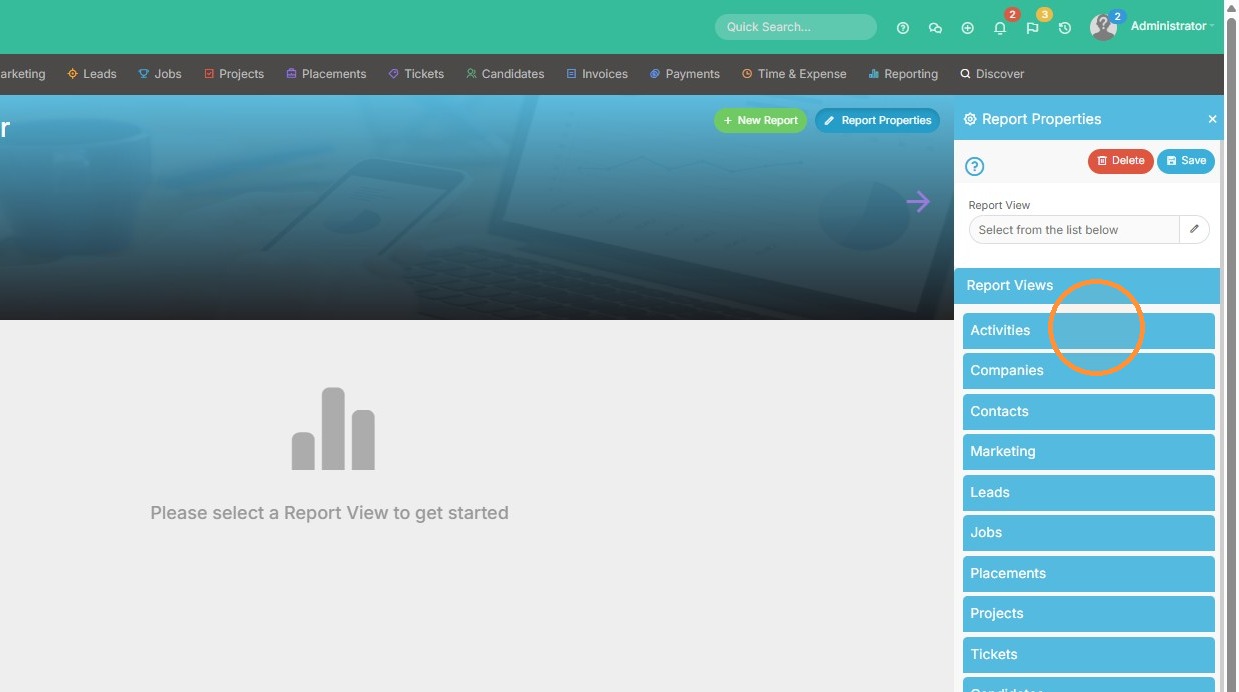
1. Click "Activities"
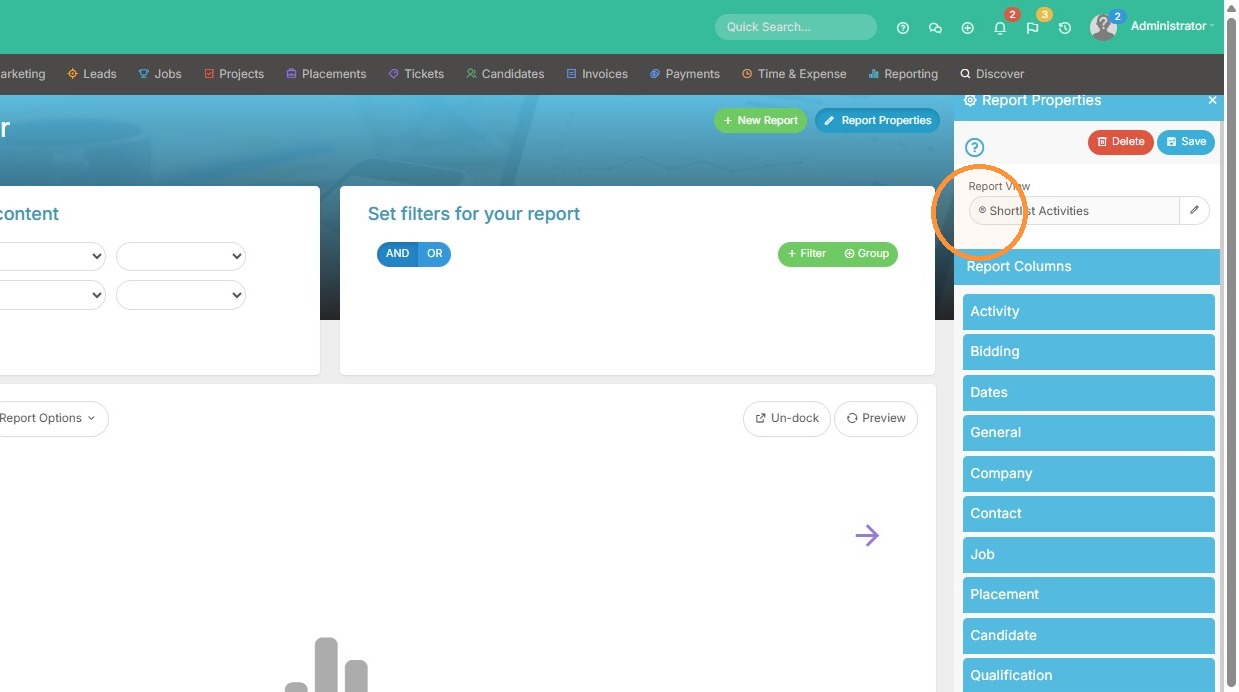
2. Select the "Shortlist Activities" report view.
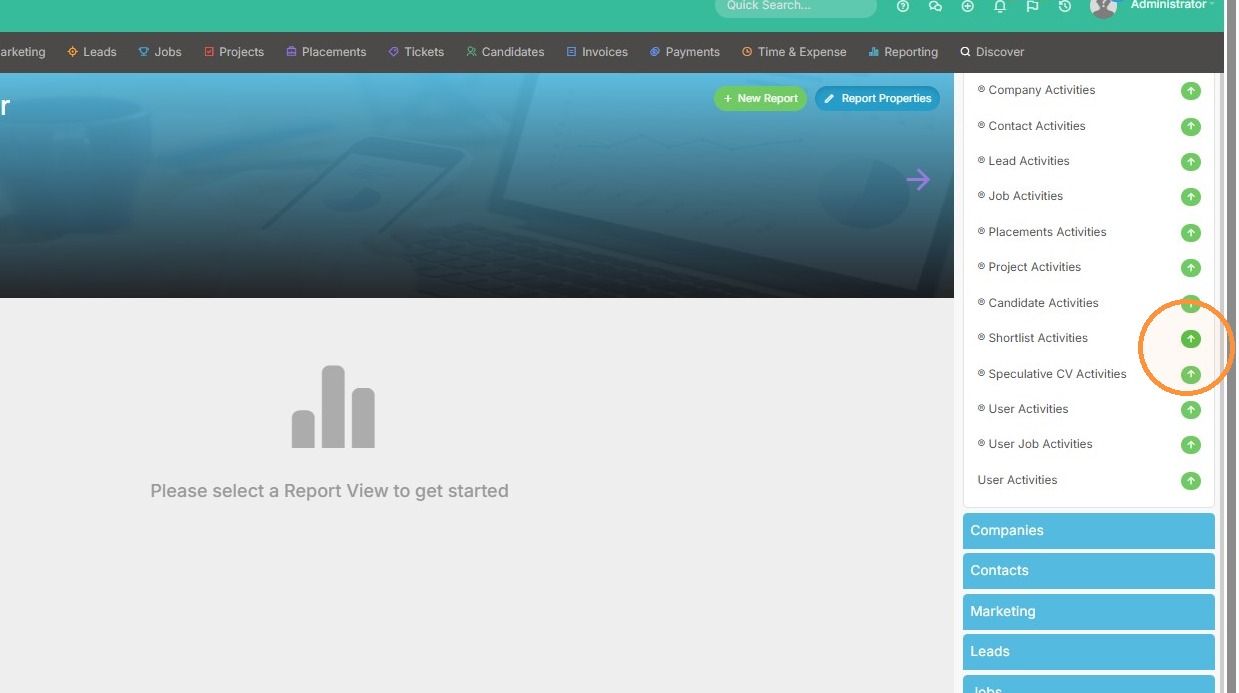
3. Keep in mind you should only ever be using the report views with the R in a circle in the front of the name.
Column Configuration
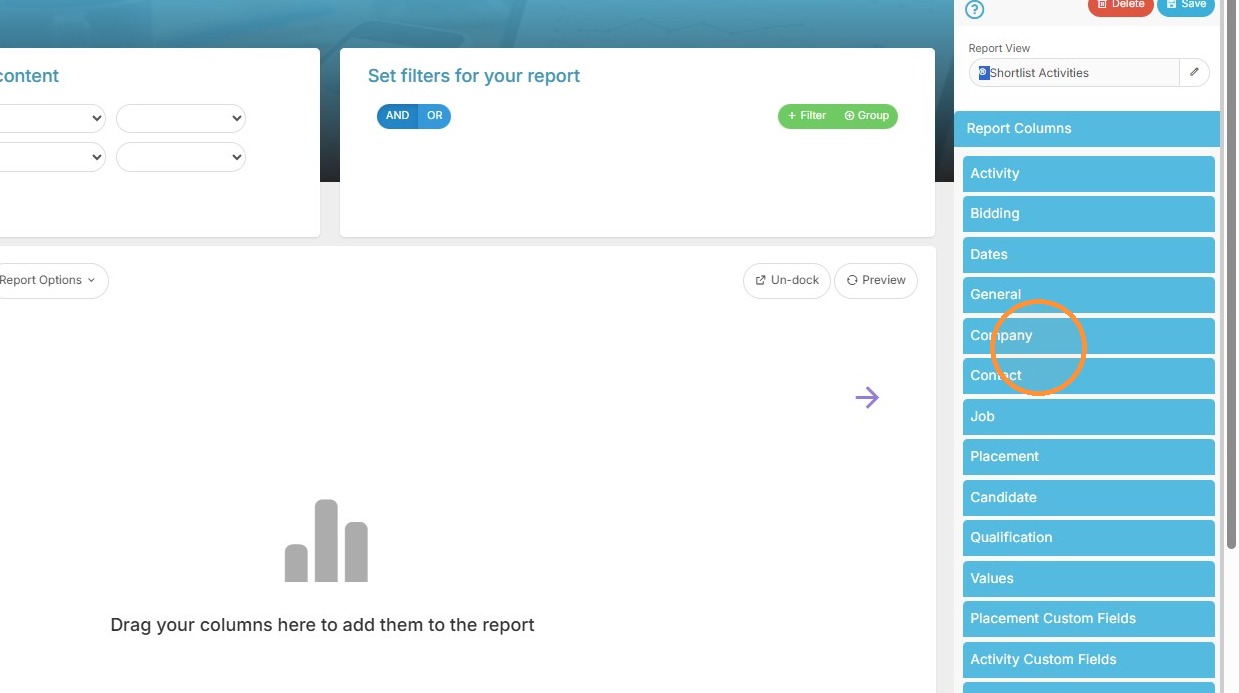
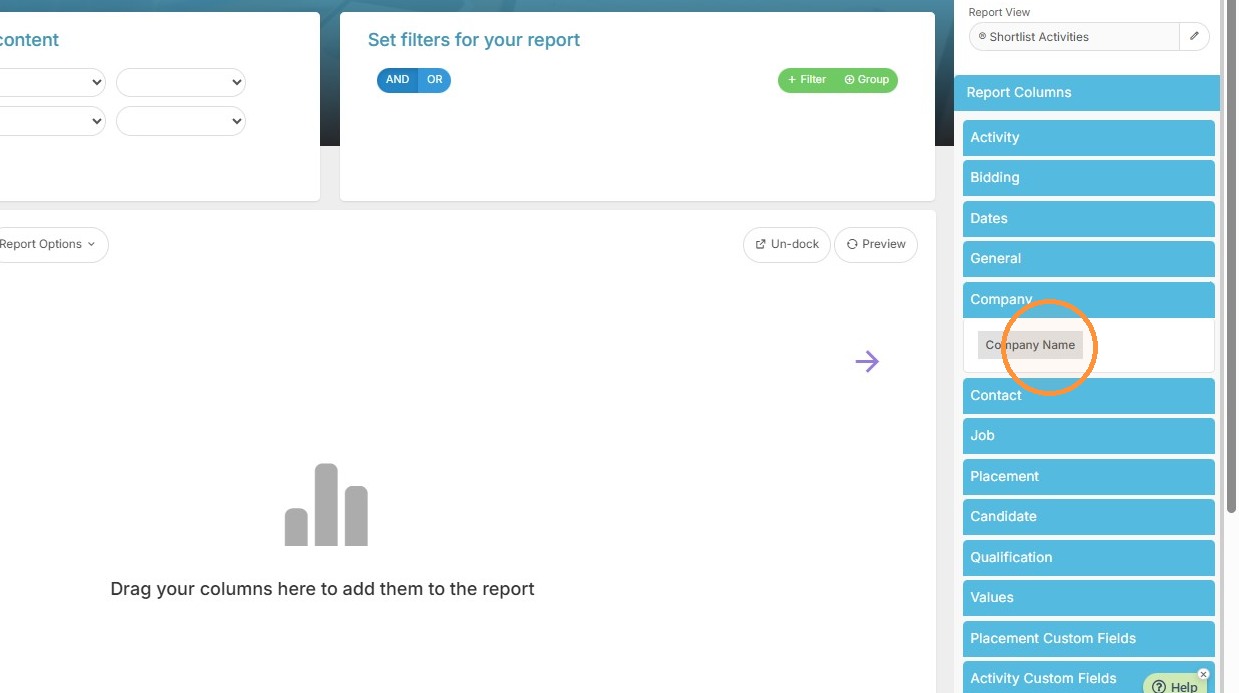
4. Add "Company Name" column to the report.
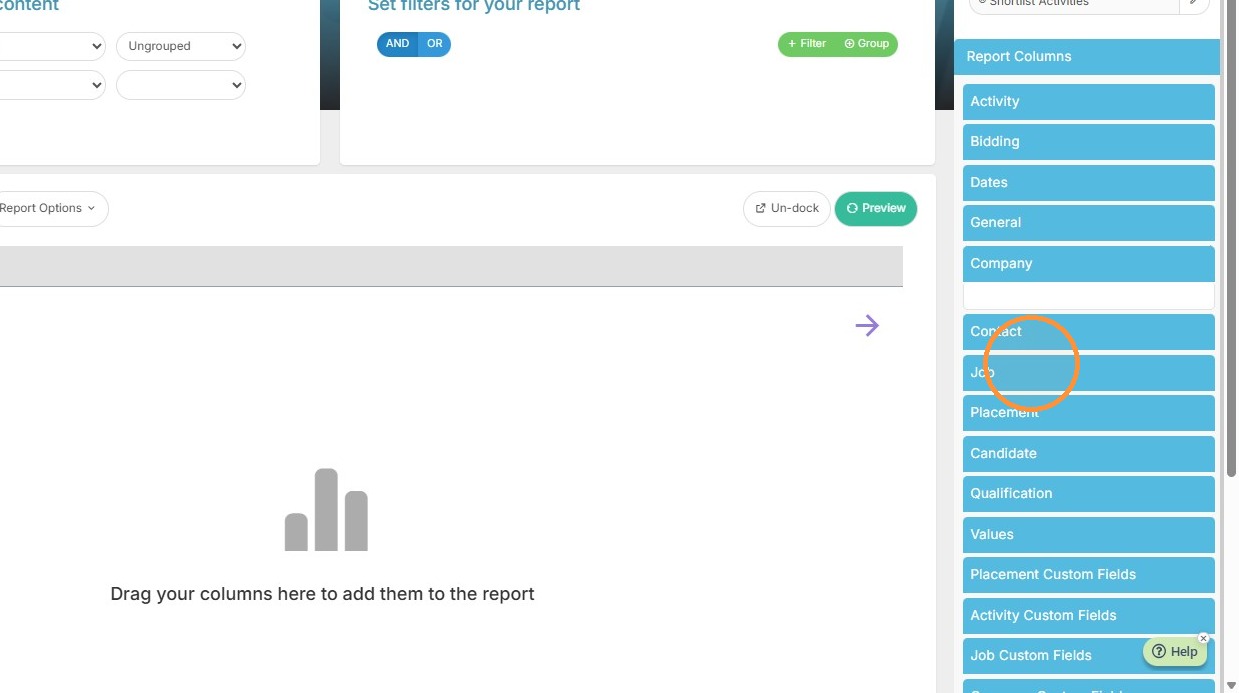
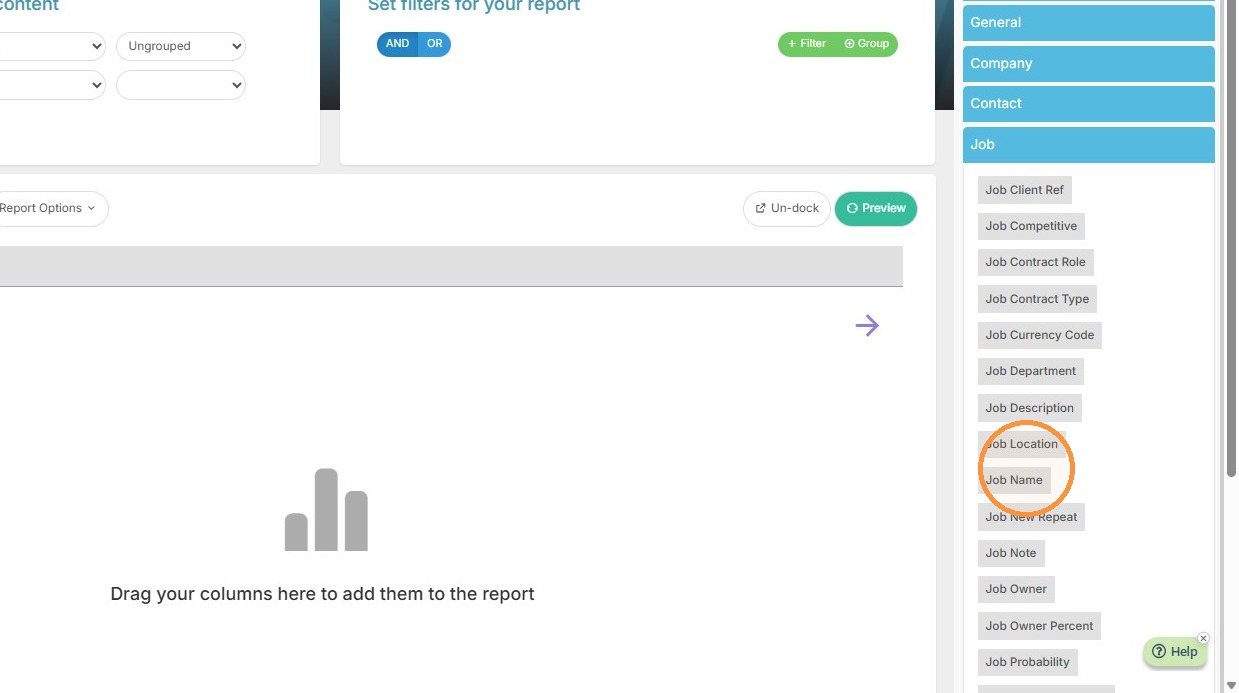
5. Add "Job Name" column to the report.
6. Add "Contact Name" and "Contact Email" columns.
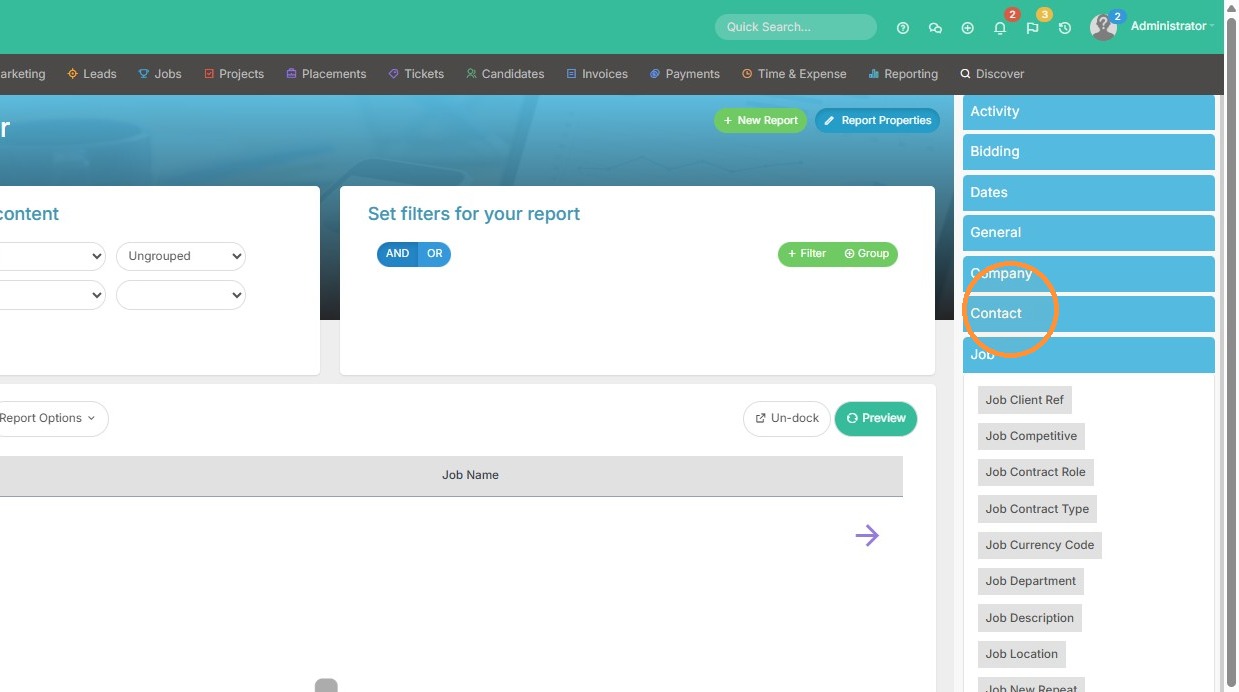
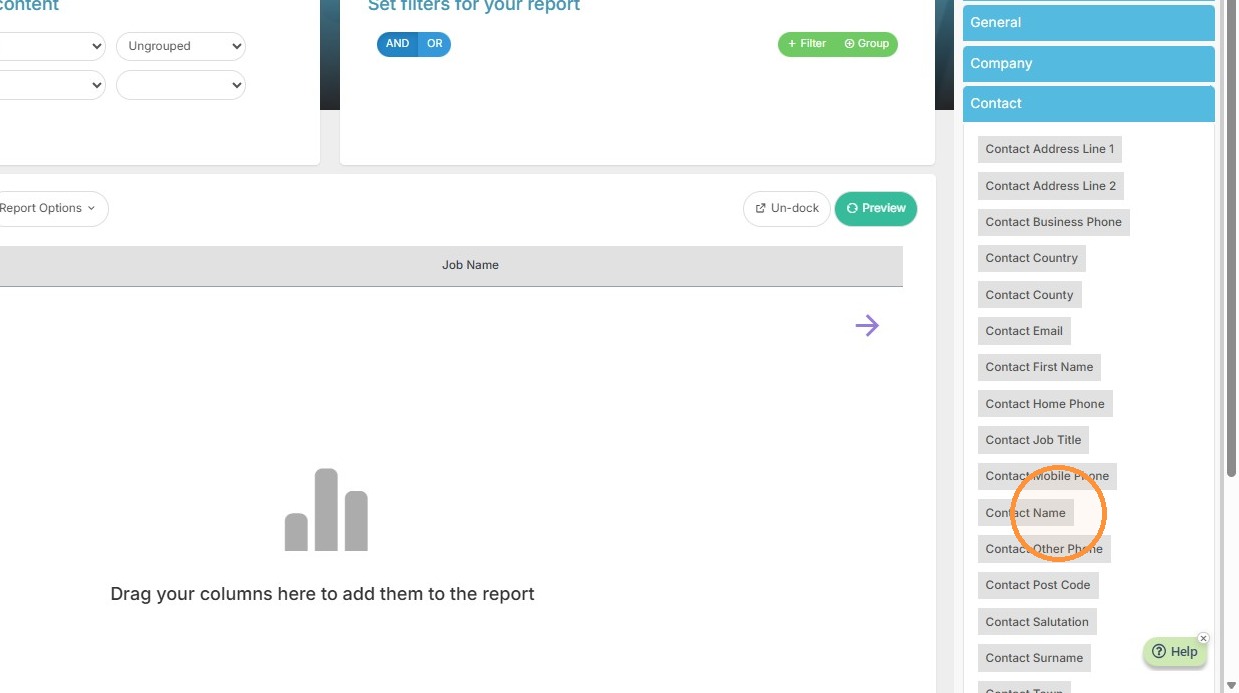
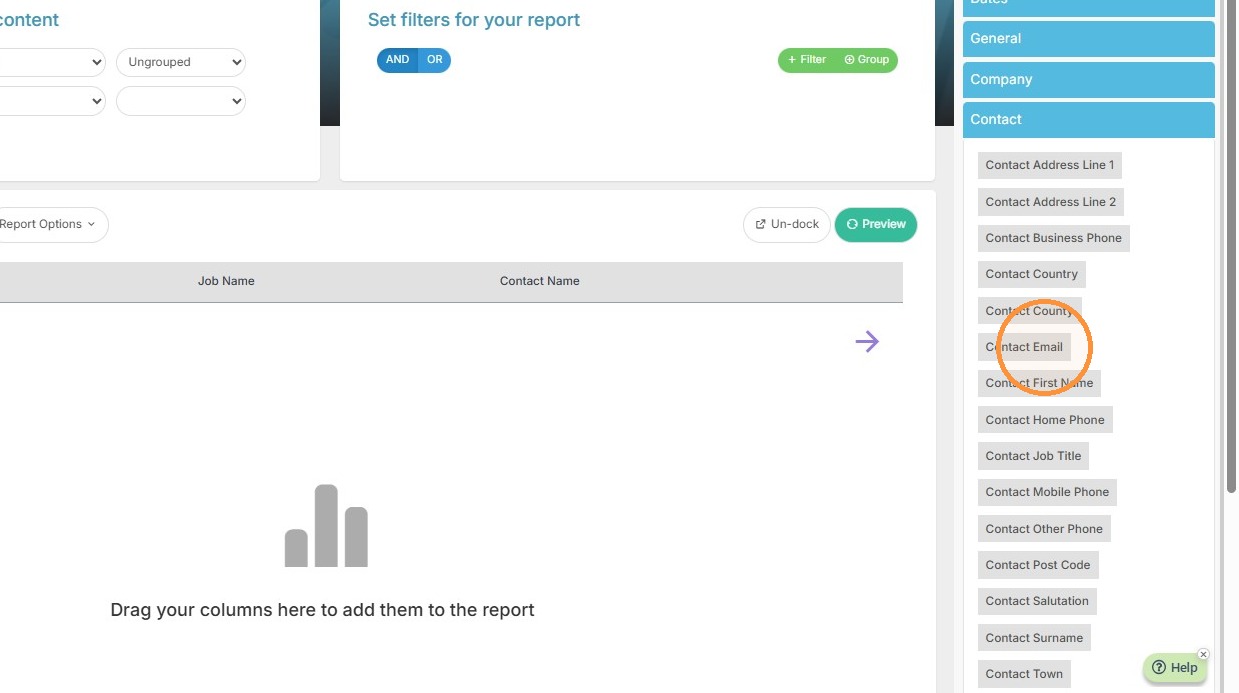
7. Add "Candidate Name" column to the report.
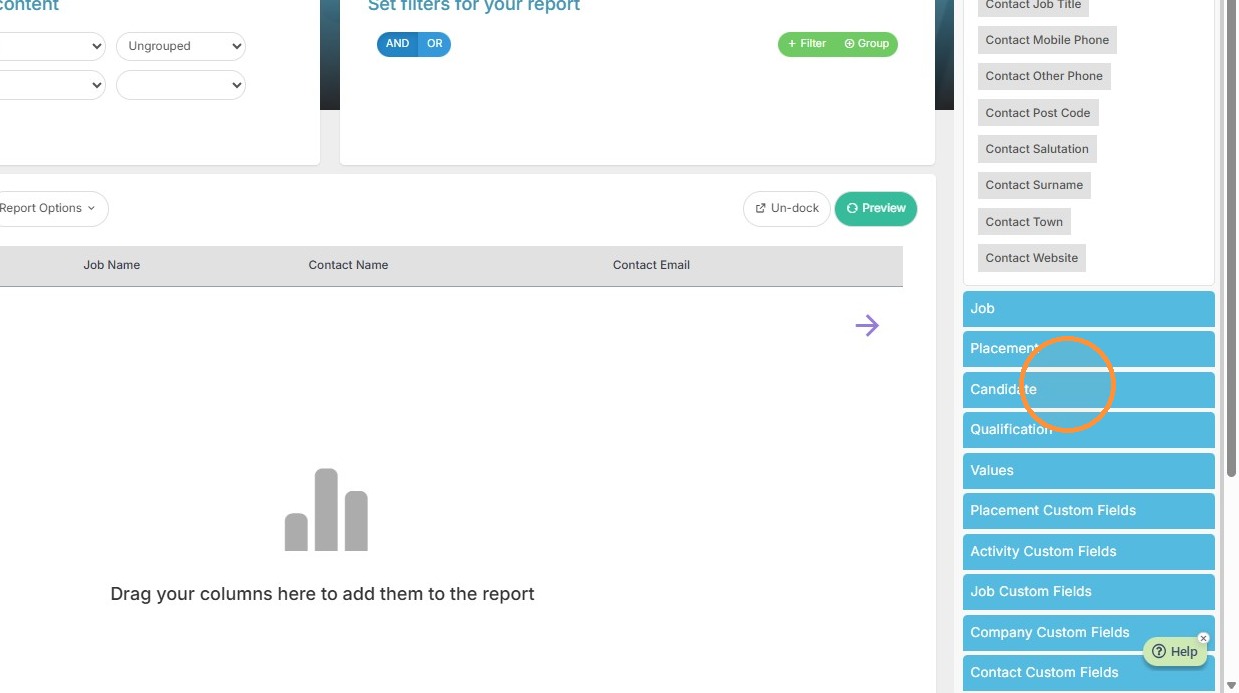
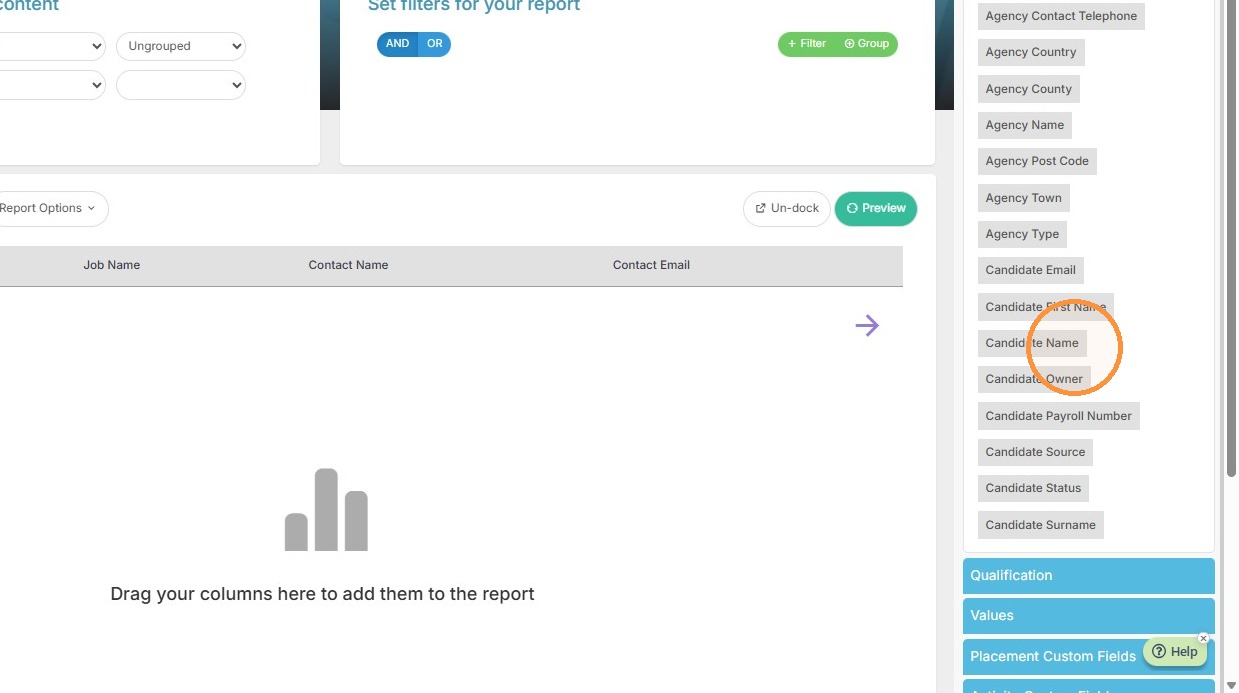
8. Expand the "General" column category.
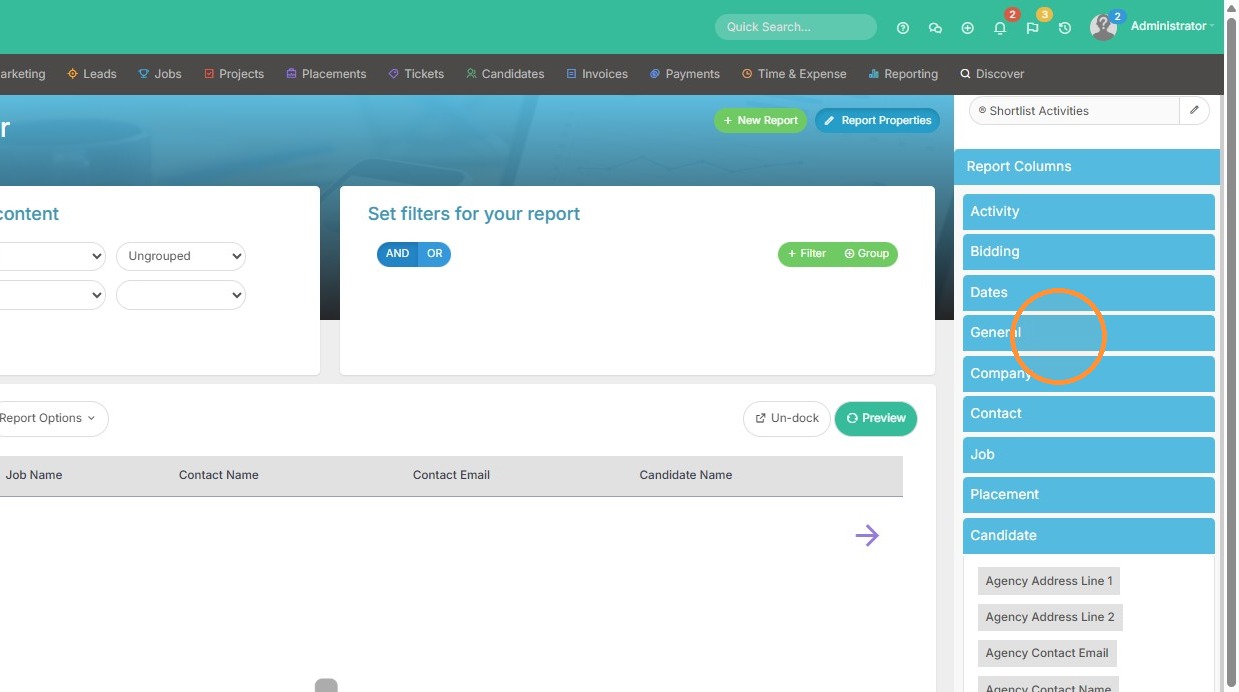
9. Add "[Counter]" to the report columns. This will show you totals in the report.
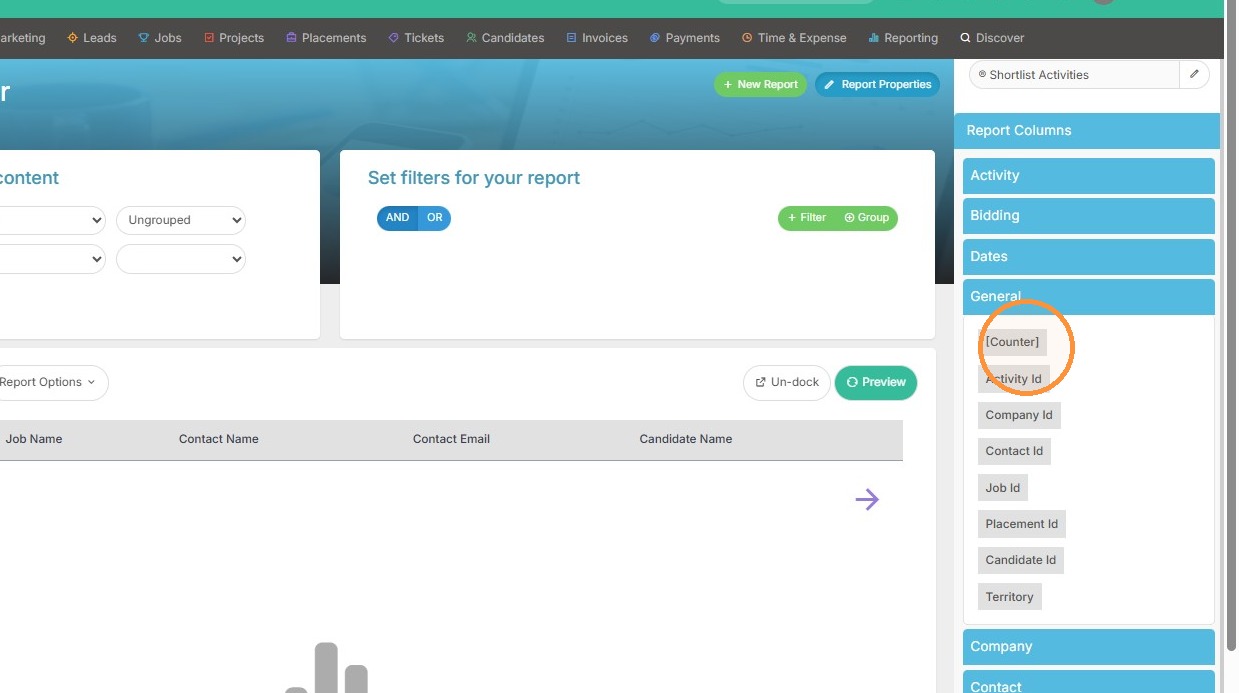
Filter Configuration
10. Filter report by Activity Due Date for "This Month" (or whatever timeframe you wish).
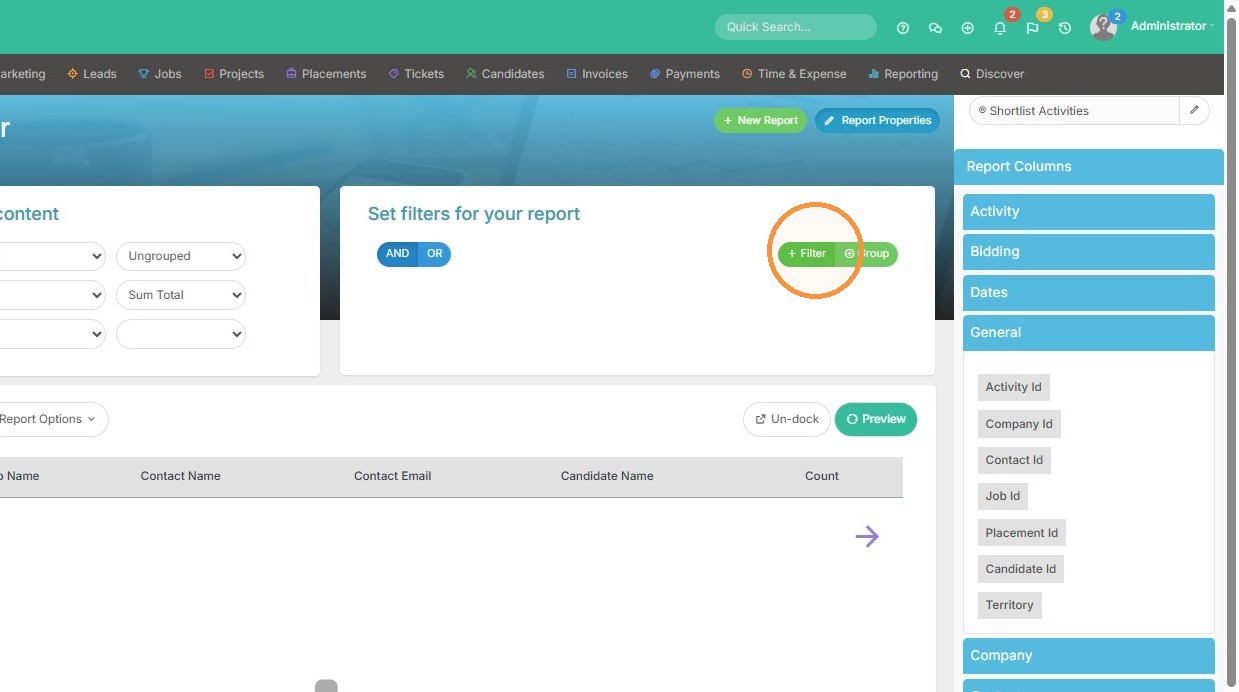
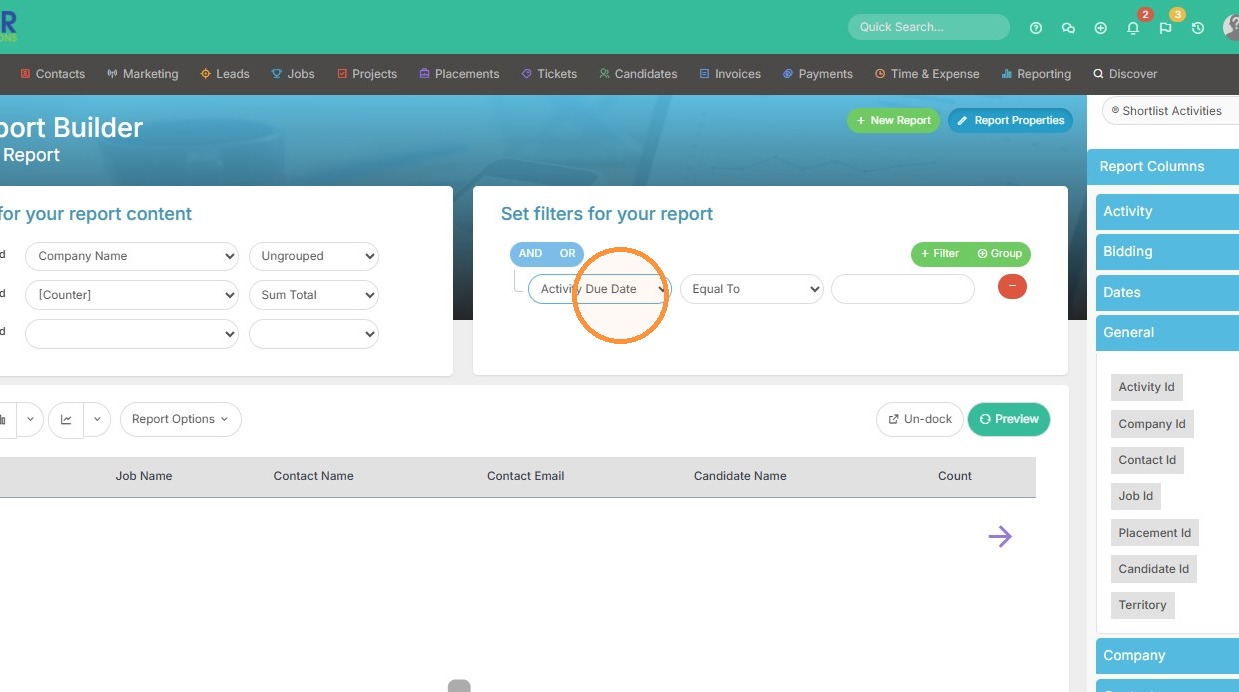
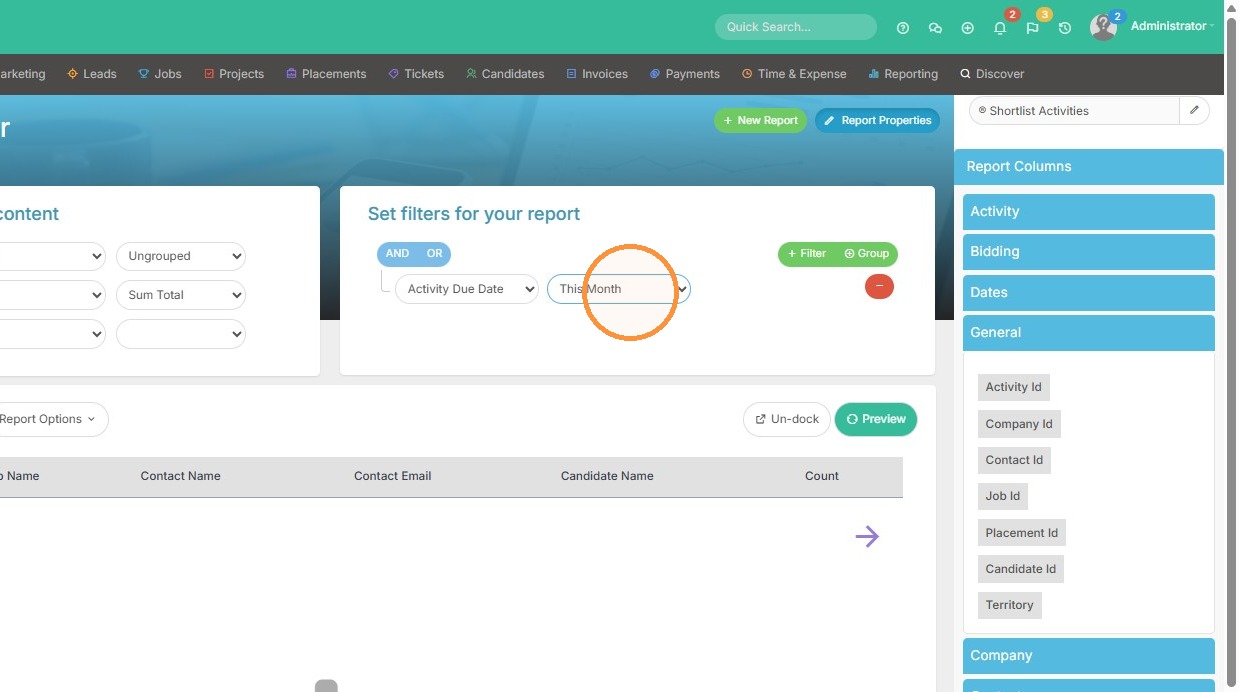
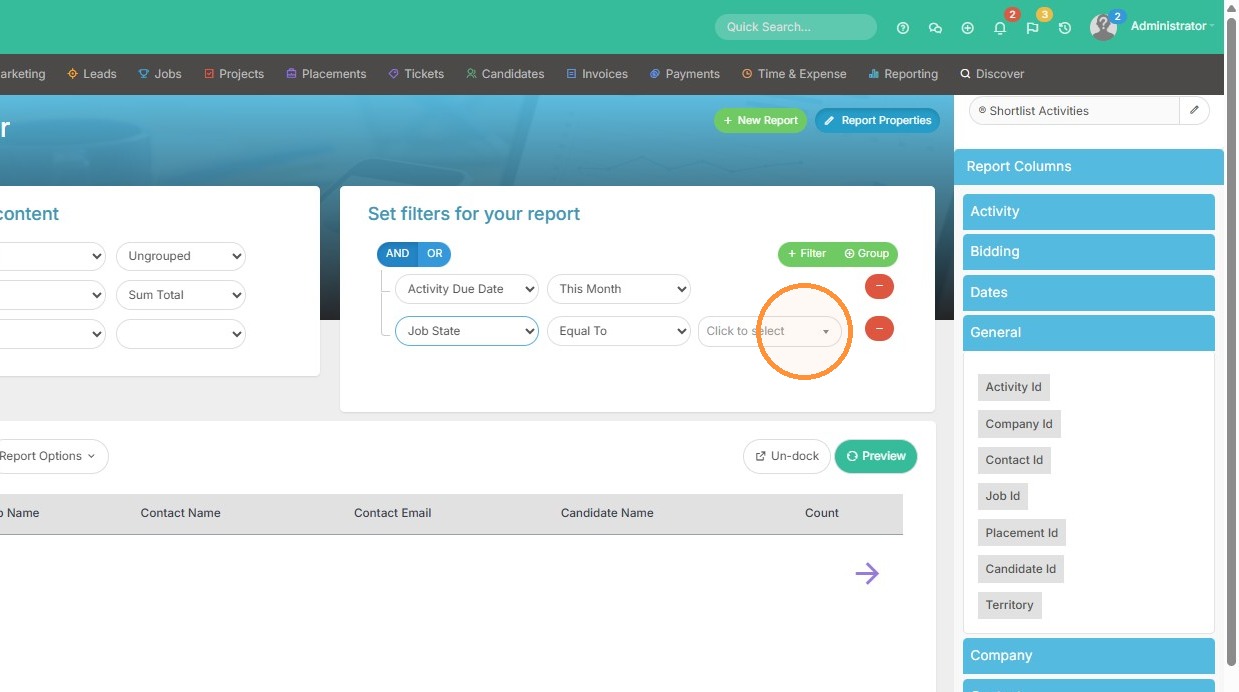
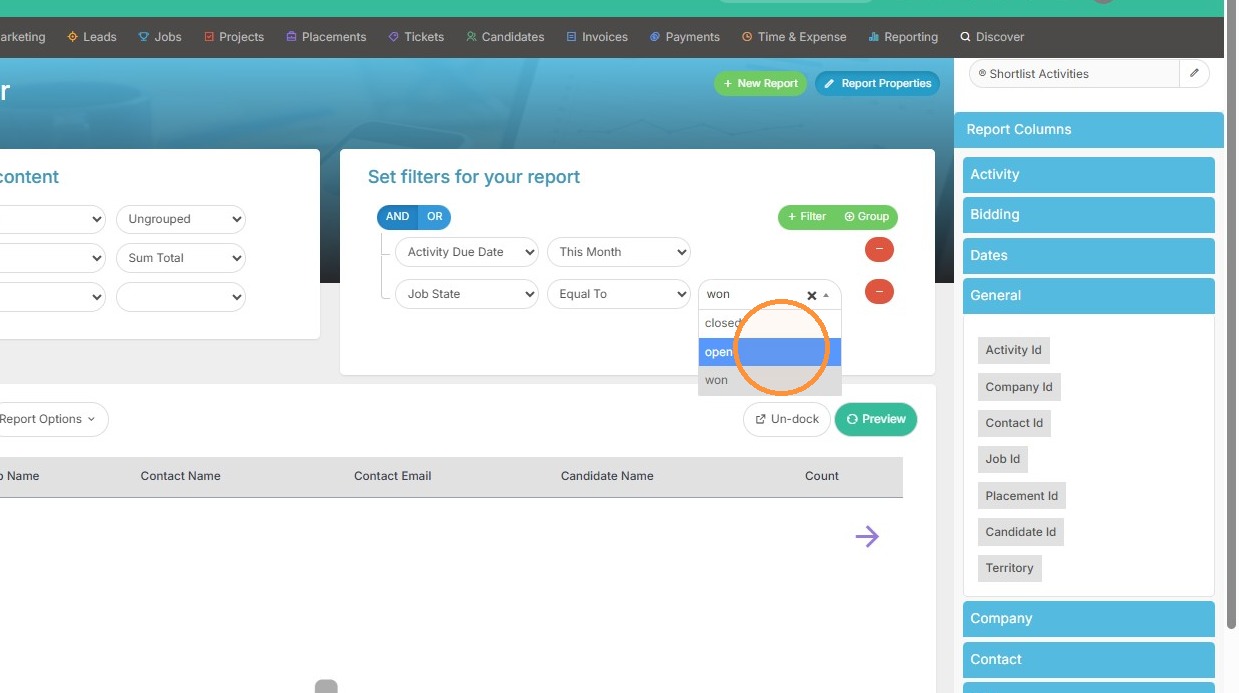
11. Add filter for "open" Job State, as we only want to see the number of client submittals for the jobs we have open in this example.
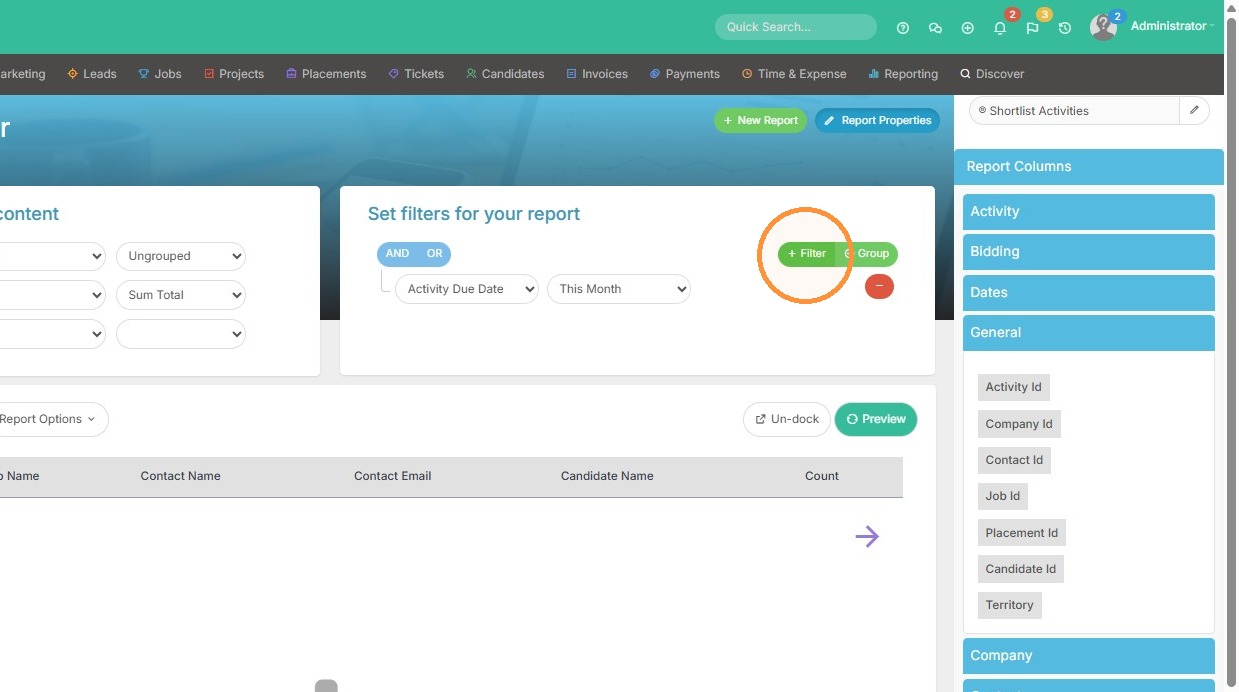
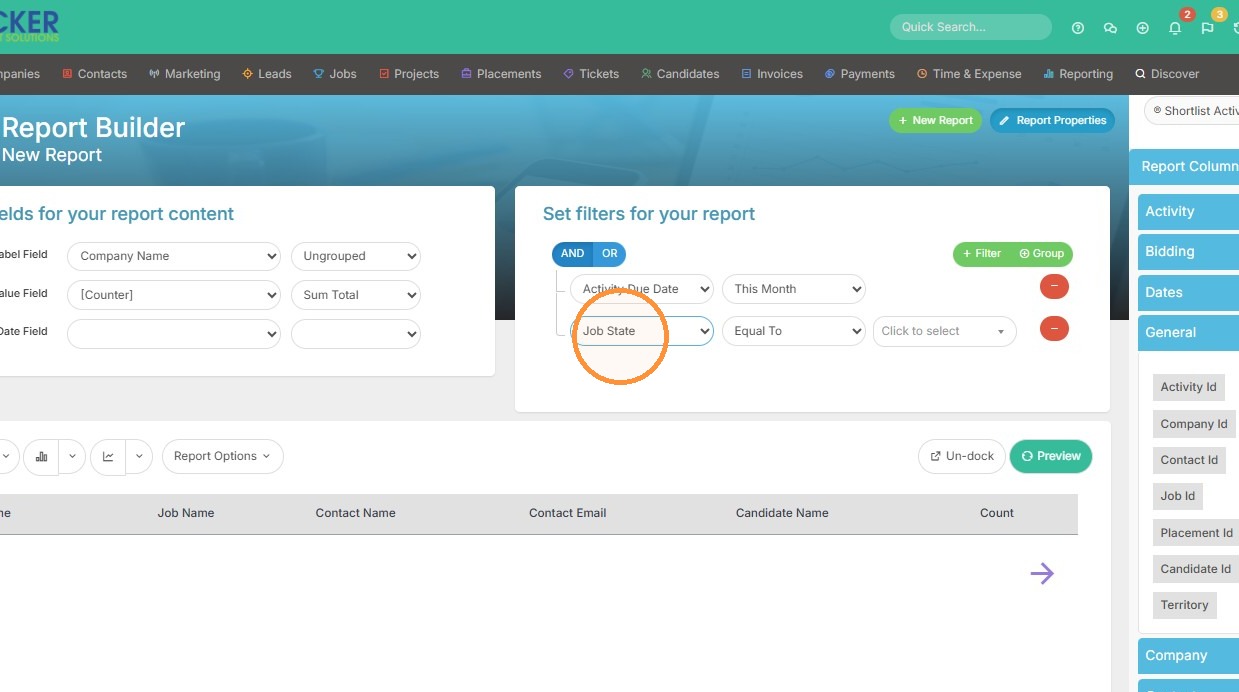
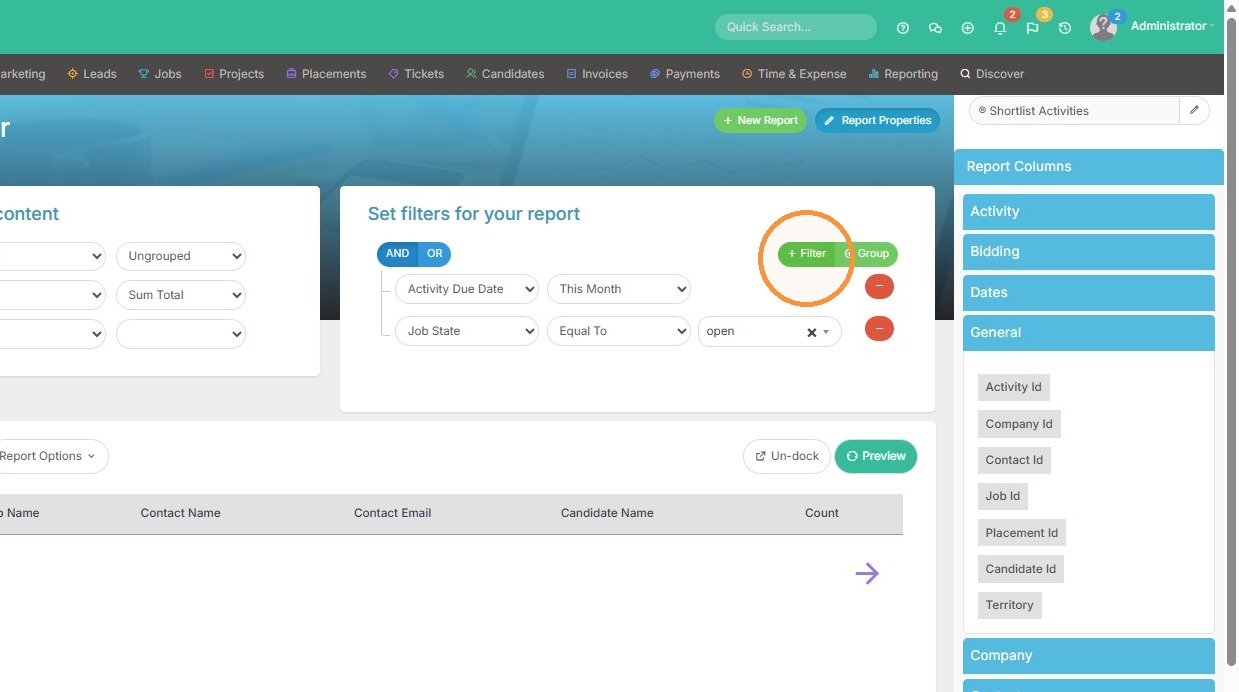
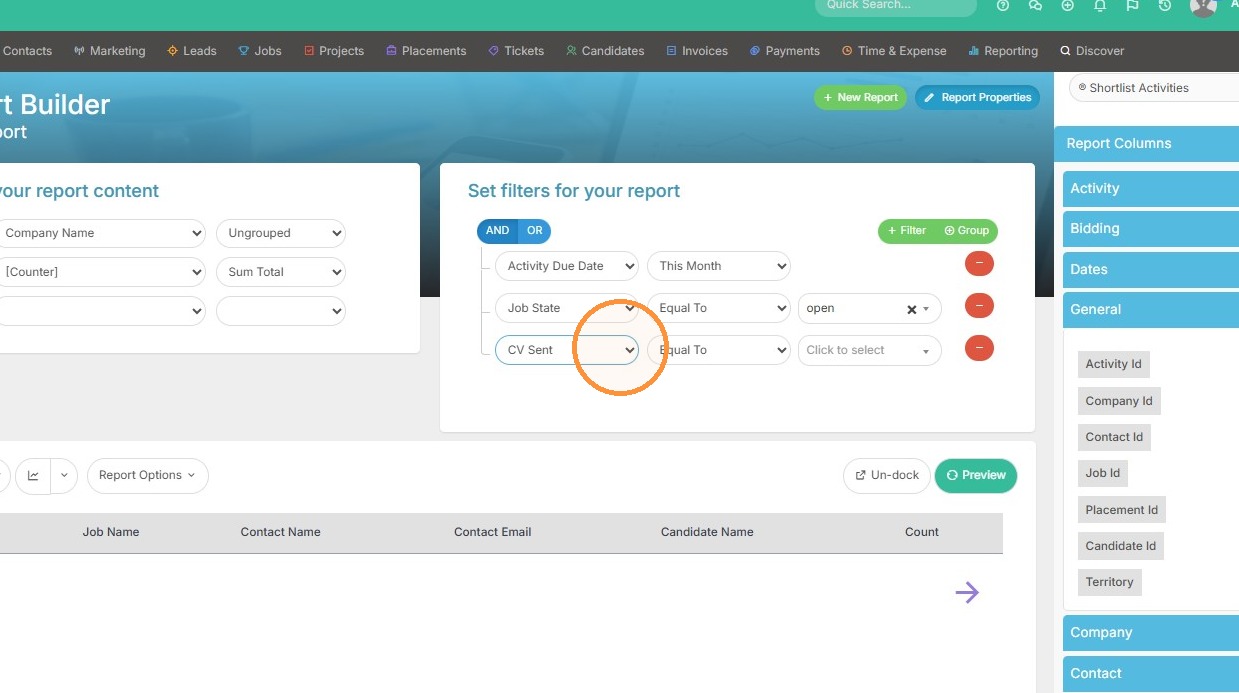
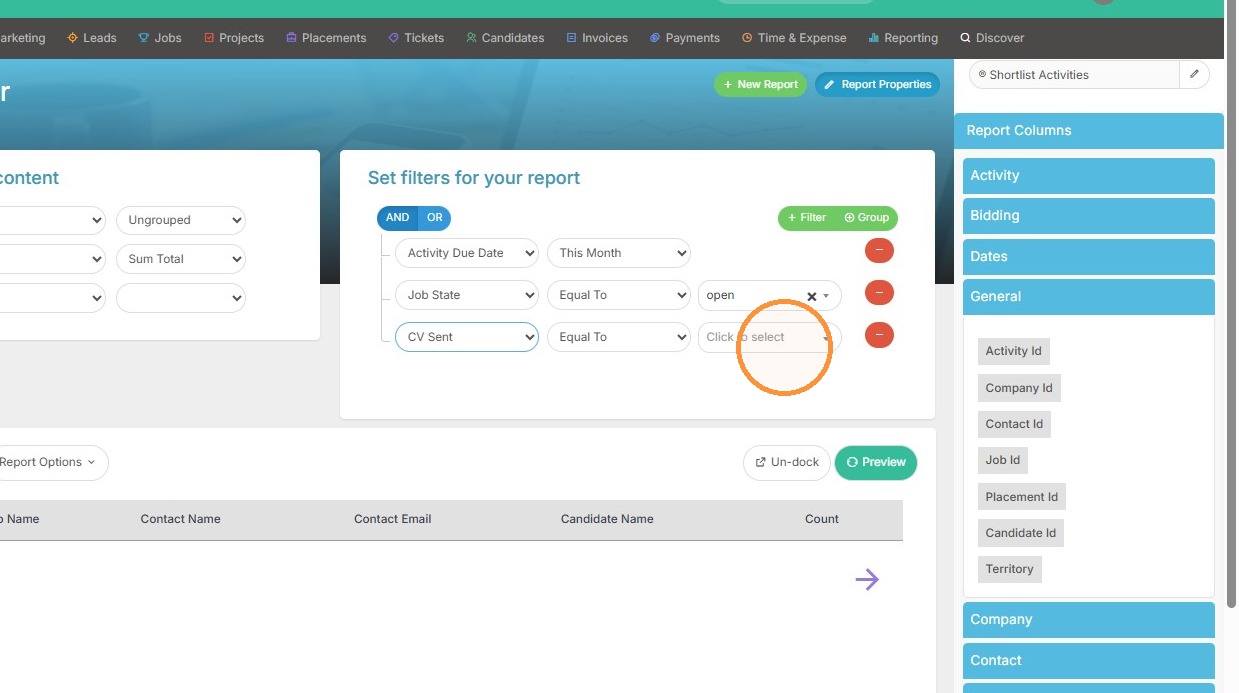
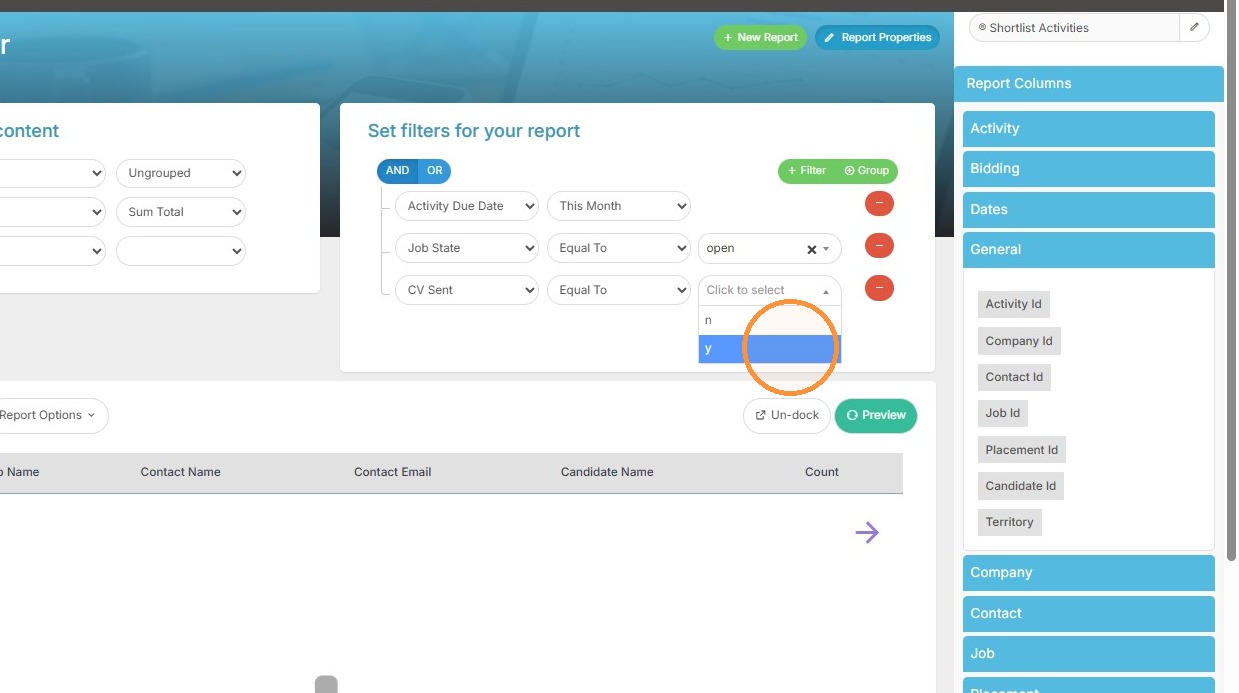
12. Add filter for items where "CV Sent" is "y". This is saying we only want to see resumes that were sent out.
Preview and Finalize
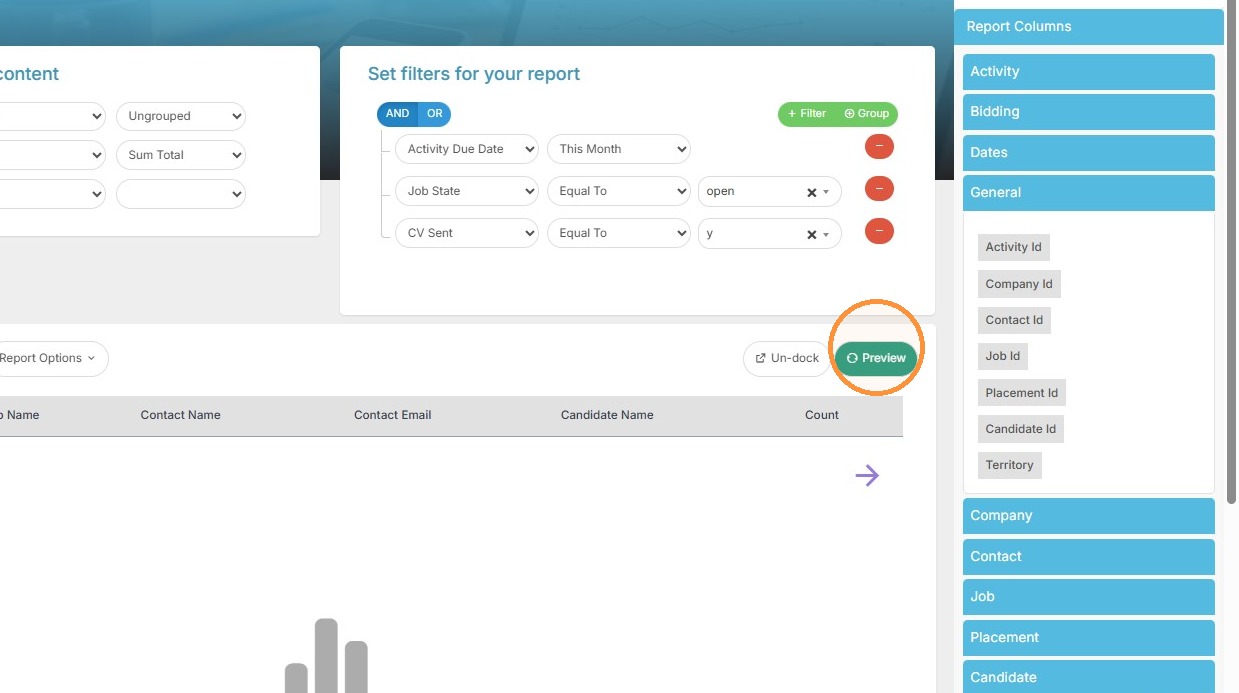
13. Click "Preview" to view report results.
14. Select the "Grouped" option if you want to group the report by Company Name or other detail.
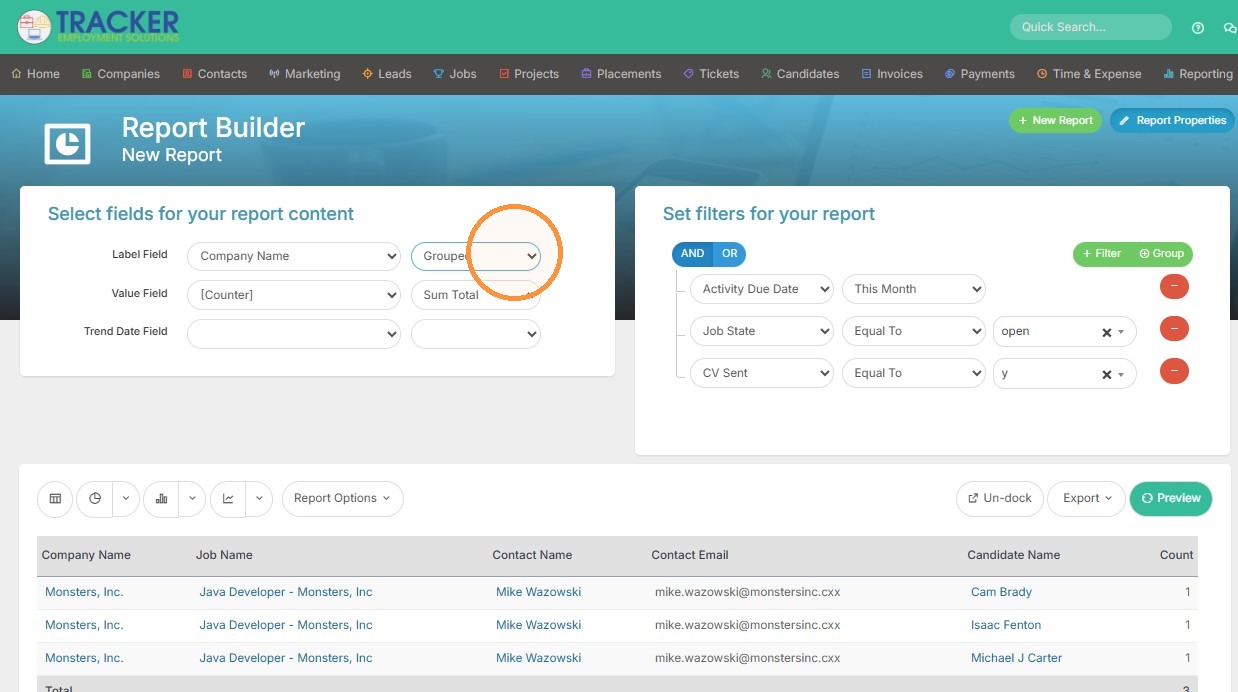
15. Click "Preview" to refresh report with new settings.
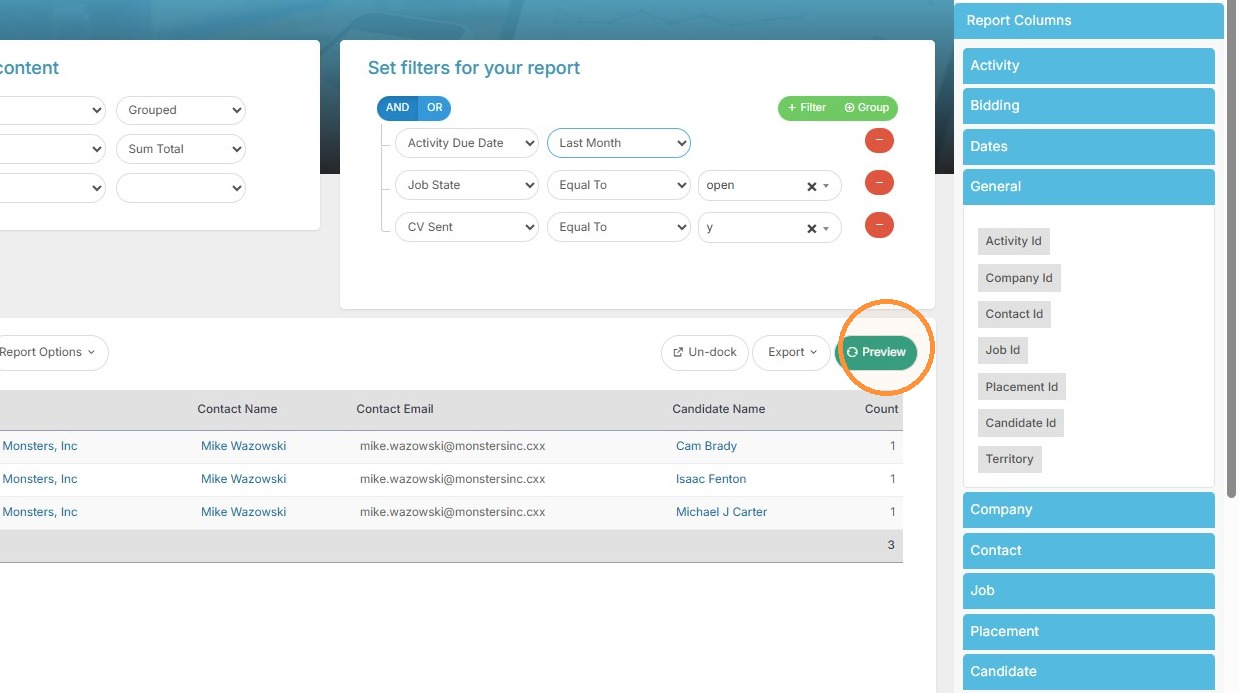
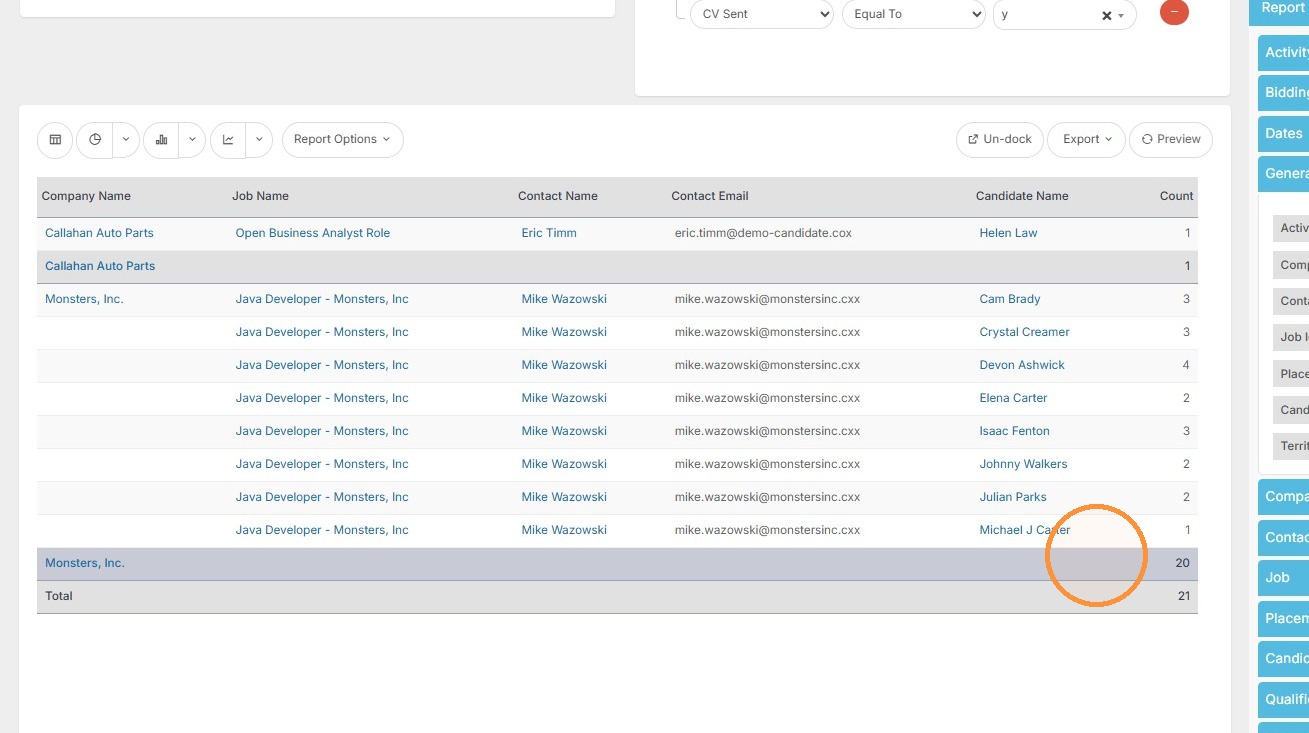
16. Now you can see the report is grouped by company, showing the total number of open jobs with client submittals completed.
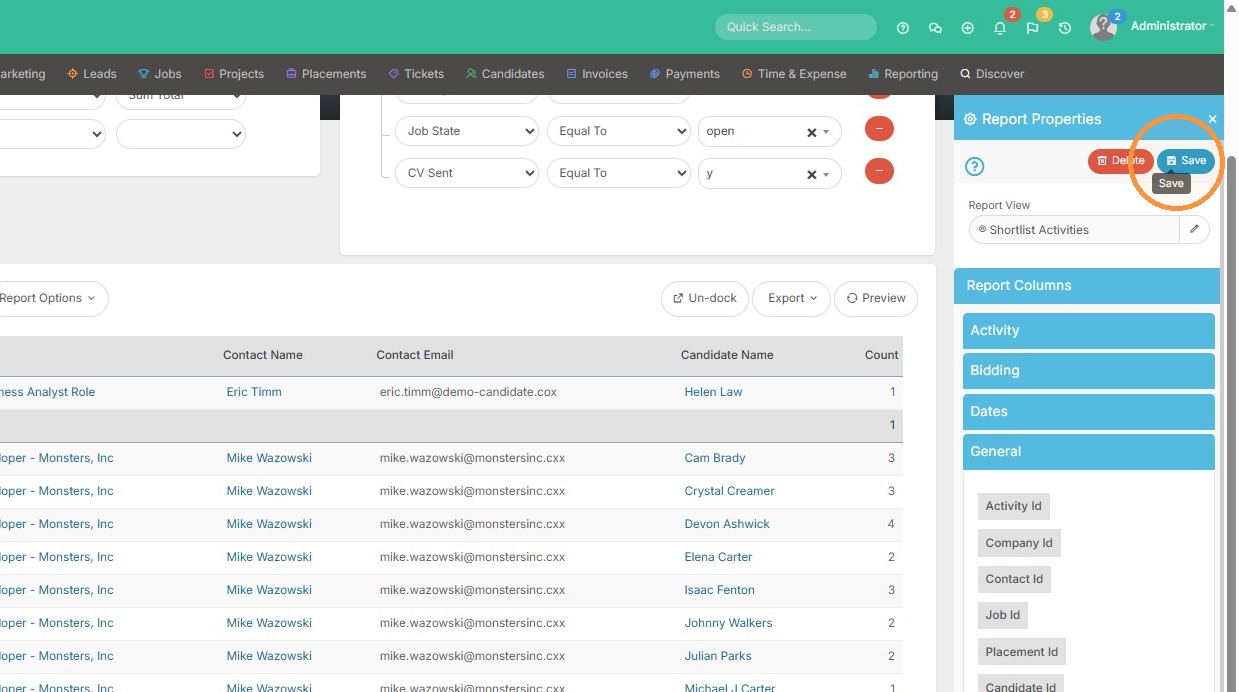
17. Click here to Save.
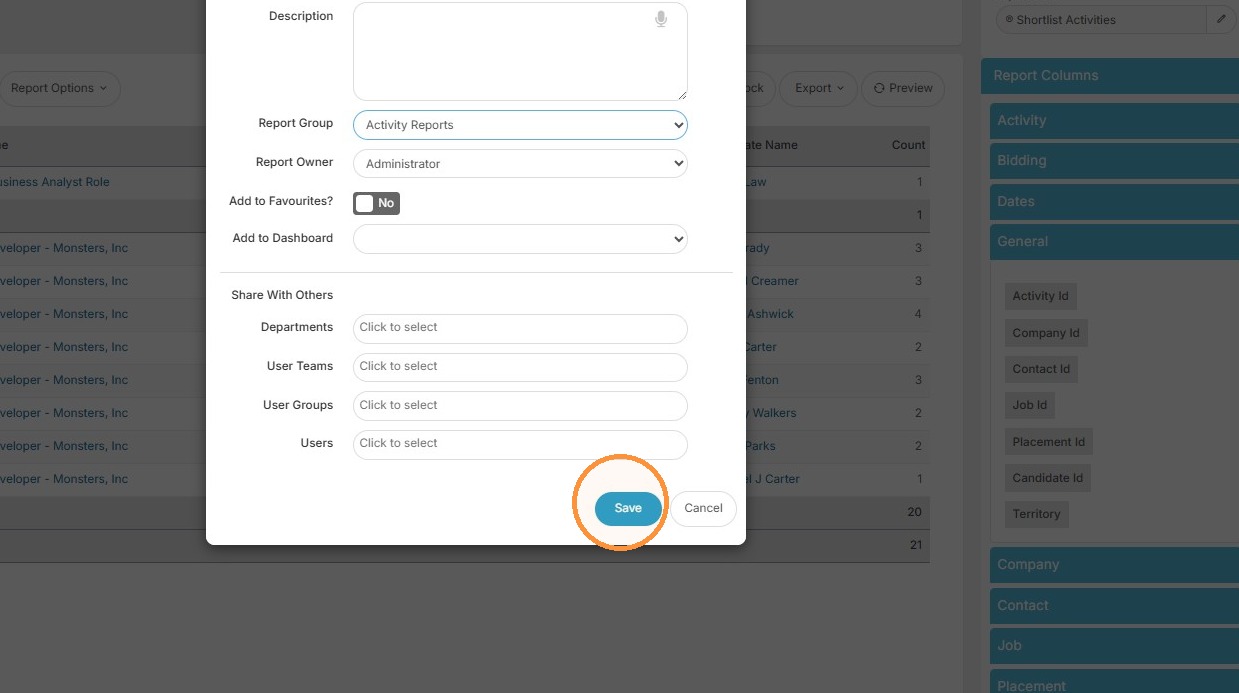
18. Add a report name, and pick which folder you want to save this to under the Report Group dropdown.
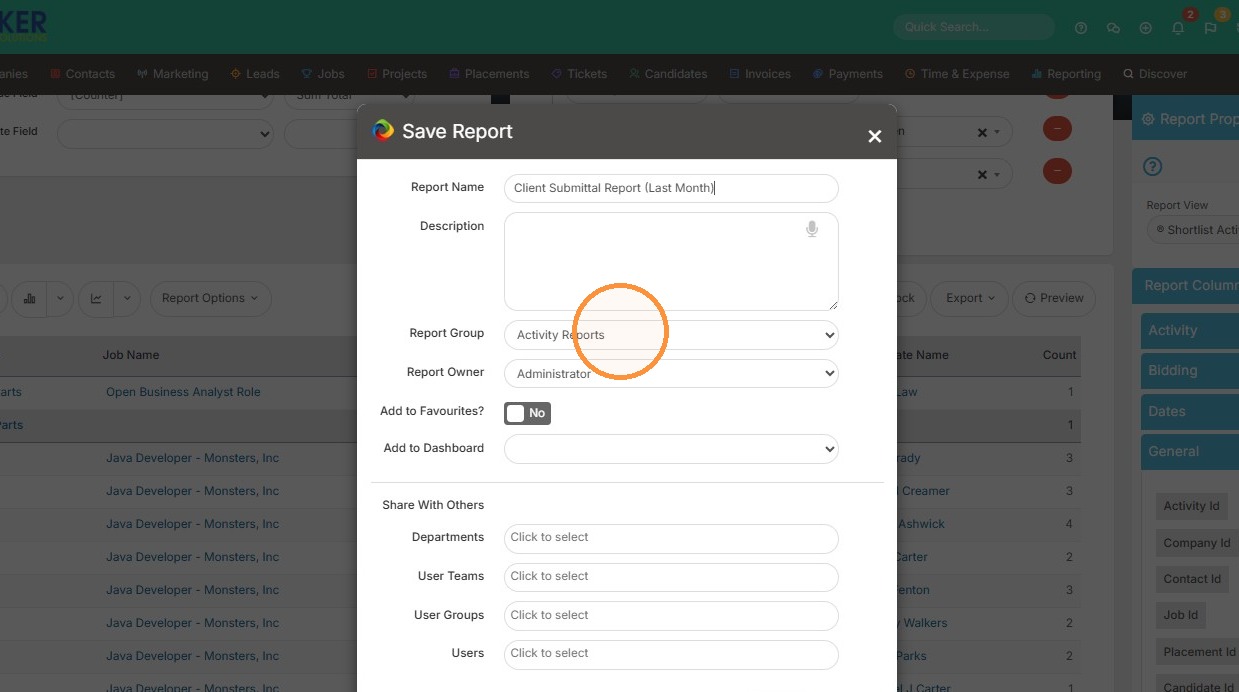
19. Click "Save"