Configure Sorting
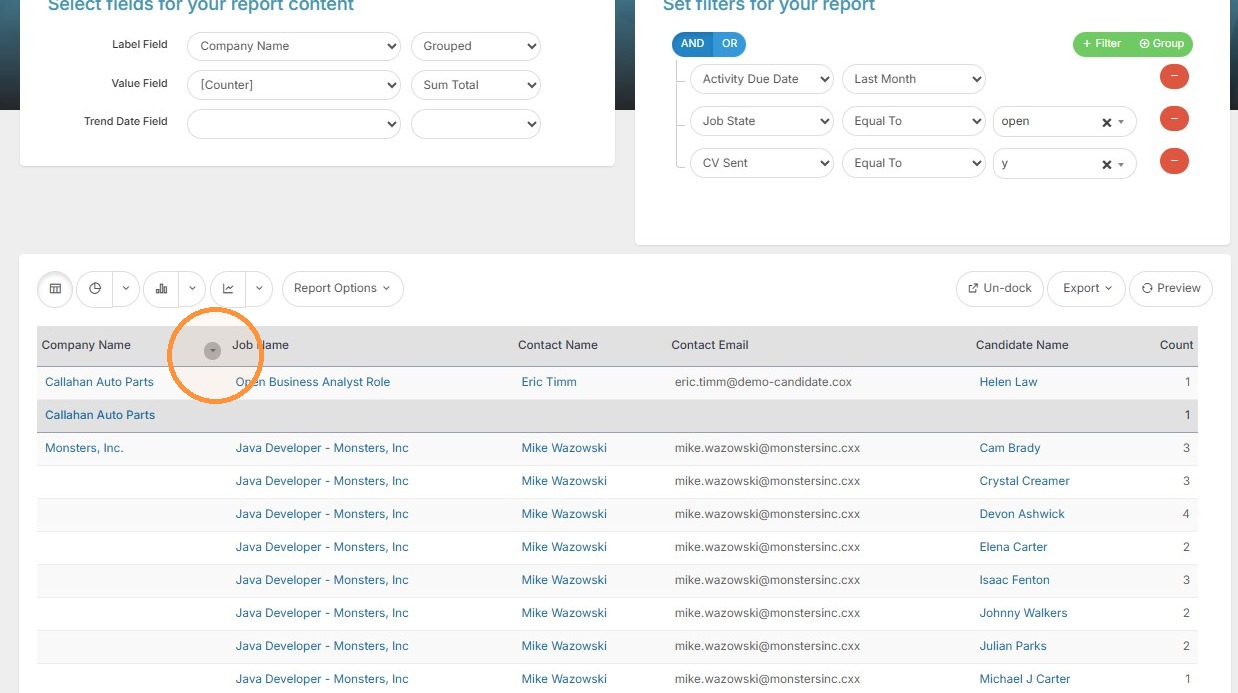
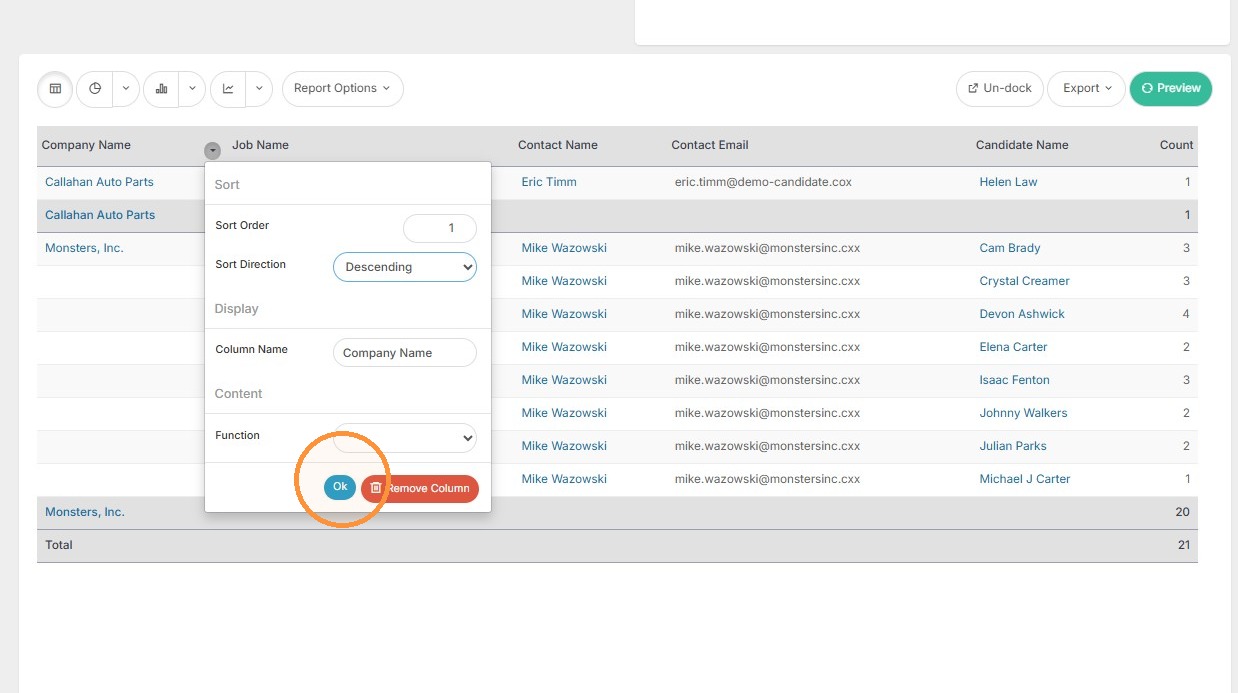
1. To sort a report by a different column or order, hover over that column and click the dropdown arrow.
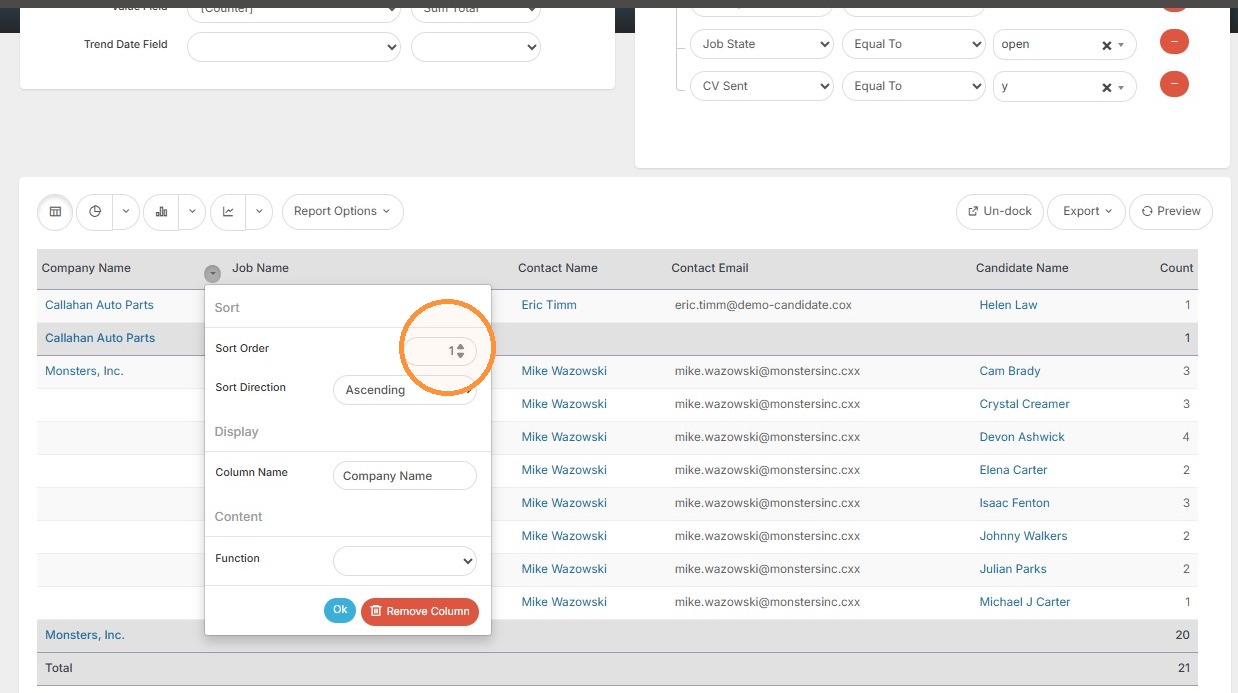
2. Here you can see the Sort Order is 1 for the Company Name, which means this report is sorting by this specific column first. Whenever you're Grouping something, make sure that sort order is set to 1. We can also change the sort direction to ascending/descending order.
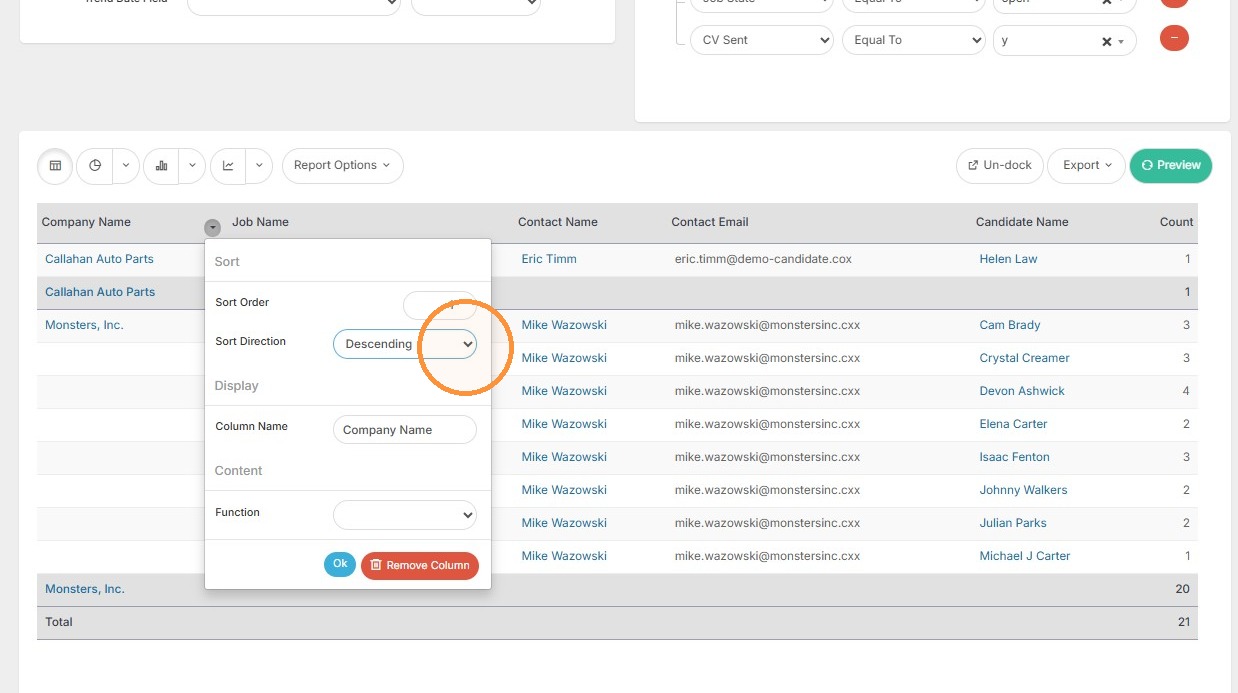
3. Click "Ok" to make your changes.
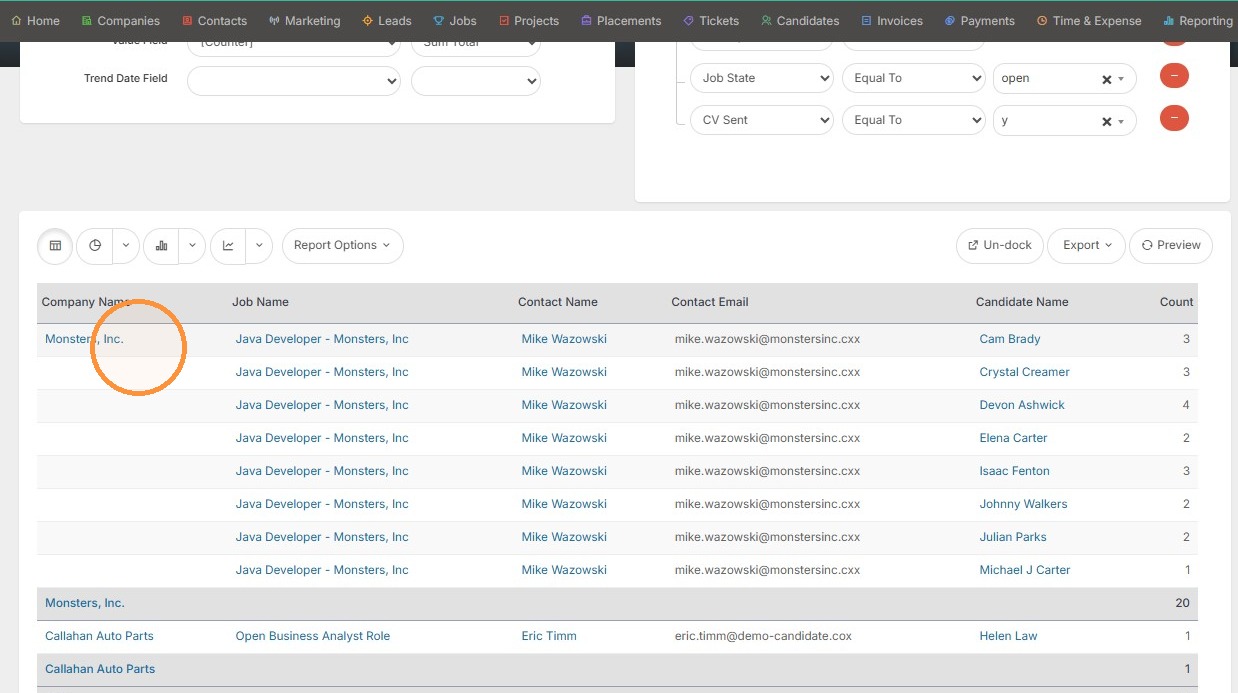
4. Here you can see the report is now in descending alphabetical order with Monsters Inc. listed first.
Add Report Fields
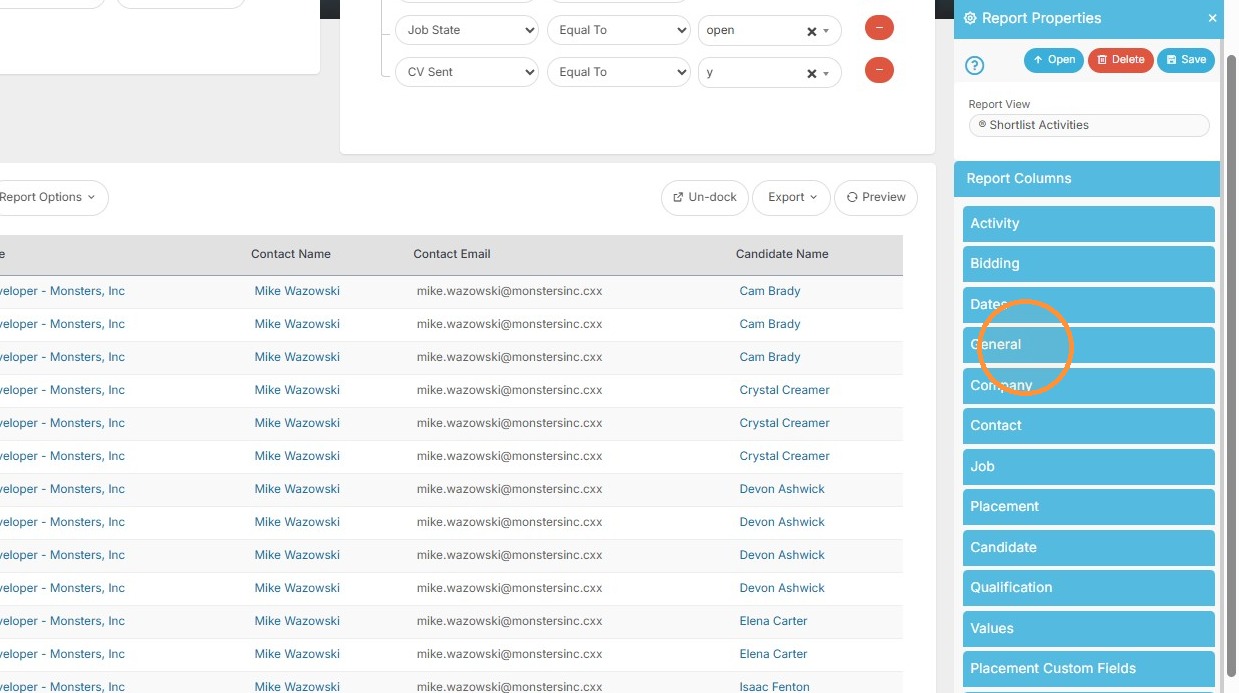
5. Select General in the Report Columns sidebar to add a total or counter to the report.
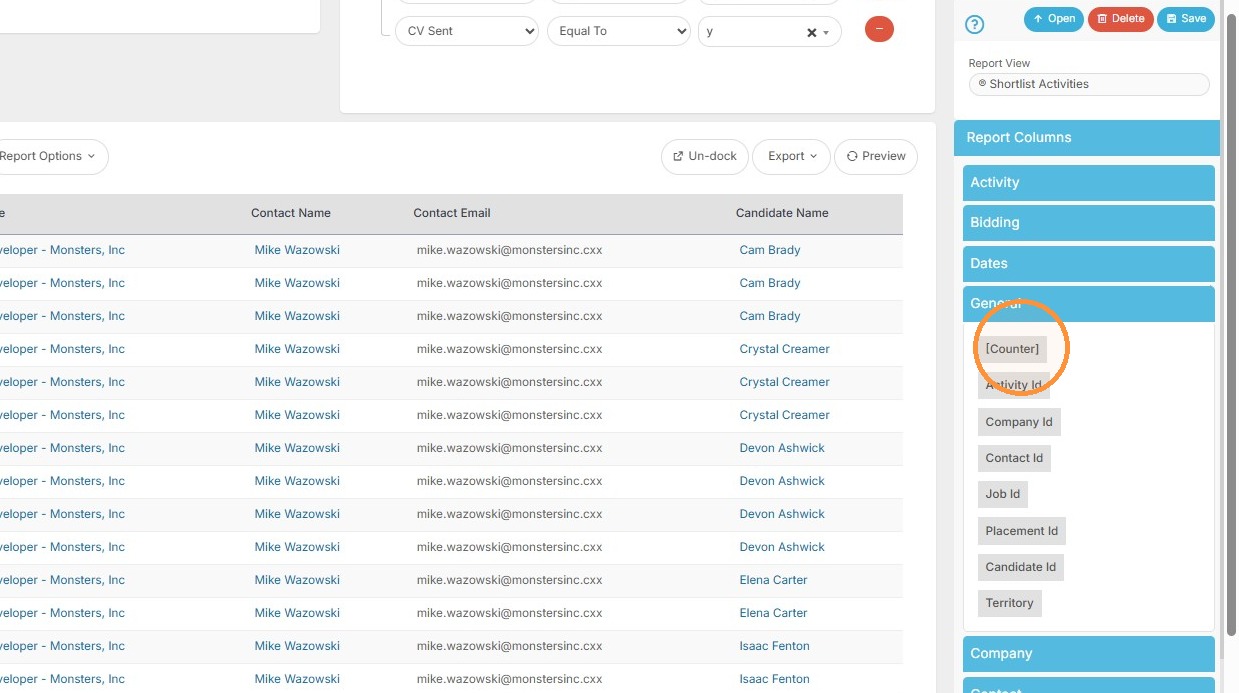
6. Click the [Counter] field to add it to the report. This [Counter] field will always live in the General tab.
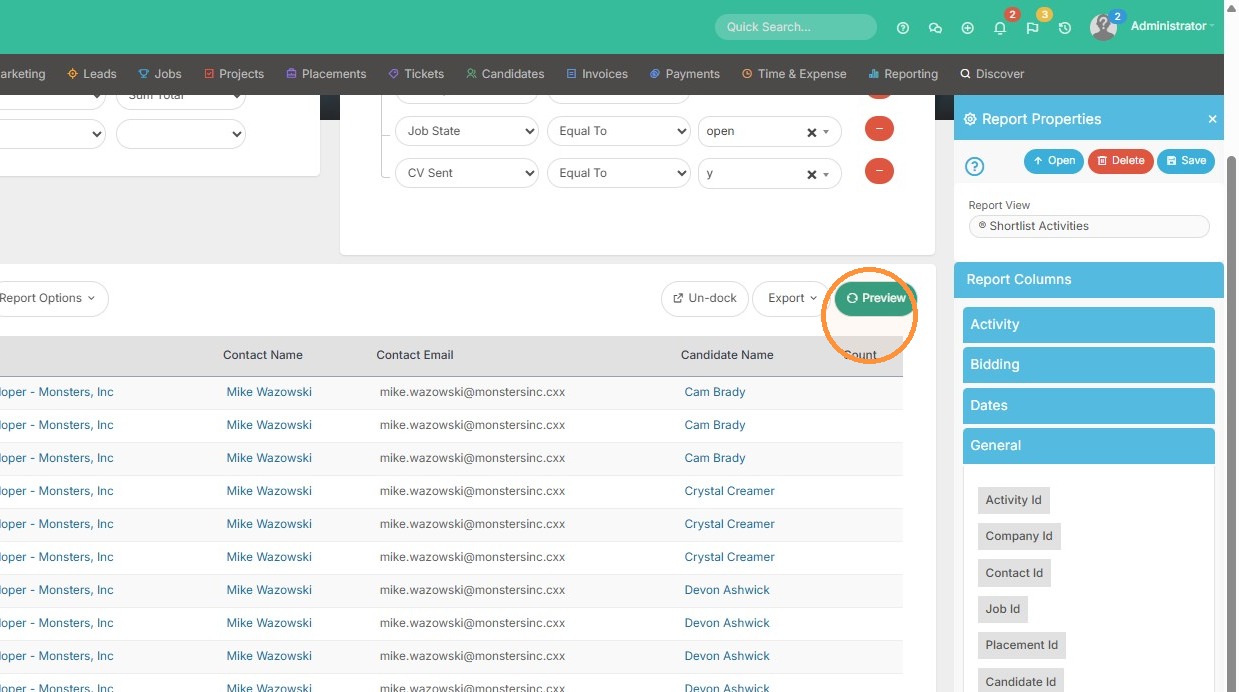
7. Click "Preview"
Configure Column Functions
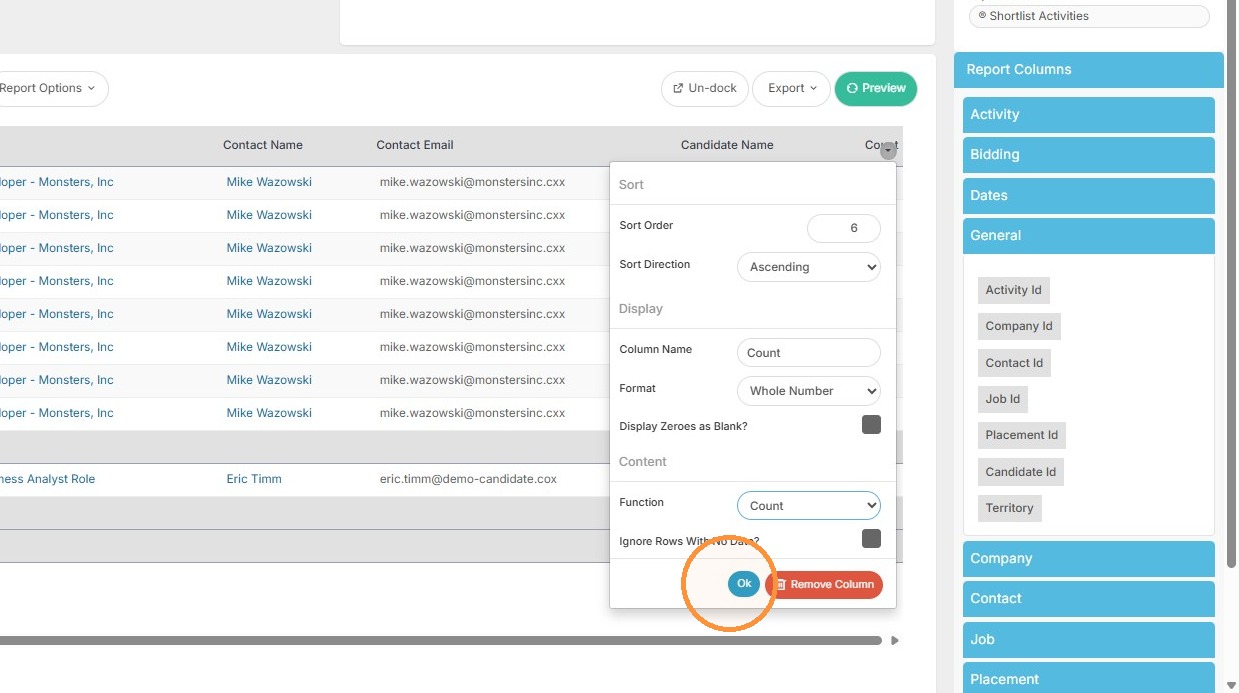
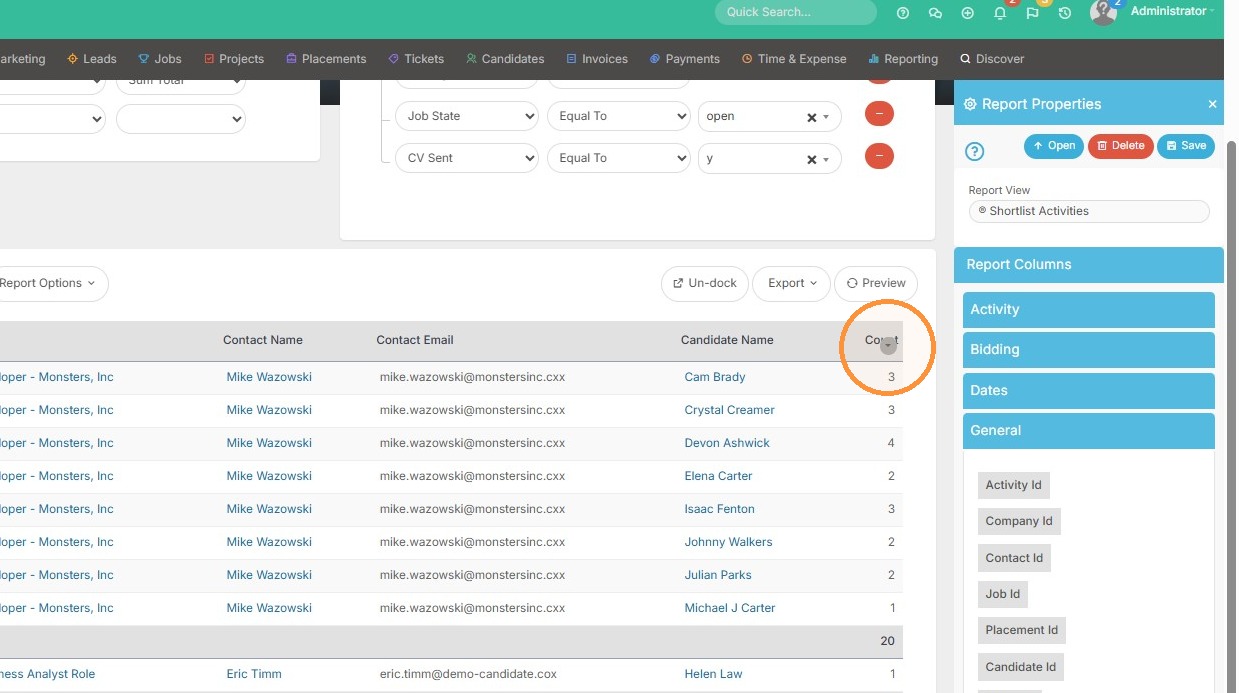
8. You can see the report now has totals. To change the function of the total (average, sum etc.) click the dropdown arrow.
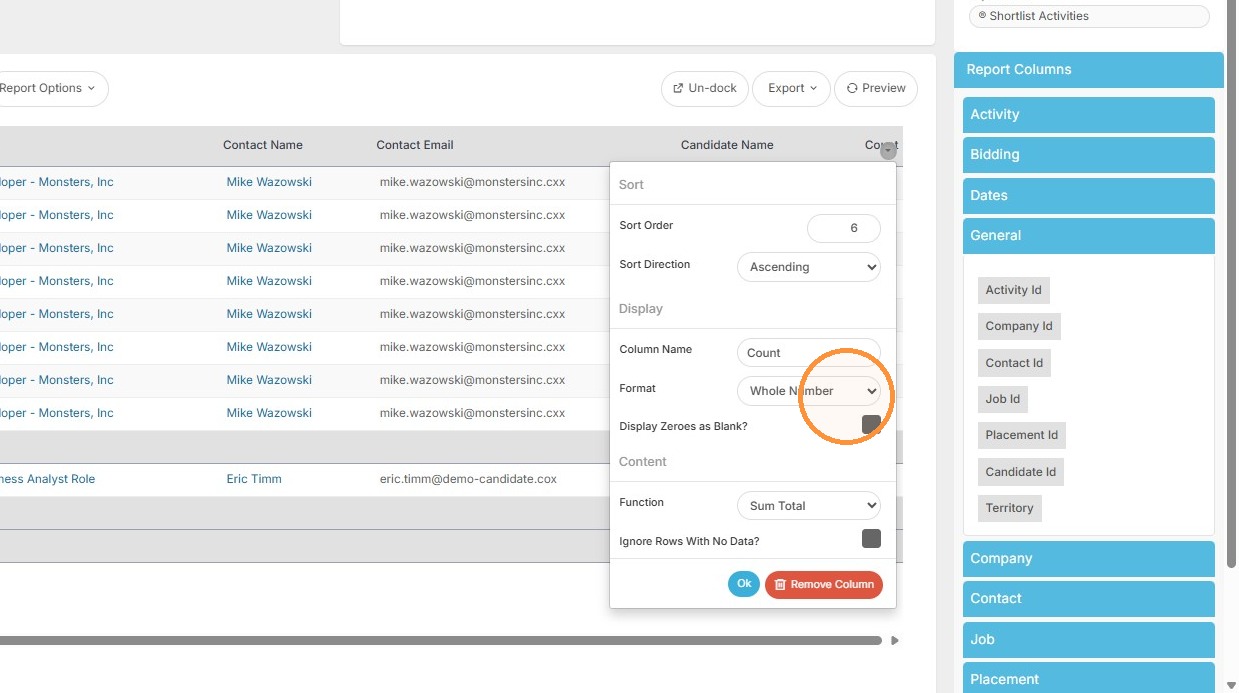
9. Set the column format and function options.
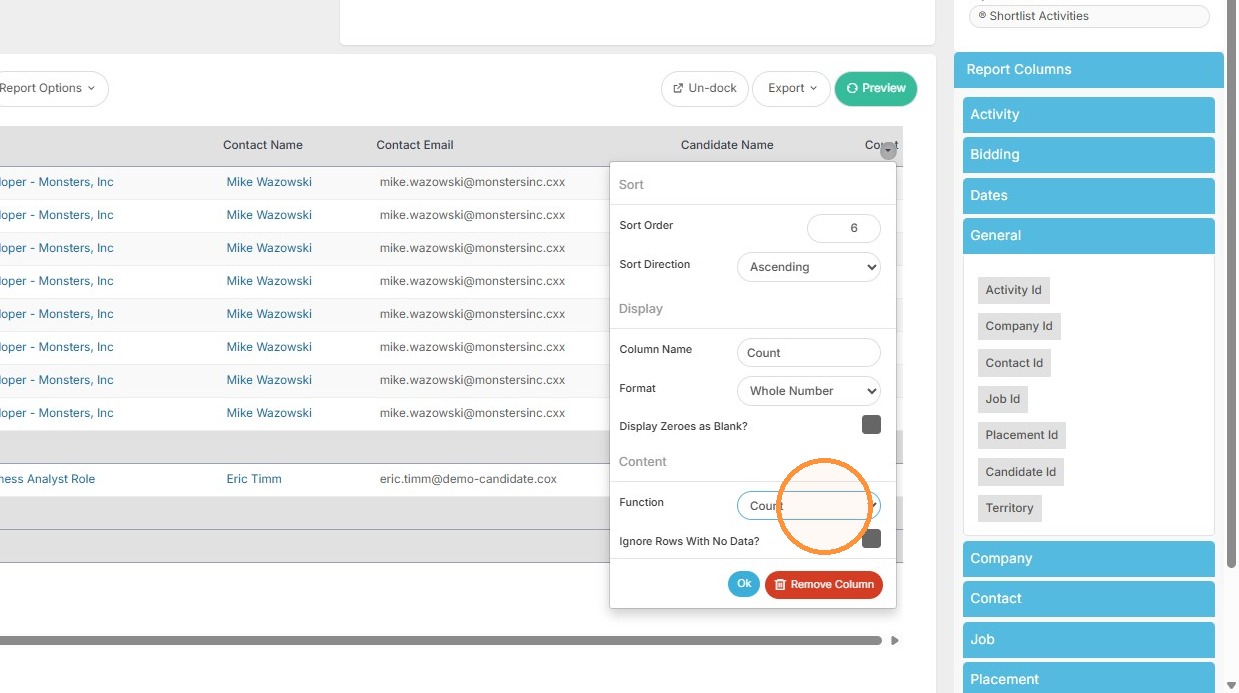
10. Click "Ok" to make the changes.