Please watch the below video to learn how to create a detailed Internal Submittal Report:
Report View Selection
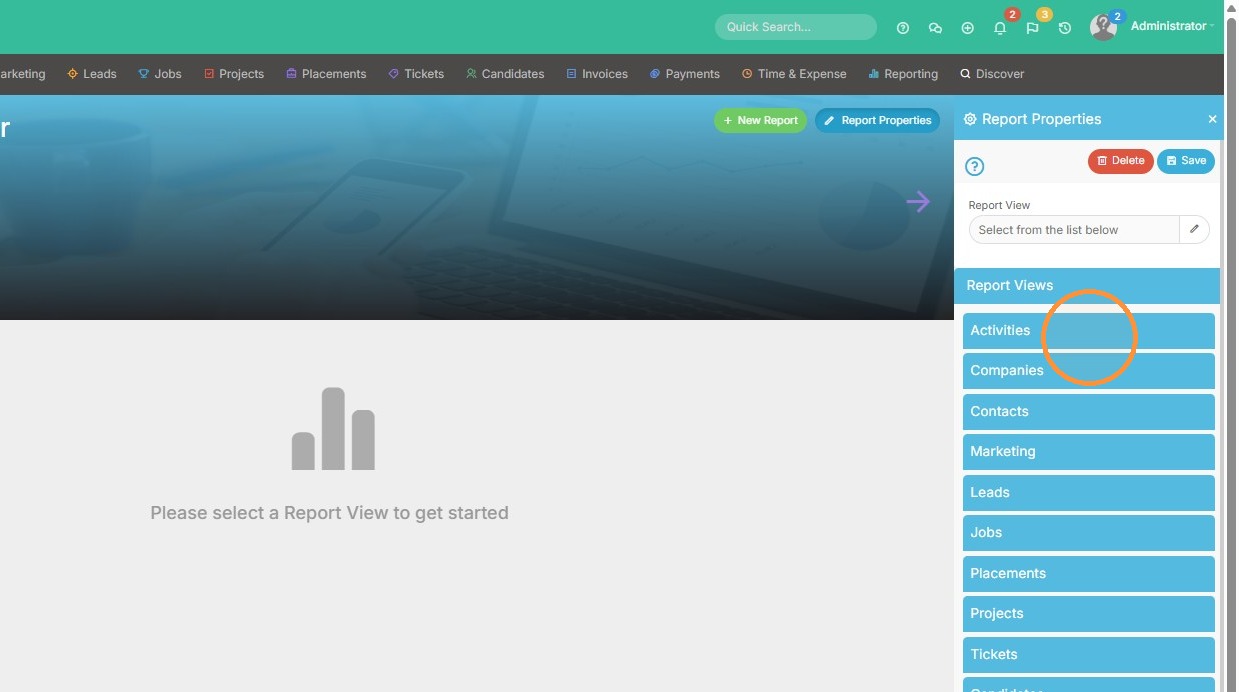
1. Select "Activities" from the Report Views list
2. Select the "Shortlist Activities" report view
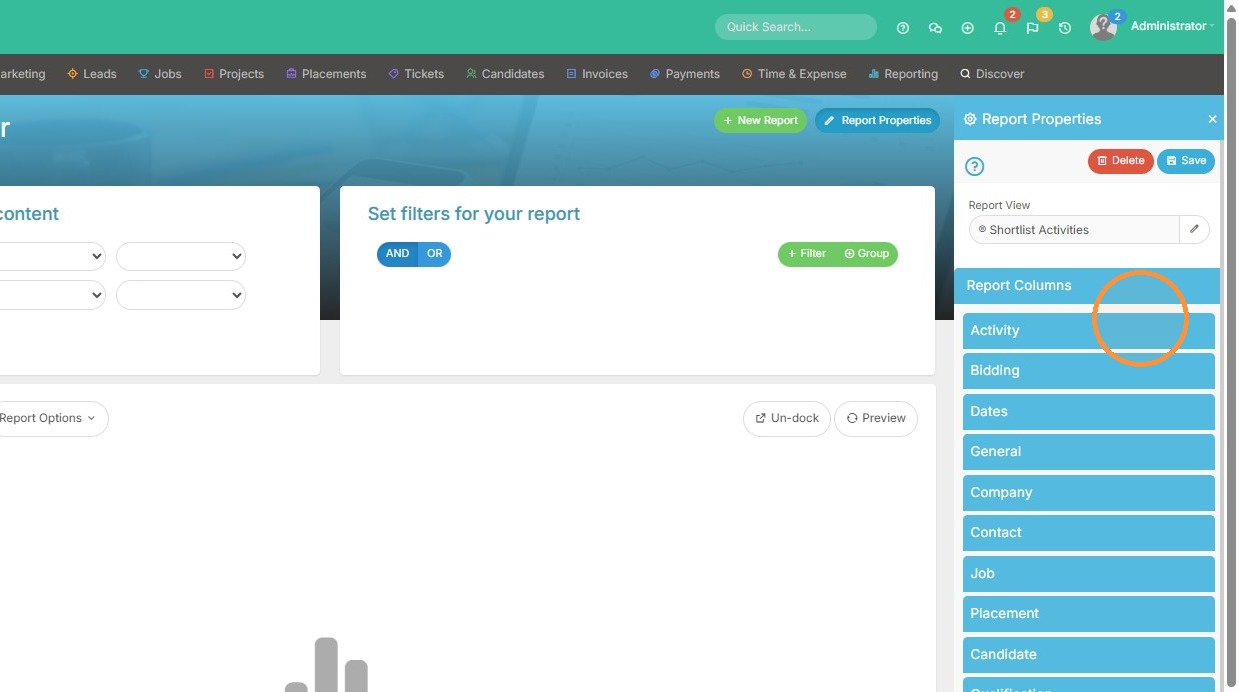
Column Configuration
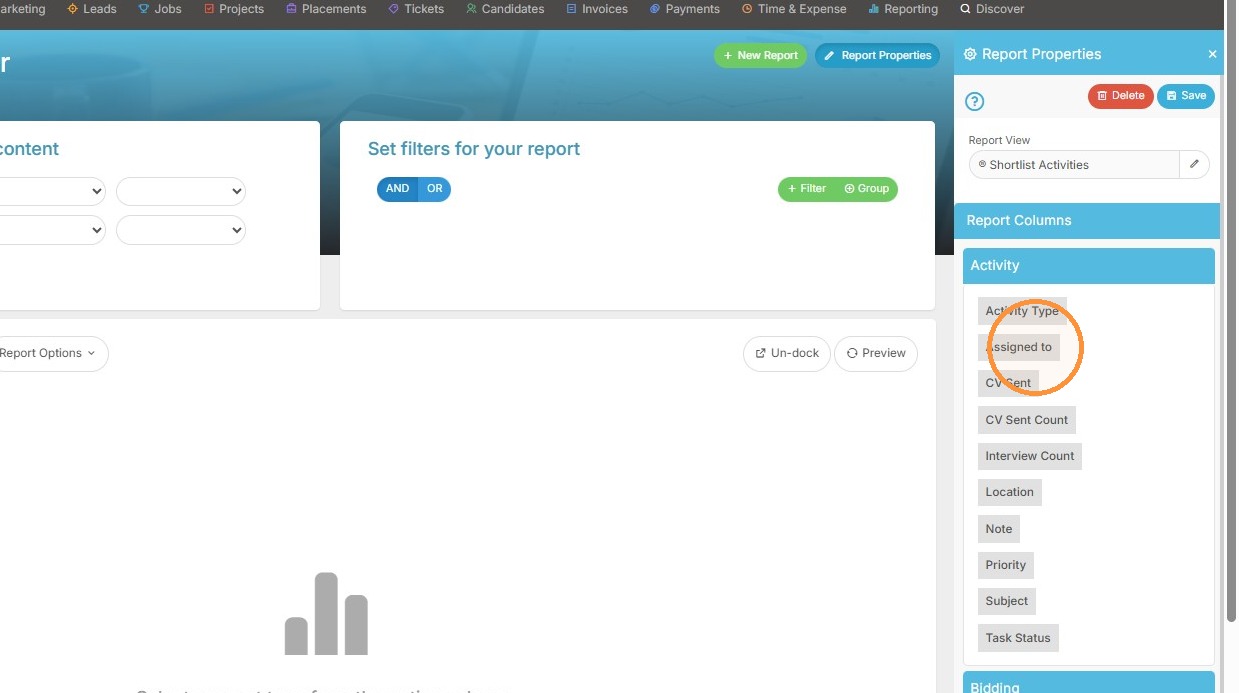
3. Add "Assigned to" as a report column, as that will tell you who completed the activity.
4. Expand the "Job" category in the sidebar
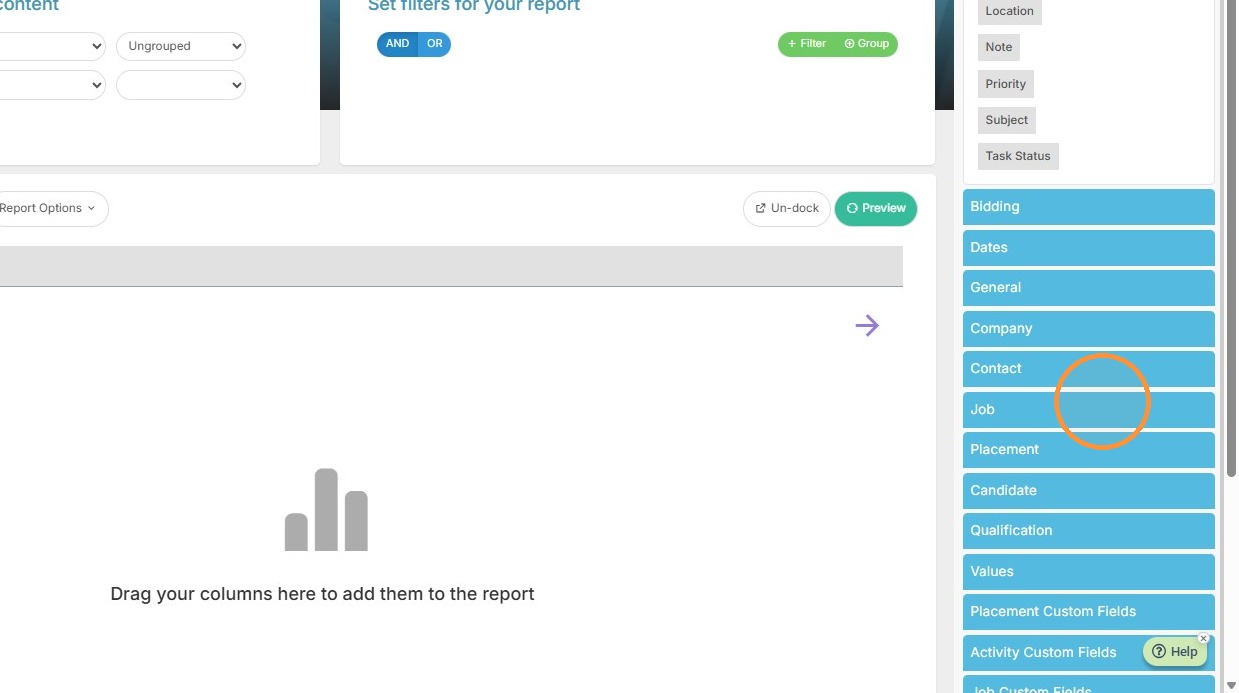
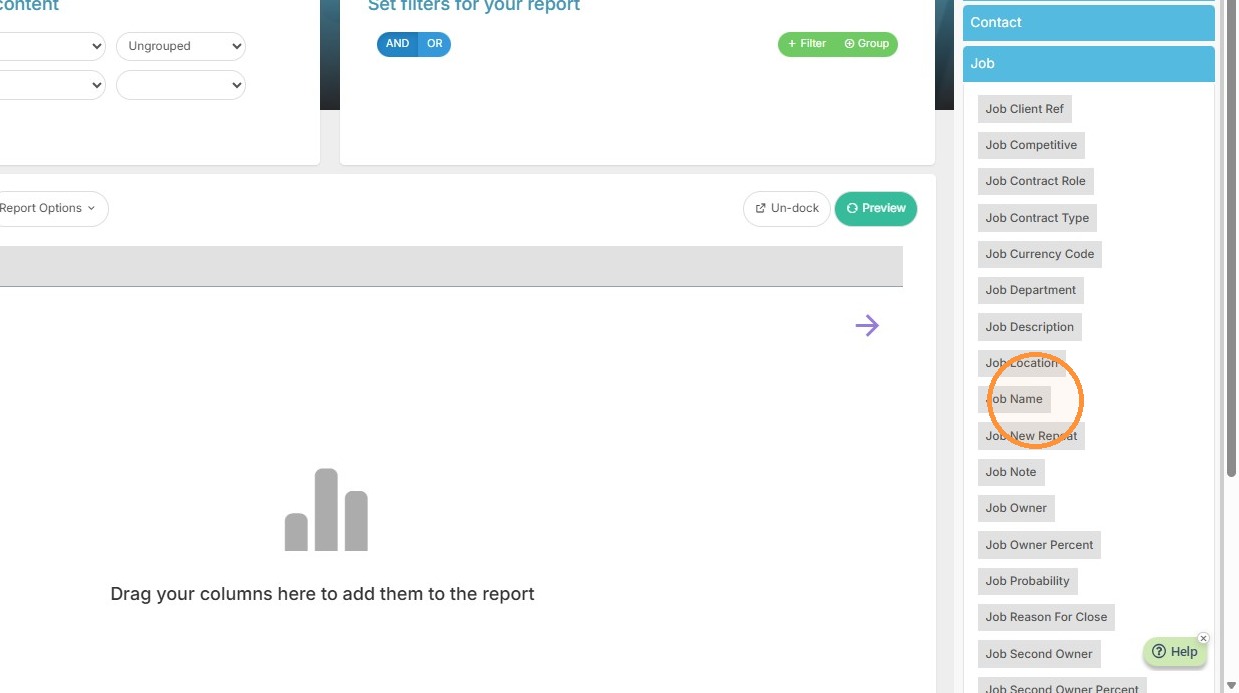
5. Add "Job Name" as a report column
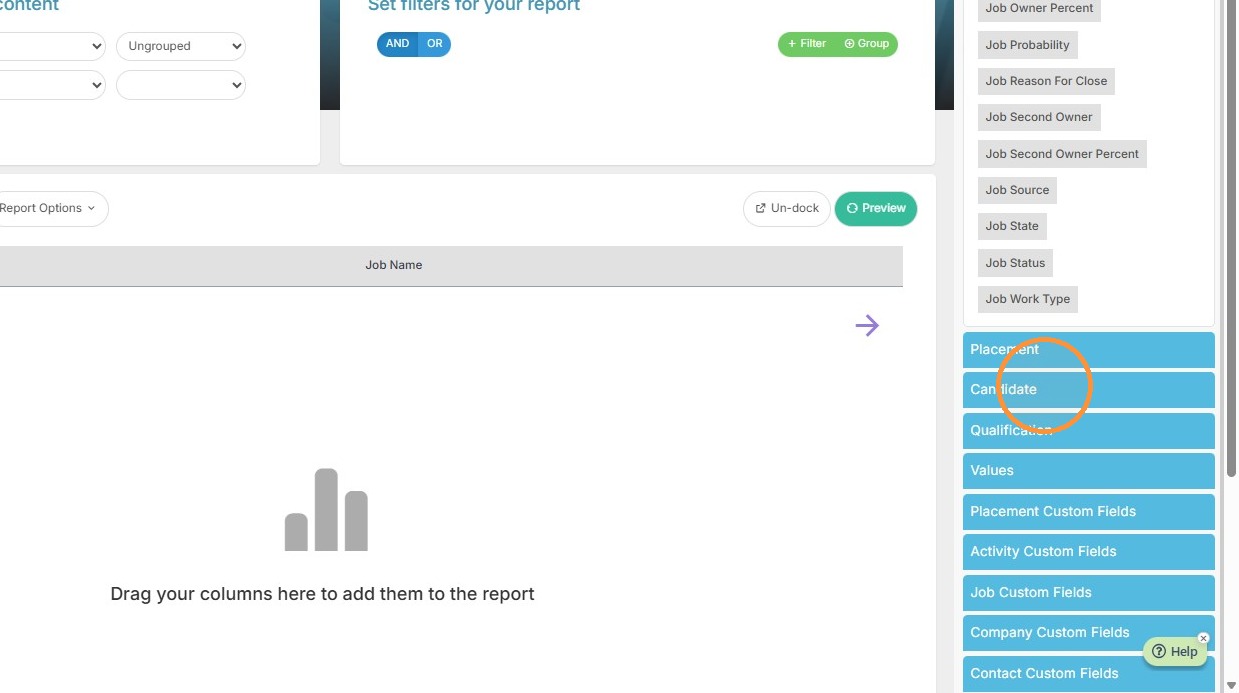
6. Expand the "Candidate" category in the sidebar
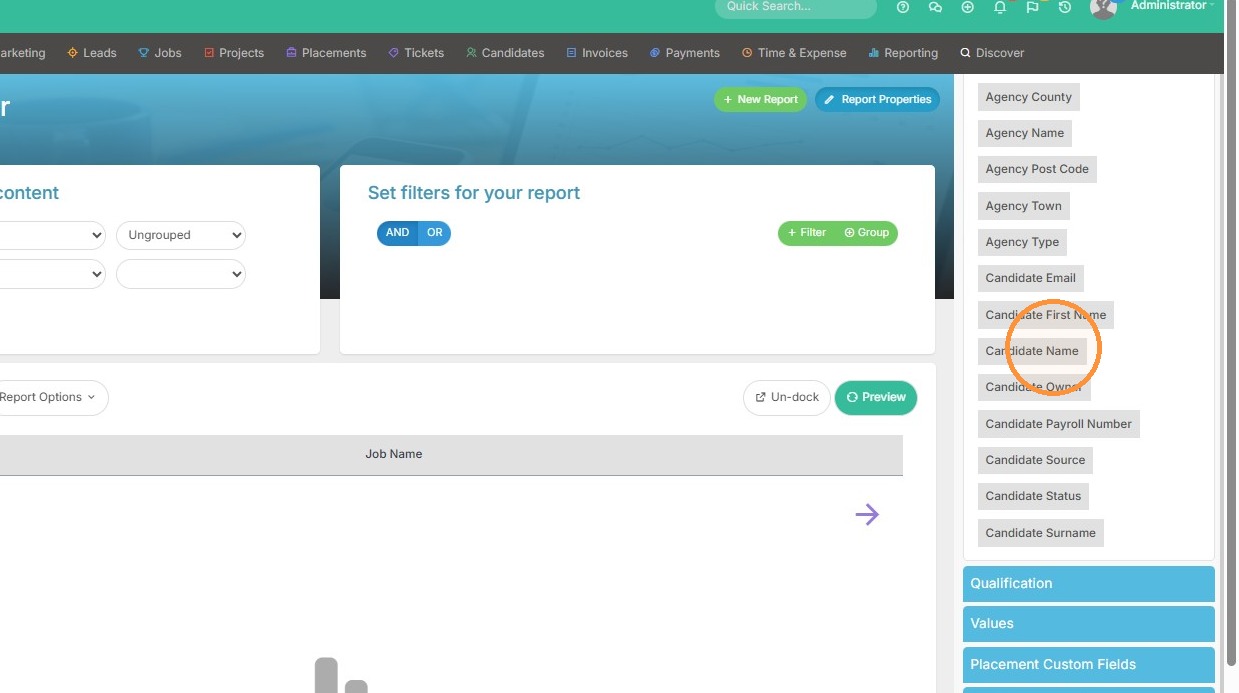
7. Add "Candidate Name" as a report column
8. Expand the "Activity" category in the sidebar
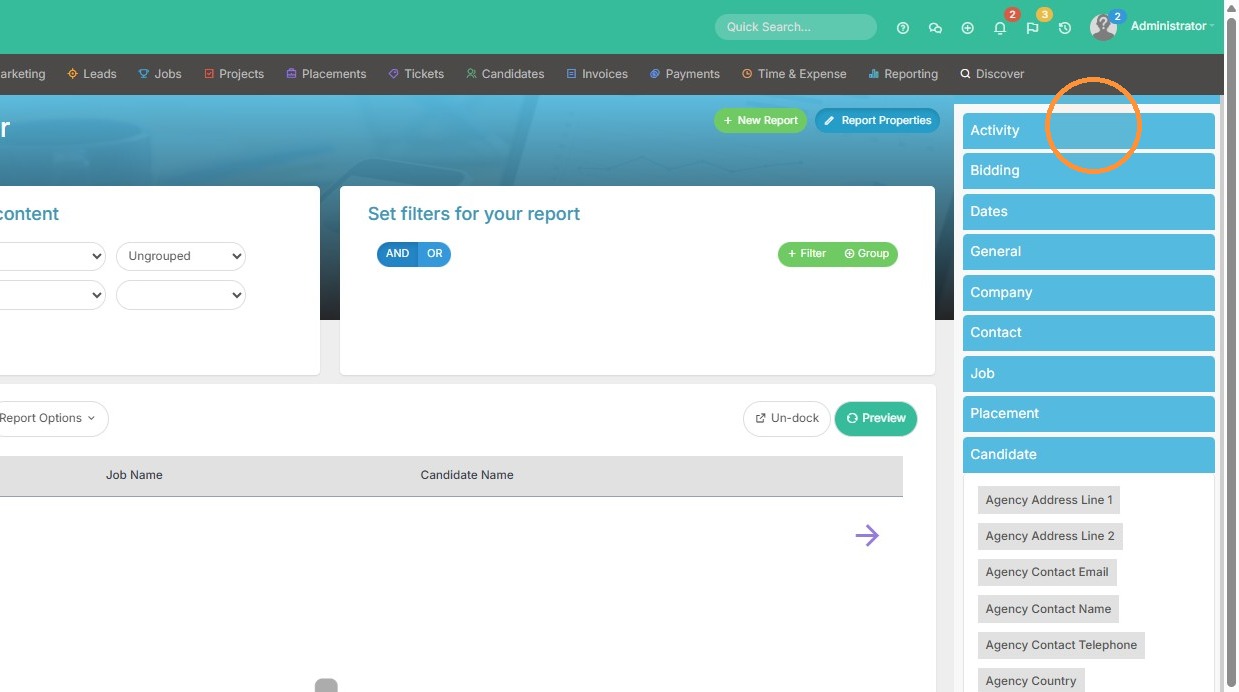
9. Add "Subject" as a report column. I like to add this one so I can ensure I'm filtering my report by Internal resume submittals (you will see this in a bit).
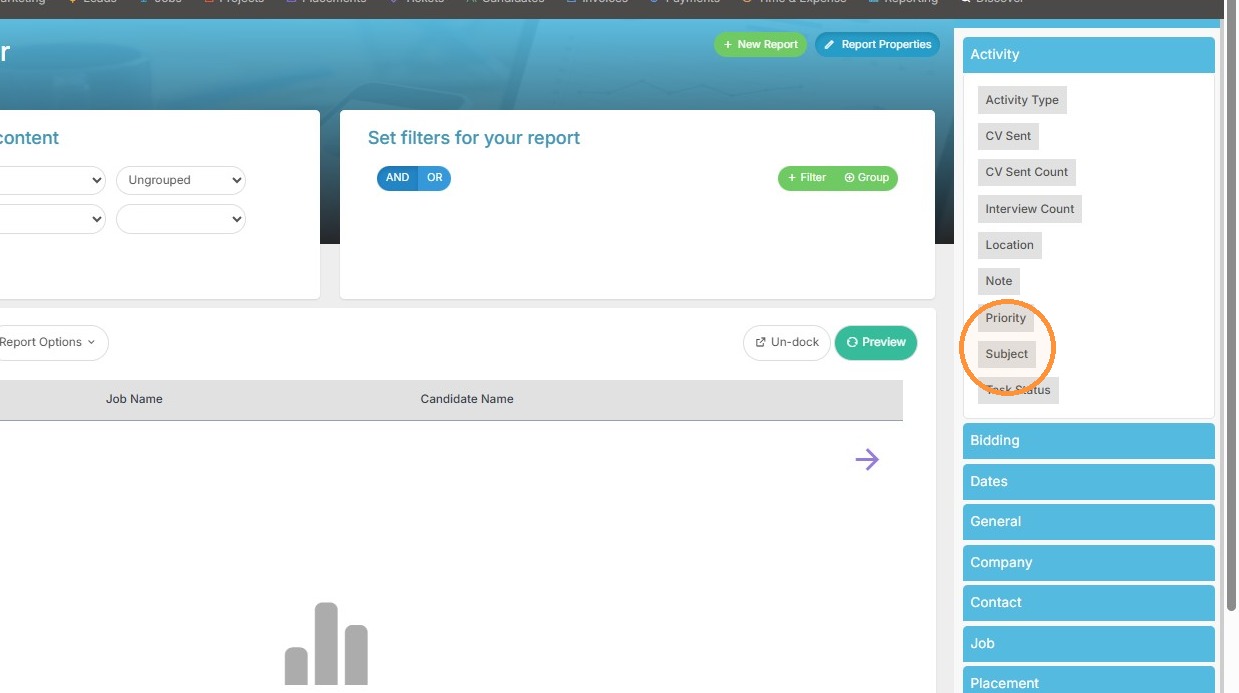
10. Expand the "General" category in the sidebar
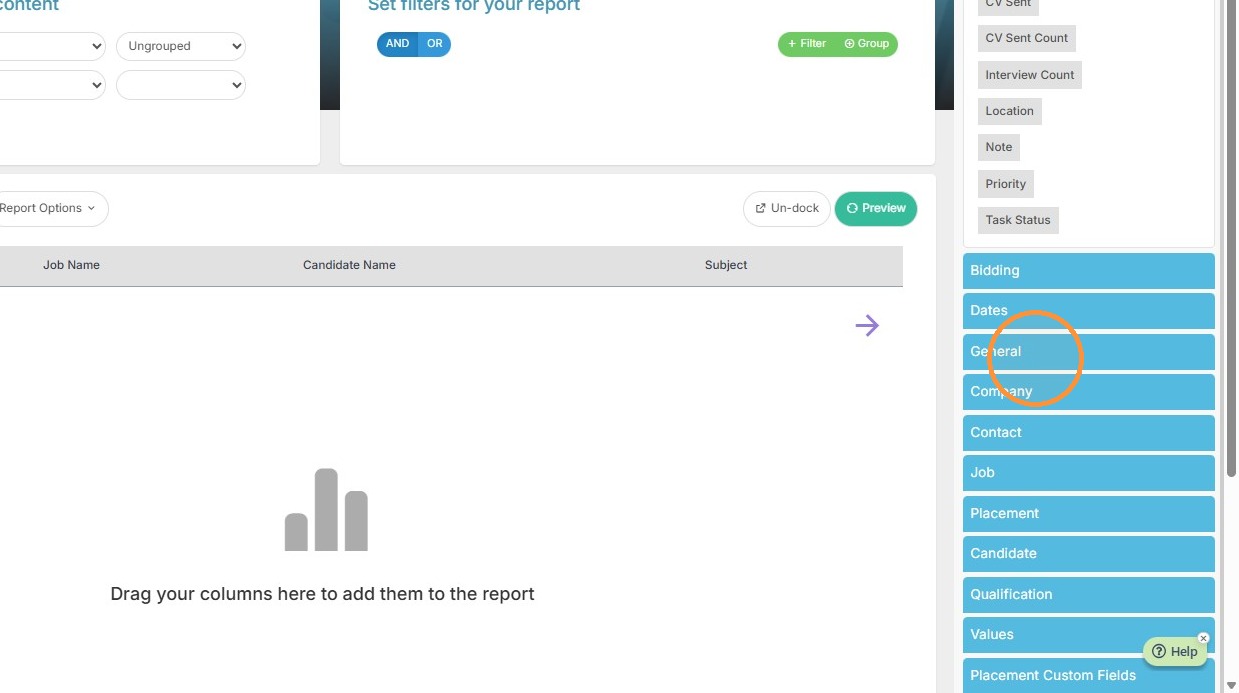
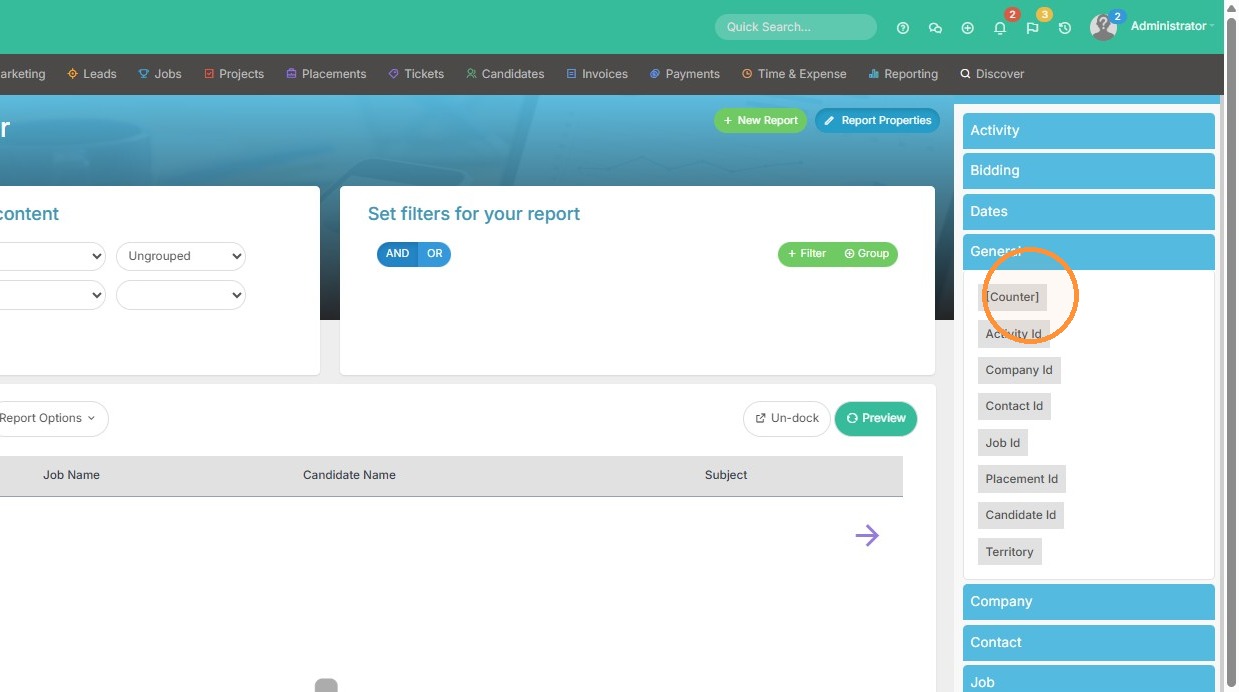
11. Add "[Counter]" as a report column to see totals within the report.
Filter Setup
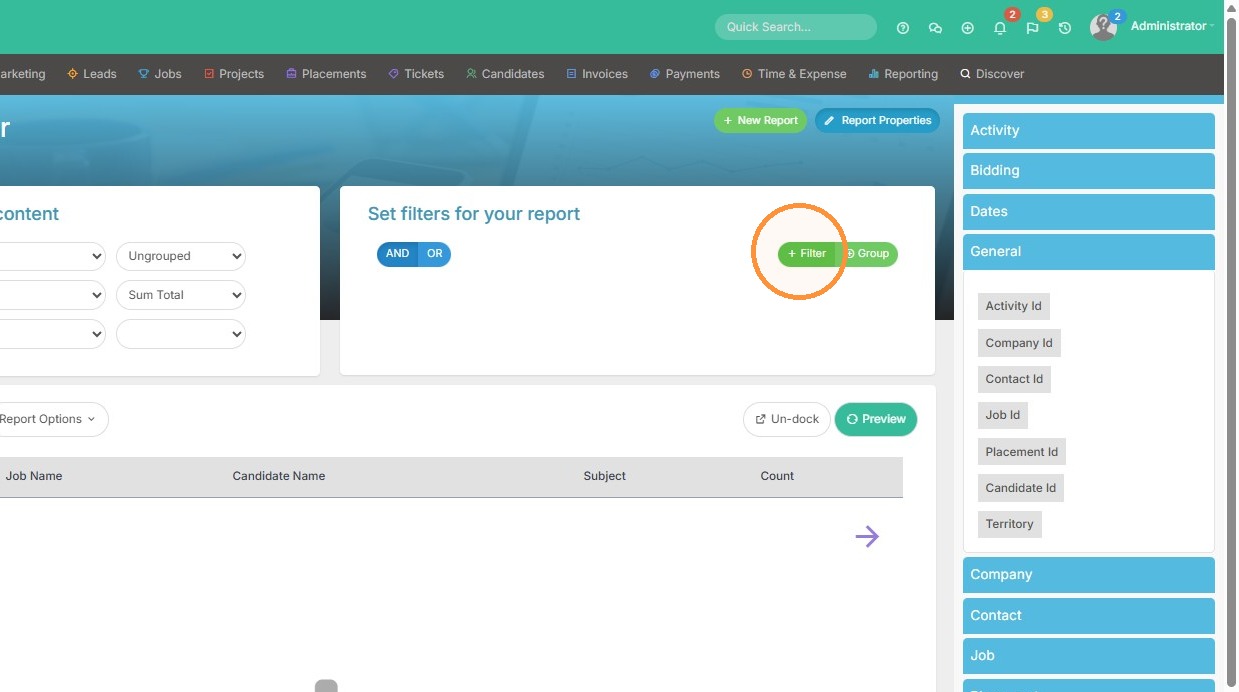
12. Click "+ Filter" to add a new condition
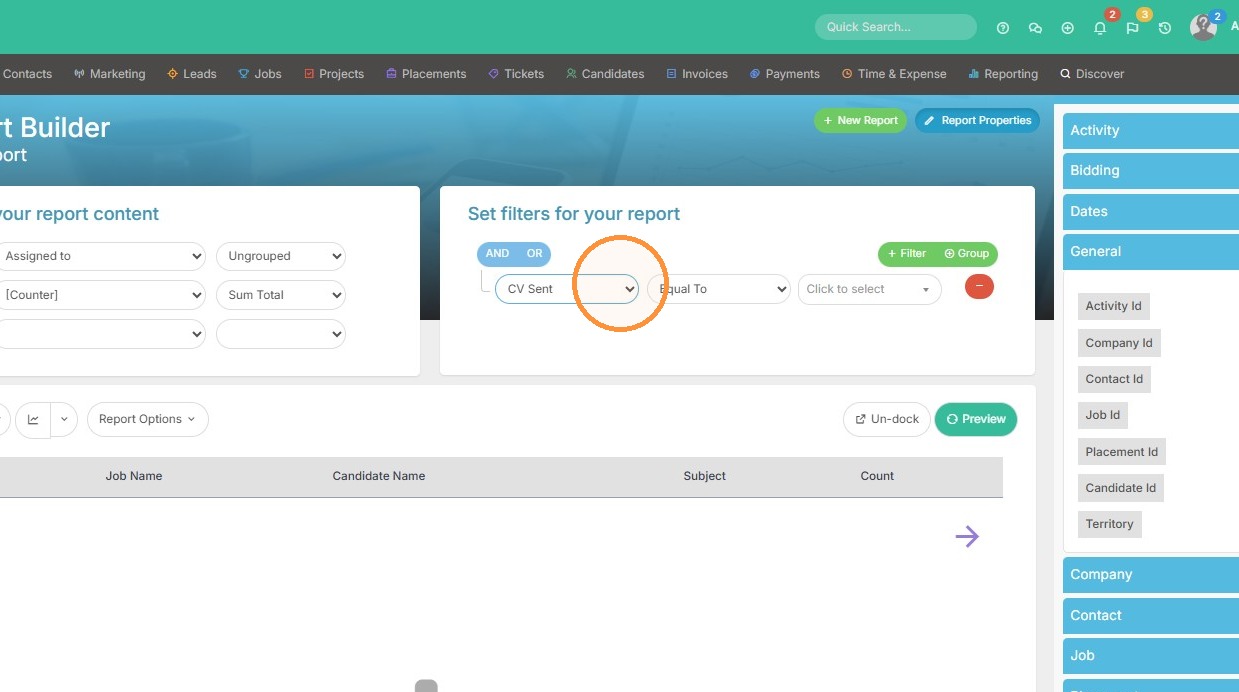
13. Select the "CV Sent" option.
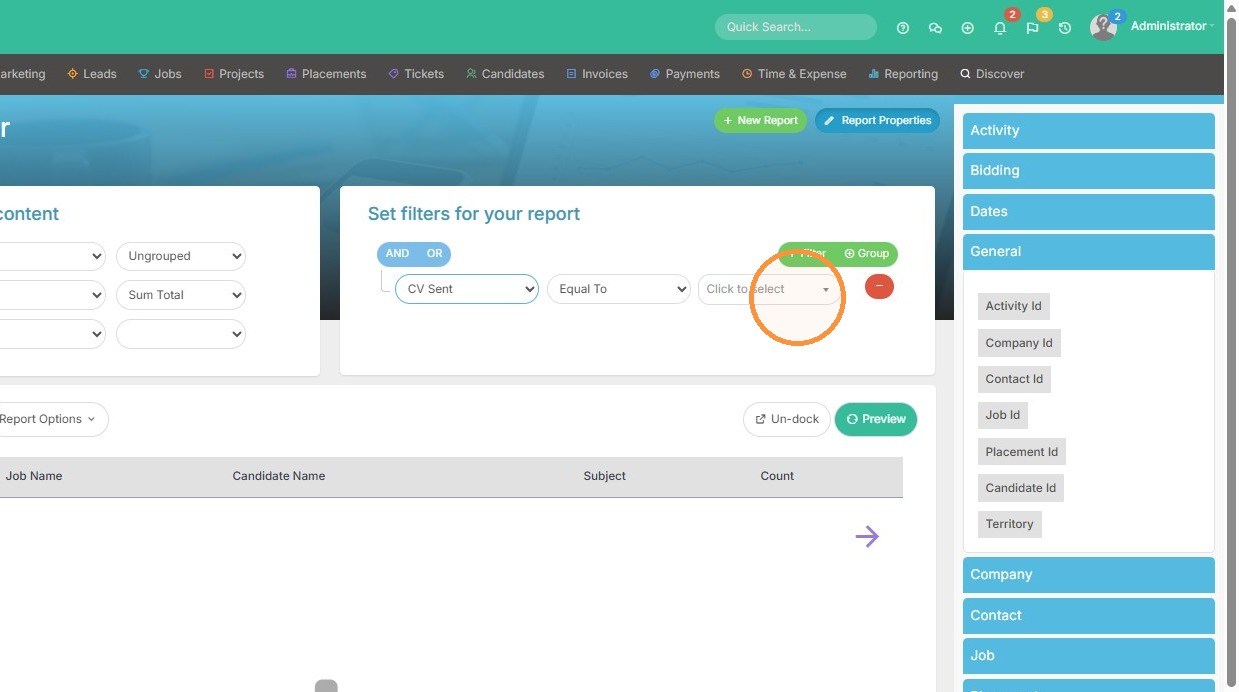
14. Set the "CV Sent" filter value to "y" so we see resumes that were sent.
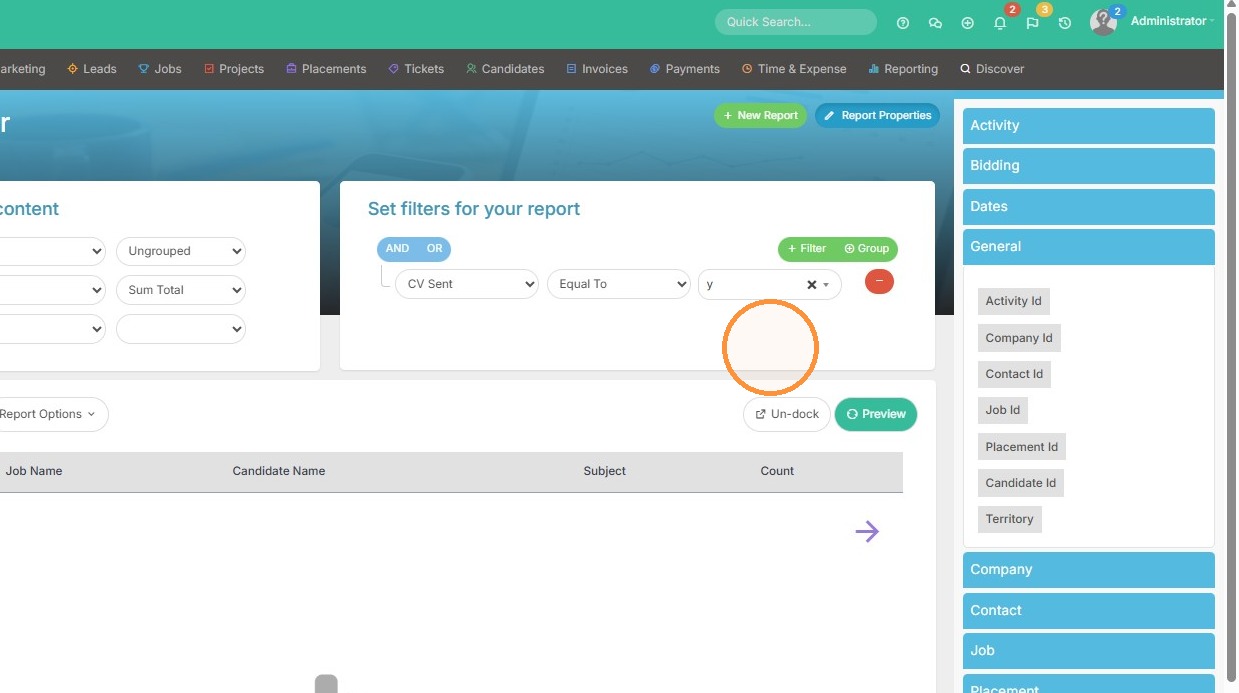
15. Click "+ Filter" to add a second condition
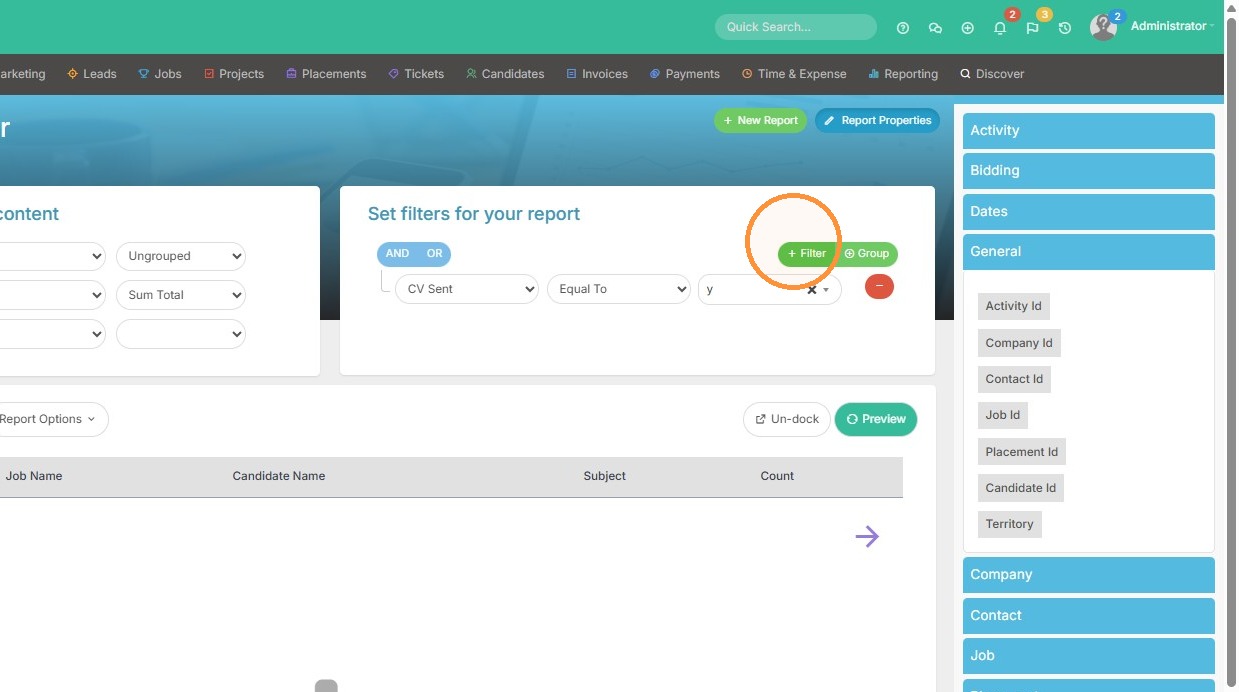
16. Select the "Subject" option.
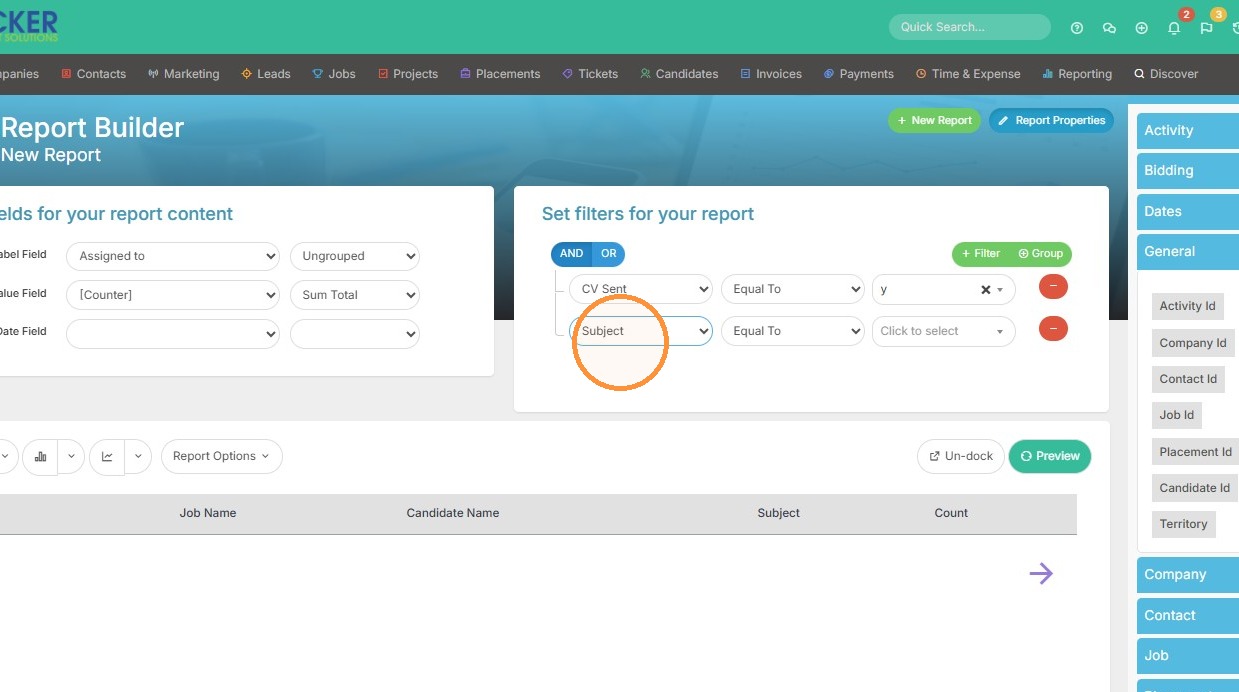
17. Select the "Contains" option.
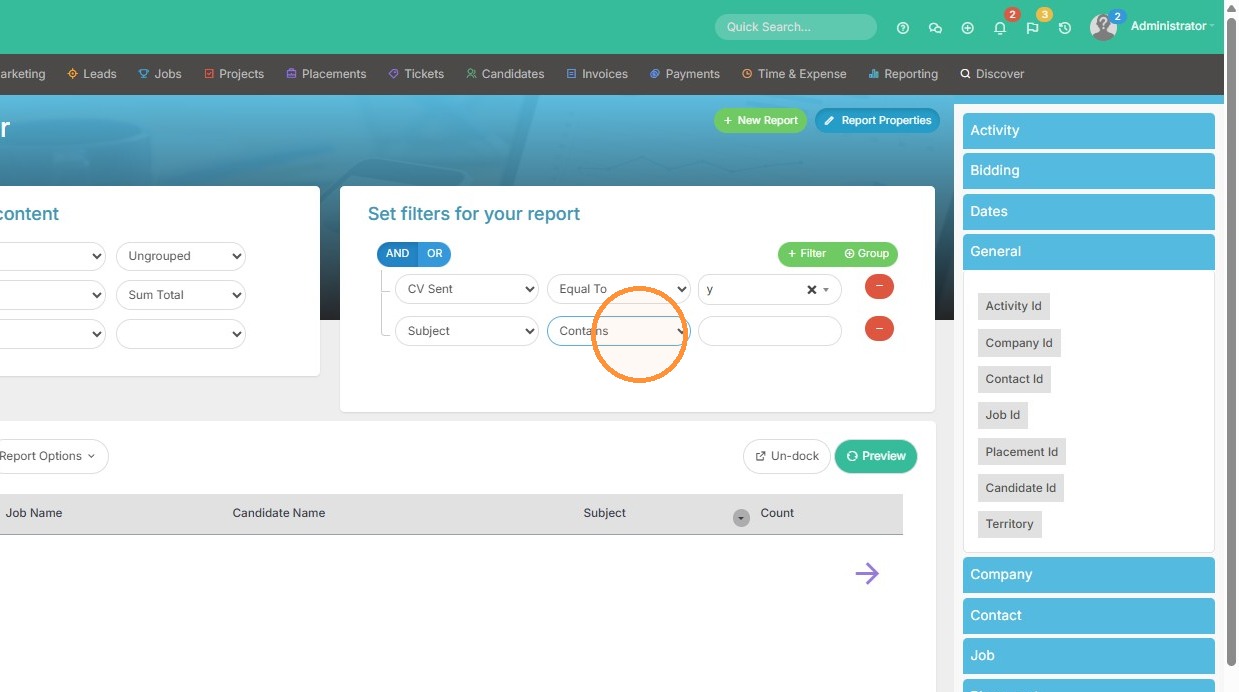
18. Type "Internal" into the Subject filter value field
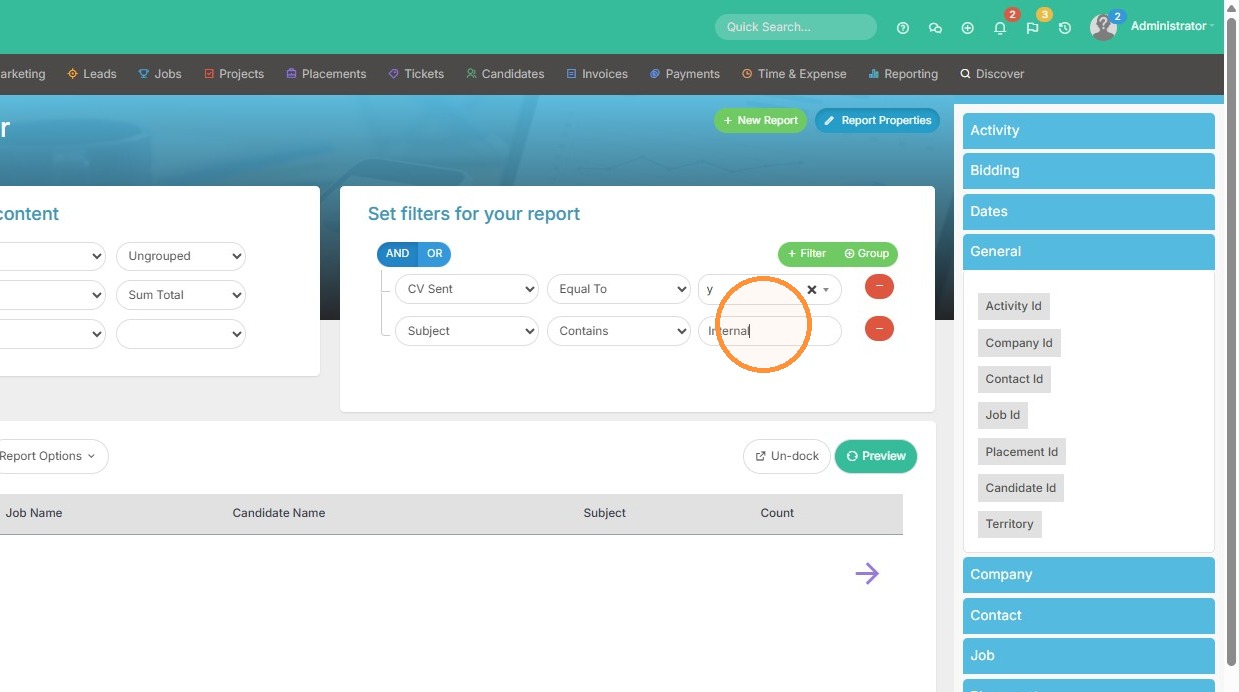
19. Click "+ Filter" to add a third condition
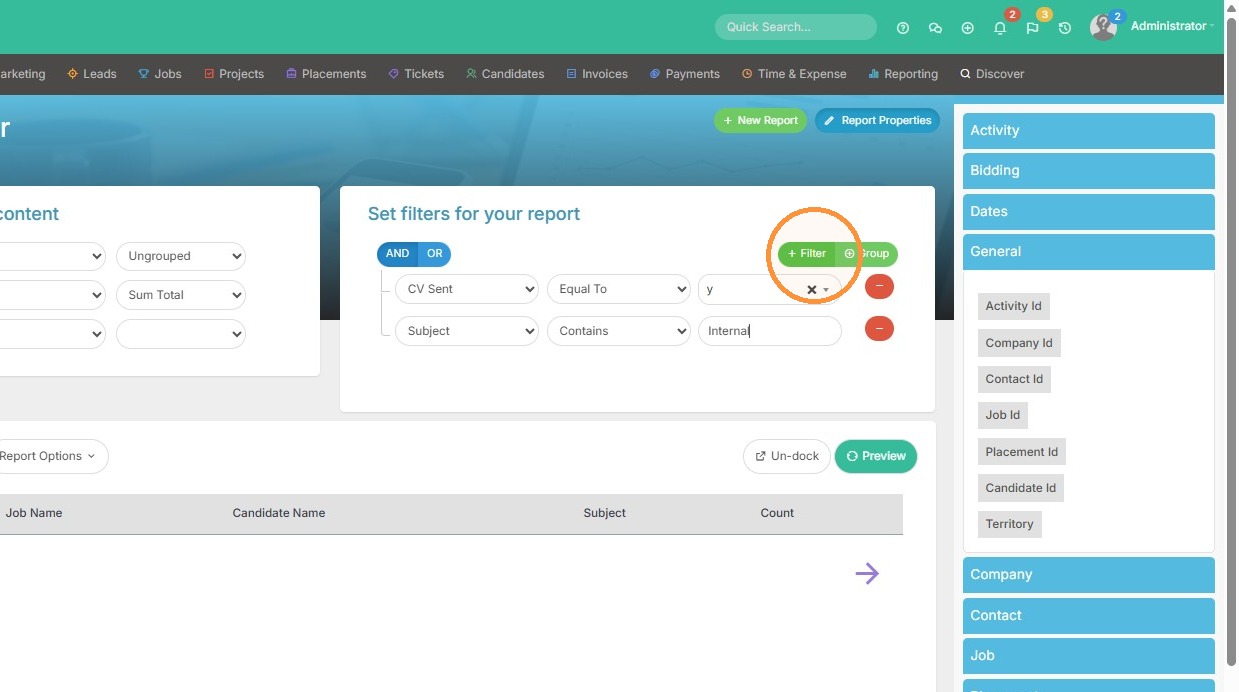
20. Select the "Activity Due Date" option. This will allow us to have a running date filter so we never need to edit the report in the future. It may always show Last Month or This Week's data - it's up to you.
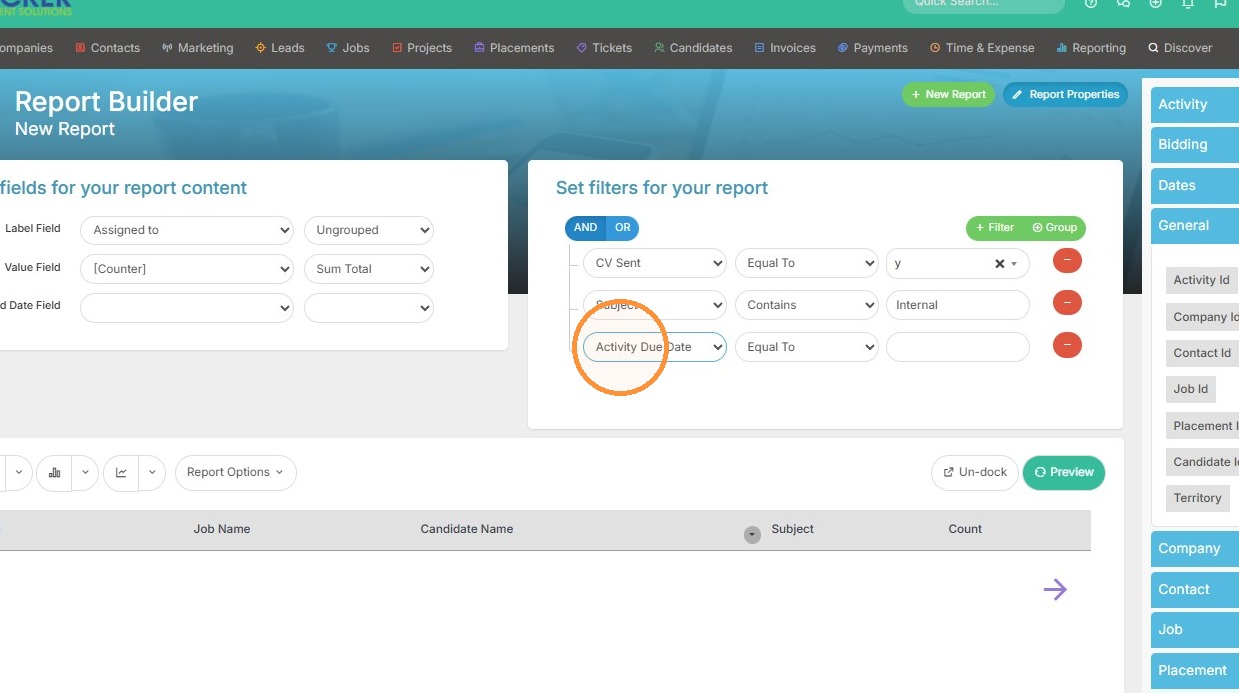
21. For this example, I'll select the "Last Month" option.
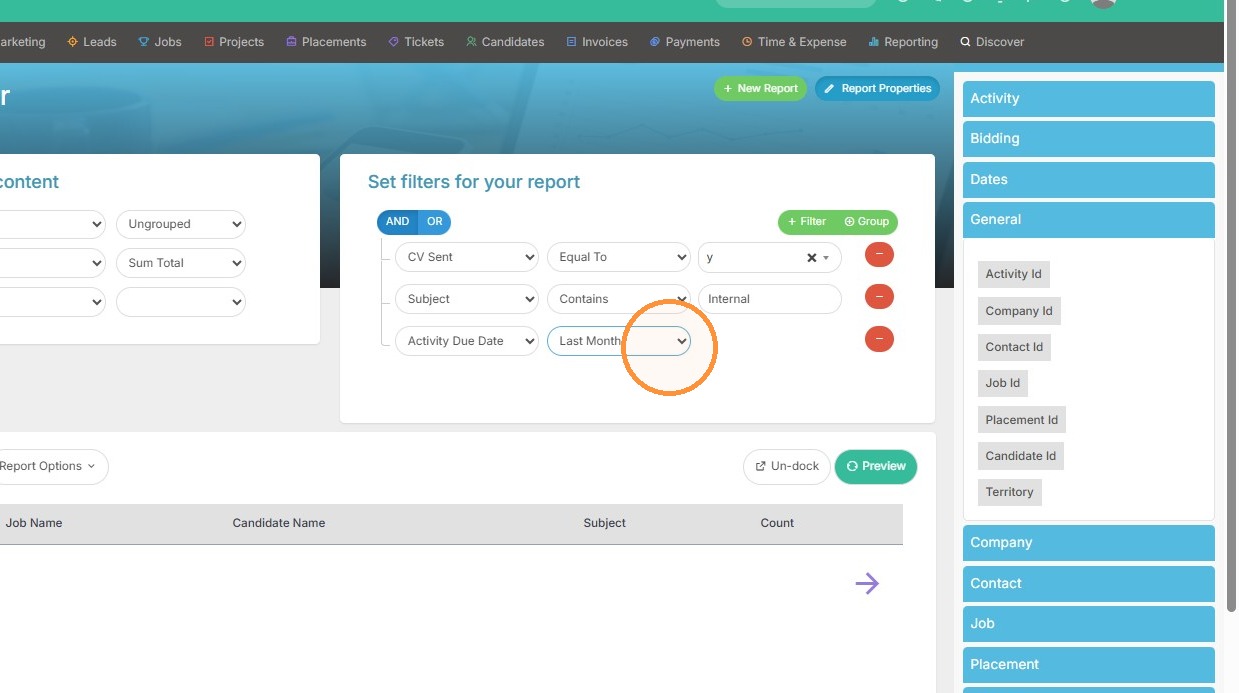
Final Review
22. Click "Preview" to generate the report view
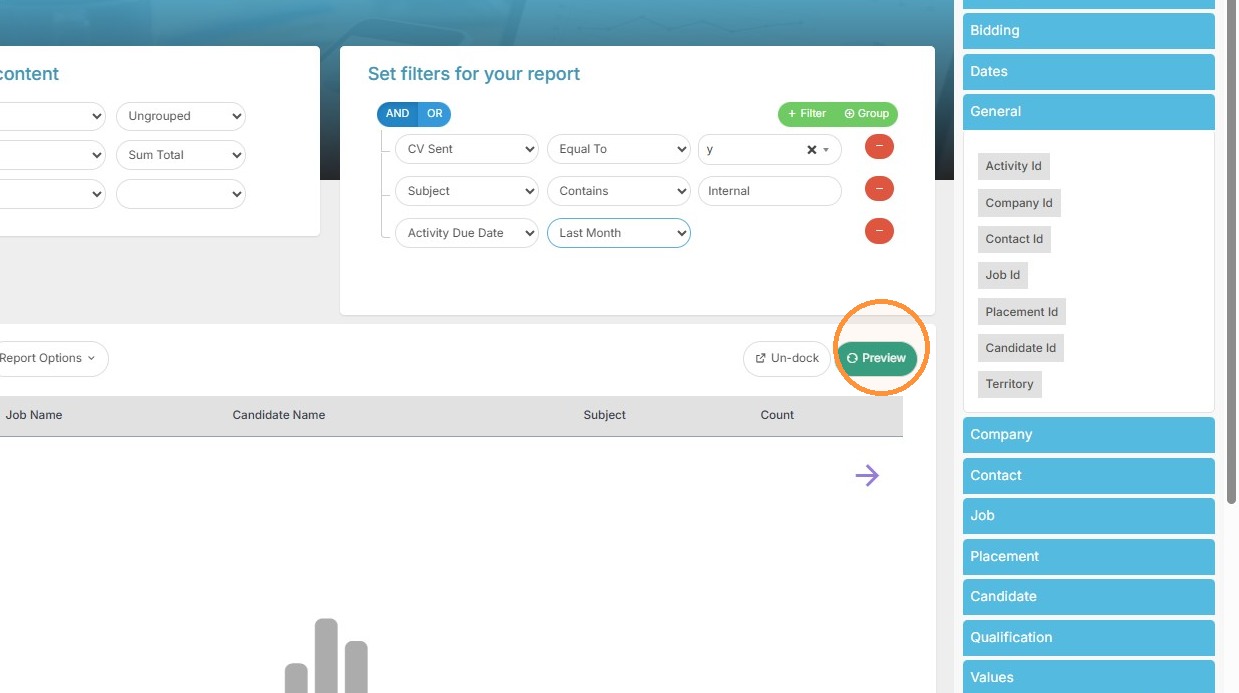
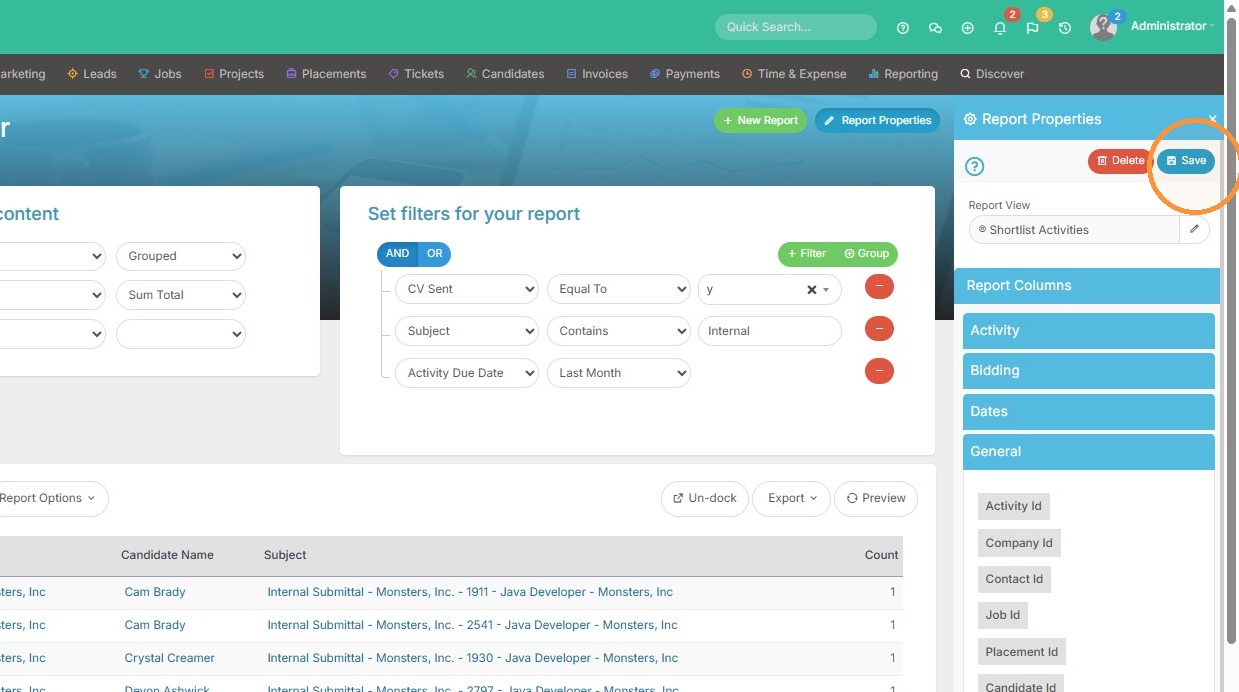
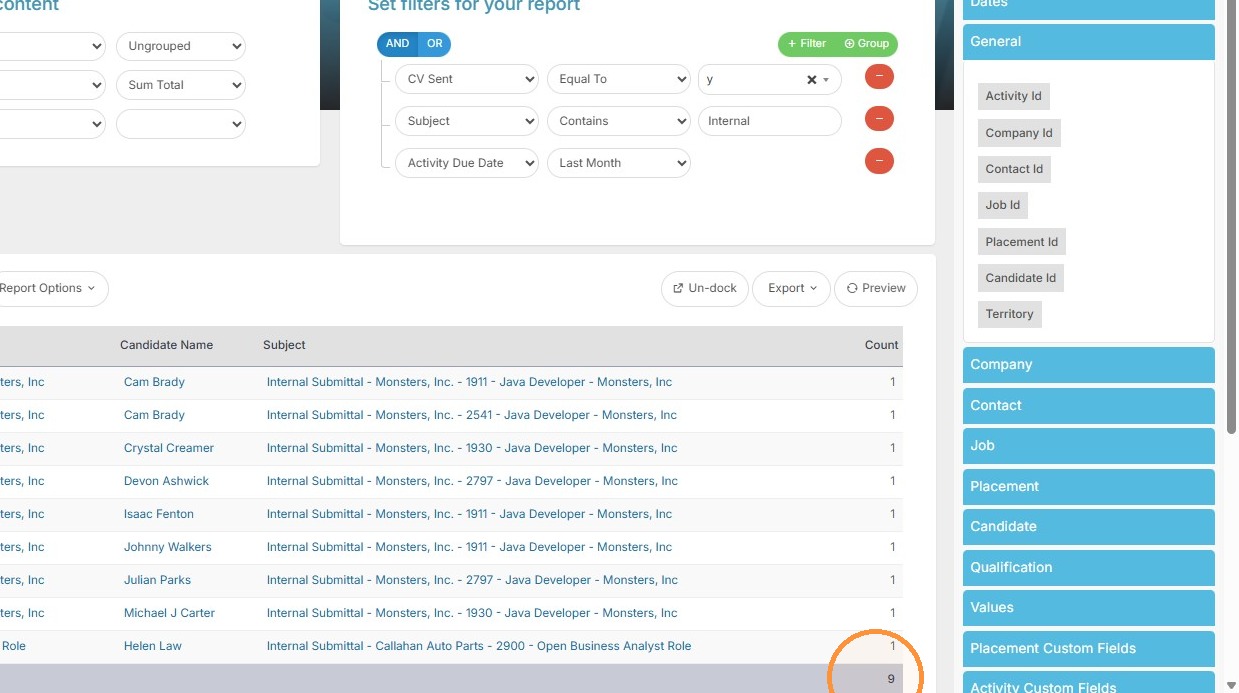
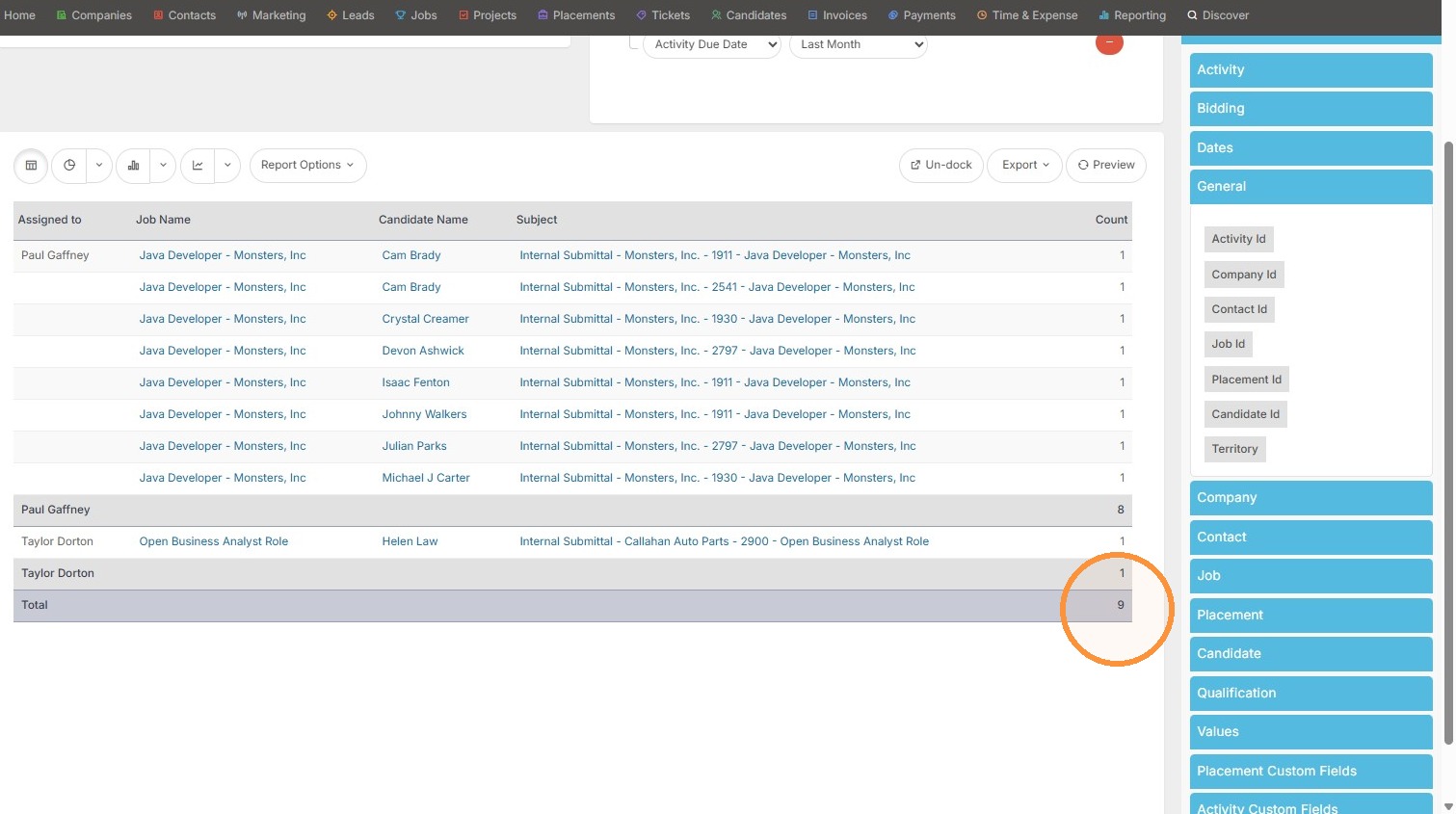
23. Here you can see the total for the internal resumes sent last month. Now I might want to group this report by the user so I can easily tell how many internal resumes were sent per user.
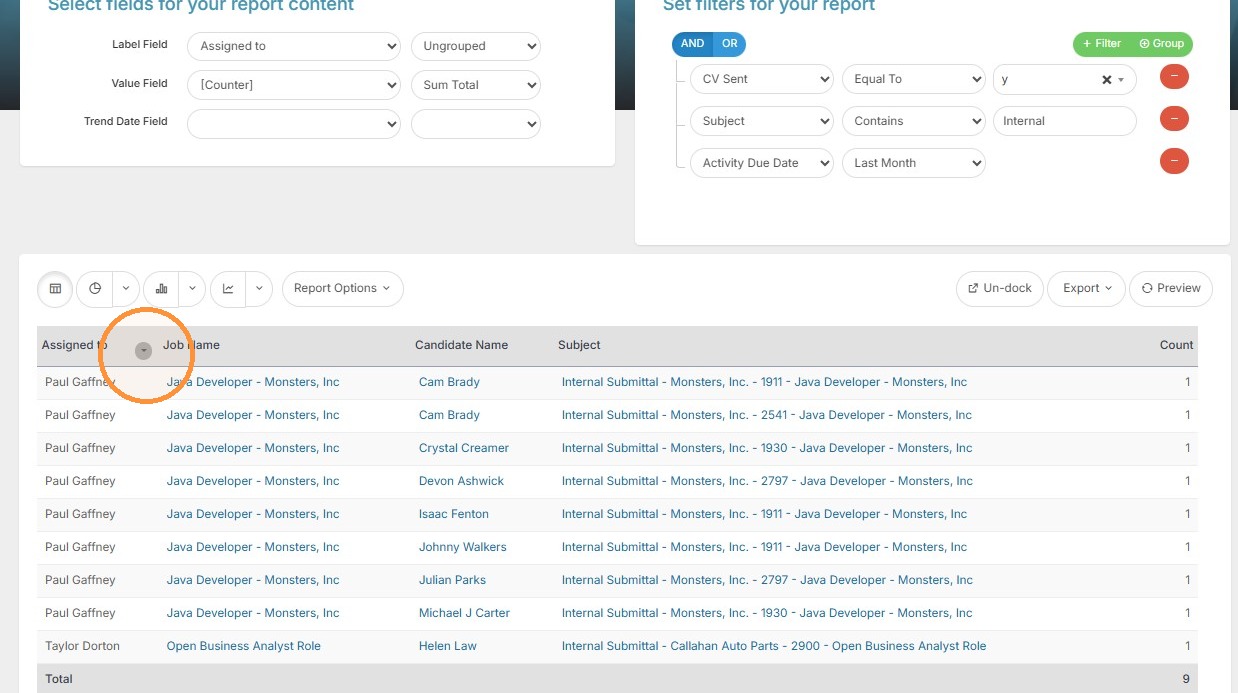
24. Click this button, and ensure the Assigned To column is listed as Sort Order 1.
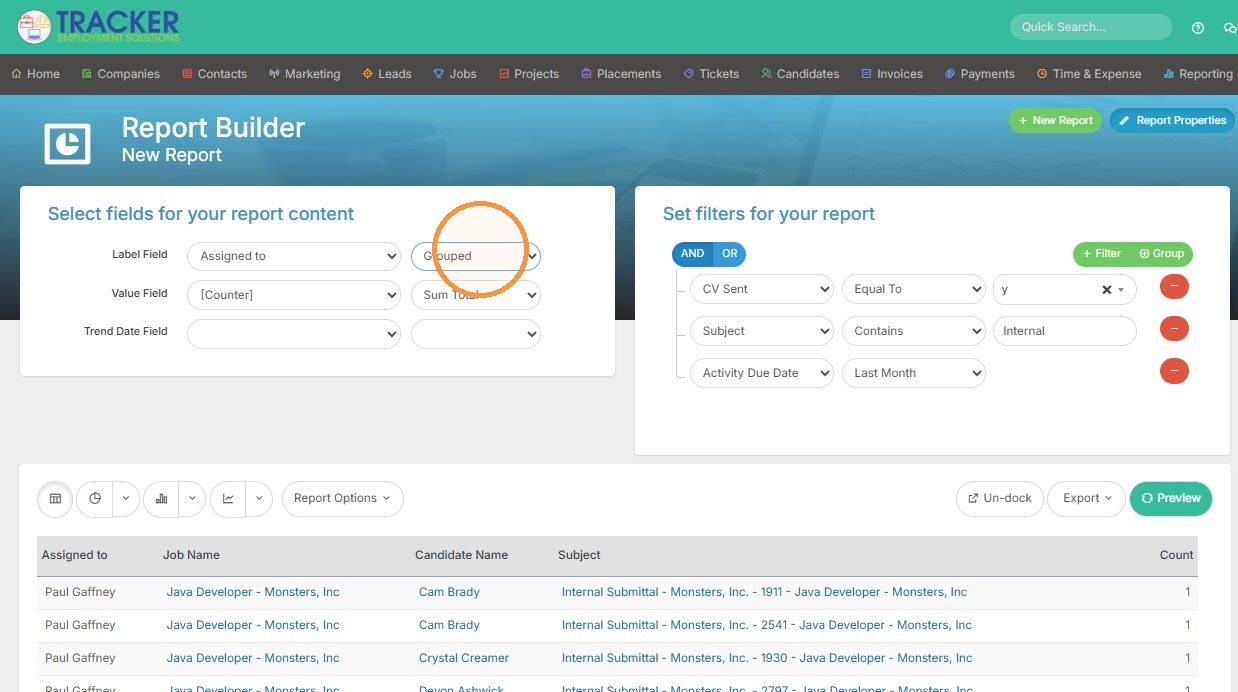
25. Select the "Grouped" option for Assigned To.
26. Click "Preview"
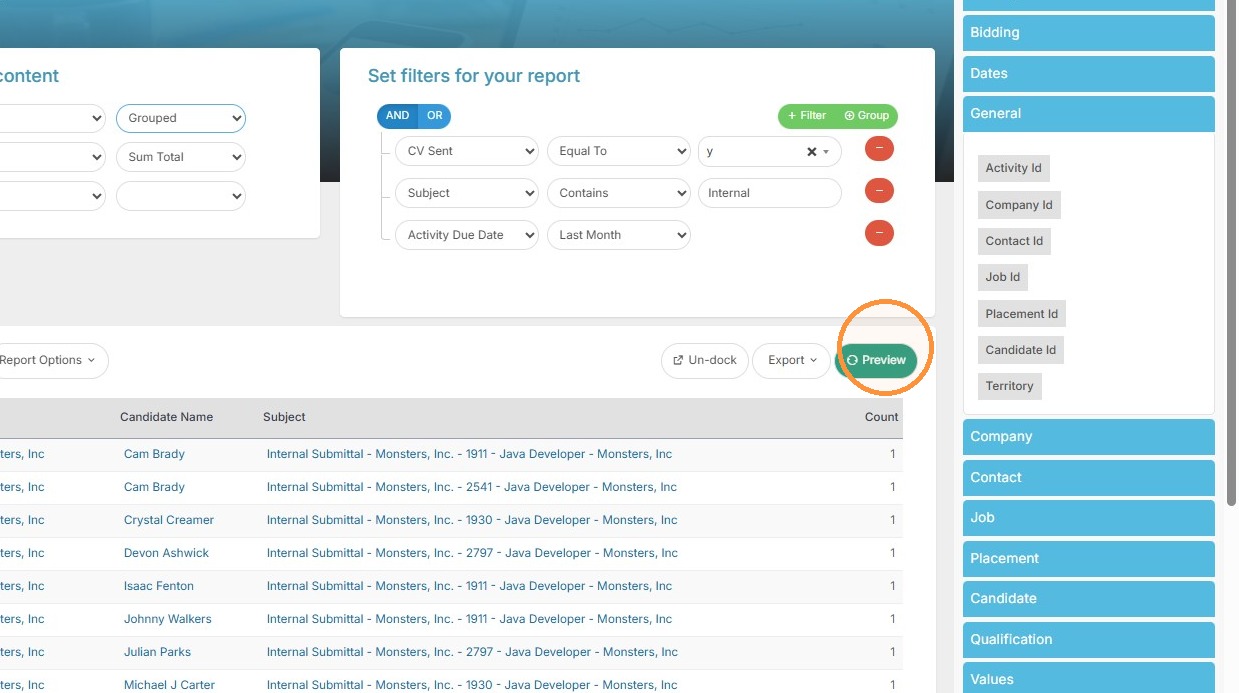
27. Now you can see the report shows totals per user.
28. Click "Save" to finalize the report