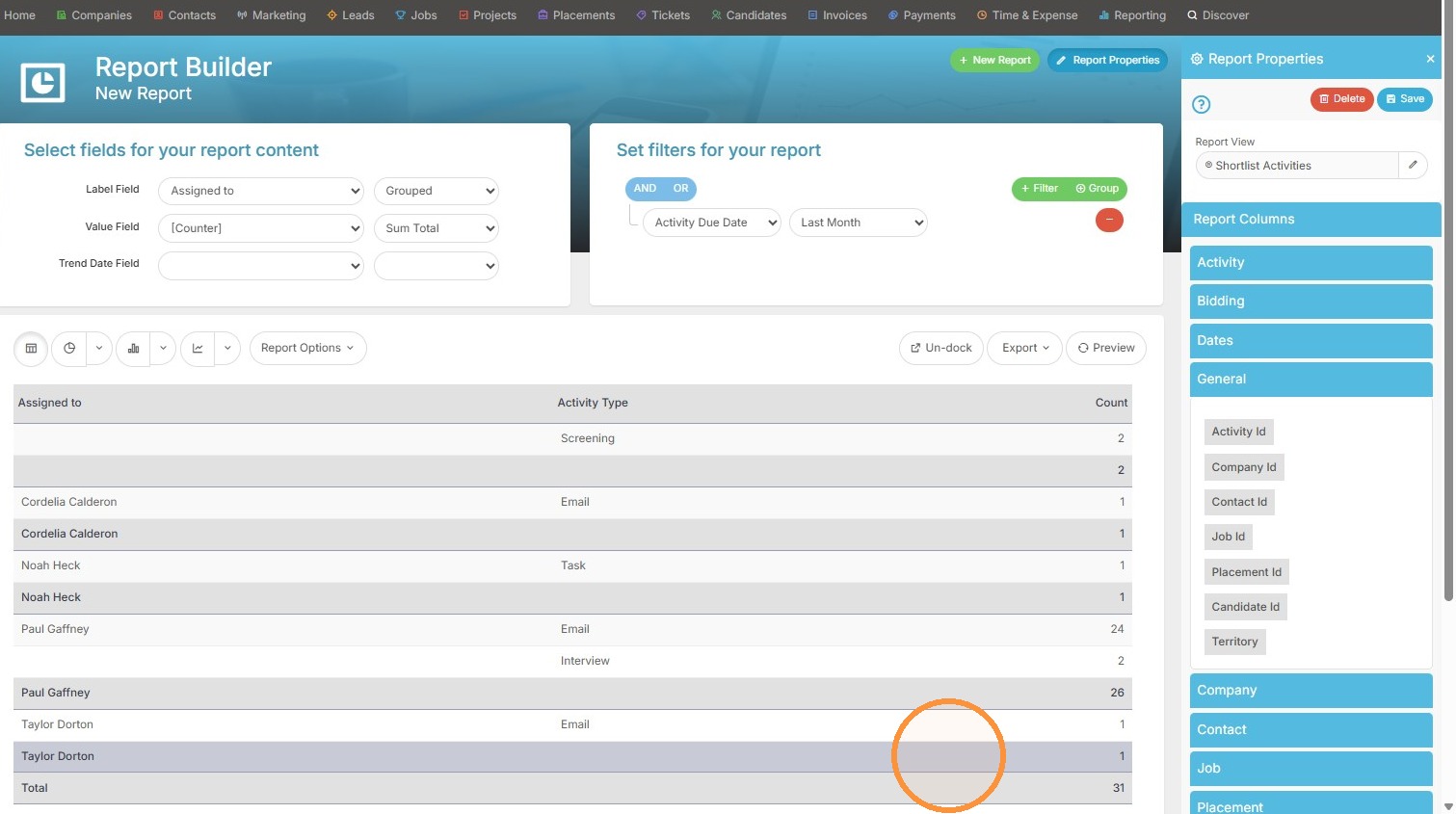
Please view the below video on how to create a basic user activity report:
Report Type Selection
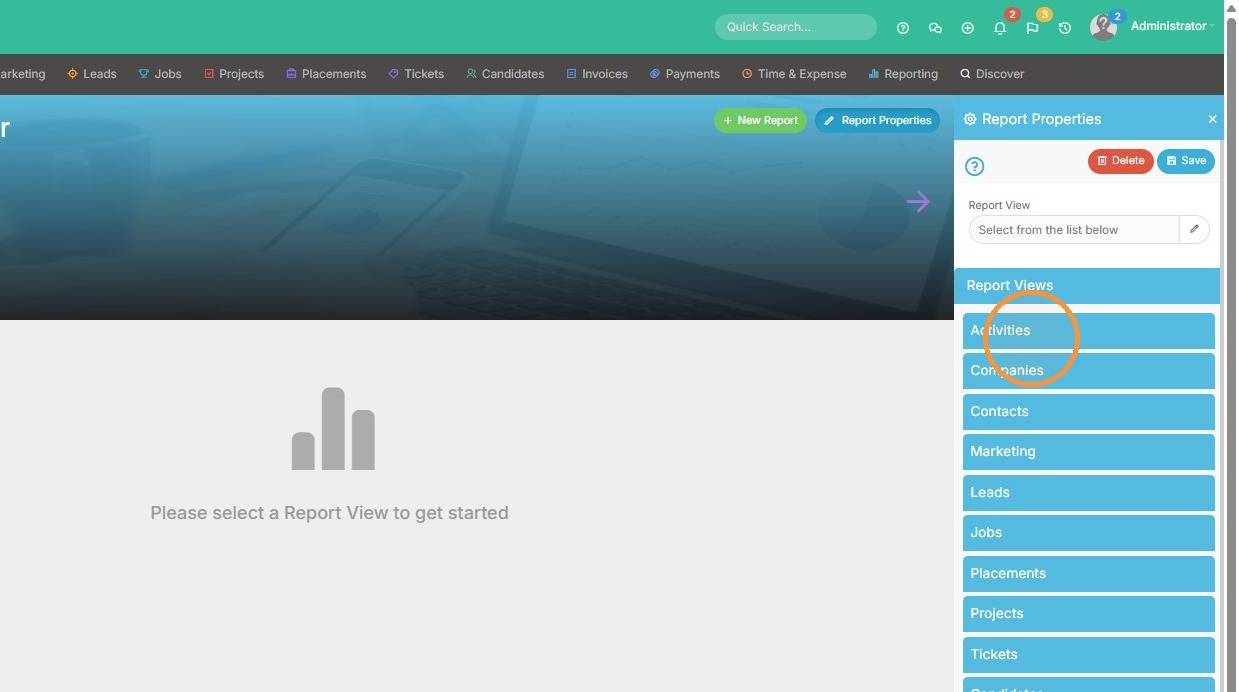
1. Click "Activities" in the Report Views menu.
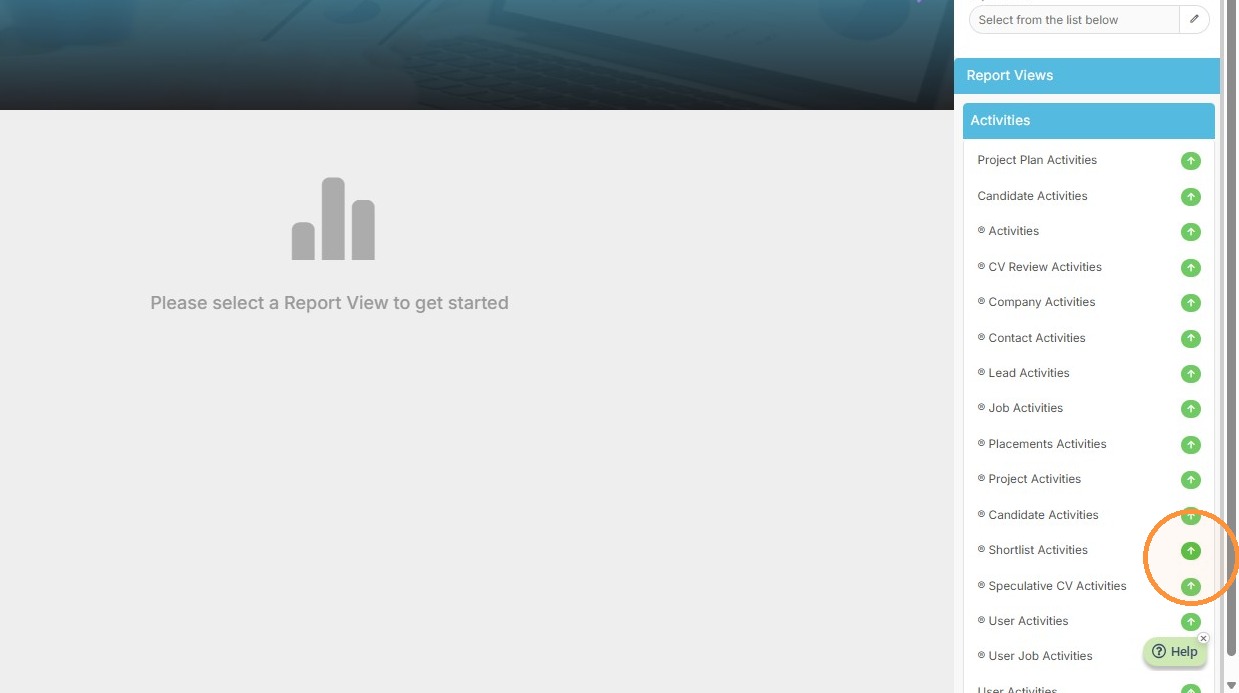
2. For a user activity report, it would be best to use the Shortlist Activities report type.
Column Configuration
3. Expand the "Activity" section in the Report Columns sidebar.
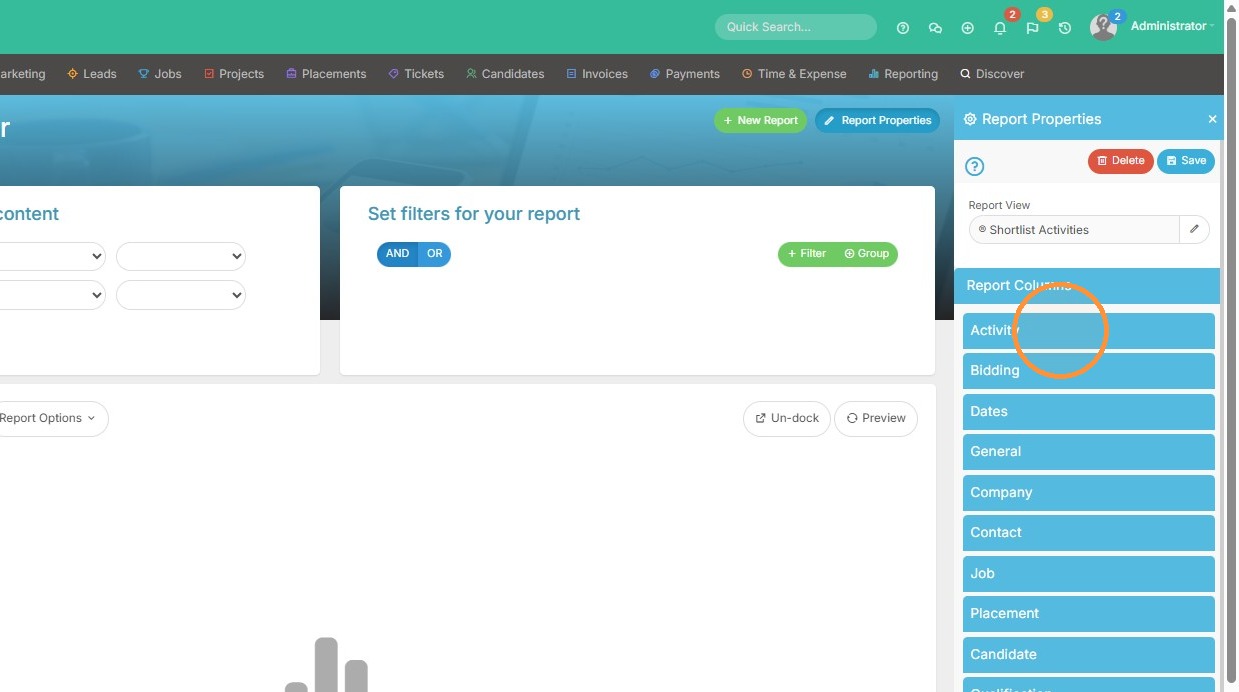
4. Add the "Assigned to" and "Activity Type" fields to the report columns to see who completed the activity, and what type it was.
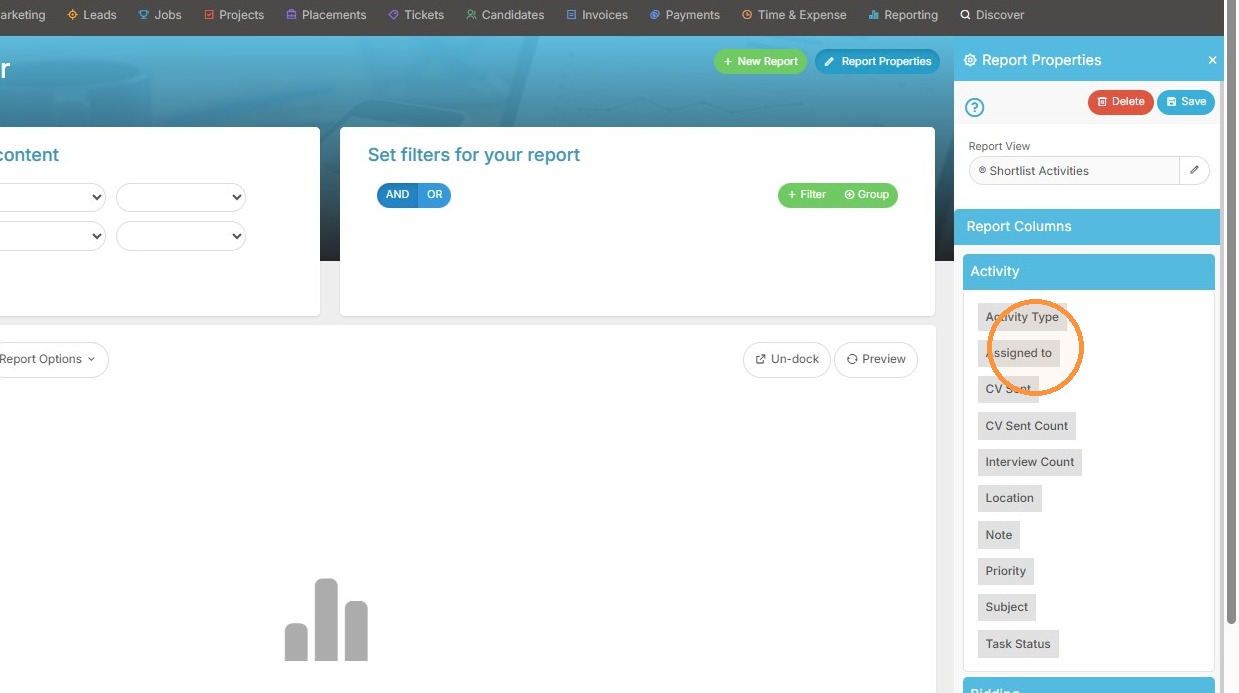
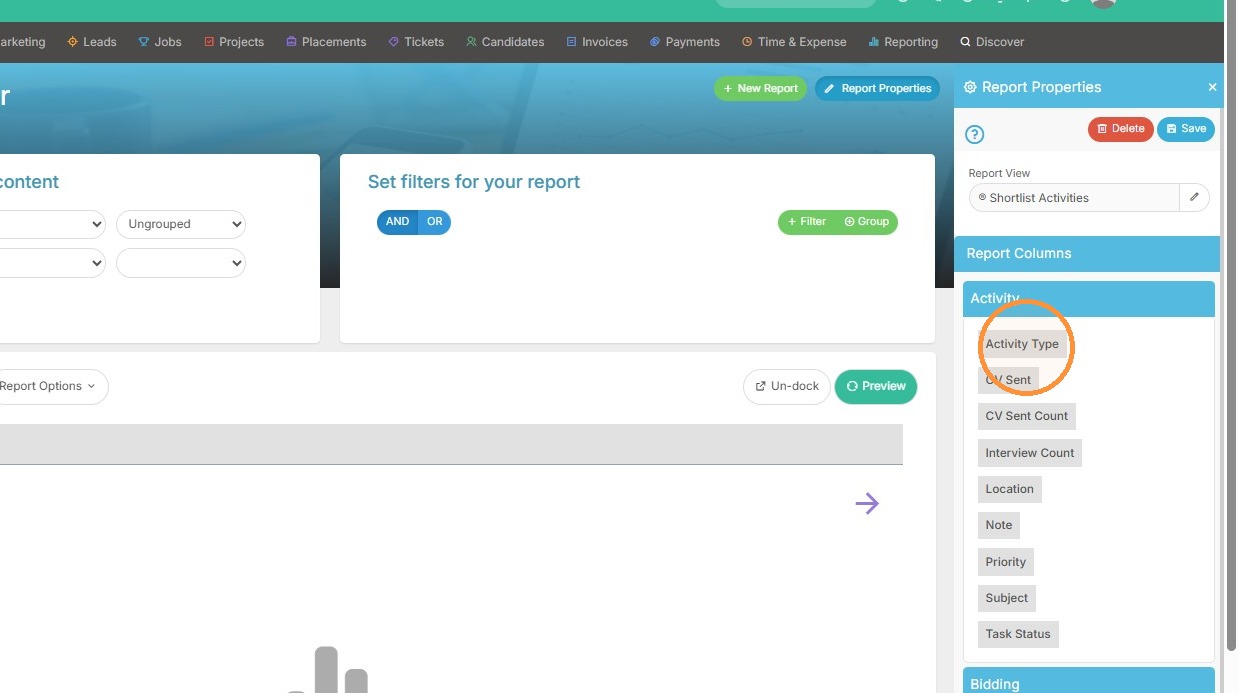
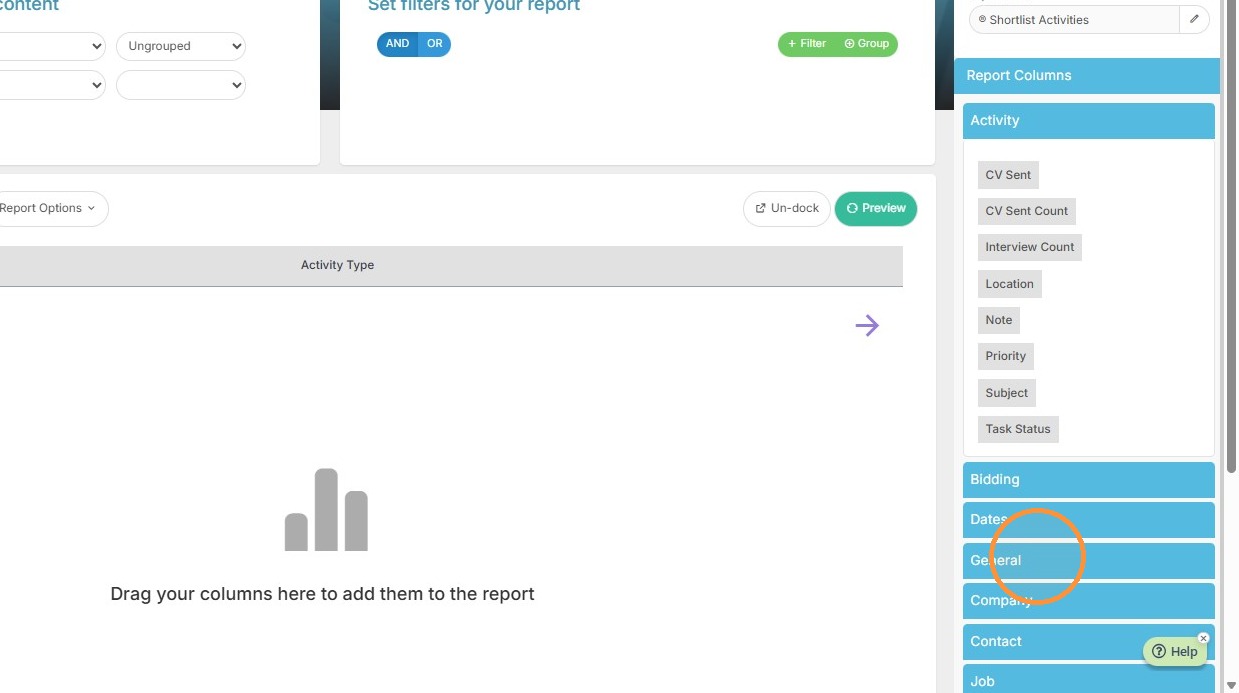
5. Expand the "General" section in the Report Columns sidebar.
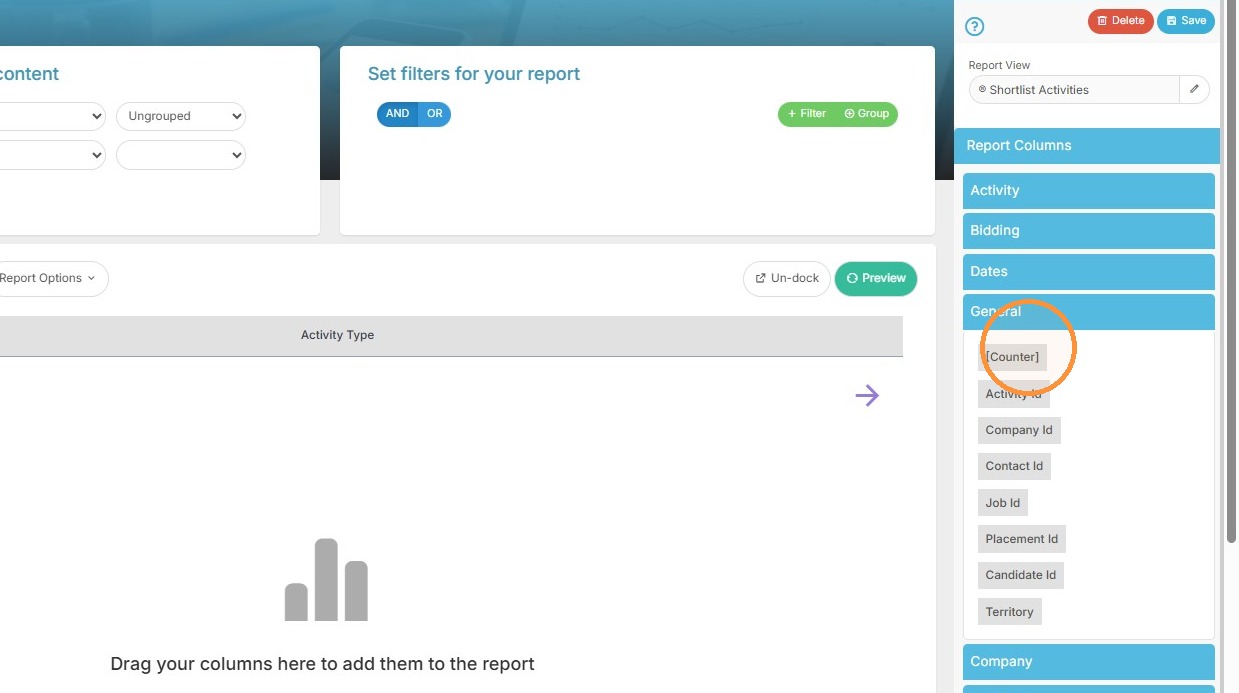
6. Click "[Counter]" to add it as a report column to see the totals.
Report Filtering
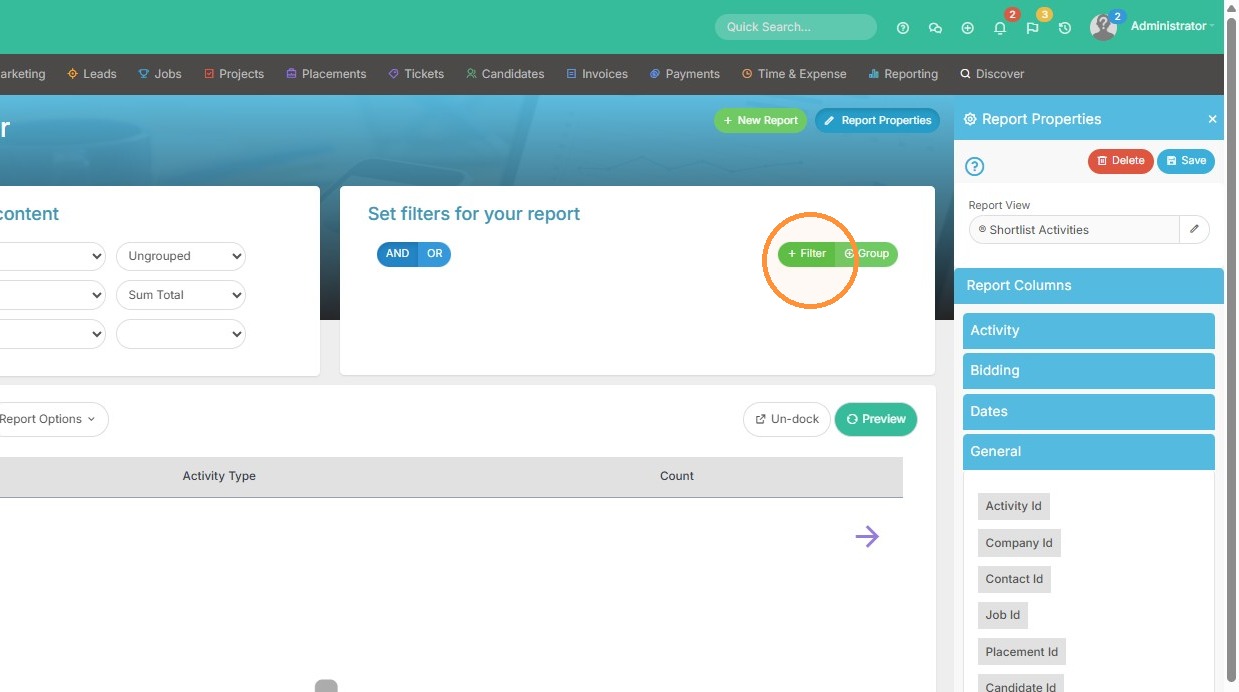
7. Click the "+ Filter" button to add a new report filter.
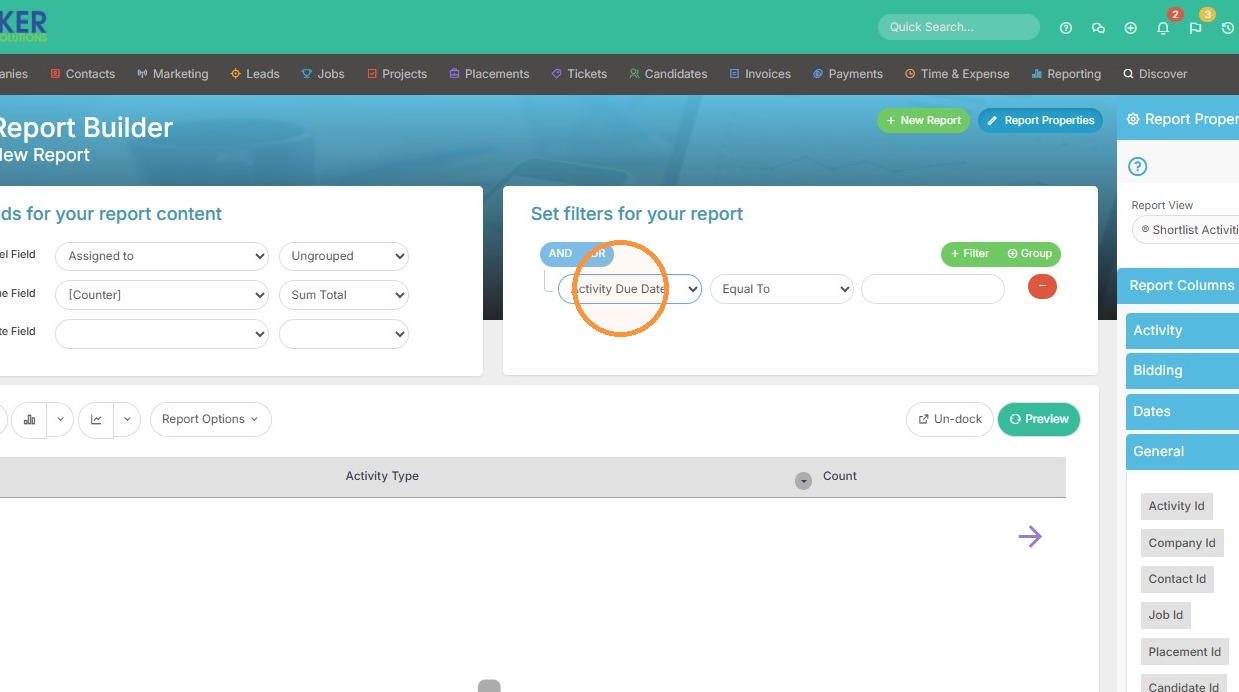
8. Select "Activity Due Date" from the filter field dropdown to see when the activity was completed.
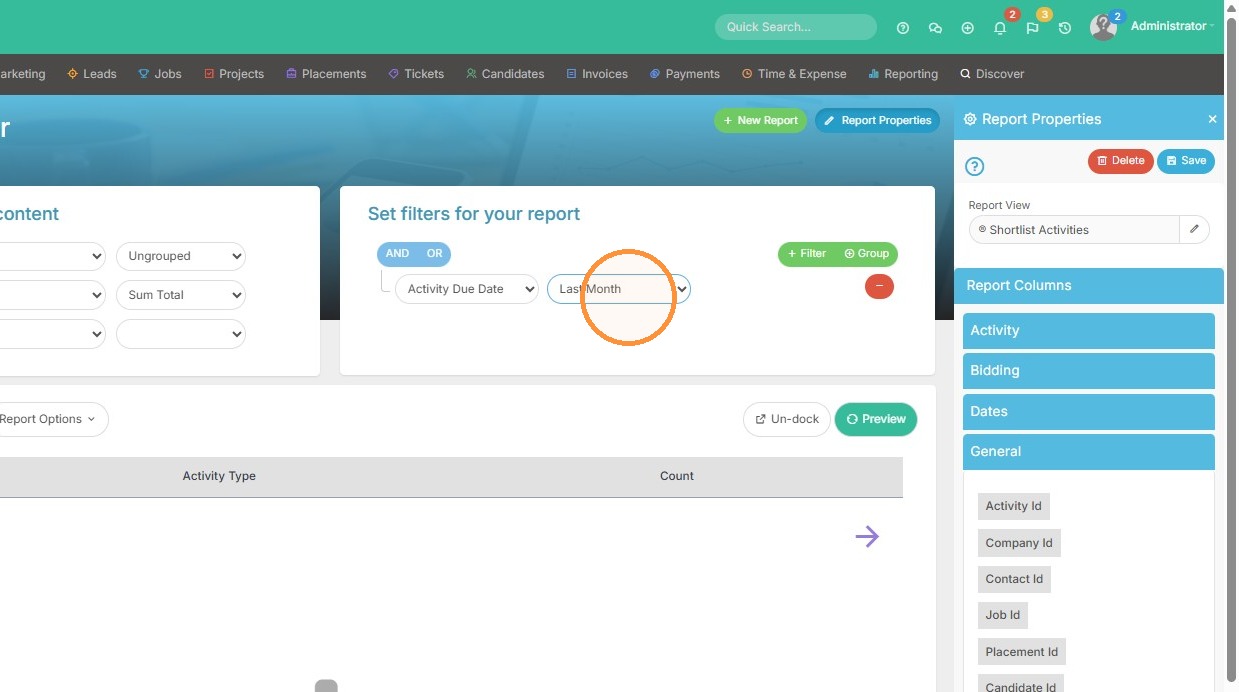
9. You can set a running date range from this dropdown. If I pick Last Month, it will always show last month's activities completed.
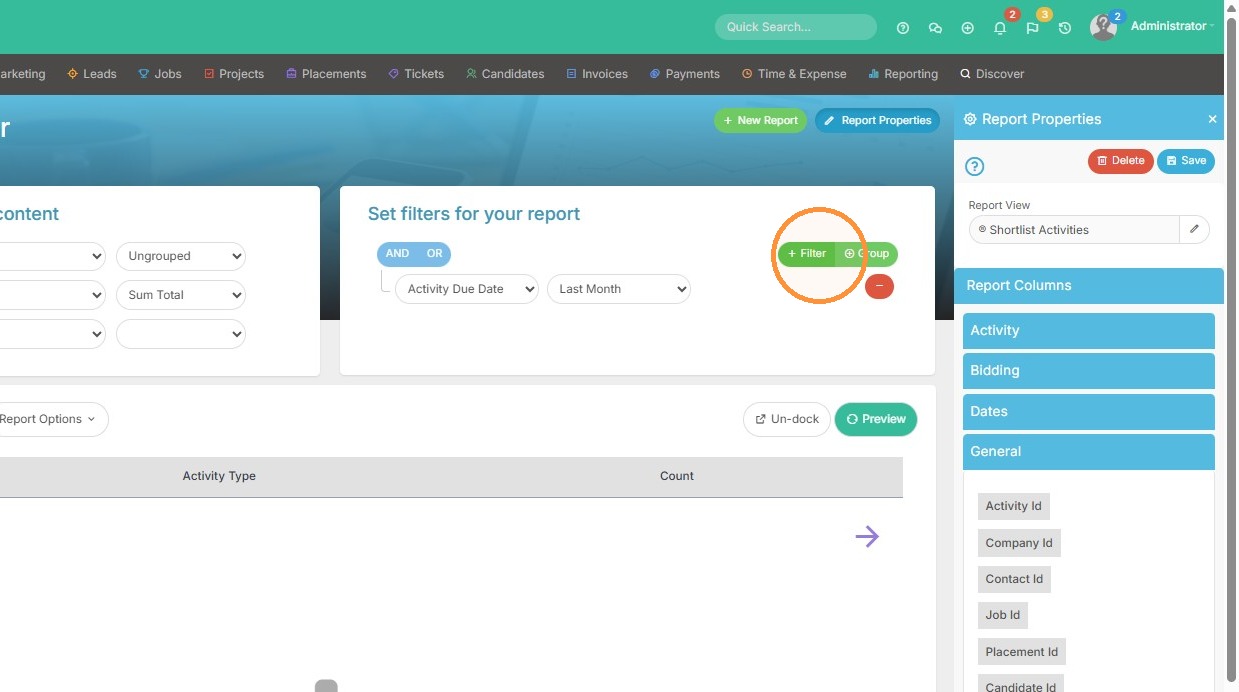
10. Click "+ Filter" to add an additional filter criteria.
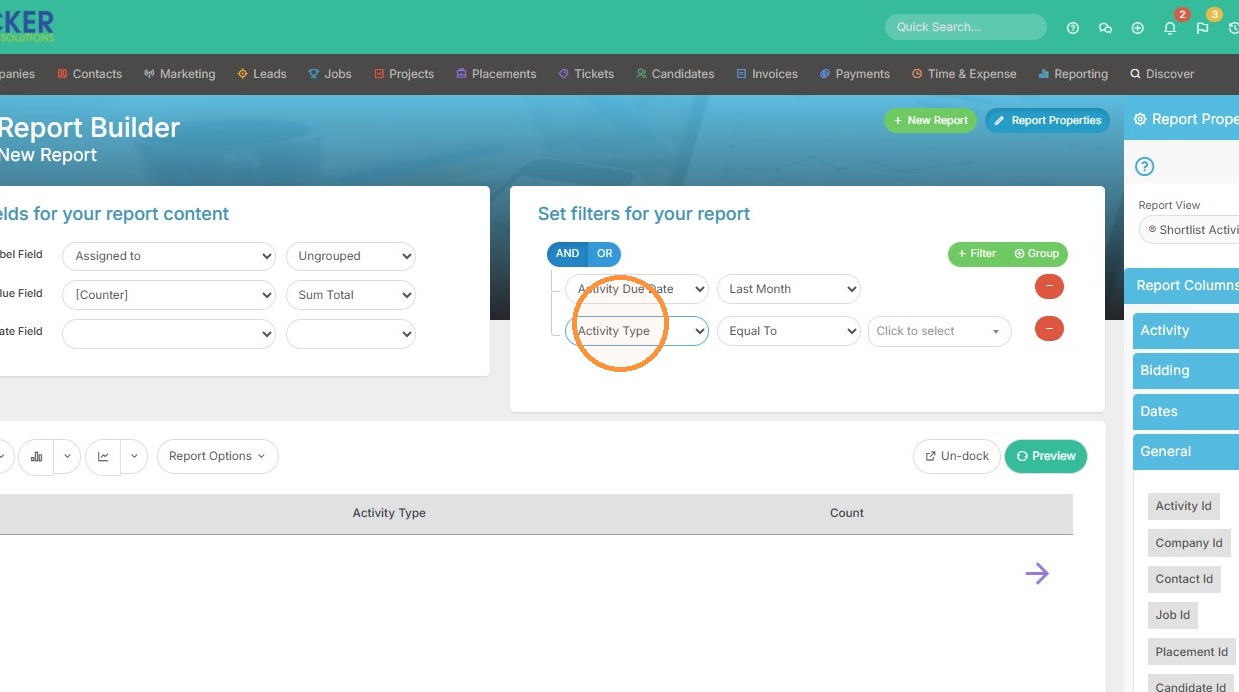
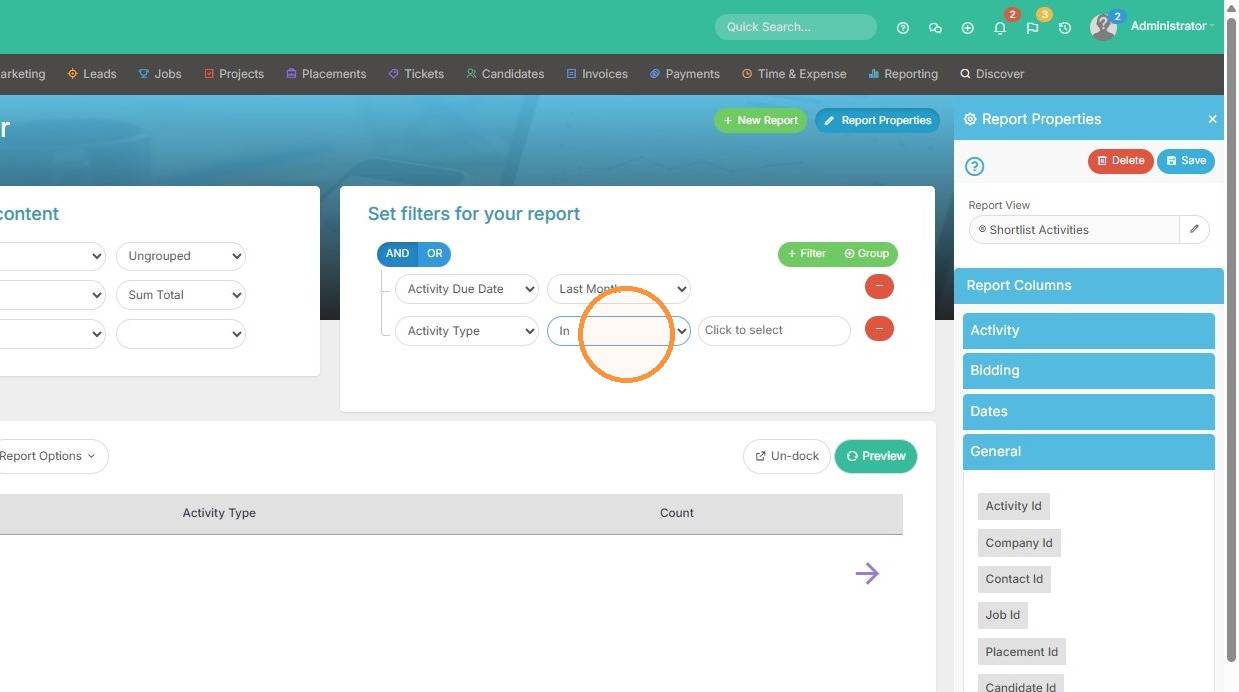
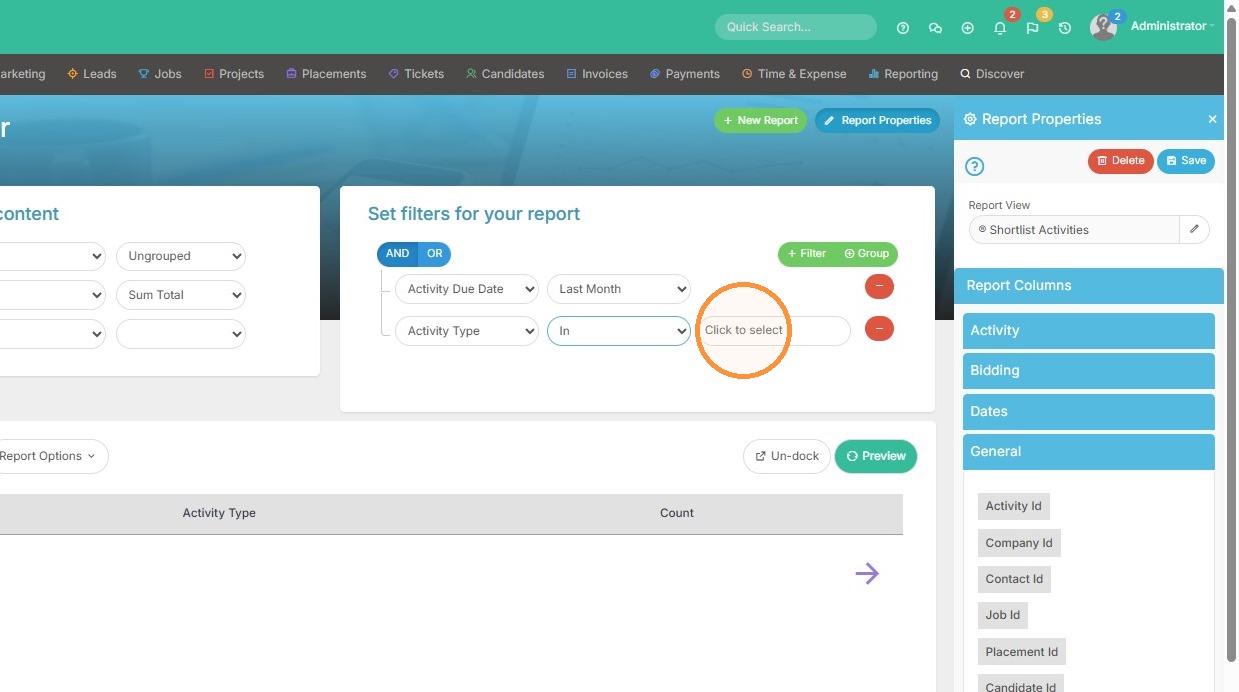
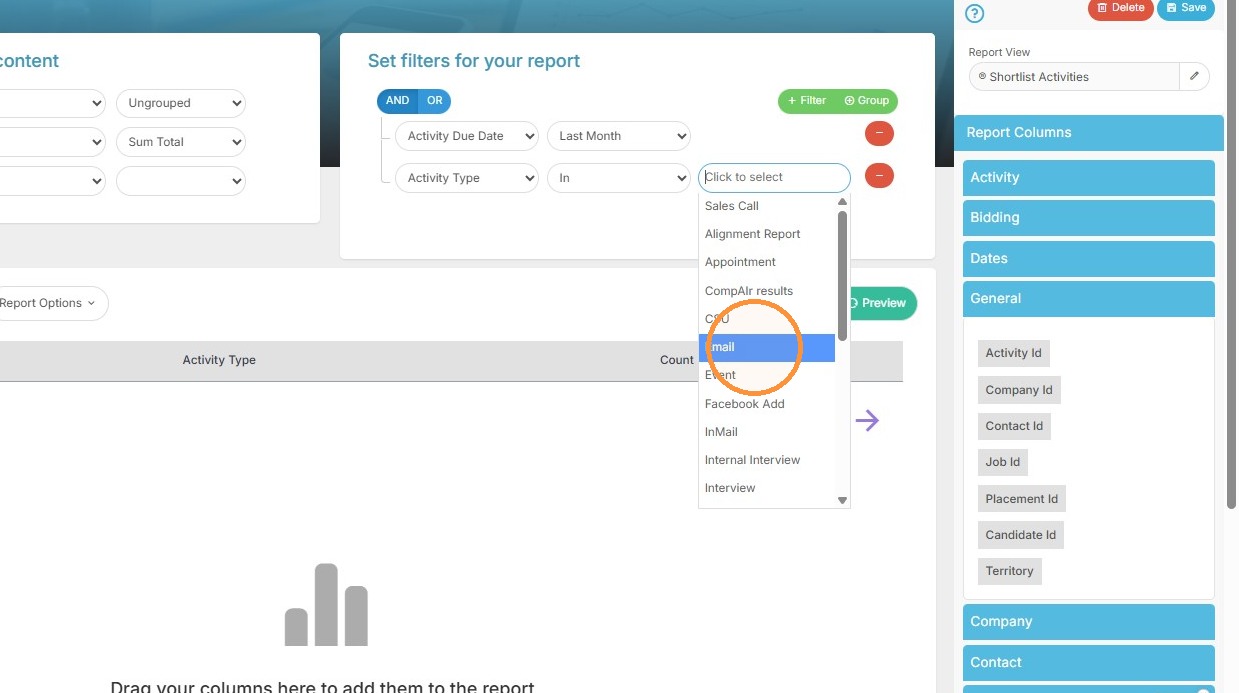
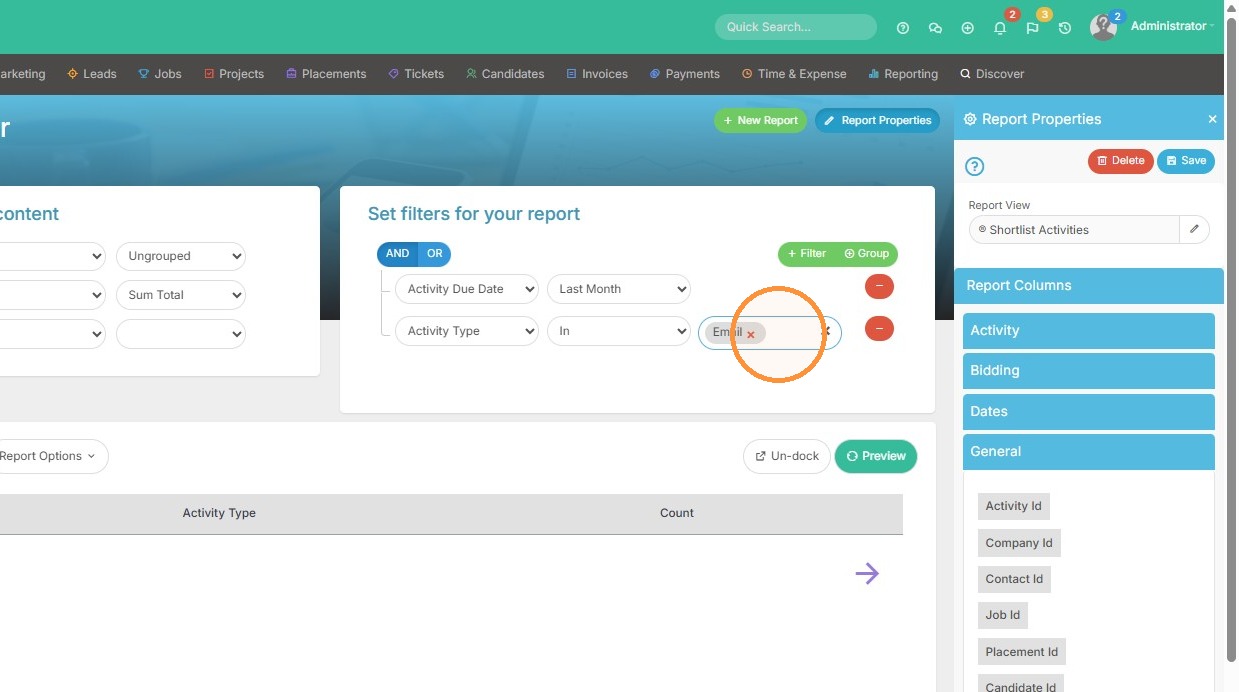
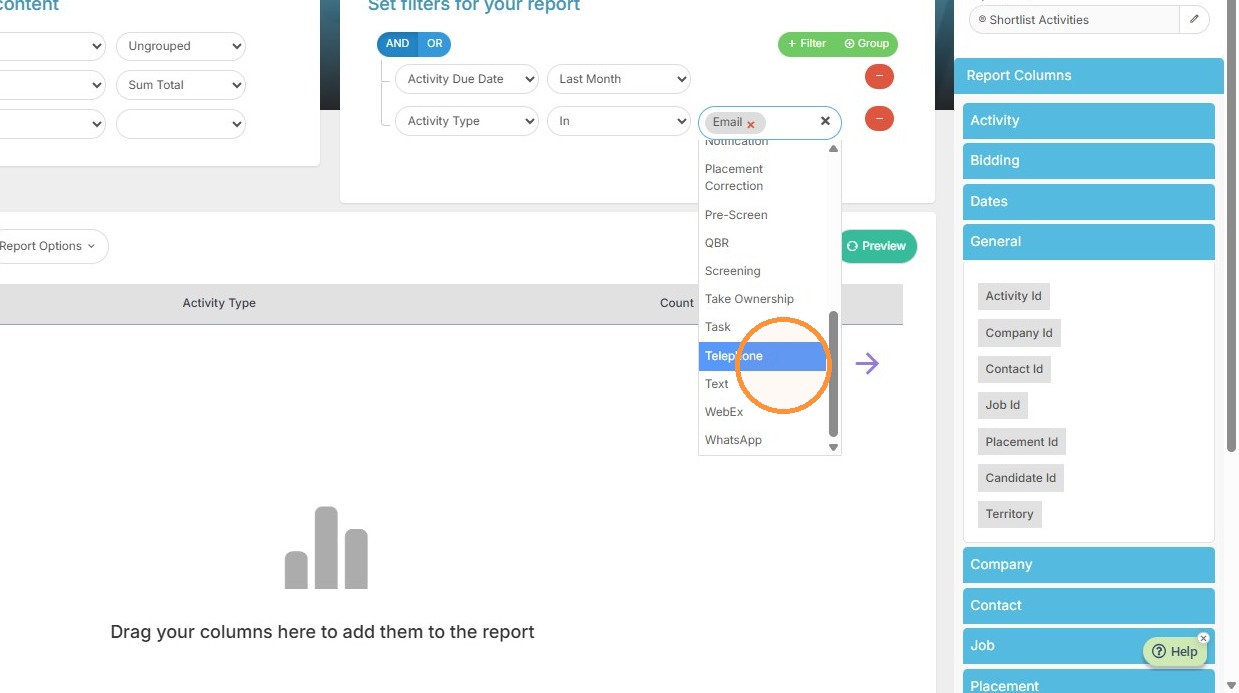
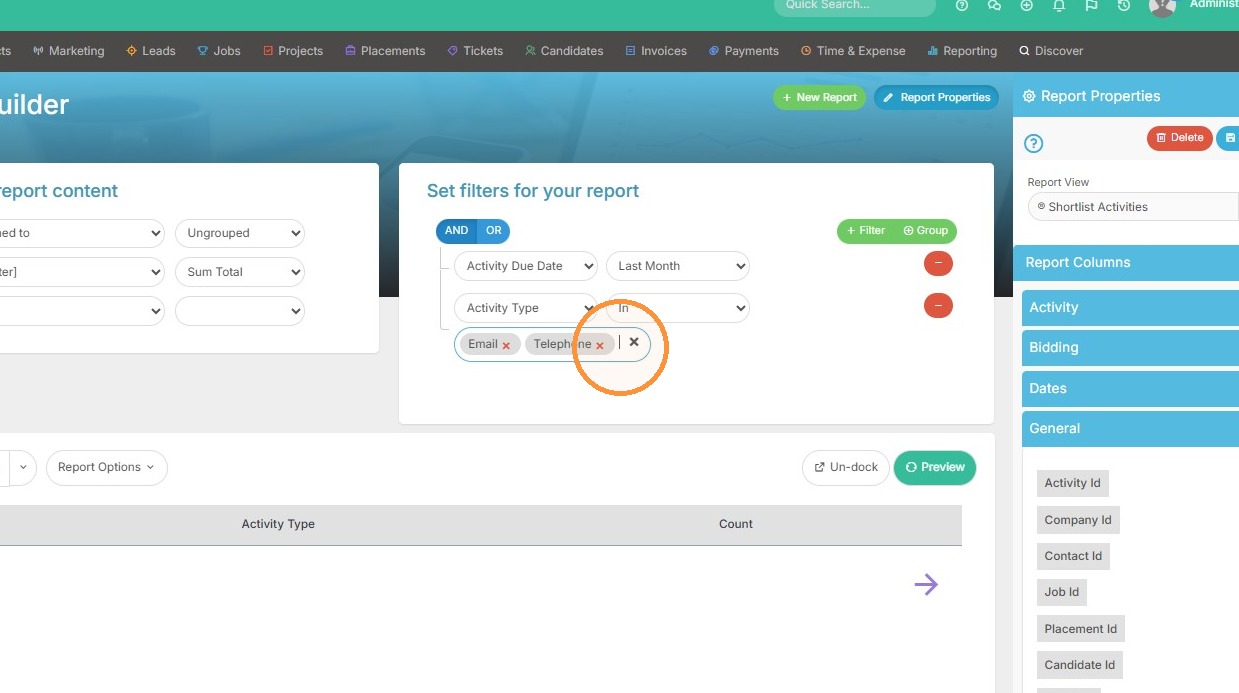
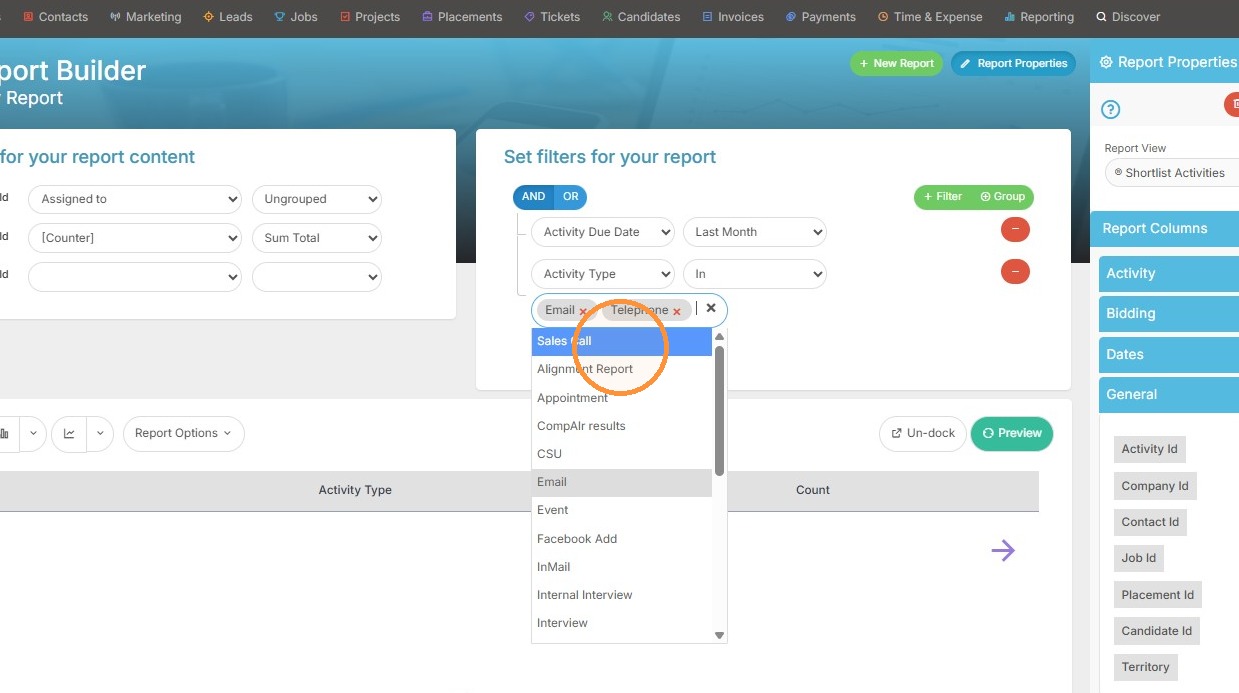
11. Filter the "Activity Type" field by selecting "Email", "Telephone", and "Sales Call" (or whatever activity types you want to see).
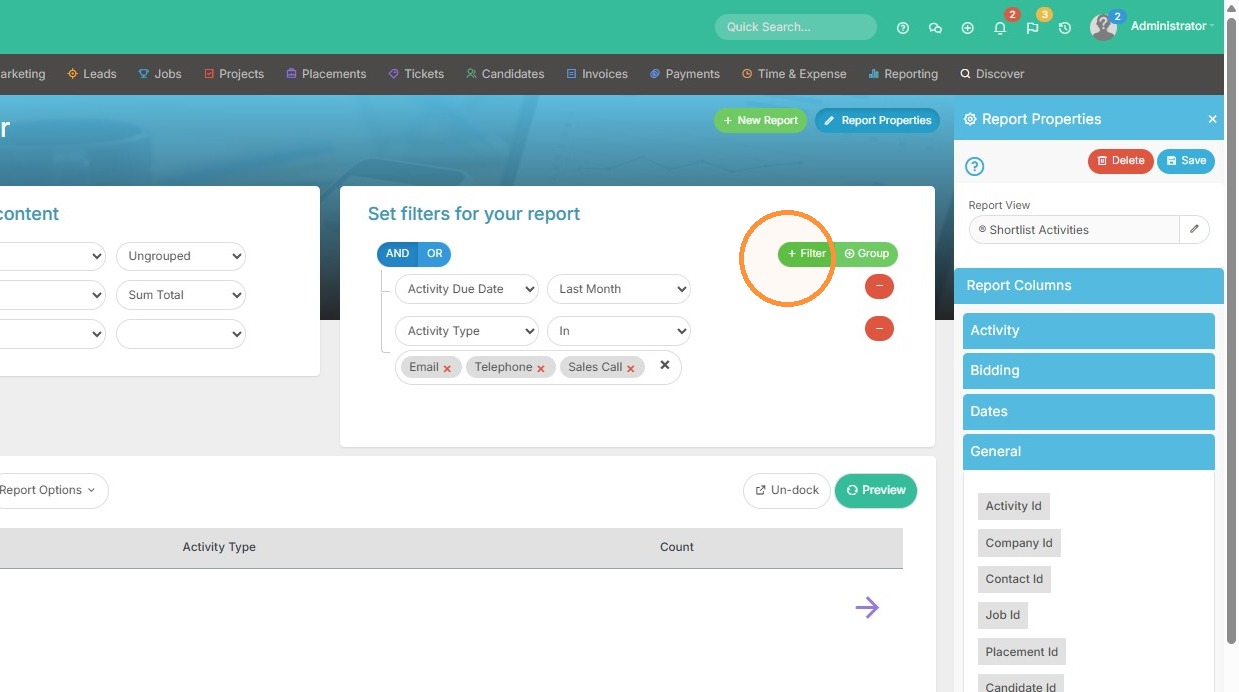
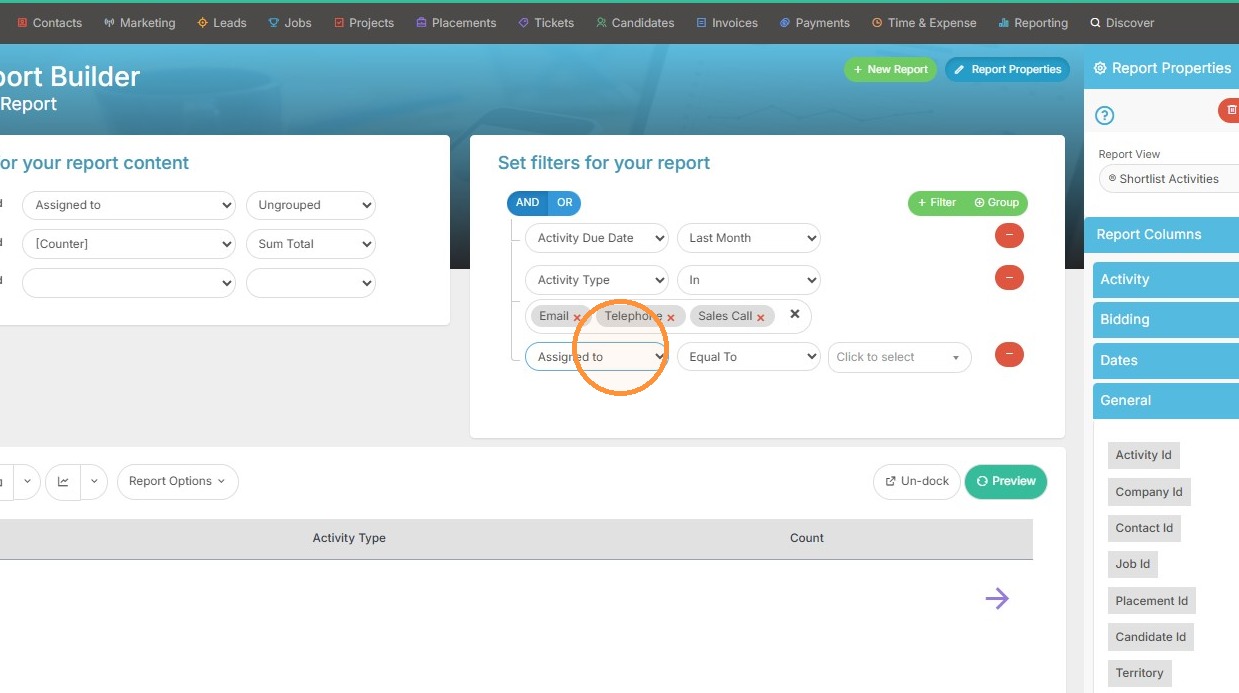
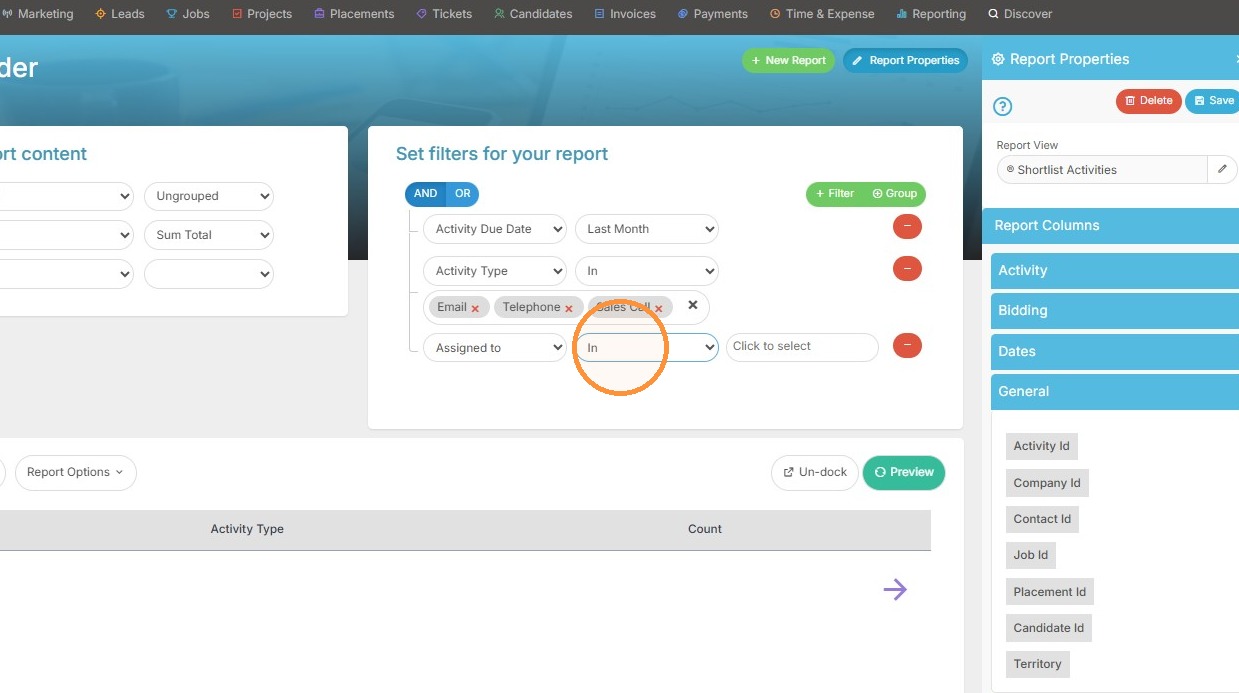
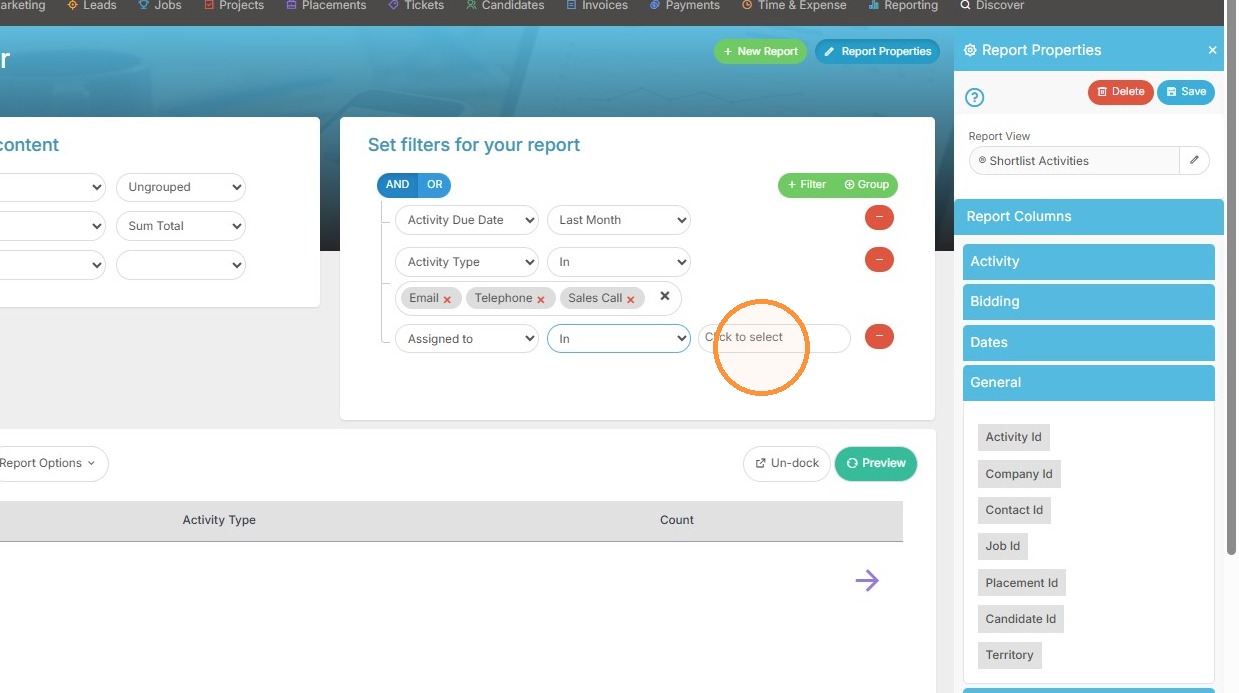
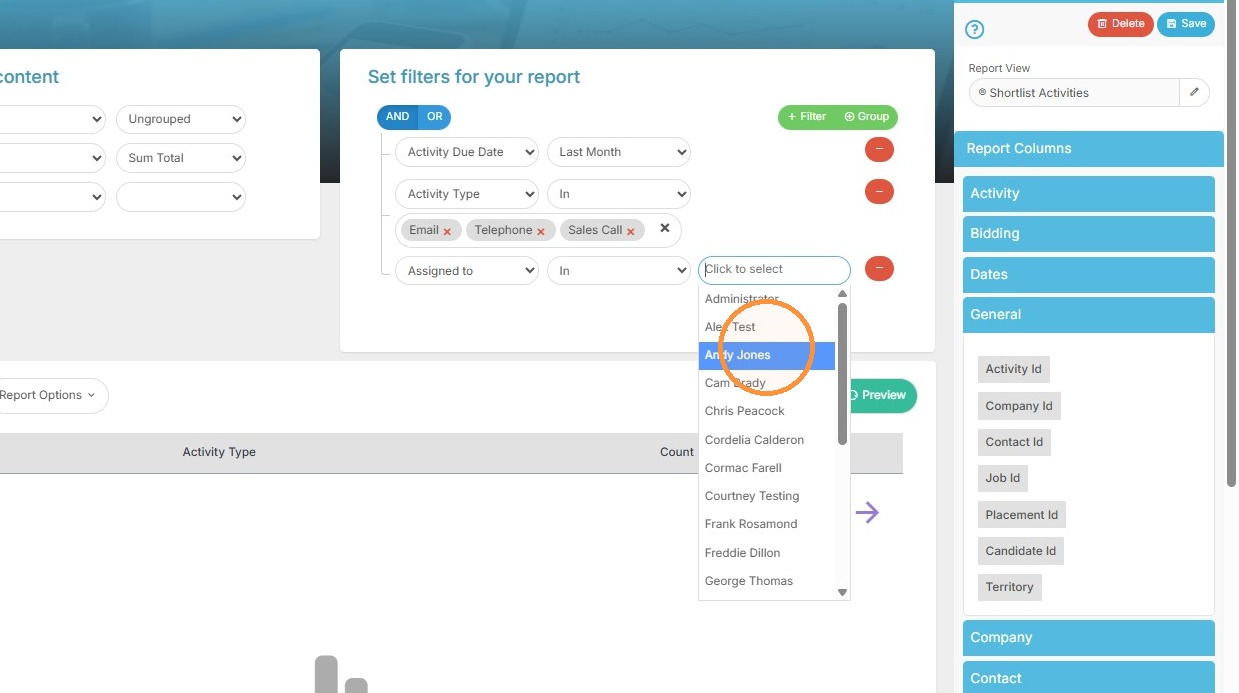
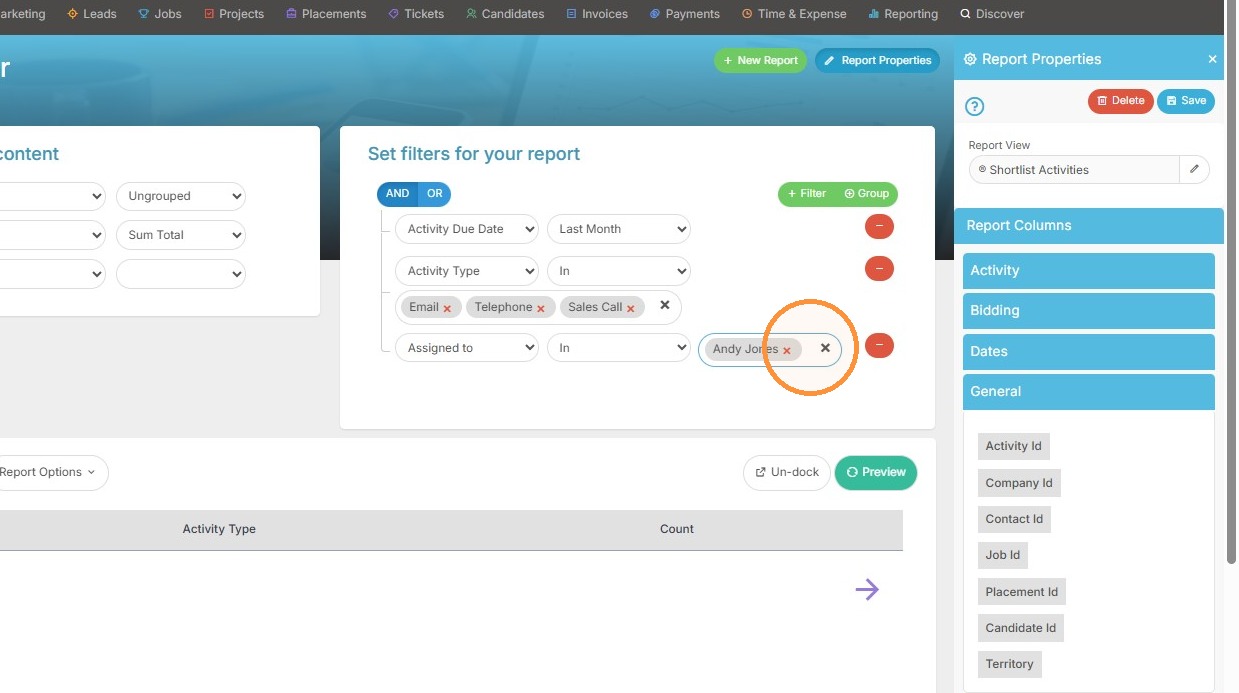
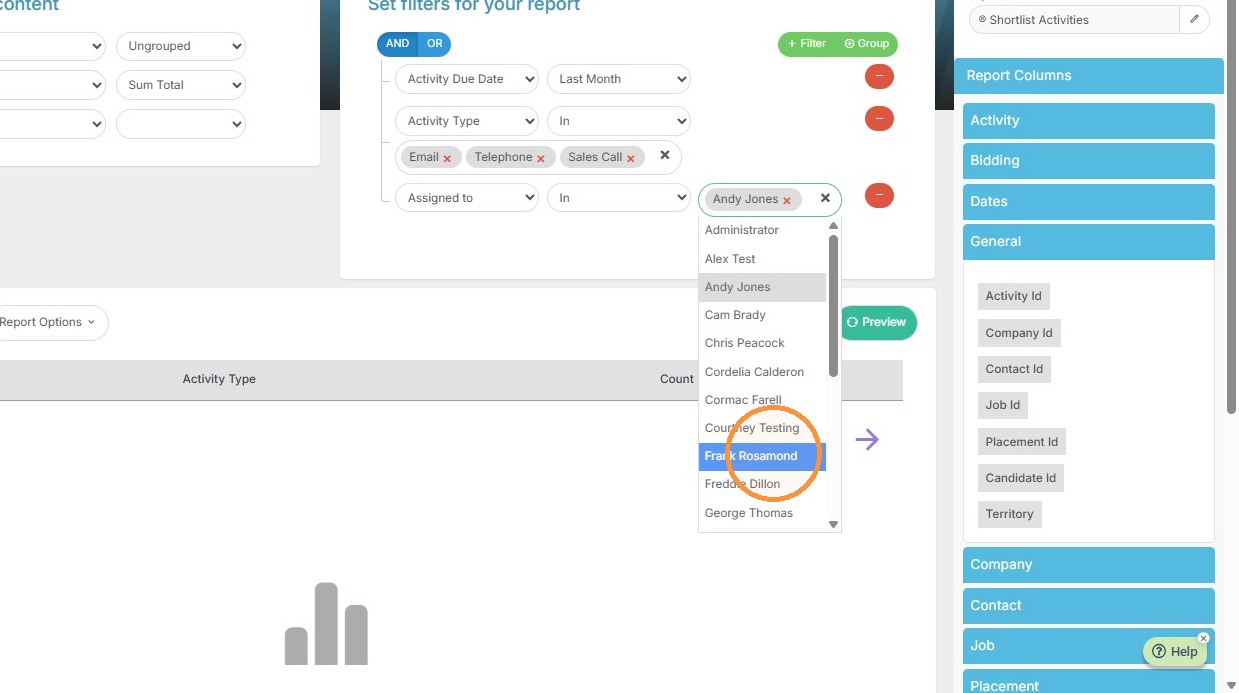
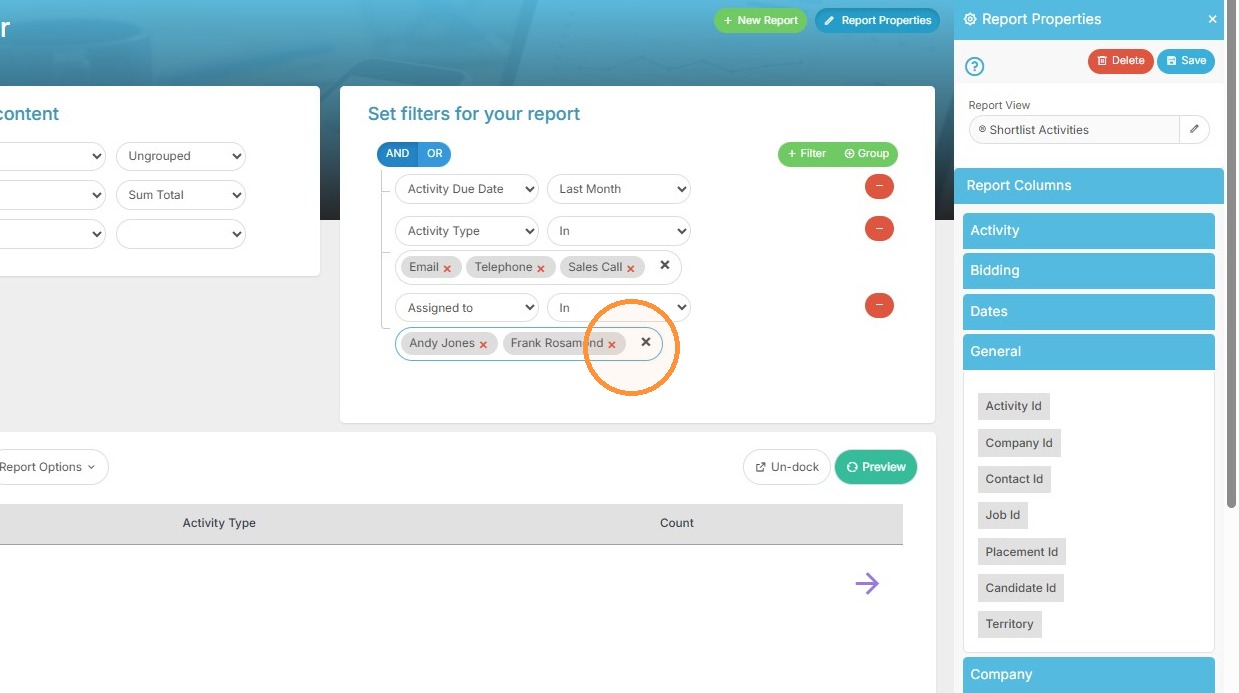
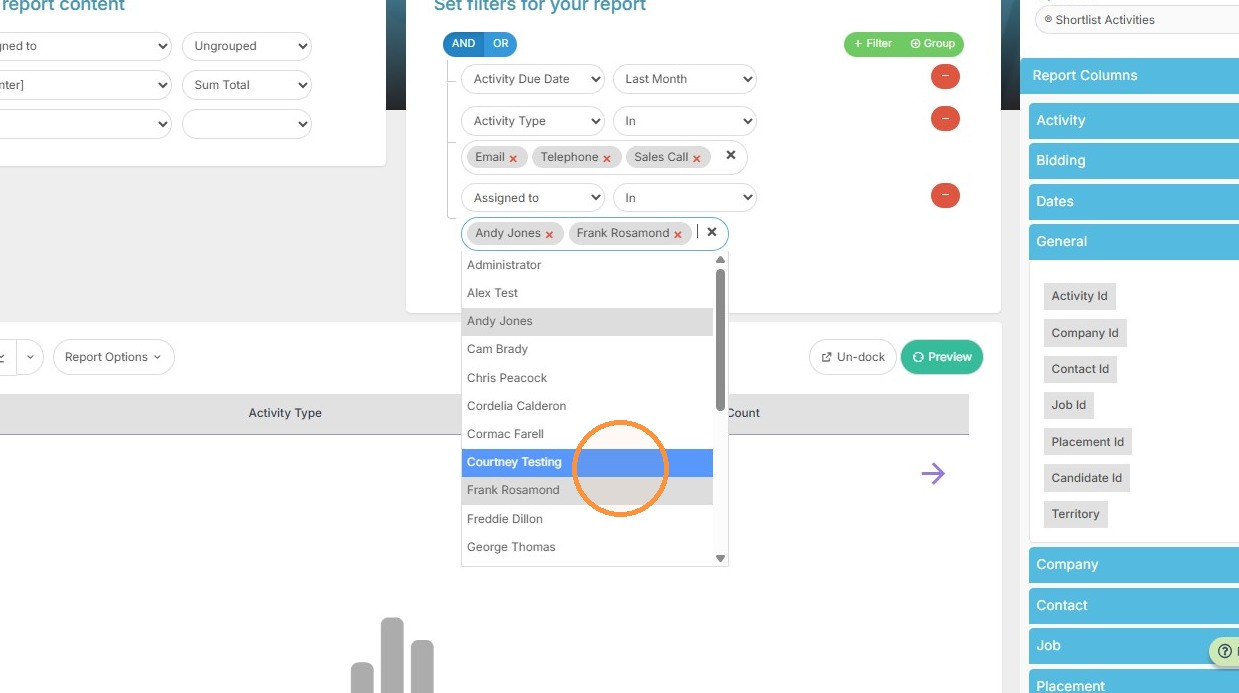
12. Add an "Assigned to" filter and select the users you want to see completed activities for.
Preview and Data Analysis
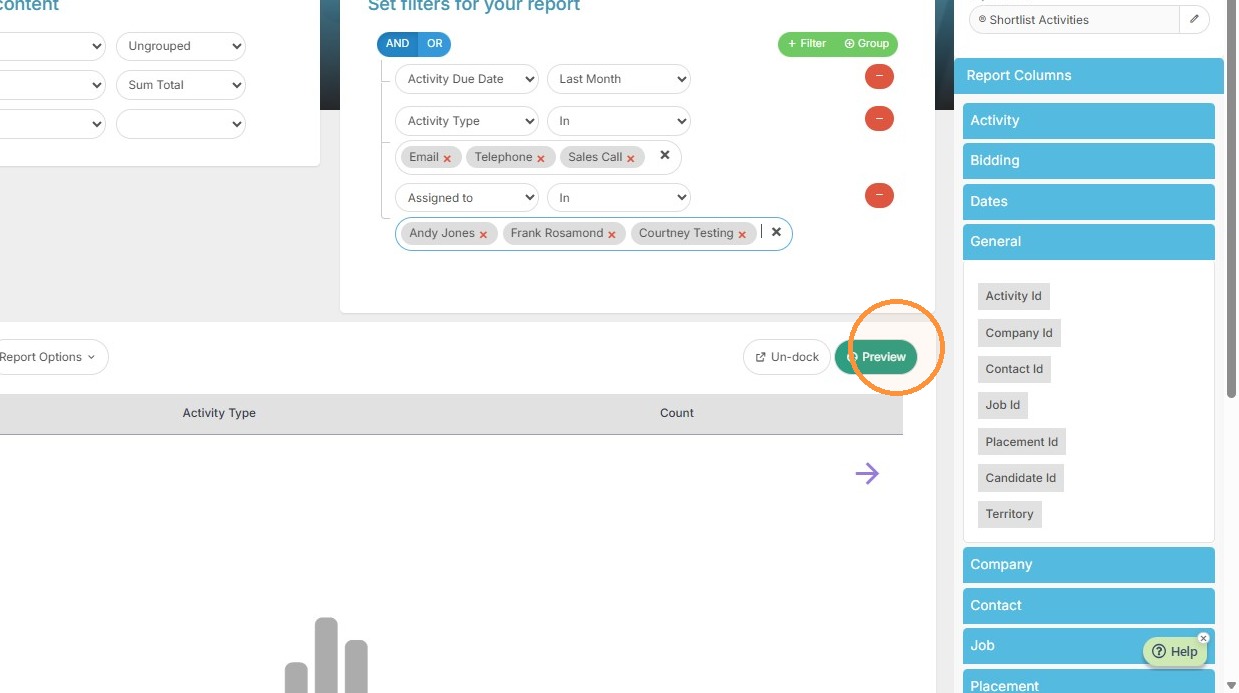
13. Click "Preview" to generate the report view.
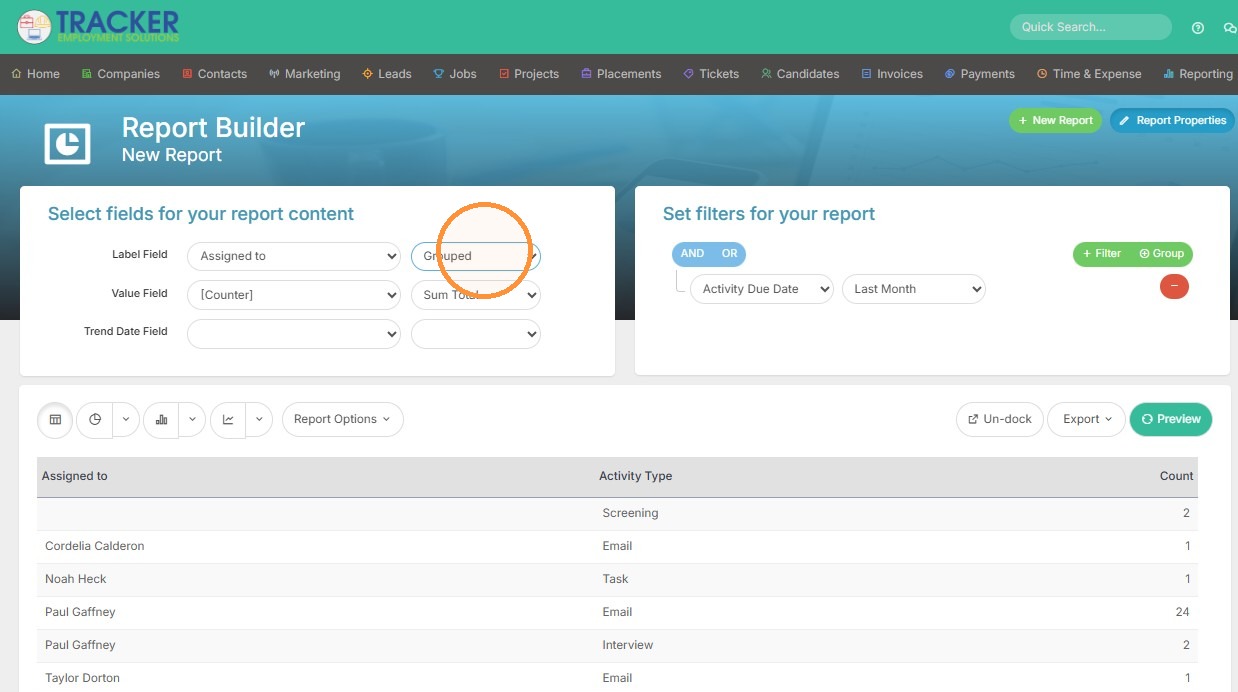
14. Select the "Grouped" option from the display dropdown if you want to easily see totals by the Assigned To (aka the user).
15. Click "Preview" to update the grouped report.
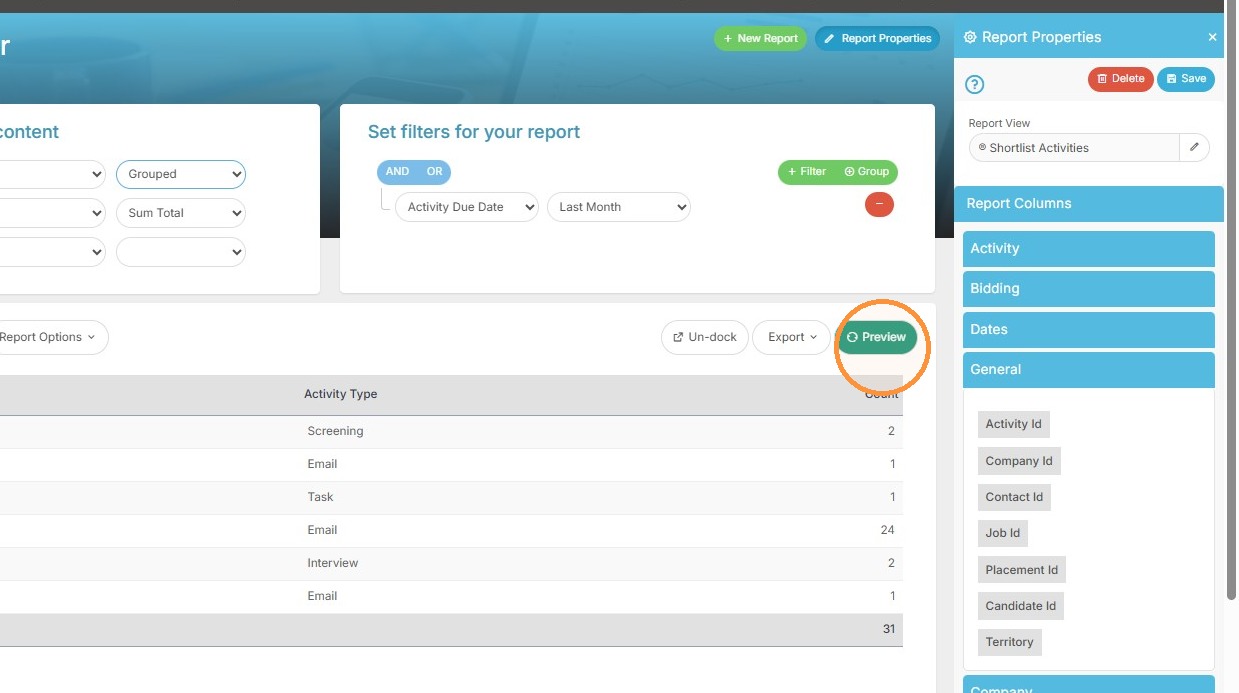
16. Now you can see these activities are grouped by user, showing a total for each.