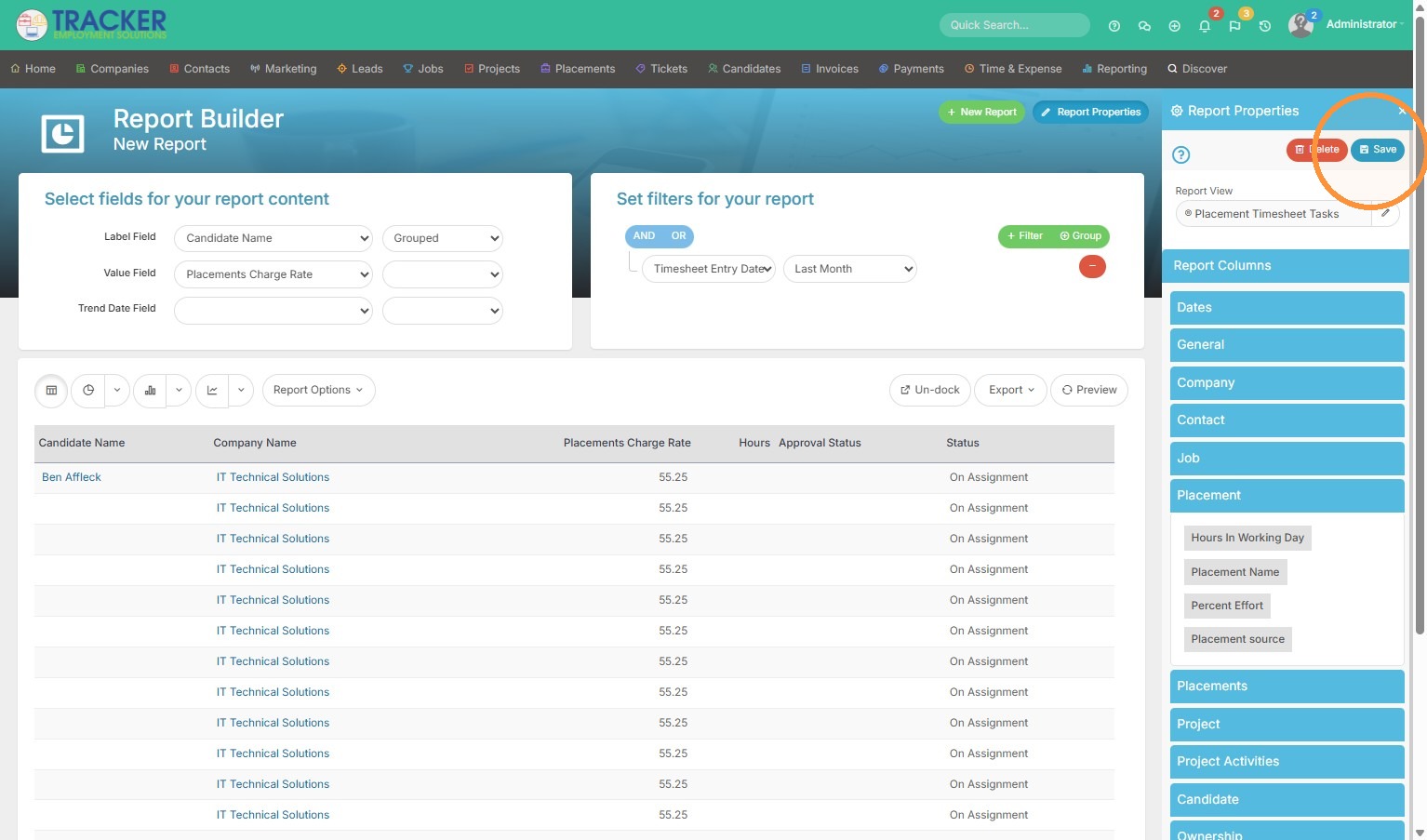
Please view the below video to create a timesheet report. This report will display all candidates that have entered time in the last month and if that time has been approved. You can filter the date range to something else if desired.
Report Initialization
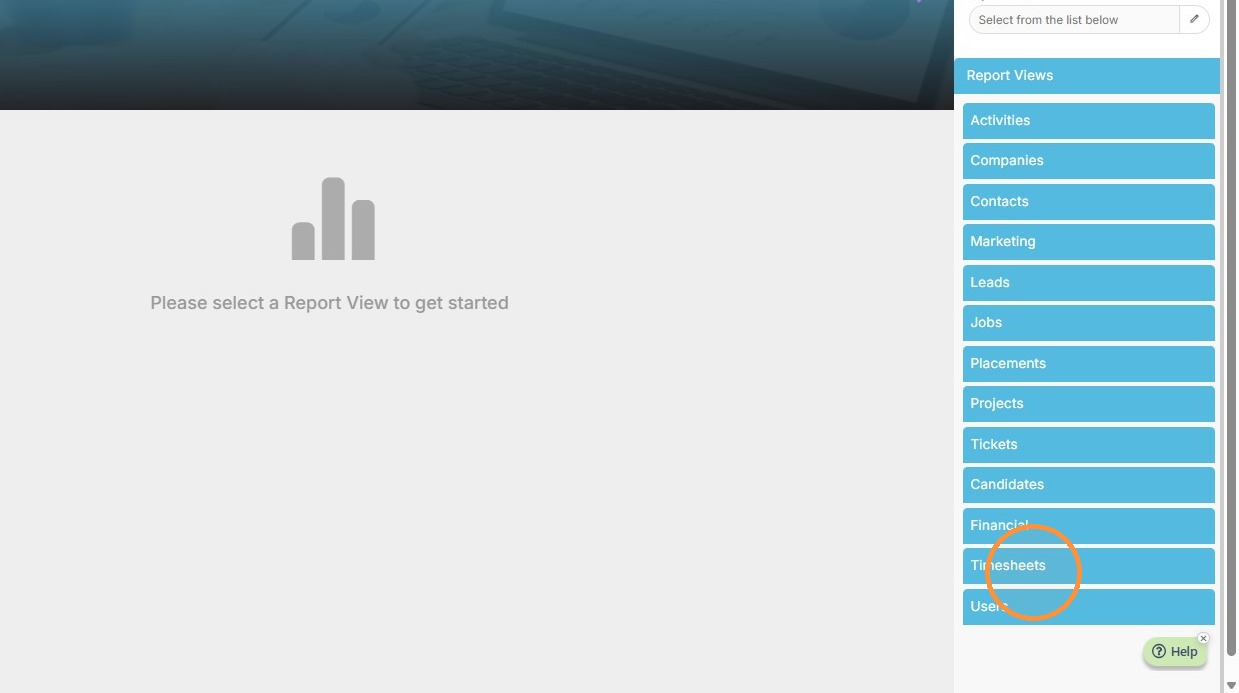
1. Expand "Timesheets" section in the Report Views menu.
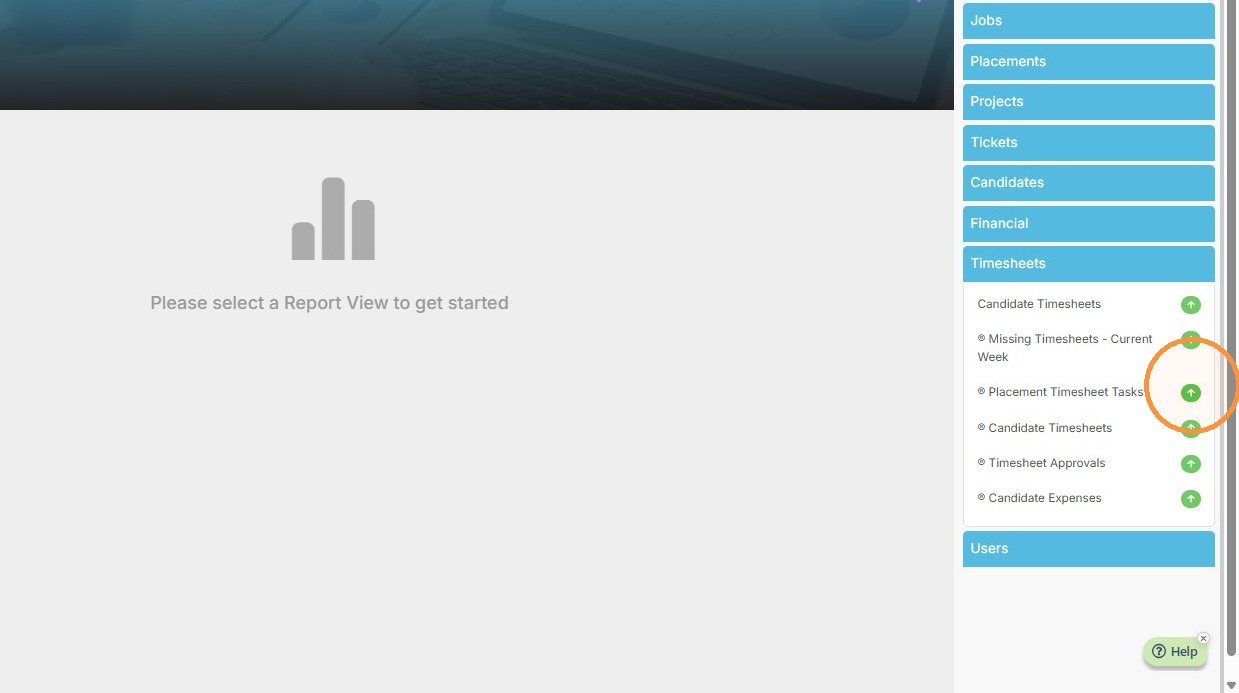
2. Select "Placement Timesheet Tasks" report view to begin building the report.
Report Field Selection
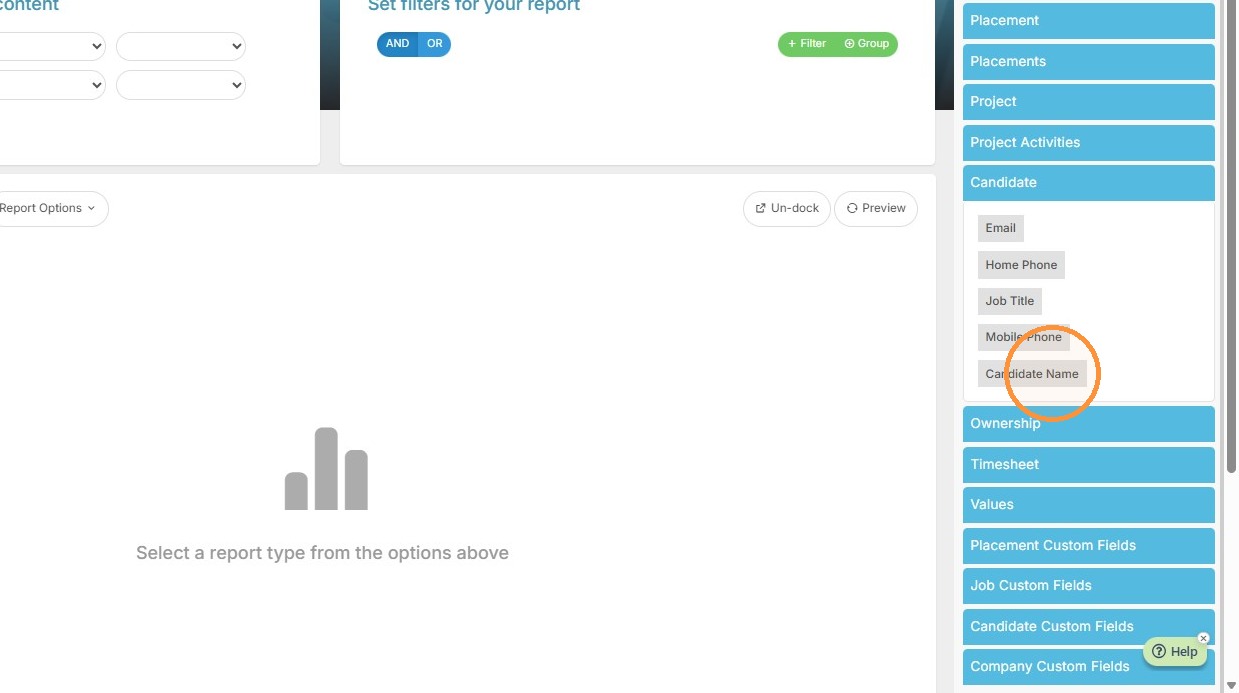
3. Select "Candidate Name" from the Candidate section.
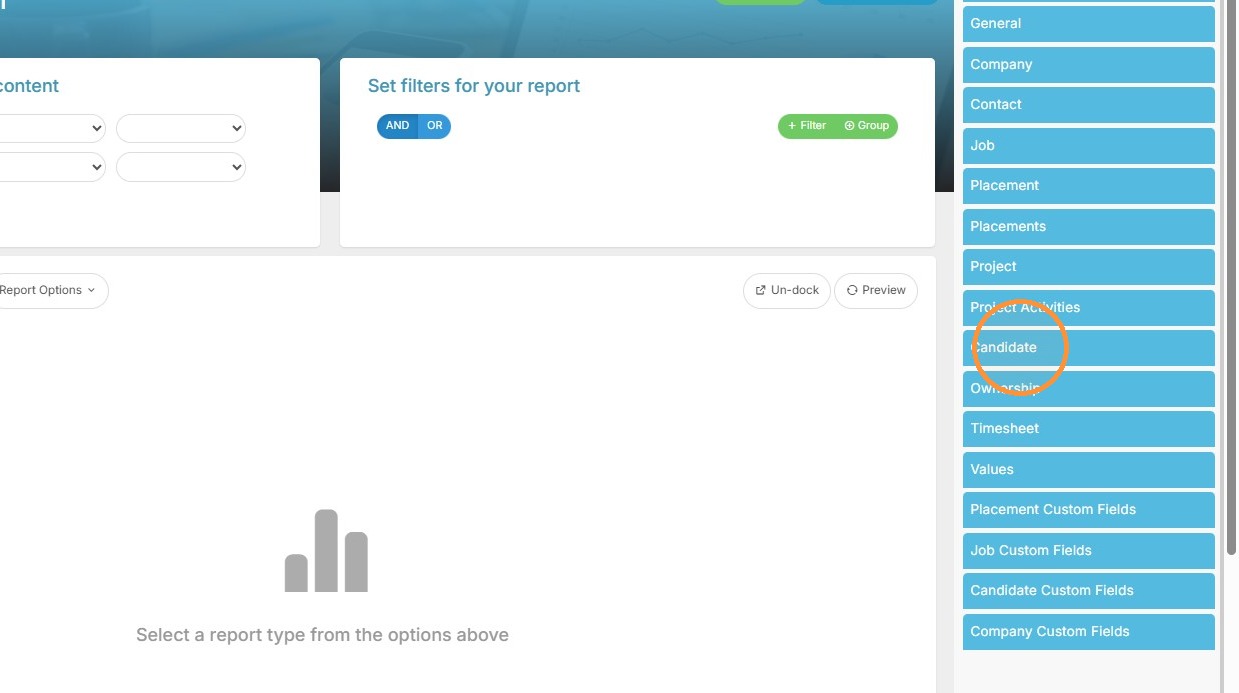
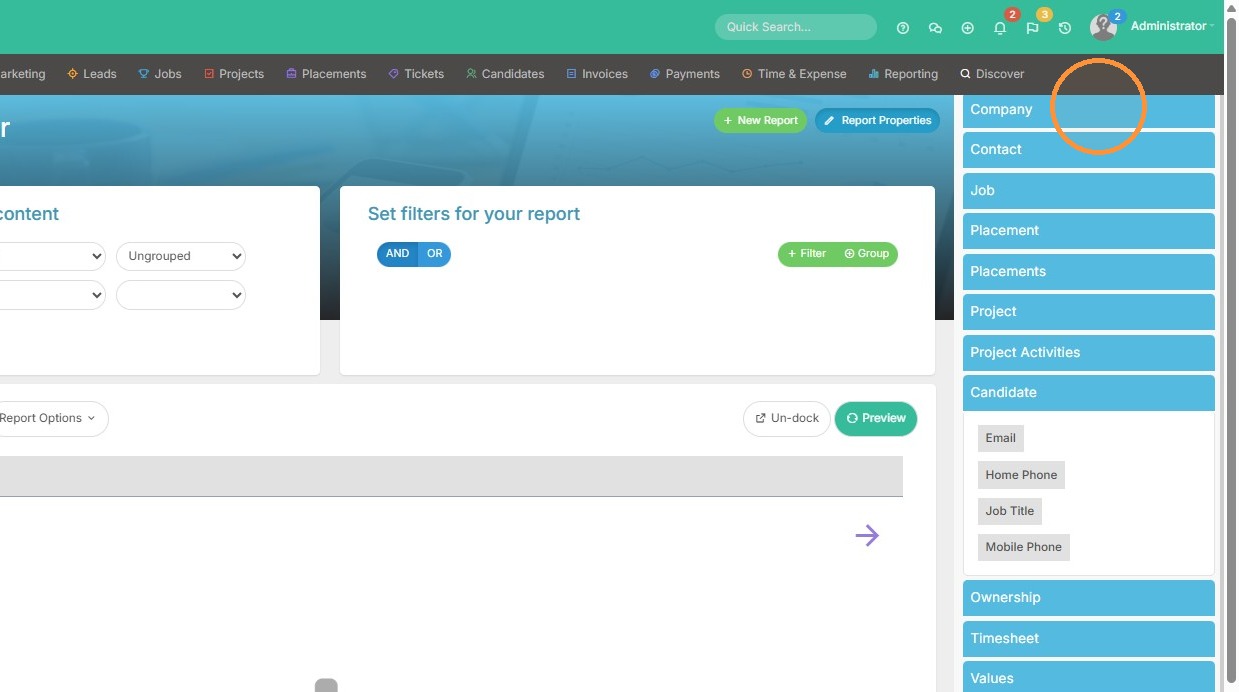
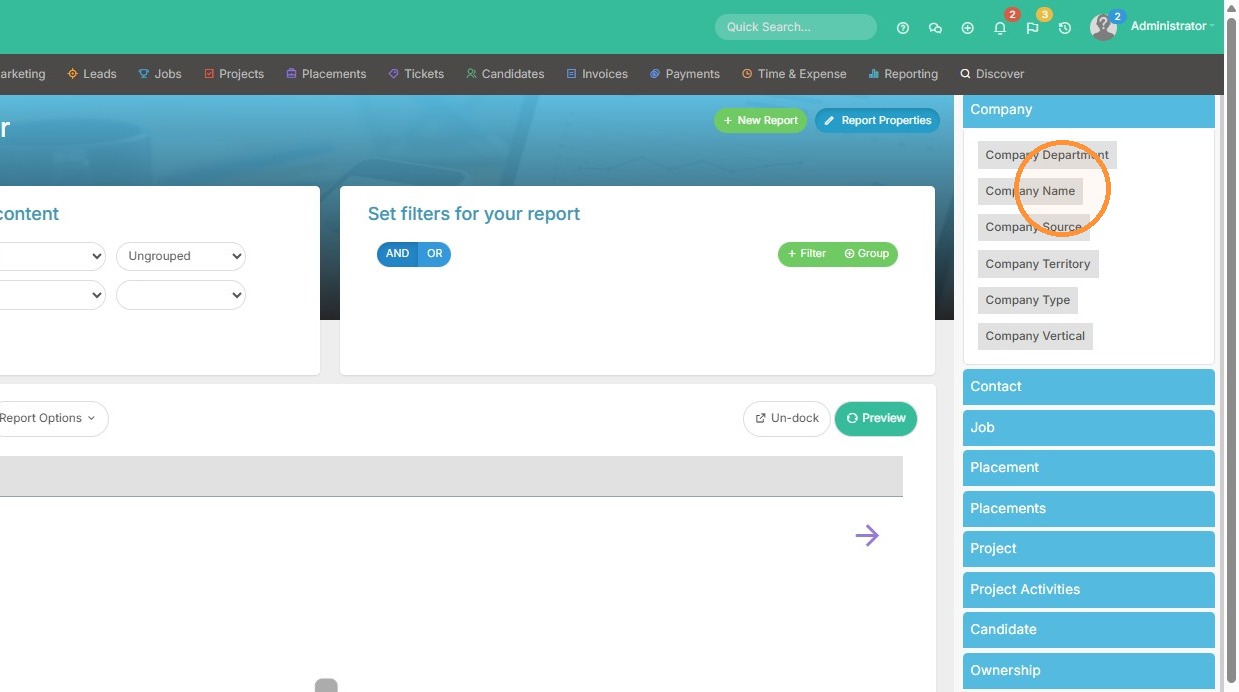
4. Select "Company Name" from the Company section.
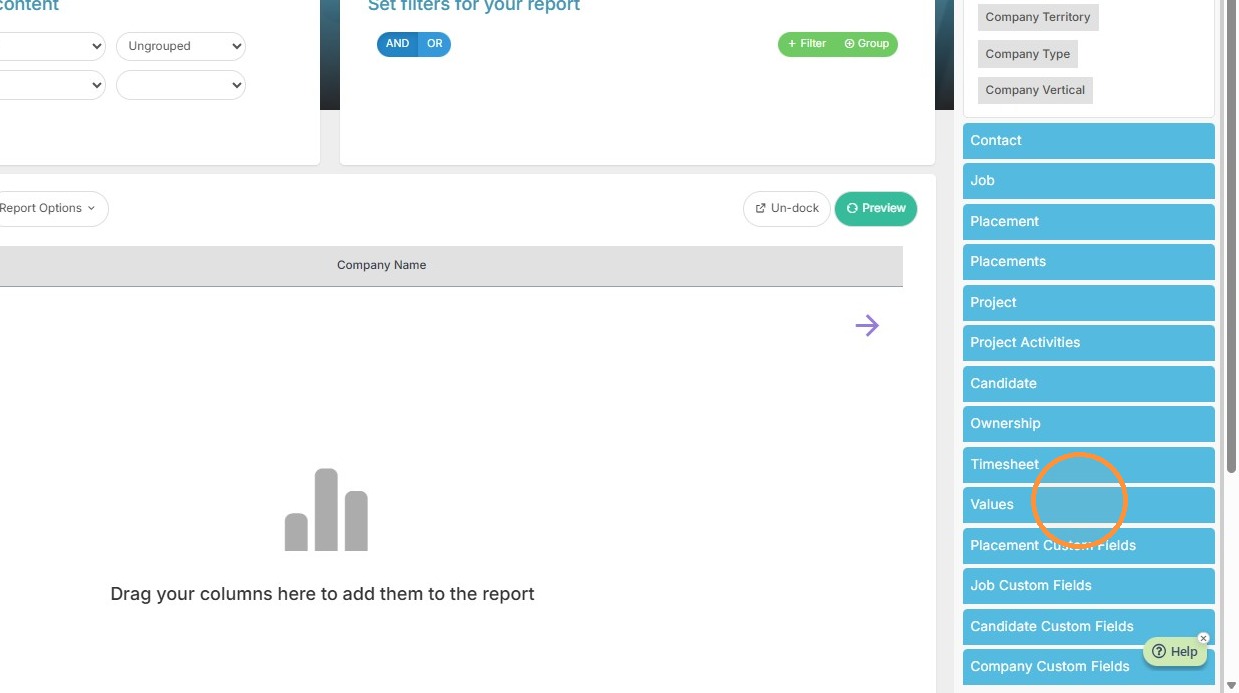
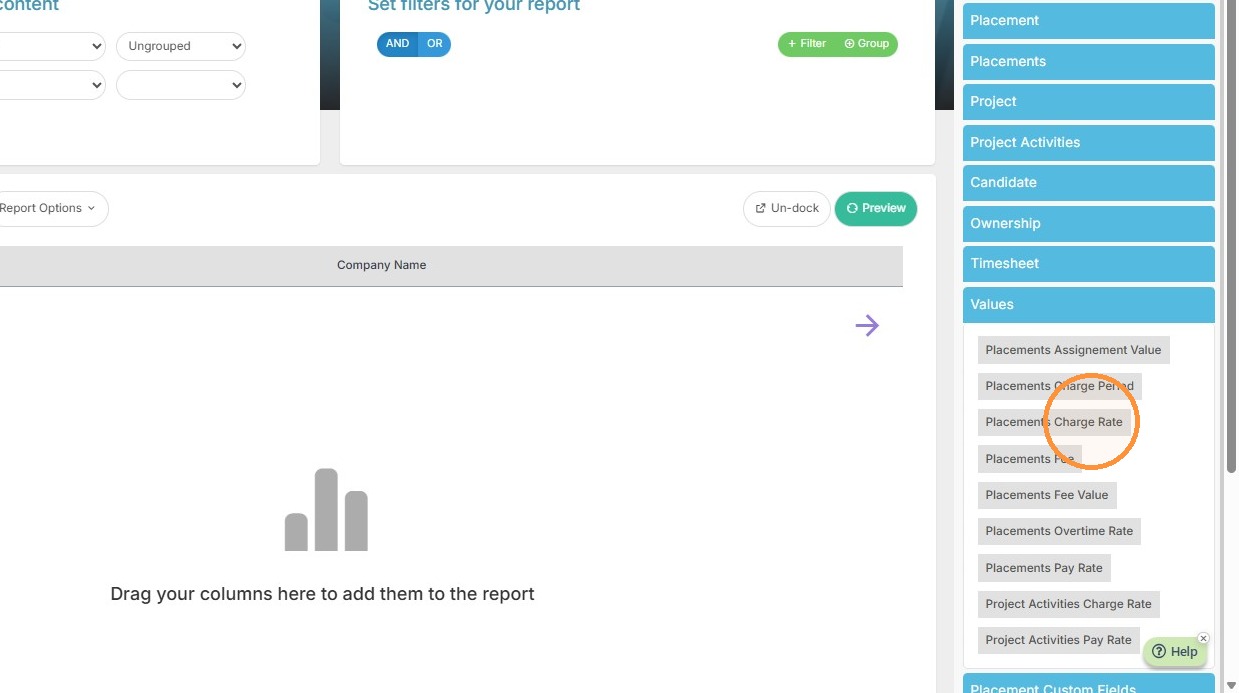
5. Select "Placements Charge Rate" from the Values section.
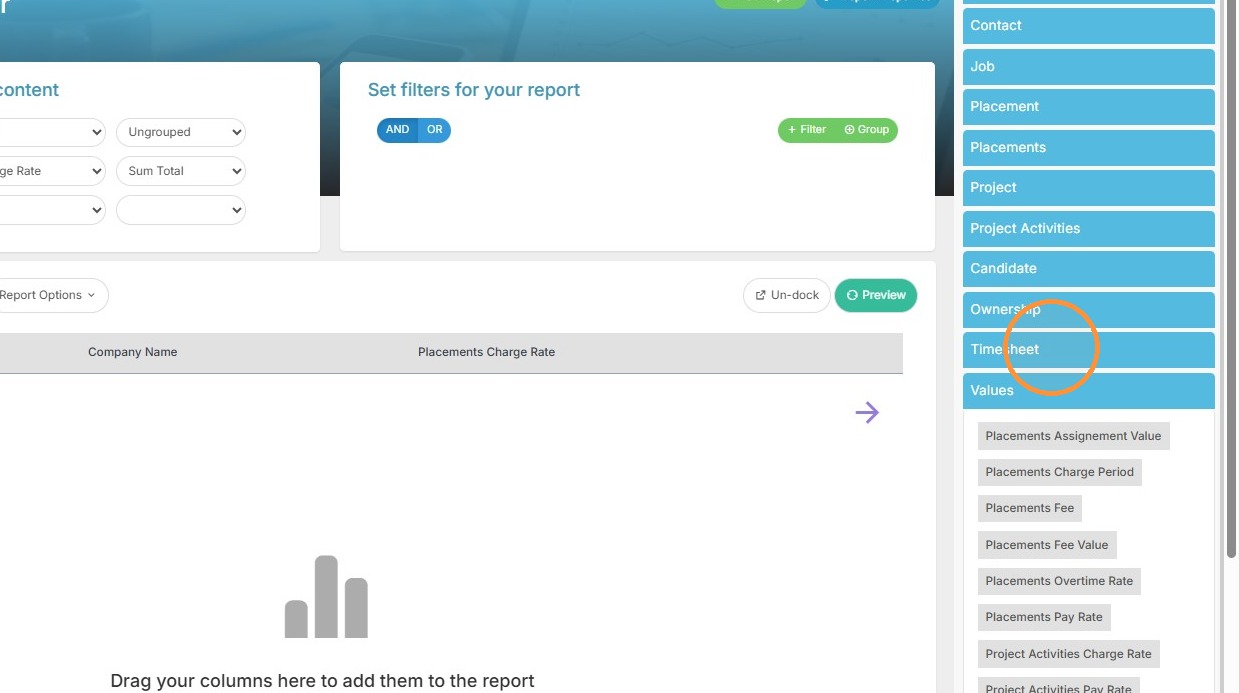
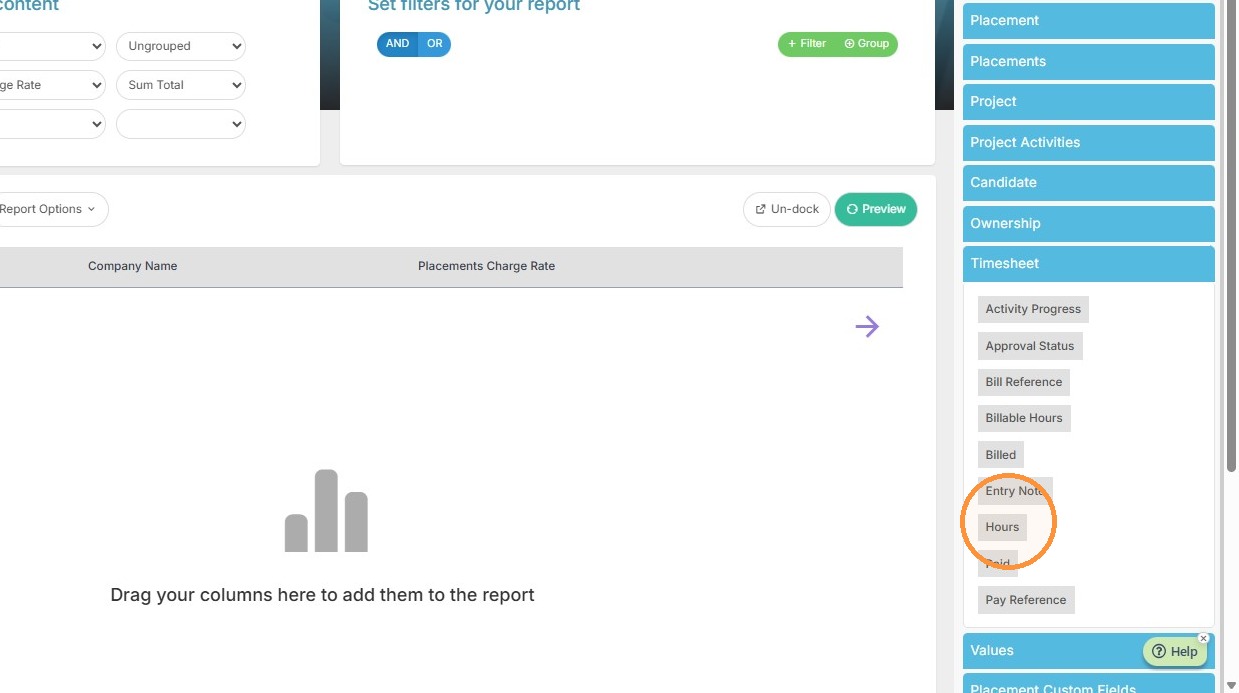
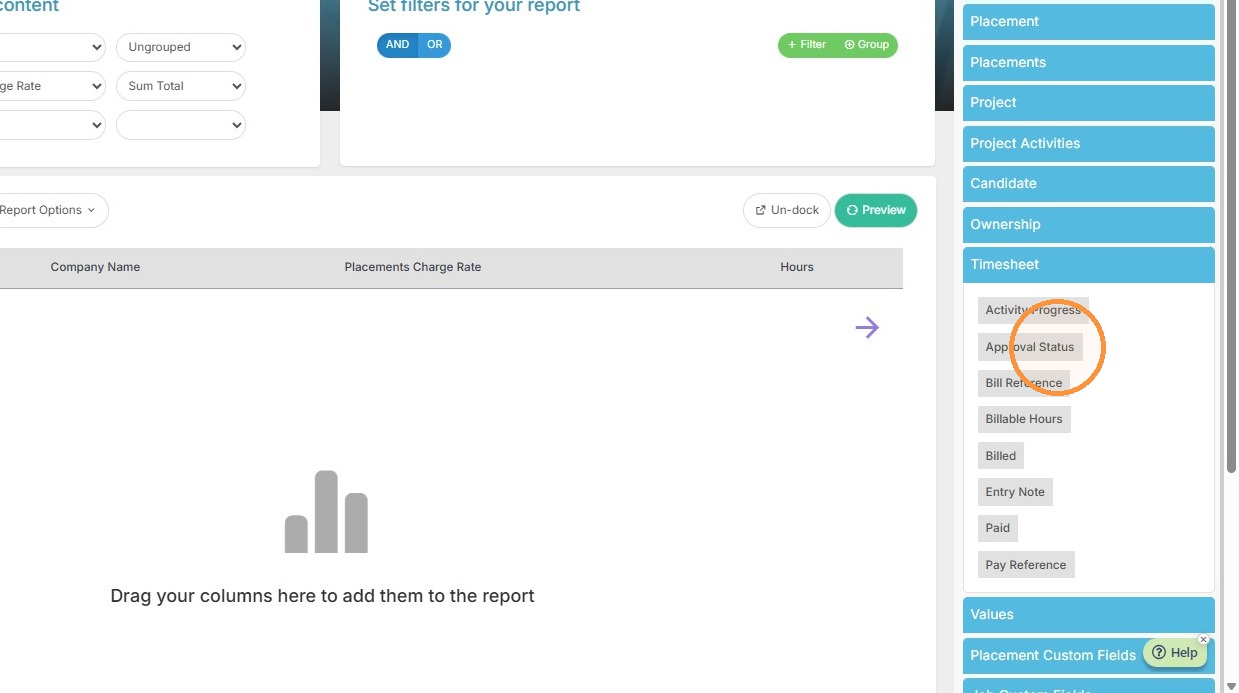
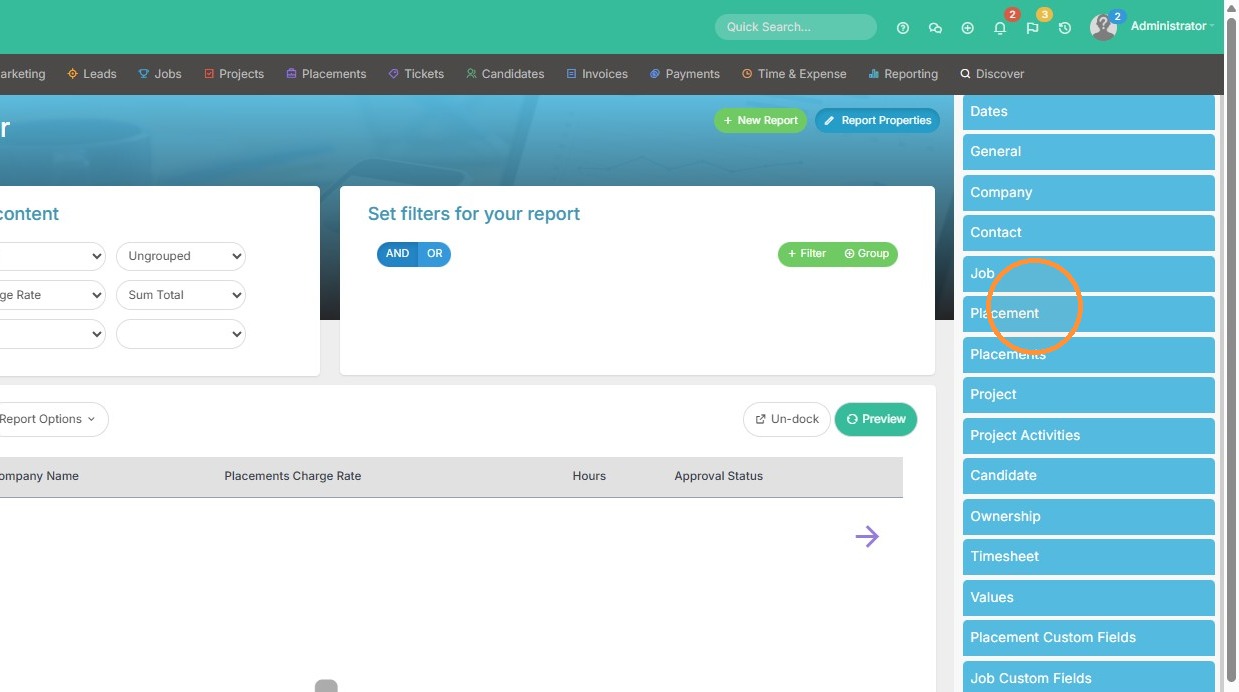
6. Select "Hours" and "Approval Status" from the Timesheet section.
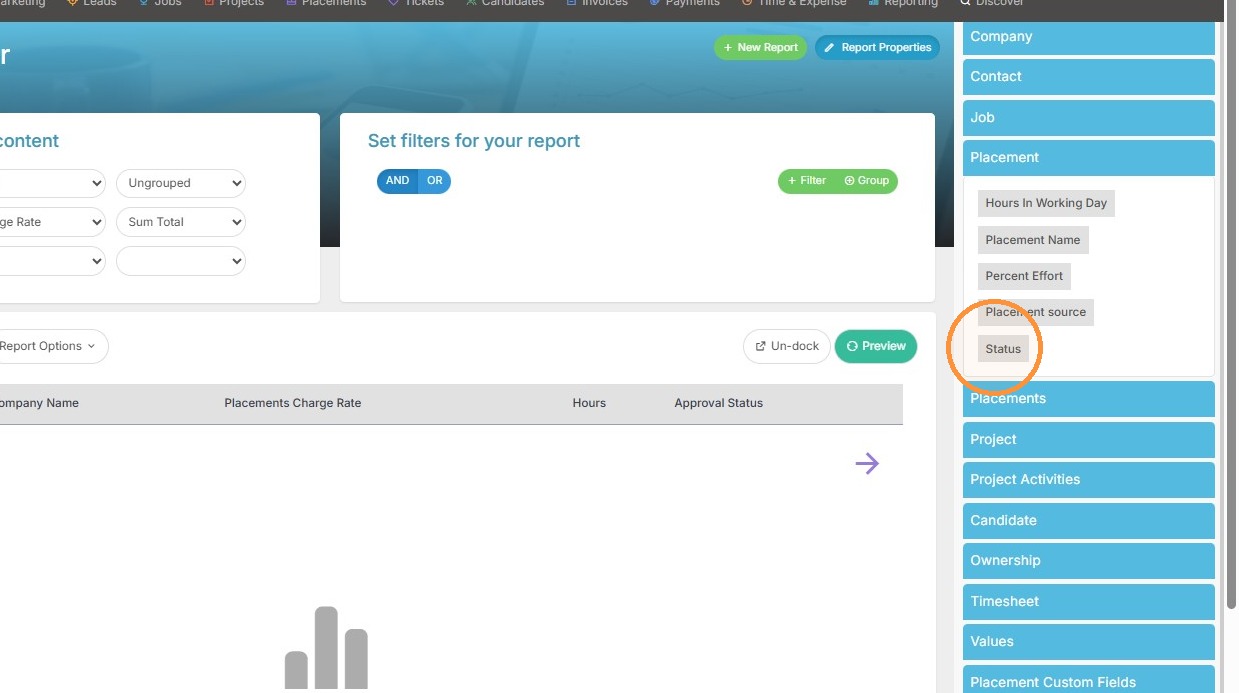
7. Select "Status" from the Placement section.
Filter Configuration
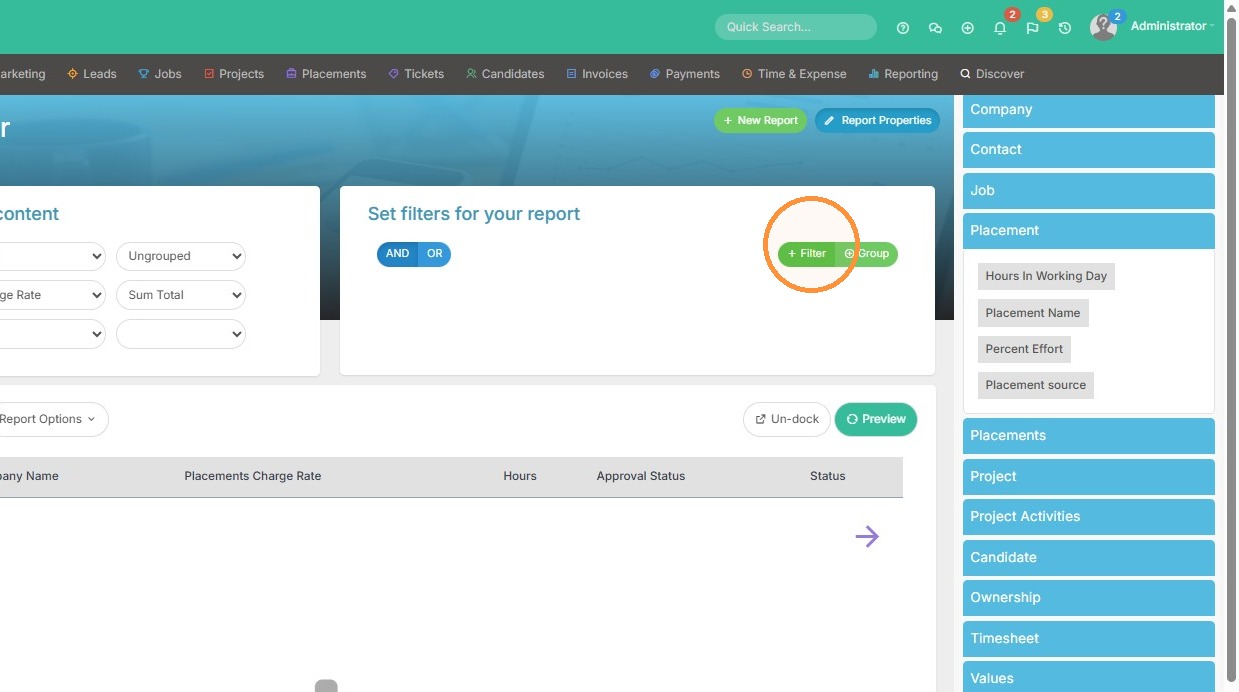
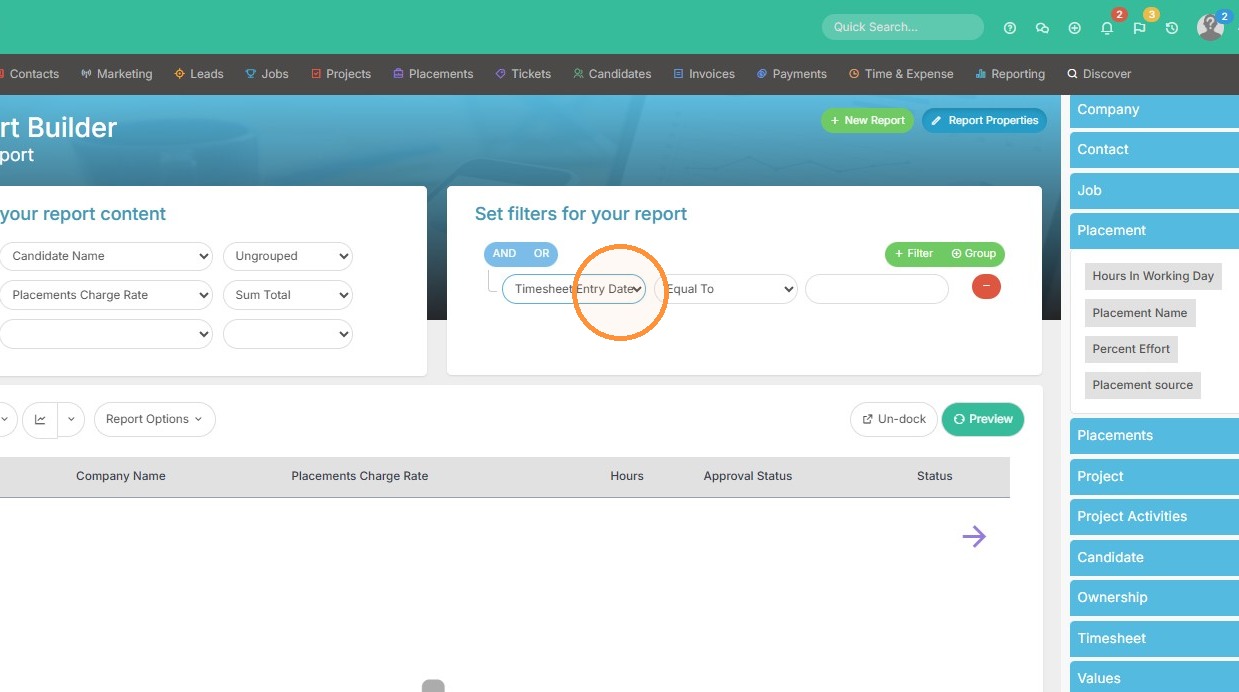
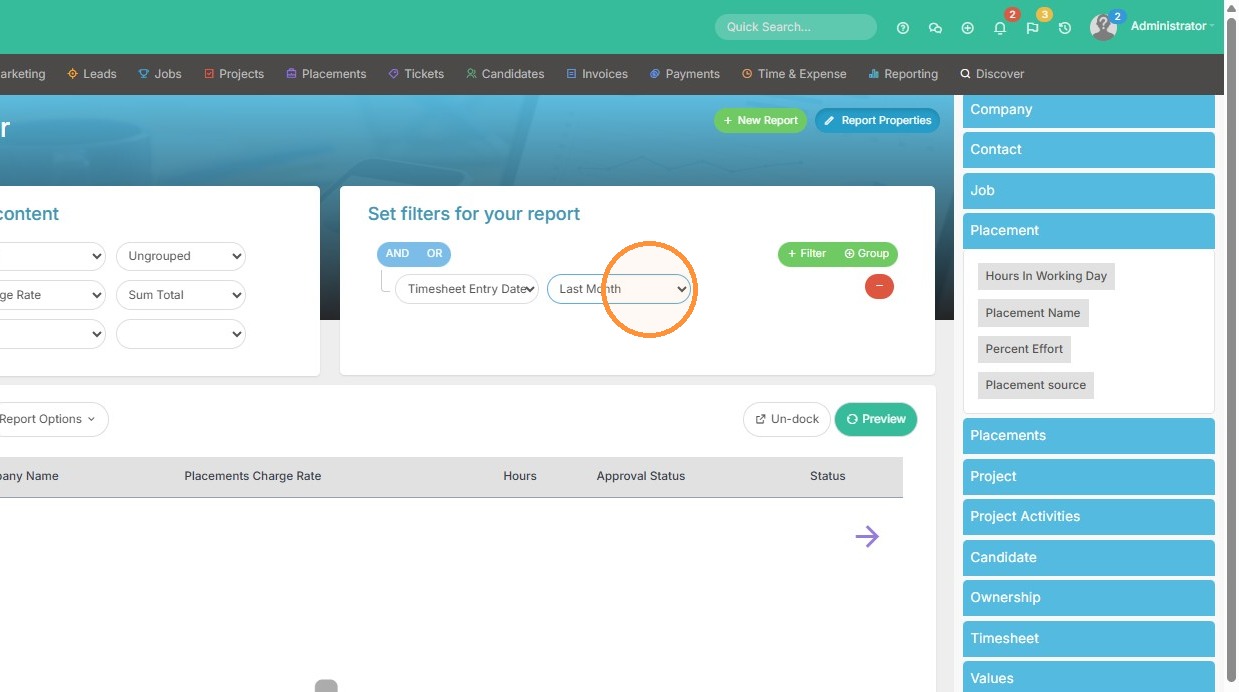
8. Filter the report by "Timesheet Entry Date" for "Last Month".
Preview and Finalization
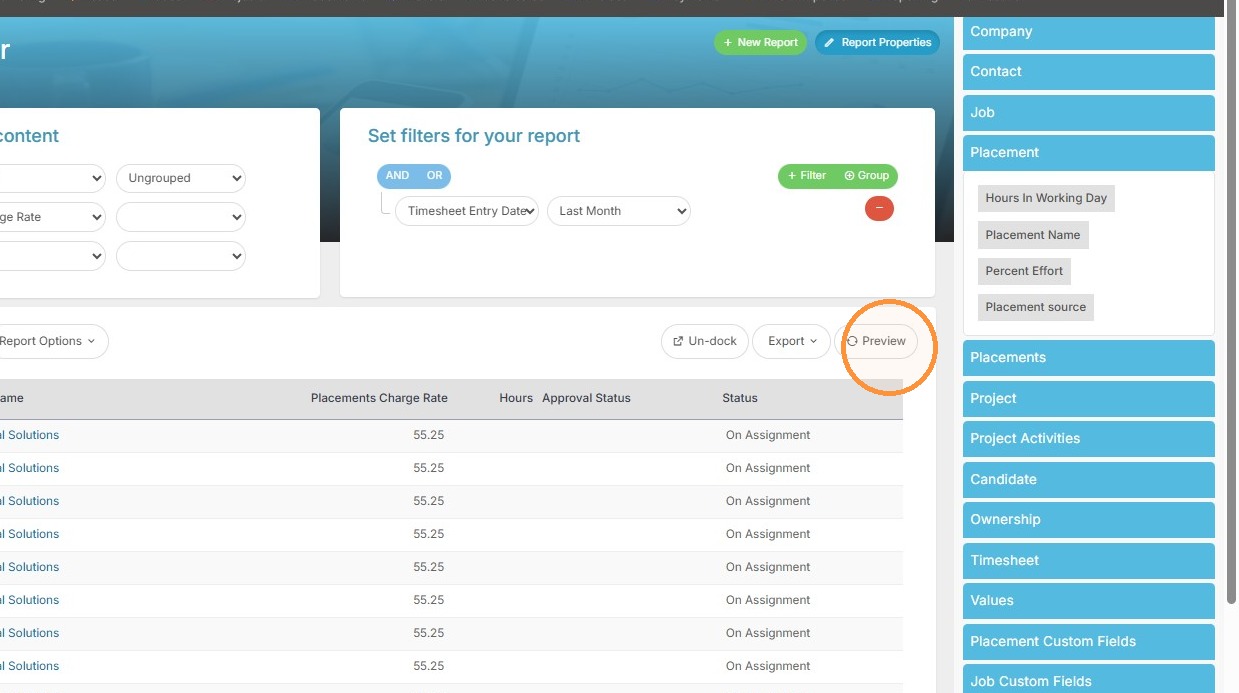
9. Click "Preview" to view report results.
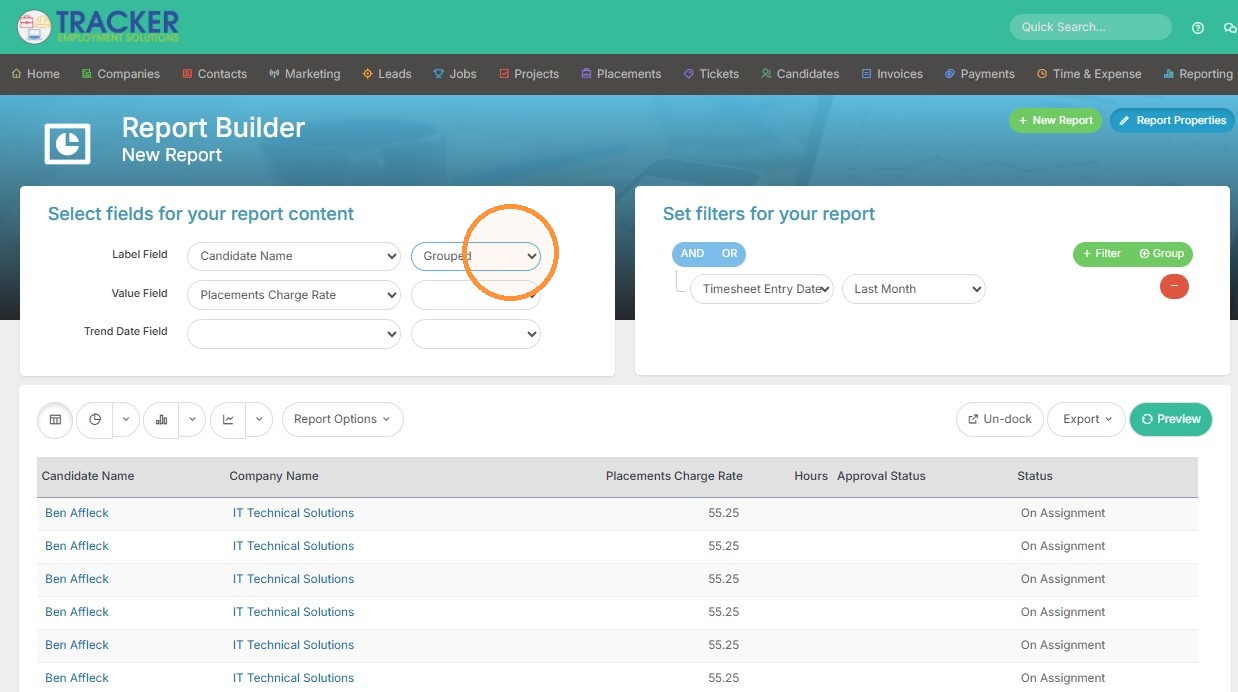
10. Select "Grouped" from the layout options to group the approved time by candidate.
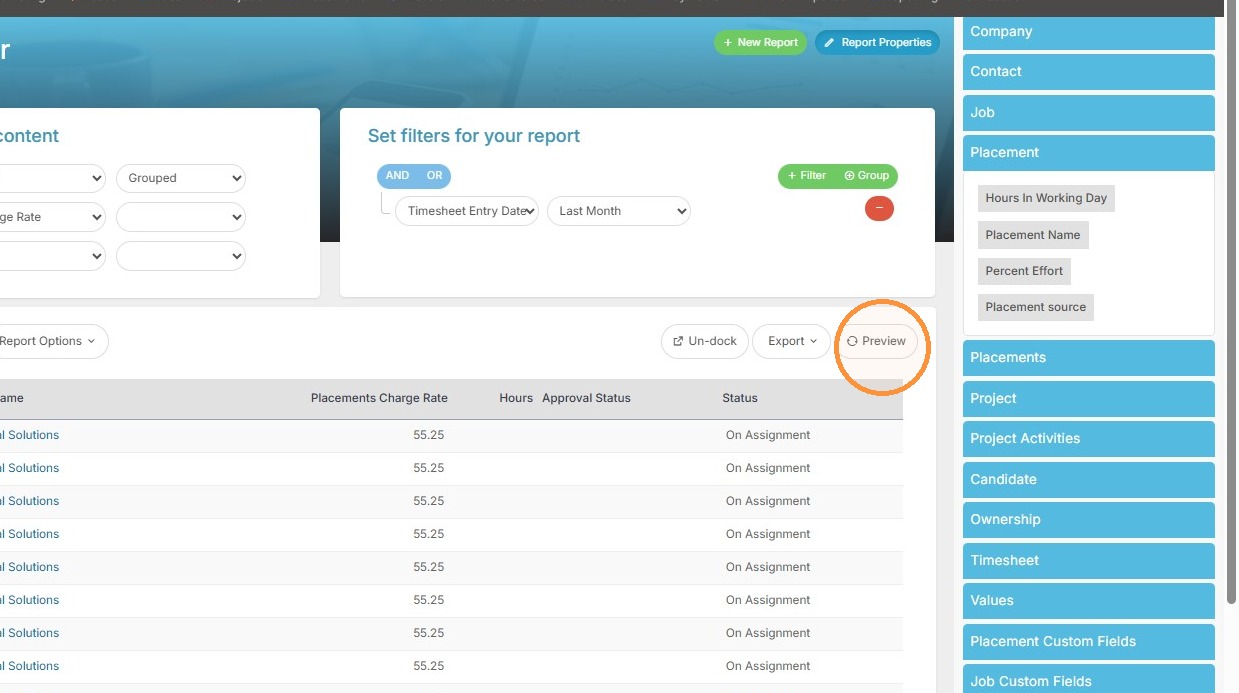
11. Click "Preview" to update report with the new layout.
12. Click "Save" to store the new report.