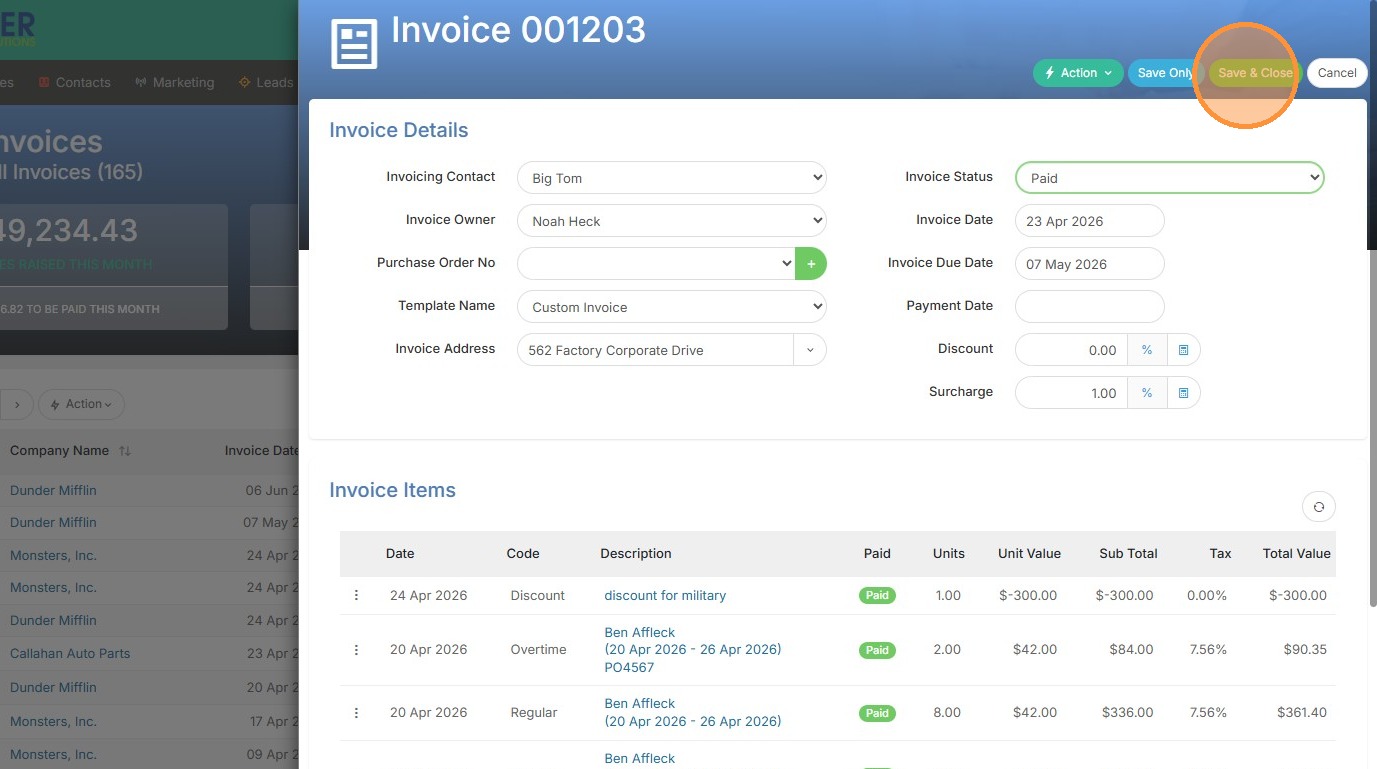
Profile Configuration

1. Navigate to Tools & Settings.
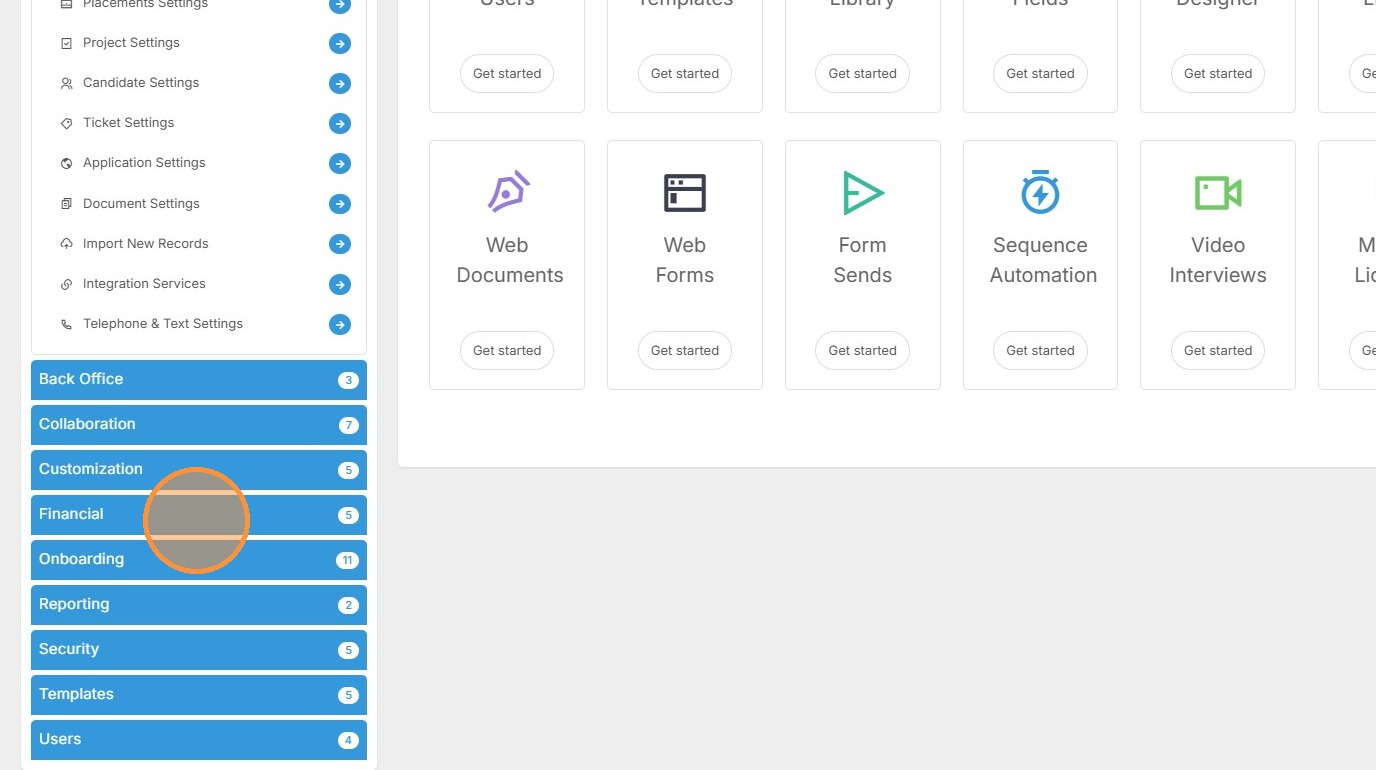
2. Select Financial from the sidebar menu
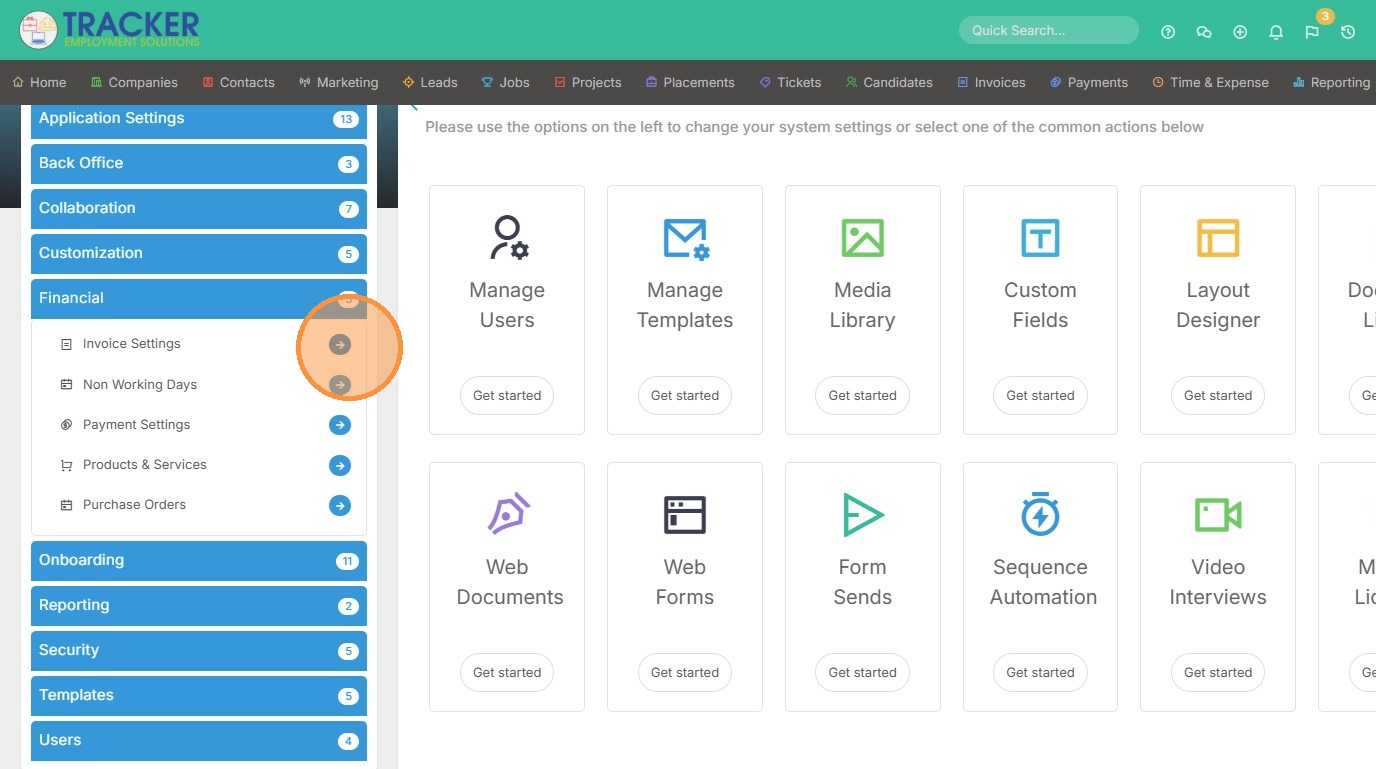
3. Click the arrow next to Invoice Settings
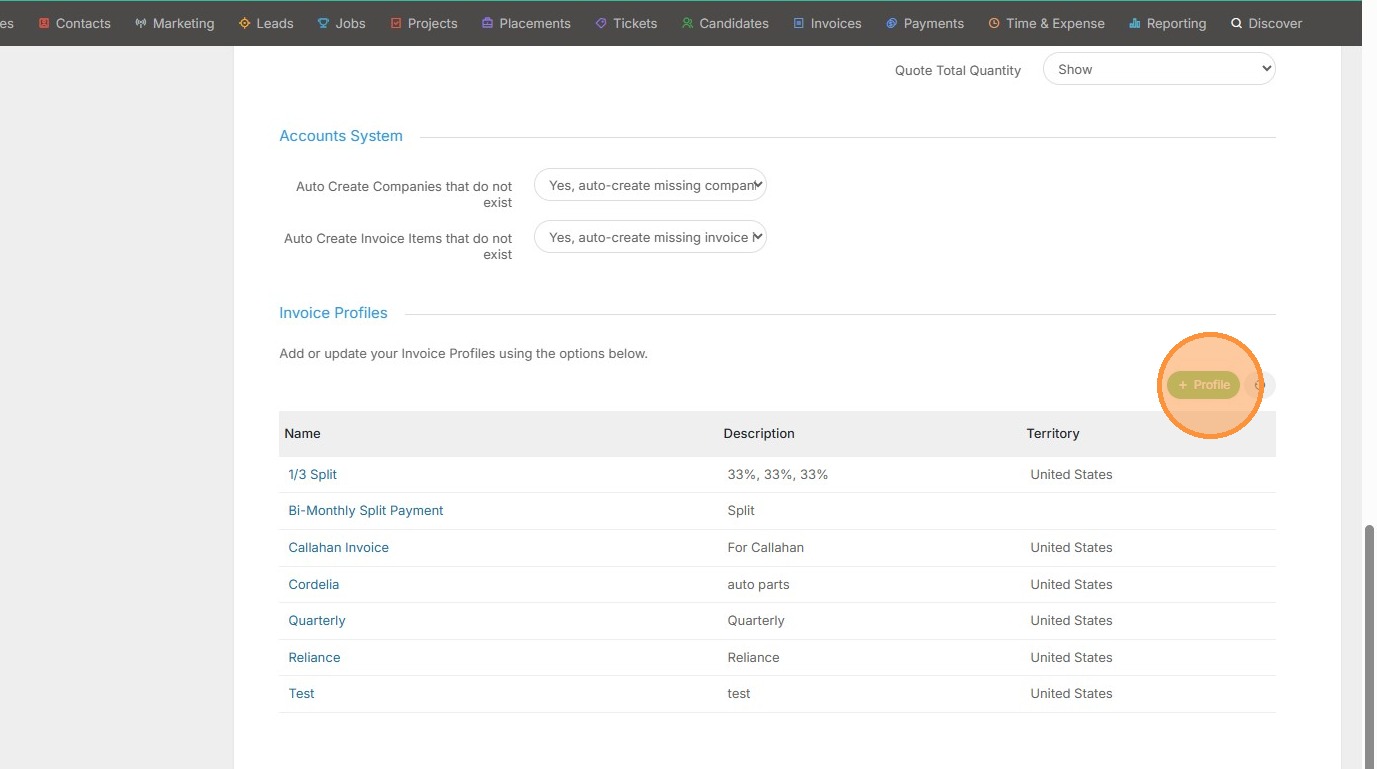
4. Click + Profile to create a new invoice profile

5. Enter the Profile Name and Description, then click Ok
Stage Management
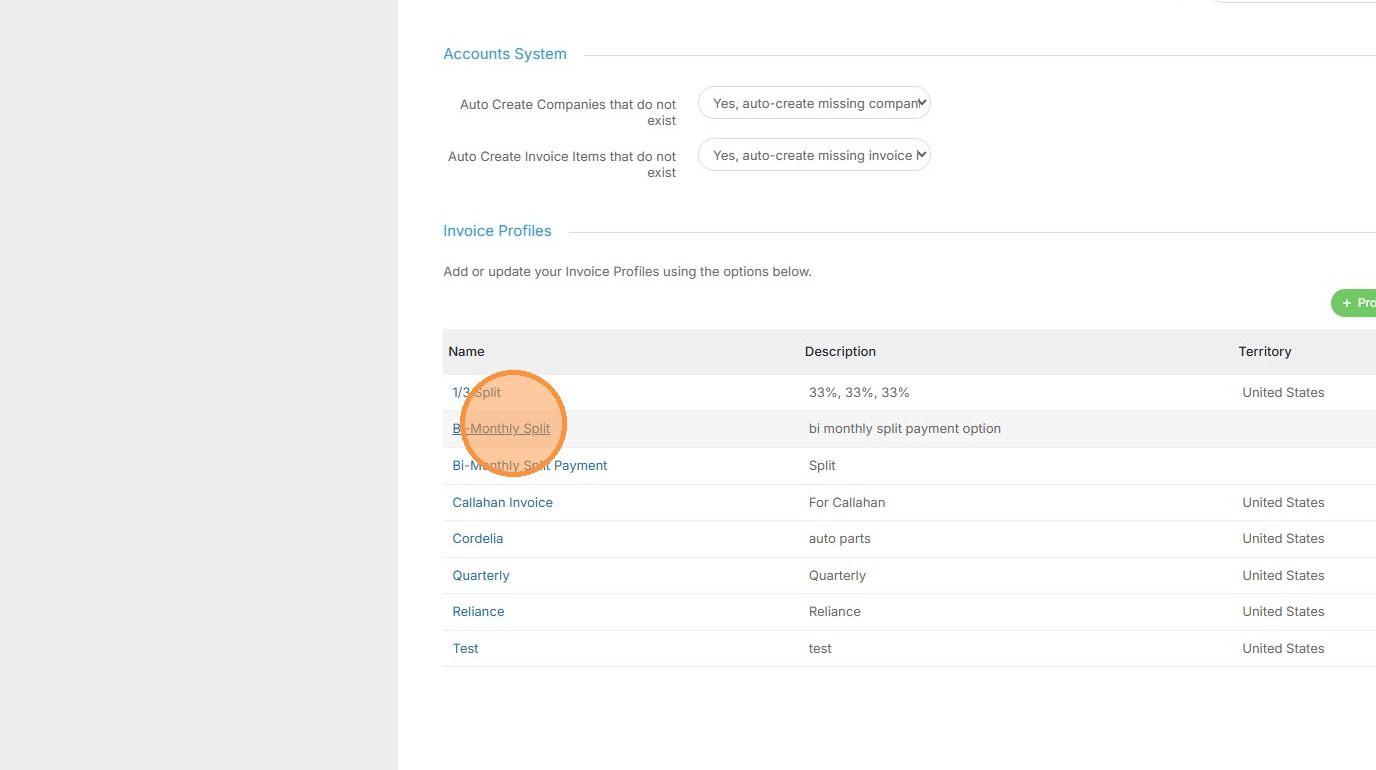
6. Select the newly created Invoice Profile from the list
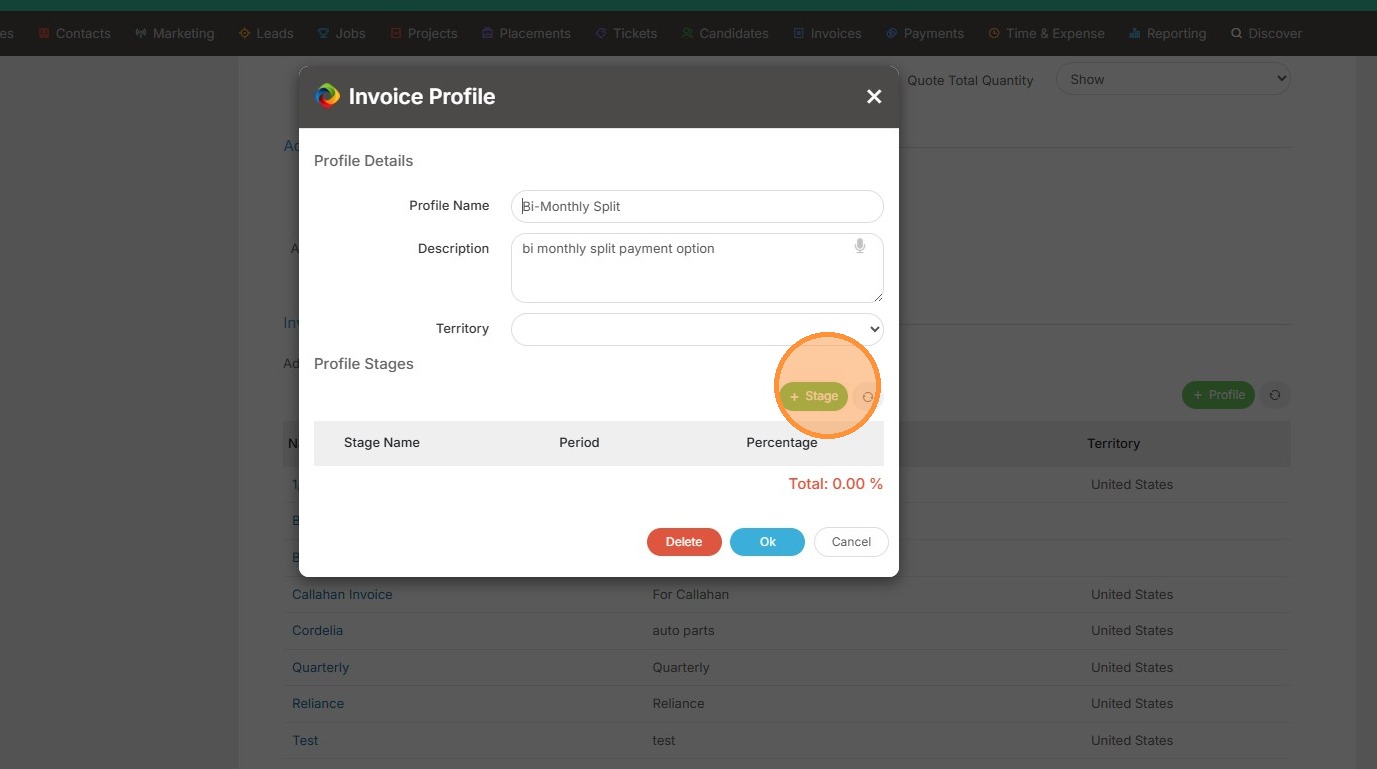
7. Click + Stage to add a new billing stage

8. Configure the stage name, timeframe, and percentage that this payment amount should be for. For example, I want this invoice to split the payment by 50% anytime it's selected. Click Ok.
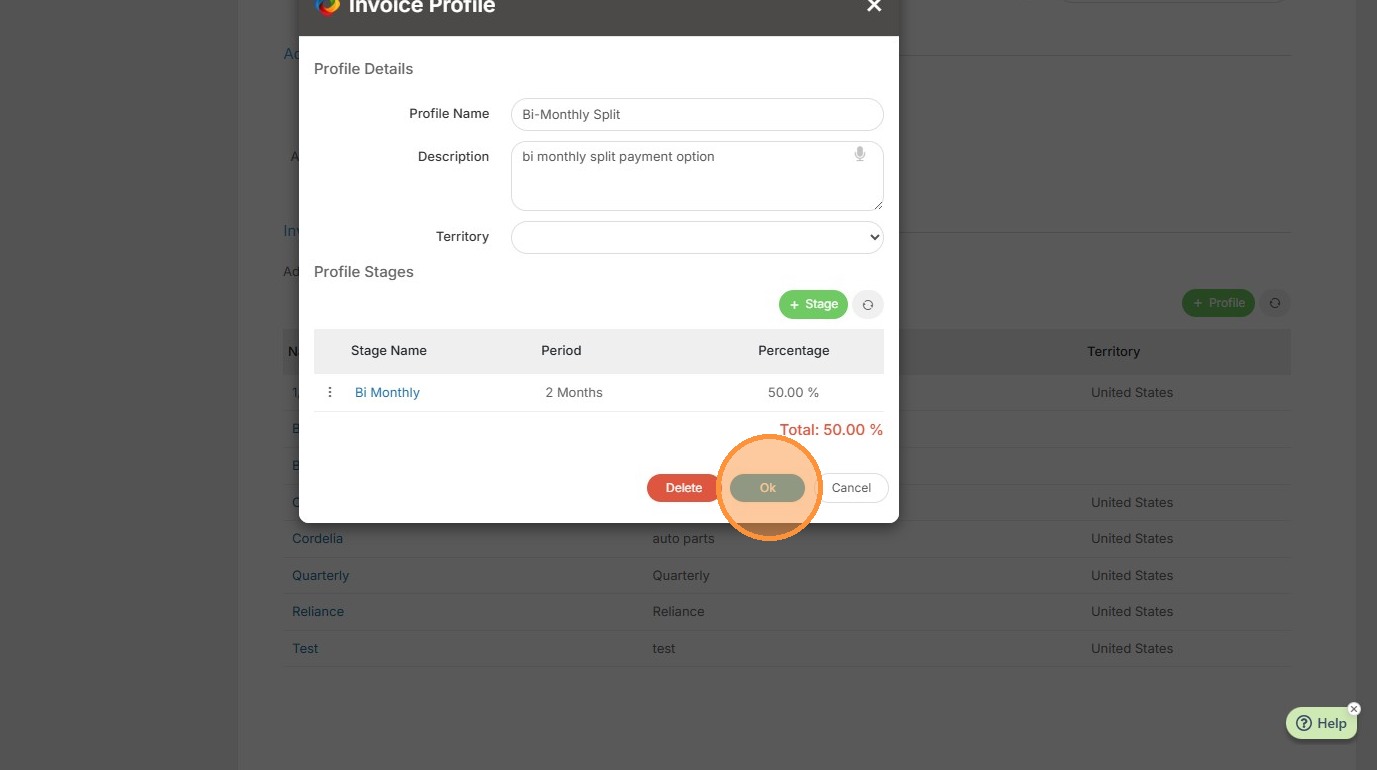
9. Click Ok to save the profile
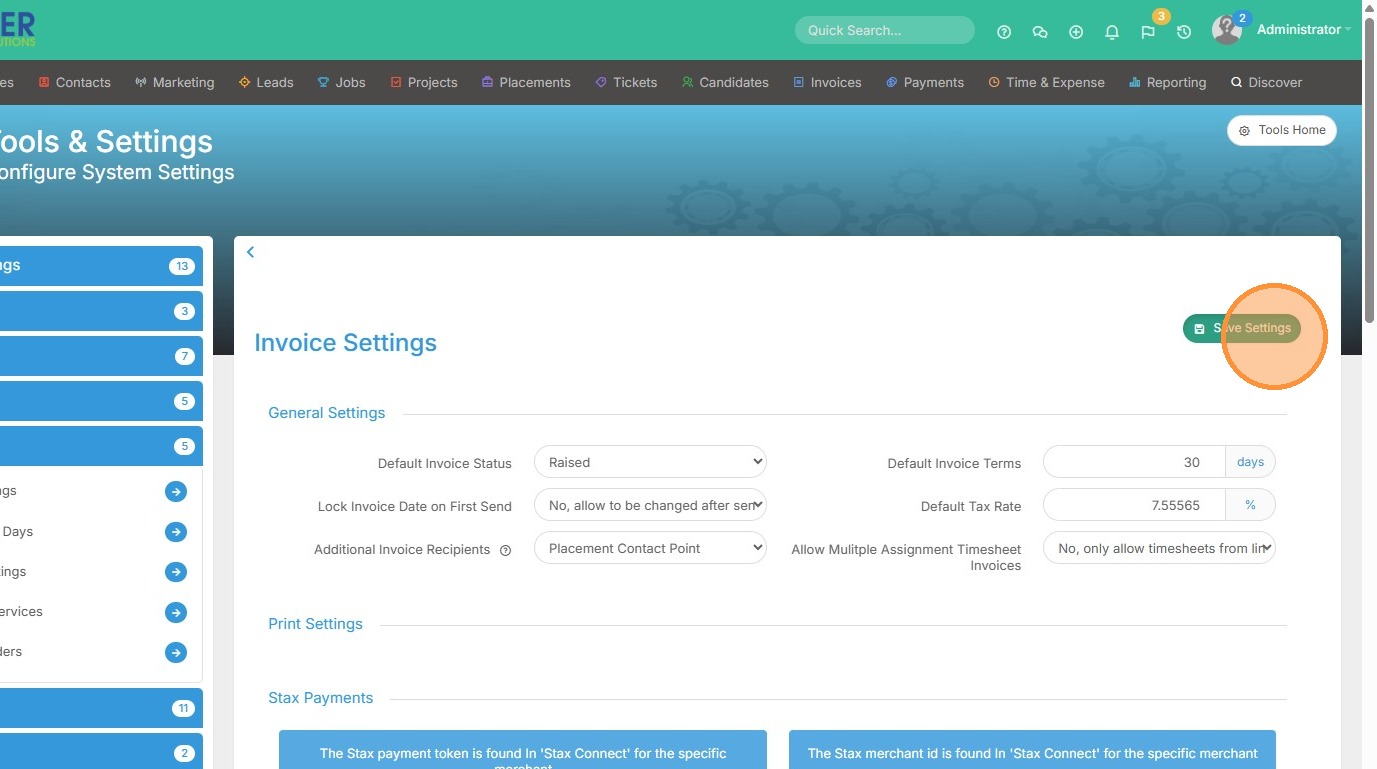
10. Click "Save Settings"
Invoice Processing
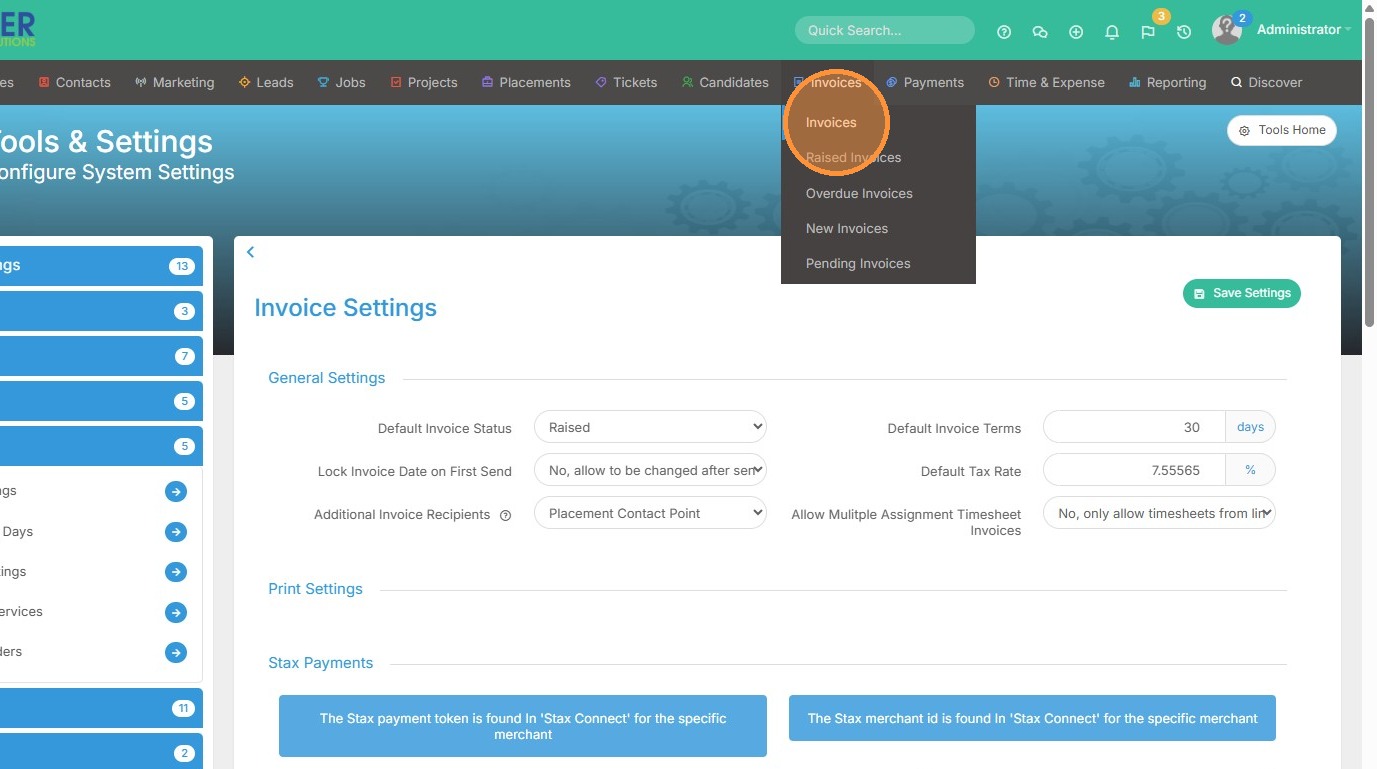
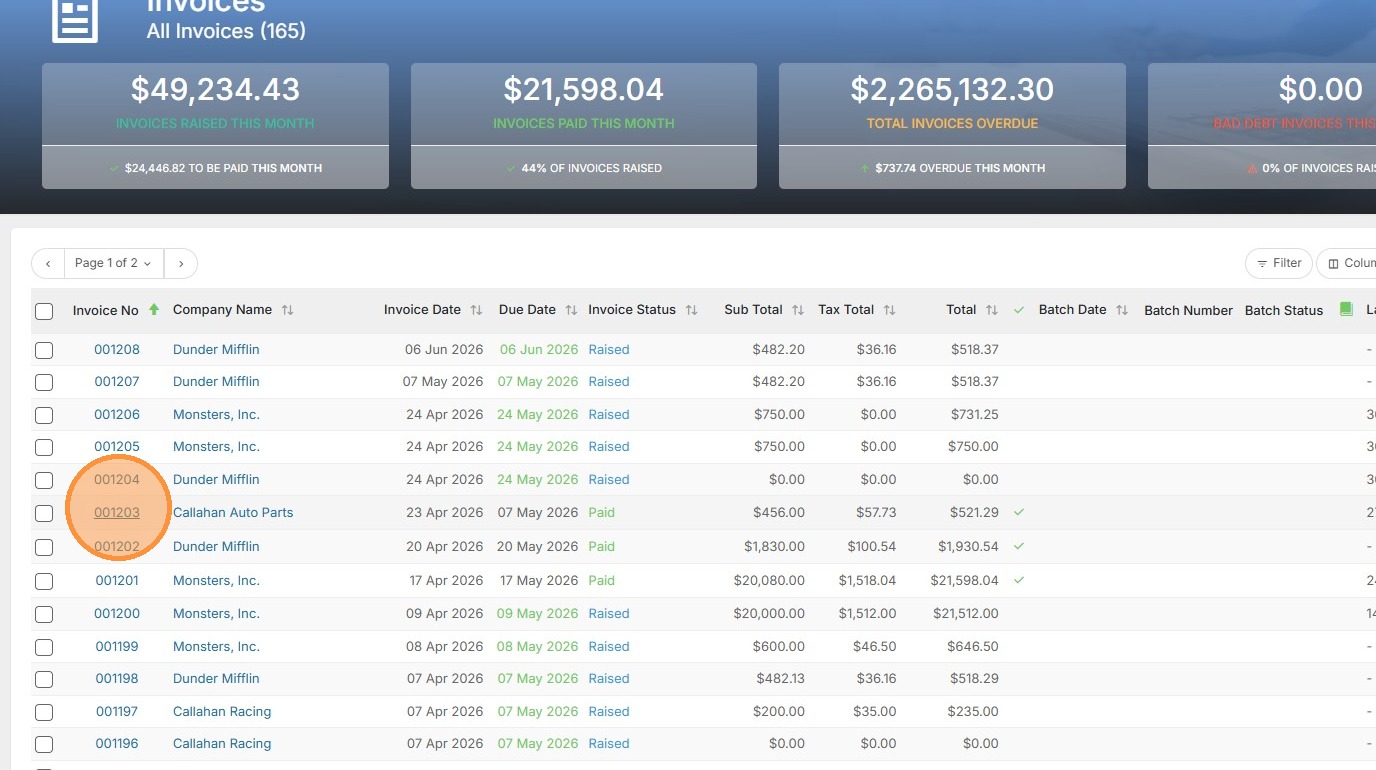
11. Navigate to the Invoices section
12. Select the invoice you wish to split
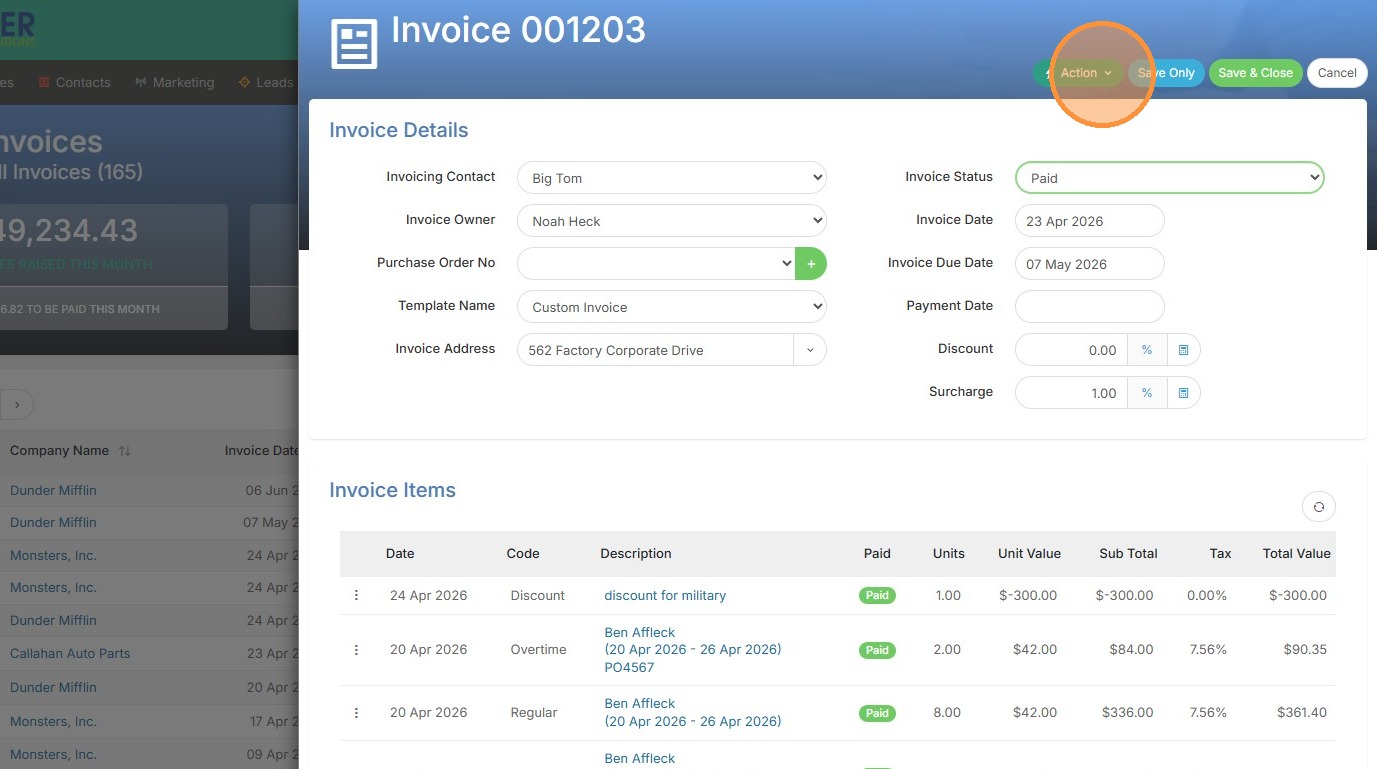
13. Open the Action menu
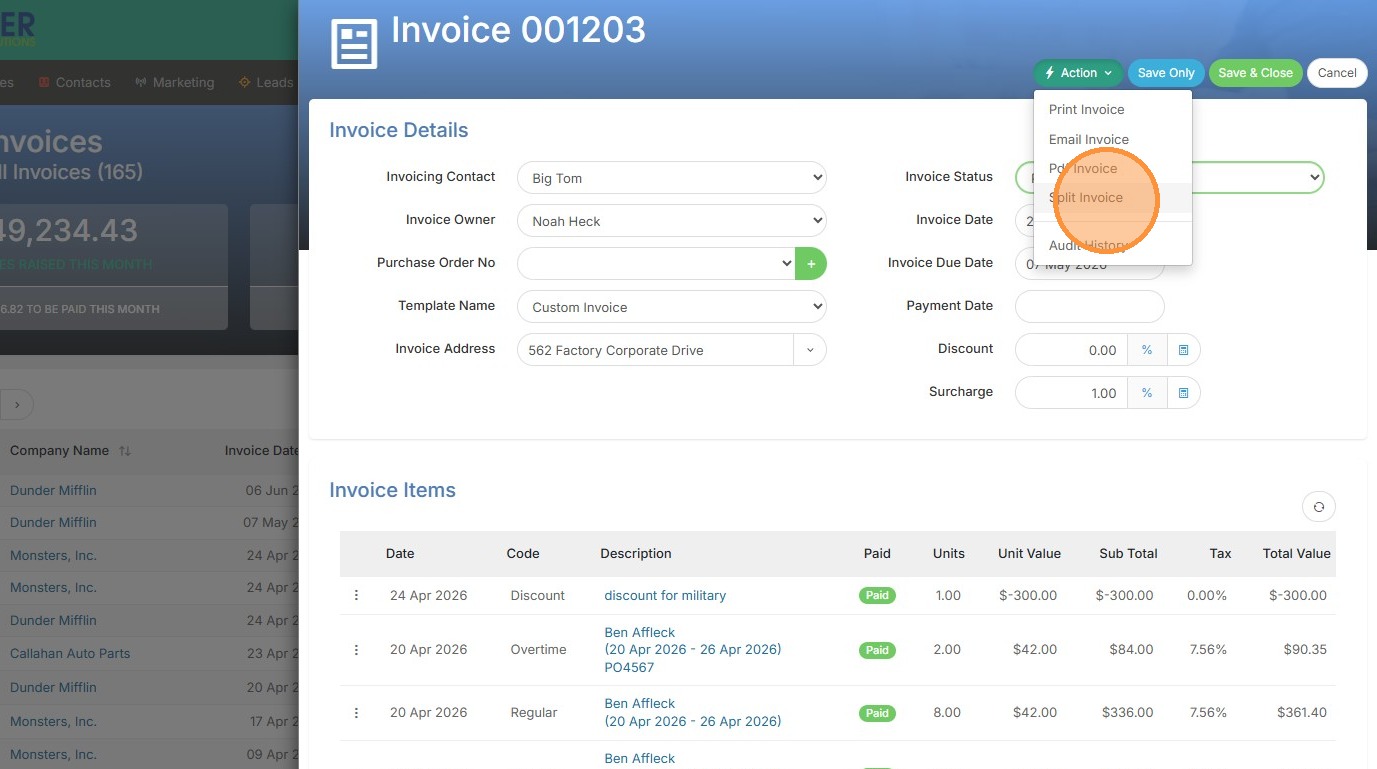
14. Select Split Invoice
15. Check the items to include in the split
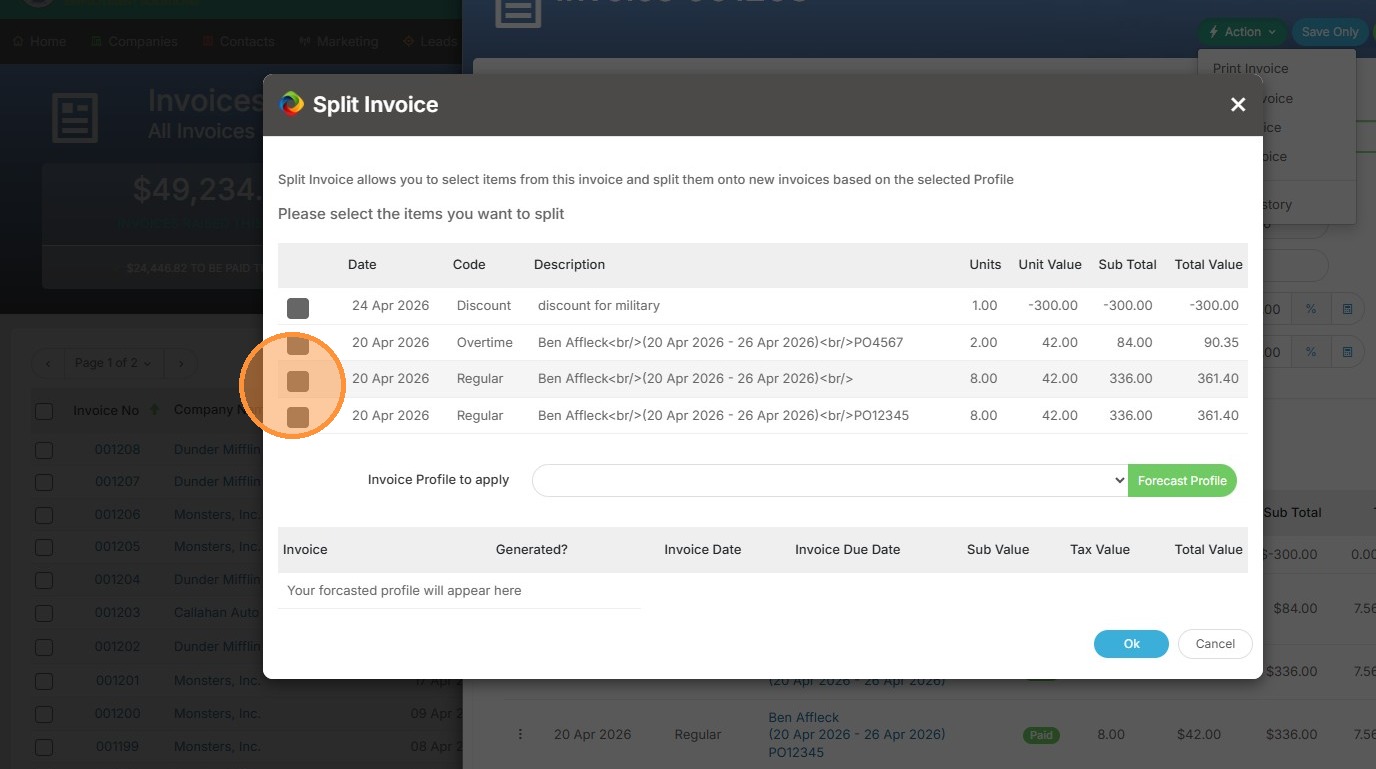
16. Select the "Bi-Monthly Split" option.
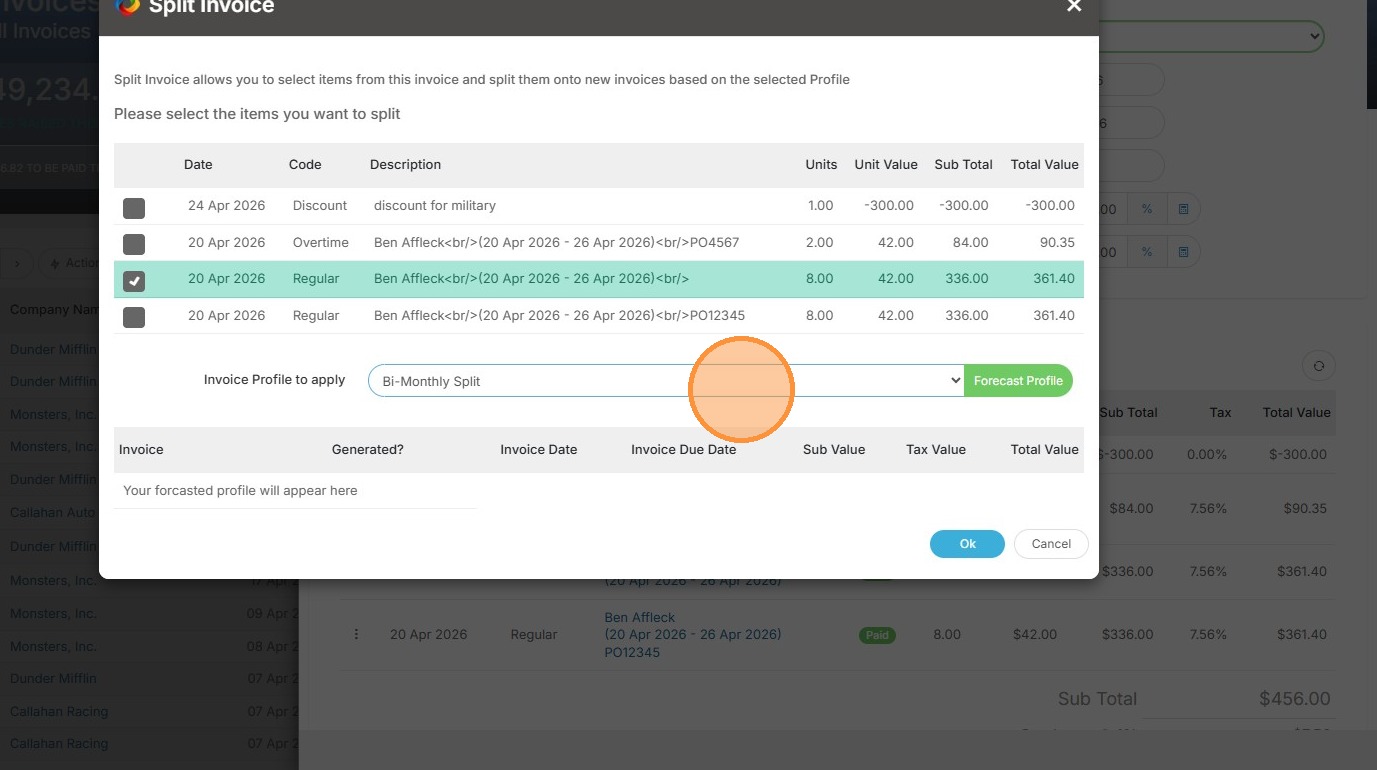
17. Click Forecast Profile to view the split breakdown
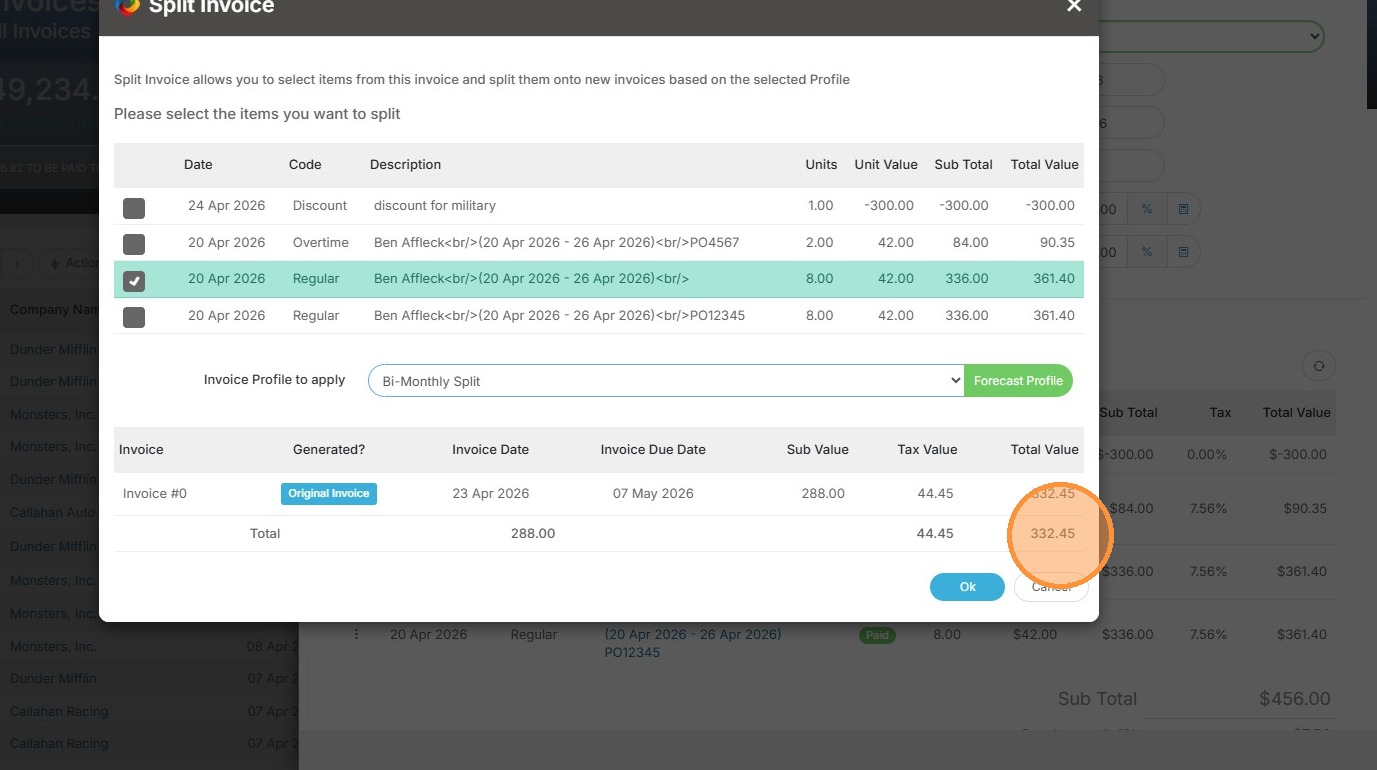
18. Click Ok to confirm the split
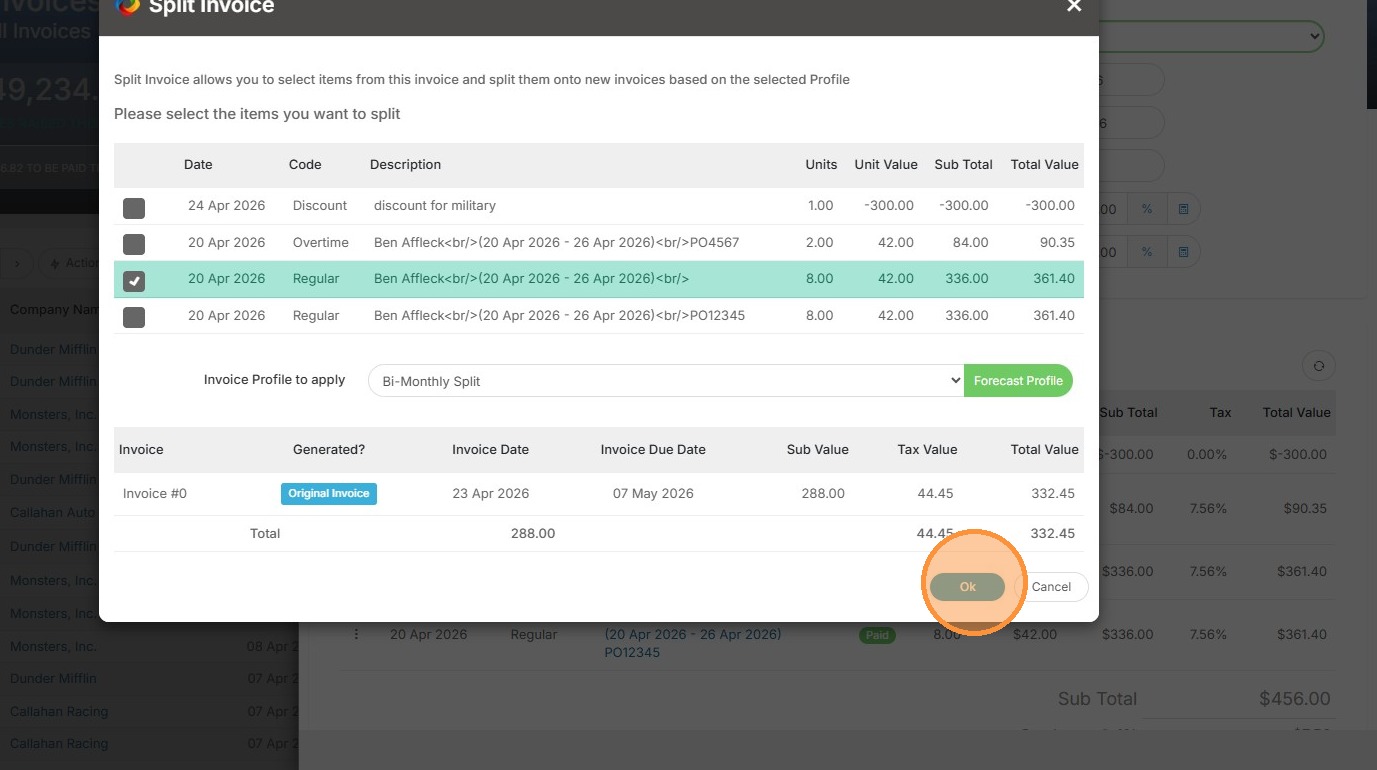
19. Click "Save & Close" to create the new split invoice.