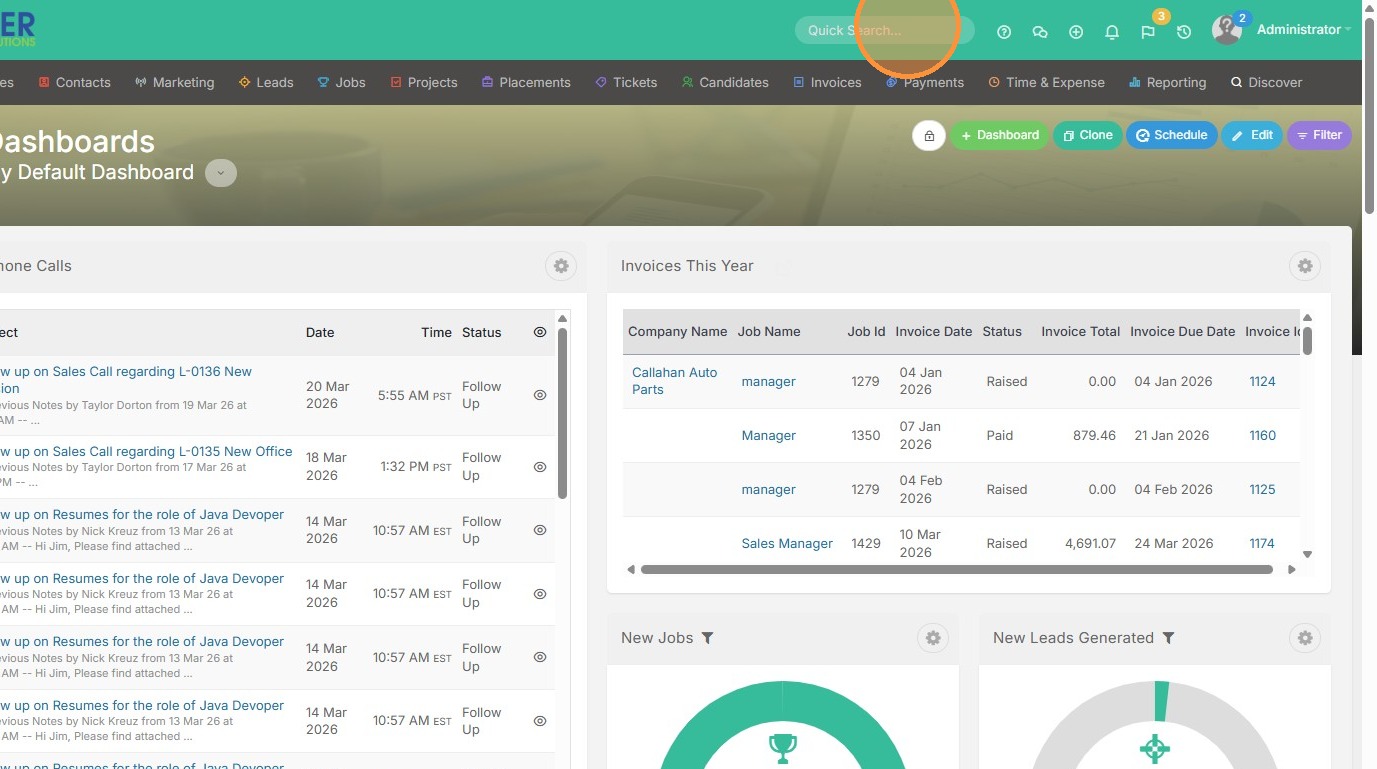
1. In the Quick Search field, type a name of a candidate or company to see the new changes (or whatever type of record you would like).
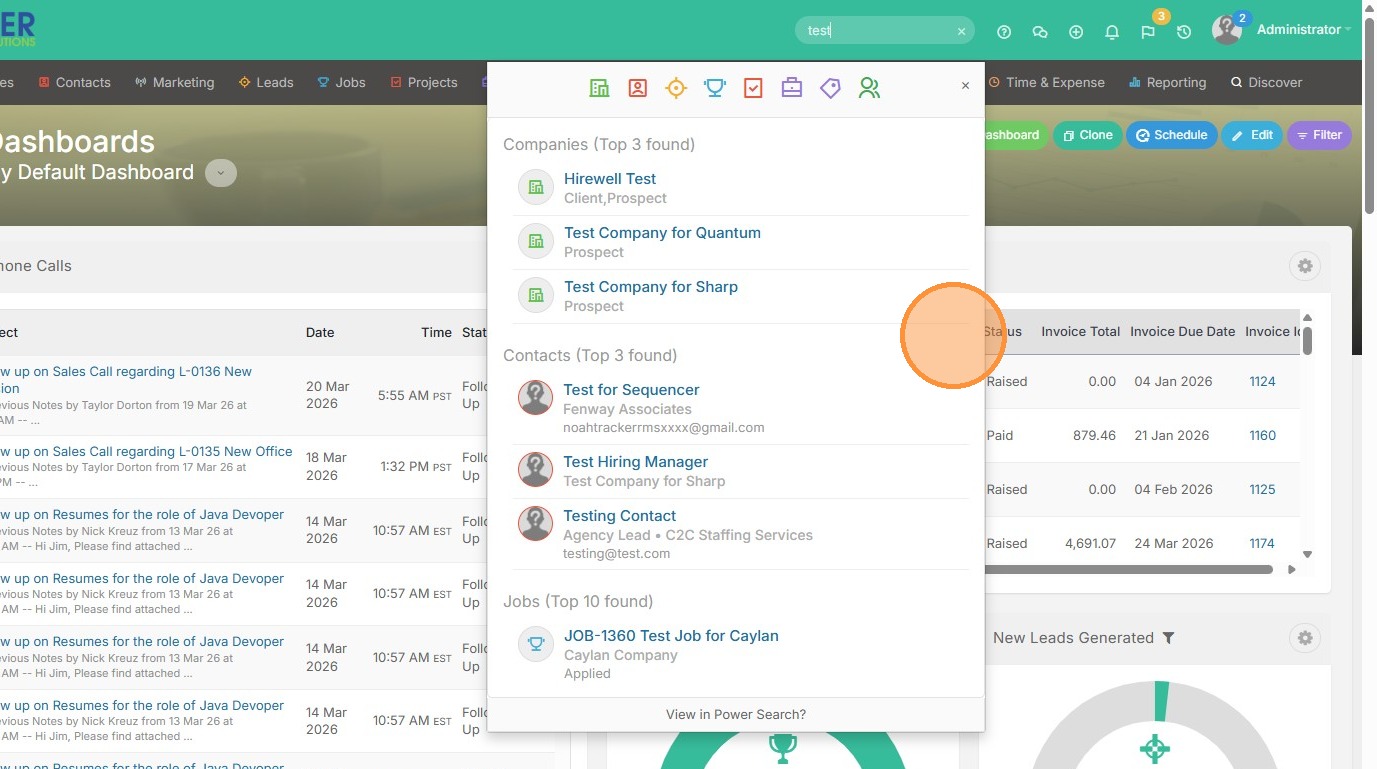
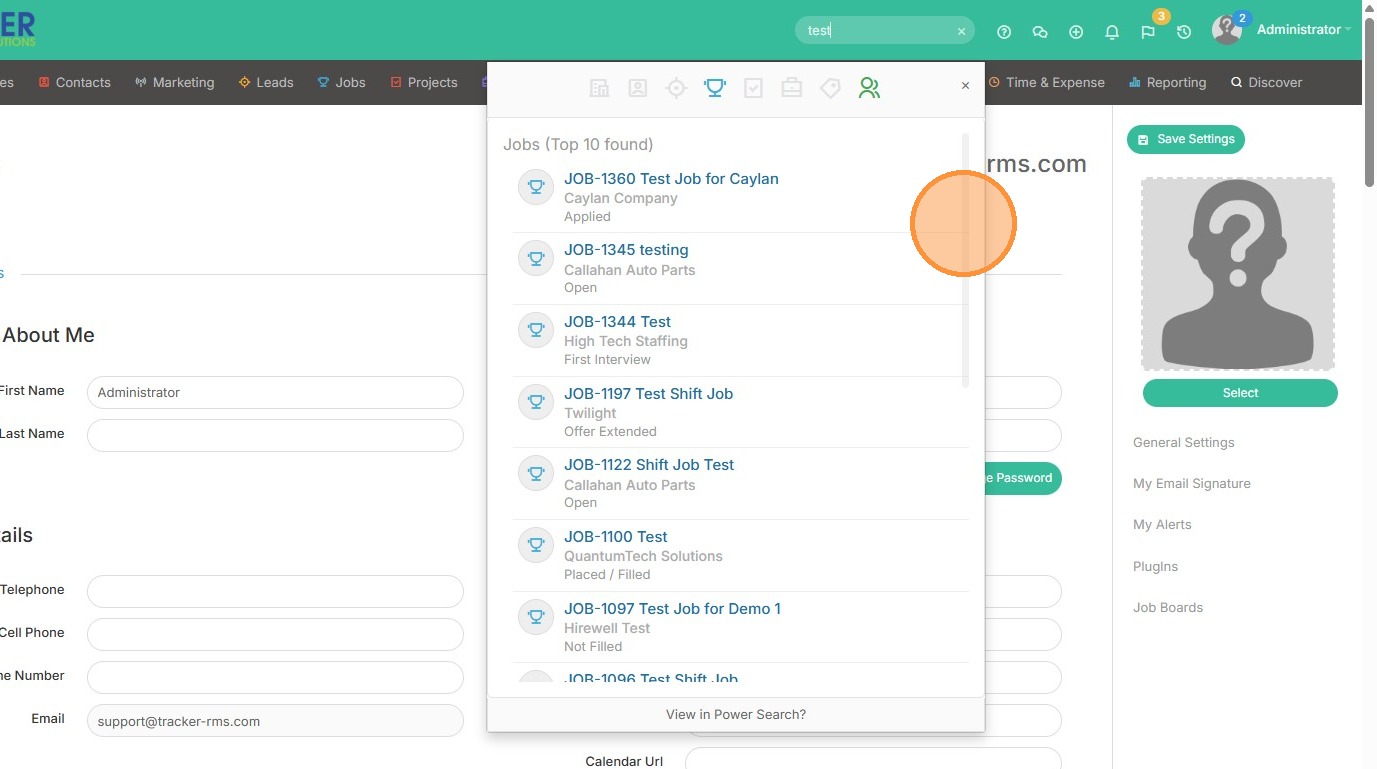
2. Here you can see all record types are segmented, starting with Companies up top, Contacts below that...etc.
3. You can filter out record types by clicking on the icons at the top of the search. For example, if I only want to see candidate records called Test, then I can click on this icon.
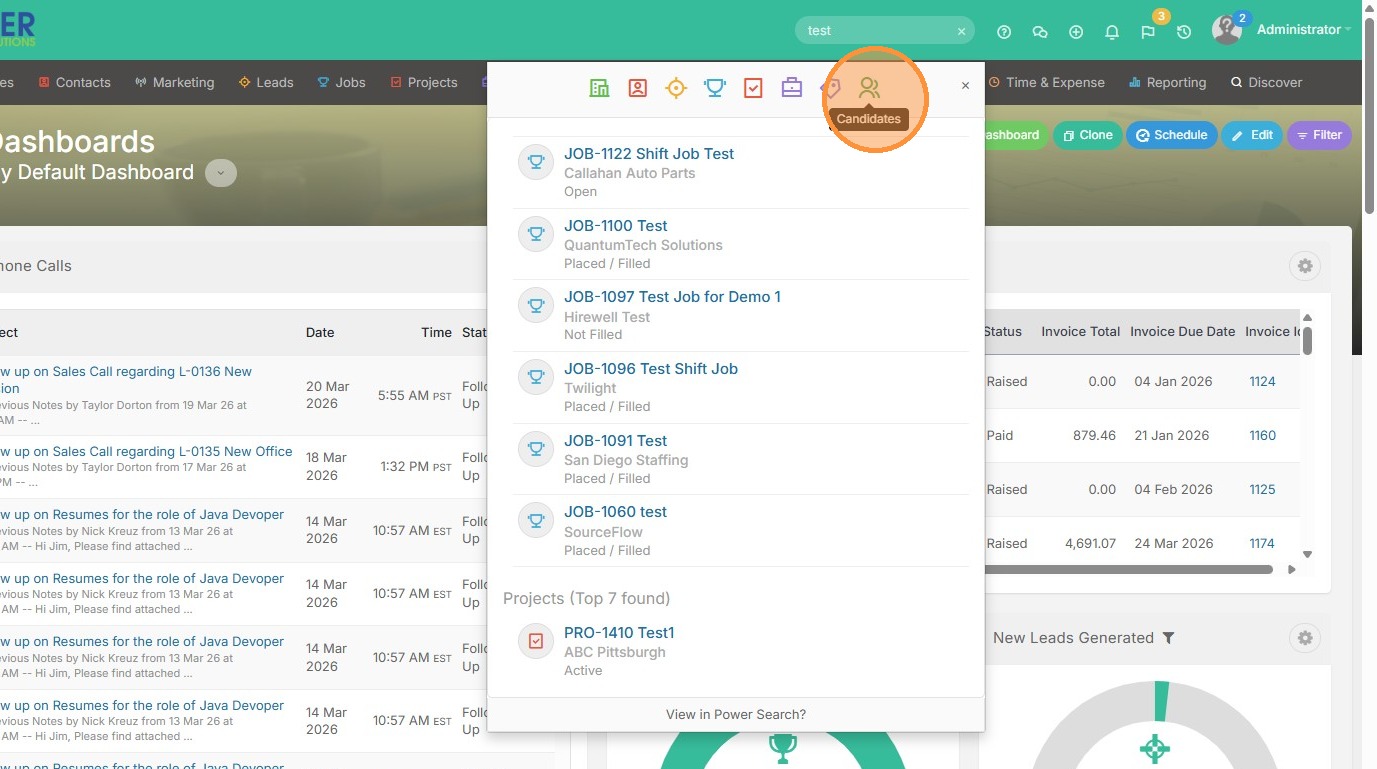
4. Now I can view the 7 records that pulled for Test.
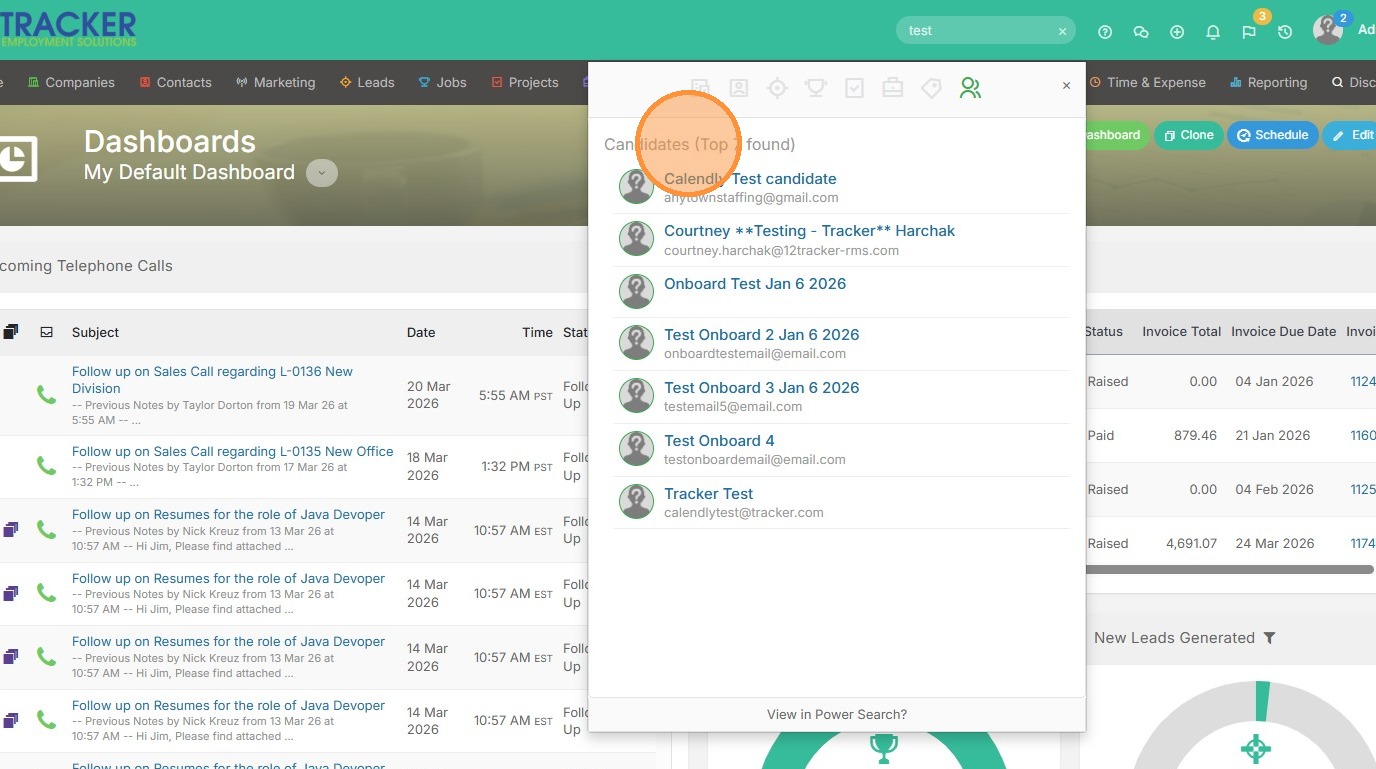
5. To reset the search, click the icon again to view all records once more.
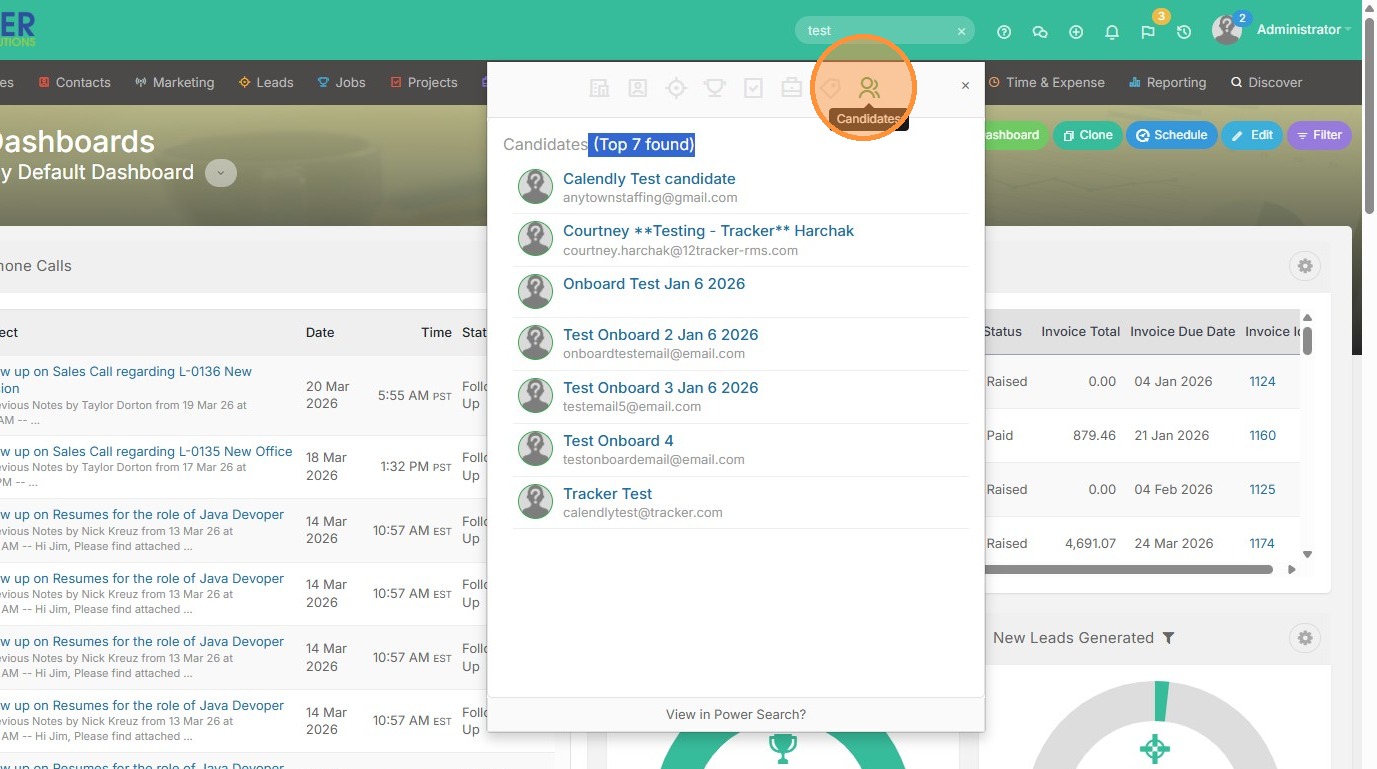
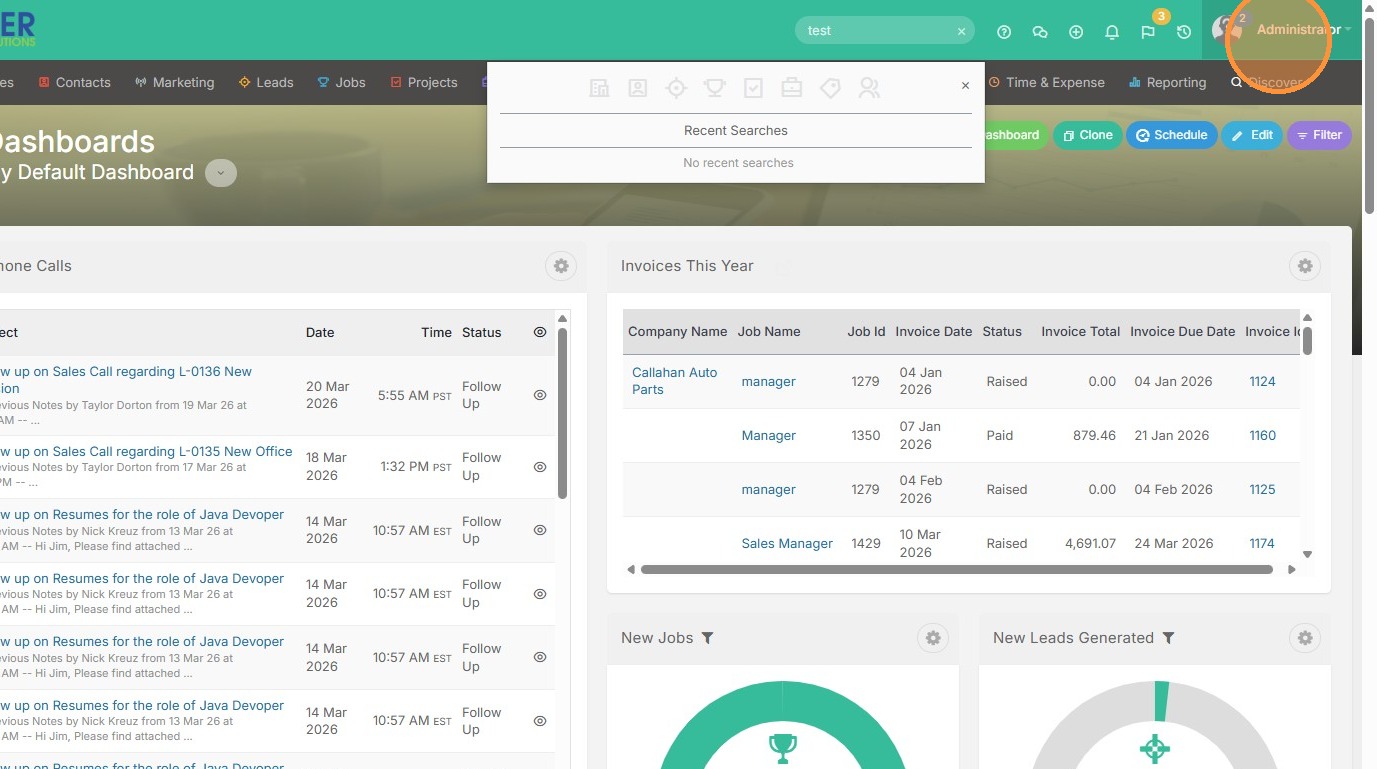
6. Click on your name to view how to customize the Quick Search bar.
7. Click "My Settings"
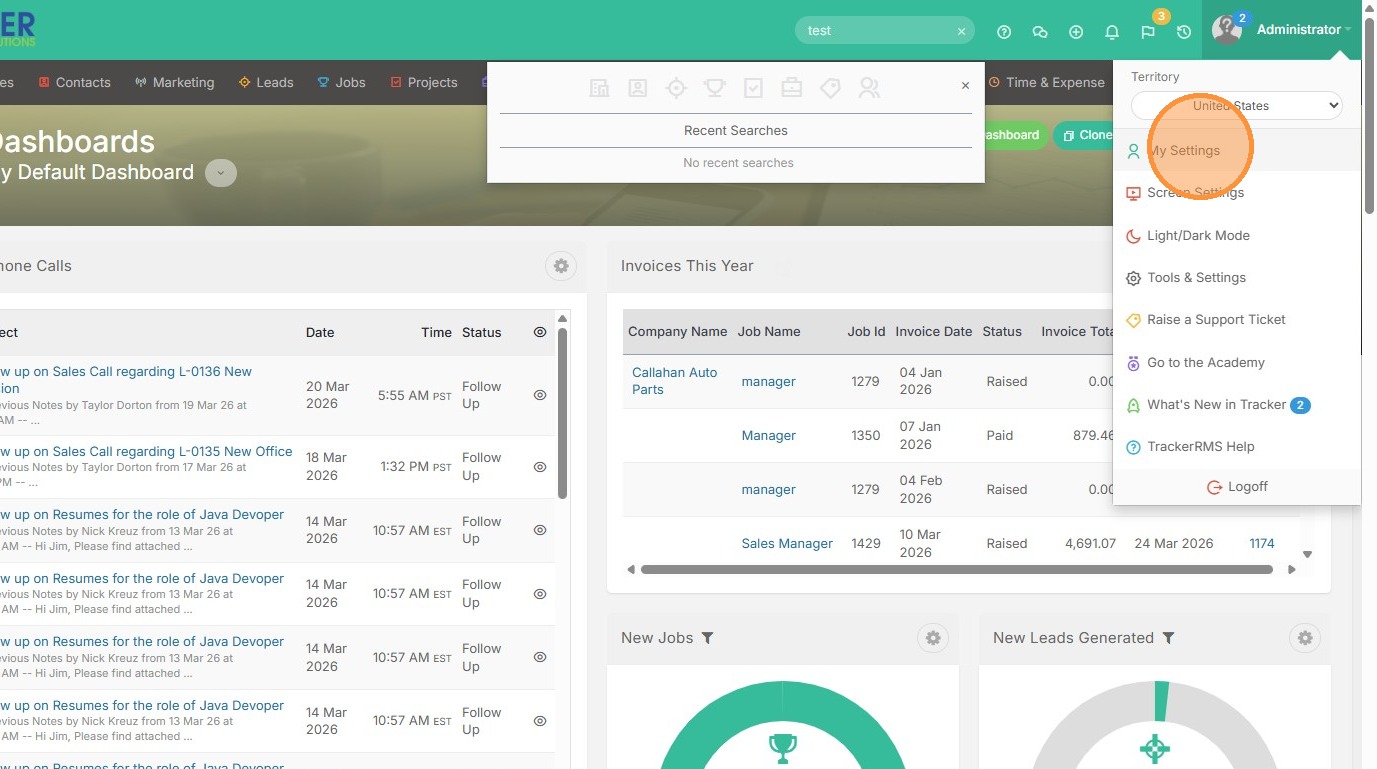
8. Scrolling down, you will see an option to customize the Quick Search bar to filter to specific record types whenever you search something.
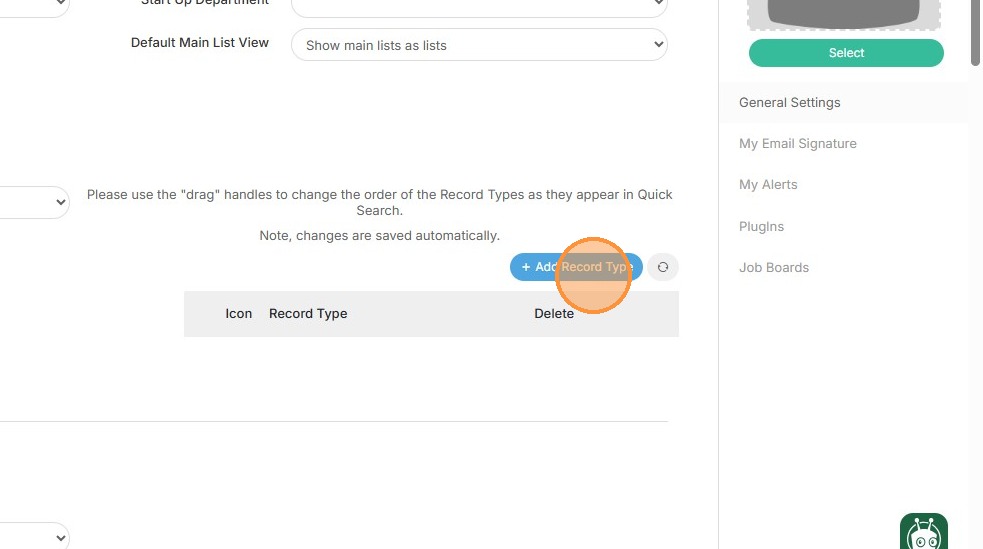
9. Click here to select which ones you always want it filtered to.
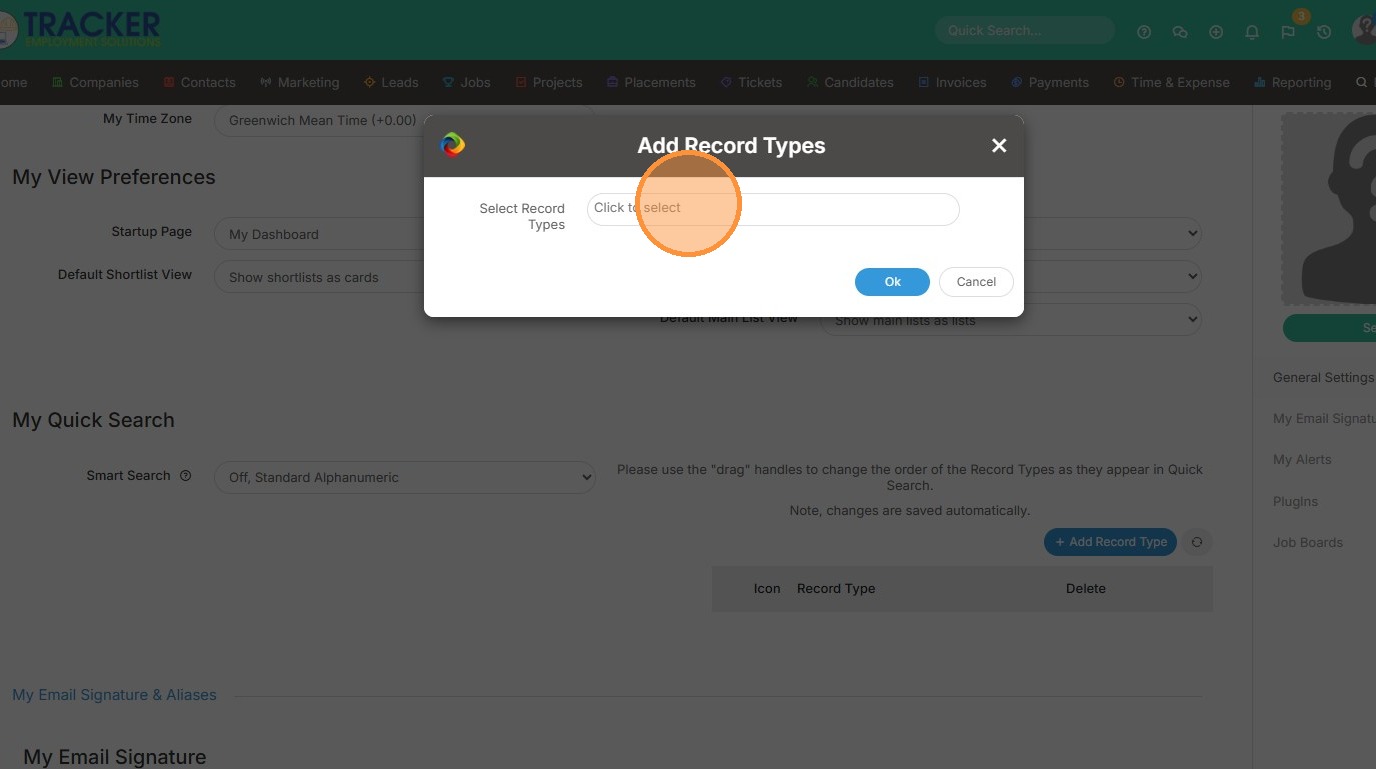
10. For example, if you're a recruiter, jobs and candidates may be the only thing you want to see first when you're searching. You can still search other items, the Quick Search bar will just filter to these first.
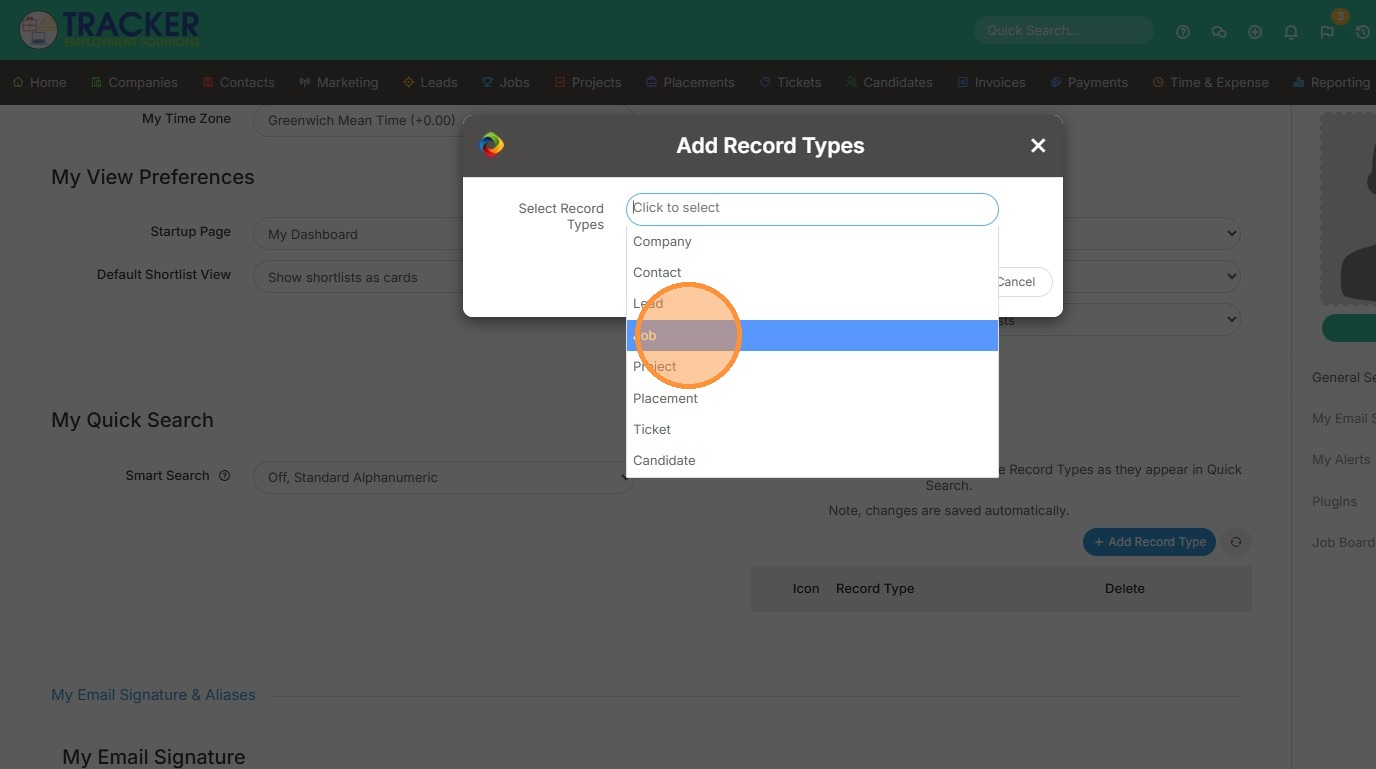
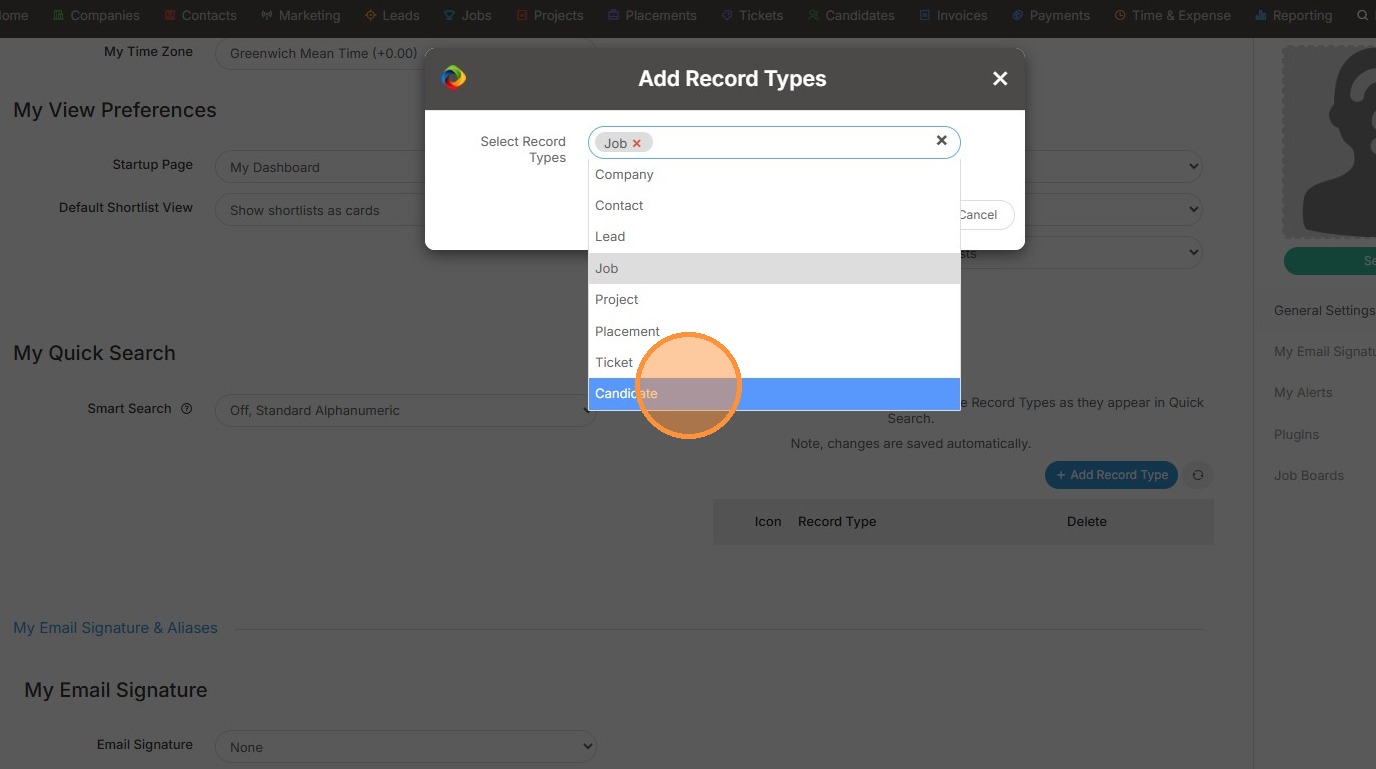
11. Click again to add another record type.
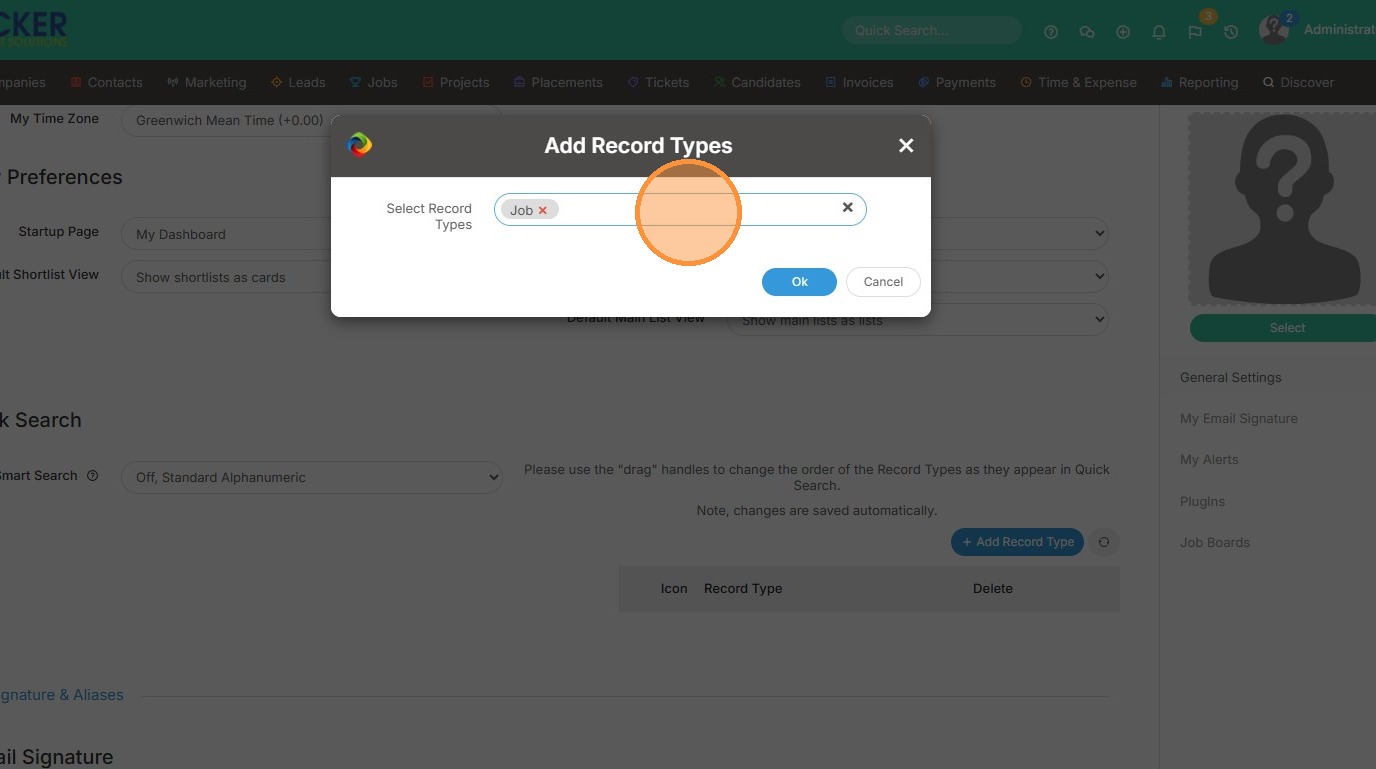
12. Click "Candidate"
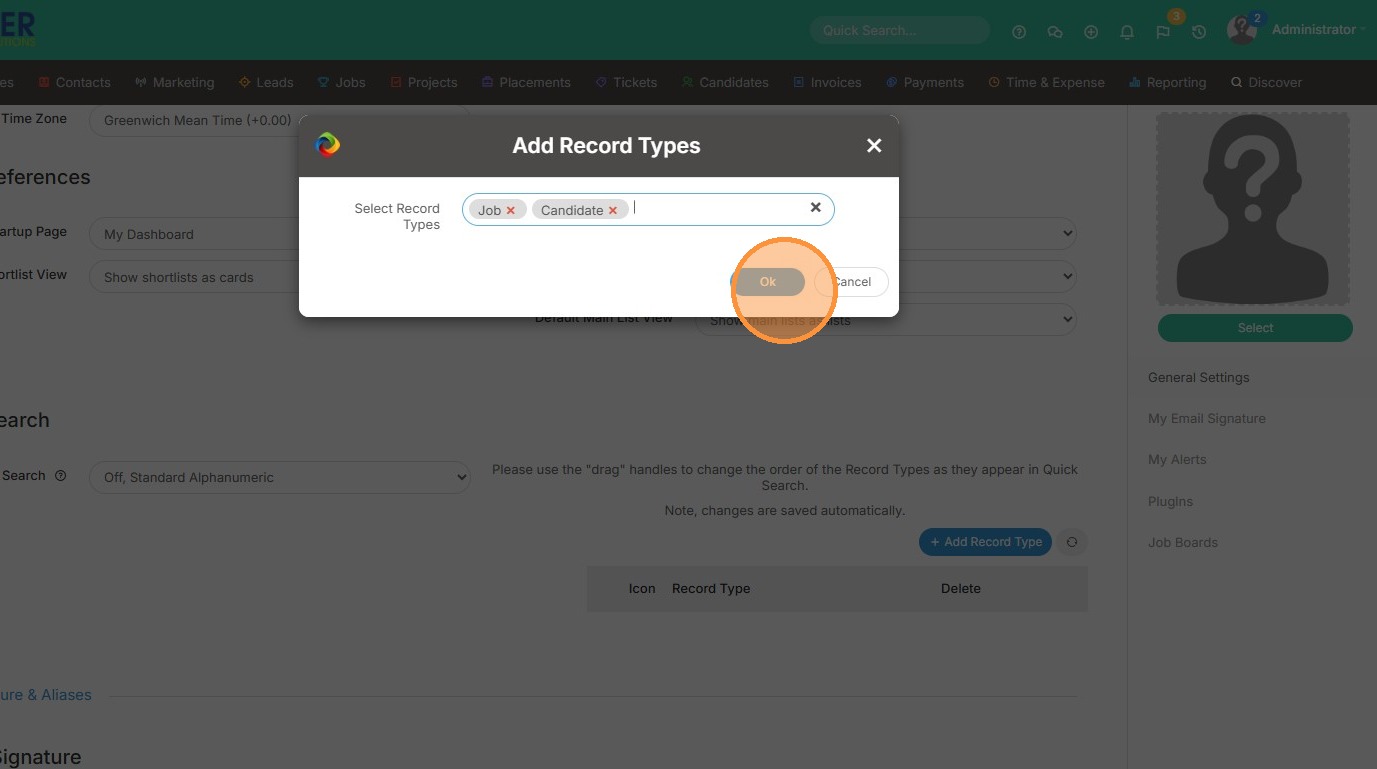
13. Click "Ok"
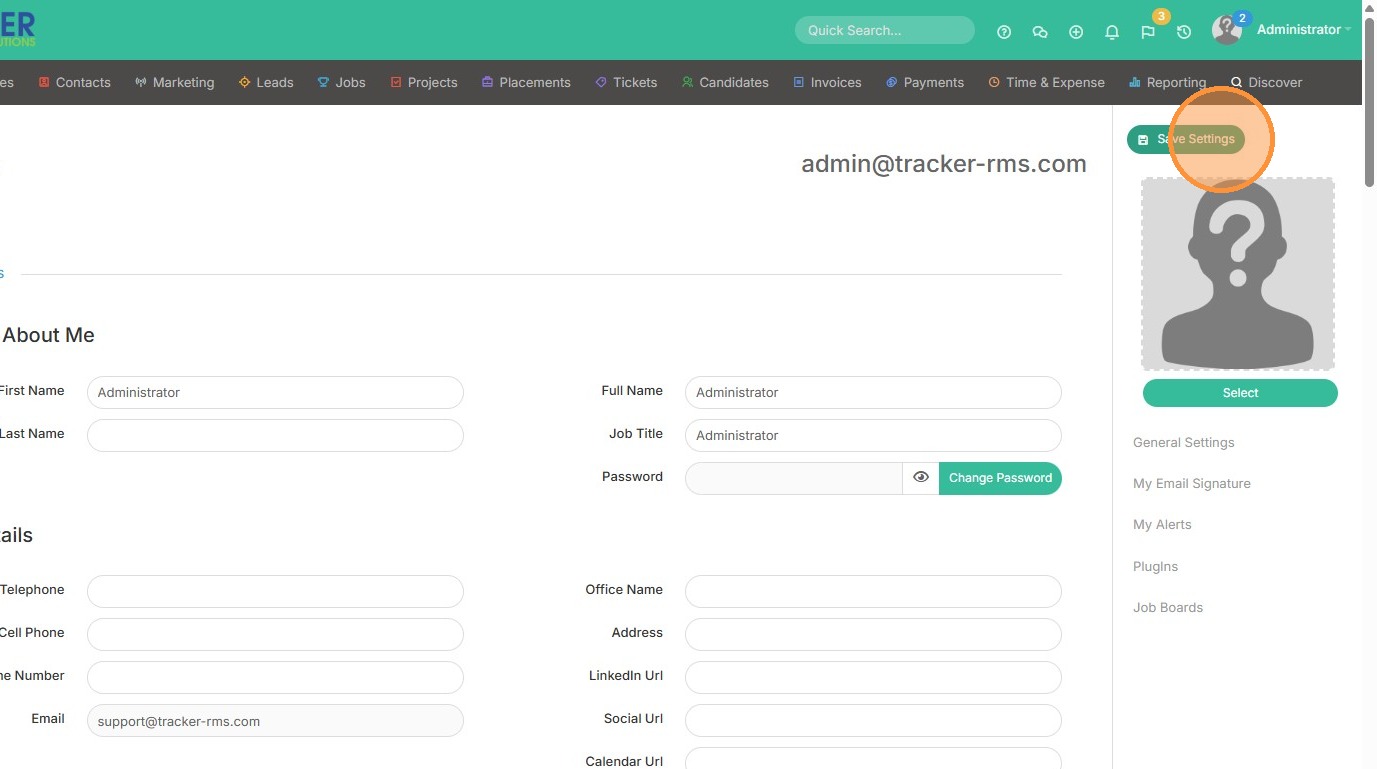
14. Click "Save Settings"
15. Now go back into the quick search field and type the name of a record.
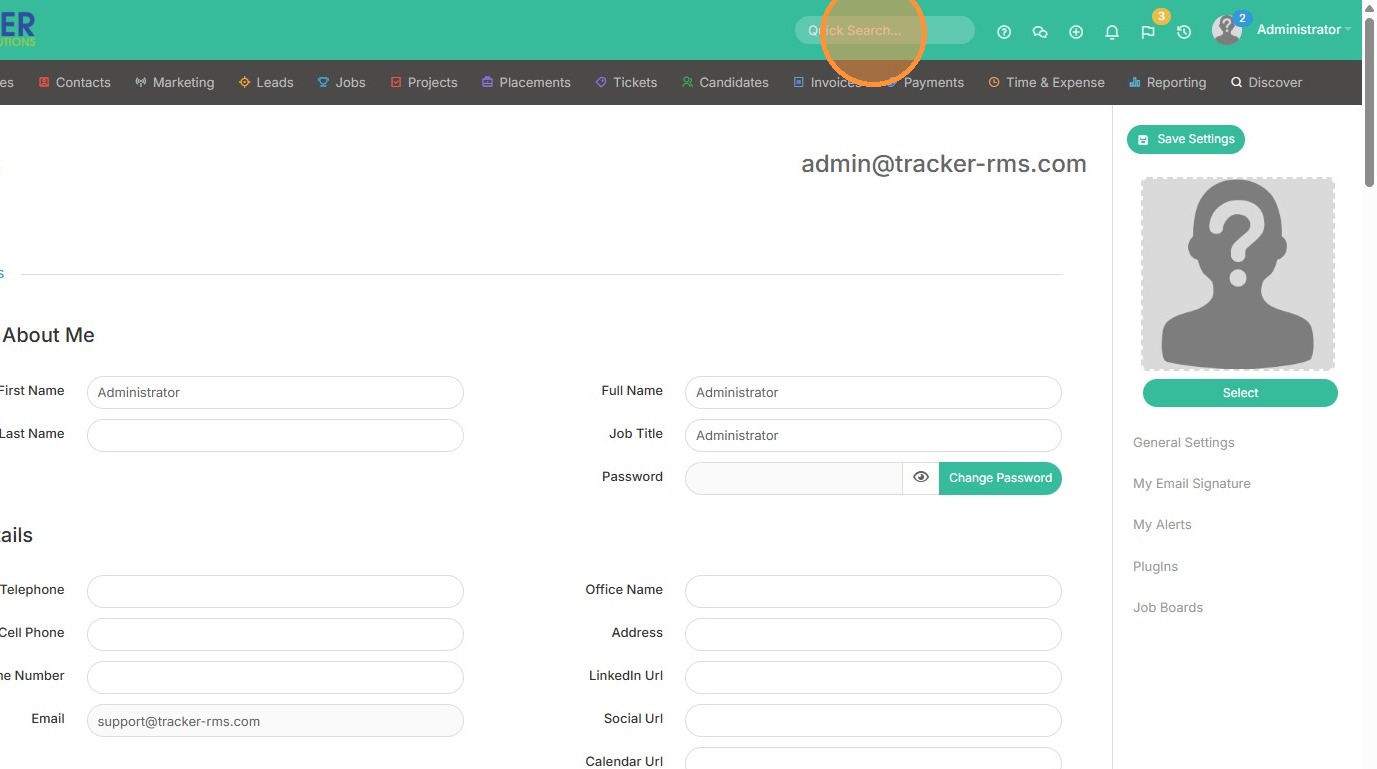
16. You will see that jobs and candidates are already pre-filtered.
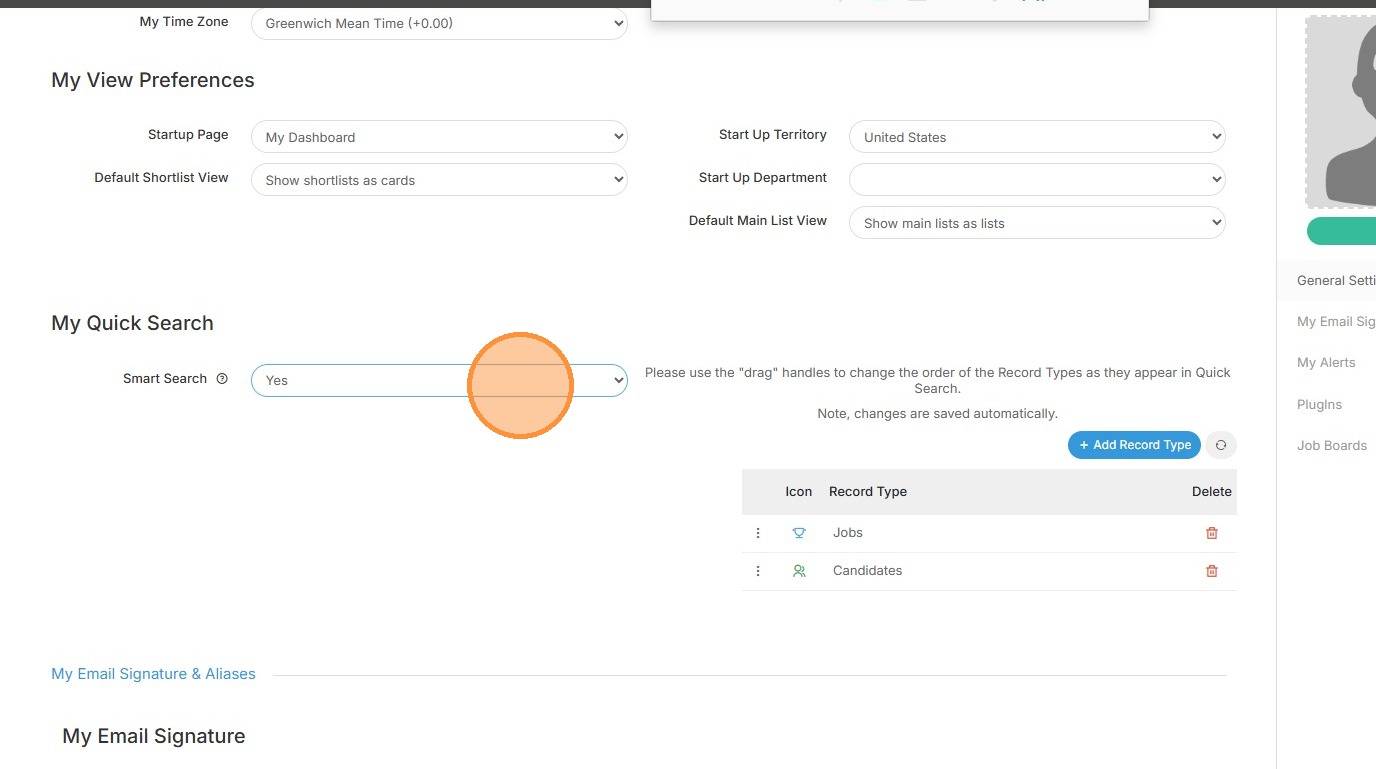
17. Going back into My Settings, you will also see a Smart Search option. Turning this on will prioritize any records that are owned by you.
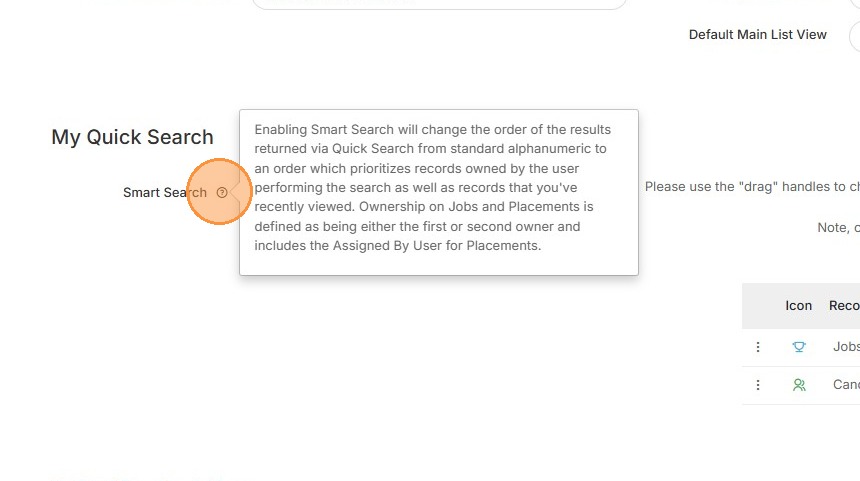
18. Select the "Yes" option to pick that.