1. If compliance management is taking up too much of your recruiter's time, start using compliance sets.

2. Click into tools & settings.

3. Select Candidate Settings.

4. Scroll down to Candidate Compliance Items. The Default Item column that you see here determines whether any of these items listed should automatically be added to a candidate record Compliance section when they are added to Tracker.

5. At the top of the candidate settings page you can select whether compliance item sets should be a default when a candidate record is created.

6. Compliance Sets in this section allows you to add or remove items to a "set".

7. Click New to get started.
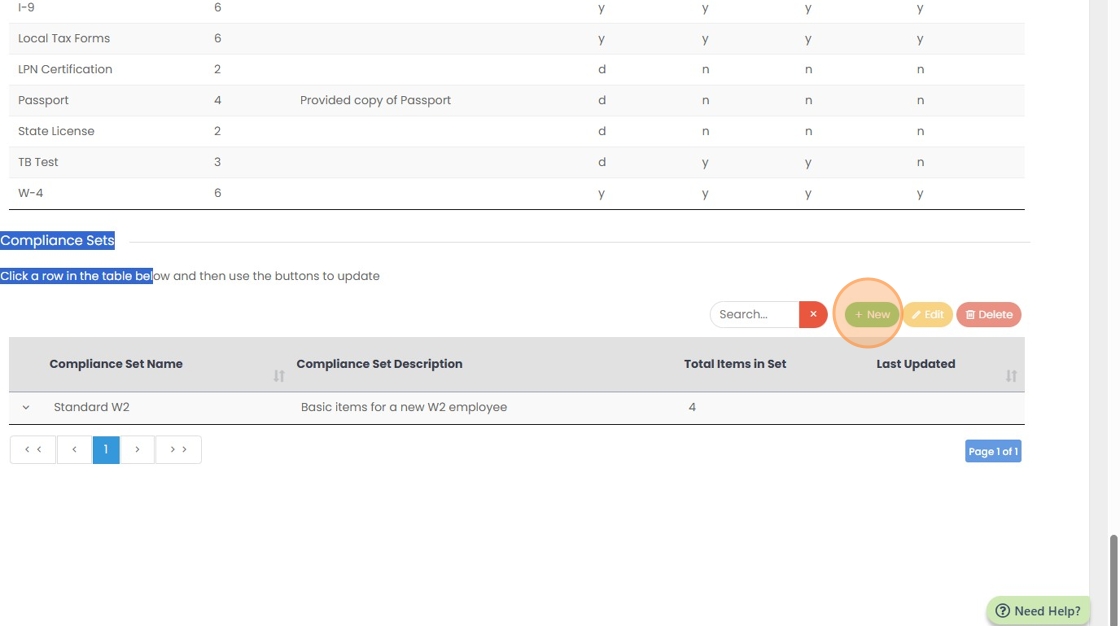
8. Pick compliance items to add to the set.

9. Add a name for the compliance set.

10. Click "Ok".

11. You can click on the dropdown arrow to view the items within a set without having to open it up.

12. Click into the Compliance section of a company record.

13. Now you can add a compliance set.
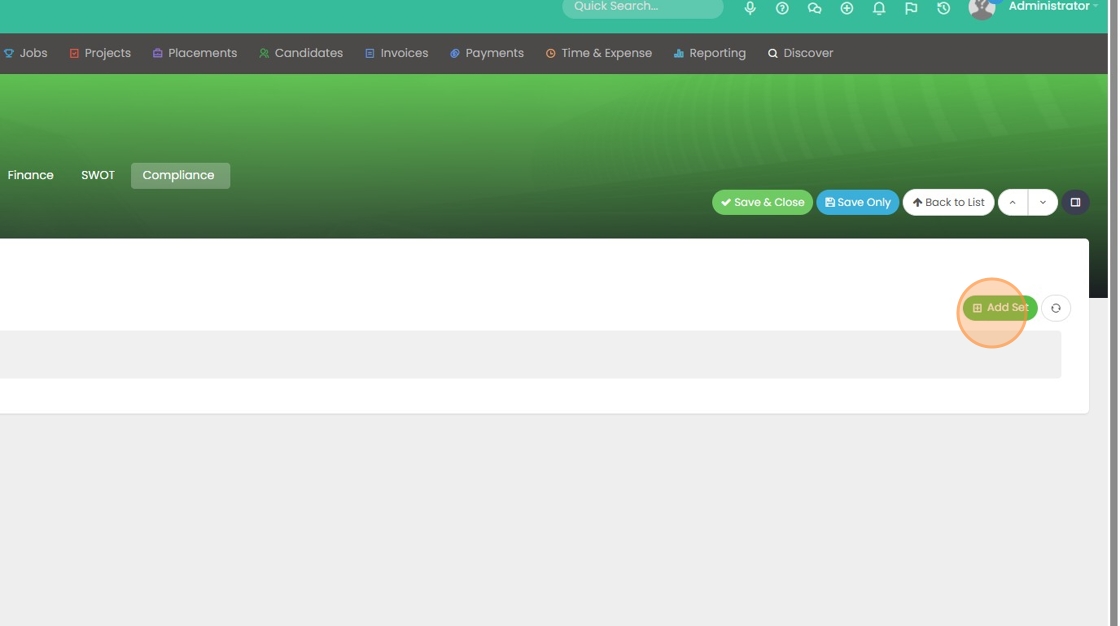
14. Select the name of the one you would like.

15. Click Ok to add.

16. Click "OK"

17. Again, you can click this dropdown arrow to view the set items.

18. The same situation goes for a contact record compliance set. You can add the set the exact same way you did with the Company record.

19. Pick the set you would like to apply.

20. Click Ok.

21. Click "OK"

22. Now I'm going to add a new job record.

23. Click "Ok and Edit"

24. Click "Compliance"

25. You will see you can add a compliance set from here as well.

26. Pick the compliance set you would like to apply at the job level. When we go to add this set it's going to reference both my company and my hiring manager, and give me an easy way to select the proper set for this job.
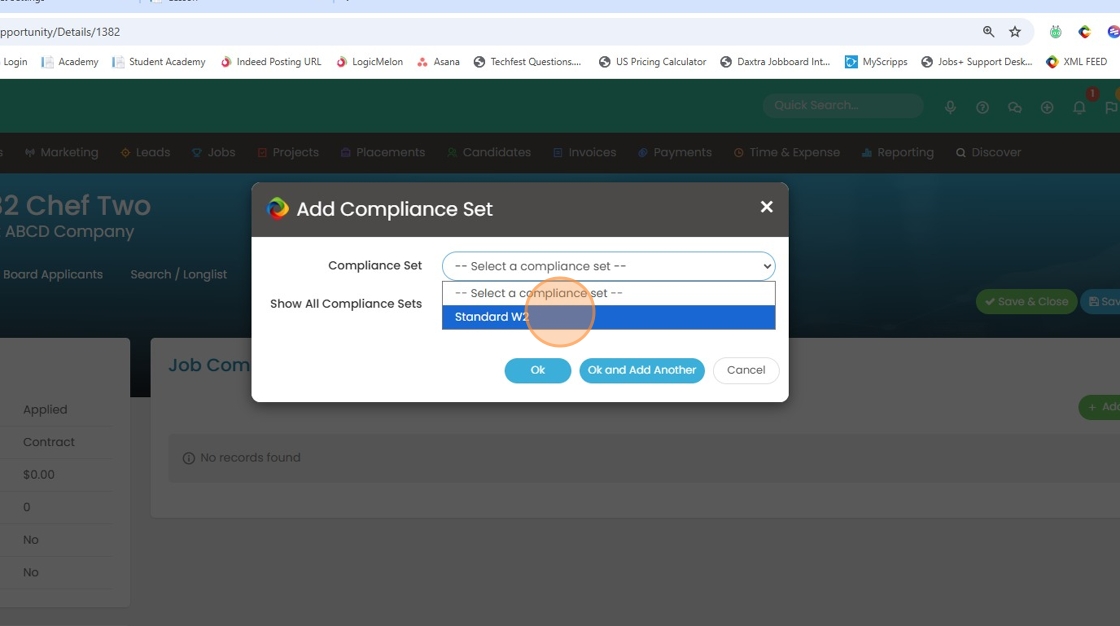
27. If I don't want to apply a set I can tick this box off and simply select individual compliance items instead.

28. Click a set to apply.

29. Click "Ok"

30. Click "OK"

31. Now I can find some candidates to shortlist for this job, and begin the compliance process.

32. I'll add these two candidates to our shortlist.

33. Click "Shortlist & Activities"

34. Here you can open the placement record to view the compliance section.

35. Click compliance.

36. If there are any compliance items missing from the Requirements for this job, you can easily add them by clicking on this button here.

37. Click "Yes"

38. Click "OK"

39. If you realized you need to add missing compliance items to all of the candidates that were shortlisted, you can select them here.

40. Click action

41. And then hit "add compliance items to candidates".

42. Click "Yes"

43. Click "OK"

44. Now to contact this candidate about their missing compliance items, you can go into their record.
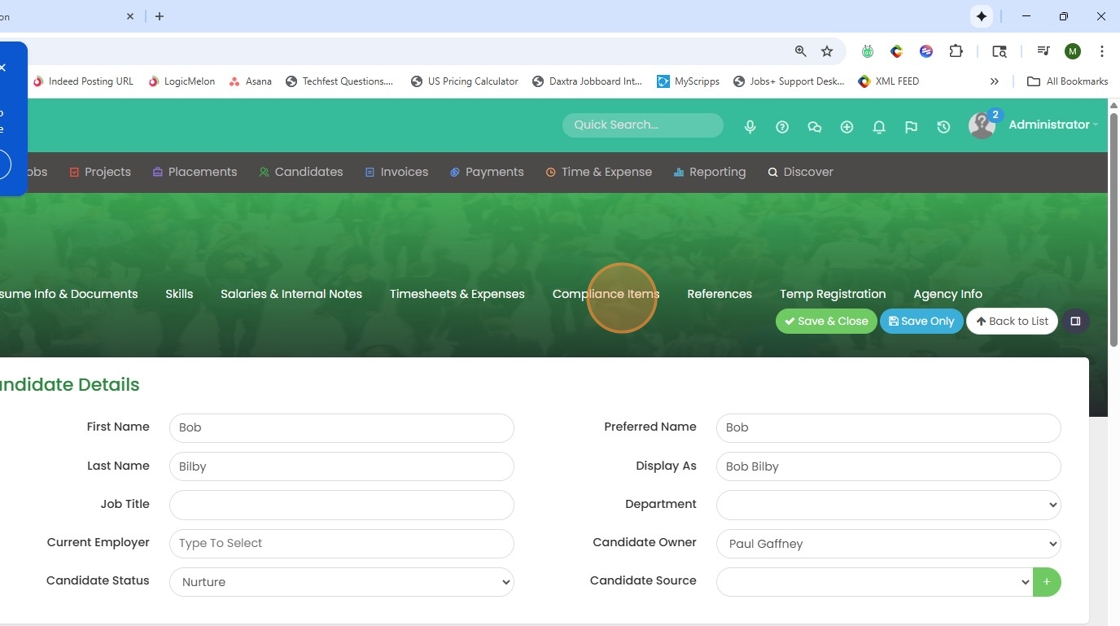
45. Click the menu button.

46. Send an email.
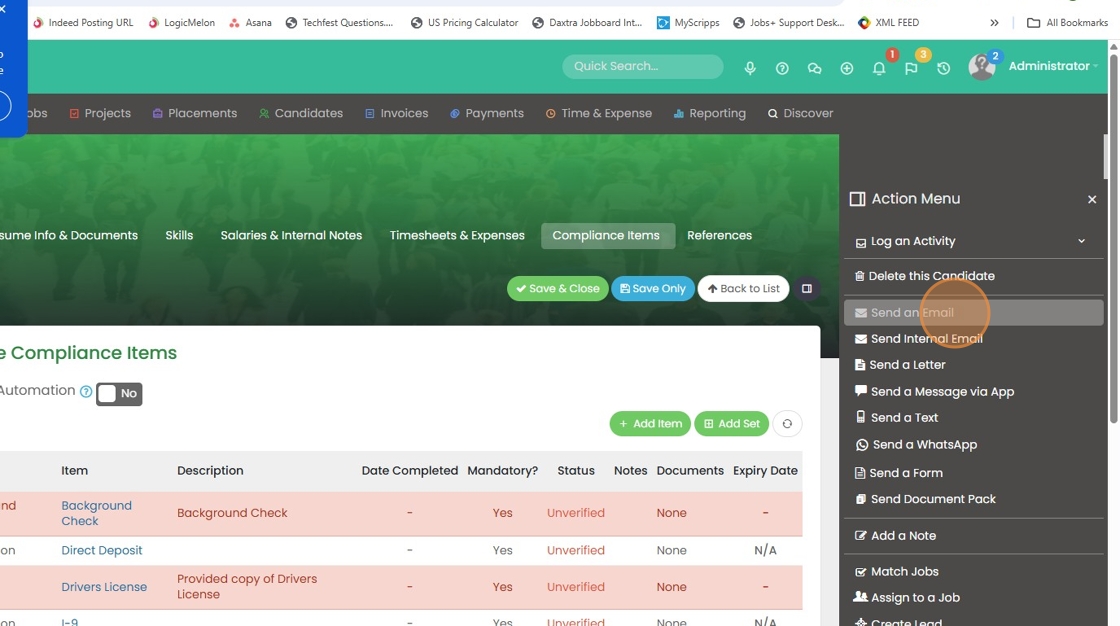
47. Then pick your email template that contains their compliance portal link. If you don't have one, you need to go into tools & settings and add one under "Manage Email Templates".

48. Click here

49. As you can see in my template, the portal link is ready to go. This will allow the candidate to upload the necessary documents, which will then feed back into Tracker.
