Create and Send a Marketing Template
In this helpfile we are going to show you how to create an Email Template that will allow you to quickly and easily share numerous Candidates with numerous Contacts.
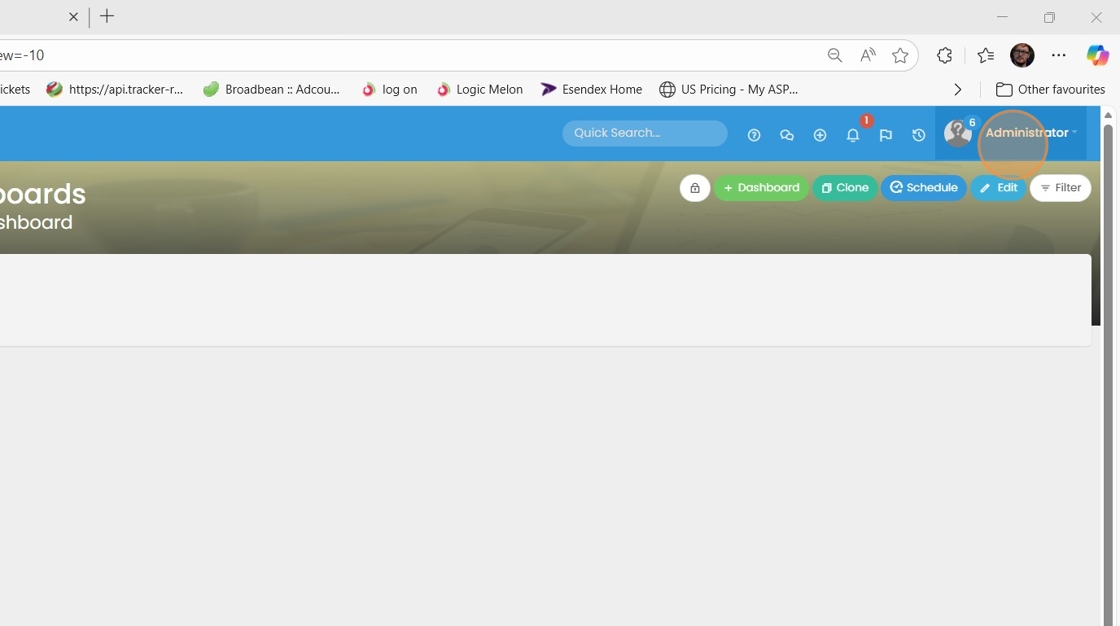
1. Click "avatar Administrator"
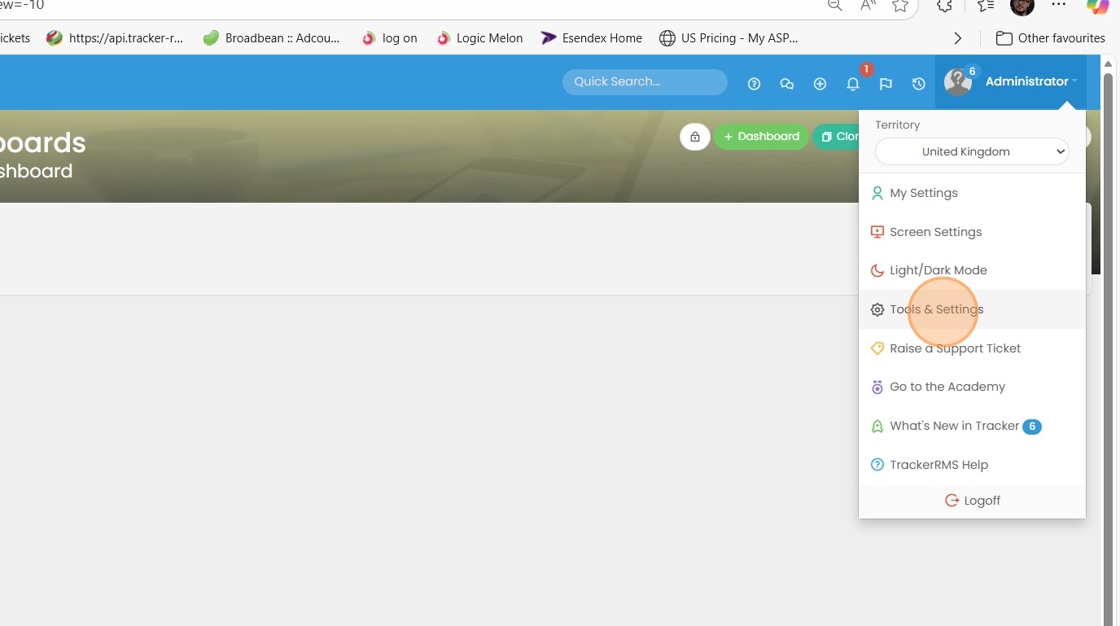
2. Click "Tools & Settings"
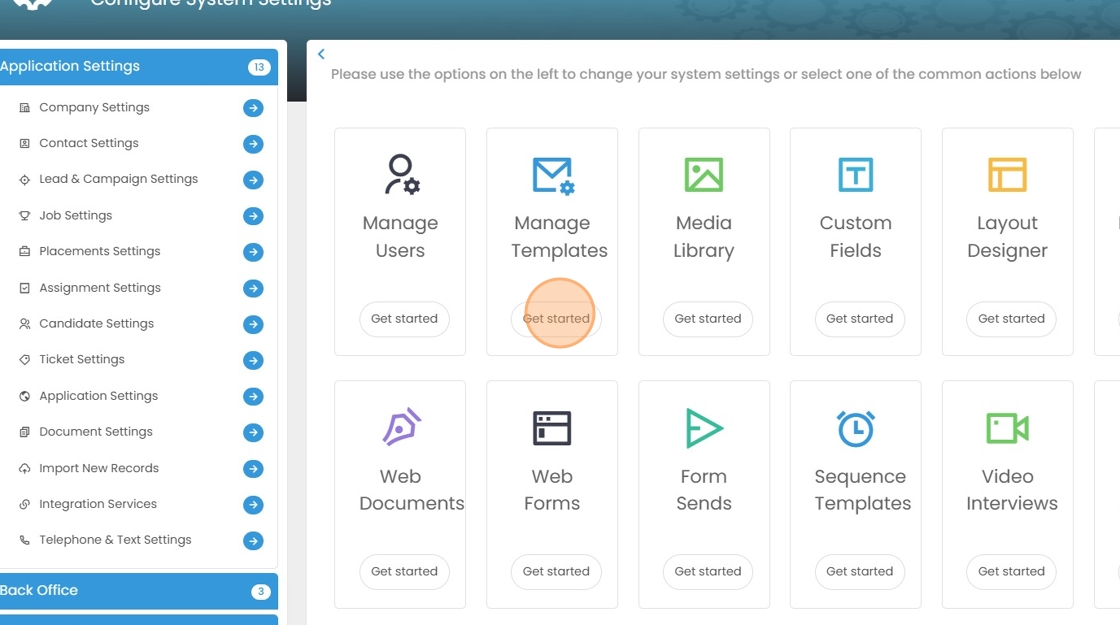
3. Click "Manage Templates"
4. Click "+ To create a new template"
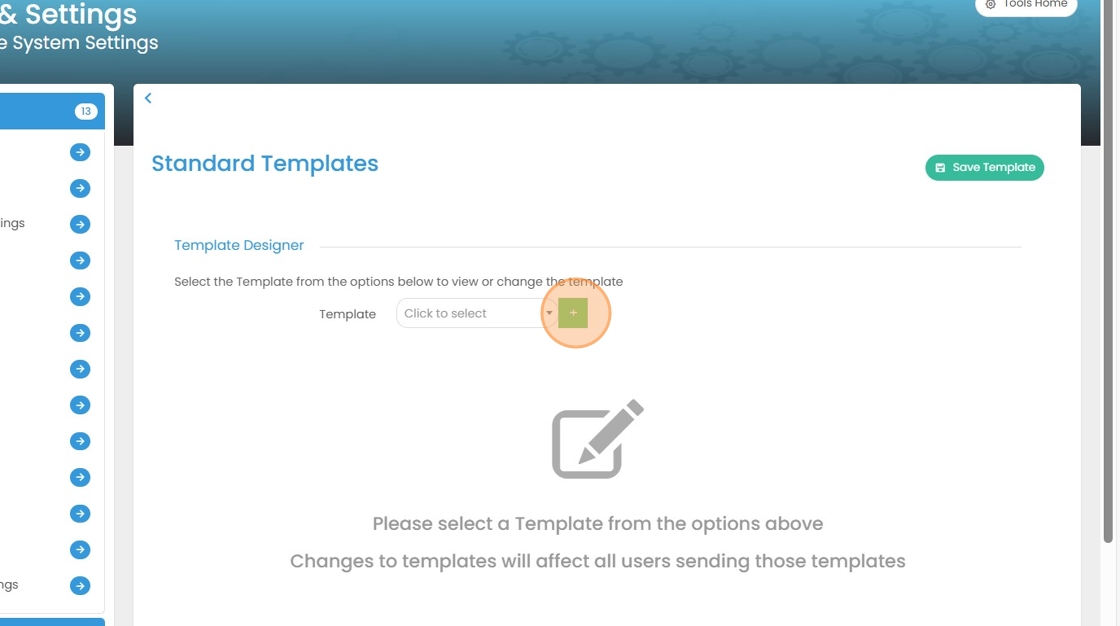
5. Click "Template Name and type a name you want this saved as."
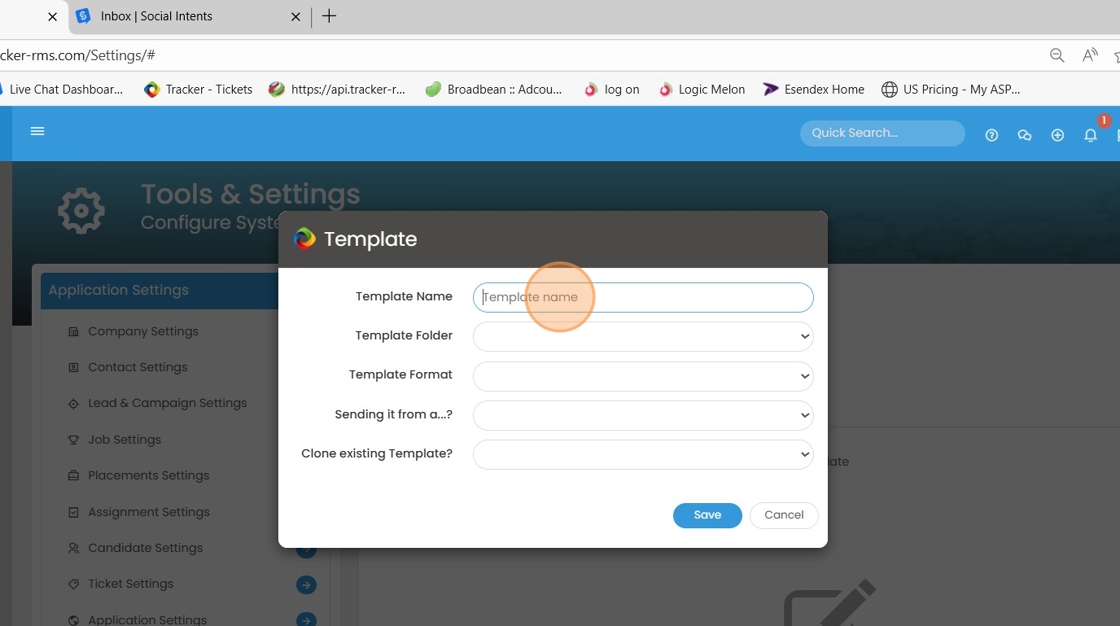
6. Click "Template Folder"
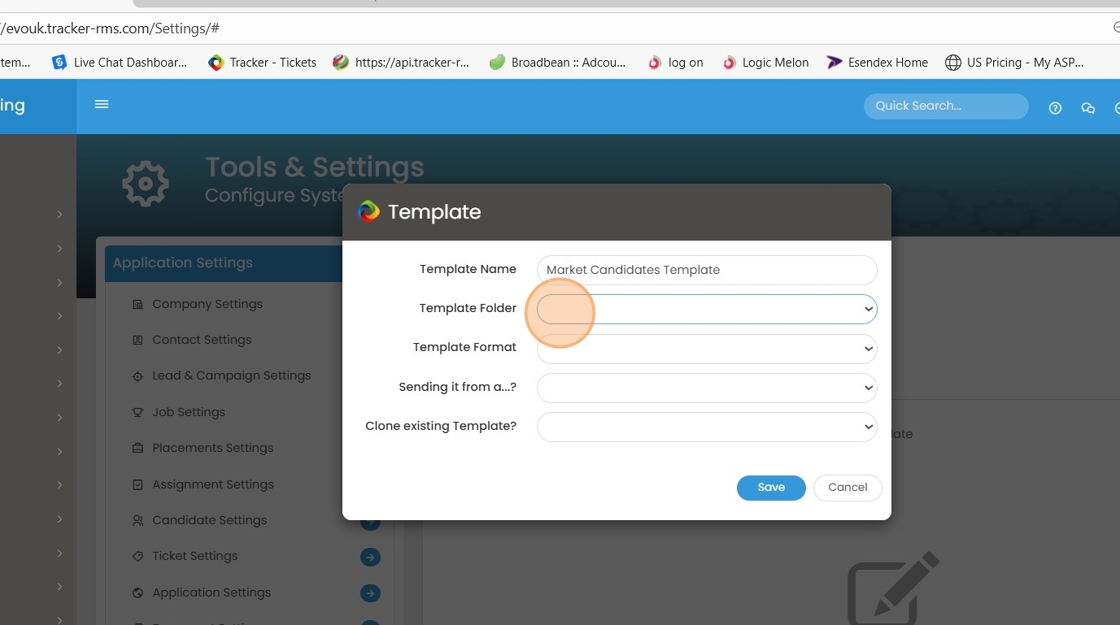
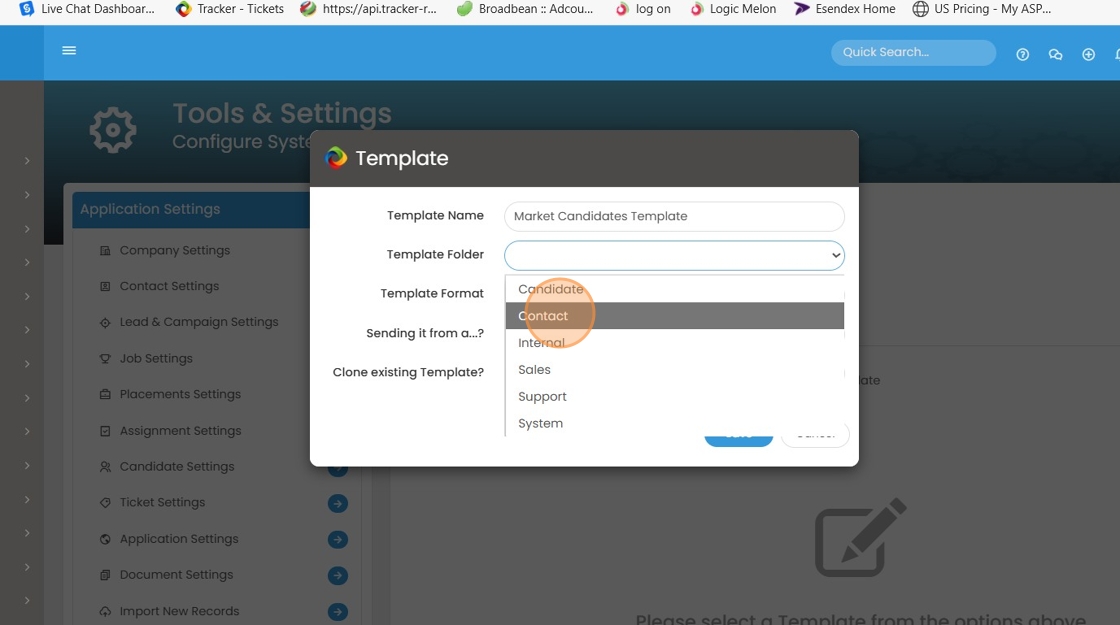
7. Click "Template folder and select the folder you want this in"
8. Click "Template Format and select e-mail"
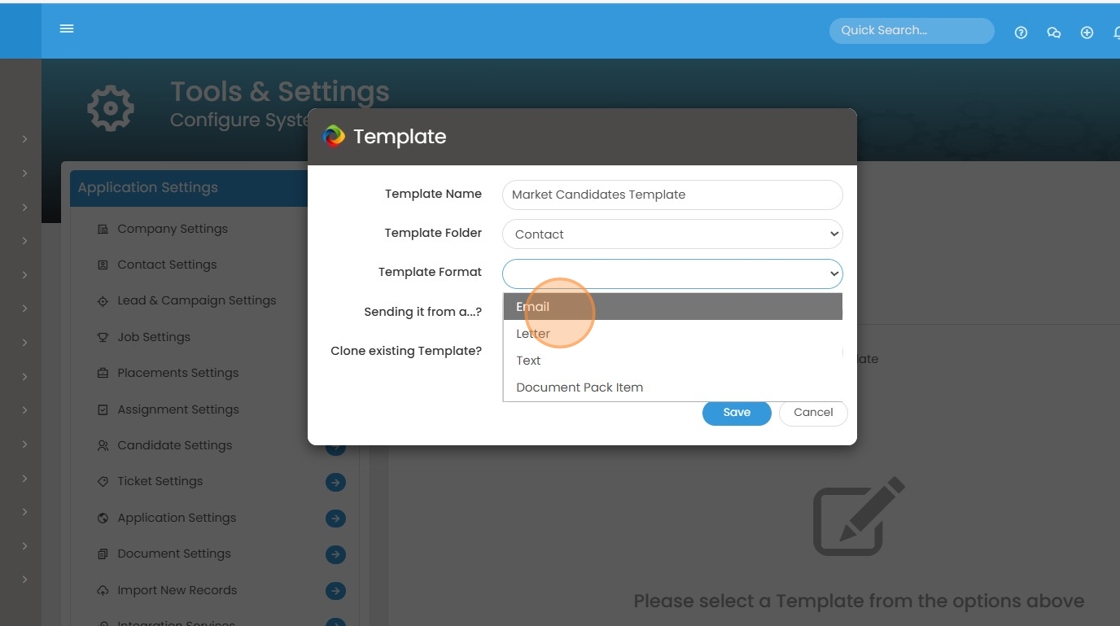
9. Click here "Sending it from a...? and select contact"

10. Click "Save"
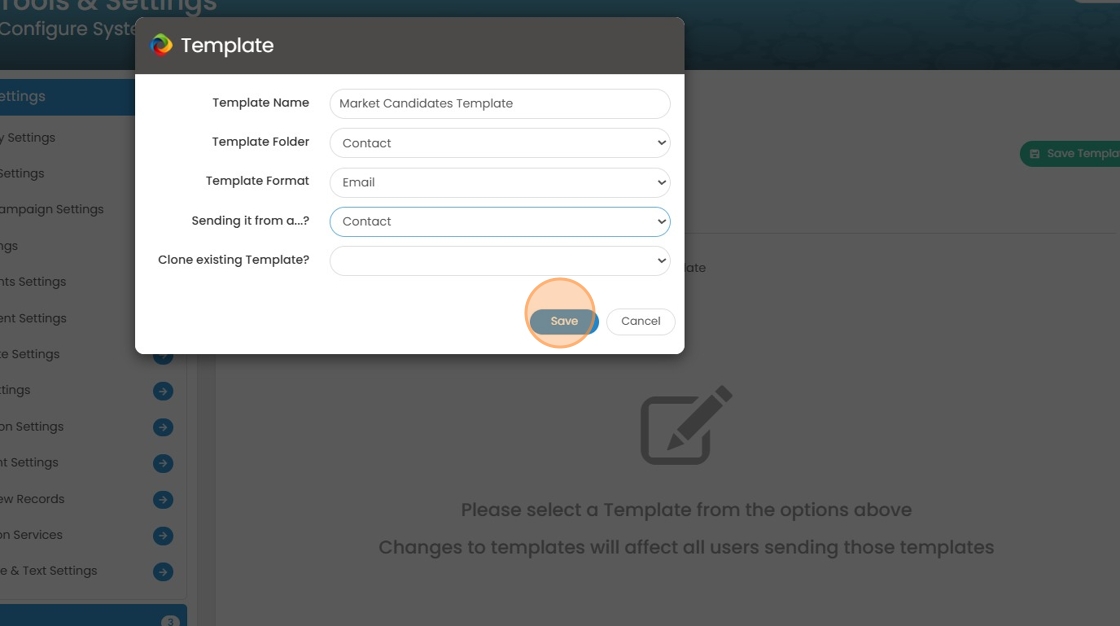
11. Click on "System template and select Market candidates"

12. Click "Insert tags"
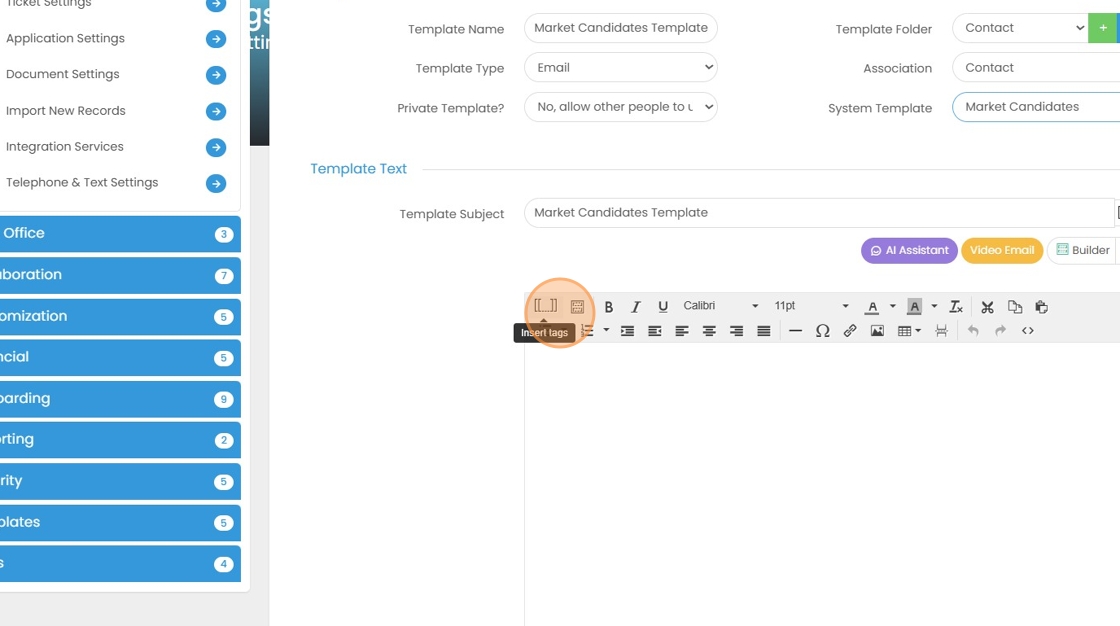
13. Click on "Market Candidates" to add the tag to the template.
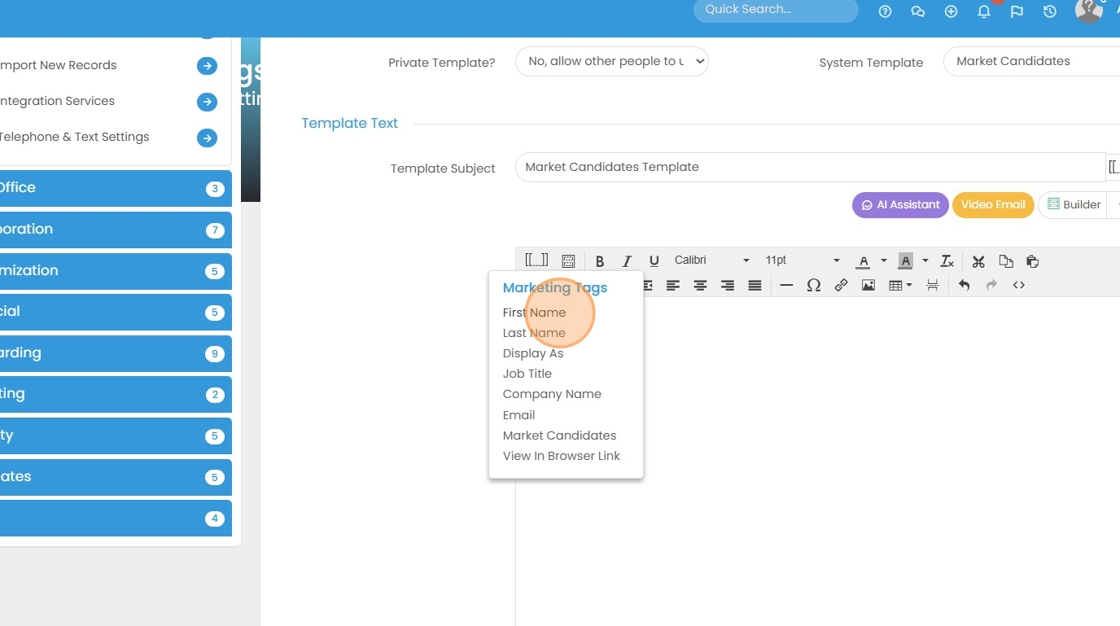
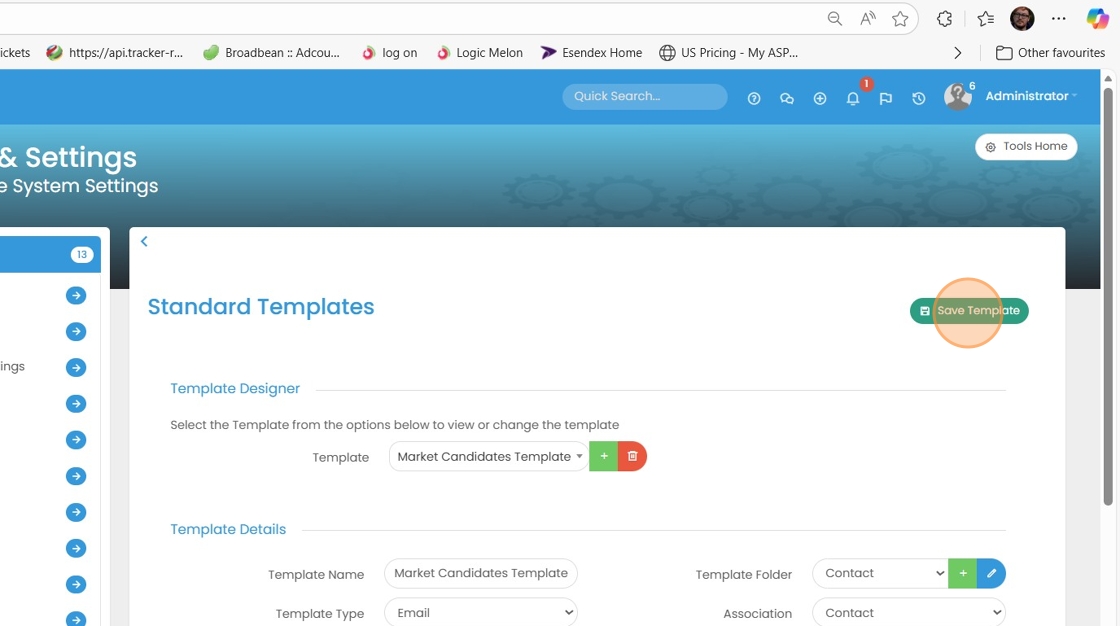
14. Click " Save Template"
15. Click " Contacts "
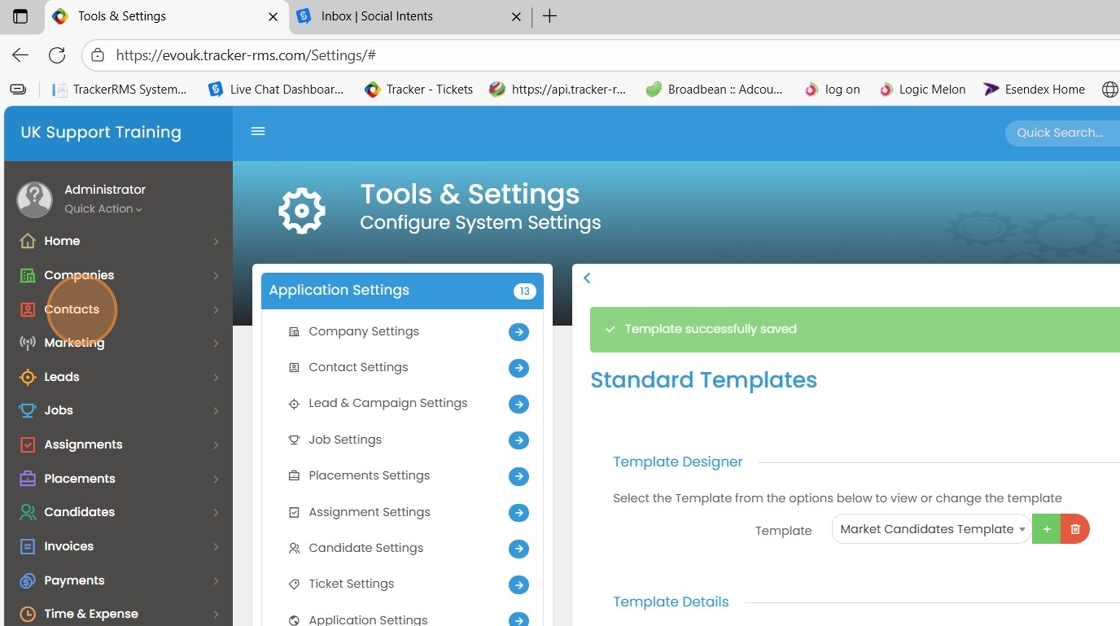
16. Click "Contacts"

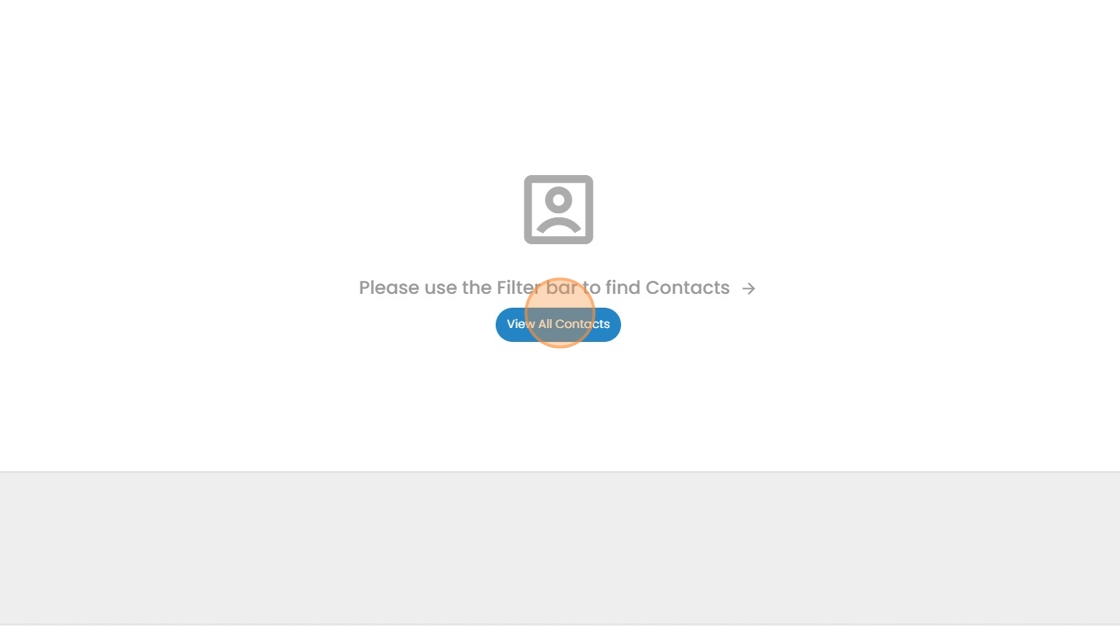
17. Click "View All Contacts"
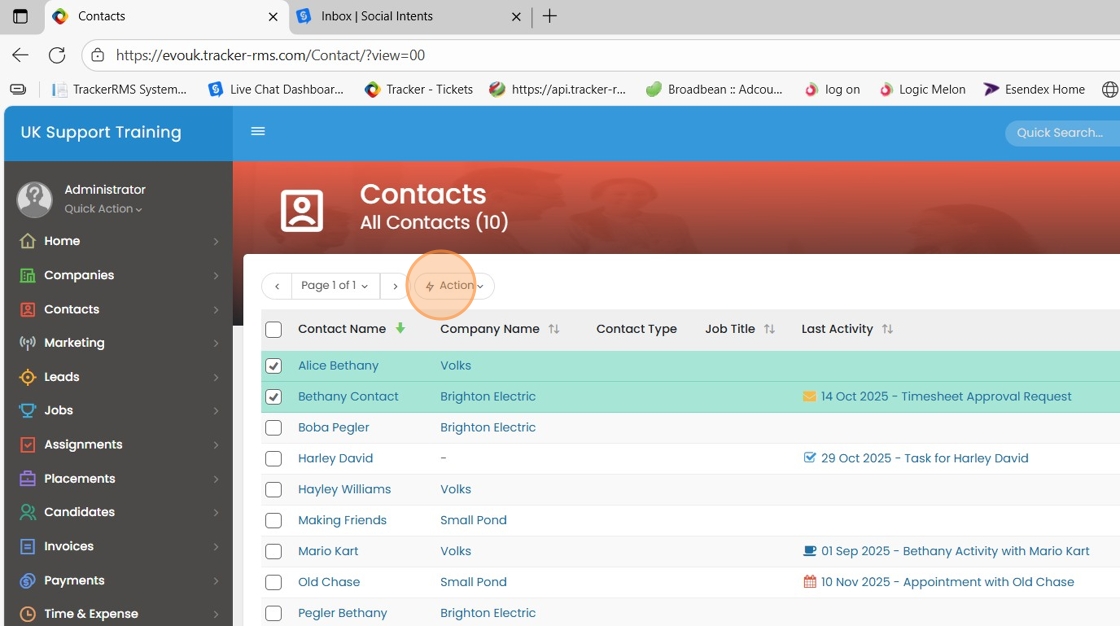
18. Click here on the box to select more than one contact.
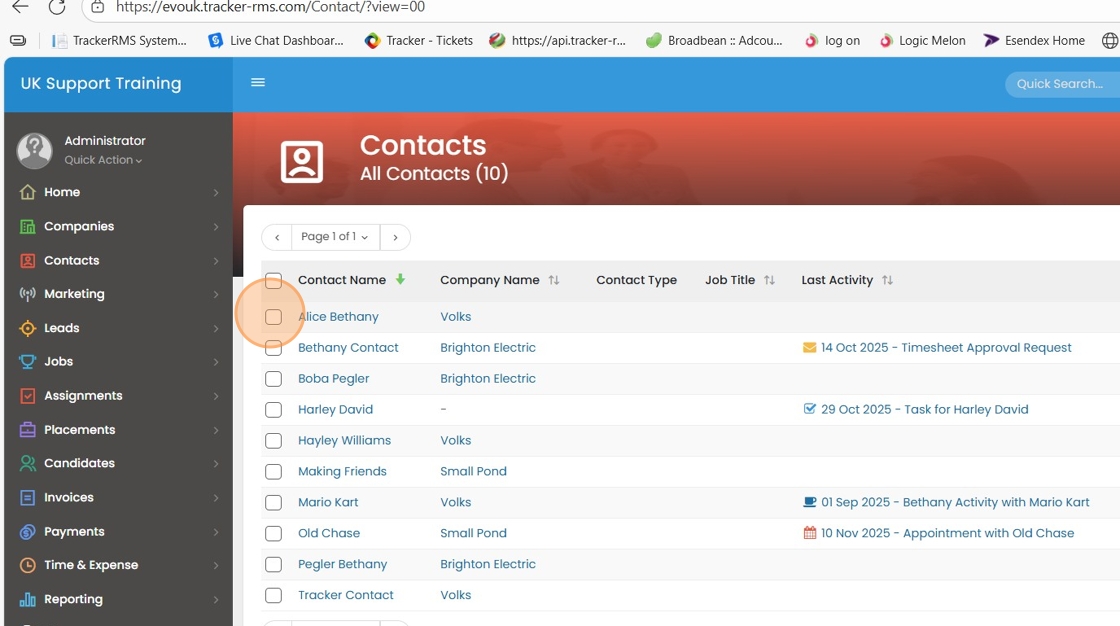
19. Click "Action"
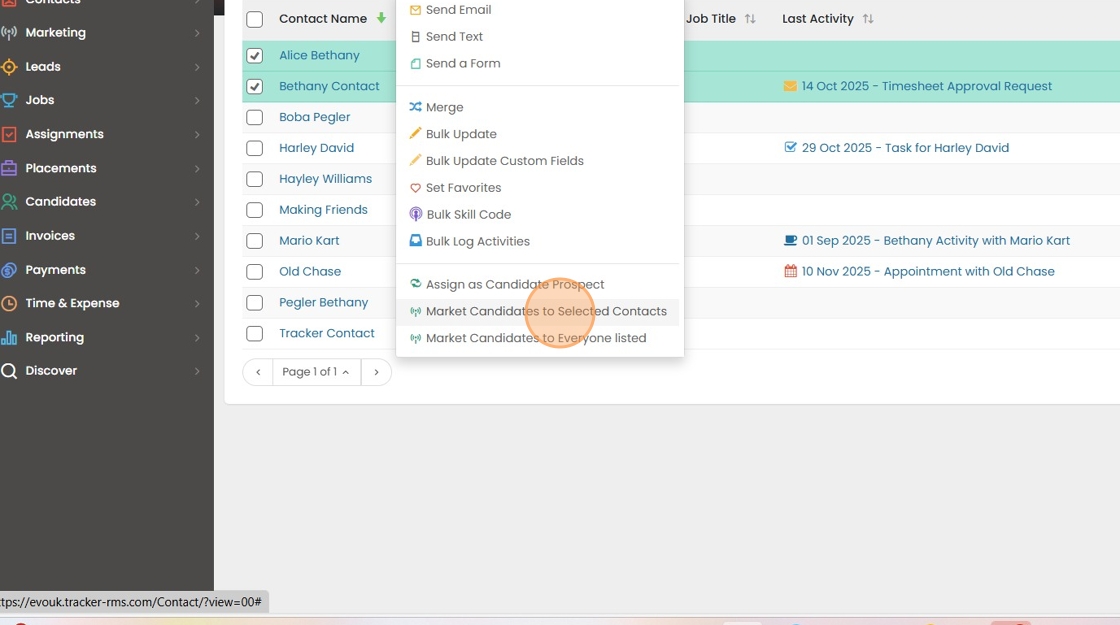
20. Click "Market Candidates to Selected Contacts"
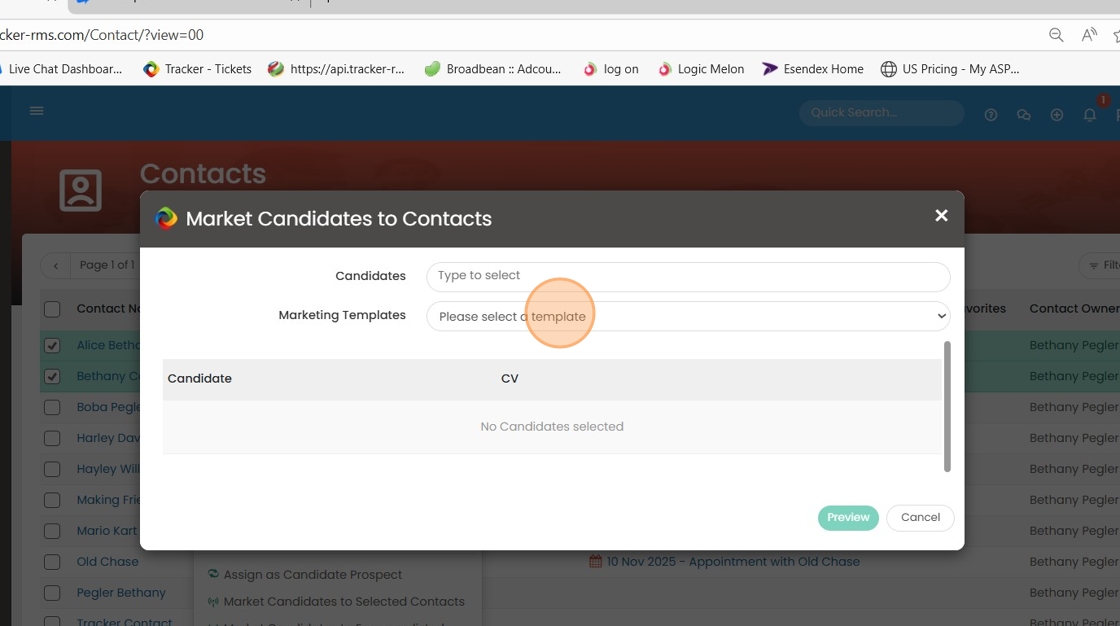
21. Click "Marketing Templates"
22. Click "No Candidates selected"
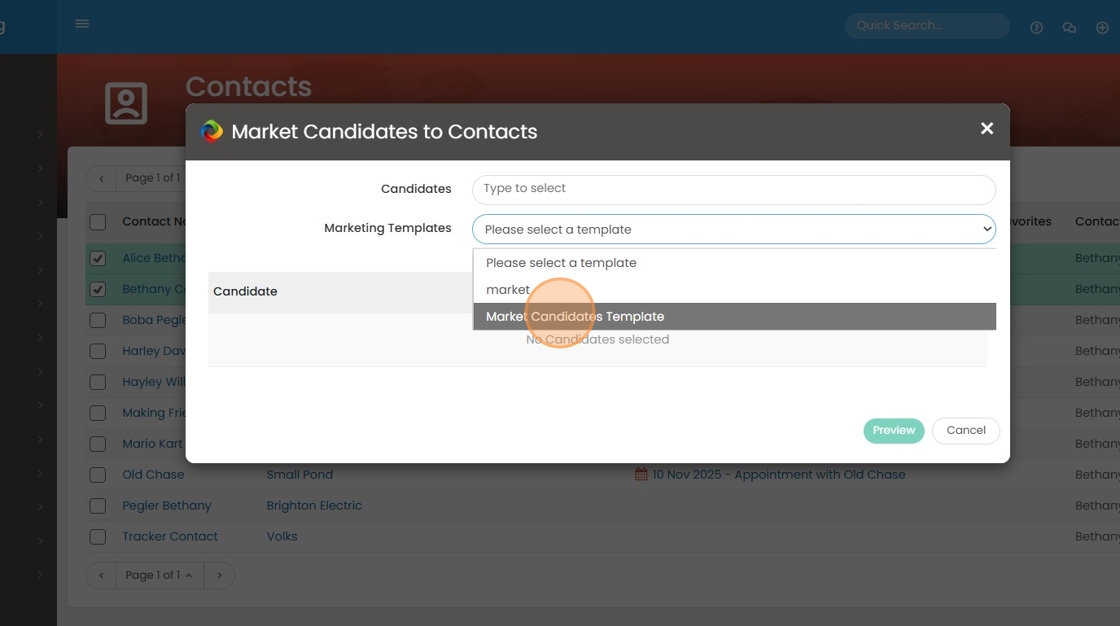
23. Click on candidates
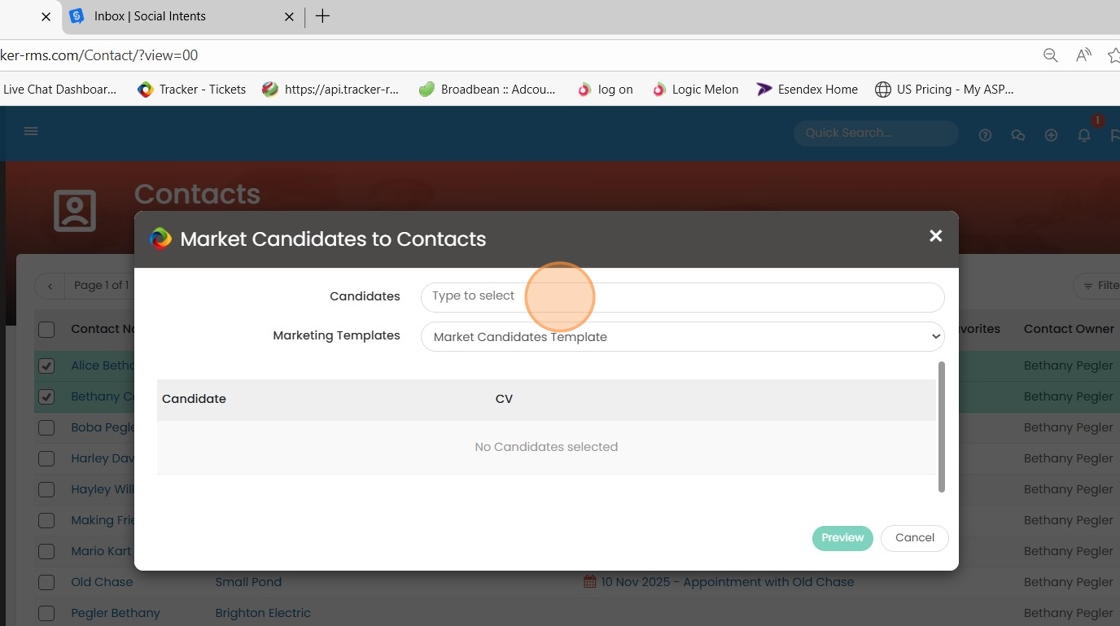
24. Click on candidates and search for the candidate you want.
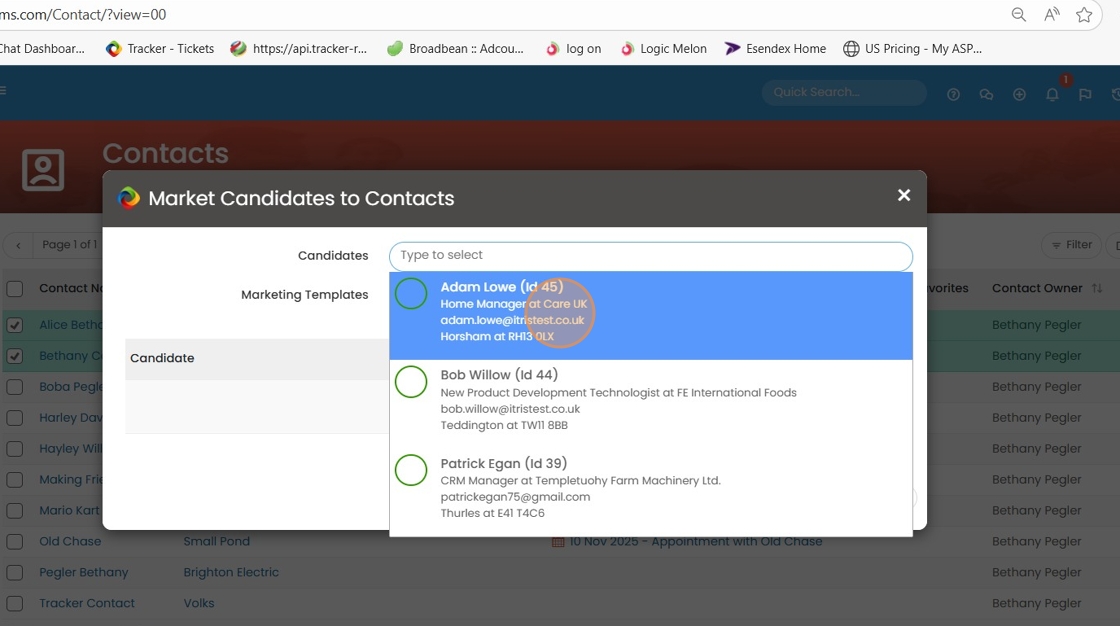
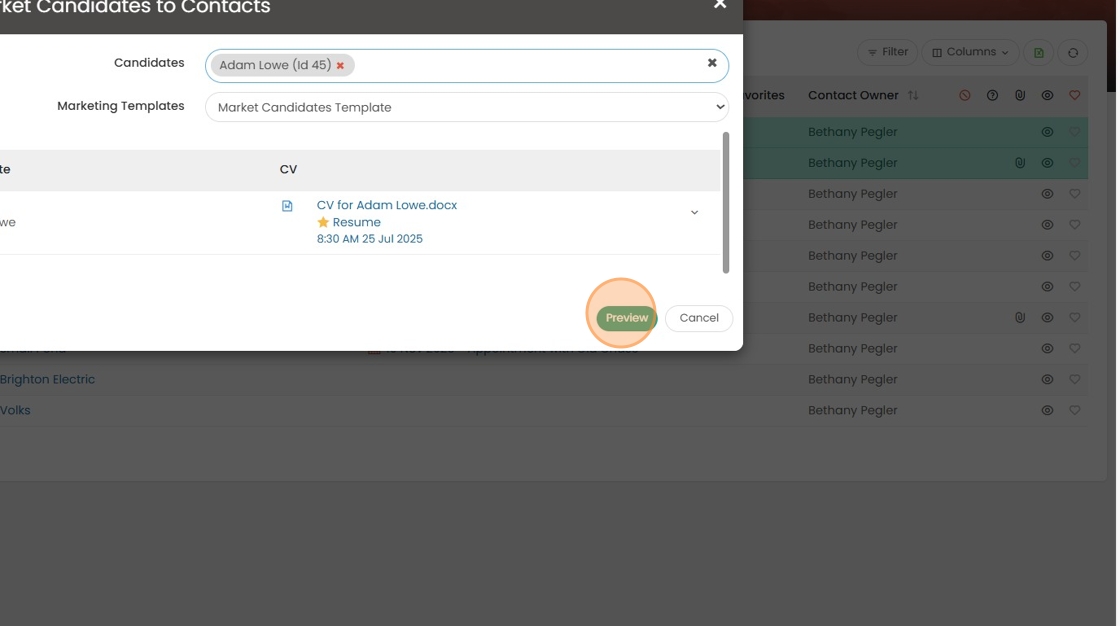
25. Click "Preview" which will open an e-mail window and pull the information for that candidate.