Setting Up Alex In Tracker
The steps you need to take to configure your AI Alex with Tracker
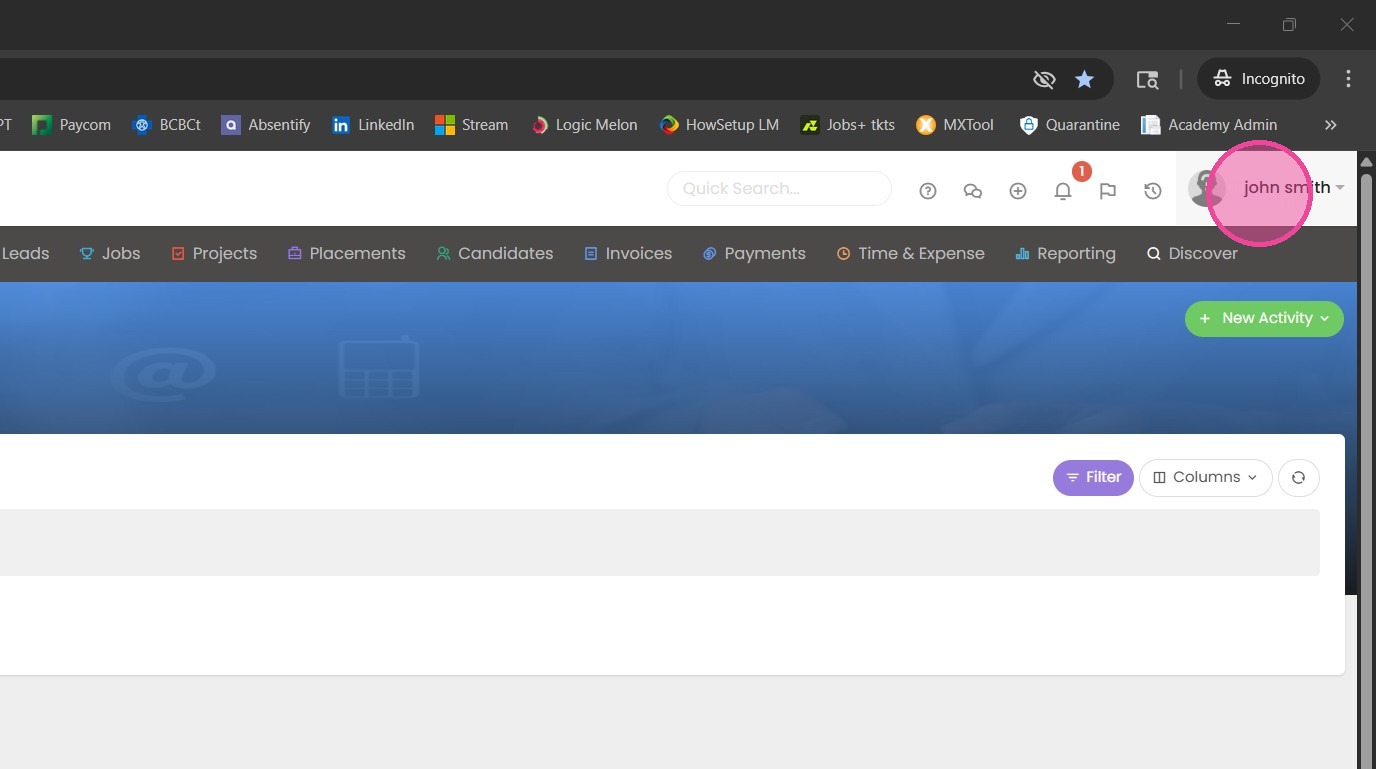

1. First, you'll want to click on your name in the right corner.
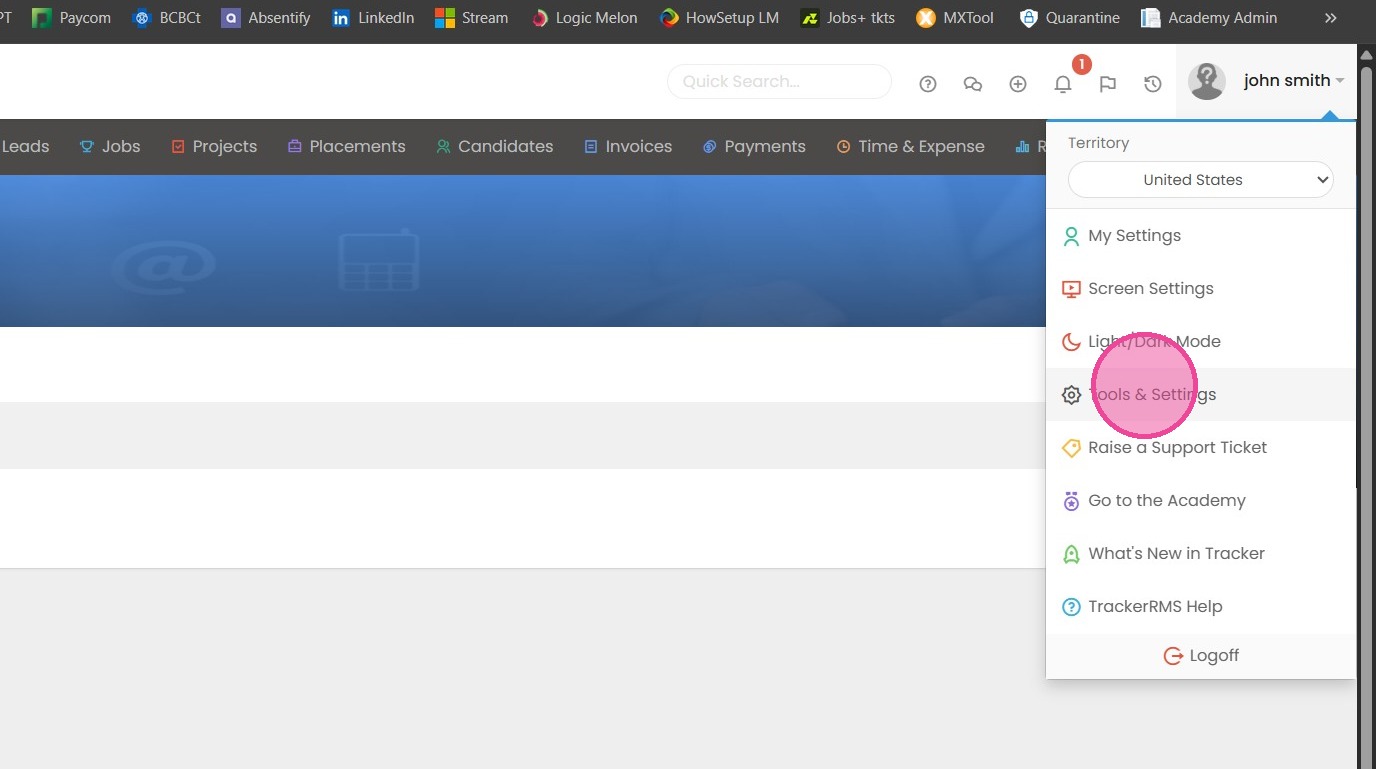
2. From there, navigate to tools and settings.

3. From within tools and settings, navigate to customization, then display settings.
Click here
4. From the last selection display settings, you can create a new activity type.
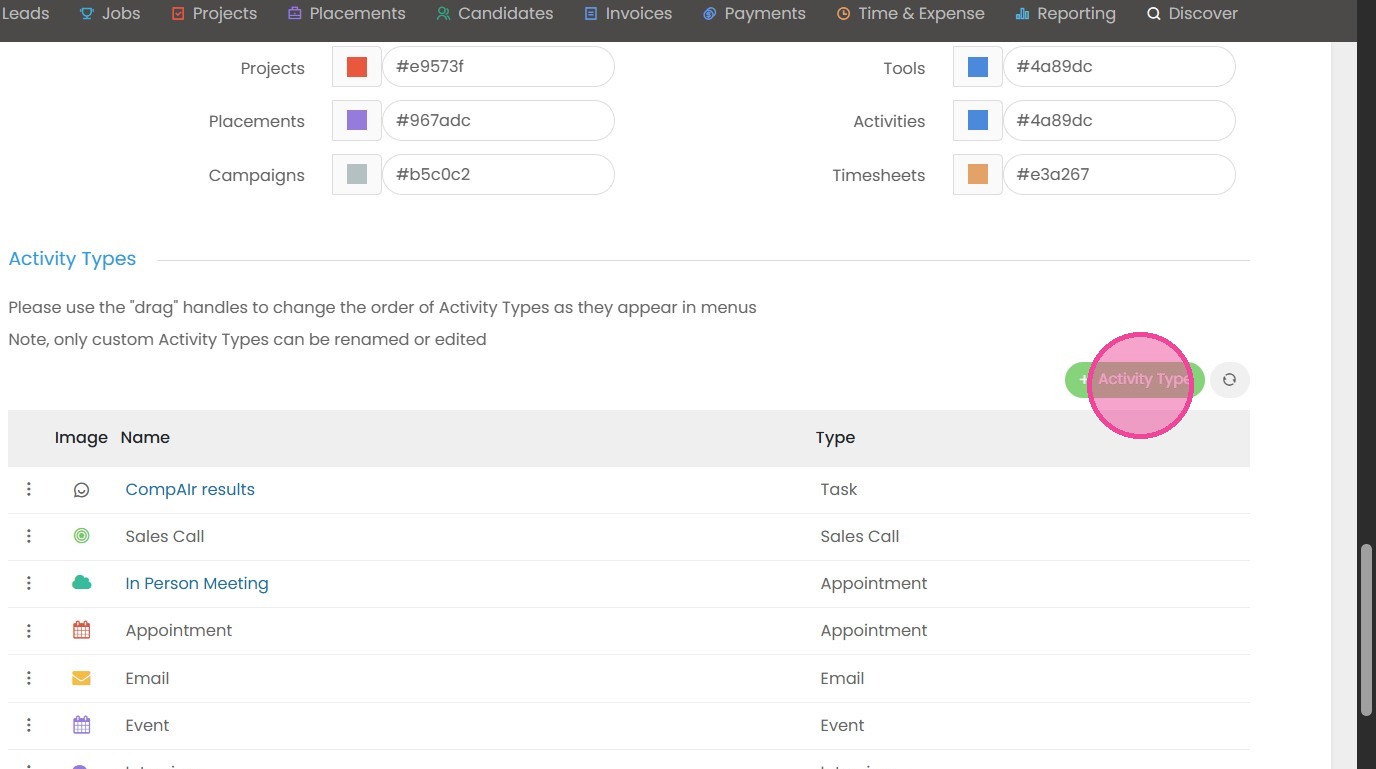
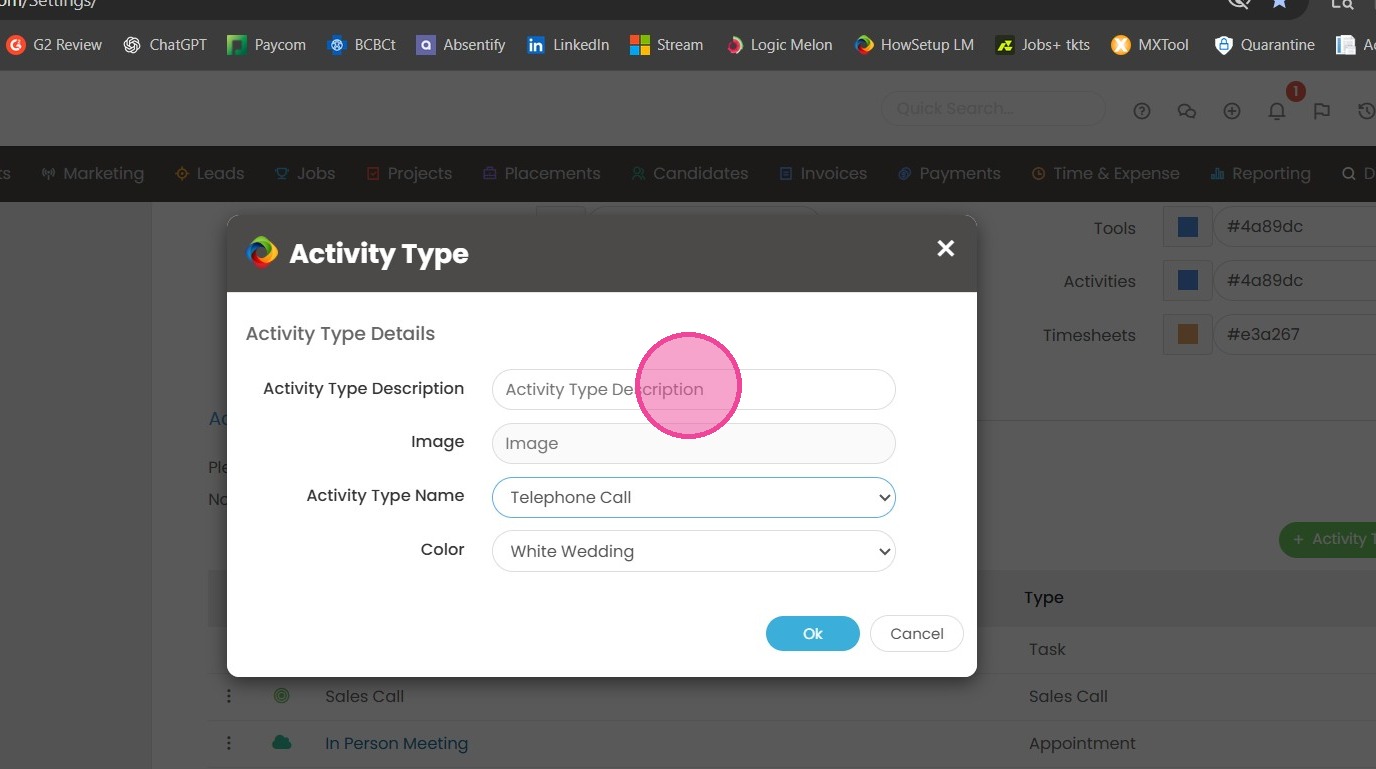
5. Click "Activity Type Description"

We are going to name Alex interview.
6. You can click "Image" to select an image for the activity.

7. Click "Activity Type Name"
Choose activity of task.
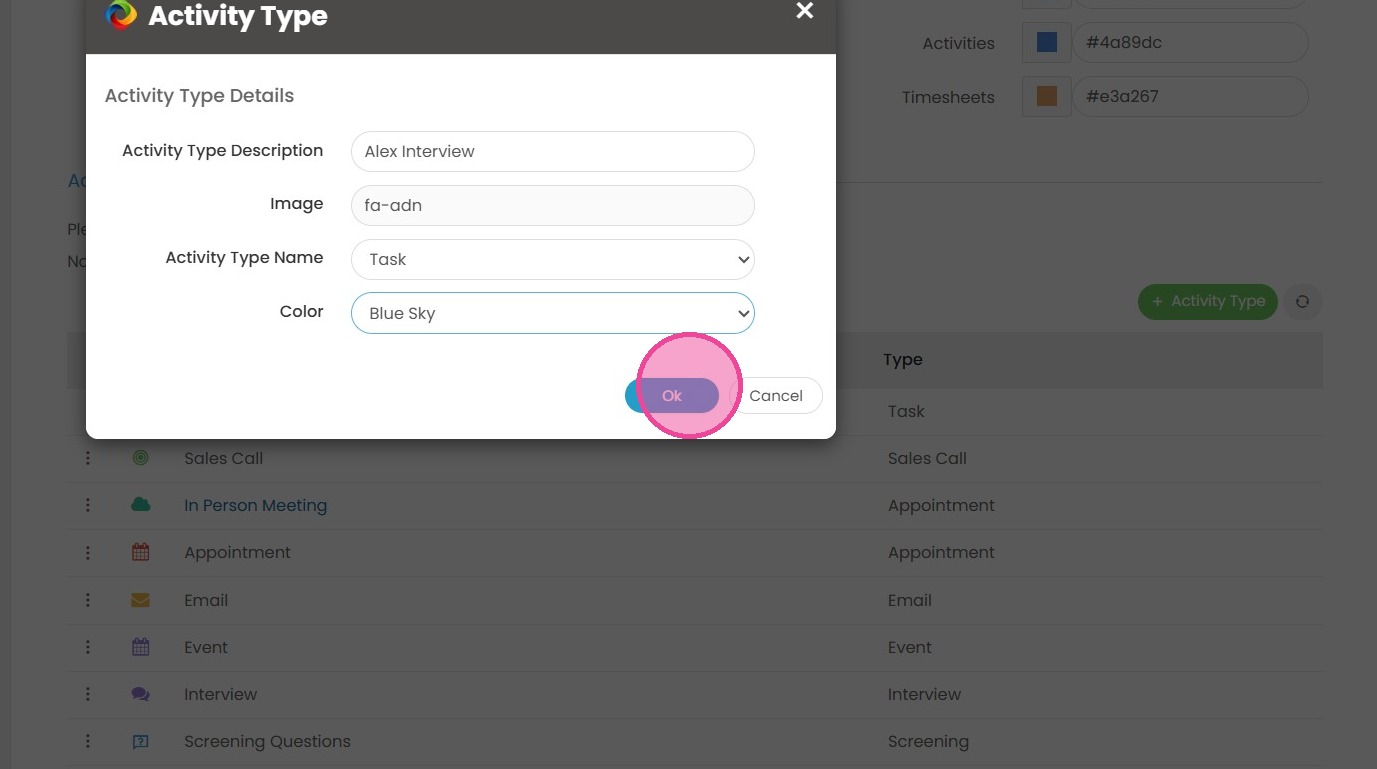
8. You can click "Color" if you would like to choose a color if as well.

9. Click "Ok" to Save.

10. For the next step. We will navigate from within tools and settings. To custom fields.
11. Then from within activity under any block.
Click "Custom Field Block"

We're going to create four new custom fields.

12. Click "Field Name"
Type Overall Score.

13. Click "Field Type"
Which you will set as Text.
Click "Ok" to Save
14. Create the next custom field through the same process.

Click into field name to create Report Link
15. Click "Field Type"
But set this one as Hyperlink.

Click "Ok" to Save
16. Click here to create the next custom field.

Type in Grading criteria to the Field Name.
17. Click "Field Type"
Then select Text (Full Width).
Click "Ok" to Save
18. Click into create a new field

Name this field Feedback.

19. Click "Field Type"
Set this to also Text (Full Width)
Click "Ok" to Save