Creating & Sending Invoice Document Packs
Send invoice documents to contacts directly from the Invoices view using Document Packs.
1. Document Packs let you group Invoice templates together and send them directly from the Invoices view, keeping your billing process consistent and efficient. No need to attach files one by one.
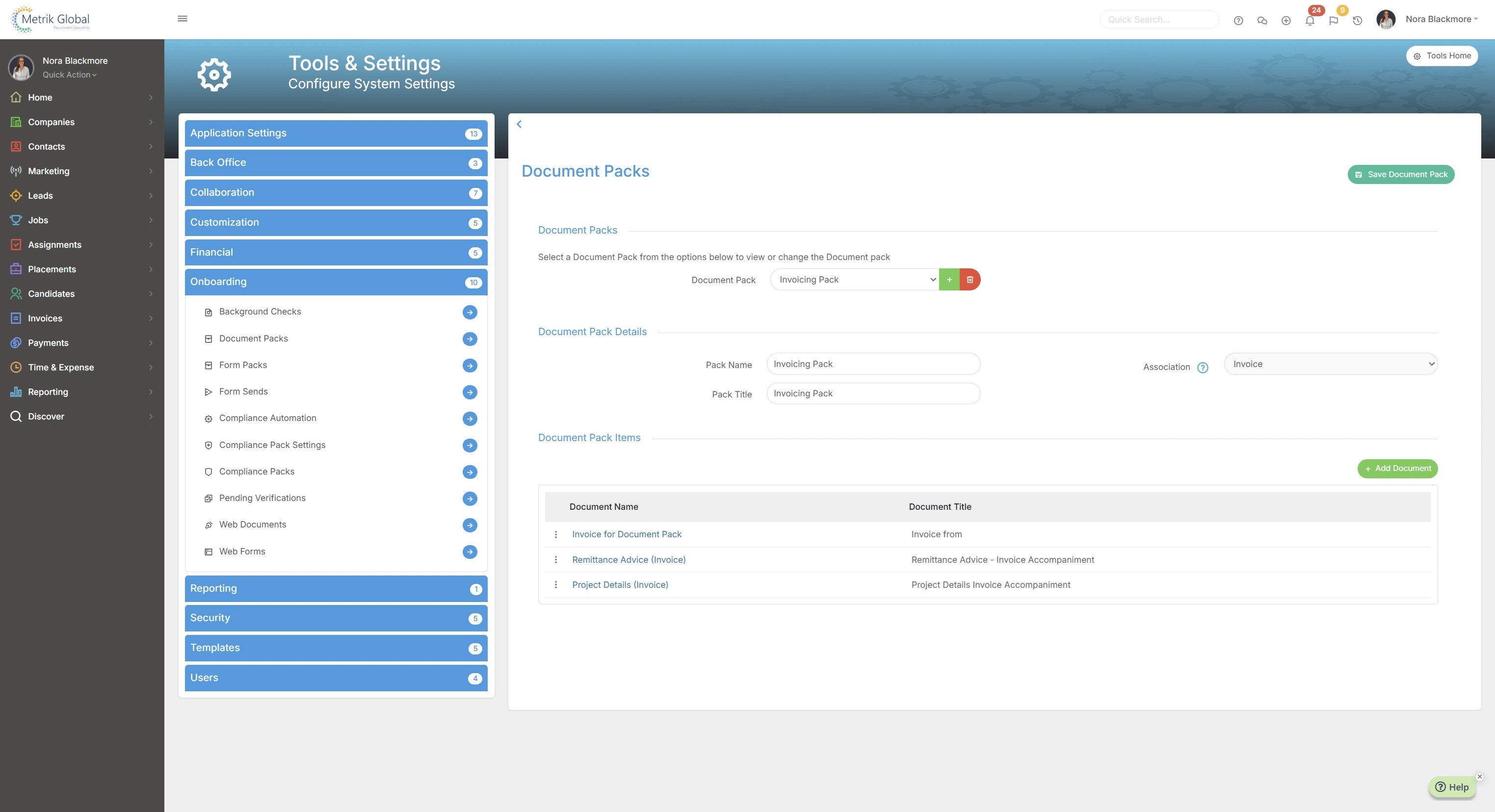
Document Packs are created in Tools and Settings. Under the Onboarding group you will see the option for Document Packs.
Here you can create new or edit existing document packs.
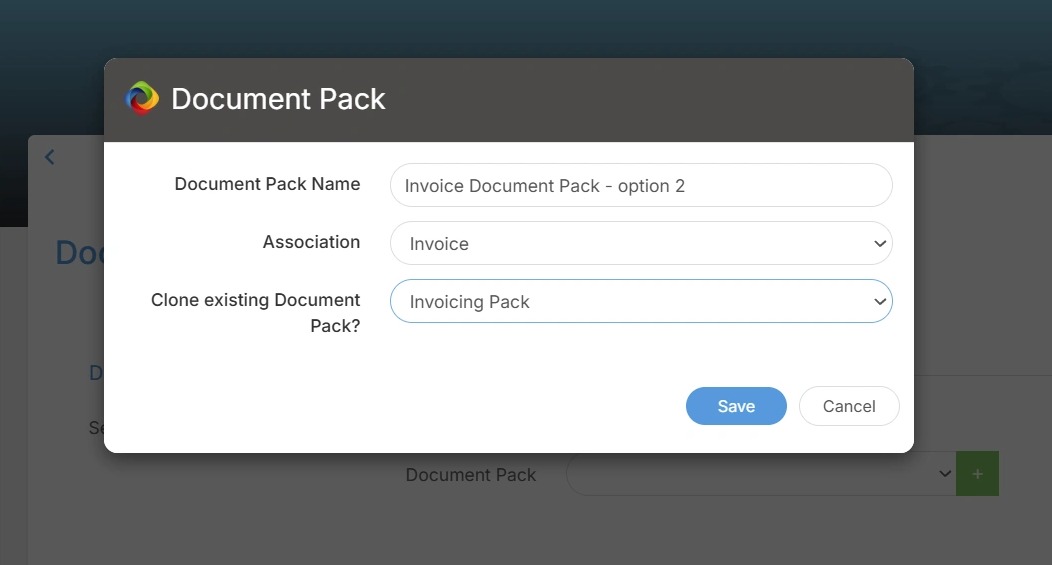
2. When building your Invoice Document pack you will need to set the Association as Invoice.
This can't be changed once the Document Pack is created, so ensure you set this at the point of creating the pack.
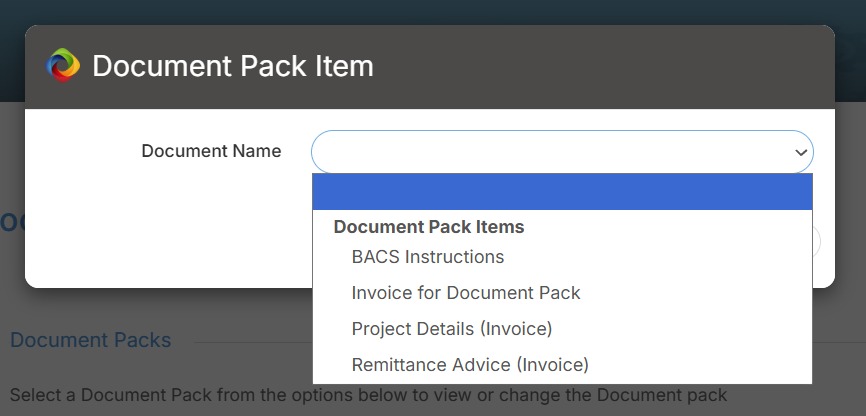
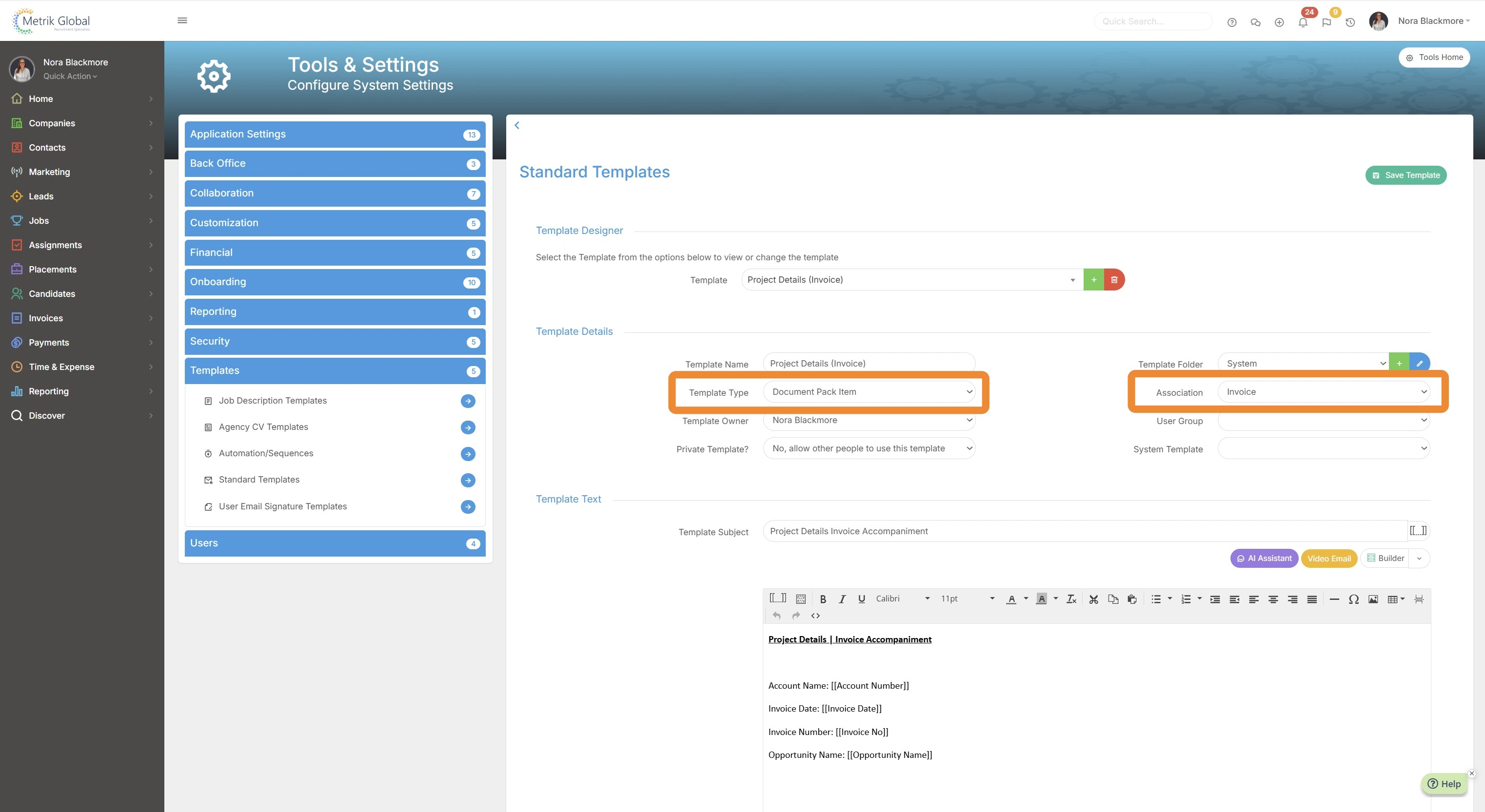
3. When adding documents to the pack you will see Templates set with both the Association "Invoice" and with the Template Type "Document Pack Item".
4. Here is an example of a Template with both the "Invoice" Association and "Document Pack Item" Template Type.
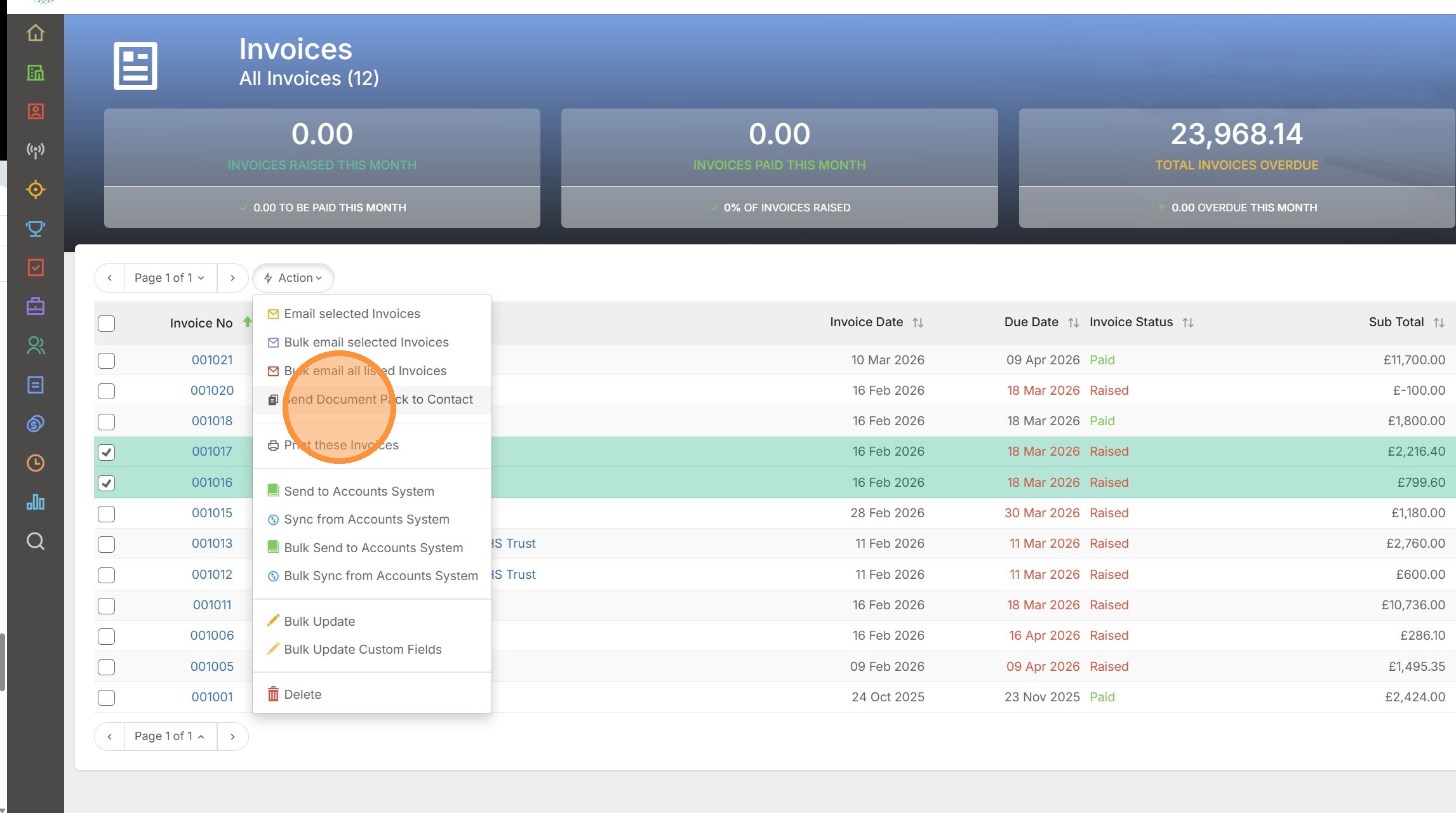
5. The Document Packs can then be sent from Invoice View.
Here, select a single or multiple invoices for the same contact, then use the "Send Document Pack to Contact" option in the Action menu.
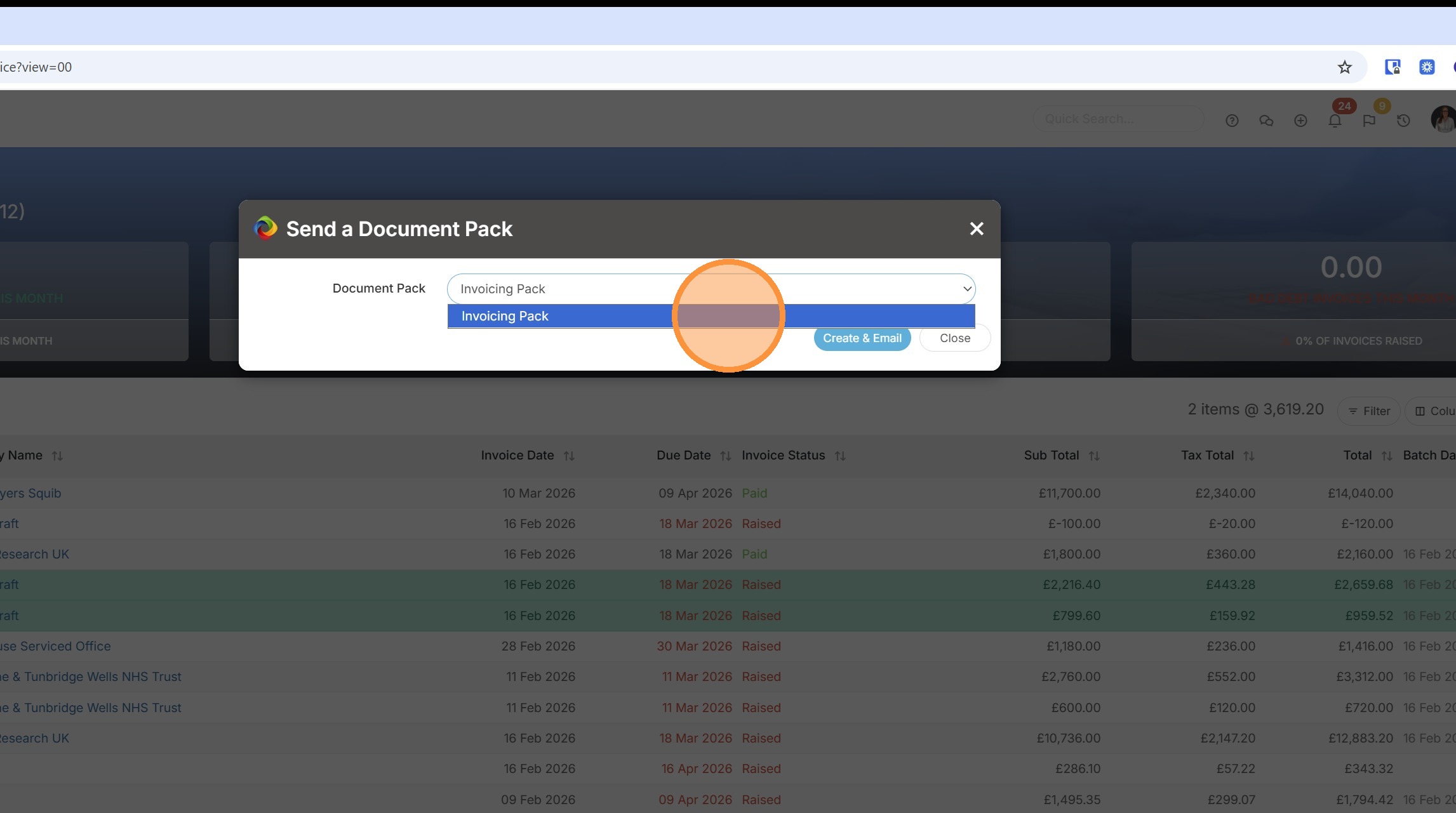
6. Next Choose which Document Pack to send from the drop down and click to Create & Email.
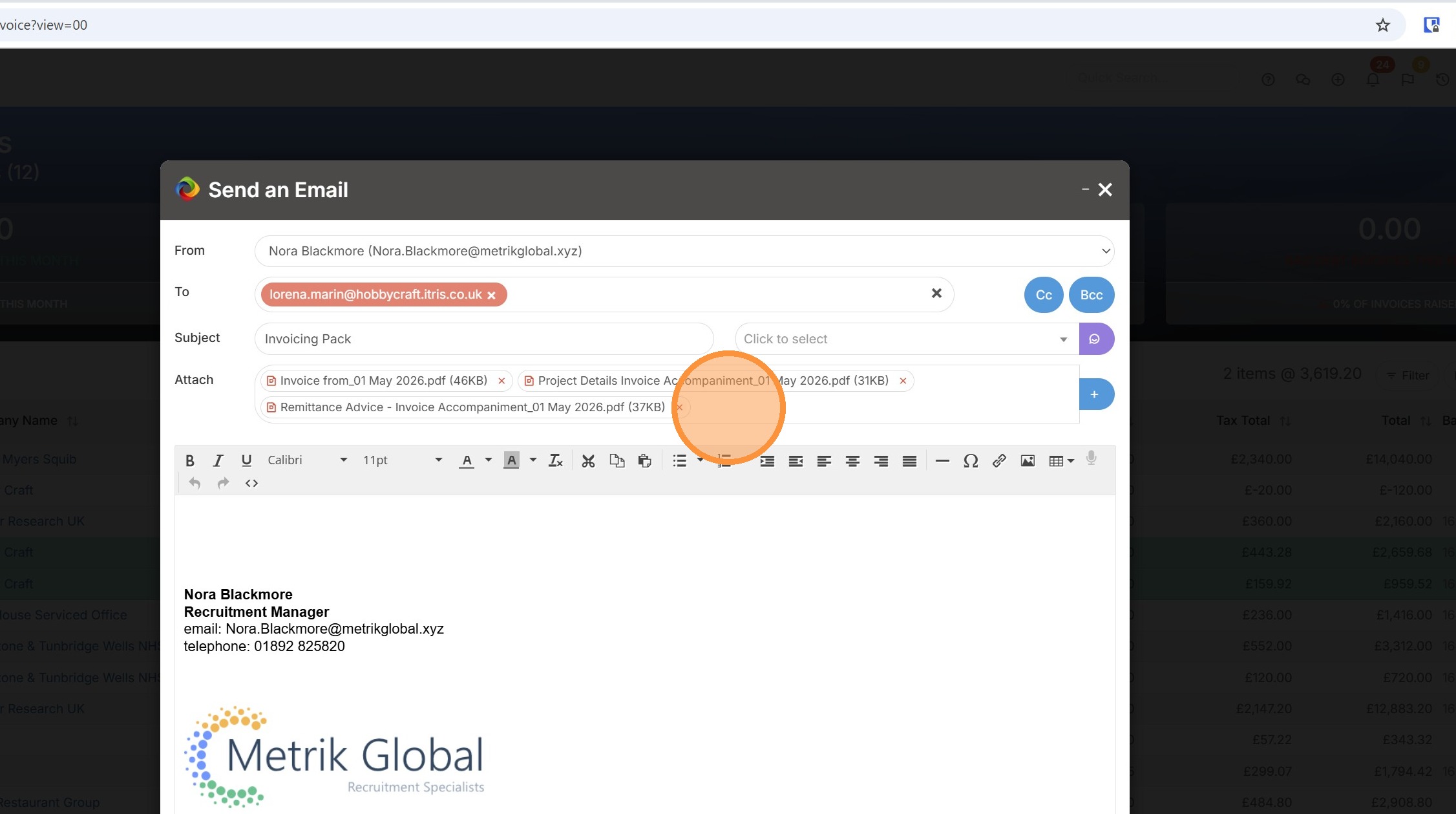
7. In the email you will see the documents attached.
Either write your email message from scratch or pick from an email template with the Invoice association, then send.