Cascading Job Custom Fields
Custom Fields with the same name and type can cascade automatically from a Job record down to its associated Placement records.
1. Custom Fields with the same name and type can cascade automatically from a Job record down to its associated Placement records.
When a Job and Placement share a Custom Field with a matching name and type, any value set on the Job will be applied automatically to a candidate's Placement record at the point they are added to the shortlist - saving time and reducing the risk of missing key information across multiple placements.

2. The first step is to set up your Job Custom Fields in Tools & Settings via the Customization Group.
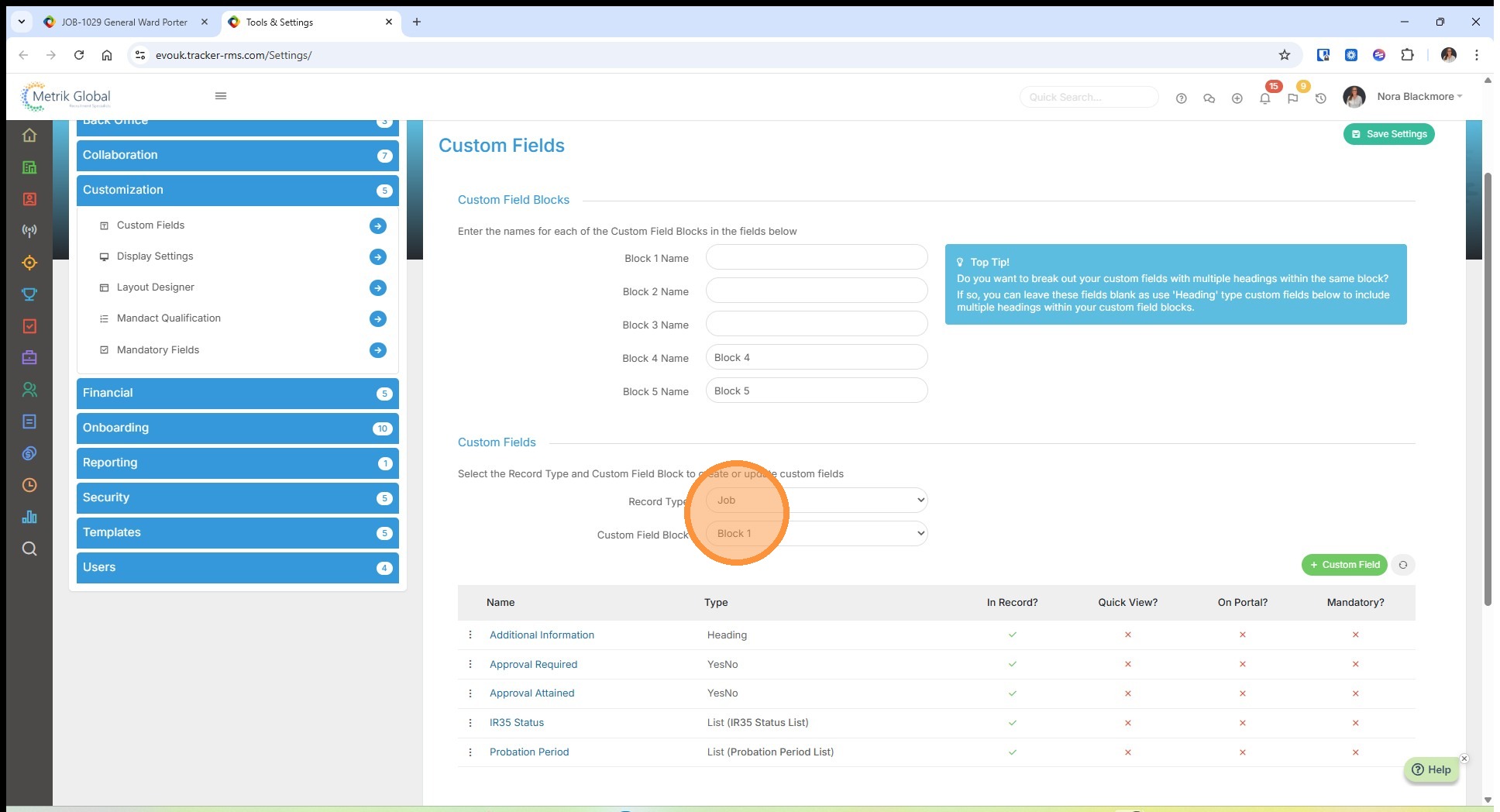
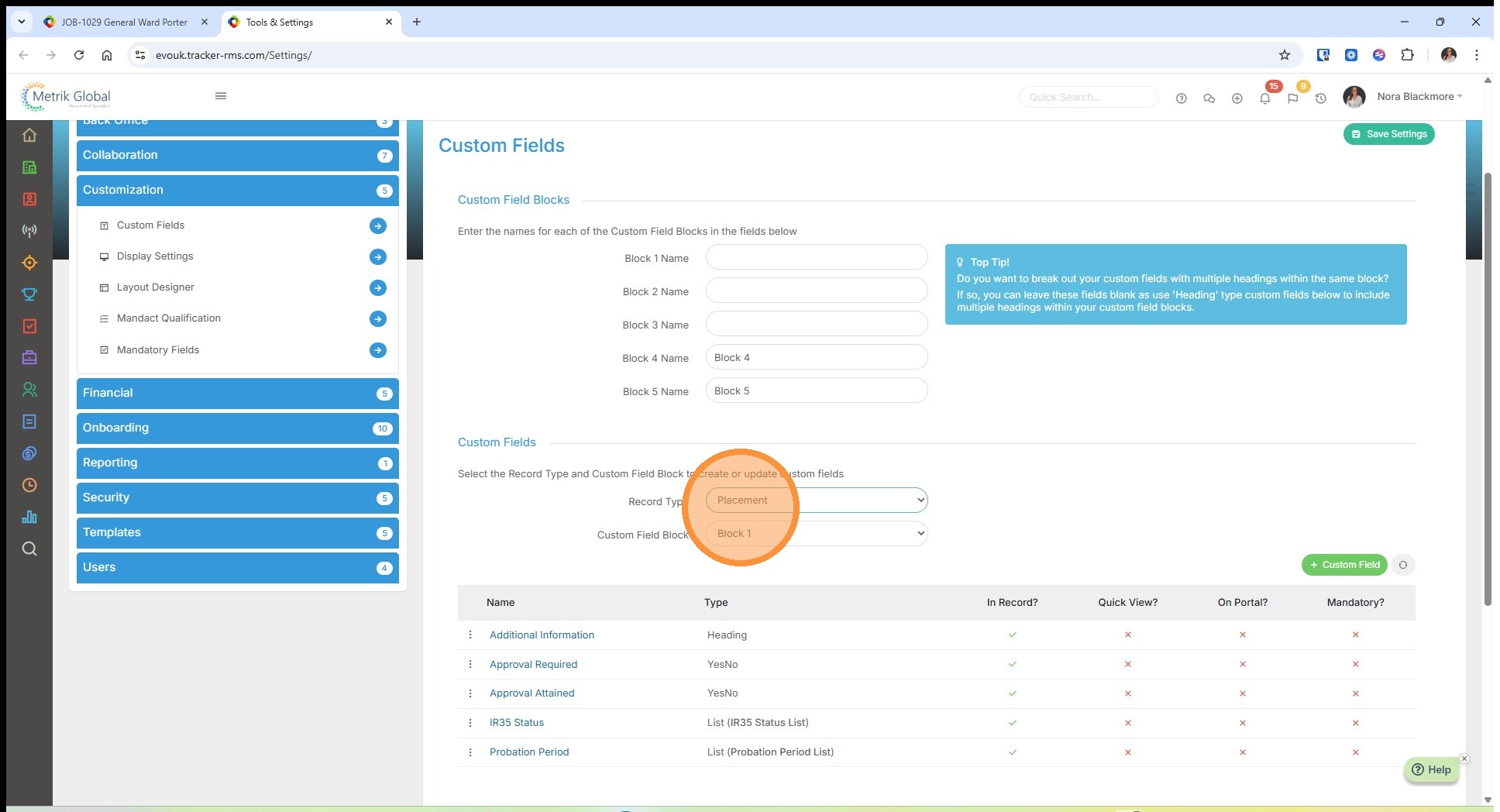
3. Next, you'll need to create these same Custom Fields for Placement Records. Ensure you use the same Name and Custom Field type as you did for the Job Custom Fields.
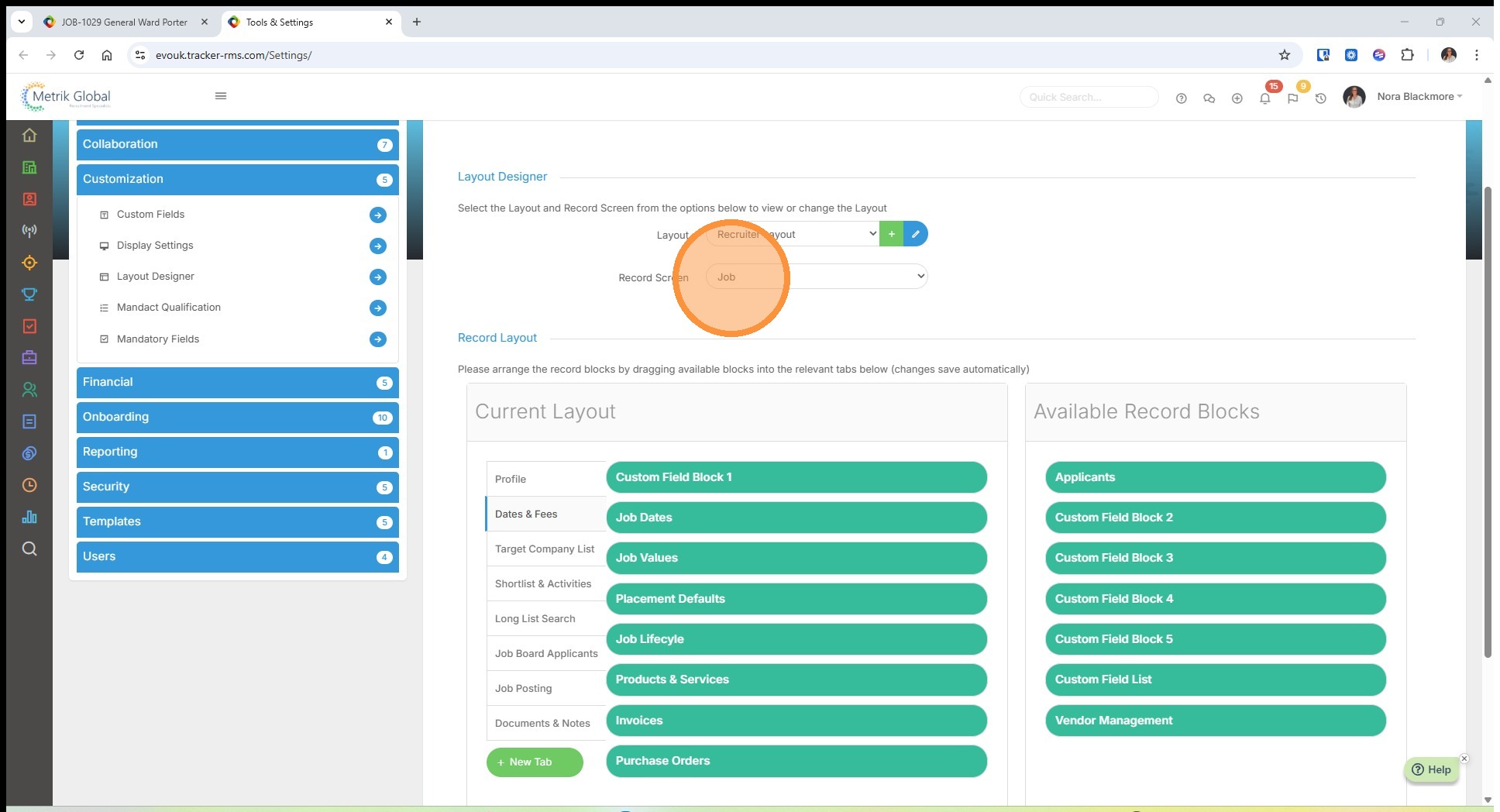
4. You will also need to ensure that your Layouts for both Job and Placement contain the relevant Custom Field Block. This is also managed via Tools & Settings under the Customization group.
5. Here on a Job we can see this Custom Field block and the values added to the Custom Fields.
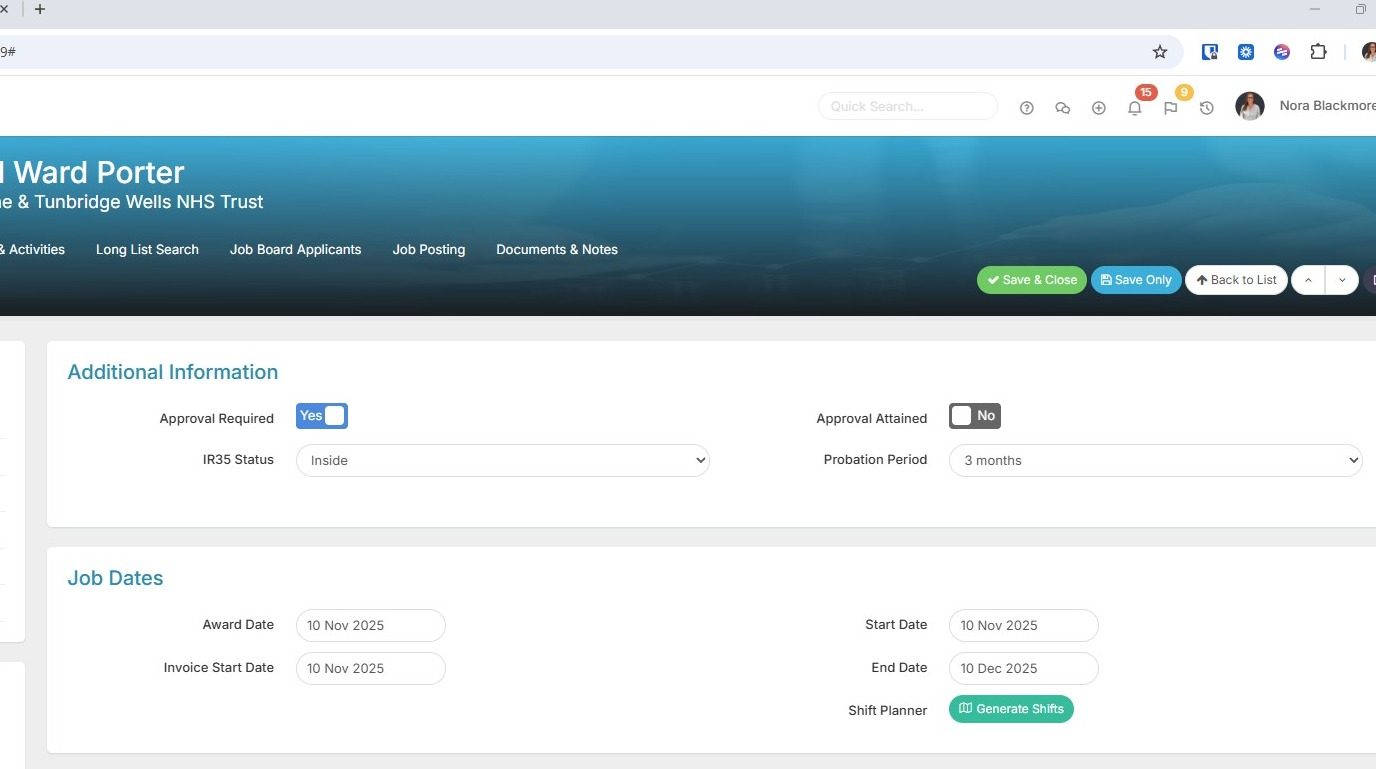
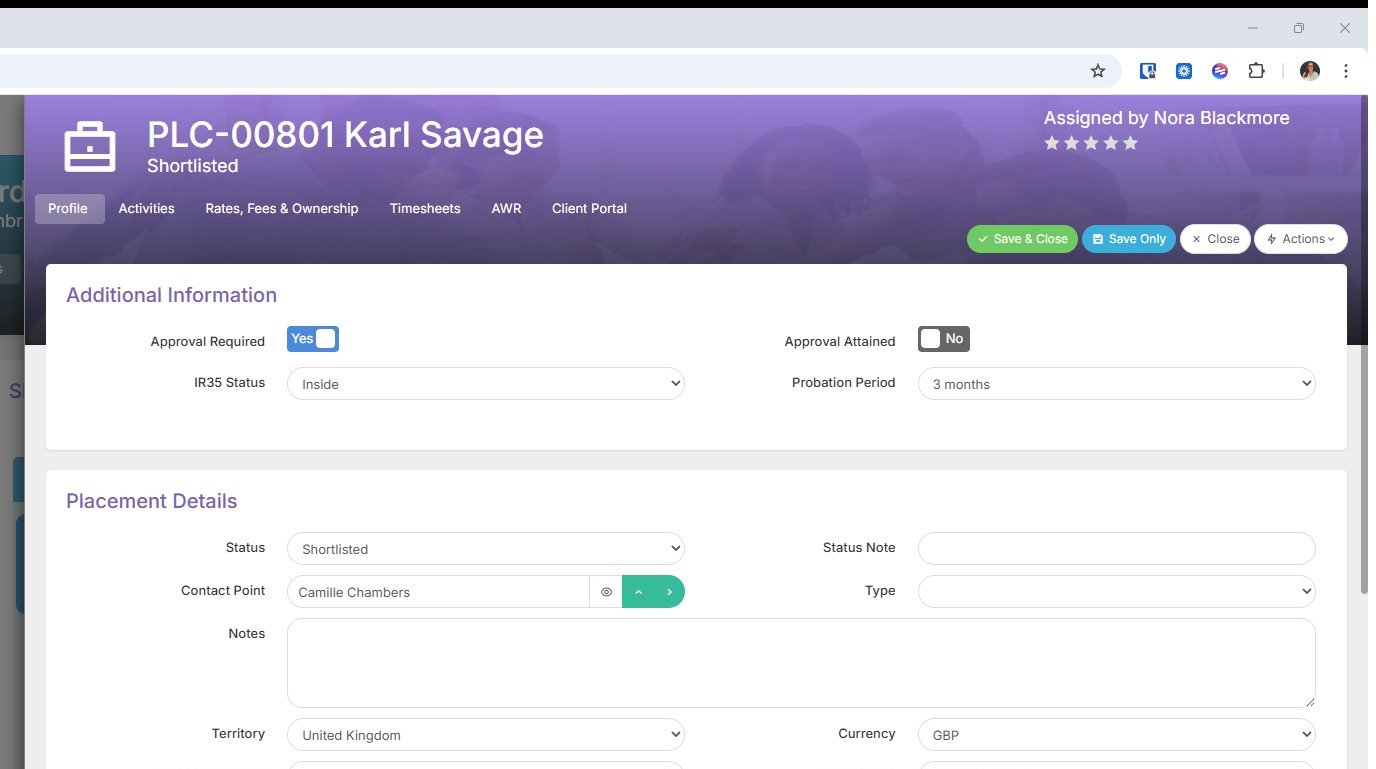
6. These values will automatically be assigned to a Candidates Placement record at the point they are added to the Shortlist, so the right information is always in place from the moment a candidate enters your workflow.
Further examples for use case scenarios to those shown here include:
- Site specific Induction requirements required - using a Yes or No Custom Field
- Client Cost Centre Codes - using a Text Custom Field
- Expense Policy type - using a drop down value to define the rules that apply
- PPE or Uniform requirements - using a multi-select value list Custom Field