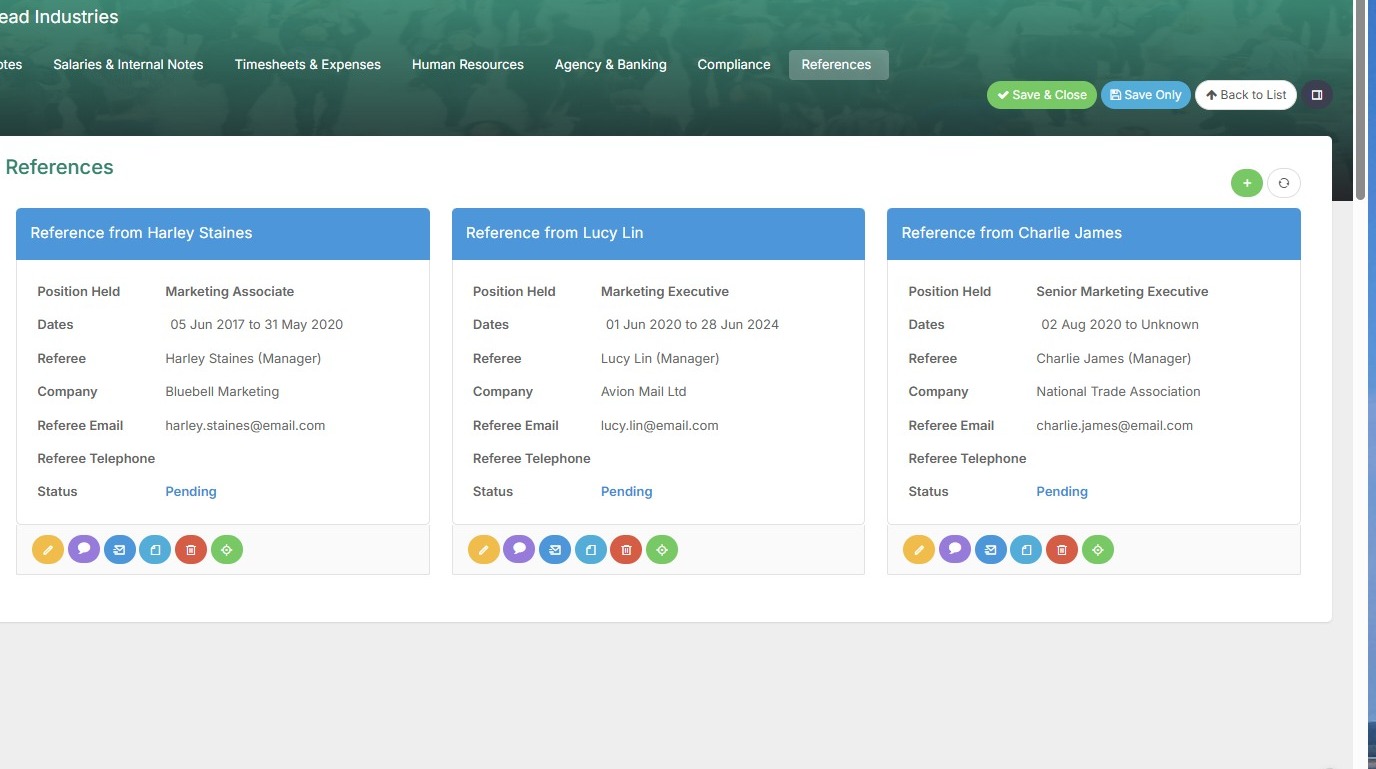
Use email templates to send a form to a candidate, where they can input the details of their Referees.
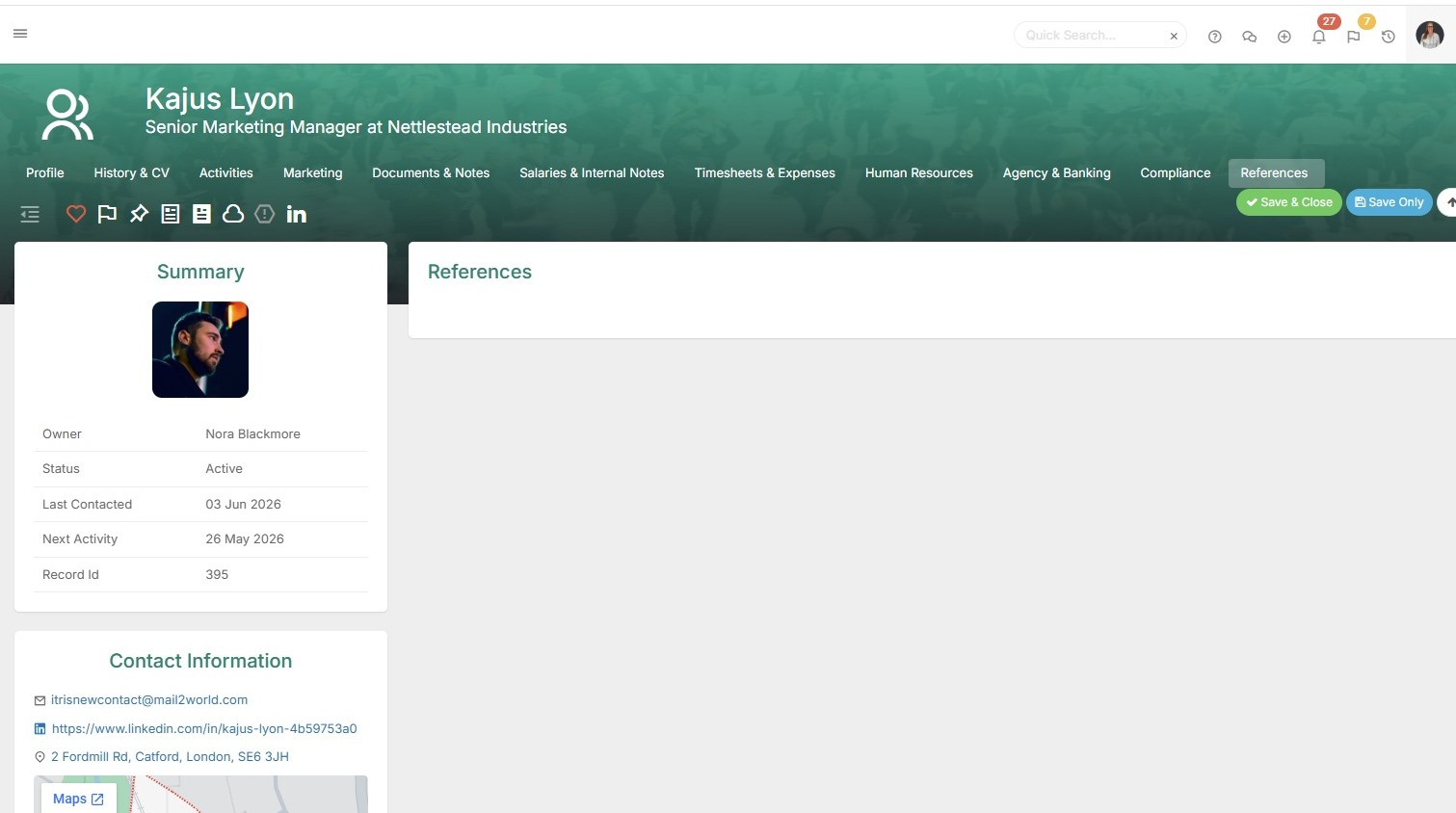
1. Where your candidates have not provided reference details there is an easy way to request these from them.
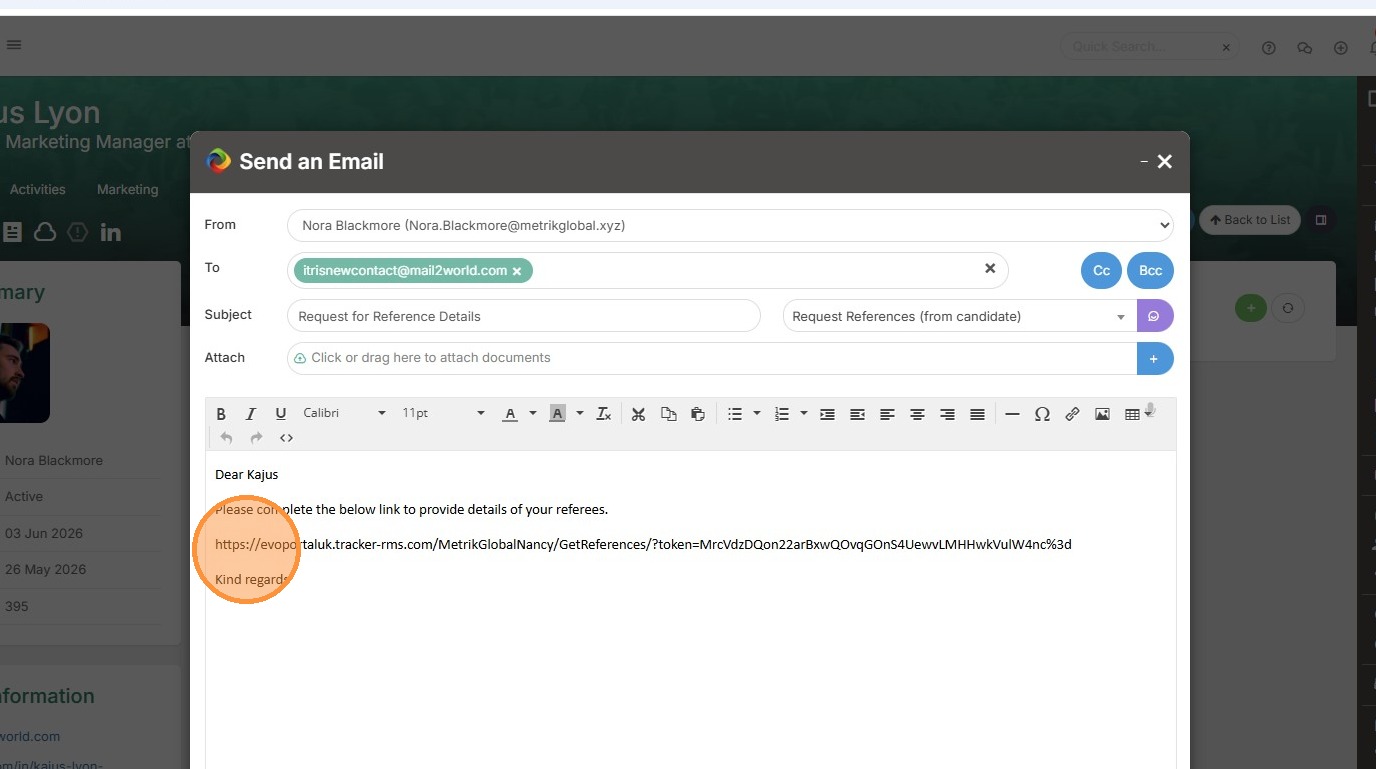
2. Here, we see an example of an email template that's been created that contains a specific link for this candidate to submit details of their referees.
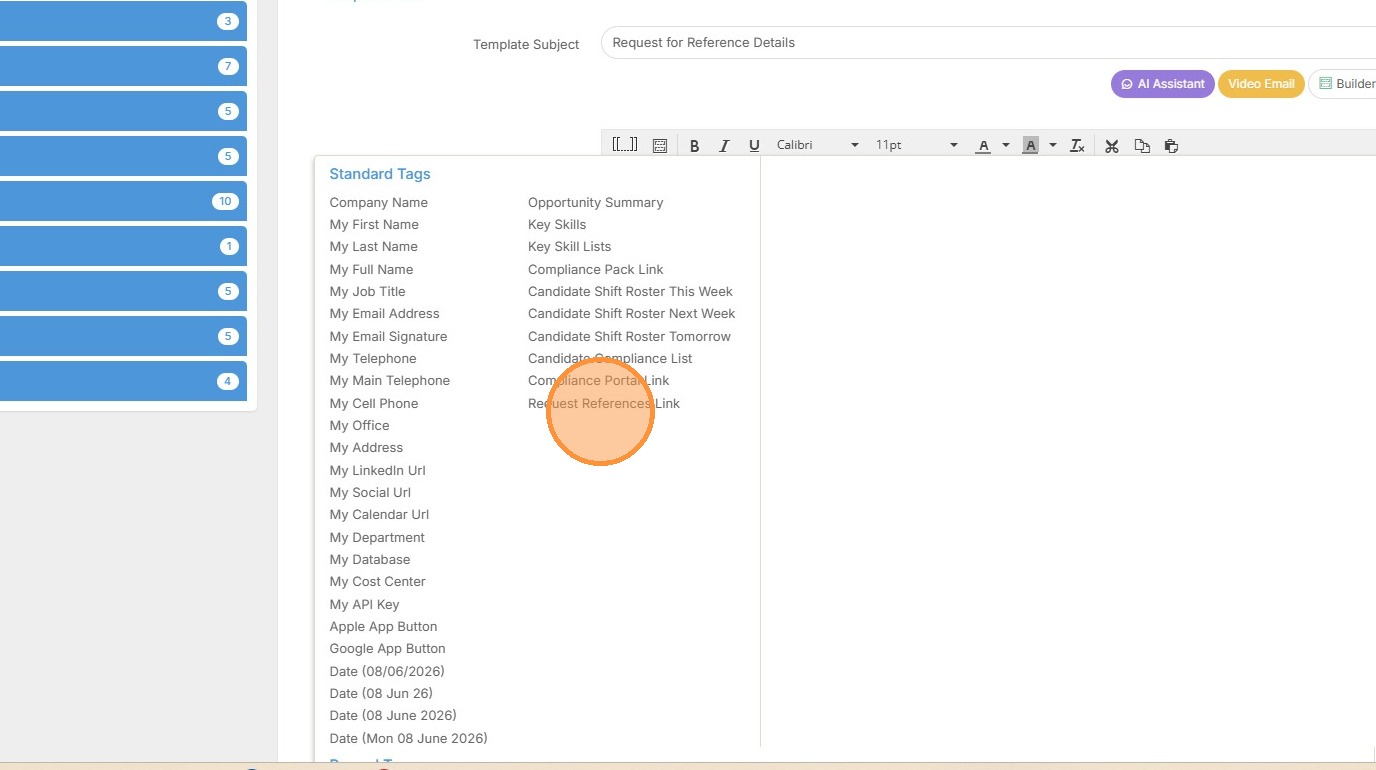
3. This template was created in "Tools & Settings" > Templates area. Here we see the template that was used in the previous screen, and the Tag that's been added which provides that unique link.
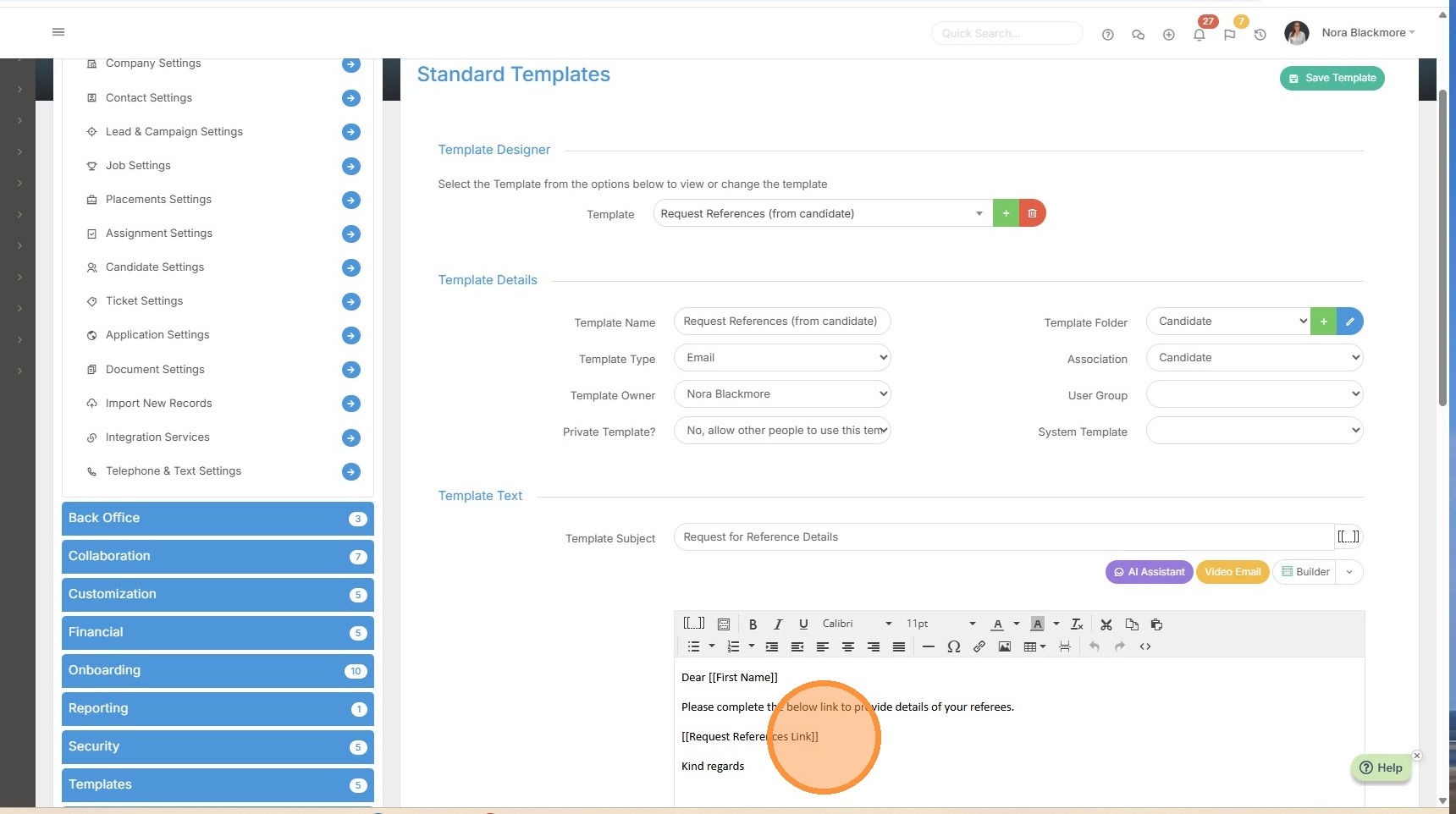
4. The Tag is available for for email templates that have the association Candidate, Placement or Placement Activity.
Here we see the Tag highlighted in the Tag menu.
5. Once the candidate receives the email and follows the link they will be taken to a screen to complete and submit the details for three referees.
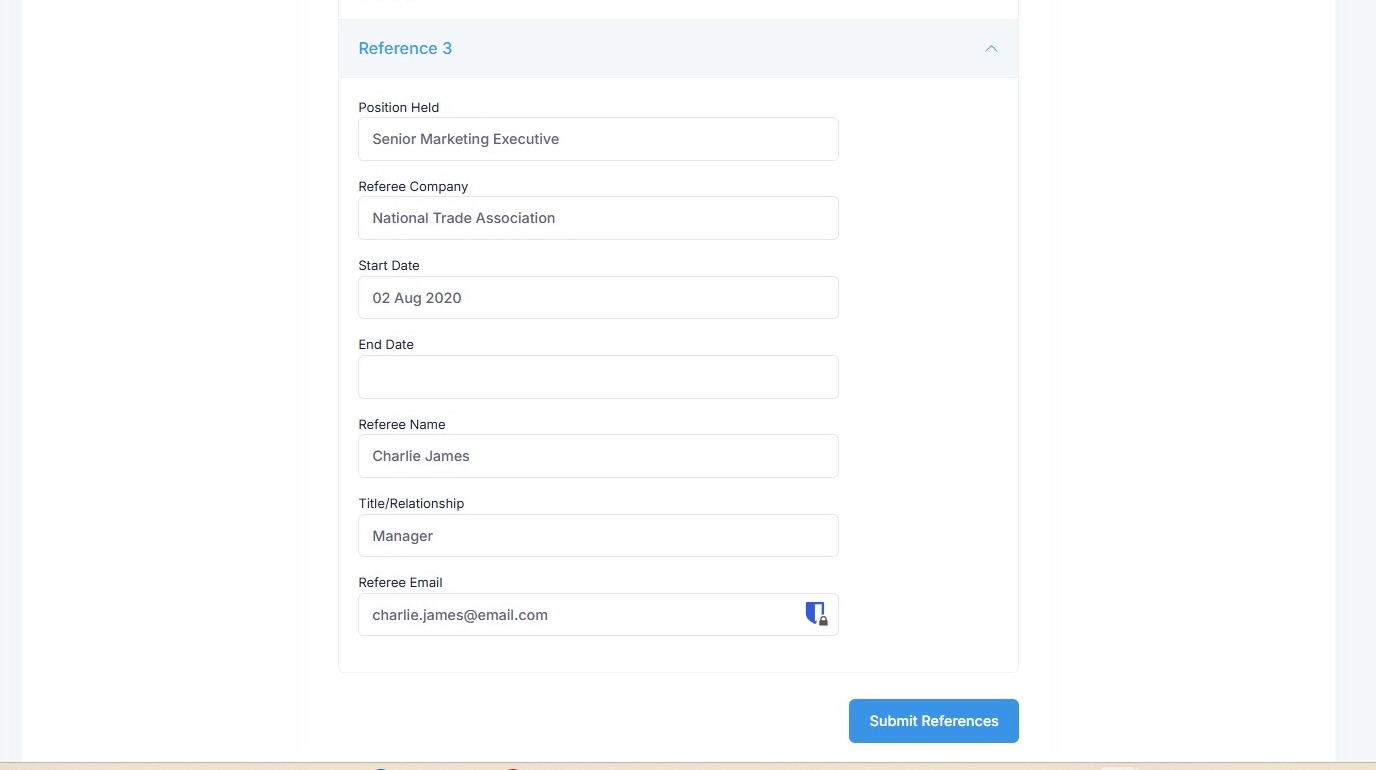
6. Once submitted, these details will then appear on the References block of the candidate record and you will receive an email confirming they have been submitted to you.
You can then follow your usual workflow for sending those requests, for example using the Send Reference Request button directly from the reference fields below.