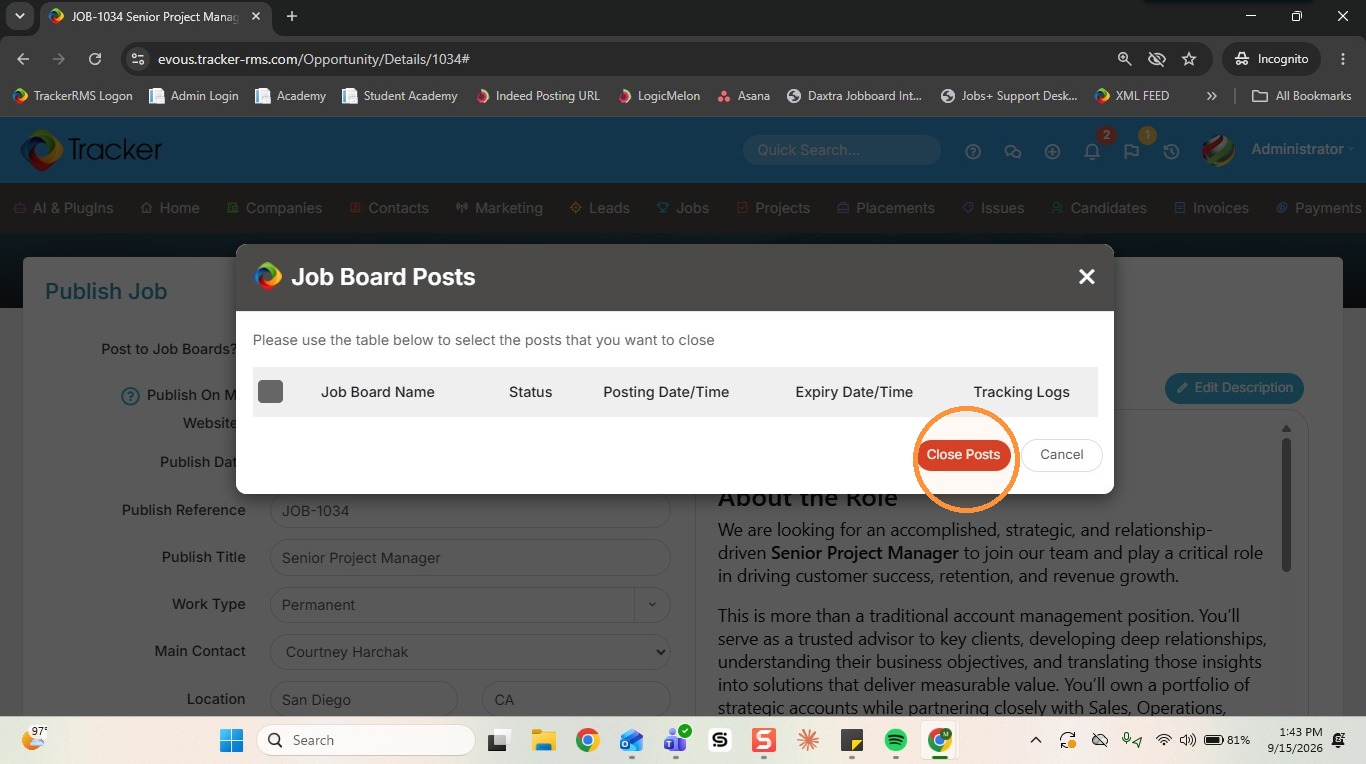
1. Before setting up posting to Indeed, please ensure the following pre-requisites are met:
- You have an Indeed account created
- You have your Indeed username, password, and company name as registered with Indeed on hand (You will need these)
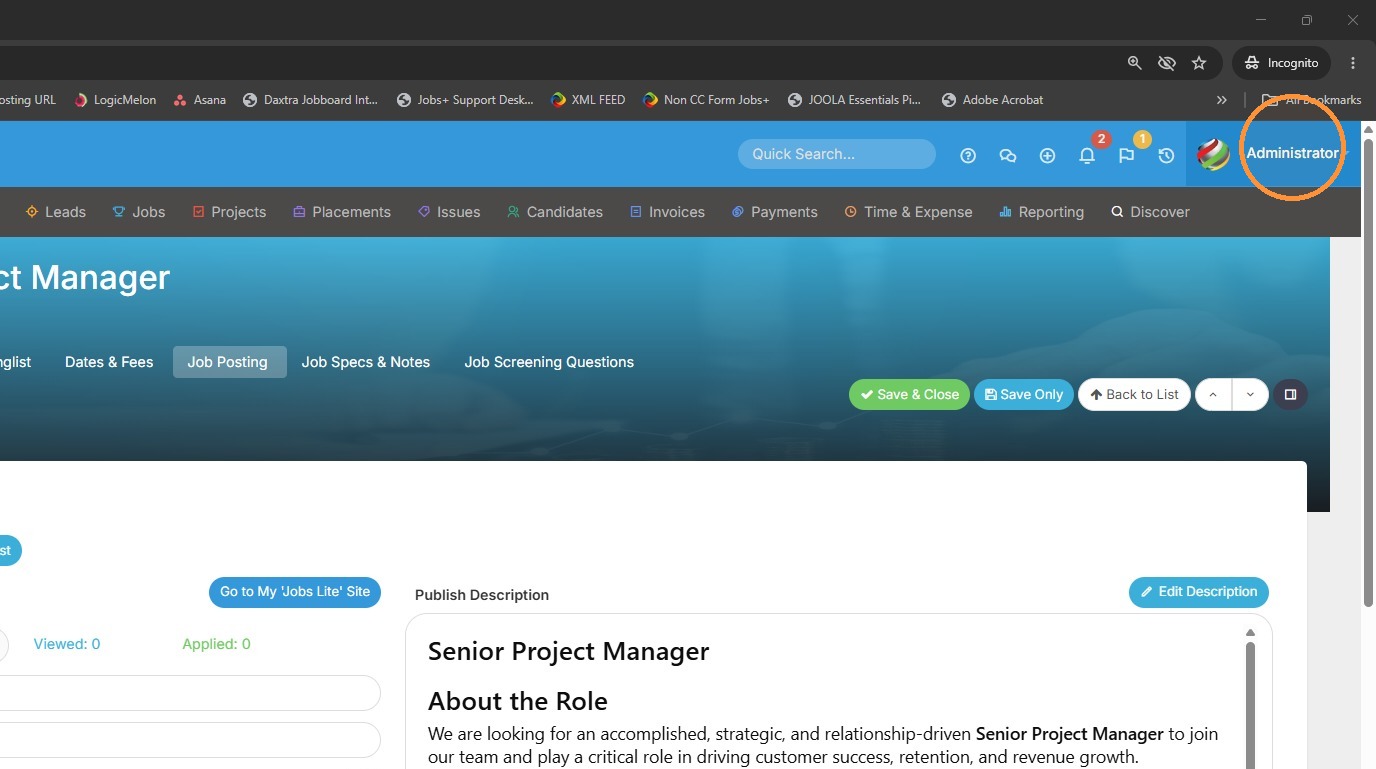
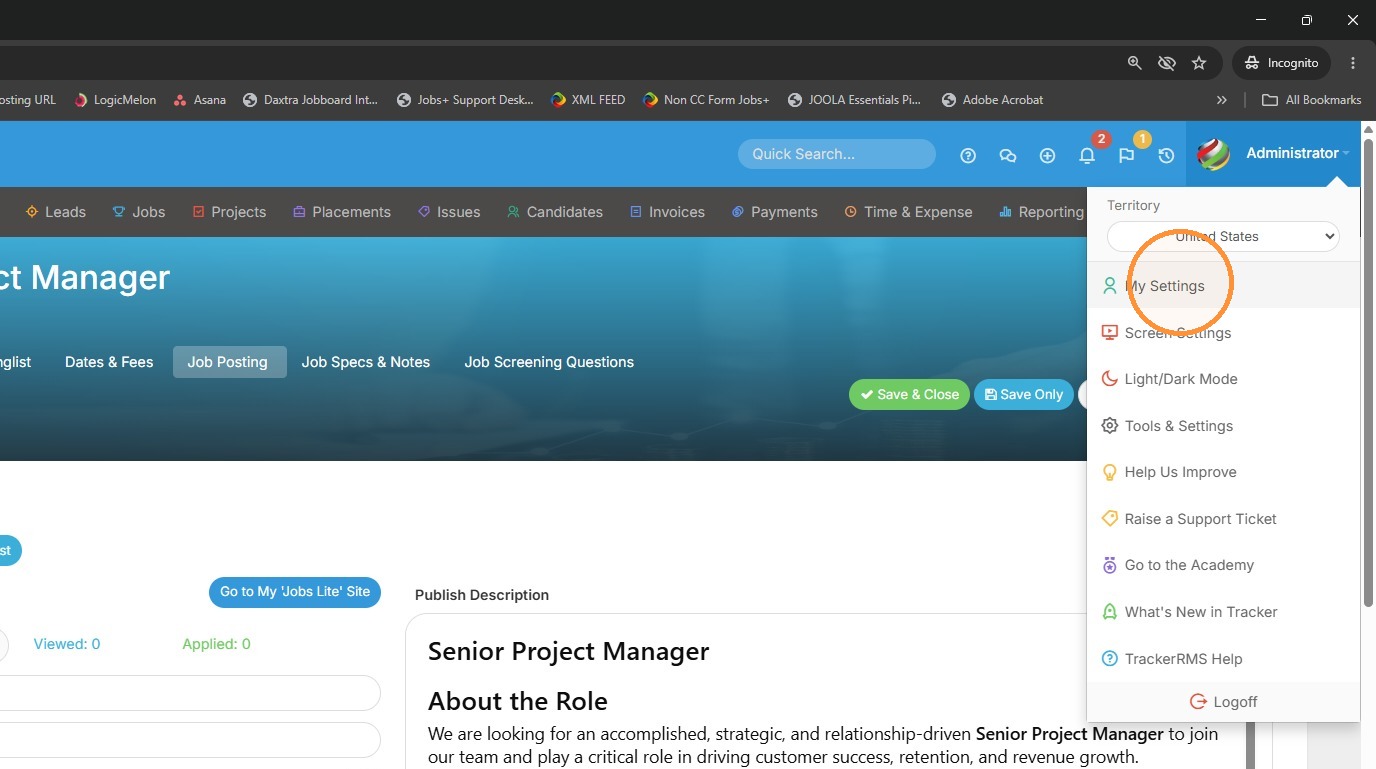
2. Click on your name in the right hand corner of Tracker. Select My Settings.
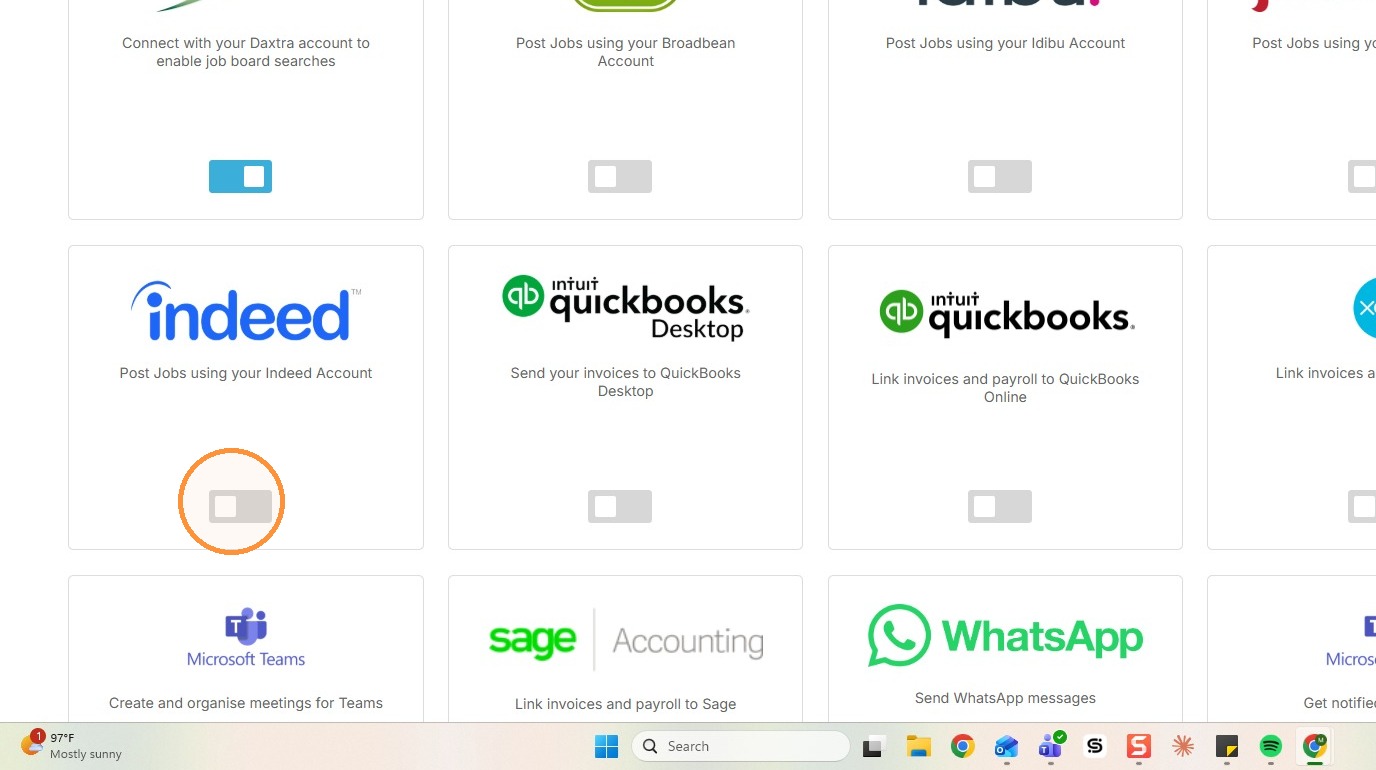
3. From within My Settings, scroll down to job boards. Here, you will toggle on Indeed.
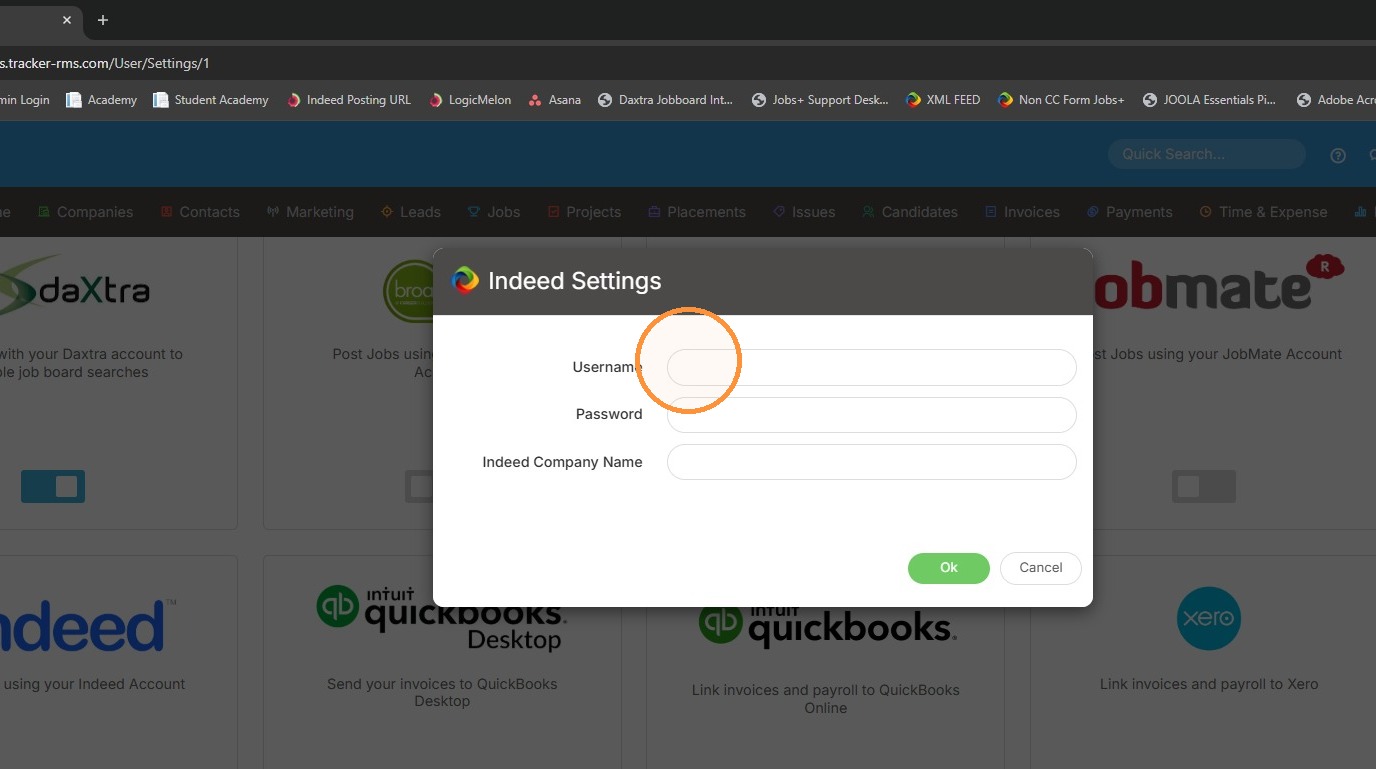
4. Input your username, password and company name as registered with Indeed.
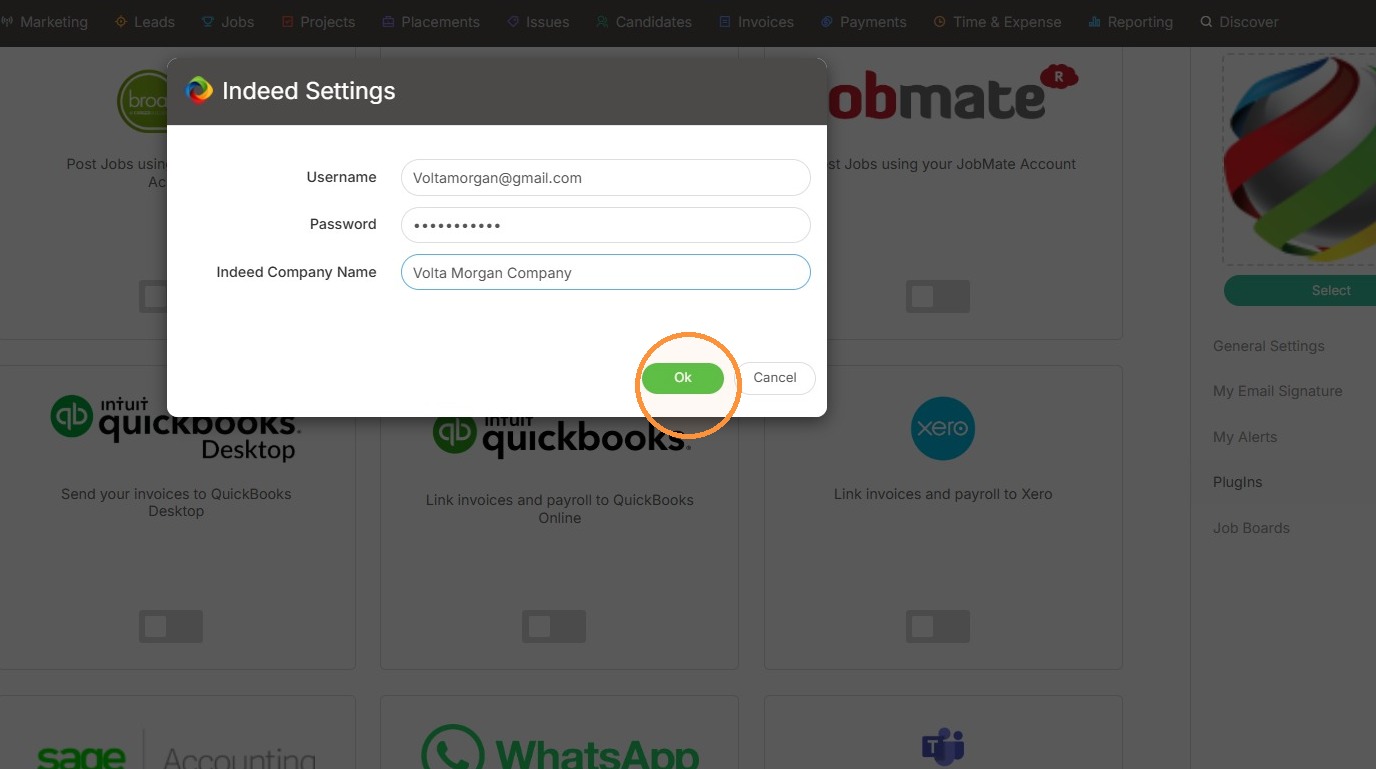
5. Click OK in the Indeed Settings dialog
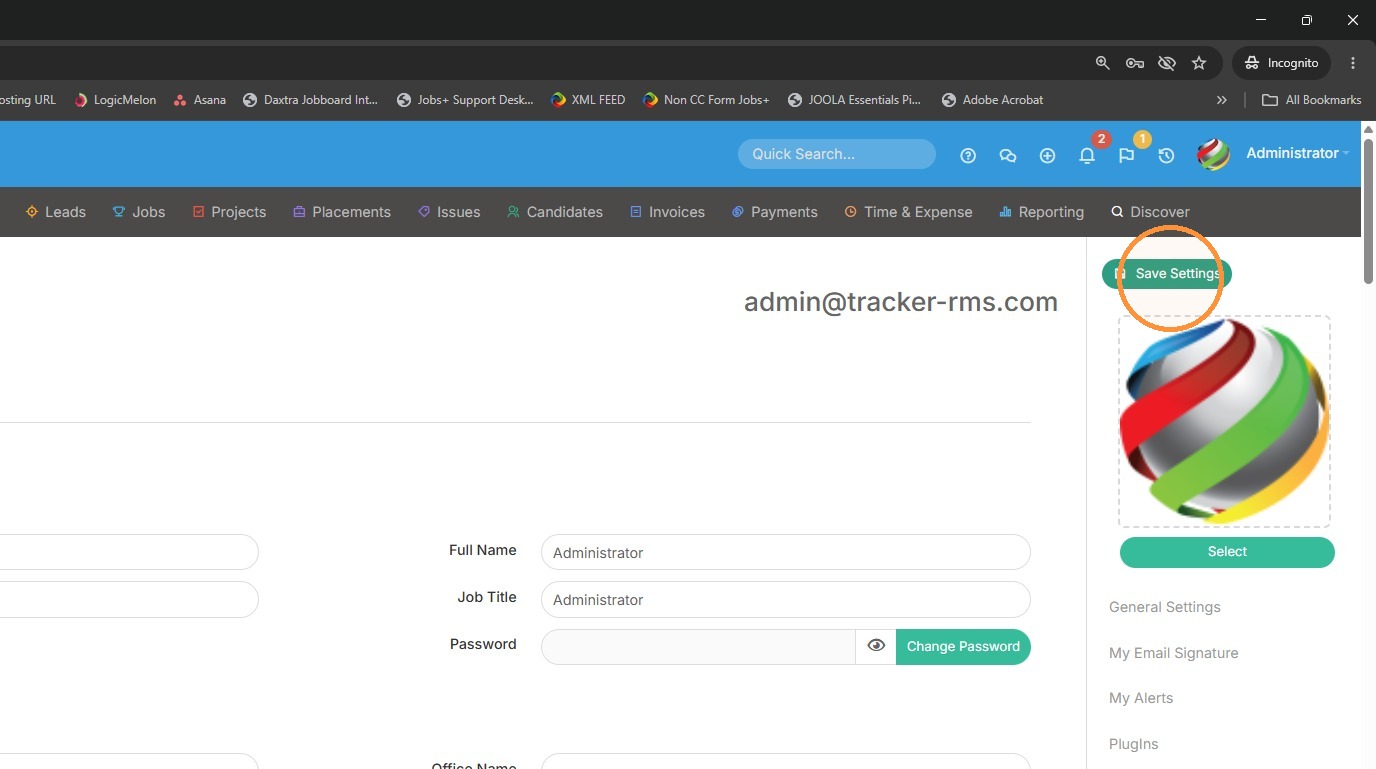
6. Scroll to the top of this page, and Save Settings.
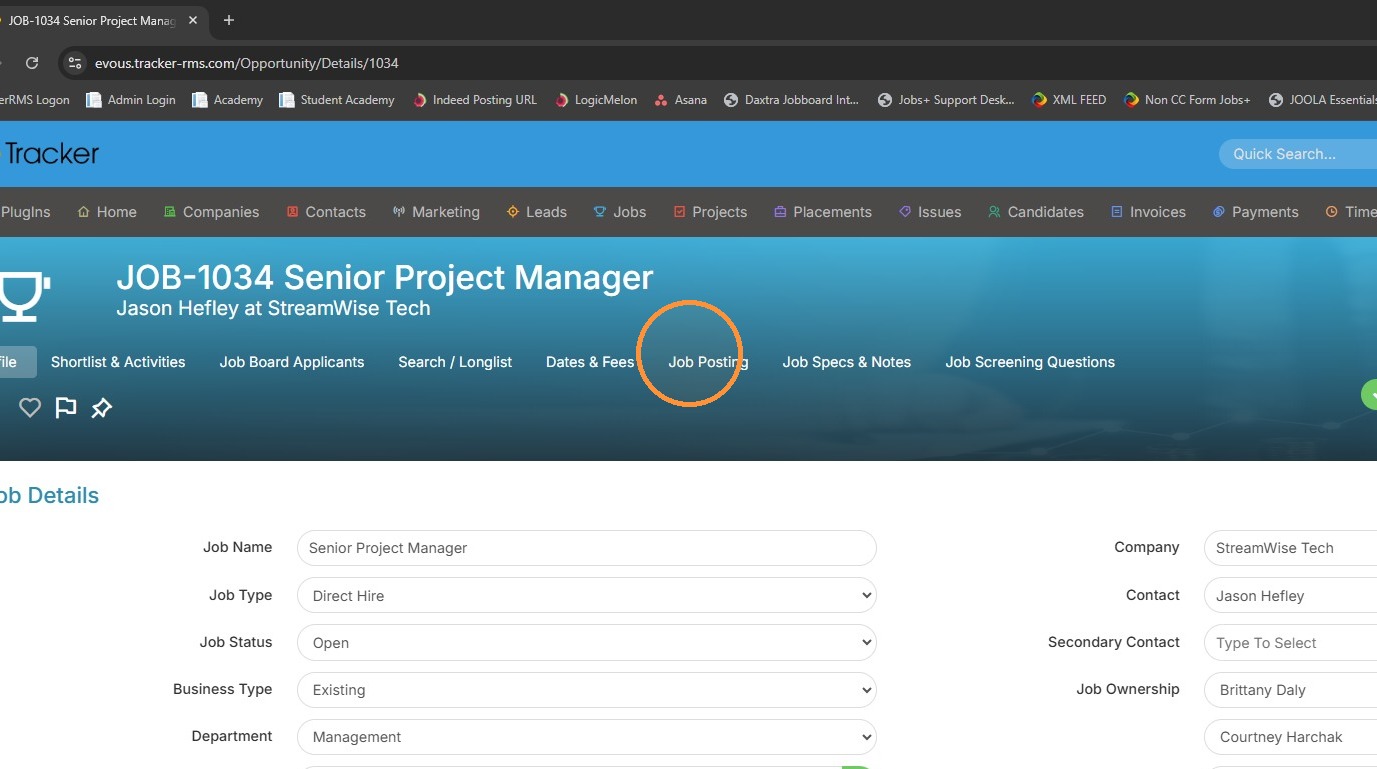
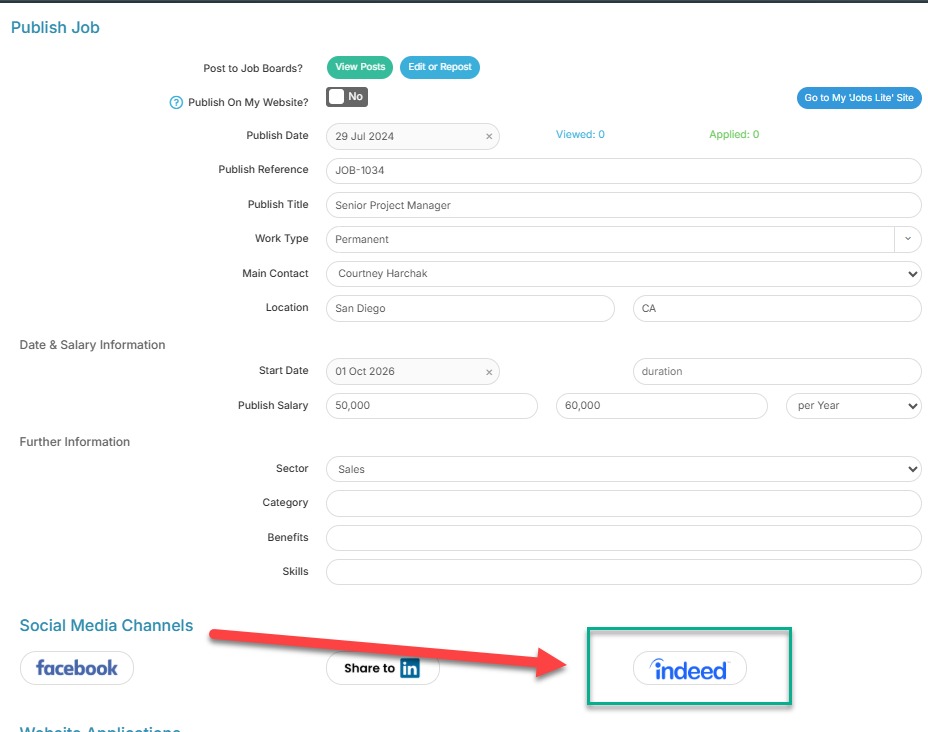
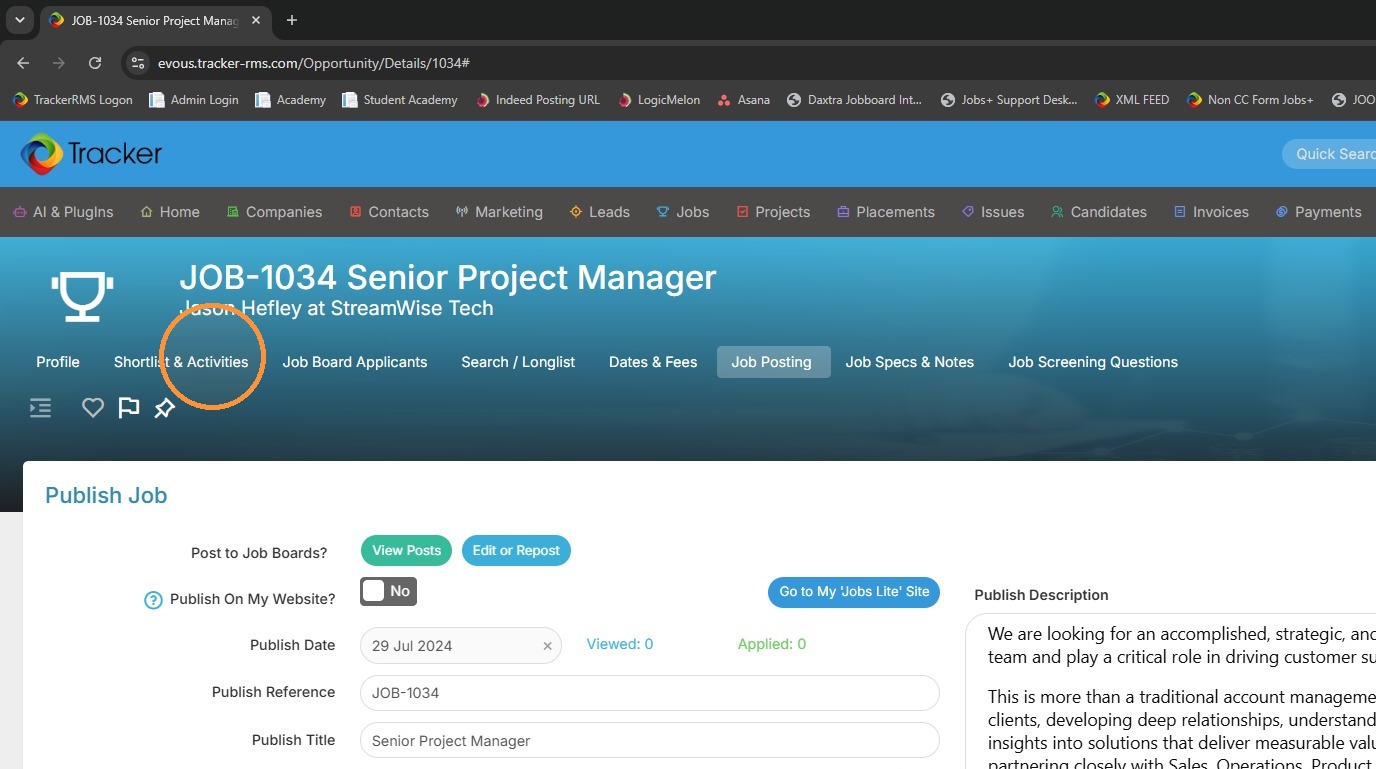
7. Now from within a job record, click into the Job Posting tab.
8. Scroll down a bit on this page and you will see Social Media Channels. Within this section you can click on the Indeed button to begin setting up your post.
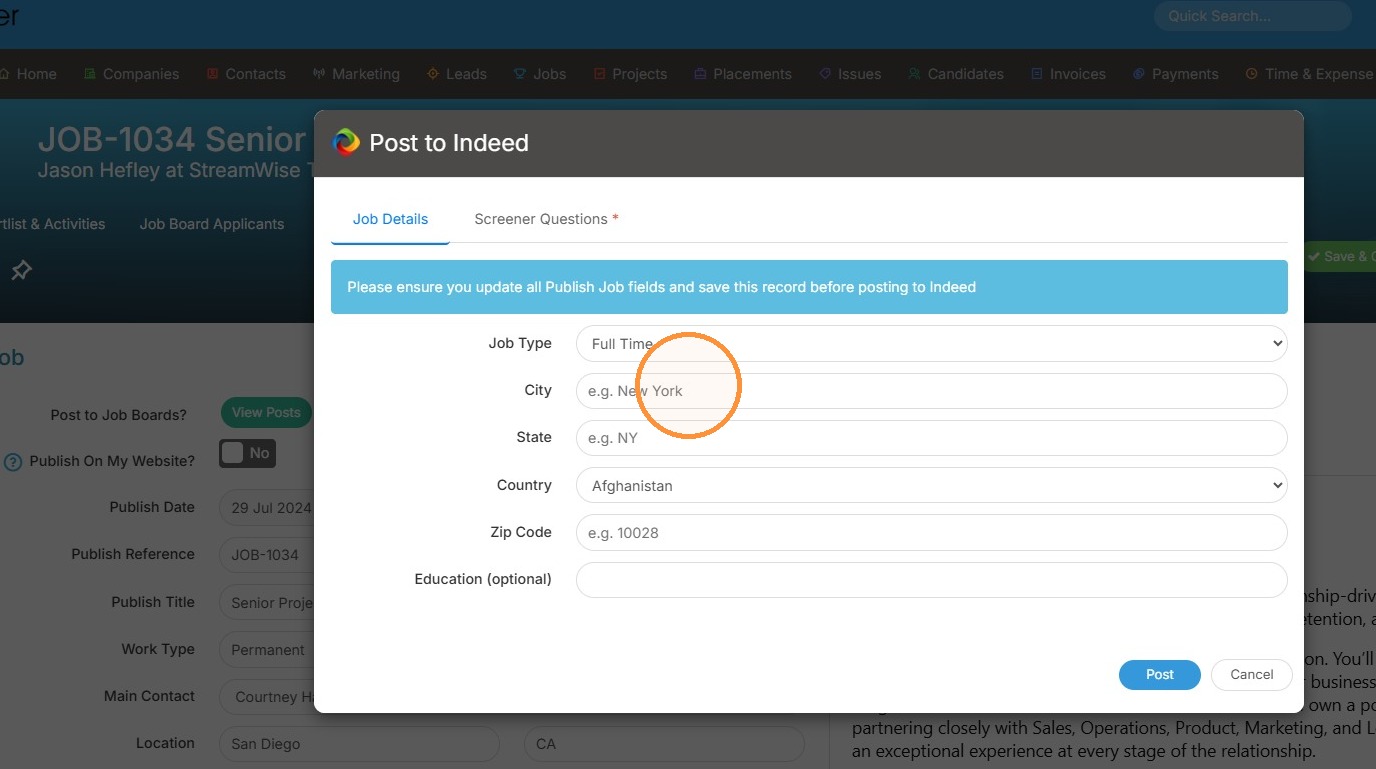
9. A popup will appear once clicked. Fill in the details of the job that is to be posted. Please keep in mind these jobs are meant for internal fulfillment).
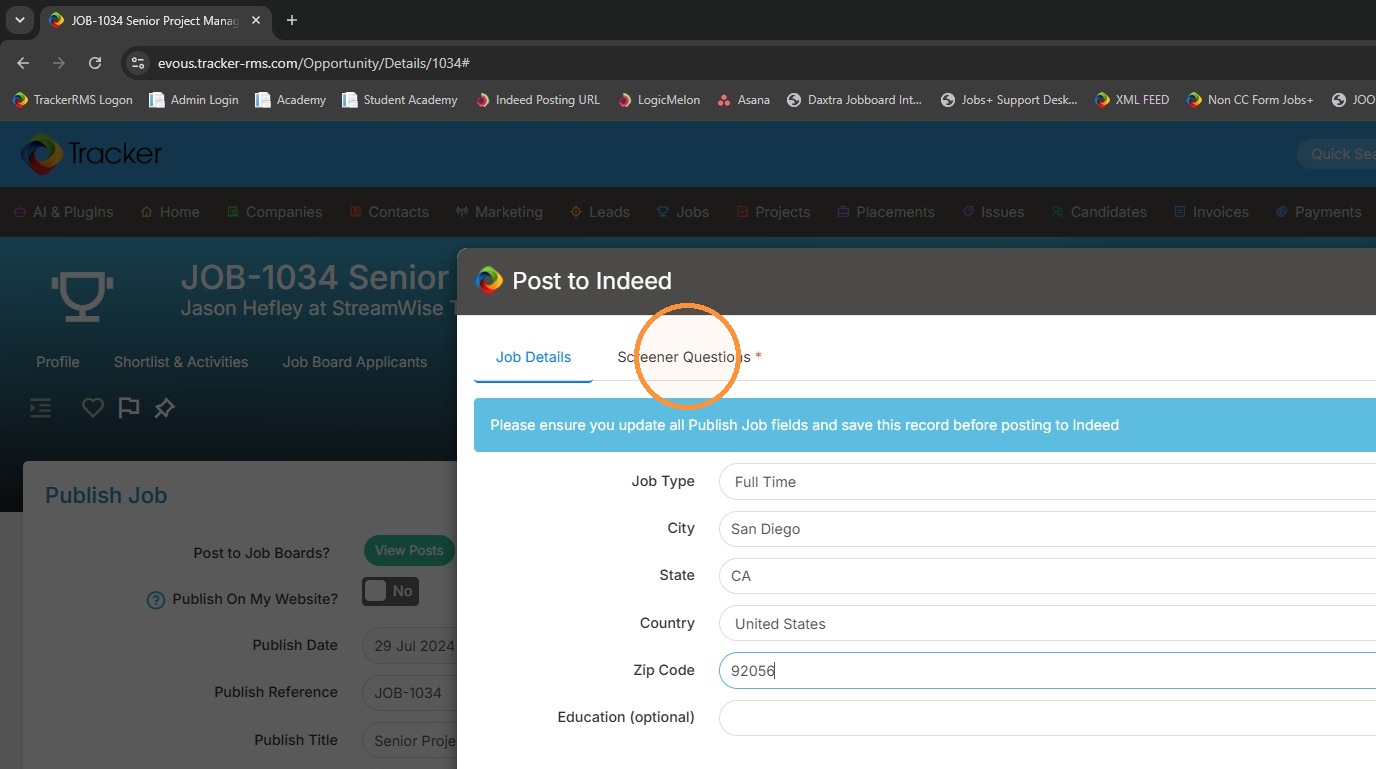
10. Once the job details have been added, you also have the option to apply Screening Questions. Click this tab if you would like to do so.
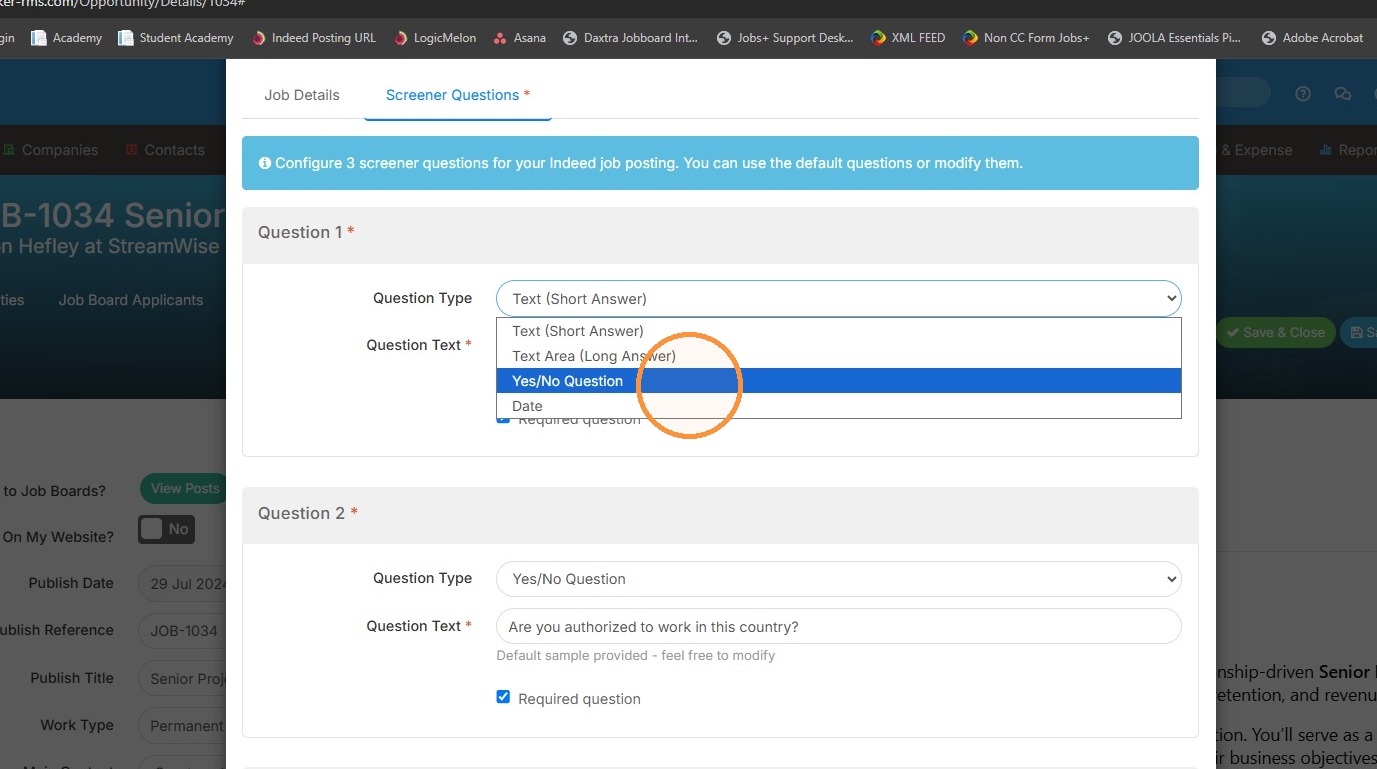
11. From here you can add in text, yes/no, or date questions.
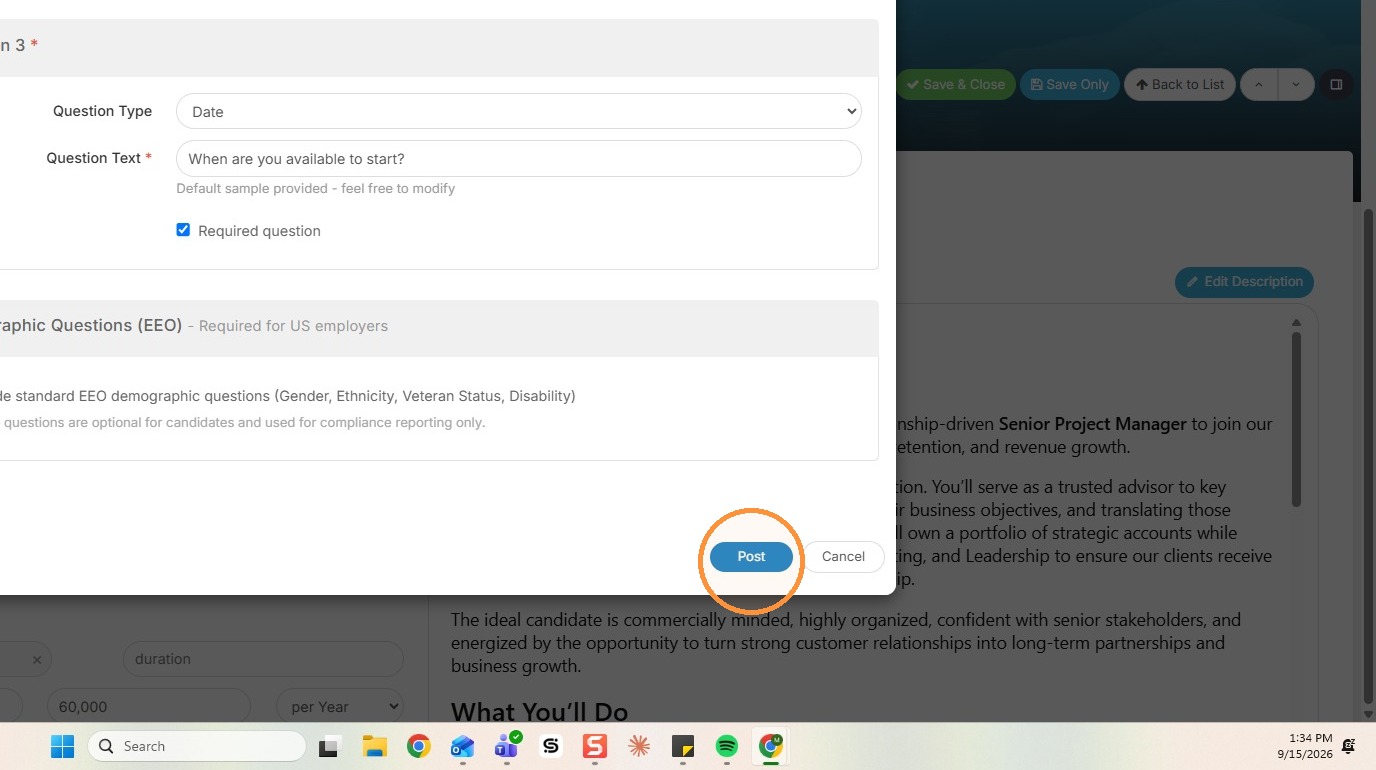
12. Click Post once you have completed these steps.
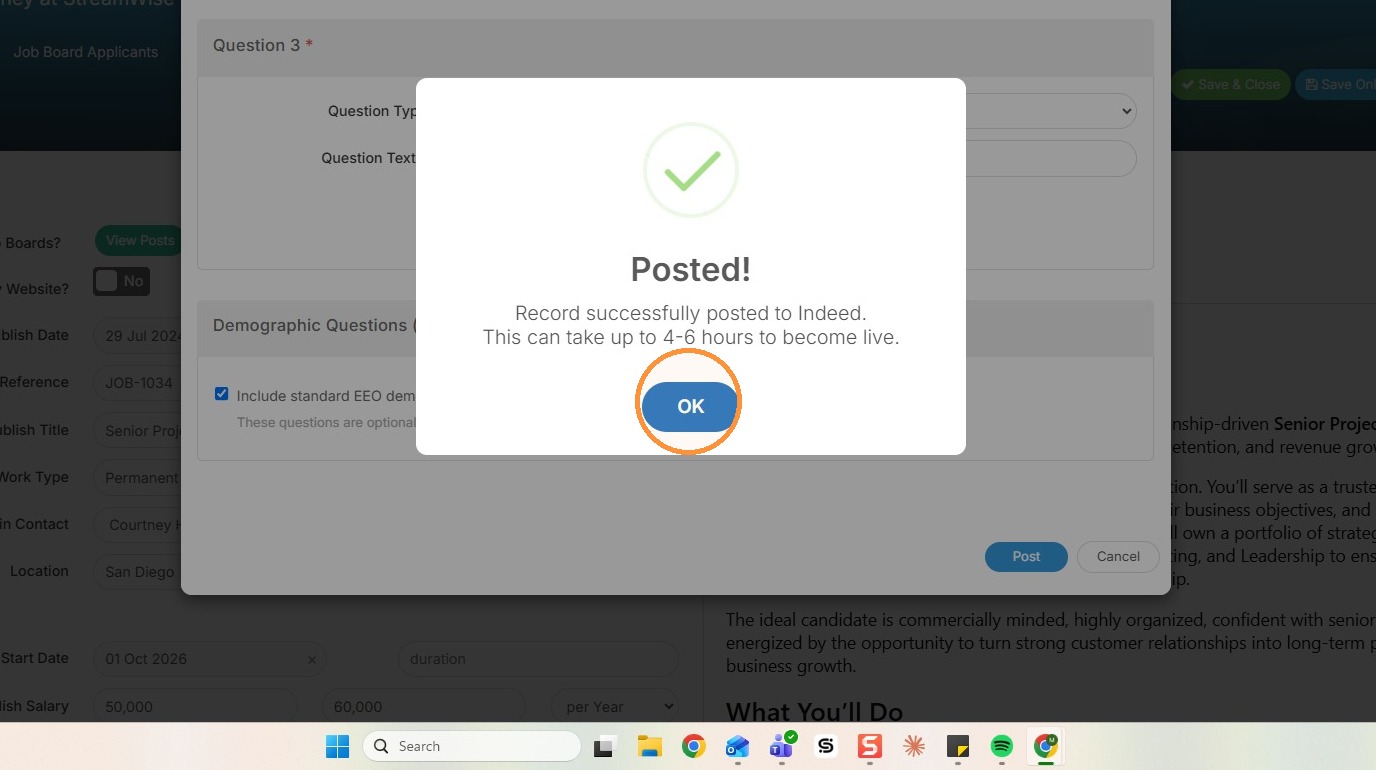
13. You will receive this notification to confirm the posting of this job.
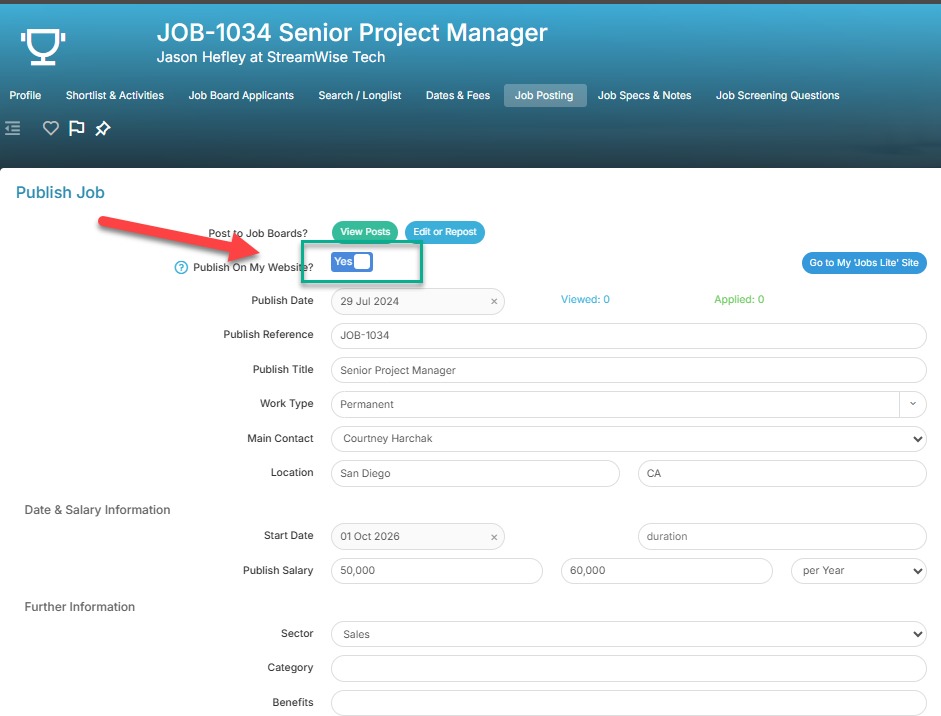
14. Before clicking Save, ensure that the "Publish to my website" button is toggled to "yes".
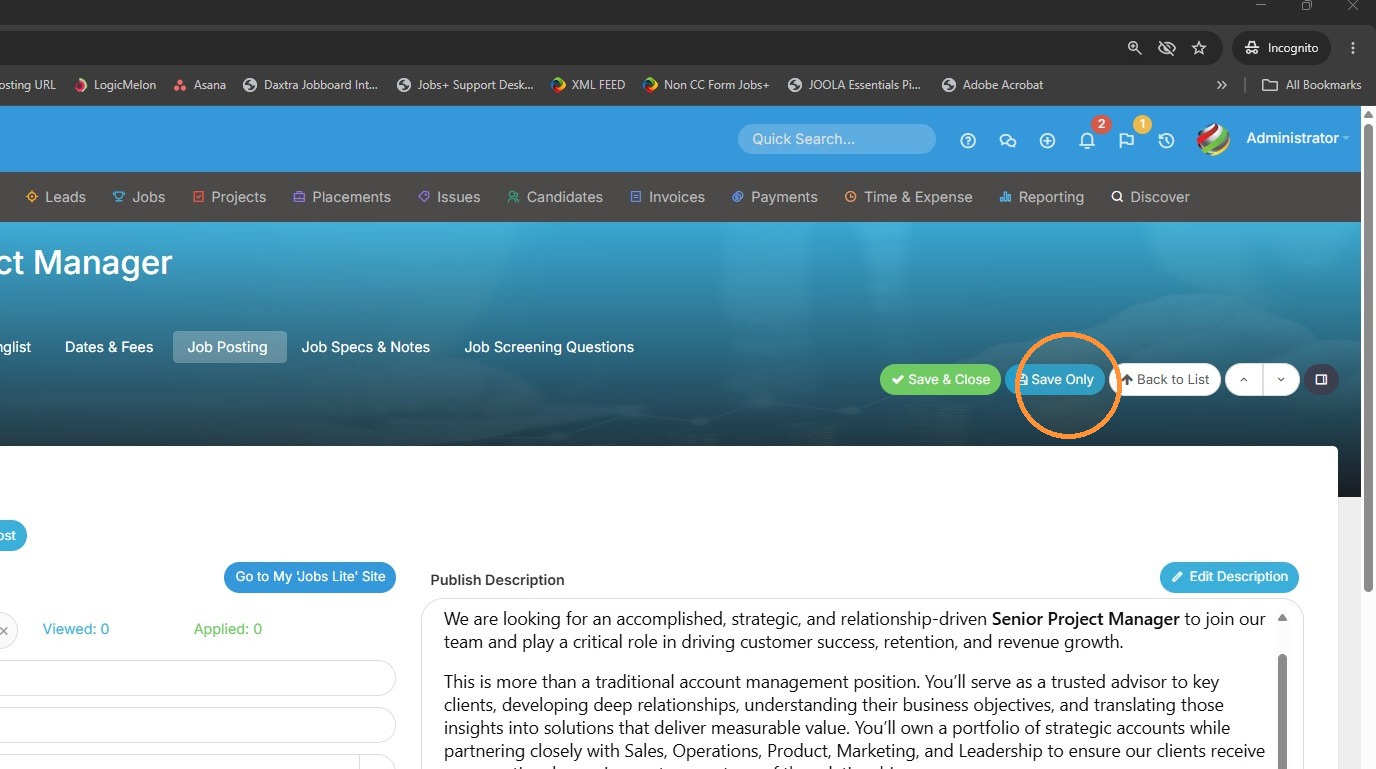
15. Click Save.
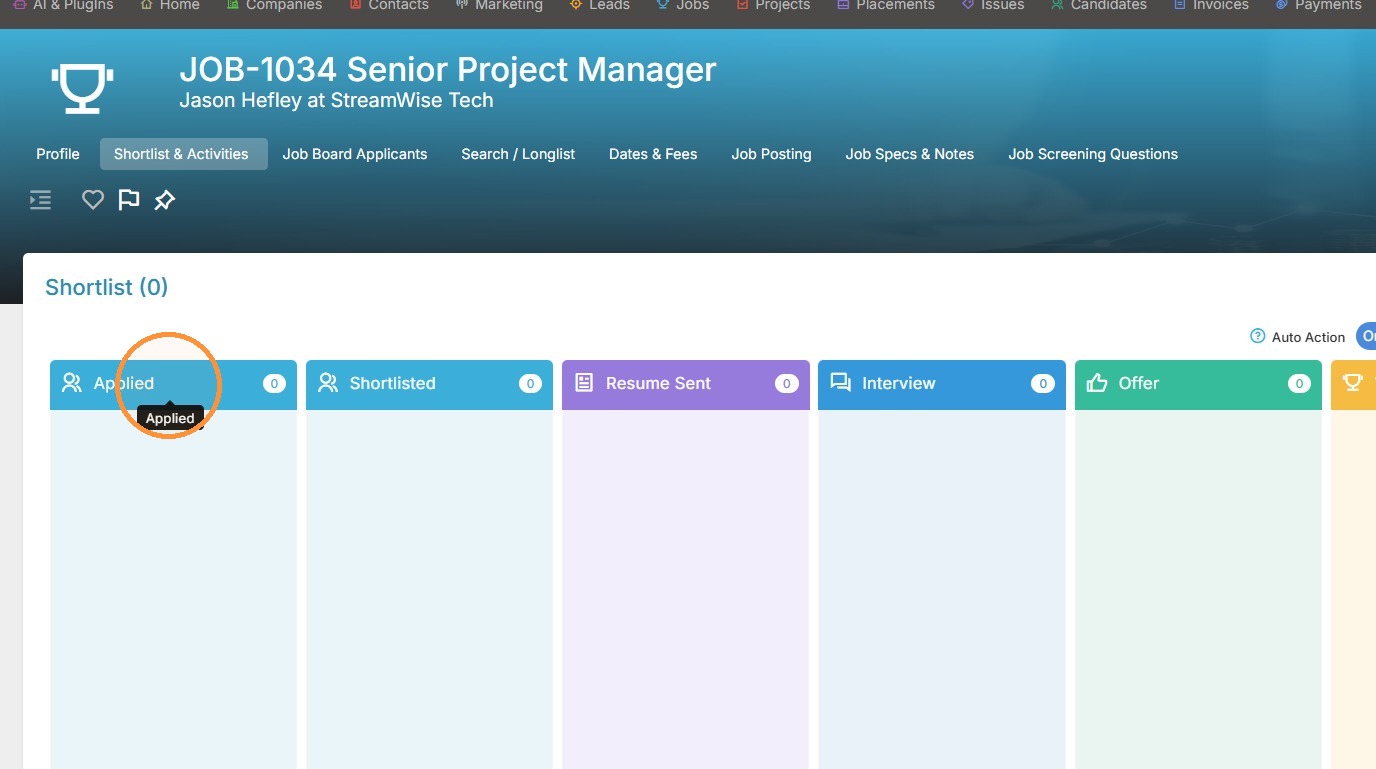
16. Then click into the Shortlist.
17. All applicants for this Indeed posting will appear in the Applied card.
18. If you would like to remove the post, click back into the Job Posting tab, and select View Posts.
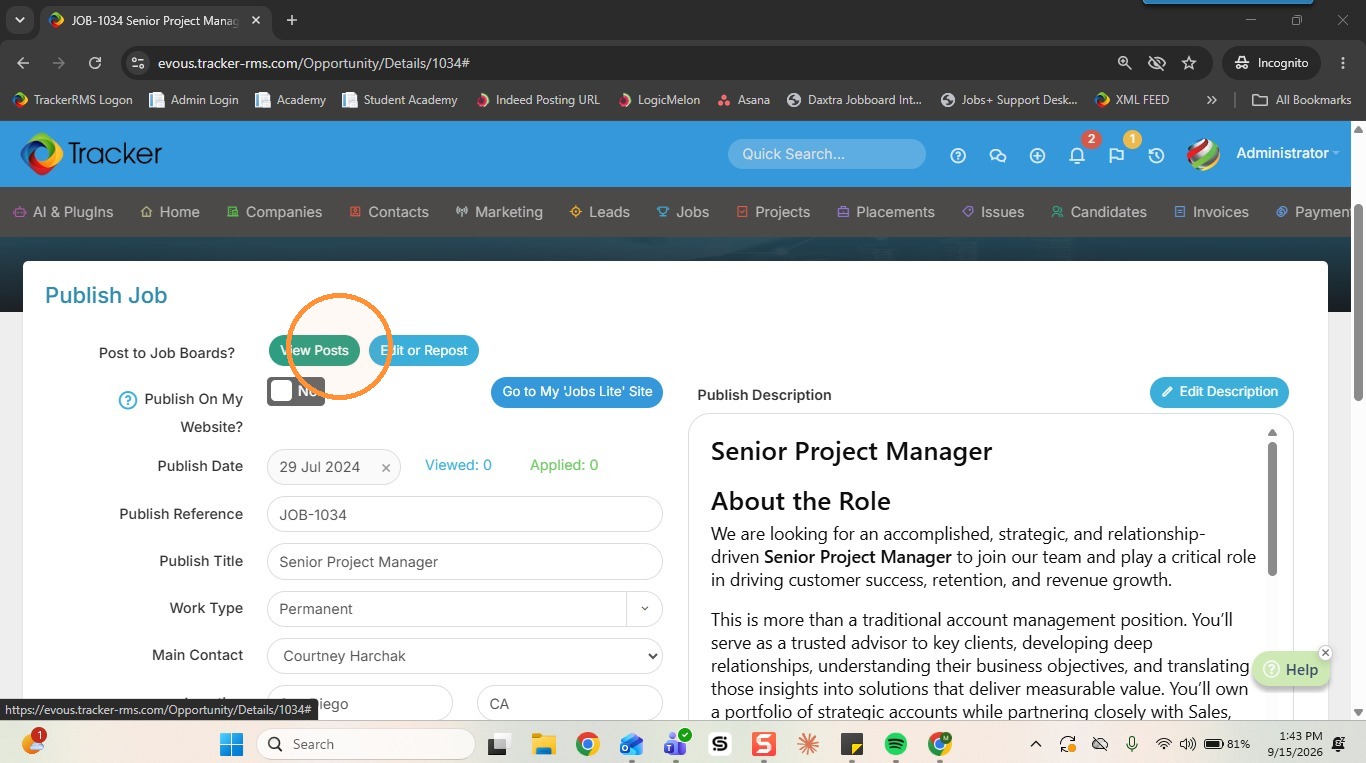
19. Click "Close Posts".