Tracker Enterprise tier only.
Dynamic Rates lets you define flexible pay and bill rate structures for temporary placements, instead of relying on a single flat rate. Tracker automatically works out the right pay and charge for every shift, based on a set of rules you configure once.
What Are Dynamic Rates?
Rather than setting one rate per placement, Dynamic Rates calculates pay and bill rates based on factors like:
-
Time of day the candidate worked (e.g. day shift vs. night shift)
-
Day of the week (e.g. weekday vs. weekend rates)
-
Overtime thresholds (e.g. anything over 8 hours a day, or 40 hours a week)
-
Time on assignment (e.g. stepped rate changes to support probation periods or AWR compliance)
Key points:
-
Applied at placement level, so different workers on the same assignment can sit under different rules
-
Candidates simply clock in and clock out on their Timesheets, Tracker runs the calculation behind the scenes
-
Currently supports hourly rates only
-
Available for Enterprise tier customers
Setting It Up
Dynamic Rates are configured in Tools & Settings > Back Office, using three connected building blocks:
-
Rule Sets - the top-level container, defined by Client (optional), Position, and an optional description
-
Rate Rules - the actual pay/bill rates within a Rule Set, based on time and day
-
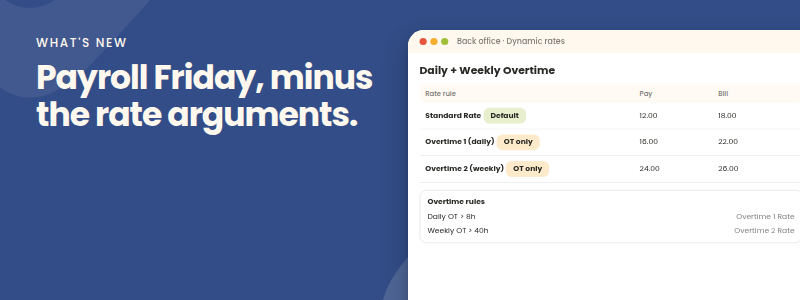
Overtime Rules - the thresholds that trigger overtime, linked to a dedicated "OT Only" Rate Rule
Because Rate Rules and Overtime Rules work together, it's worth planning your structure before you start building: create your base Rate Rules first, then any Overtime Only rates, and finally the Overtime Rules that link them together. Existing Rule Sets can be duplicated to act as templates, though rules and rates can only be deactivated (never deleted) once created.
What You Can Configure

Each Rate Rule specifies a pay and bill rate per hour, plus:
-
Time & Date Settings - specific hours or All Day, specific days or All Week
-
Days After Start - delays a rate until a set number of days into the placement (e.g. Day 84+ for AWR, or after a probation period)
-
Allocation method - Full Hours Worked, Fixed Hours, or a Max Cap (with an optional weekly maximum), which determines how hours flow into overtime
Overtime Rules then set the daily and/or weekly thresholds at which a linked overtime rate takes over, and multiple tiers can be stacked - for example, daily overtime after 8 hours, then double-time after 10. This same structure supports common scenarios such as day/night banded shifts, weekday vs. weekend rates, and stepped probation/AWR rates.
Test Before You Go Live

The Rate Tester, available from any Rule Set, lets you enter sample shift times and instantly see how hours would be broken down and allocated across your rates (including the overtime breakdown) before the configuration ever touches a real timesheet.
Applying Dynamic Rates
There are two ways to apply a Rule Set:
-
New Shift Jobs - select a Dynamic Rate Set when creating an Hourly shift job. It cascades to every placement created within that job (though it can still be changed on an individual placement), and candidates can go straight into booking time.
-
Placement Record - open the placement record's timesheet block, under Clock In/Out? select Dynamic Rate Set and then choose which to apply. Use Preview to check the resulting rate tasks before selecting Commit. Once a timesheet has been submitted against the placement, the Rate Set can no longer be changed, so it's worth confirming everything in the Rate Tester first.
What Timesheets Look Like

However many Rate Rules sit behind a placement, the candidate only ever sees and completes a single timesheet line, just a start time, end time, and total hours, exactly like a standard Clock In/Out task. When the timesheet is saved, Tracker splits the time out into the correct Dynamic Rate Tasks automatically, and a tooltip shows how time spanning two calendar days has been divided.
Quick Recap
-
Rule Sets group Rate Rules and Overtime Rules for a Client/Position combination.
-
Rate Rules define pay/bill rates by day and time, with a chosen allocation method.
-
Overtime Rules set daily/weekly thresholds and link to an OT Only rate for the premium.
-
Days After Start enables stepped rates for AWR or probation scenarios.
-
Always confirm a setup in the Rate Tester before applying it to a live placement.
-
Apply via a Shift Job (cascades automatically) or a Placement Record (Preview, then Commit).
-
Timesheets always show a single line, however complex the rules behind them.
Find our more in our Chapter on Dynamic Rates here: https://academy.tracker-rms.com/Home/Search/?ChapterId=260