1. Click the add new record button to select a lead record. There are a few ways to add lead records into Tracker. From this general section here, the company record, contact or candidate record.
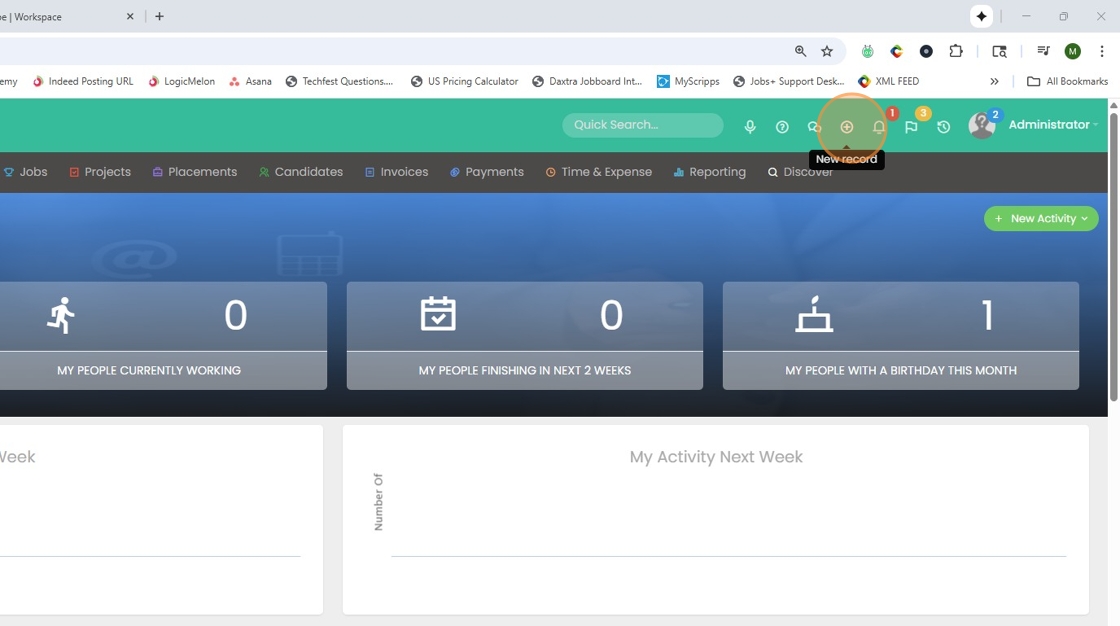
2. Click here

3. Add a Lead Name.

4. Apply a company record to the lead.

5. Apply the contact record, or person you're working with at this company to the new lead.
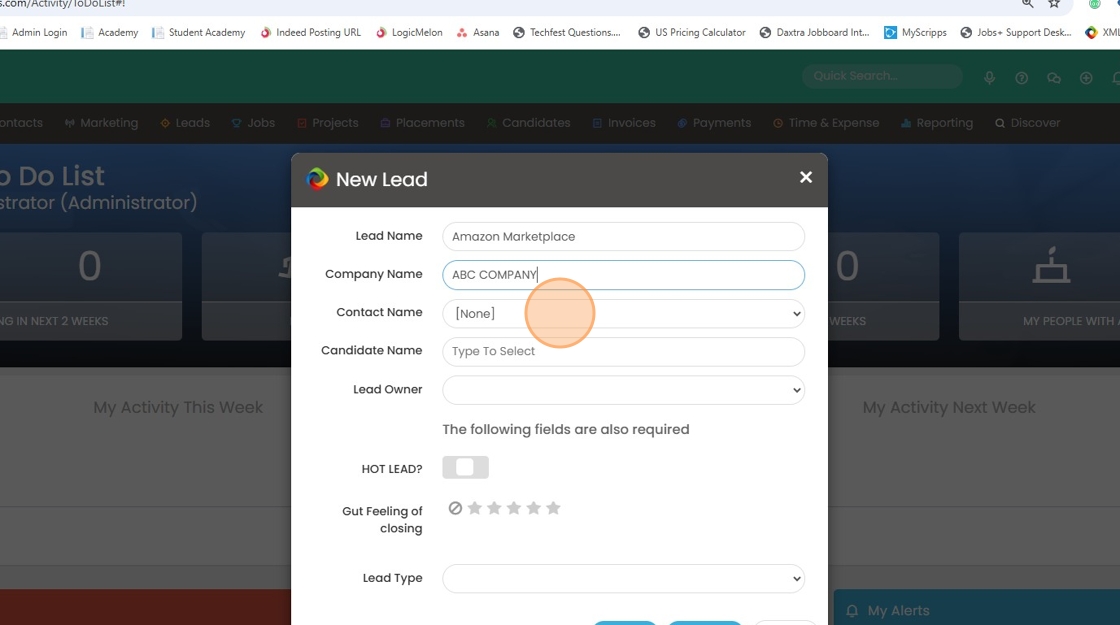
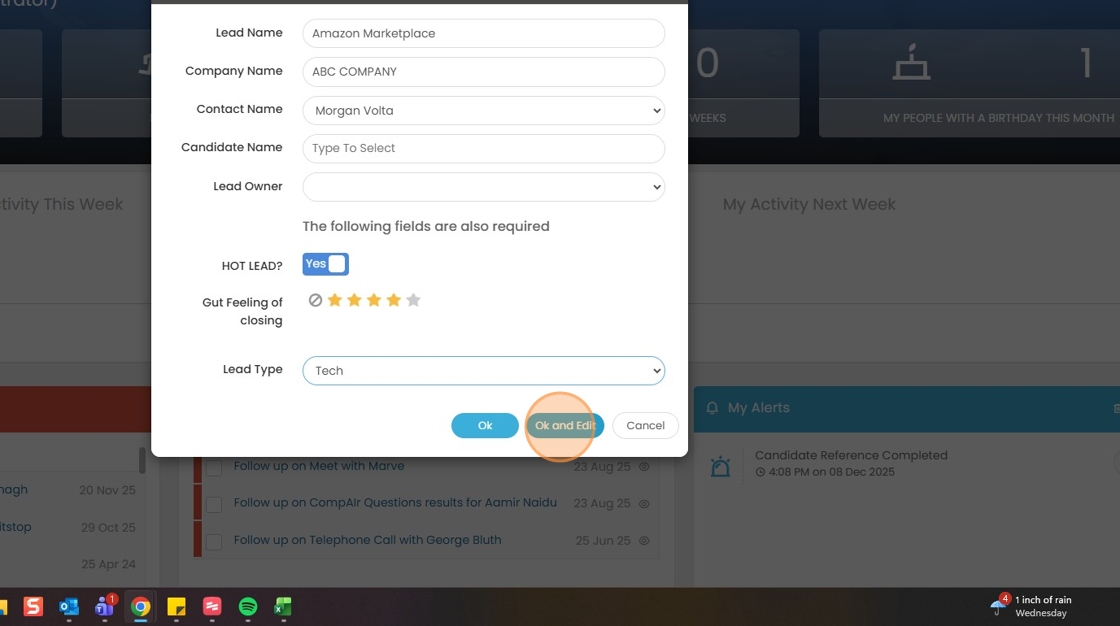
6. Click Ok and Edit when you've filled in the details as necessary ( you may notice I had a few required custom fields to complete).
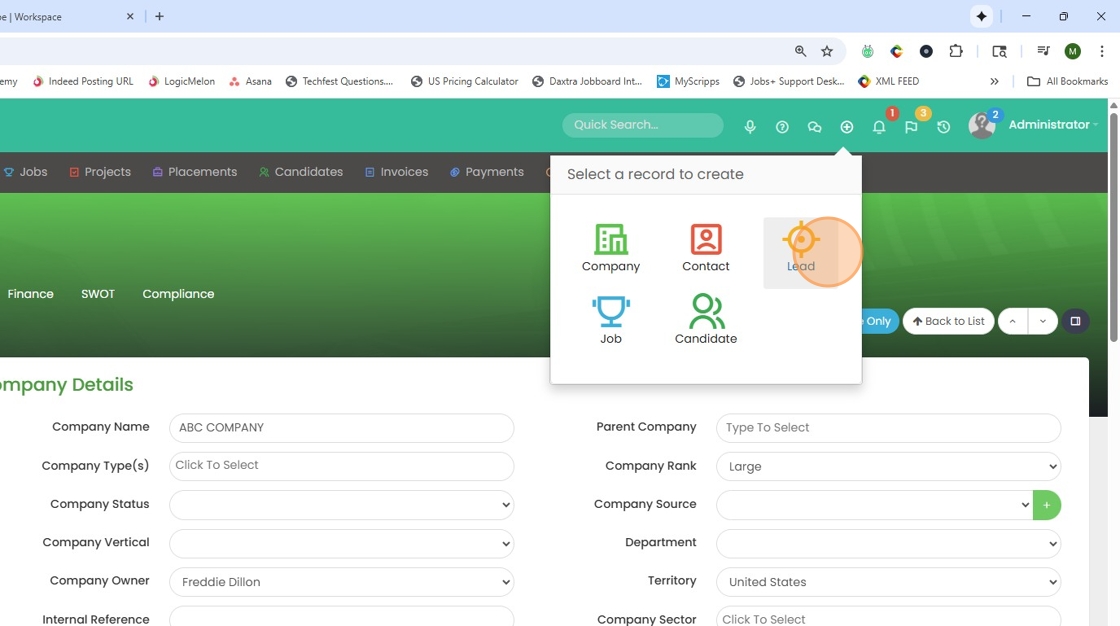
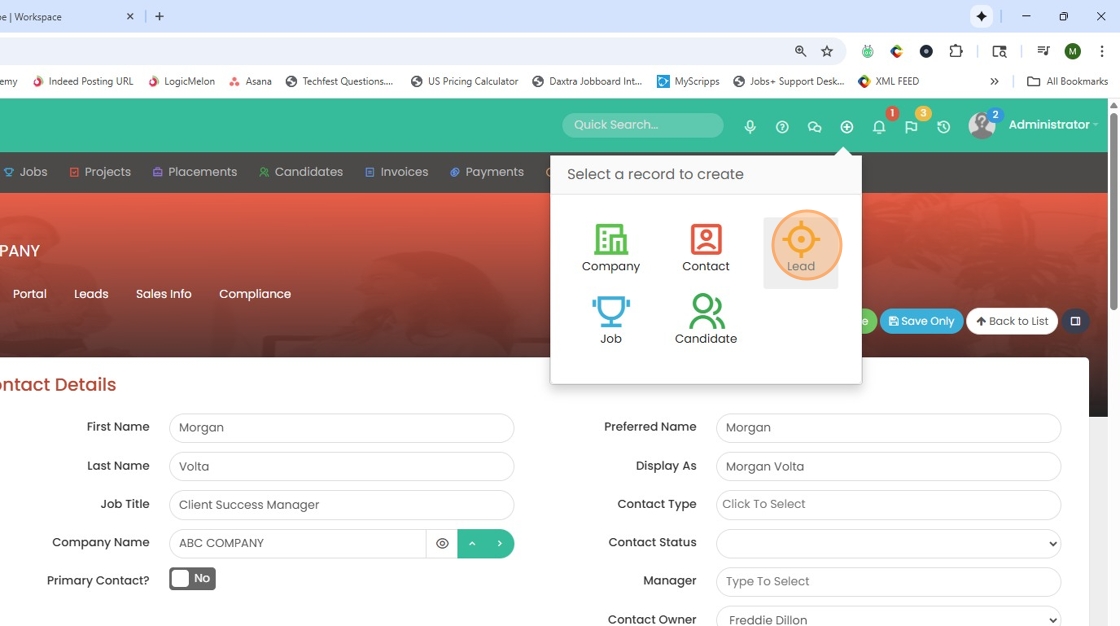
7. From within a company record (my current screen) I can also select the add record button and pick lead.

8. Select lead.
9. Then add in the details as needed. You will notice because I was working on the company record screen, that the company record and main contact were auto-applied to my new lead record. Helpful!

10. From within a contact record, you can also add a lead.

11. Click here
12. Again, you will see the company and contact record you're currently in will auto-apply in the details here.

13. Lastly, from the candidate record I can click the action menu.

14. Then select Create Lead.

15. Pick yes.

16. Then open the lead from here to fill in the rest of the details.
