1. The job details page in my system is located on the Profile tab of the job.

2. From here I can view various details of the job, such as the Company Record.

3. I can click on this eye icon to pull up a quick view of the company's details.

4. The contact record has the same quick view eye.

5. For example, this is Michelle's details.

6. The left side of job details tells you what type of job it is.

7. Such as contract, contract-to-hire, permanent or temp (you may have other verbiage used for your job types).
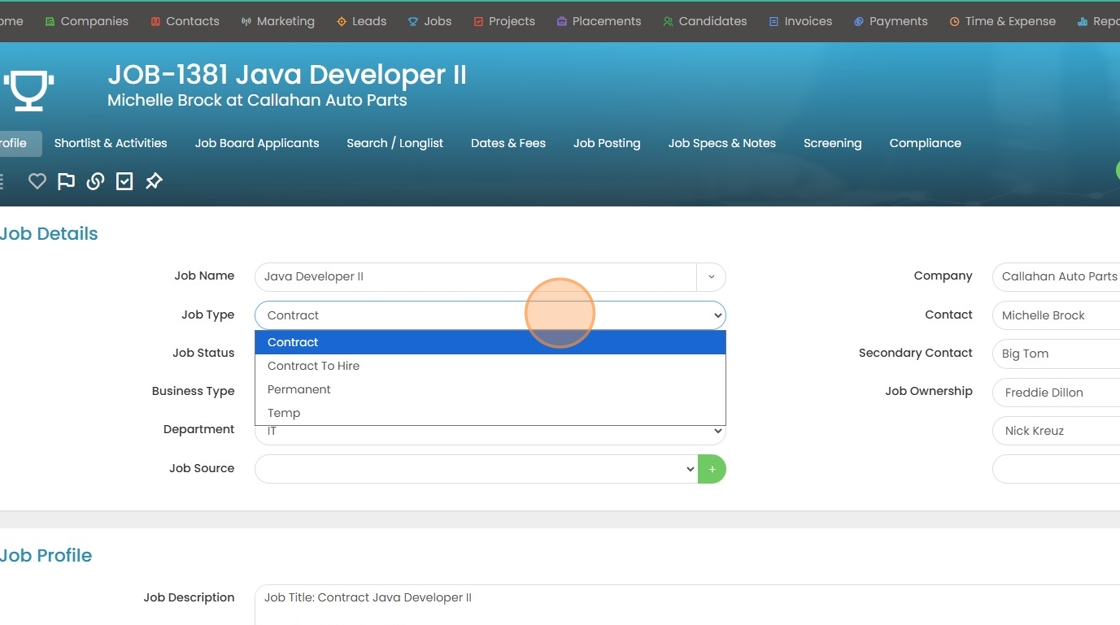
8. There is also the current job status, telling you where it sits in the recruiting process.
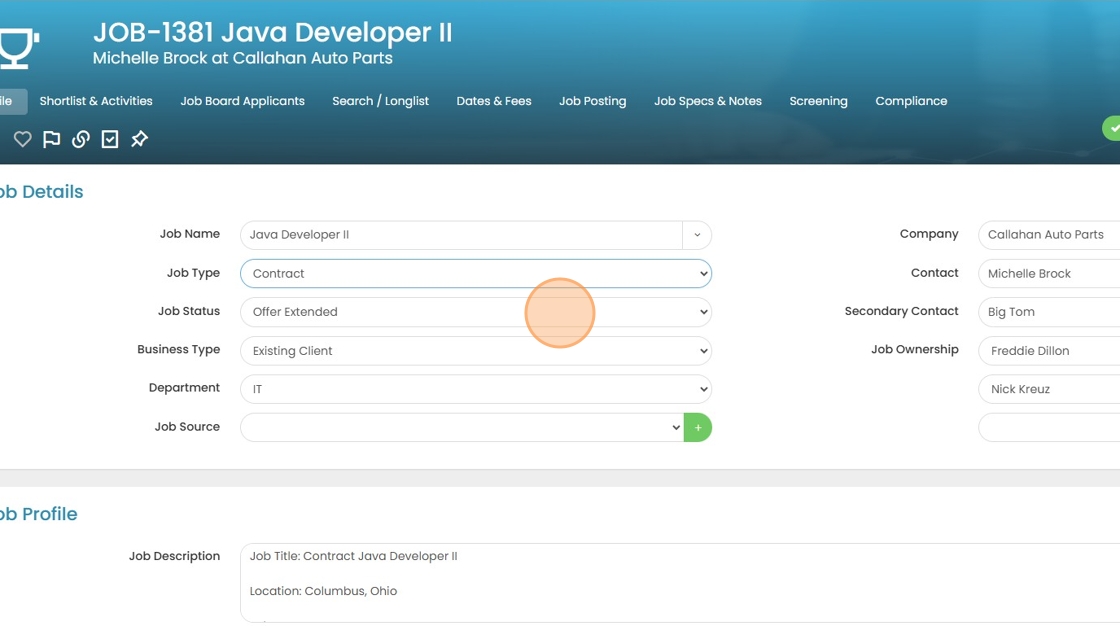
9. All of the job statuses will be listed here, but it will always automatically display the status that's furthest along in the process.

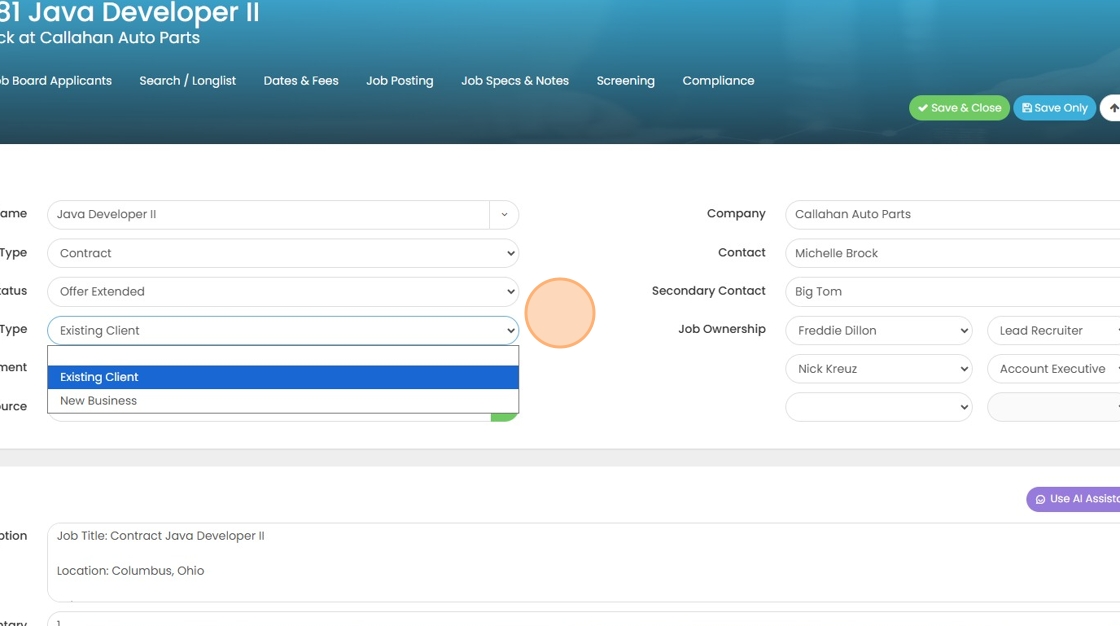
10. Then there is business type if this is a field you prefer to use.

11. This will tell you if this job is under an existing client or a brand new one.
12. The department type.

13. These options can be edited under Tools & Settings if something is missing or needs to be removed.

14. Then there is job source.
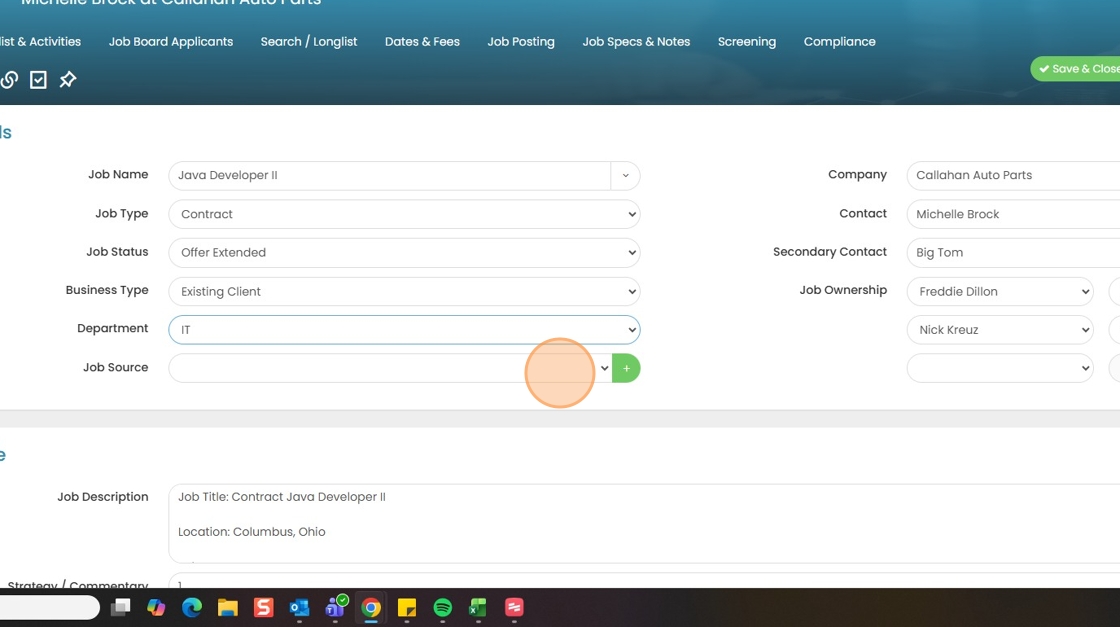
15. This will tell you where the job was found.

16. You can add a new job source by clicking the green plus button.

17. Then type in the name of the additional source.

18. Click "Save"

19. You also have the option to add a secondary contact.

20. Job ownership will tell you who is working this position. This field can be helpful when working on commission reports through Tracker (Or placement ownership is also an option - depending on how you work as a company).
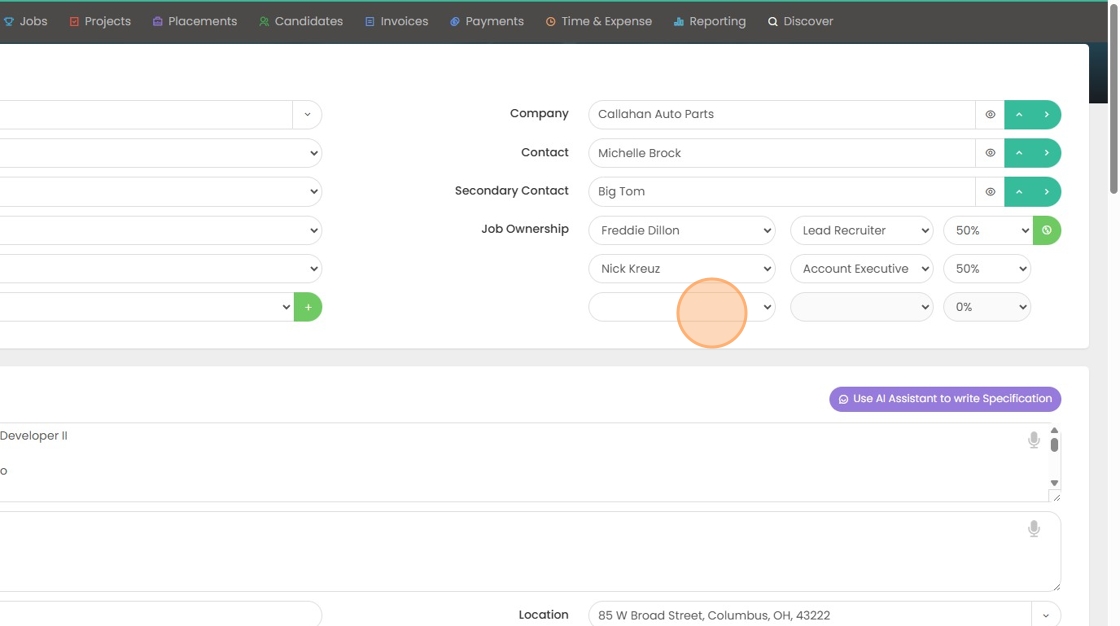
21. As you add more people here it will add more boxes below.

22. For example.
