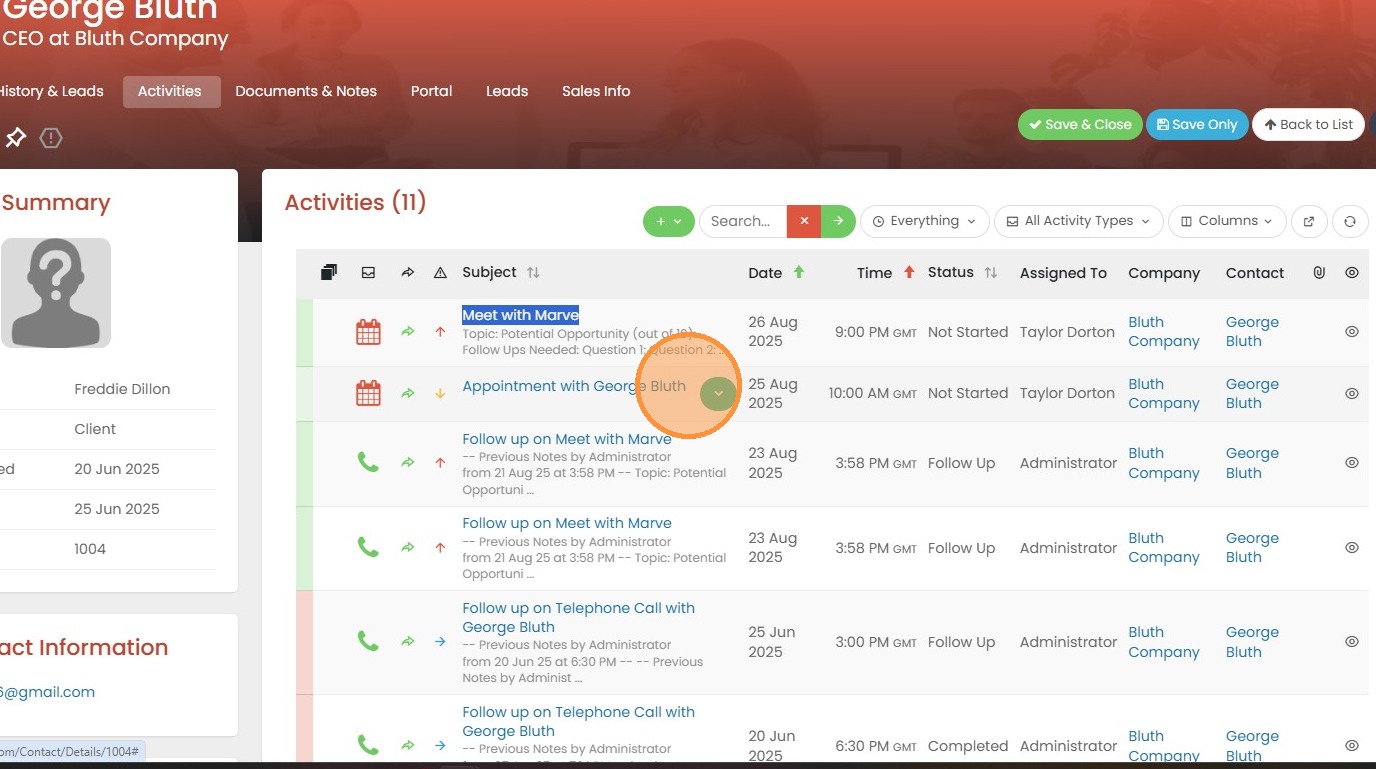
This lesson explains how to create an activity from within a record.
Creating an Activity from within a record's Activity List
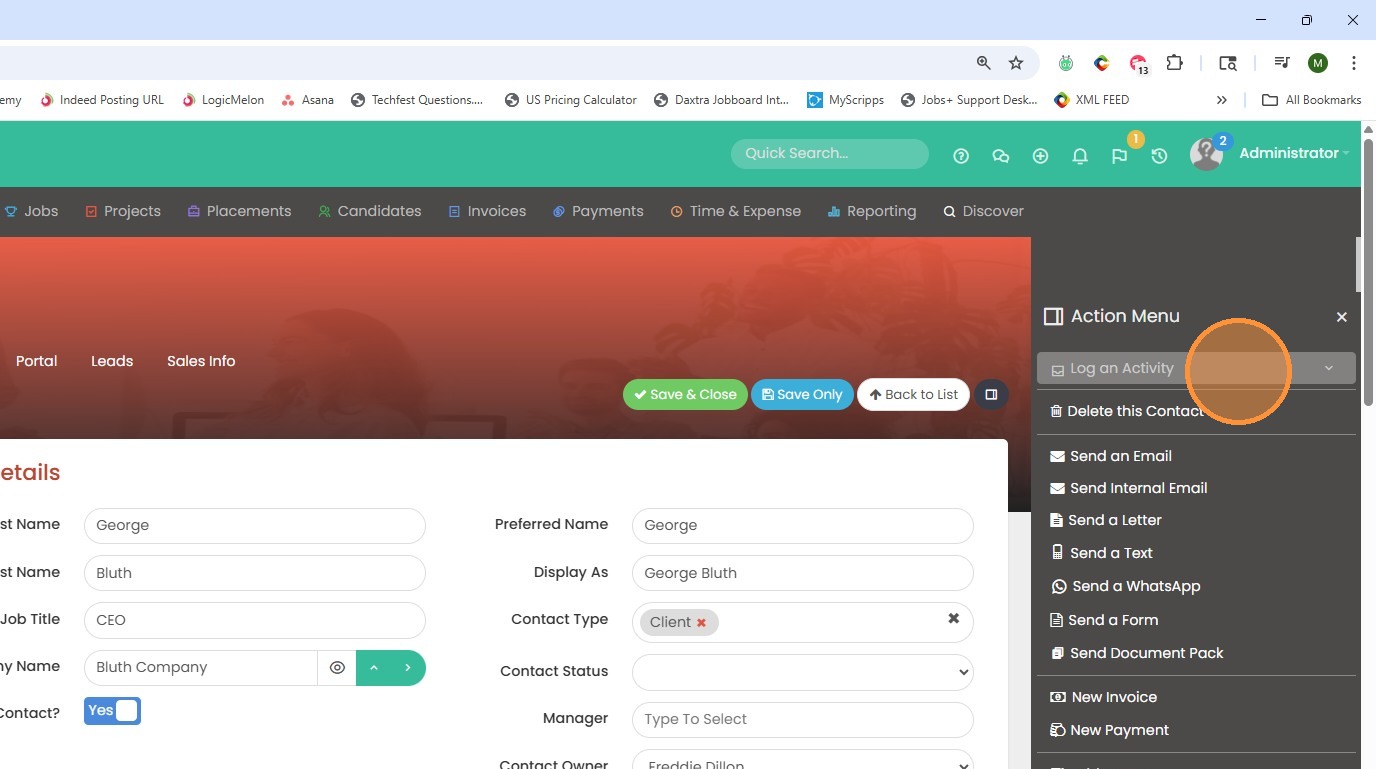
1. Within this contact record, click on the action menu, and then click on log an activity.
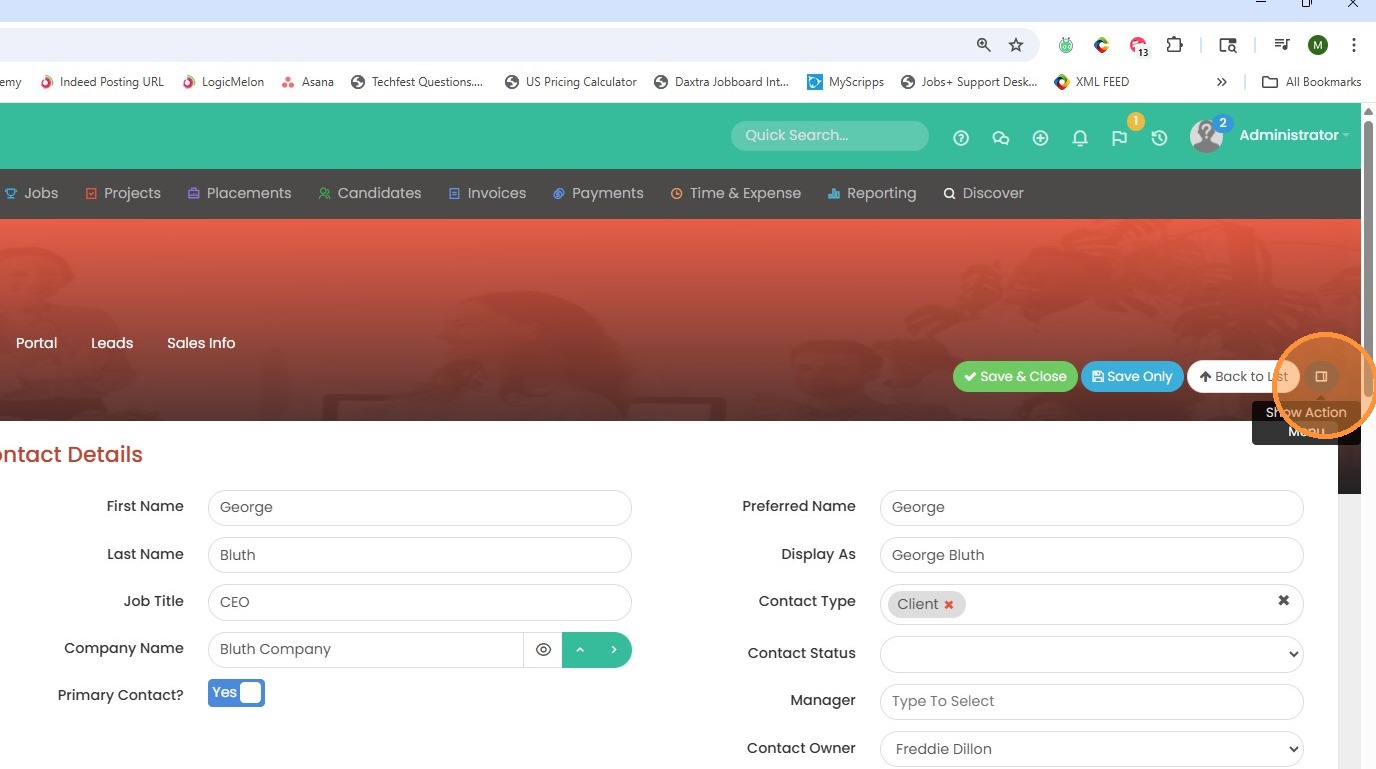
2. Click here
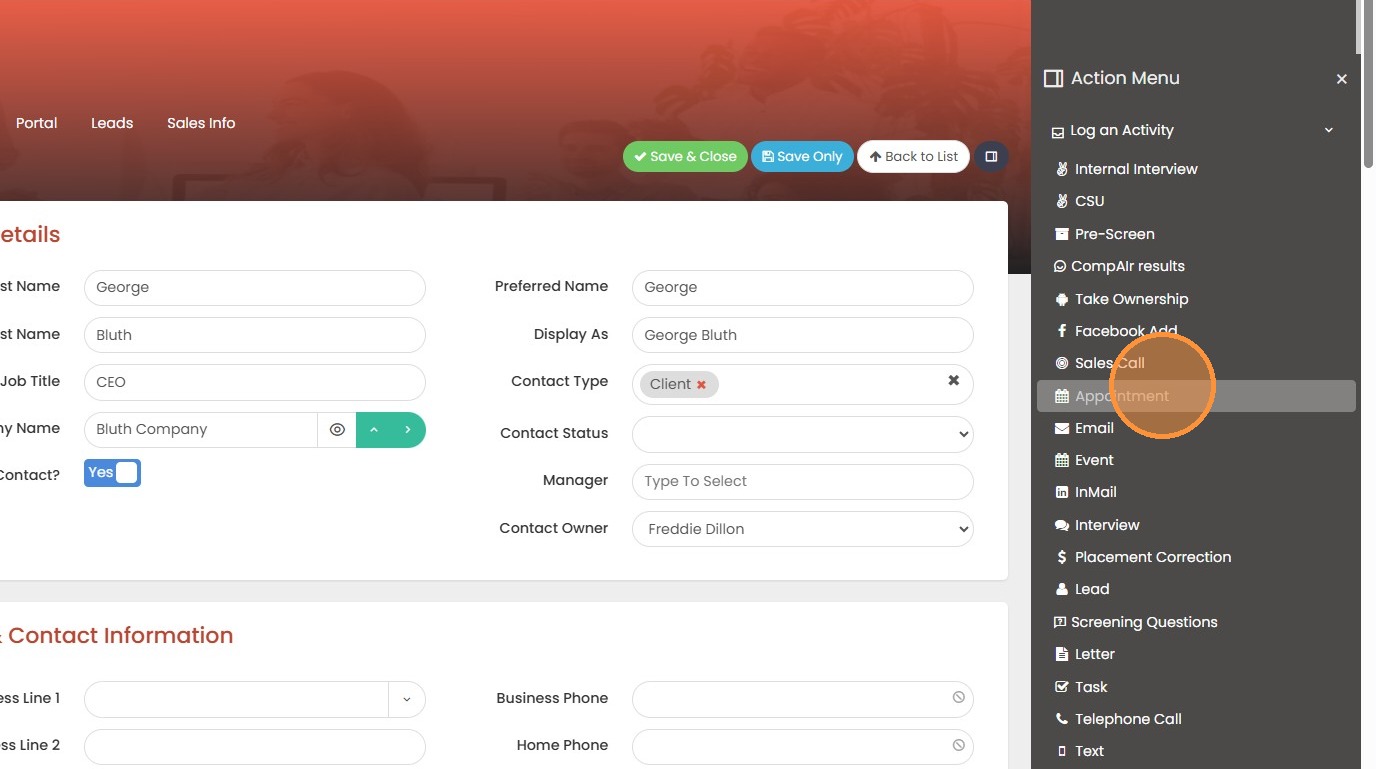
3. In the drop down choose a type of activity that you need to log.
4. The subject line will pre populate, but feel free to edit. Let's add the location, whether that is virtual or in person, and the start and end dates/times for this activity.
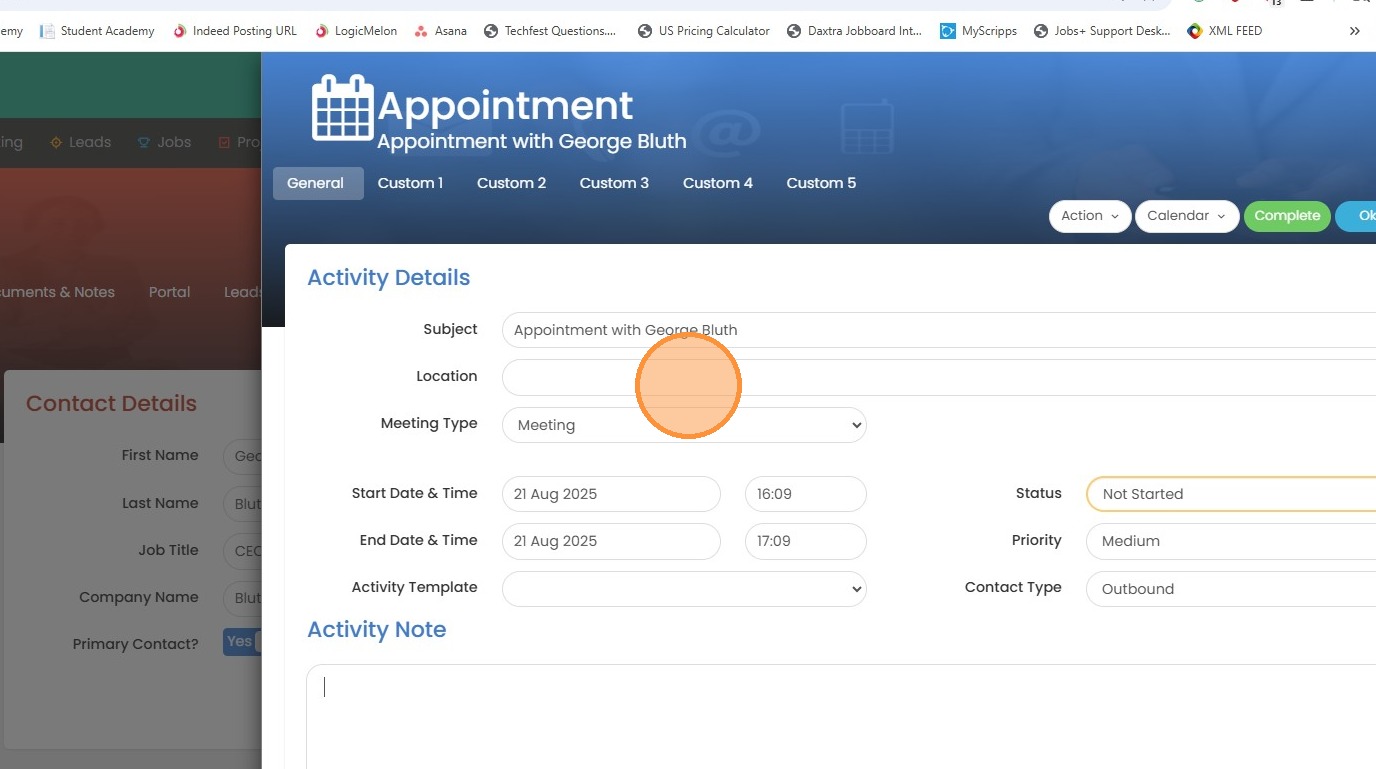
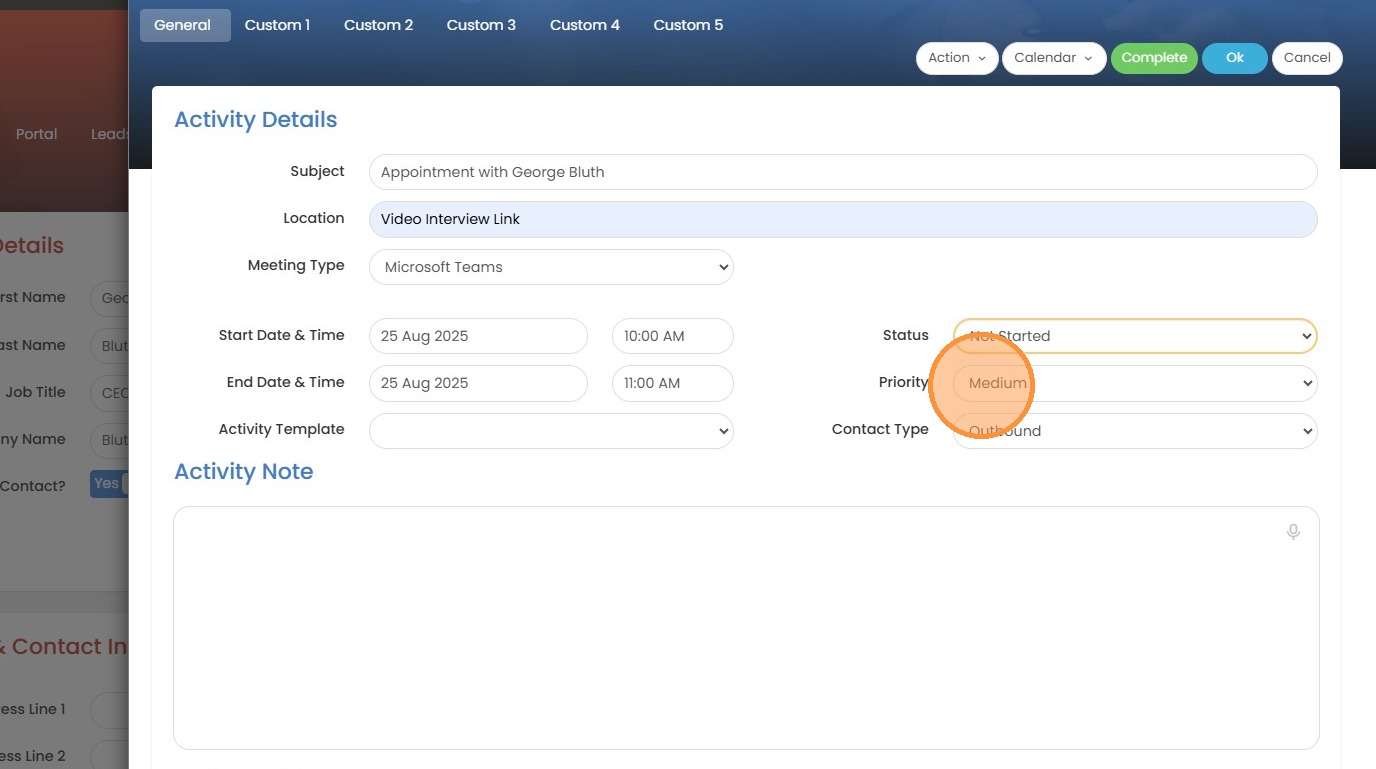
5. Because this meeting is set for next week, we'll select 'not started' as the status (it's the default for all new activities).
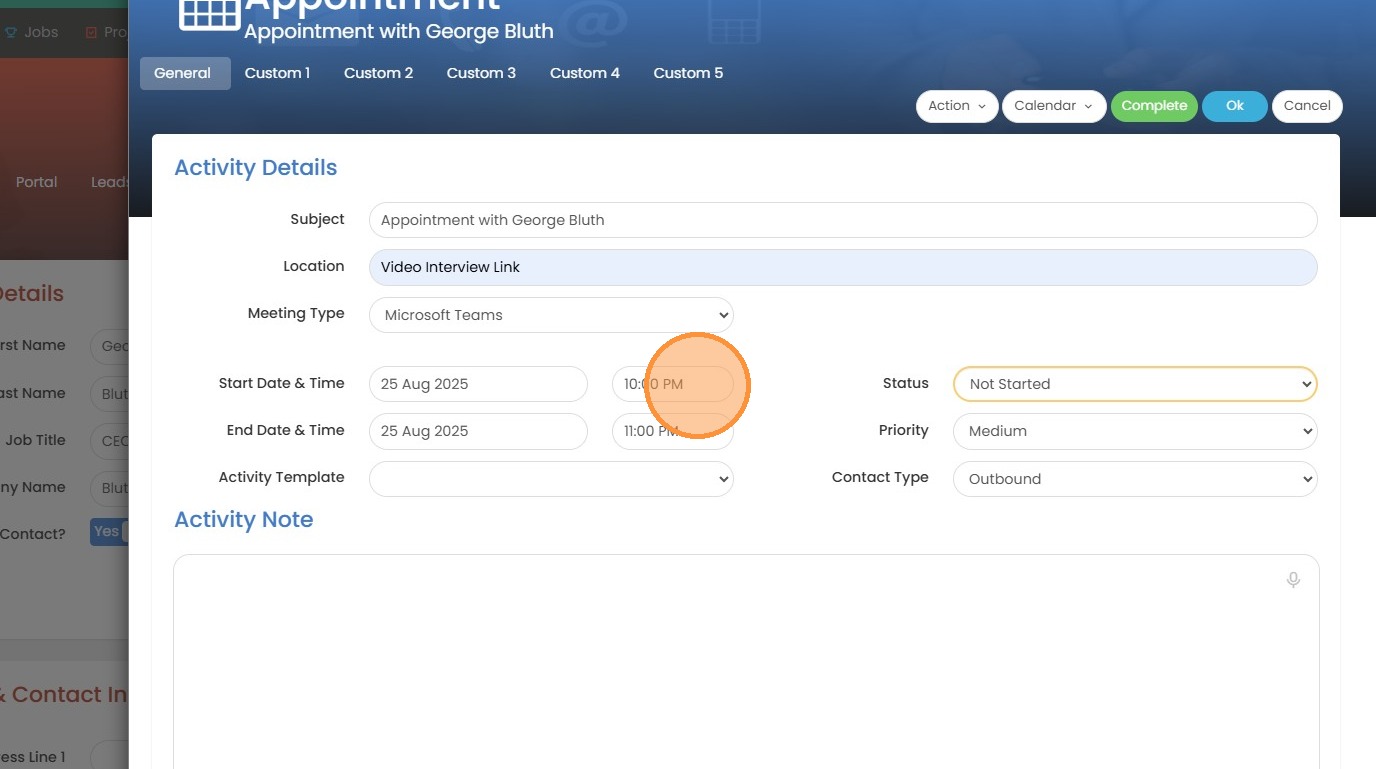
6. This also means we will get an alert when the appointment is set to begin at that specified date and time.
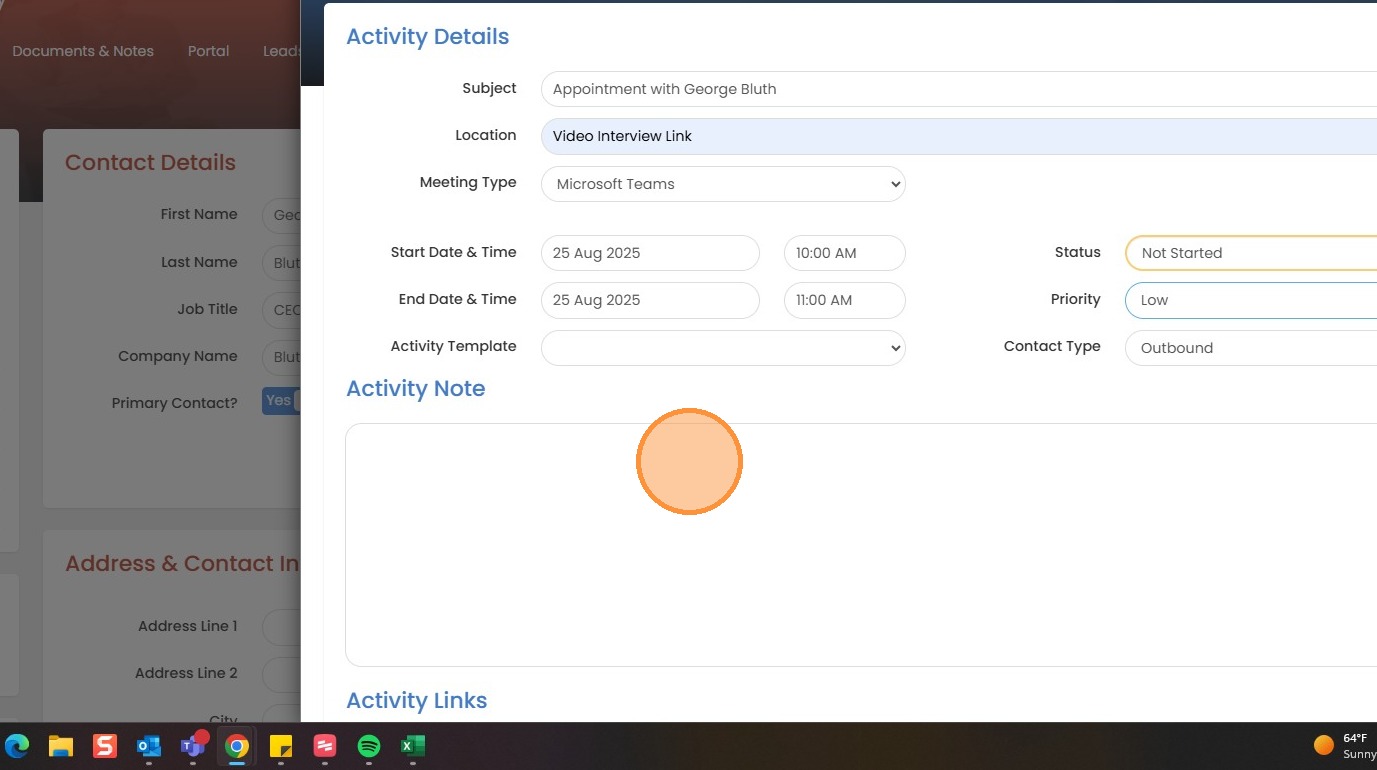
7. Here you can add any activity notes or use the dictate button to use speech-to-text.
8. Under activity links. Confess meetings with D. Clifford. His name is here. He works for units, Glover, and that's. A company record.
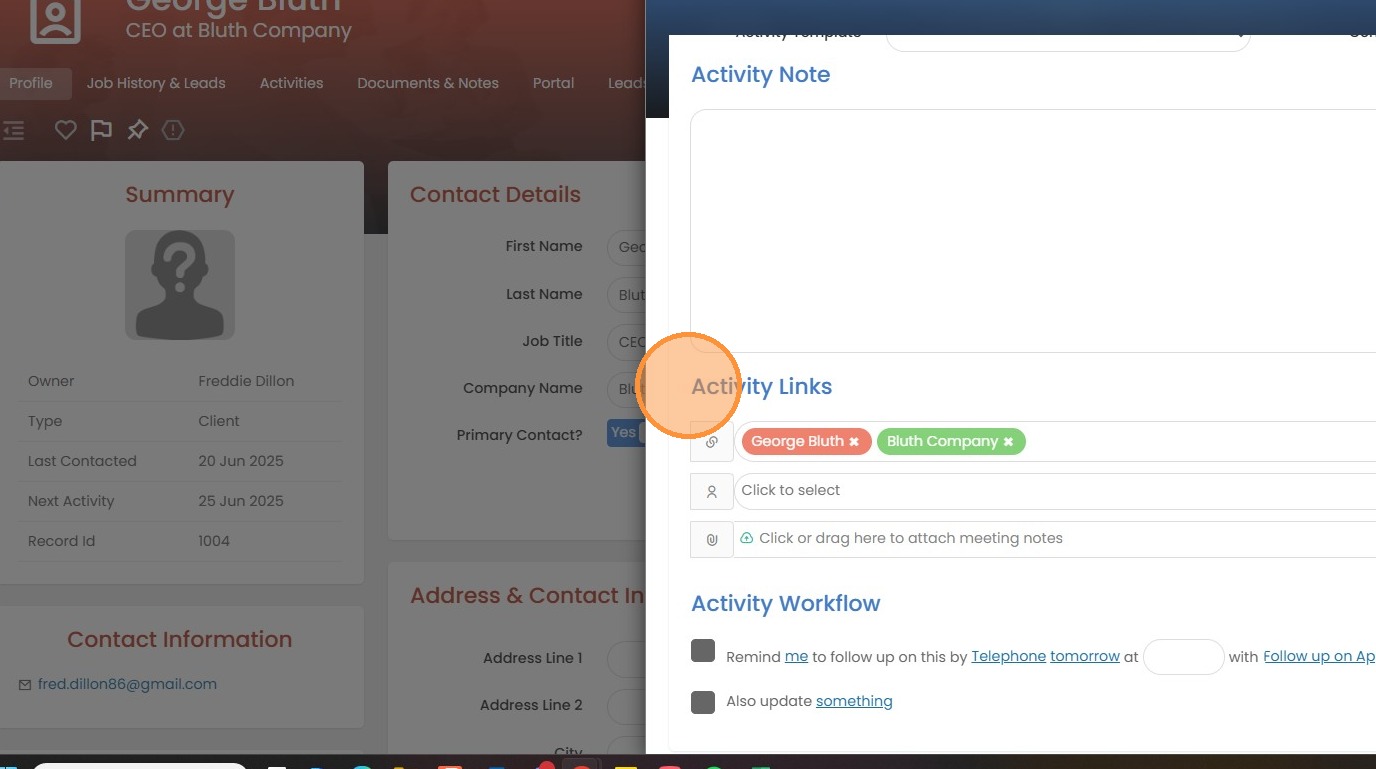
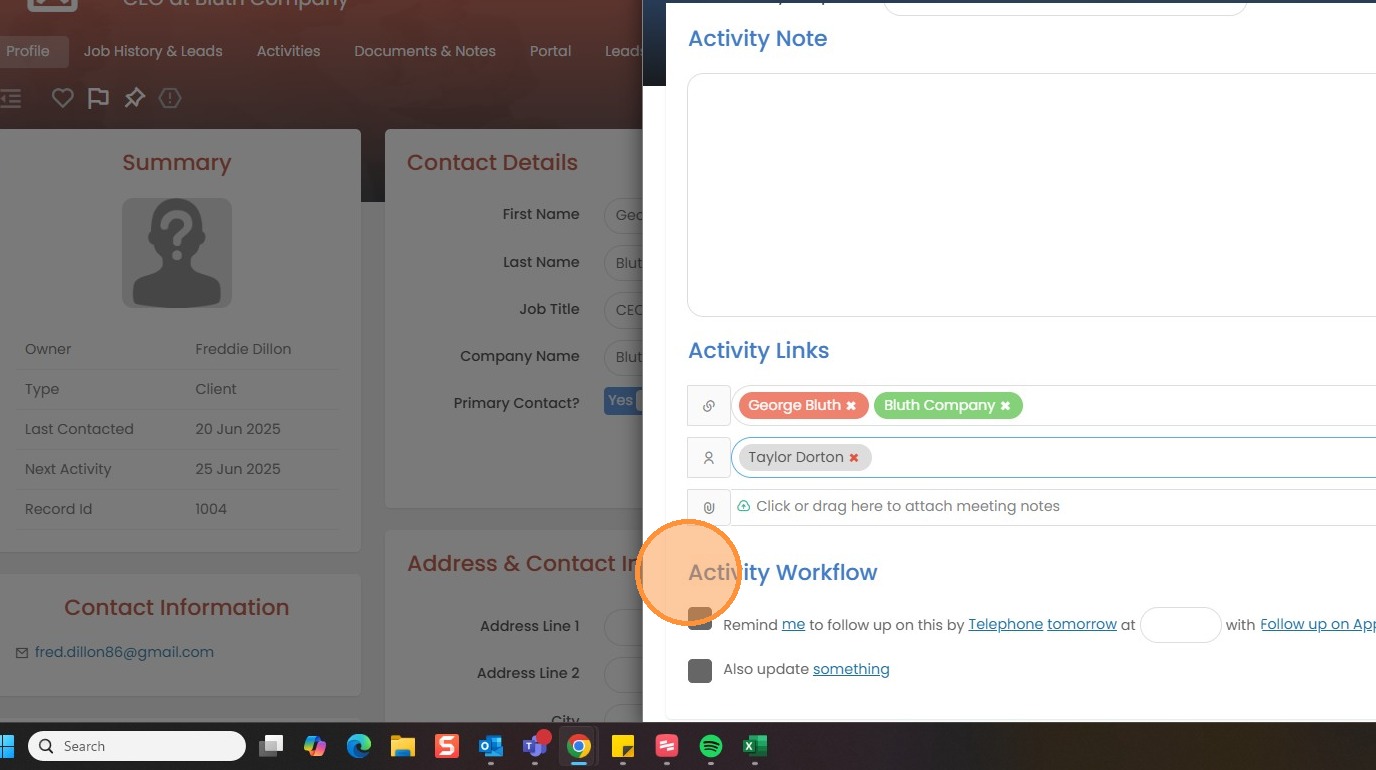
9. If you need to associate the activity with another member of your team (other than yourself), select them here and they will see it listed in their Activities Section. To send a notification via email or on-screen alert, you will need to @ mention their name in the Activity Note.
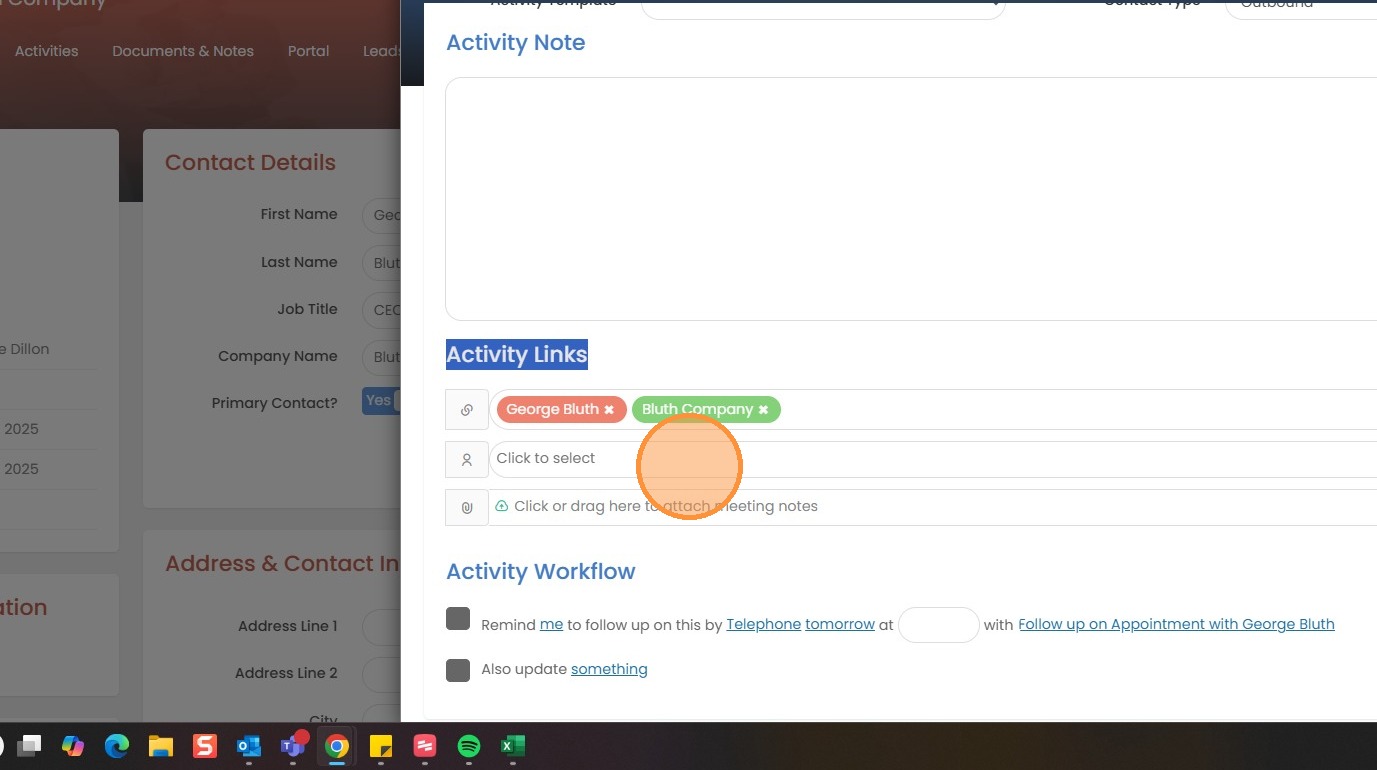
10. You can also create follow ups if needed, or also update something else for this appointment.
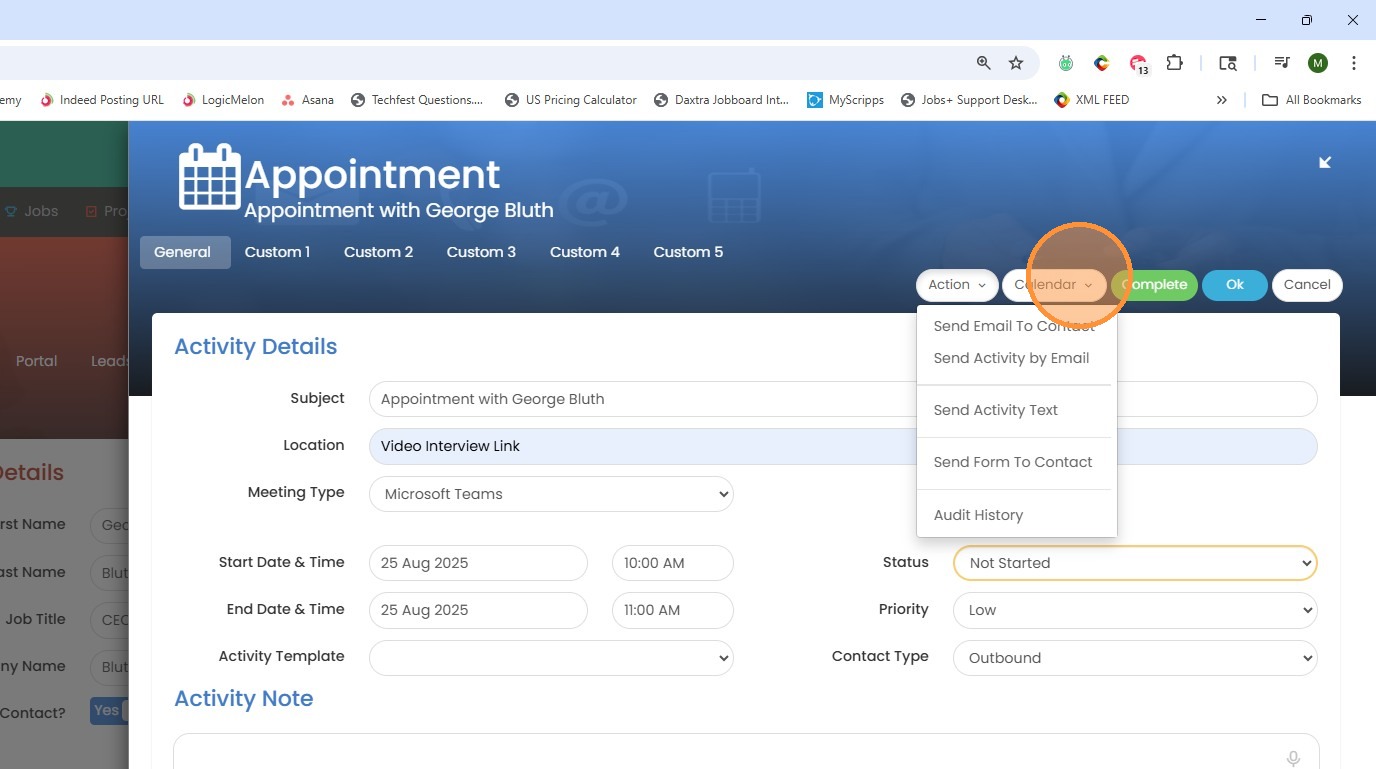
11. At the top of this activity we have a few actions we can take.
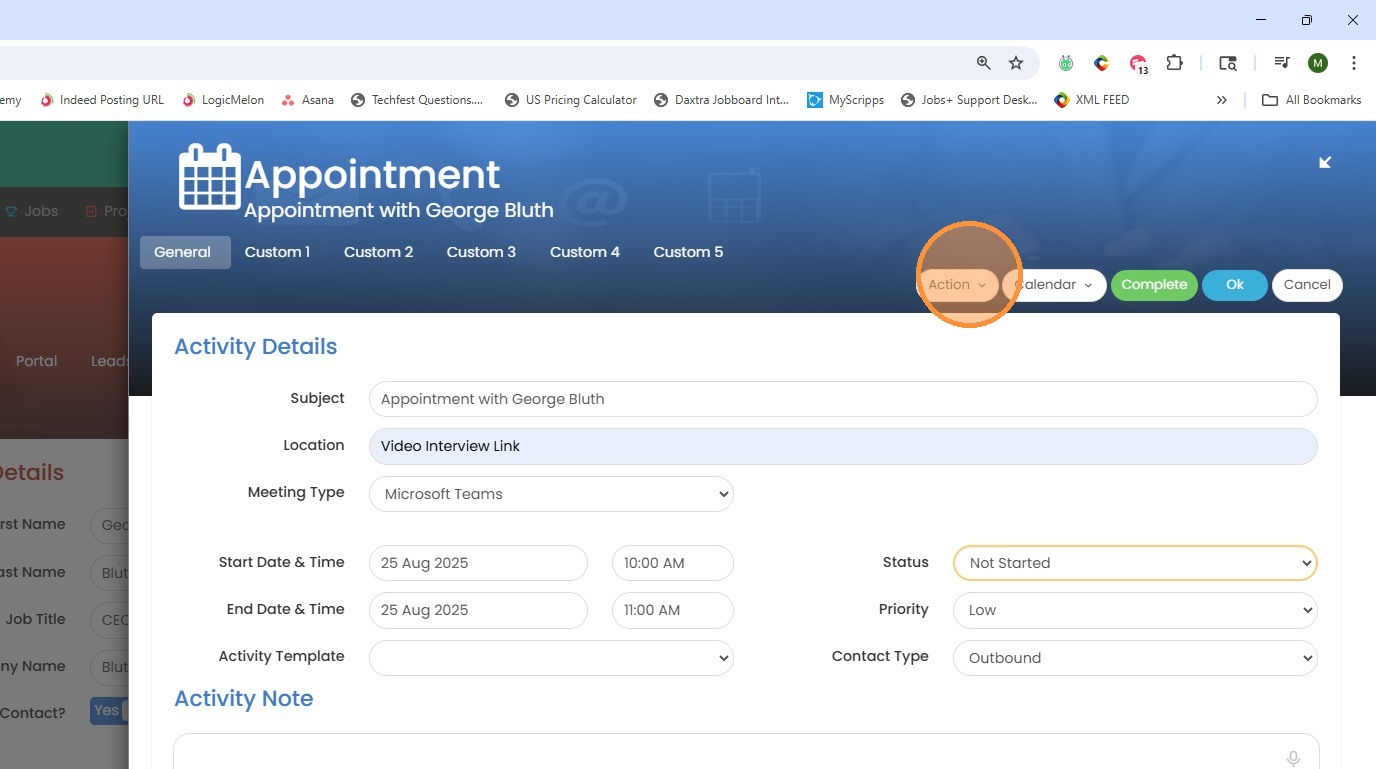
12. You can send an email to the contact associated with this activity. You can also send the contact the activity email which would include any notes in the activity and a calendar invite.
13. Now, when we click on the activities tab we can view this pending appointment.
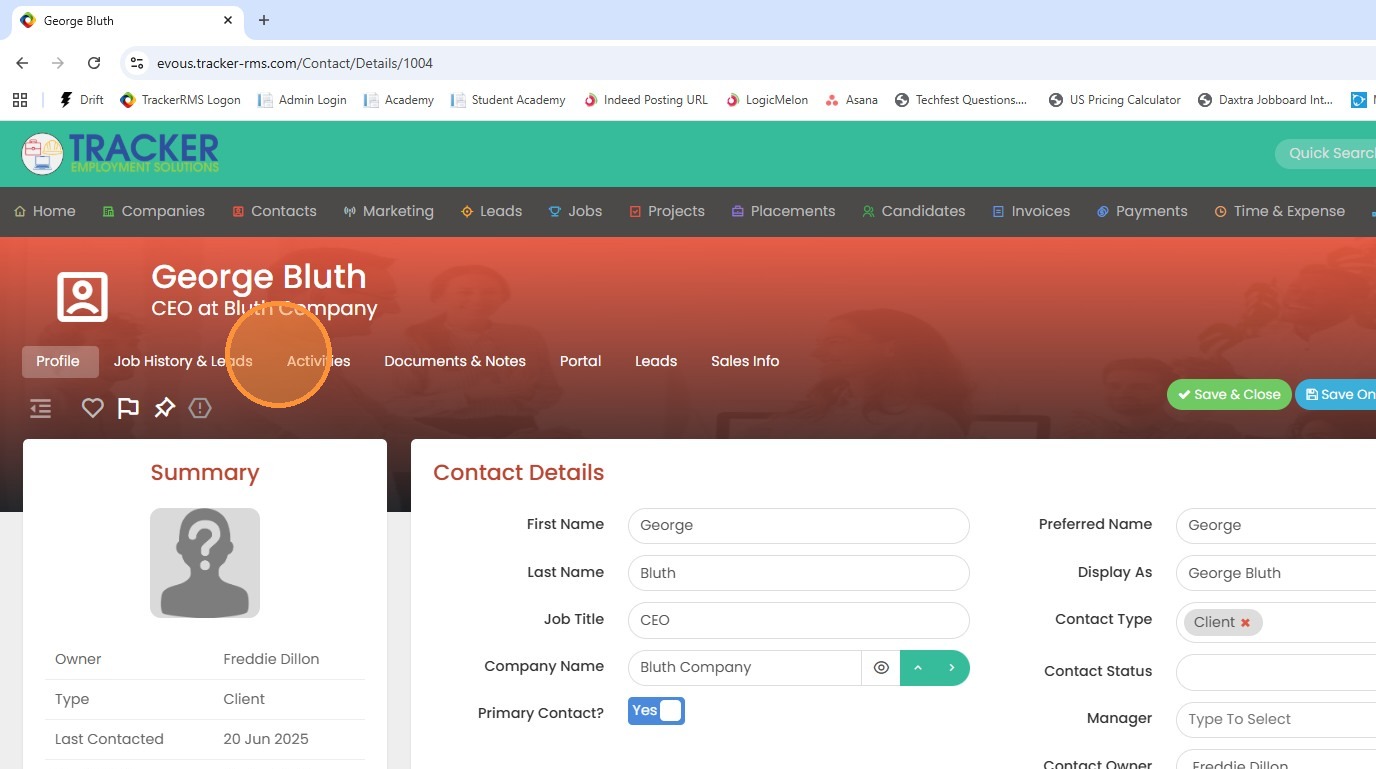
14. You can view it here, appointment with George Bluth.