Tracker gives you several ways to attach documents to an email, whether from your local folder structure, directly from a record, or via your Tracker Document Library. This guide walks you through each option so you can choose the quickest route for your needs.
1. There are a number of ways attachments can be added to Tracker emails. We will take a look at each of these in turn.
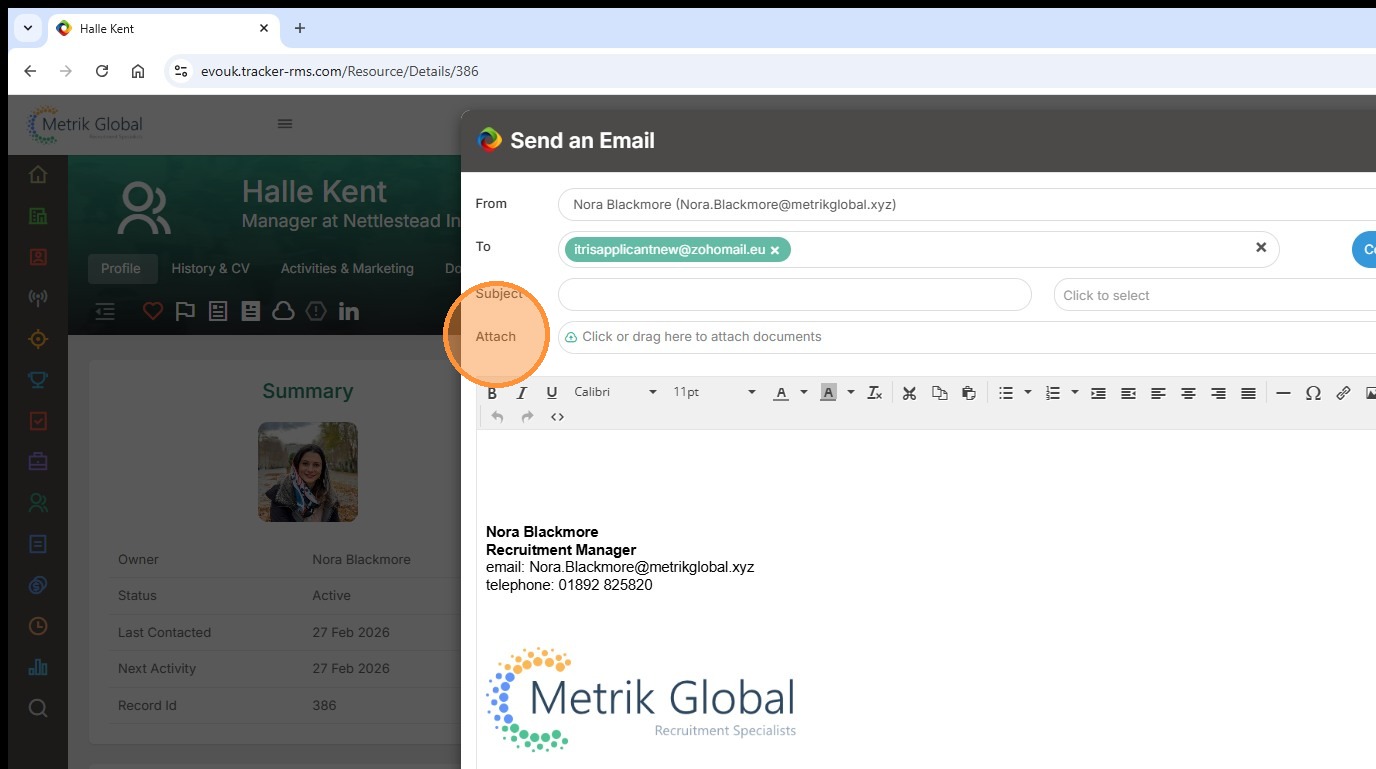
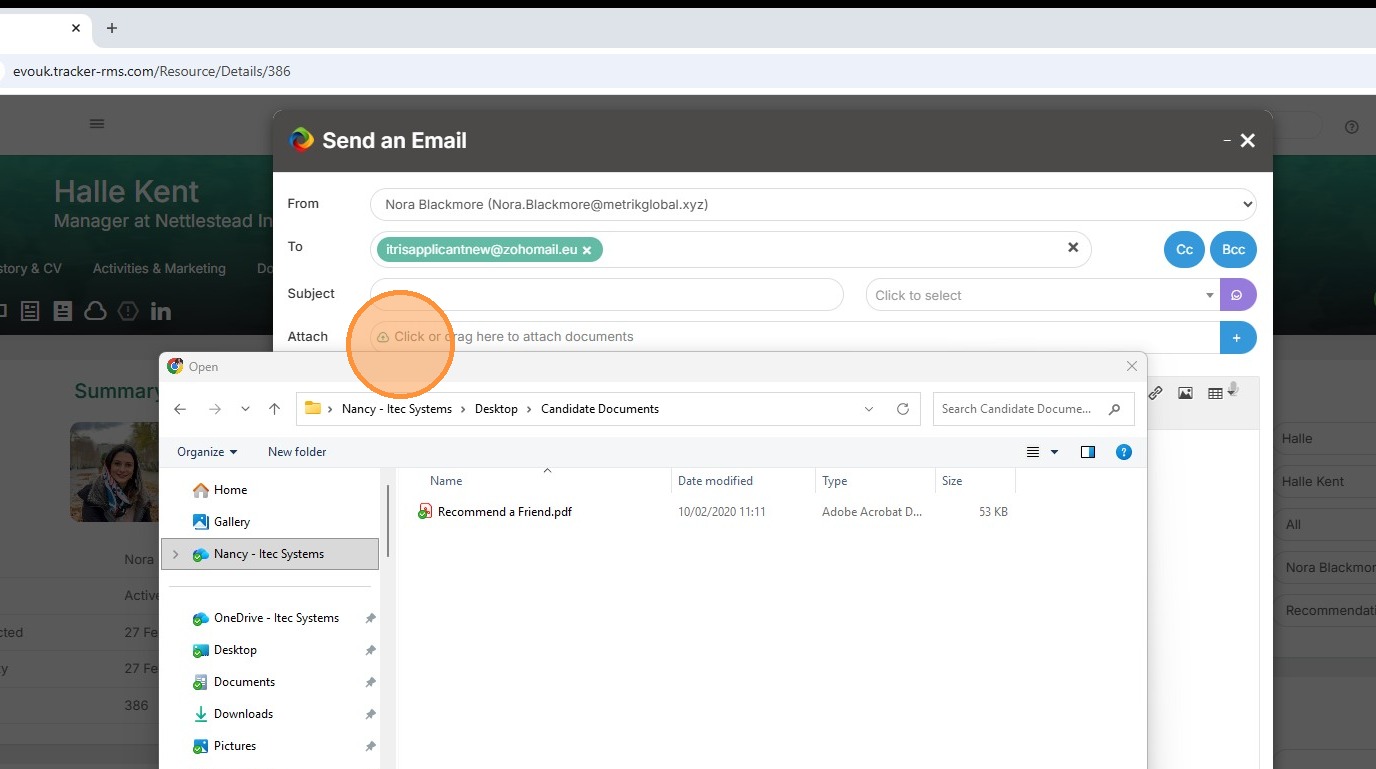
2. The first route is one of the ways you can attach documents saved in your folder structure. By clicking into the Attach area your folders will open for you to navigate to and select the relevant attachment.
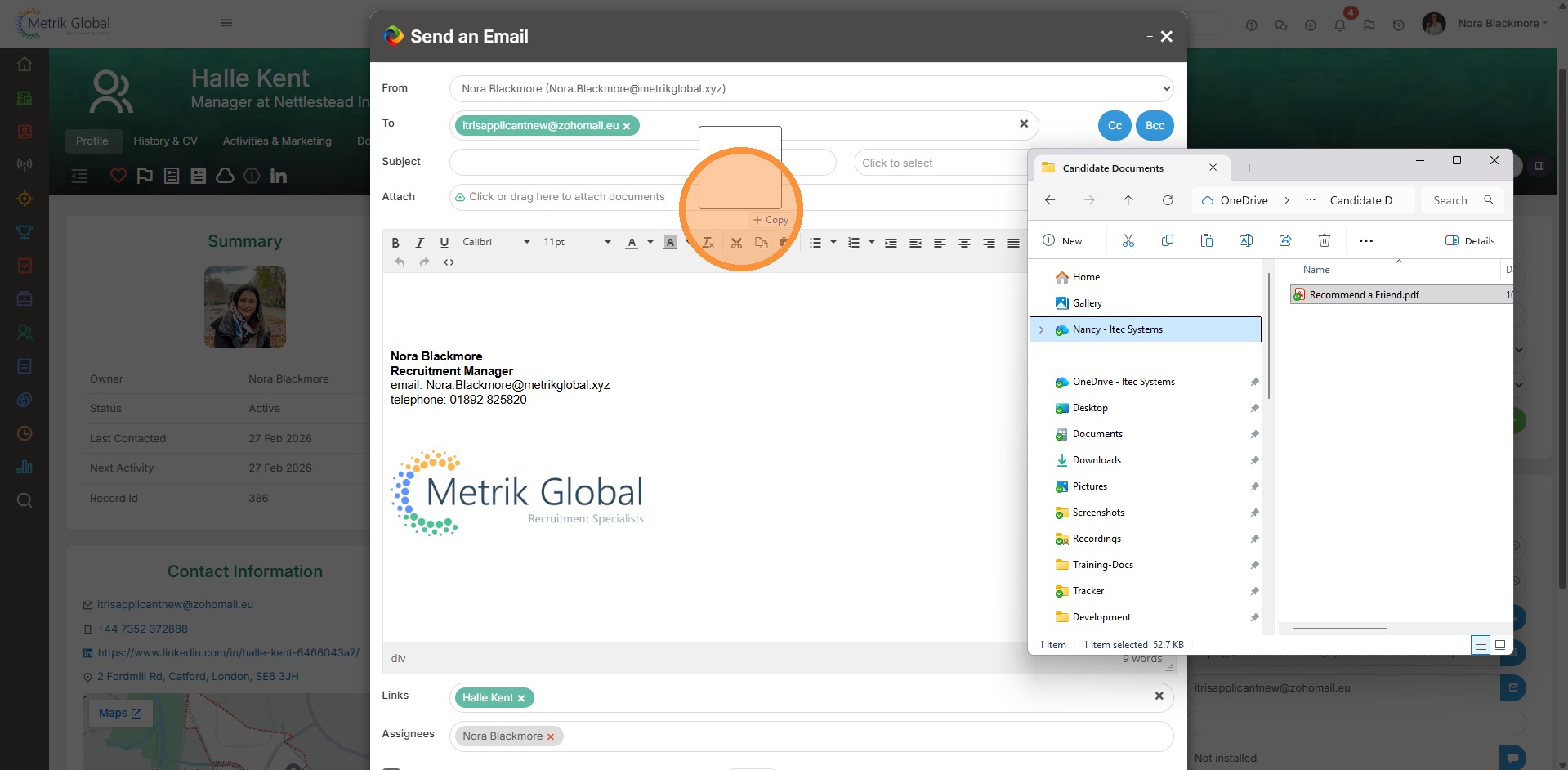
3. The second option is another way to attach documents saved in your folder structure. This time its a case of simply dragging and dropping from your folder structure into the Attach bar in Tracker.
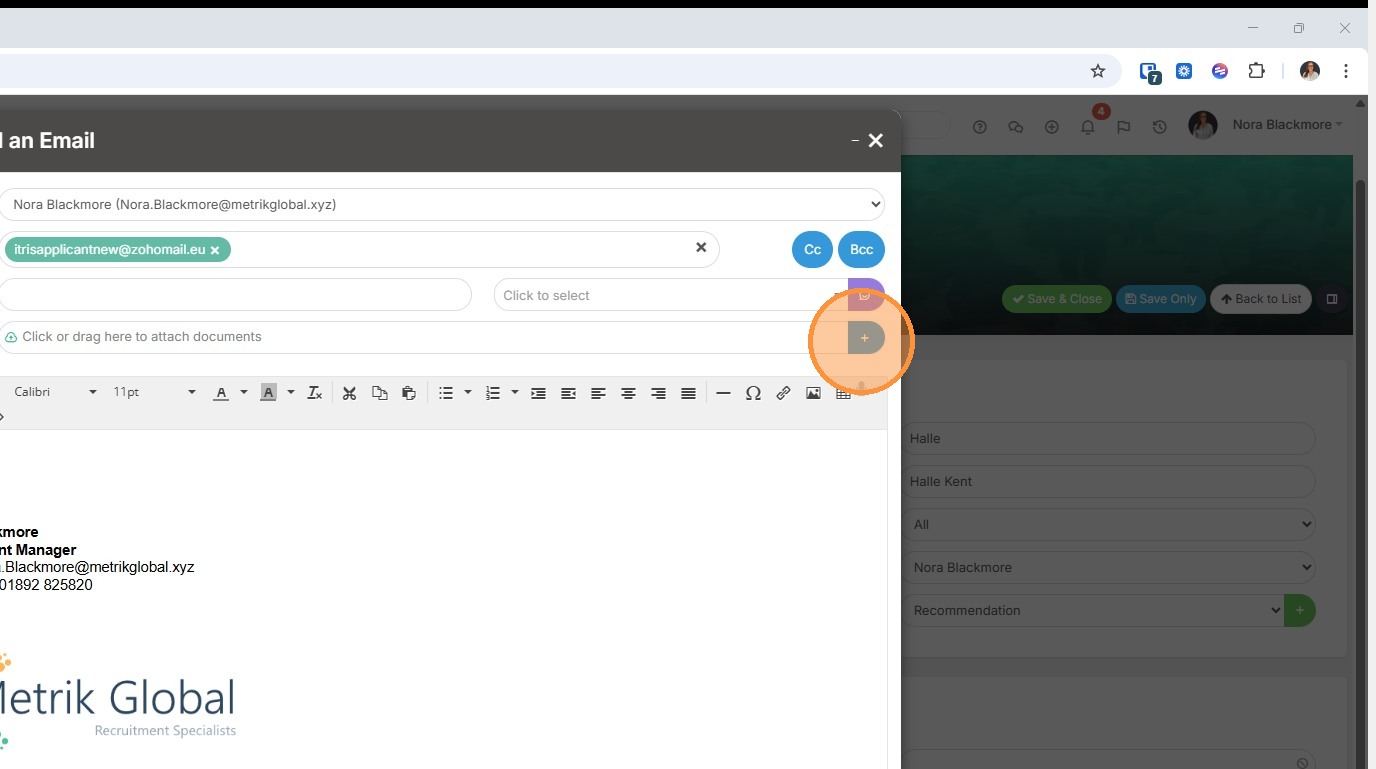
4. The next options are ways you can attach files from Tracker records or your Tracker Document Library. The starting point here is to click on the plus icon at the end of the Attach bar.
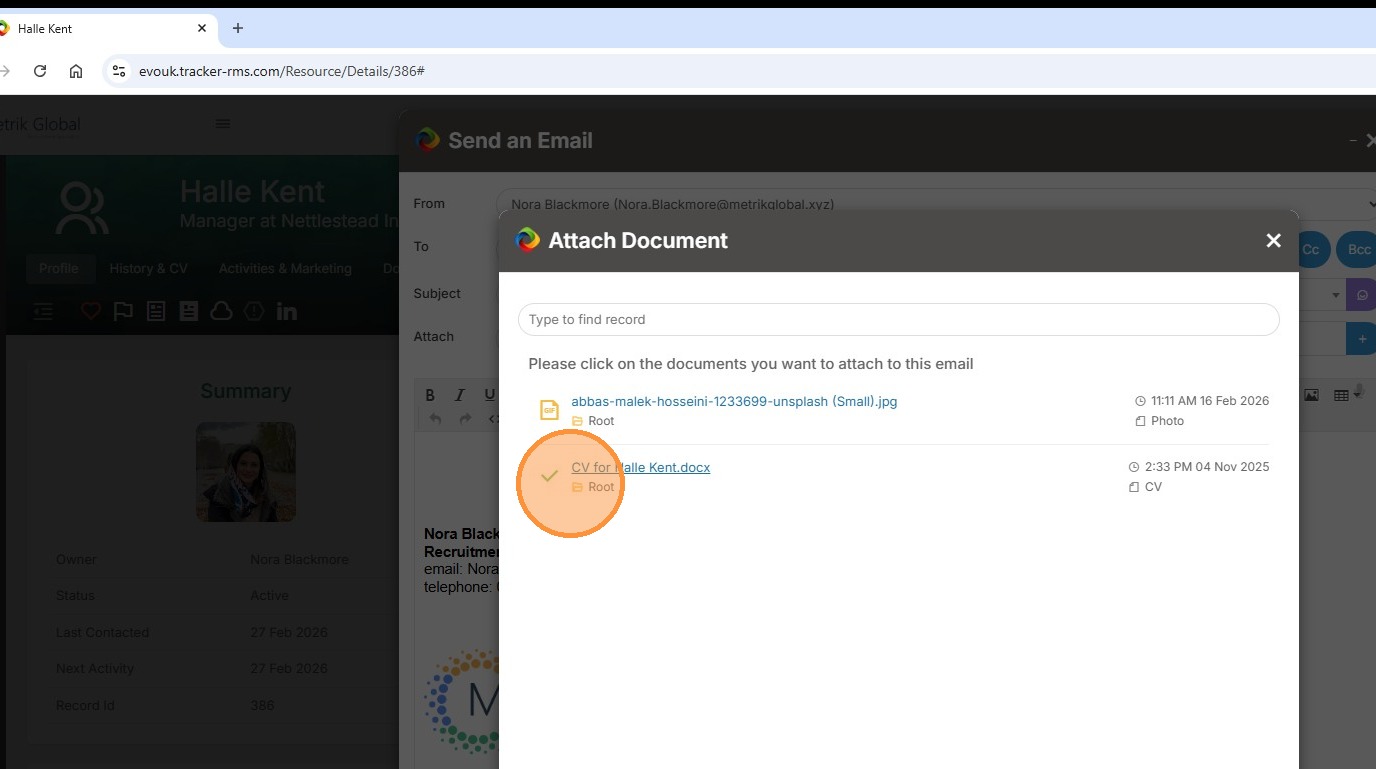
5. Any documents attached to the record you are emailing will be displayed. If you want to attach any of these you will need to click the document name. This will change the document icon to a tick to let you know it's selected.
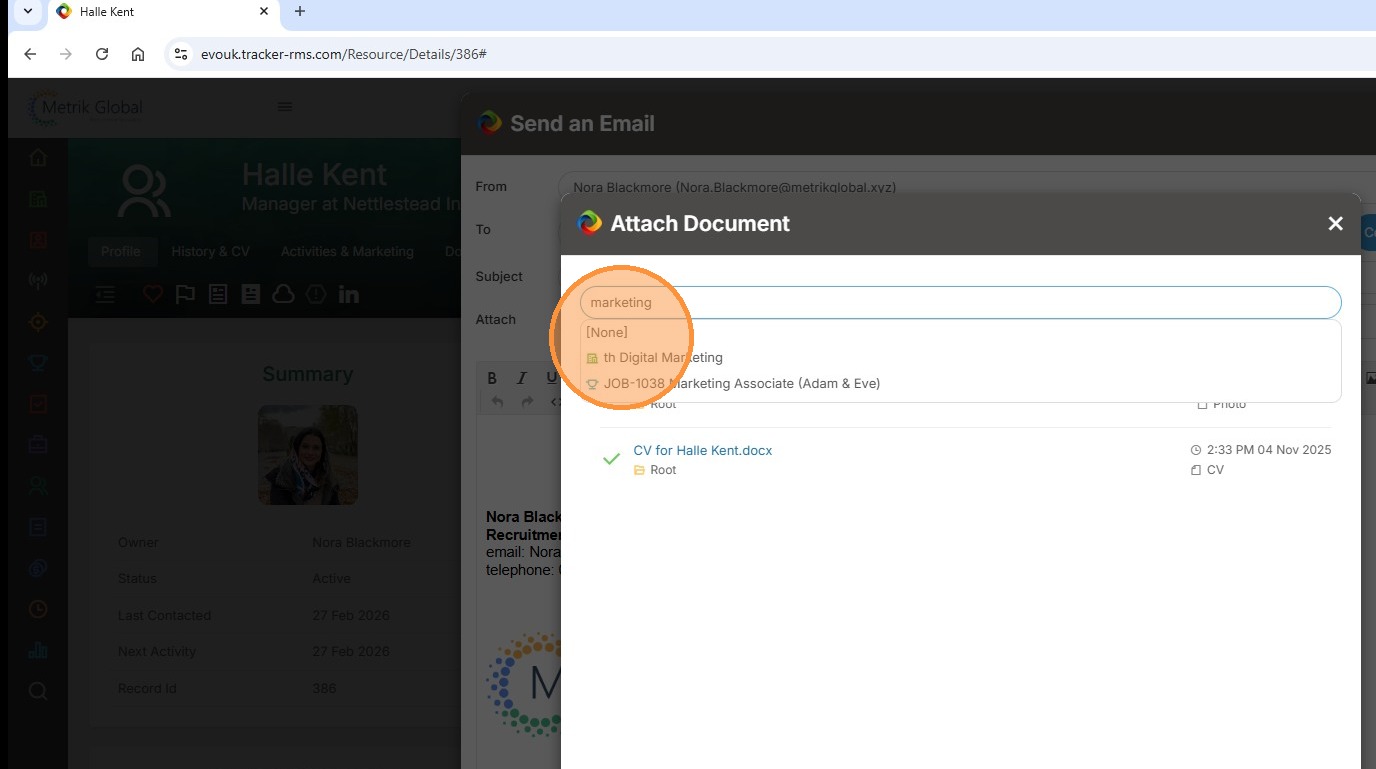
6. If you want to add attachments from another record you can use the Find Records bar and select the required record.
7. Again, simply click the name of the document you wish to attach to the email.
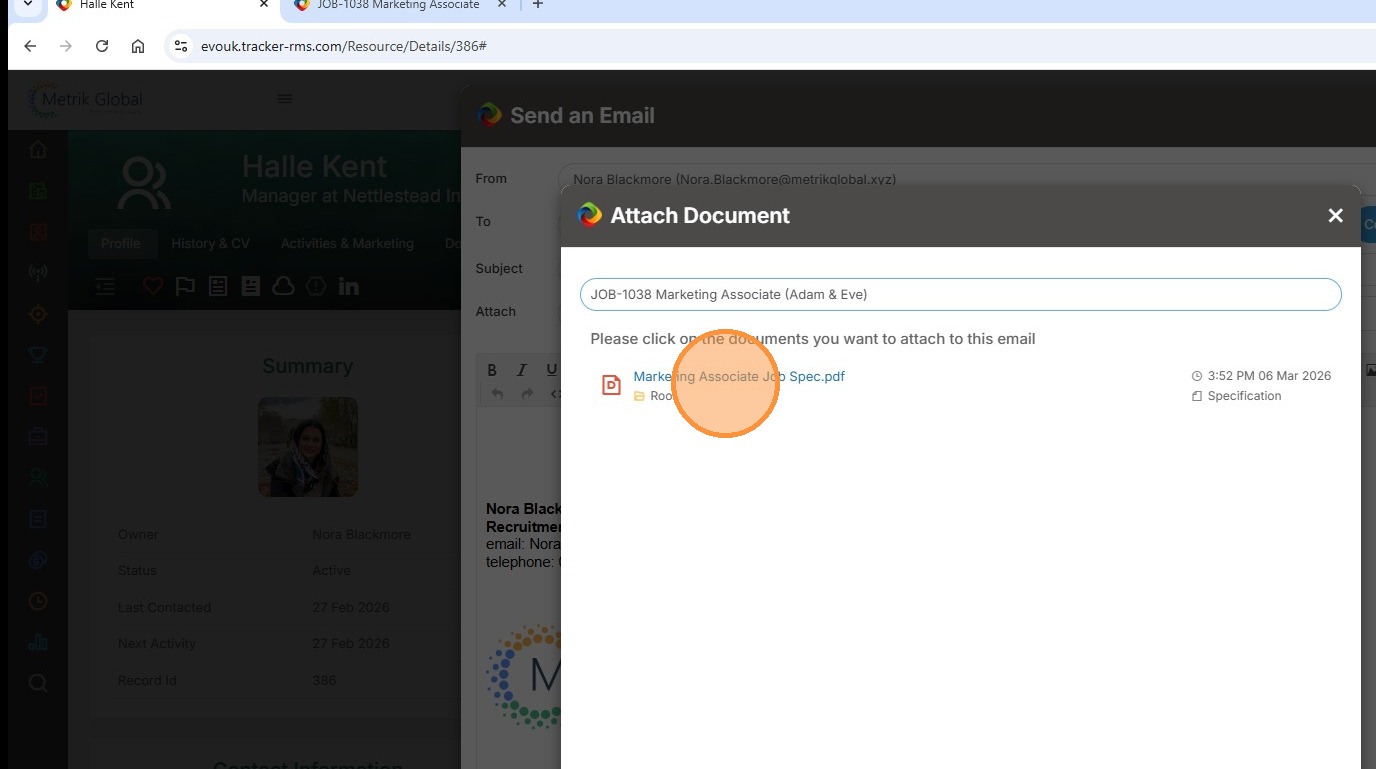
8. Once selected the document icon will turn to a tick as we saw earlier.
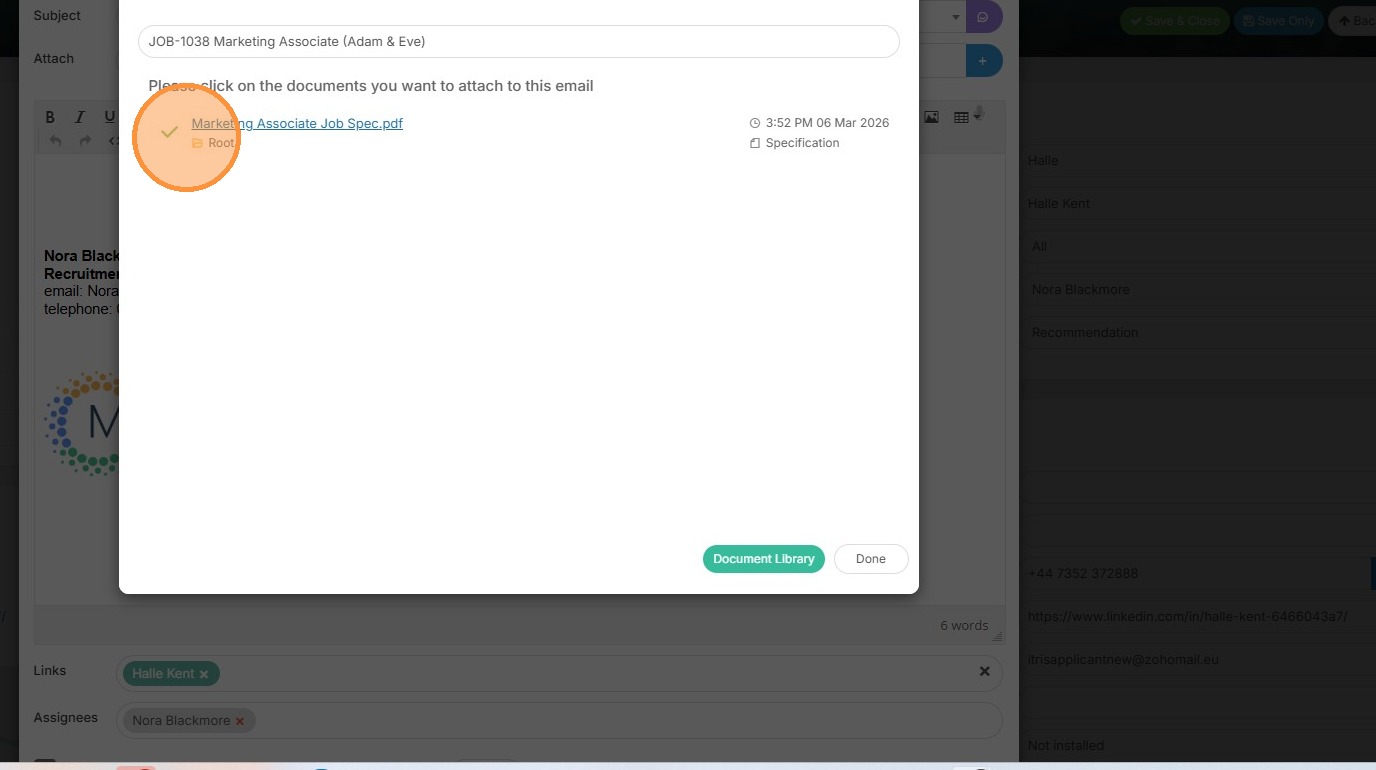
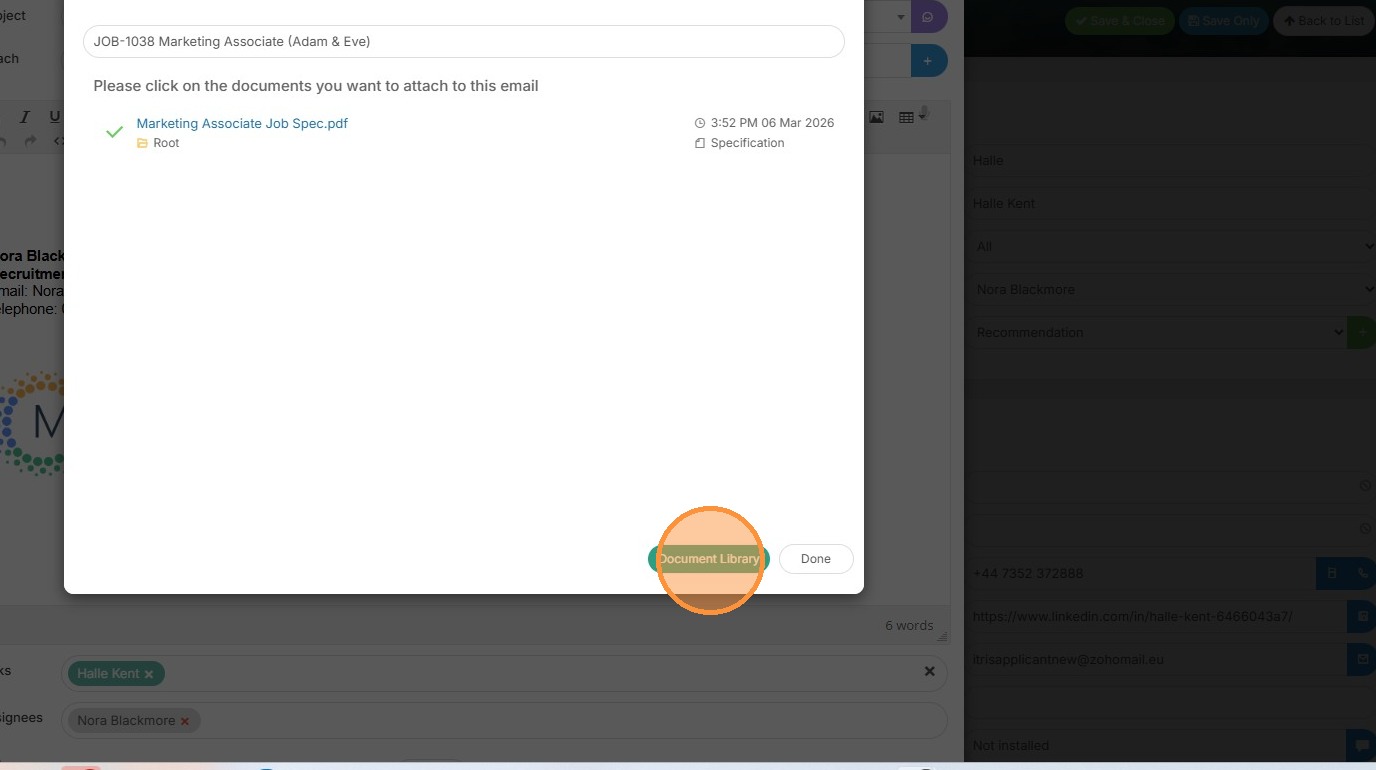
9. The final option for attaching documents is to add those from your Tracker Document Library, which you can access via the button at the foot of the Attach Document window.
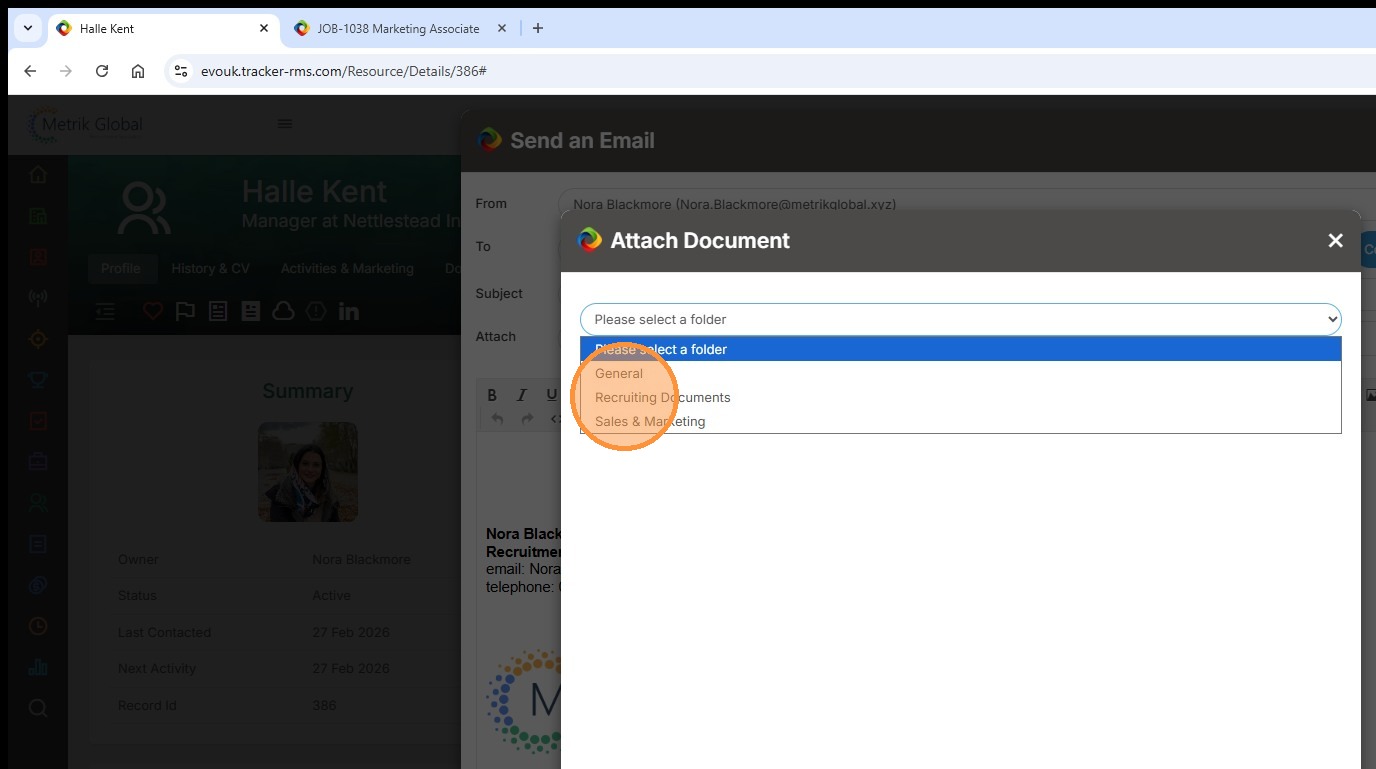
10. Once in the Document Library you will first need to choose which folder you want to attach a document for.
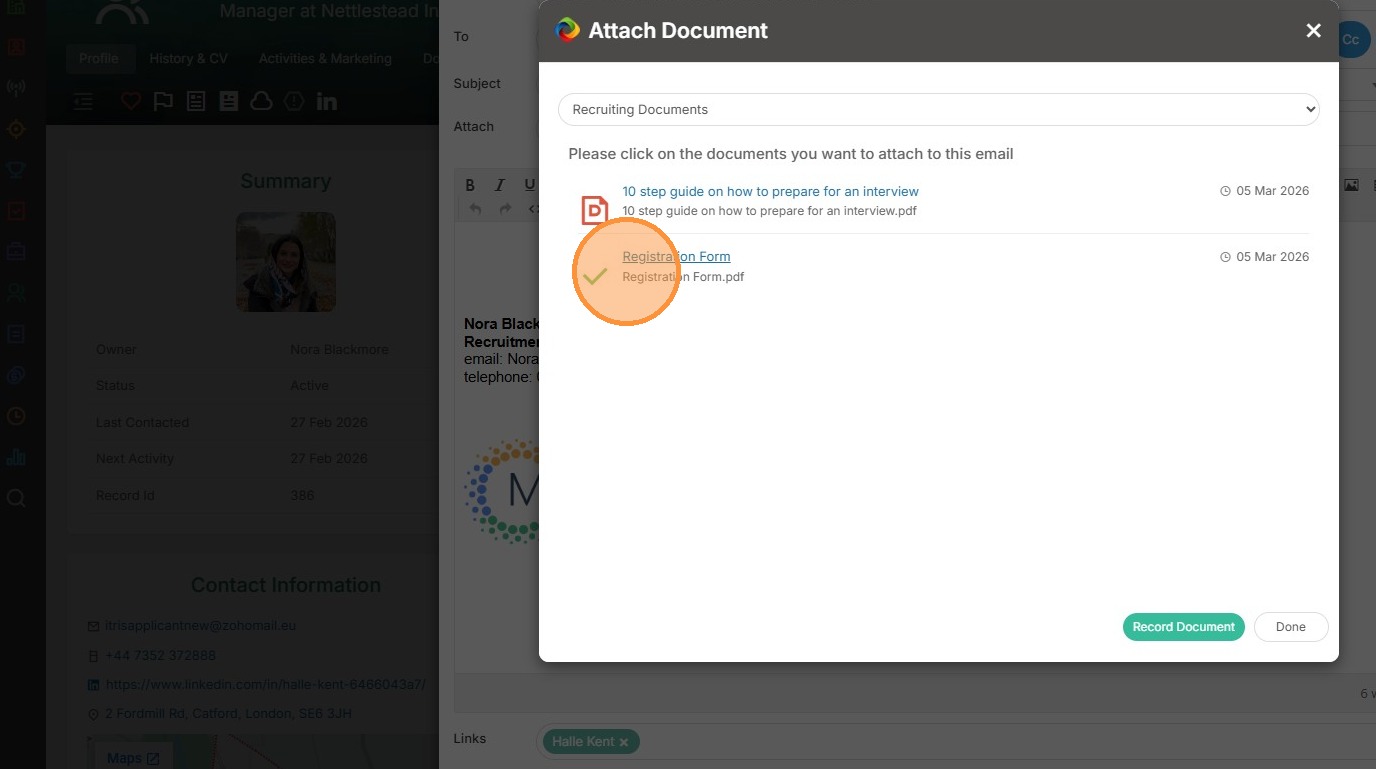
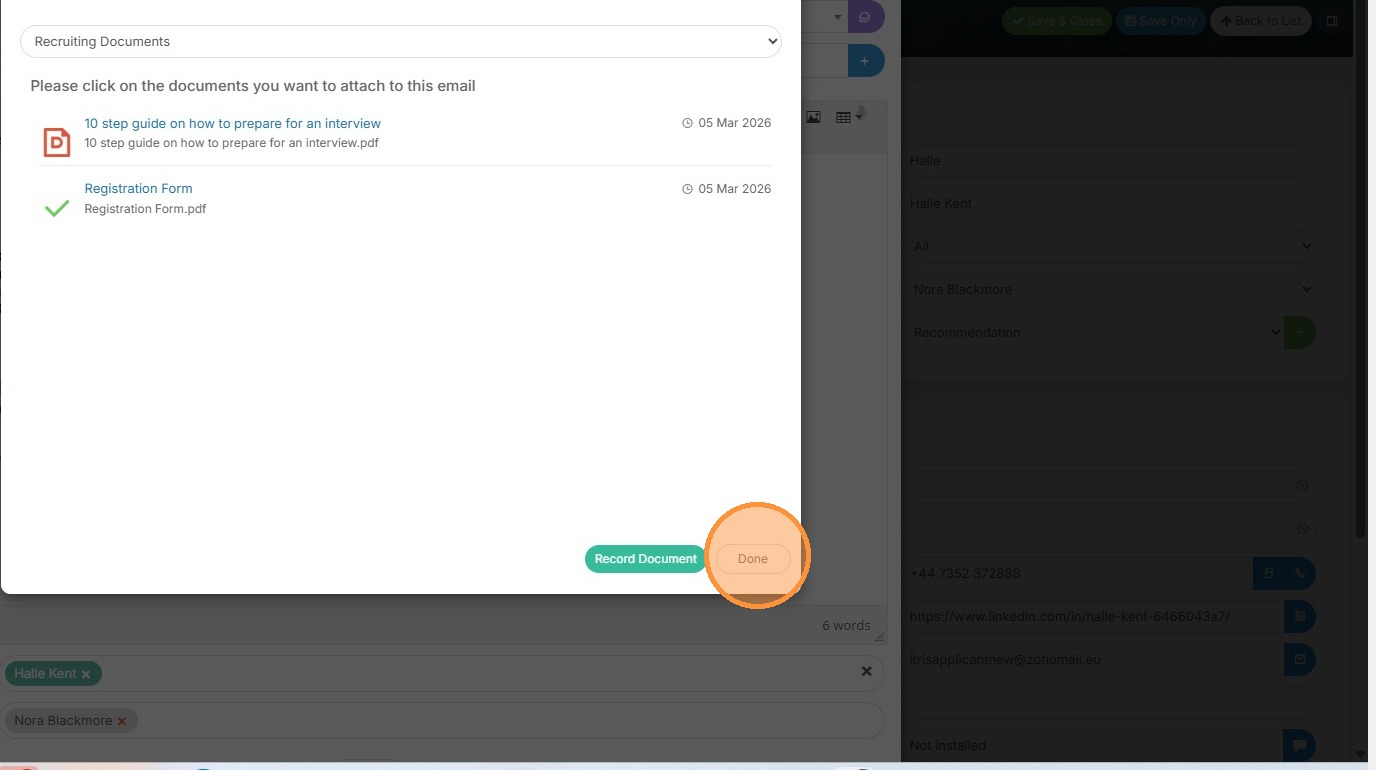
11. Again, clicking the document name will select that document to be attached to the email.
12. Finally, when all your documents are selected you will need to click Done.
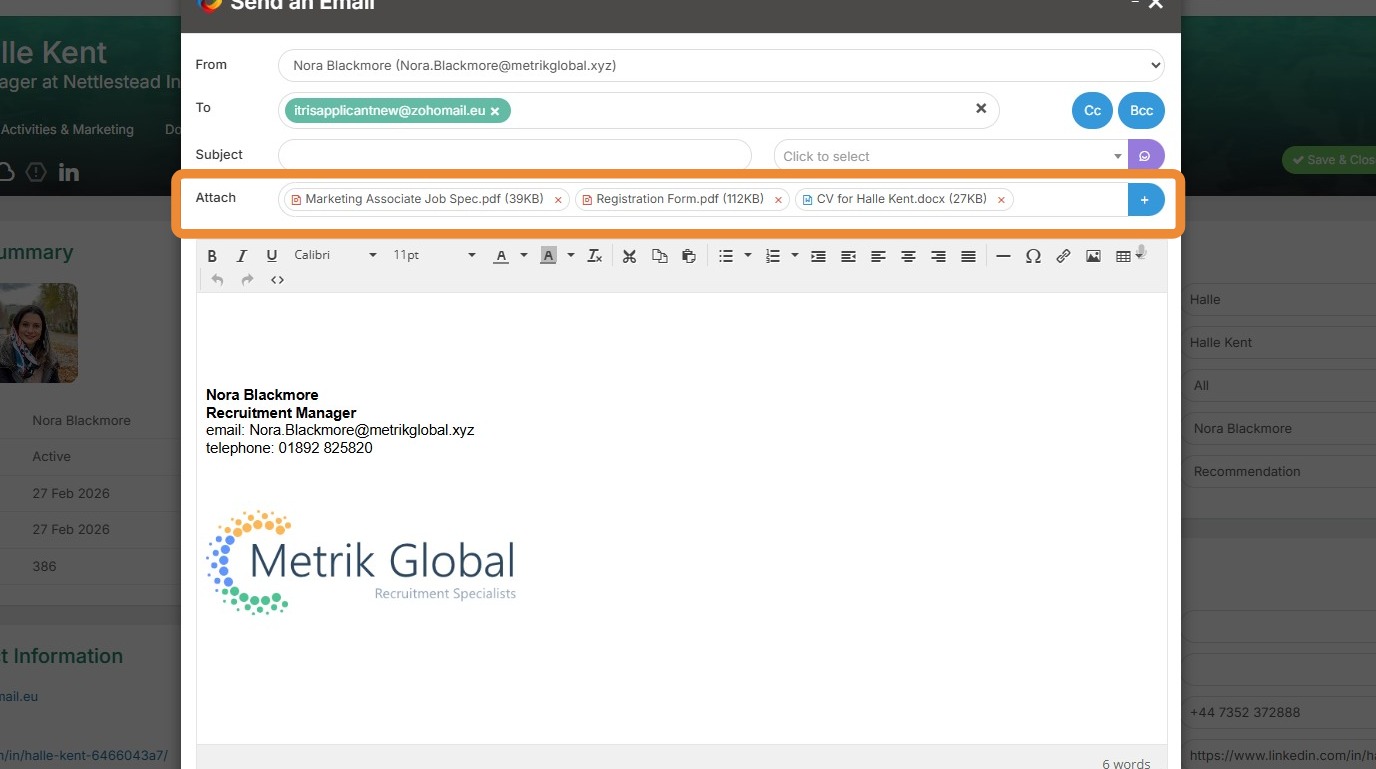
13. Here we see those documents attached to our email, ready to send. Don't forget, you can create email templates with documents attached too.