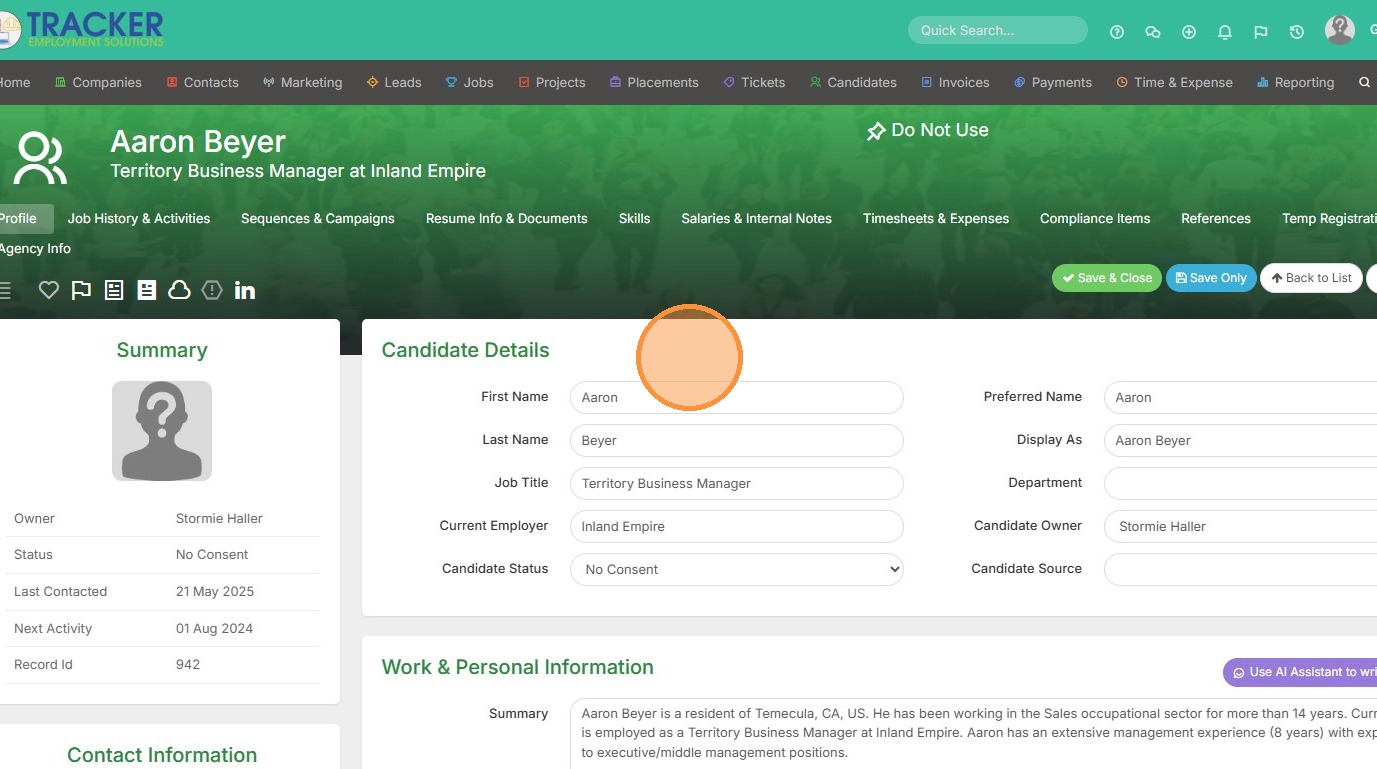
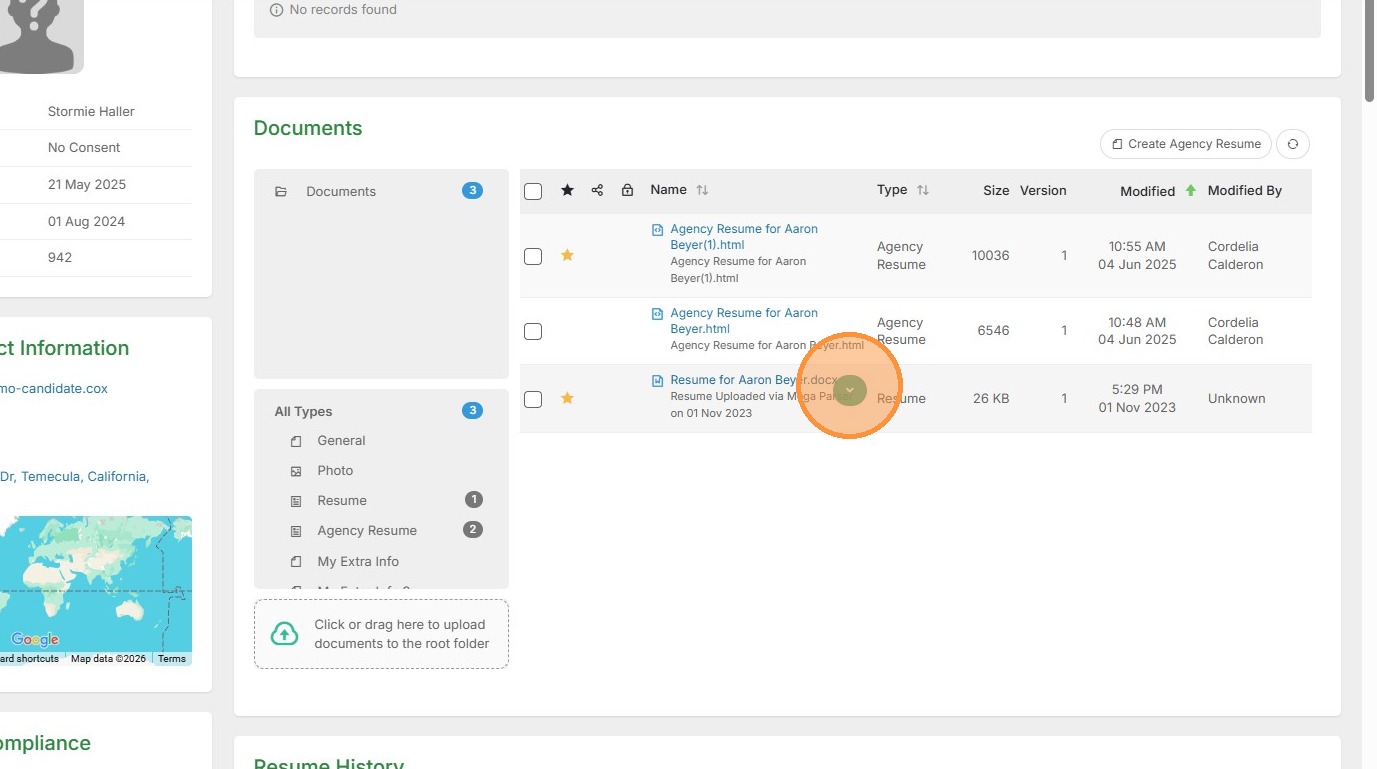
1. Re-xtracking a resume will update the candidate record with the new information from the resume. Hover over the resume you wish to re-xtrack, click the dropdown arrow.
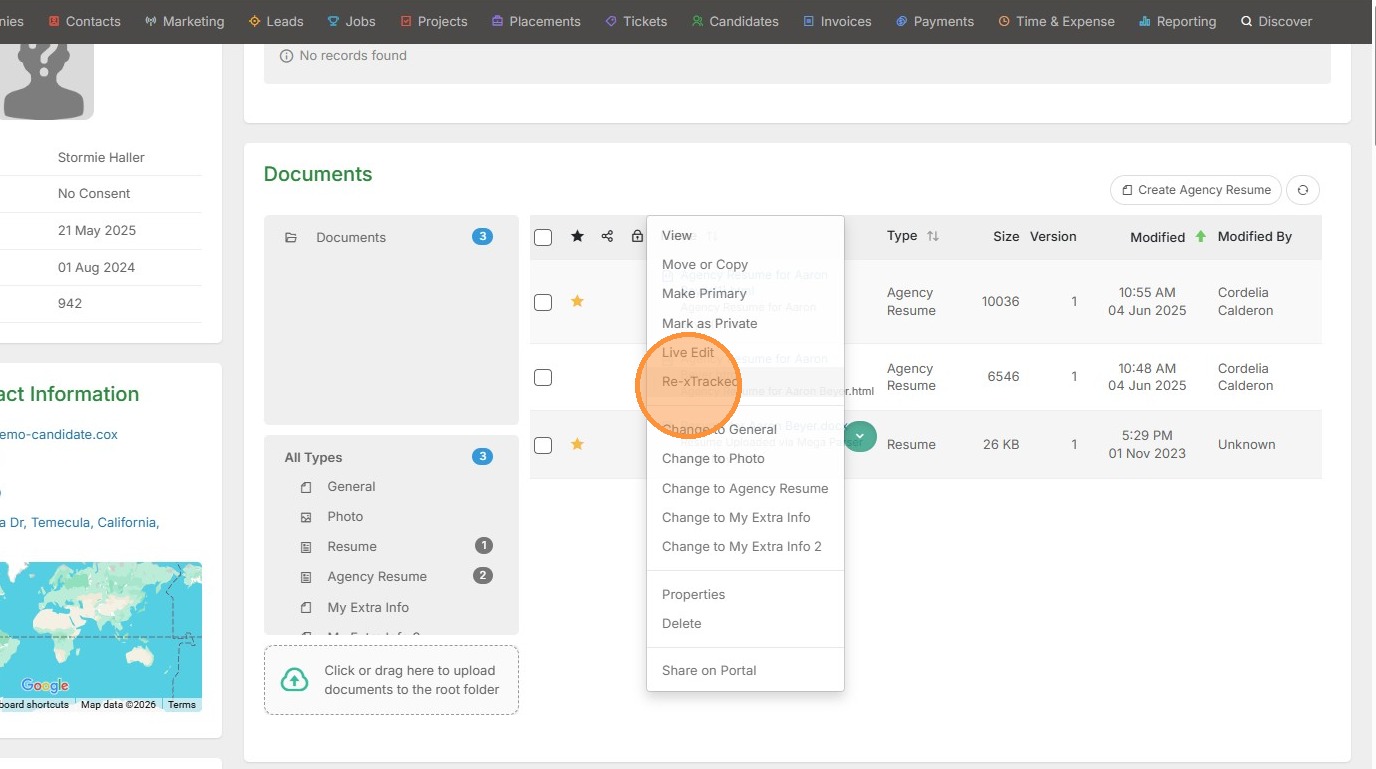
2. Click "Re-xTracked"
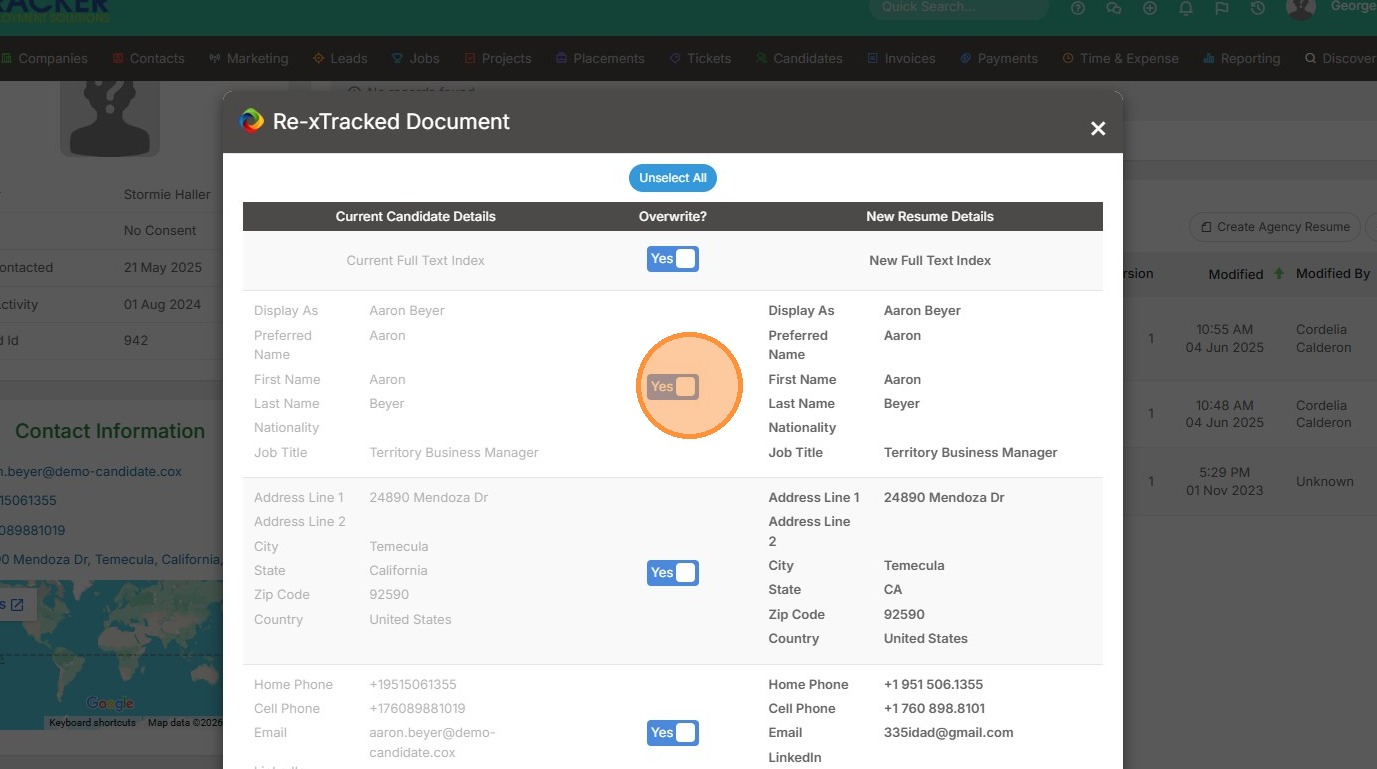
3. From here you can pick and choose what info you want to update by clicking Yes/No.
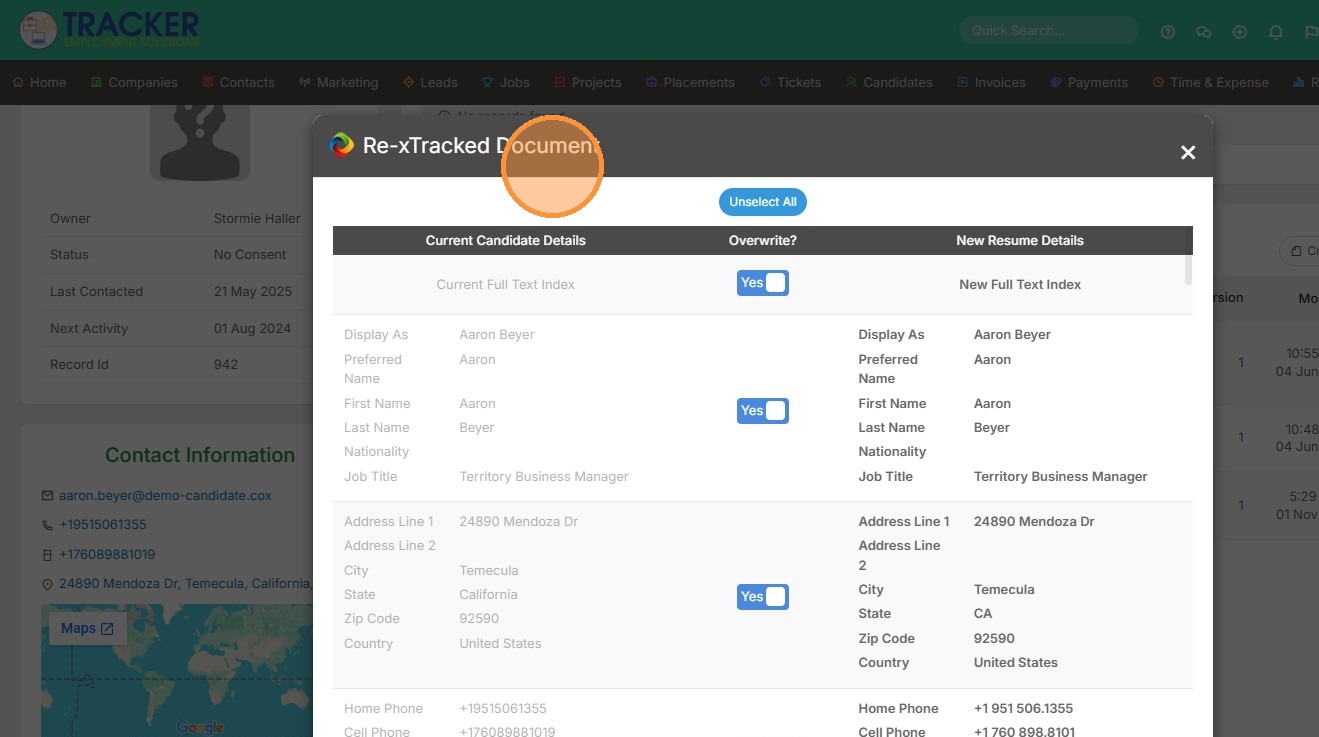
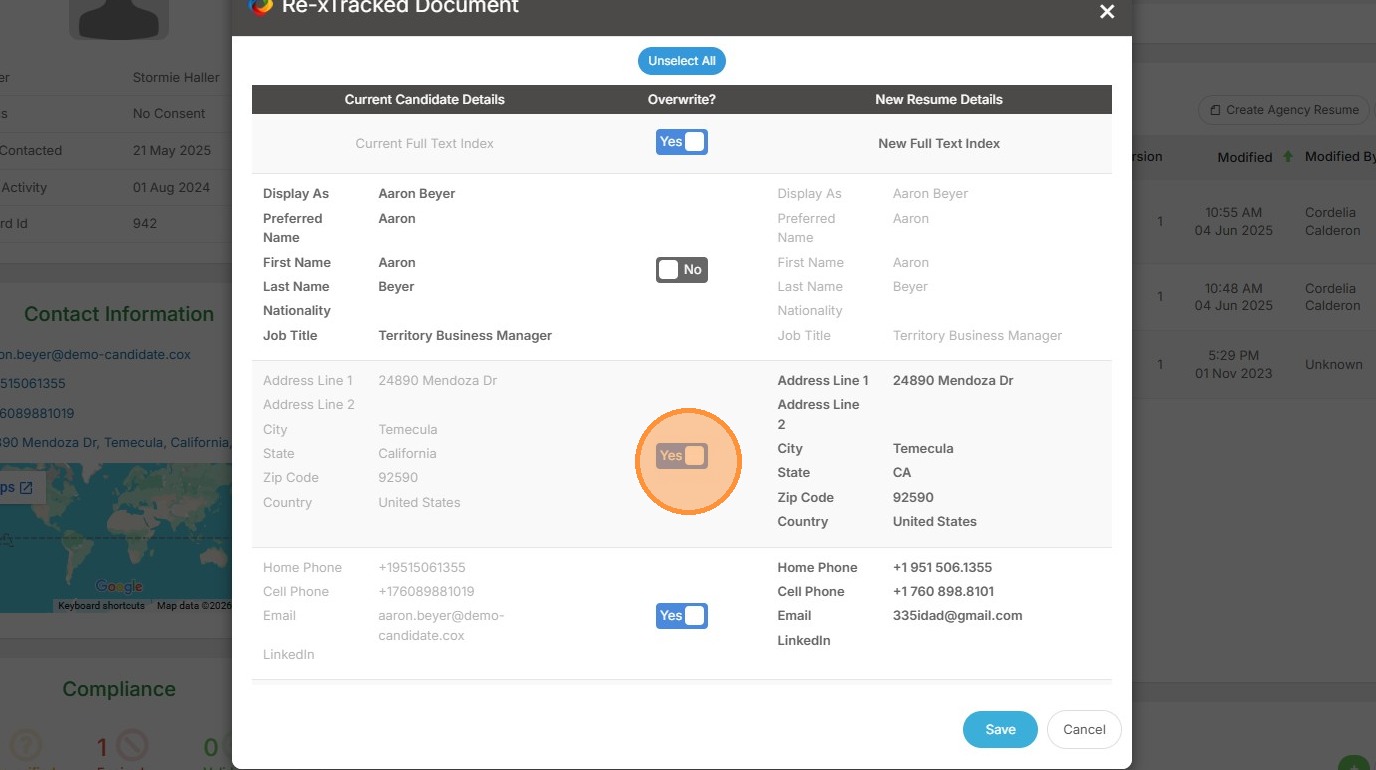
4. For example, I will uncheck this item so it is not updated.
5. Now you can see it's selected as "No".
6. Click "Save"
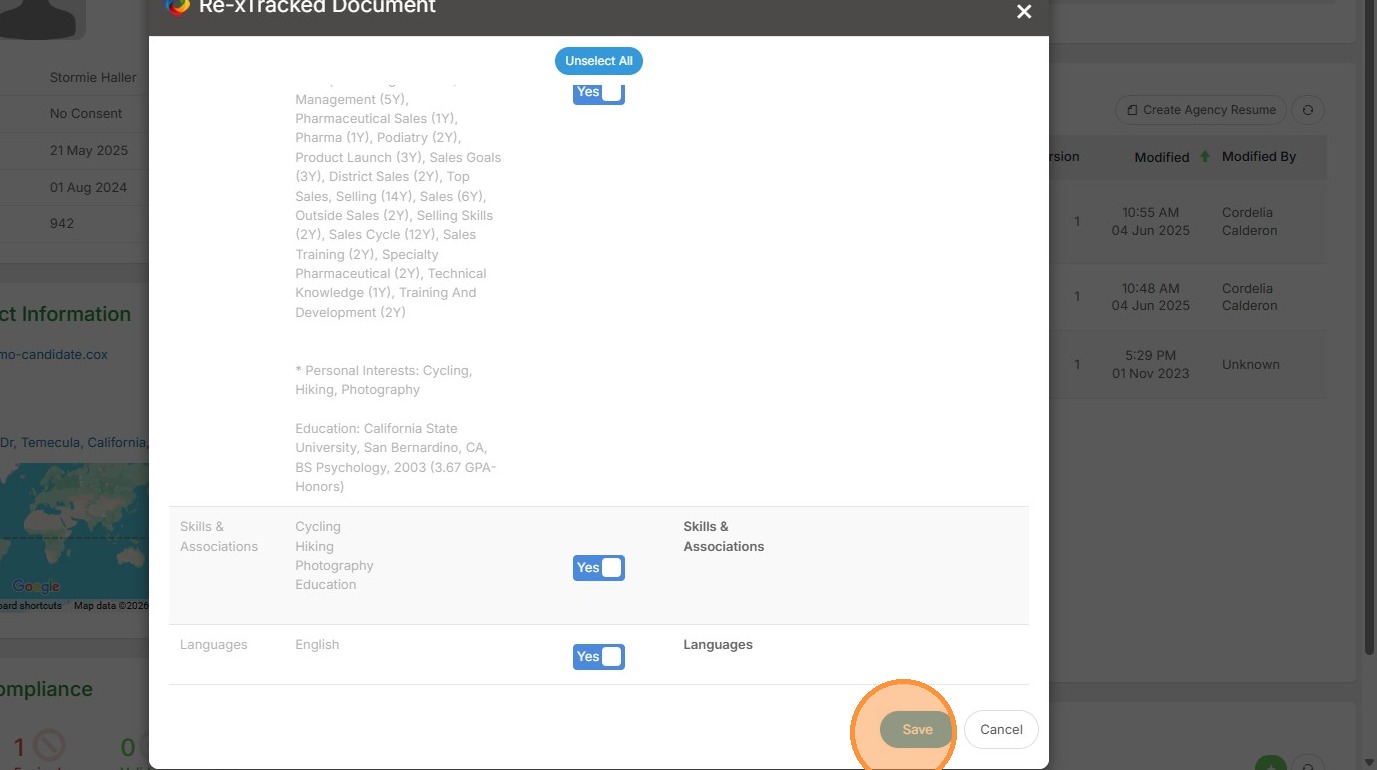
7. It will take just a moment for the update to occur, so stay on this screen until you see the Re-xtrack Completed popup.