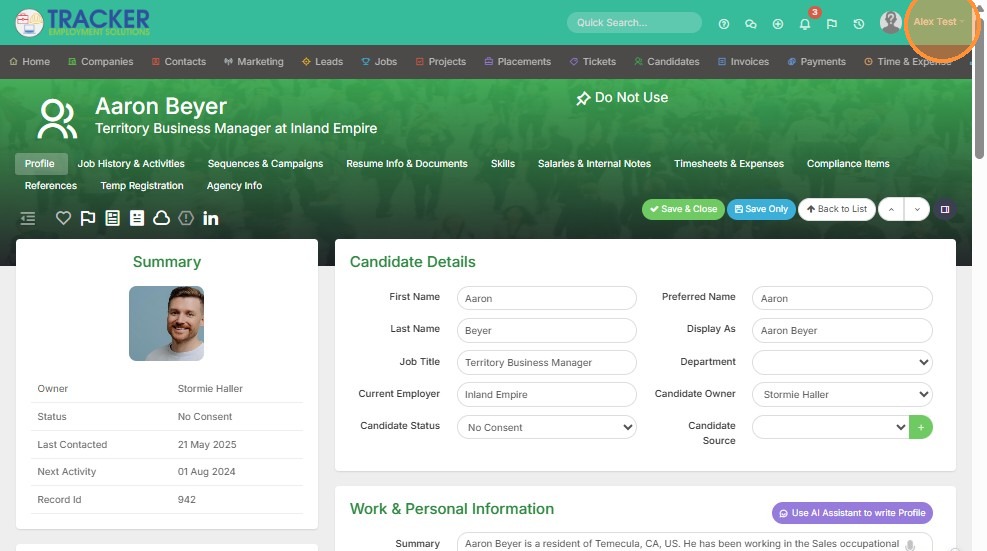
1. To set up auto To, CC, or BCC in an email template, click on your name on the top of your screen.
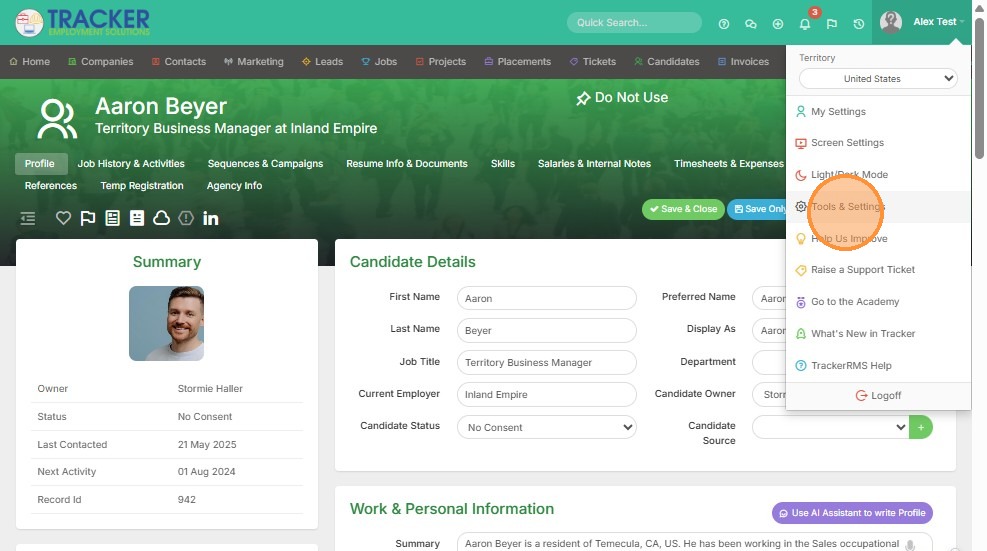
2. Click "Tools & Settings"
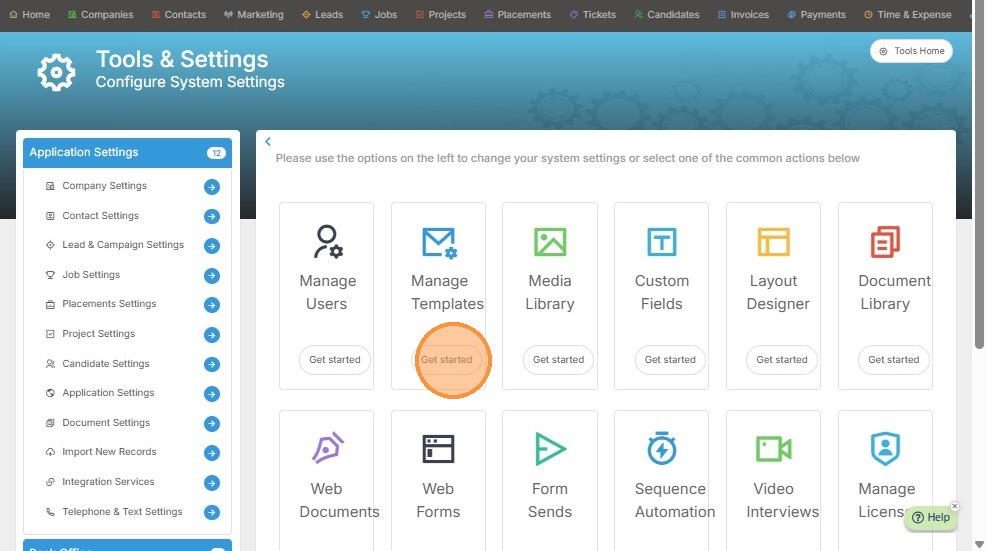
3. Click "Get started" under Manage Templates.
4. Click "Click to select" to view the dropdown list of your email templates.
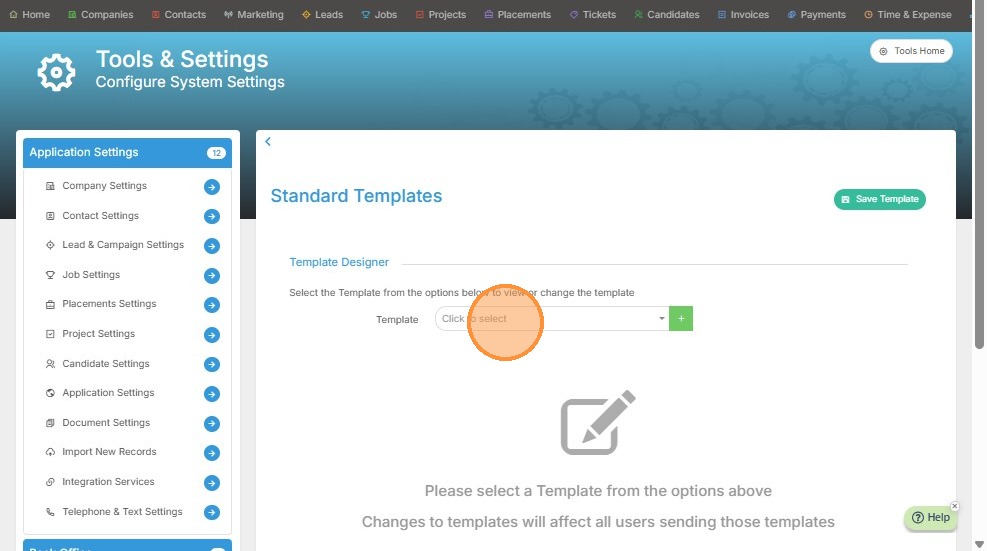
5. Select an email template, and scroll down to the Template Fixed Recipients section. Click the "To" field to add a recipient.
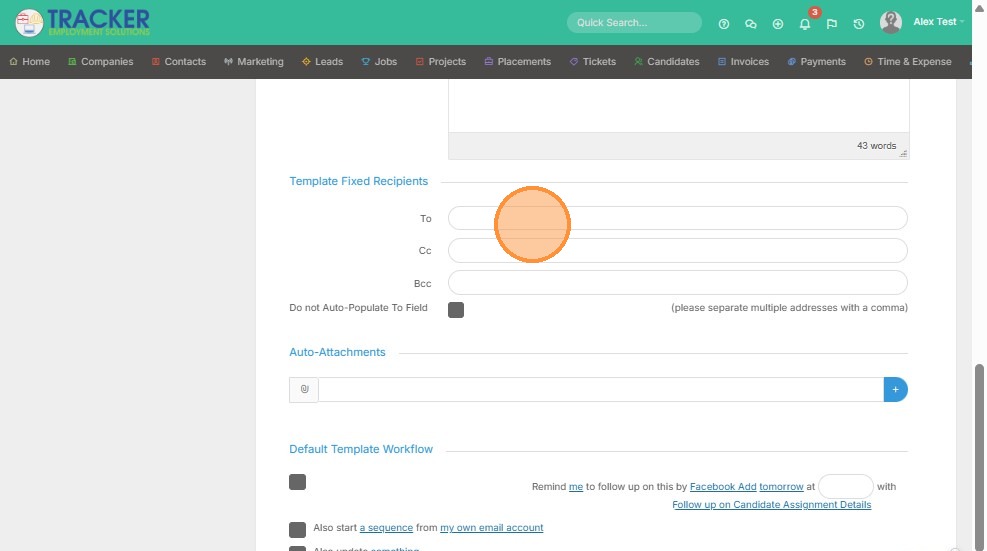
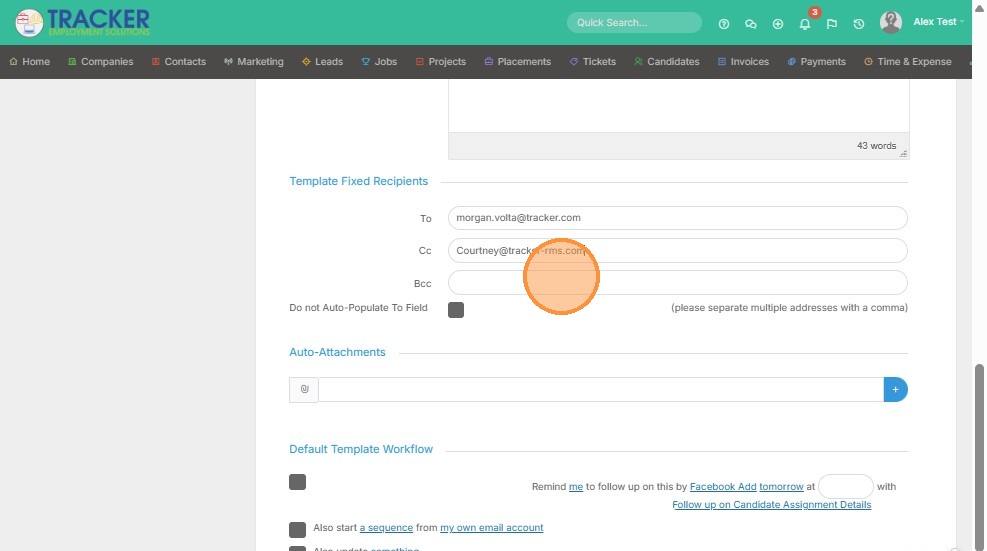
6. You can also add a recipient in the CC field, or BCC. If you need to add multiple, simply separate the emails with a comma (no spaces).
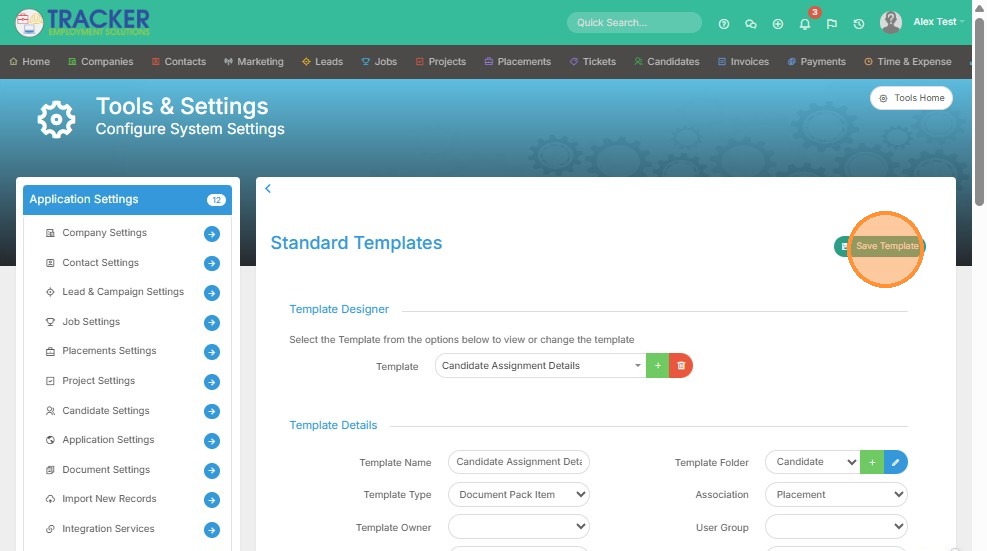
7. Click "Save Template" once you've added what you need.
8. To test the results, send an email.
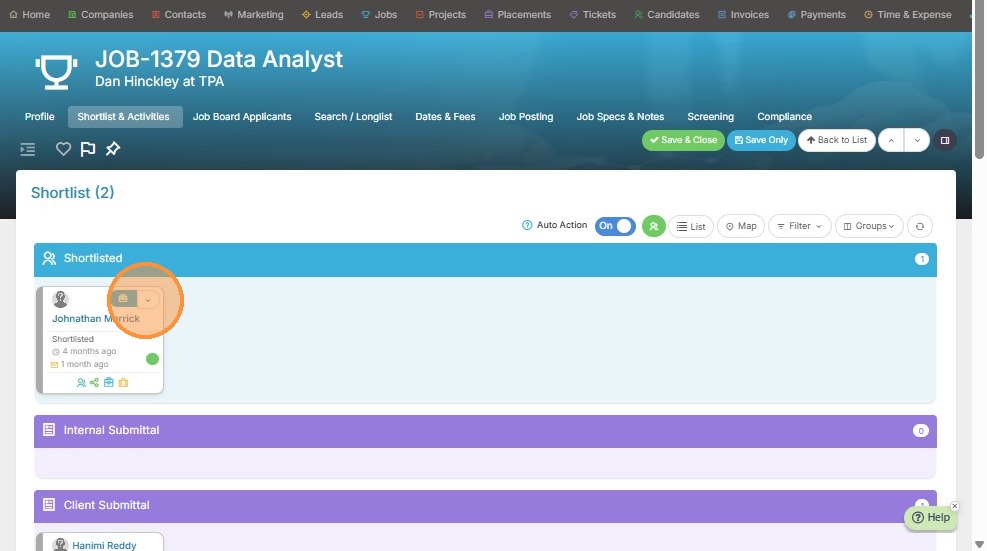
9. Click "Send a Message"
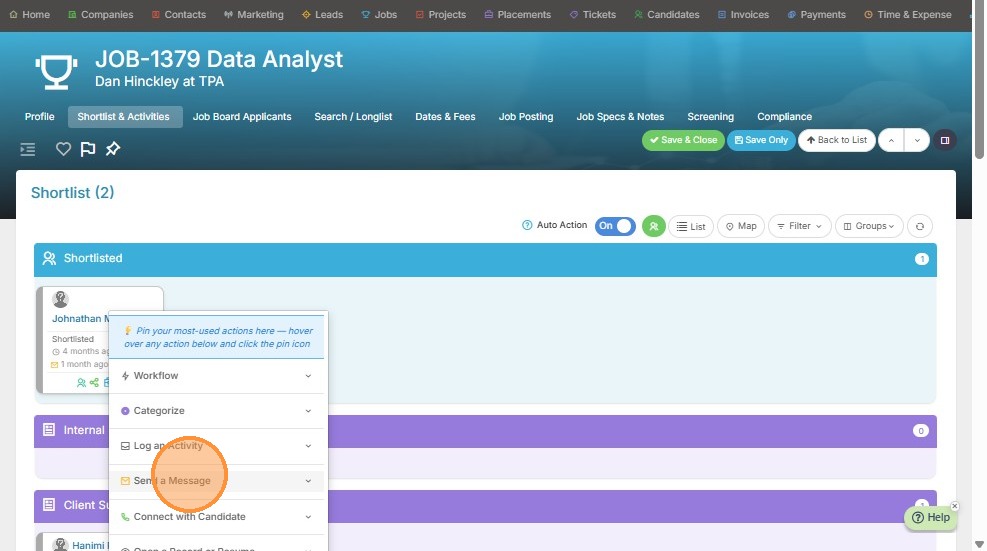
10. Click "Send Email to Candidate"
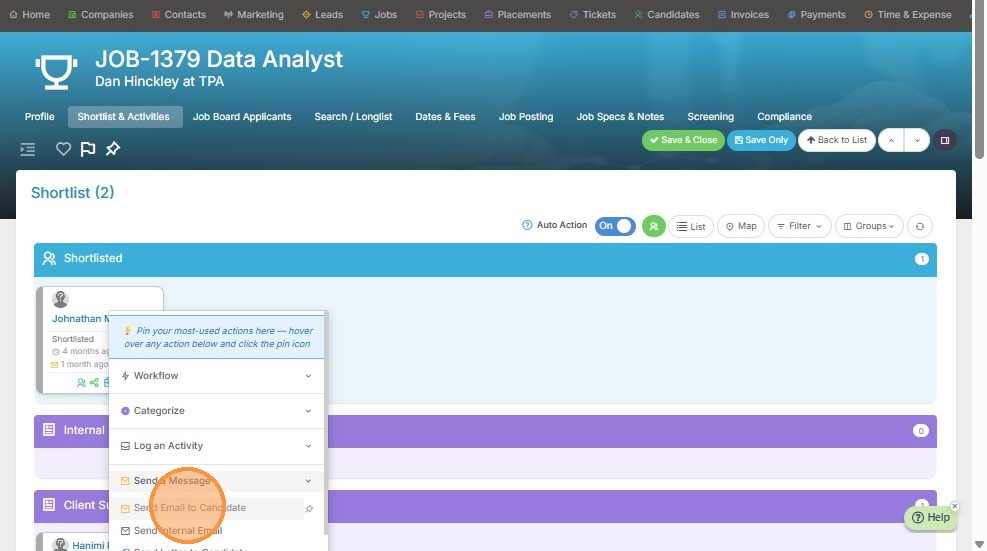
11. Click "Click to select" to find the template.
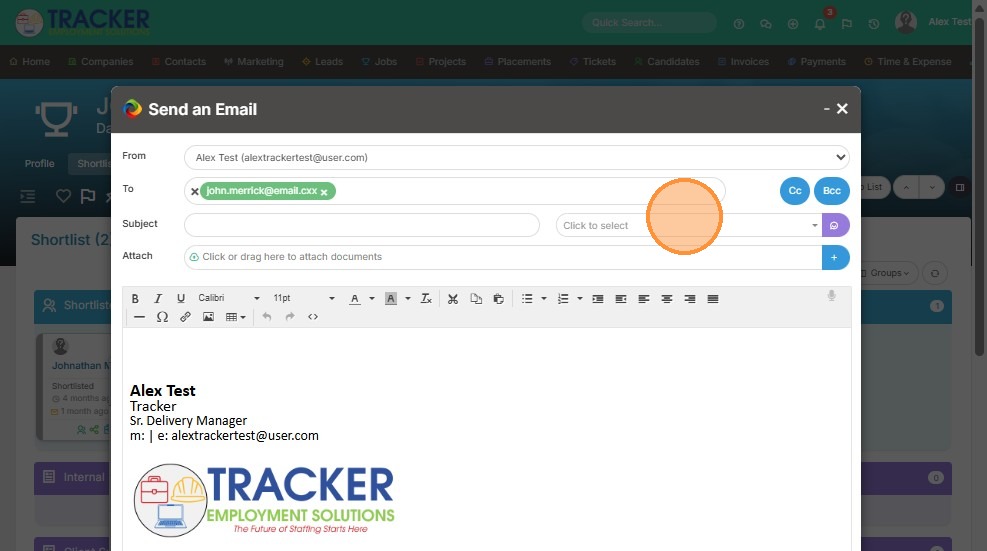
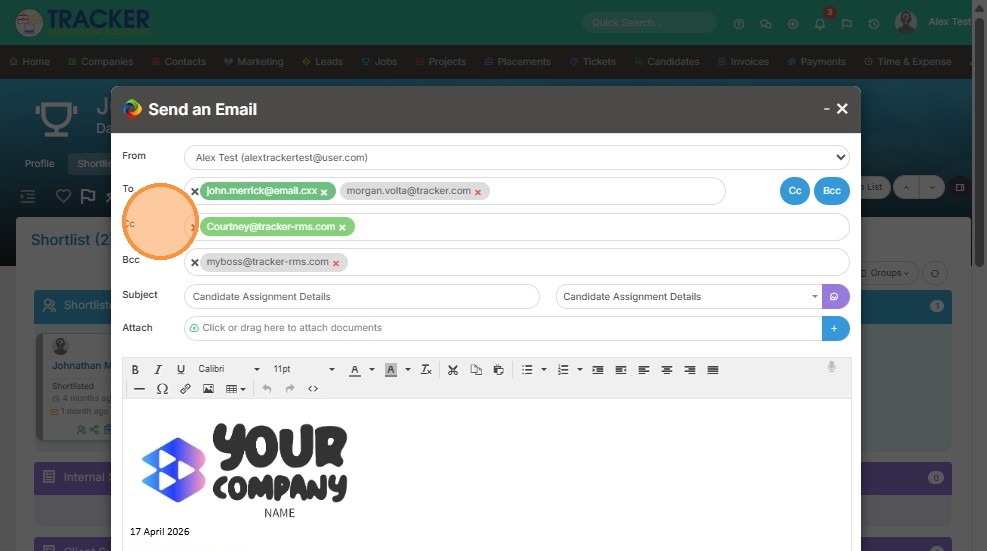
12. Voila, the emails I set up in the To, CC and BCC fields have pre-populated once I selected my template.