Access Settings
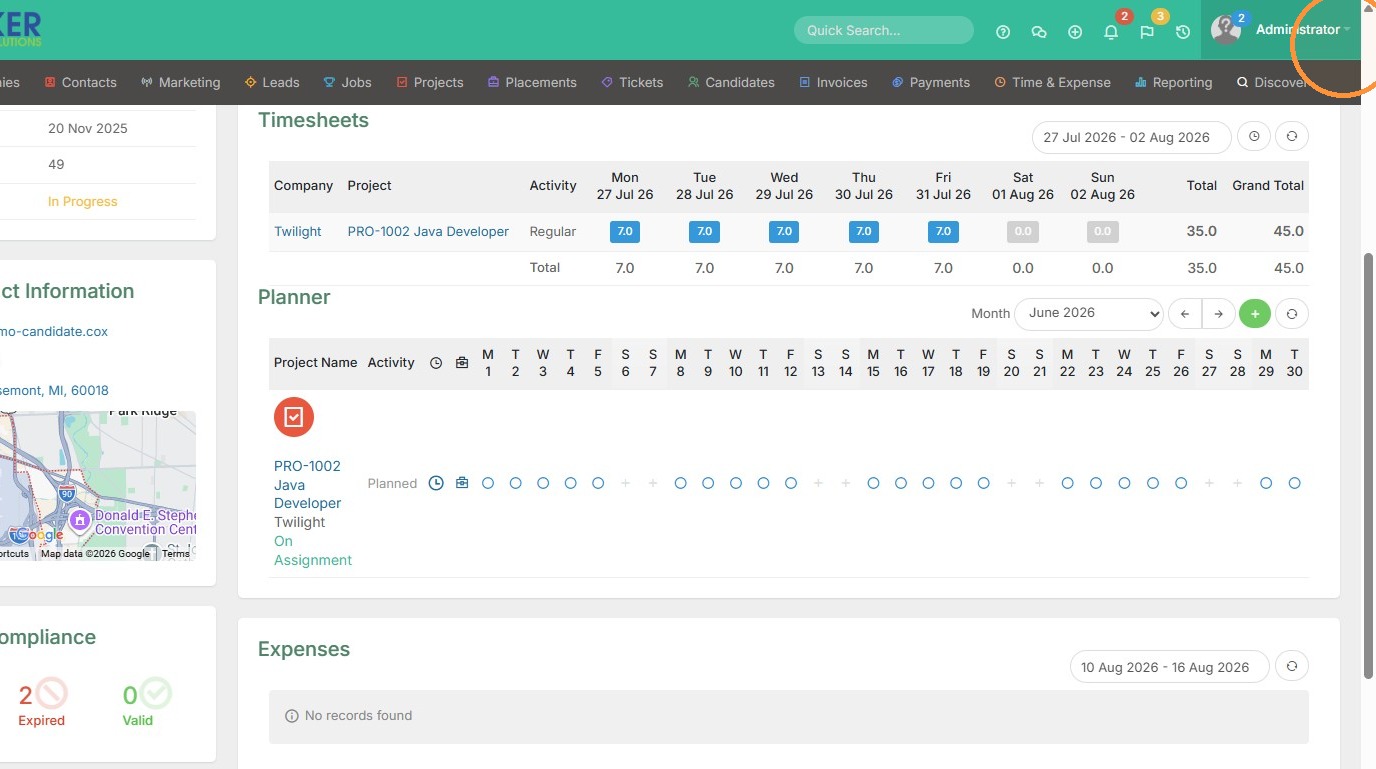
1. To access Company Settings, click on your name.
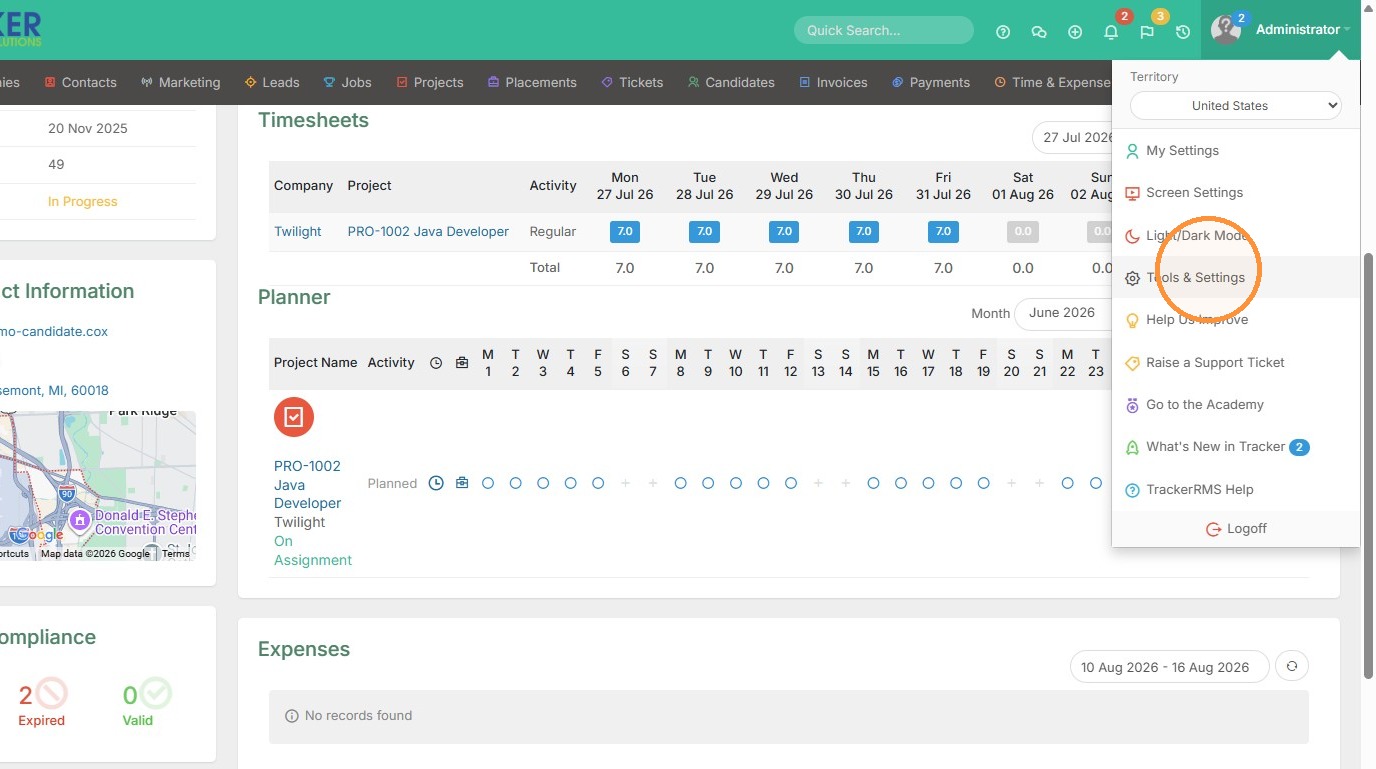
2. Click "Tools & Settings"
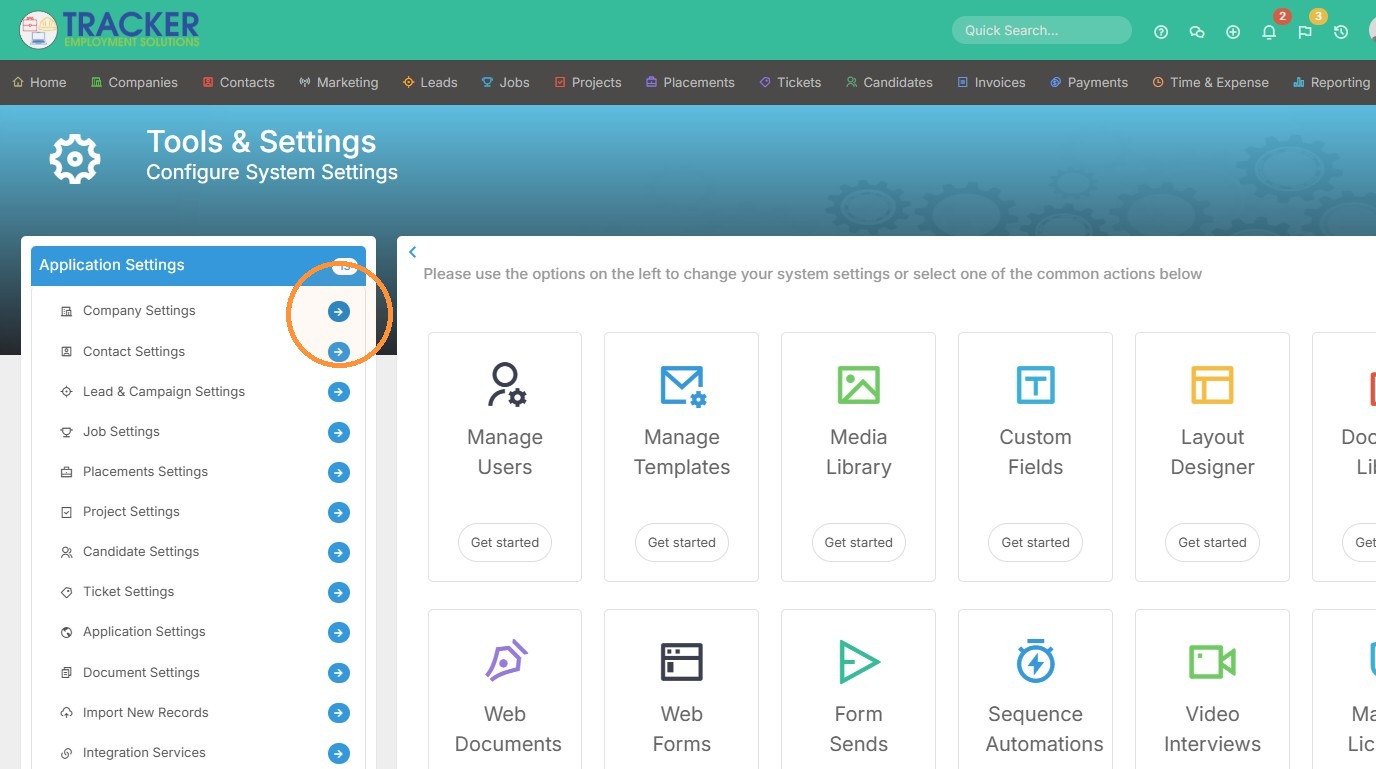
3. Click here.
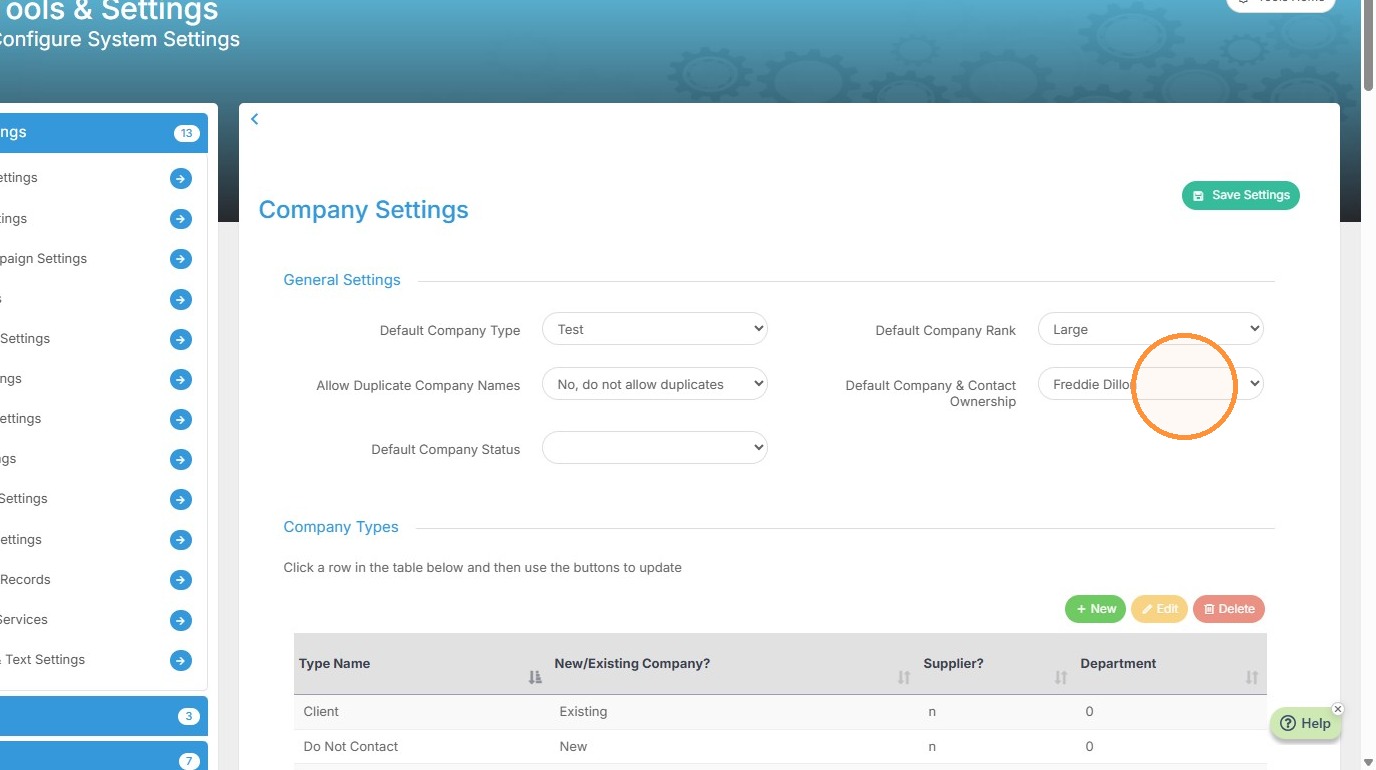
Company Type Setup
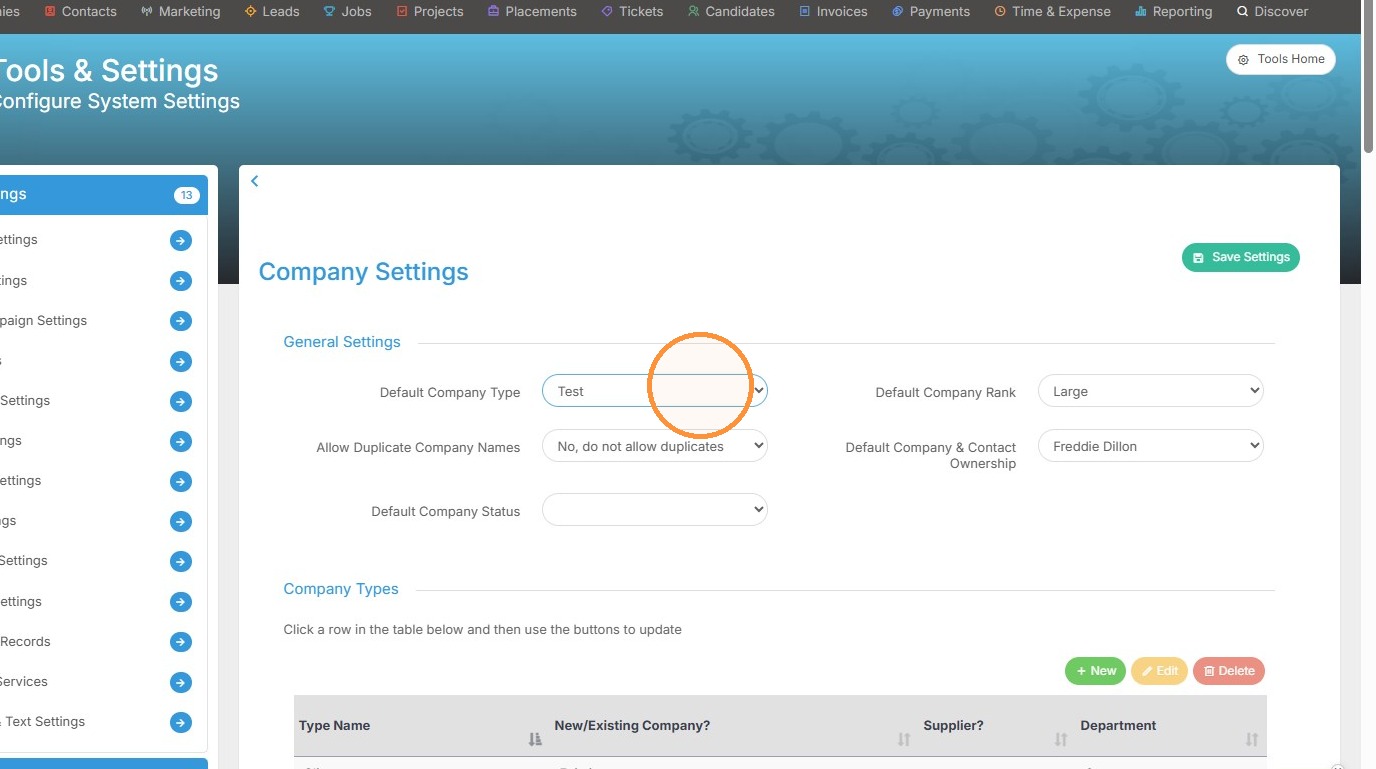
4. Here you can edit the default company type when adding company records to Tracker.
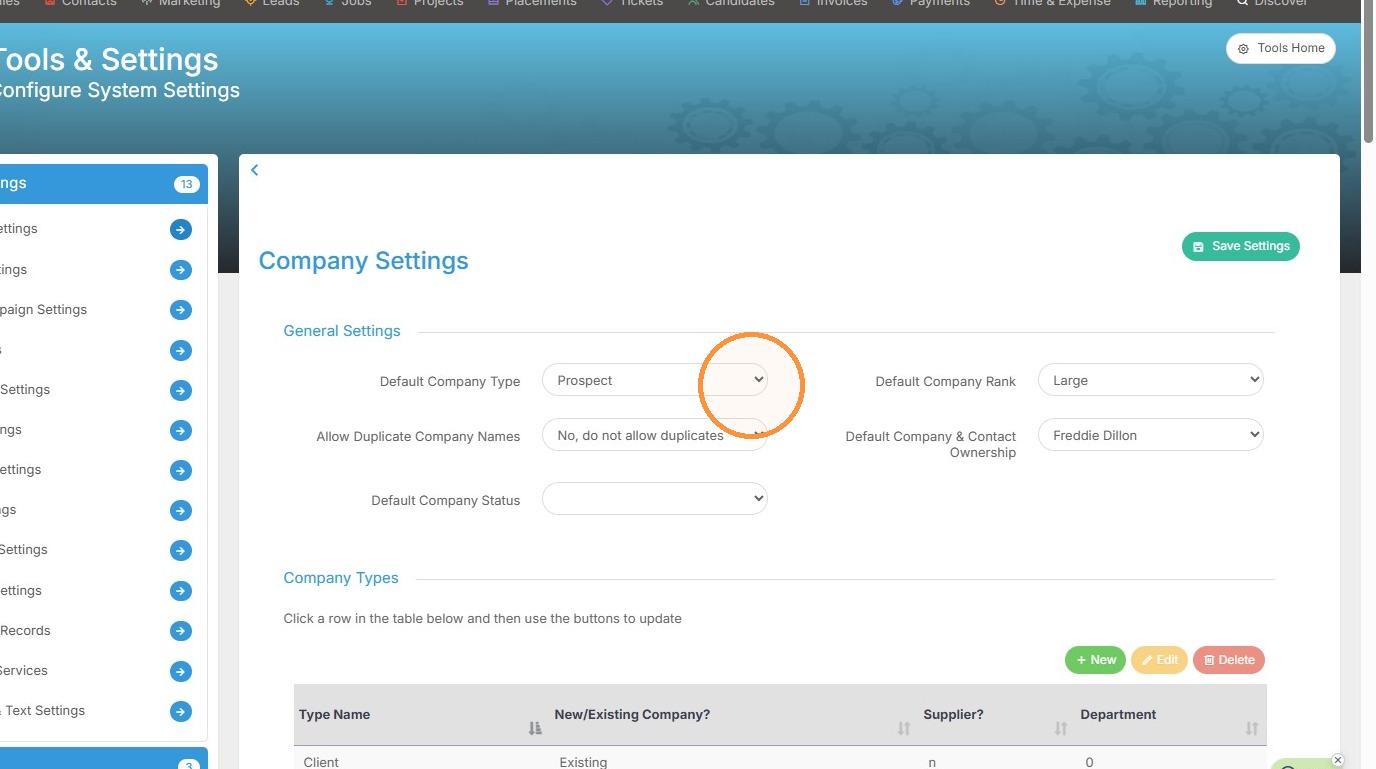
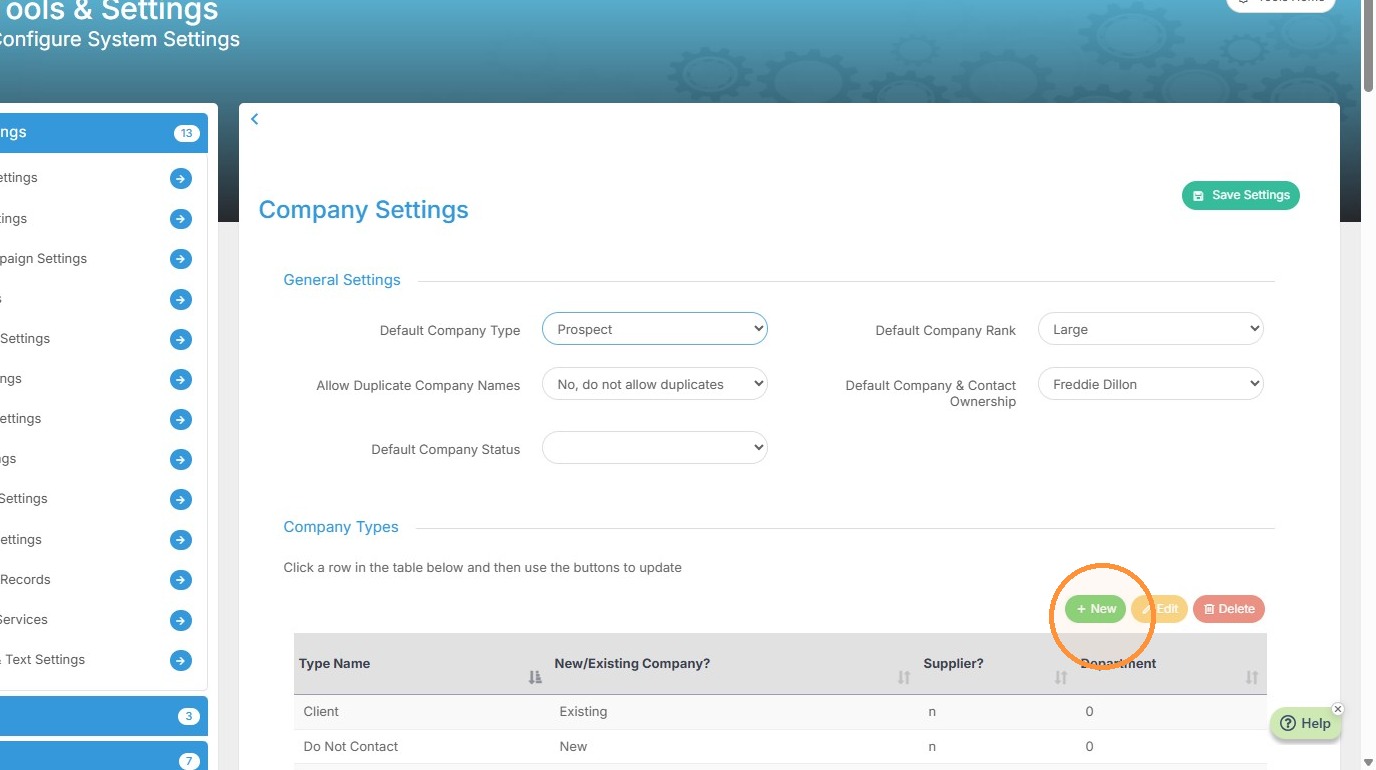
5. To add a new company type, scroll down to Company Types and click the green New button.
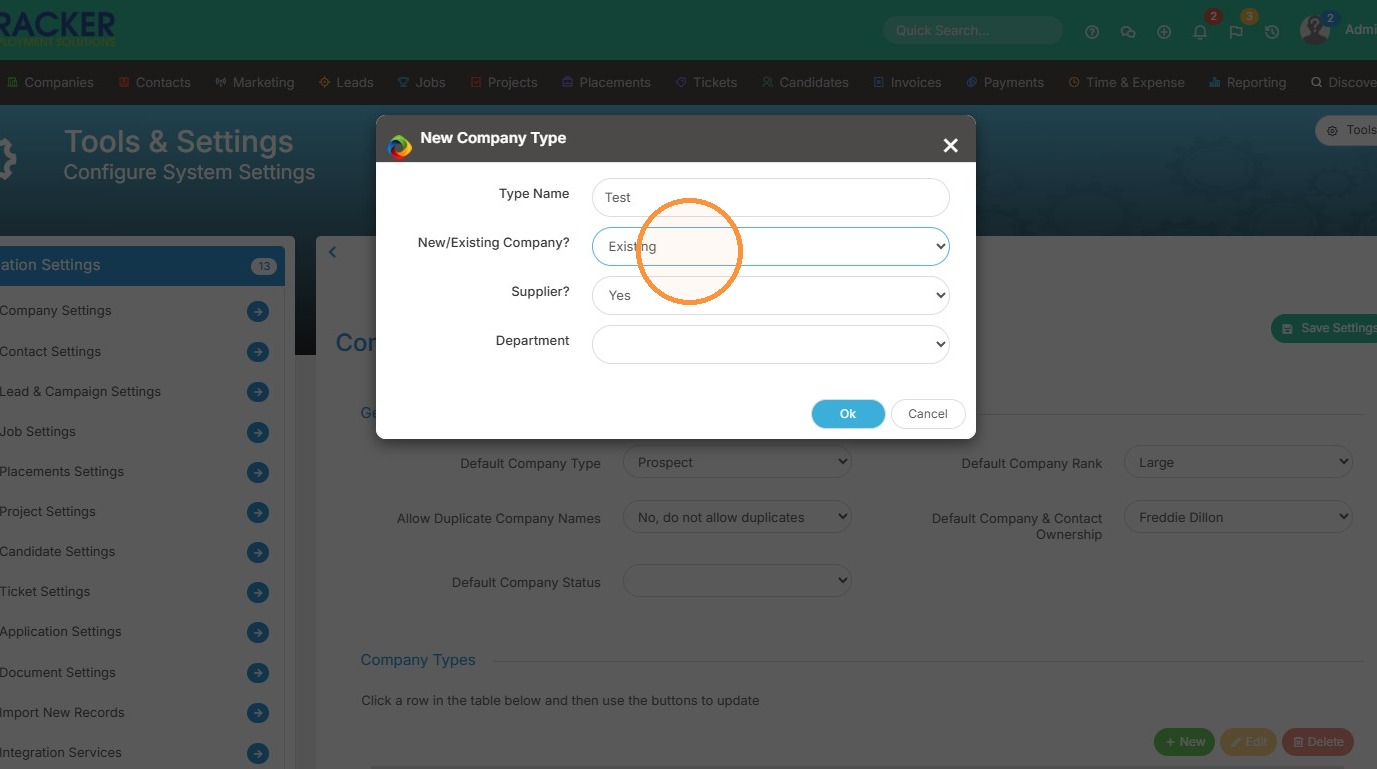
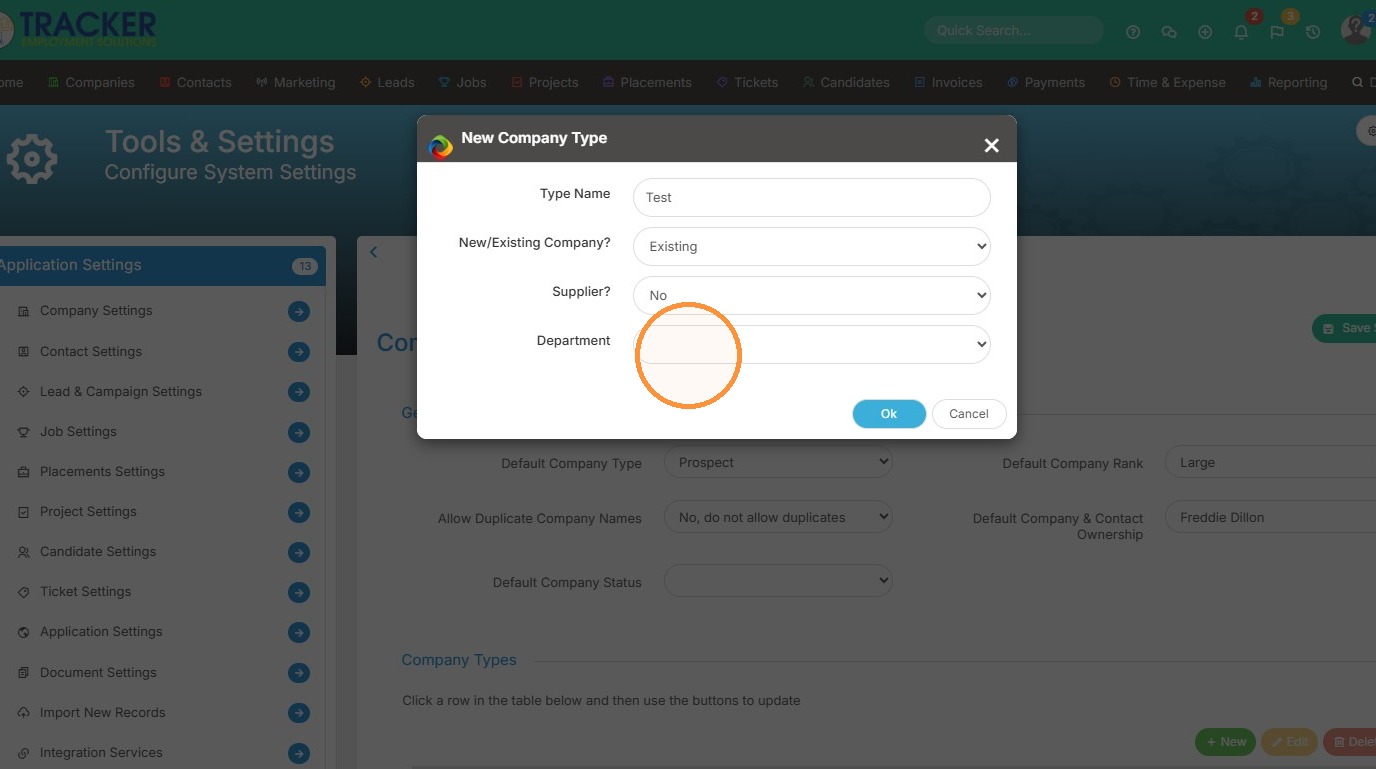
6. Type in the name, and then decide if this company type will be considered a New record or Existing.
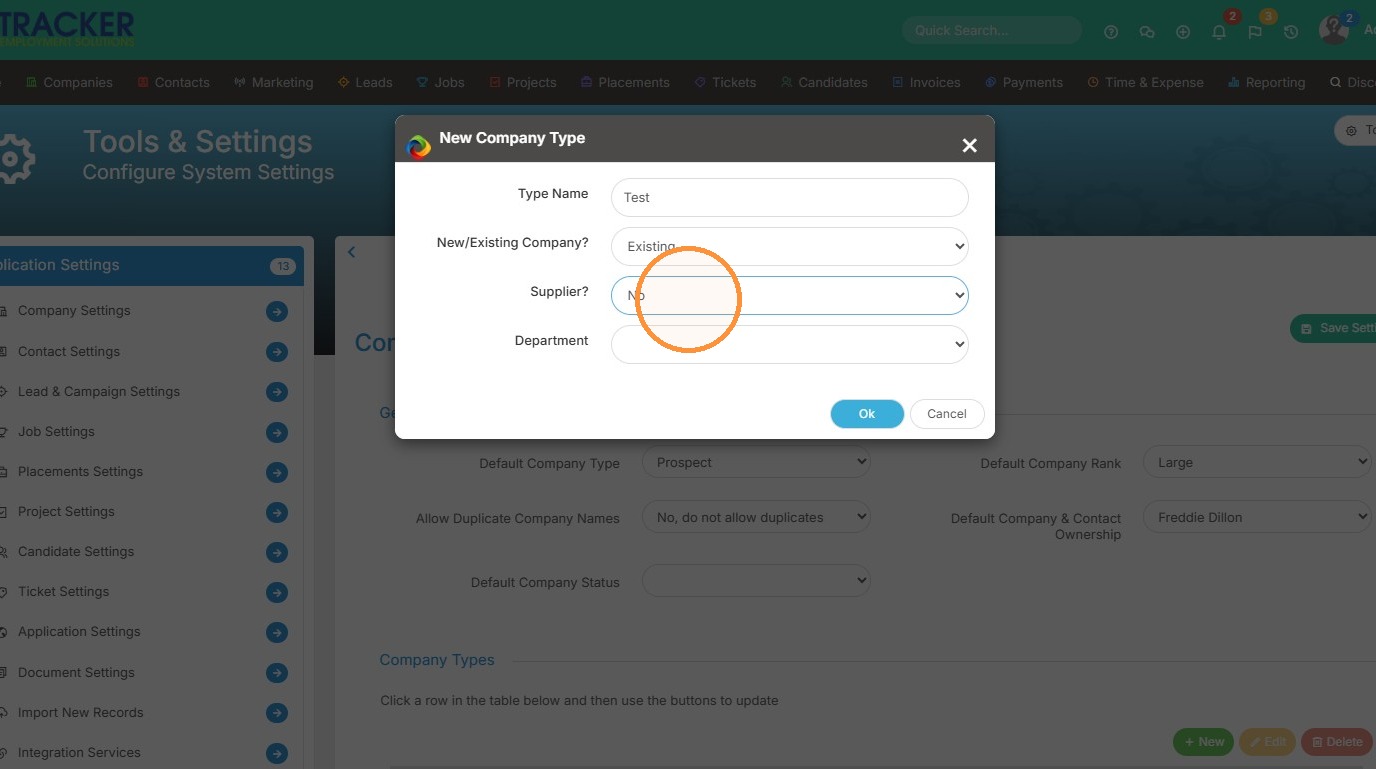
7. Select Yes/No for Supplier.
8. Click this dropdown if you want to apply a Department.
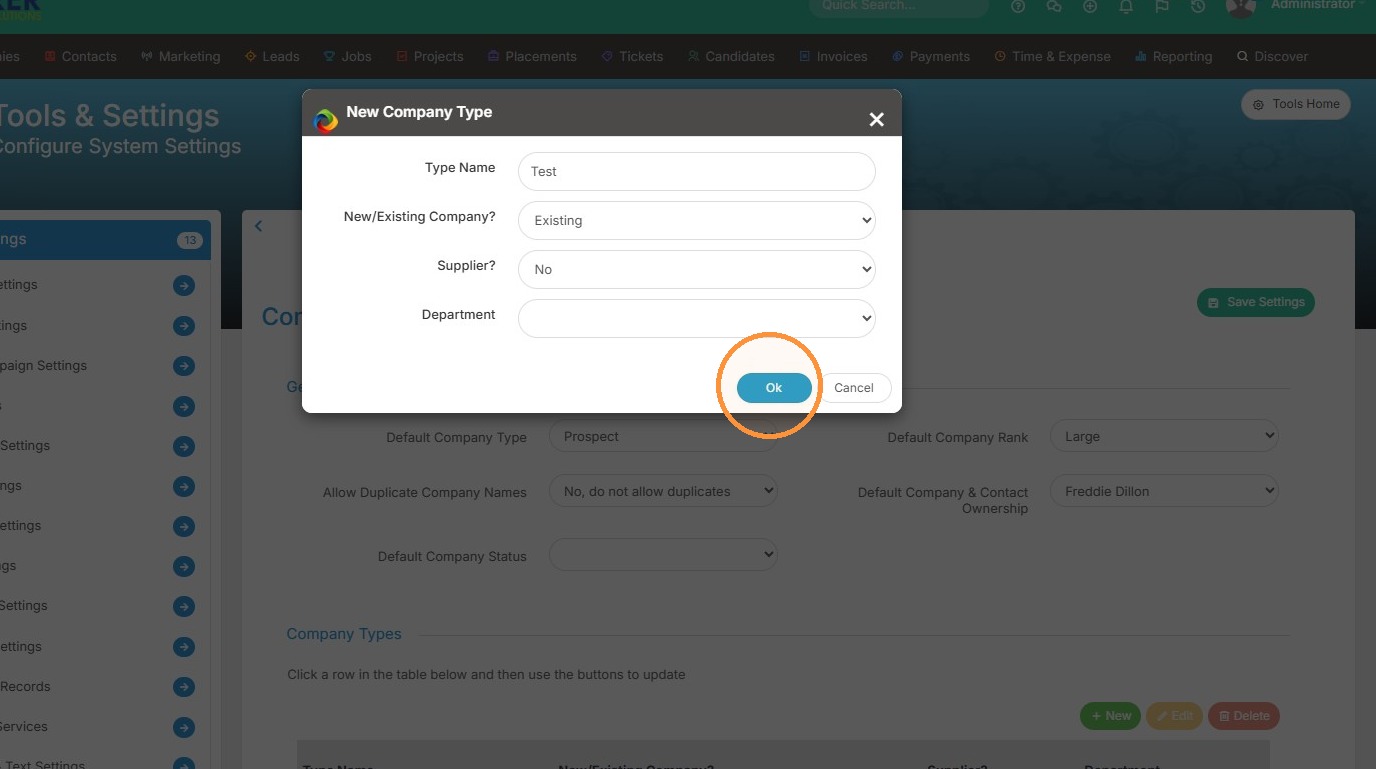
9. Click "Ok"
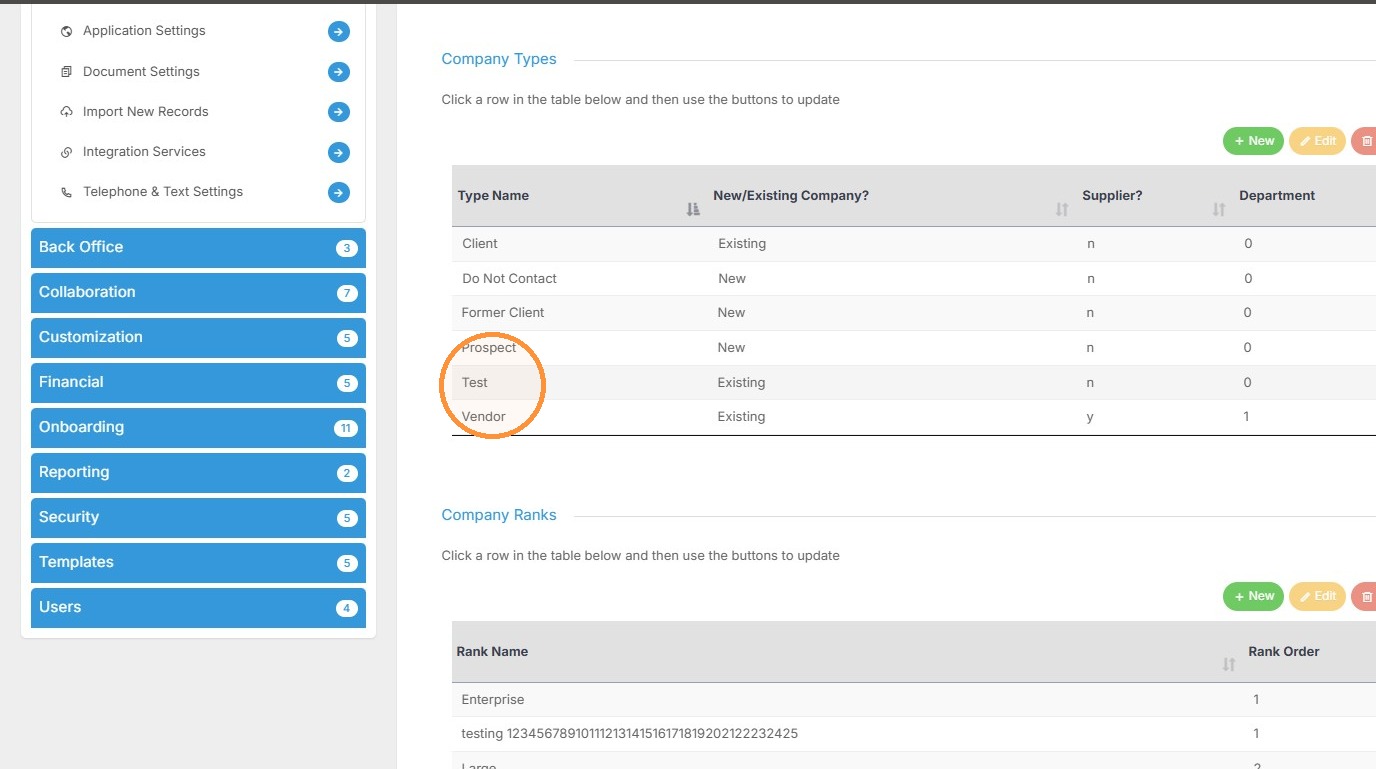
10. Now you can view the new Company Type.
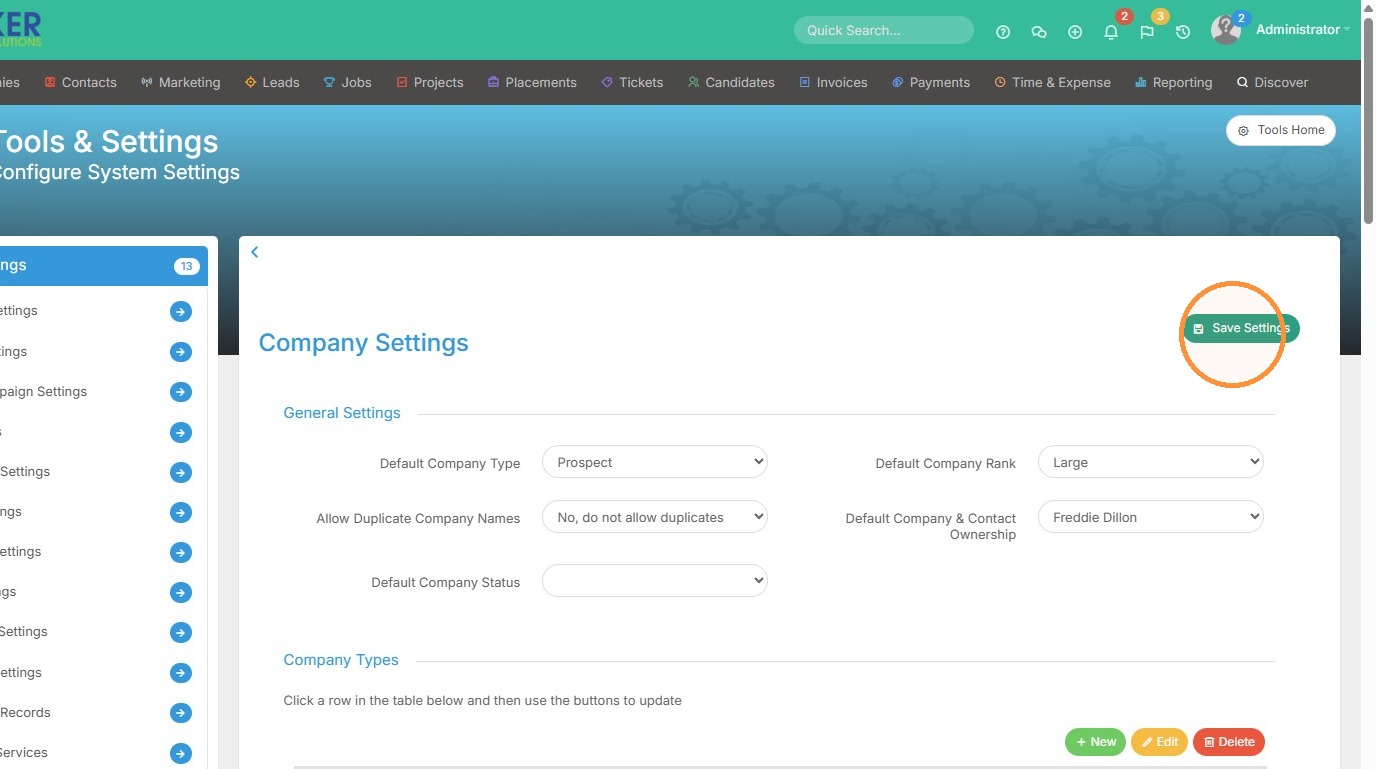
11. Click "Save Settings"
Default Company Settings
12. Then you can select that new Company Type from the dropdown.
Company Rank Updates
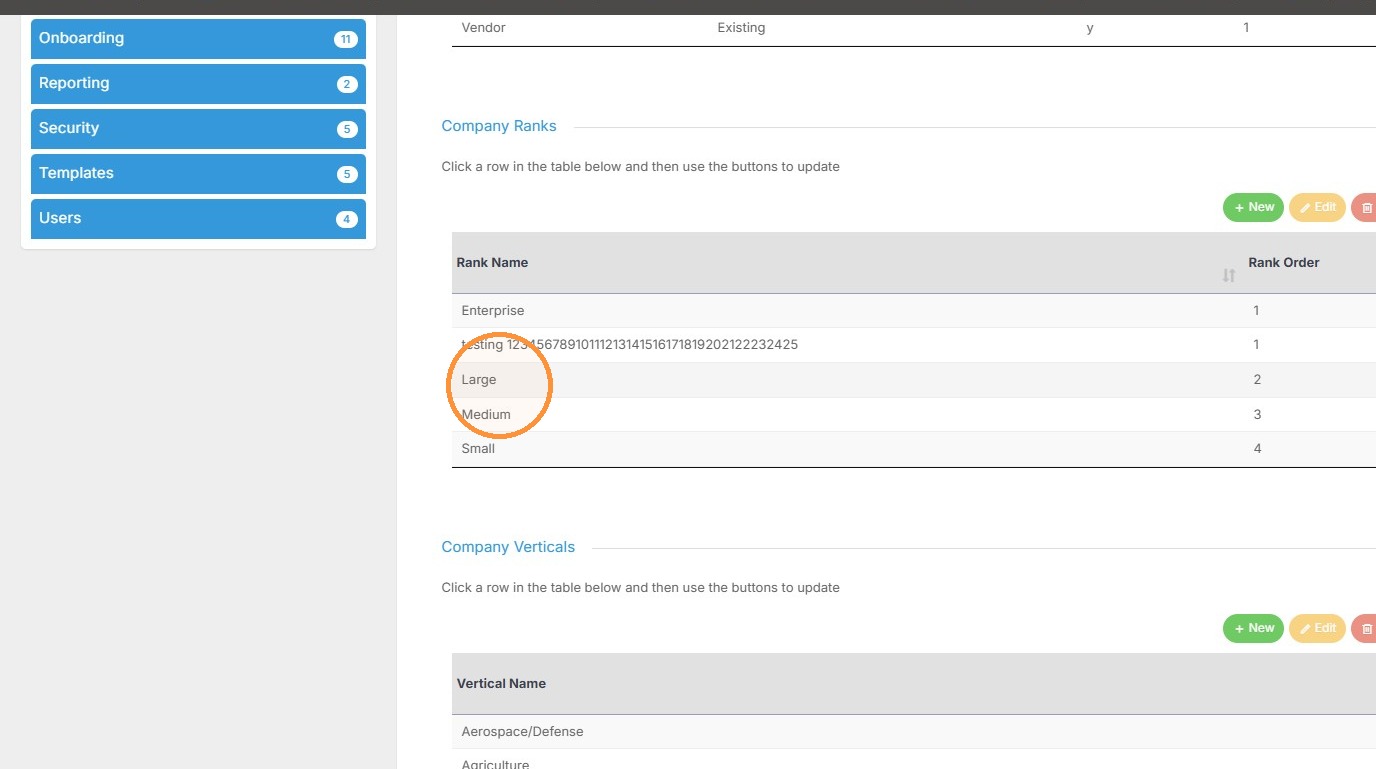
13. Scrolling down there's Company Rank. You can click on any of these existing rank items to edit.
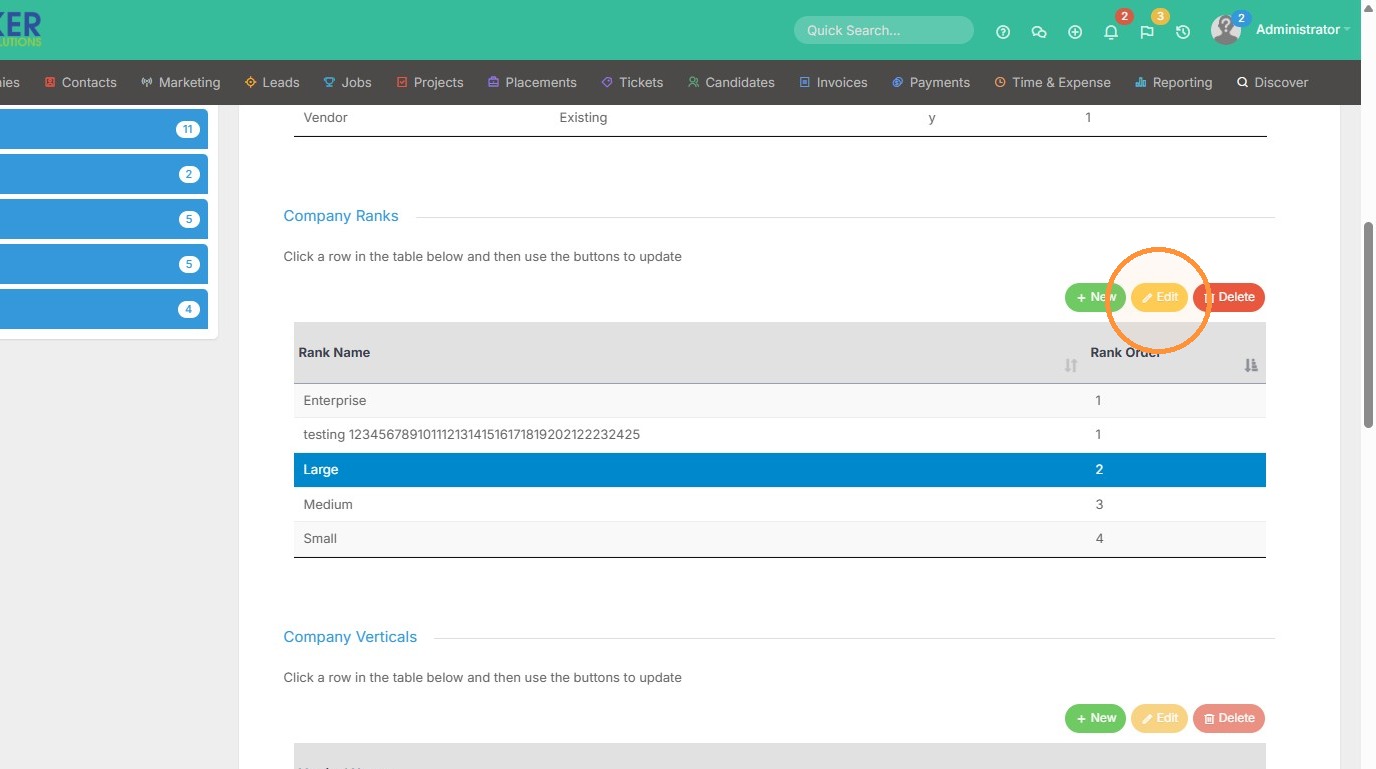
14. Click "Edit"
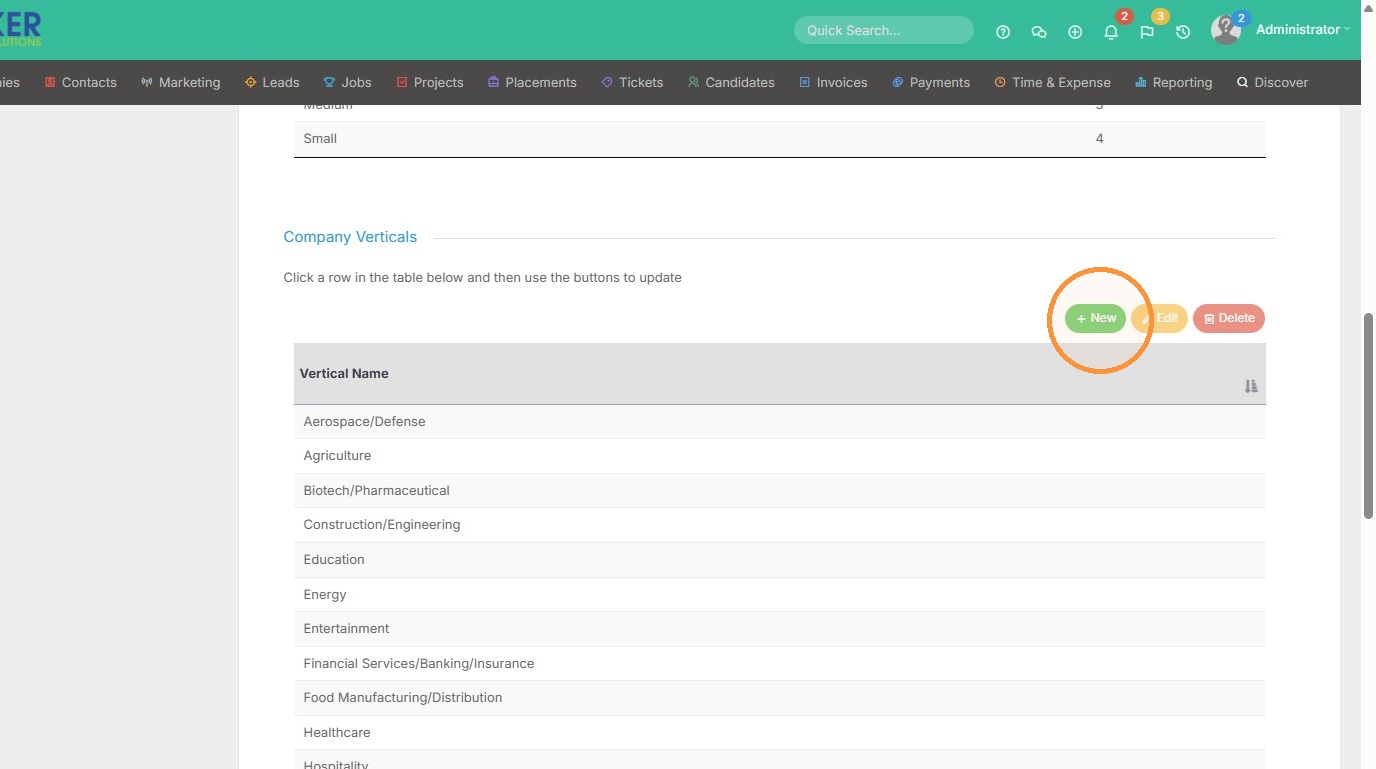
15. Click "New" to add a new Company Vertical.
16. Click on any of the company verticals to edit or delete.
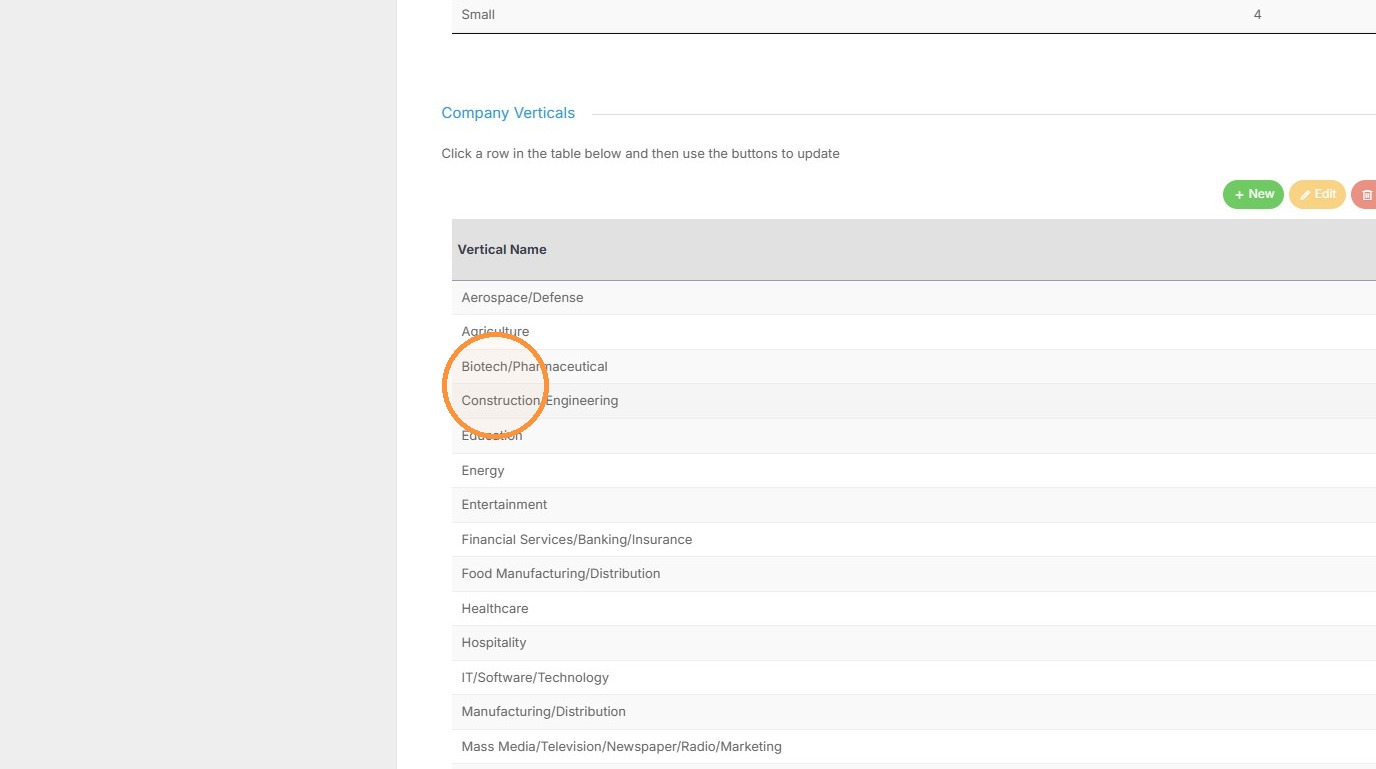
17. Click "Edit"
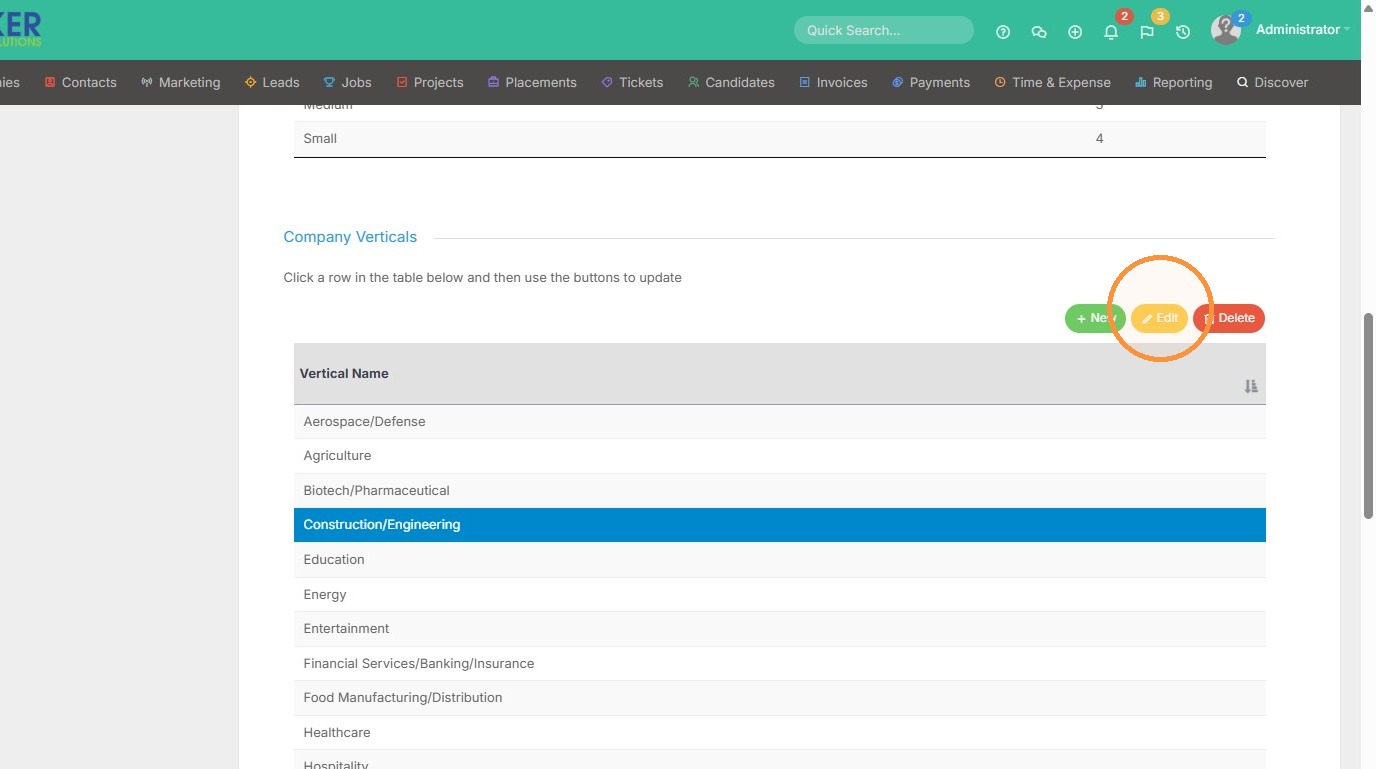
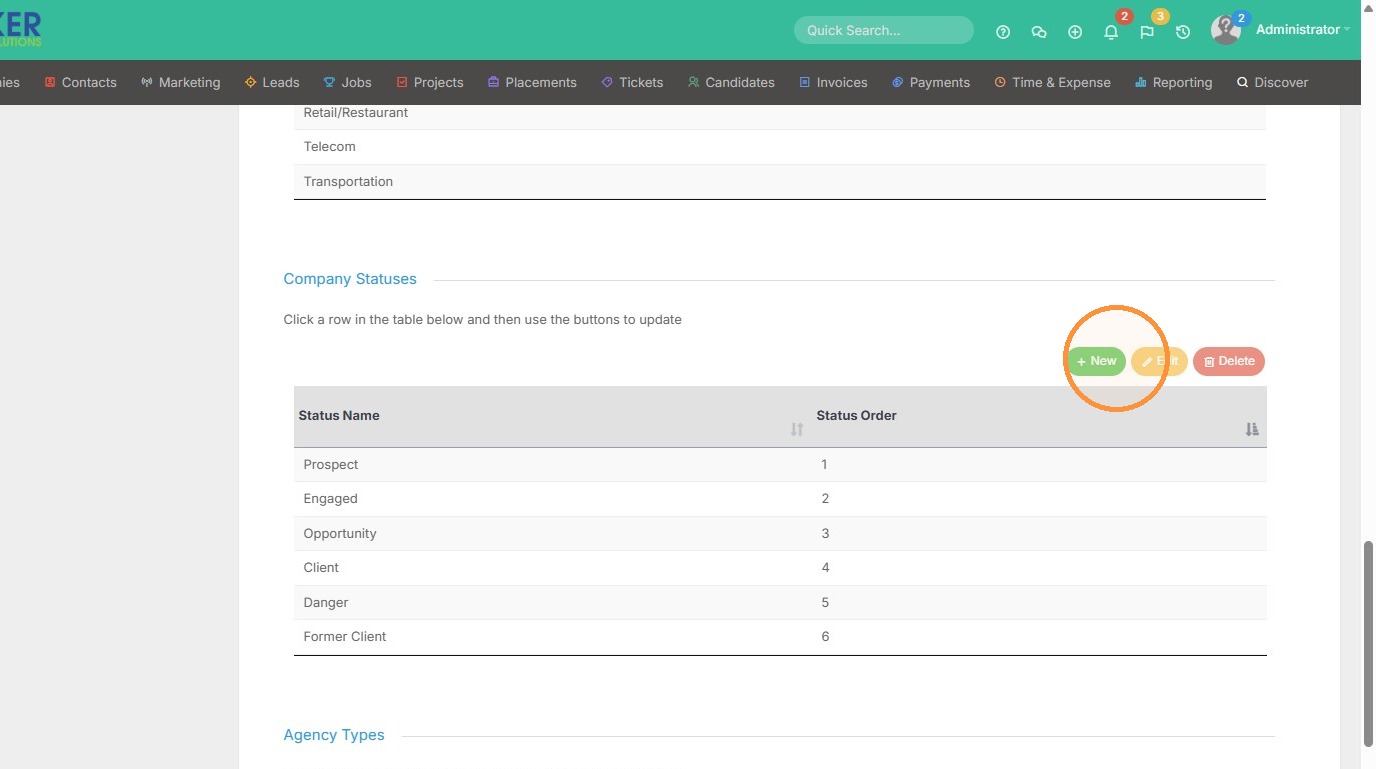
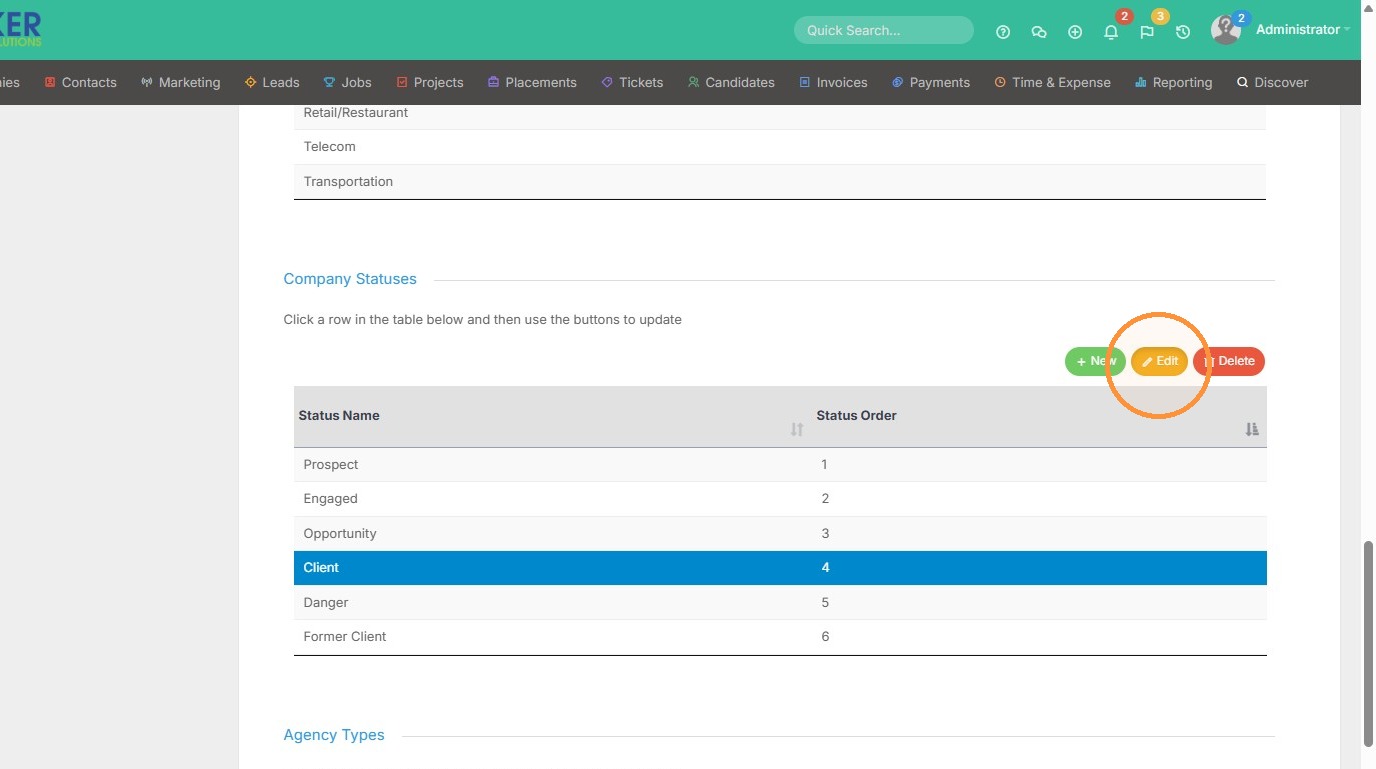
Company Statuses
18. Click "New" to add a new company status.
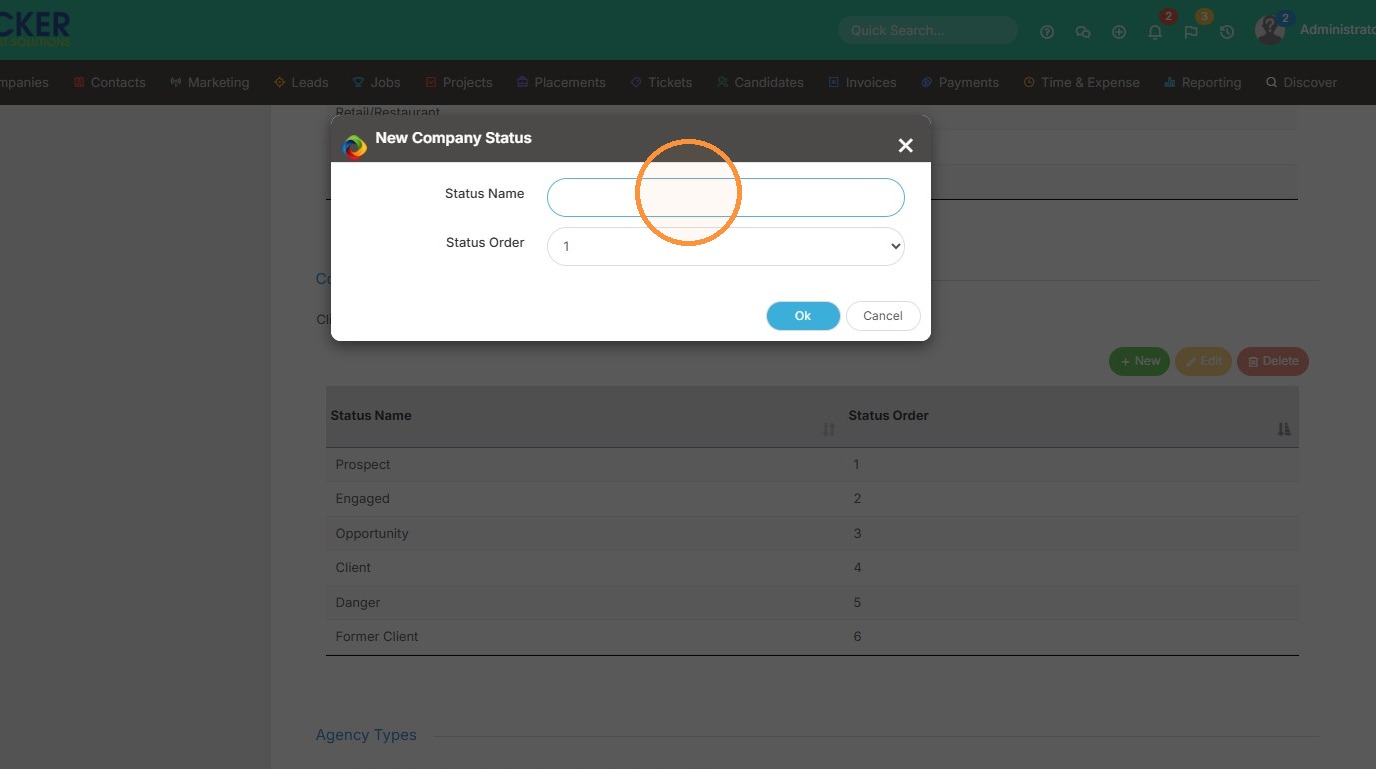
19. Click the "Status Name" field to add.
20. Click on any of the statuses to edit/delete.
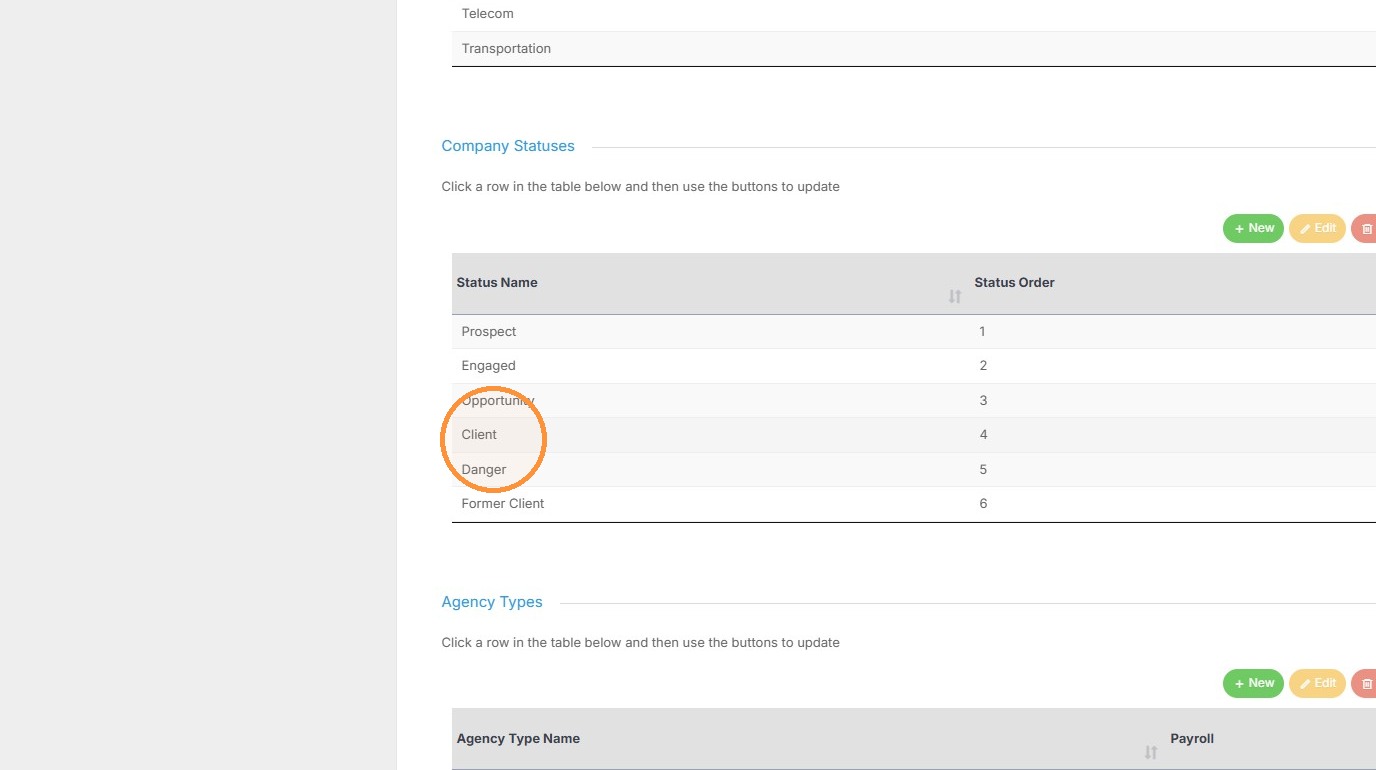
21. Click "Edit"
22. Lastly, there is an option for a default Company & Contact Record owner. This means you can select a user who will then always be listed as the company or contact record owner.