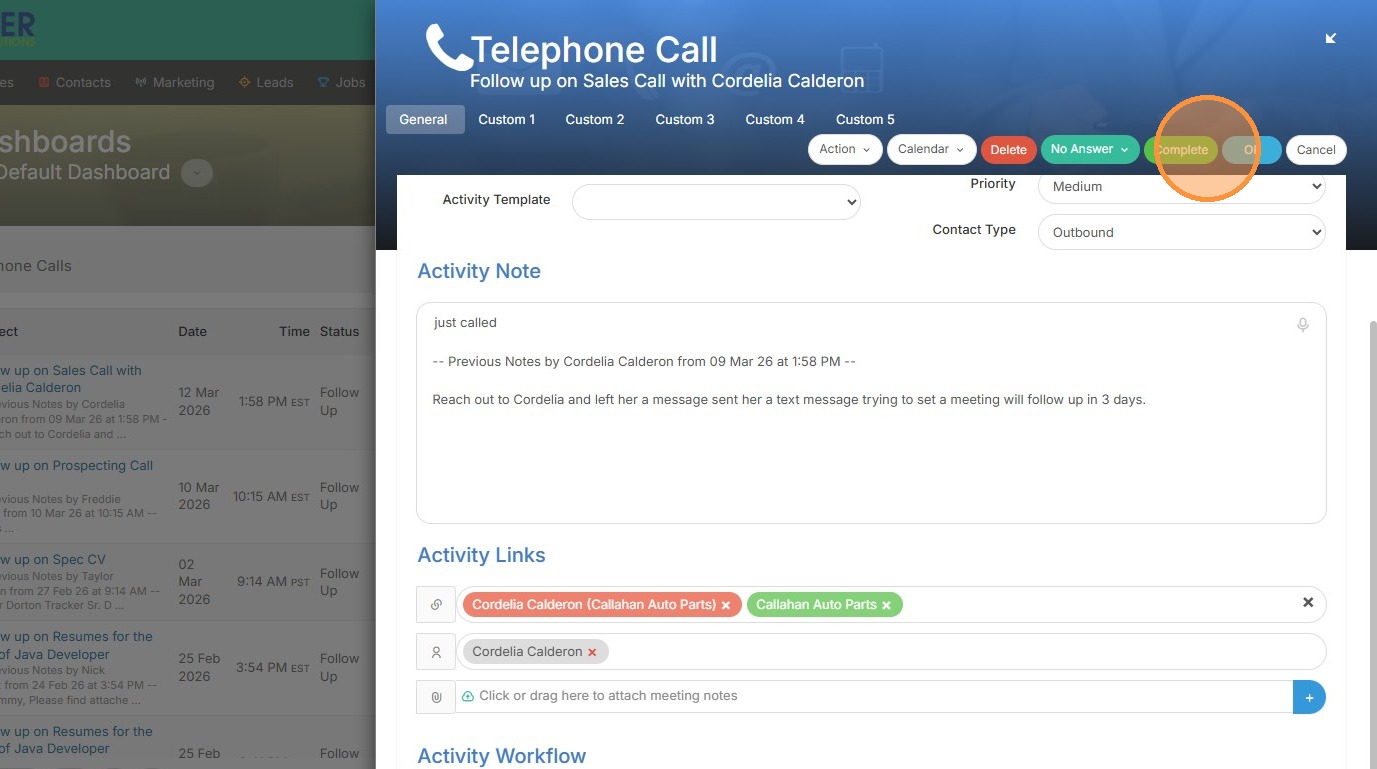
1. Dashboards can help display your day to day actions within the system. This will update and track items in real time.
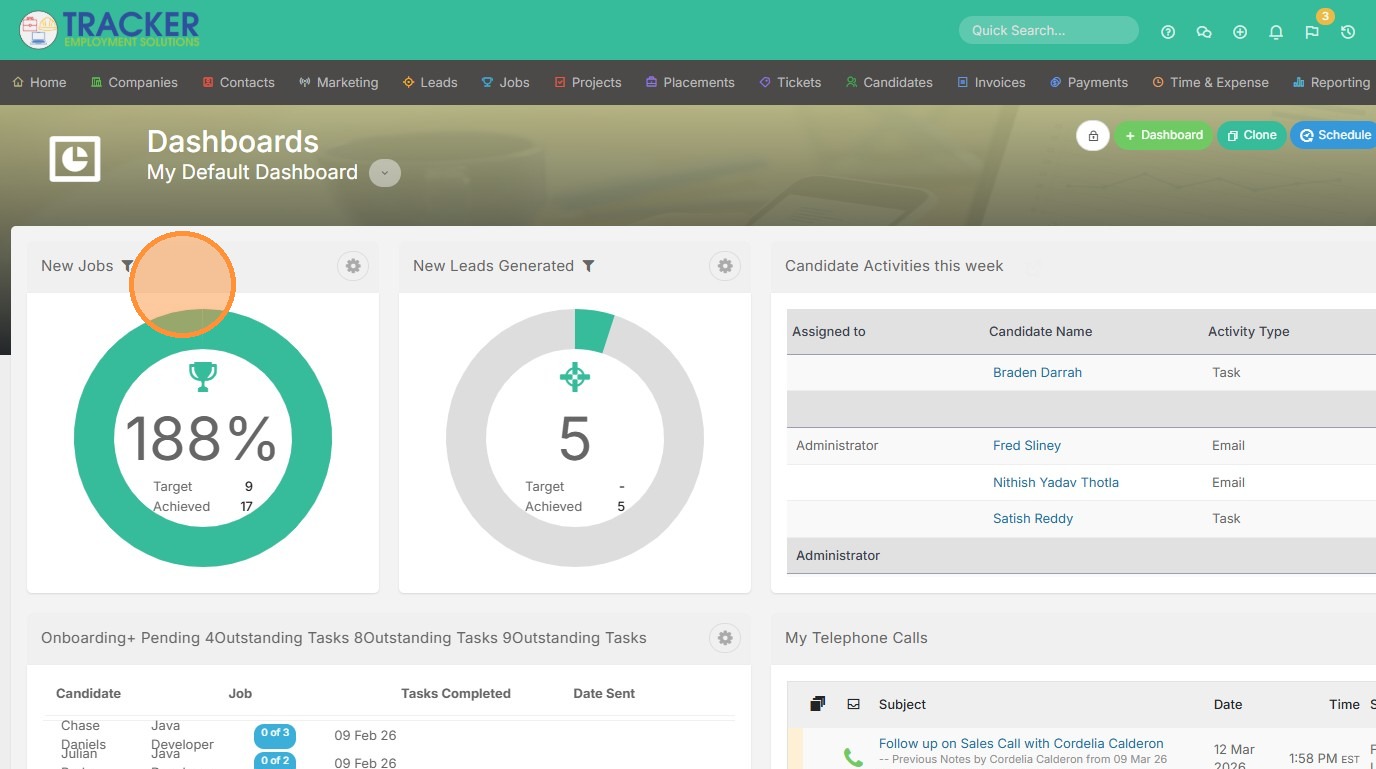
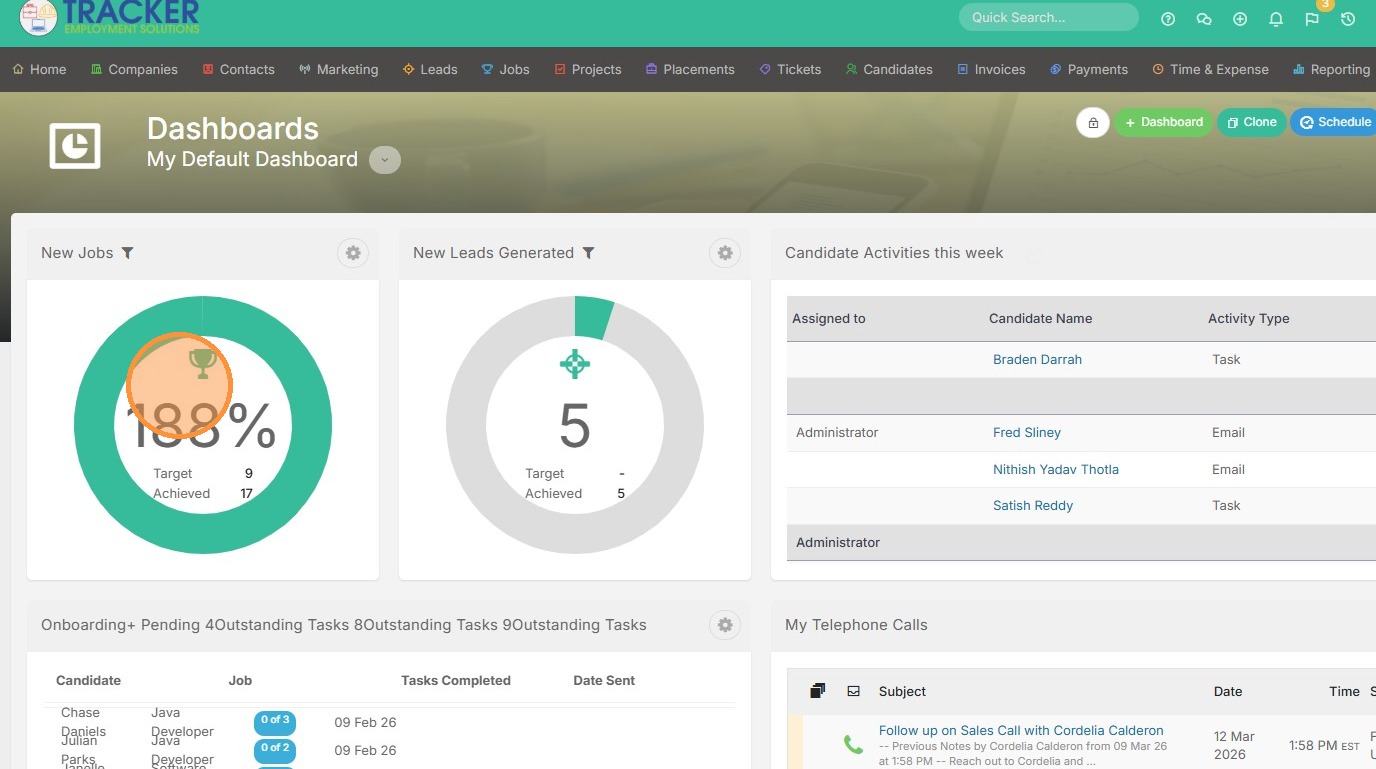
2. For example, I can click on New Jobs and see the details of what was done.
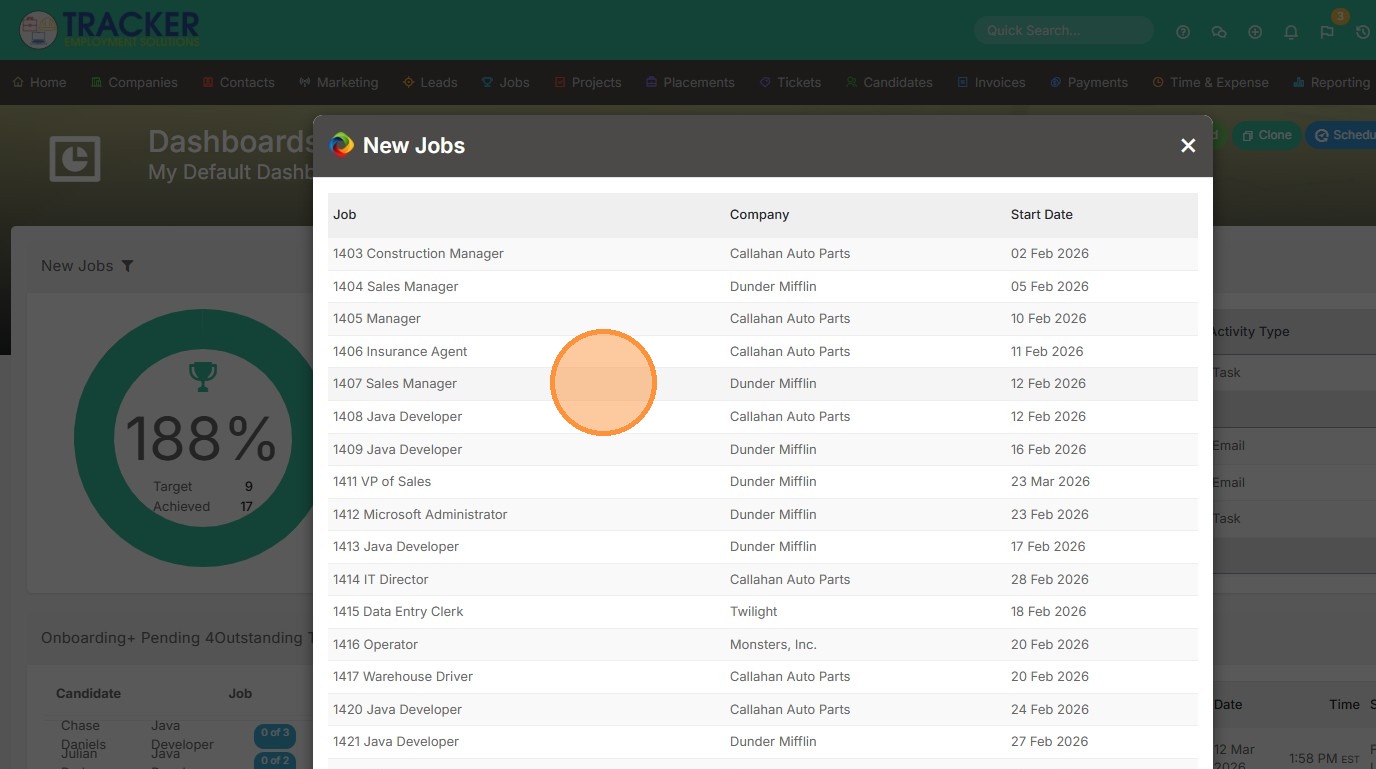
3. Such as job name, company, and start date.
4. Click New Leads Generated to view those details next.
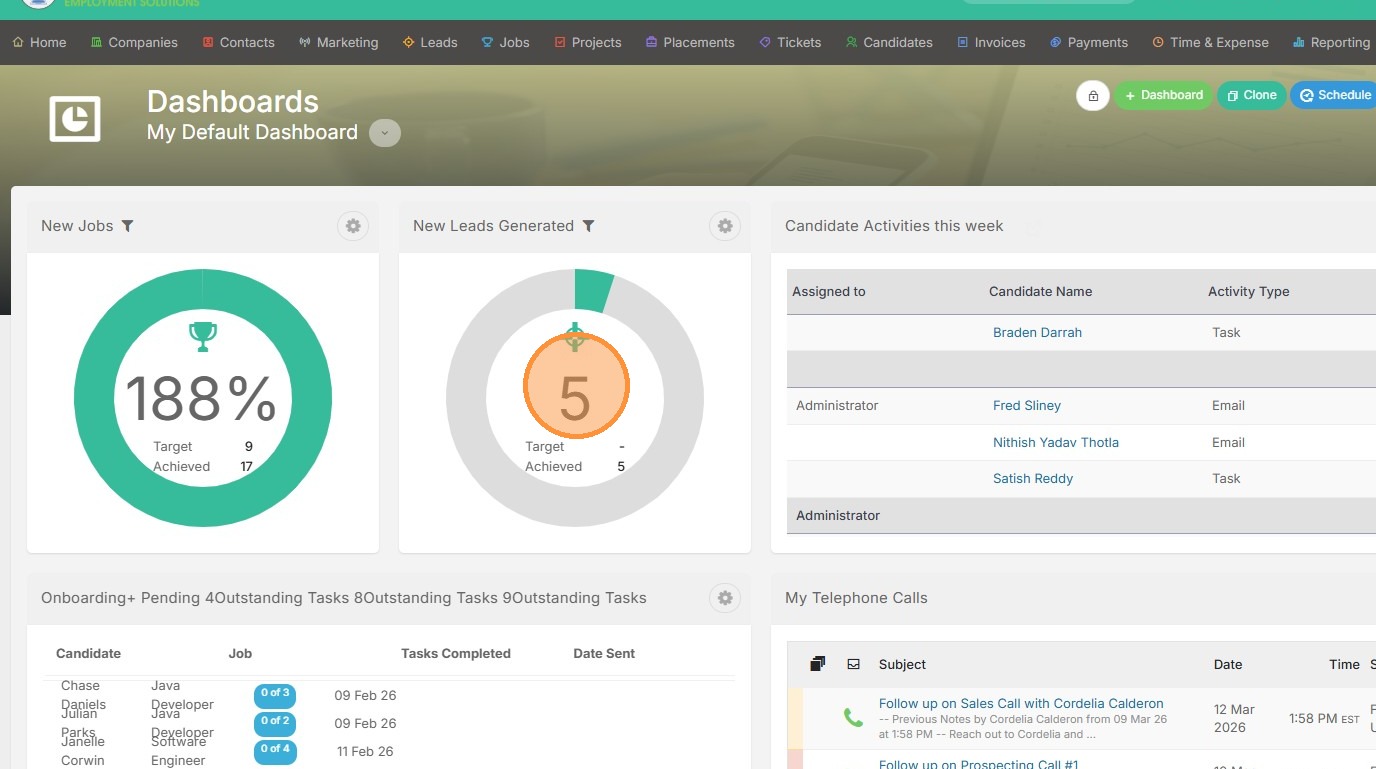
5. Such as the lead names.
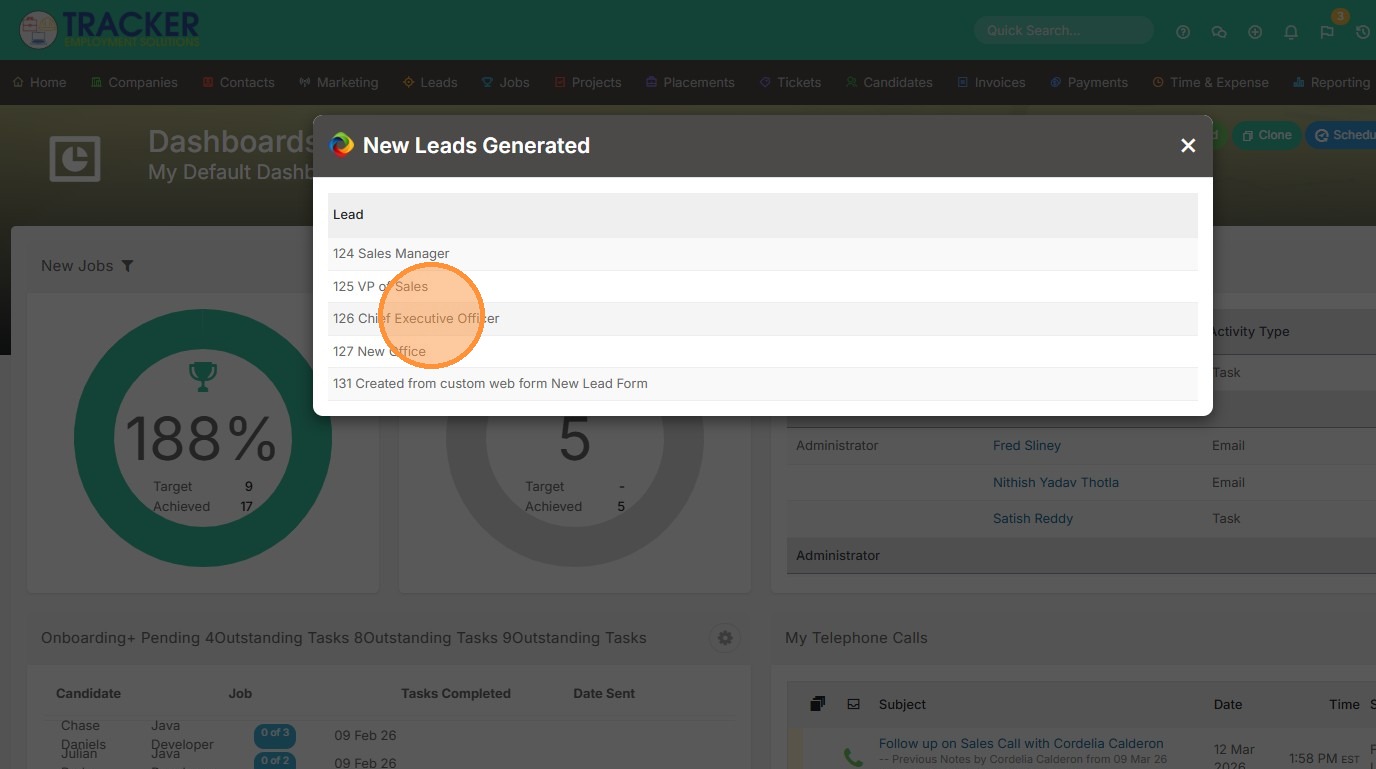
6. Click "Filter" to adjust the date period you're currently viewing.
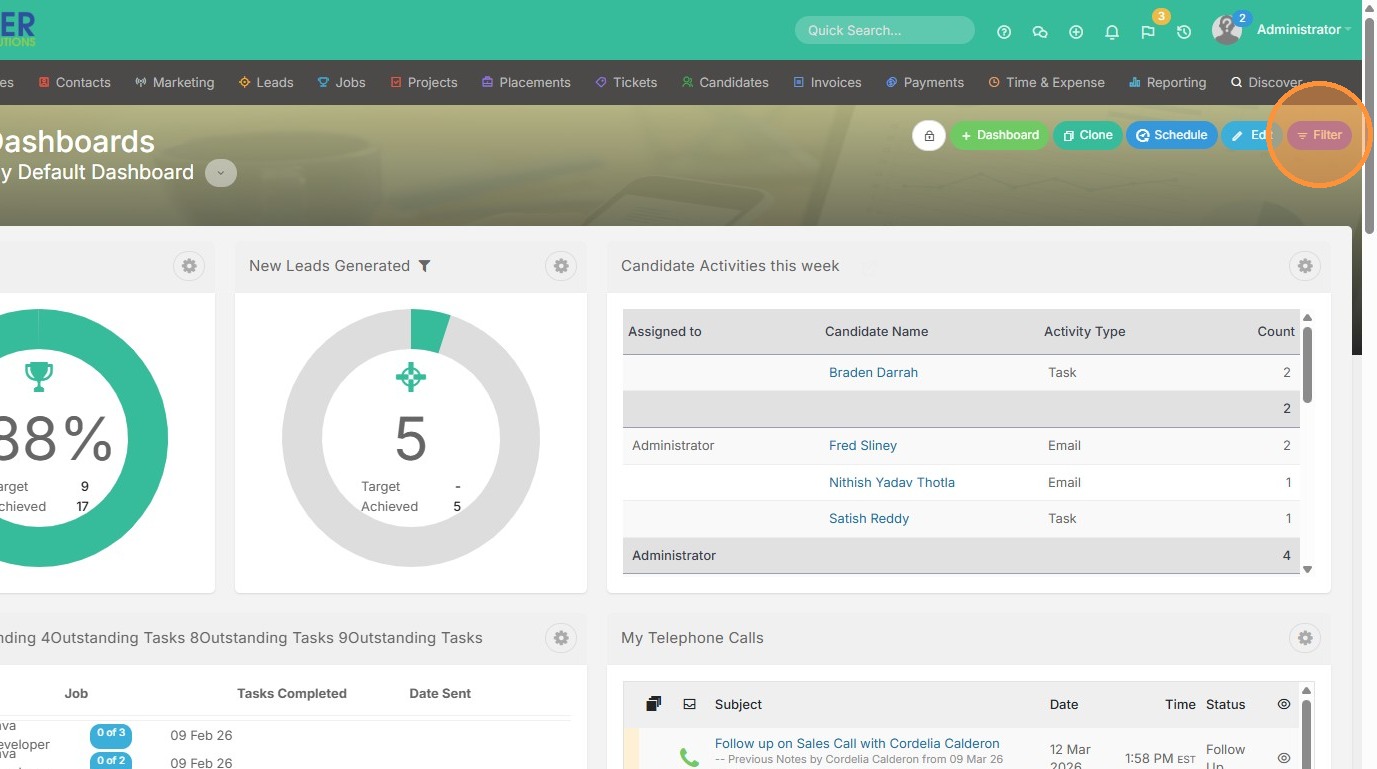
7. Click the "Date Range" field.
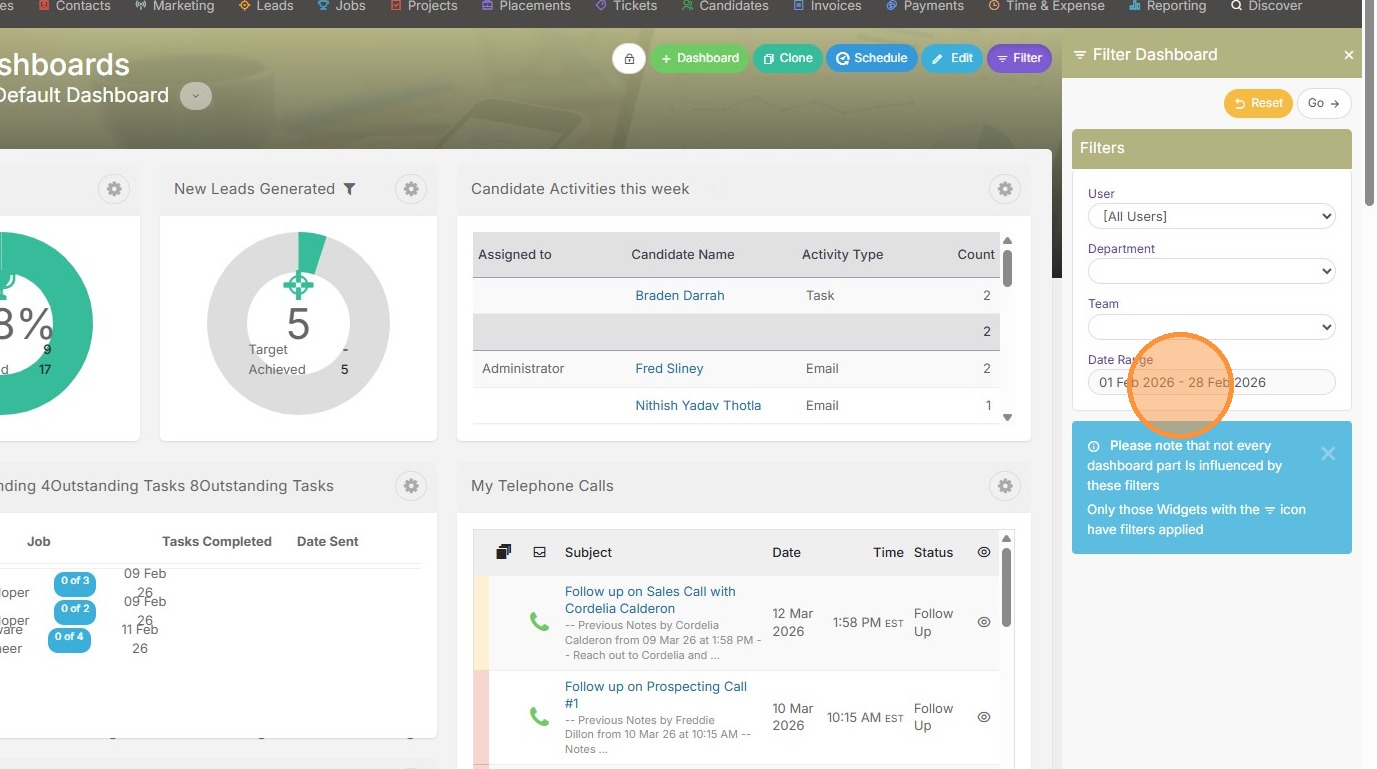
8. Click "Yesterday", or any other option on this list.
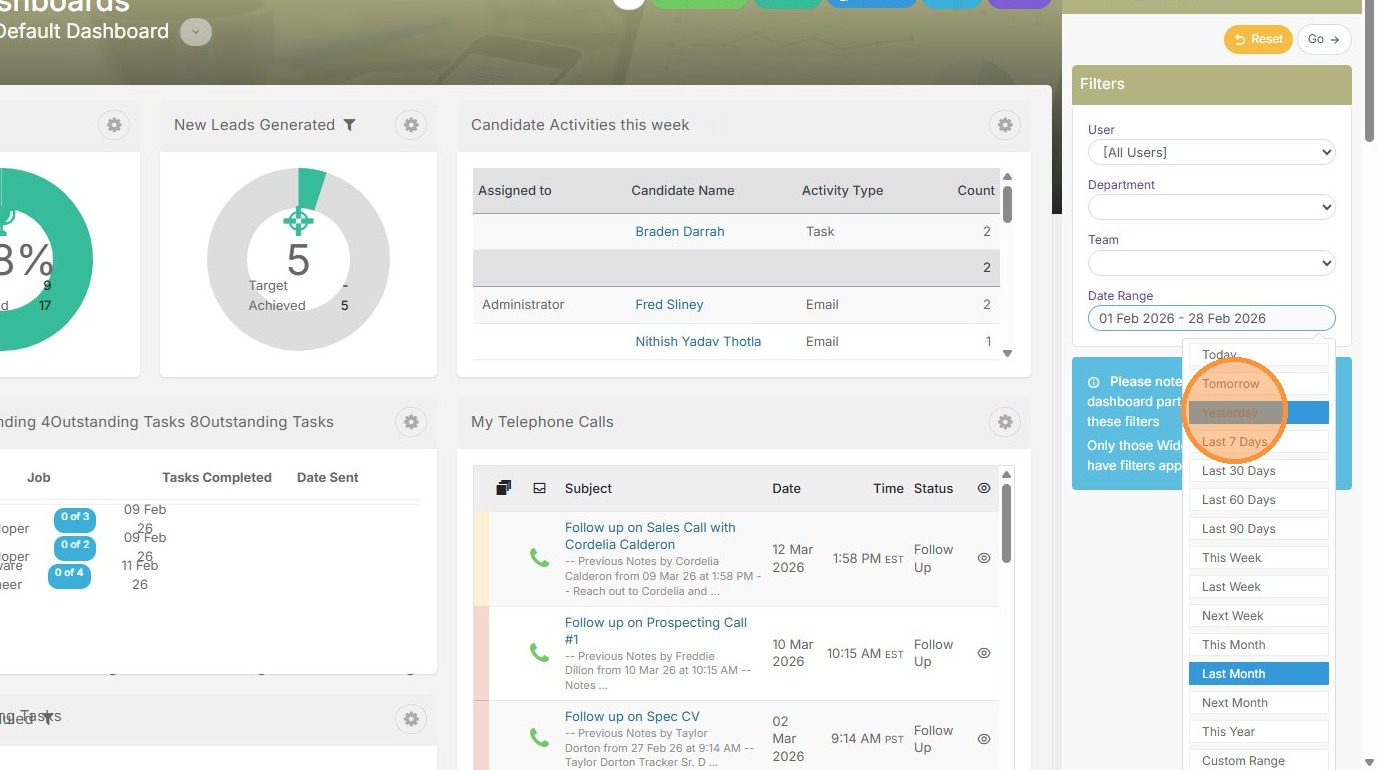
9. Click "Go"
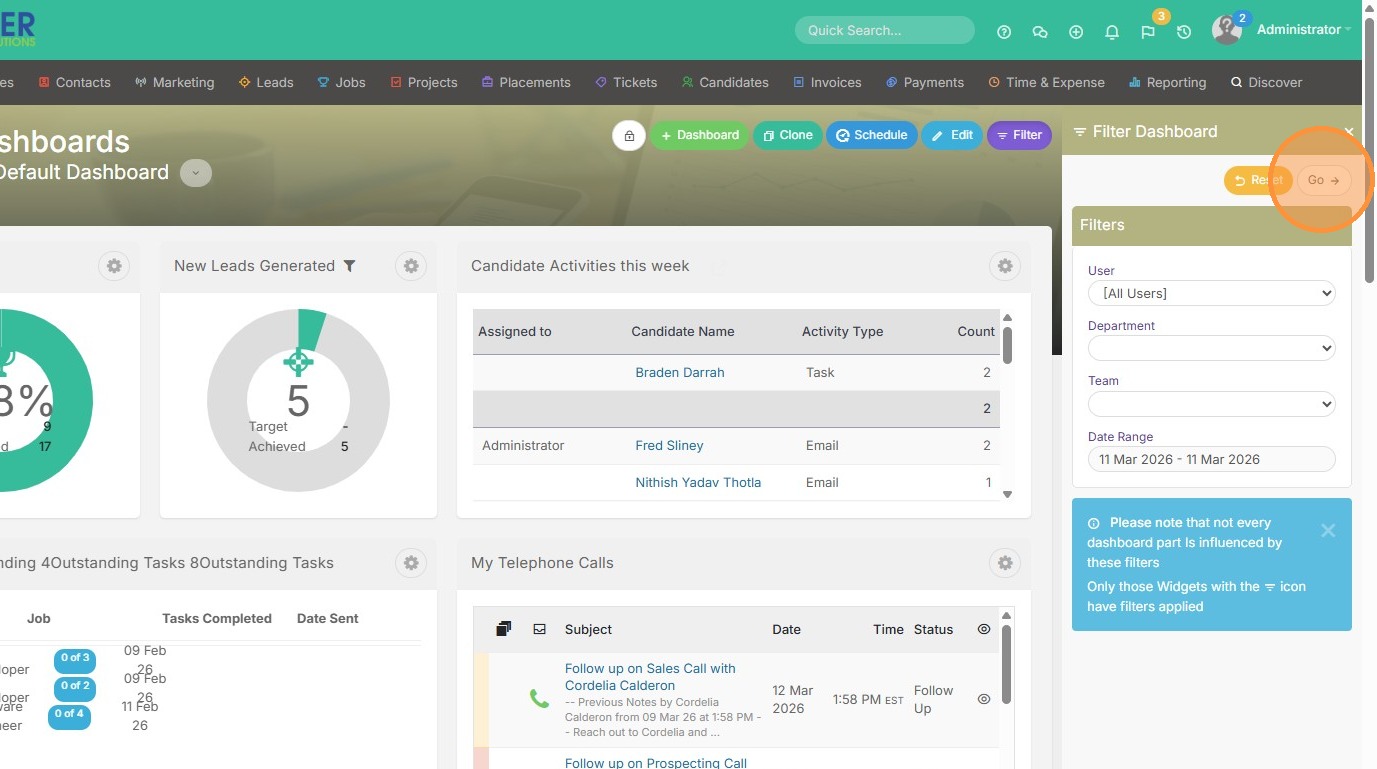
10. Click "Edit" to add or remove some of these "widgets" on the screen.
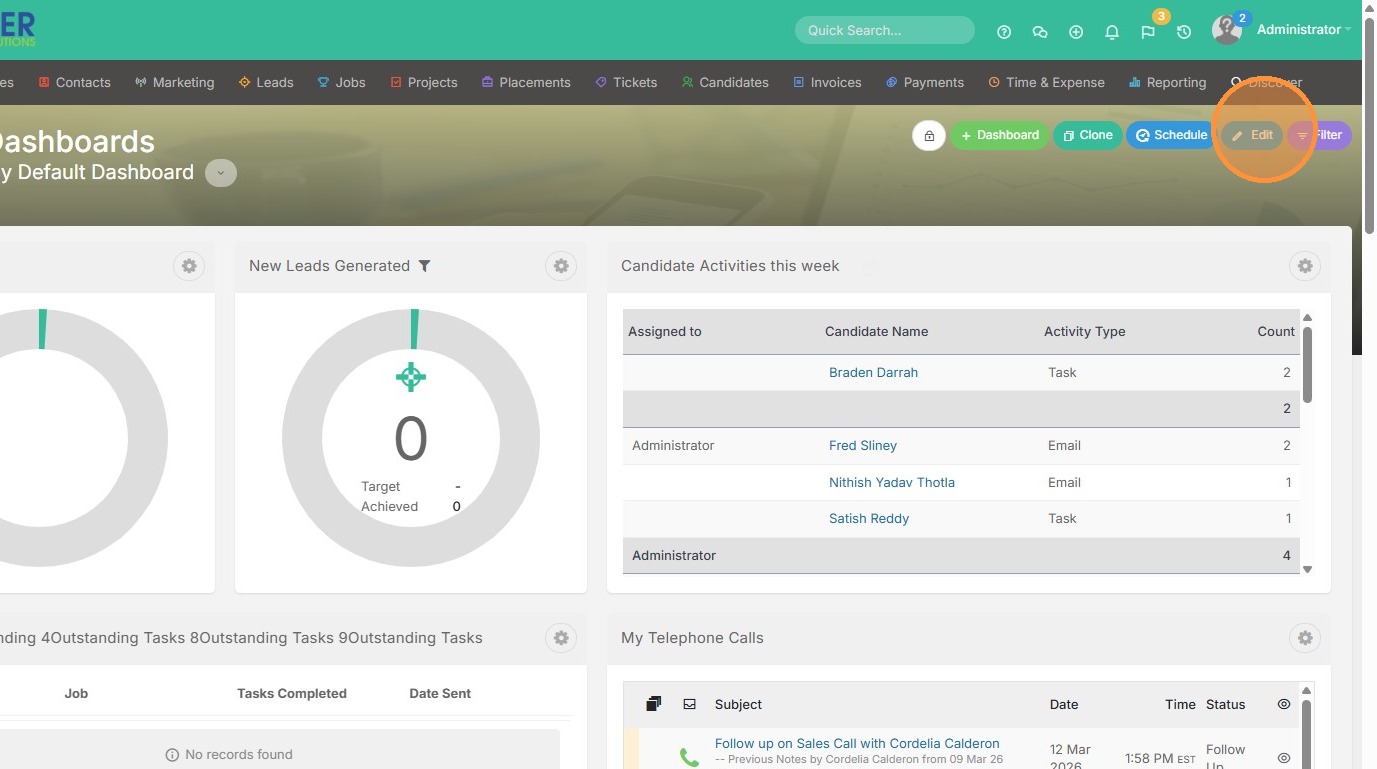
11. Click "Widgets" to view the options. For example, you can add your calendar, a web page, your telephone calls etc.
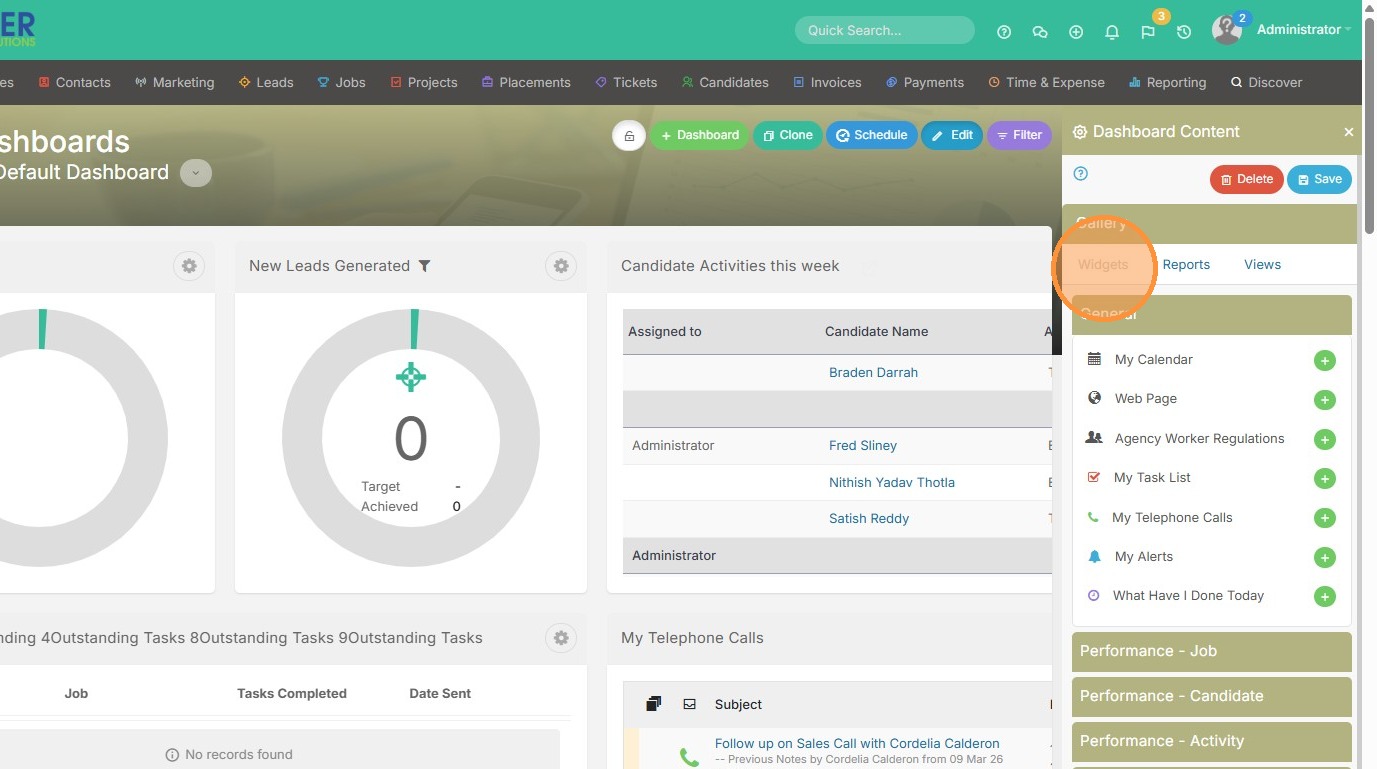
12. Or you can click on another tab to see what else you can add, such as Job-related widgets.
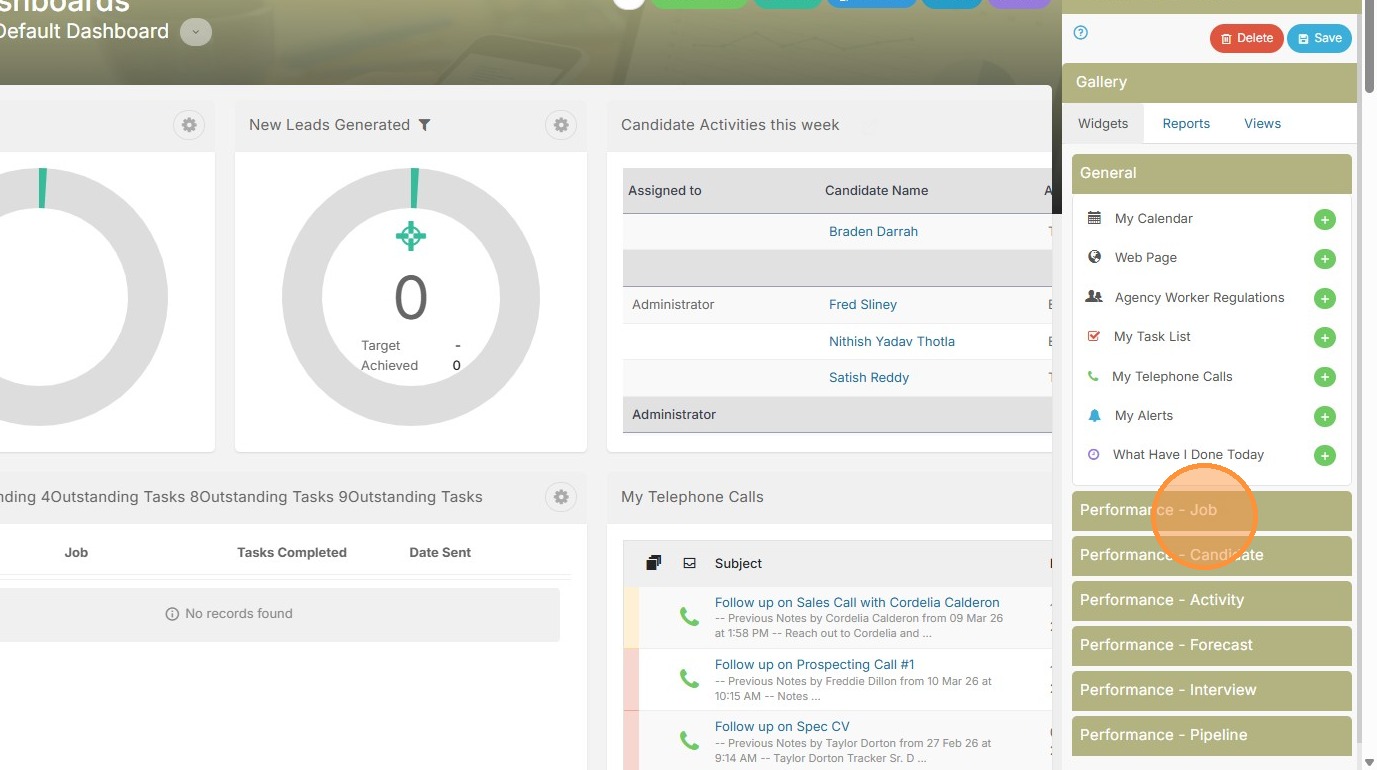
13. Or candidate-related widgets.
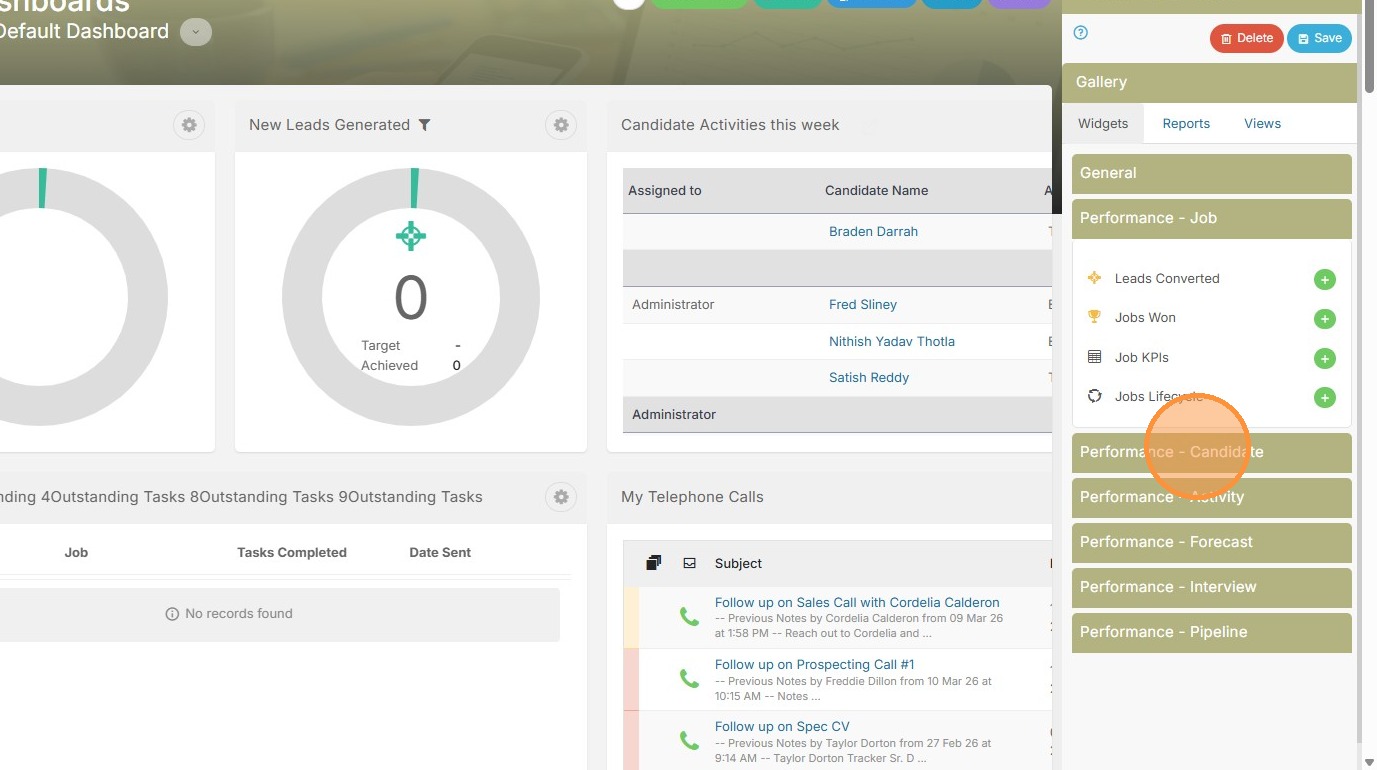
14. For example, you could add candidates added to the system, spec resumes sent, candidate KPI's, and more.
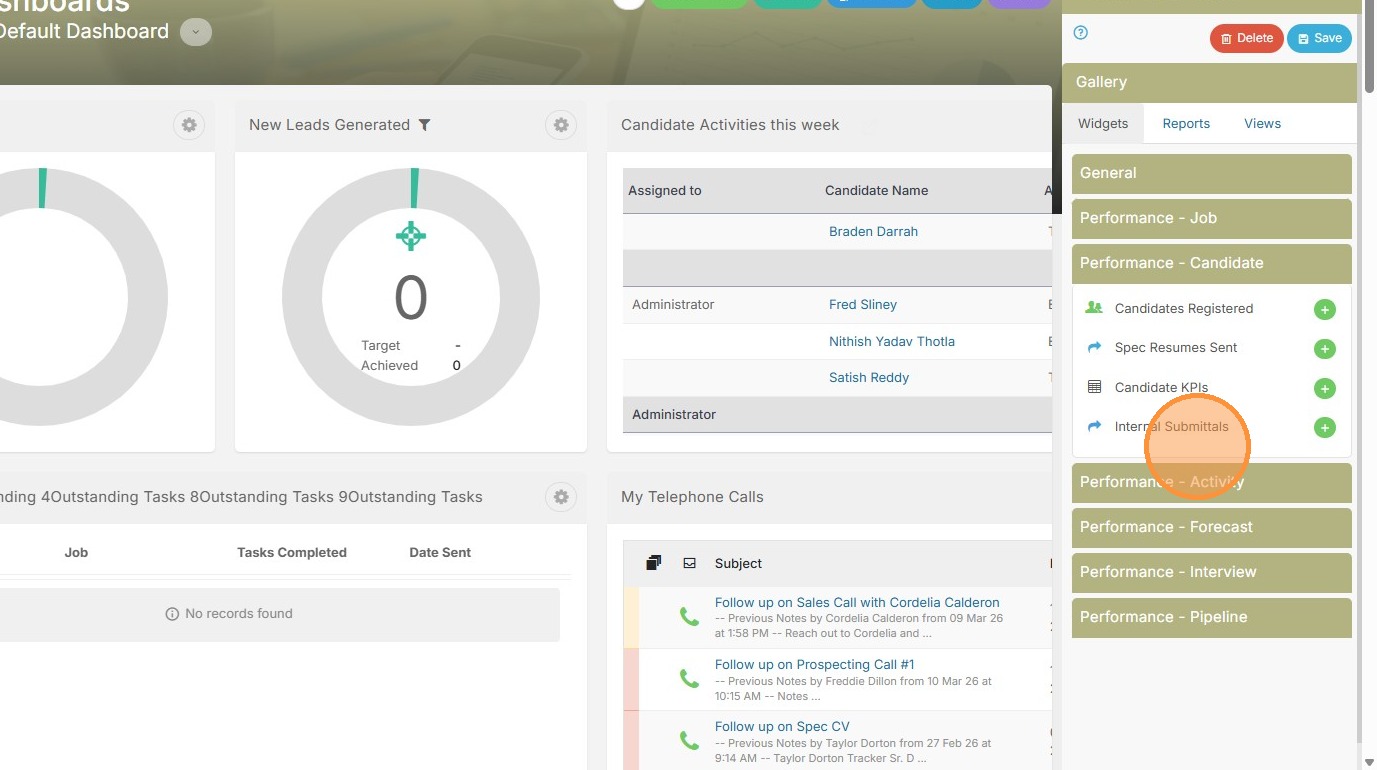
15. Click "Reports" to add any reports that you own (or have been shared with).
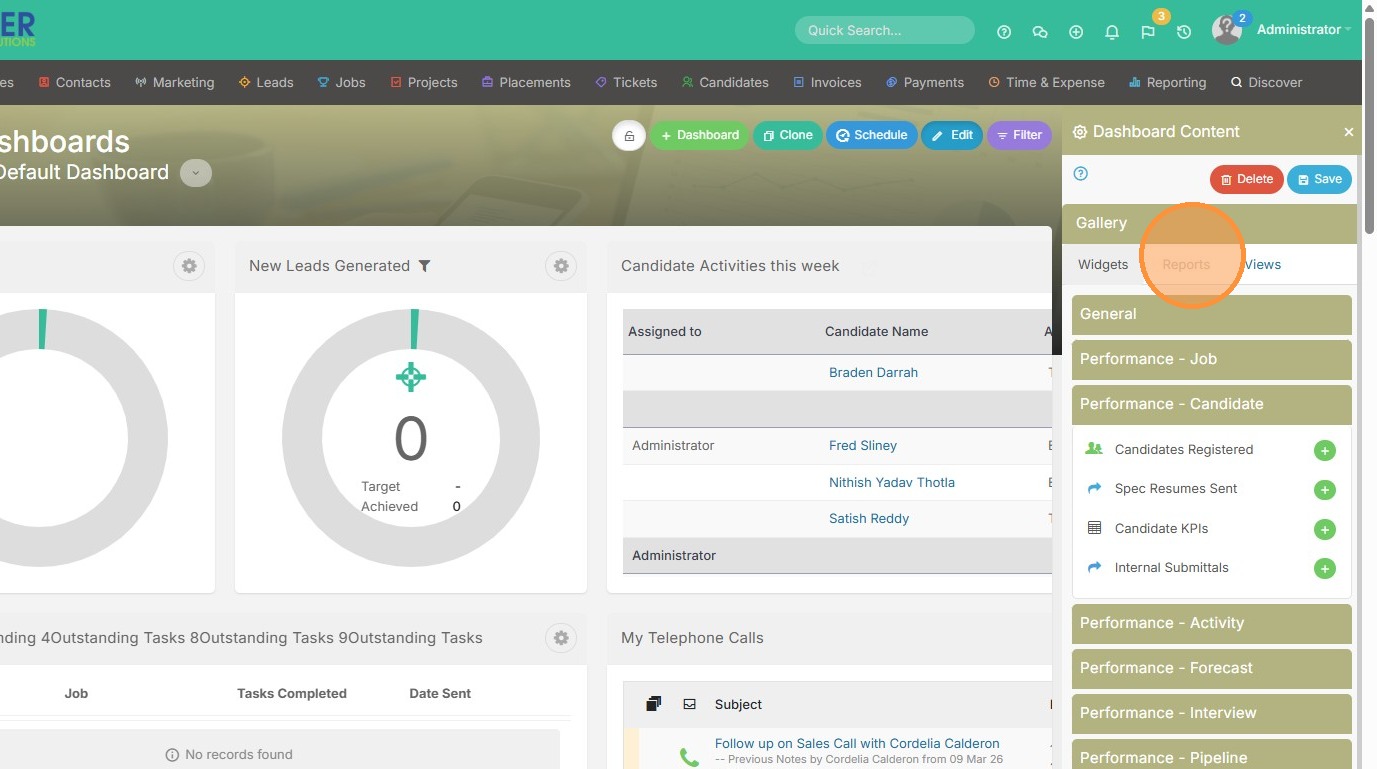
16. Click here to add.
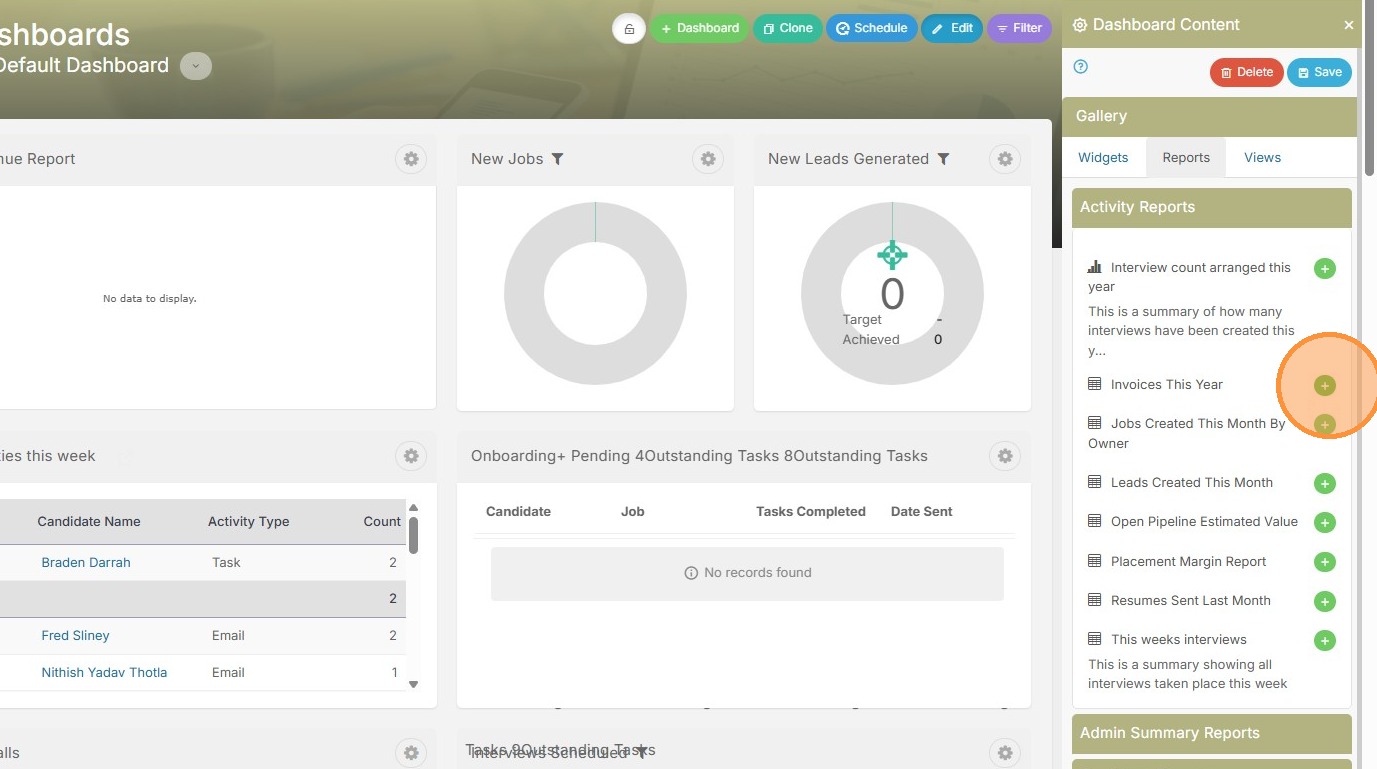
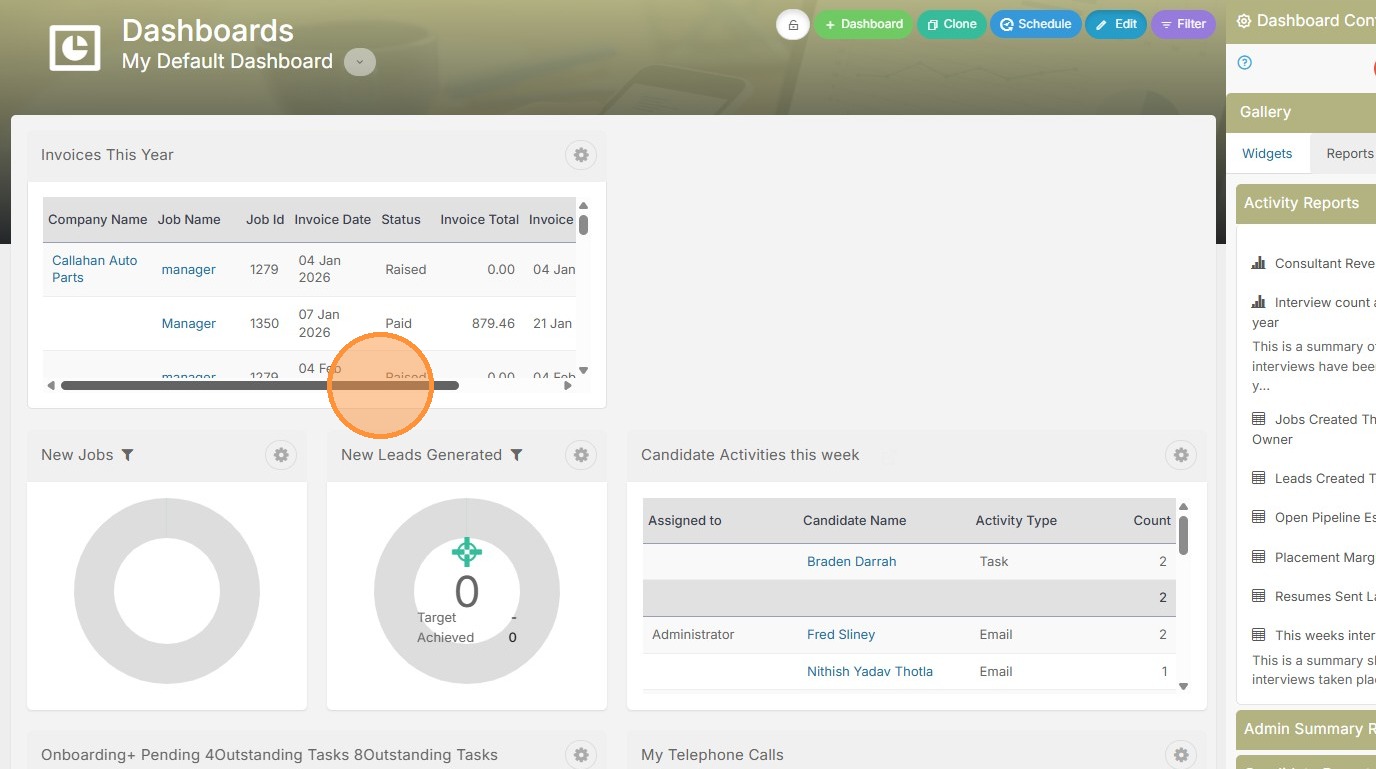
17. Now you can view that report on the screen (click the cog button in the right hand corner to adjust the size).
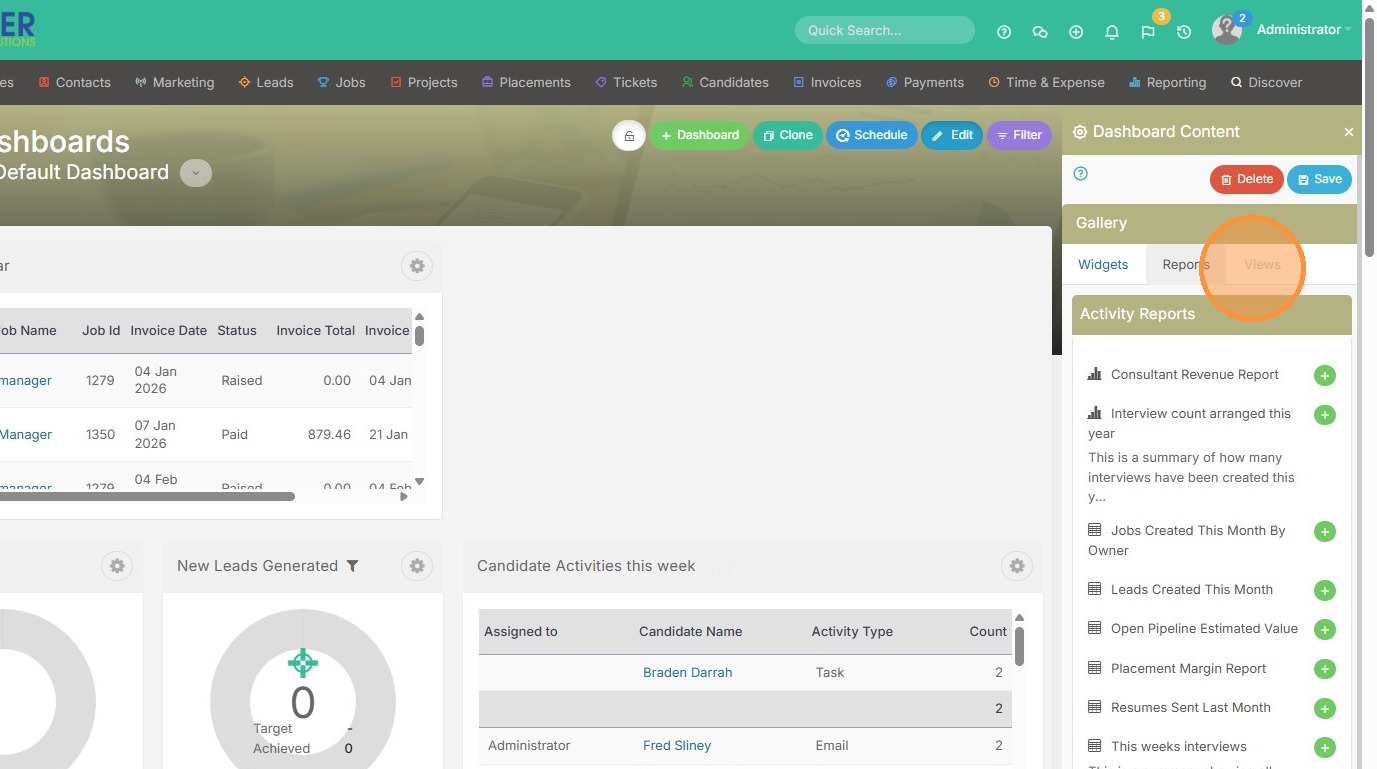
18. Click "Views" to add any Saved List Views (see this lesson if you don't have any)
19. Click here to add.
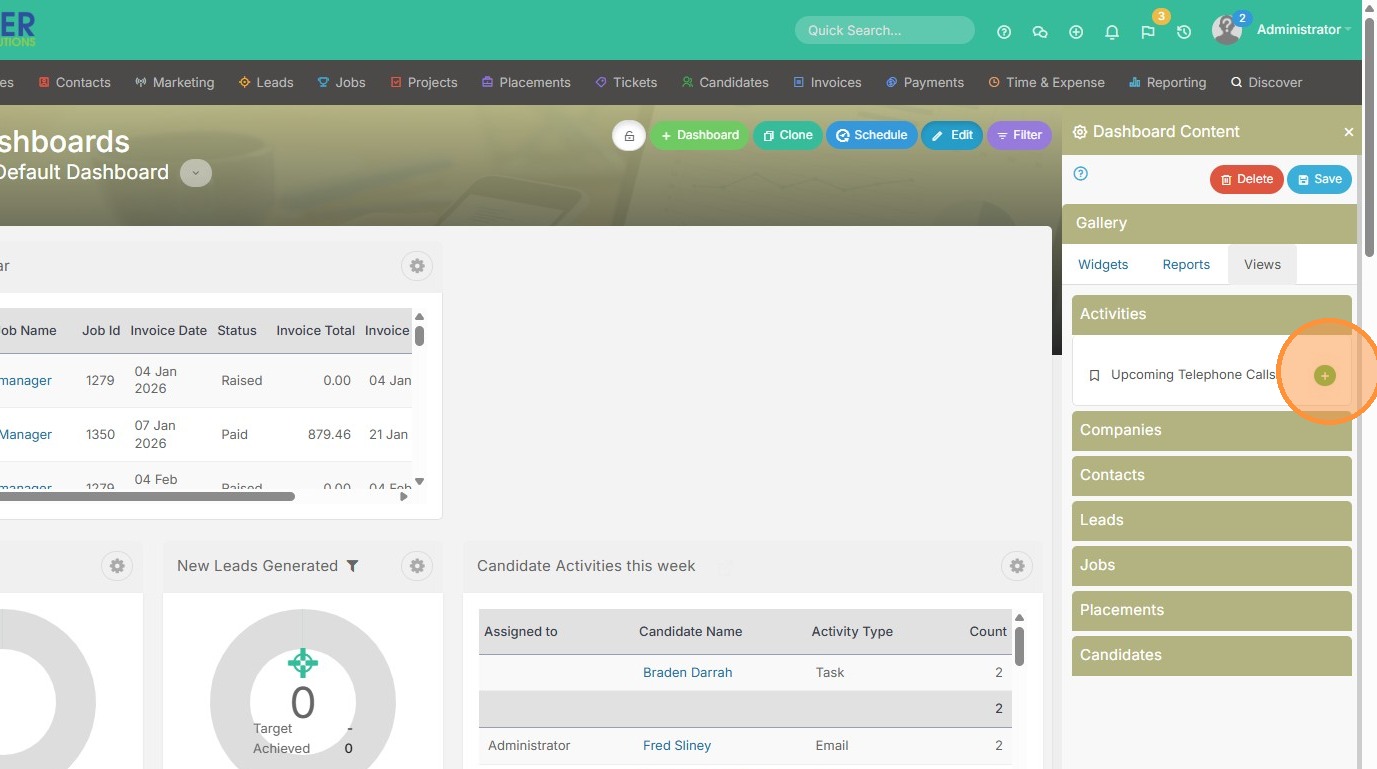
20. Now you can view the saved list for Upcoming Telephone Calls. You can even interact with this list on screen.
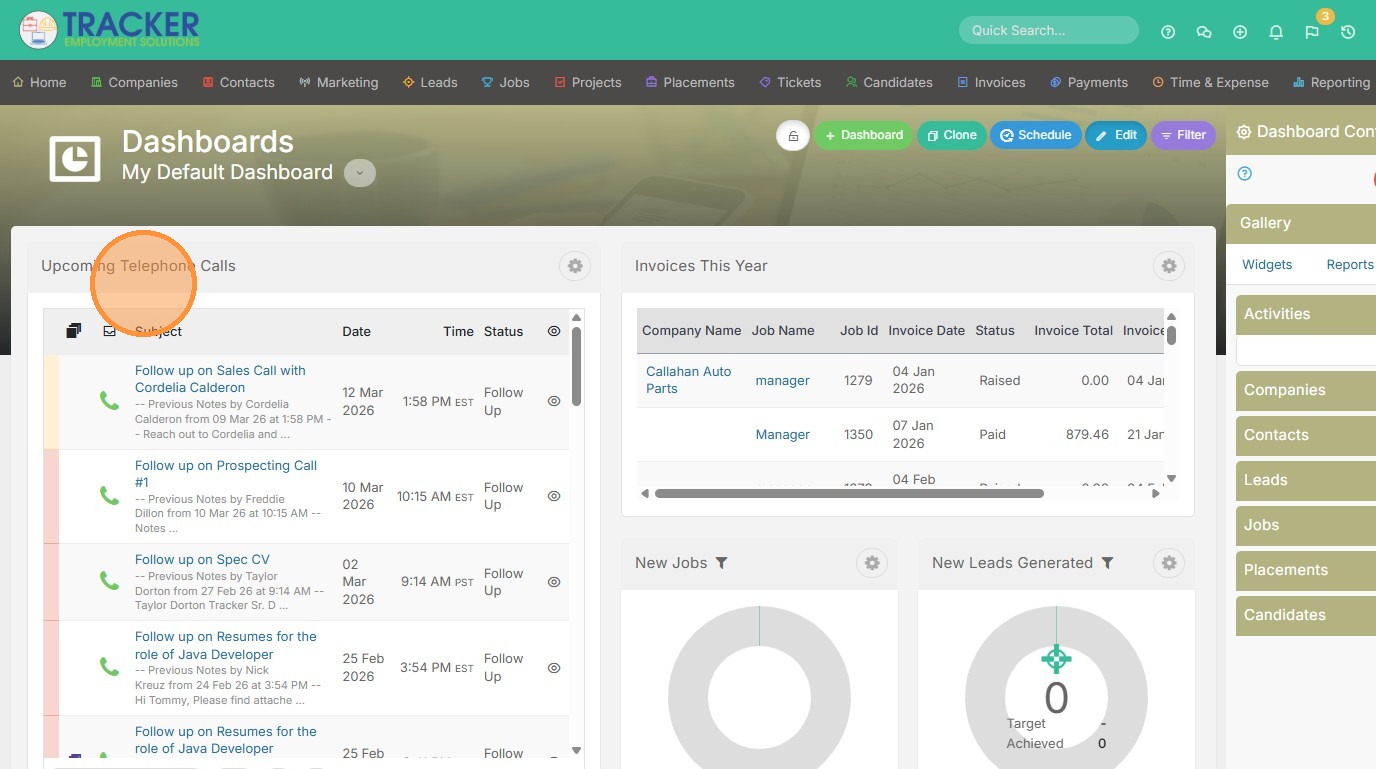
21. Click "Follow up on Sales Call with Cordelia Calderon" to complete the call or add notes.
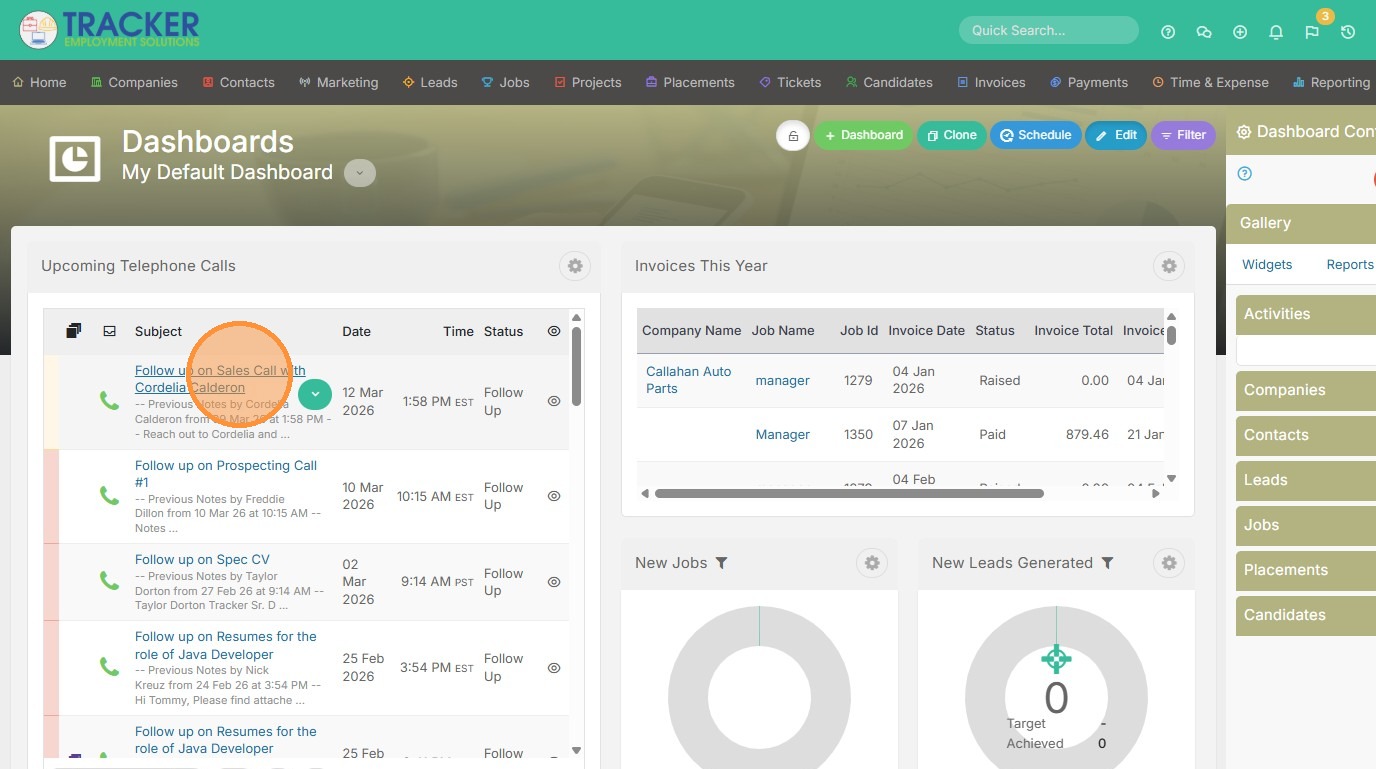
22. Click "Complete"