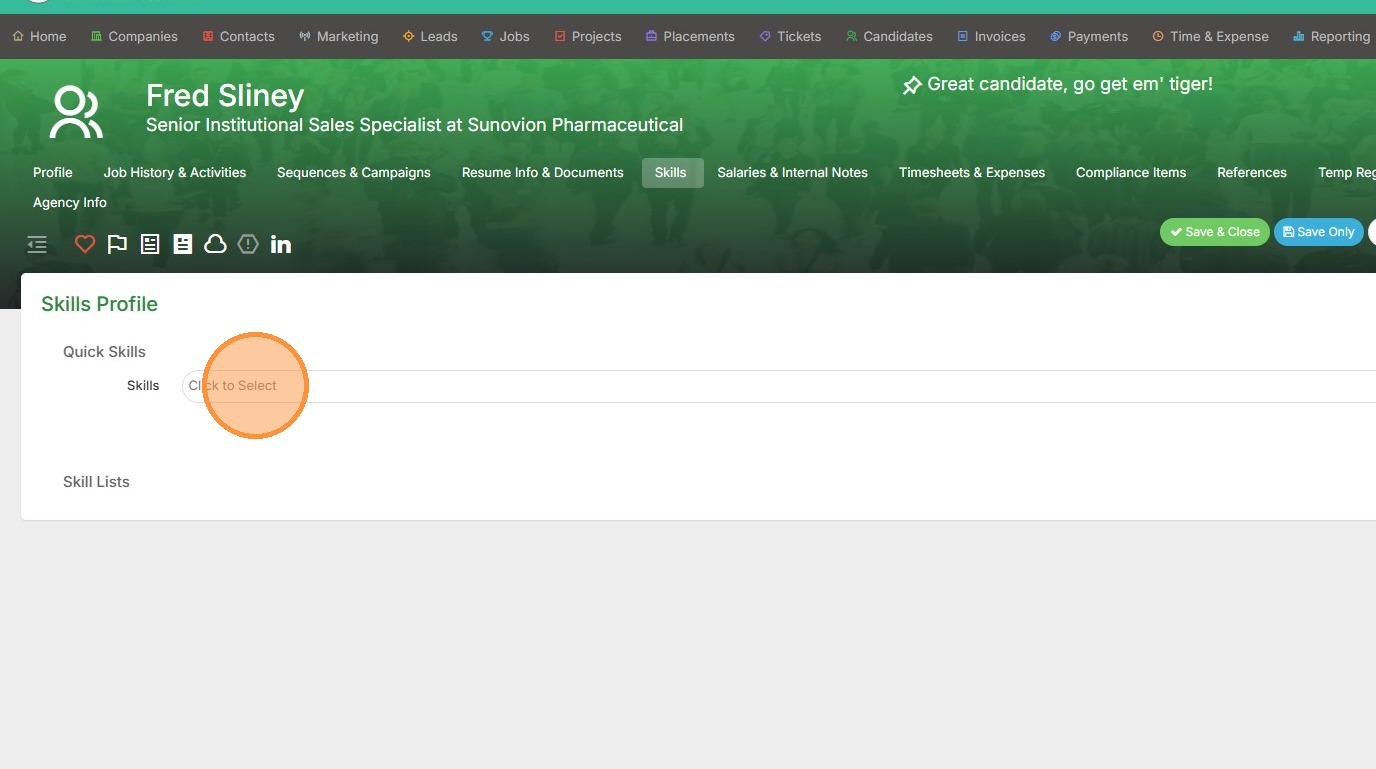
1. To use the "match prospects" feature, you'll need to ensure that the candidate you're matching has skills applied. Find their skills section in the candidate record layout, and add some by clicking here.
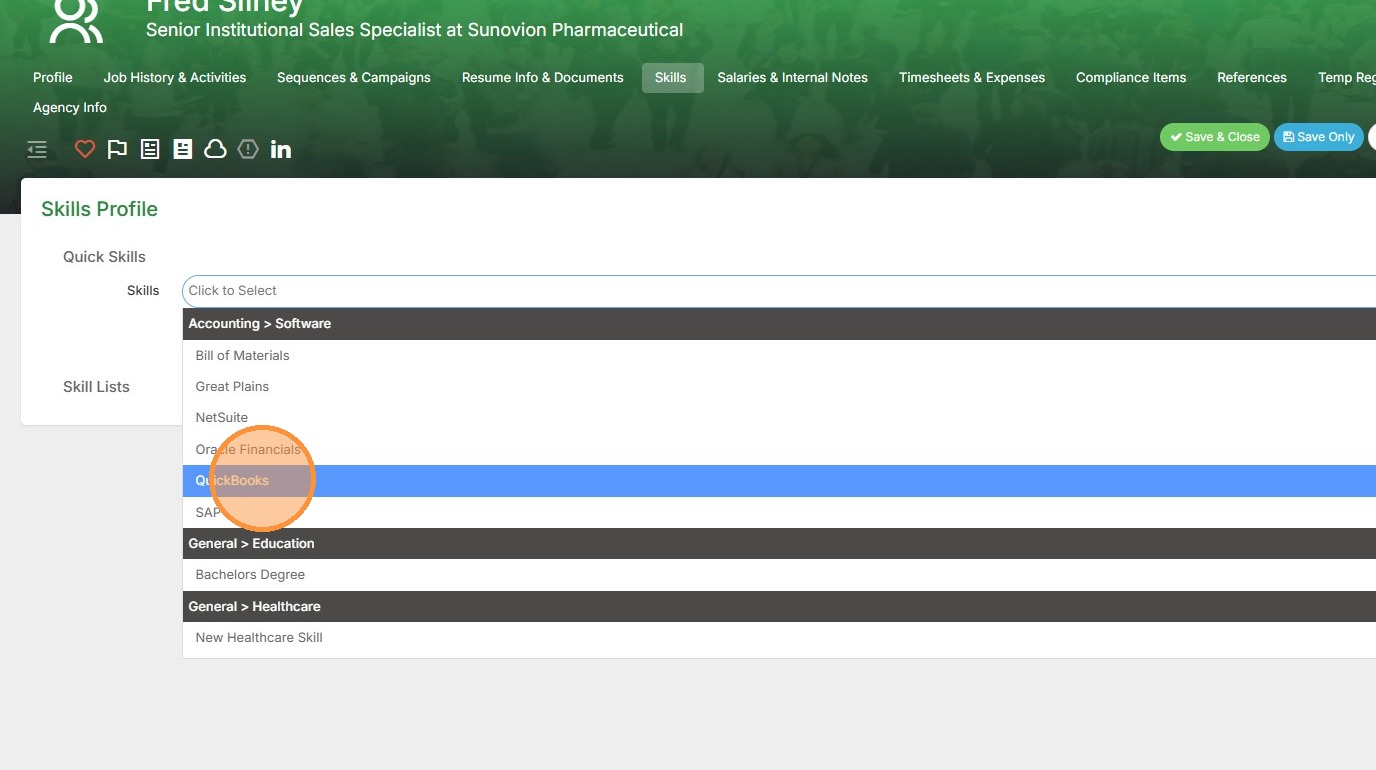
2. Example:
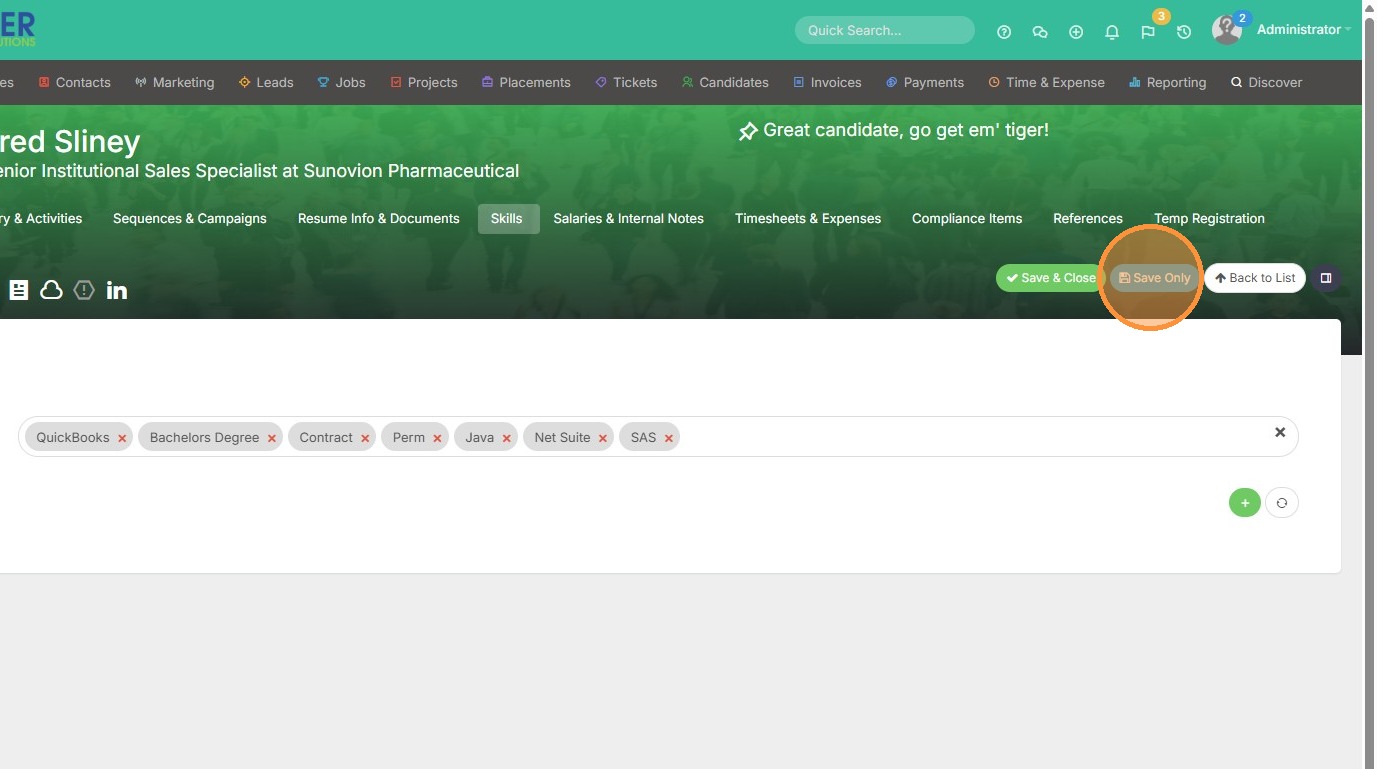
3. Click "Save Only"
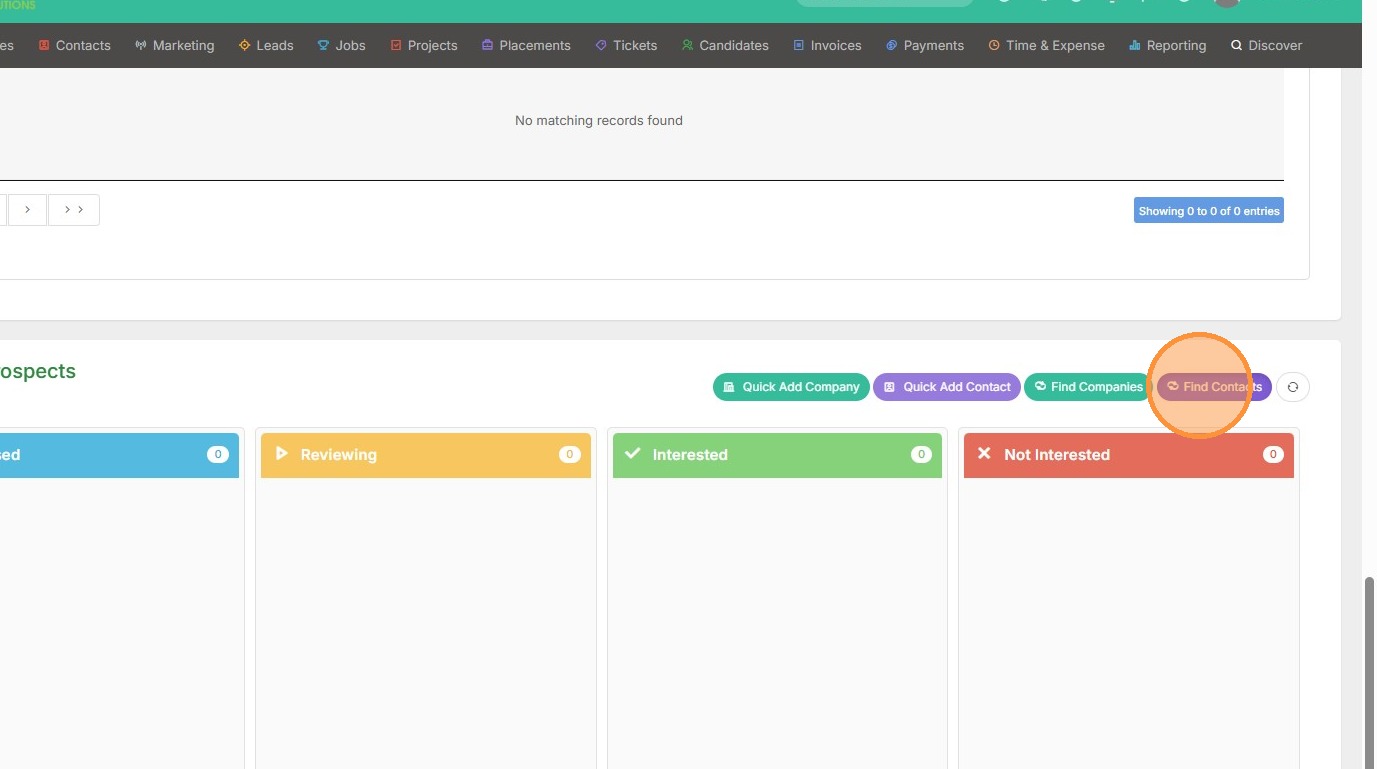
4. Now find where you input the Candidate Prospects area in your candidate record layout. (This can be adjusted under Tools & Settings > Layout Designer). Here you can select Find Companies or Find Contacts that the candidate's skills match with.
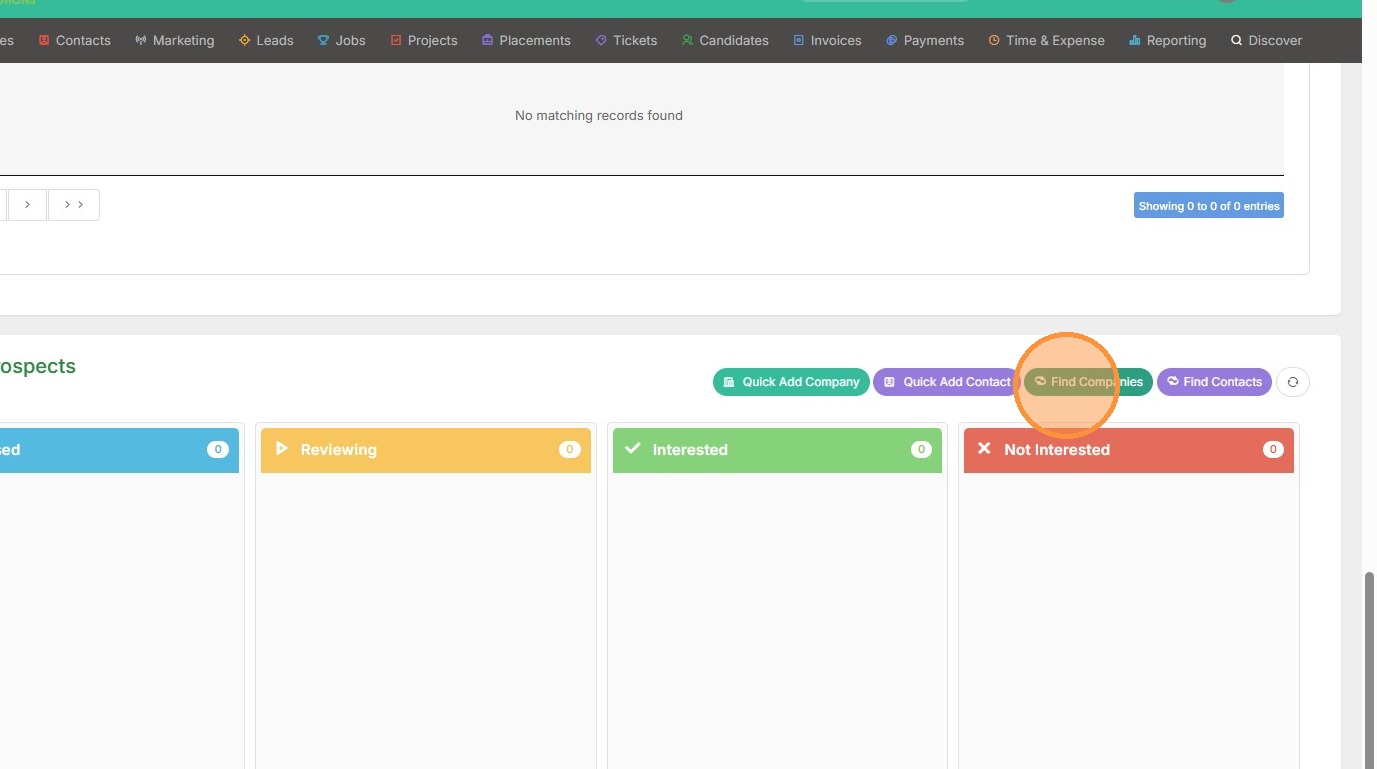
5. For example, when I click Find Contacts...
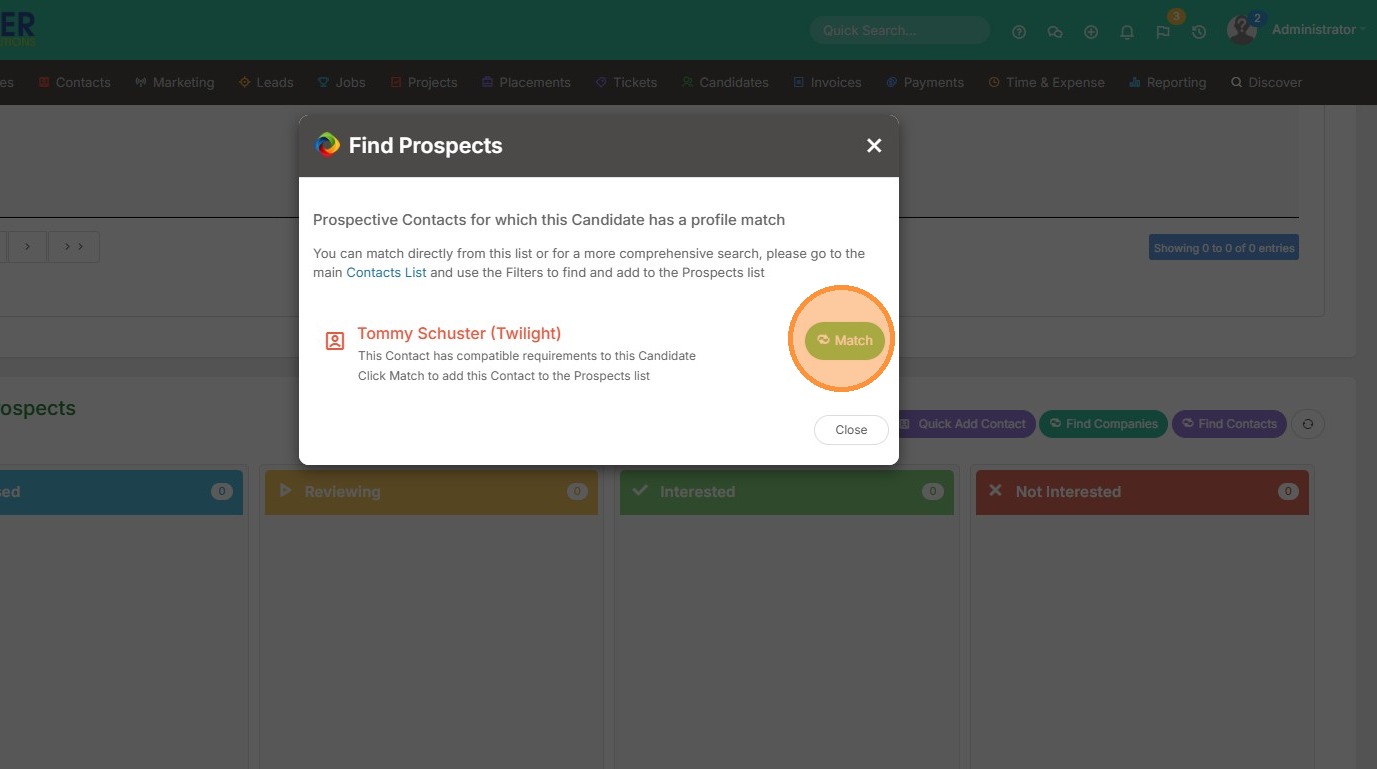
6. This candidate's skills matched to the contact, Tommy Schuster. Click "Match"
7. Click "Close"
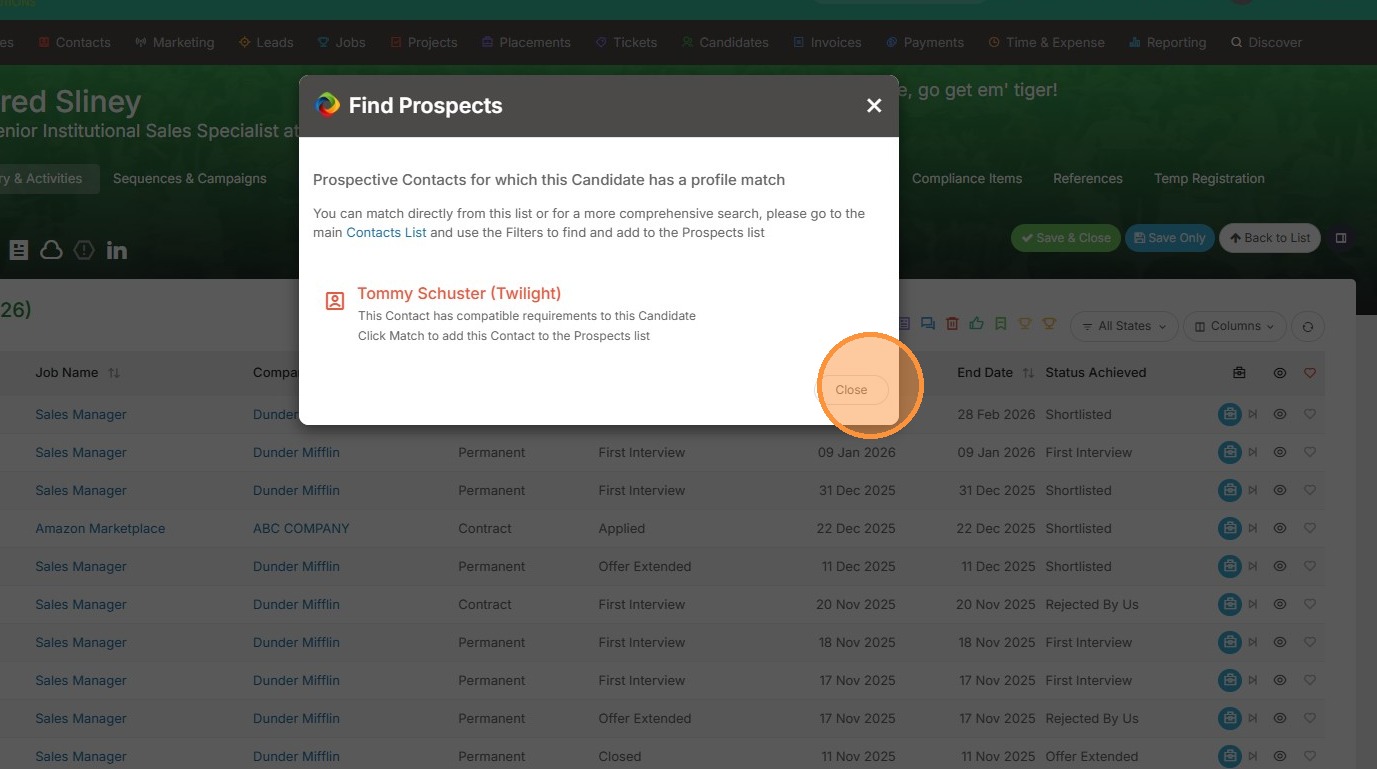
8. Now you can see we have a match proposed, and can email that contact from here.
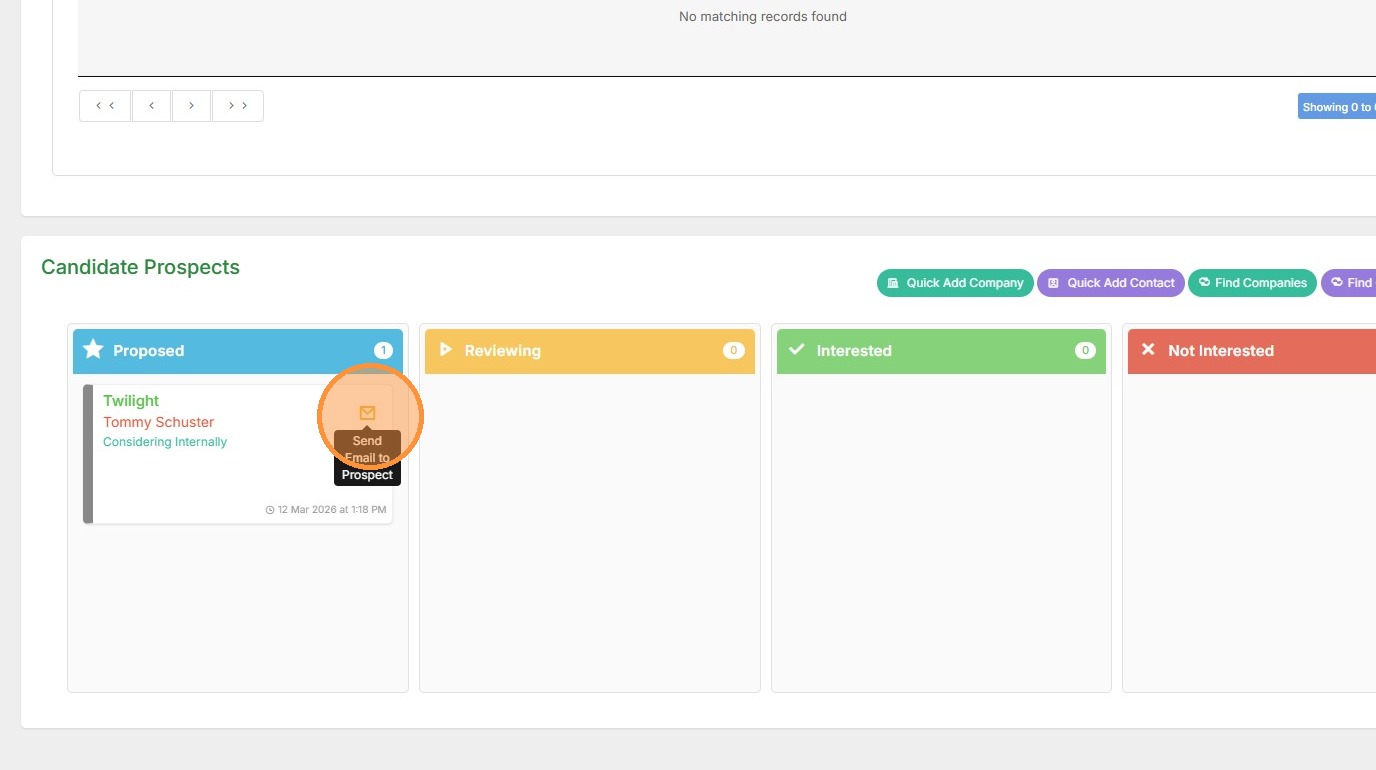
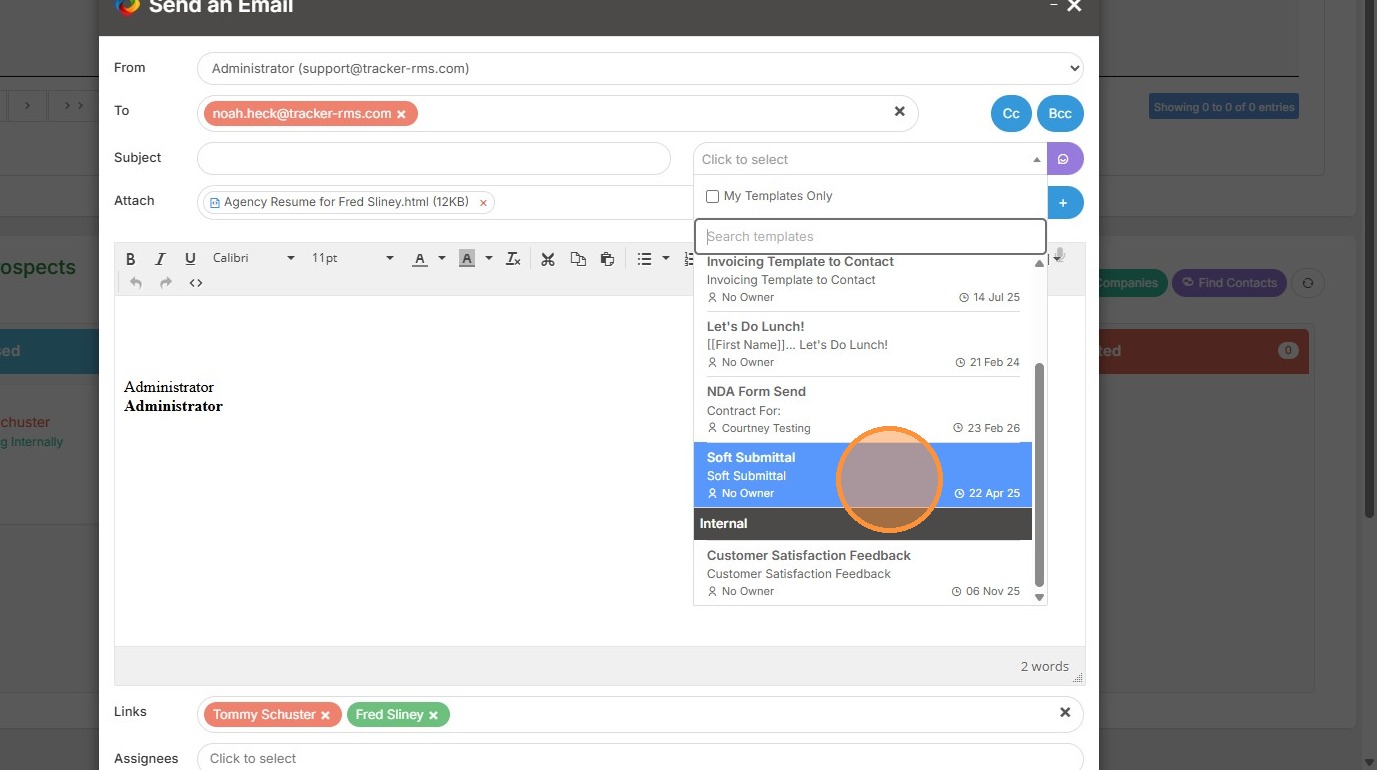
9. We can select an email template.
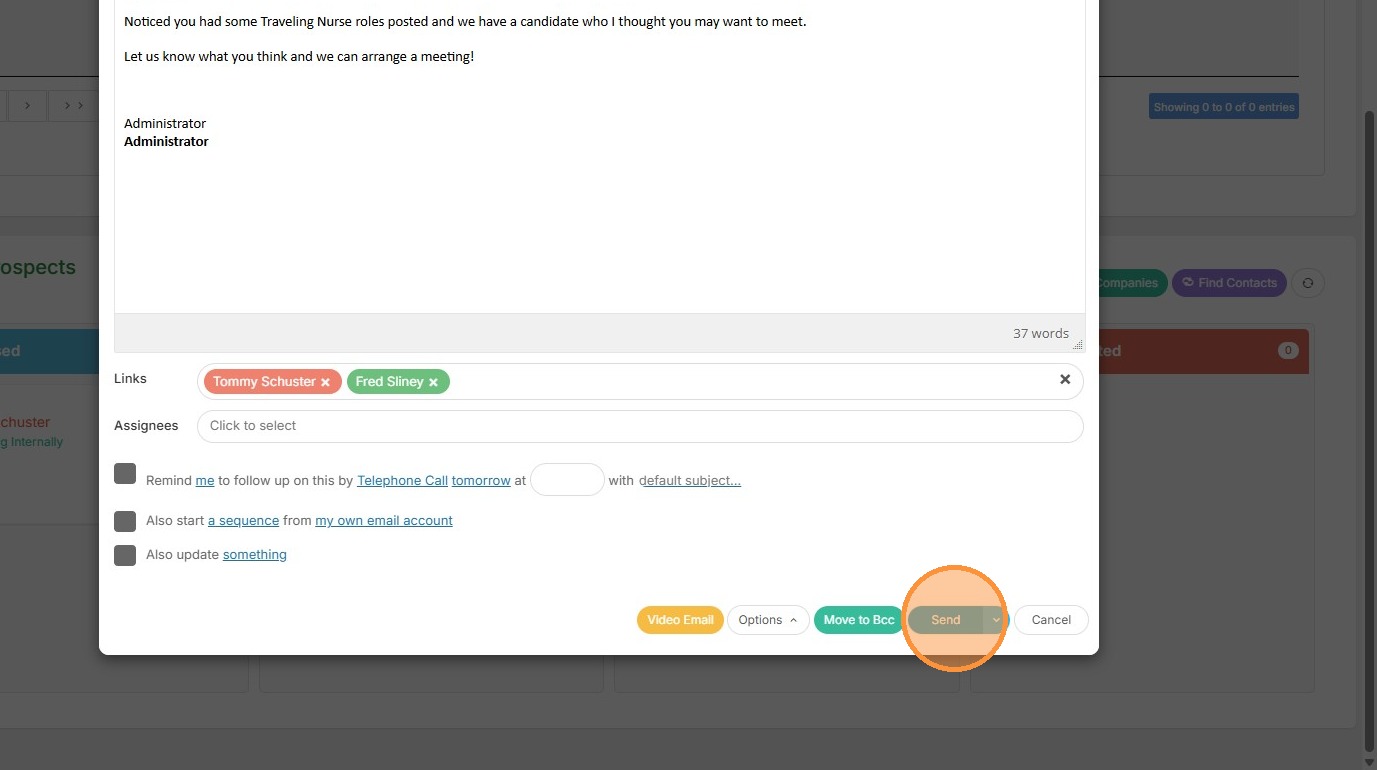
10. Click "Send"
11. And then we can also click on this box to adjust any of the details.
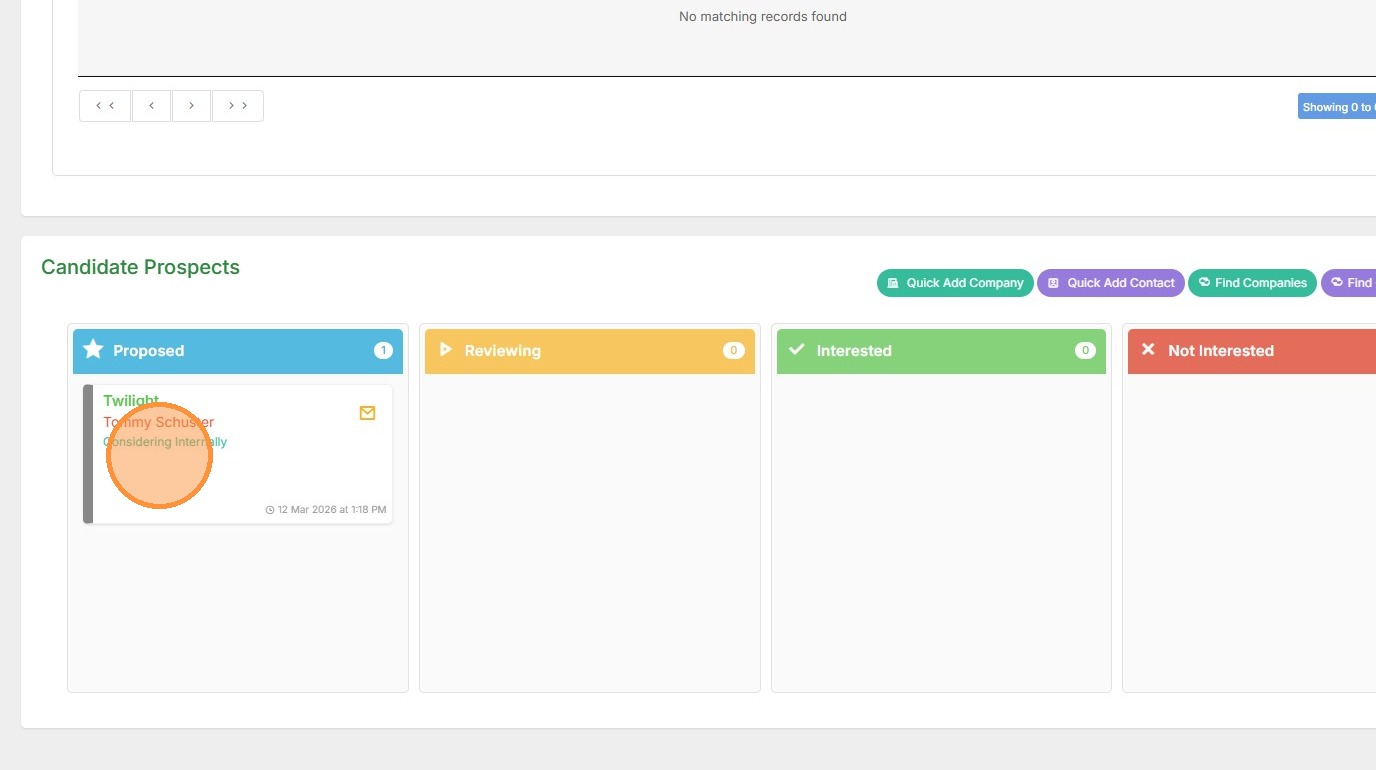
12. For example, I can update the prospect status if he responded to my email.
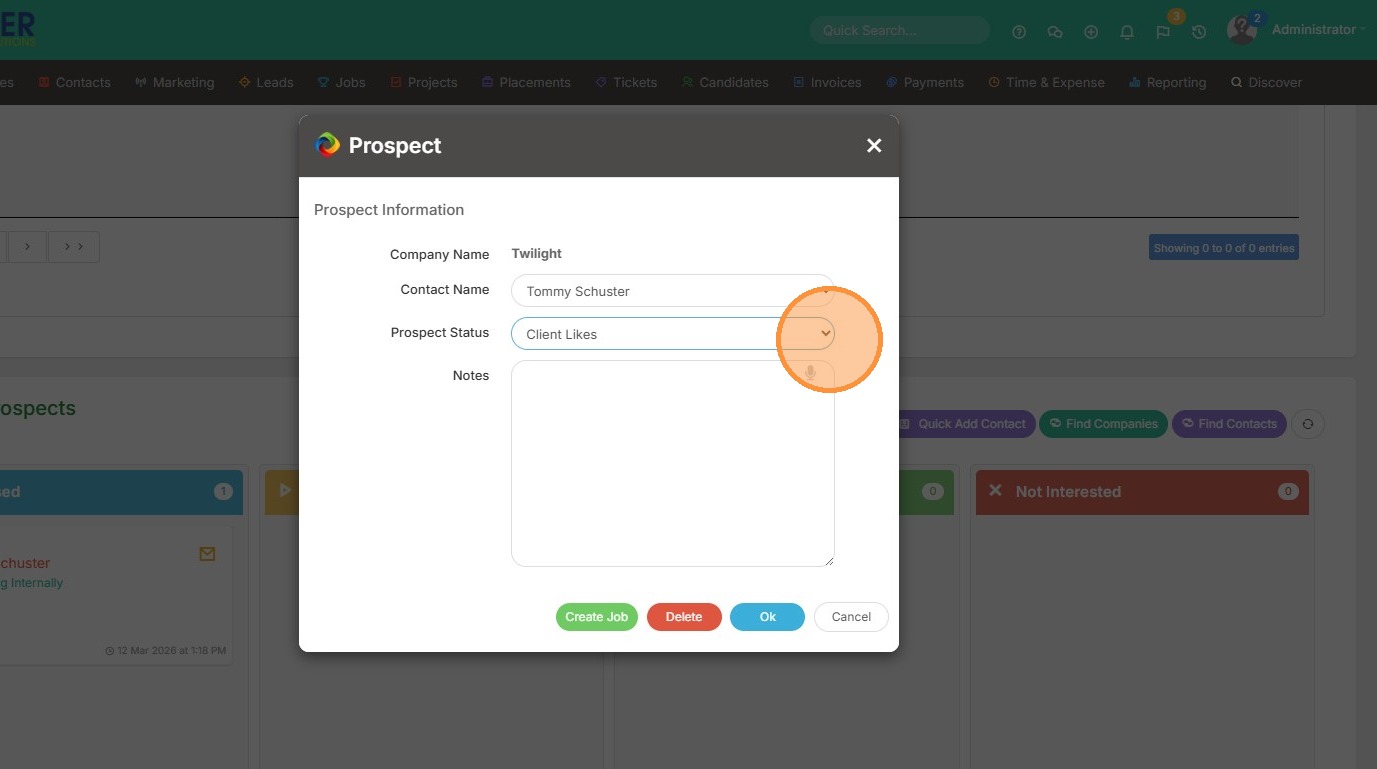
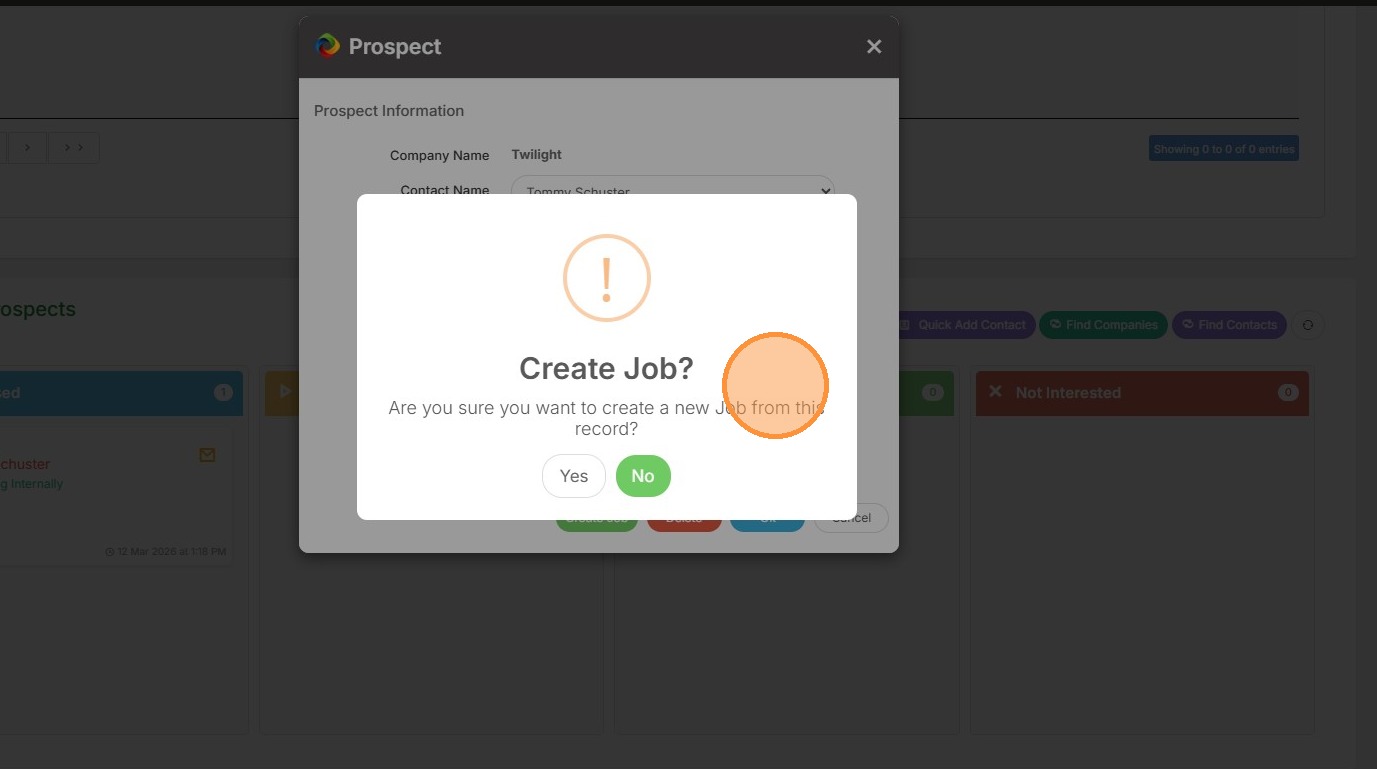
13. I can also create a job if the response was extremely positive.
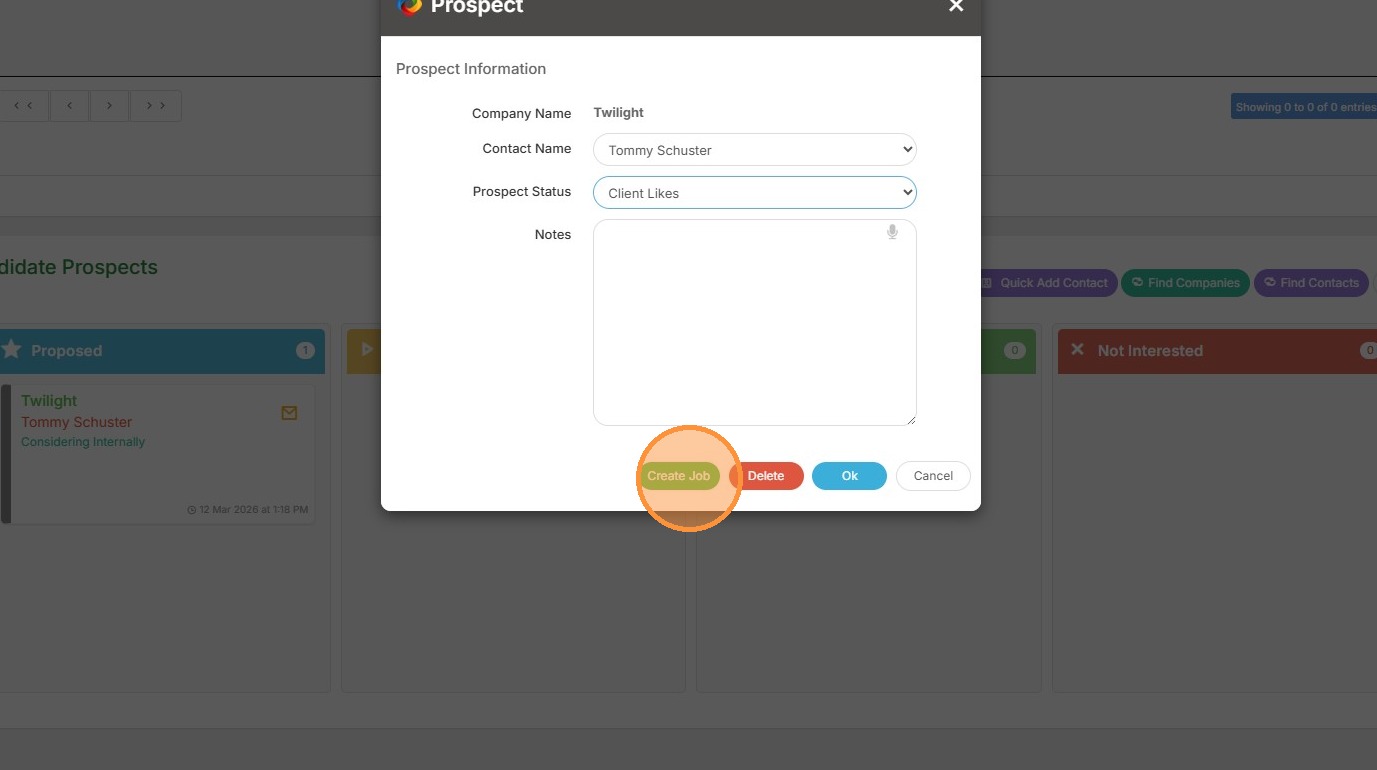
14. Once clicked, you'll receive this confirmation box, and can continue forward.