First Candidate Offer
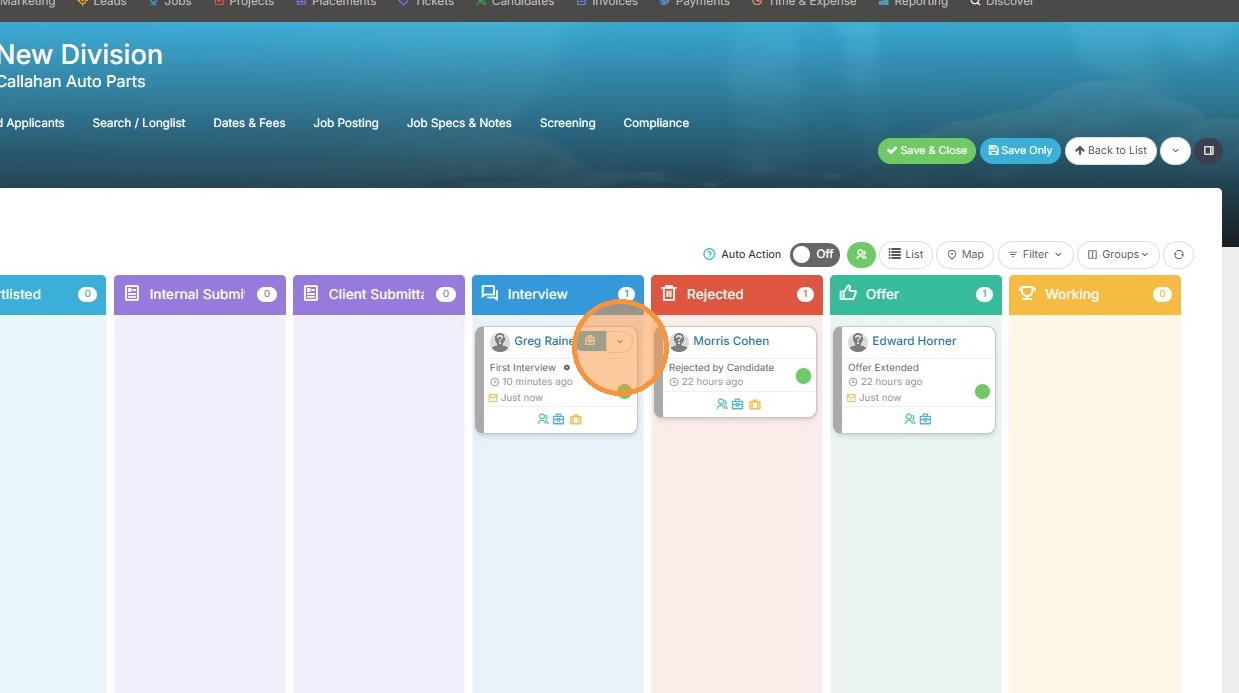
1. Select the dropdown arrow on the candidate you want to email an offer to.

2. Select 'Send Email to Candidate' from the 'Send a Message' menu.

3. Apply the offer email template you have pre-built, or type up one.
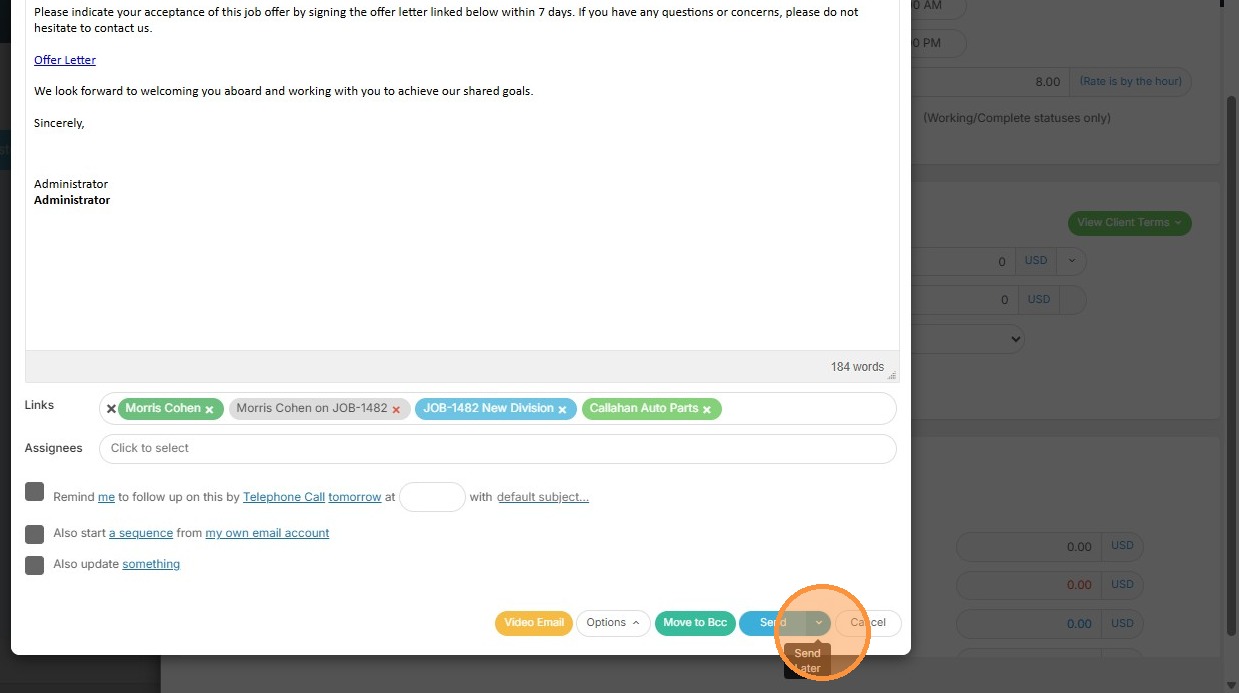
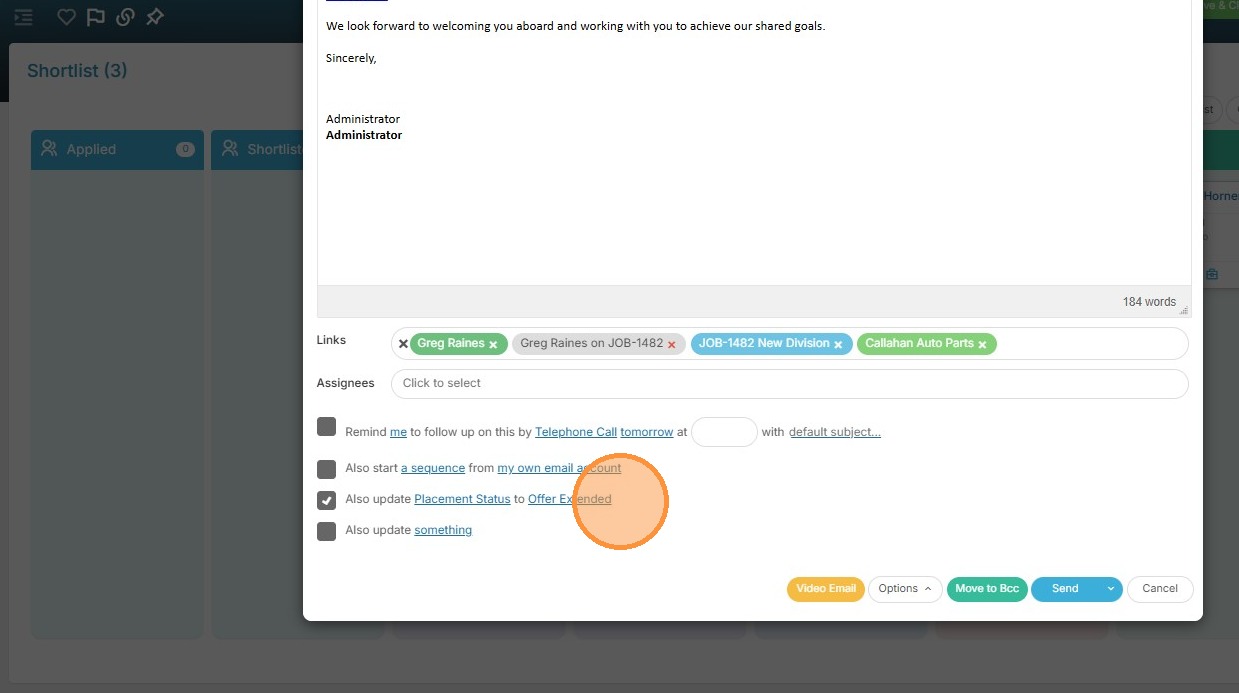
4. You will see my email template will update the Placement Status to Offer Extended once sent.
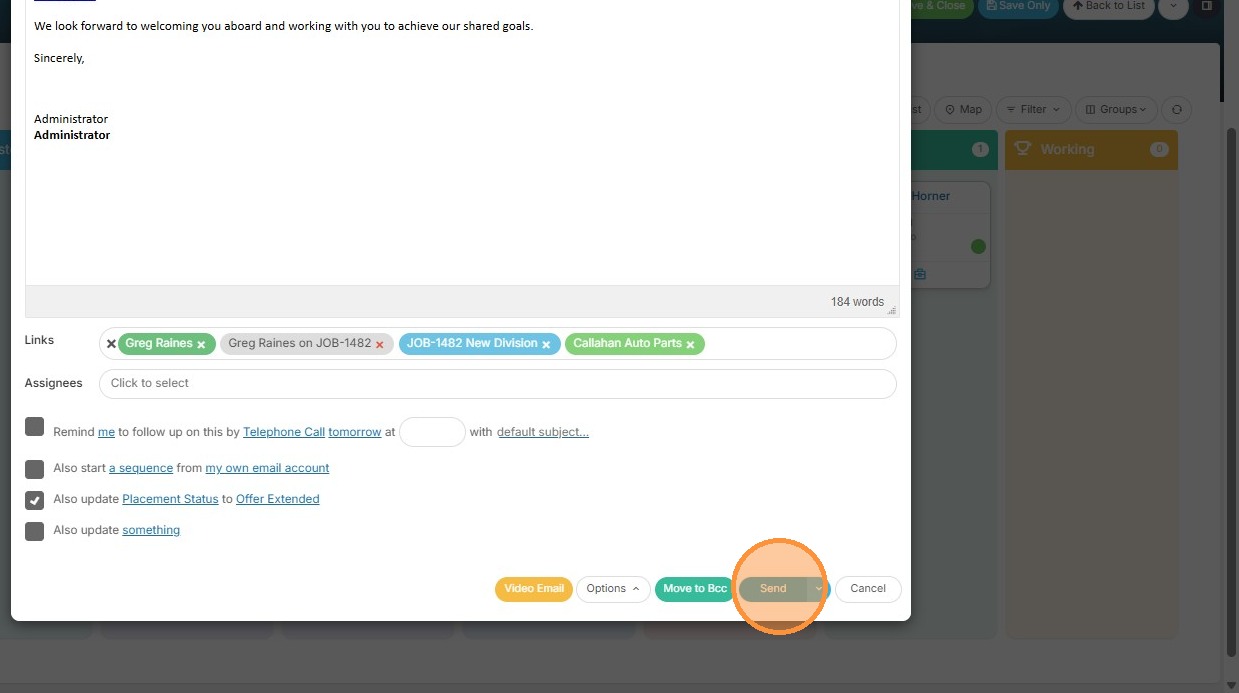
5. Click 'Send' to dispatch the offer email.
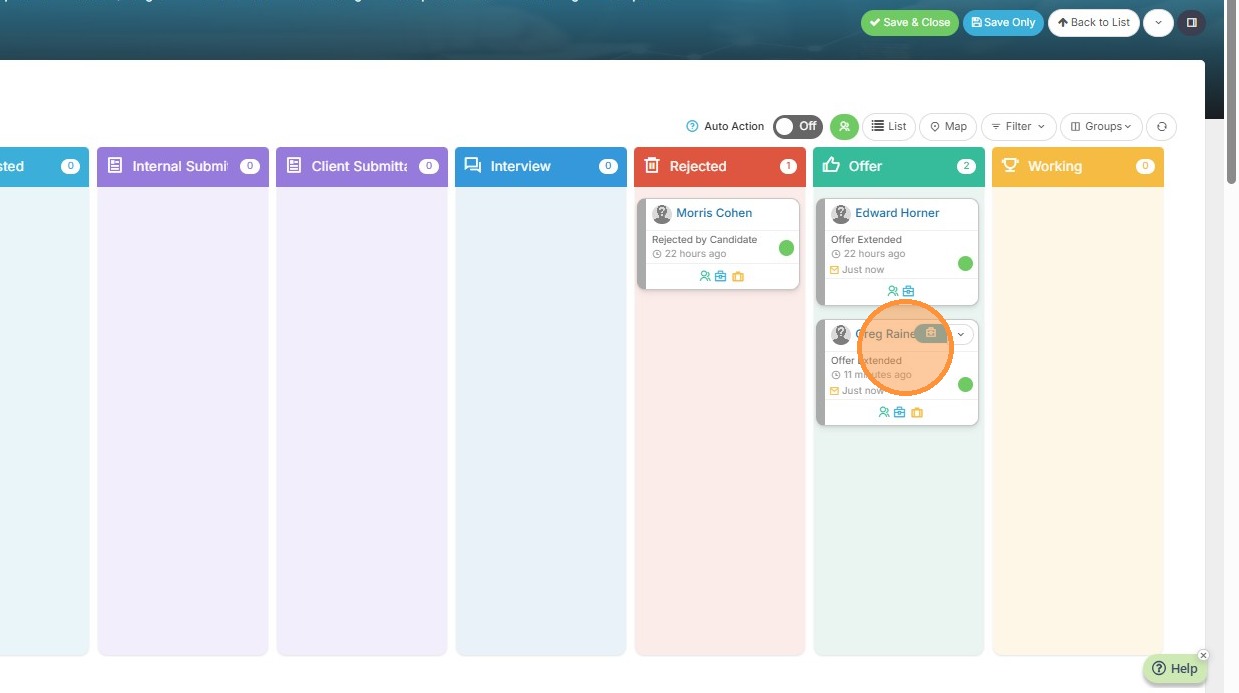
6. You can see Greg has now moved to the Offer Extended card.
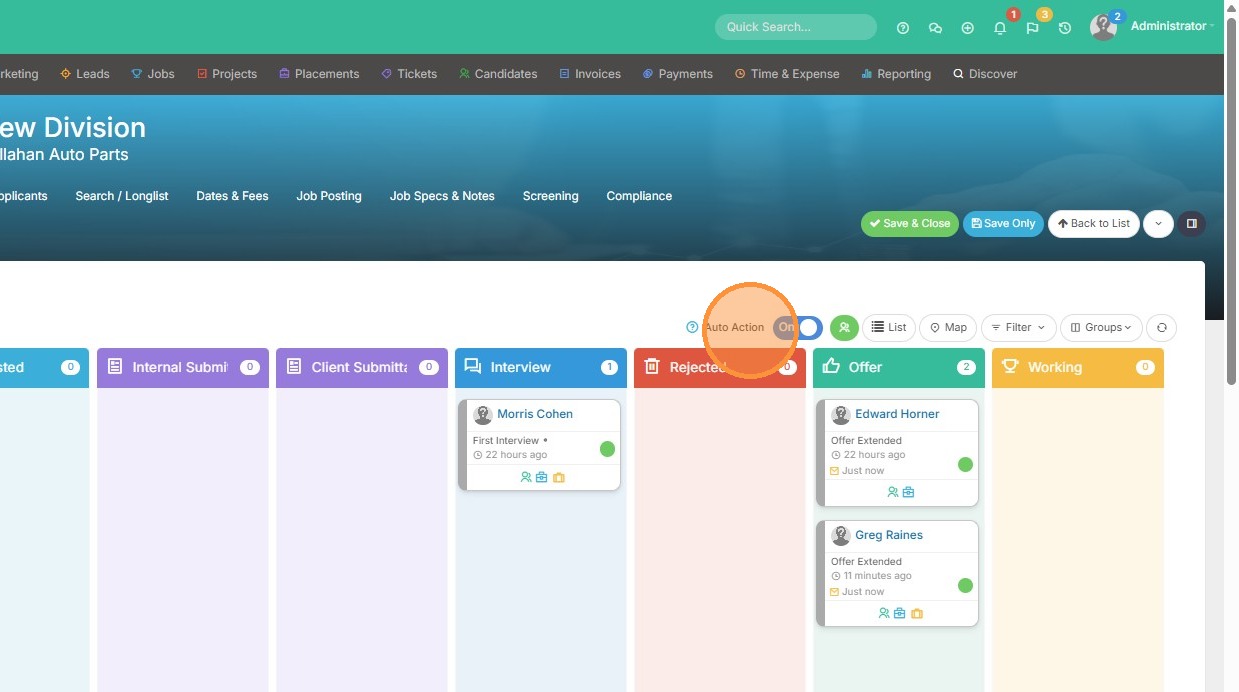
7. If you prefer to use the Auto Action option, click here.
Second Candidate Offer
8. Select the Morris Cohen candidate card, and drag it to the Offer card.
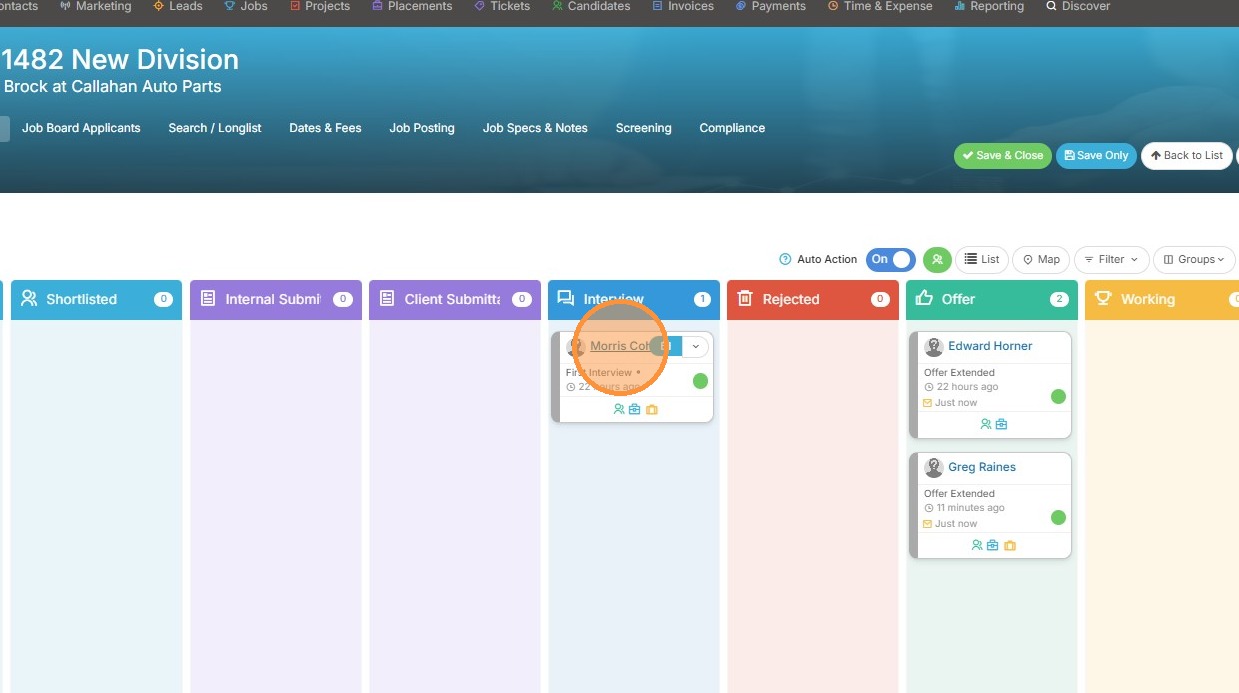
9. You will see the placement status is now updated to Offer Extended, and you can easily update the dates & fees before emailing the candidate.
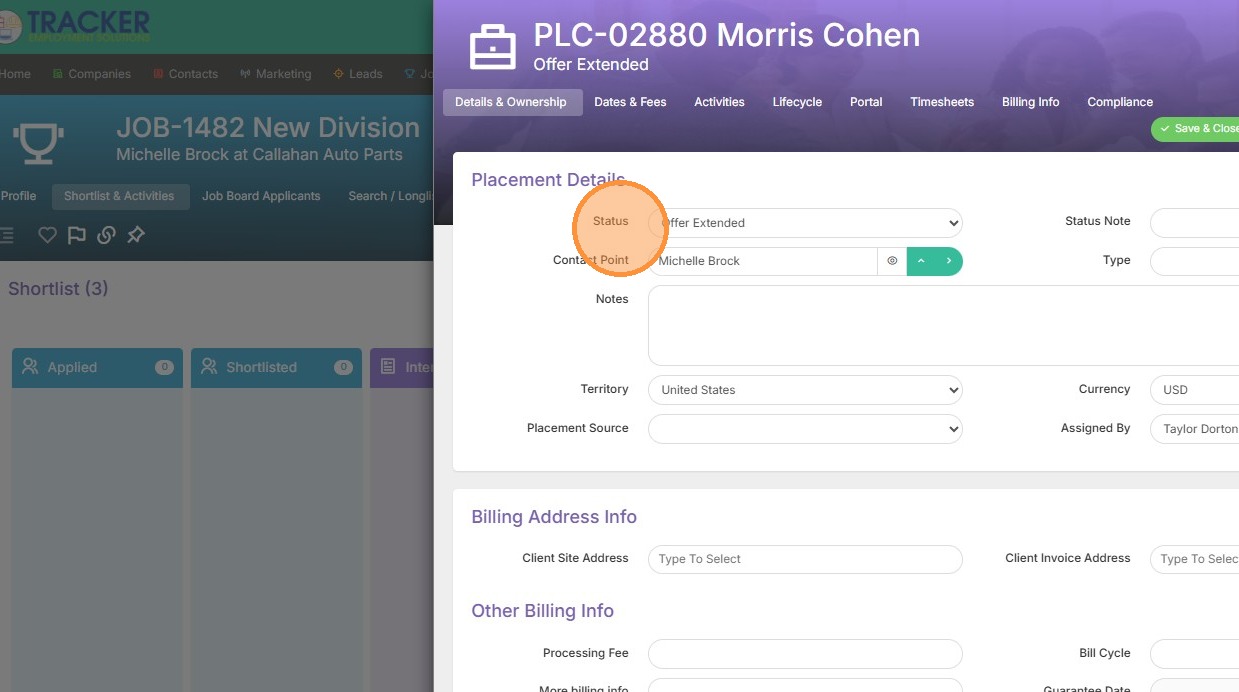
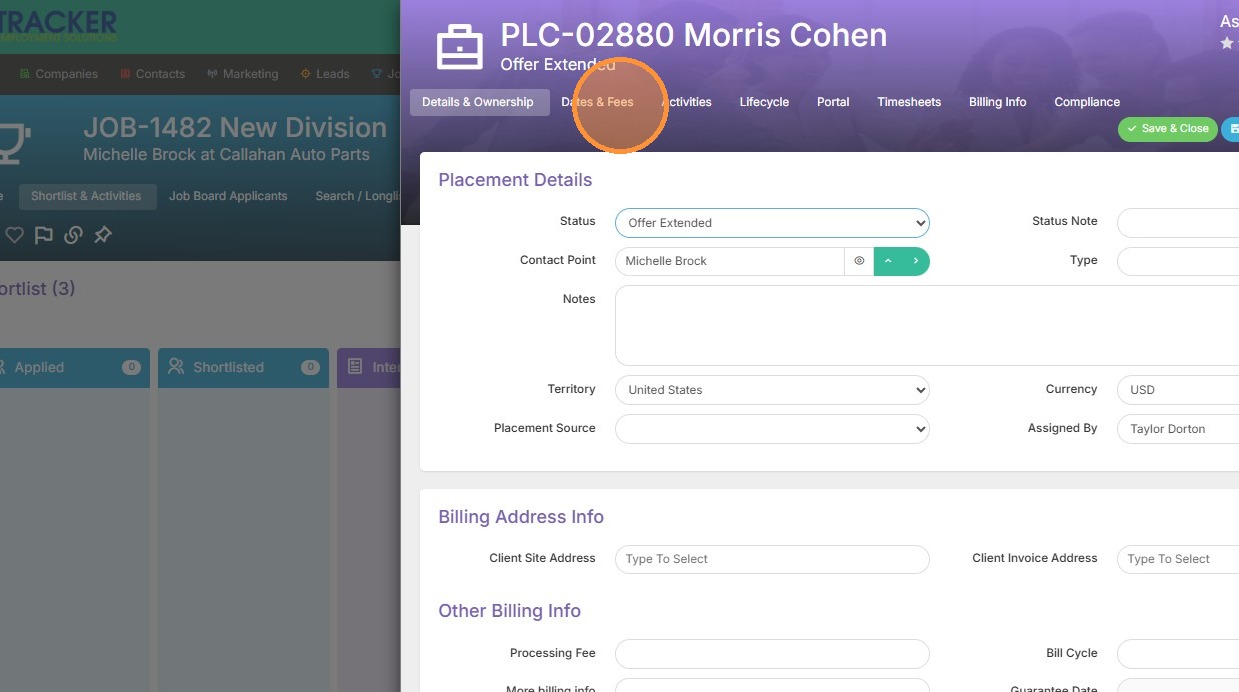
10. Click "Dates & Fees"
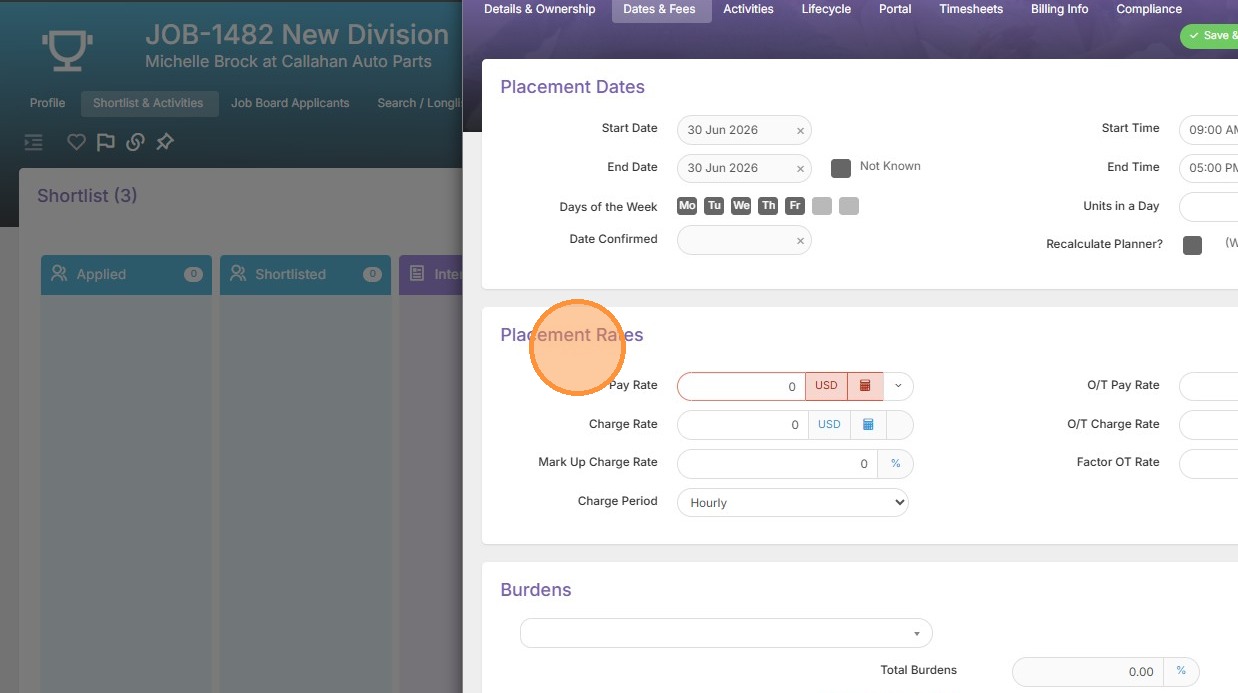
11. Update the dates and placement rates as necessary.
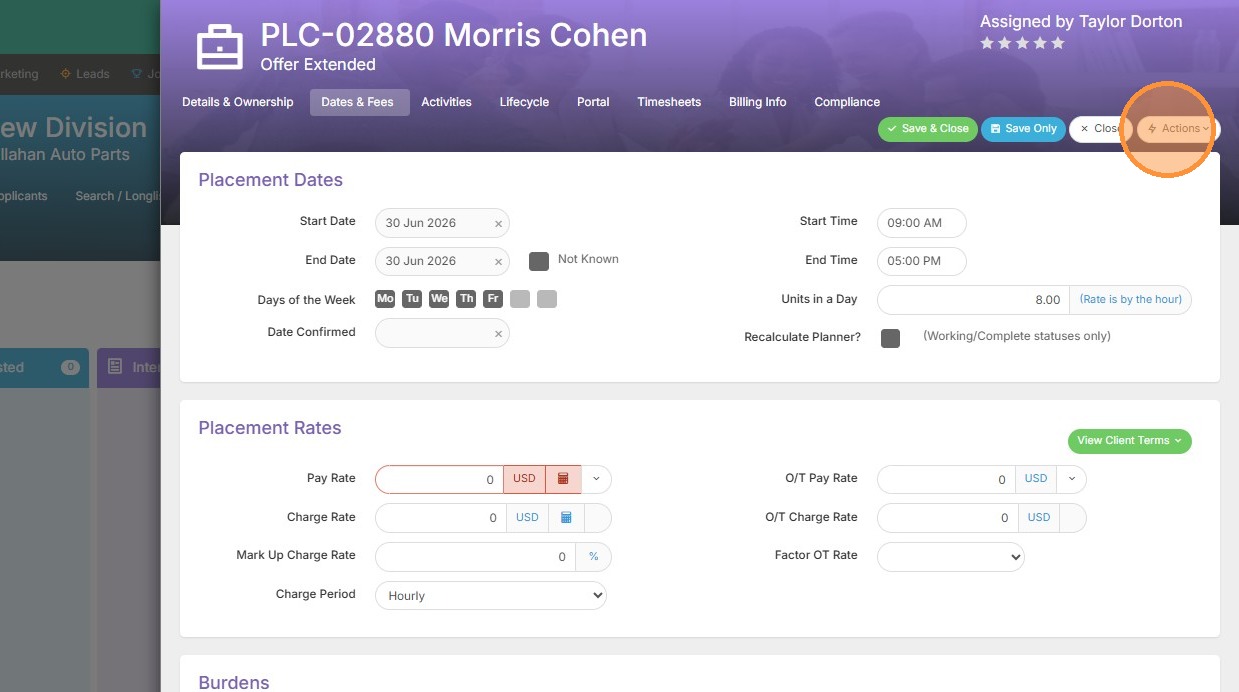
12. Open the 'Actions' menu on the placement record to email the candidate the offer, or click save & close if you do not wish to send an email.

13. Select 'Send Email to Candidate' from the 'Send a Message' menu.

14. Search for the offer email template you wish to use (or type a new one up).
15. Click 'Send' to dispatch the offer email.