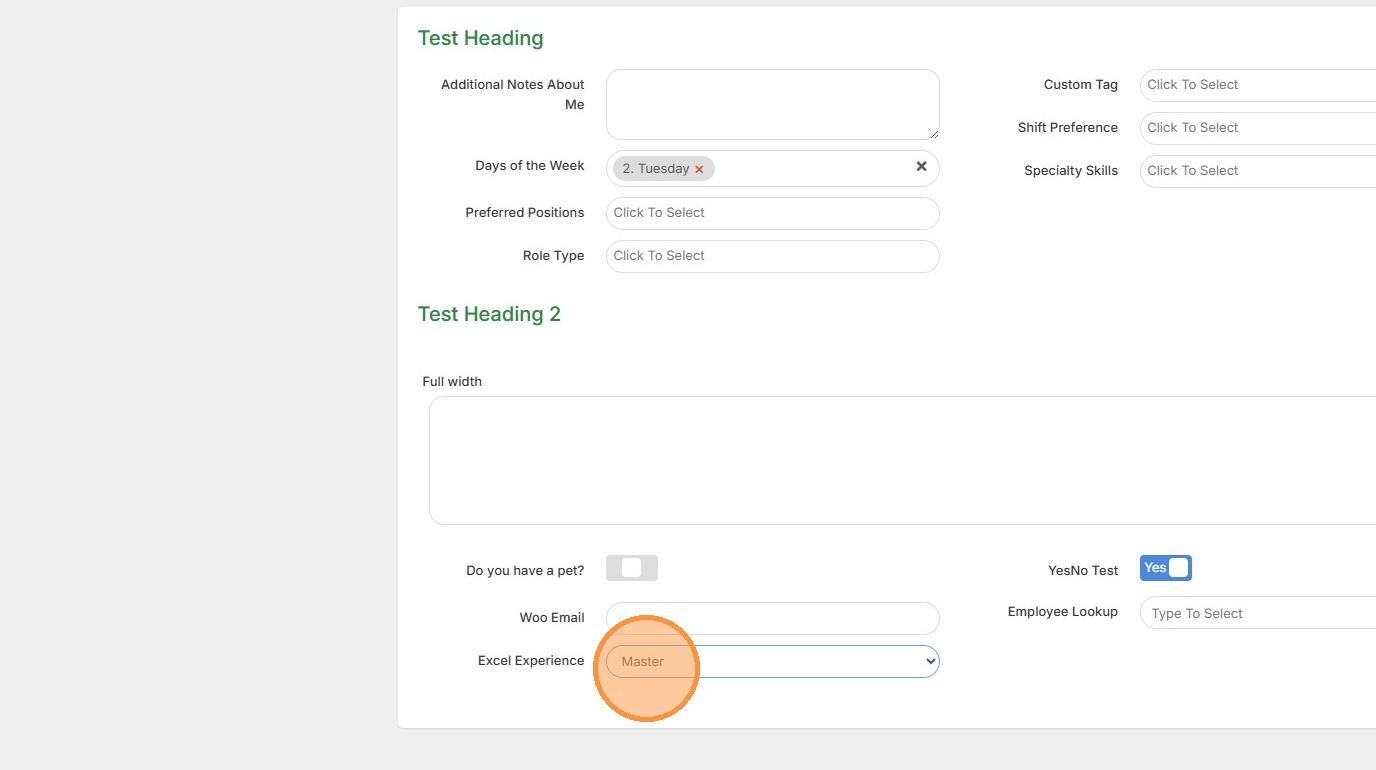
This lesson explains how to create a new custom field list.
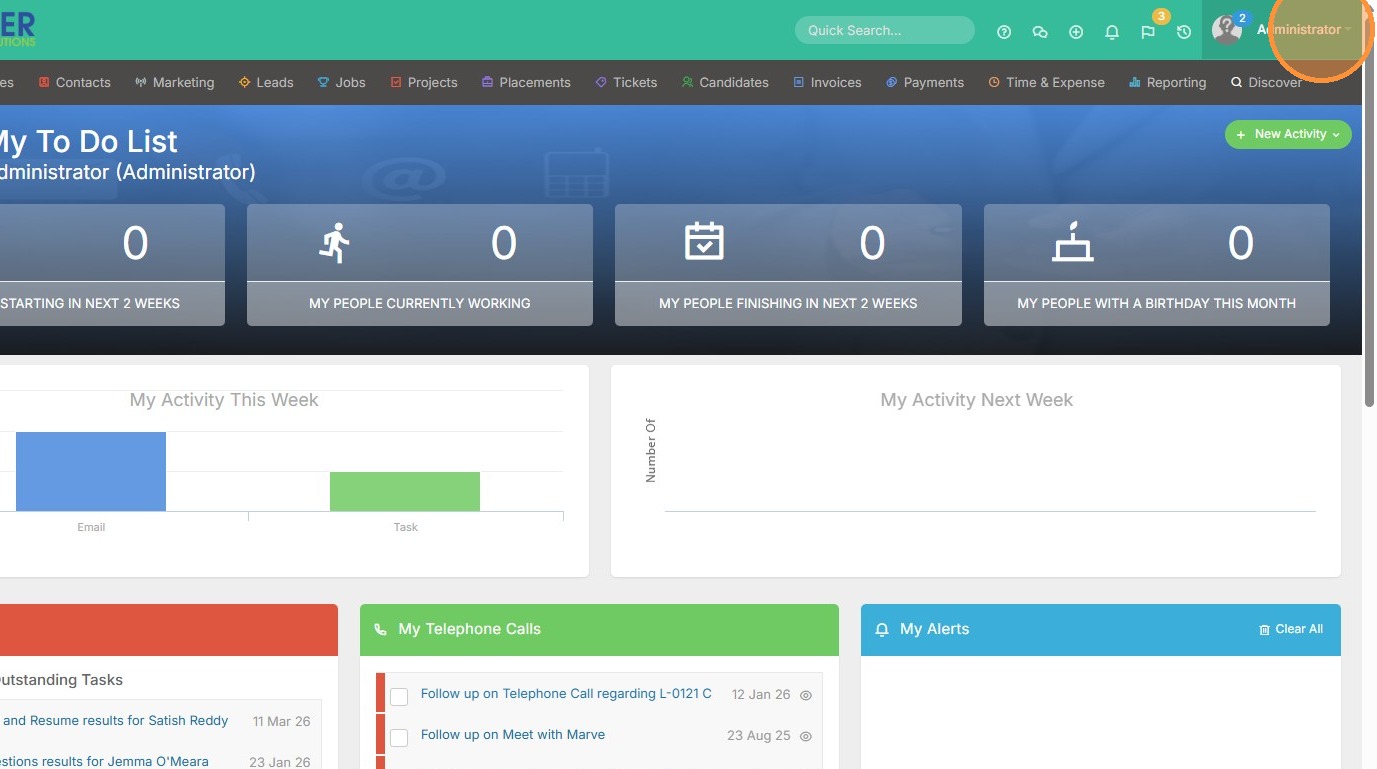
1. Click on your name to get to Tools & Settings.
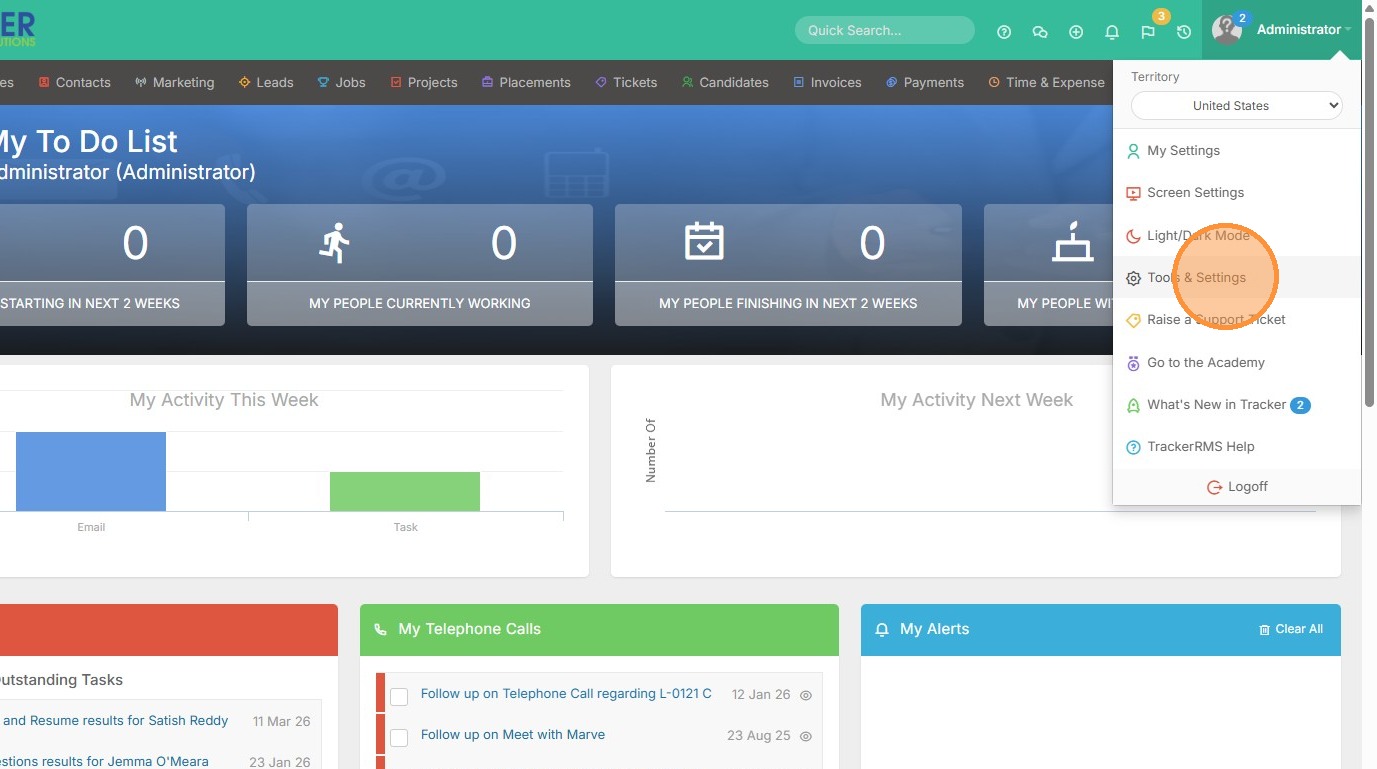
2. Click "Tools & Settings"
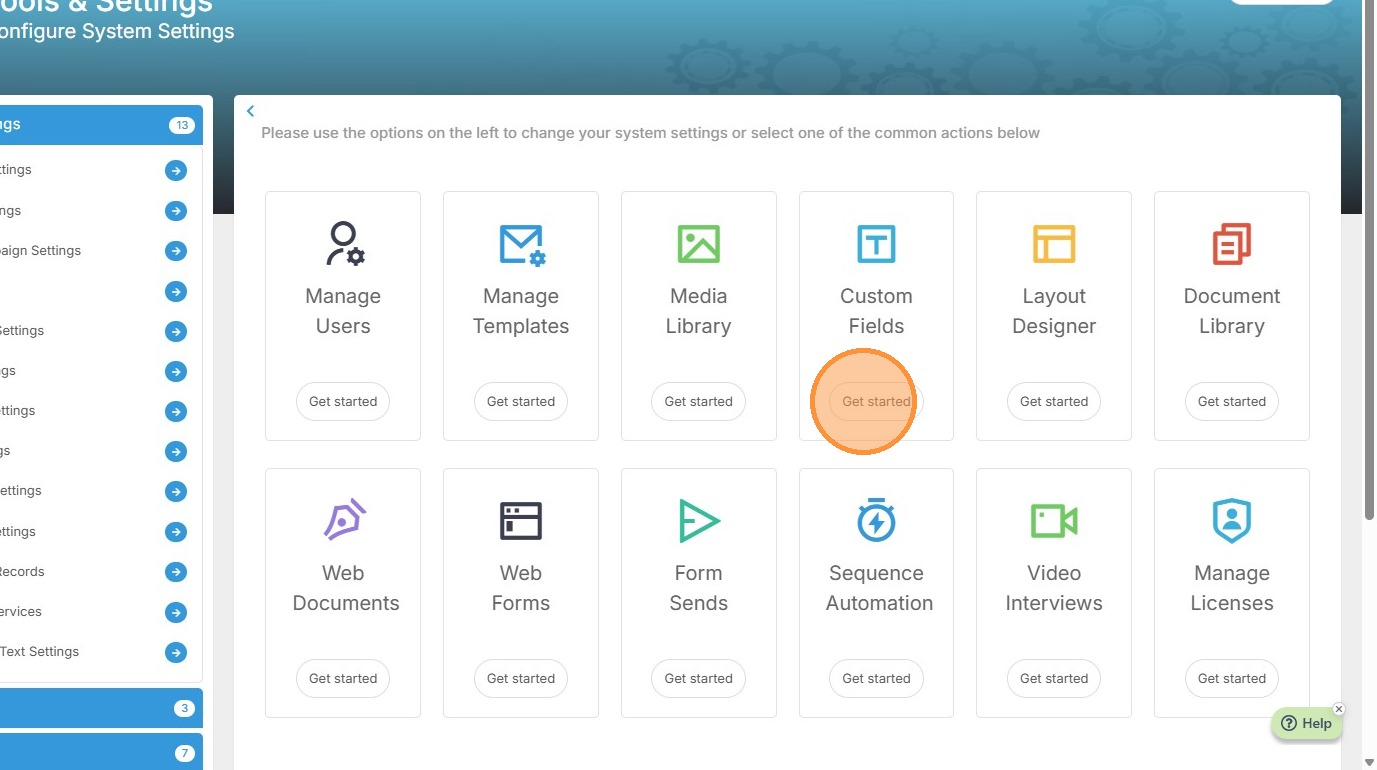
3. Click "Get started" on the Custom Fields box option.
4. Click "Custom Field" to add the new field first. We'll then create the list.
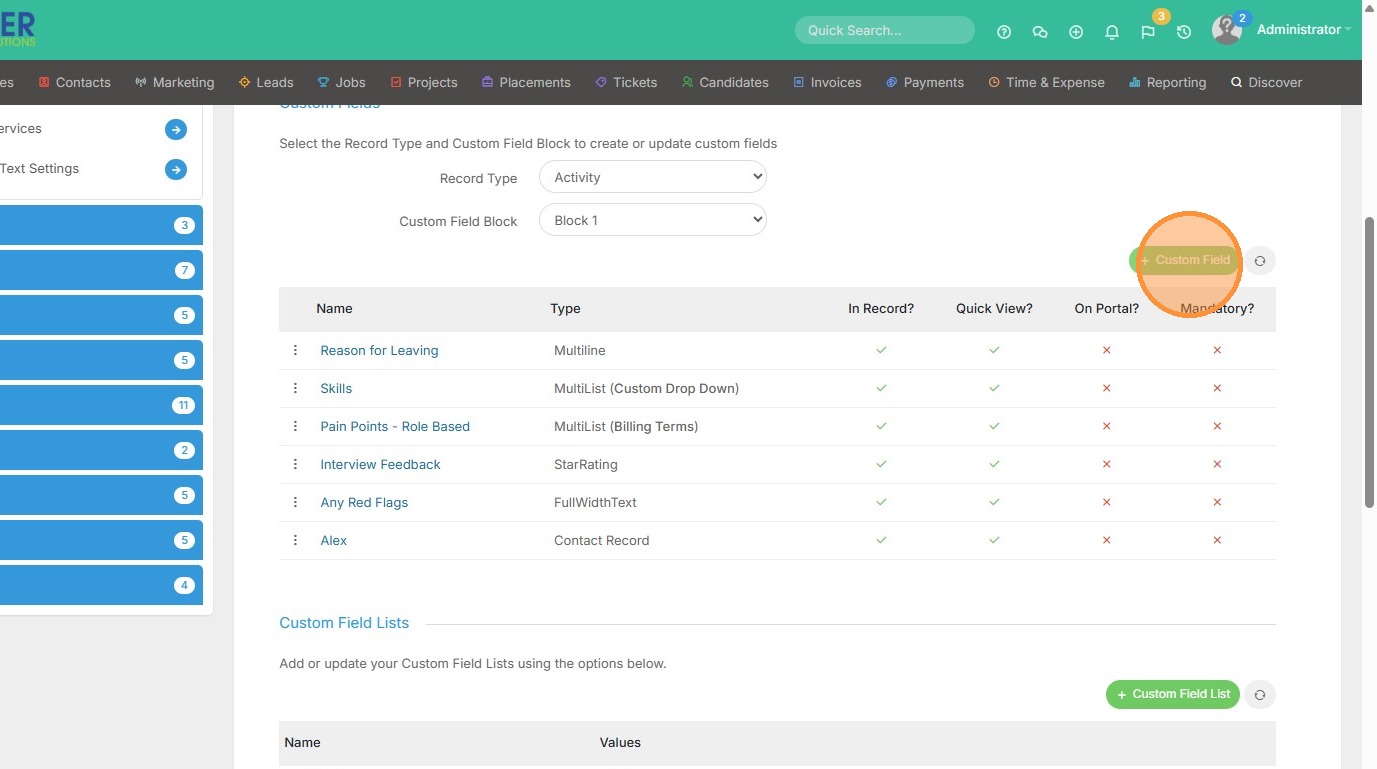
5. Select the "List (Single Select)" option. Or "List (Multi Select)" option.
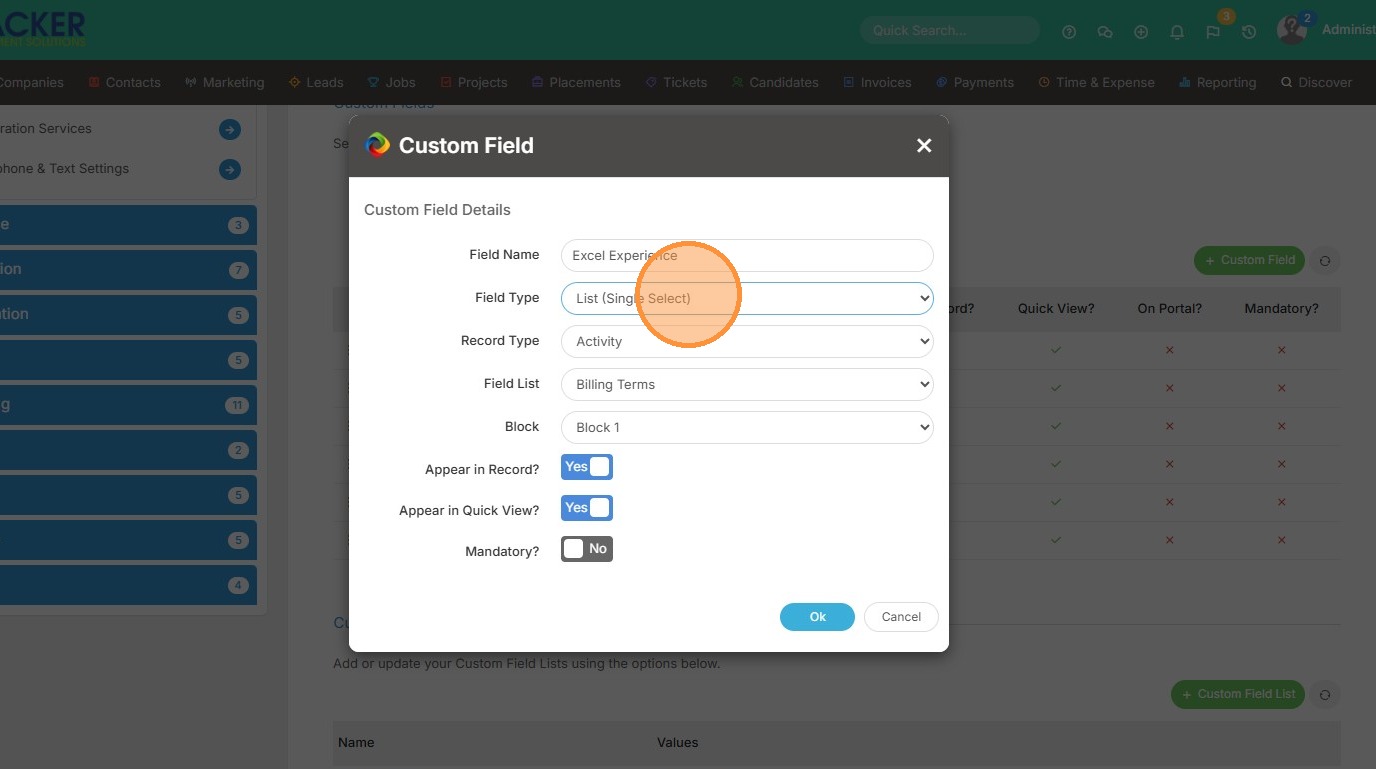
6. Select the "Candidate" option since we are inputting this new custom field / and list on the candidate record.
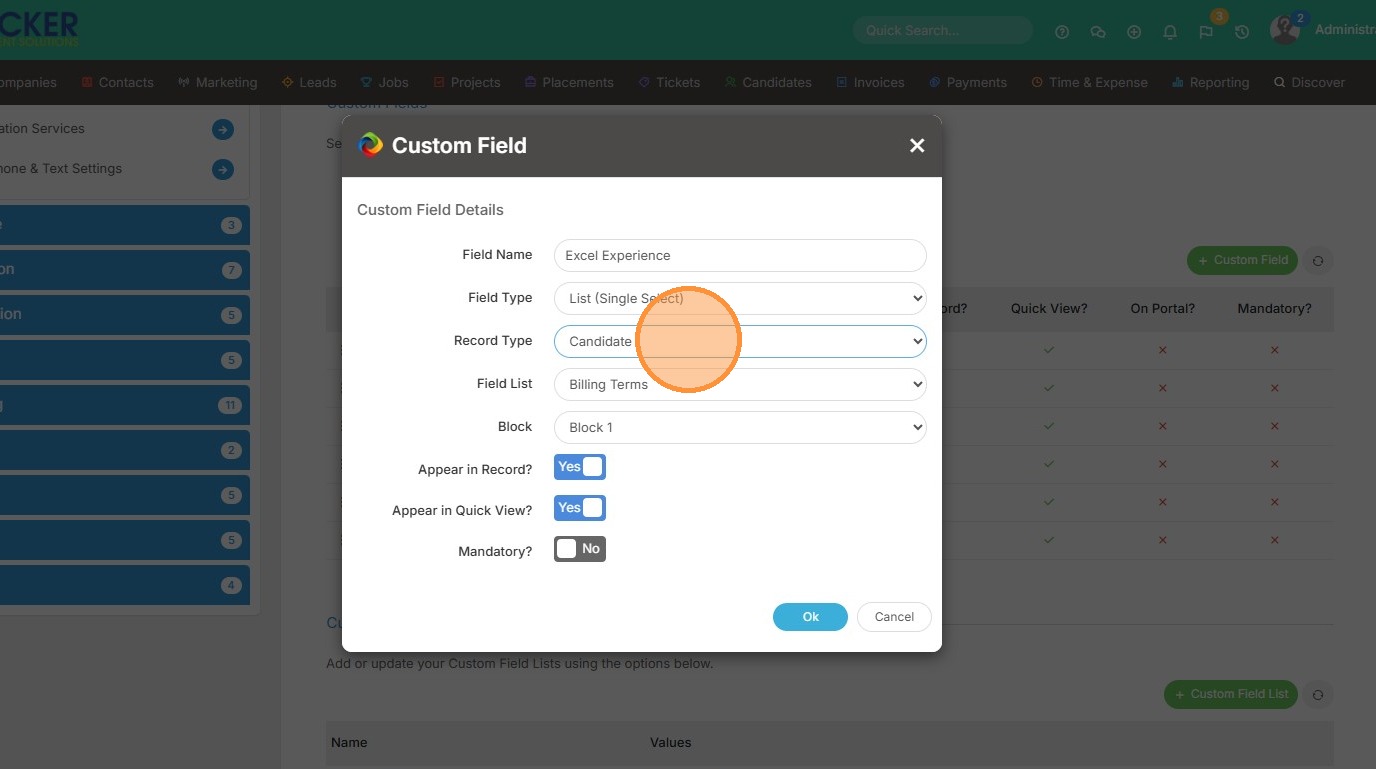
7. Click "Ok"
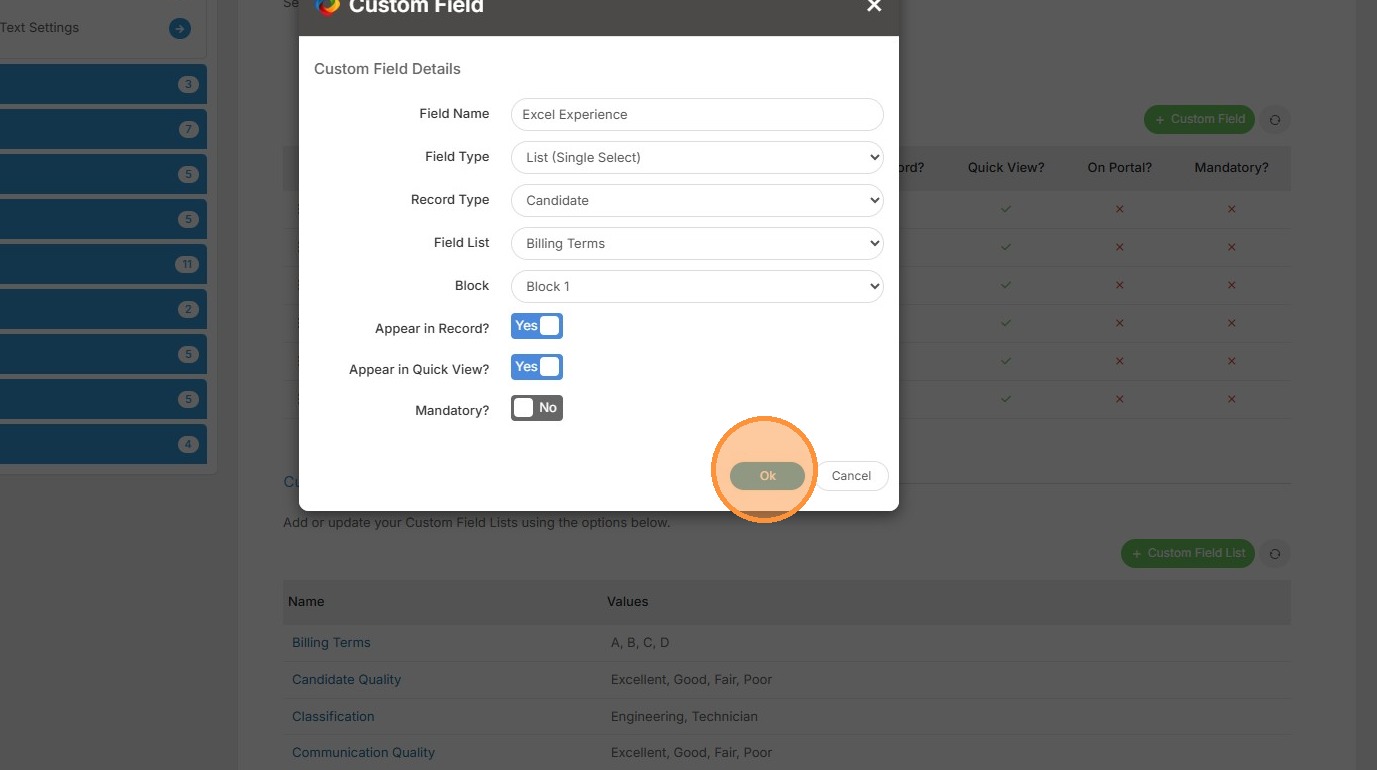
8. Now our new field is created, we just need to apply the list.
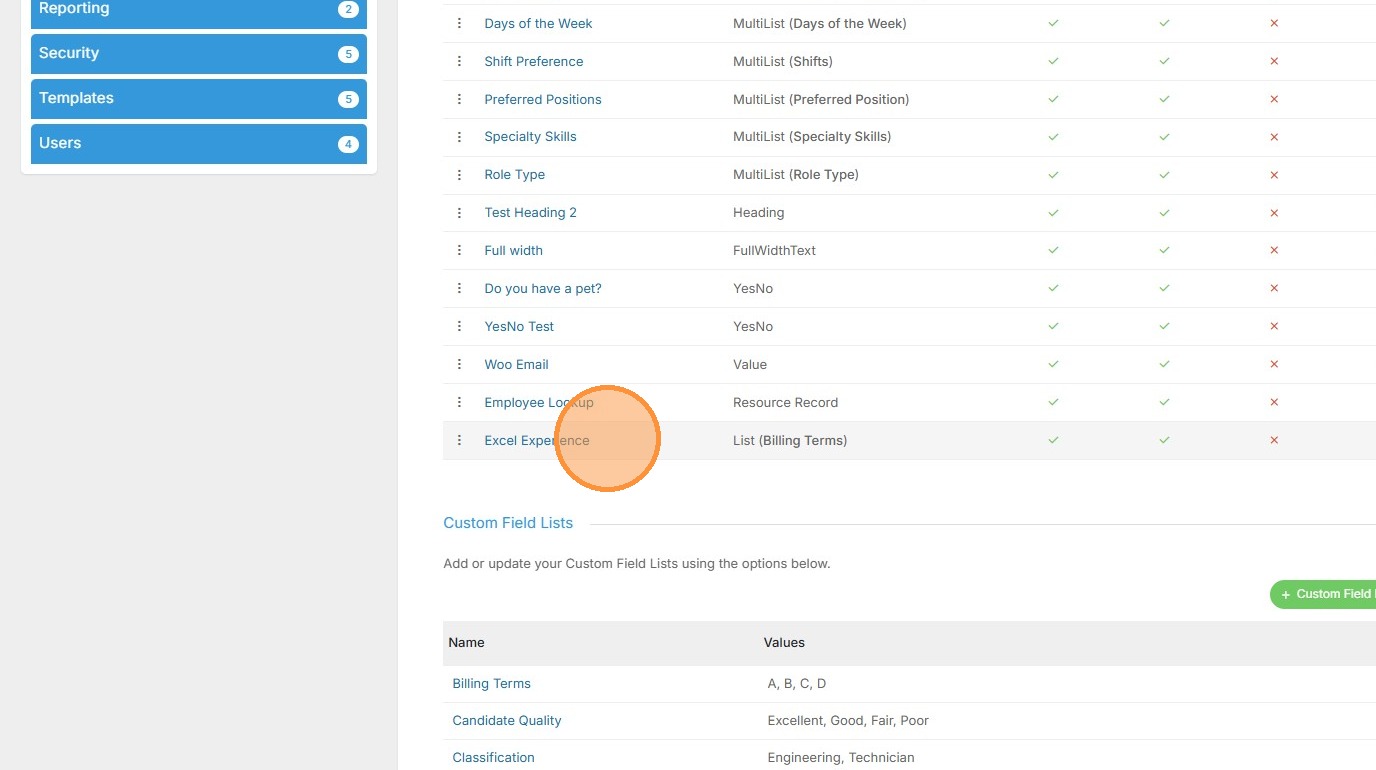
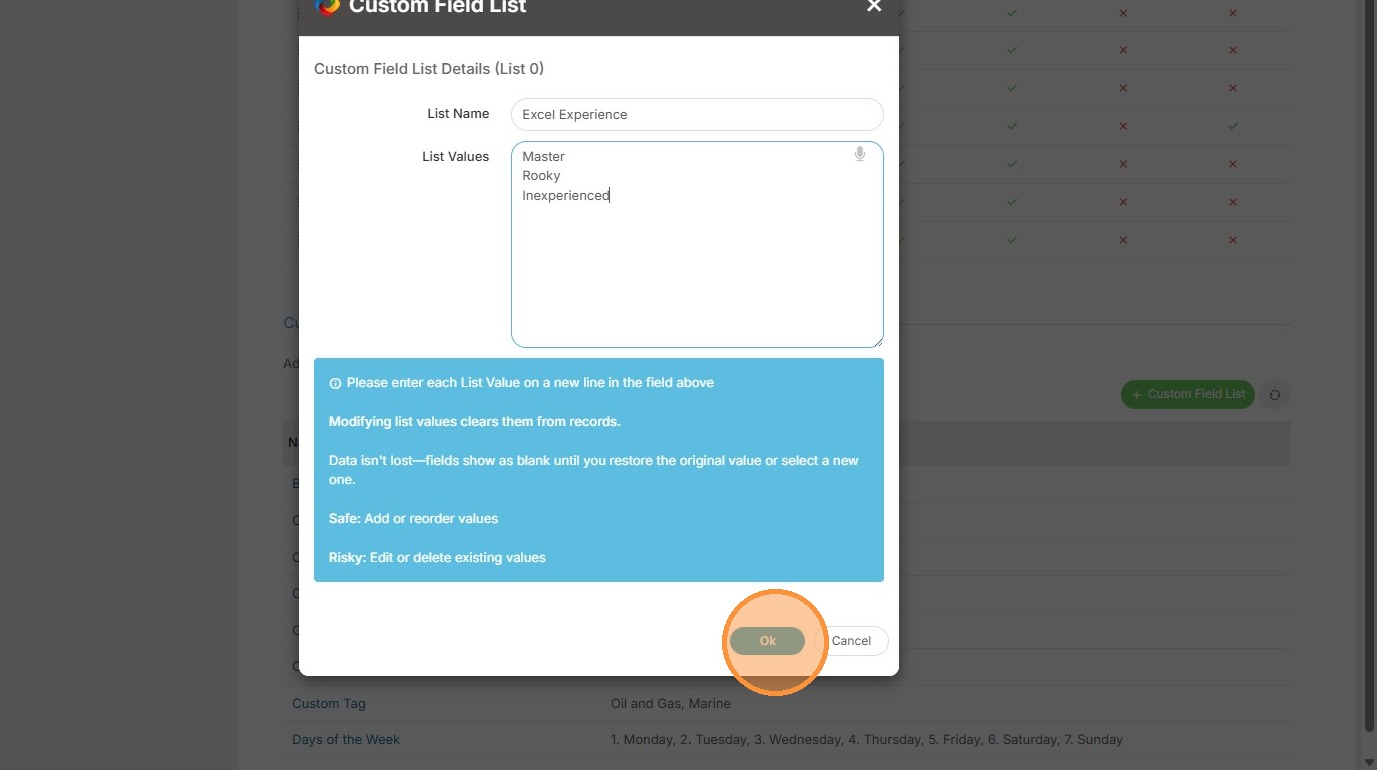
9. Click "Custom Field List"
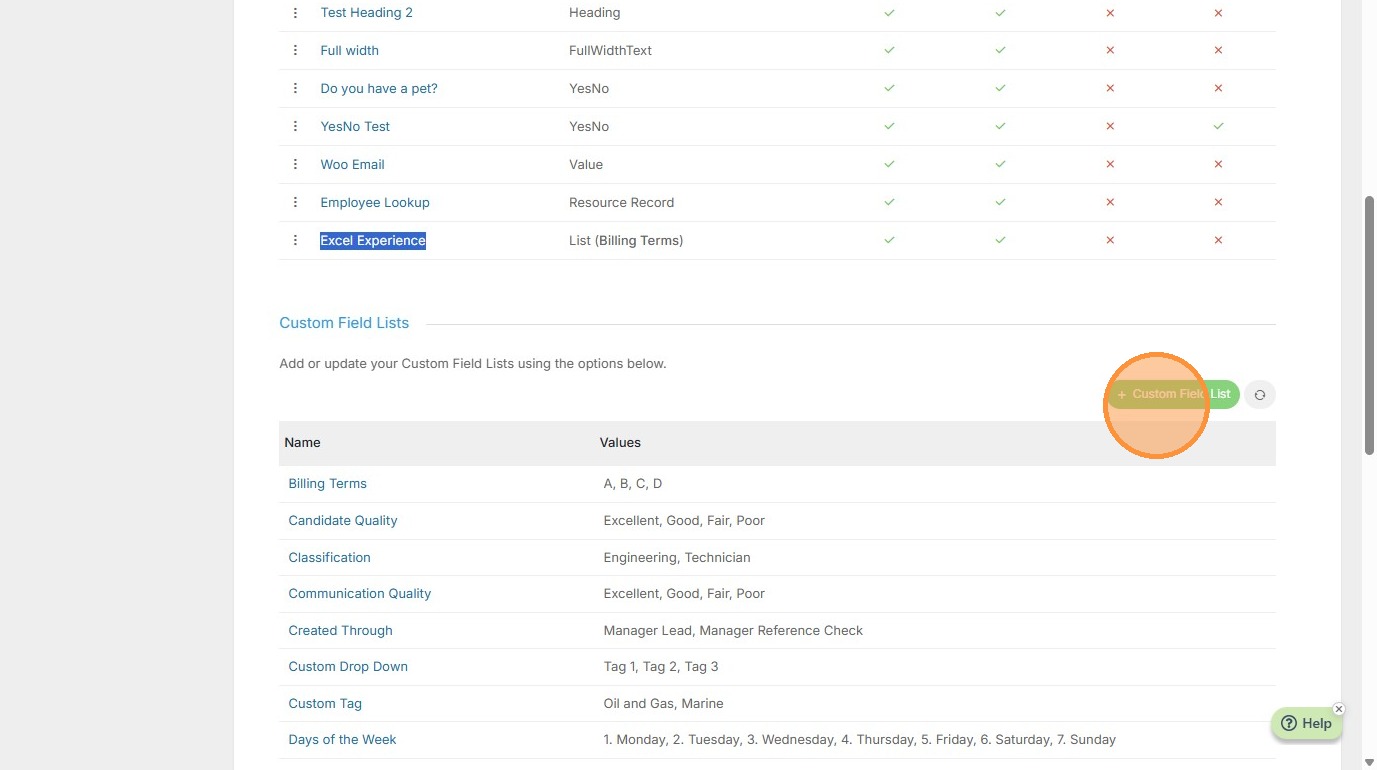
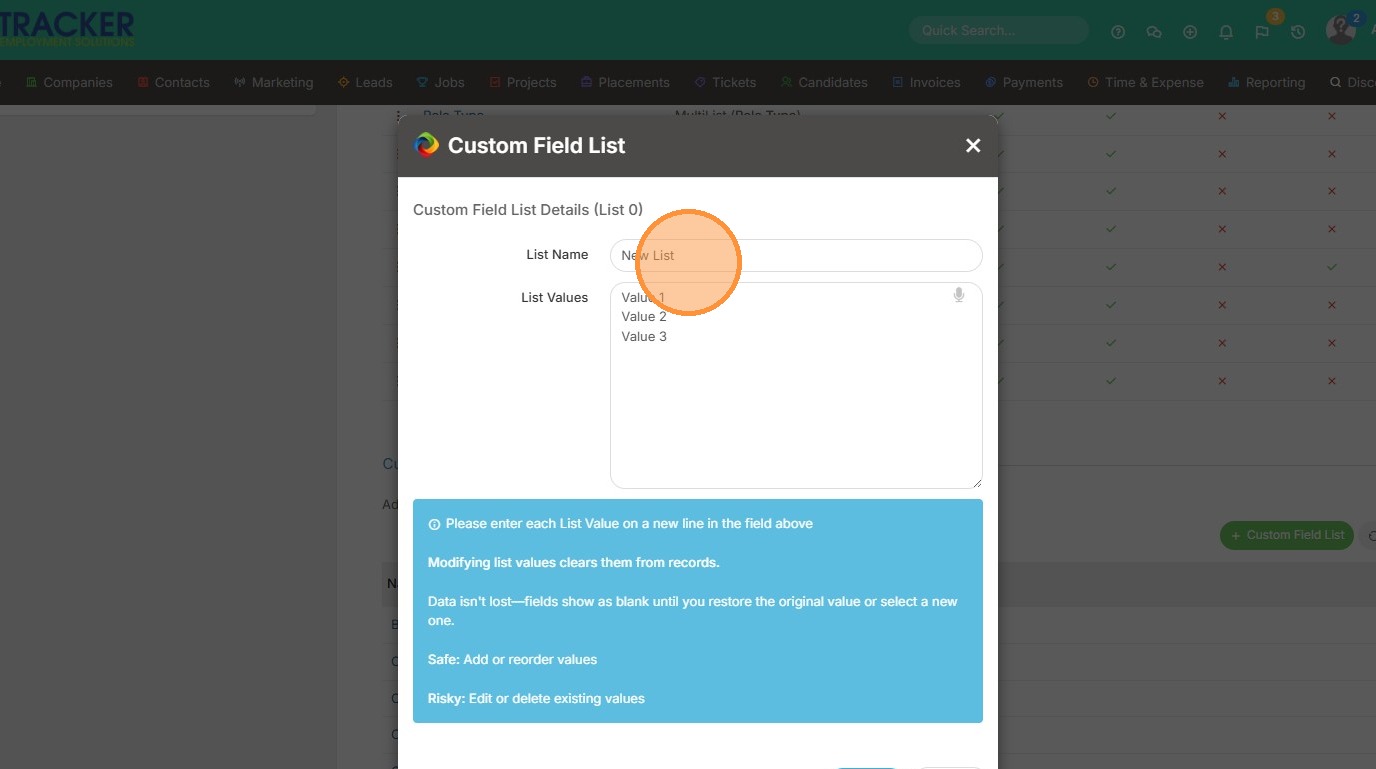
10. Click the "List Name" field and enter in a title (make sure it doesn't have the same title as any other custom field list items).
11. Click the "List Values" field to enter in the list details.
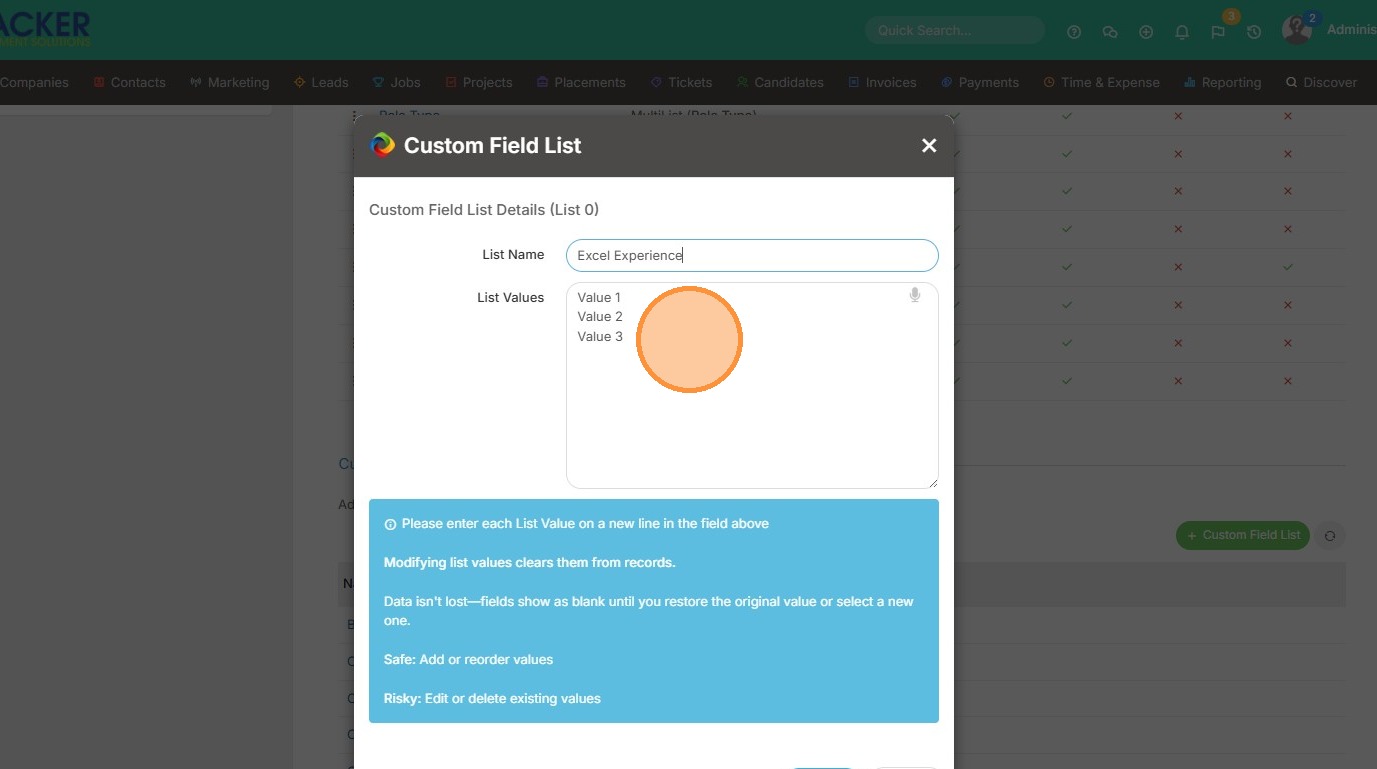
12. Click "Ok"
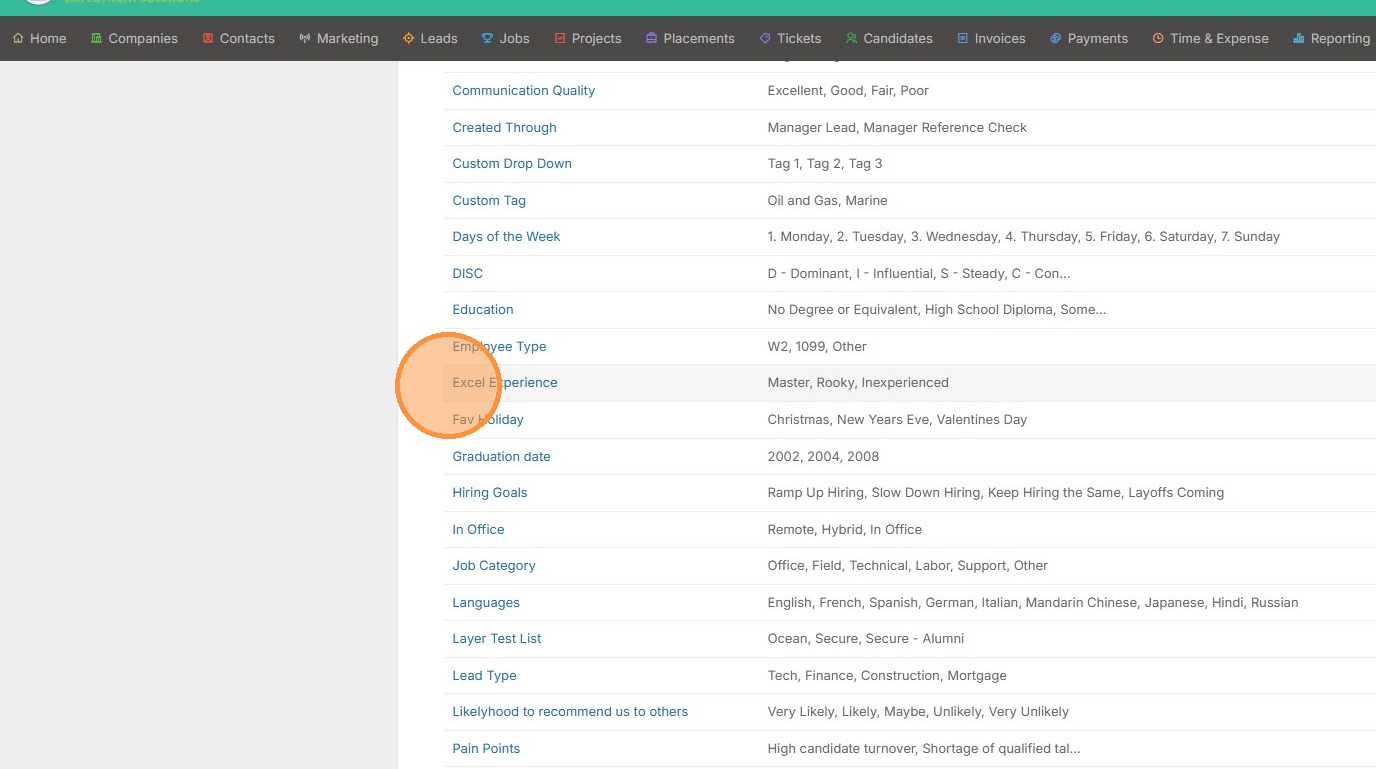
13. You can now see a new list is built called "Excel Experience".
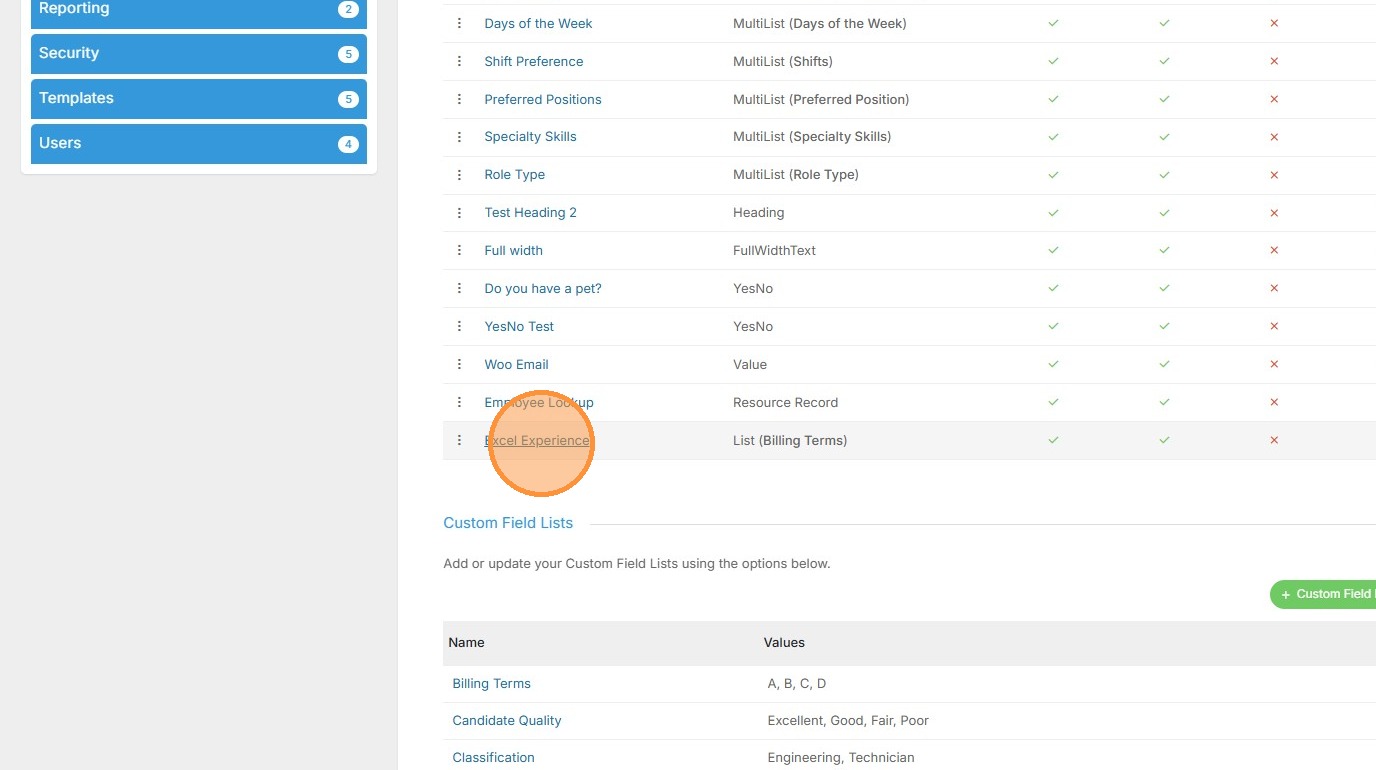
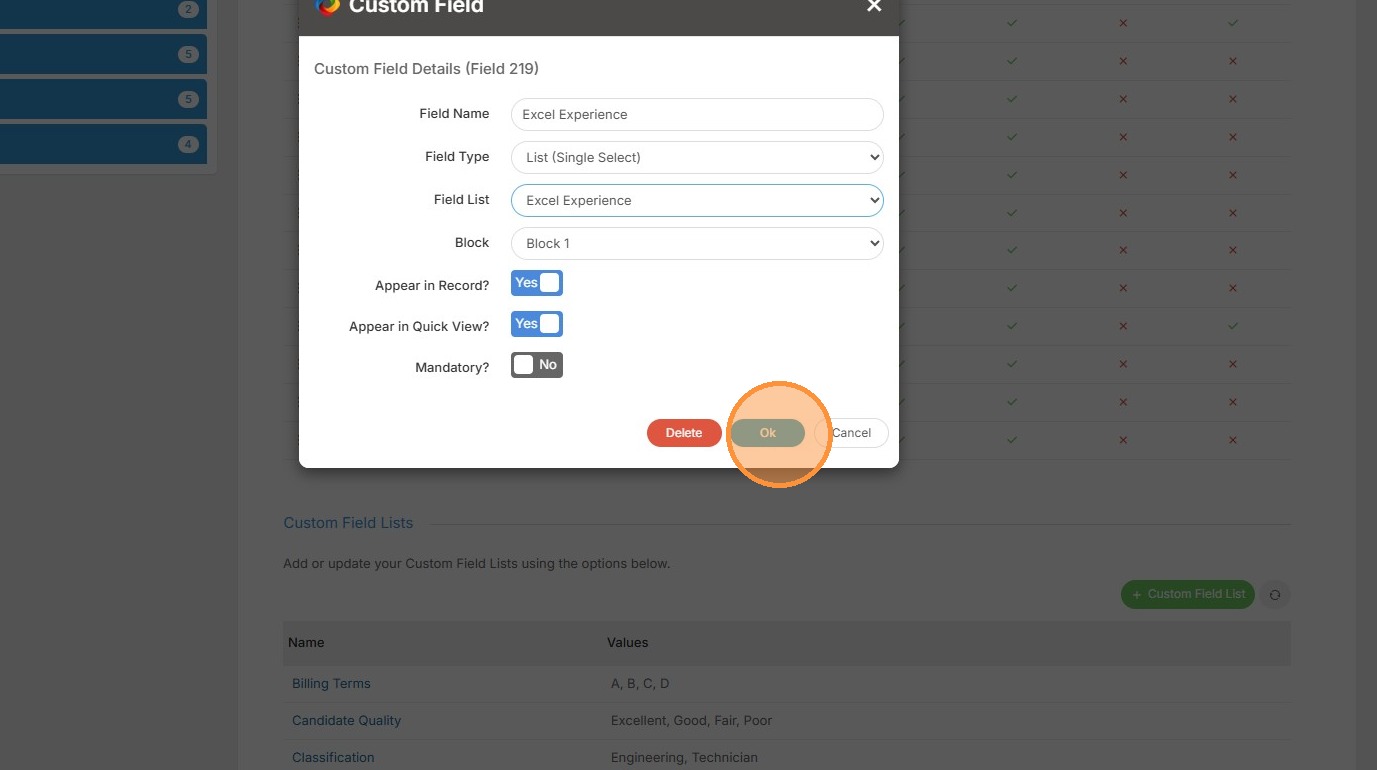
14. Now scroll back up to the new custom field we created first, called Excel Experience, and click it.
15. Select the "Excel Experience" list option.
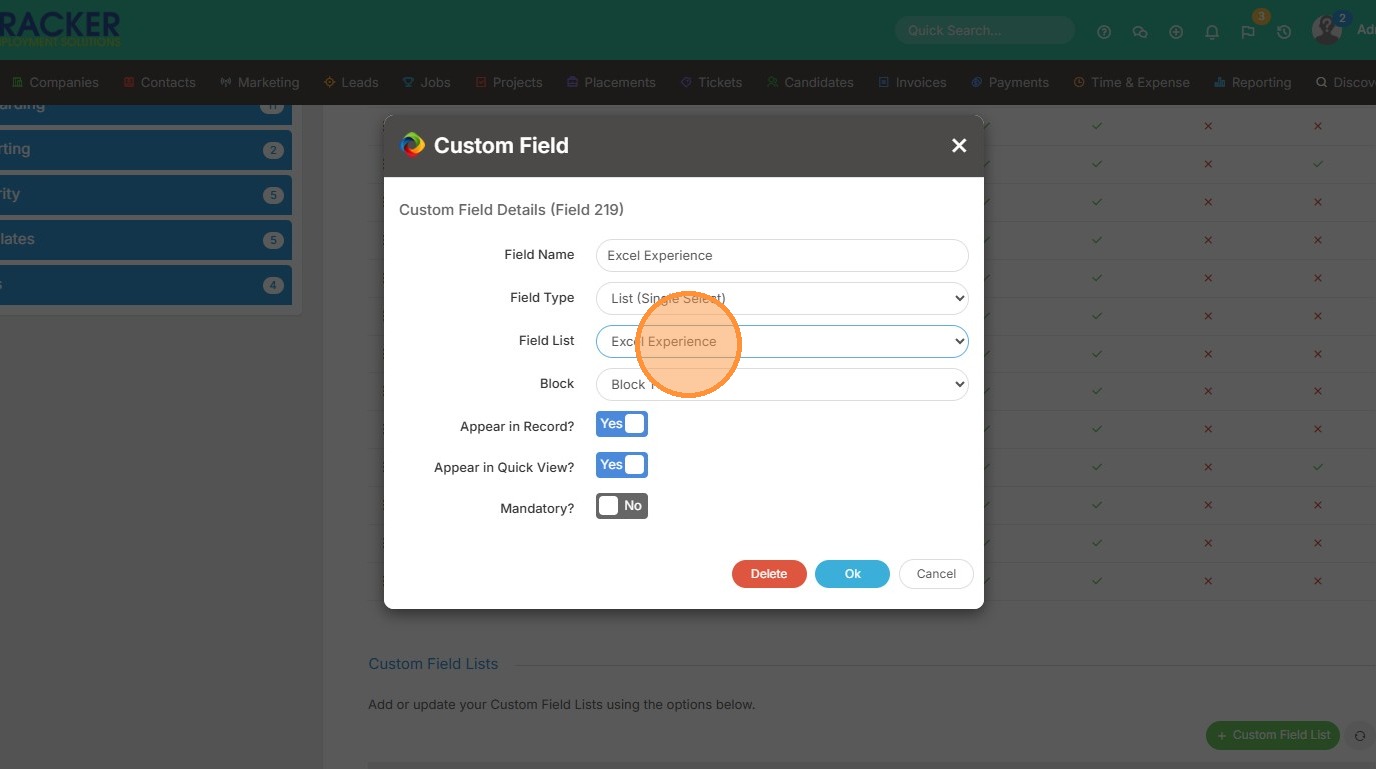
16. Click "Ok"
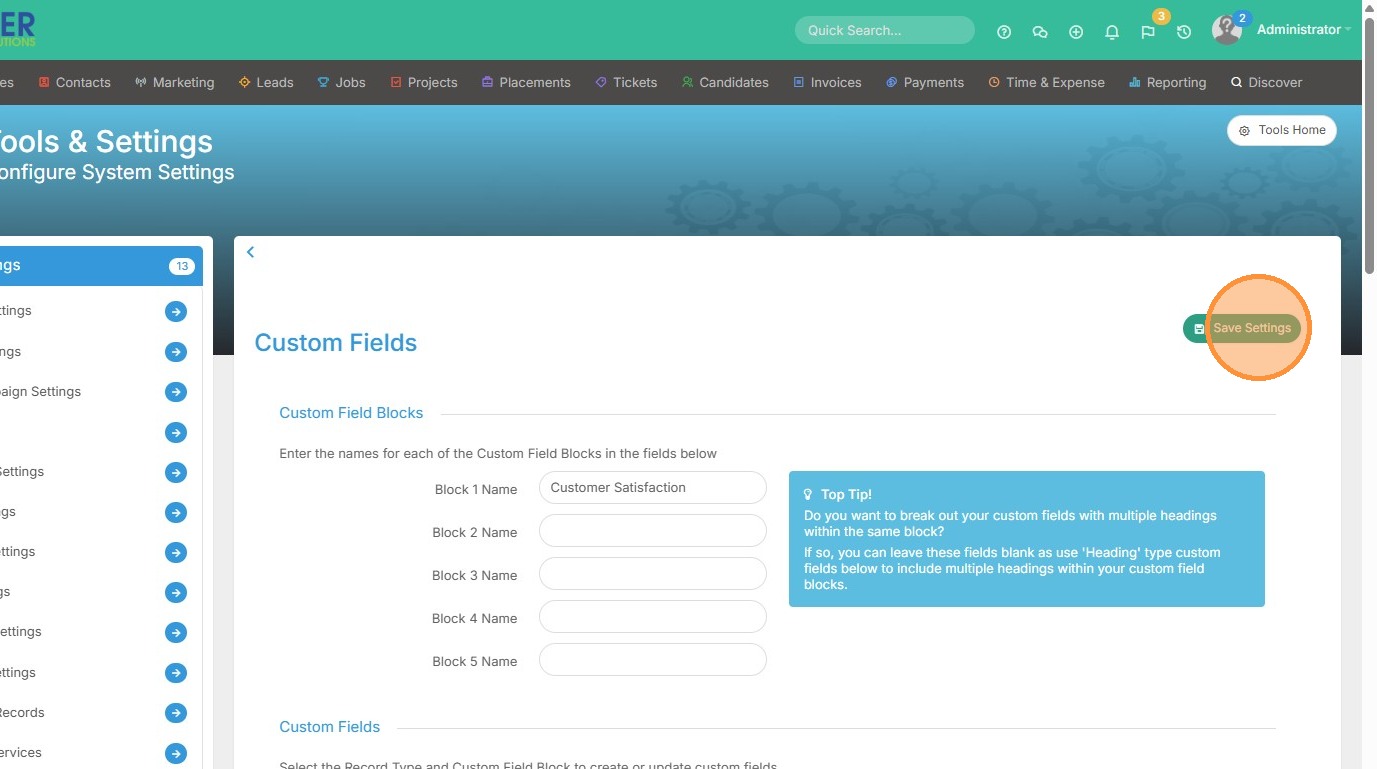
17. Click "Save Settings"
18. Then you can view the new list in the candidate record.