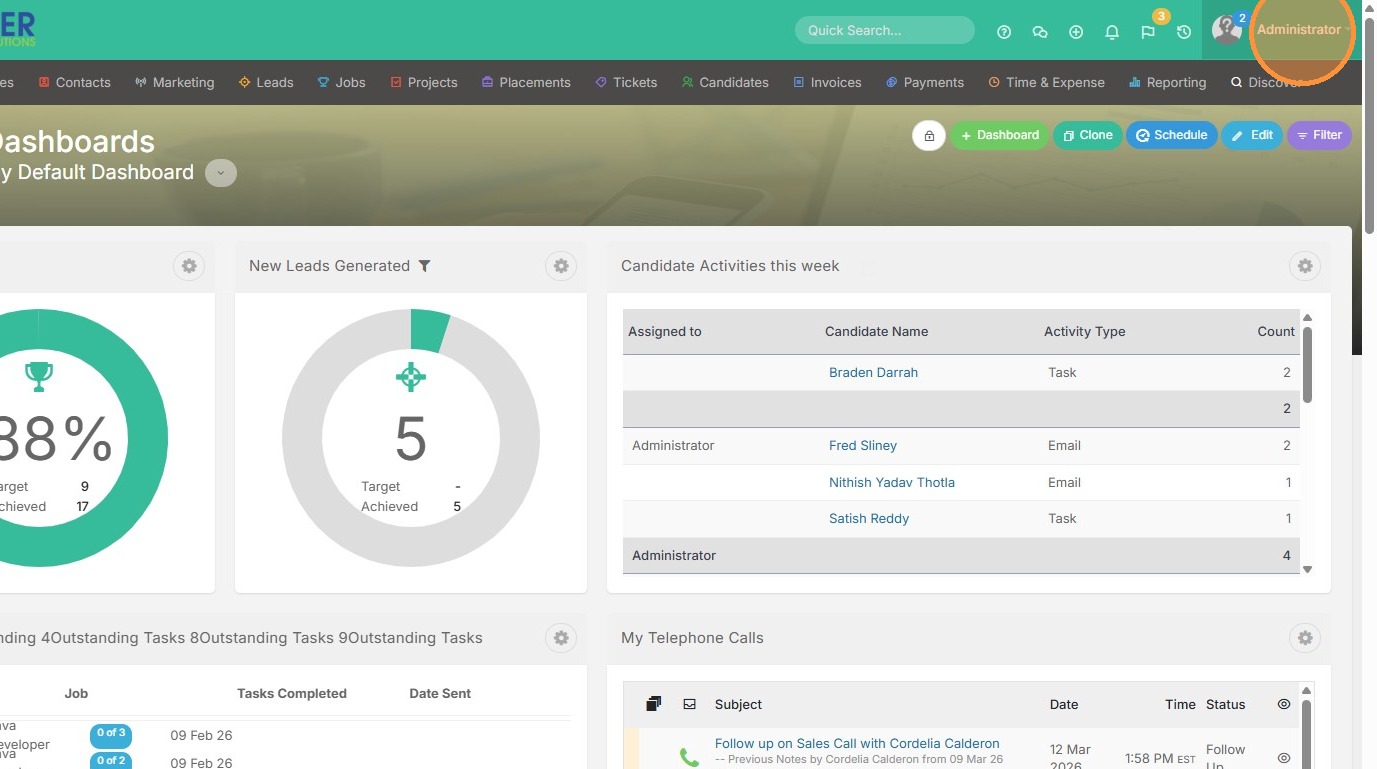
1. Click on your name to access Tools & Settings.
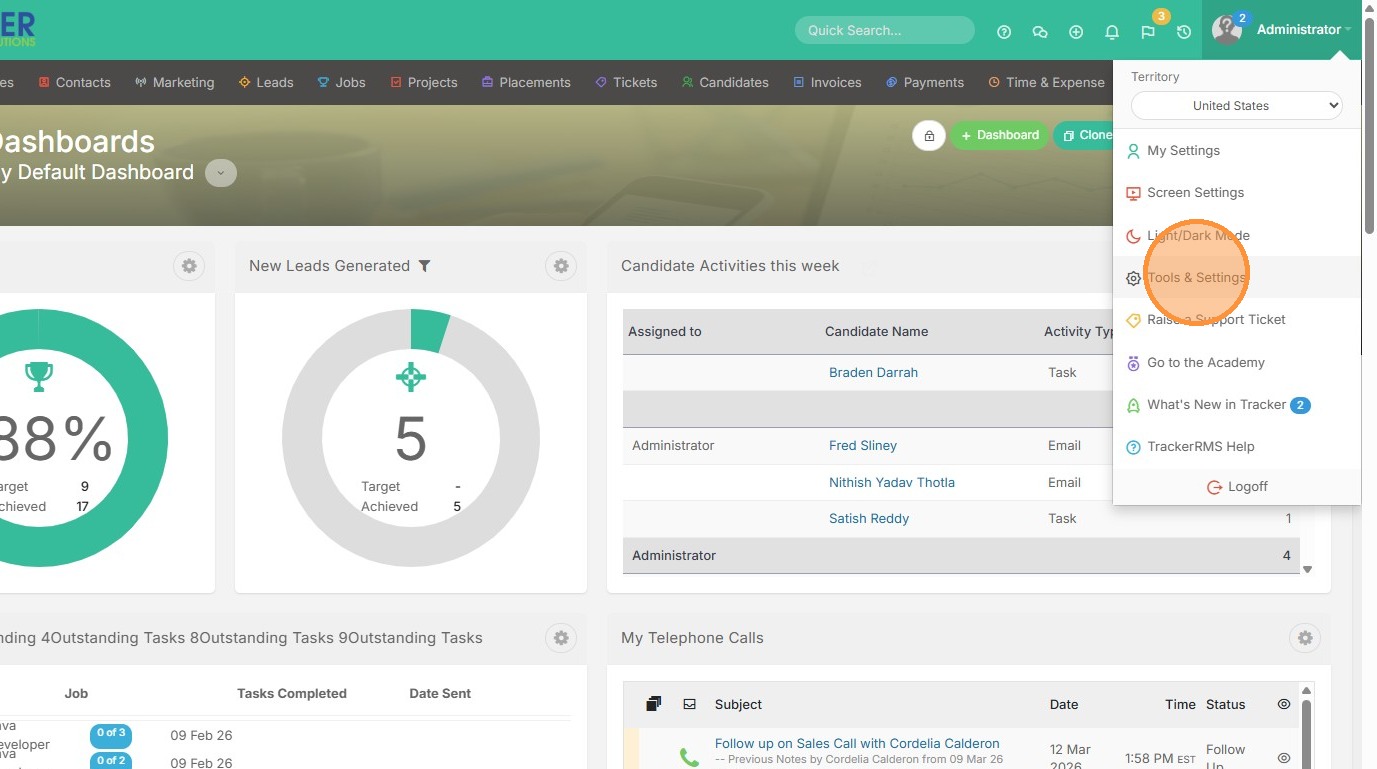
2. Click "Tools & Settings"
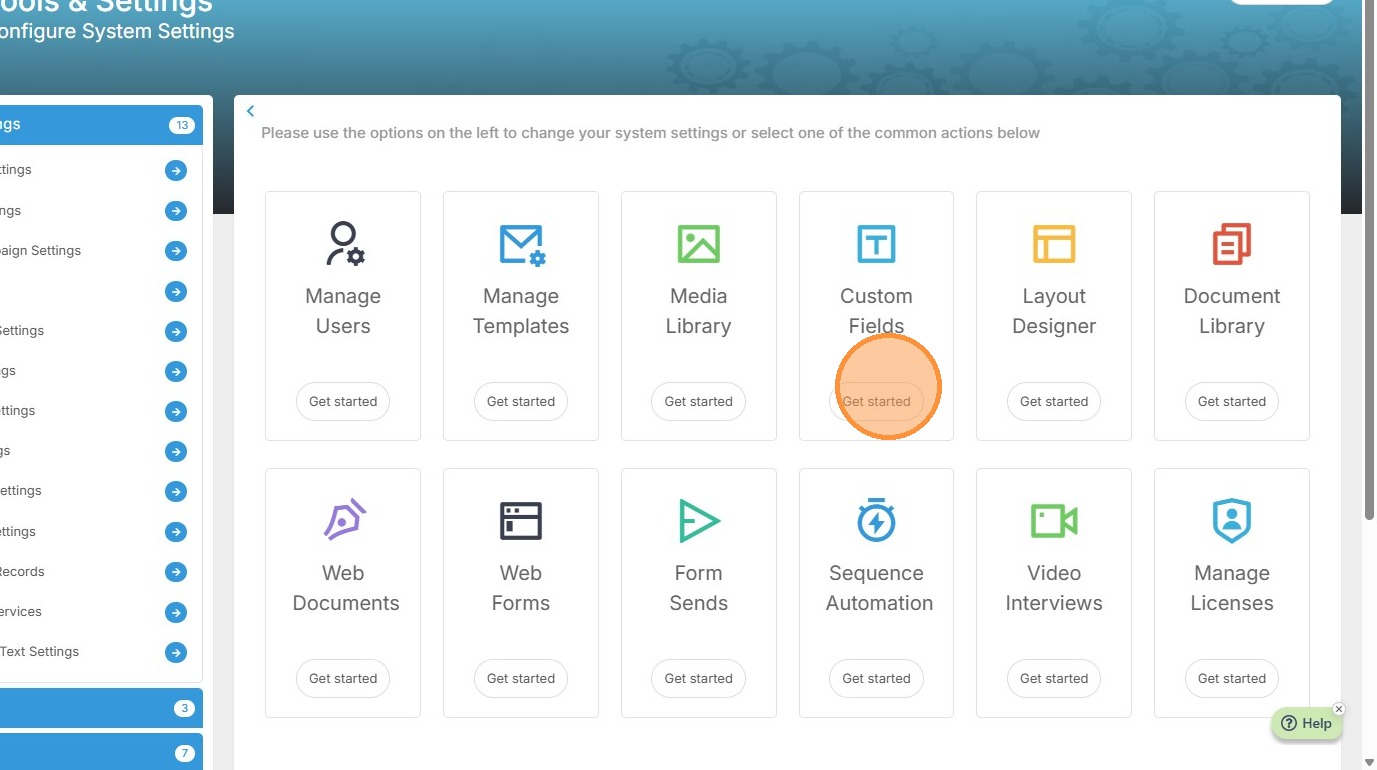
3. Click "Get started" on the Custom Fields box.
4. Click this dropdown to pick what record you wish to add a custom field to.
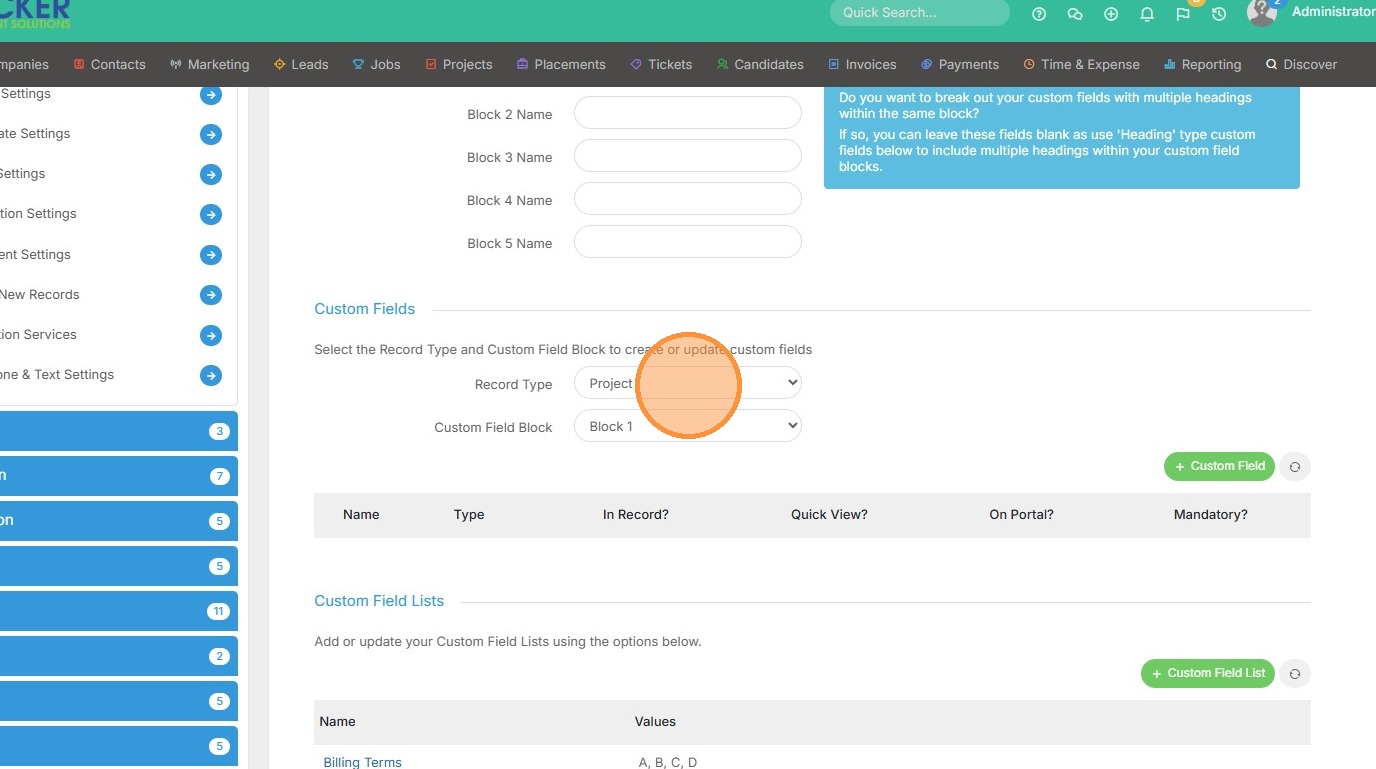
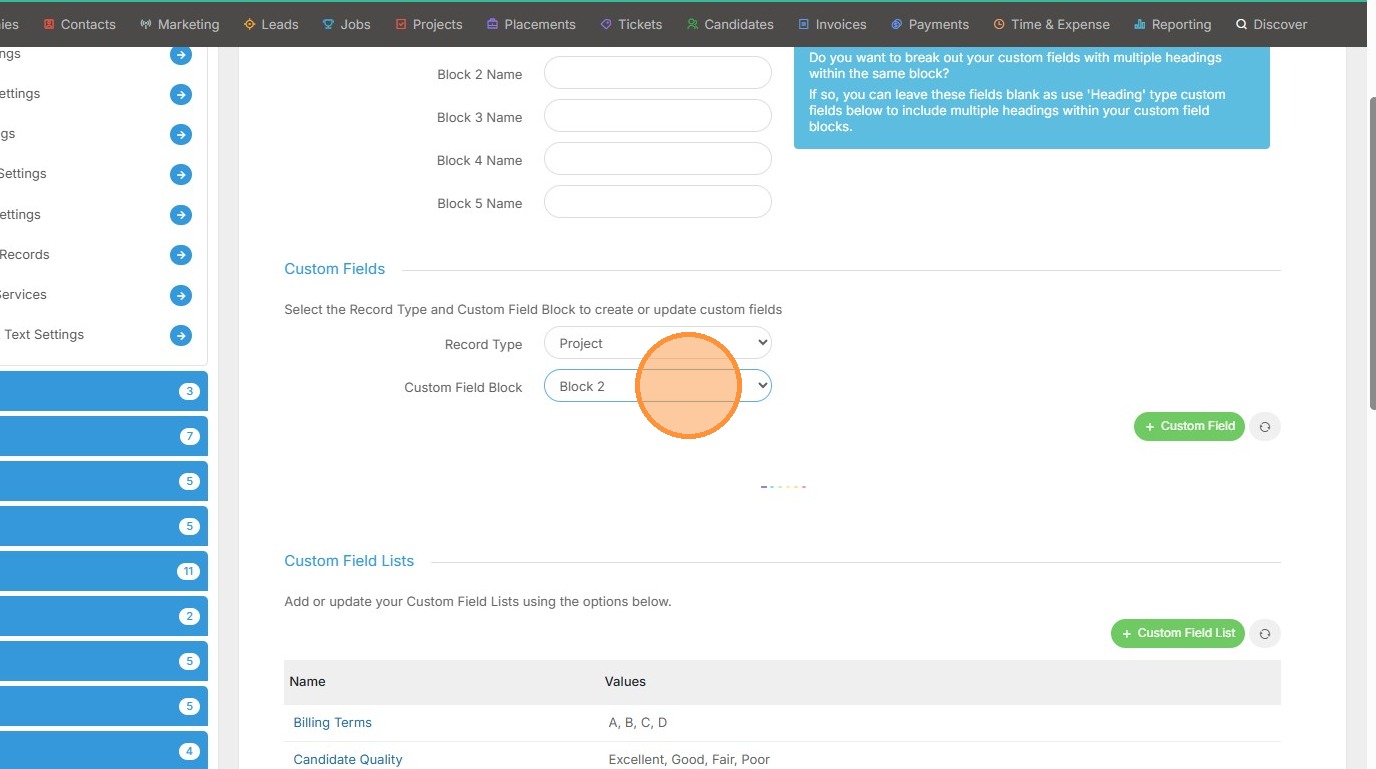
5. Select the block you want the custom field to live under.
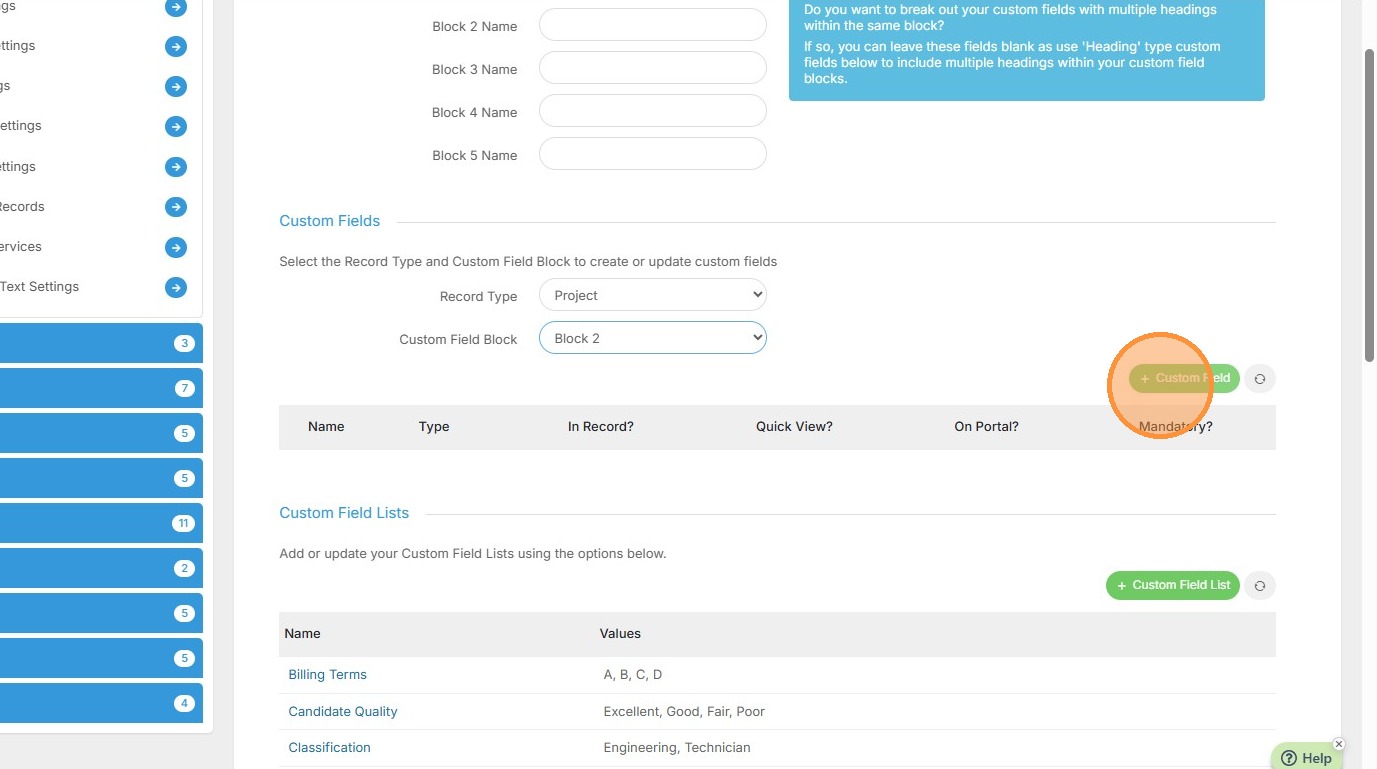
6. Click "Custom Field" to add a new one.
7. Select the "Text" option, or any field type you wish to use.
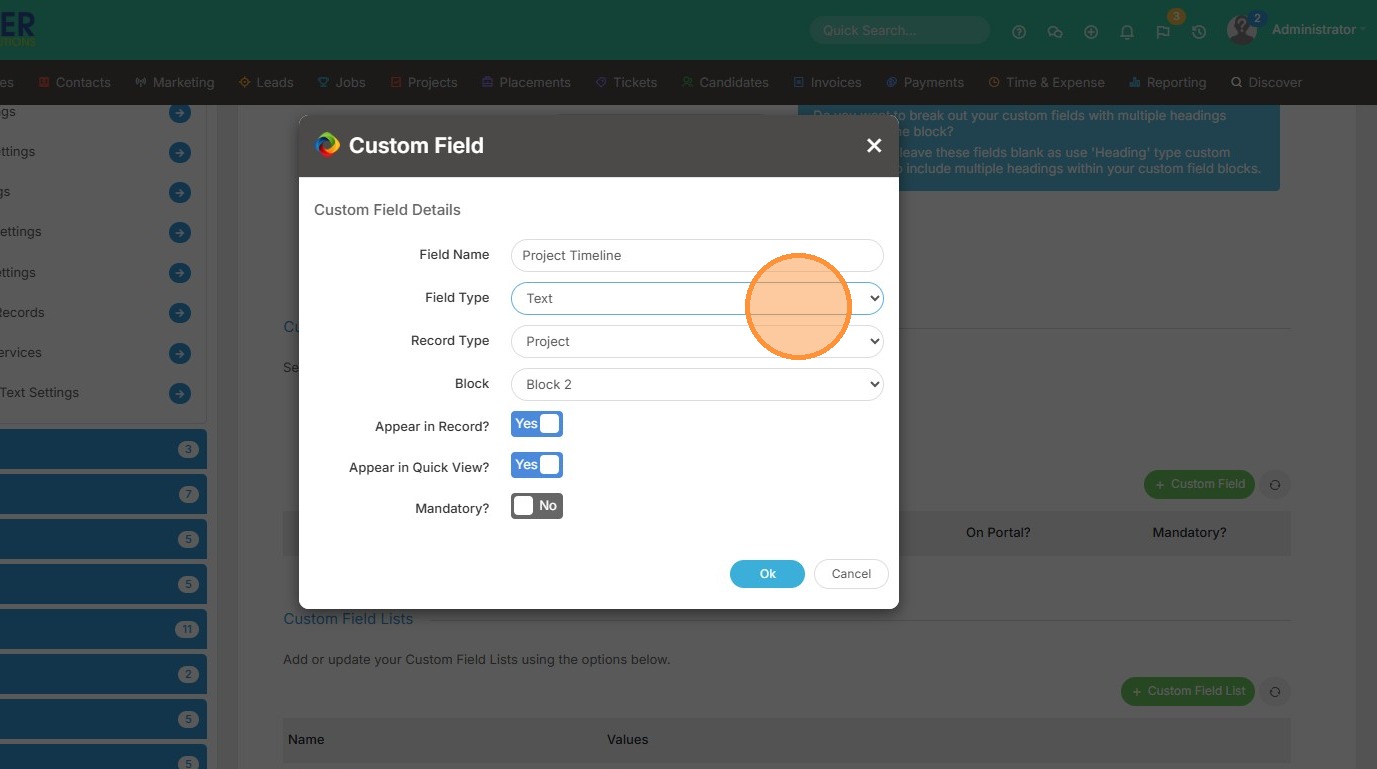
8. Click here if you want to make this field mandatory.
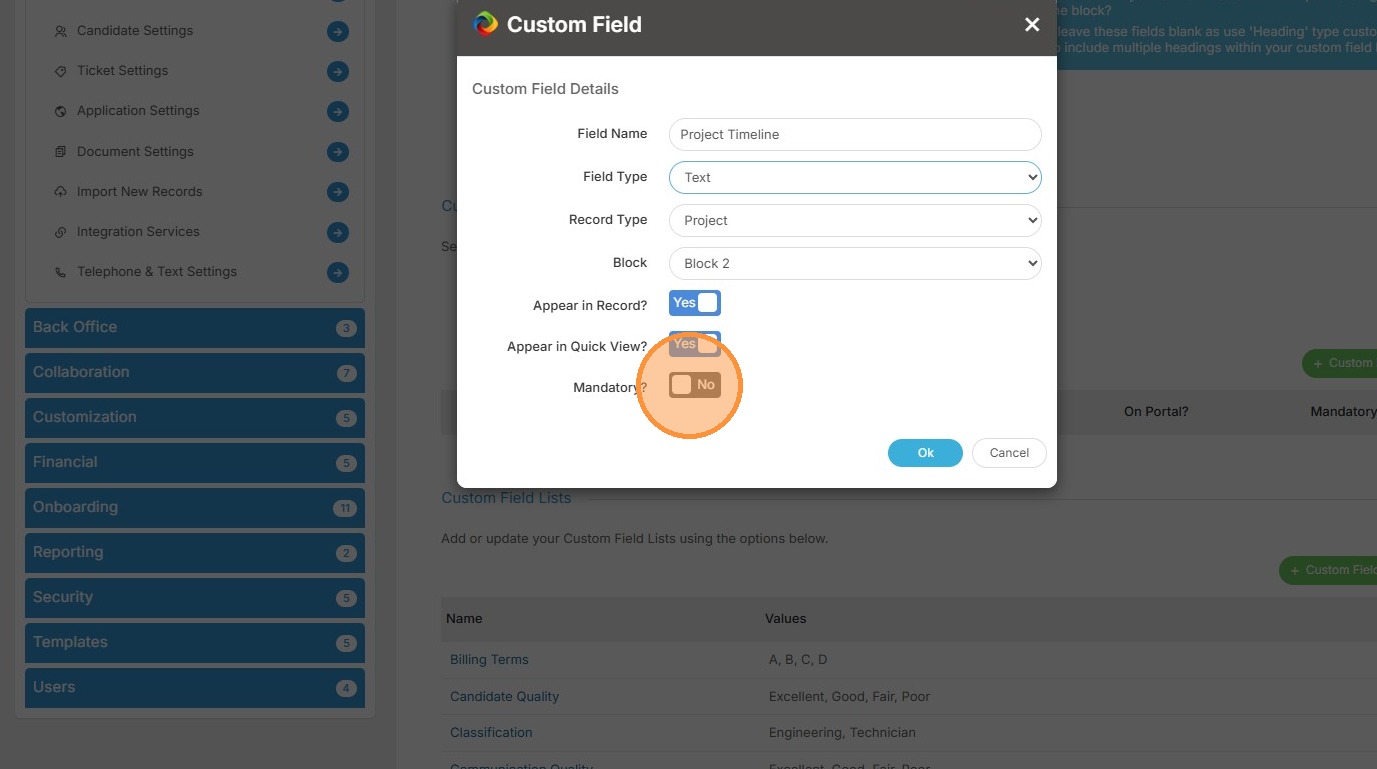
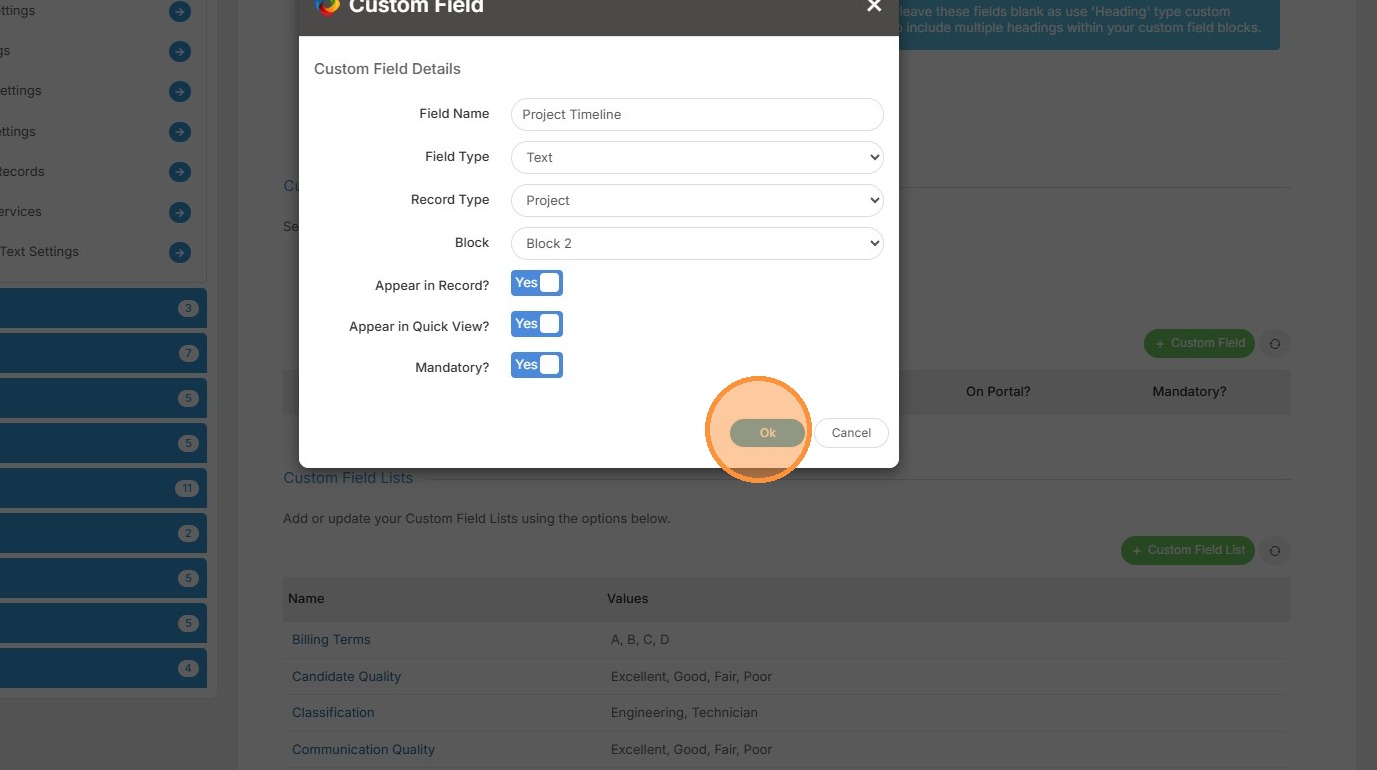
9. Click "Ok"
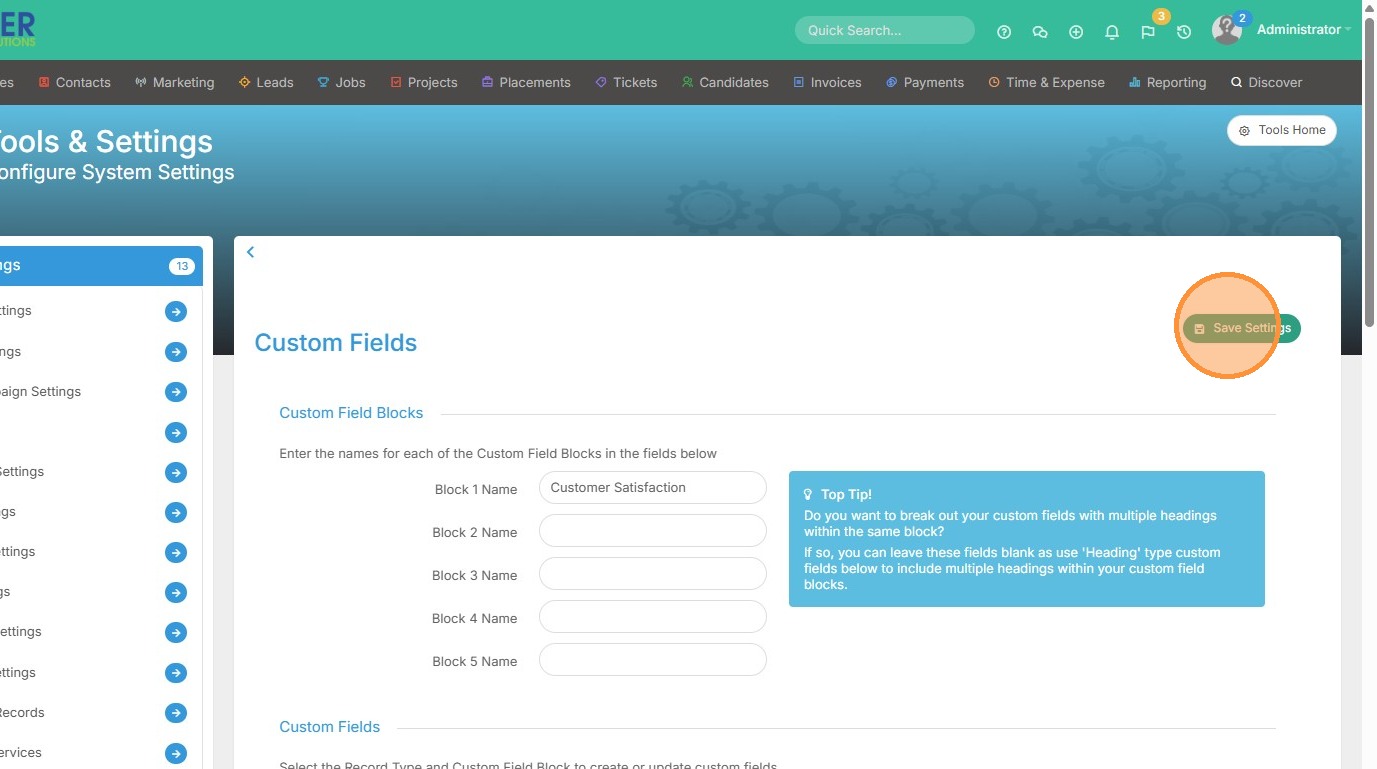
10. Click "Save Settings"
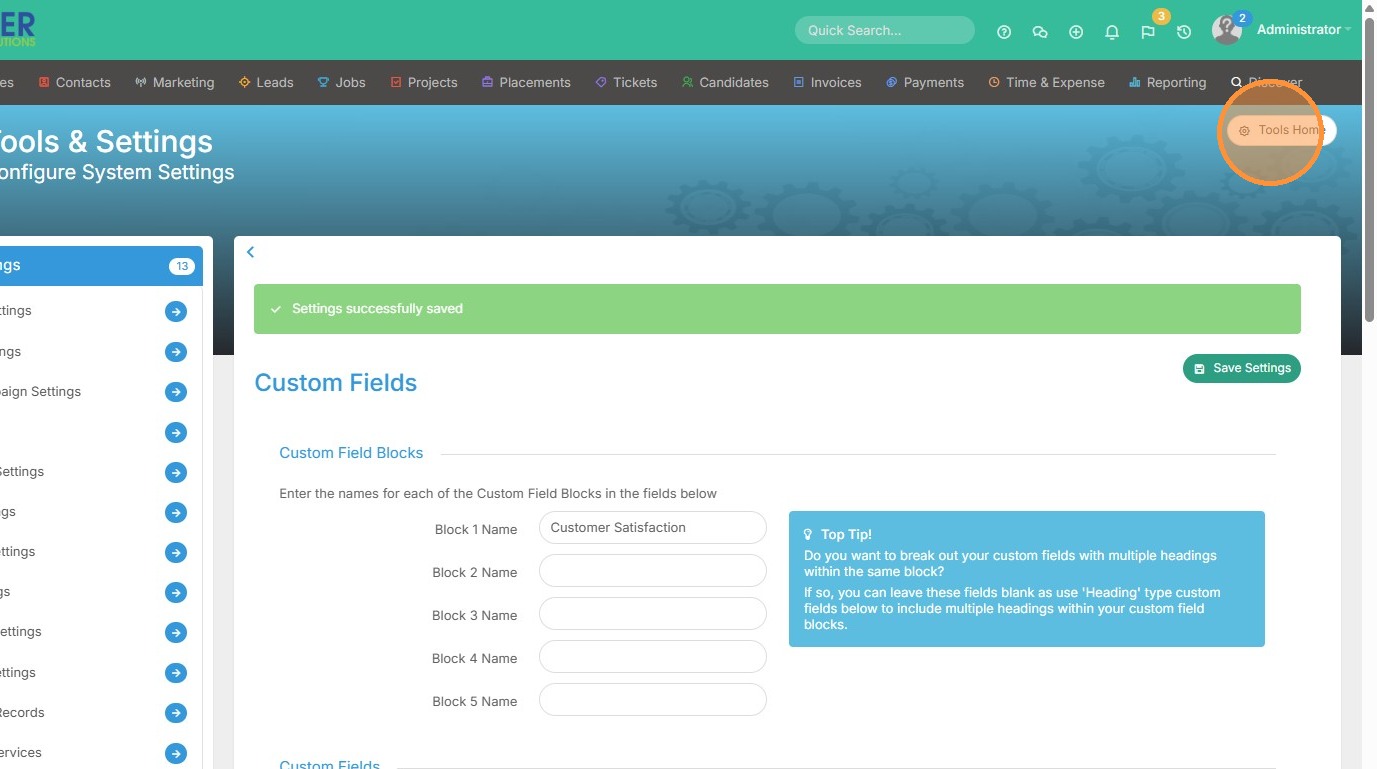
11. Click "Tools Home"
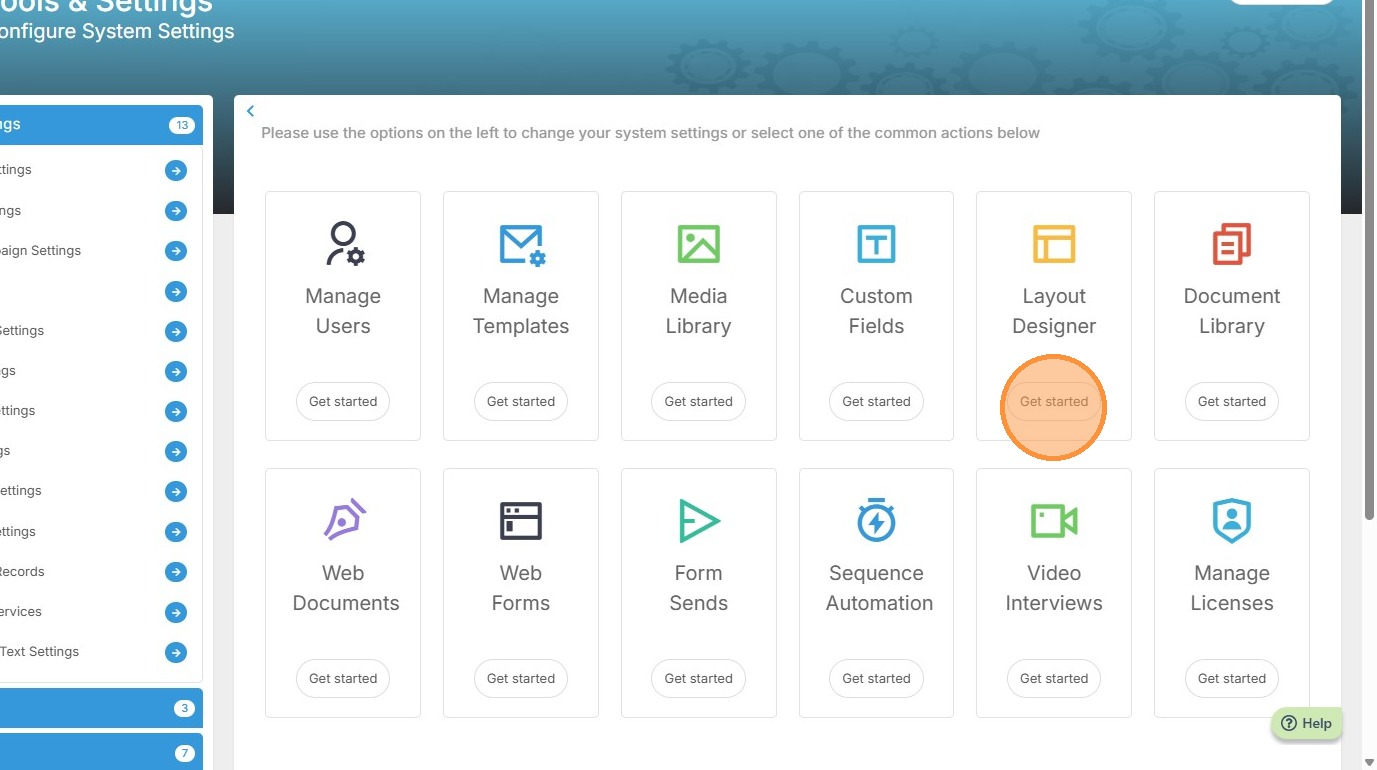
12. Click "Get started" on the layout designer.
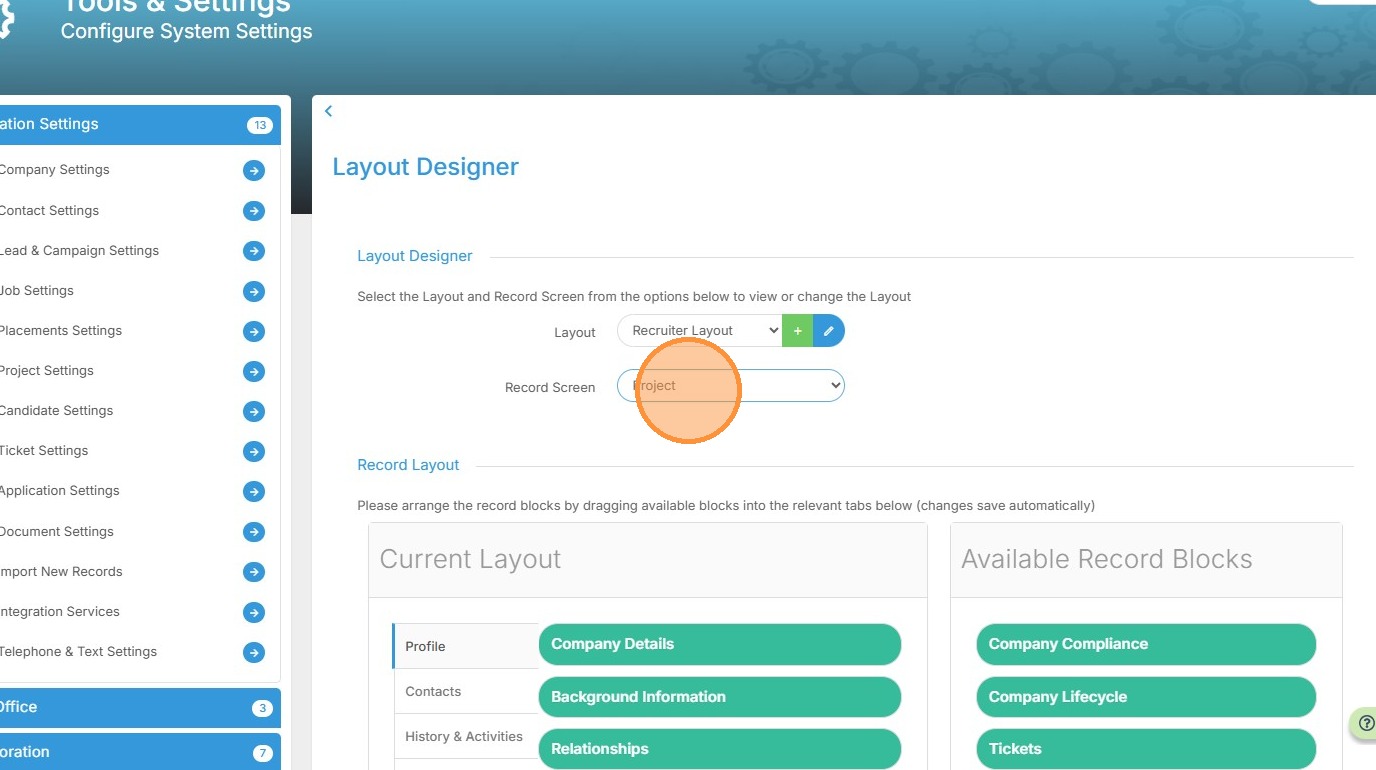
13. Select the "Project" option since that's where we added the new custom field to.
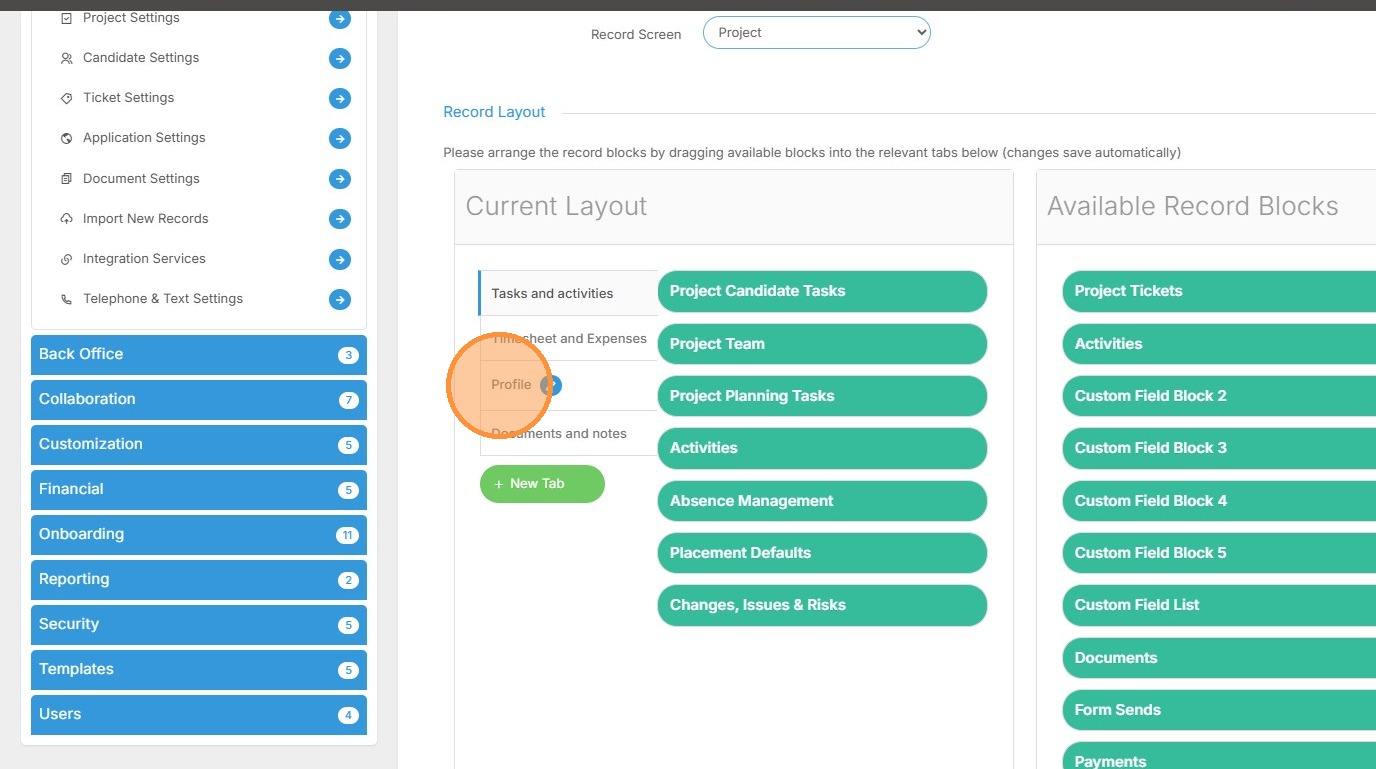
14. I'm going to add this to the Profile tab in the project record.
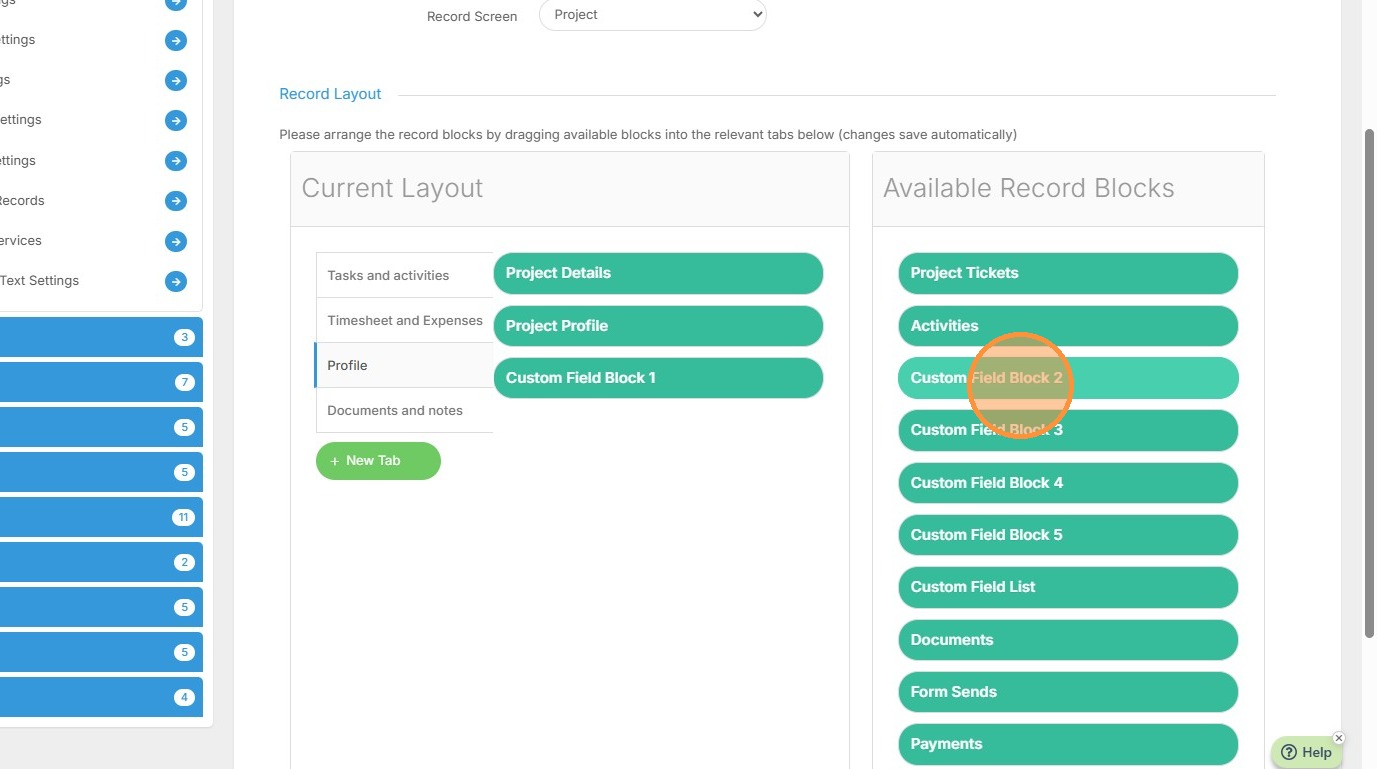
15. Click "Custom Field Block 2" and drag it over to the profile tab.
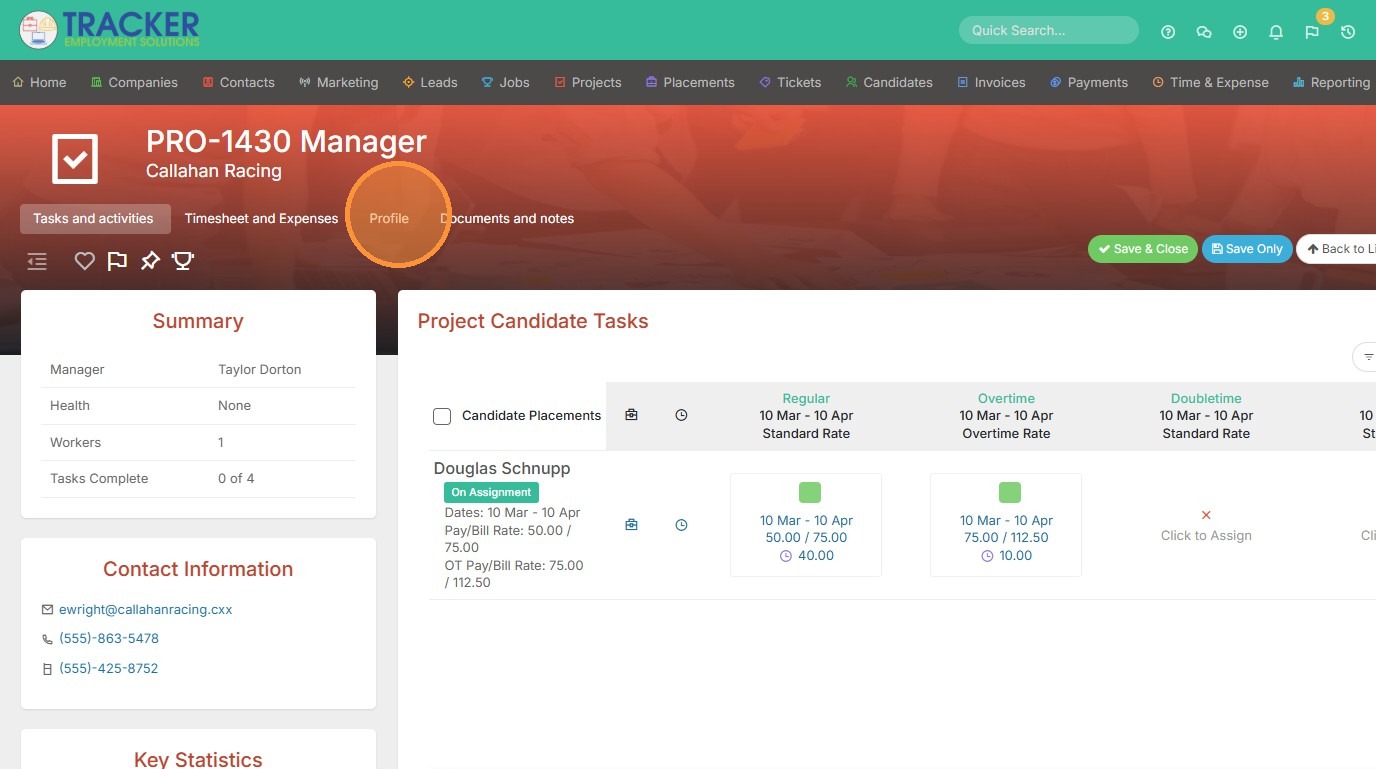
16. Click "Profile"
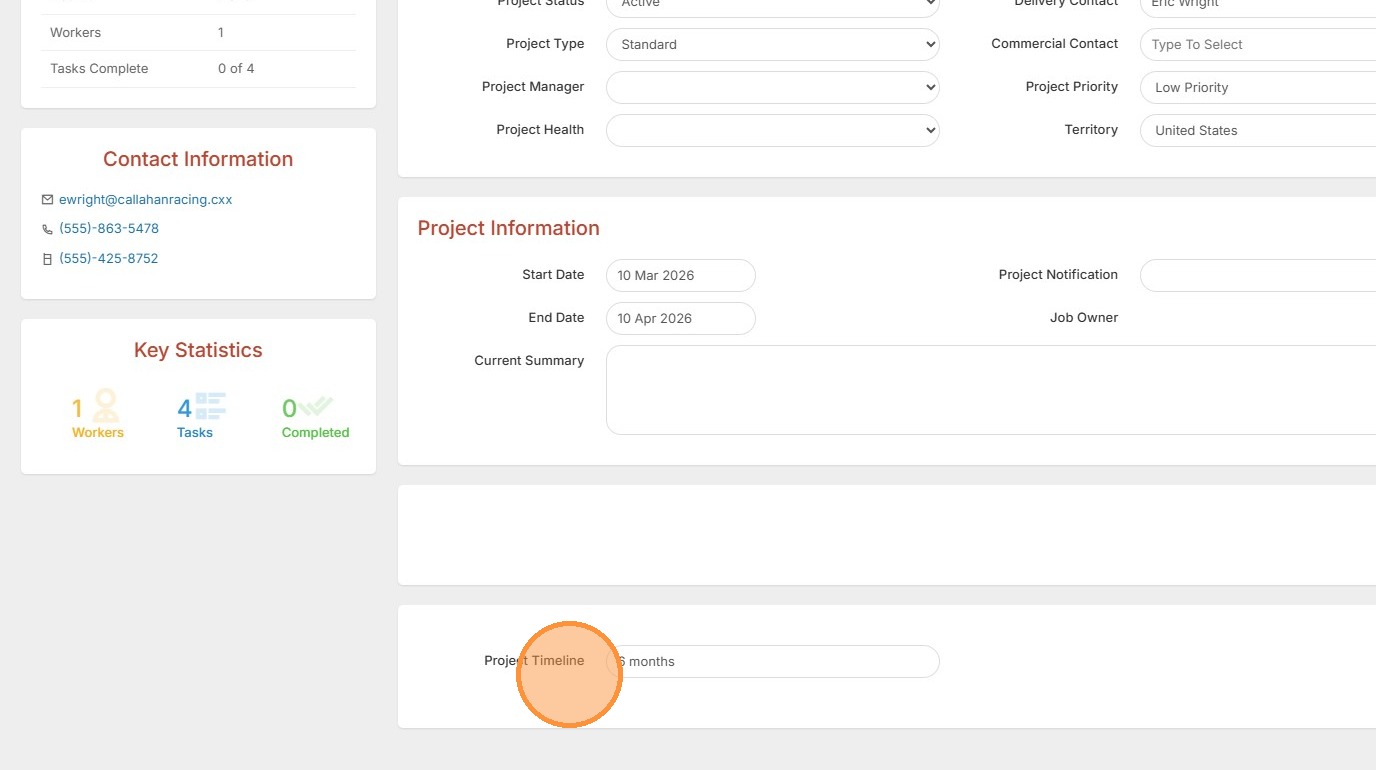
17. Here you can see the new custom field.
18. Click "Save Only"
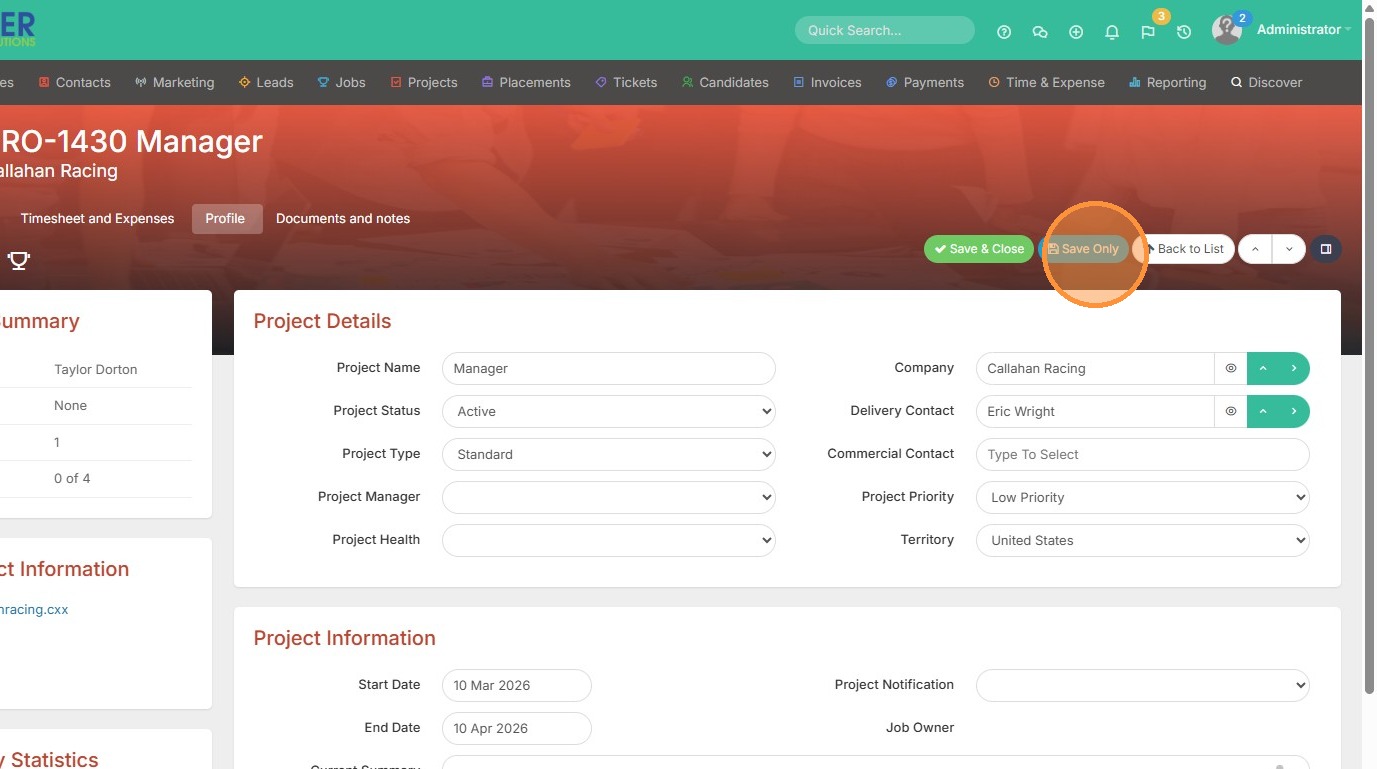
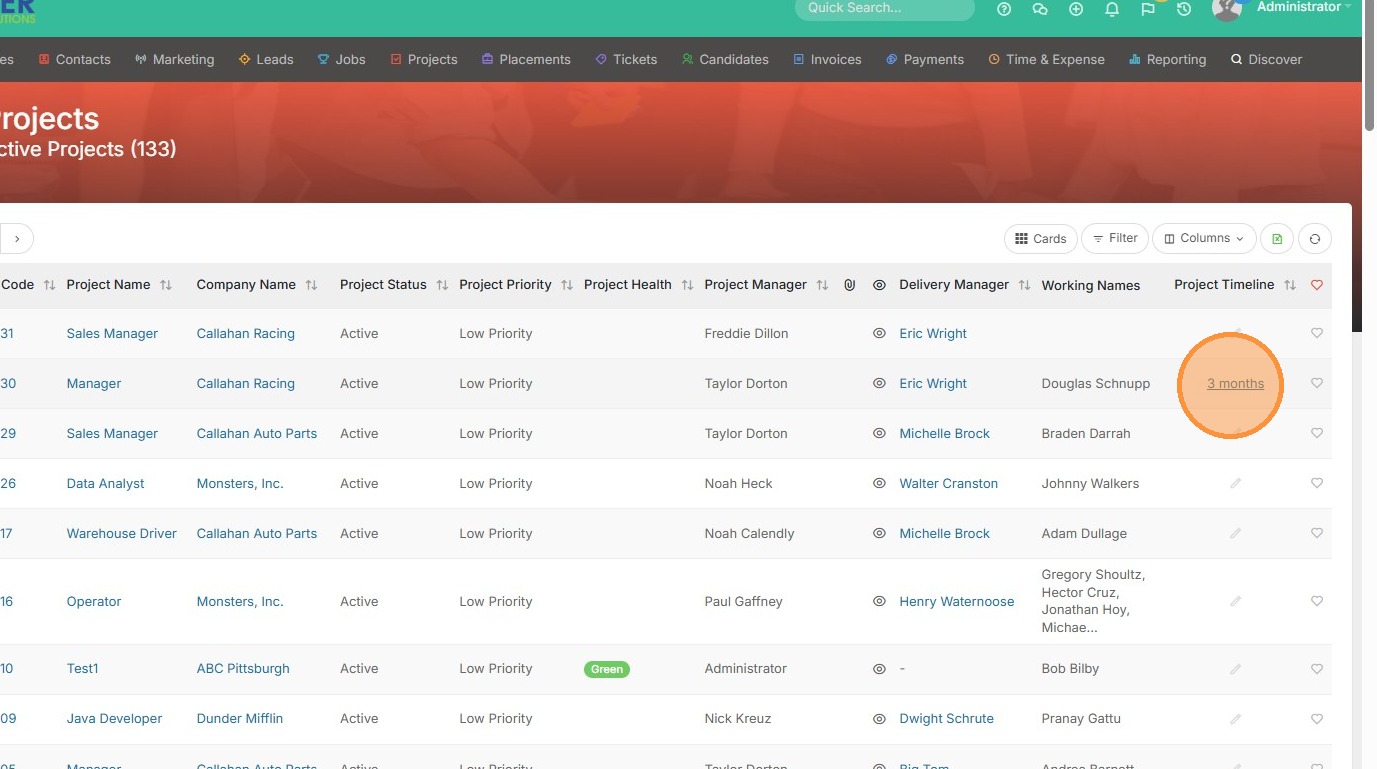
19. This field will also be available to edit/adjust in the project list view. Click "3 months" to adjust without leaving this screen.