Manually Approve Timesheets
Learn the efficient workflow for reviewing and approving team timesheets and expense reports within the platform. This guide ensures your payroll data remains accurate by walking you through the necessary status updates and final approvals.
Bulk Timesheet Approval
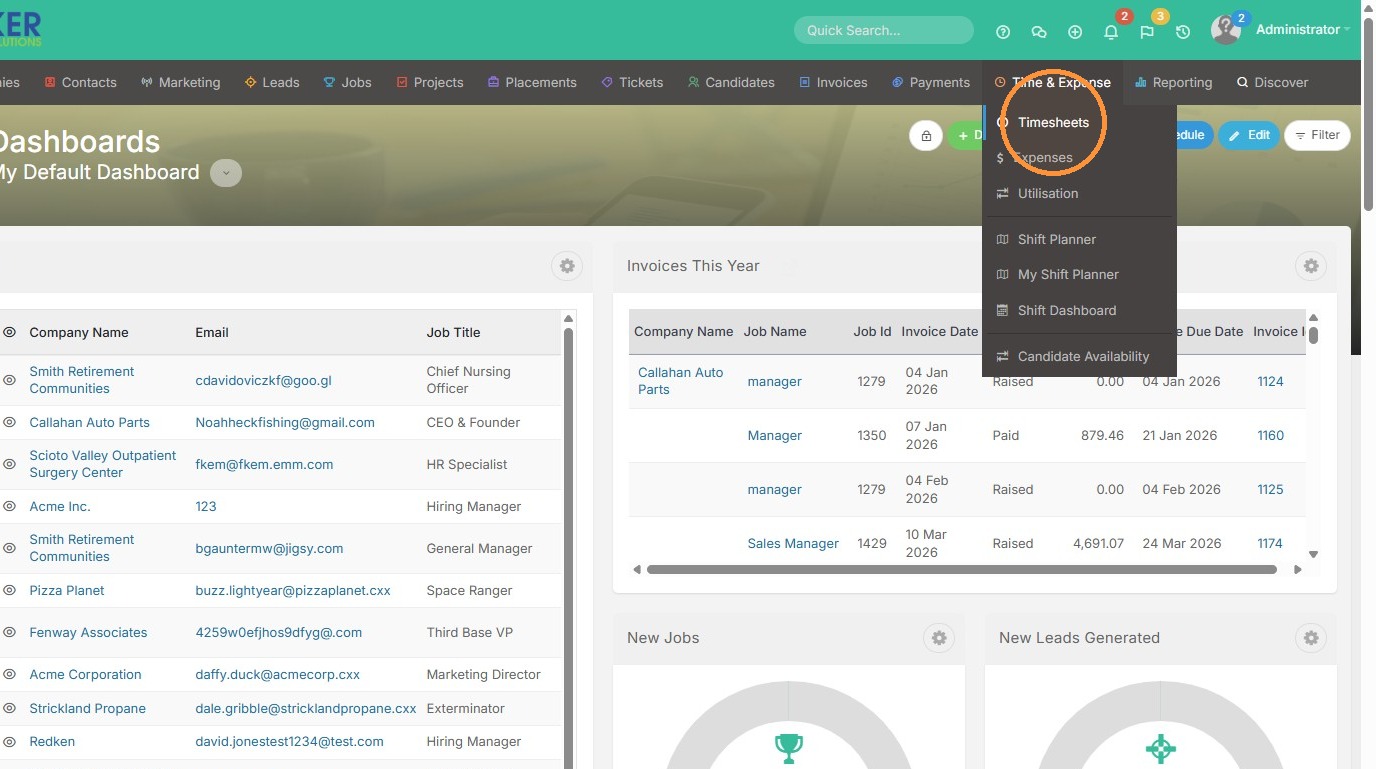
1. There are a few ways to approve timesheets manually. To start, open the Timesheets tab.
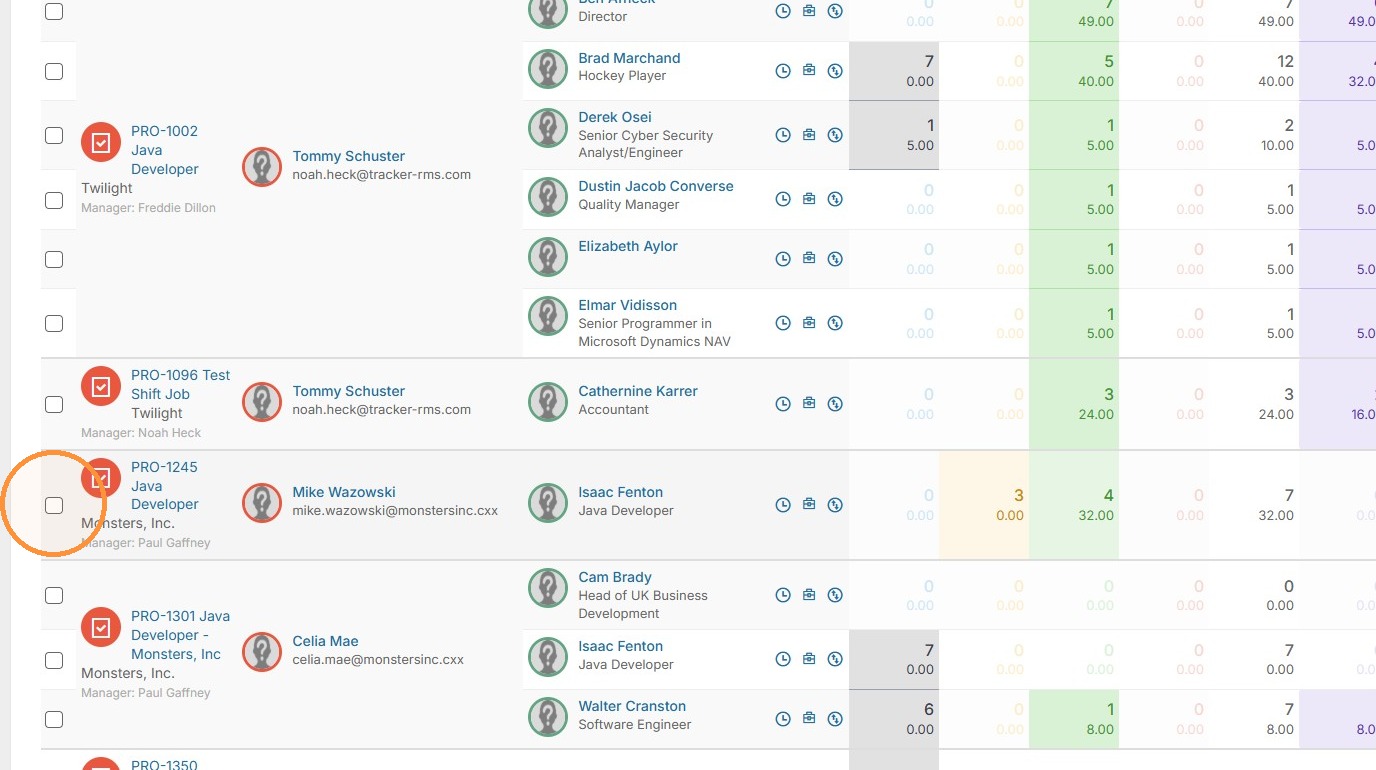
2. From here you can select multiple projects/timesheets to approve by clicking on the checkbox to the left.
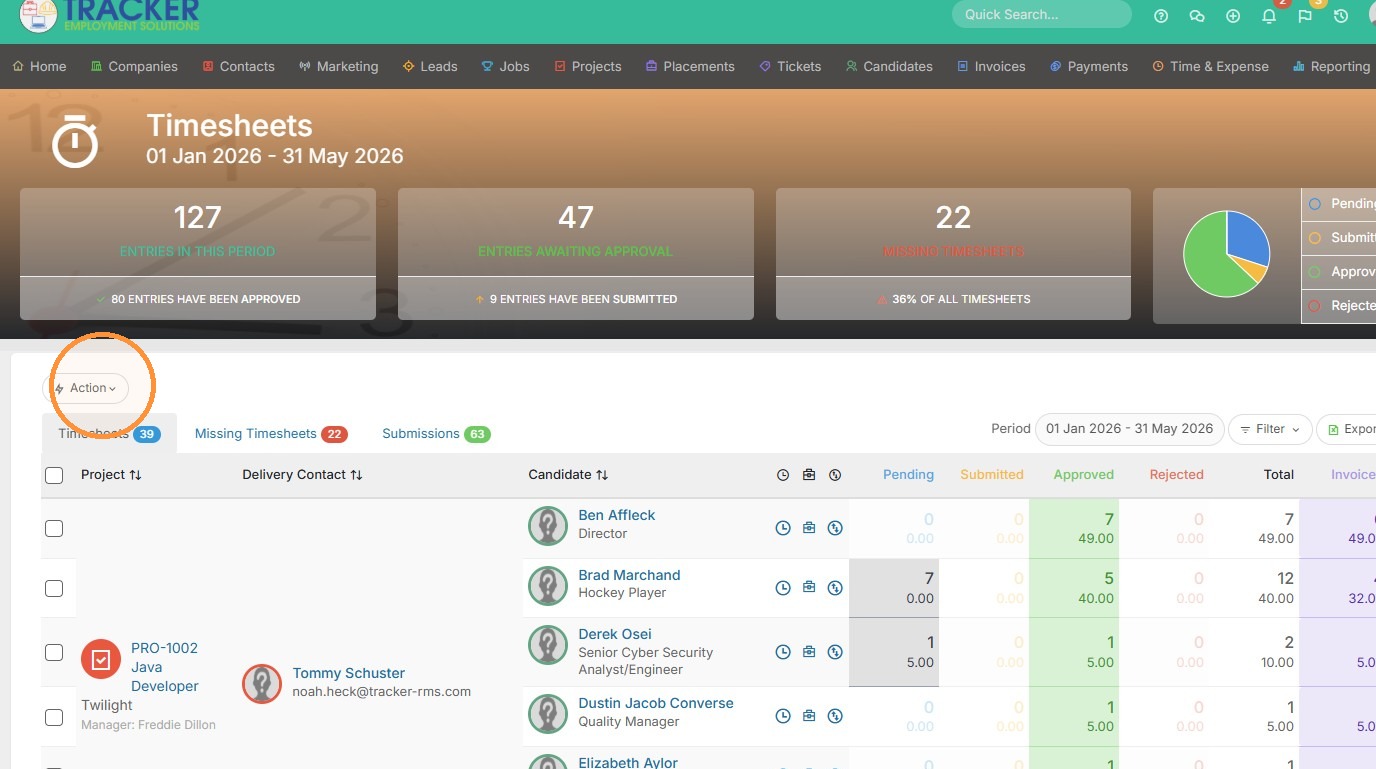
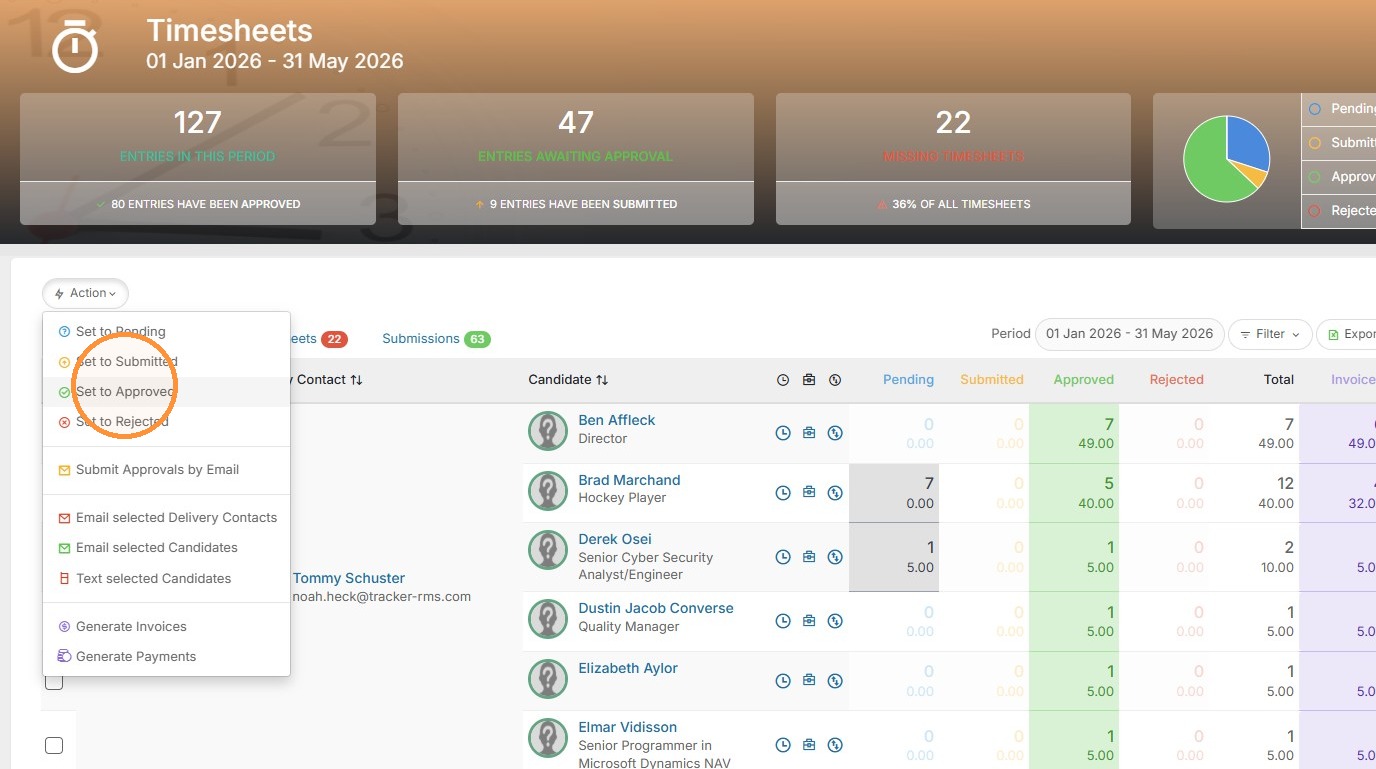
3. Click "Action"
4. Click "Set to Approved"
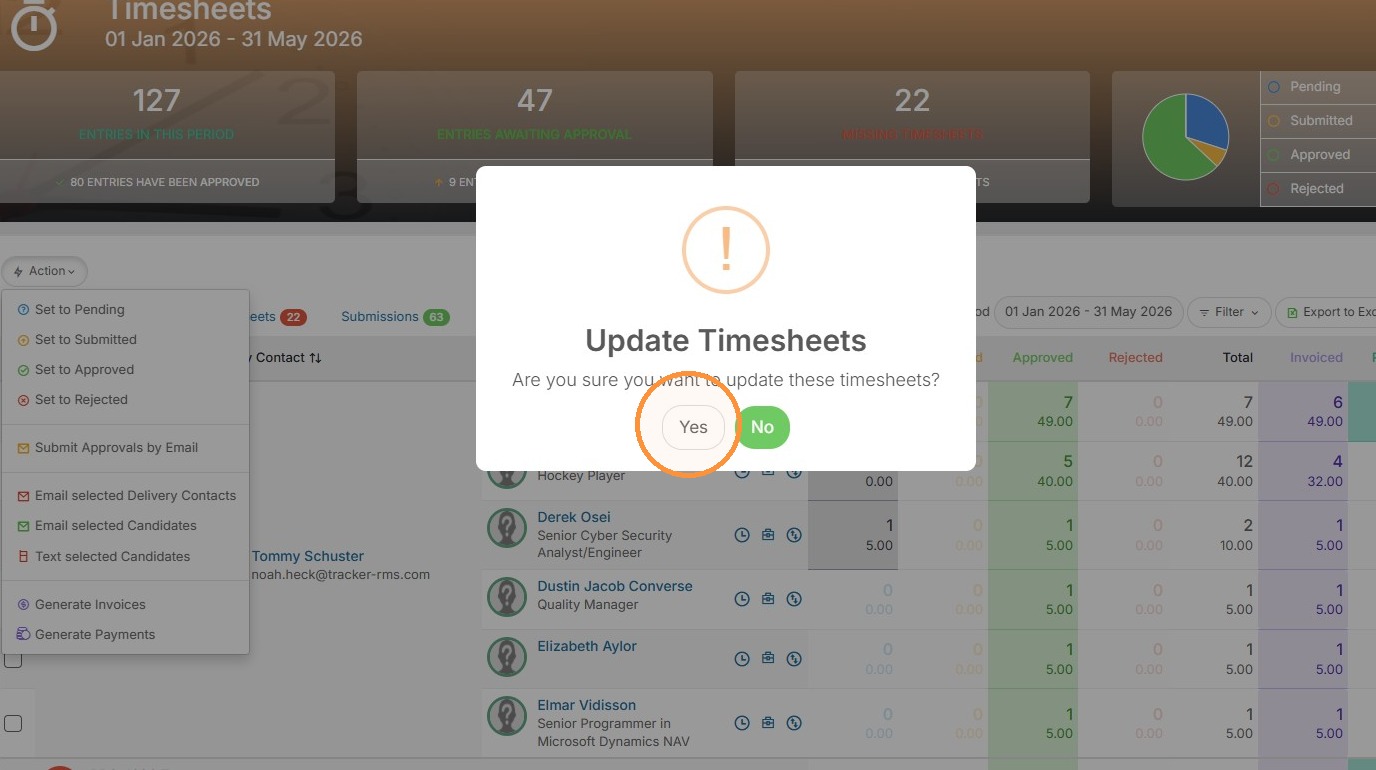
5. Click "Yes"
Timesheet Entry Review
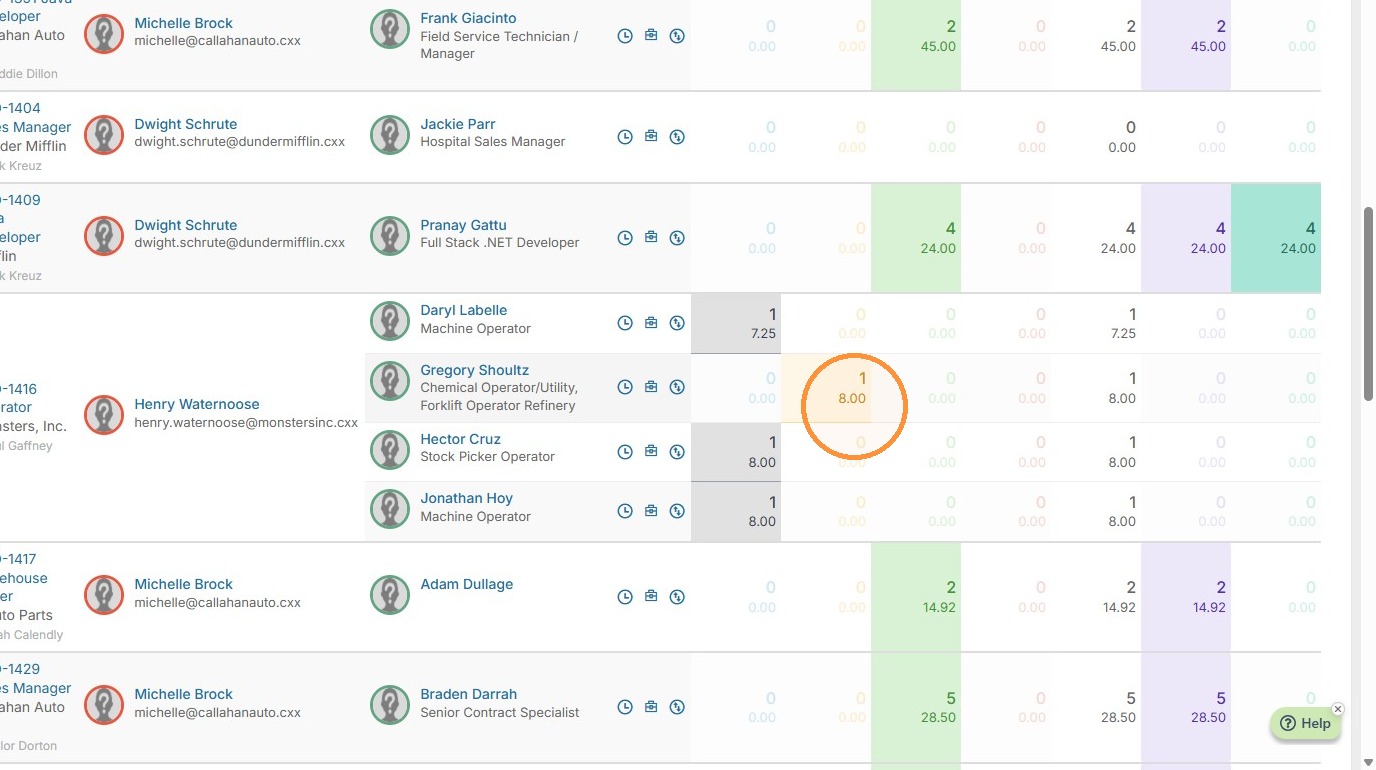
6. Another way to individually approve time is by clicking on the yellow "Pending Approval" box within the timesheet table.
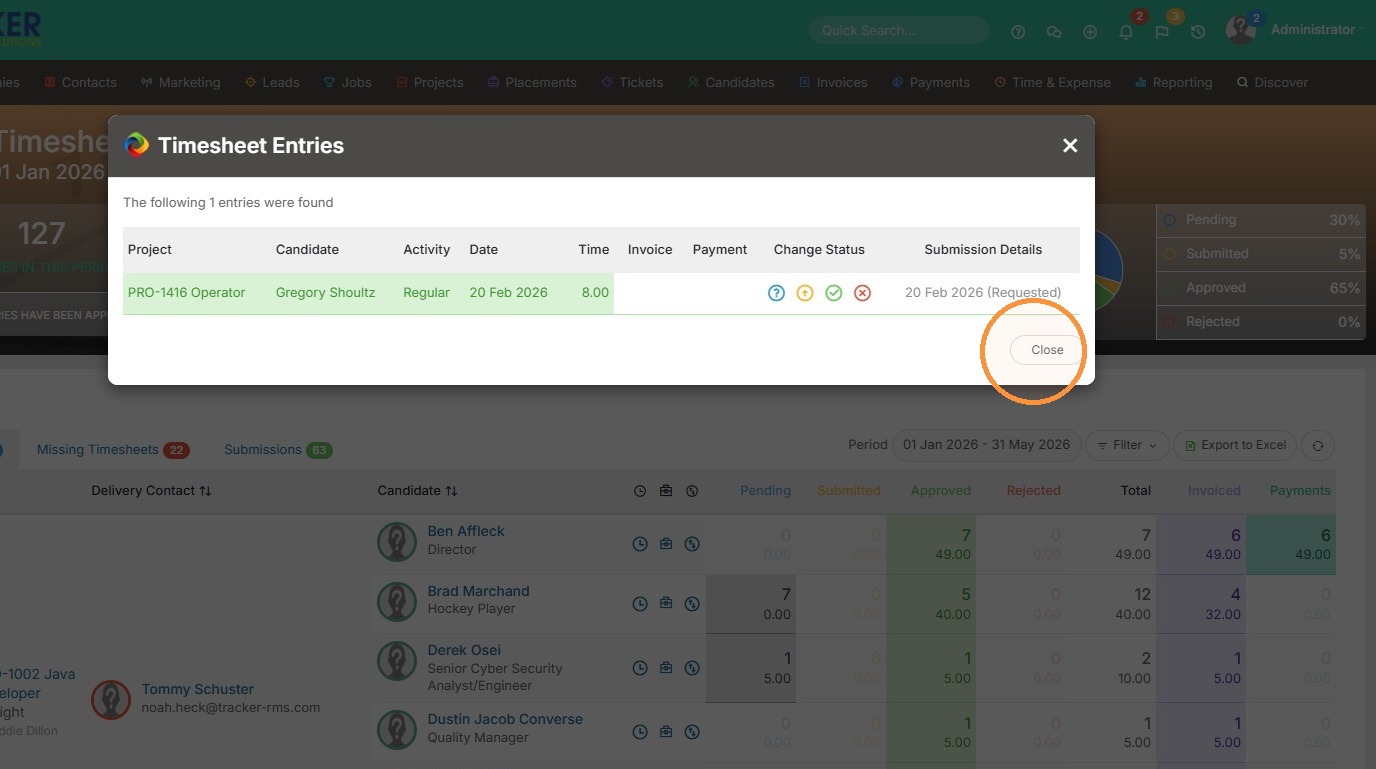
7. Click the green check mark to then approve it.
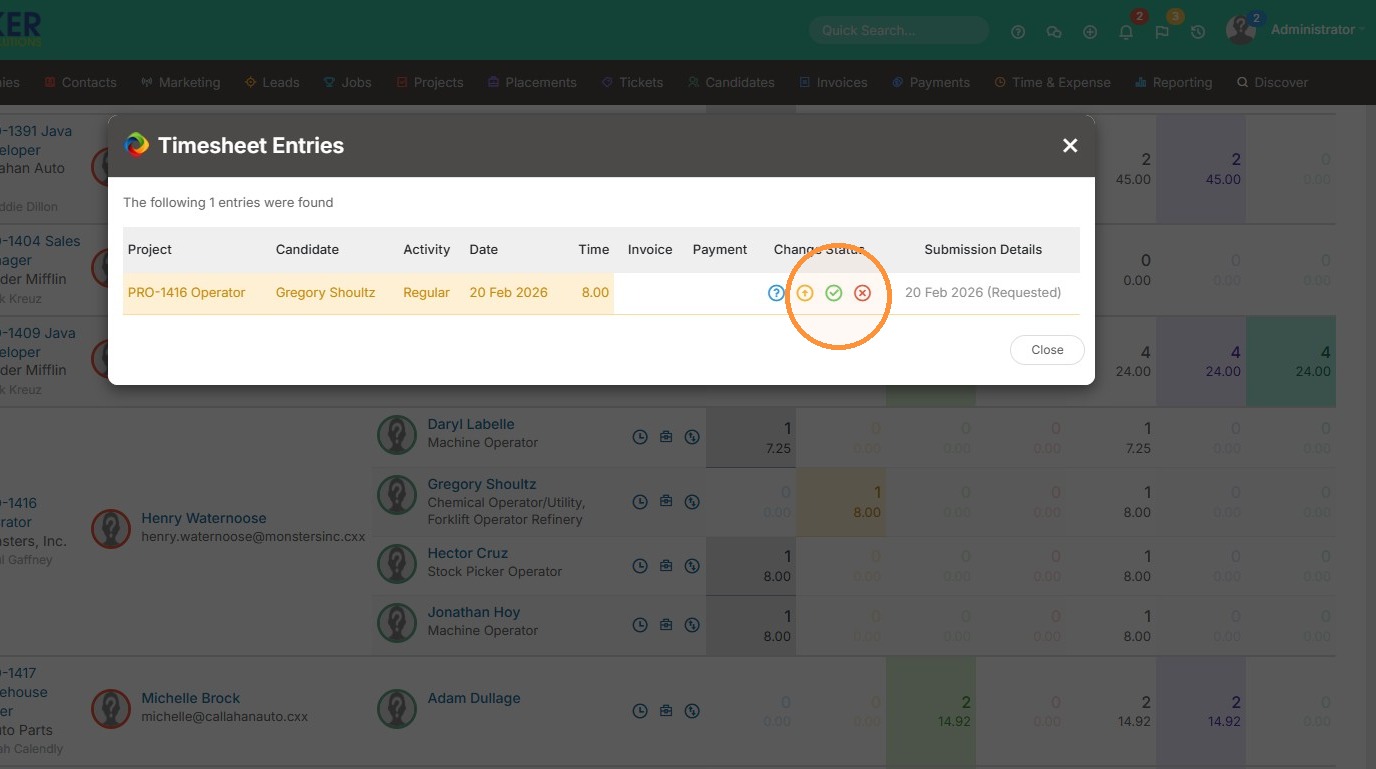
8. Click "Close"
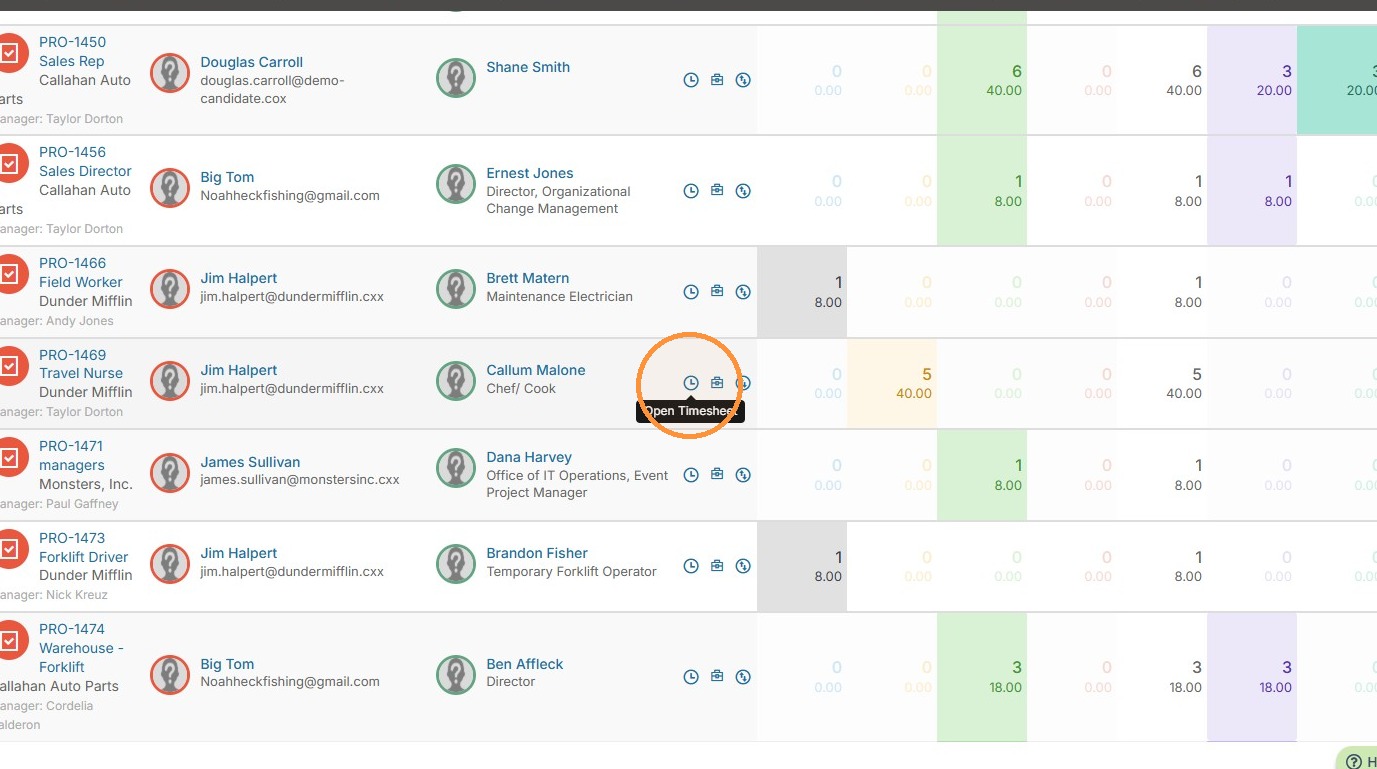
9. Lastly from the timesheet table you can click the clock icon.
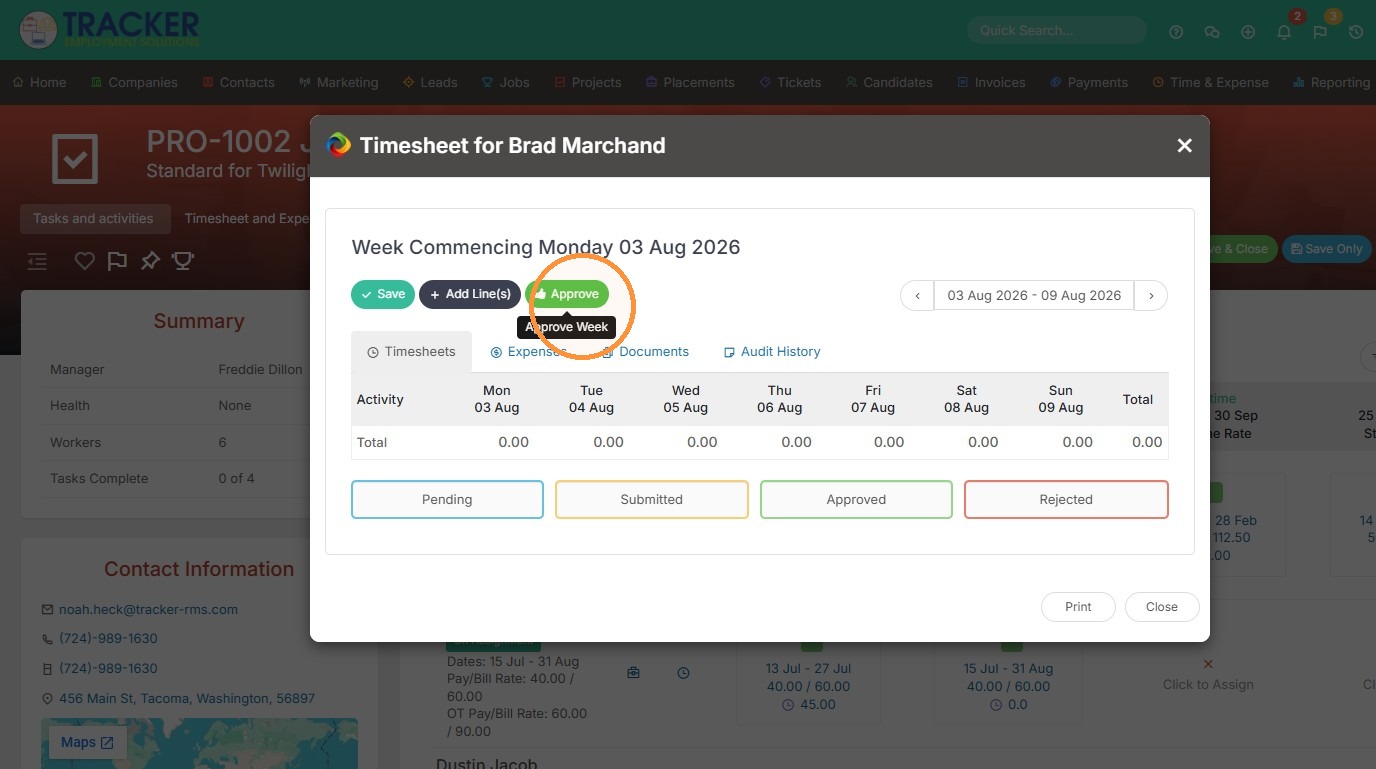
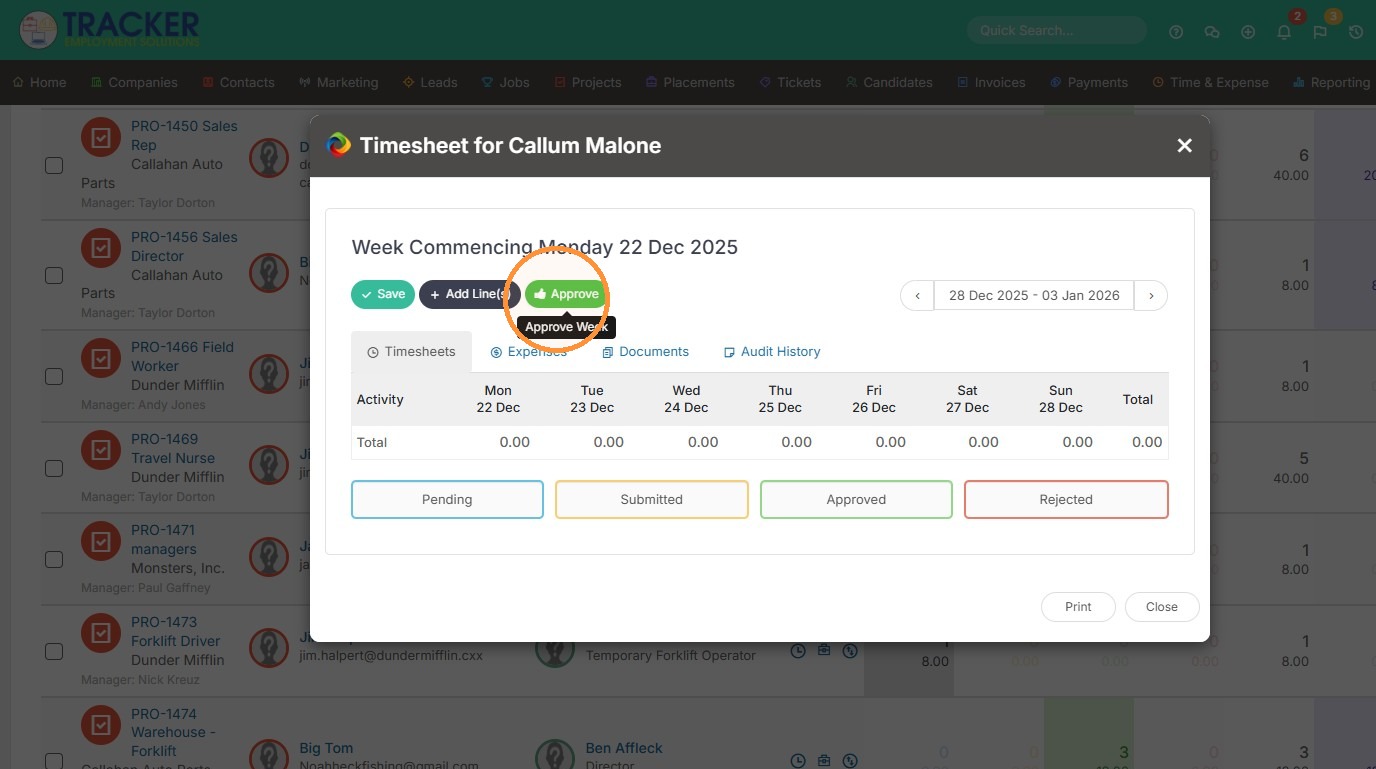
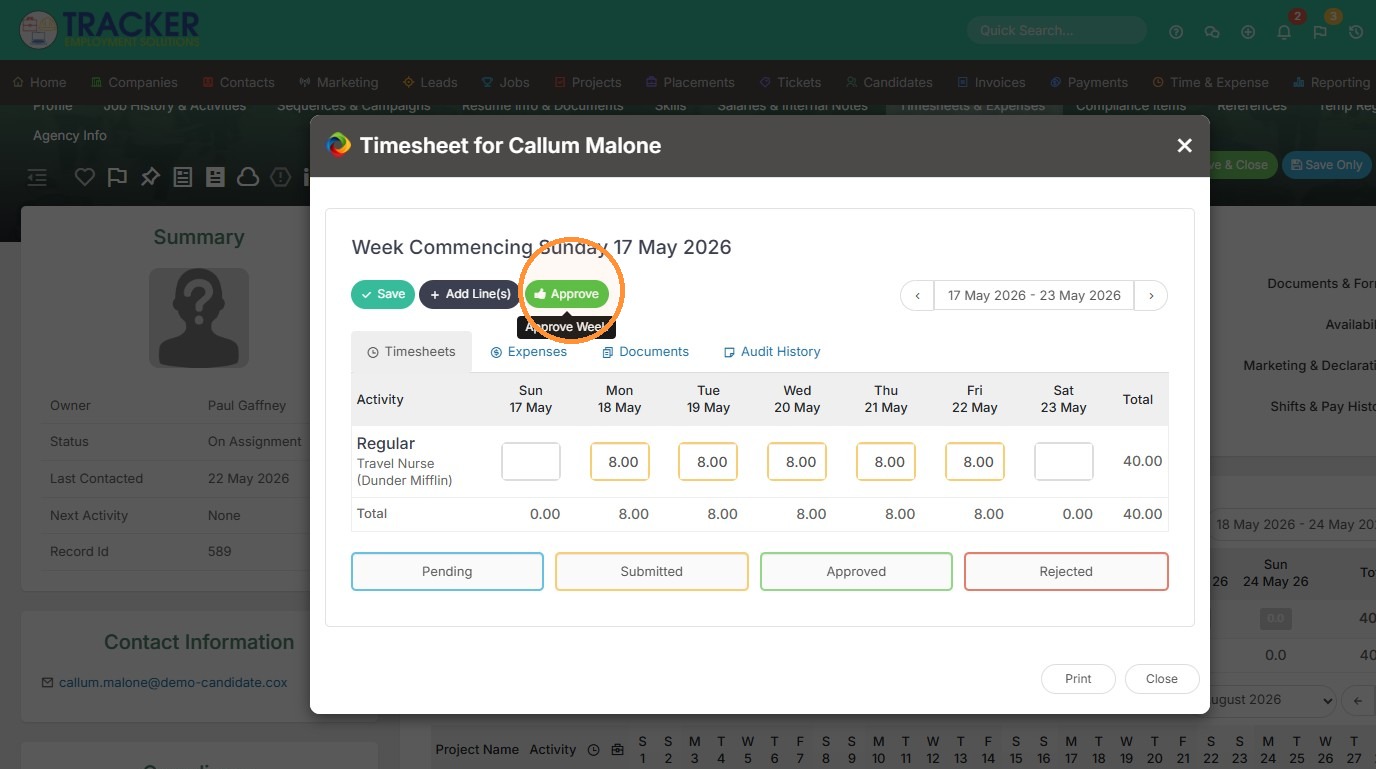
10. Click "Approve" to approve the entire week (you can adjust the dates you're approving for on the right).
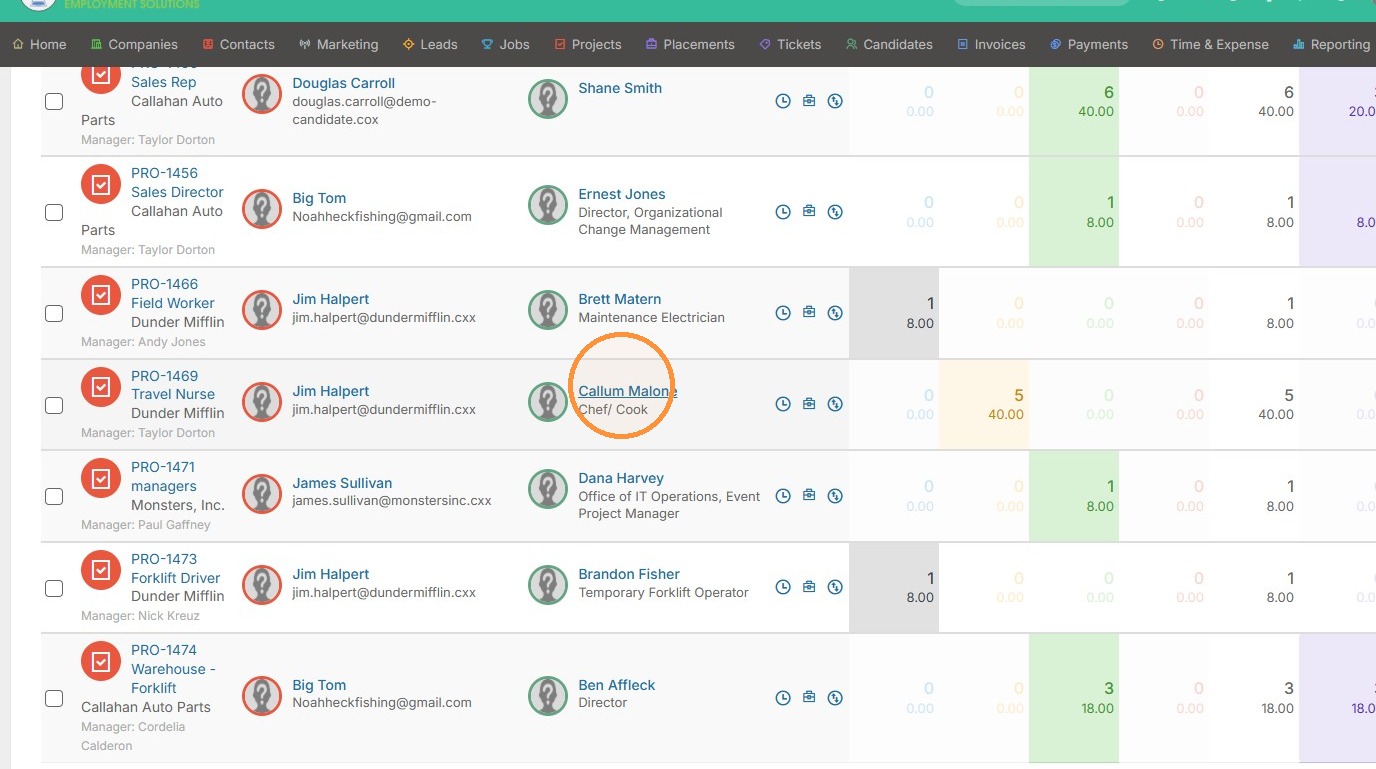
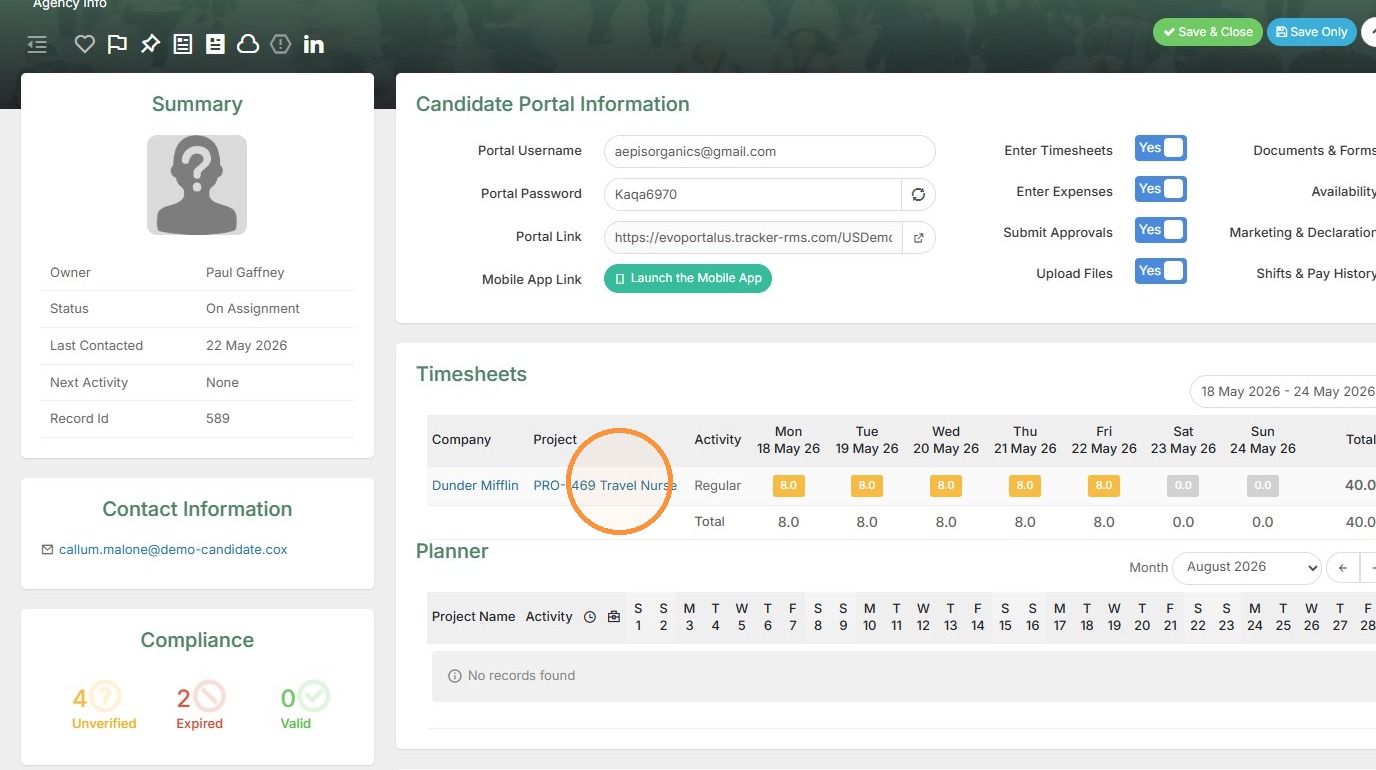
11. You can also approve time from the candidate record.
Resource Timesheet Approval
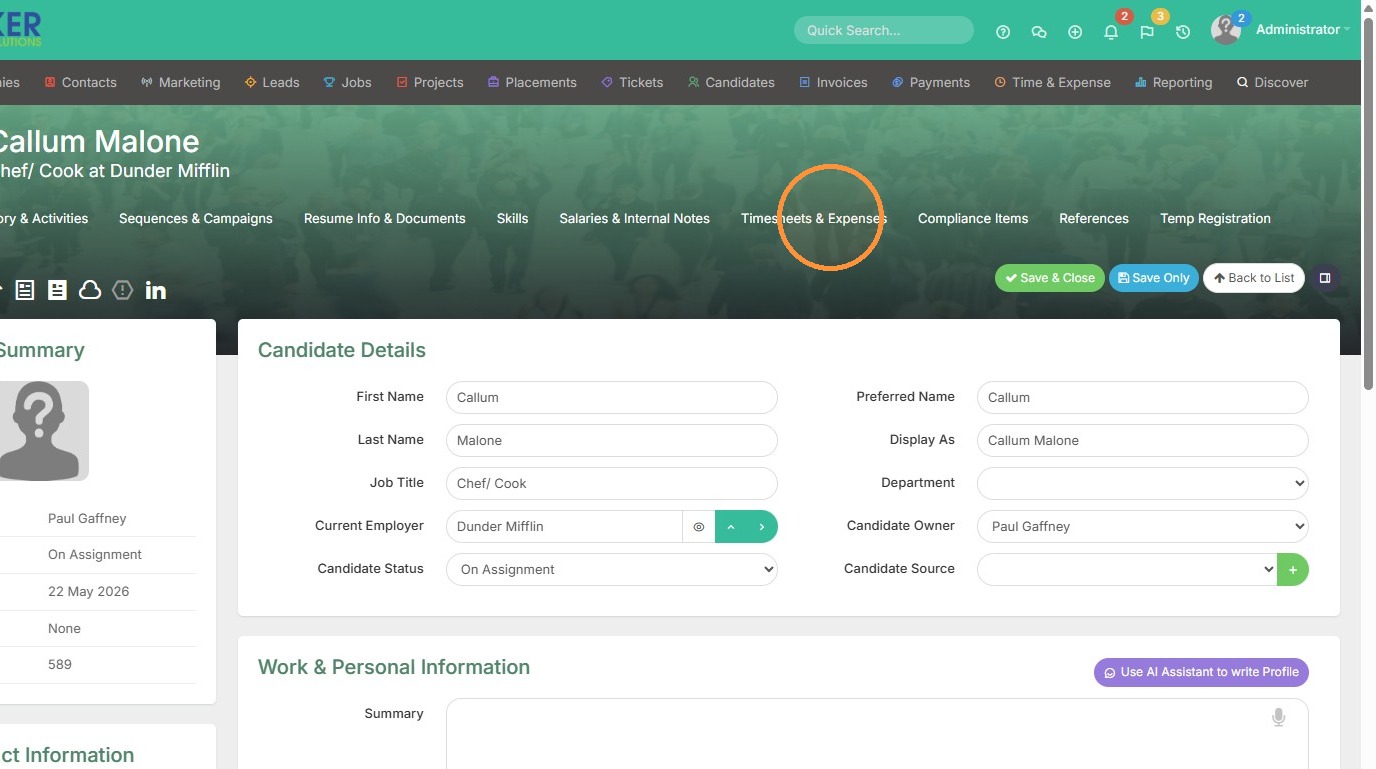
12. Click "Timesheets & Expenses" (you may have this tab labeled something else in your database).
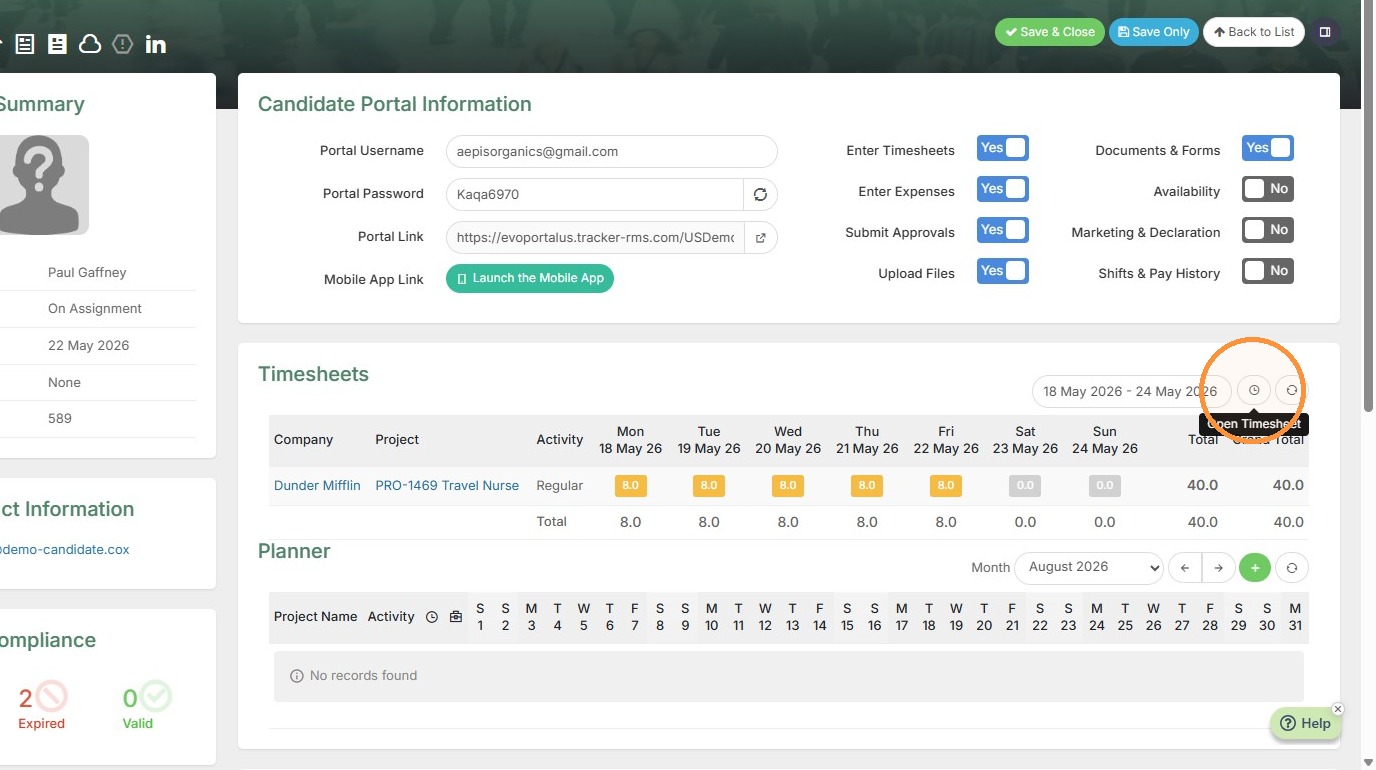
13. Click the clock icon to approve time.
14. Click "Approve" to approve that whole week.
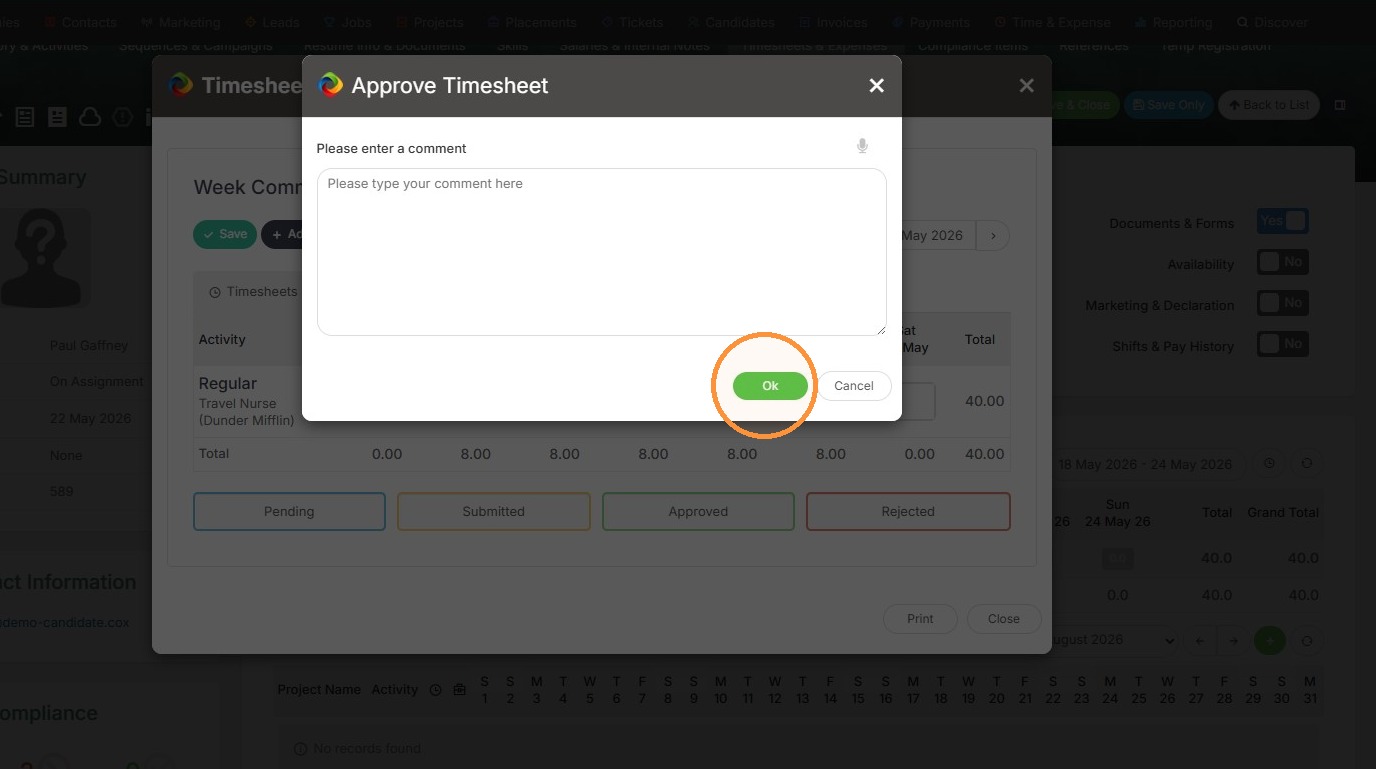
15. Click "Ok"
16. Lastly, you can approve time within the project.
Project Timesheet Approval
17. Once you have the project open, you can click on the clock icon.
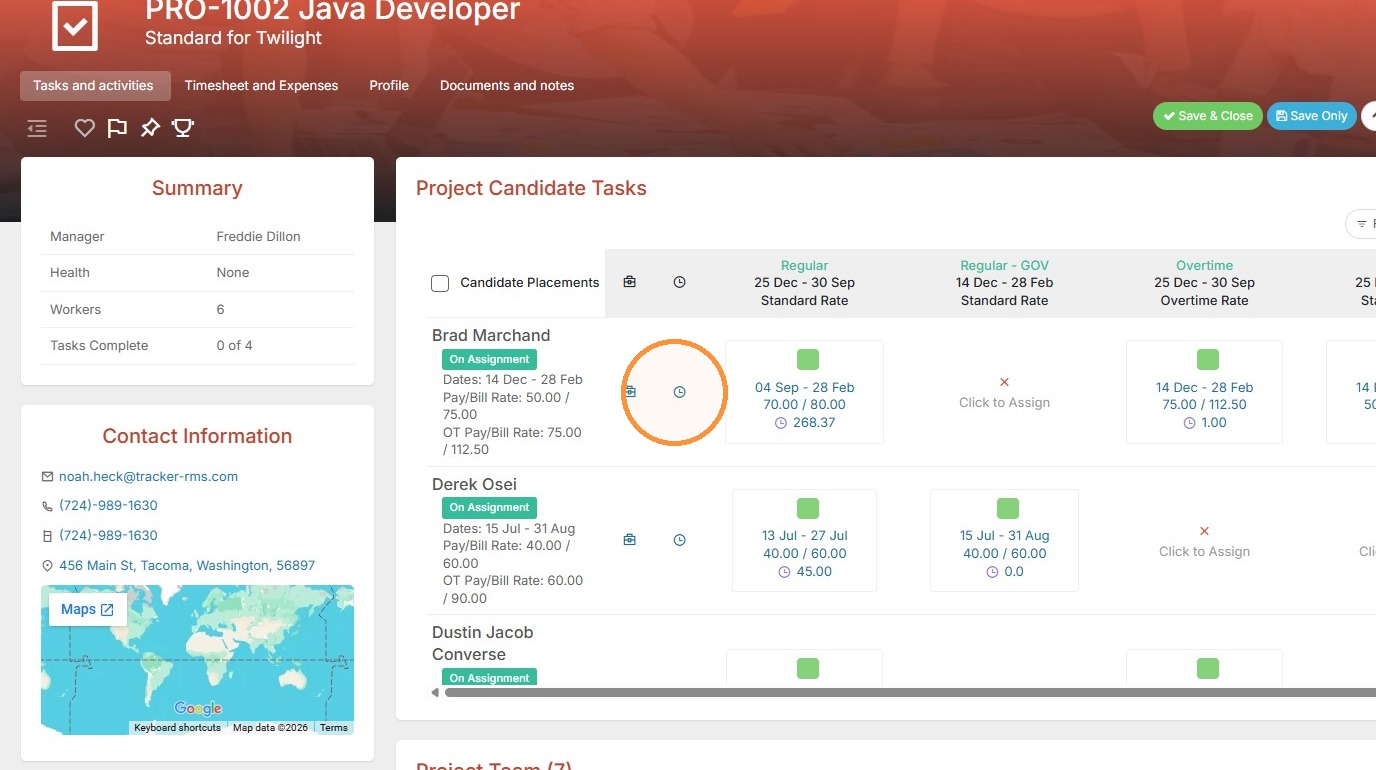
18. And then approve.