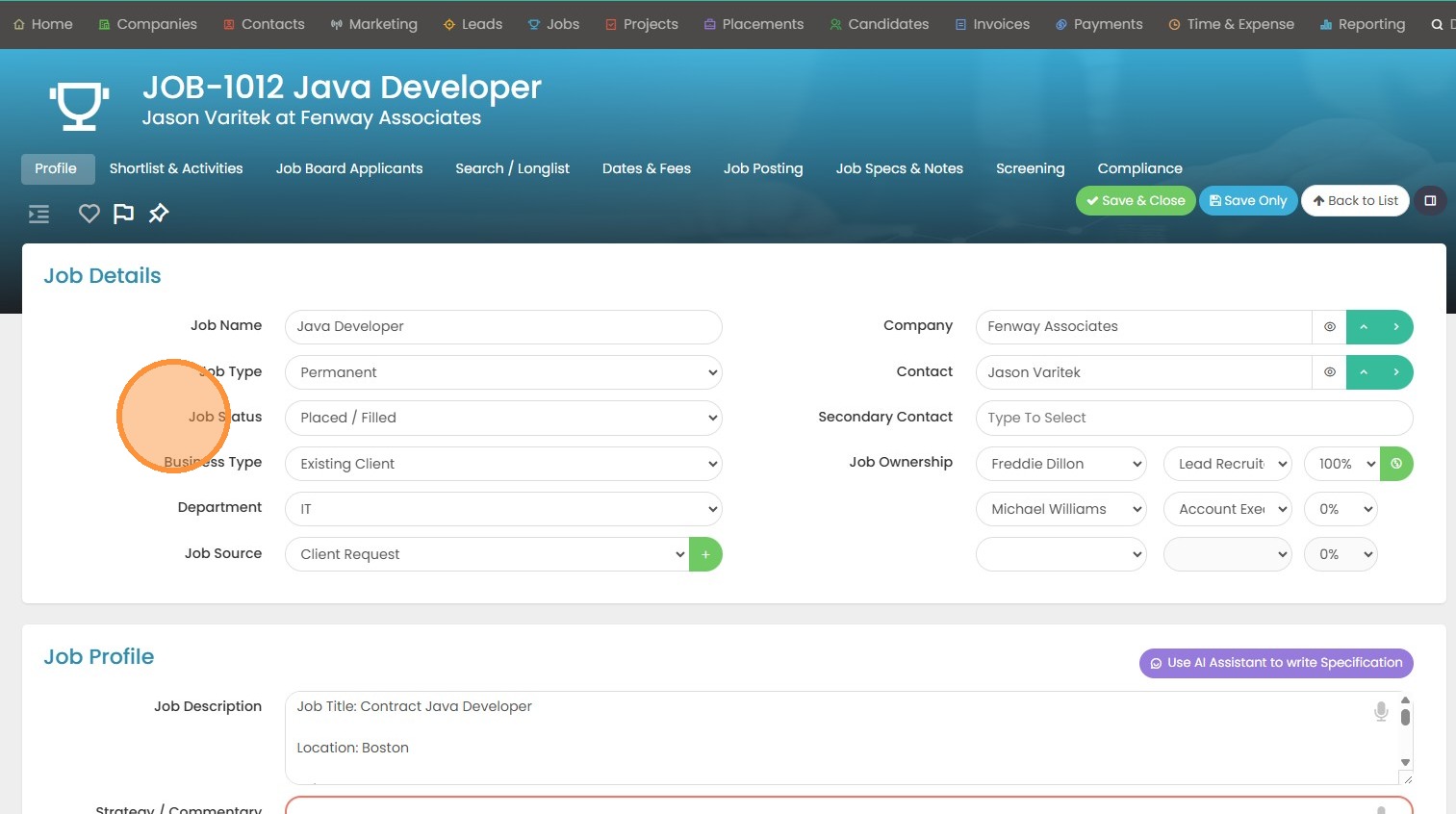
This lesson explains how to view and edit Job Dates and Fees/Values in a Candidate Placement Record
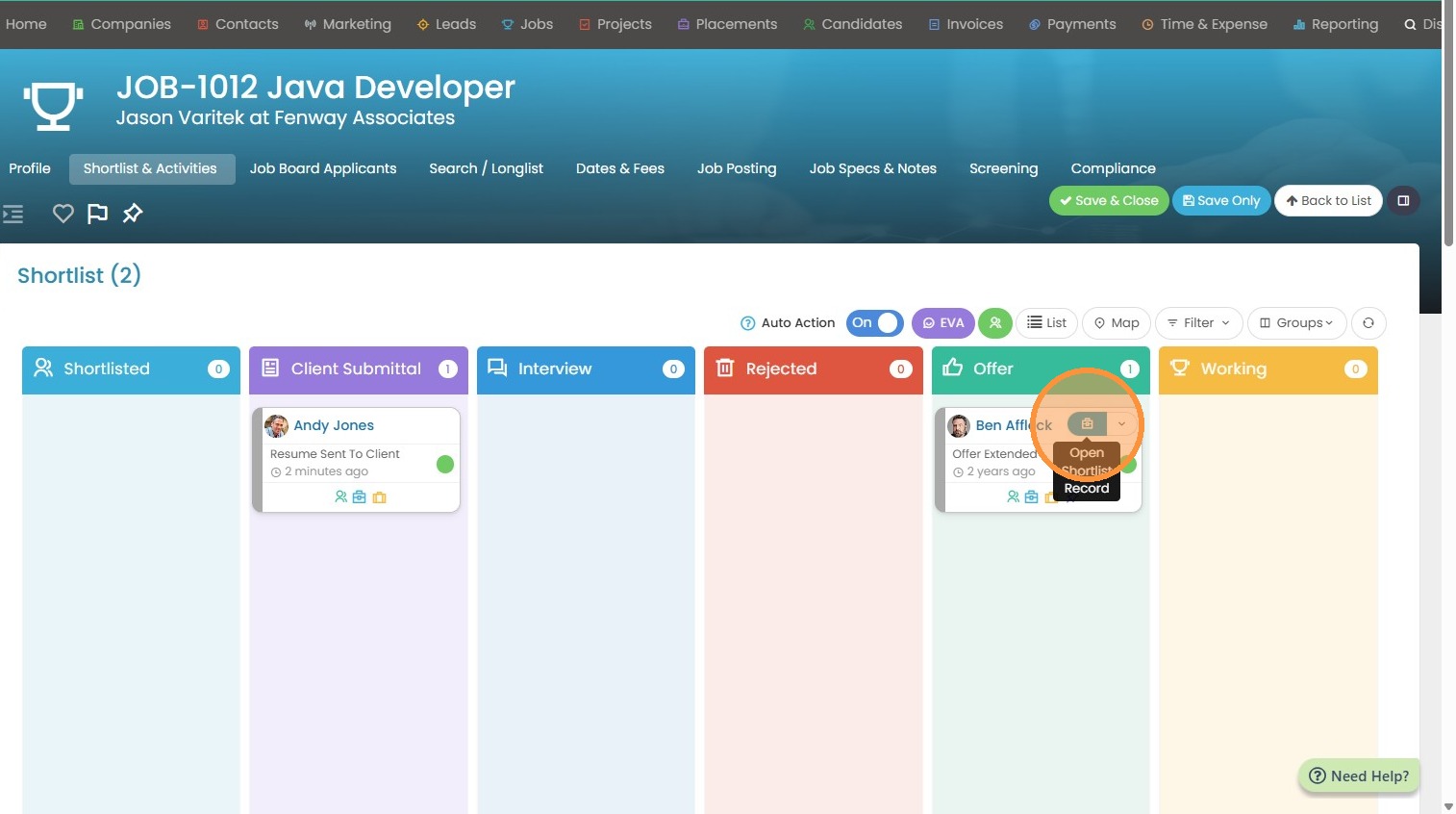
1. To edit the job dates & fees section in a placement record, open the blue placement record details on the candidate you wish to place.
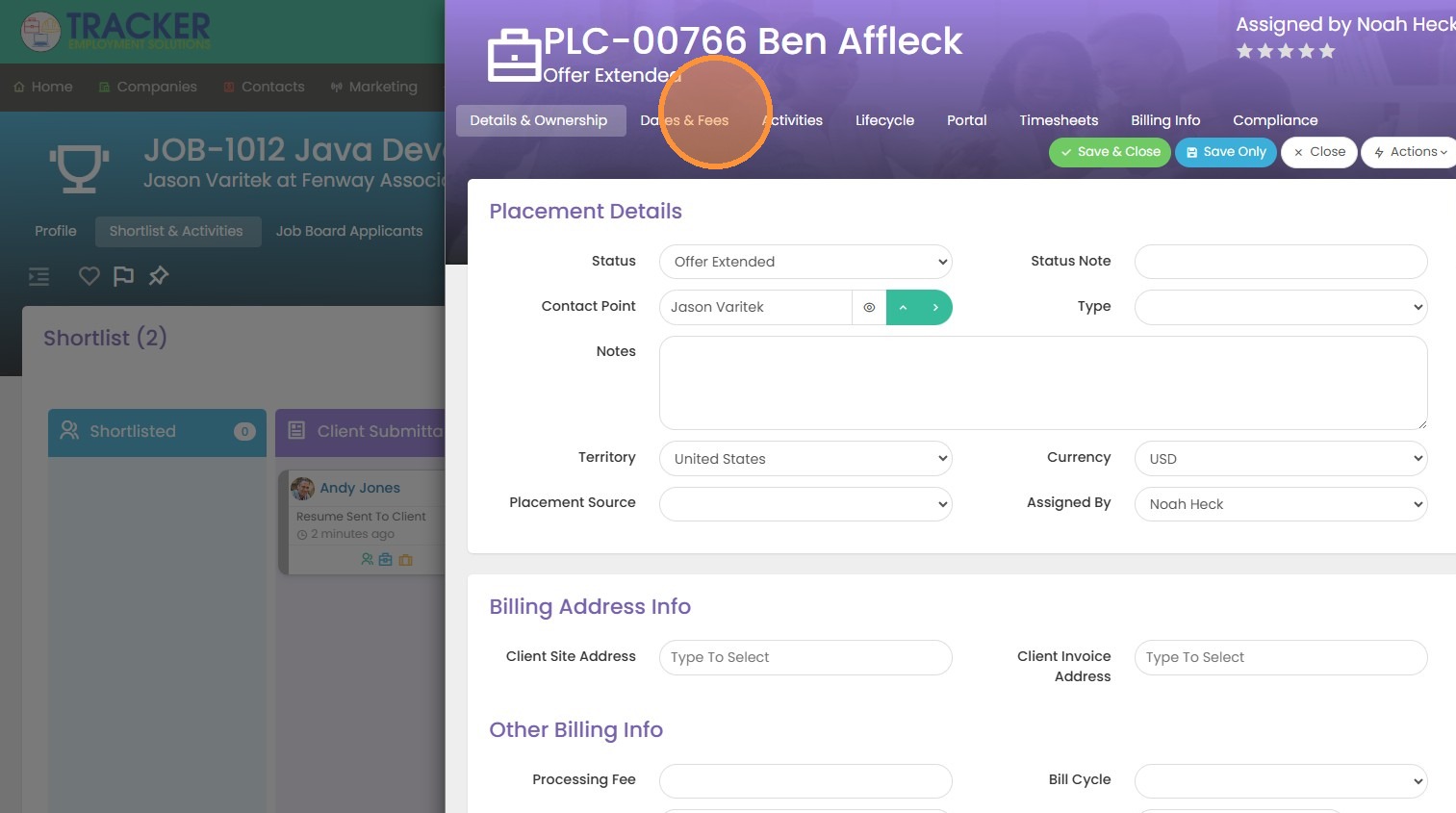
2. Click "Dates & Fees" (Or whatever you might have it labeled as in your system).
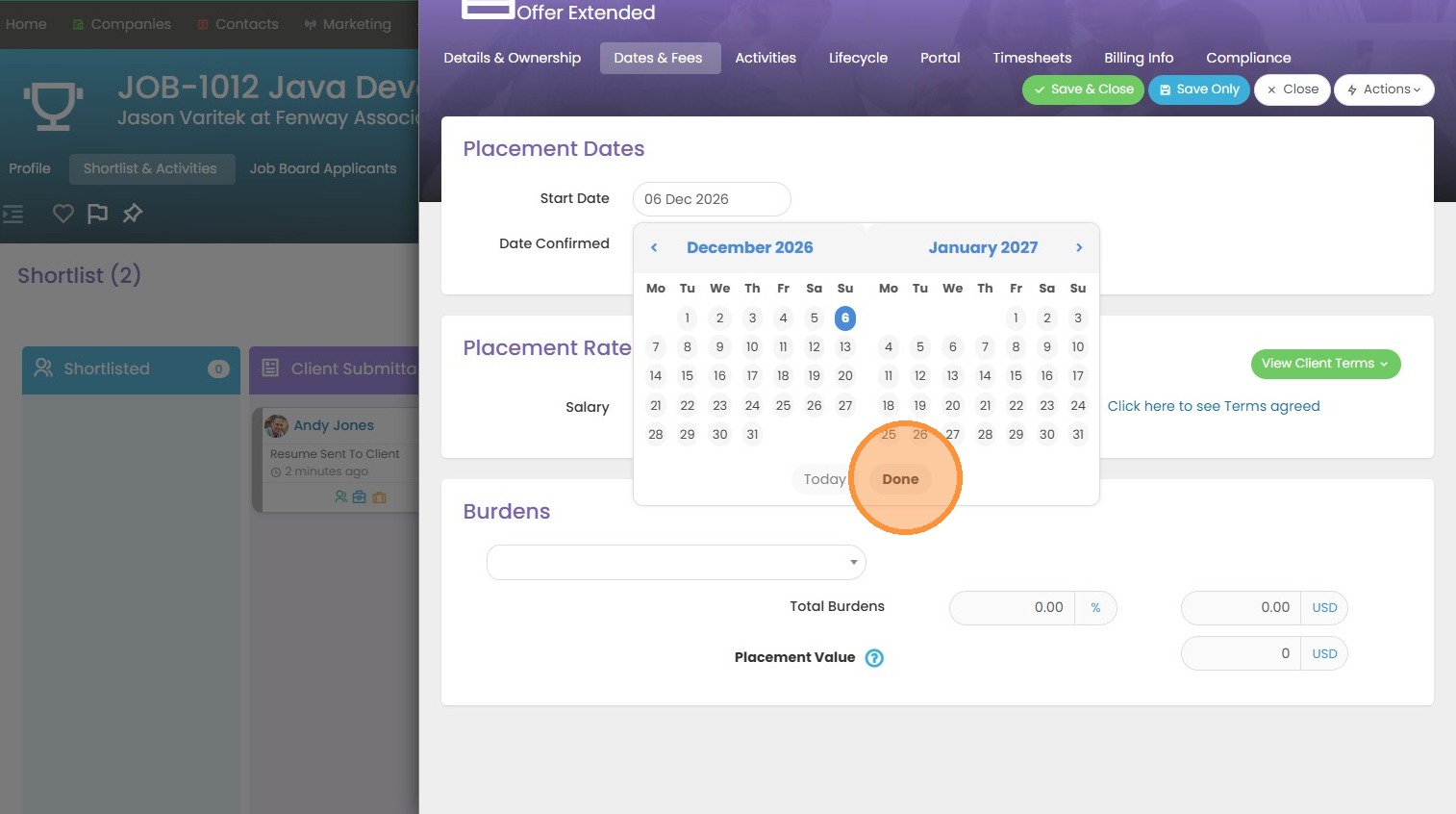
3. Click the "Start Date" field to add when this candidate will begin work. Since this is a permanent placement, I will only have a start date field (no end date).
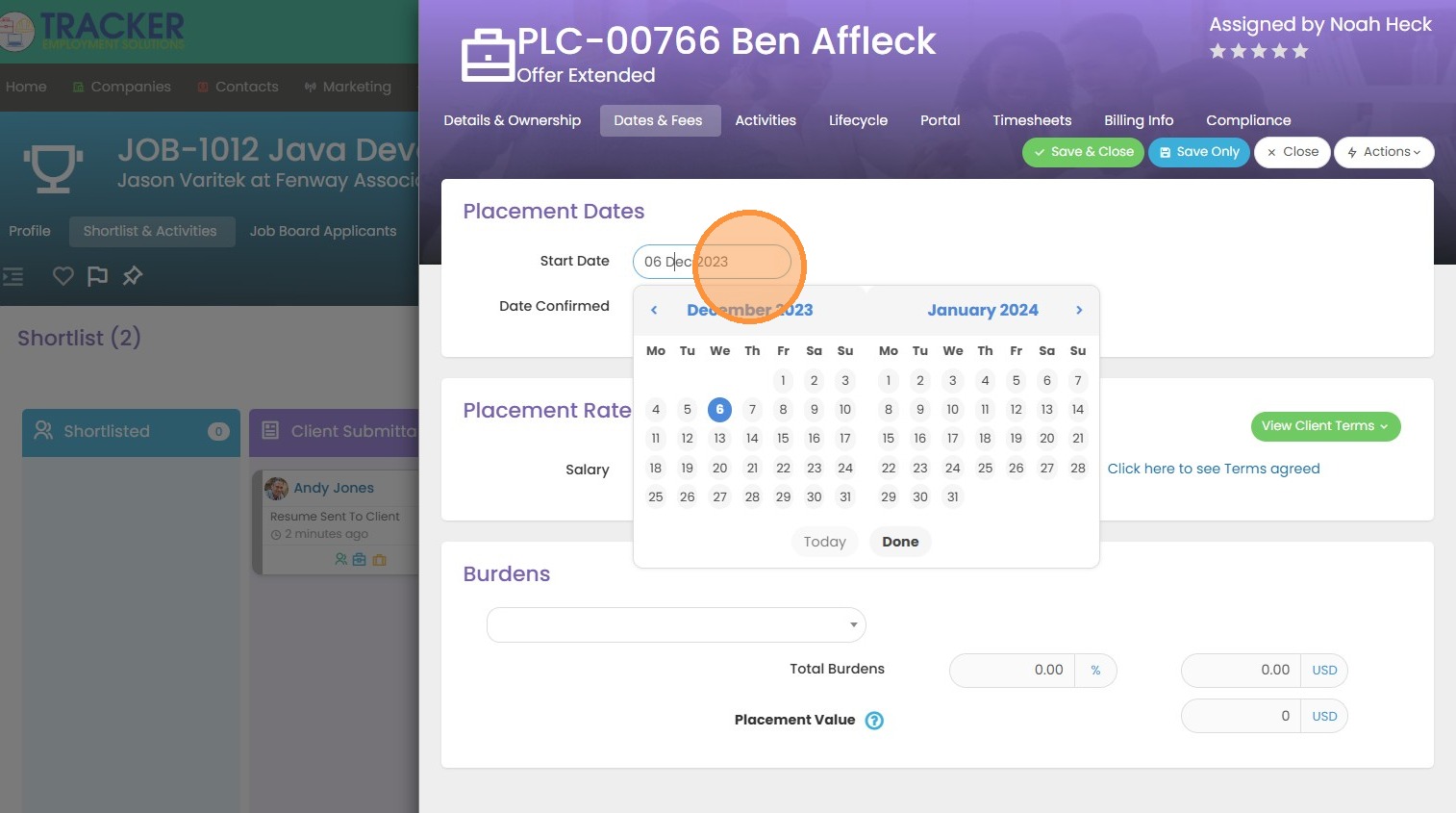
4. Click "Done"
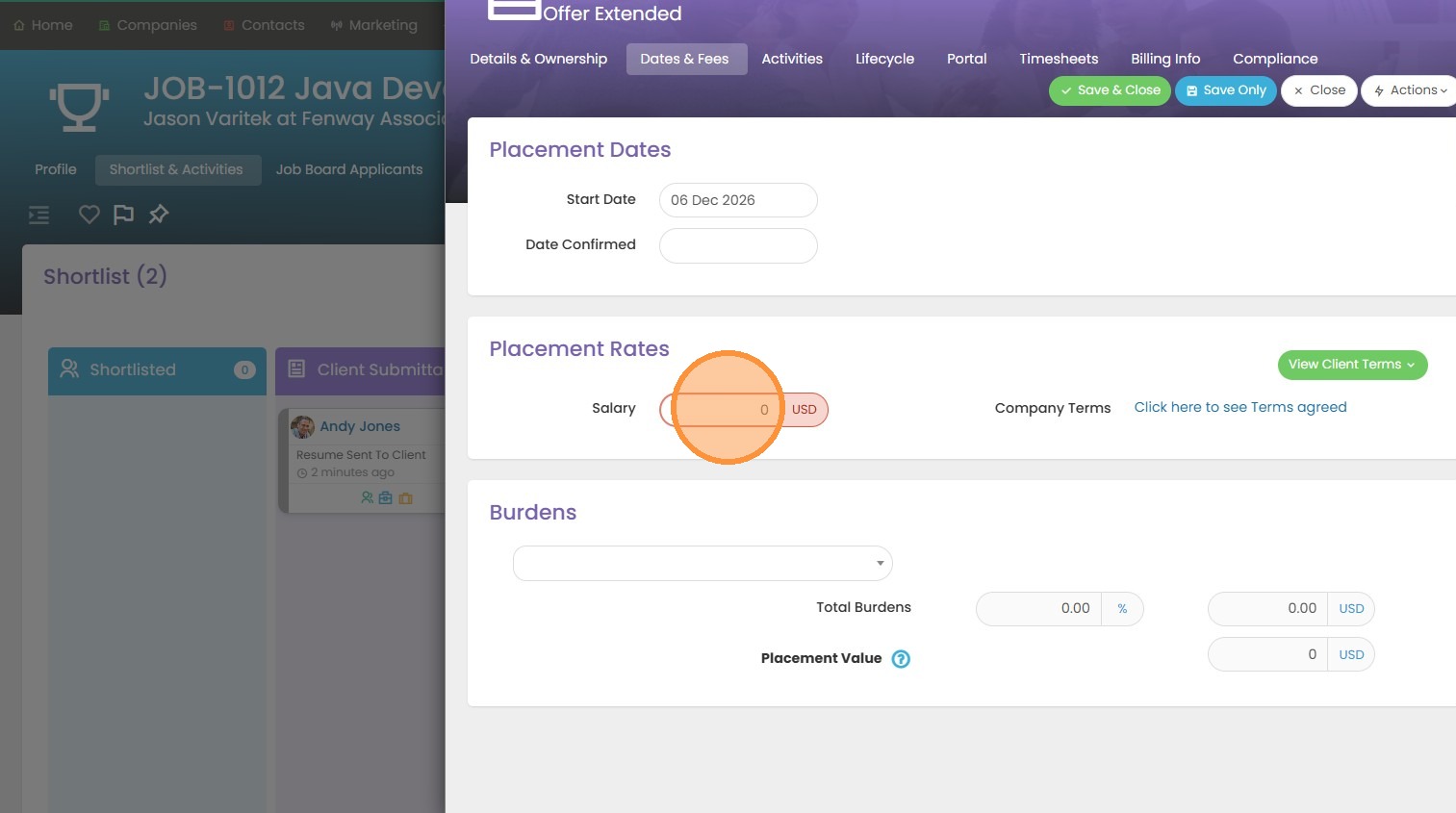
5. Click the "Salary" field to add what they will be making.
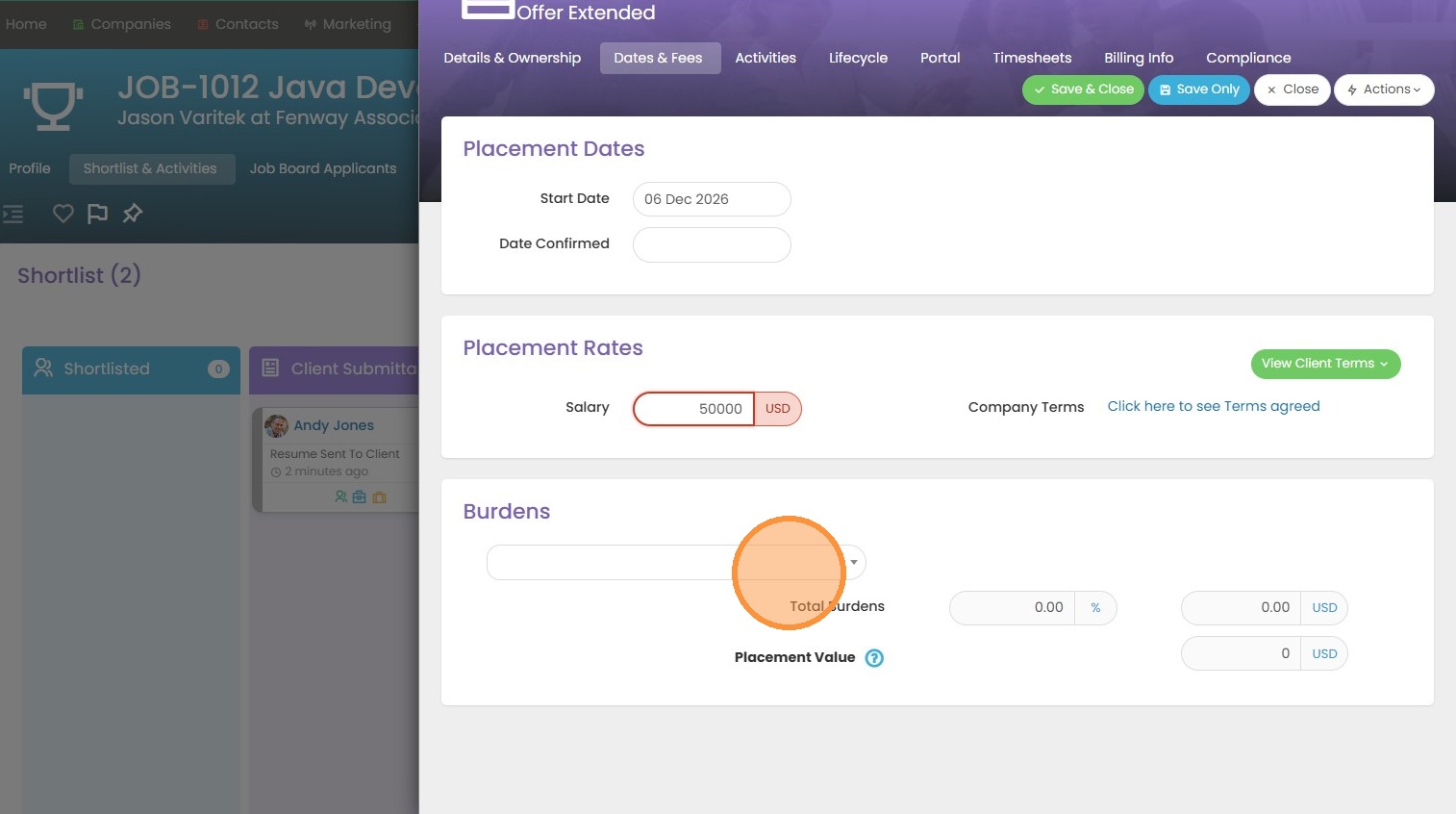
6. You can apply any taxes, margins or burdens in this field here (keep in mind you may need to add anything custom in Tools & Settings if you don't see what you need here).
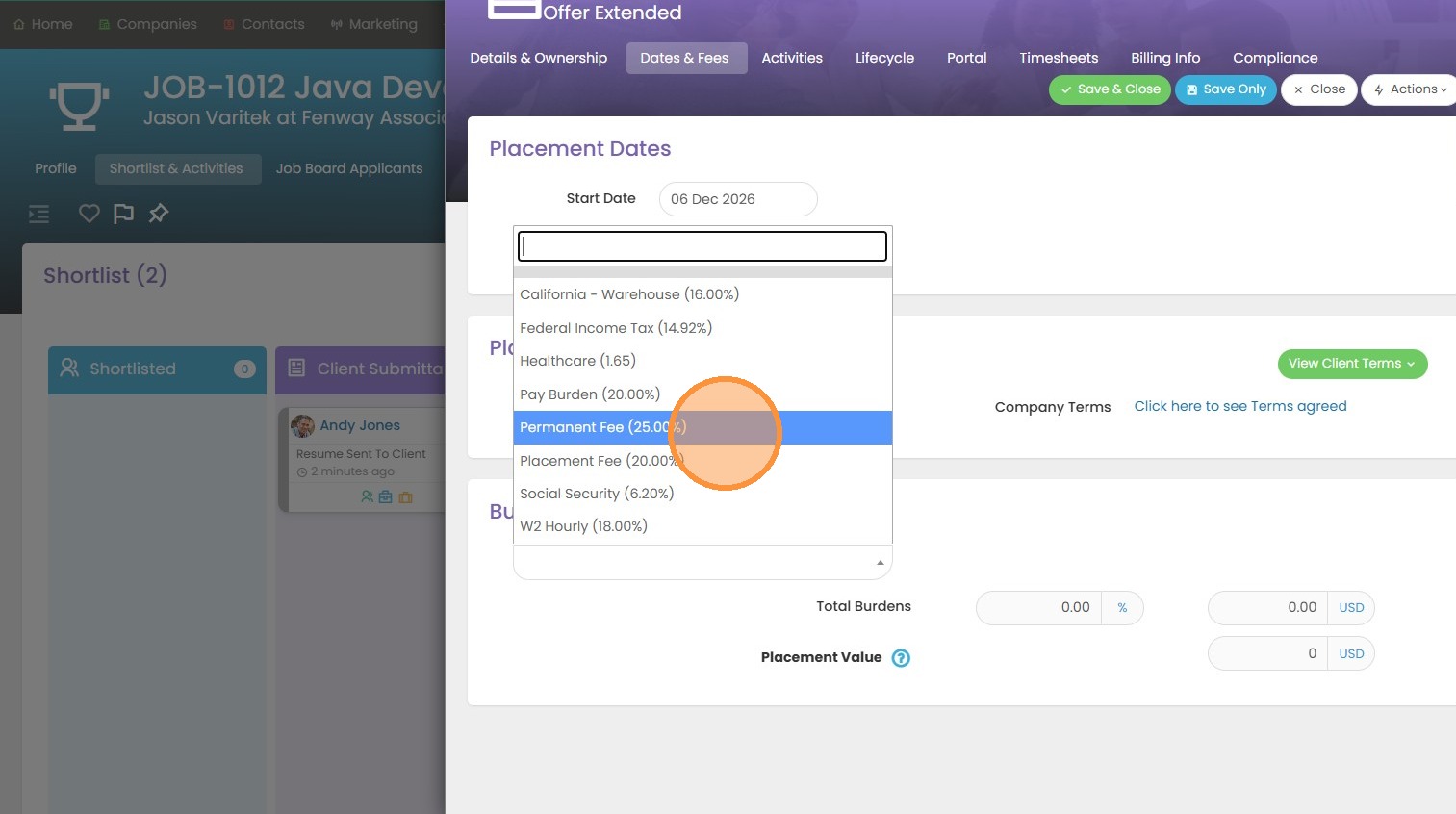
7. In this scenario, I'm going to add a "Permanent Fee (25.00%)".
8. You will see that our placement value will auto-calculate for us based on the salary and perm fee amounts.
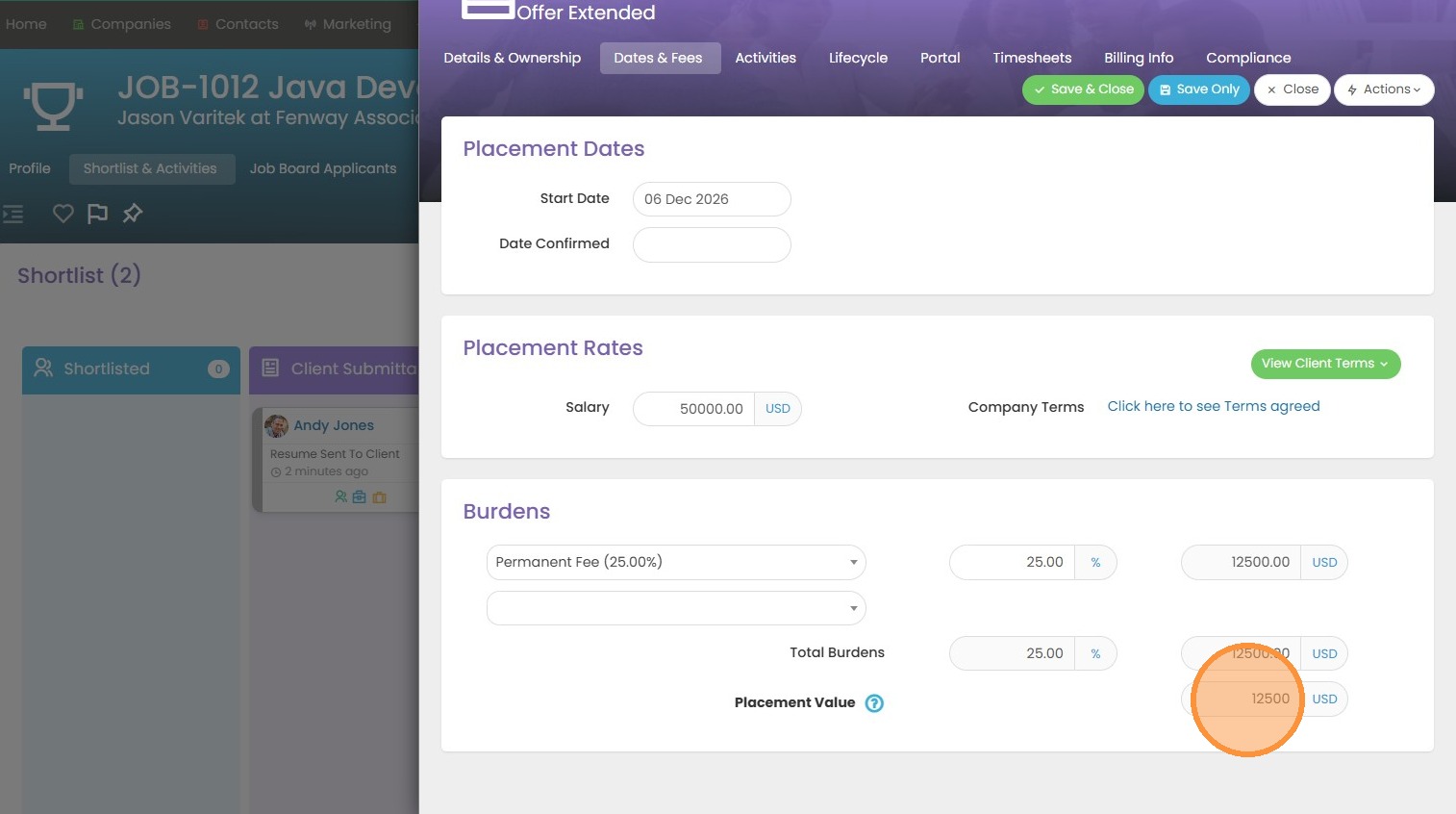
9. You can change the way the placement value is calculated in Tools & Settings. In my case, this is based on True Margin.
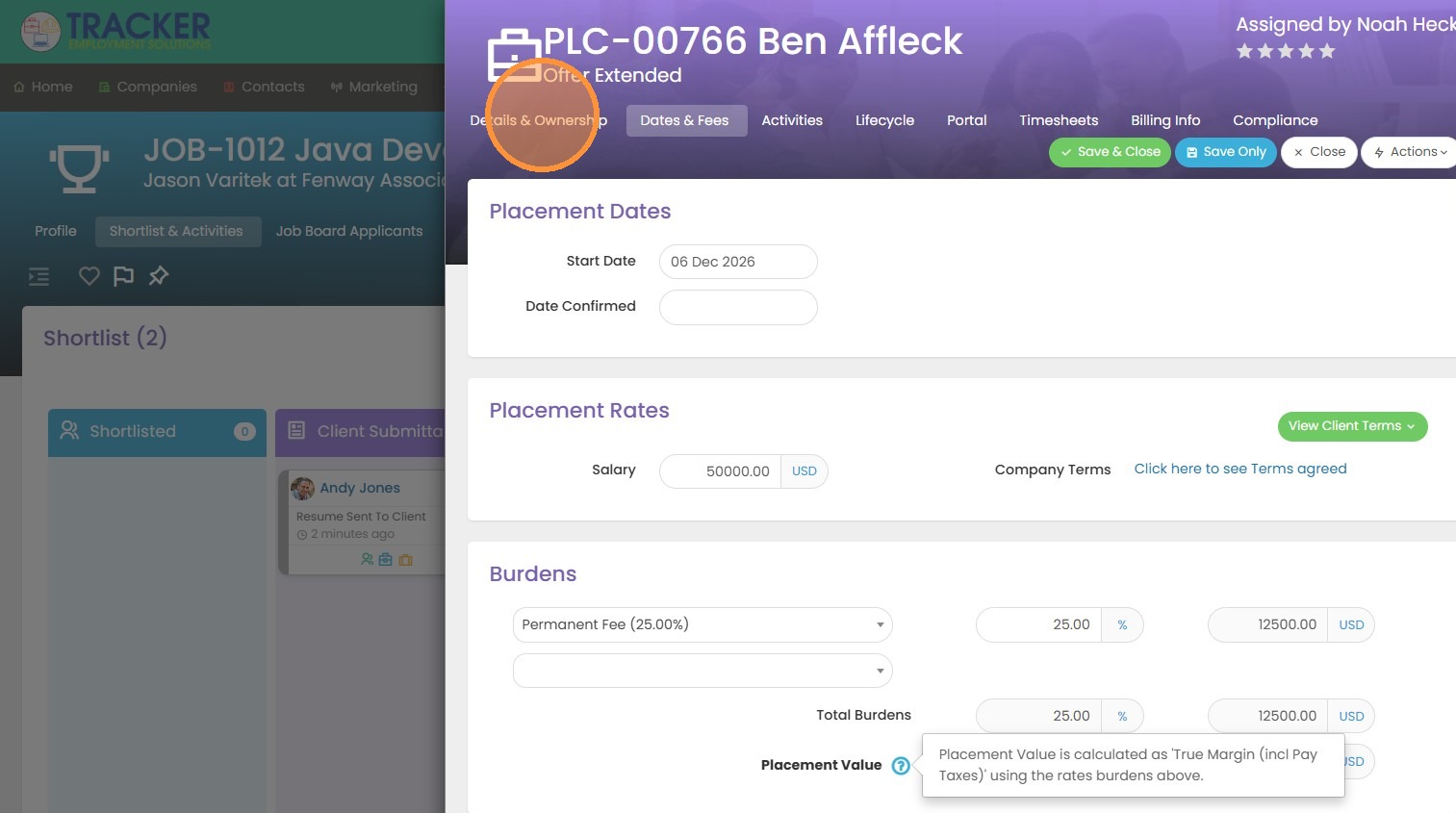
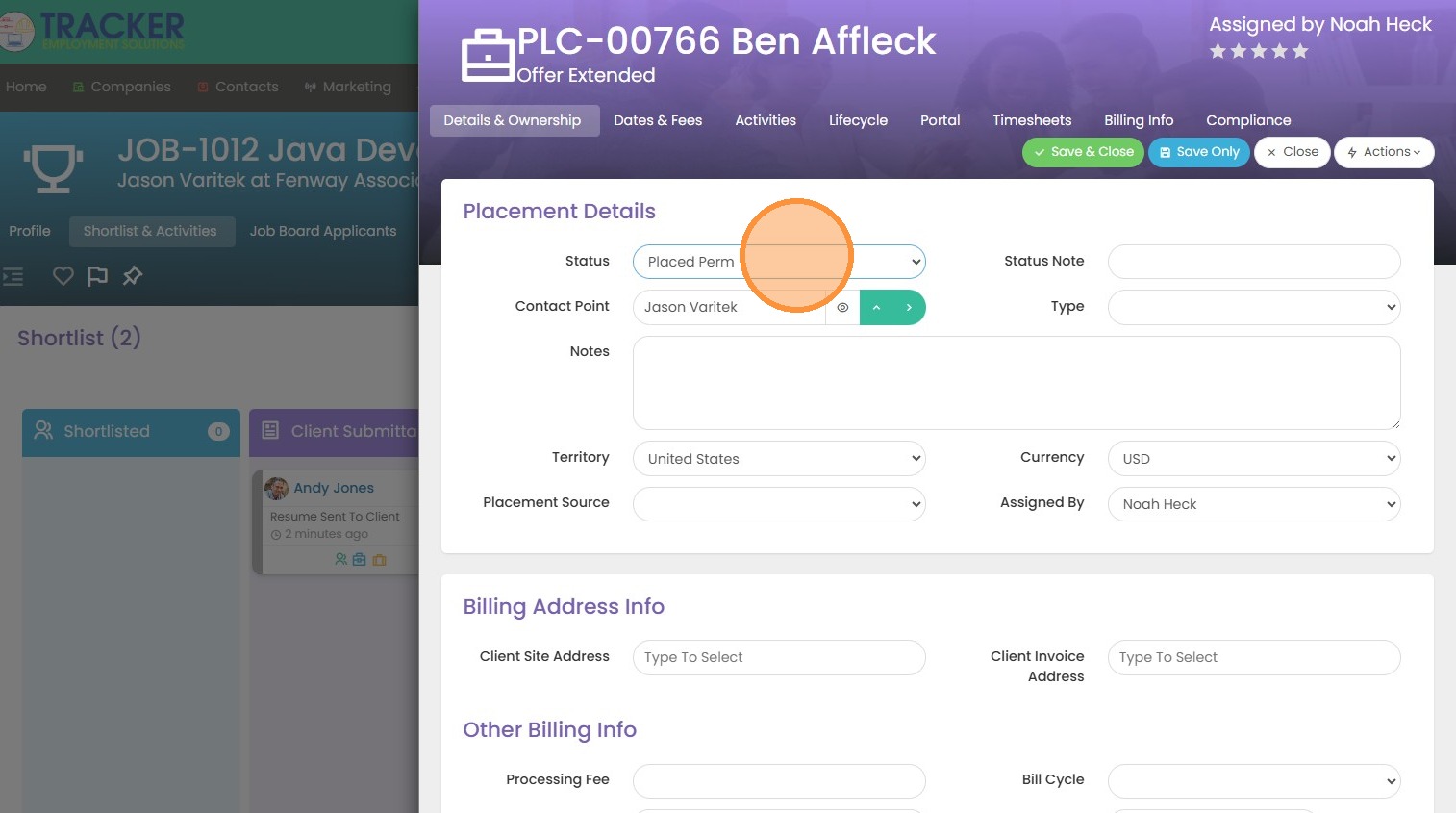
10. Back into Placement Details, I can update the Placement Status from Offer to Placed Perm.
11. Click "Save & Close"
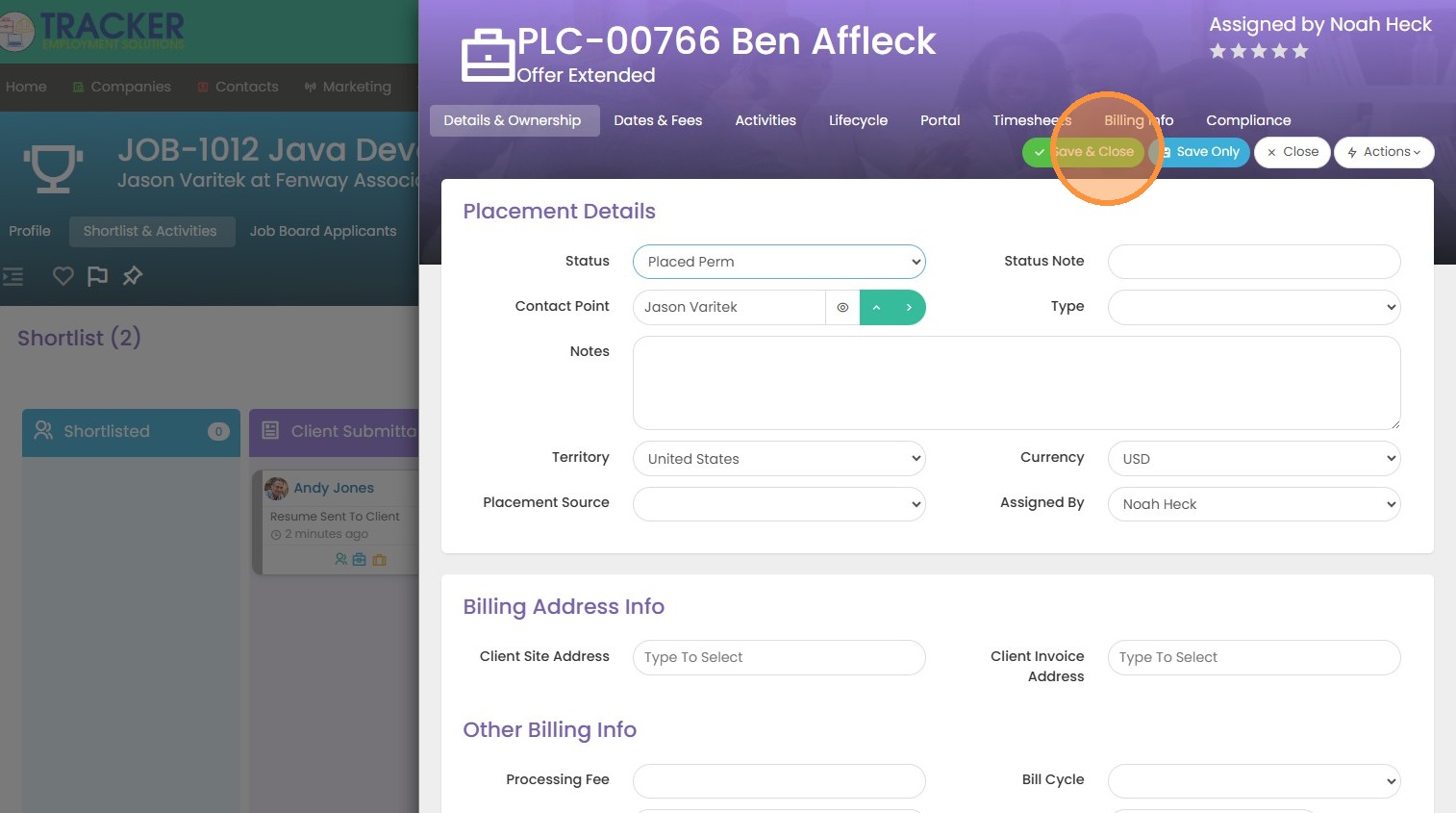
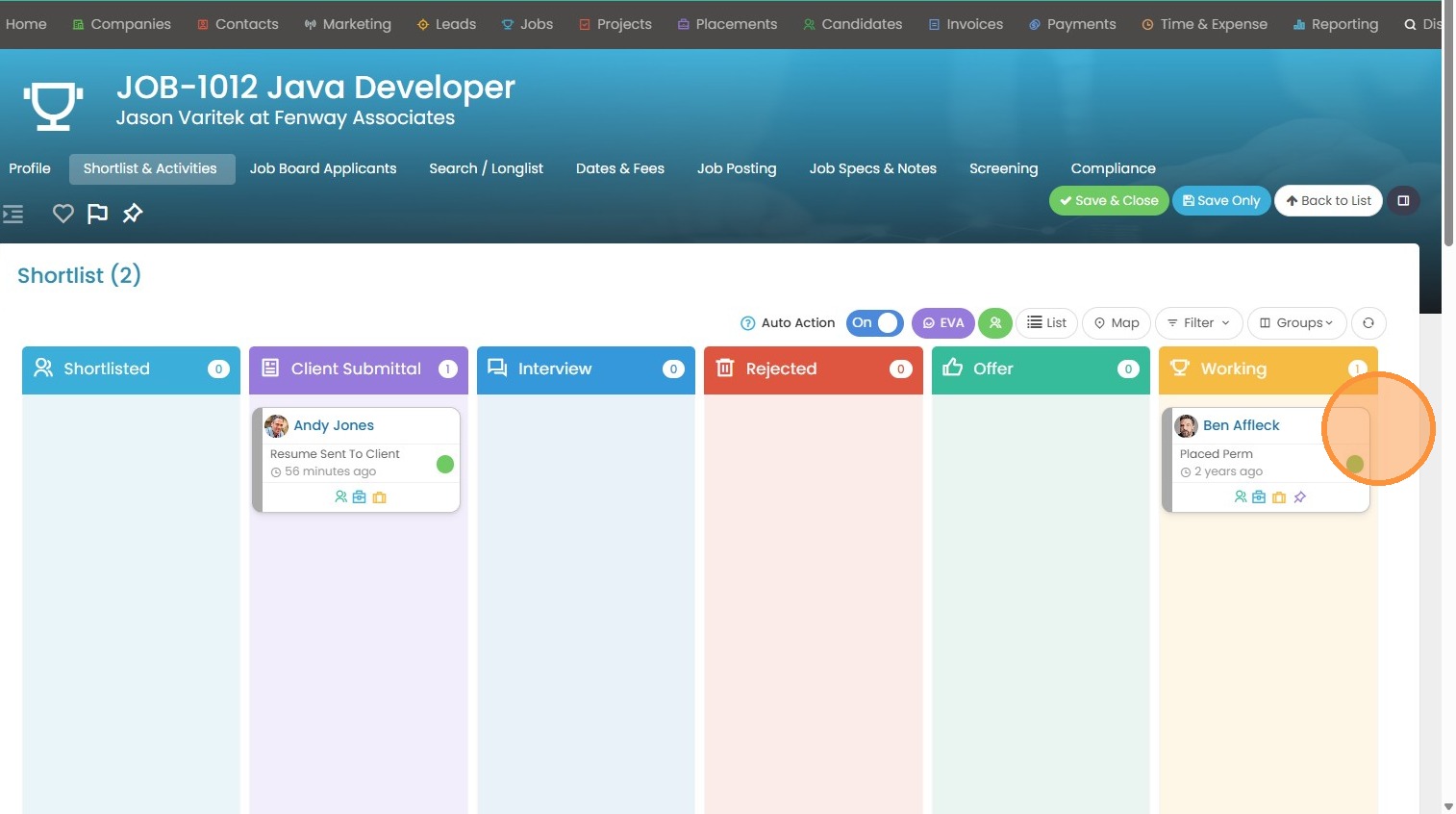
12. You will then see that Ben was auto-moved to the Working card.
13. Click "Profile"
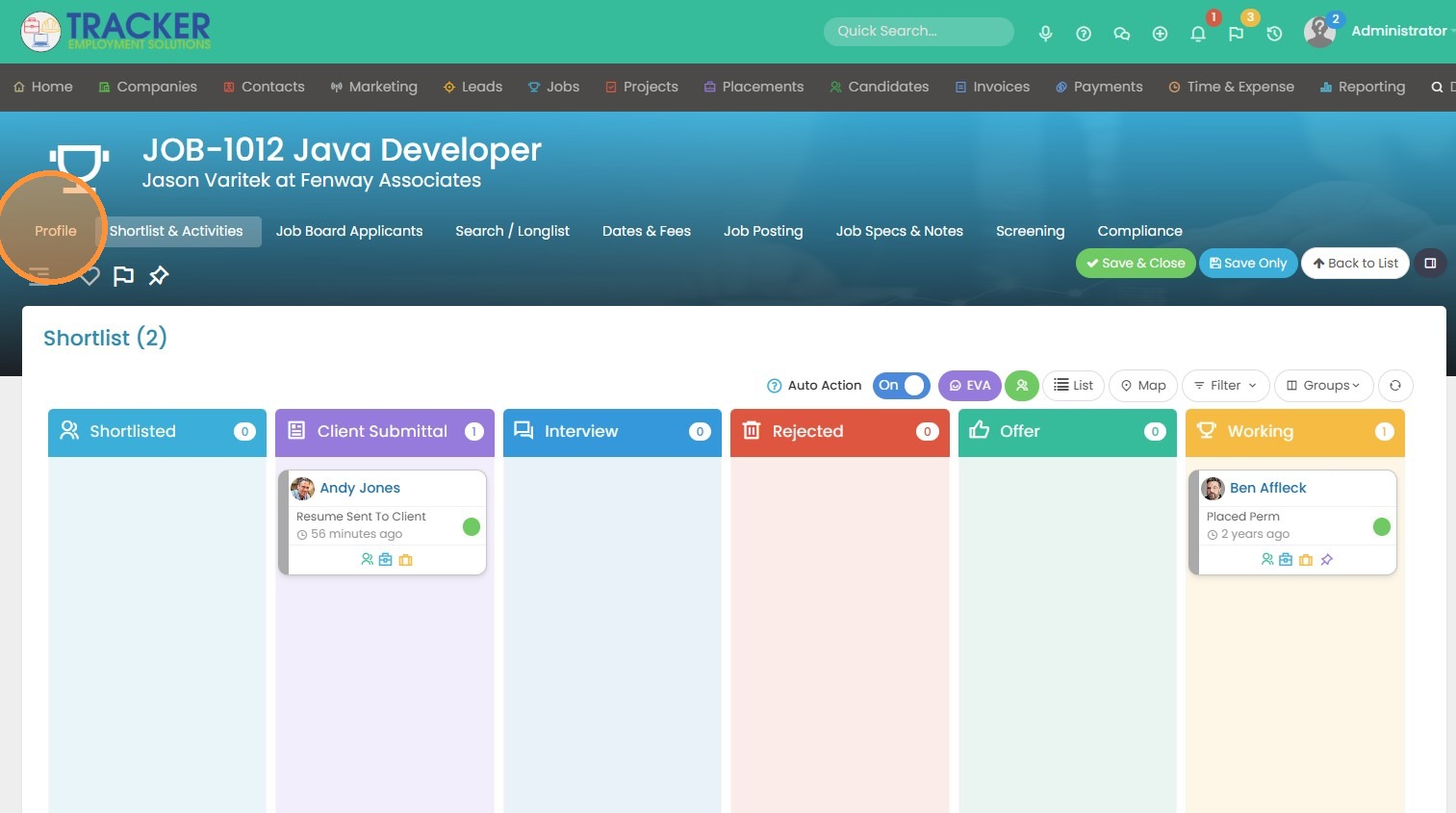
14. The job status has also auto-updated to Placed/Filled.