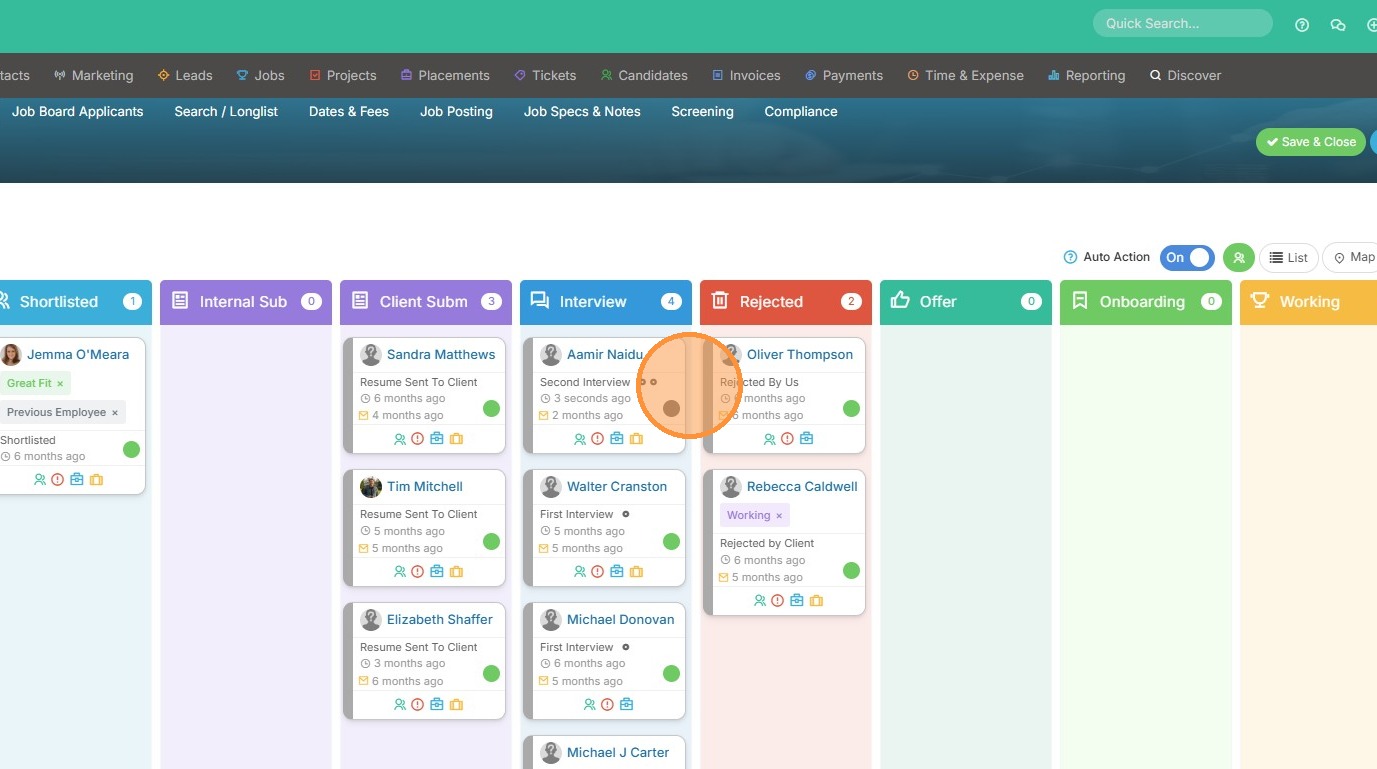
This lesson explains the Groups within the Card View of a Shortlist. Please note setting the default group will be on a job level, not a user level. This will update the default shortlist view on the current record, and any new job record created moving forward.
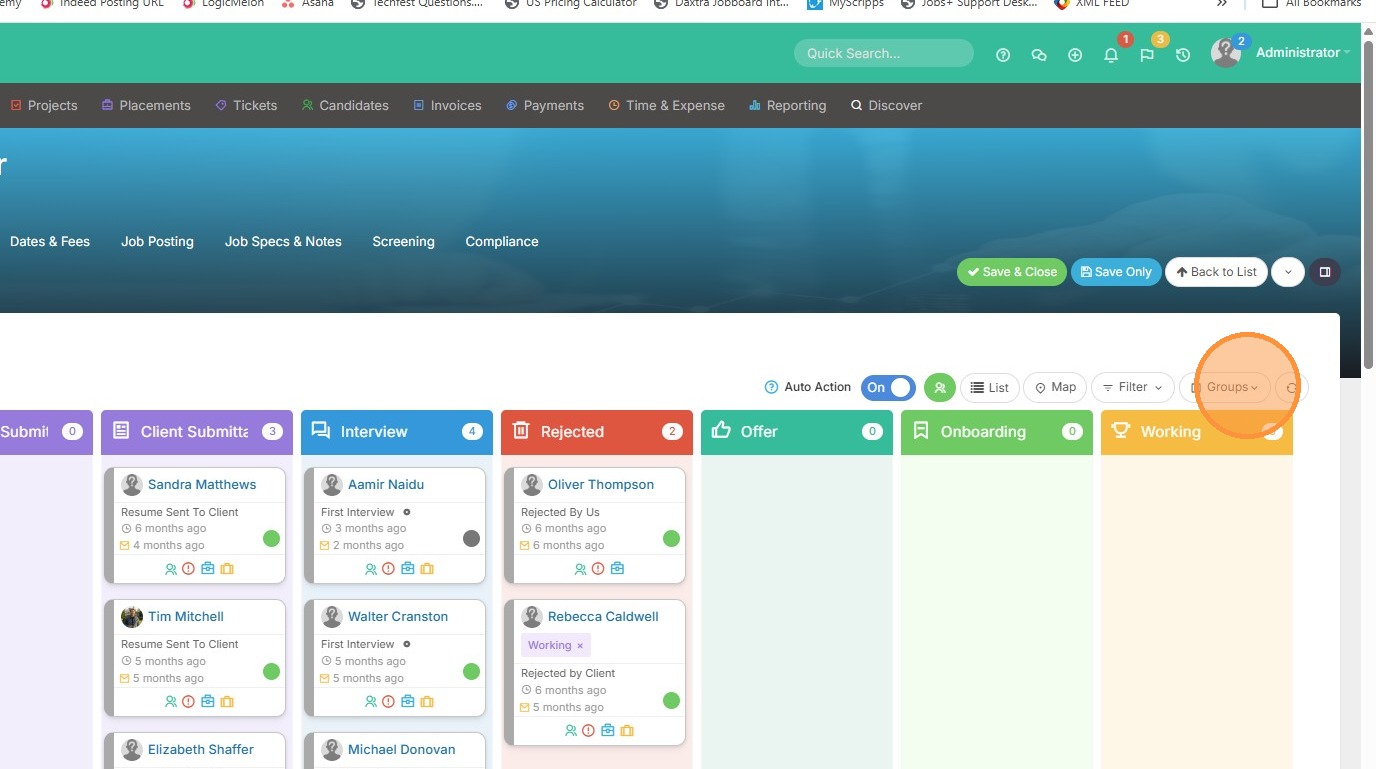
1. To add or remove shortlist cards, click on the Groups icon.
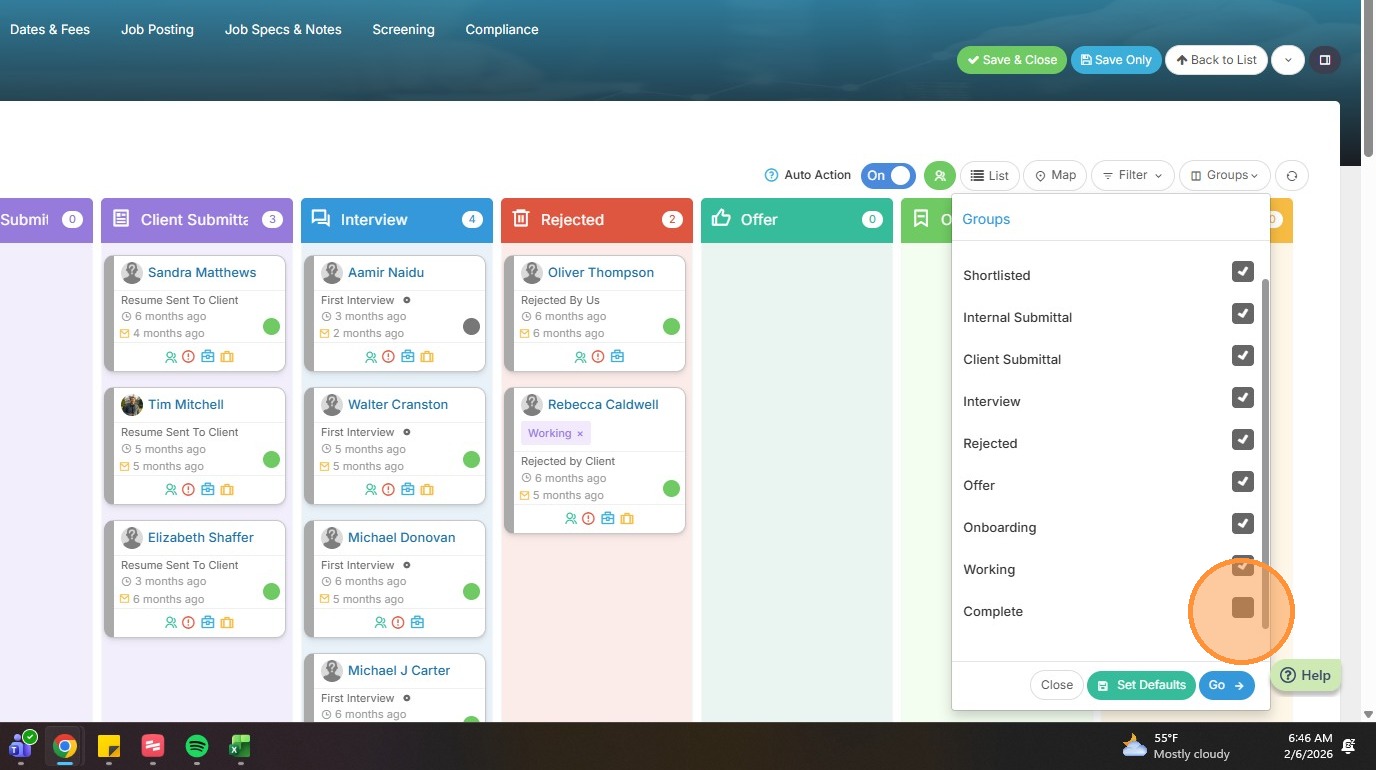
2. Here you can check or uncheck boxes for the cards you wish to add. I recommend adding Internal Submittal if you would like to separate out your internal vs client submittals.
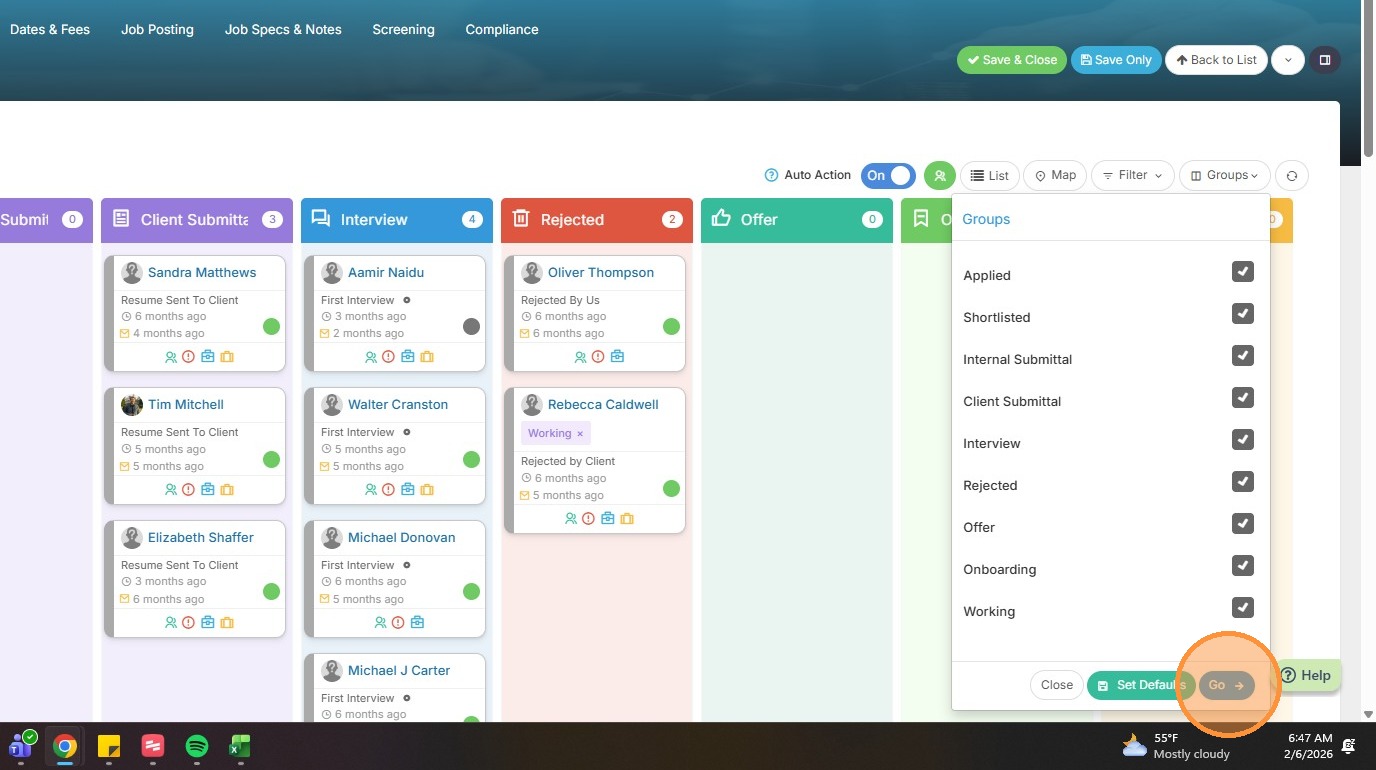
3. Click "Go" to apply any changes.
4. Another option within the Shortlist cards is bulk selecting candidates by clicking the number at the top of the card, like so.
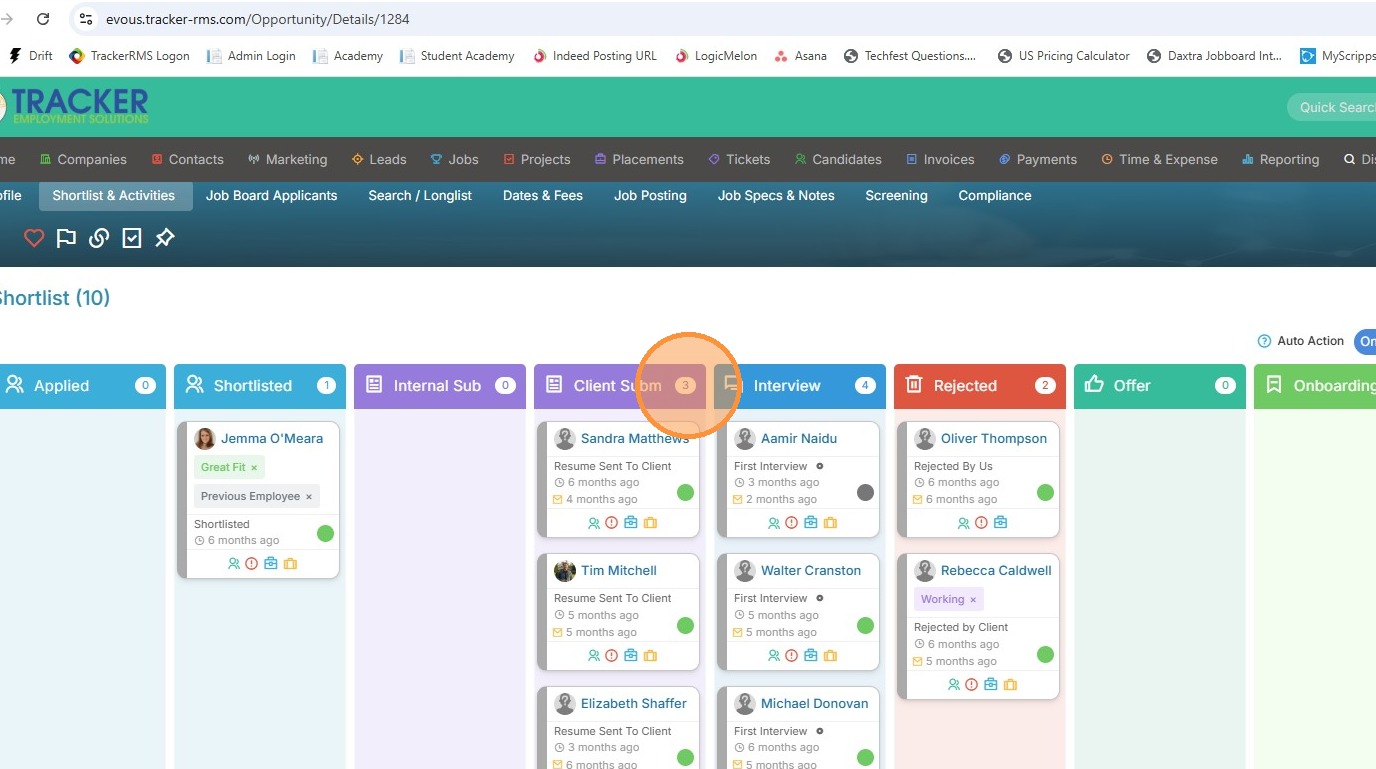
5. You will see these candidates are now checked off, and an action button appears.
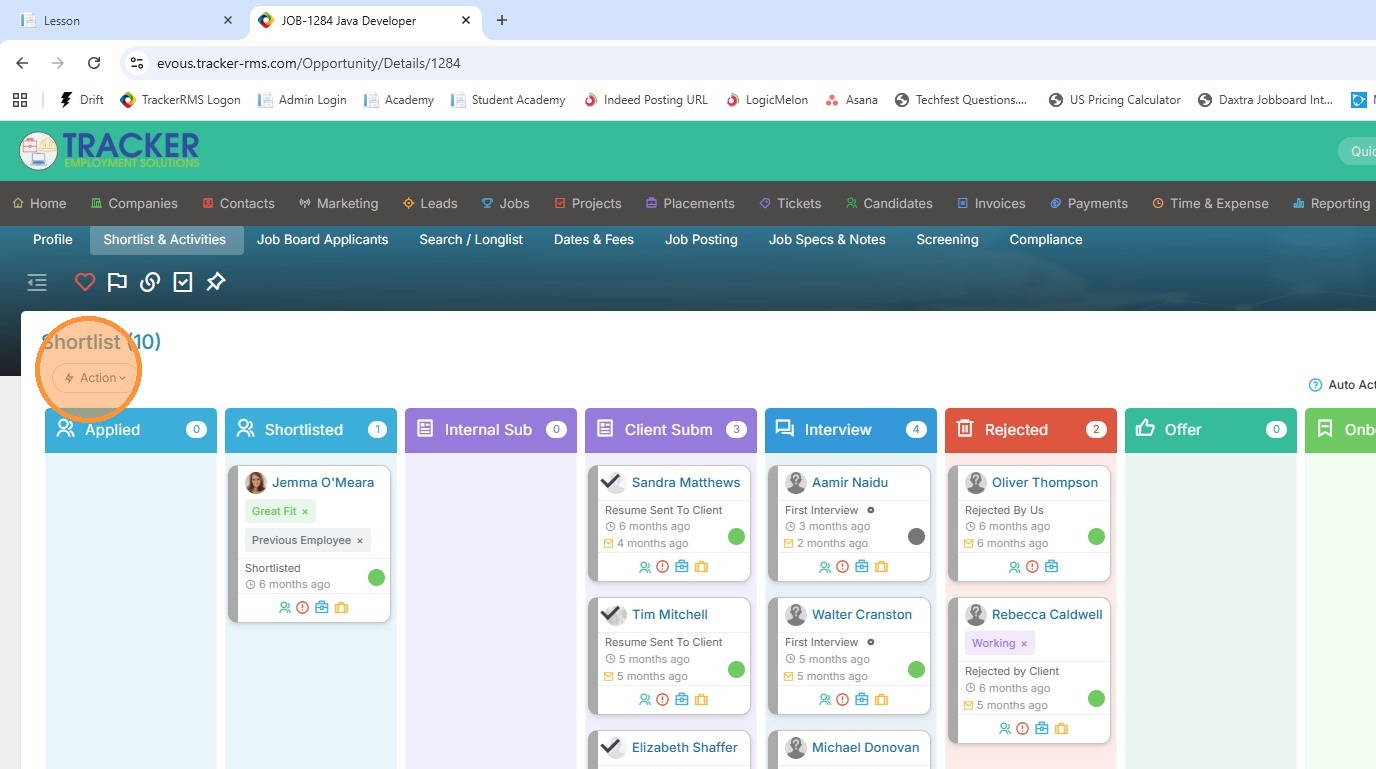
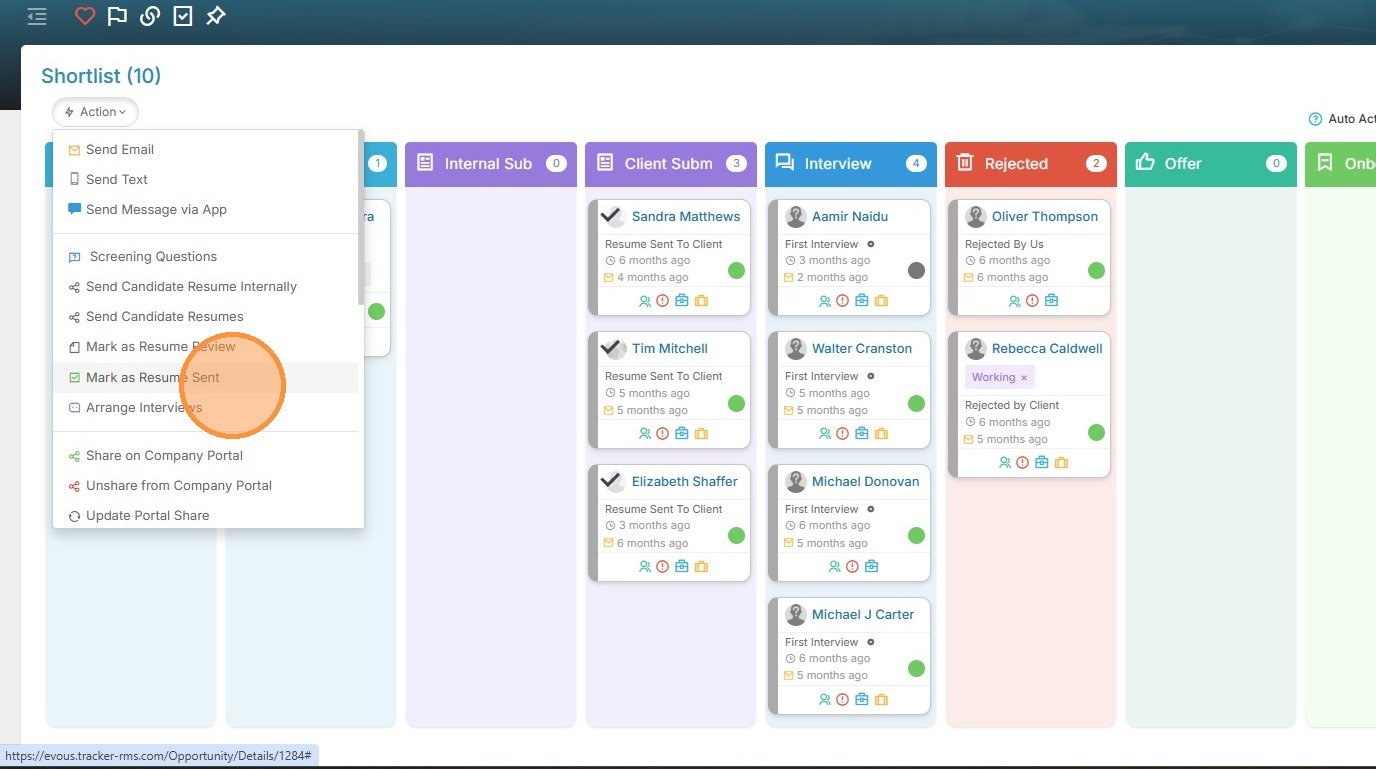
6. I can bulk send resumes to clients, or take any other action within this list.
7. As you move candidates through the interview process, you will see their status update depending on how many interviews they have completed. For example, Amir is in his first interview.
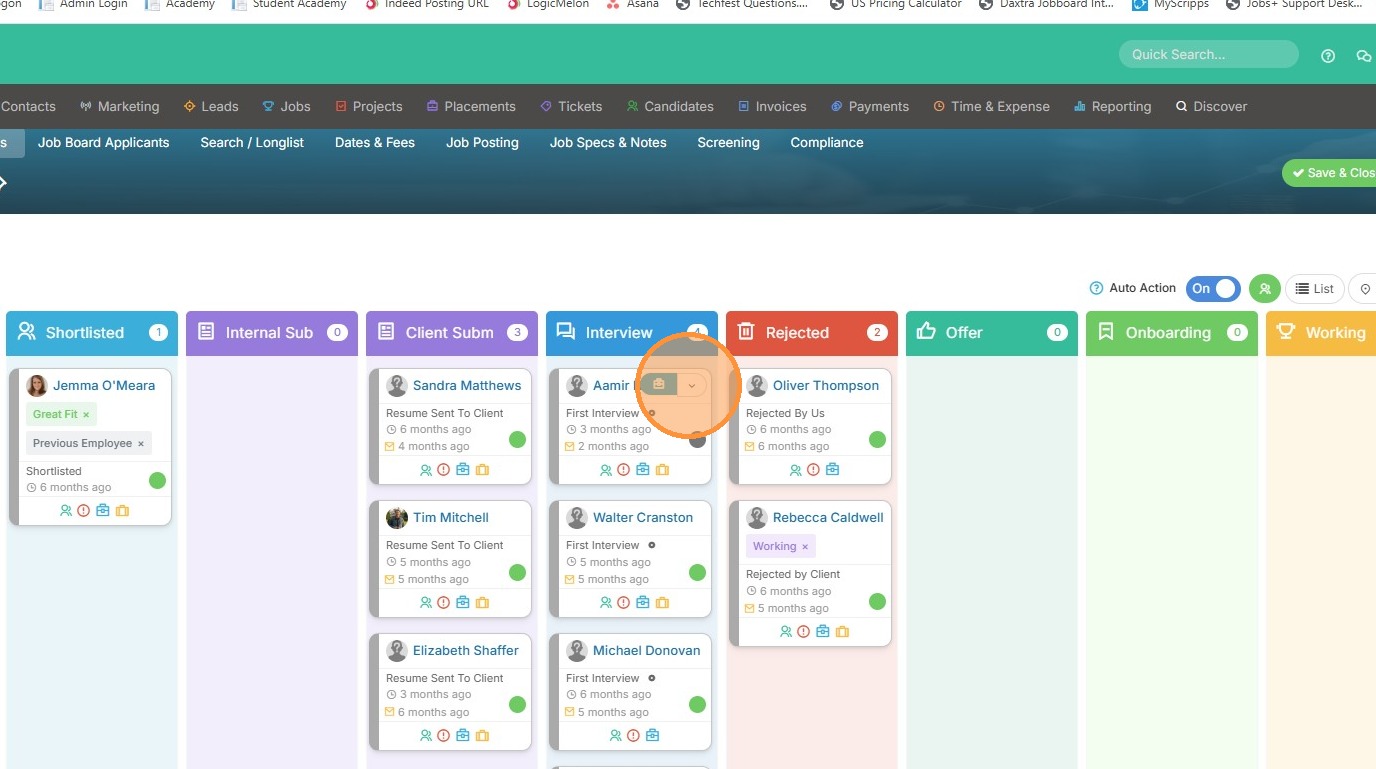
8. I can go ahead and log another interview.
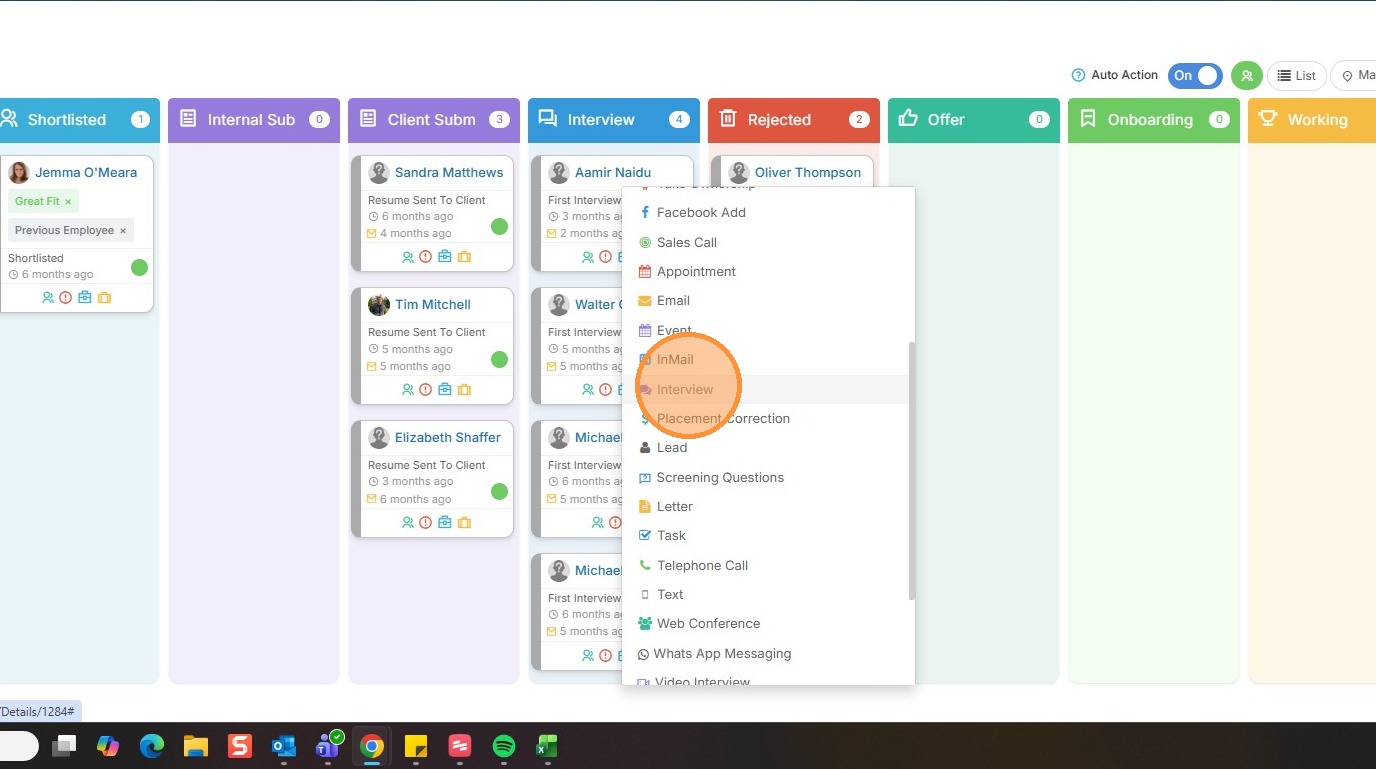
9. And now you can see his status has updated to Second Interview.