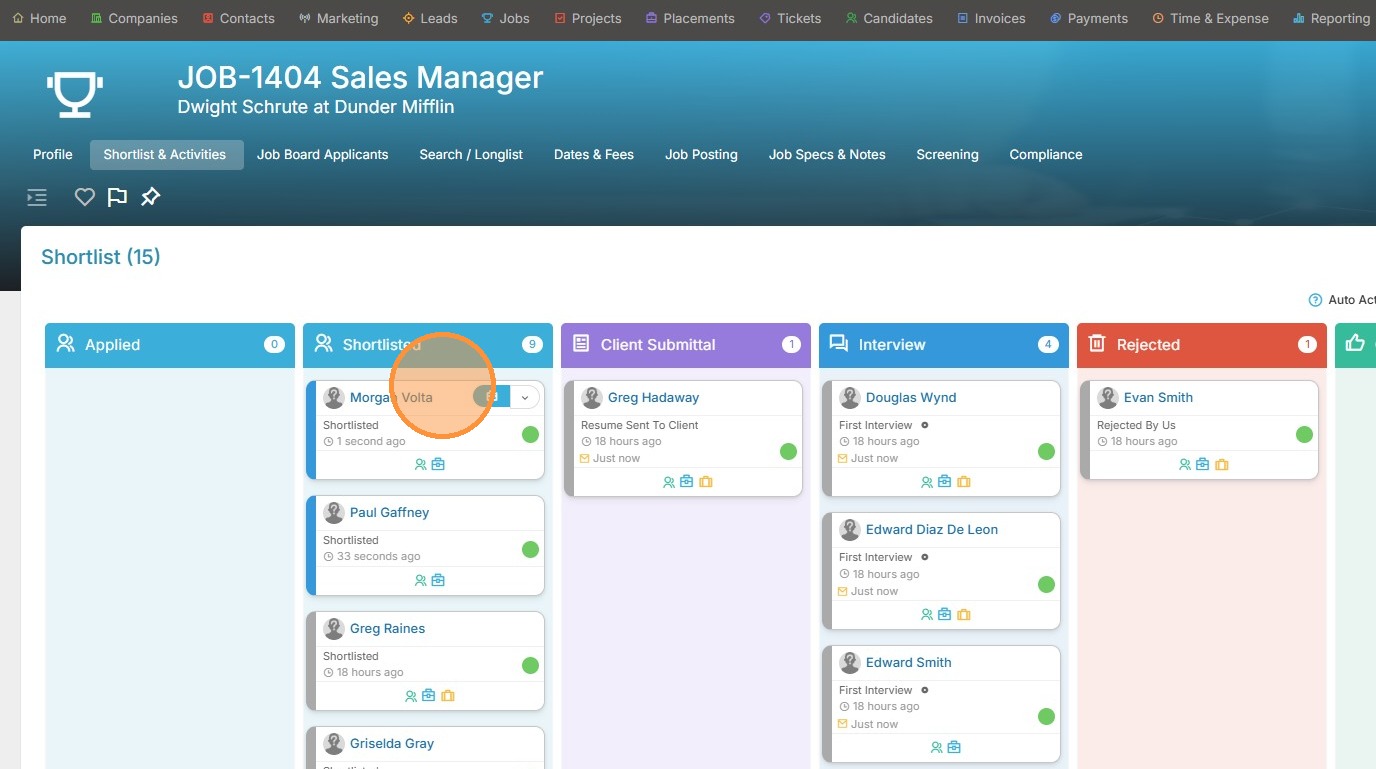
This lesson explains how to add Candidates to the Shortlist Using the Quick Add and New Candidate Option.
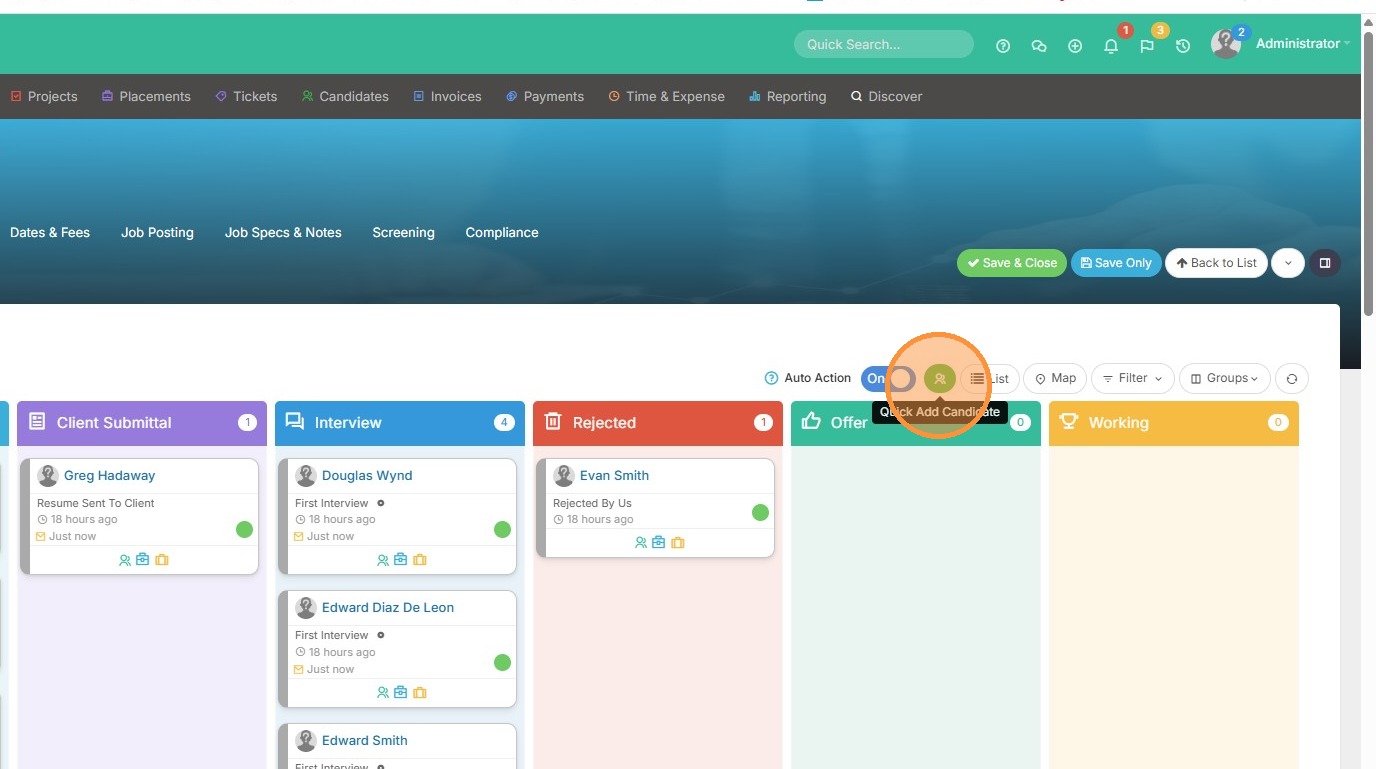
1. To use the Quick Add option, click this green icon here.
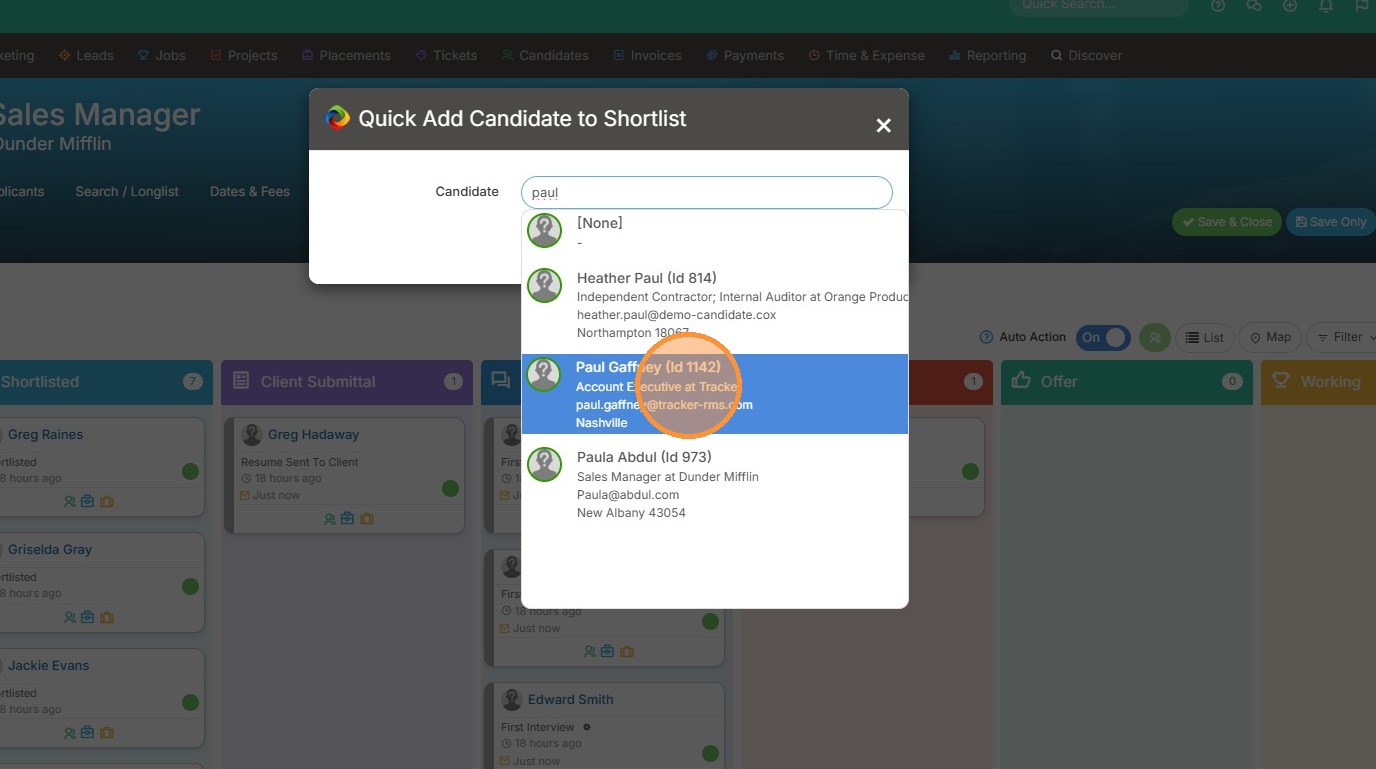
2. Start typing the name or ID of the candidate you want to add, and then click on them when they appear.
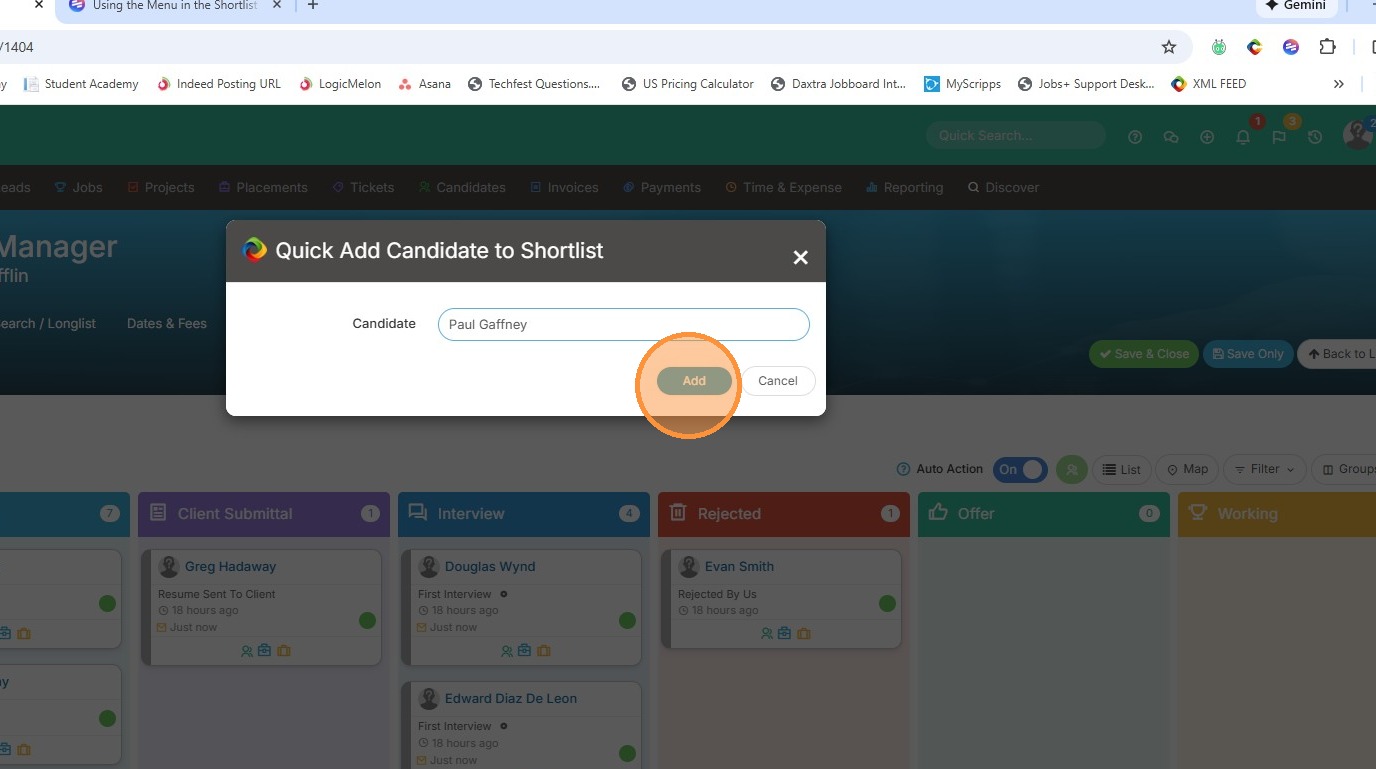
3. Click "Add".
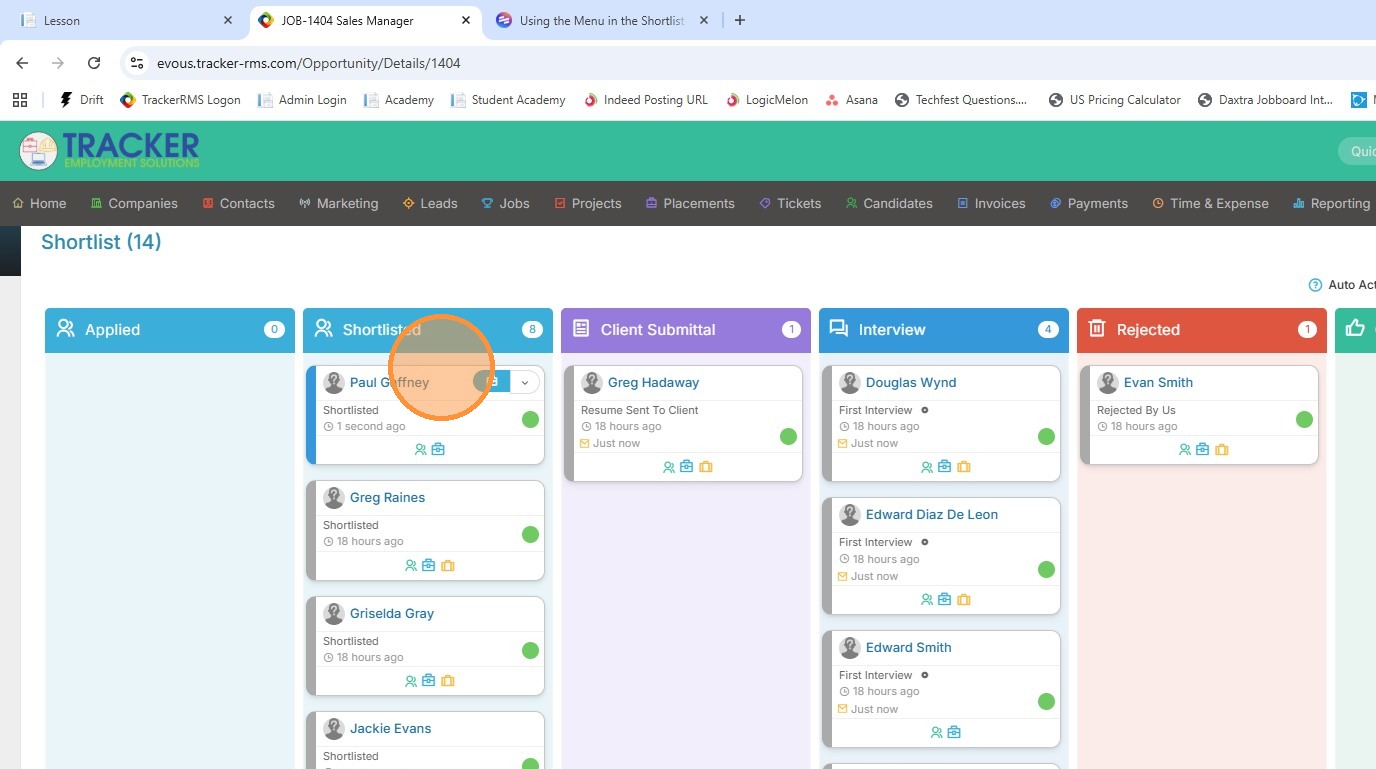
4. You will see that candidate is then added to your Shortlist to begin the recruiting process.
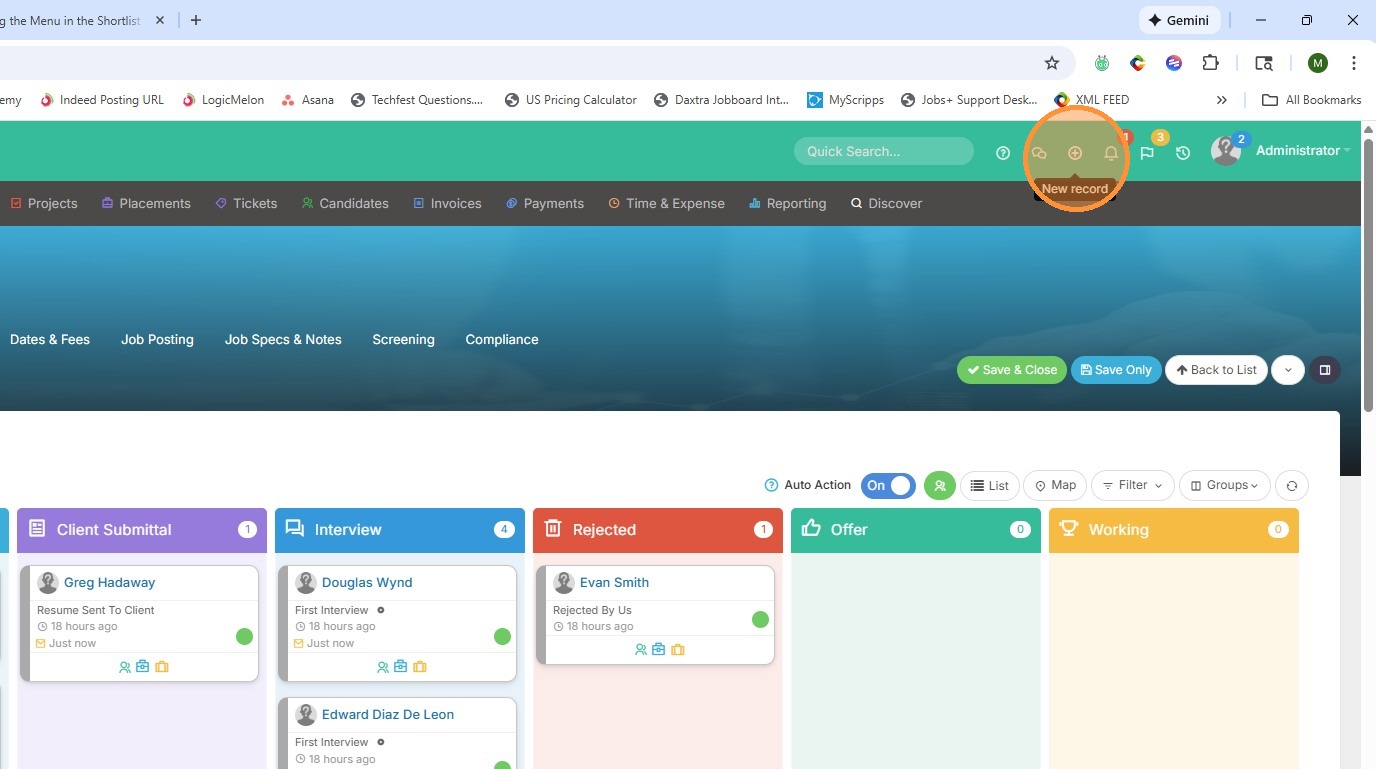
5. Click the "+" icon at the top of your screen to add a new candidate.
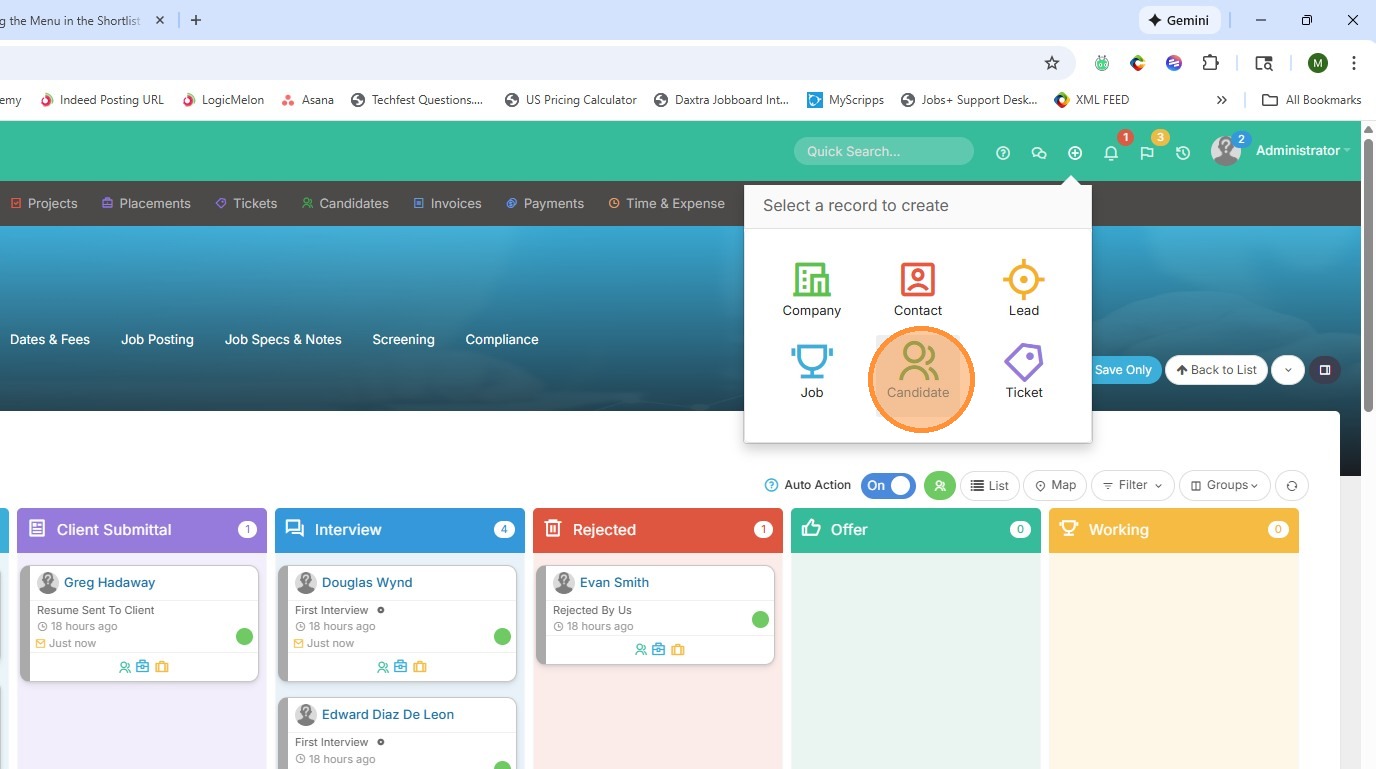
6. Click the Candidate option.
7. You can apply a specific candidate status here, or leave the status blank.
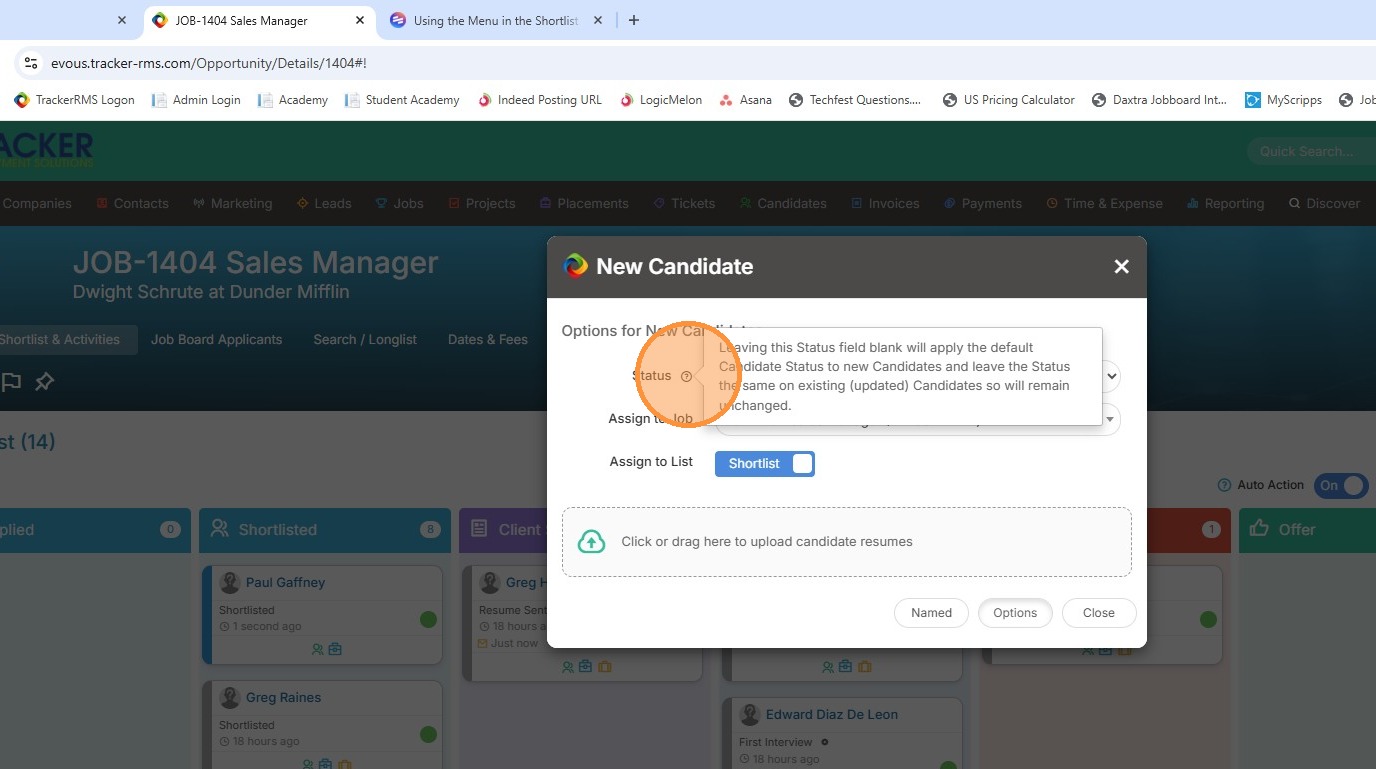
8. You will see the Assign to Job option is already checked off to this current position.
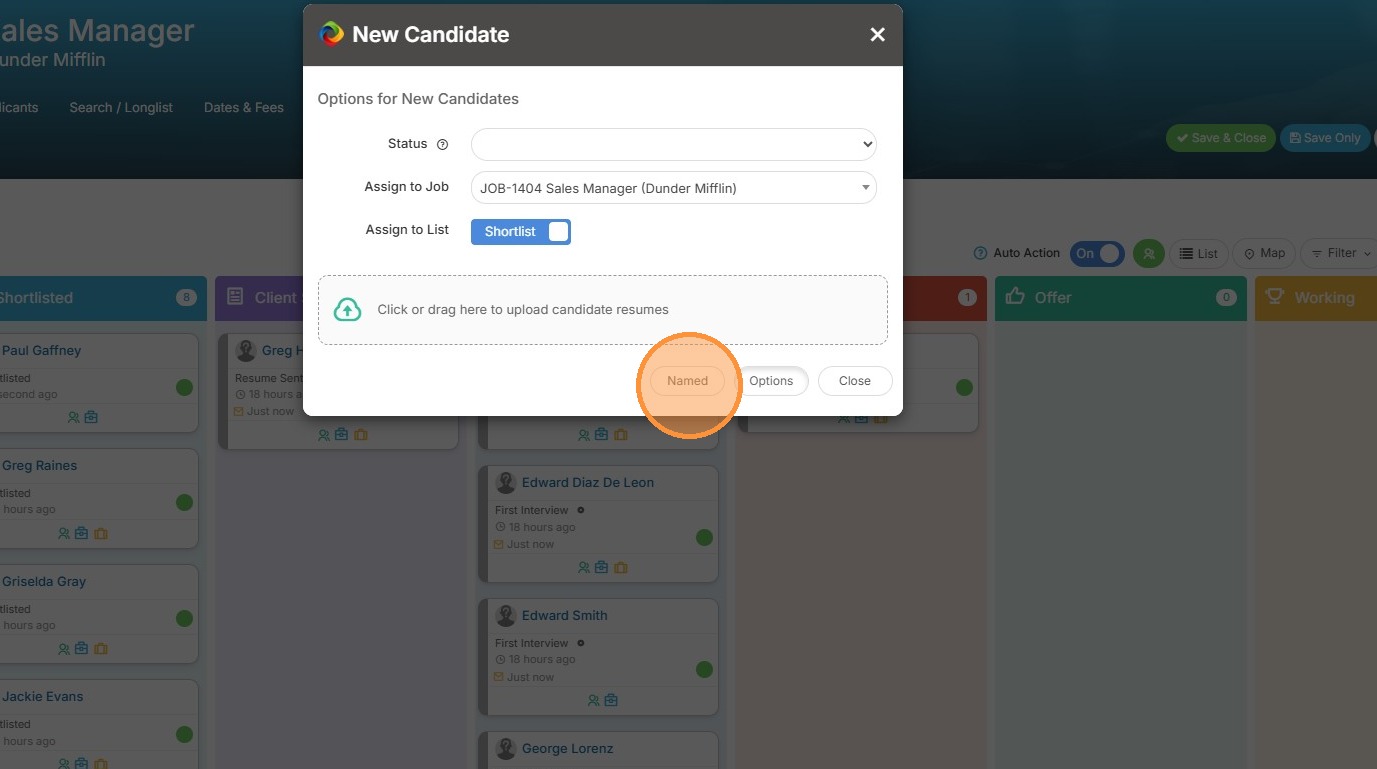
9. From here, you can either drag over the candidate's resume or use the Named option to type in their basic details.
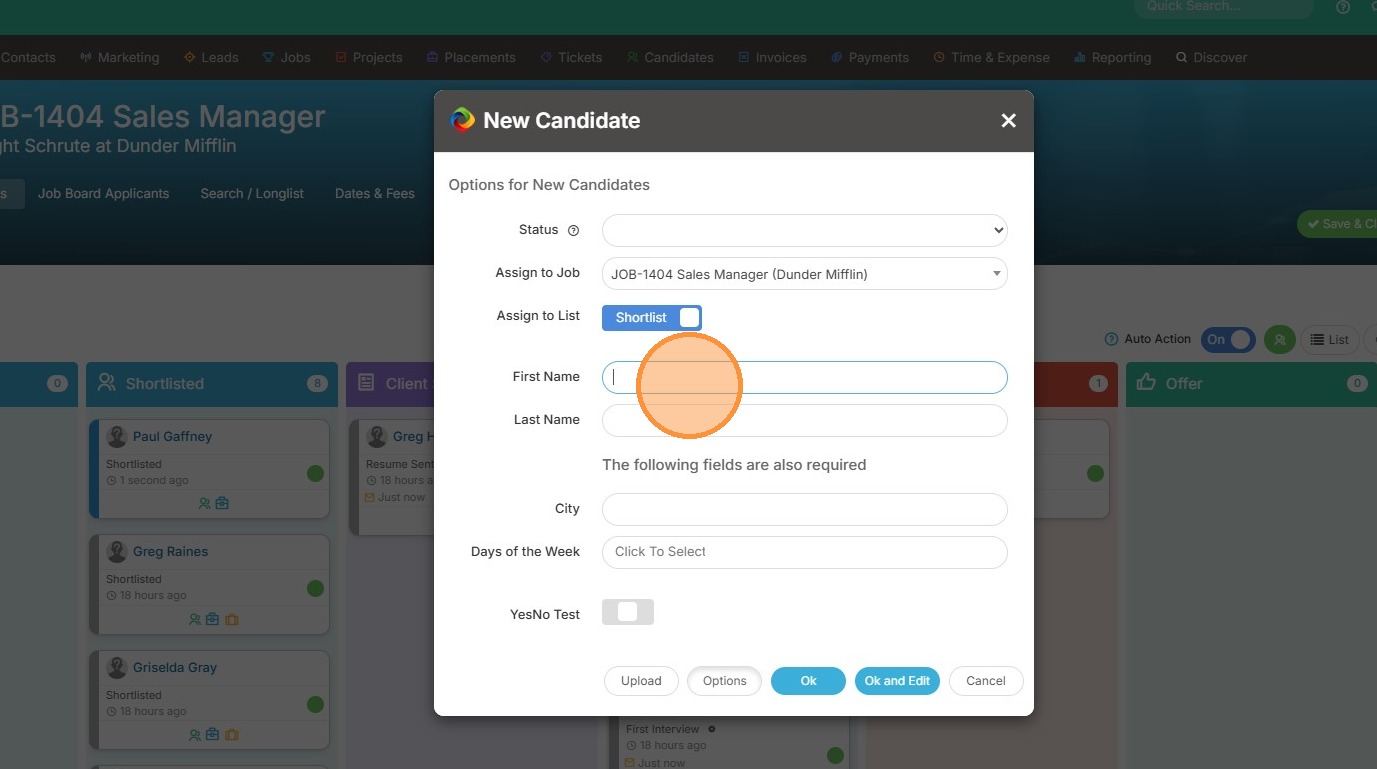
10. Click "Ok" when you're done.
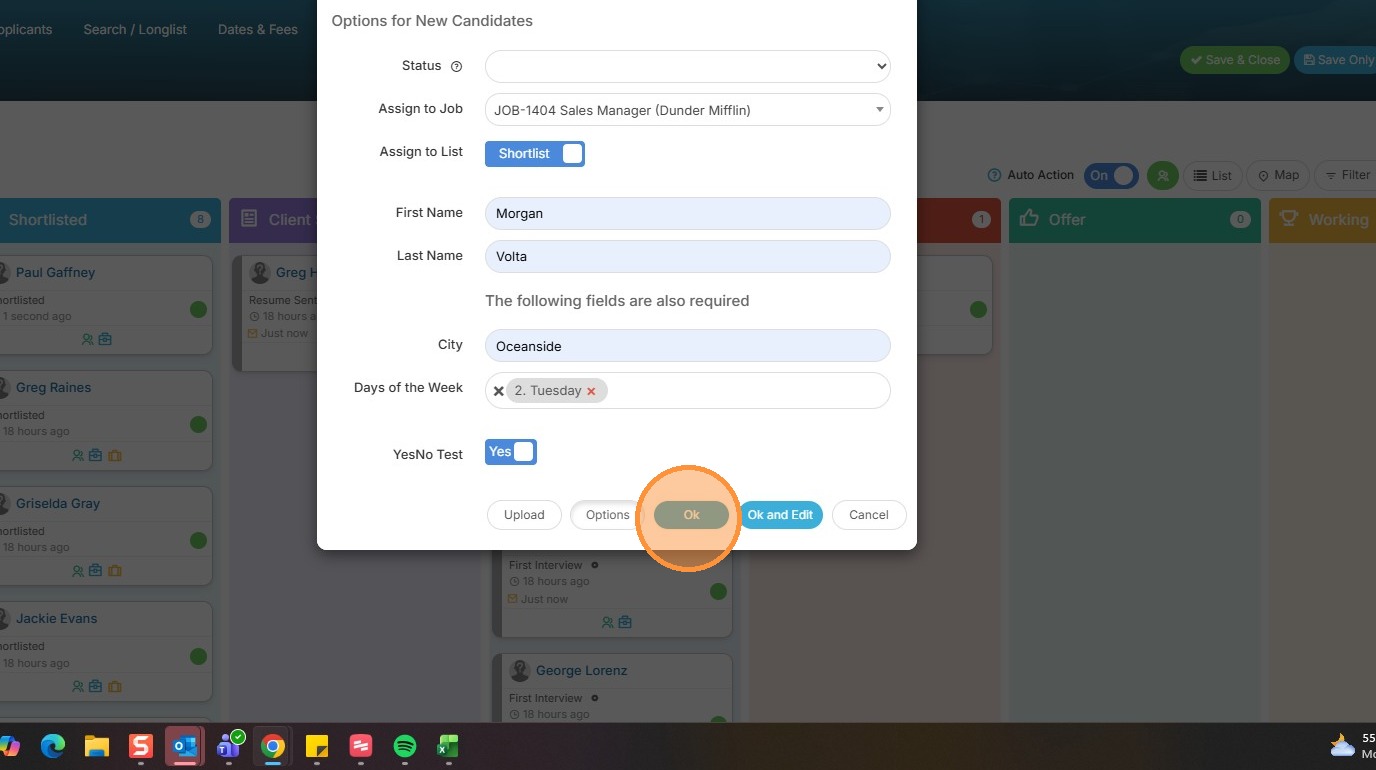
11. This new candidate has now been added to the Shortlist card.