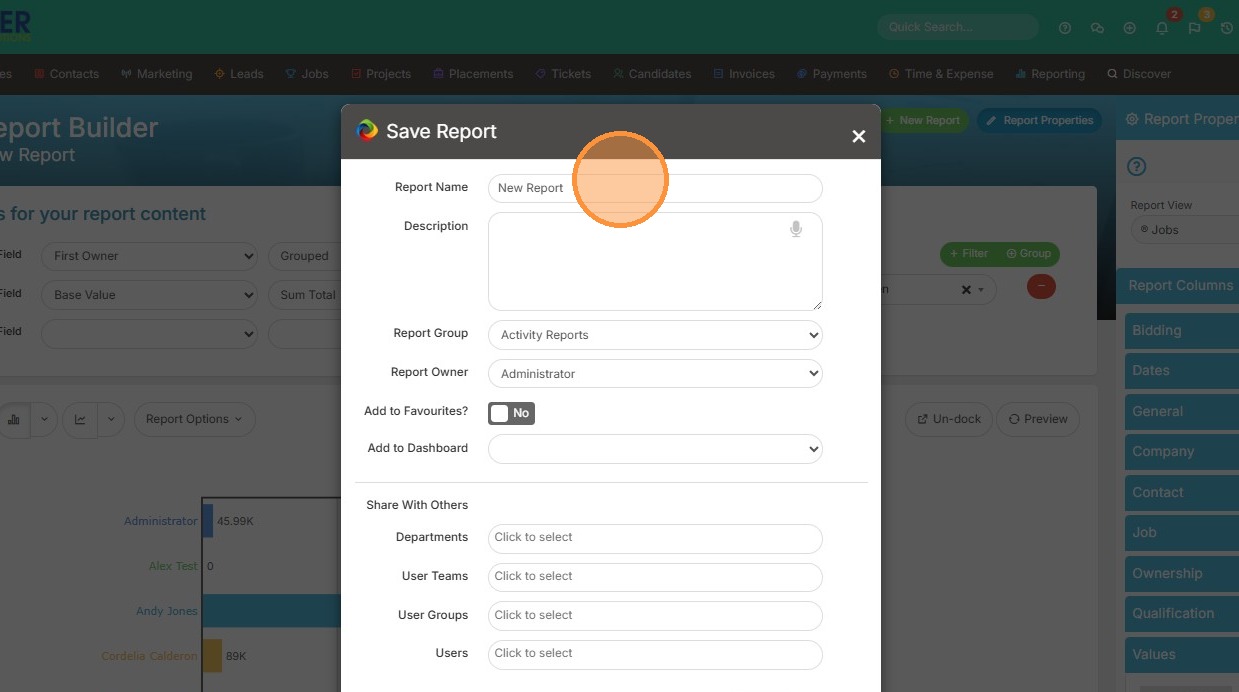
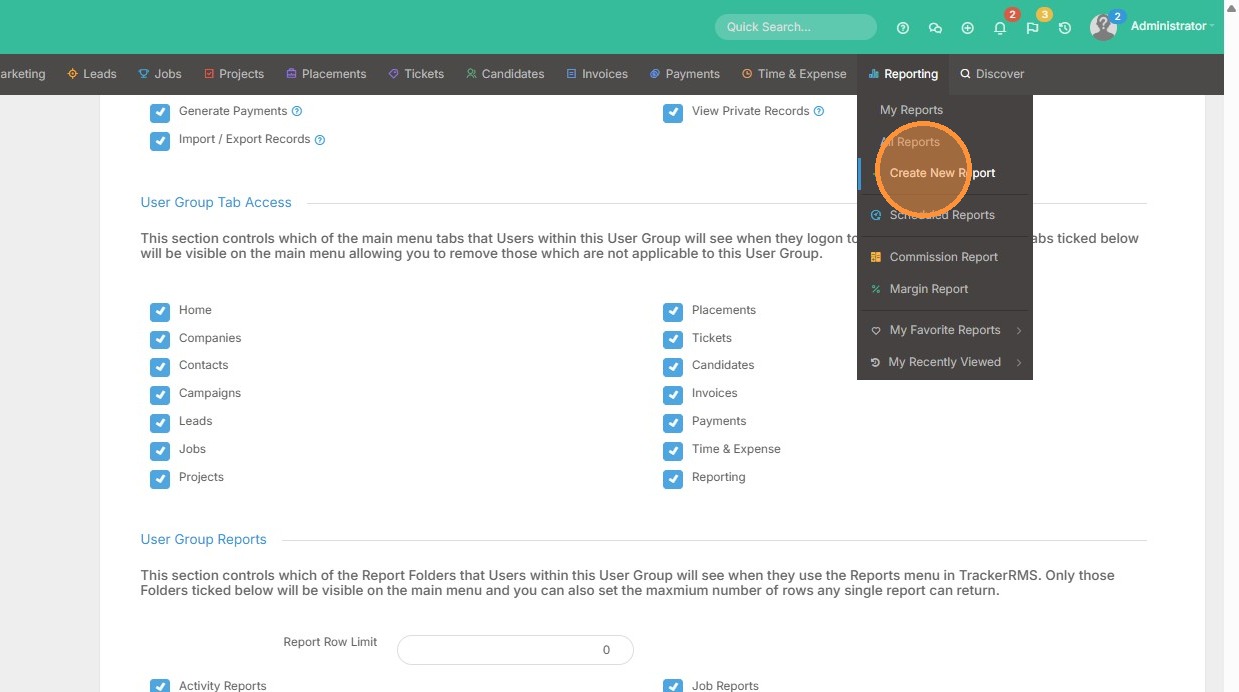
1. Click "Create New Report"
Field Selection
2. Click "Jobs" to create an open jobs summary report.
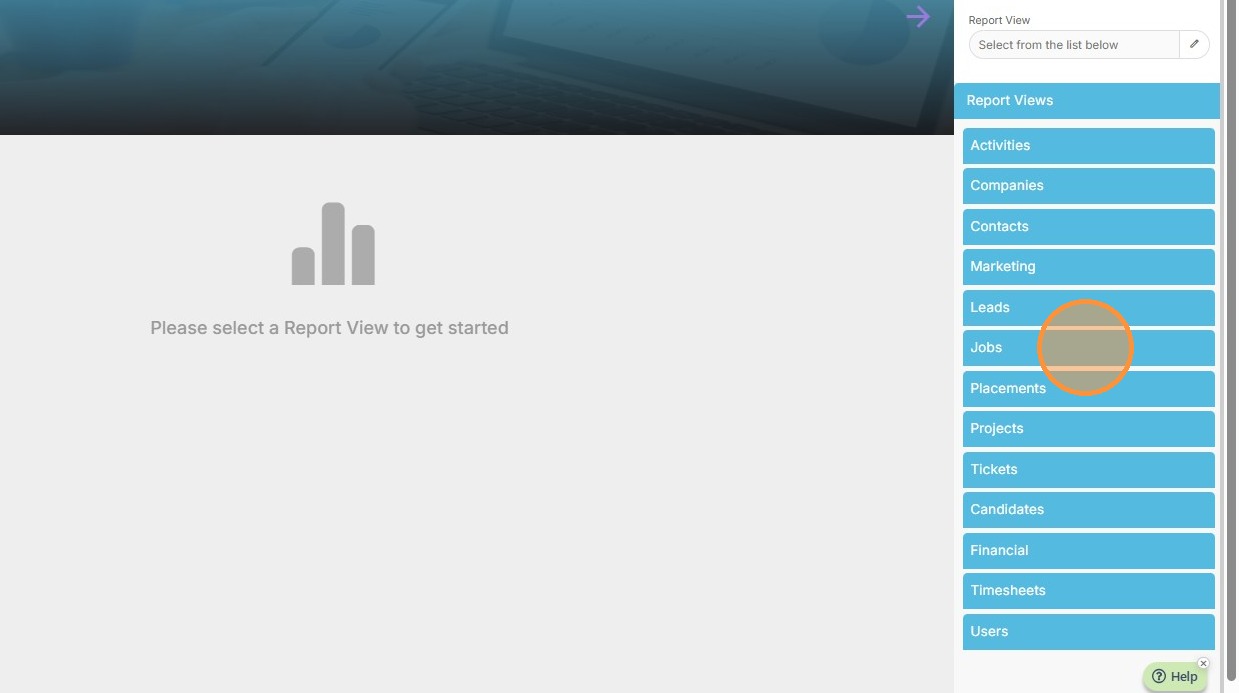
3. Click on the Jobs report view to get started.
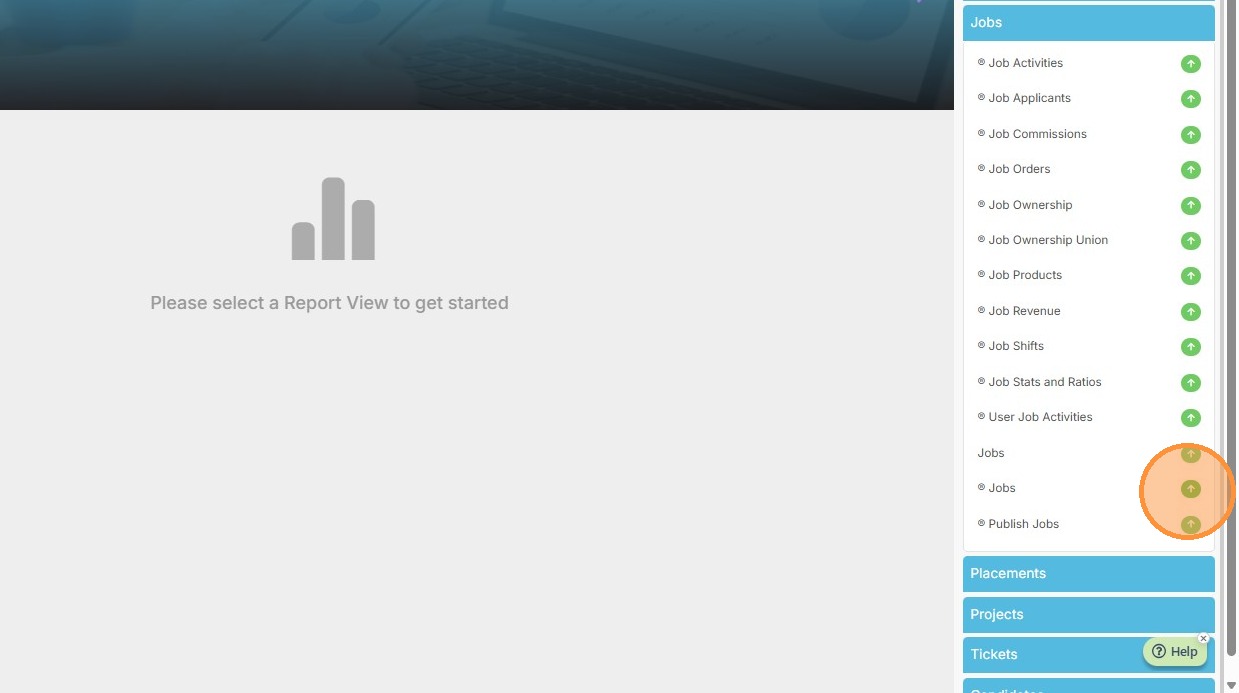
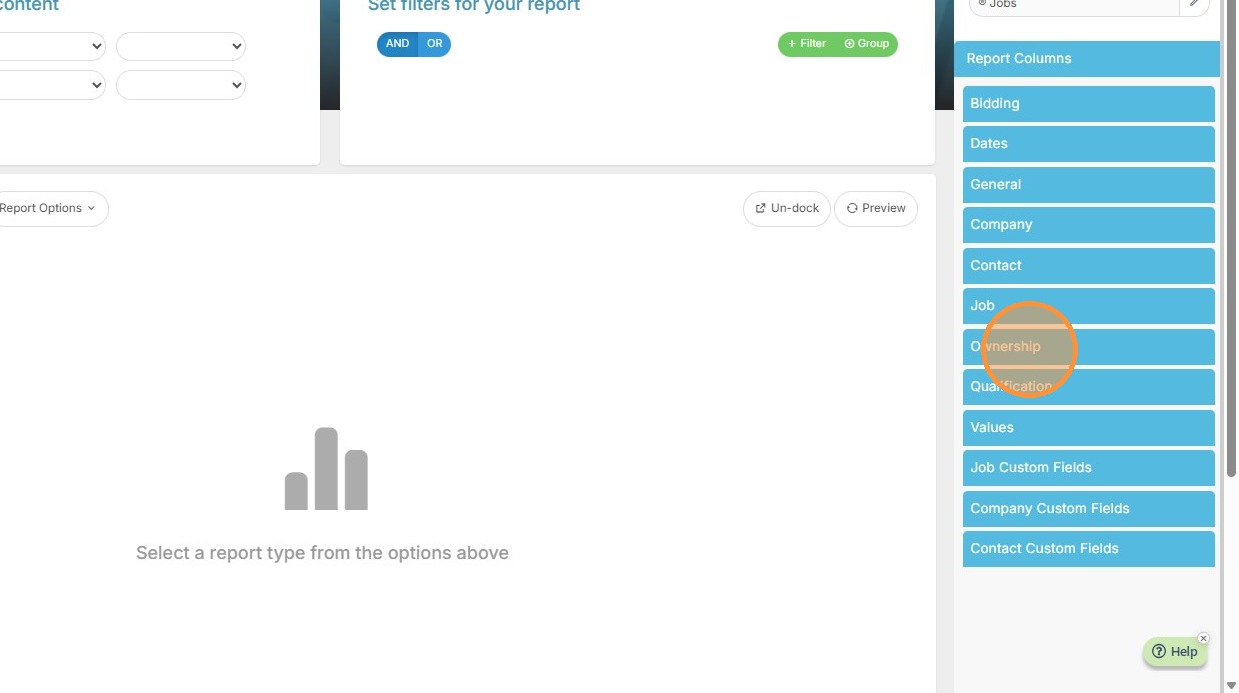
4. From here, we can add in details for the report by selecting the tabs on the right and adding columns.
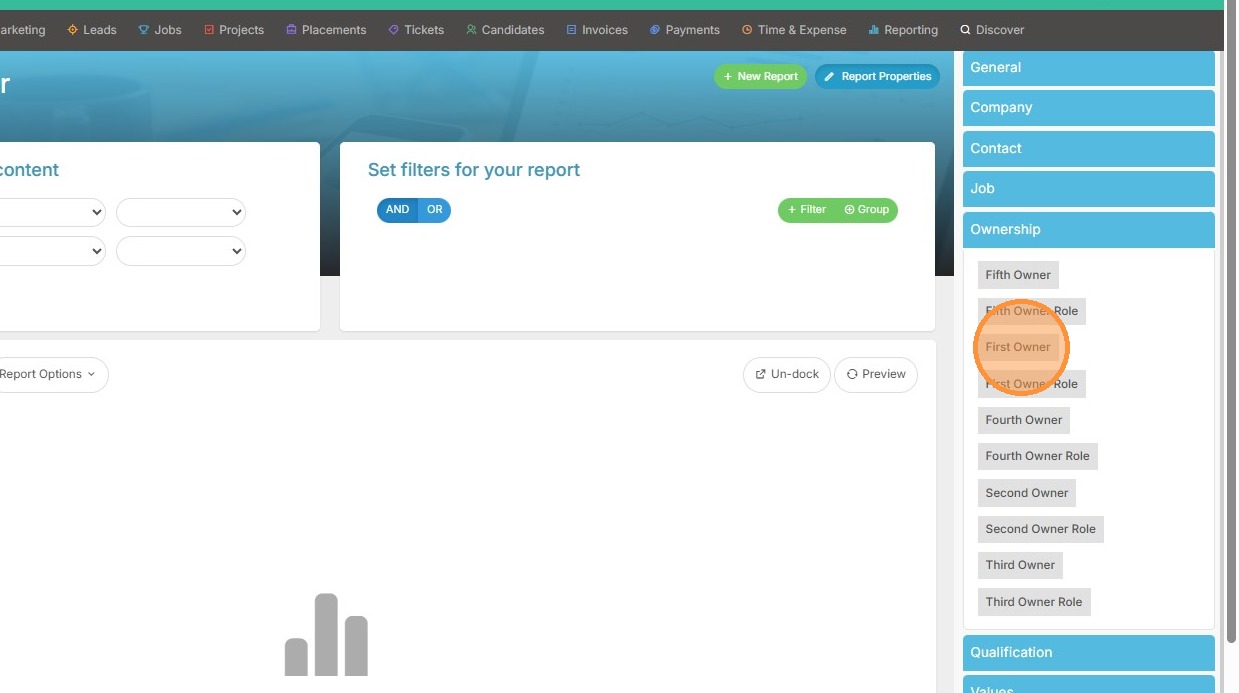
5. Click "First Owner" to view the main owner of the job.
6. Click "Job"
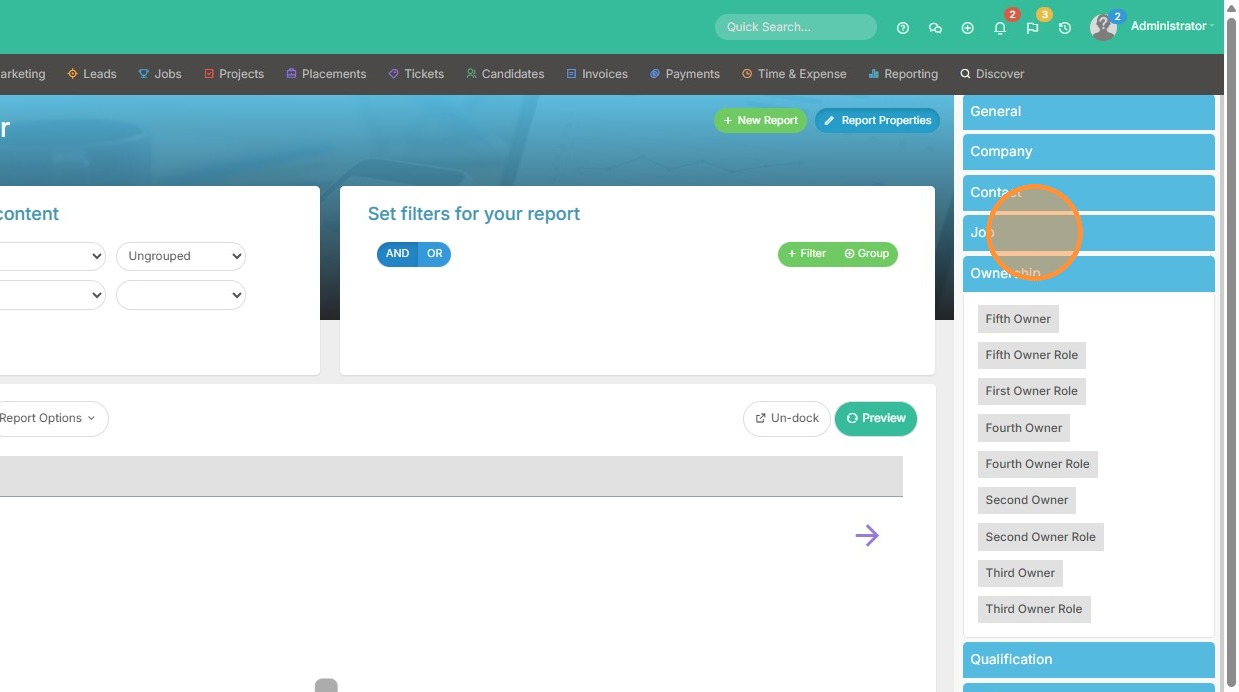
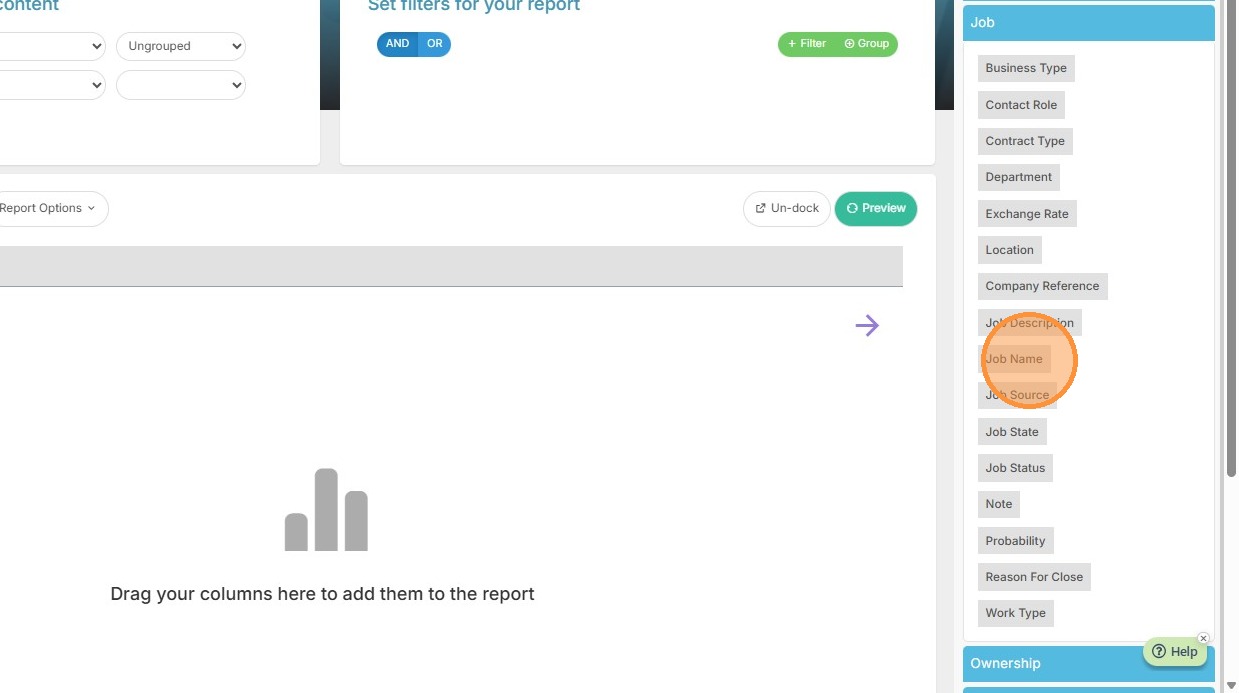
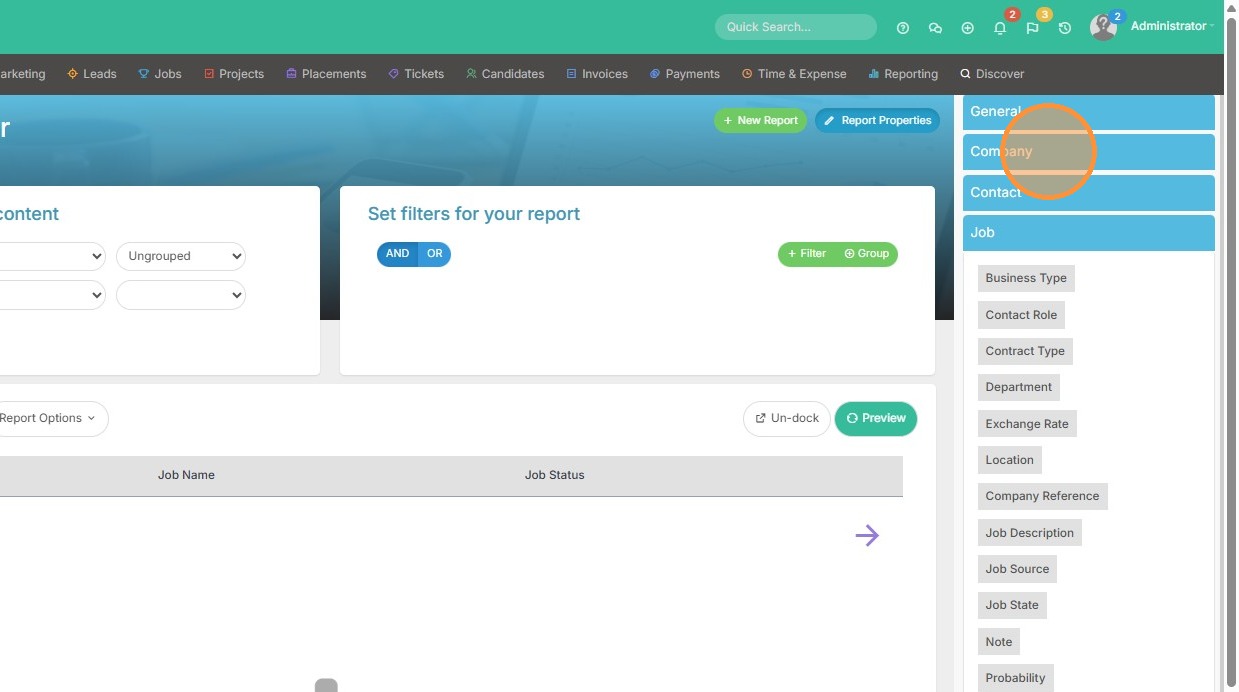
7. Here we can add columns such as Job Name, and status.
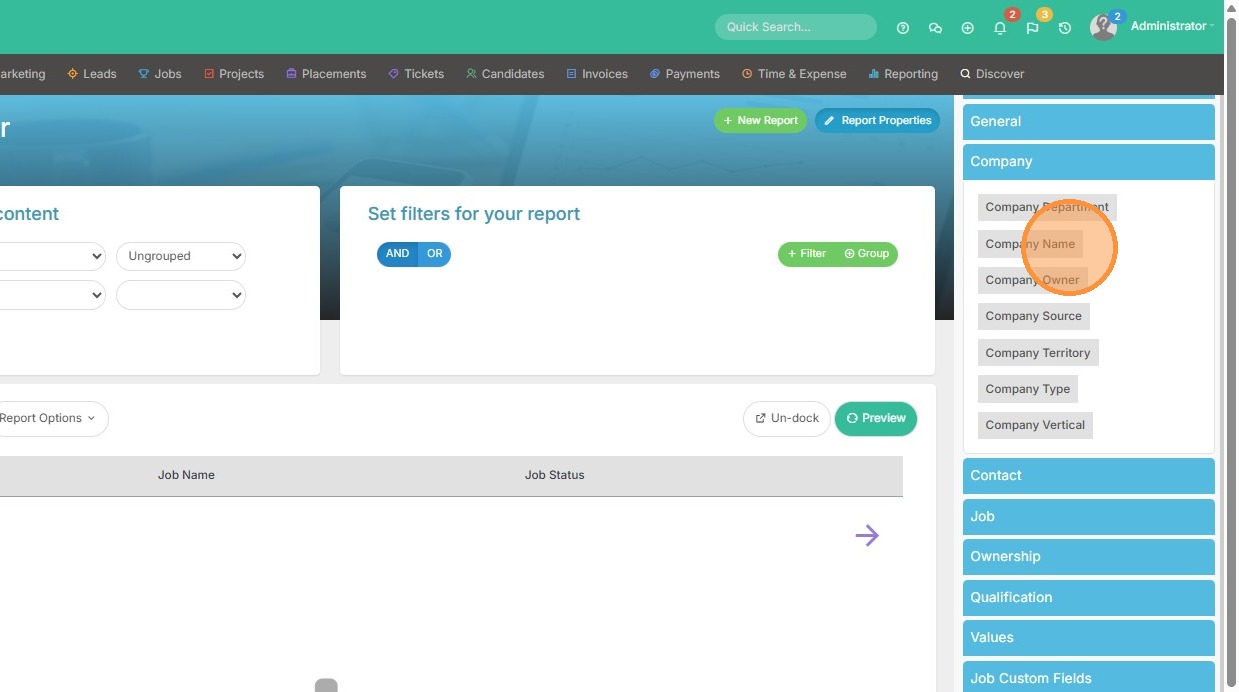
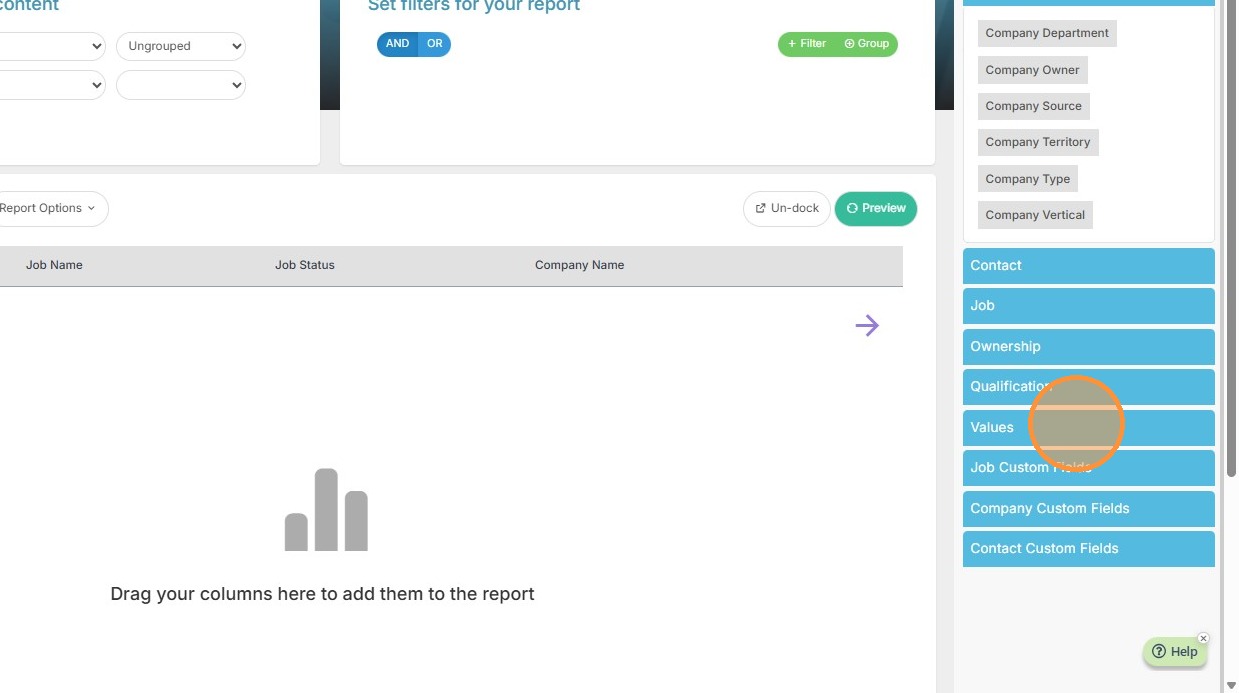
8. Select "Company Name" from the Company section.
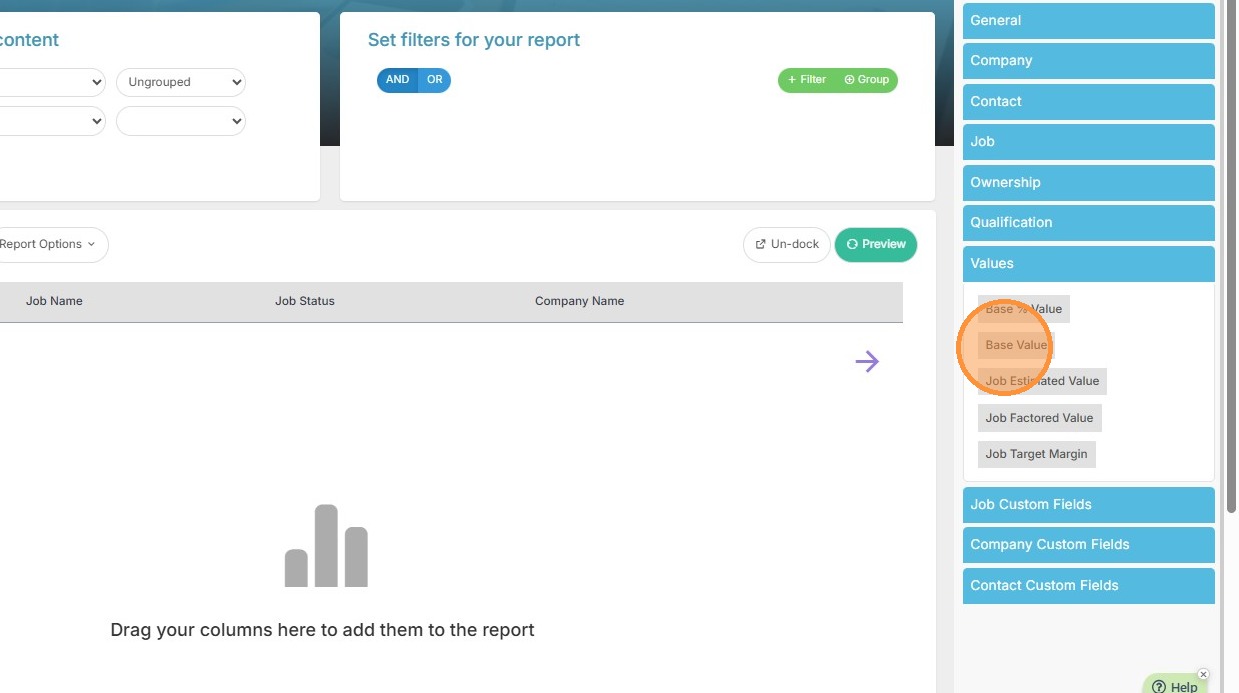
9. Select "Base Value" from the Values section.
Filters and Sorting
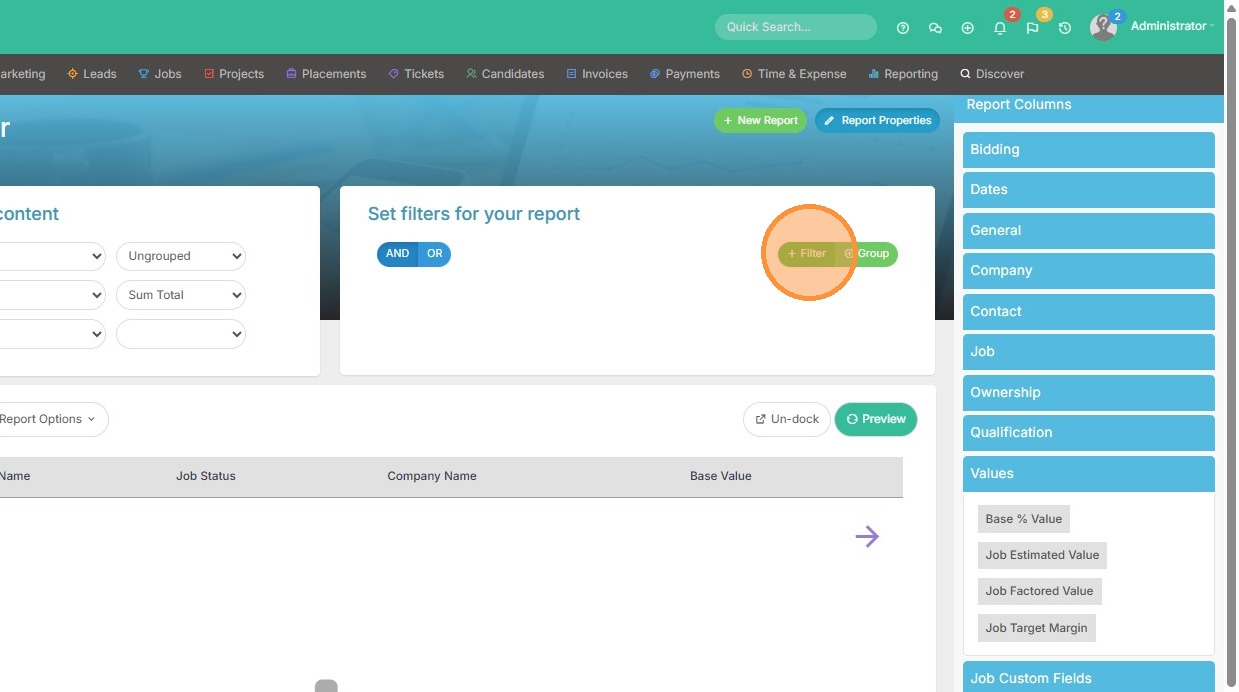
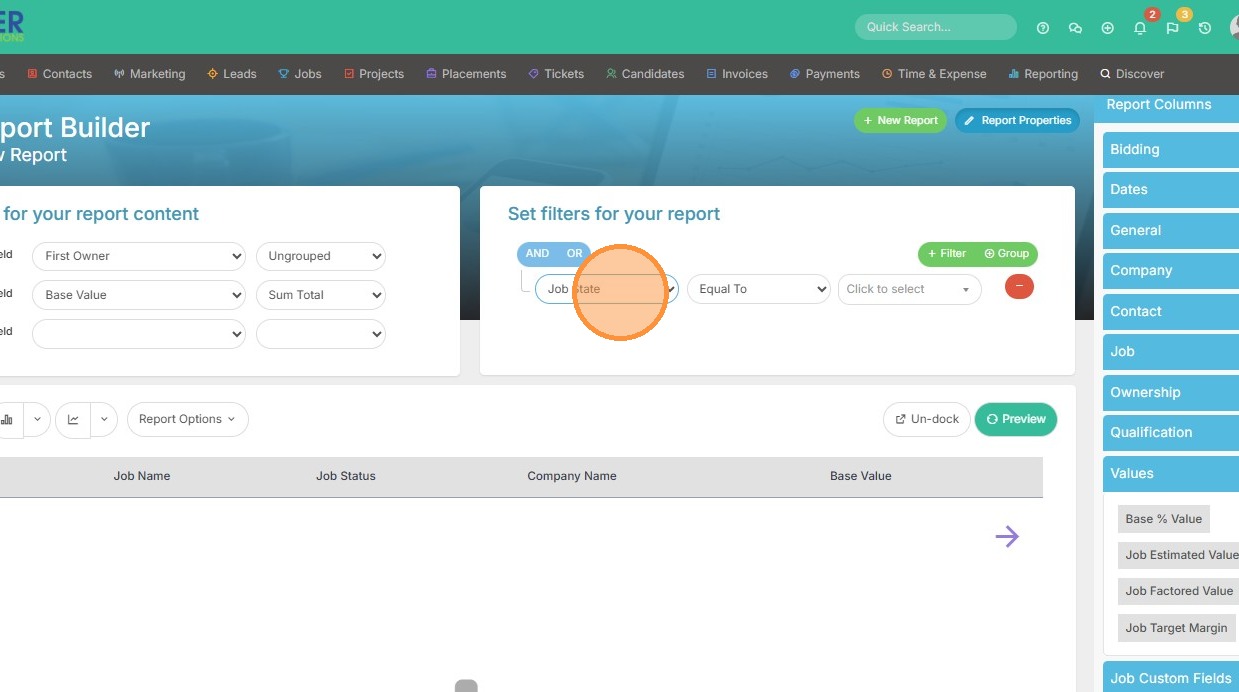
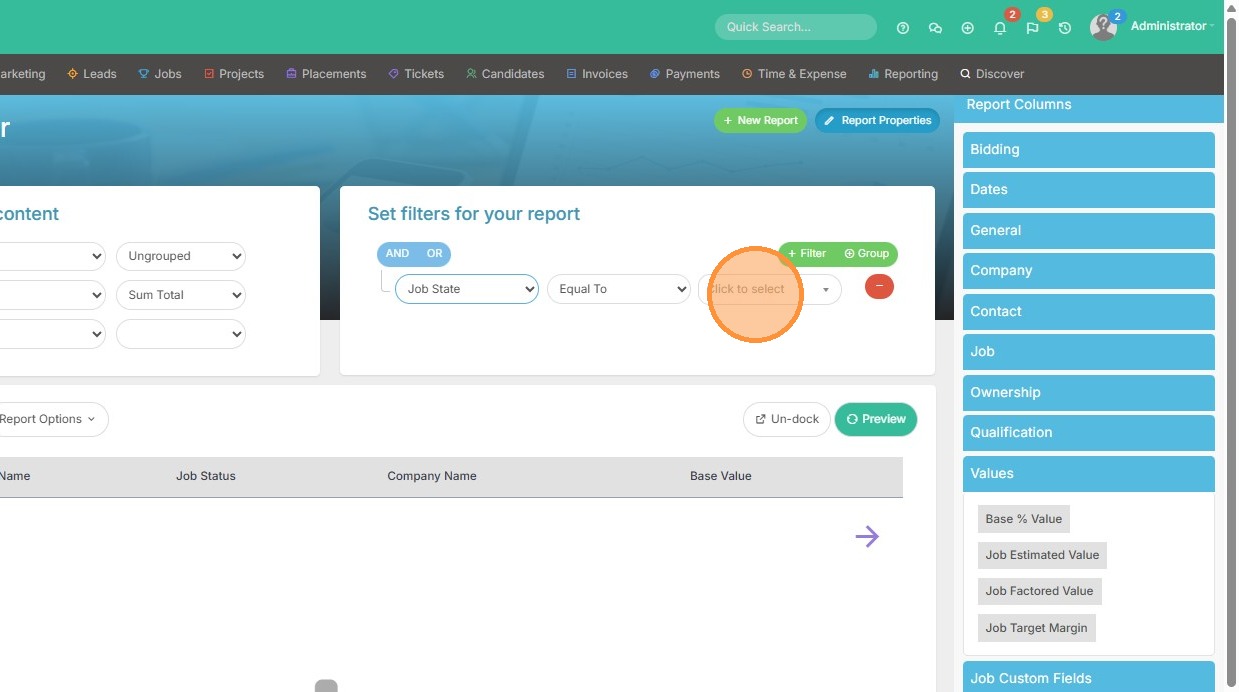
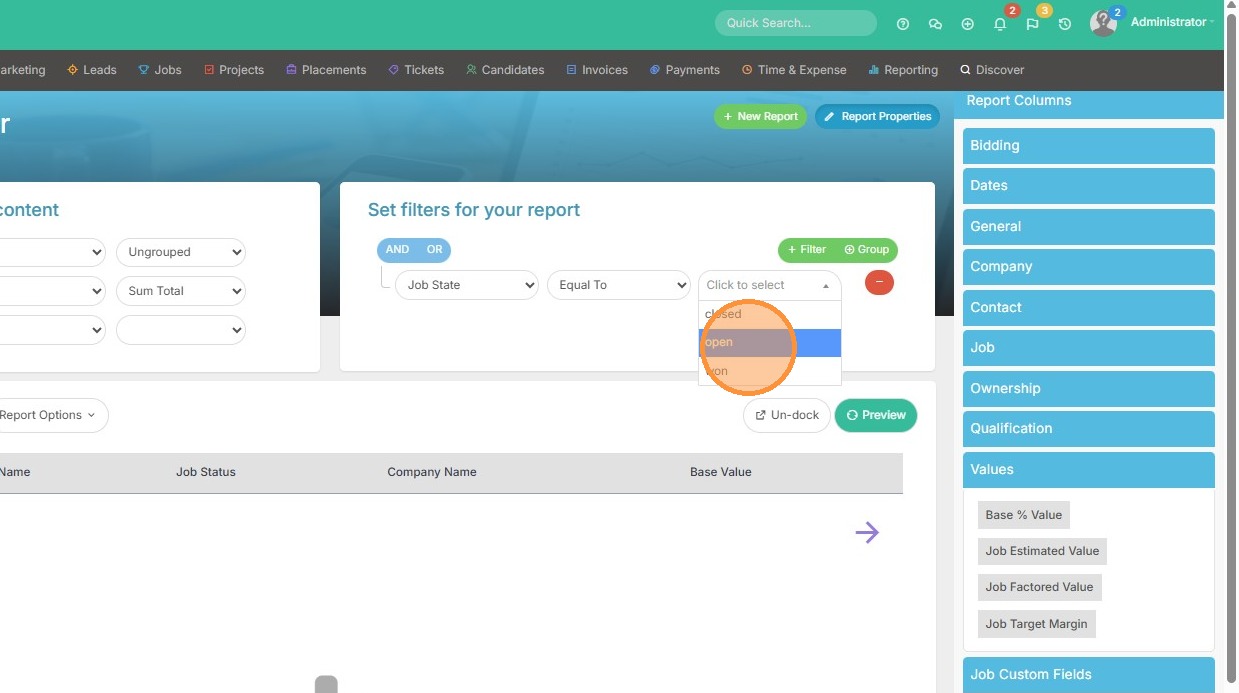
10. Add a filter to only include jobs with a "Job State" of "open".
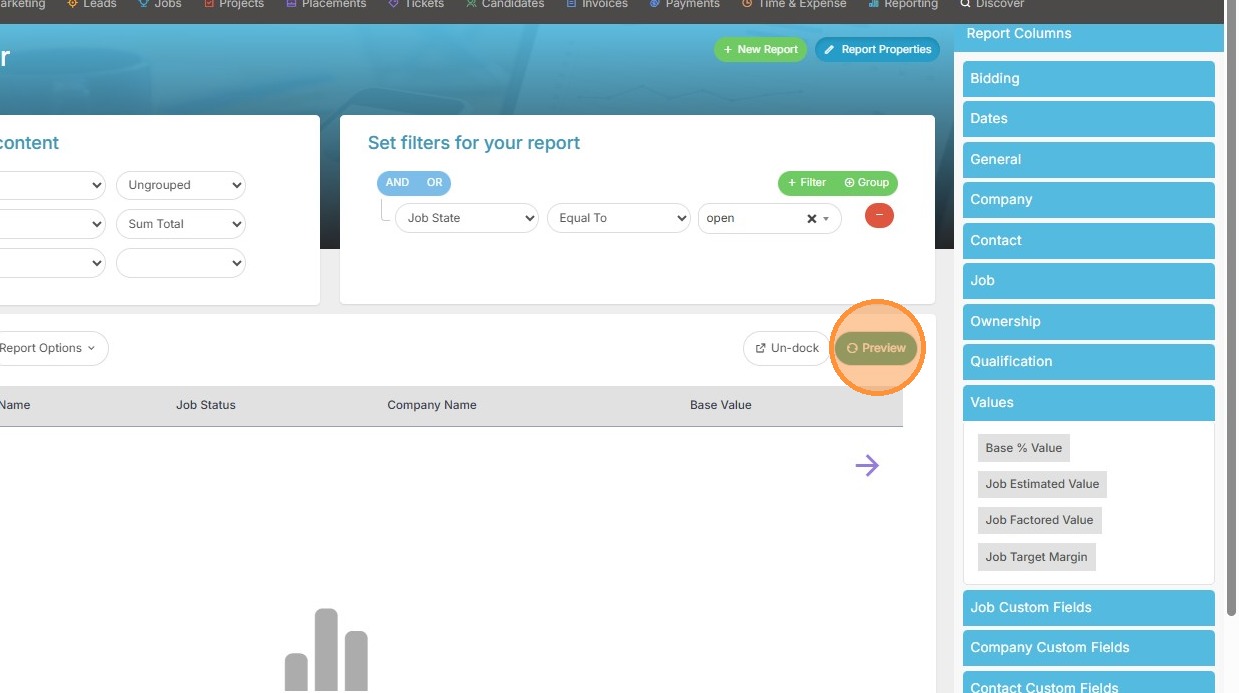
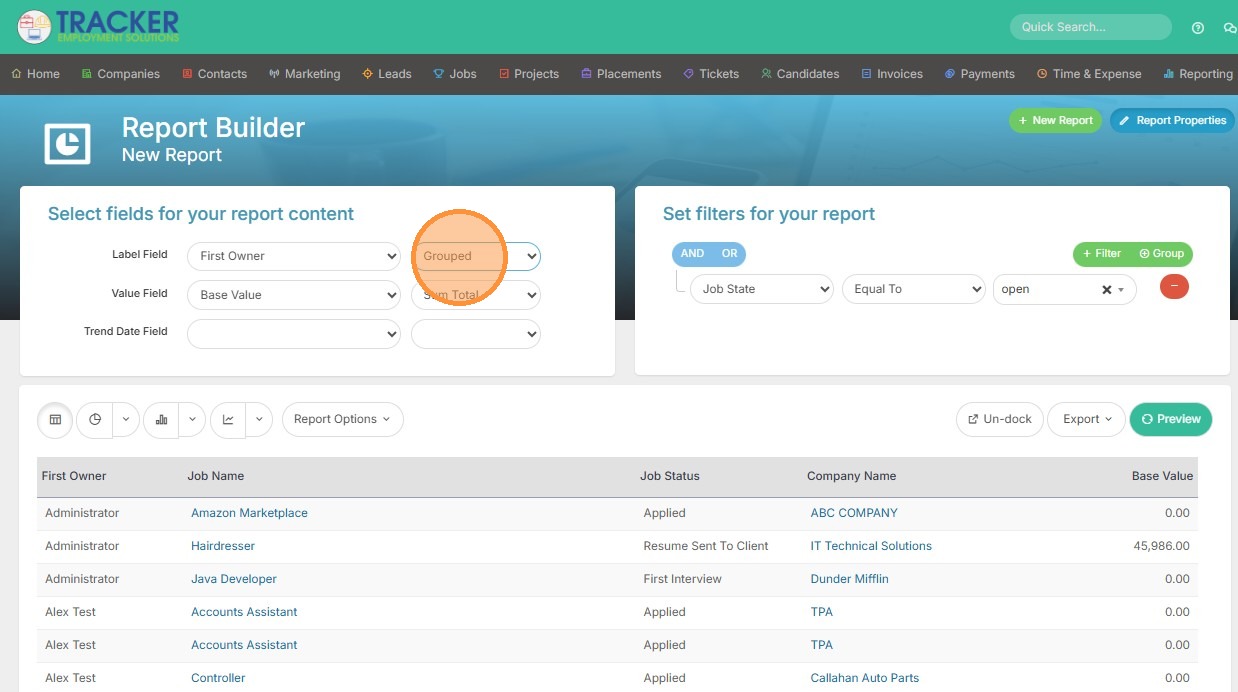
11. Click "Preview"
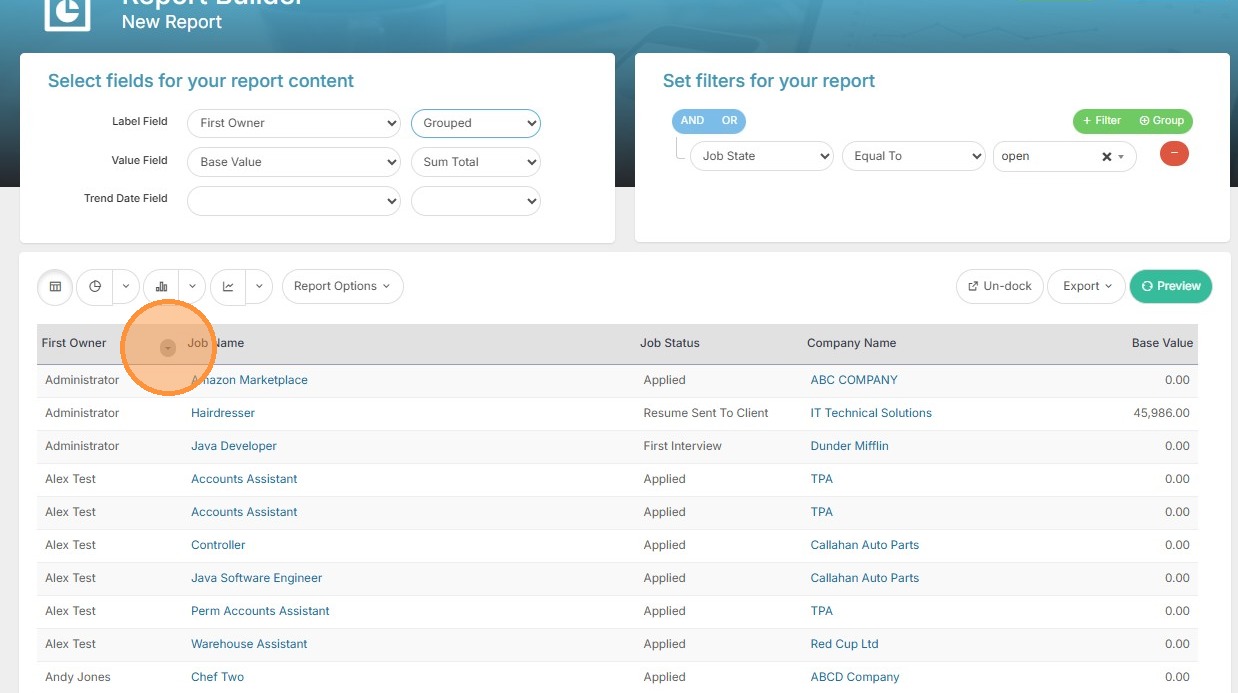
12. Select the "Grouped" option to group by Job Owner.
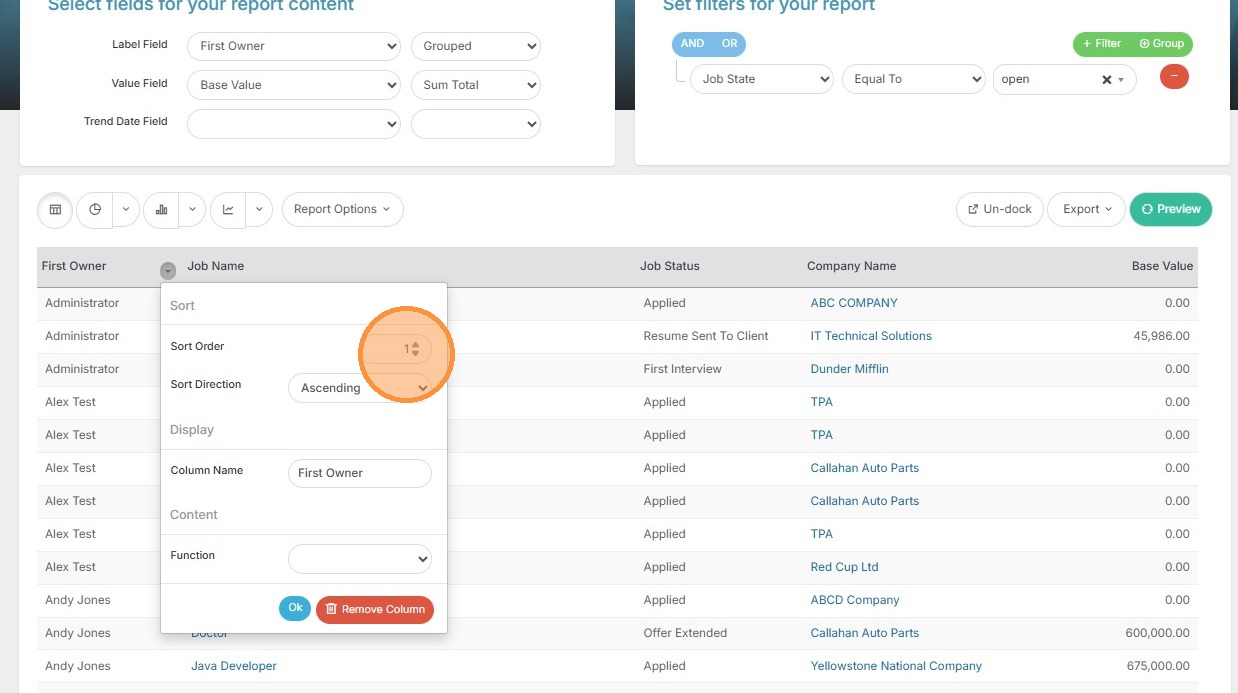
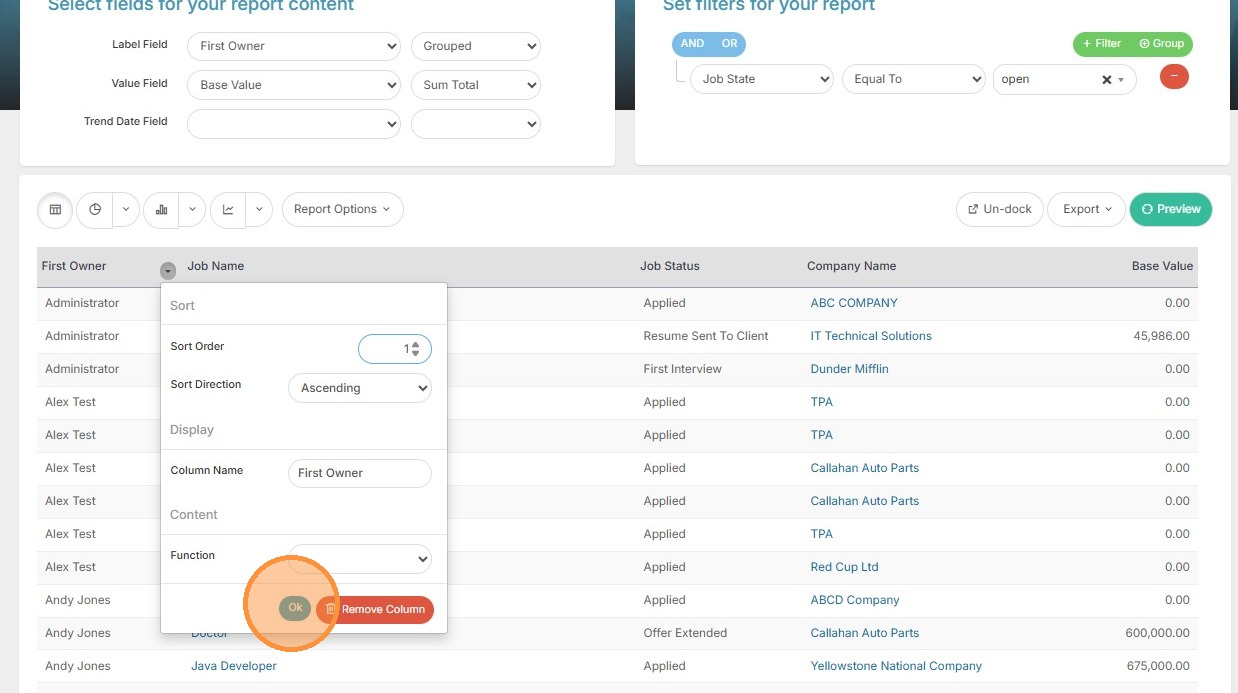
13. Configure the Sort Order for First Owner to "1" (since we're grouping by that column) and click Ok.
Report Visualizations
14. Select the Pie chart visualization.
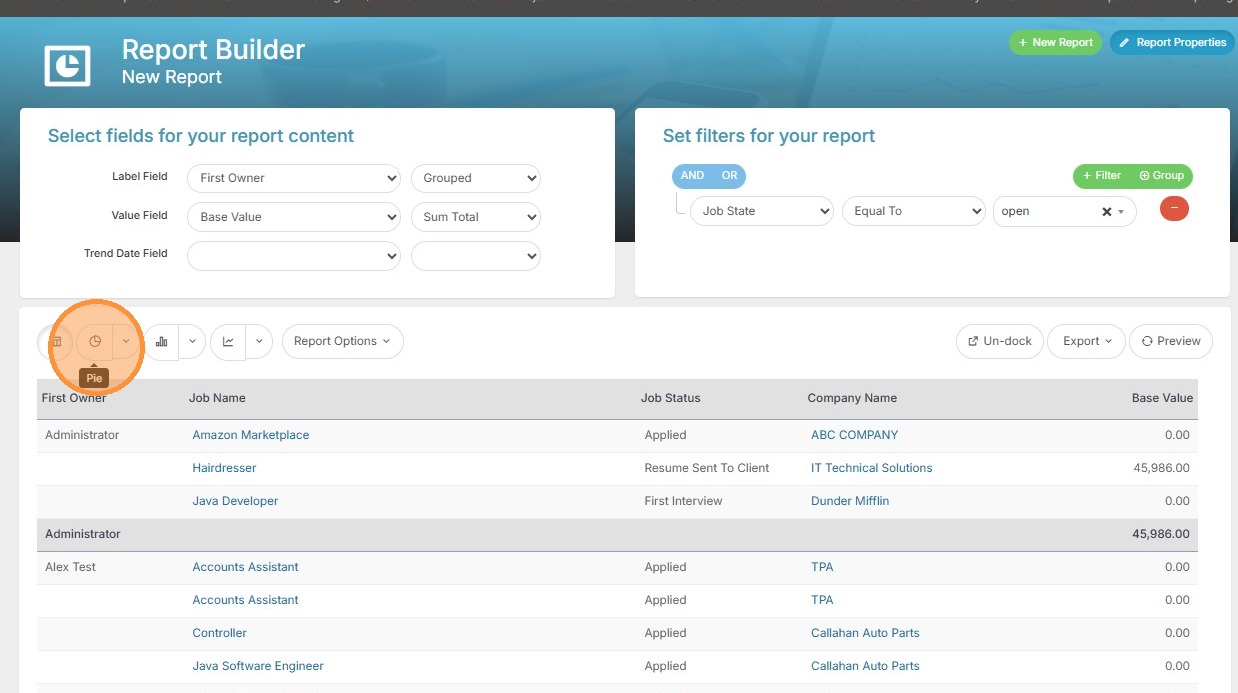
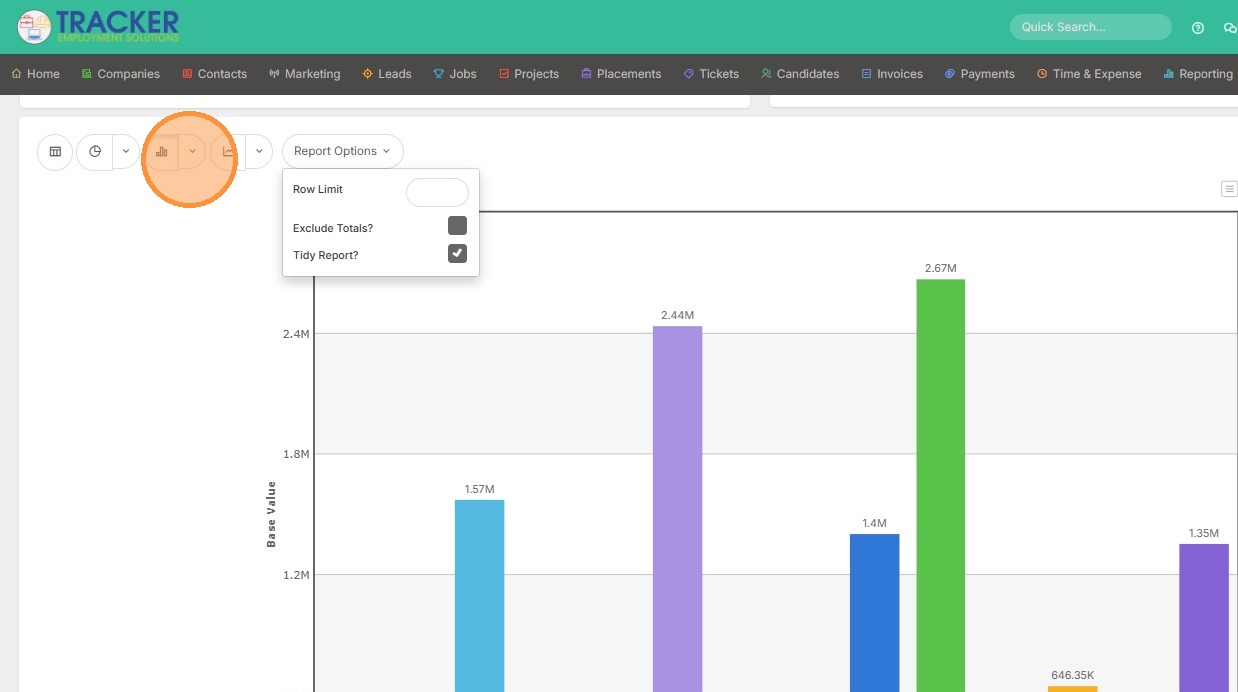
15. Or select the Column chart visualization.
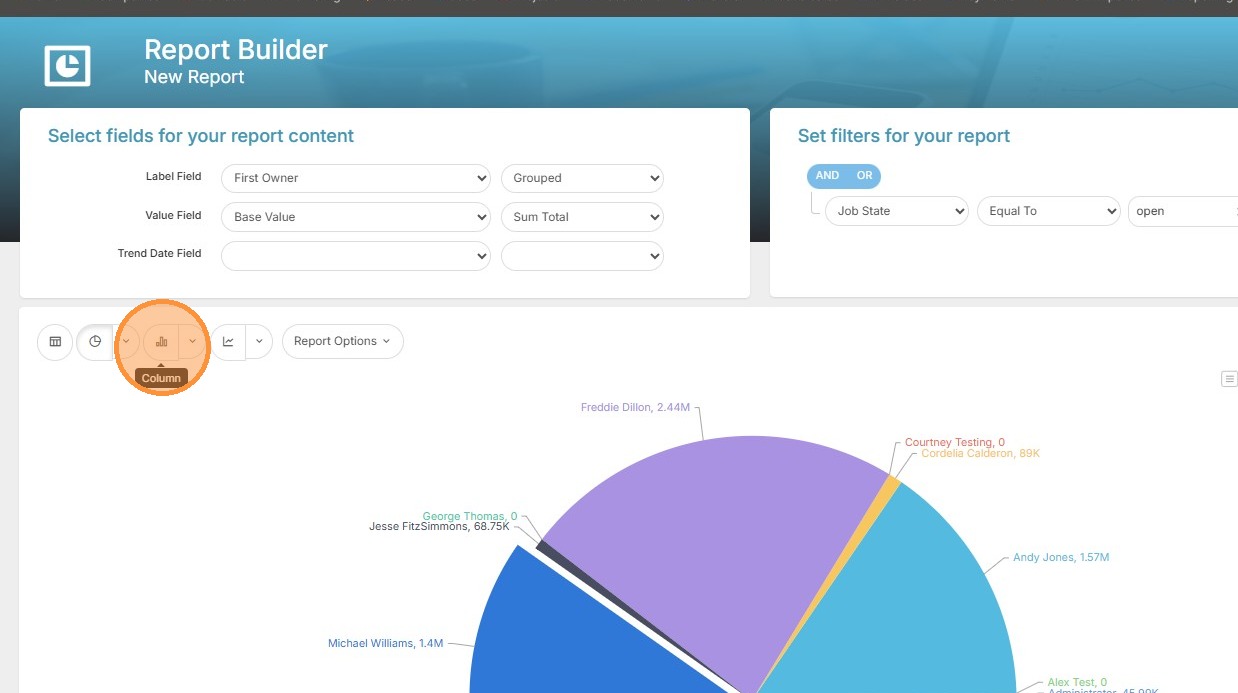
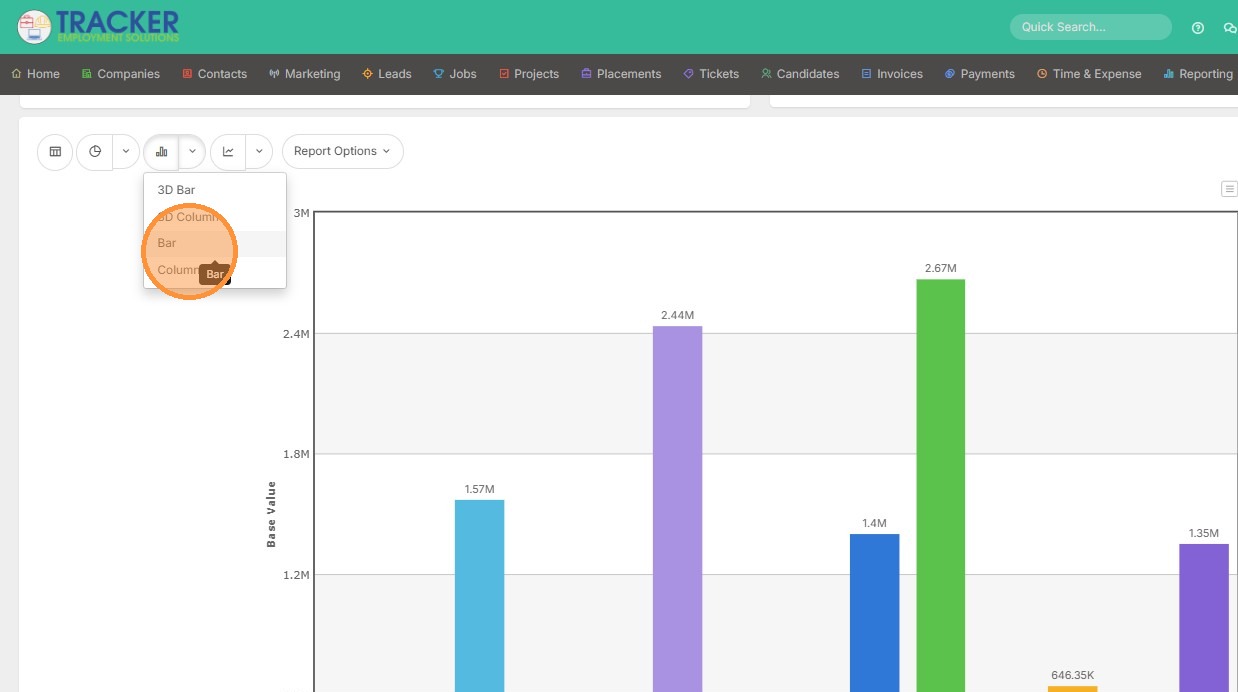
16. Within each visualization, you can choose a specific option. Click this dropdown, and select the type of chart you want to view.
Report Properties and Saving
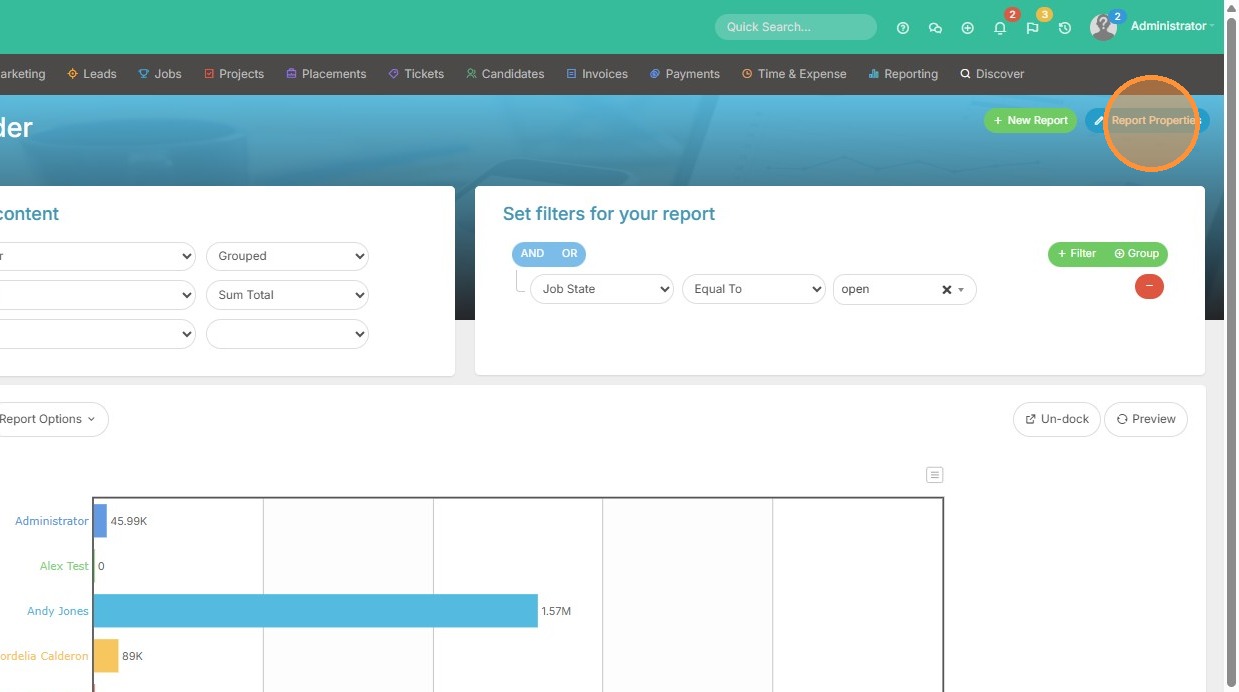
17. Click "Report Properties" to save.
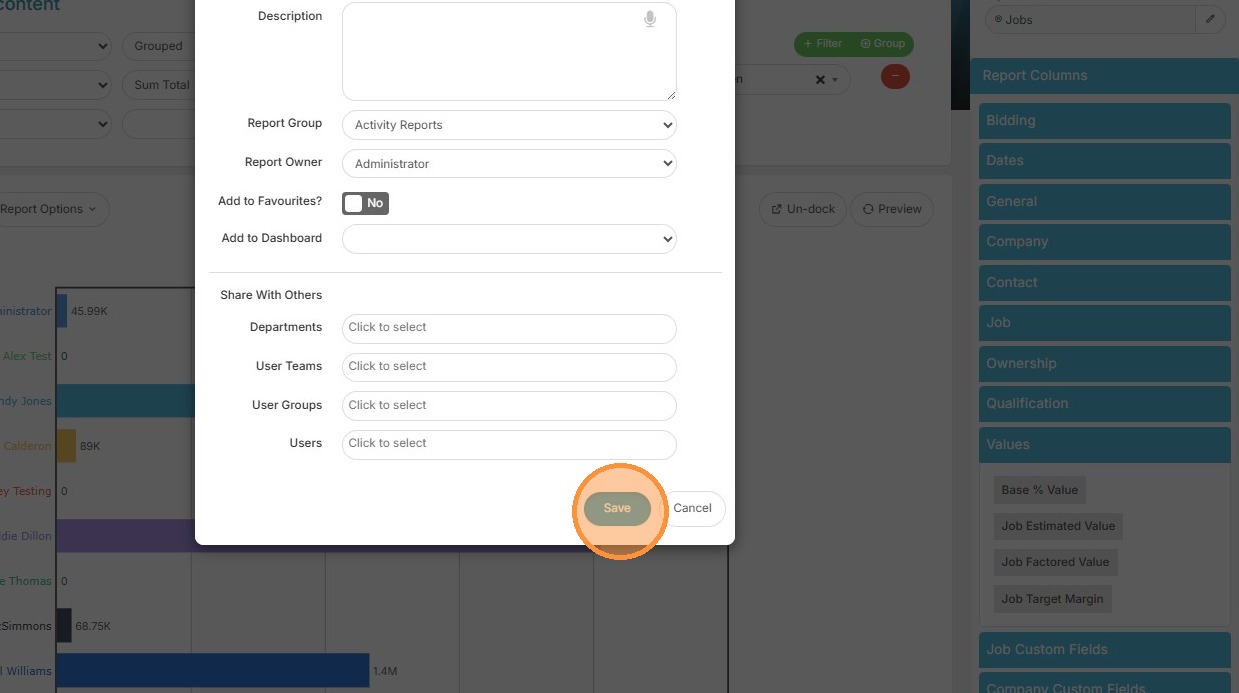
18. Click "Save"
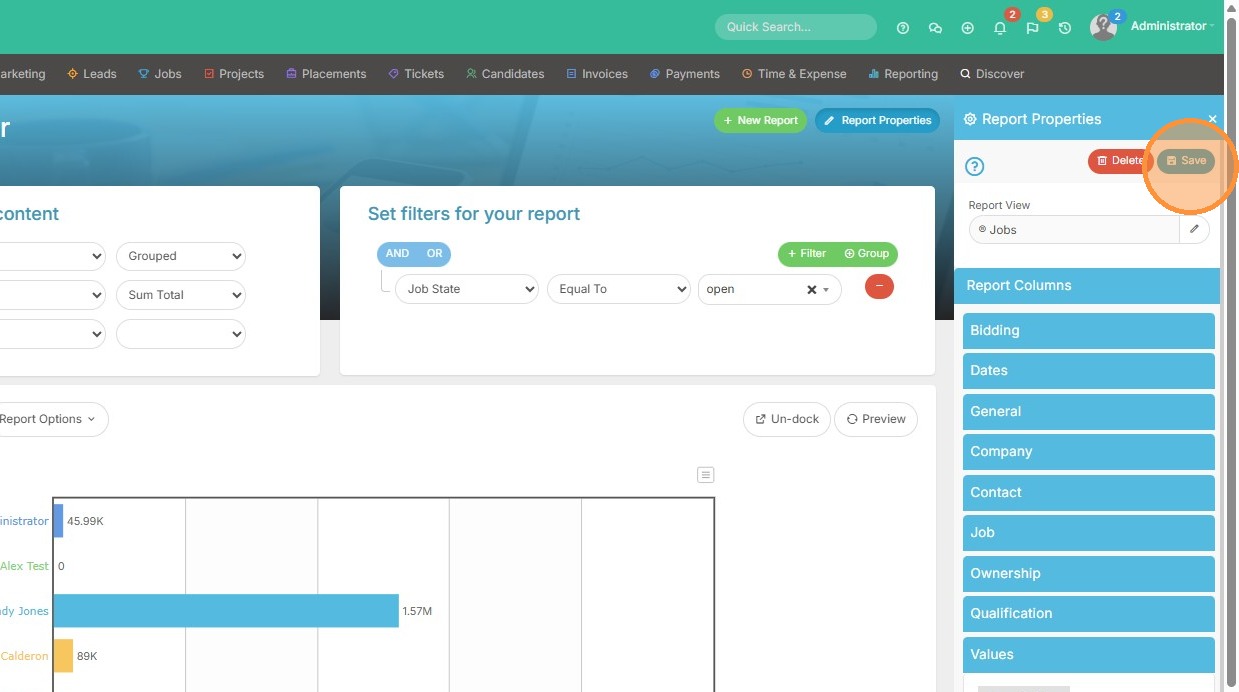
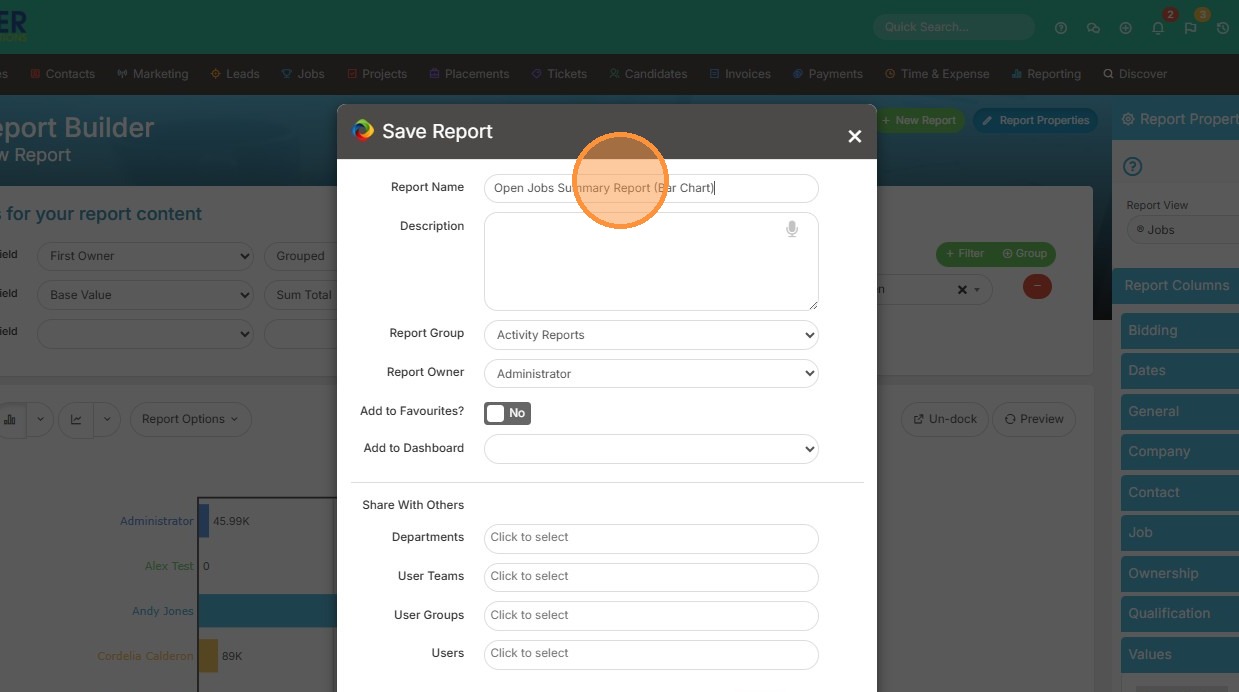
19. Enter the Report Name and click Save to finalize.