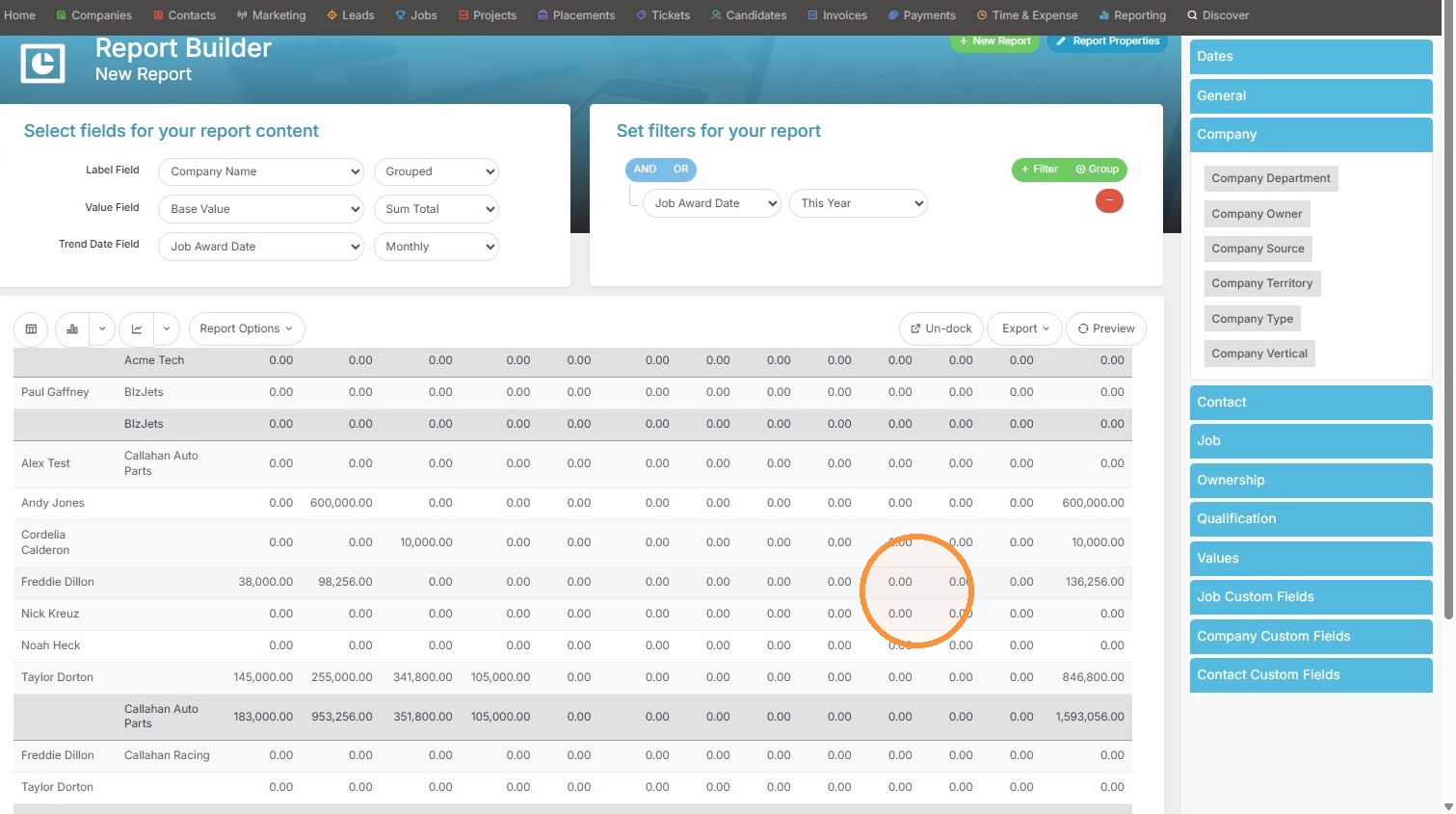
The key to building a trend report is ensuring that you have a value, a label and a date column (ideally added in that order).
Report Initialization
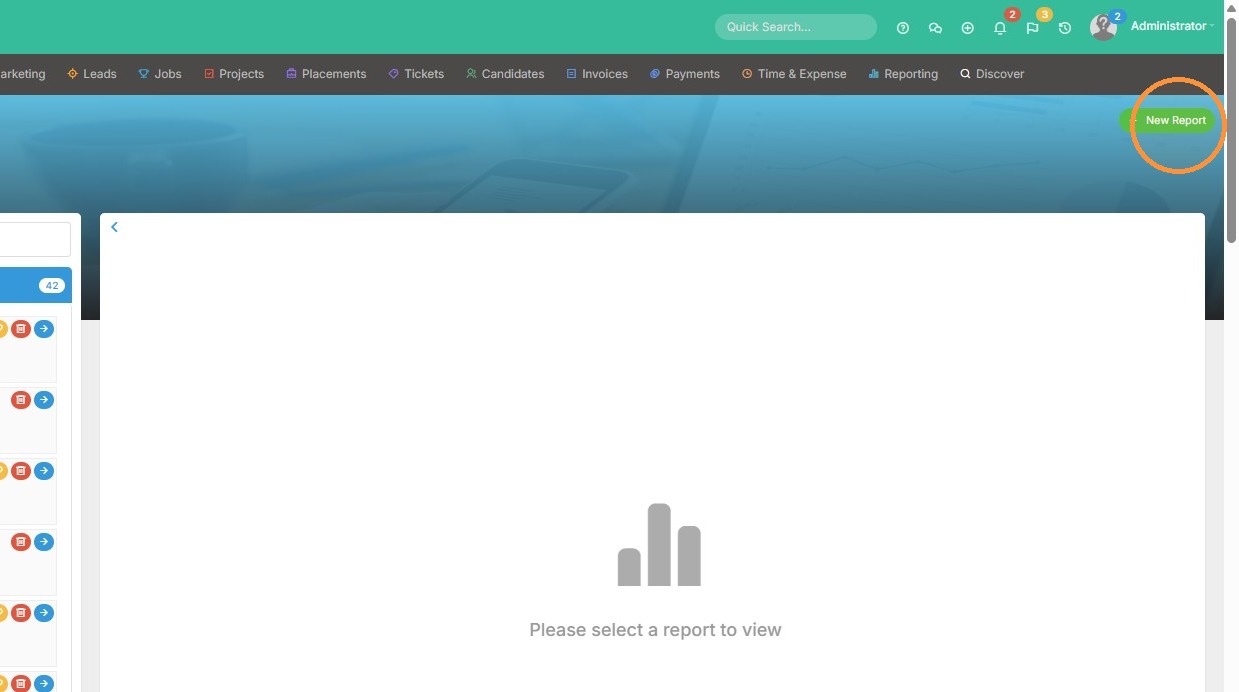
1. Click "New Report"
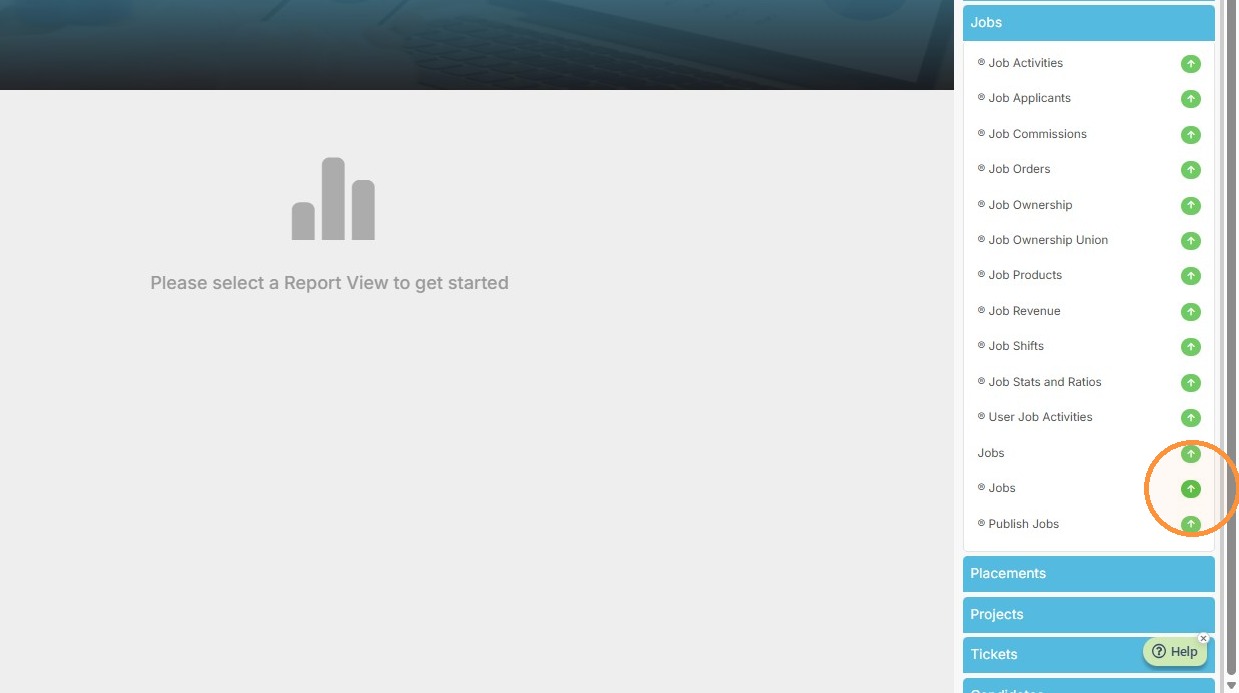
2. For this example, we'll build a trend report that analyzes the value received by companies over time, using the award date as the time dimension. So we'll select the Jobs report view to start this.
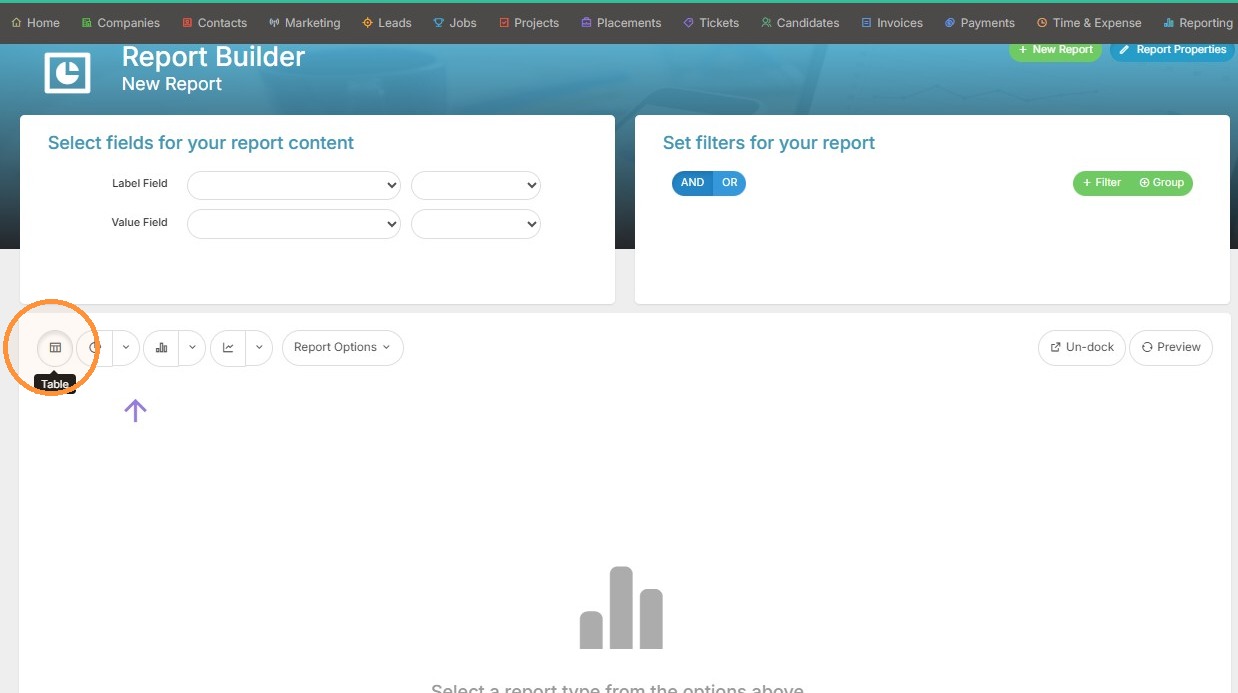
3. Select 'Table' report type
Field Configuration
4. Select 'First Job Owner' as the Label Field
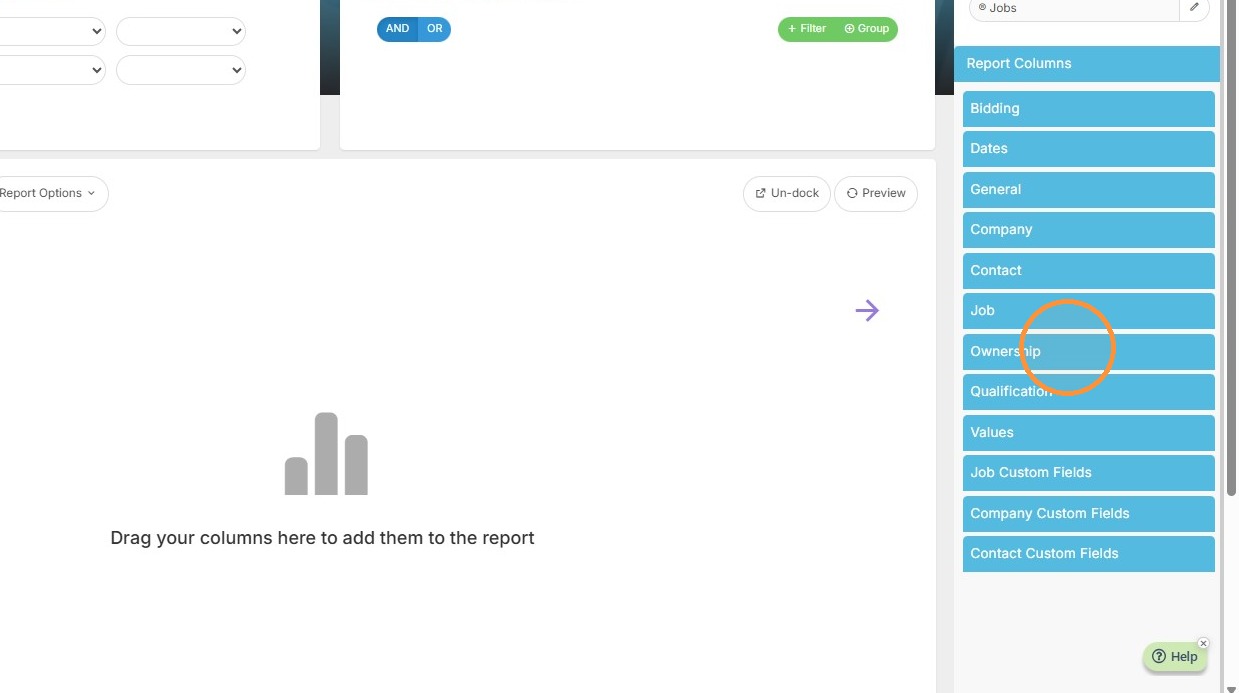
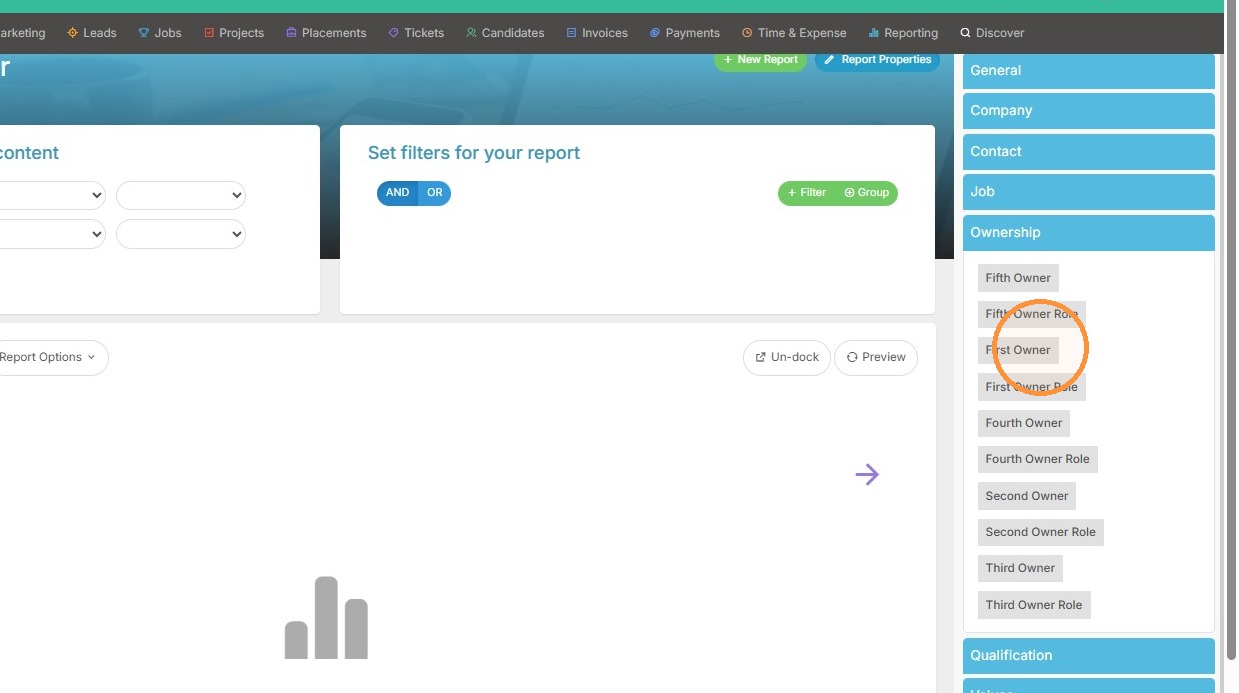
5. Select 'Base Value' as the Value Field
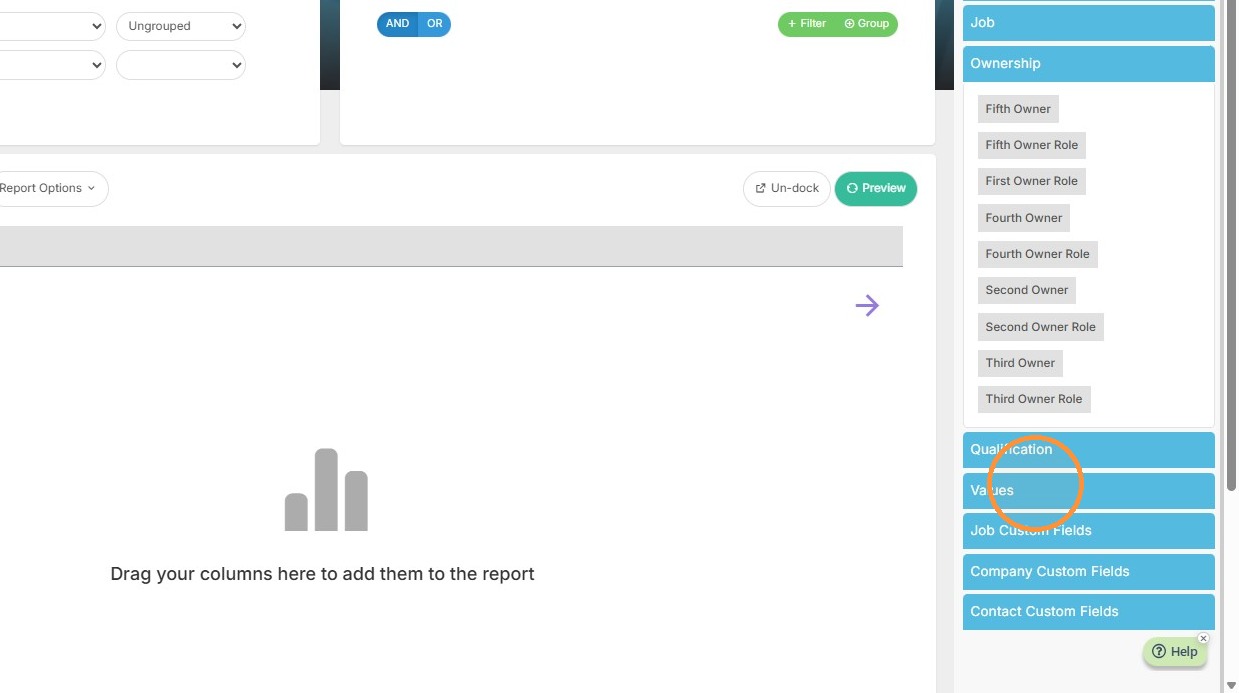
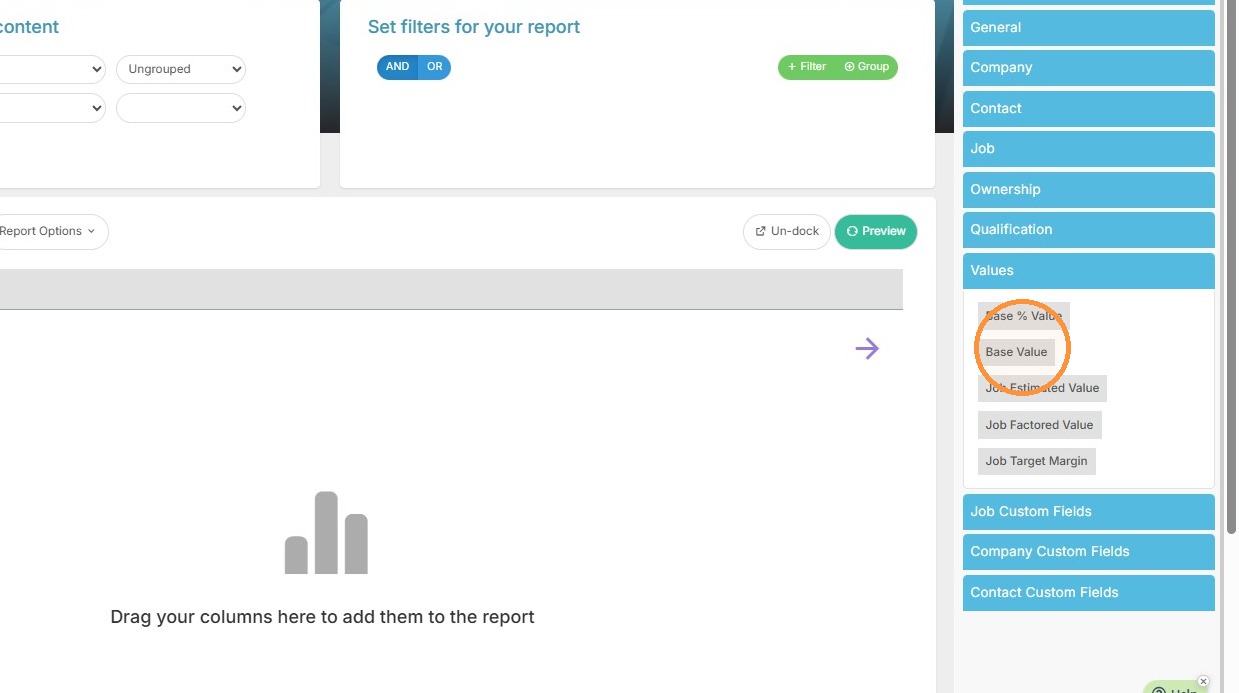
6. Select 'Job Award Date' as the Trend Date Field
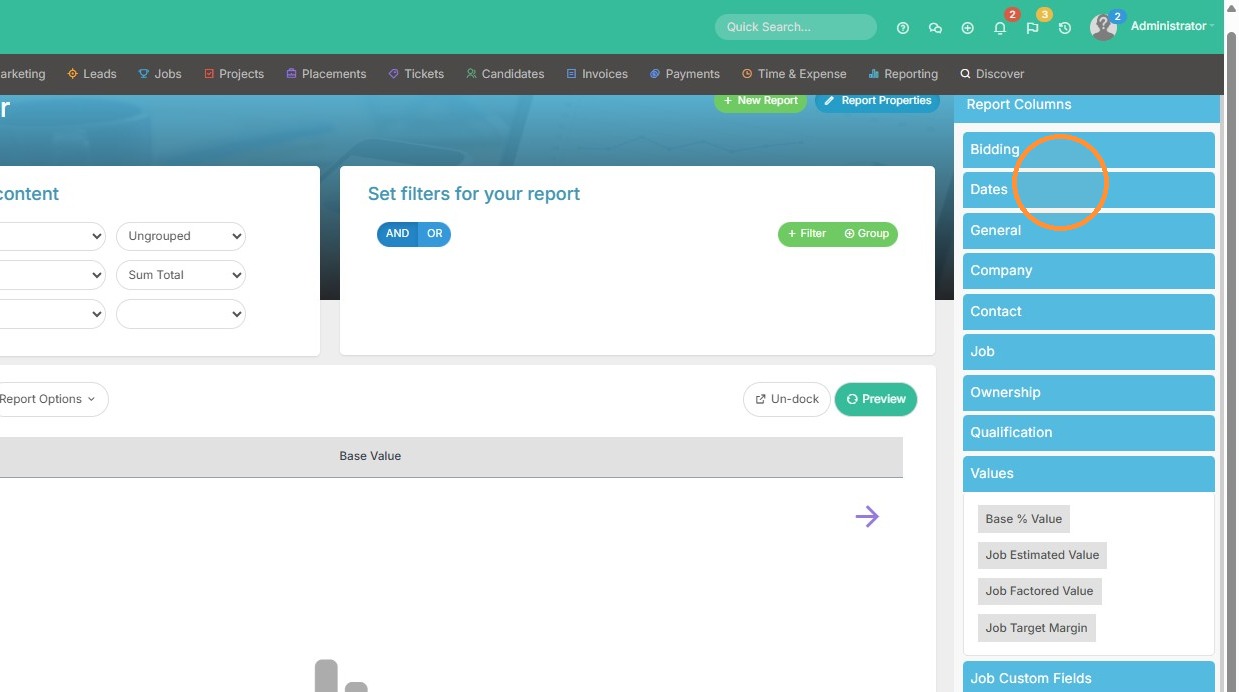
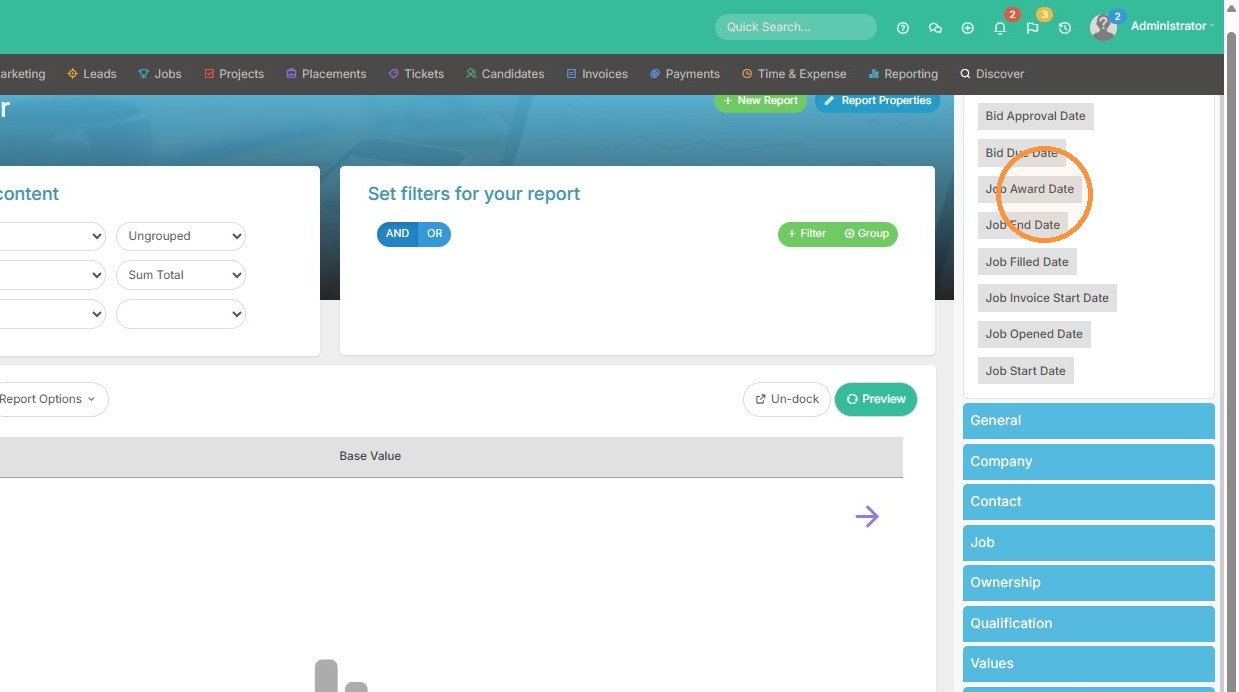
Report Refinement
7. Add 'Company Name' so we can group by company.
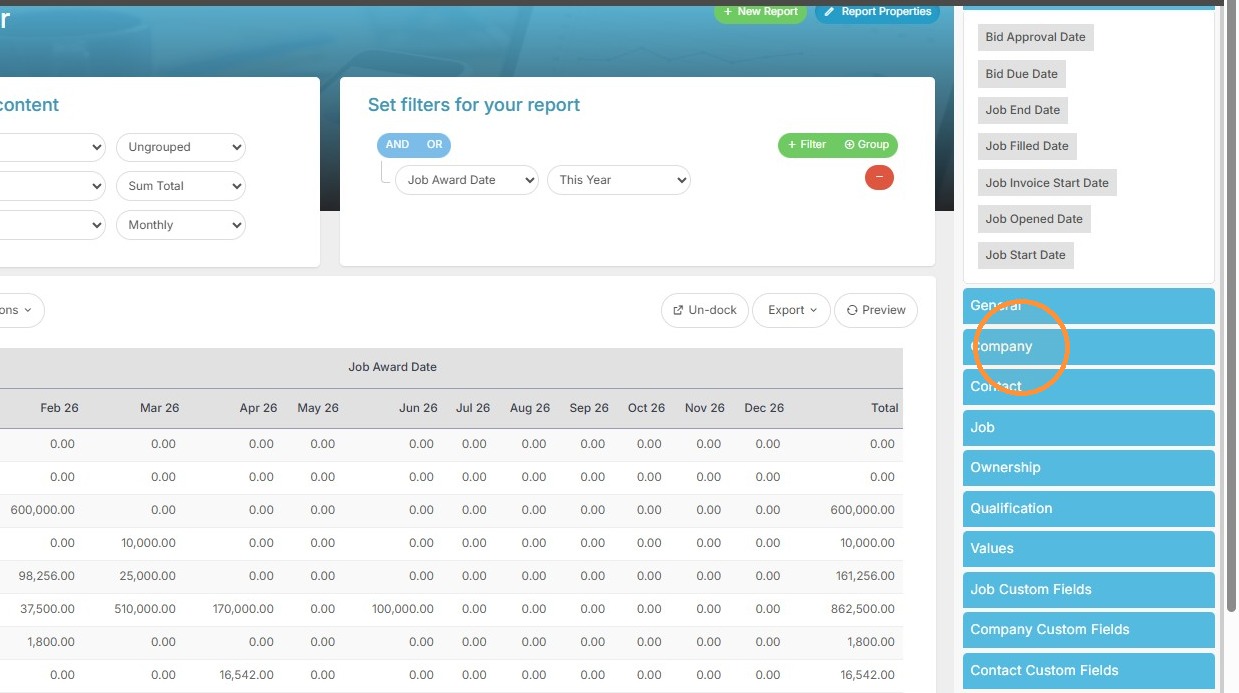
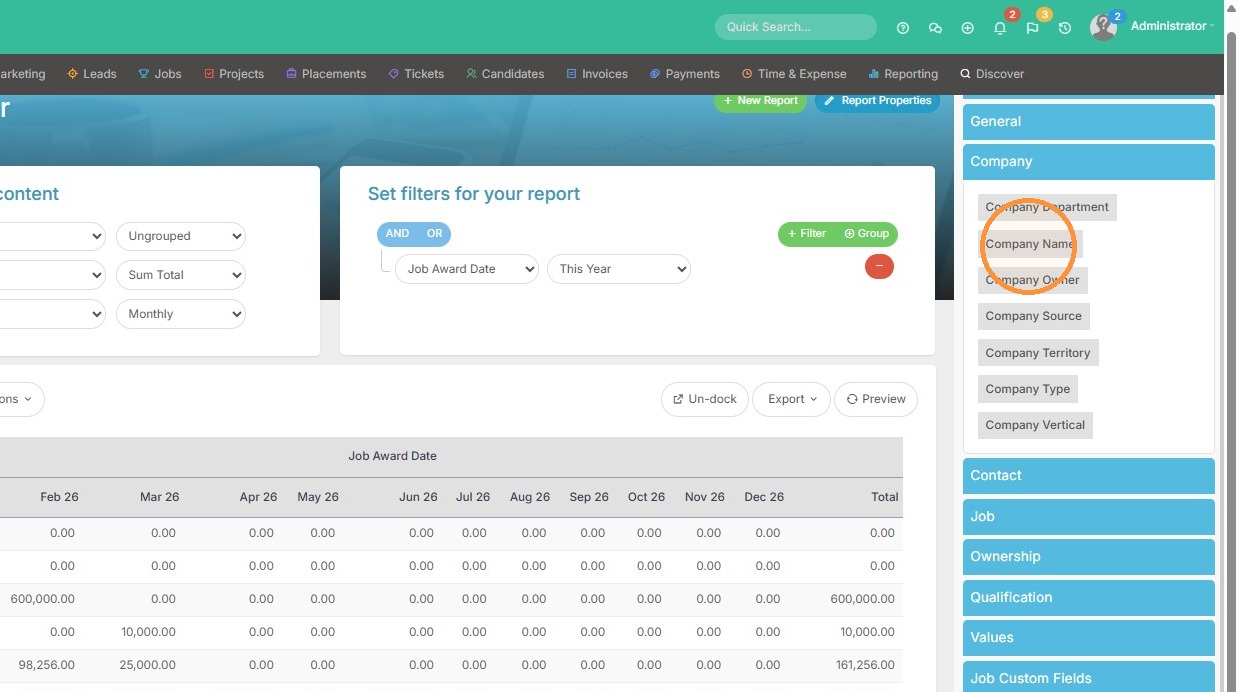
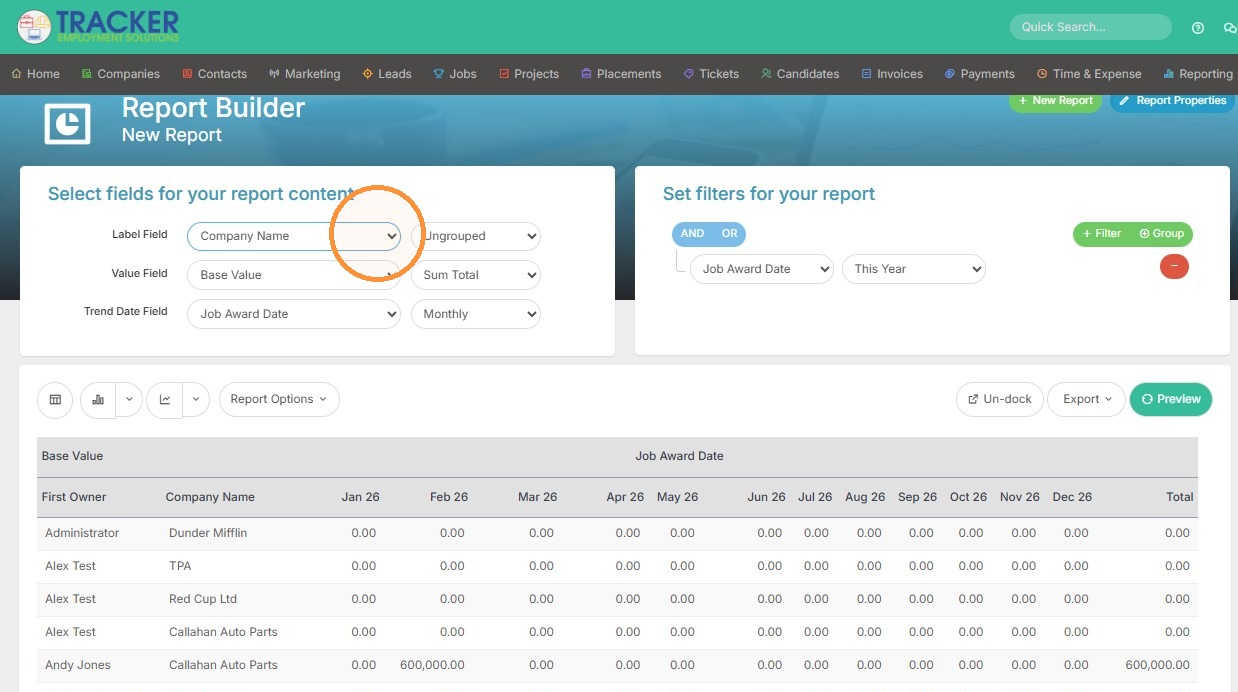
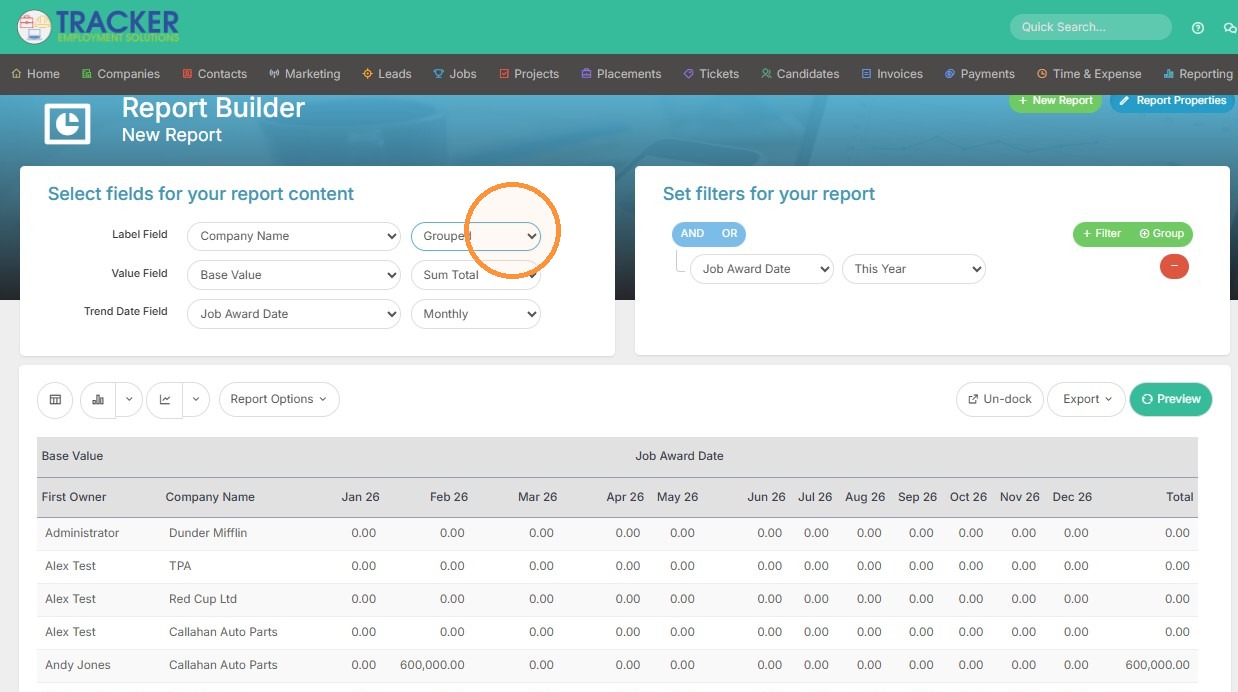
8. Select 'Grouped' for the Label Field
9. Click "Preview"
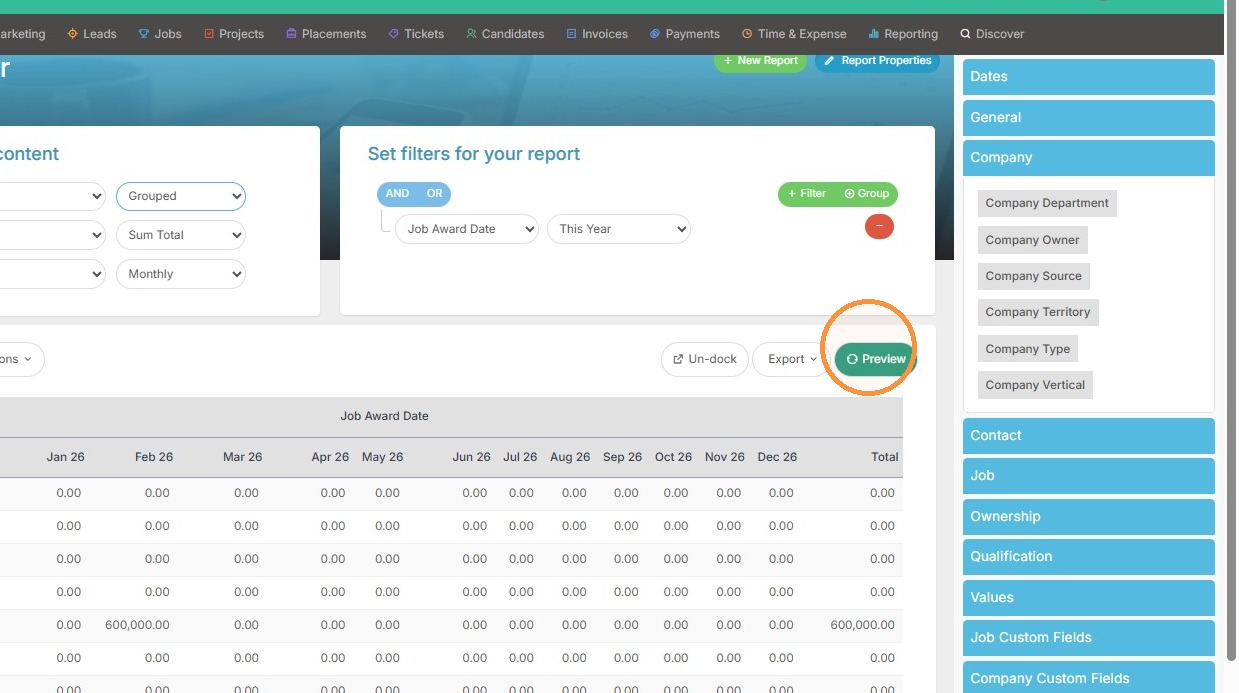
10. Now you can see the value is grouped by company, making it easy to see the total each company brought forth.