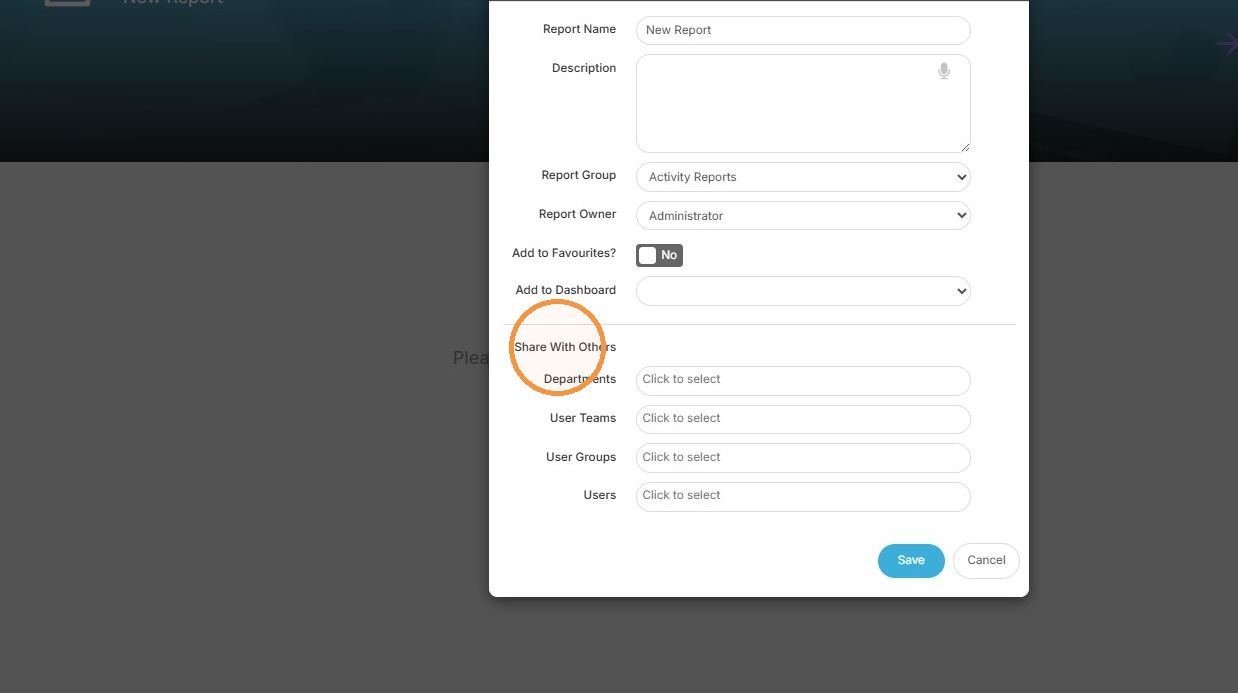
This lesson shows you how to Save a Custom Report.
Properties Menu
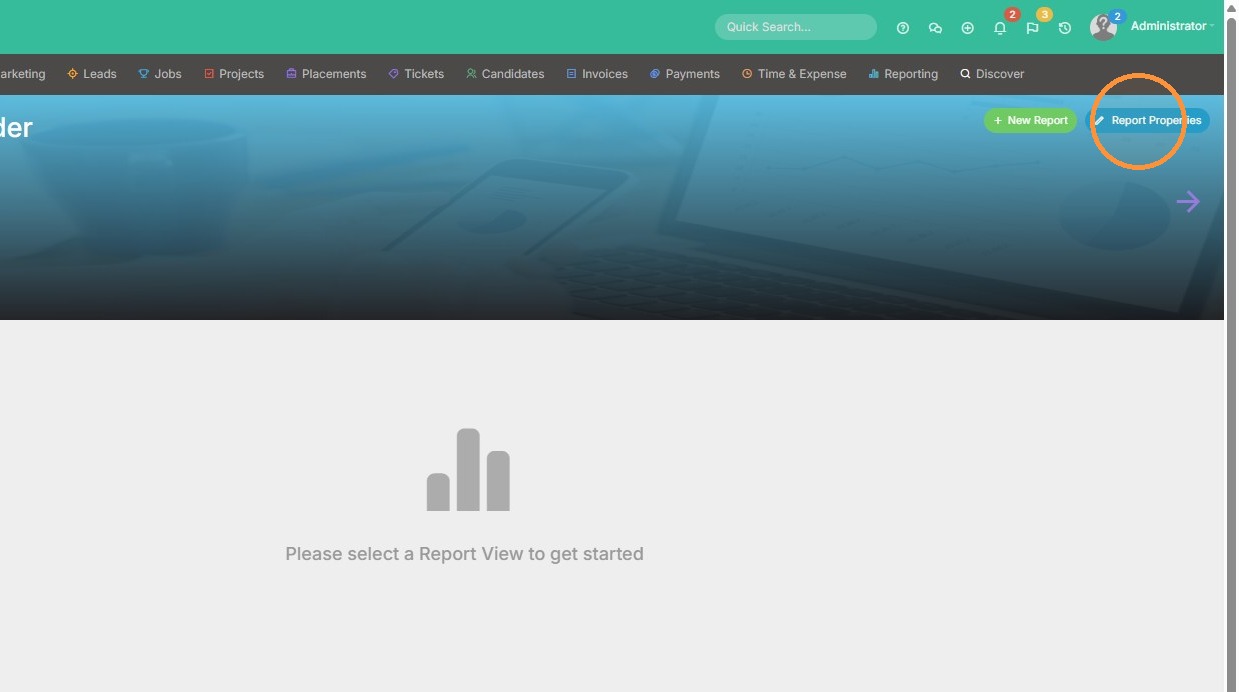
1. Click "Report Properties"
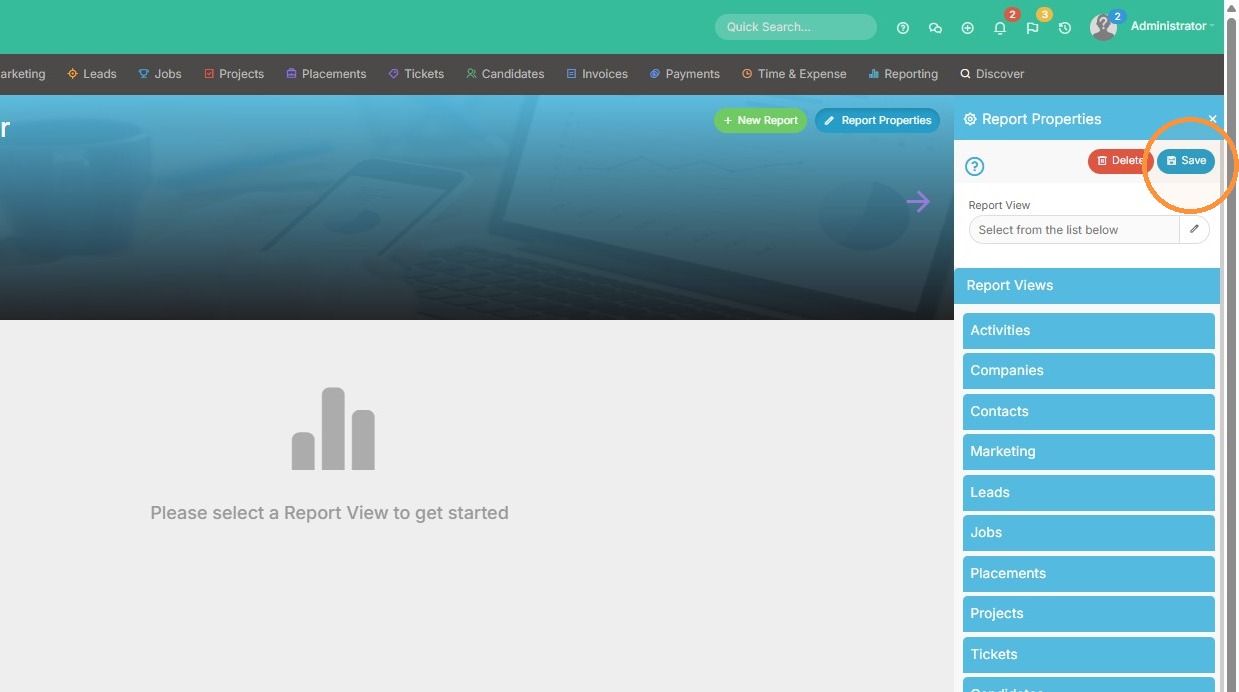
2. Click "Save"
Report Details
3. Input the name of the report you wish to save.
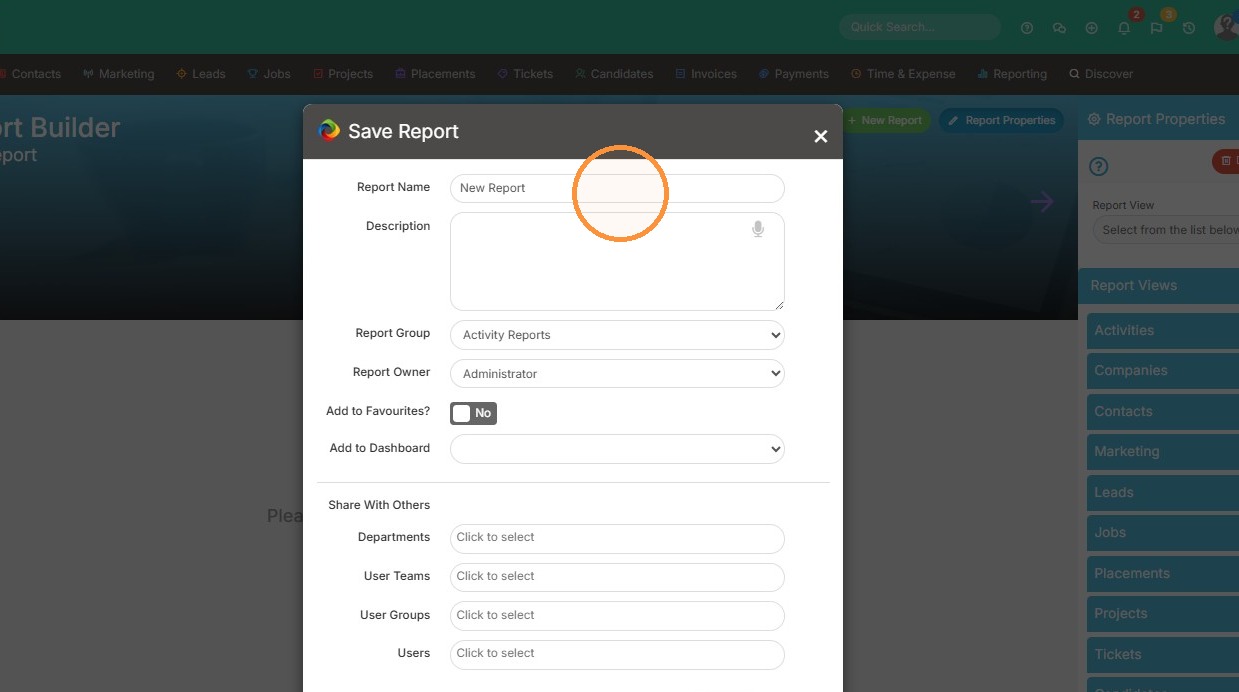
4. You can add a description if needed.
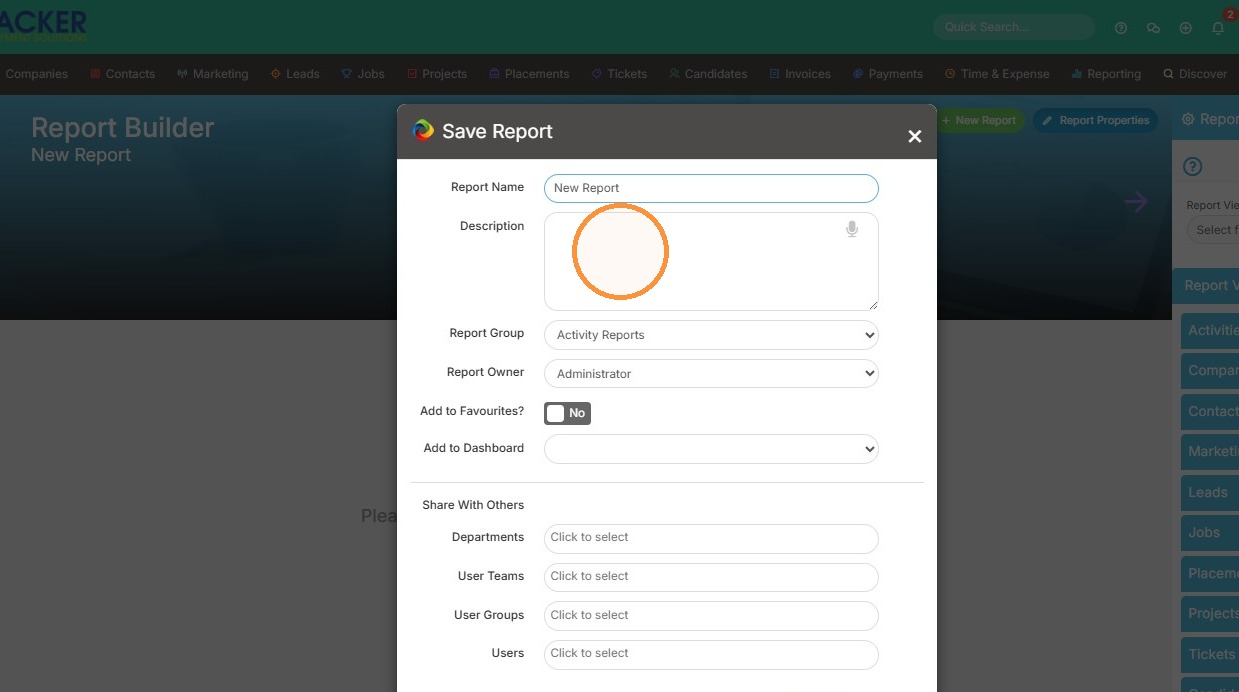
5. Click "Report Group" dropdown to pick which report folder to save this to.
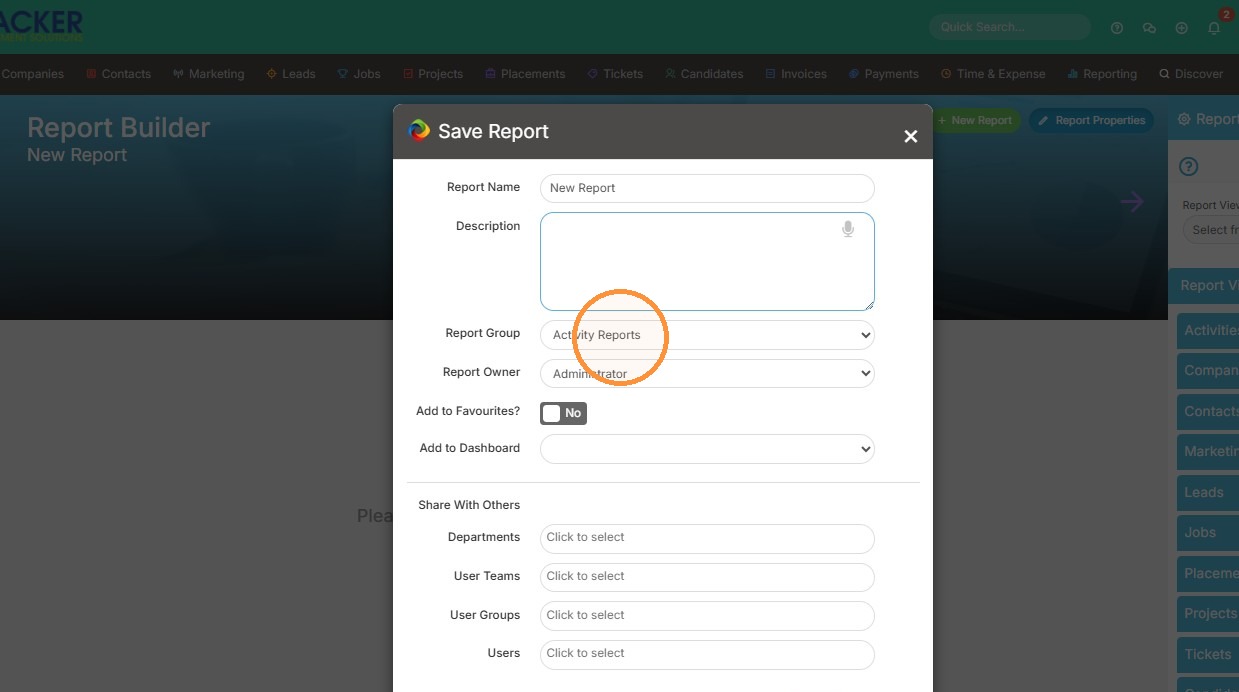
6. Click "Report Owner" dropdown to change the owner if needed. Keep in mind that the report owner is the person that can make changes/edits to this existing report.
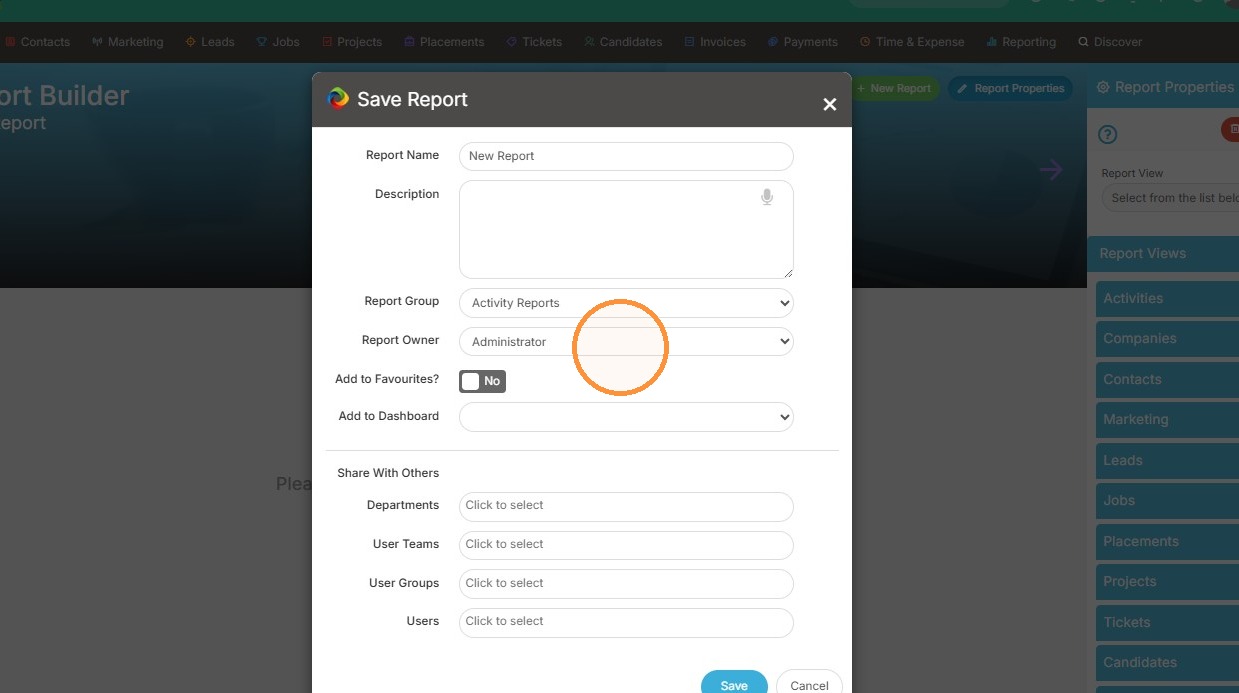
7. Click "Add to Favourites" if you want this part of your Favourites list.
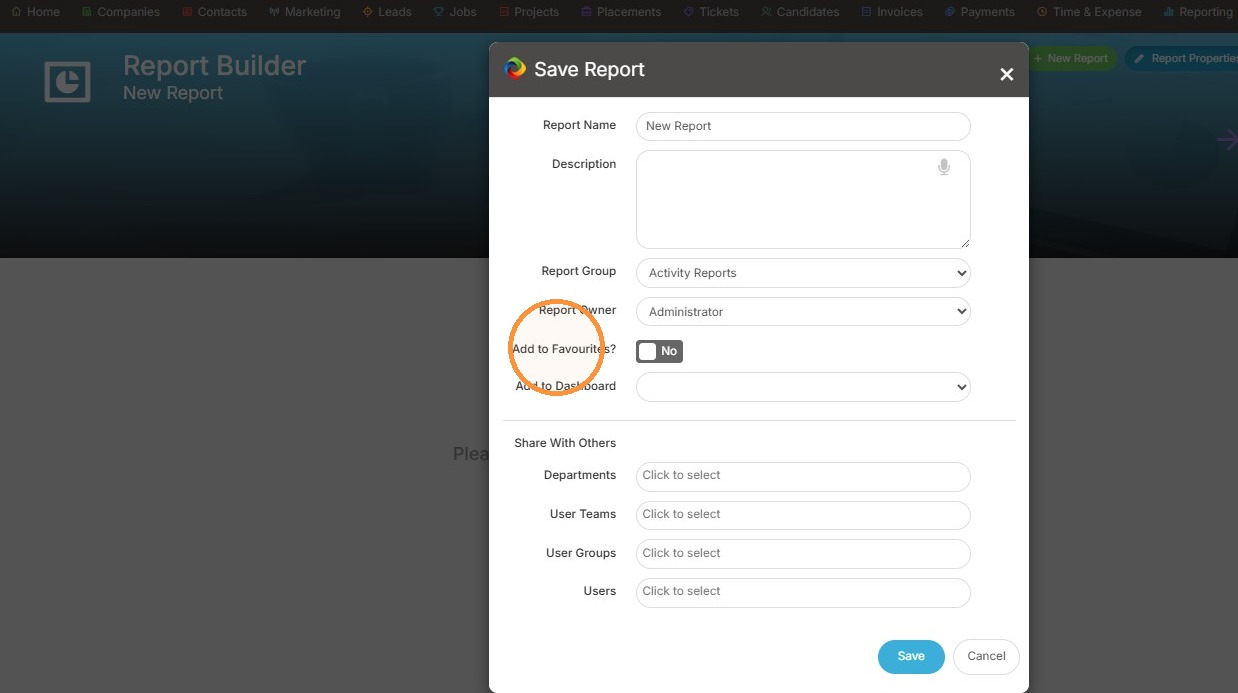
8. Click "Add to Dashboard" if you want this displayed on a dashboard.
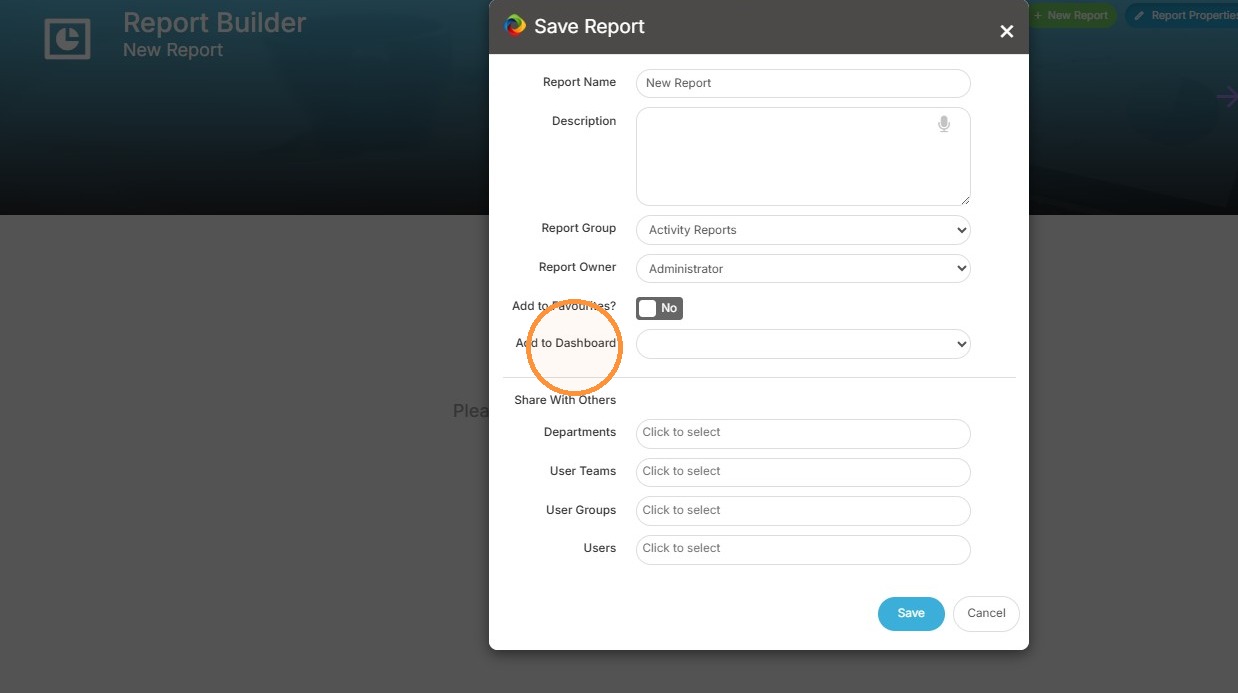
9. Click "Share With Others" to allow others to view this report. They will need to clone it if they want to make their own changes.