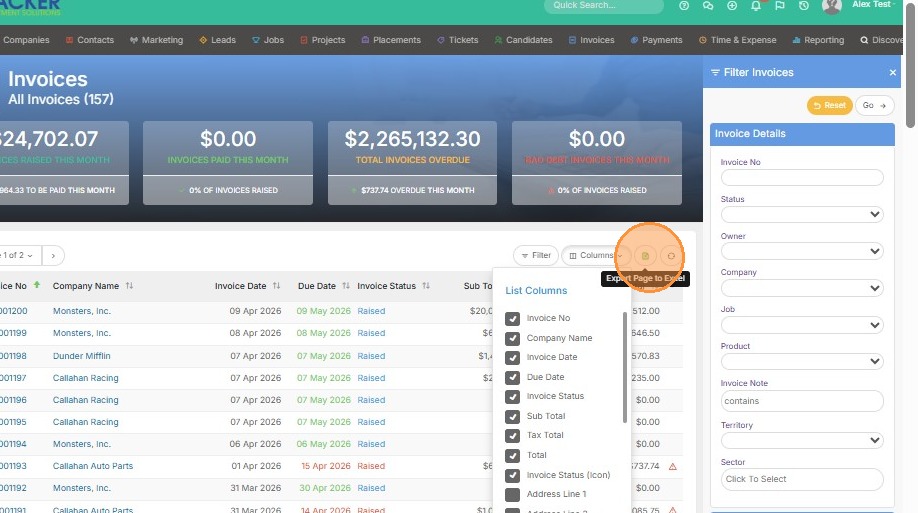
Keep in mind the currency you view on the Invoices screen will reflect what is set in your Default Currency setting for your territory. In this example, my territory is set to the United States. So my currency will reflect the US Dollar.
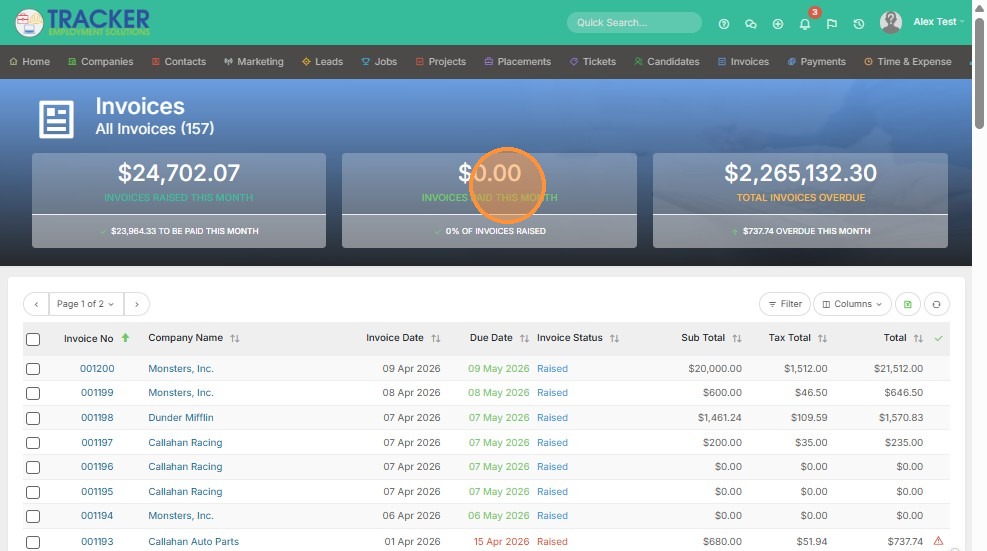
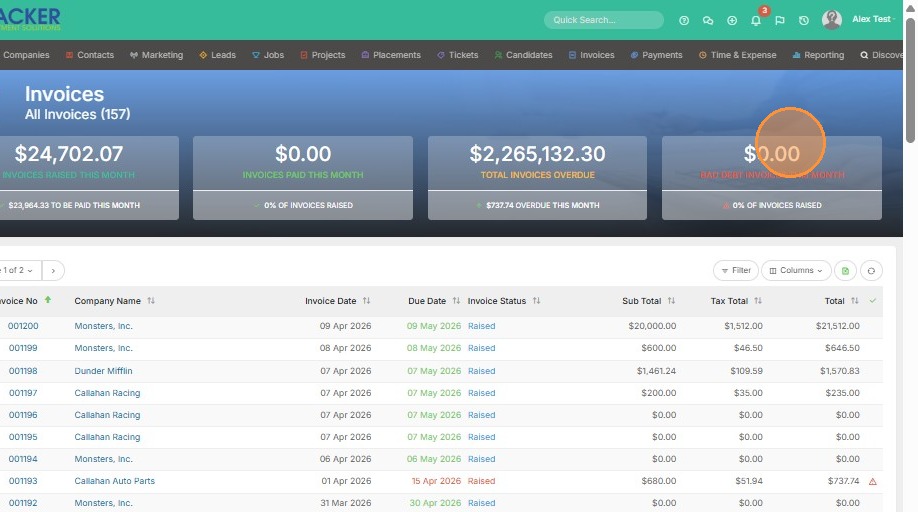
1. From invoice list, you have an Invoice Dashboard at the top. Left to Right, you have the total for invoices to be paid this month.
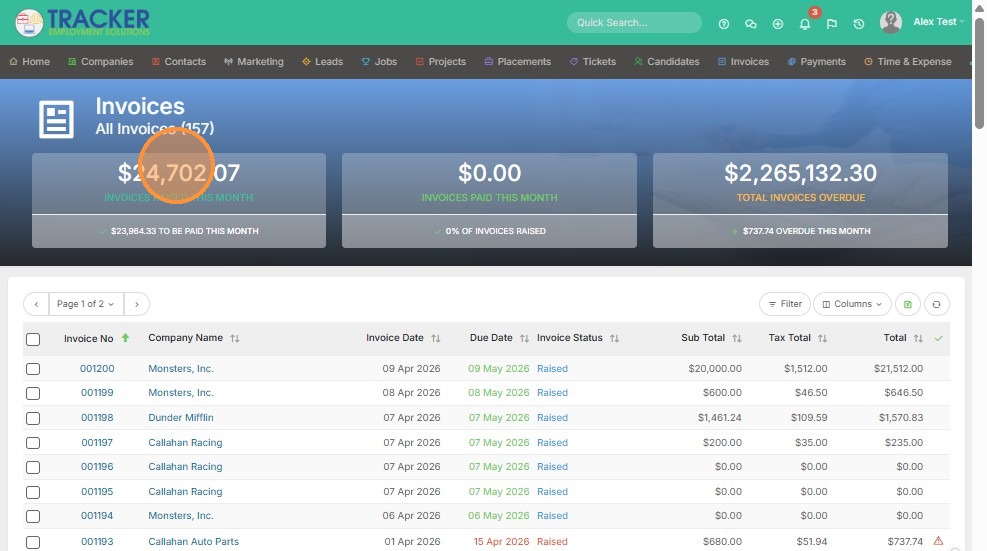
2. The total of invoices raised this month.
3. The total for invoices that are overdue this month.
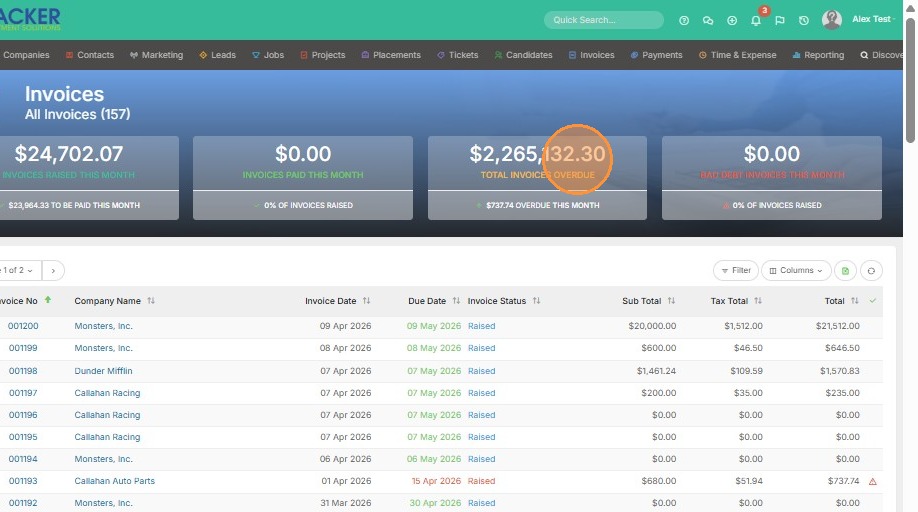
4. And the dollar amount for bad debt invoices this month.
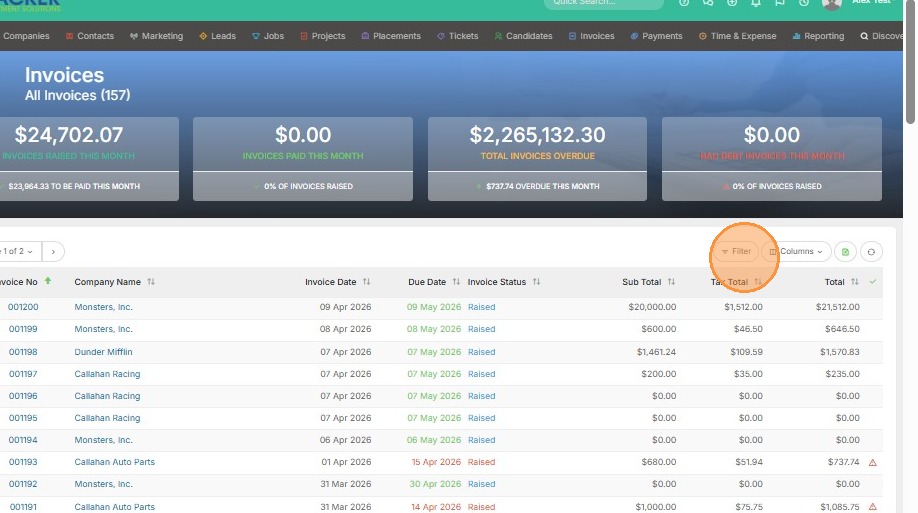
5. Click "Filter" to change the time period you're viewing, and other information.
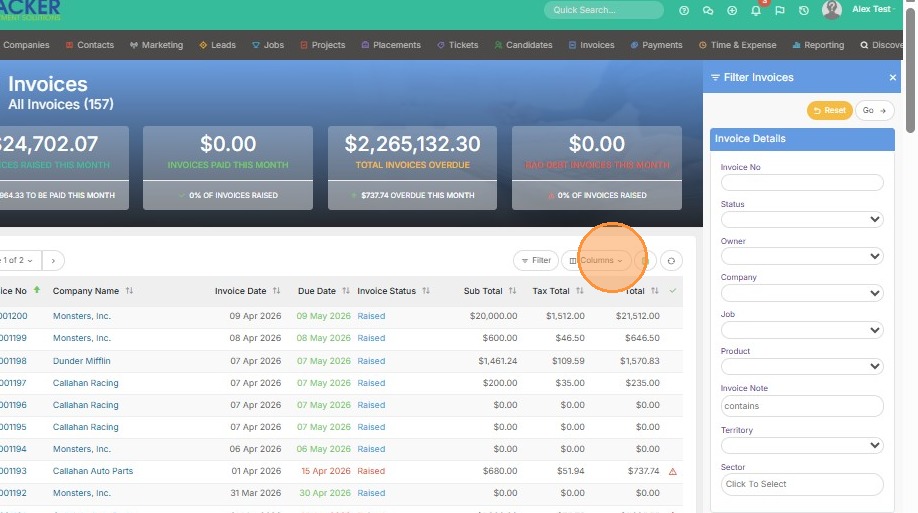
6. Click "Columns" to add or remove information on this list screen below.
7. Click here to export the information on this page to Excel.