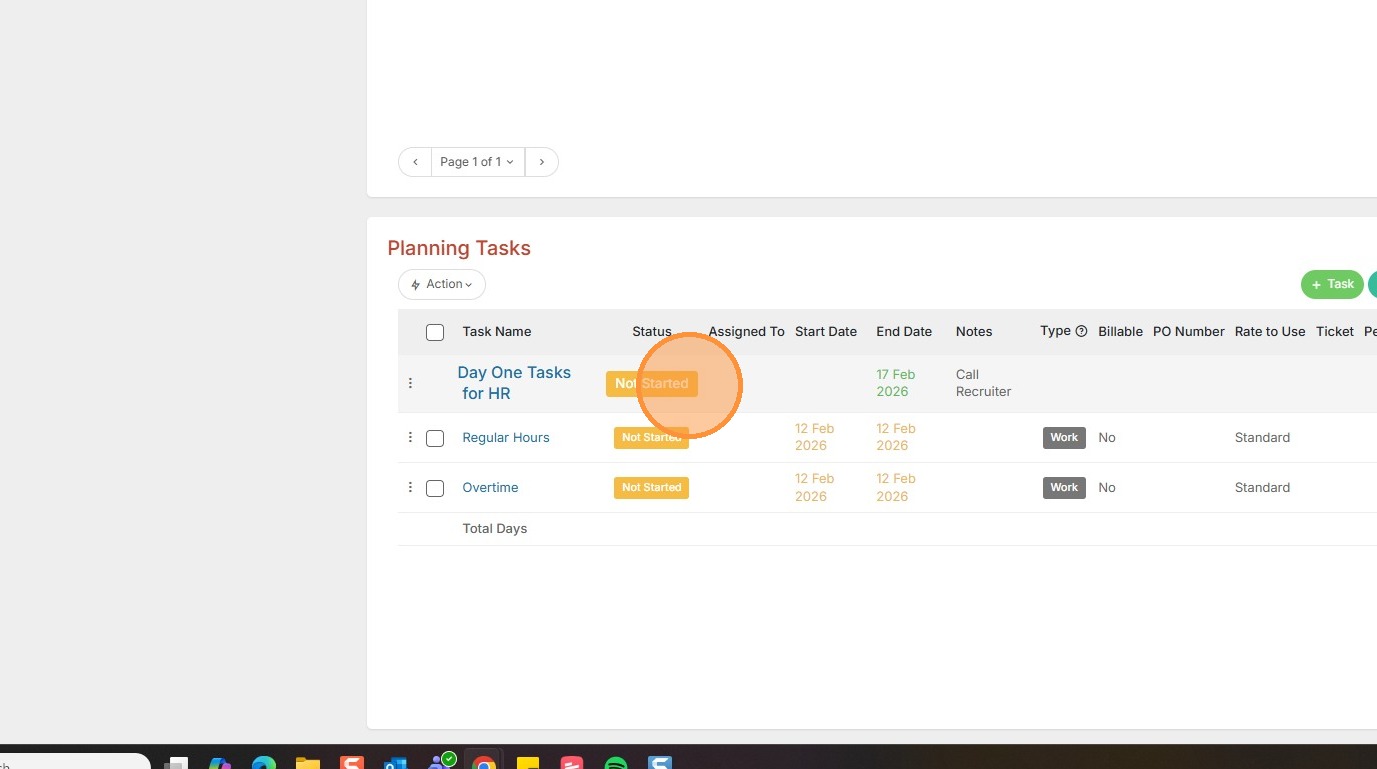
This lesson explains how to add a new Planning Phase to a Default task Set.
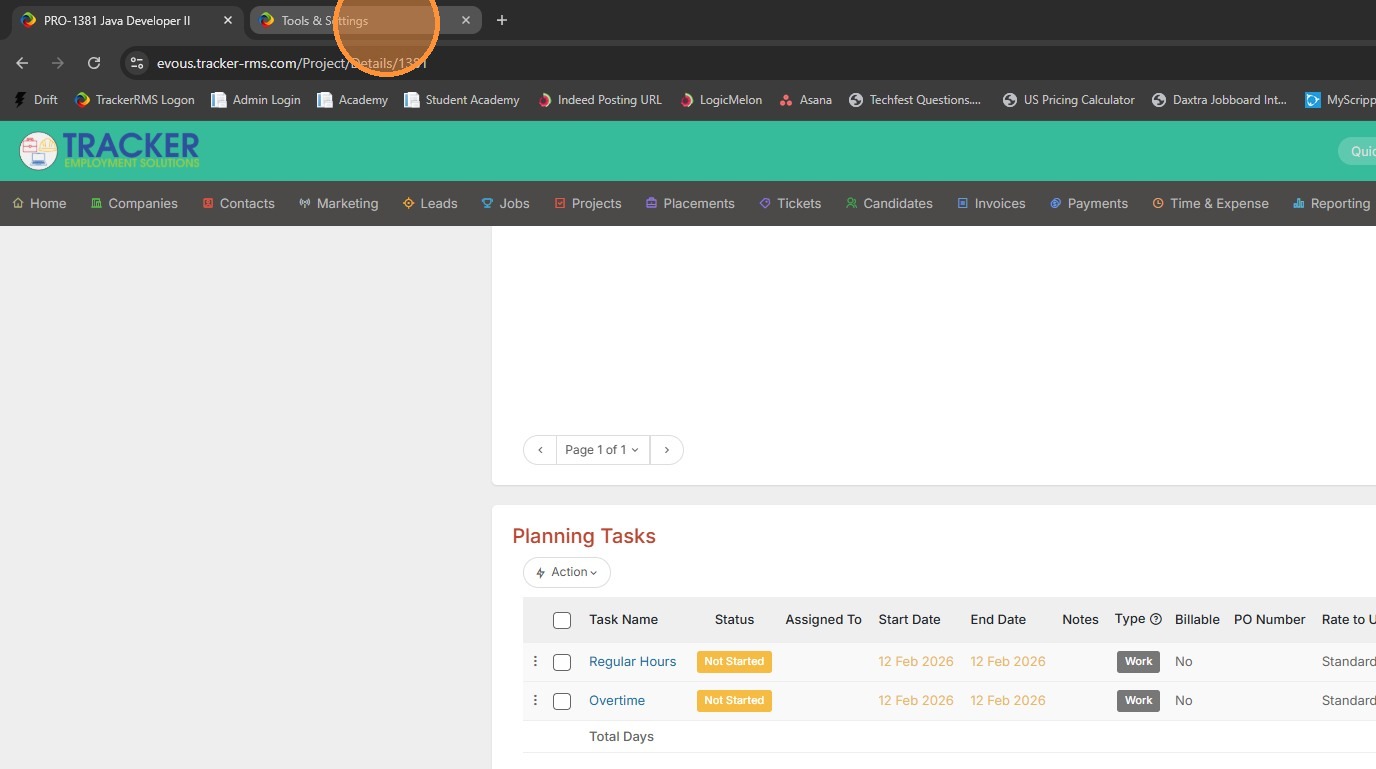
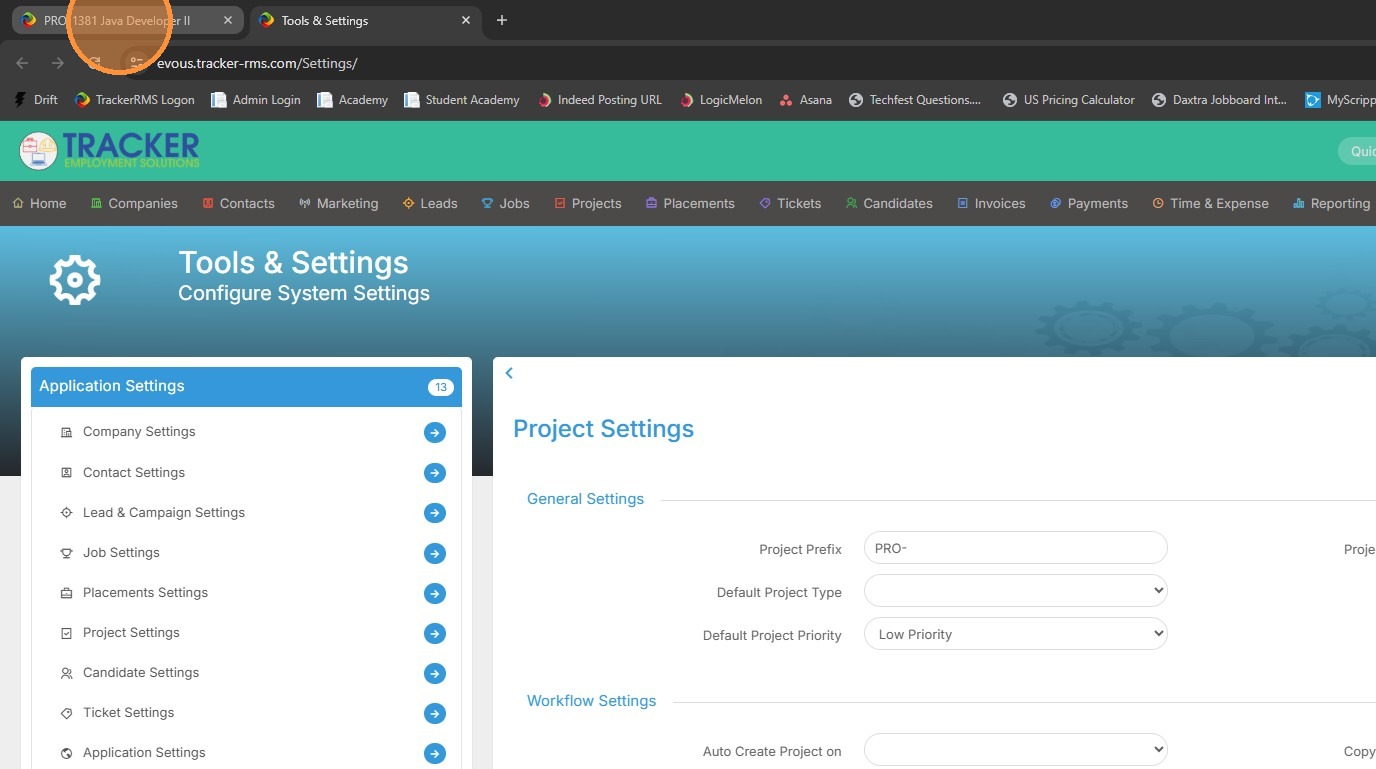
1. To add a Planning Phase to a default task set, go to Tools & Settings by clicking on your name in the top right corner of the screen.
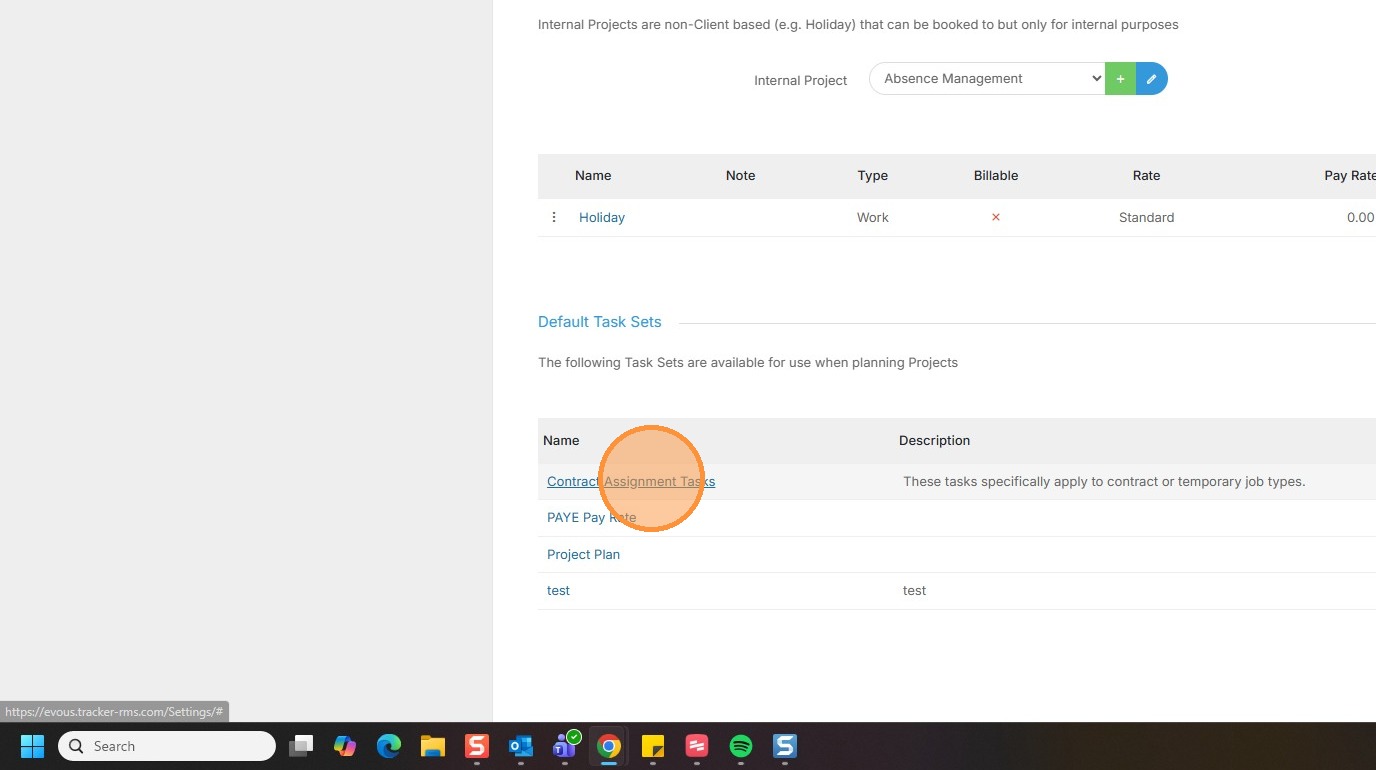
2. Under Tools & Settings, scroll down to default task sets.
3. Add Phase.
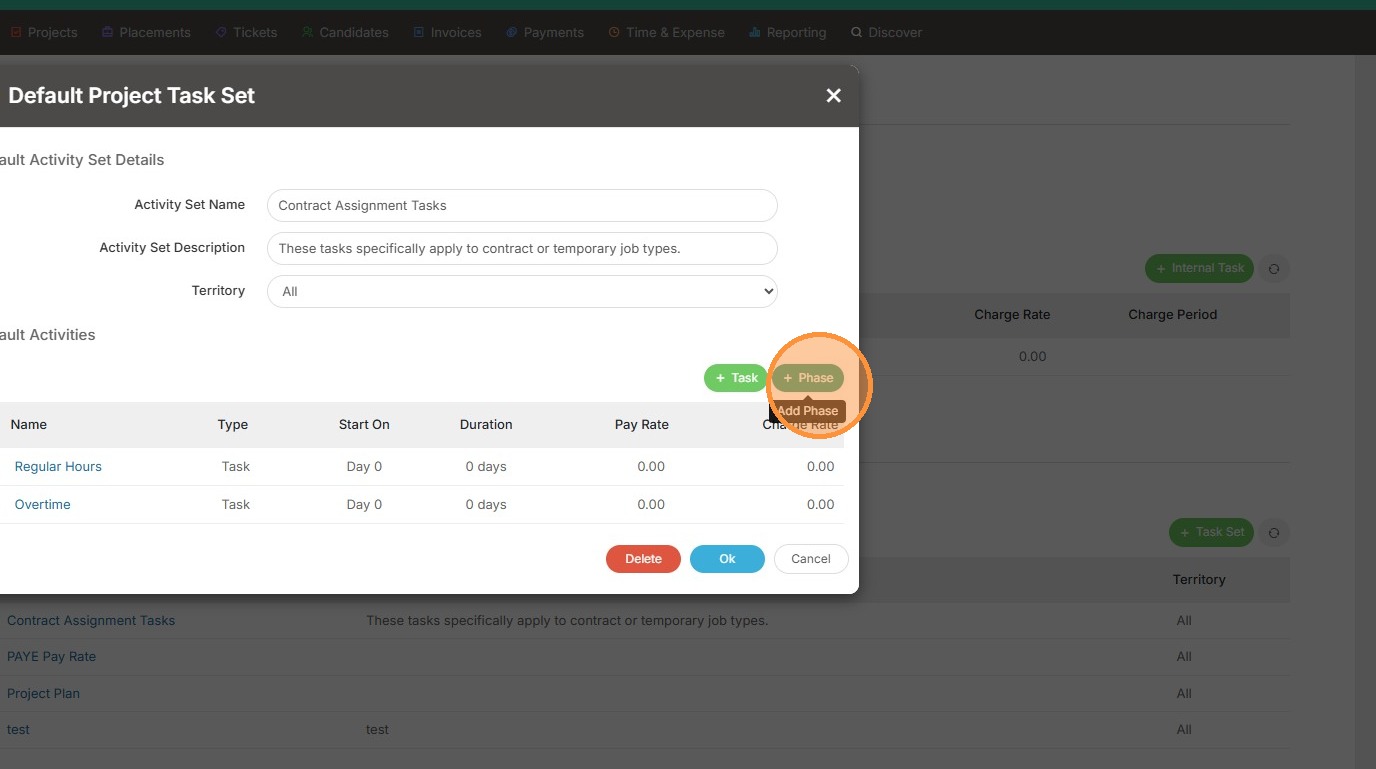
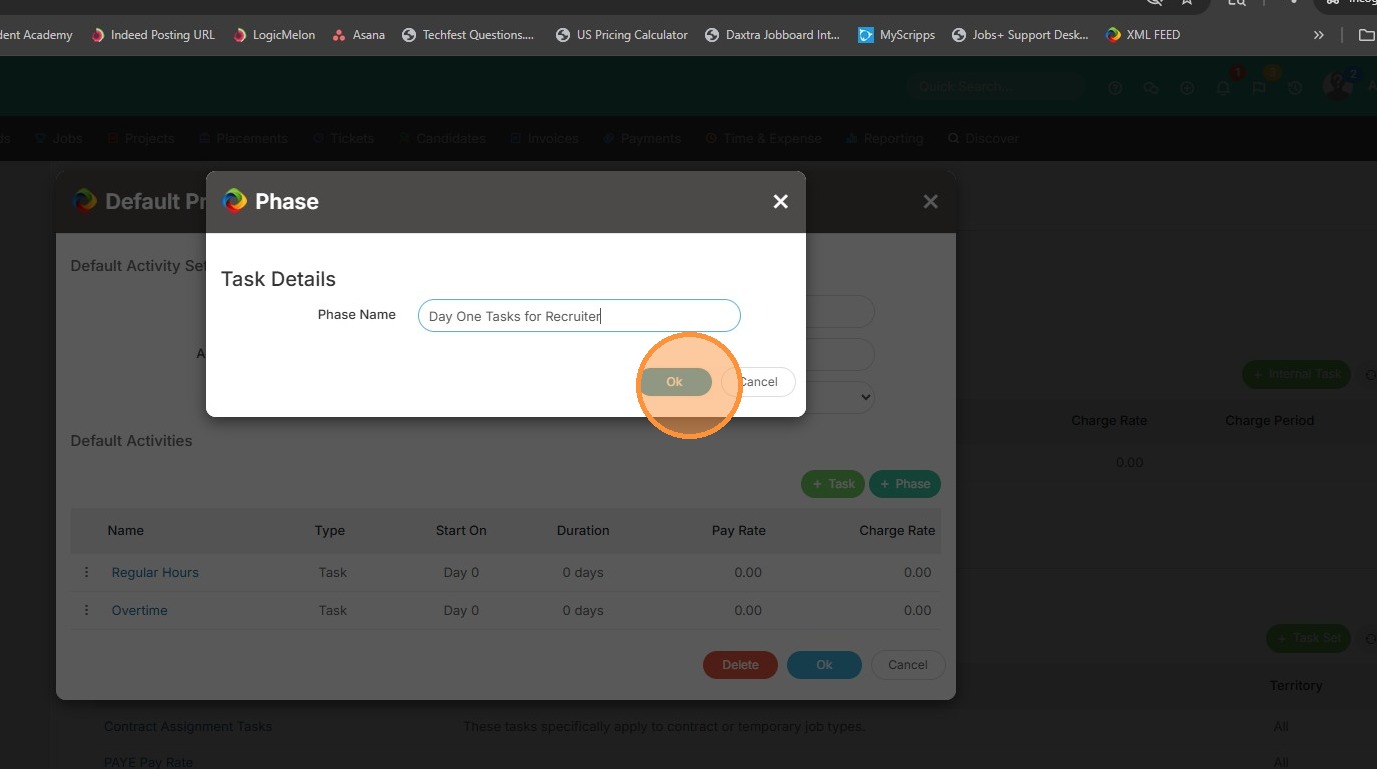
4. Name the Phase, and click Ok.
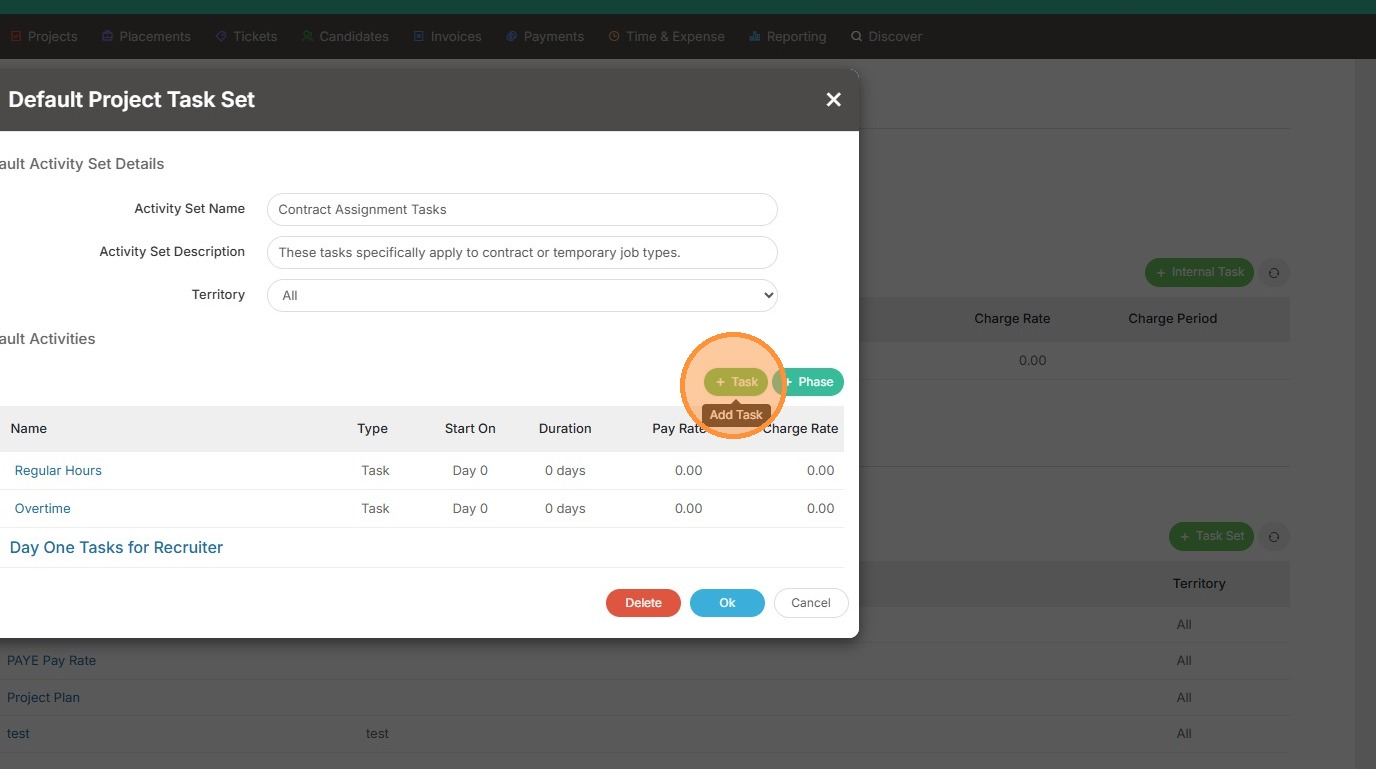
5. You can add additional tasks if needed.
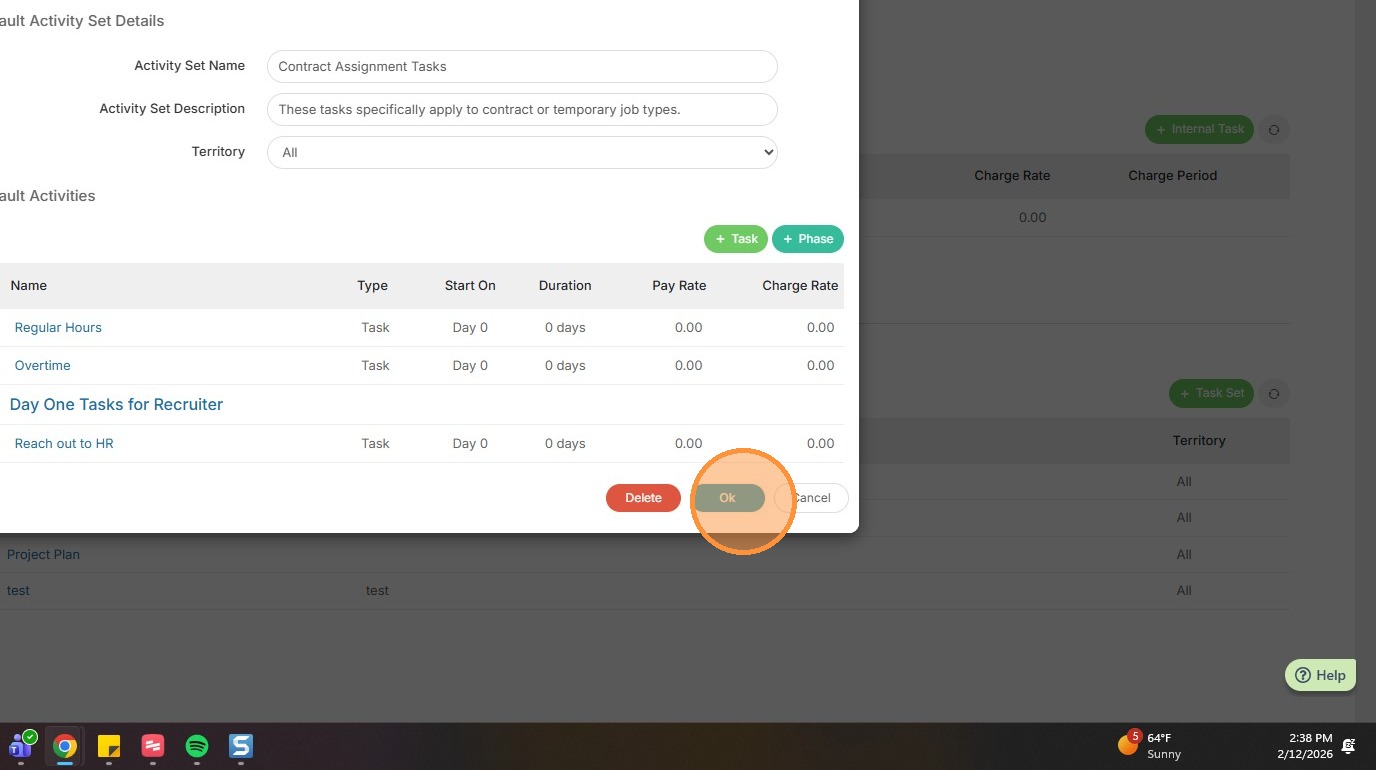
6. Then click Ok.
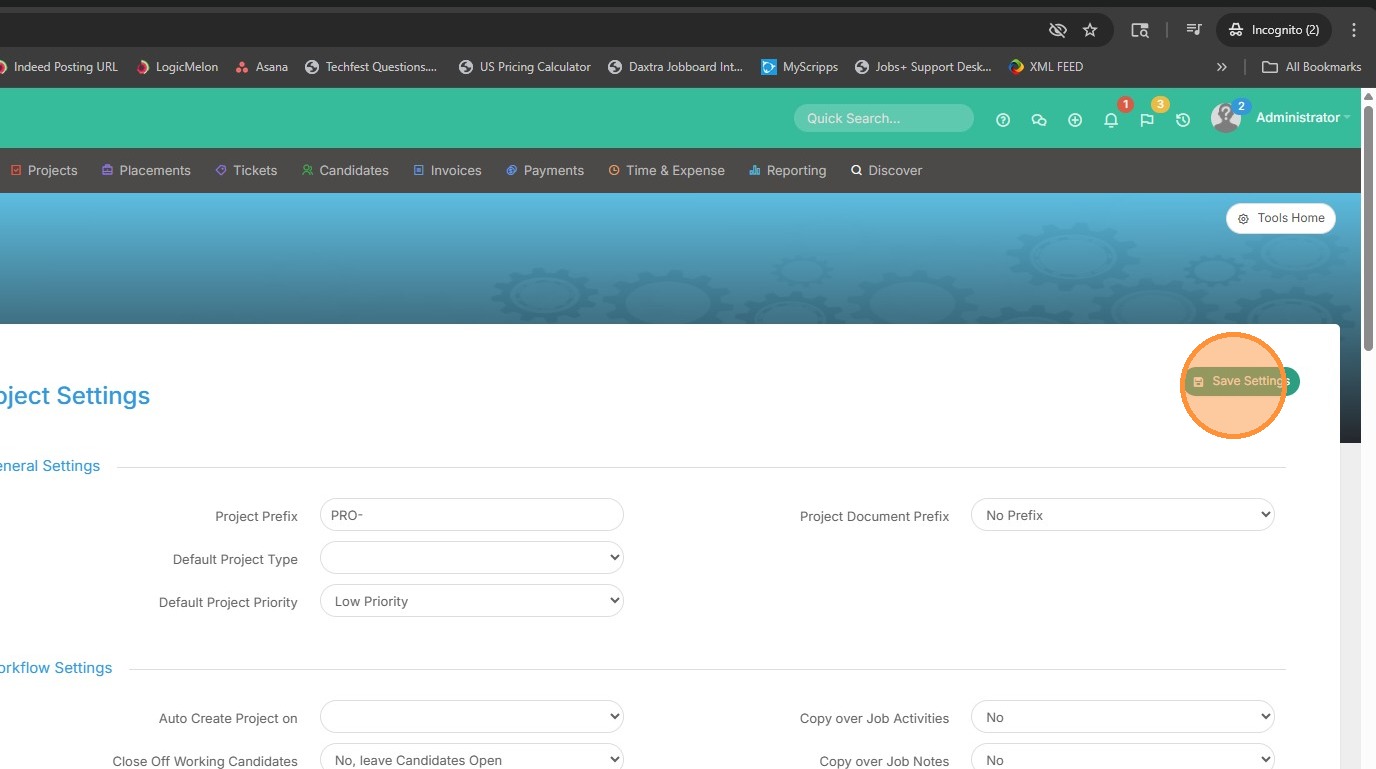
7. Scroll back up to save settings.
8. Then go into the project to apply this.
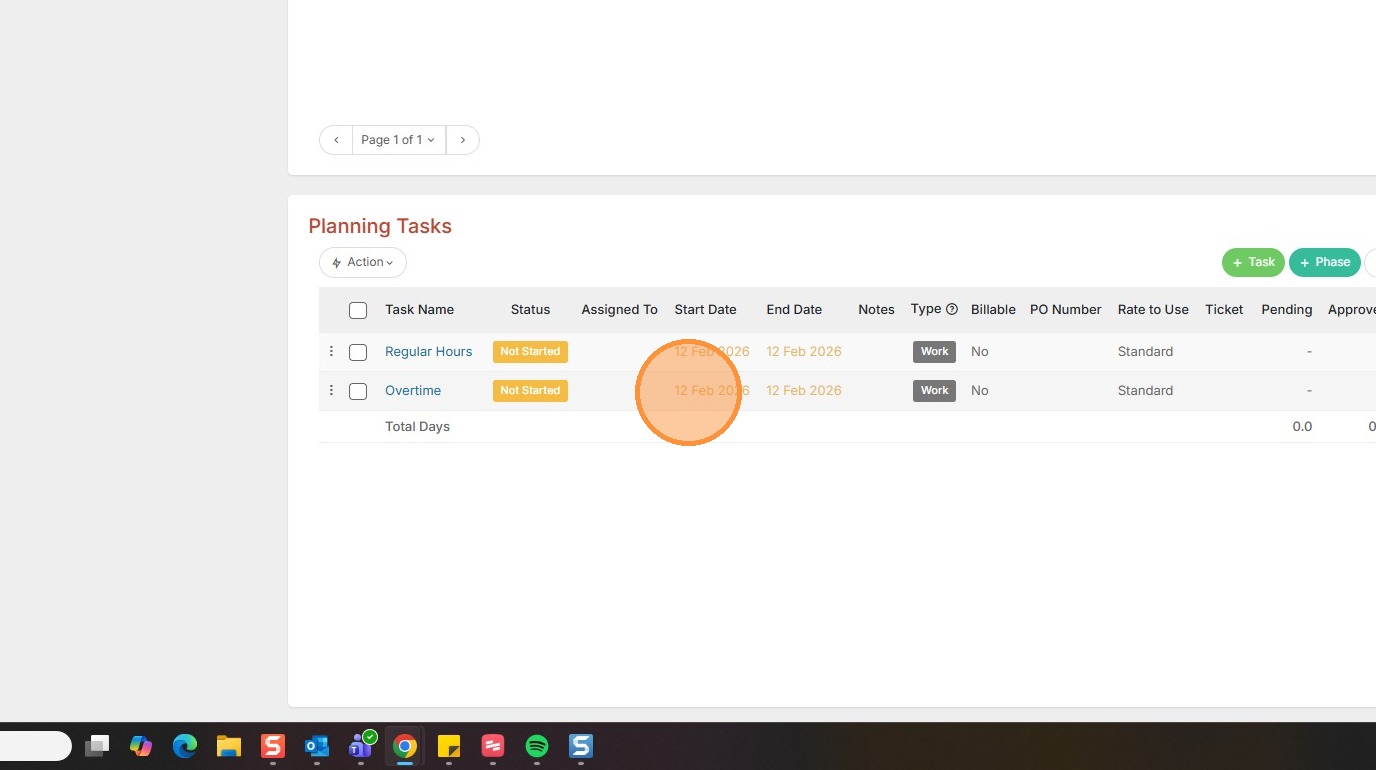
9. From here you can see I already have some planning tasks, but I can still insert a phase ad hoc if needed.
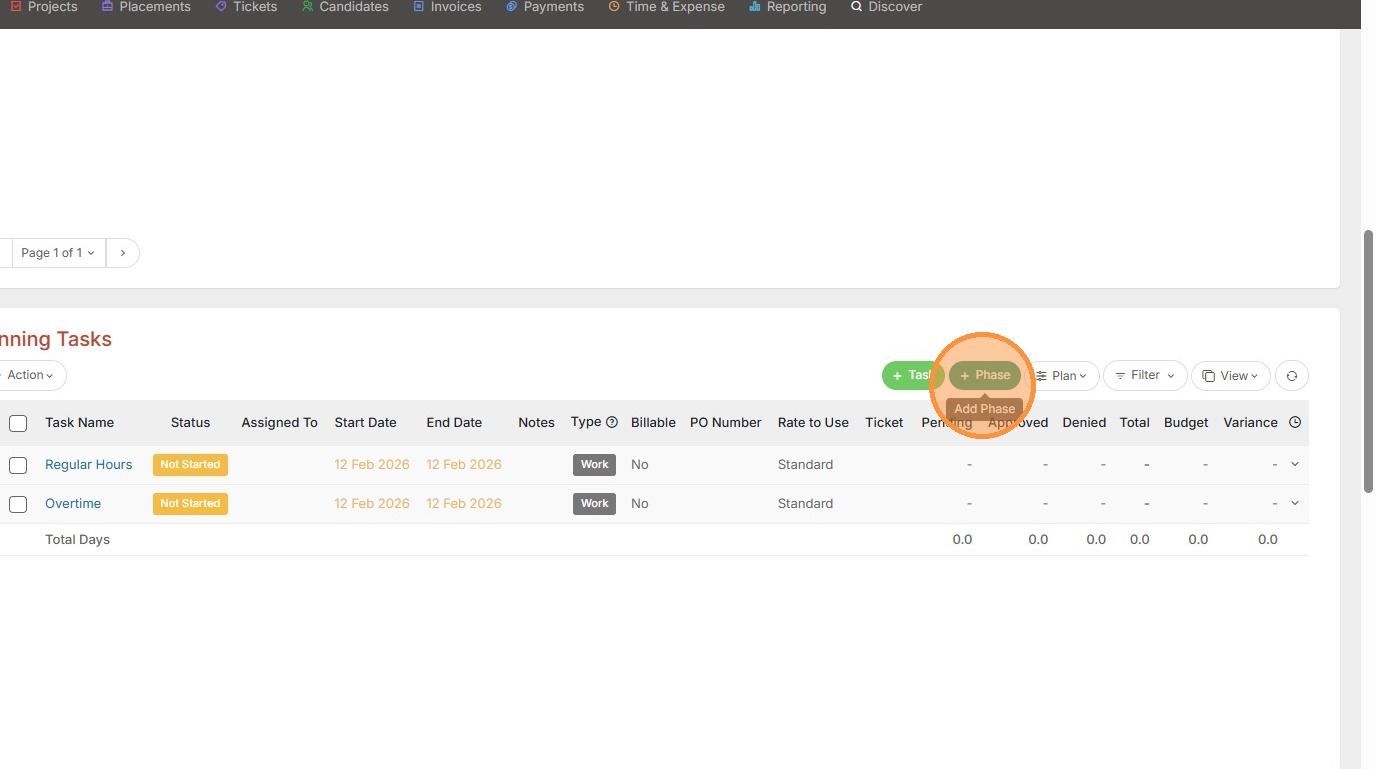
10. Click Phase.
11. Then add the Phase name and notes.
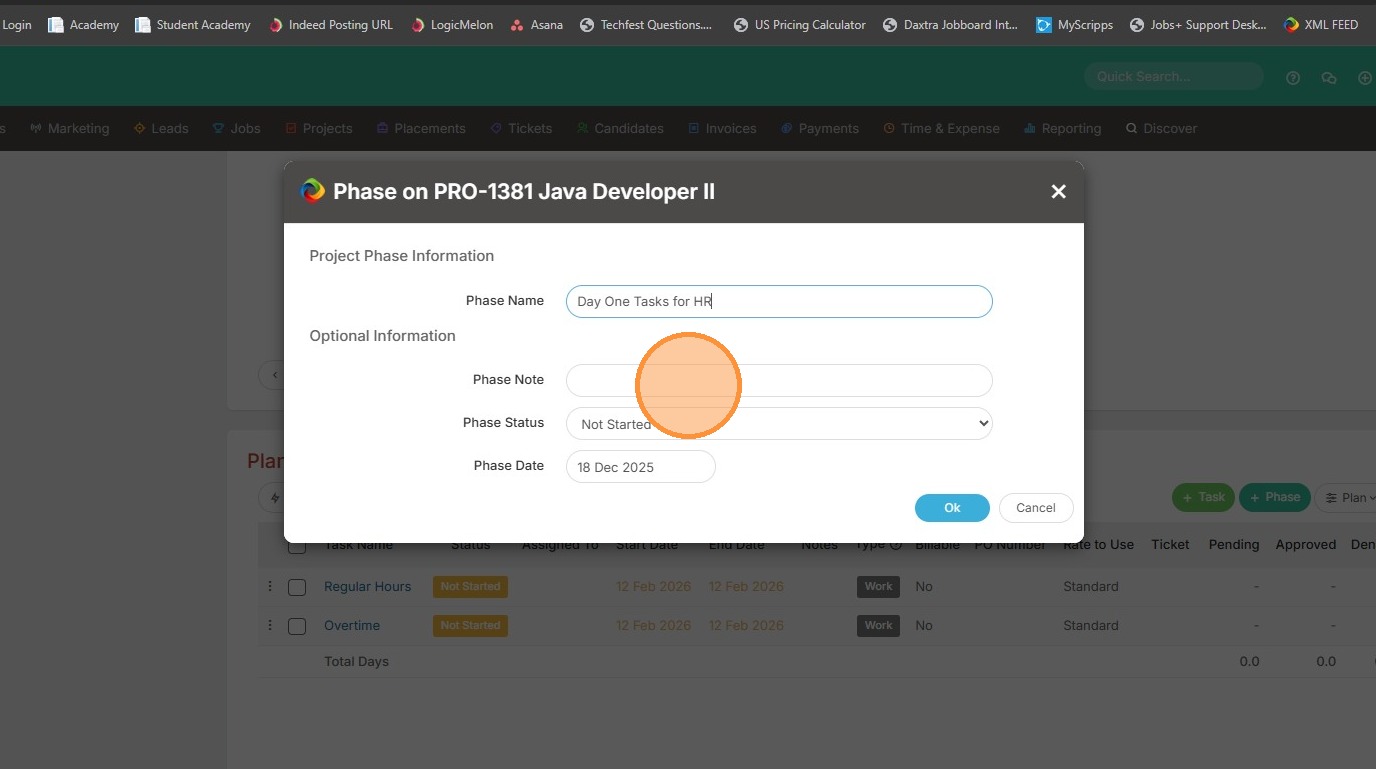
12. Put in a start date.
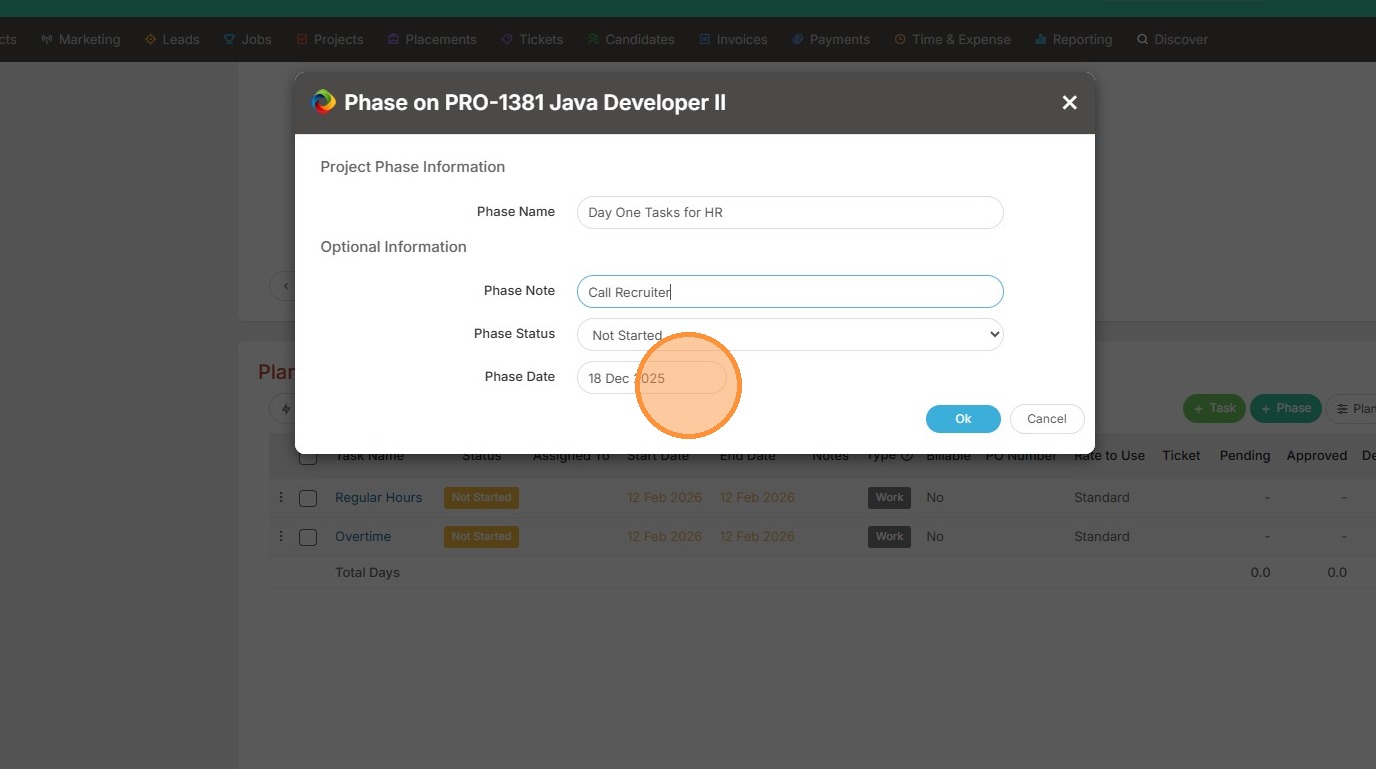
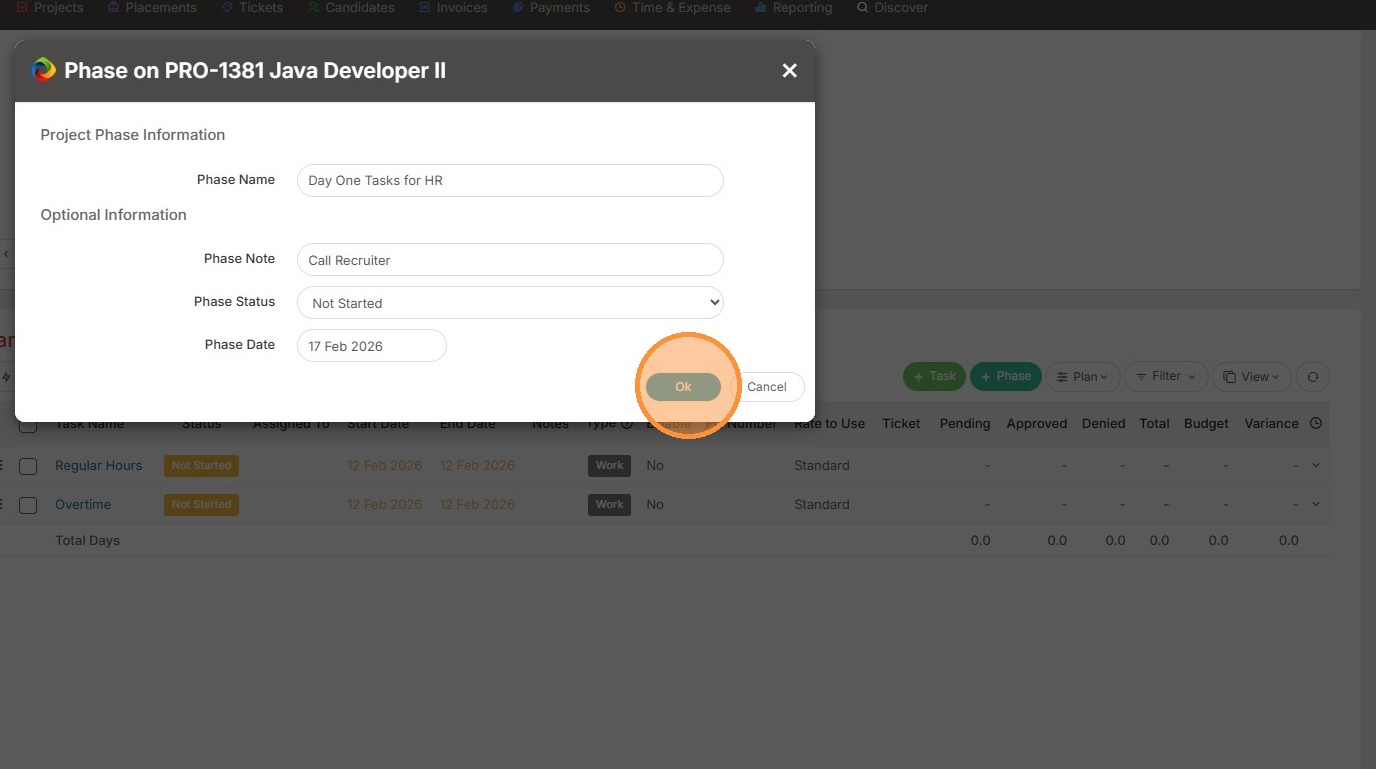
13. Click Ok.
14. Then you can drag this item by clicking the 3 dots on the lefthand side up or down if you want to rearrange it.
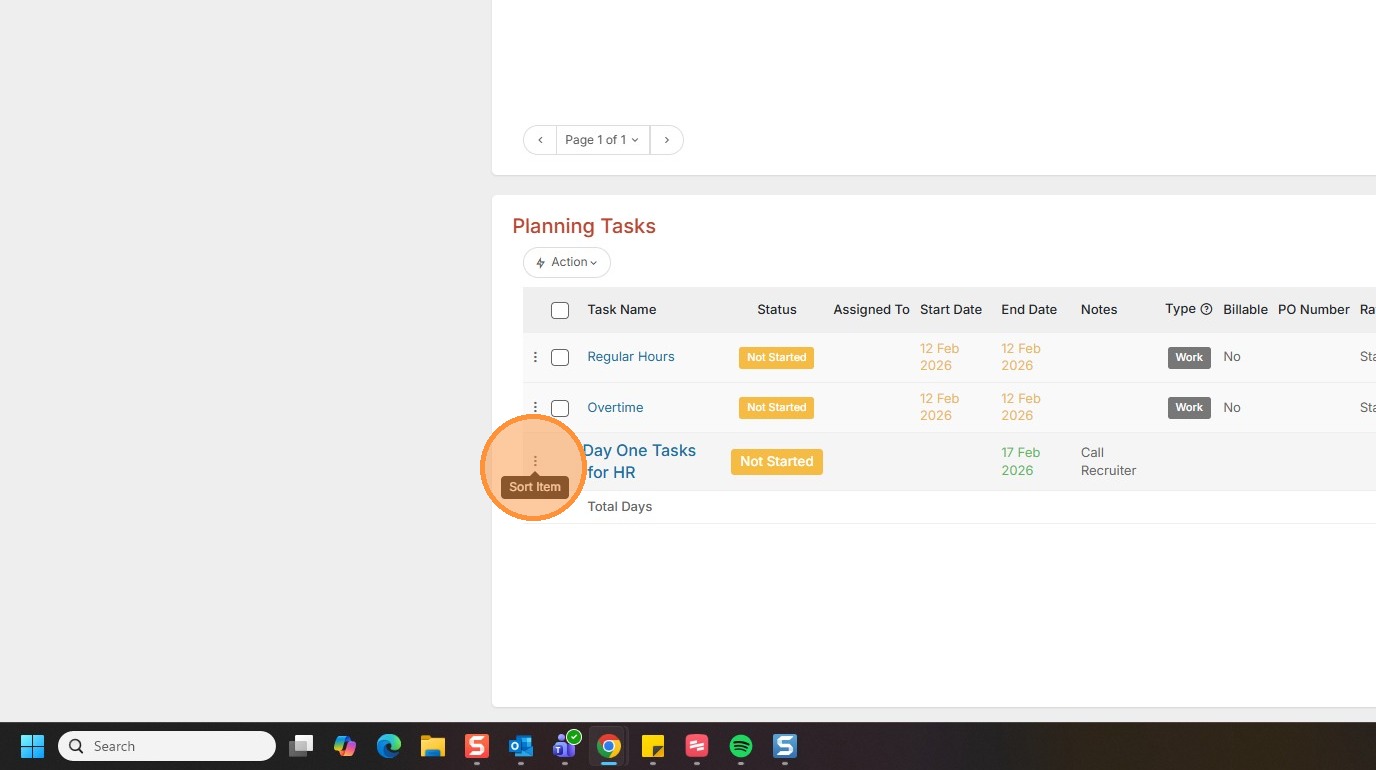
15. The Phase can be particularly helpful if you have various onboarding tasks for your back office team or recruiting team and you want them to be able to visualize completing them in this section.