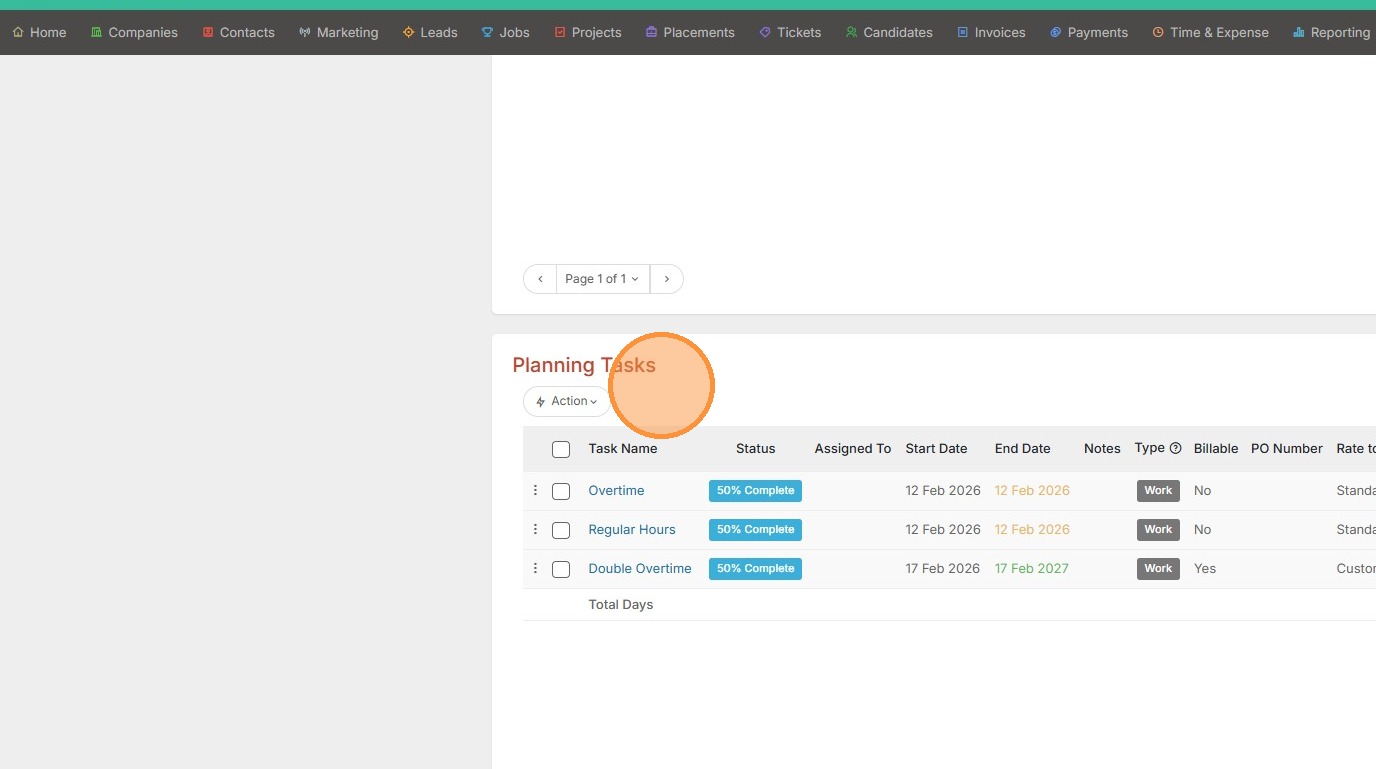
This lesson assists with Understanding Task and Phase statuses.
1. Scroll down to the Planning tasks section from within a project or assignment.
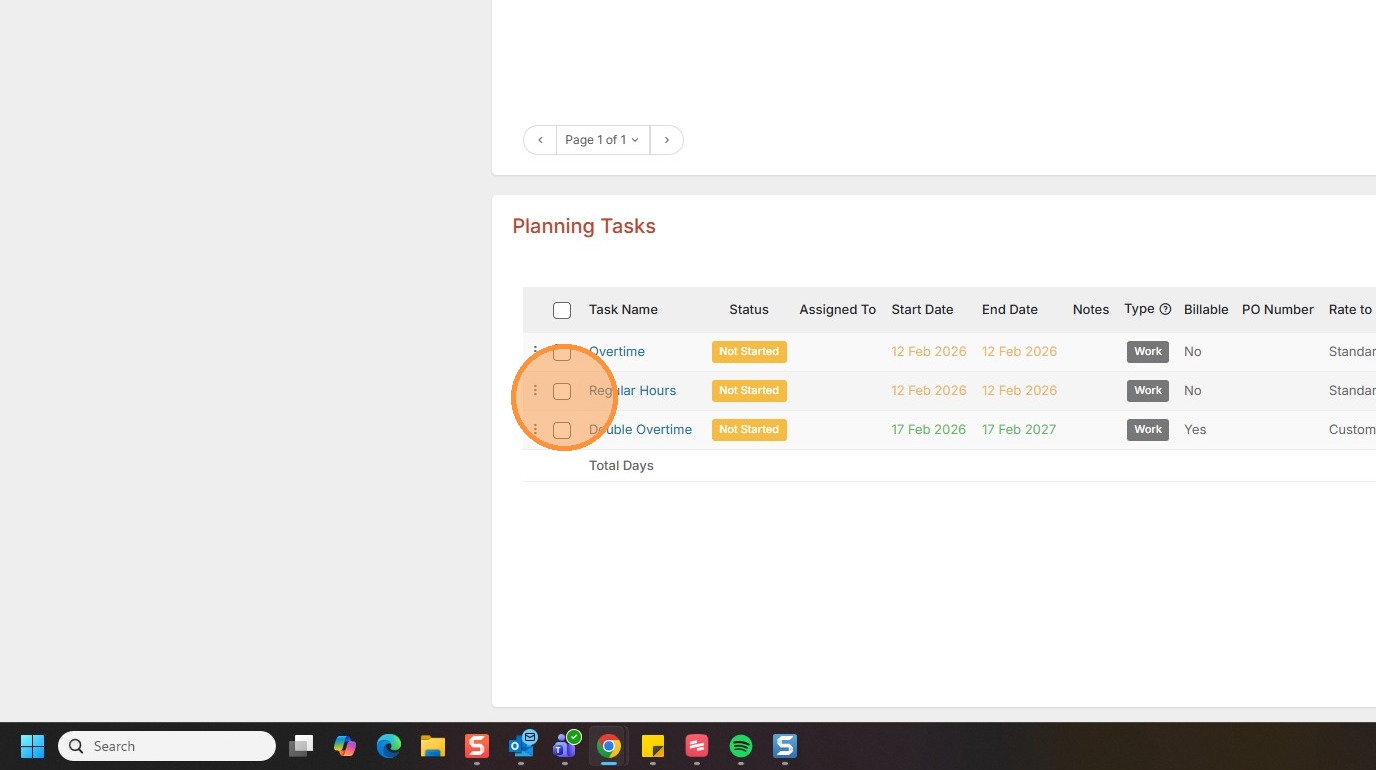
2. You will see every task or phase has a status. To update an individual status, click the checkbox to the left of that task. Select Action.
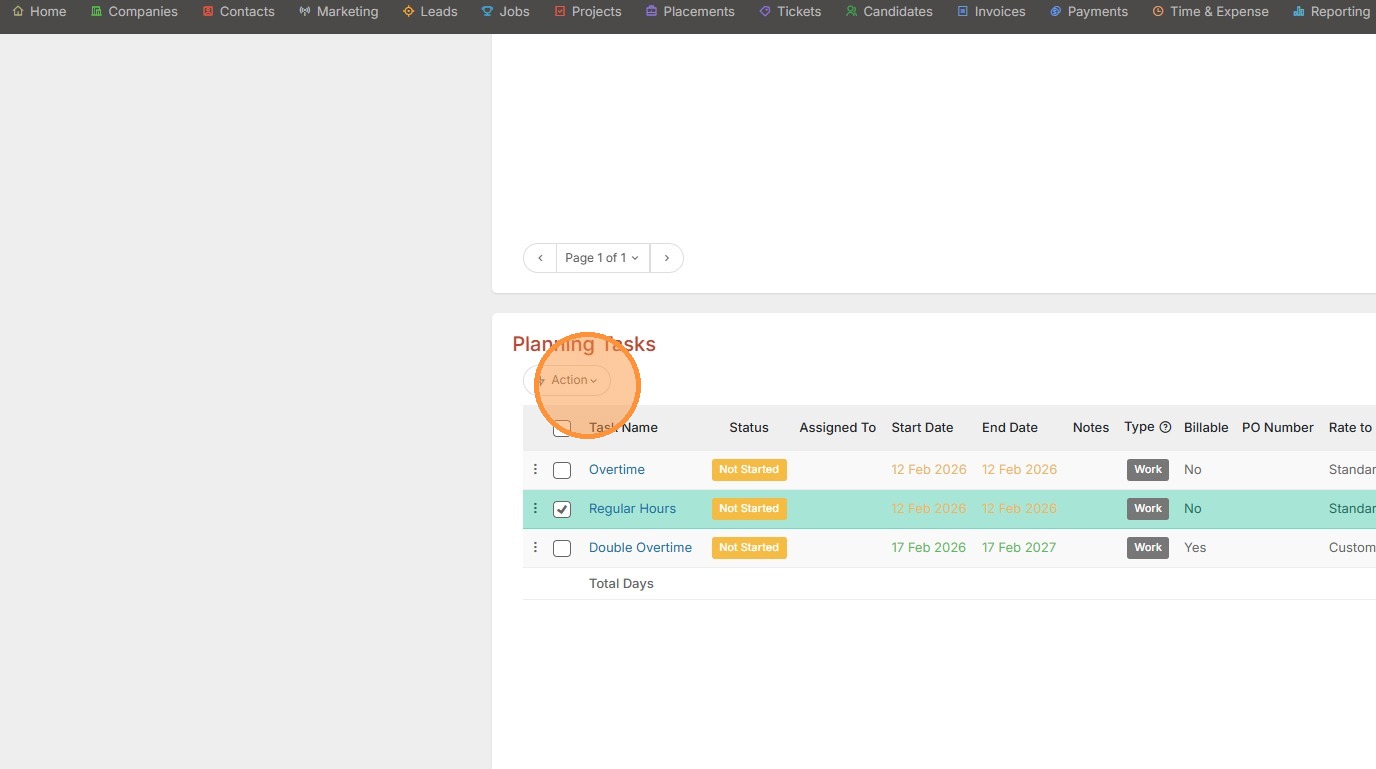
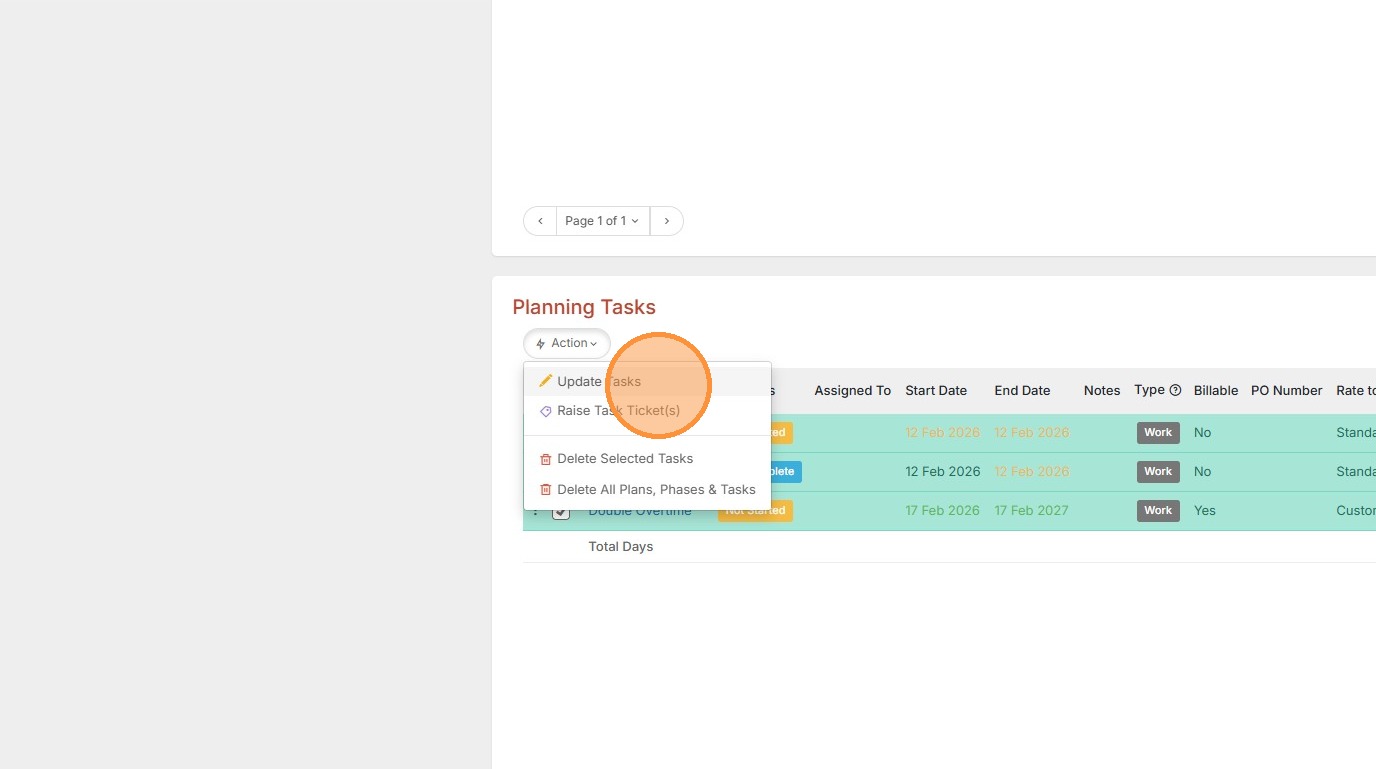
3. Click Update Tasks.
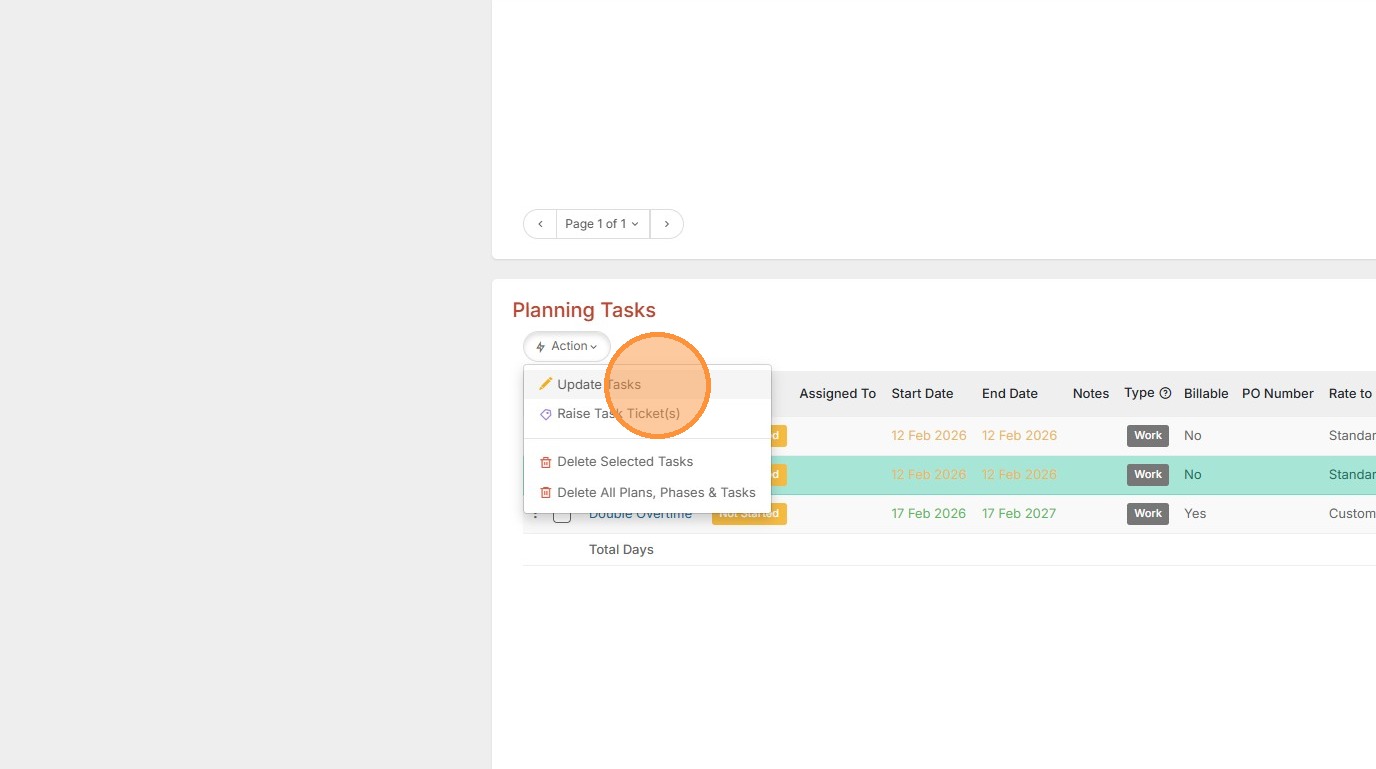
4. Click the Status dropdown option.
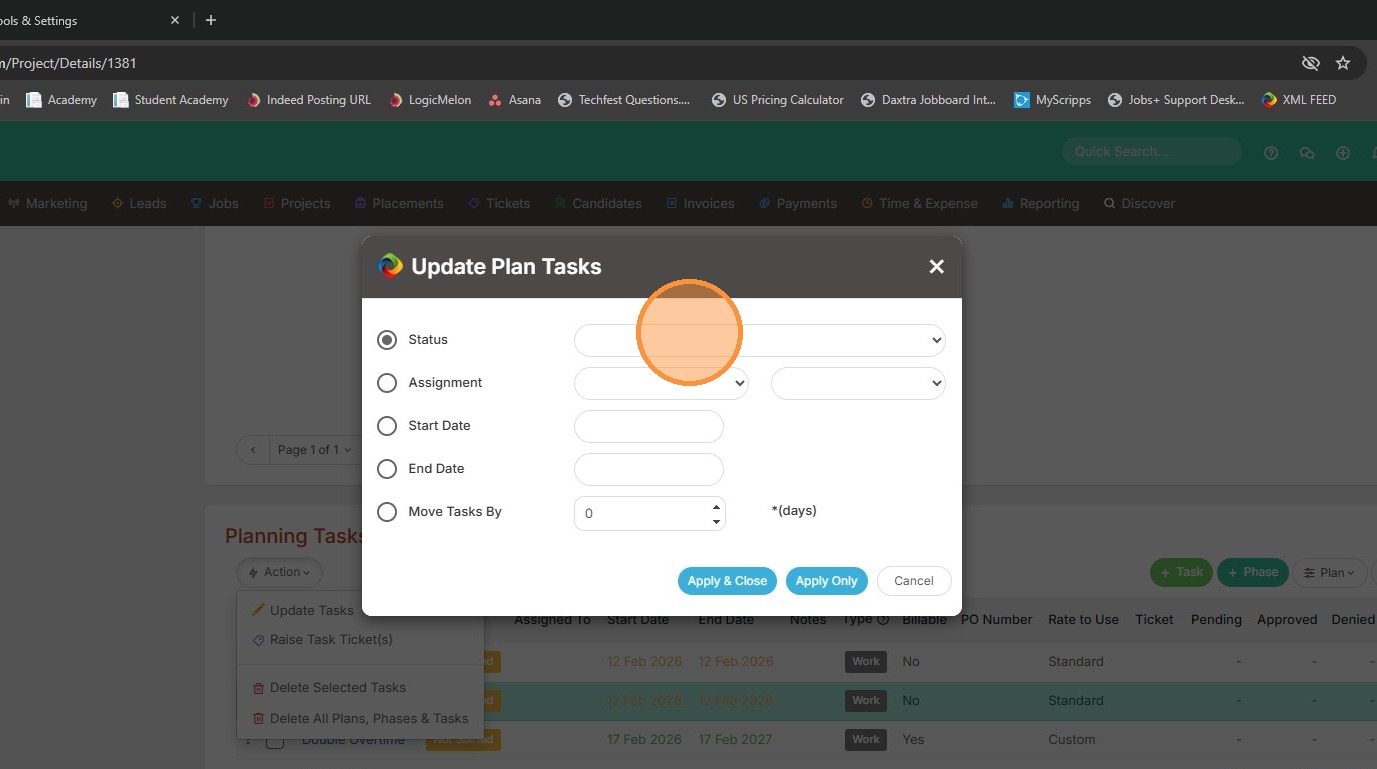
5. Select the status you want to apply.
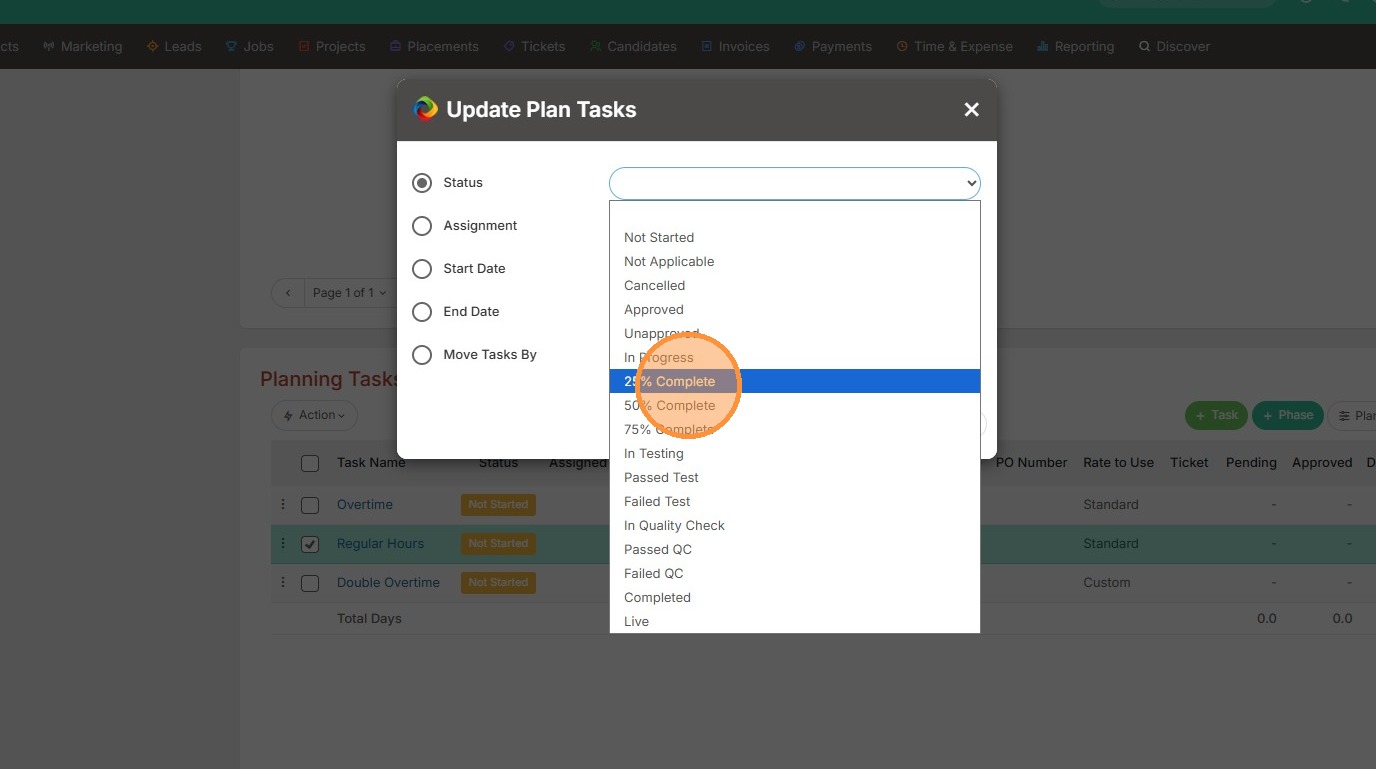
6. Select Apply & Close.
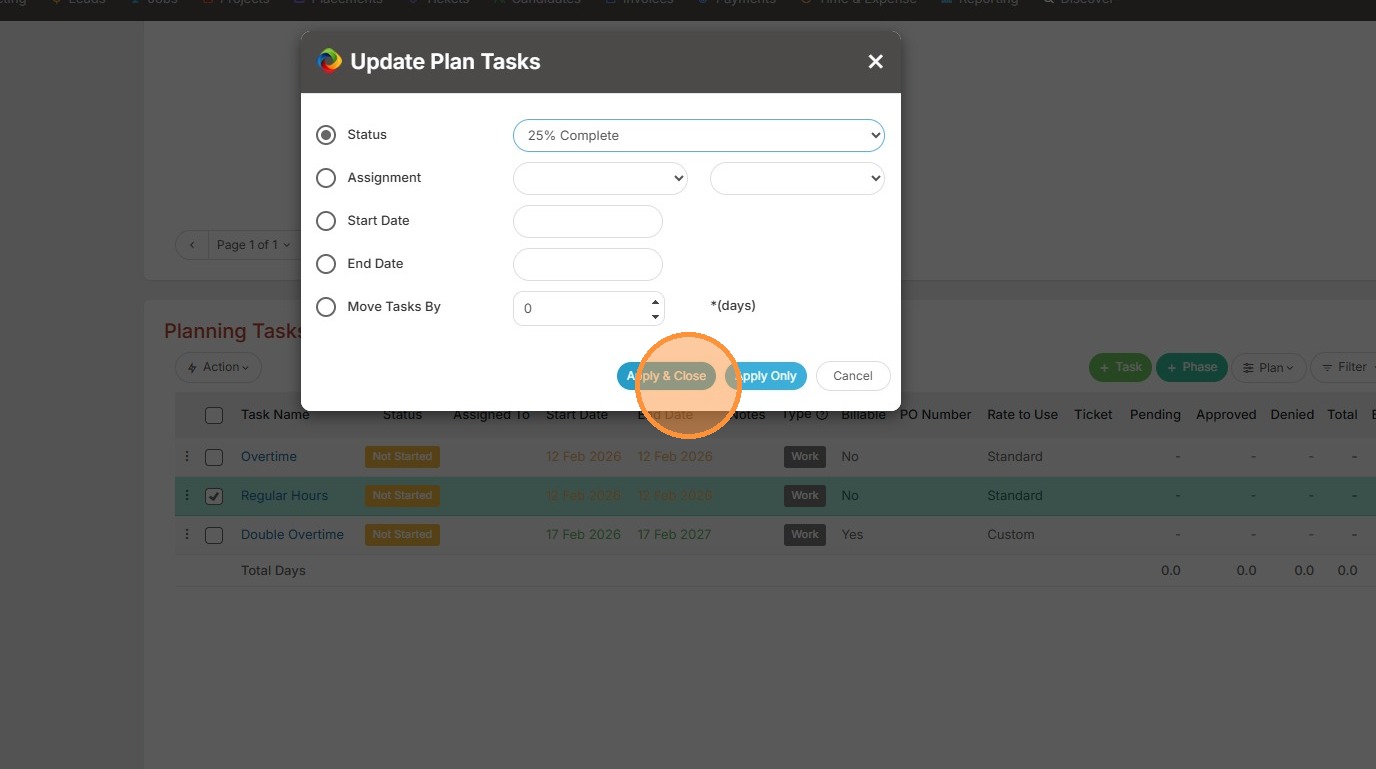
7. You can now see that status changed.
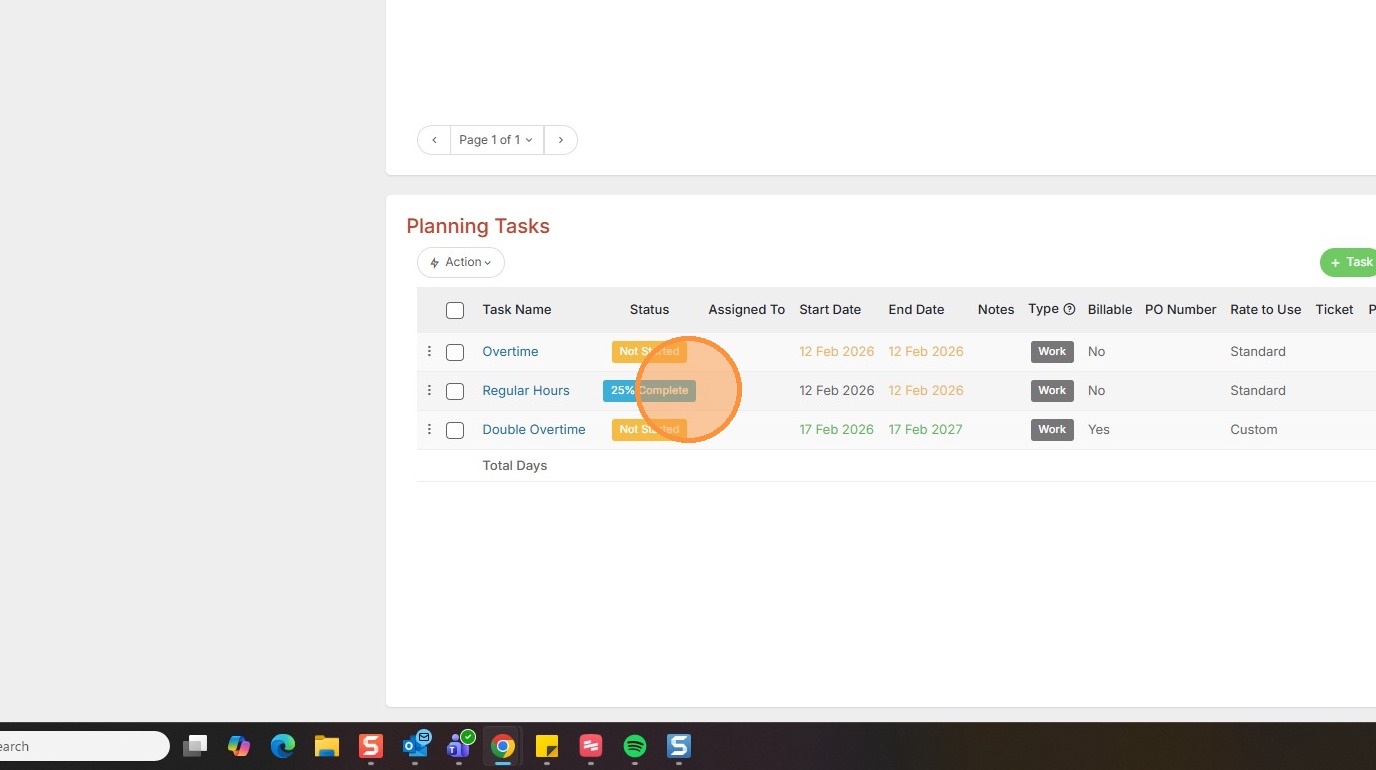
8. To update all task statuses, select the checkbox at the top of the Planning Tasks.
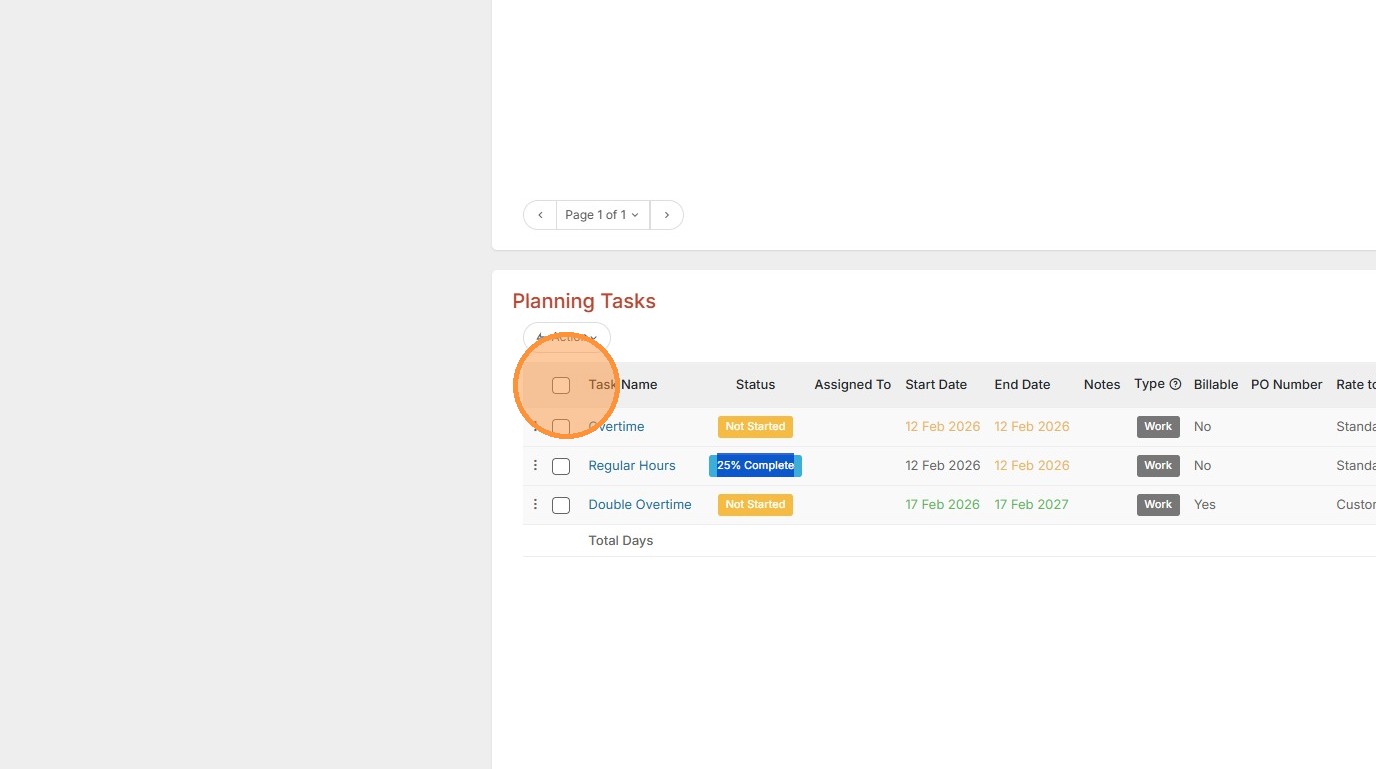
9. Click Action.
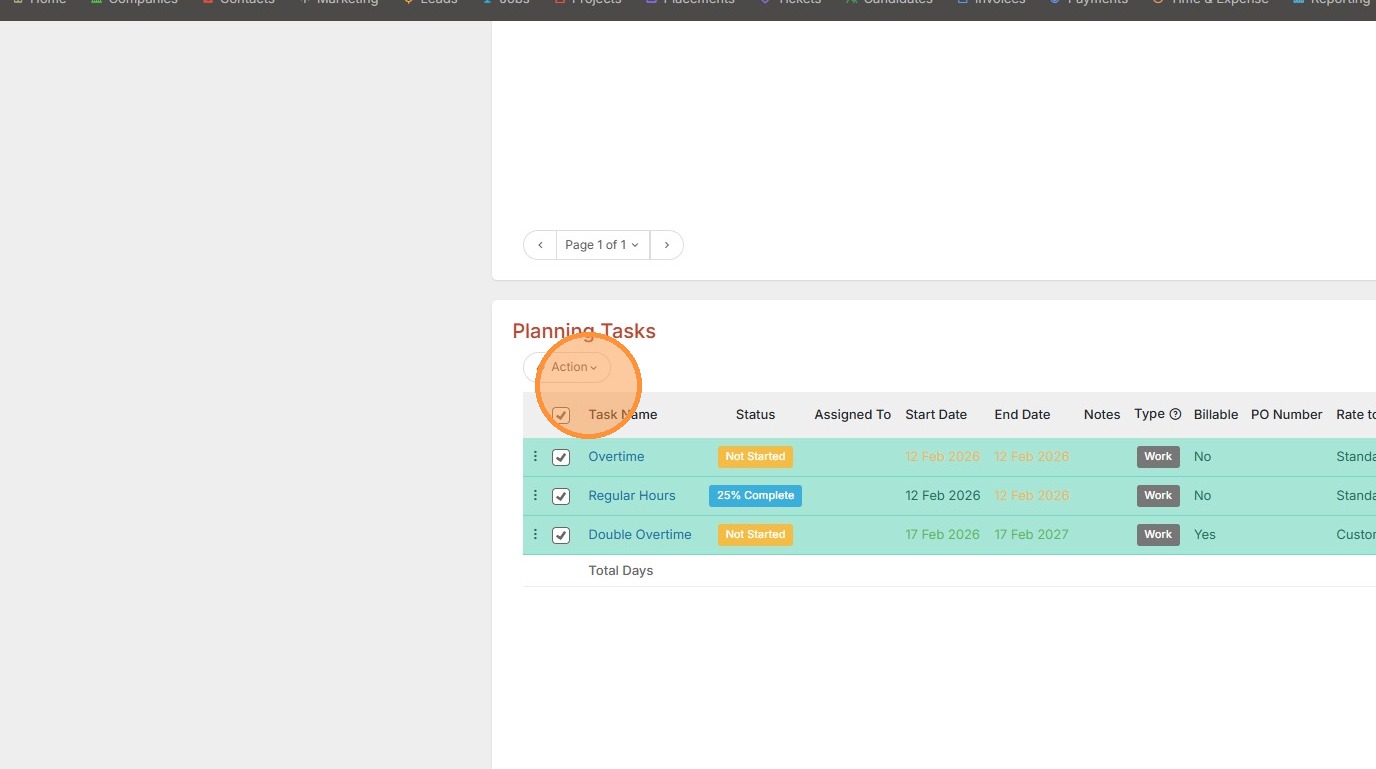
10. Then Update Tasks.
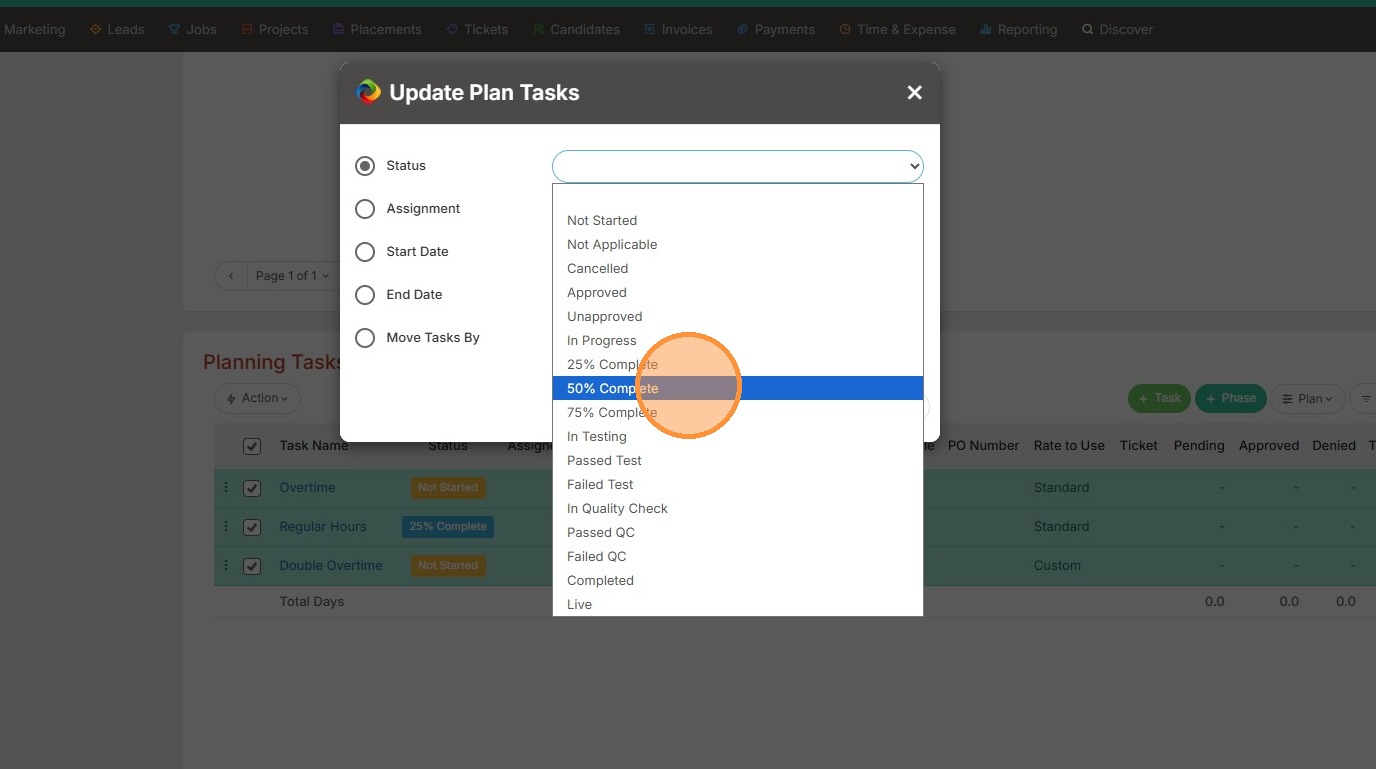
11. Click the Status dropdown.
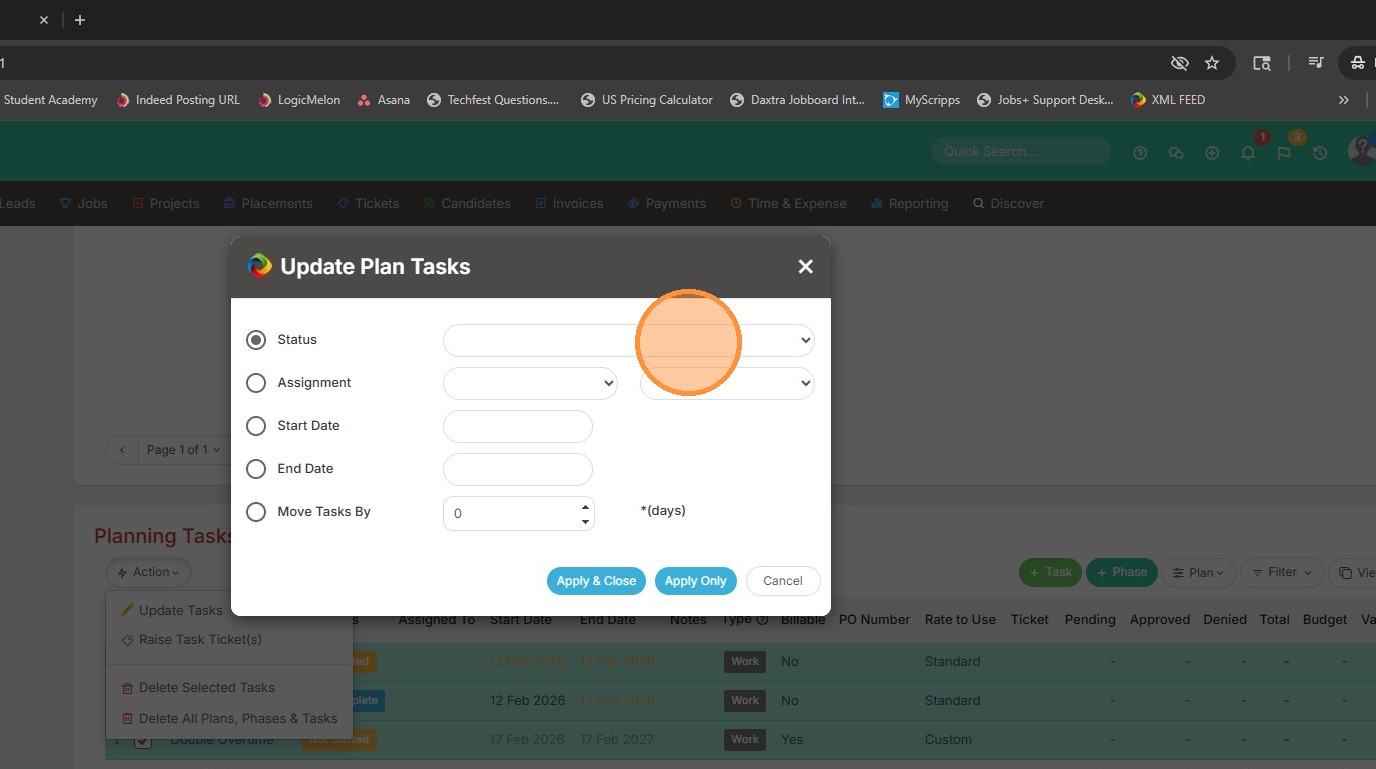
12. Then pick the new status.
13. Apply & Close.
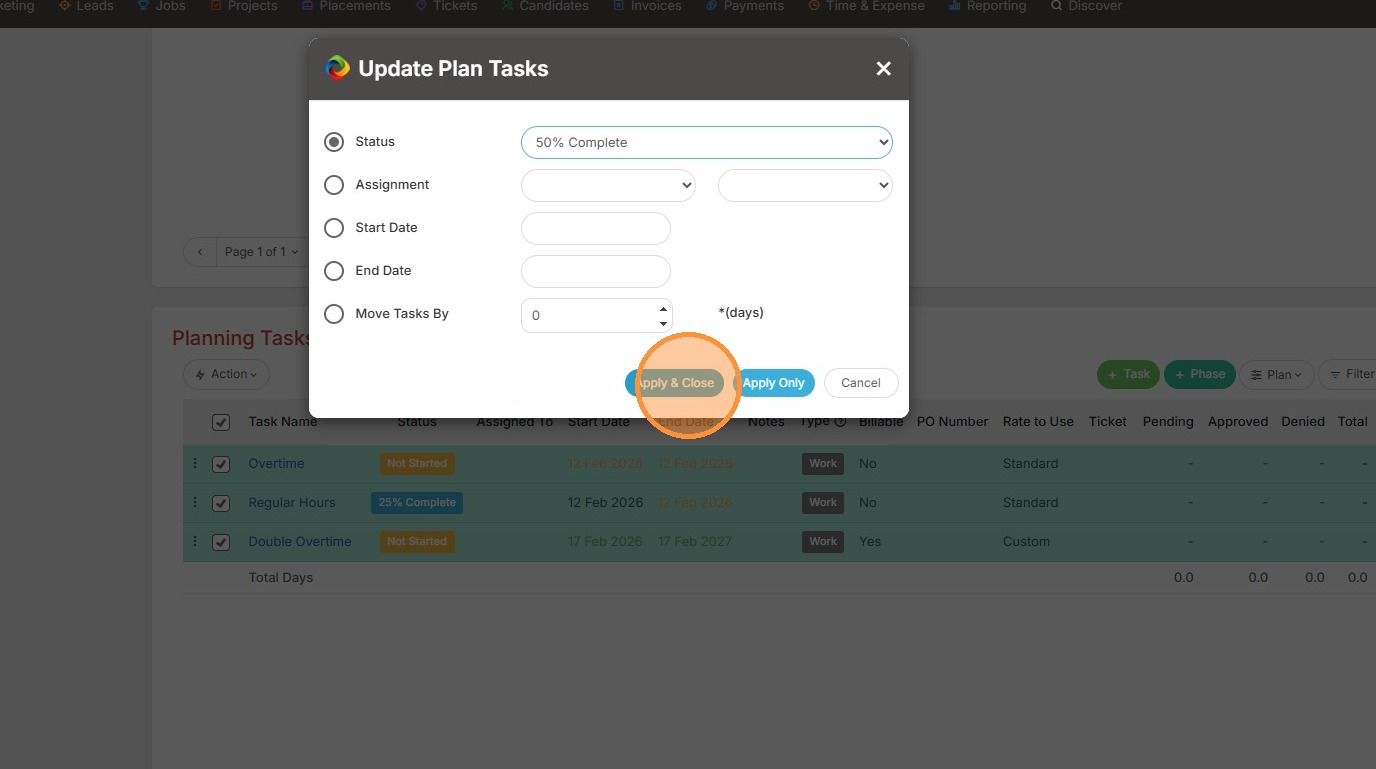
14. The statuses have been updated on all 3 tasks now. Make sure to save at the top of the screen.