This lesson explains how to bulk update Planning Tasks on as Assignment/Project.
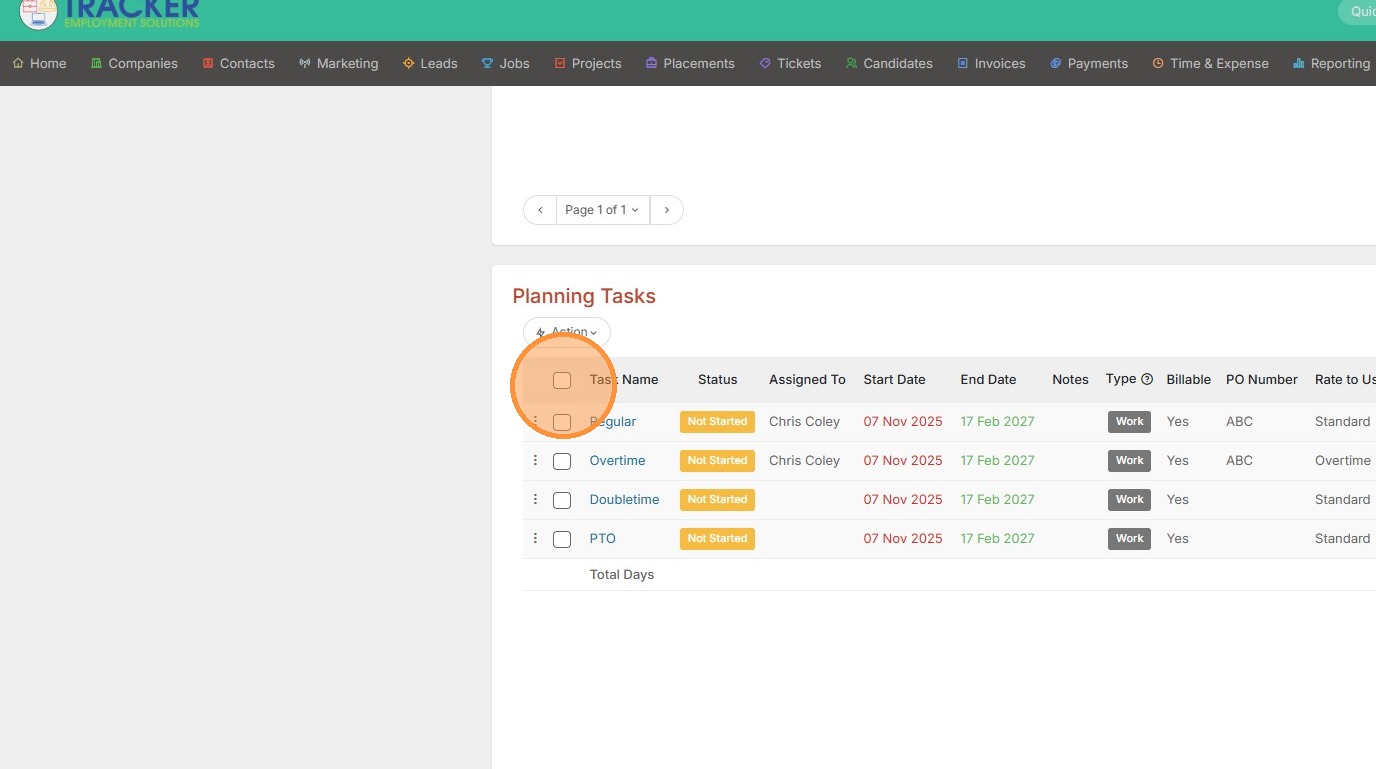
1. Click the tasks you would like to bulk update by selecting this checkbox.
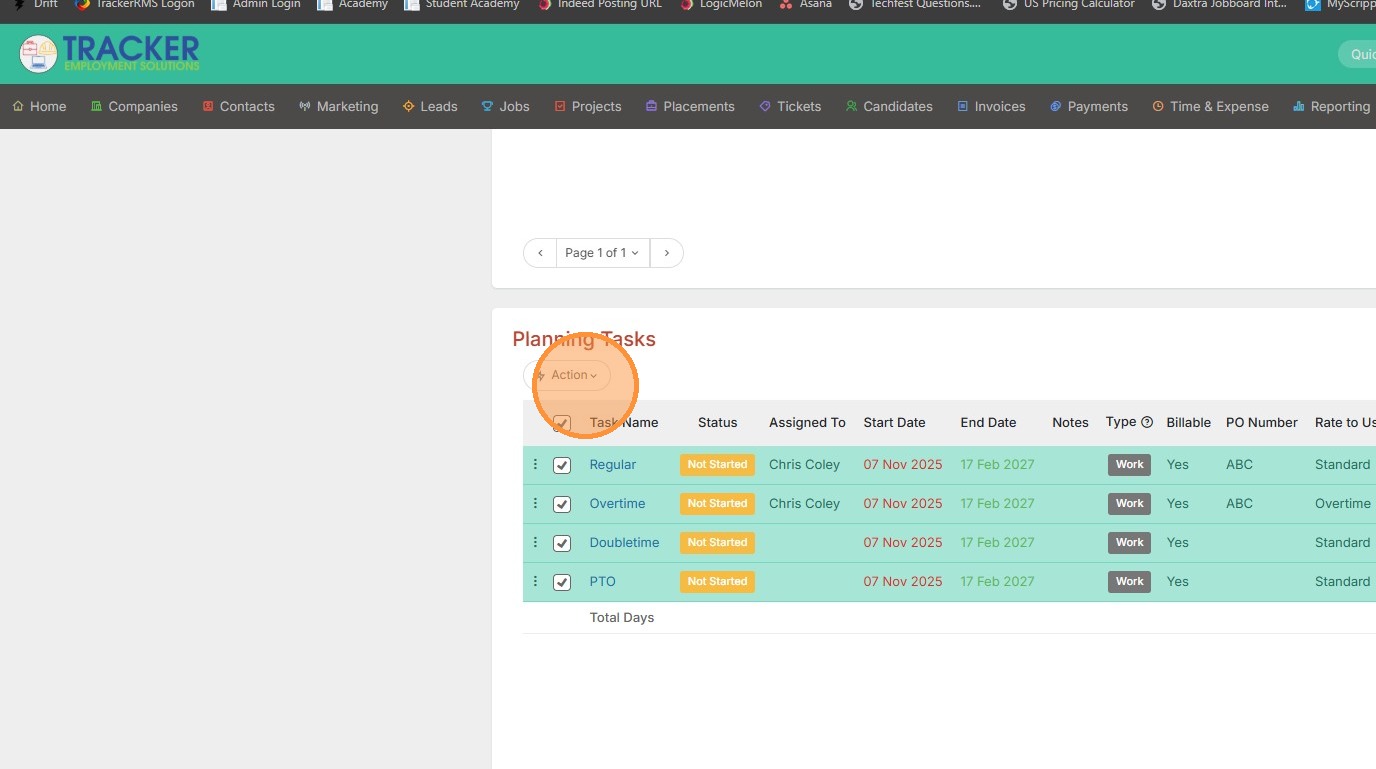
2. Click Action.
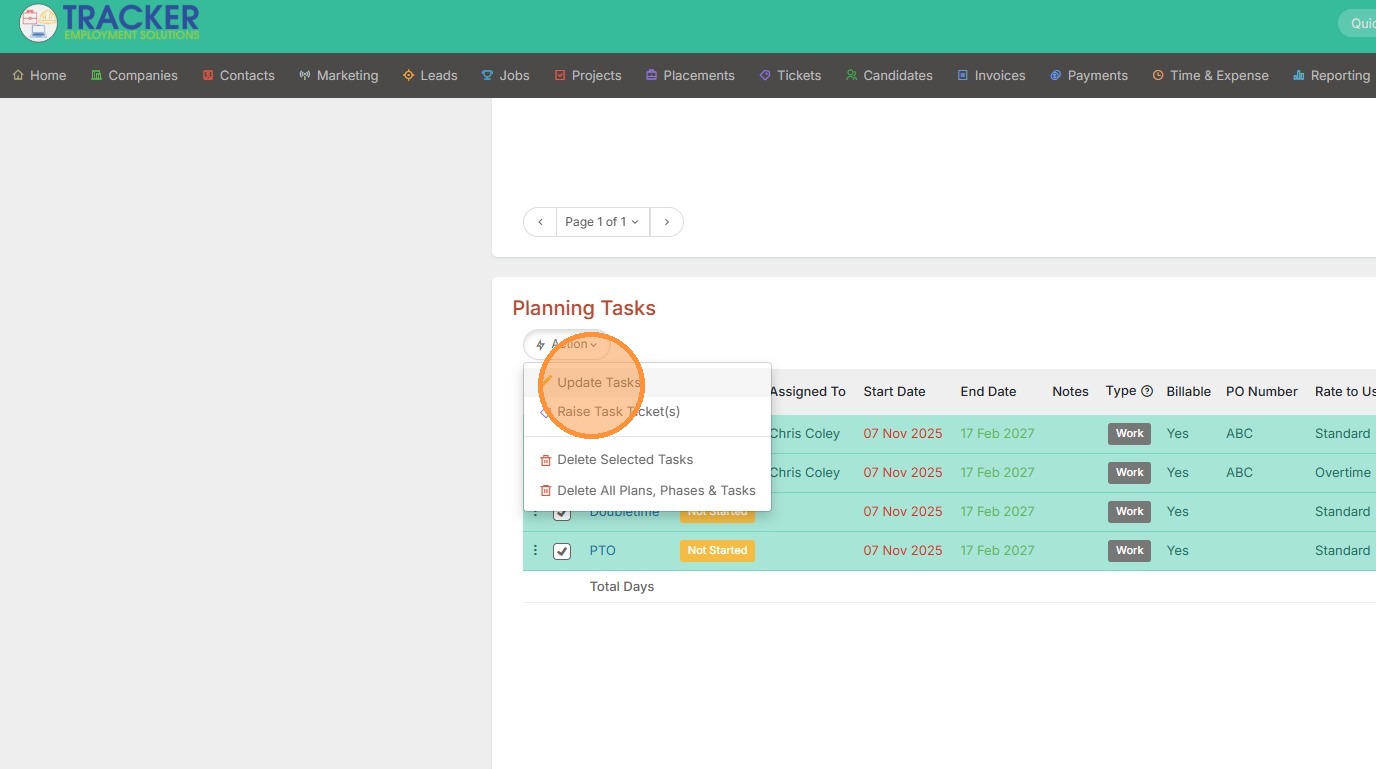
3. Update Tasks.
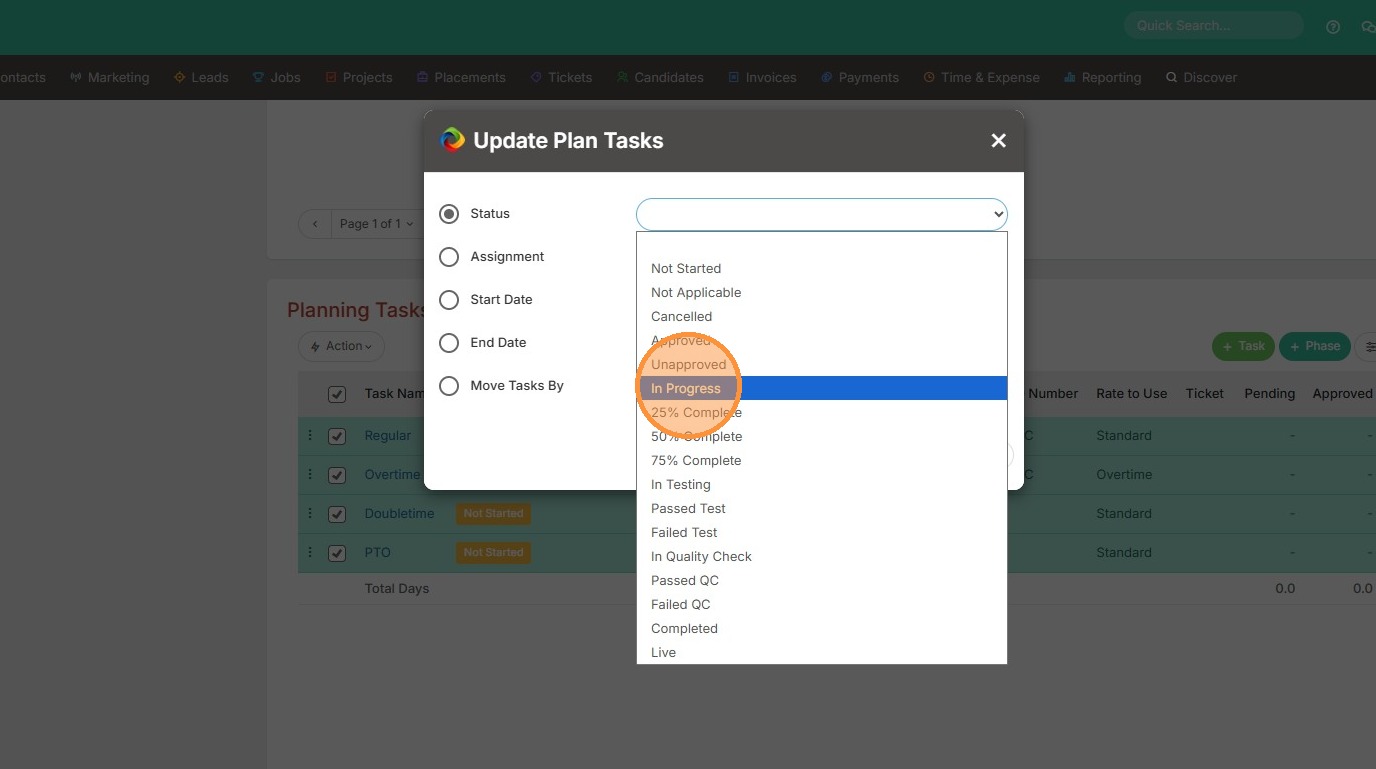
4. From here you can update the status by clicking on this dropdown.
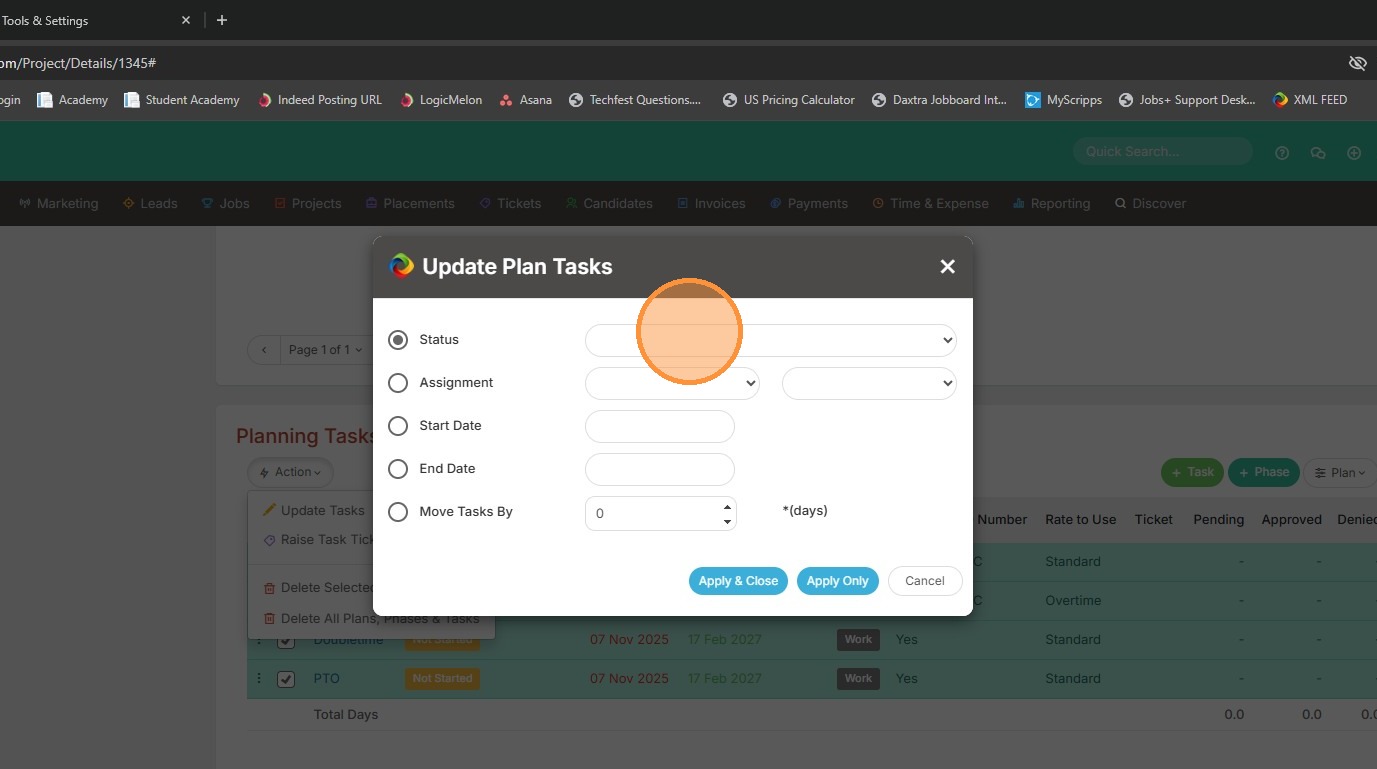
5. And picking the one you want to update to.
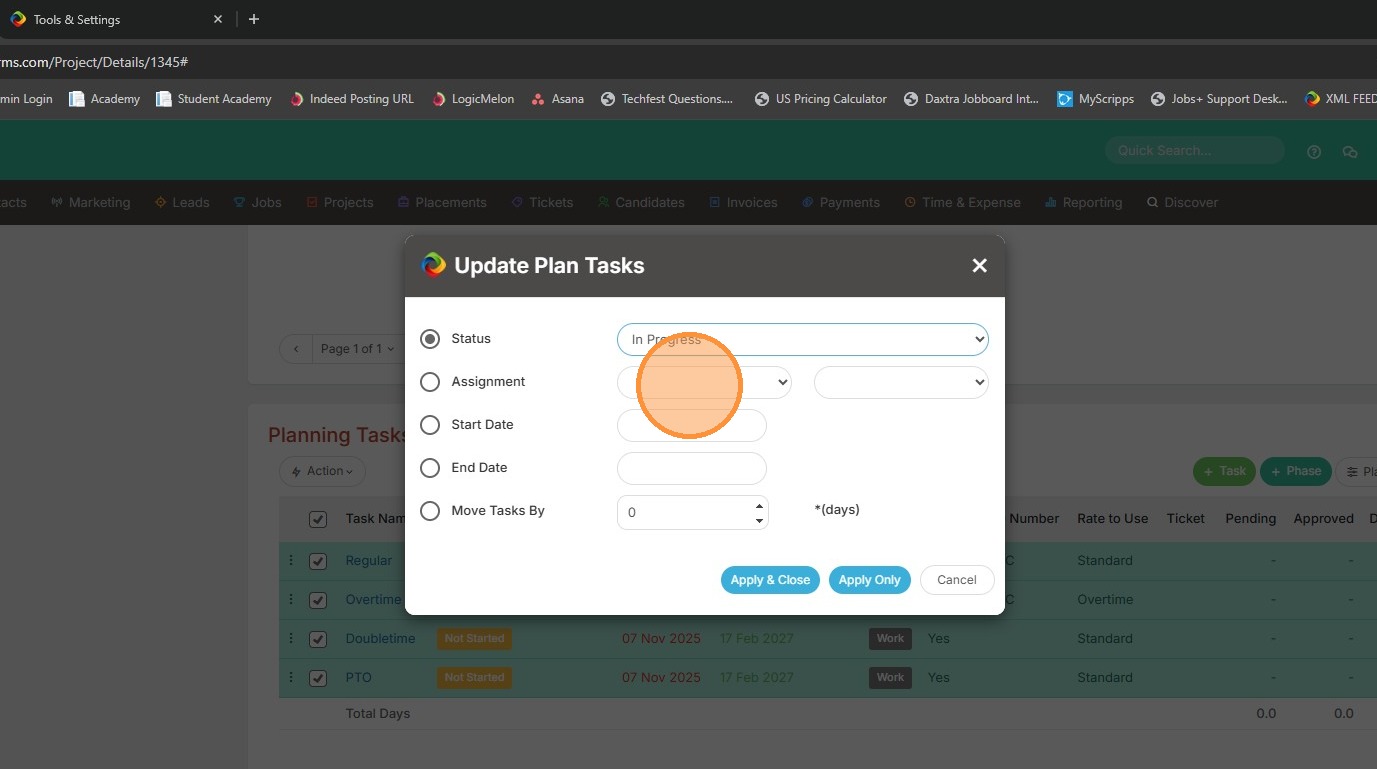
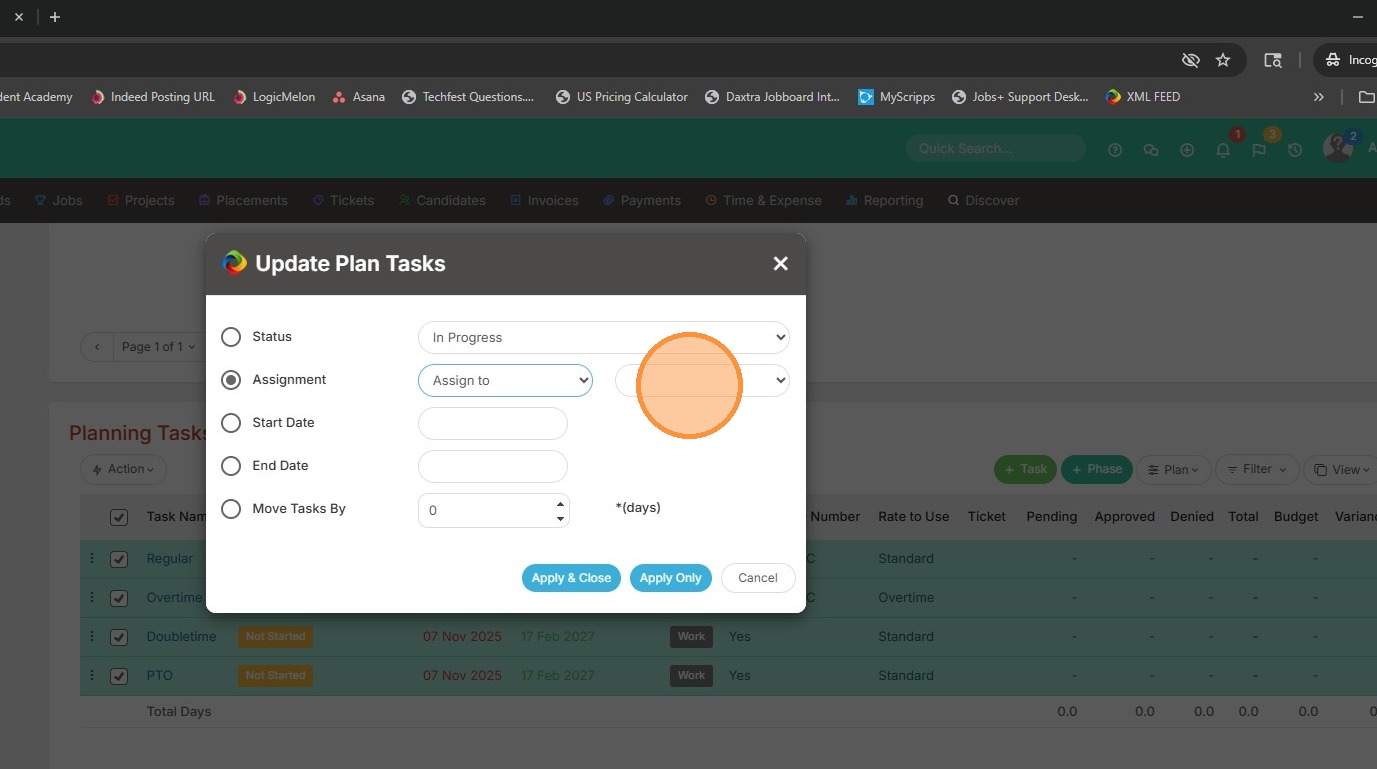
6. You can assign (or unassign) the tasks to someone specific by clicking on the assignment dropdown.
7. Then click this dropdown to pick a name.
8. You can also bulk update the Start Date (helpful if you have tasks expiring and want to update all at once!)
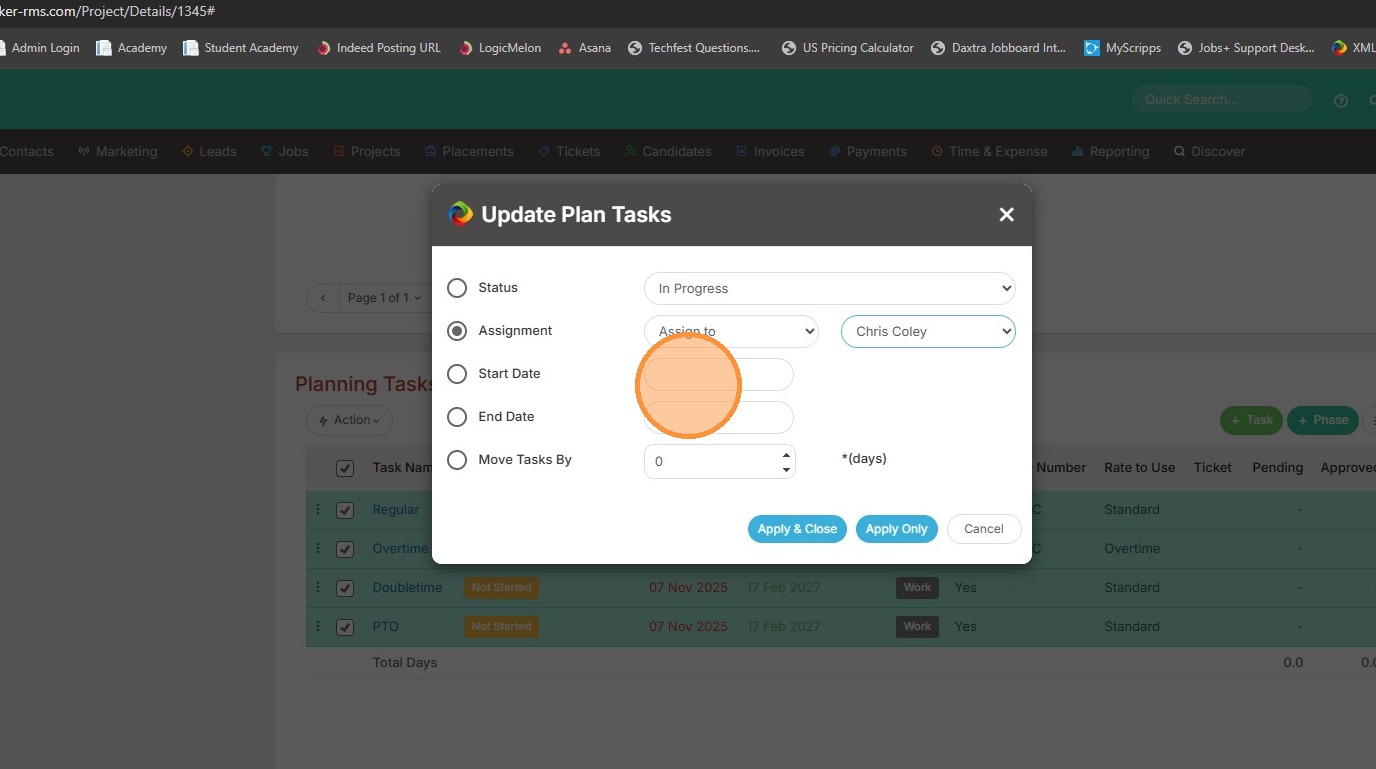
9. Click "PRO-1345 testing"
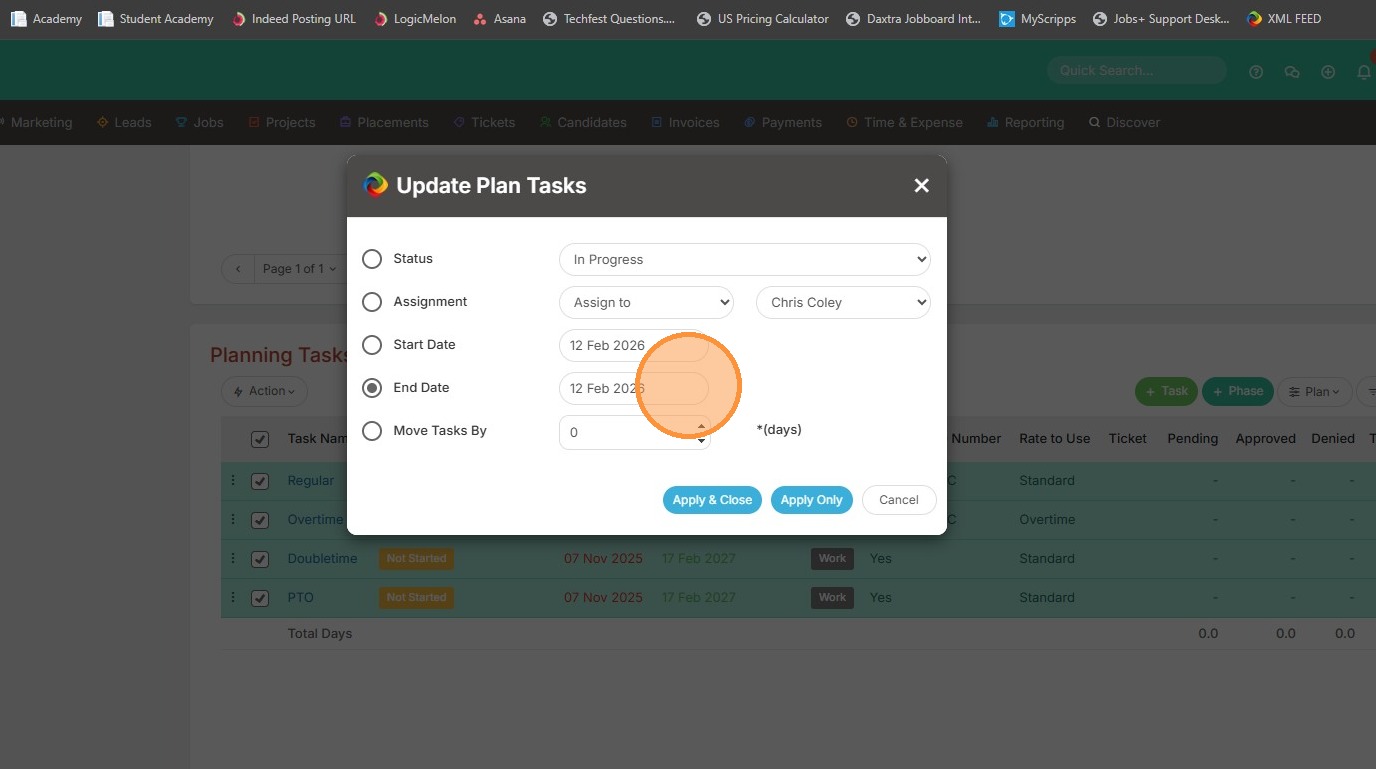
10. Same goes with the End Date.
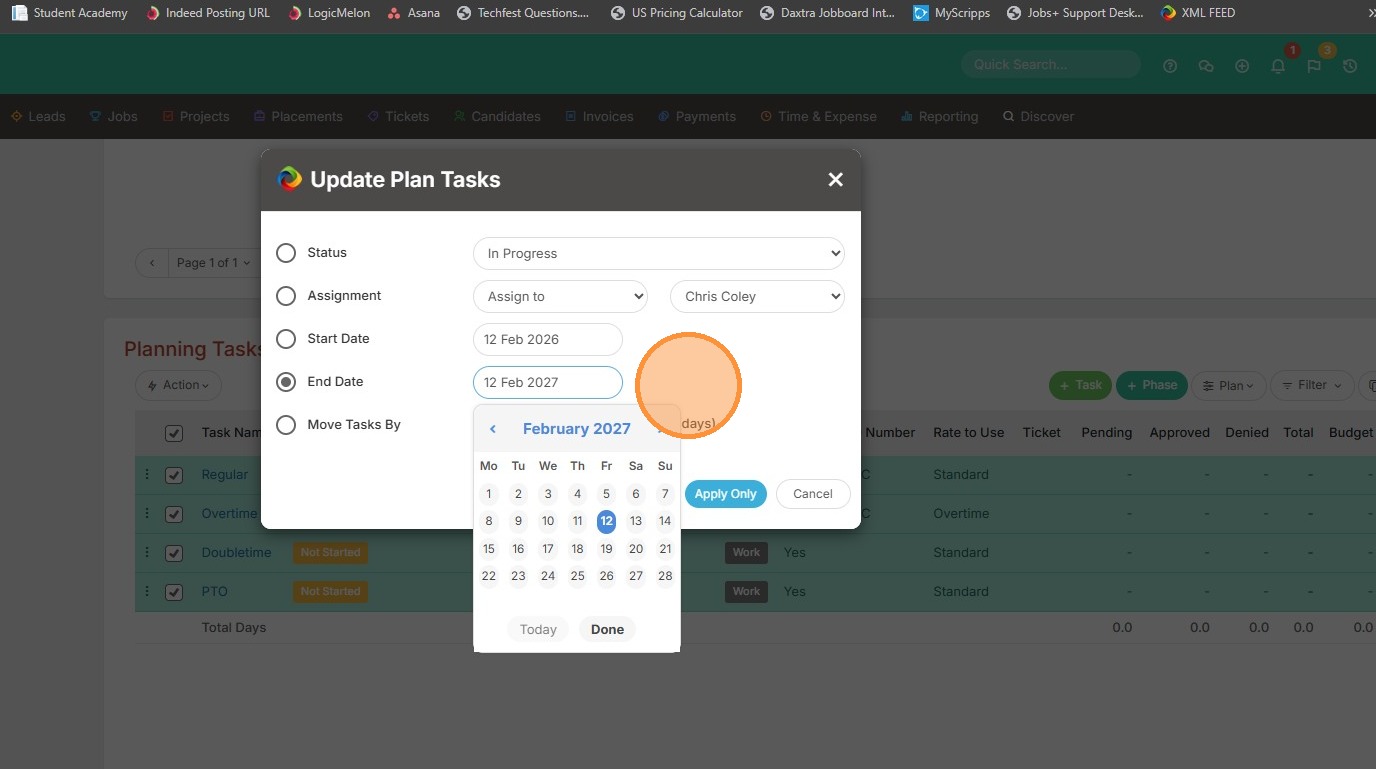
11. Then you can Apply & Close these changes.
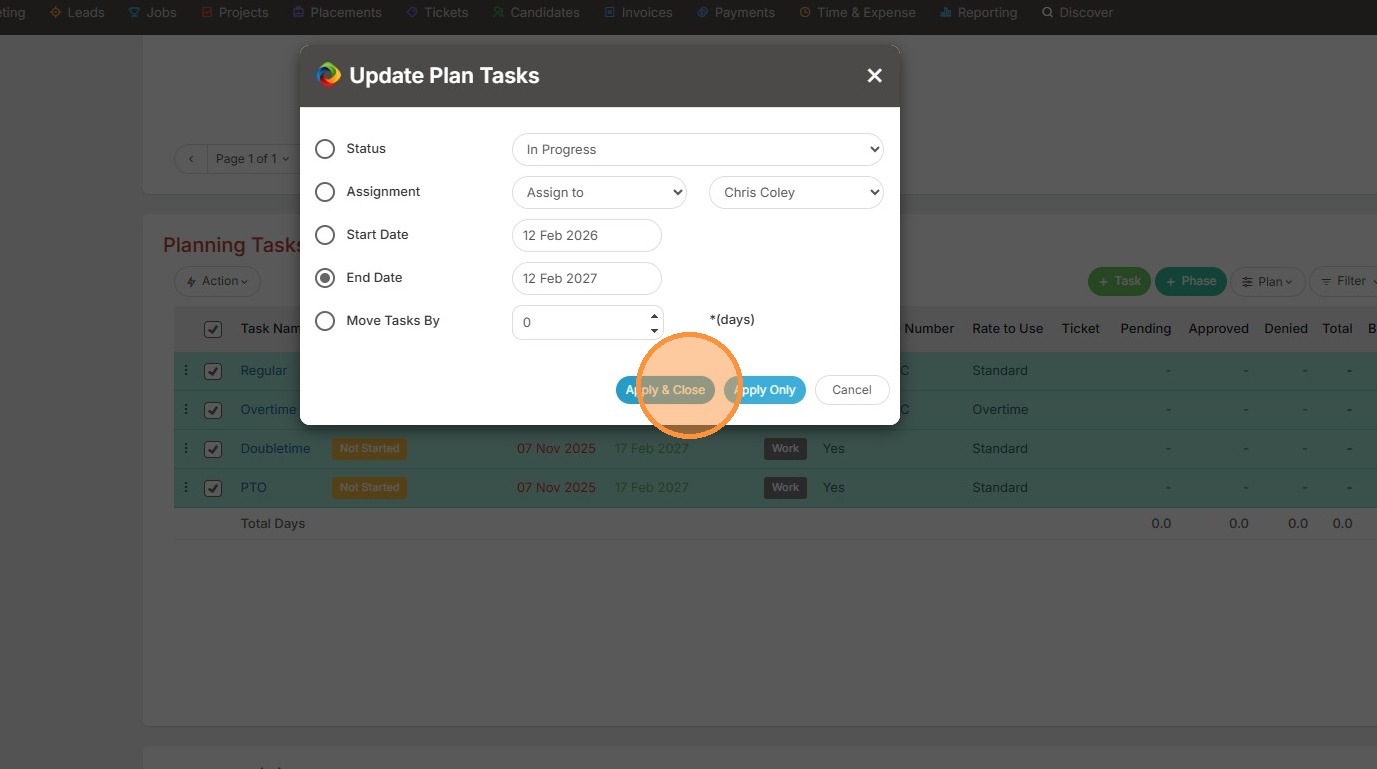
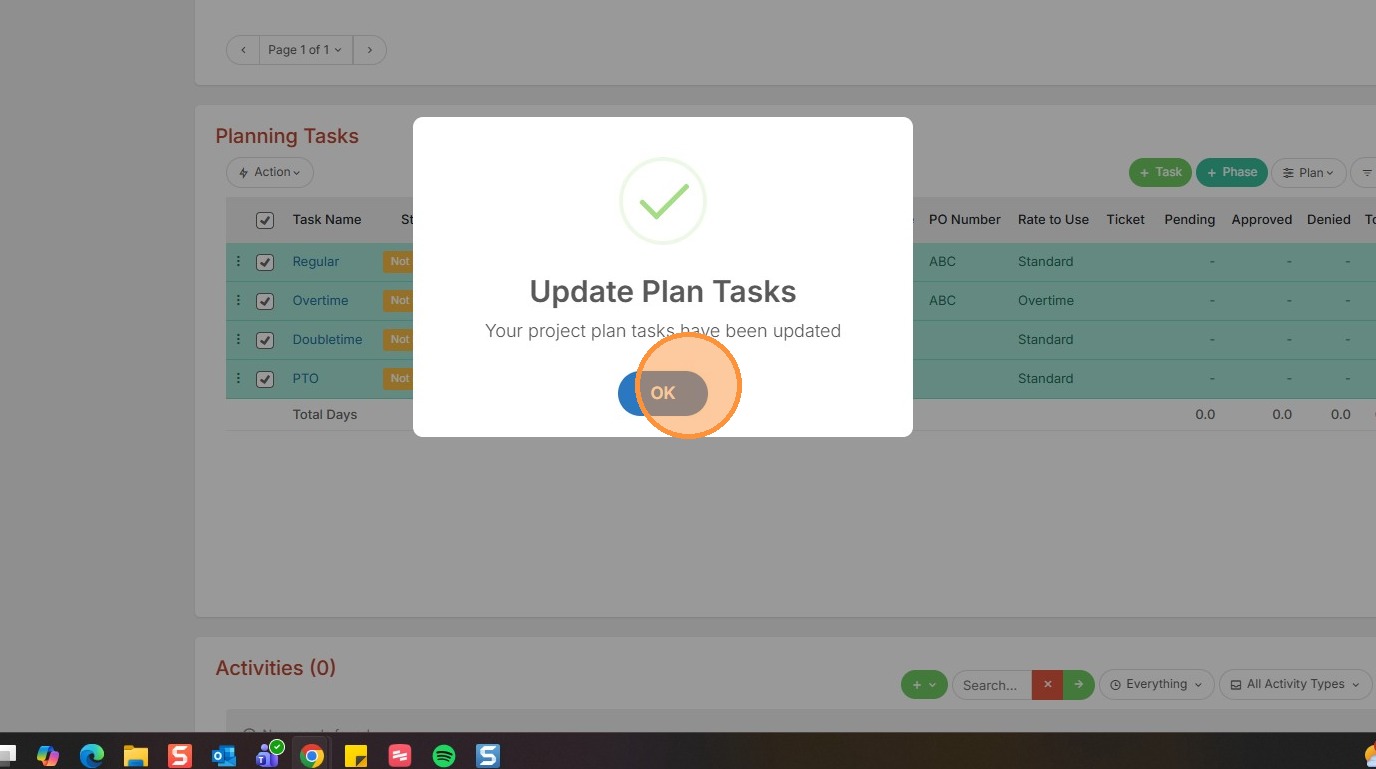
12. Tracker will let you know the plan tasks have been updated.
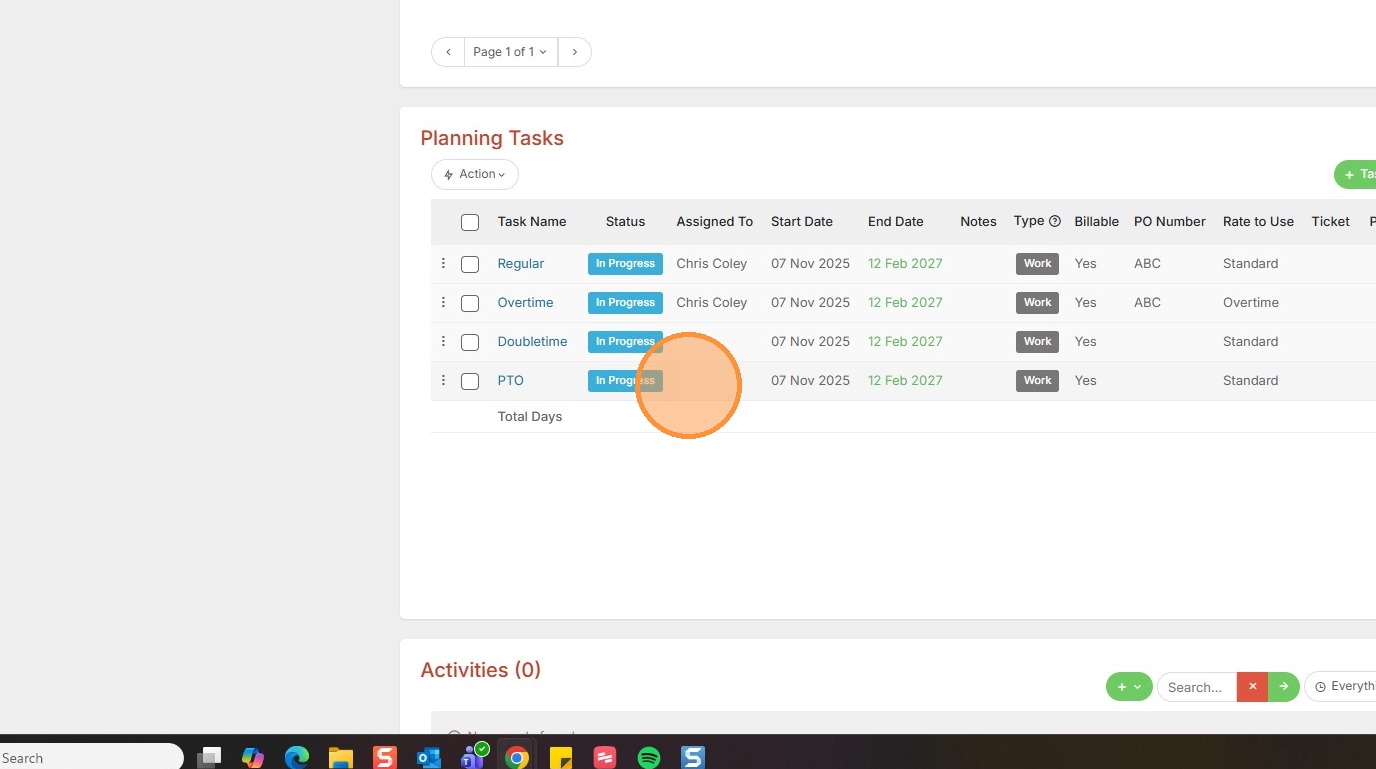
13. You can see the changes applied.
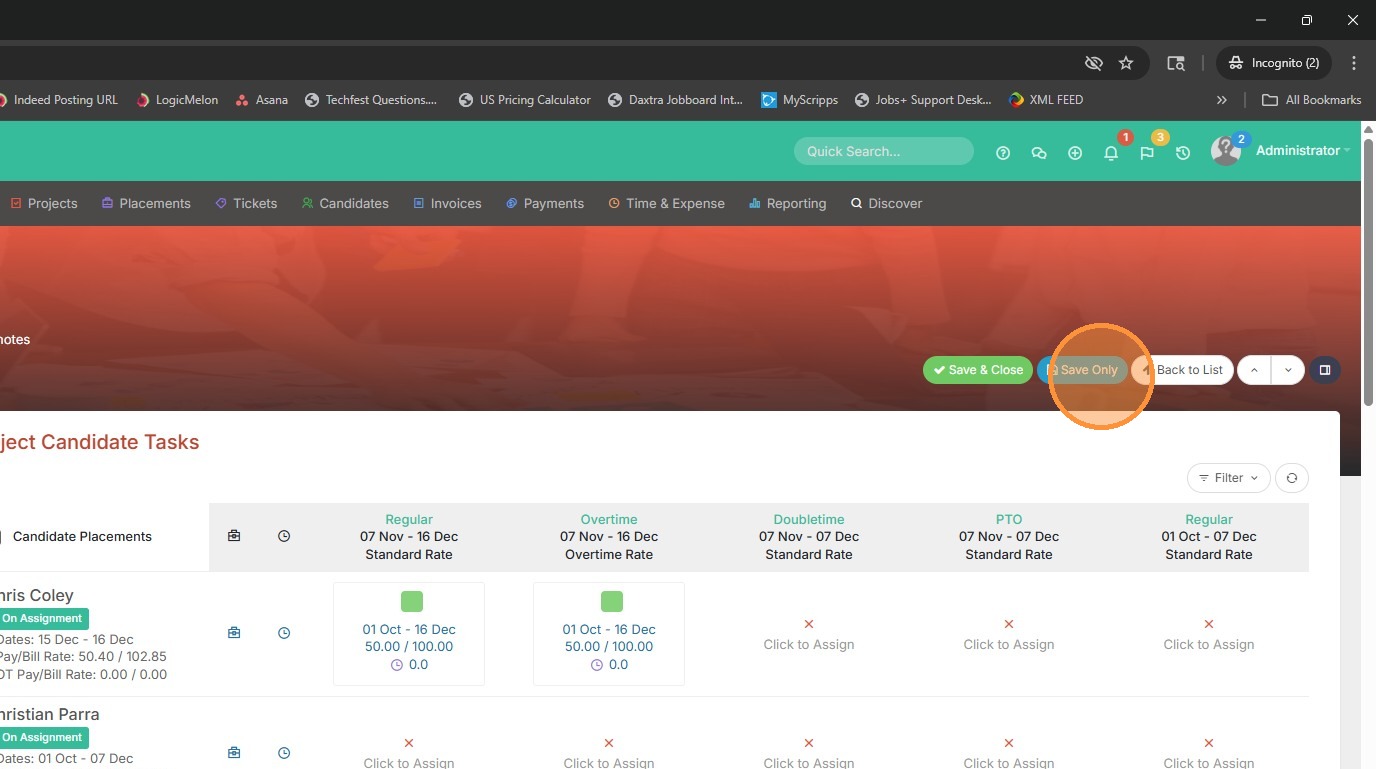
14. Click "Save Only" before moving on.
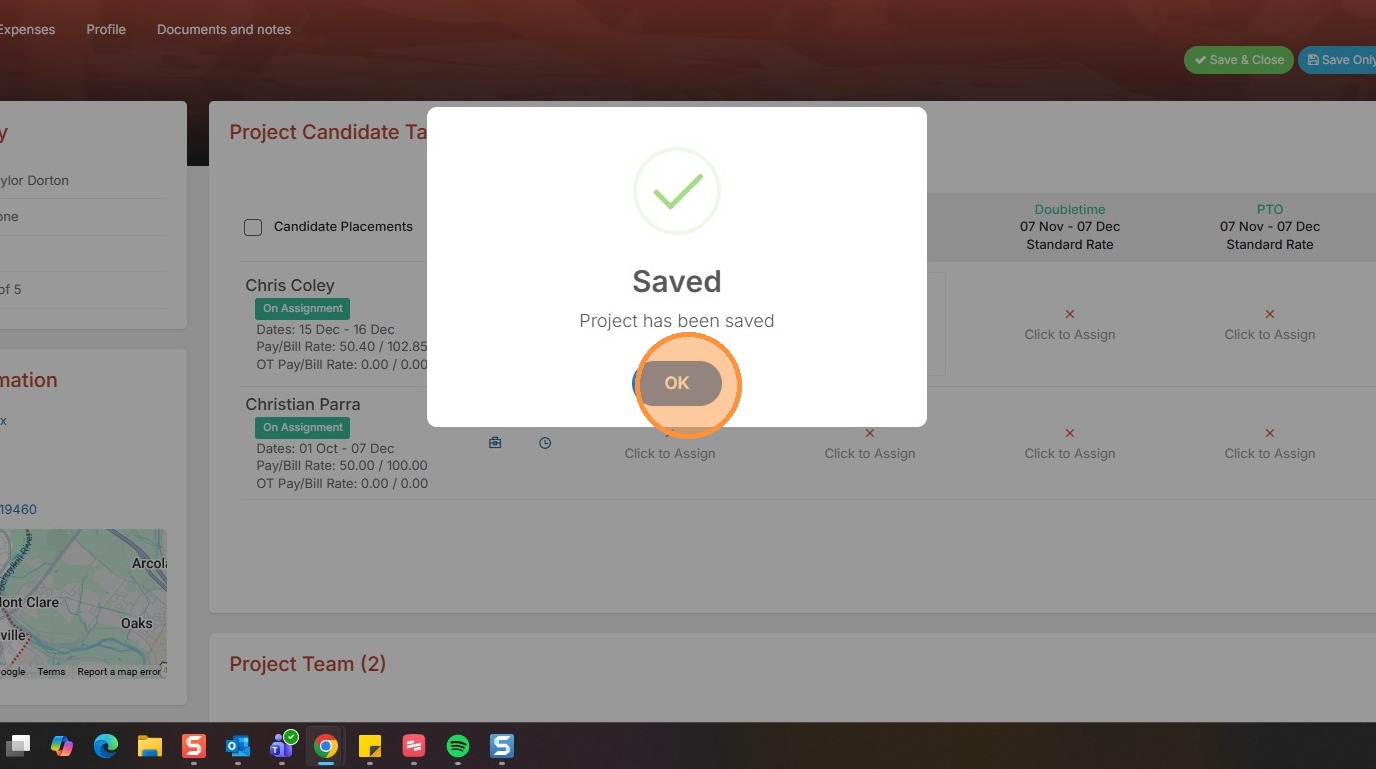
15. Click "OK"