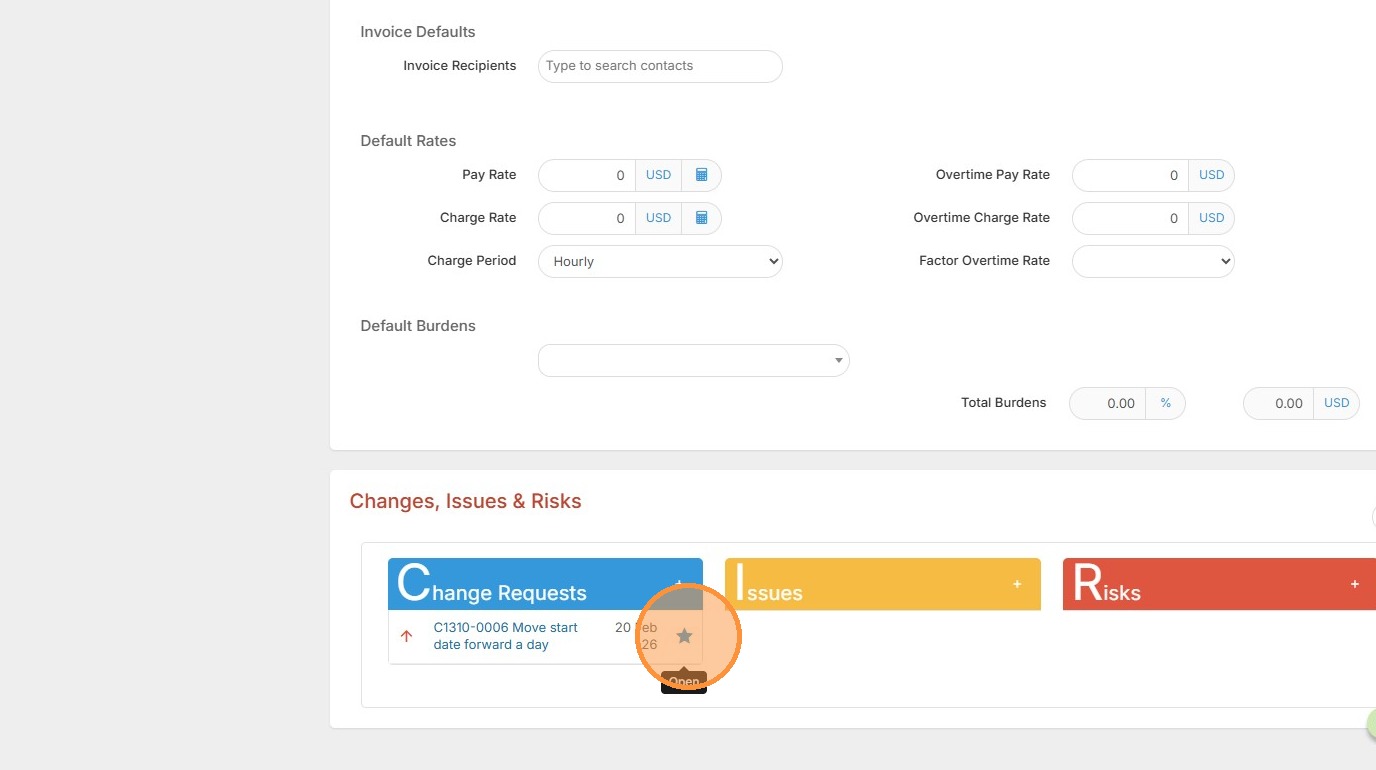
This lesson shows you how to Add Change Requests to an Assignment or Product.
1. Within project/assignment records, there is a Change Request section. If you don't see this, go to Tools & Settings, Layout Designer, and add Changes, Issues & Risks to your project records.
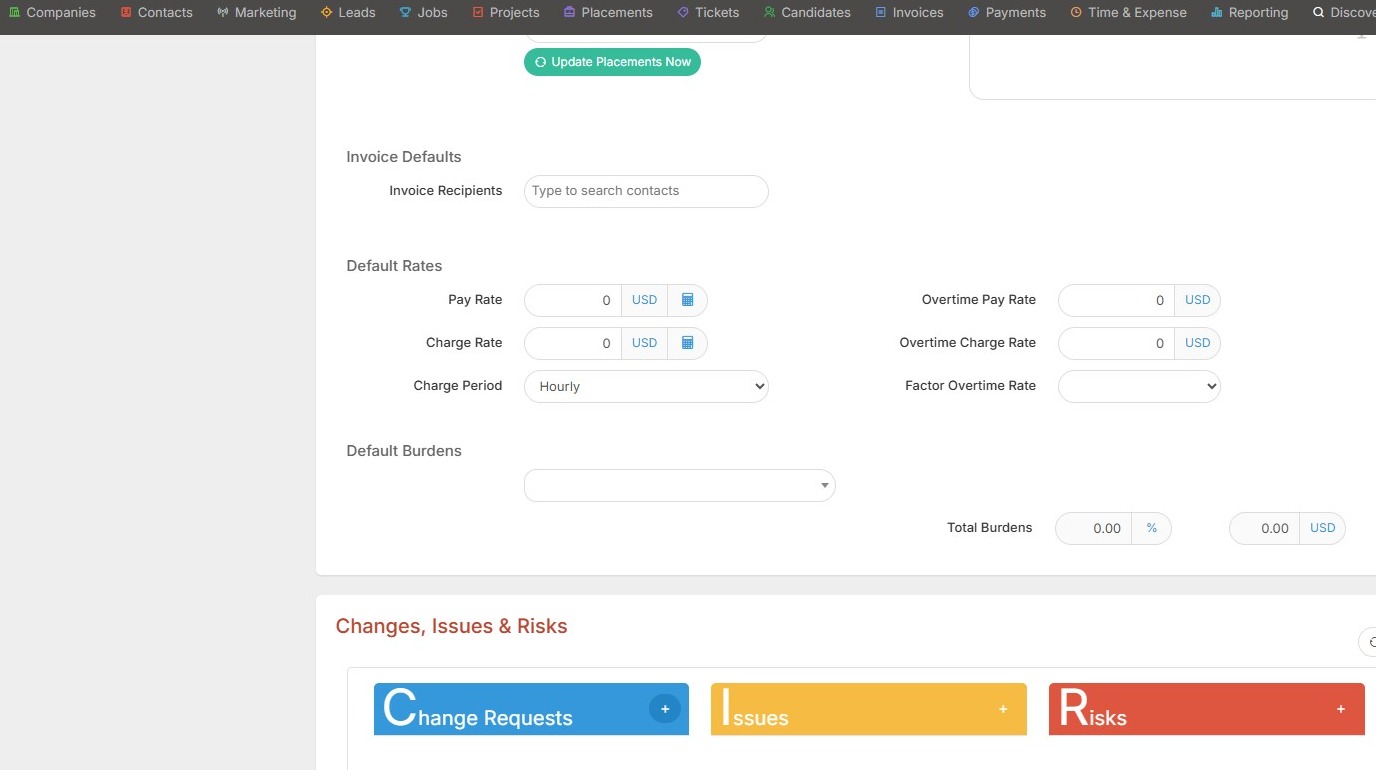
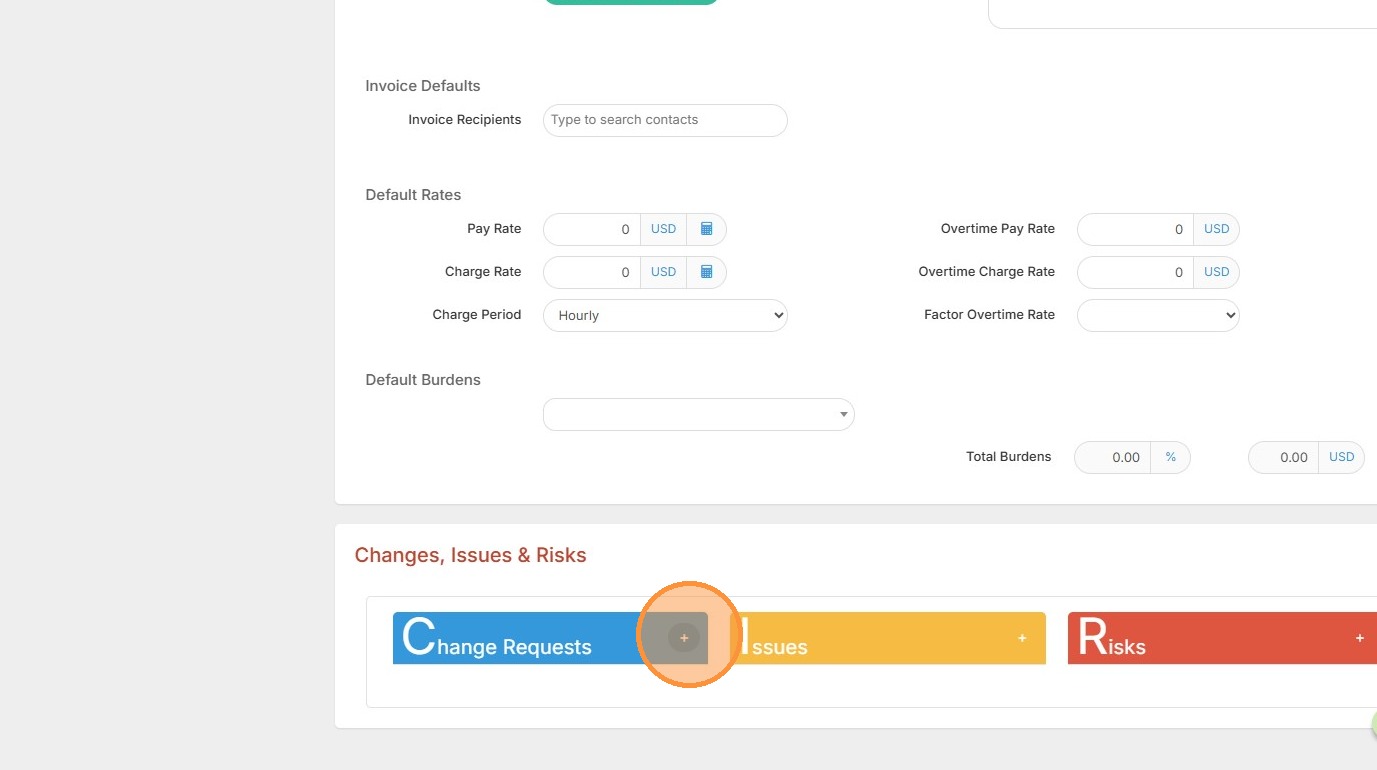
2. Click the + button to add a change request.
3. For example, we might want to add a change request for this assignment's start date to be a different date.
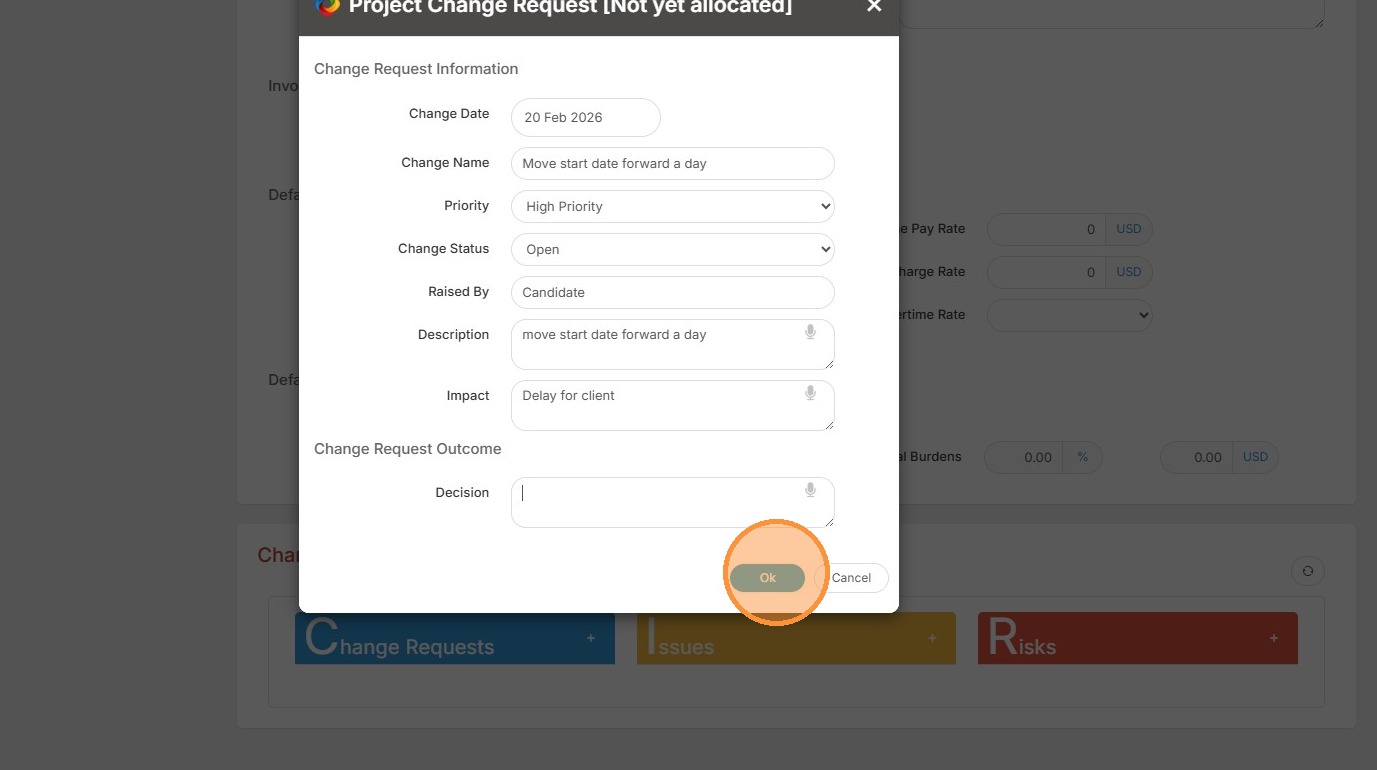
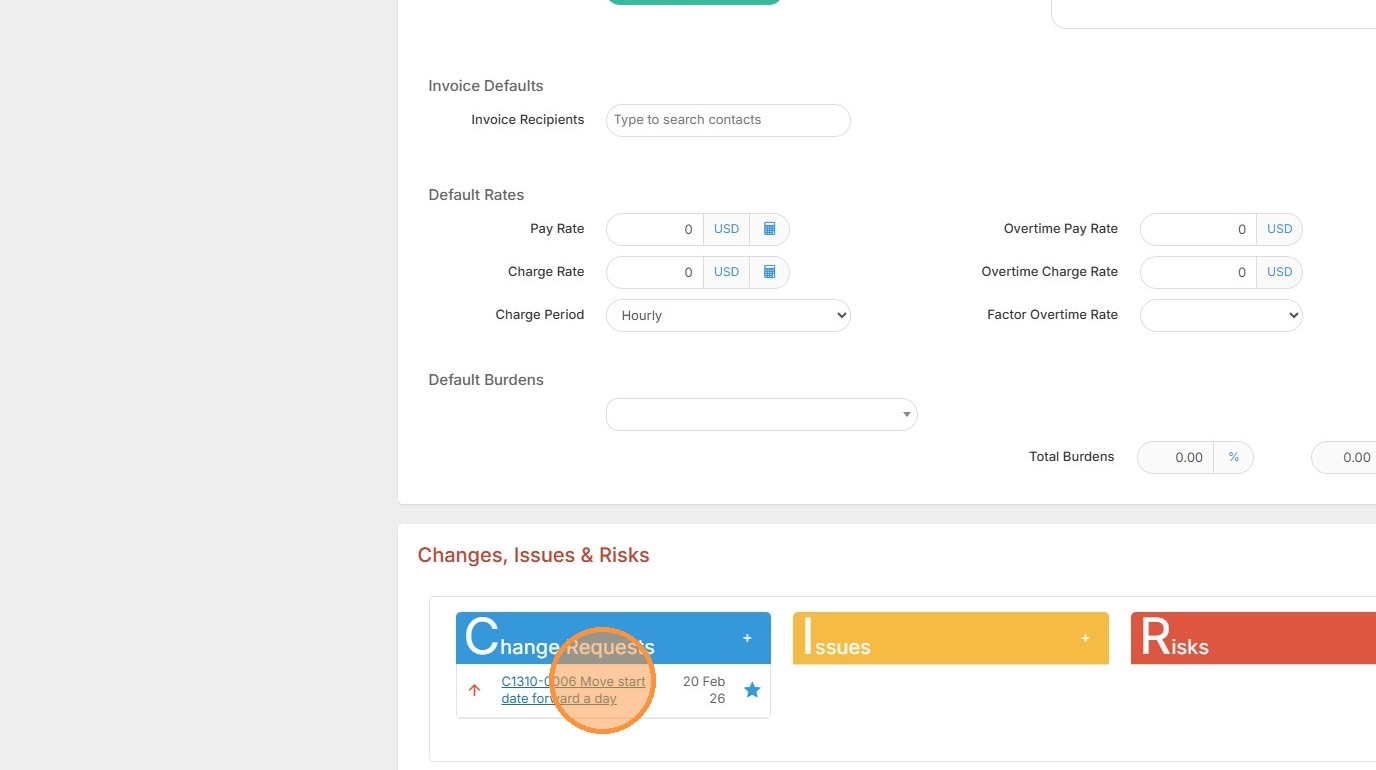
4. Once you click ok, the change request will appear. To edit, simply click on it.
5. Then make necessary changes, or delete, as needed.
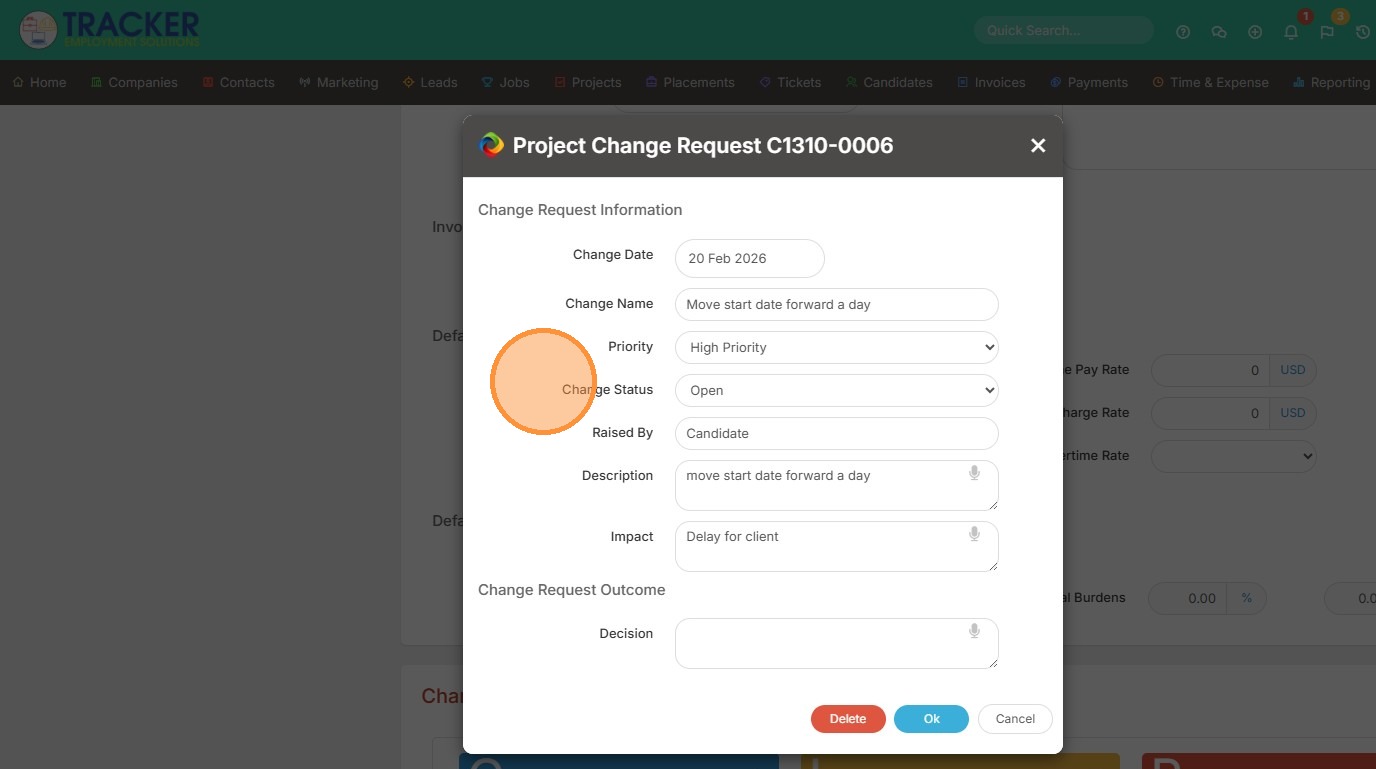
6. Right now our change request is open (blue star), and a high priority (designated by the red arrow).