LinkedIn Recruiter | Workflow
Work seamlessly between Tracker and LinkedIn Recruiter with automatic two-way syncing of candidate profiles, job shortlists, and recruitment activities. Export LinkedIn profiles directly into Tracker with one click, view your Tracker candidate history from within LinkedIn, and have InMail conversations automatically logged as activities—all without manual data entry or switching between systems
LinkedIn Recruiter | Workflow
Work seamlessly between Tracker and LinkedIn Recruiter with automatic two-way syncing of candidate profiles, job shortlists, and recruitment activities. Export LinkedIn profiles directly into Tracker with one click, view your Tracker candidate history from within LinkedIn, and have InMail conversations automatically logged as activities—all without manual data entry or switching between systems.
Tip: The LinkedIn Recruiter integration brings the power of LinkedIn’s professional network directly into your Tracker workflow, creating a seamless bridge between the two platforms.
Here are some of the key benefits of the LinkedIn RSC integration with Tracker:
-
Work across both platforms without the hassle - View a candidate's Tracker record from within LinkedIn, and see key LinkedIn profile details from within Tracker. No more switching back and forth between the two.
-
Instantly see whether a candidate is already in Tracker - A clear indicator appears directly in LinkedIn search results, helping you avoid duplicate outreach.
-
Export LinkedIn profiles to Tracker in a single click - No manual data entry, no copying and pasting.
-
Send LinkedIn InMails directly from Tracker - Messages are automatically logged in Tracker, keeping your candidate record complete and up to date.
-
Stay on top of record currency & jump straight to what you need - See at a glance when a candidate's record was last updated in either platform, and when it was last exported to Tracker. Quick links let you open the corresponding record in the other platform instantly.
-
Access the full picture without leaving LinkedIn - View key information such as submission stages, feedback, and notes directly within LinkedIn Recruiter.
Once your LinkedIn Recruiter integration is set up, you can work fluidly between both platforms without worrying about keeping data in sync.
The integration handles it all automatically, whether you’re creating a candidate in Tracker or exporting a LinkedIn profile.
Depending on your LinkedIn Recruiter licence type, you may have access to LinkedIn's Connected Projects feature in addition to the two-way syncing of candidate profiles, job shortlists, and recruitment activities. Connected Projects includes LinkedIn's Hiring Assistant, which compares your shortlisted candidates' CVs and LinkedIn profiles against your jobs to assess their suitability. This is covered in the lesson LinkedIn Recruiter | Connected Projects (https://academy.tracker-rms.com/Home/Lesson/1308).
Synced Records | Tracker
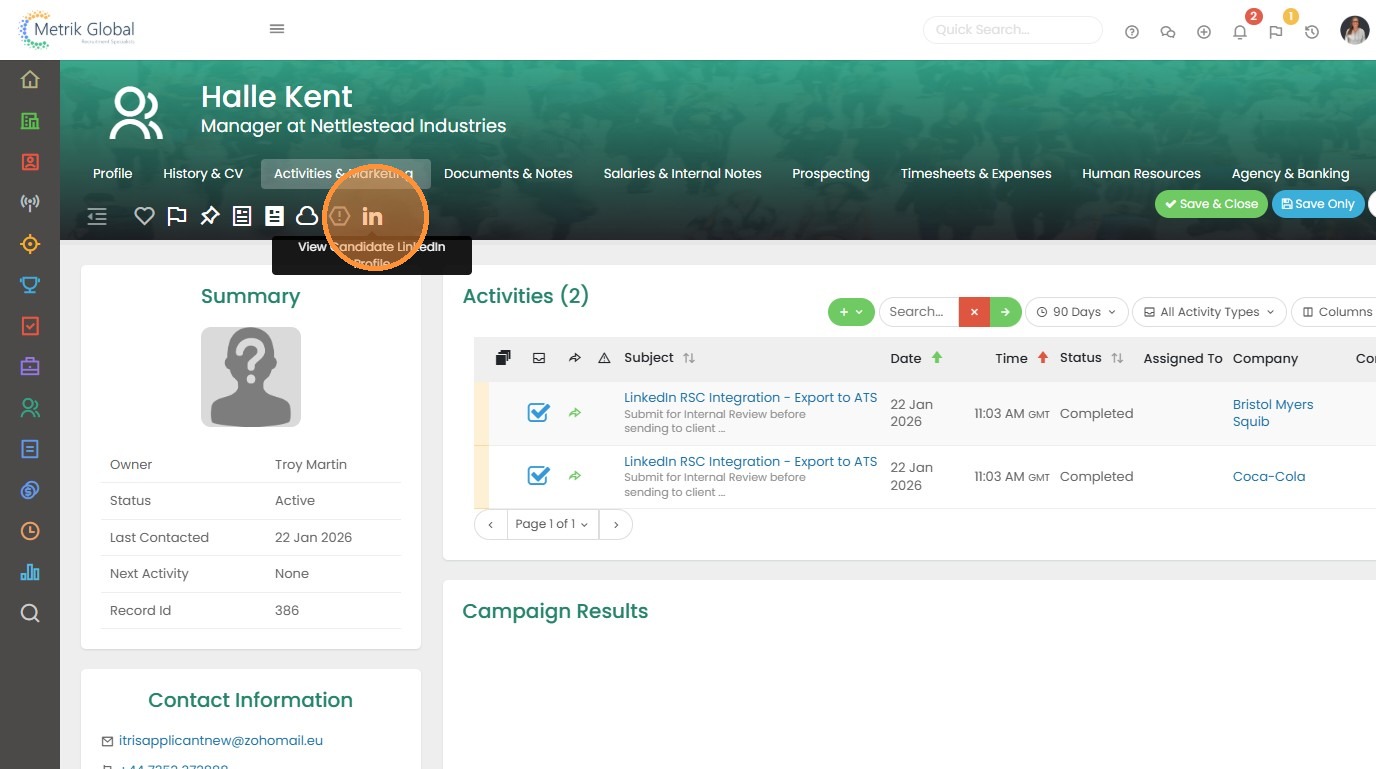
1. In the name banner of candidate records you will have the LinkedIn icon.
When you click on this icon the LinkedIn Profile widget will open out on the Profile tab.
2. The Profile tab shows a part of the persons LinkedIn profile.
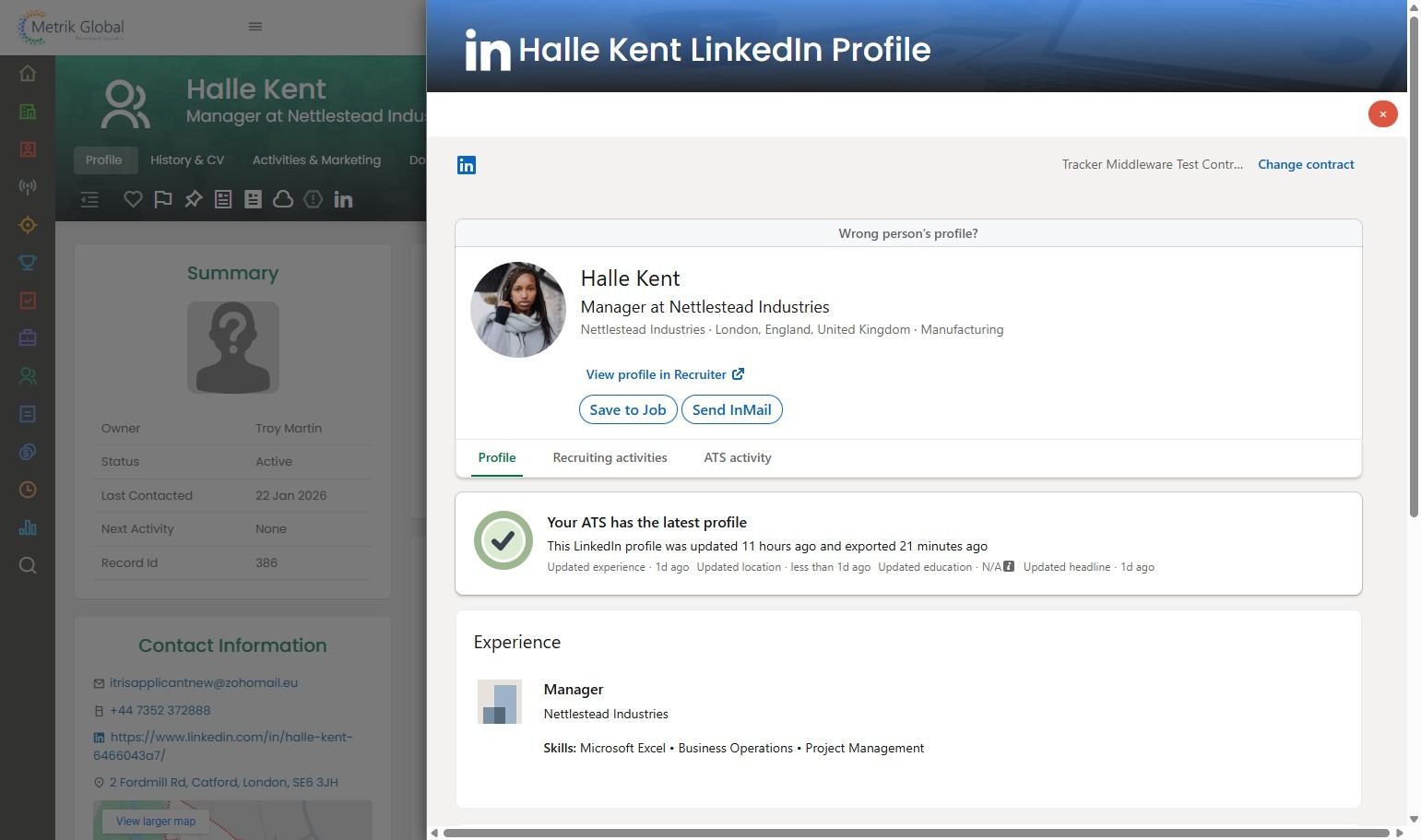
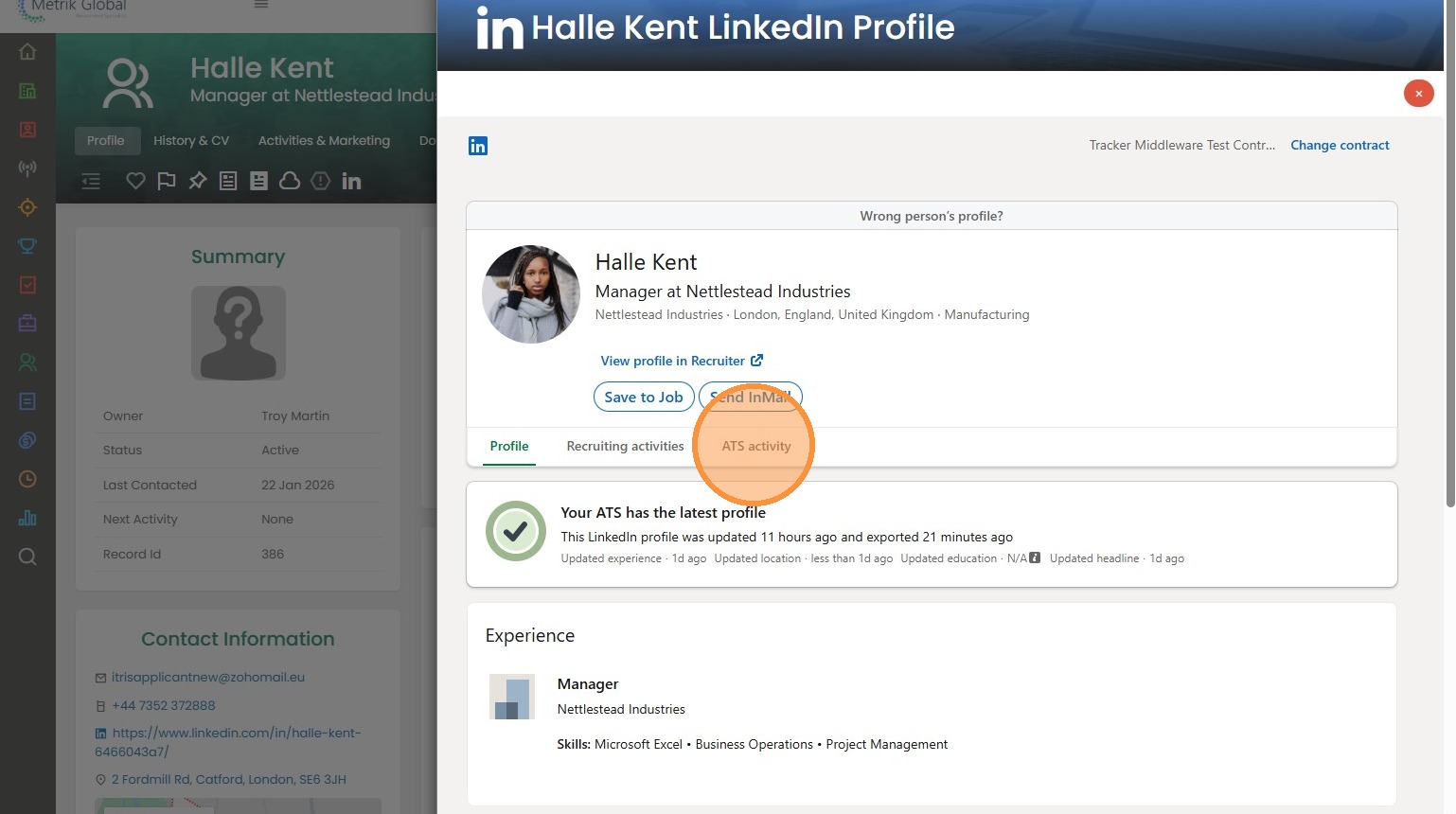
3. The ATS Activity tab shows a smaller/condensed view of that candidates history in your database.
From this view you can also Save to Job which is a way to shortlist the candidate to a Job (beyond the other Tracker based workflows), send an InMail and open their full profile on LinkedIn Recruiter.
If there is not a linked profile you can manually link from here or if the incorrect record has been synced you can click “Wrong person’s profile?” and then manually link to the correct one
Synced Records | LinkedIn
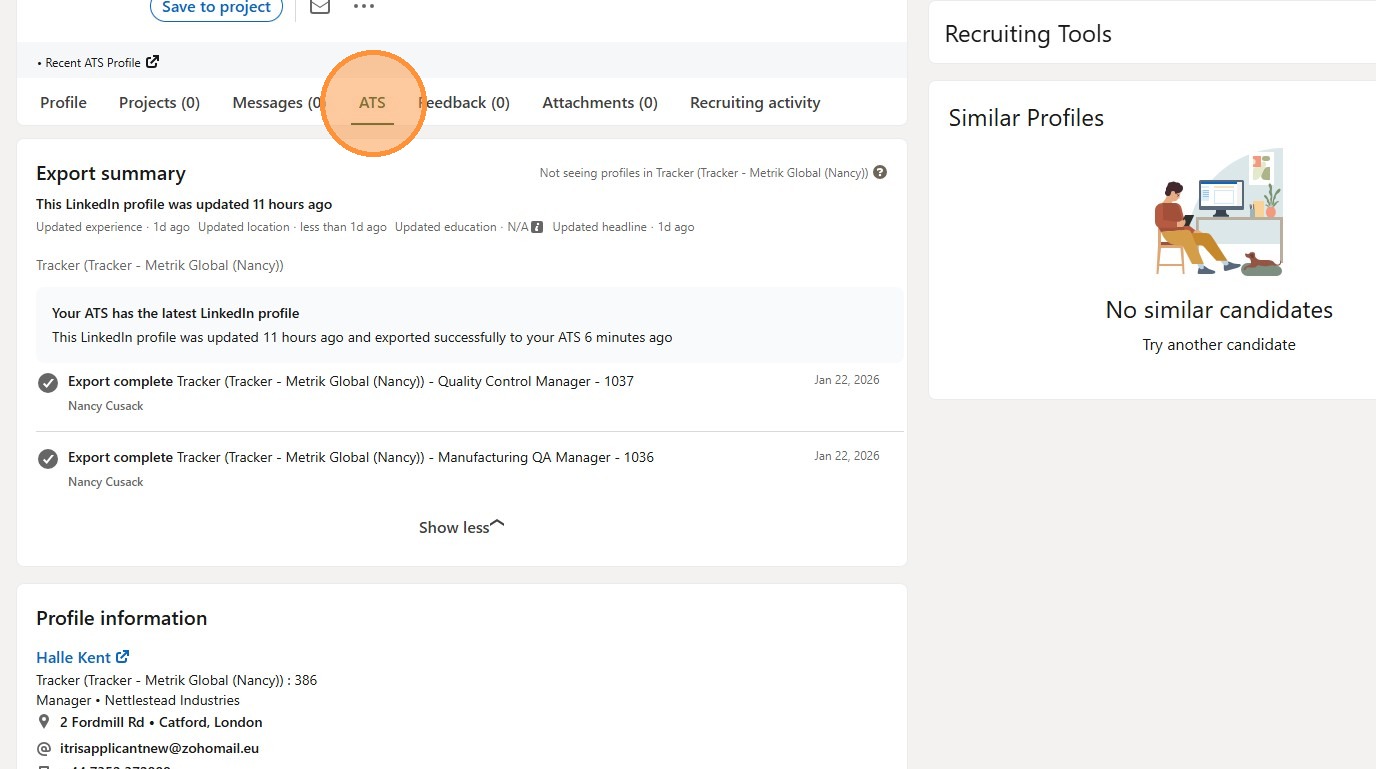
4. When viewing a synced record from LinkedIn there will be an ATS tab that shows information shared between the two systems.
Export Summary - shows if that record is synced to Tracker, for example your database it is linked to and when.
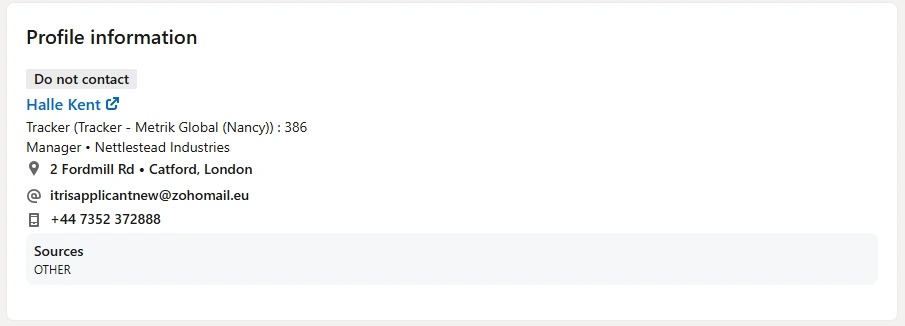
Profile Information - gives a link to open the record in Tracker and the Tracker Id number.
5. If the candidate is opted out of Marketing Preferences within Tracker a Do Not Contact badge will show in this area too.
6. Jobs & Feedback shows a history of Jobs shortlisted to and subsequent submission stages (e.g. Shortlist, Interview, Offer) so you can view and track their progress from within LinkedIn.
- Notes show Activities linked to both Candidate & Placement records.
- Feedback shares the same logic as above but for Activities added against Placement records when at Interview stage.
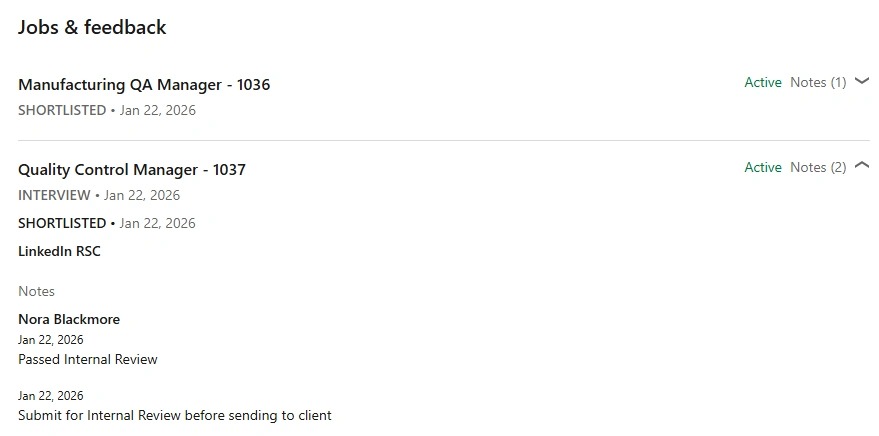
7. Candidate Notes are activities solely linked to the candidate record in Tracker.

LinkedIn initiated Sync
8. From LinkedIn, where a persons profile record is not already synced with Tracker the ATS tab will show they are not matched.
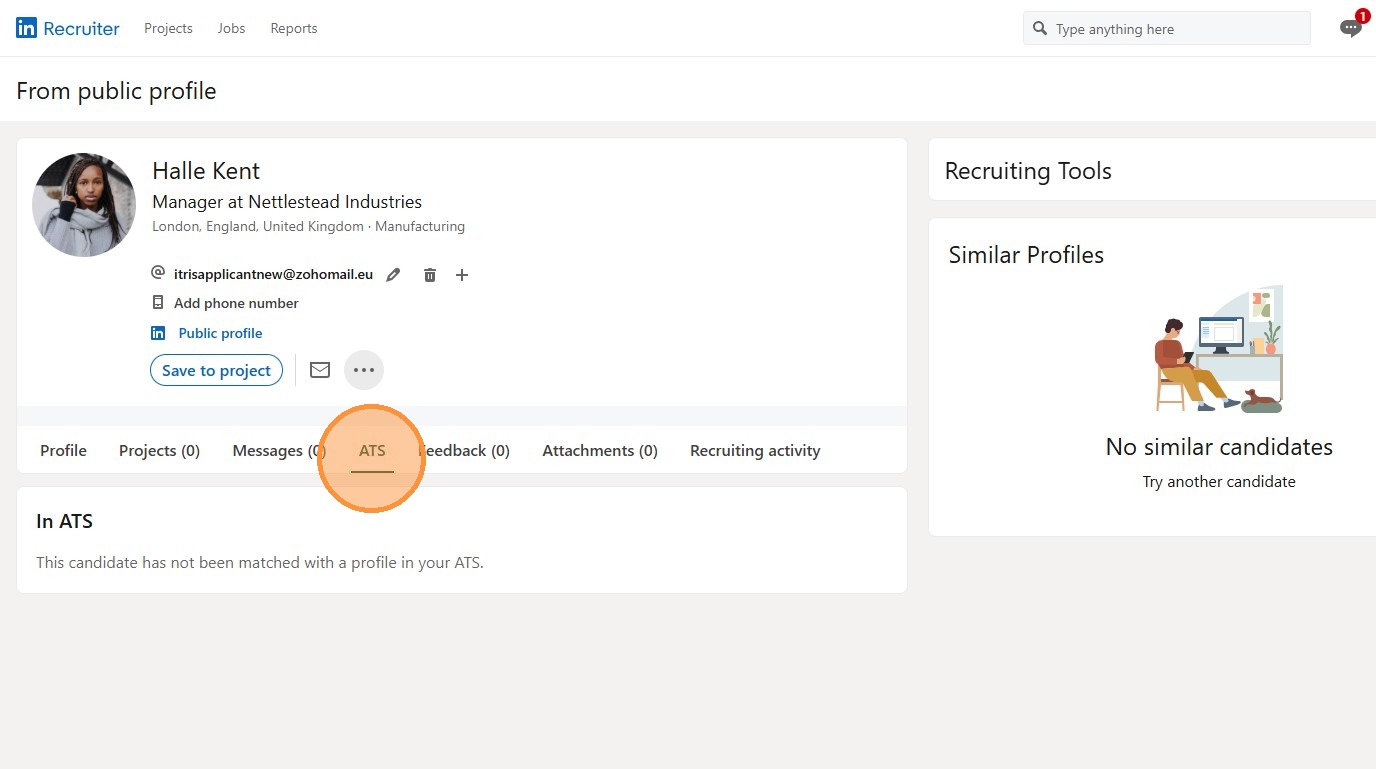
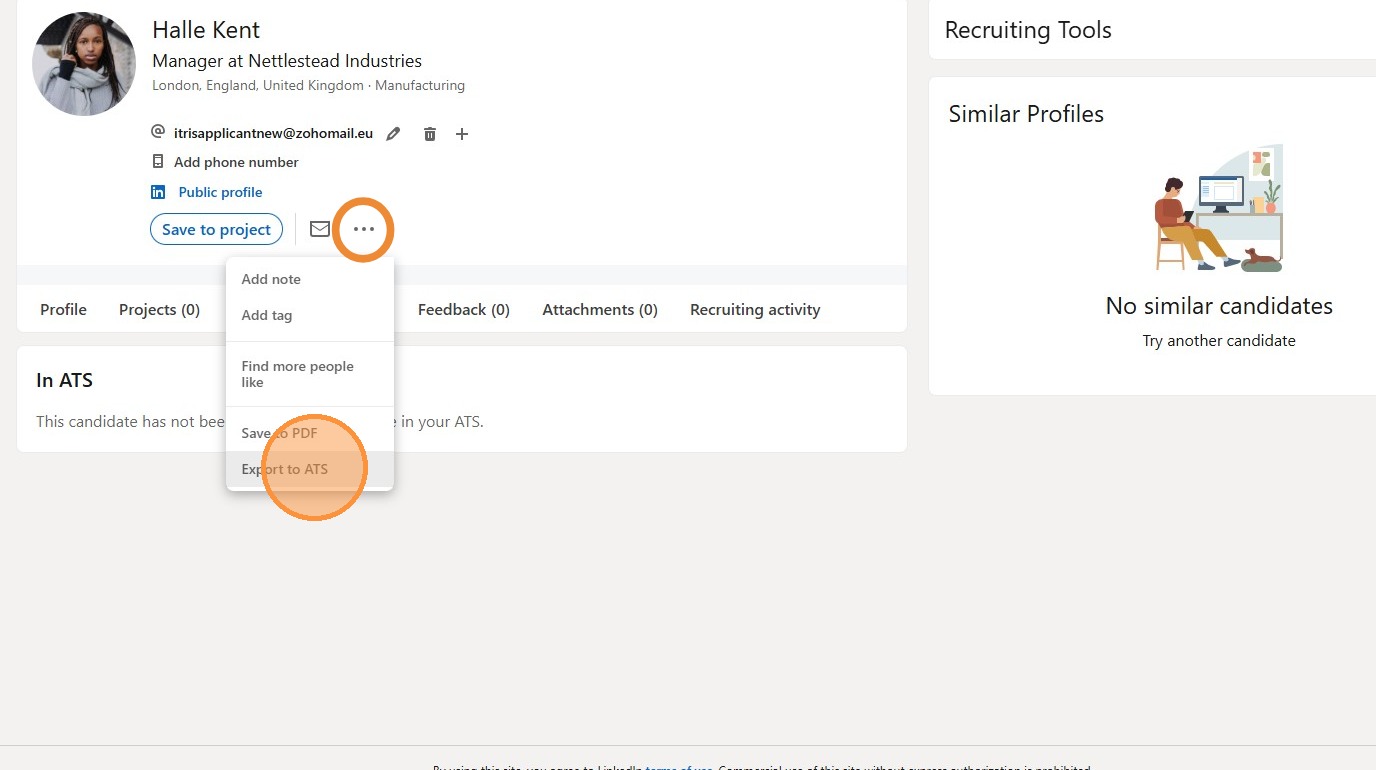
9. Via the ellipses in the LinkedIn name banner you can choose to Export to ATS.
10. When Exporting to Tracker, if you have more than one ATS database (contract) you can select from the drop down.
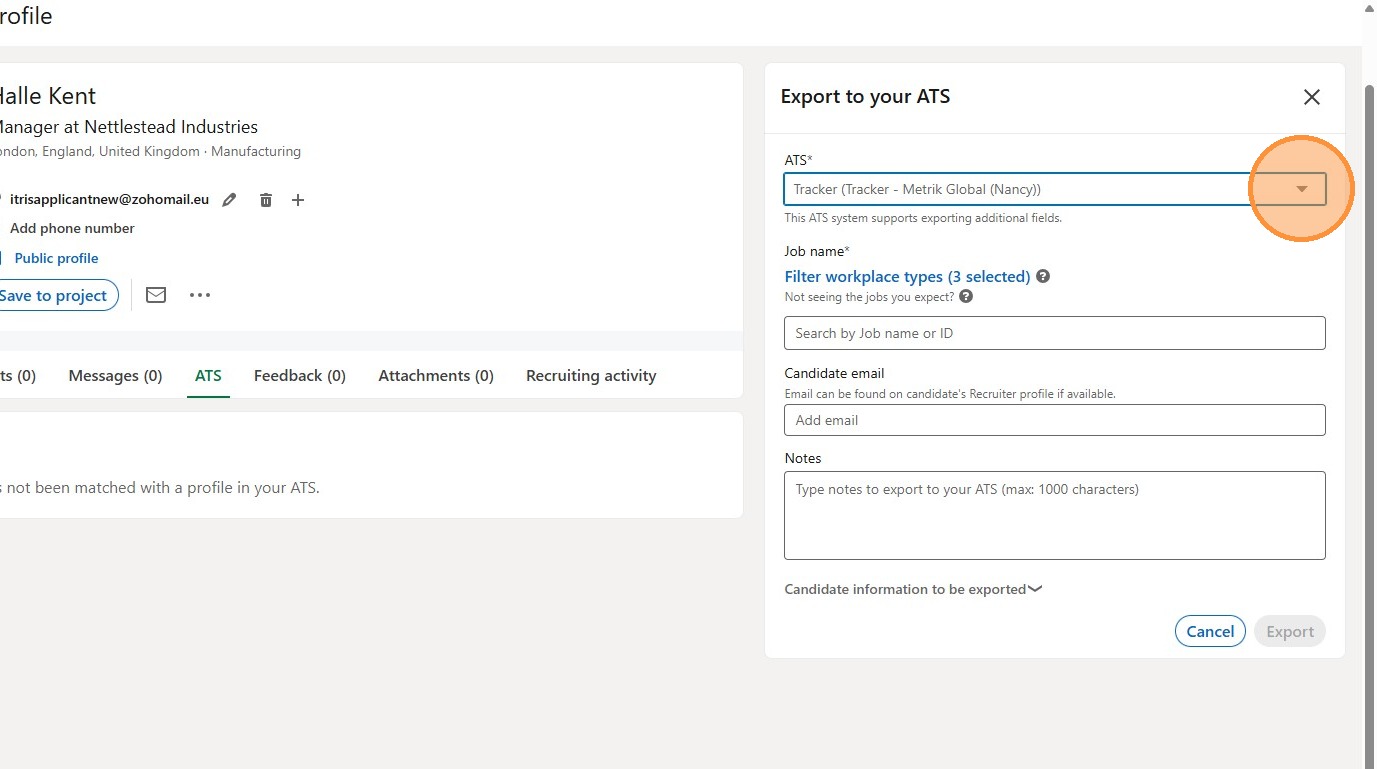
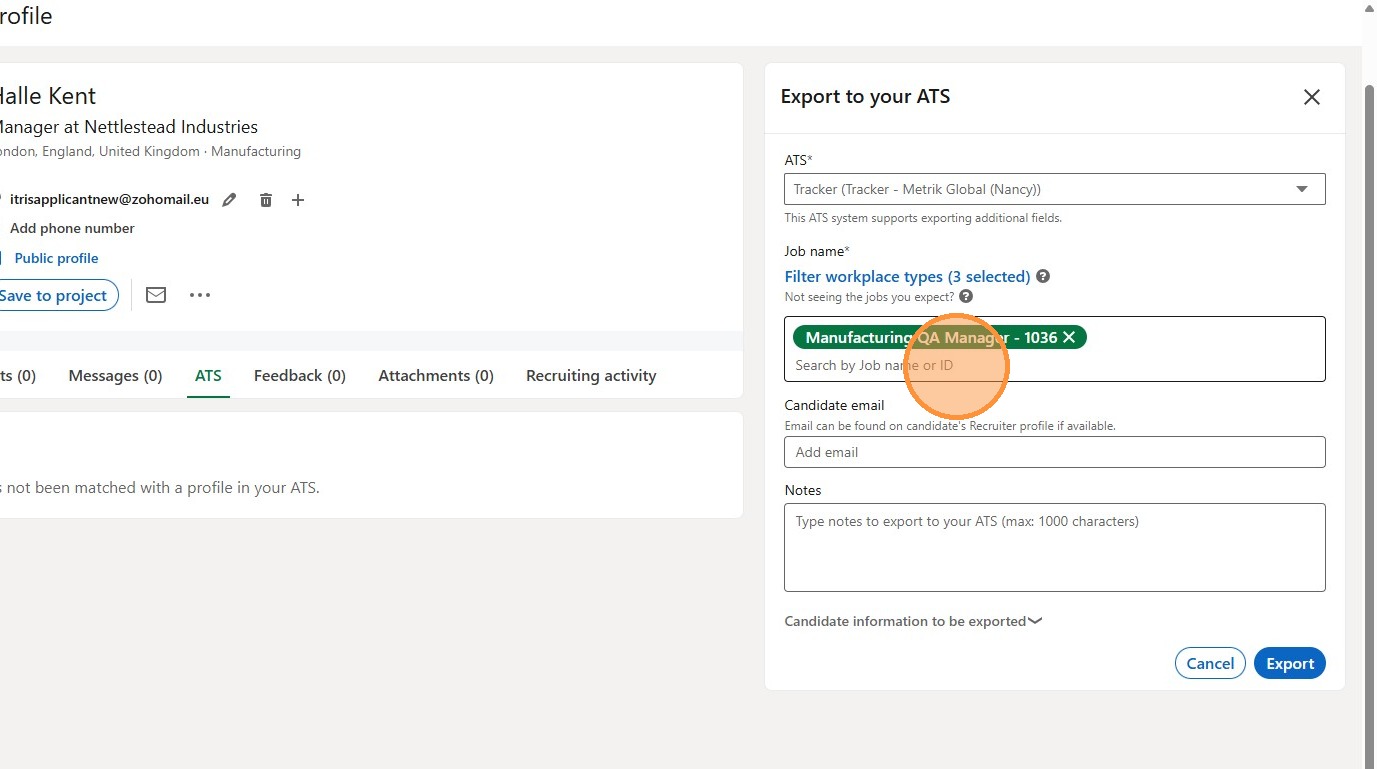
11. You are not able to “free” export a person to Tracker, it must be linked to one or more Jobs for you to export it.
You can search for Open Jobs by name or Id number.
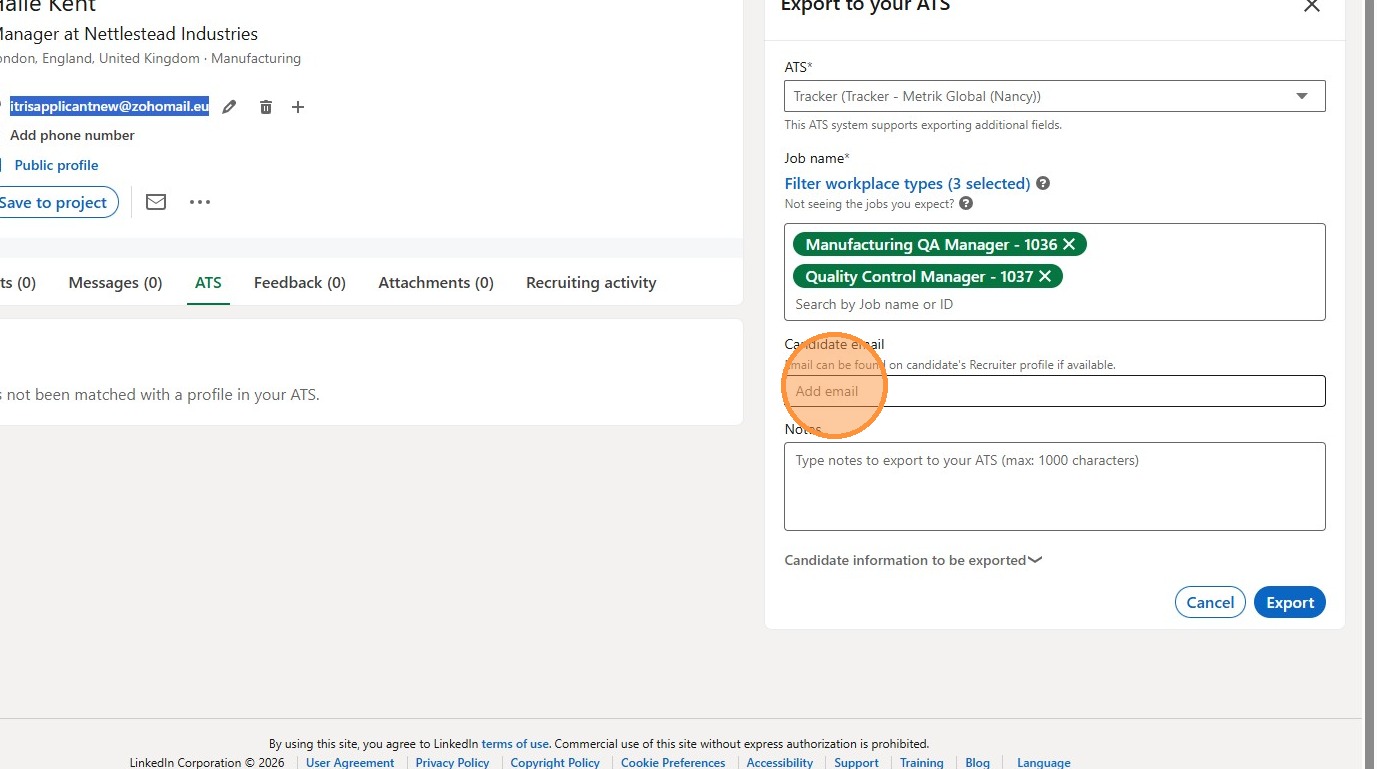
12. There is a field to add the candidate’s email address, you may find this displayed in the name banner of their LinkedIn profile for you to copy and paste here.
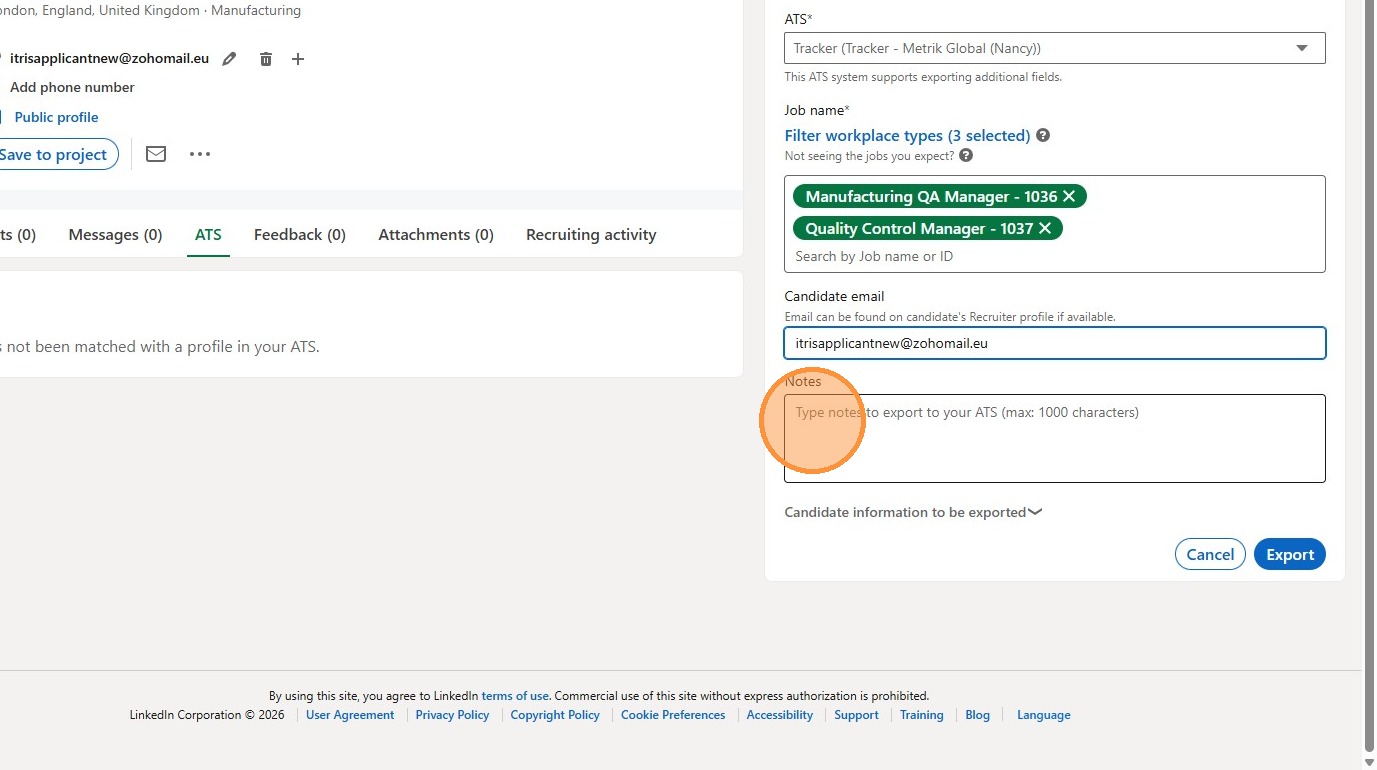
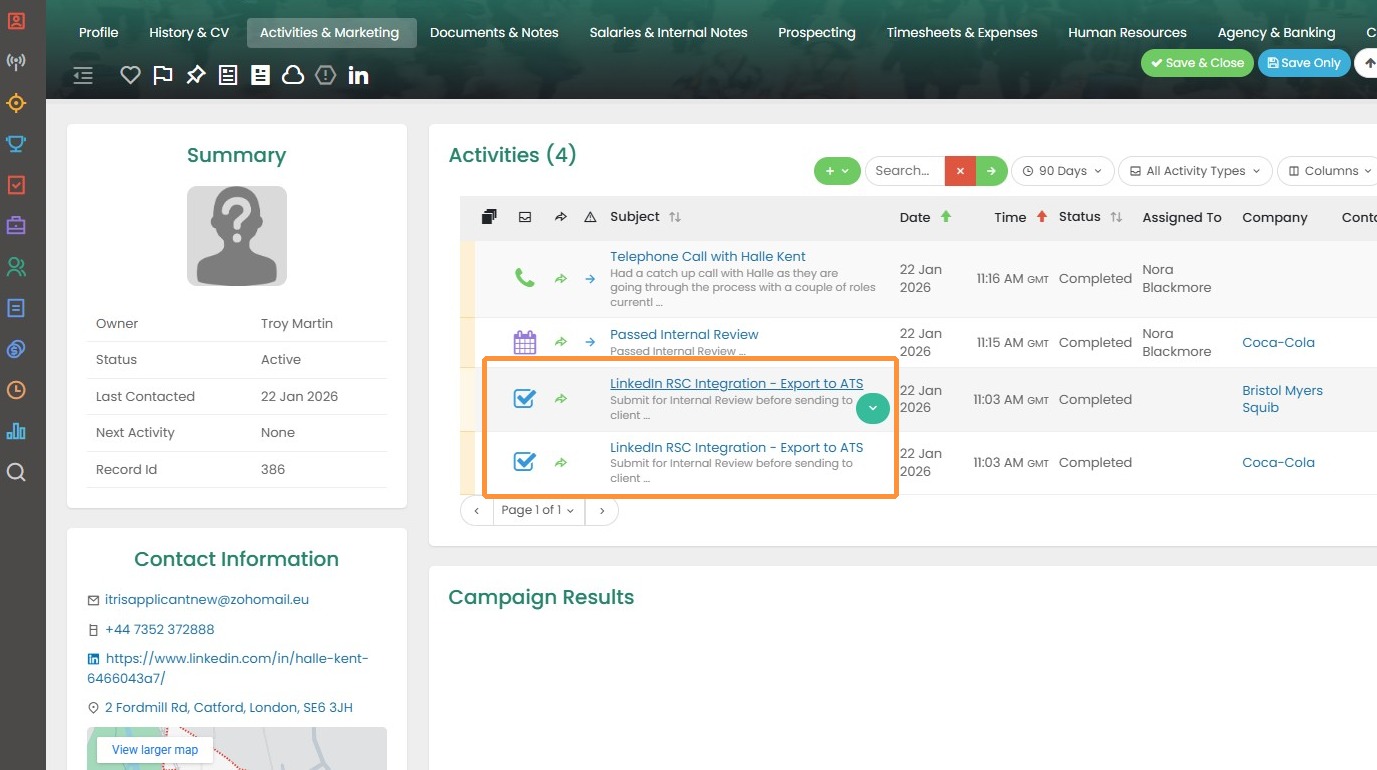
13. Additionally, you can choose to add a note that will be added as a completed Task (Activity) against the Candidate, Company and Placement records.
14. You can expand the section “Candidate Information to be exported” to see the details of which data (if available on the LinkedIn record) will be exported to Tracker.
(Please note this does not include Headline and Years of experience. For skills to be exported they must match your Skills list in Tracker).
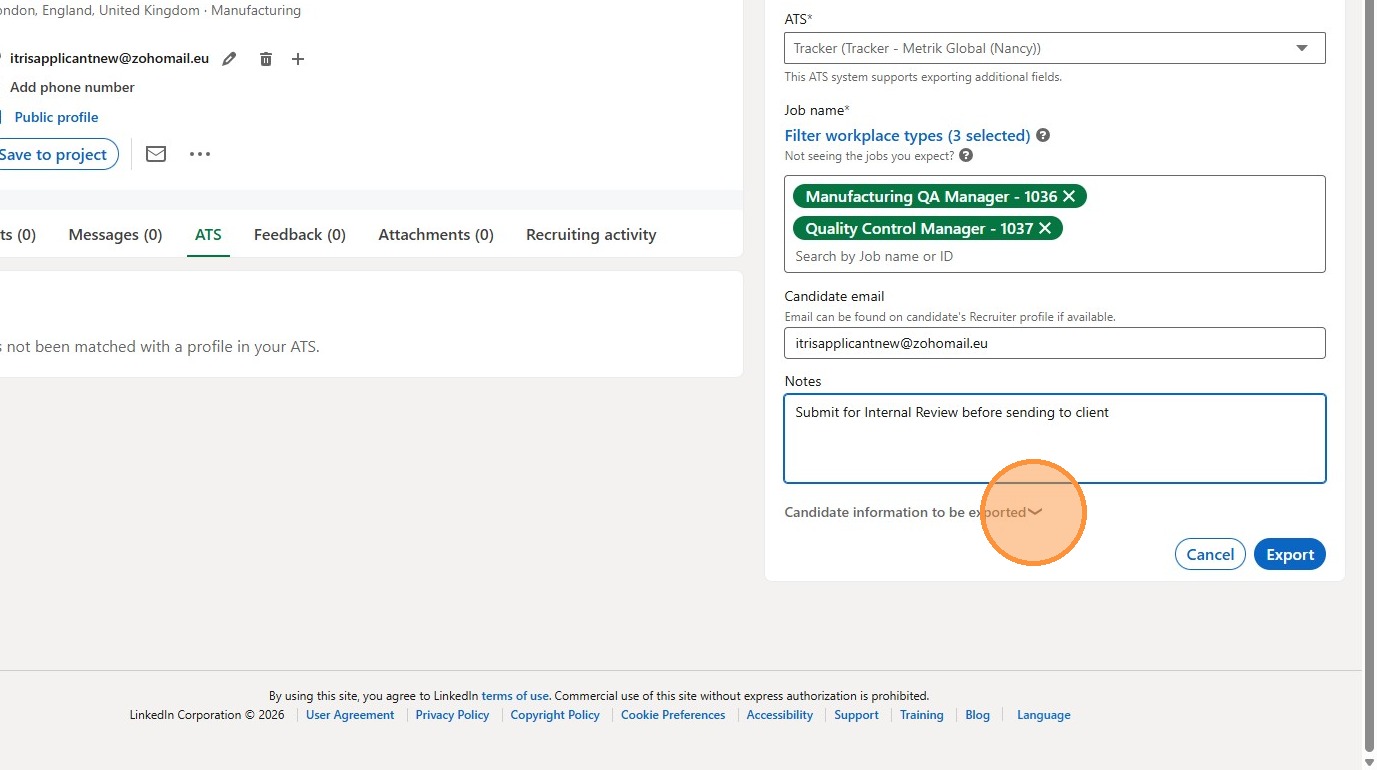
15. Click "Export". Once Exported the record is created in Tracker.
Please note, there is a limit on the number of exports you can make per month, this is by design and a restriction from LinkedIn.
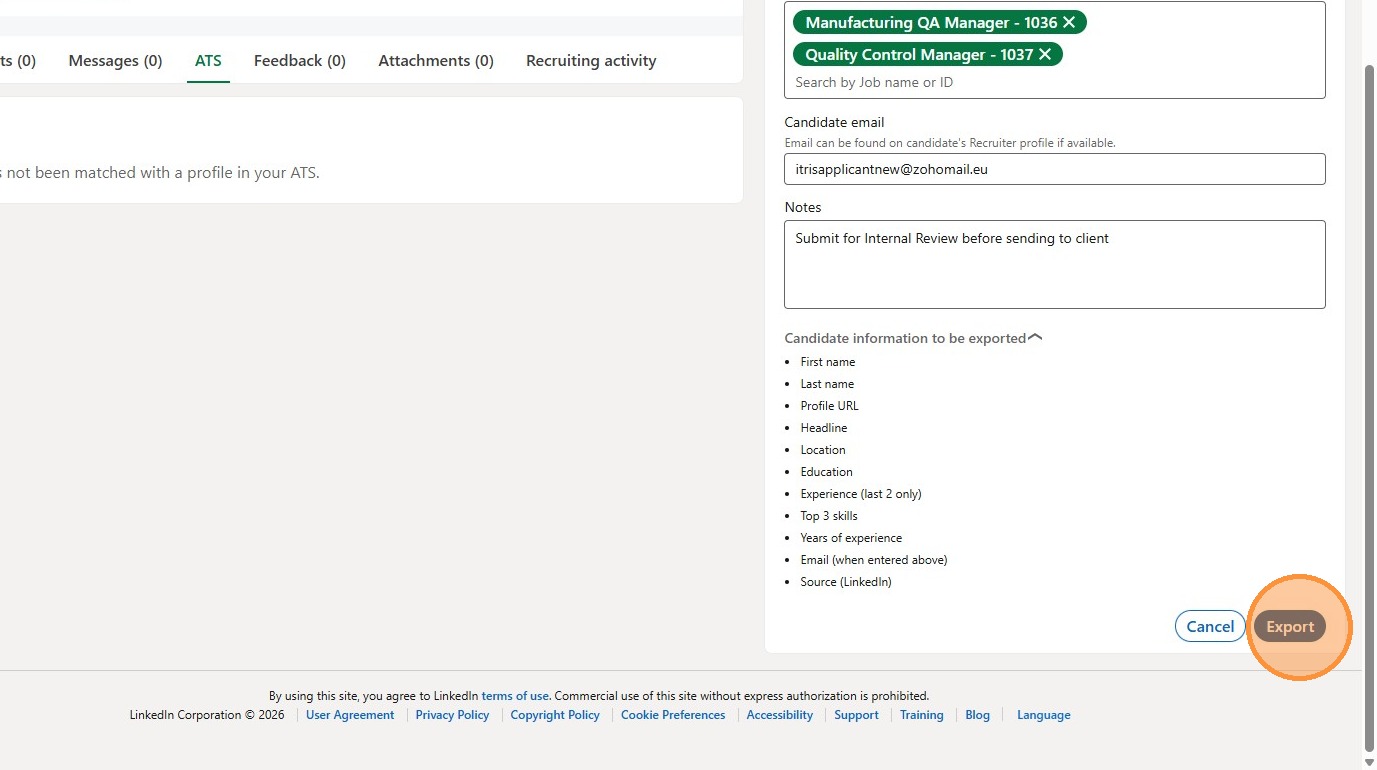
16. Refreshing the LinkedIn person record will update the ATS tab and show an Export Summary, a link to the Tracker record (under Profile Information) and details of the Job(s) shortlisted for.
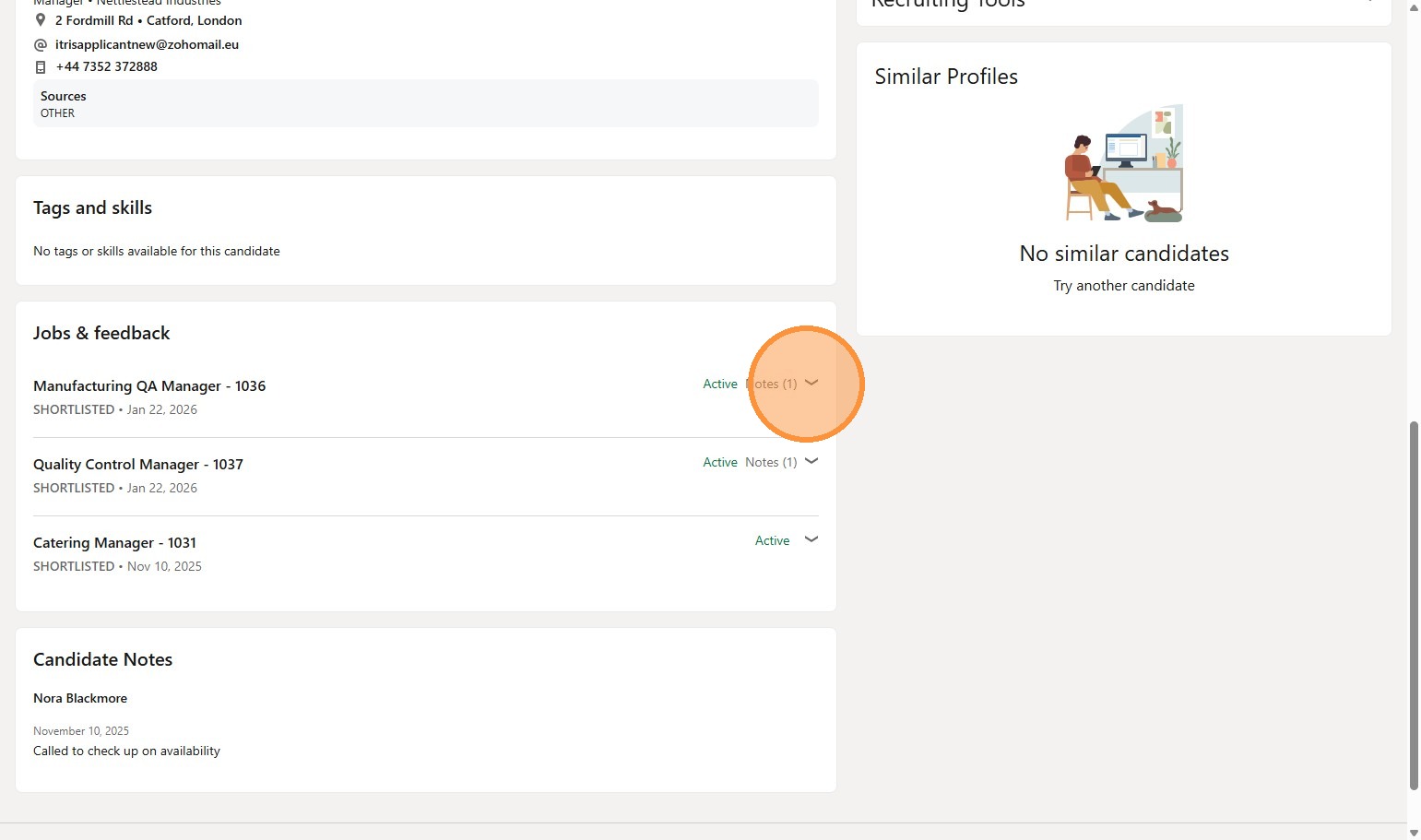
17. Within Tracker the Candidate will be shortlisted to the Job(s) specified on the Export form and Completed Task Activities created on relevant Candidate, Company and Placement records.
Tracker initiated Sync and Manually Syncing
18. A Tracker initiated sync is called an Ad Hoc sync and occurs automatically when a new record (Candidate, Job, Placement) is added to Tracker.
When adding a new candidate to Tracker the record data will be matched and synced to LinkedIn based on the name and email address of the record.
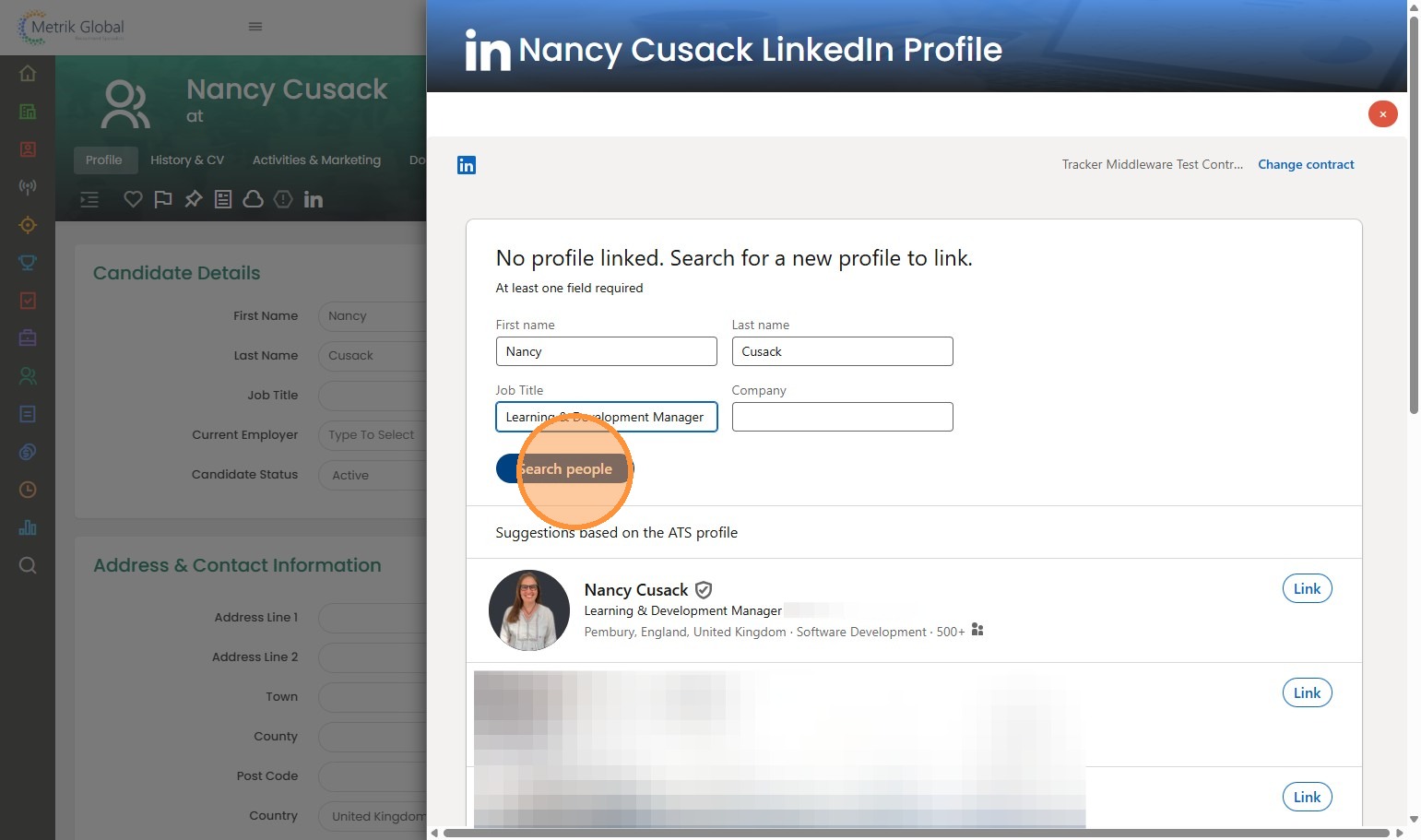
Where a Tracker candidate record is not synced (for example if you don’t have the email address at the point of creating the record) , or if you need to re-match with another LinkedIn profile you can search for a new profile link via the Candidate record LinkedIn widget and link to that record.
Clicking the Icon will open the search form.
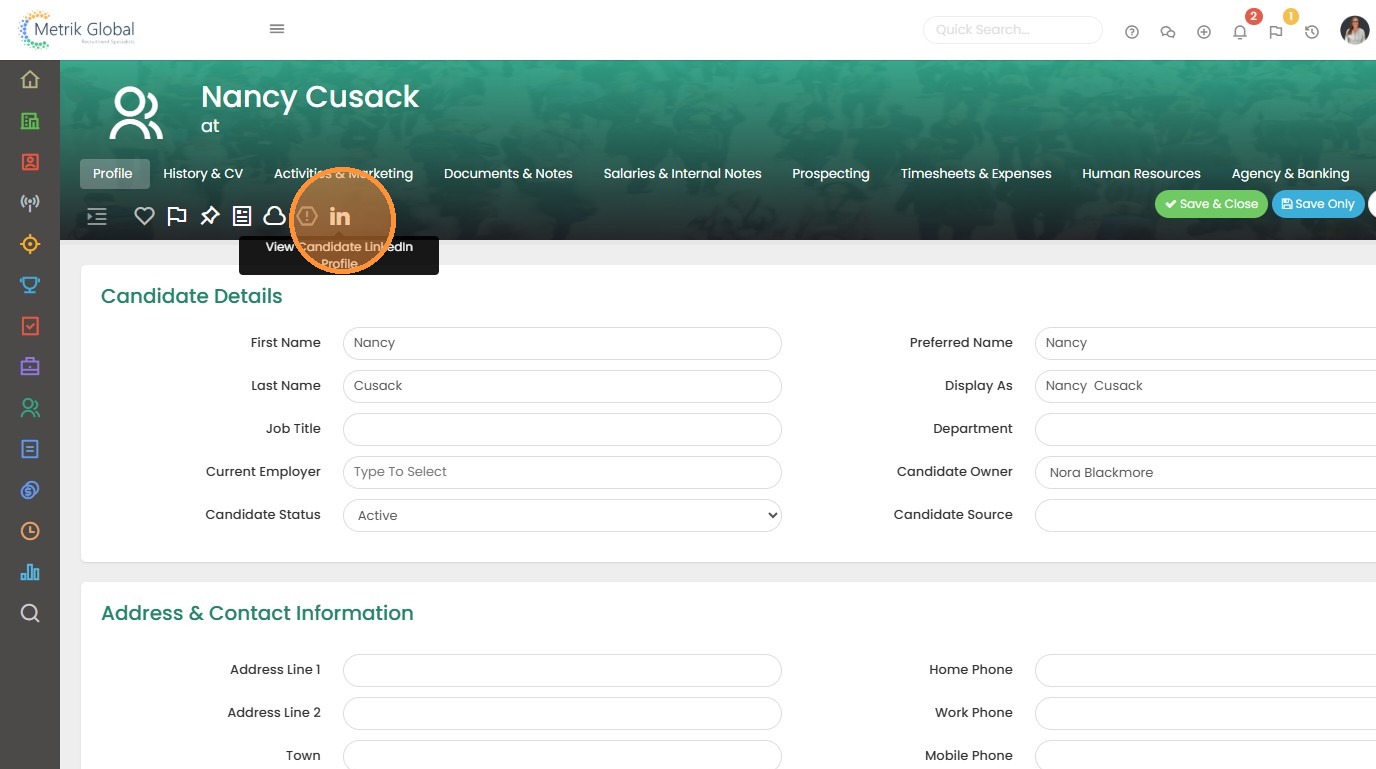
19. Add in additional criteria if needed such as job title and company, and click "Search people".
The sync will normally occur within one minute, but may take longer if the initial integration sync is still in progress or if multiple syncs are occurring at the same time.
InMail Stub Profile
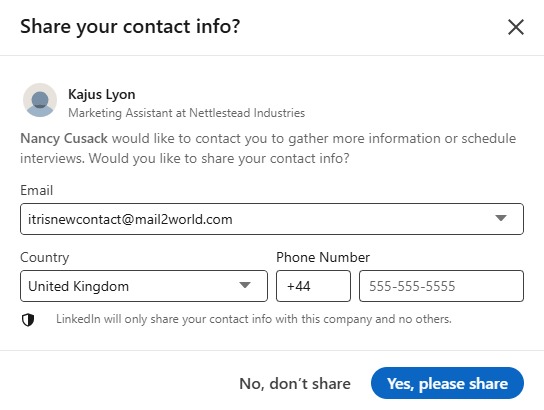
20. As you may know, when you initiate a conversation with somebody via LinkedIn Recruiter using InMail, once you start that conversation with them LinkedIn will ask them if they want to share their contact information with you. If they choose to share these details and they are already a candidate record in Tracker, these will be synced.
As that conversation continues via InMail (when the LinkedIn Recruiter account is used), Activities of the type InMail will be synced to Tracker hourly. These will be both Inbound and Outbound activities.
Note: Tracker only has visibility of the InMail mailbox for your LinkedIn Recruiter account, Tracker does not have visibility of your personal LinkedIn InMails.
Deleting Data
Tip: If you delete a Tracker record this will delete any data synced to LinkedIn, including Activities, Submissions as well as the Tracker record.
If somebody deletes their LinkedIn account this creates a Tracker (Activity) Task, which will show in My To Do List for the Candidate owner. If there is no Candidate Owner this will be assigned to the last user to update their Tracker record. The Activity will add a note to let you know they have deleted their LinkedIn record and for you to consider if you should remove them from Tracker . They will not automatically be deleted as you may have a right to retain them, for example they have agreed to be retained or have been placed etc.
Note: LinkedIn will notify Tracker 21 days after the candidate has deleted their profile.