Keep in mind, if you haven't created any email templates yet, follow these steps before proceeding below.
1. In this example, we're selecting an email template from a candidate record. You can follow the same steps within lead and contact records.
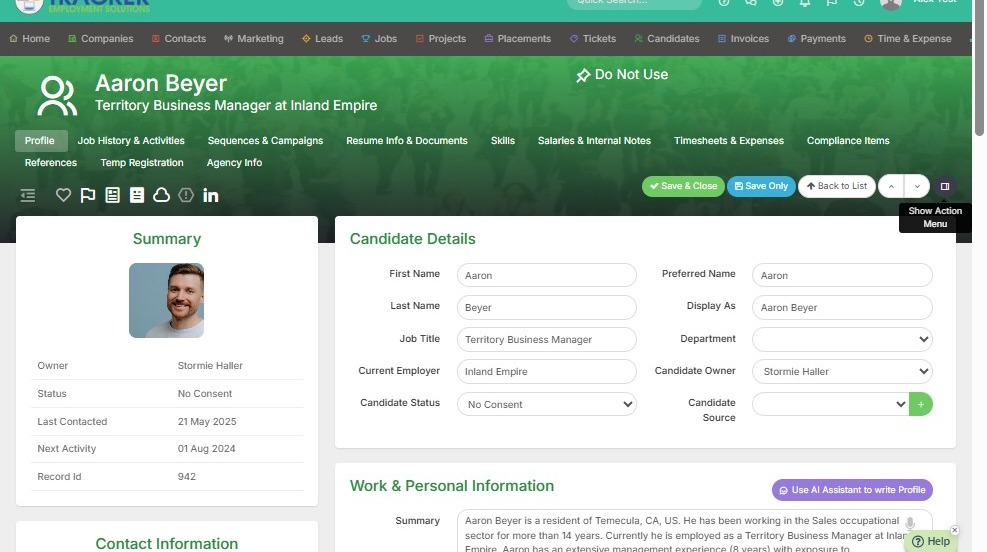
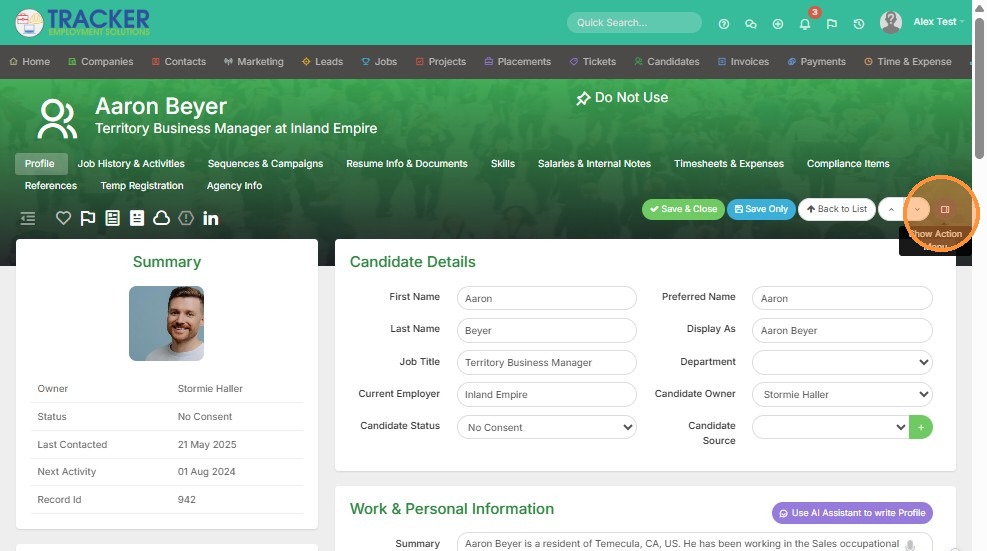
2. Click the action menu on the right of your screen.
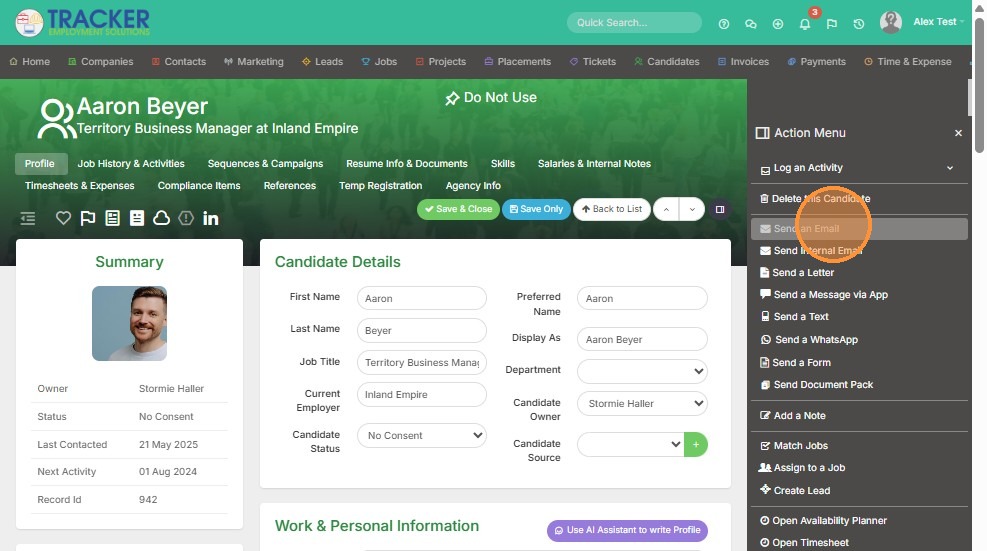
3. Click "Send an Email"
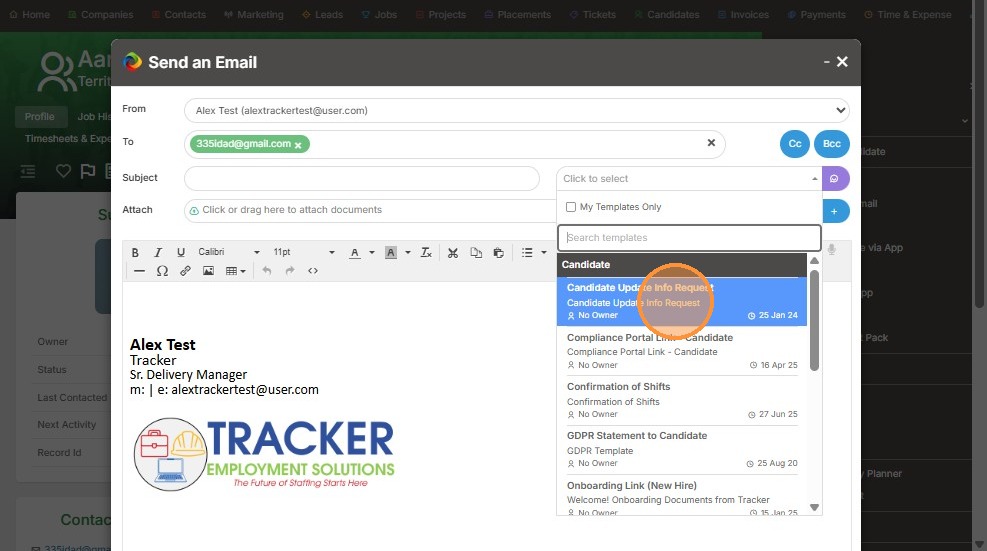
4. From here, you can select the email template you created from this dropdown.
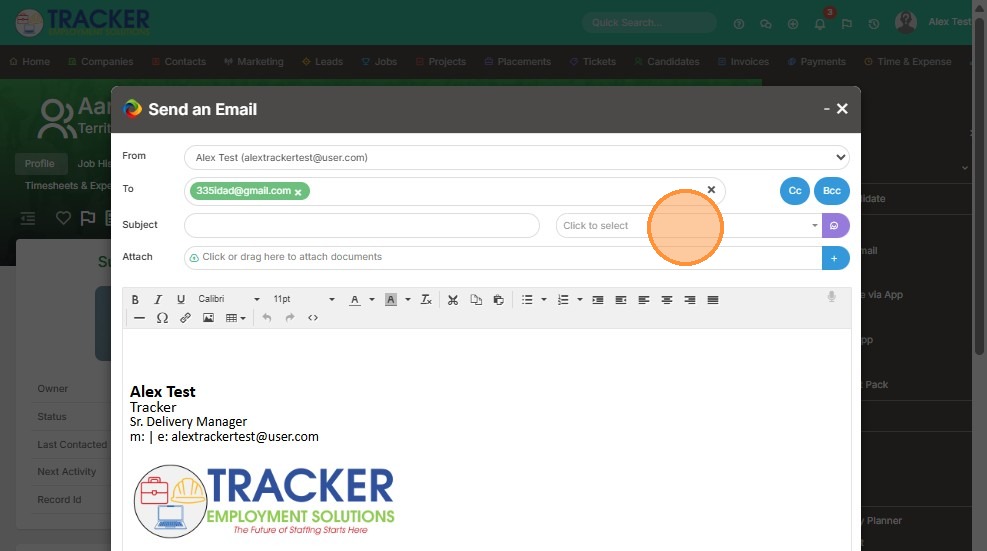
5. For example, I'm going to select the "Candidate Update Info Request" email.
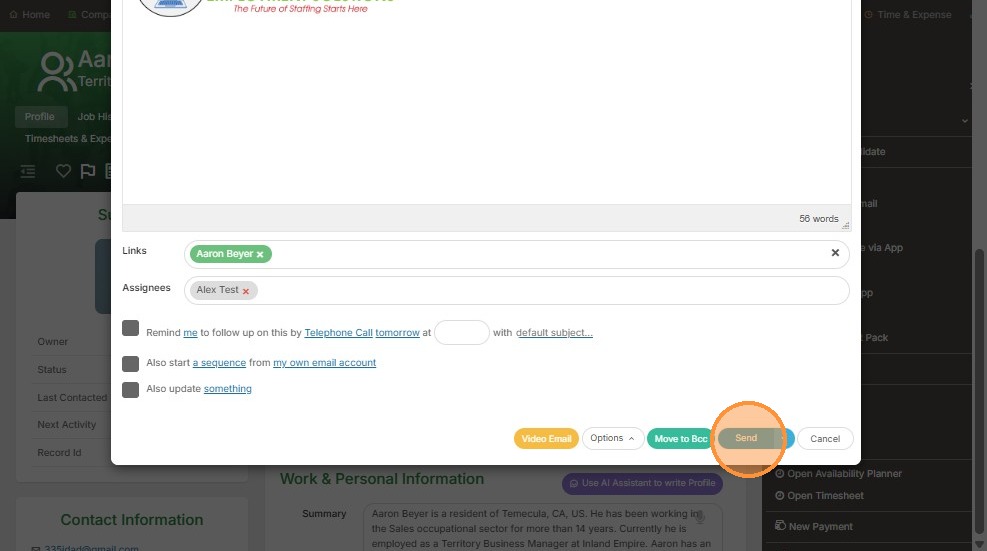
6. Click "Send" once you are happy with the content. Keep in mind you can still add/edit emails once a template is selected.