This help file will display an overview of how the AI Screening Questions work from start to finish. To begin setting your own up, please follow the lessons below in order.
Lesson 2: Creating Job AI Screener Questions
Lesson 3: Sending Job Specific Screening Questions to Candidates
Lesson 4: Create AI Job Screening Questions Templates
Lesson 5: How to Send Job Screening Template Questions
Lesson 6: Reviewing Screening Question Results
Job Configuration
1. Within the job record, you should have a section for Job AI Screening Questions. If you do not see this, please go to tools & settings > Layout Designer > Job Record to add screening questions to your layout.
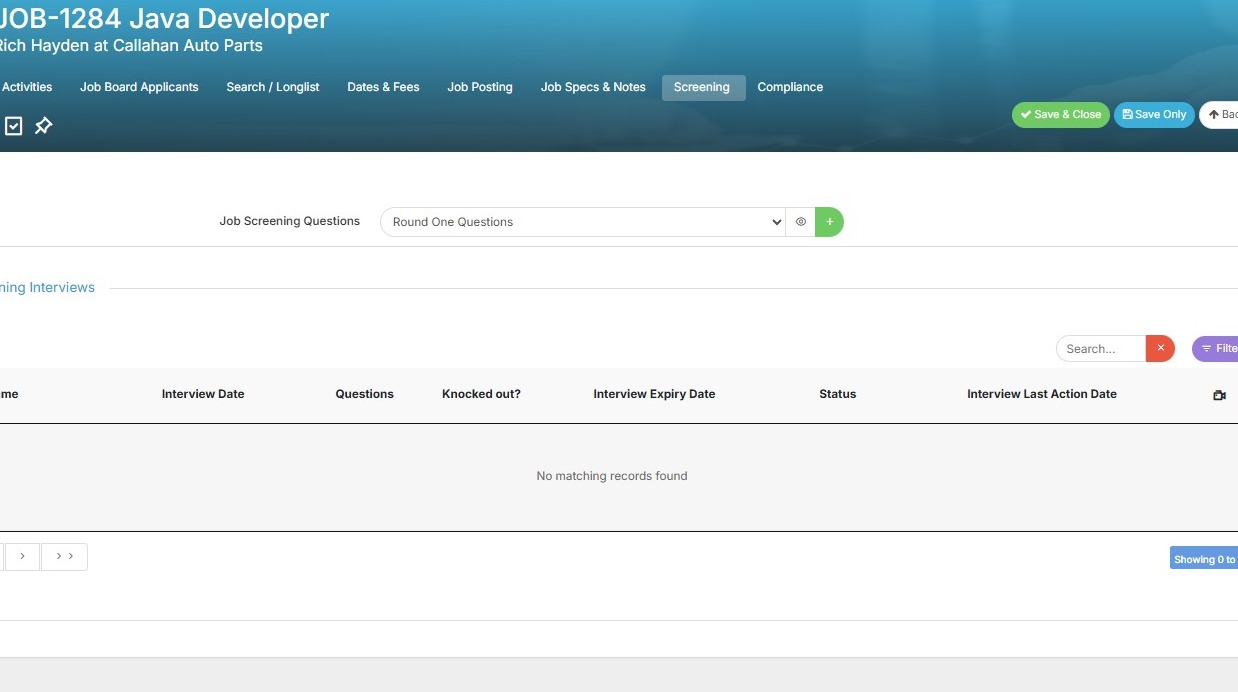
2. Click "Screening"
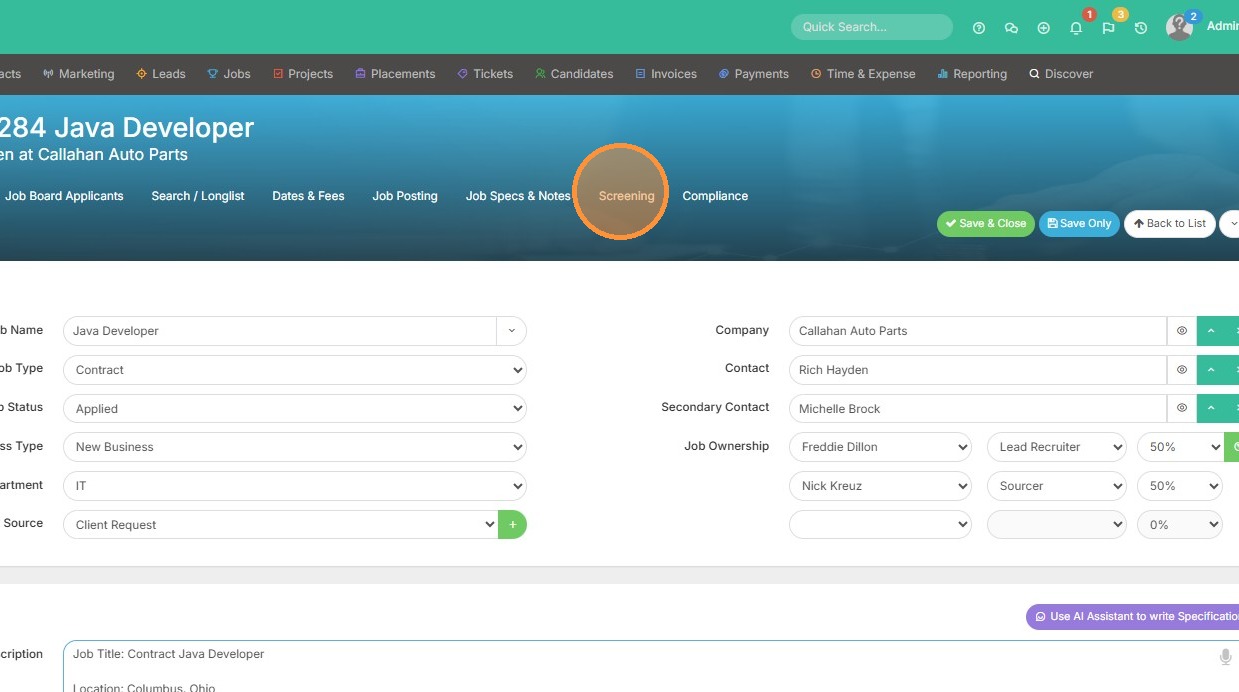
Screening Template Creation
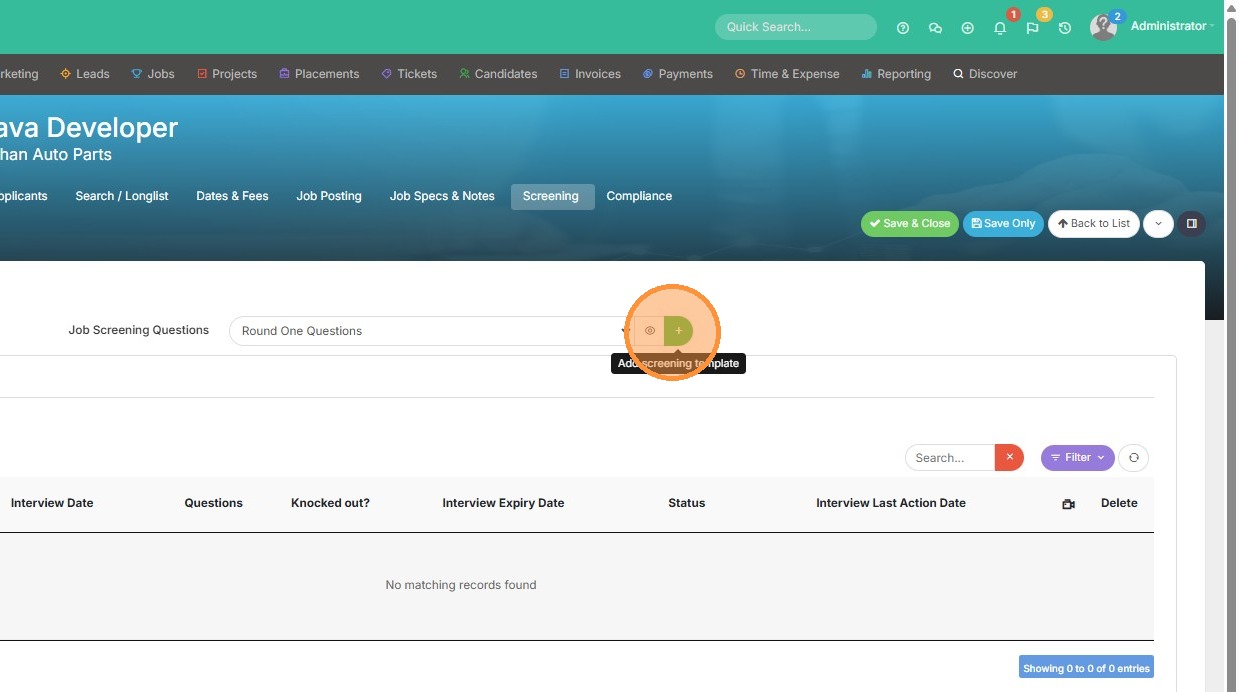
3. Click the '+' button to add a new screening template, or use the dropdown list to use a current template.
4. Select the number of questions and click 'AI Generate' to populate the template.

5. Here you can use these 3 dots to rearrange the questions.
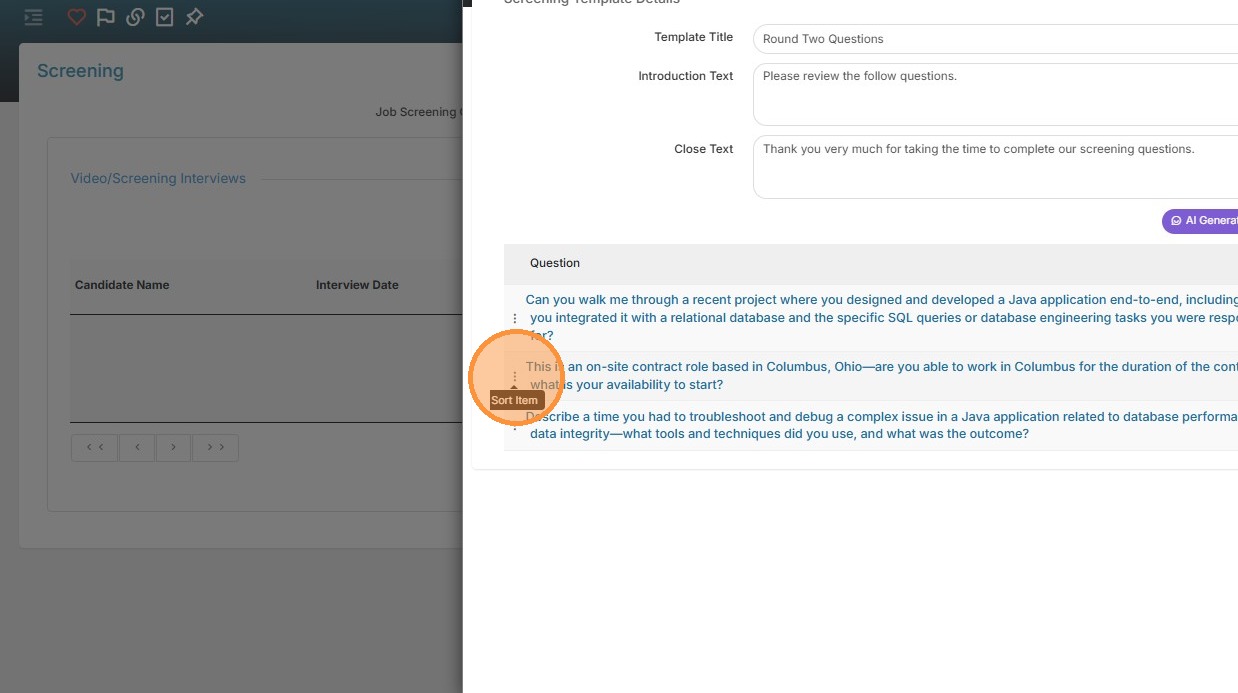
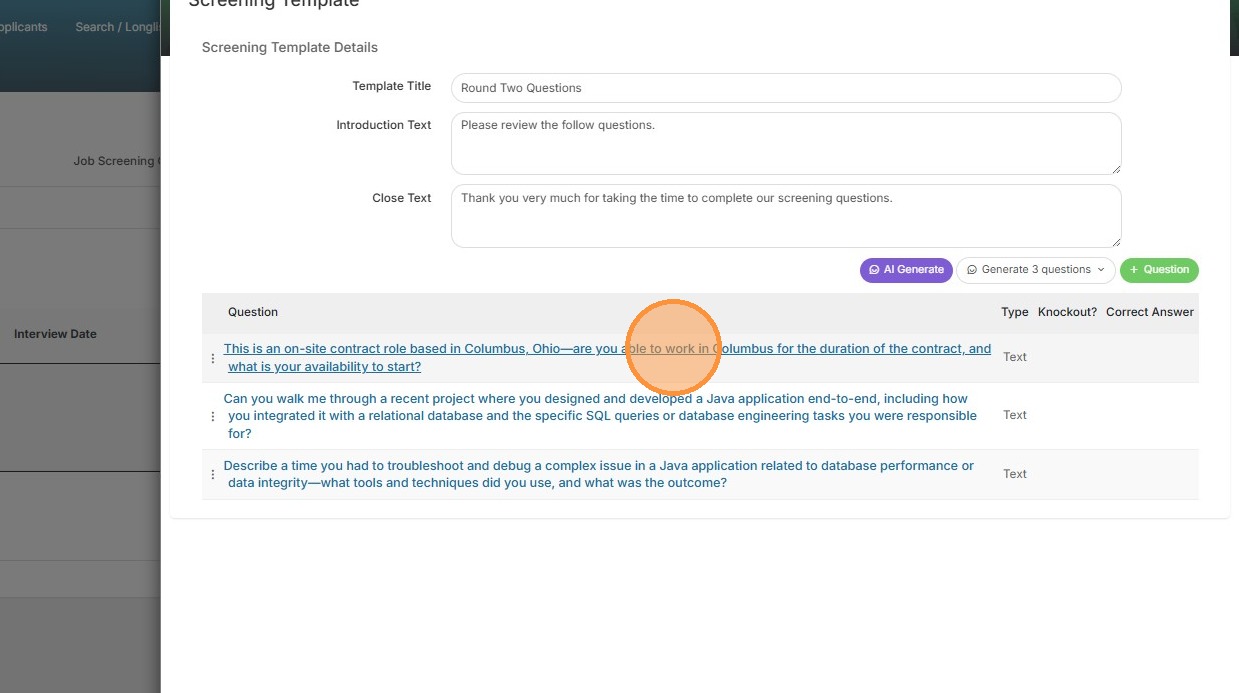
6. You can also click on the questions to make edits.
7. Click '+ Question' to add a custom screening question.
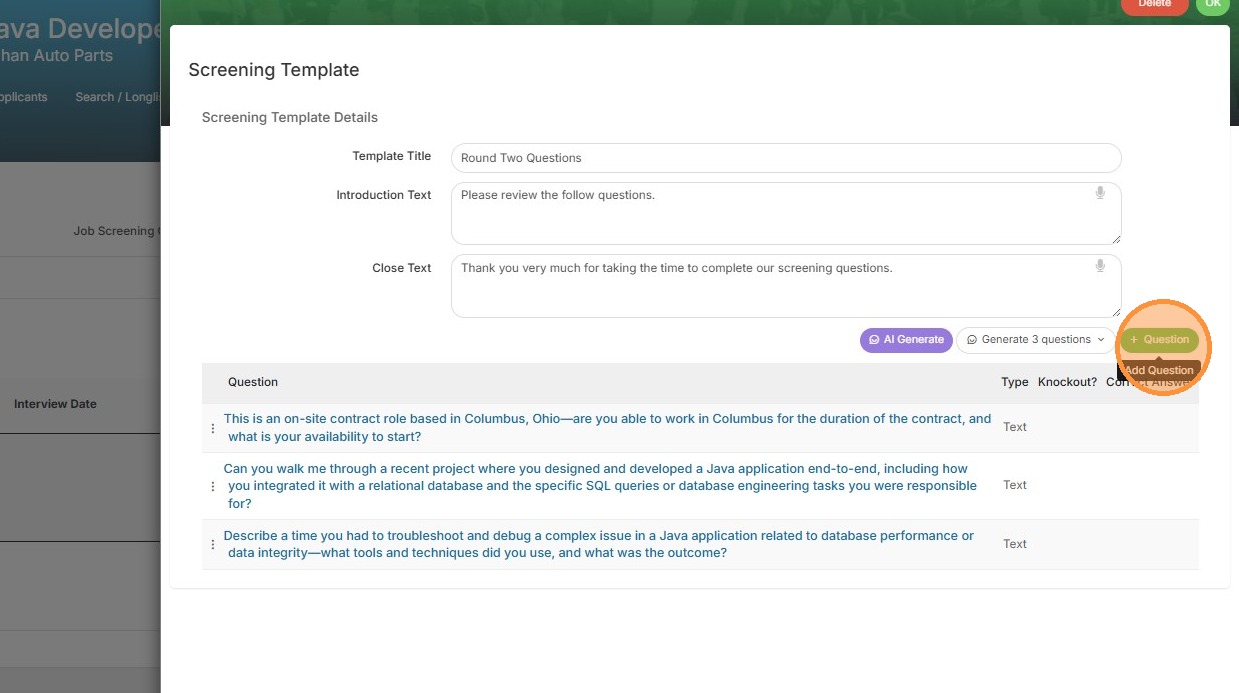

8. Enter the question text and any optional multiple-choice answers.
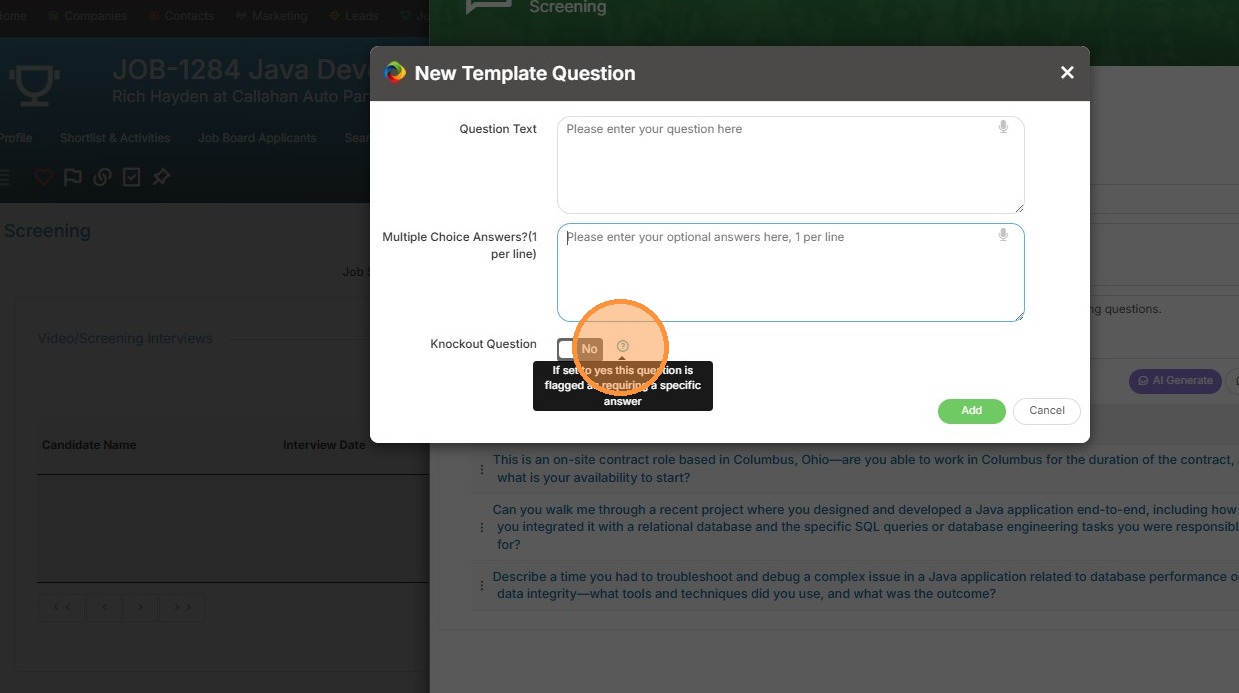
9. You also have the ability to create a knockout question. If you use multiple choice, and the candidate selects the wrong answer, you can knock them out of the running.
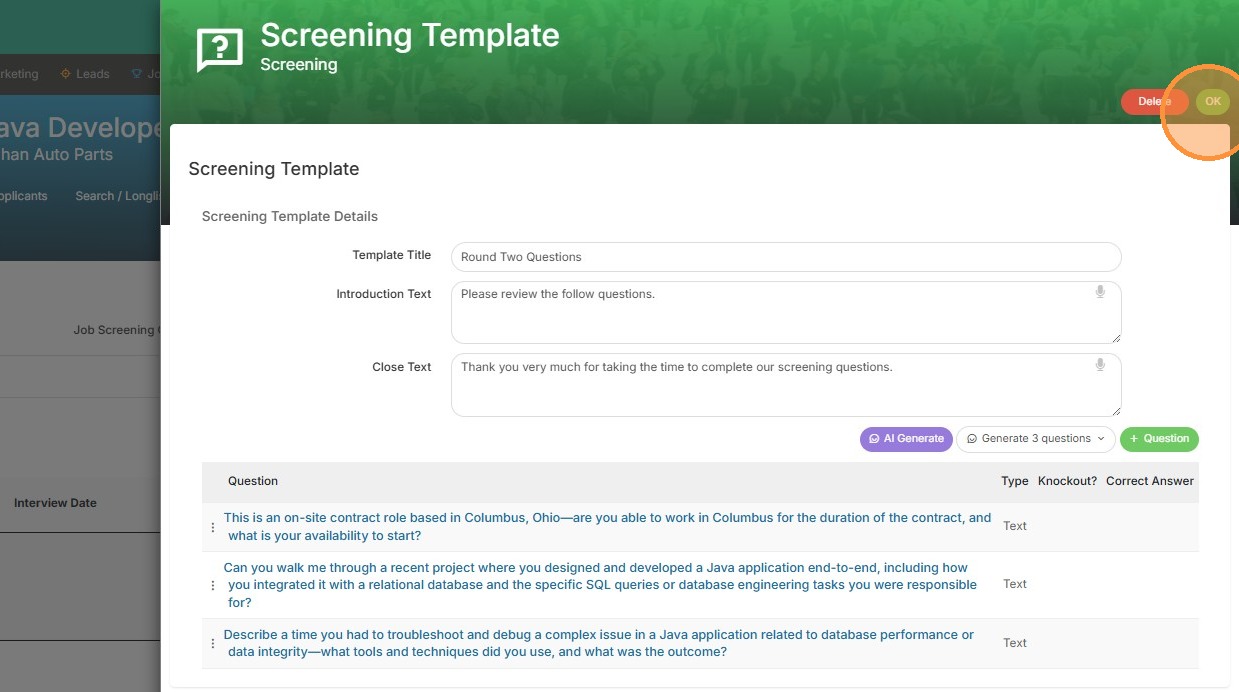
10. Click Okay once you are happy with the questions.
Bulk Screening Request
11. Navigate to the Shortlist or Longlist tab to send these questions.
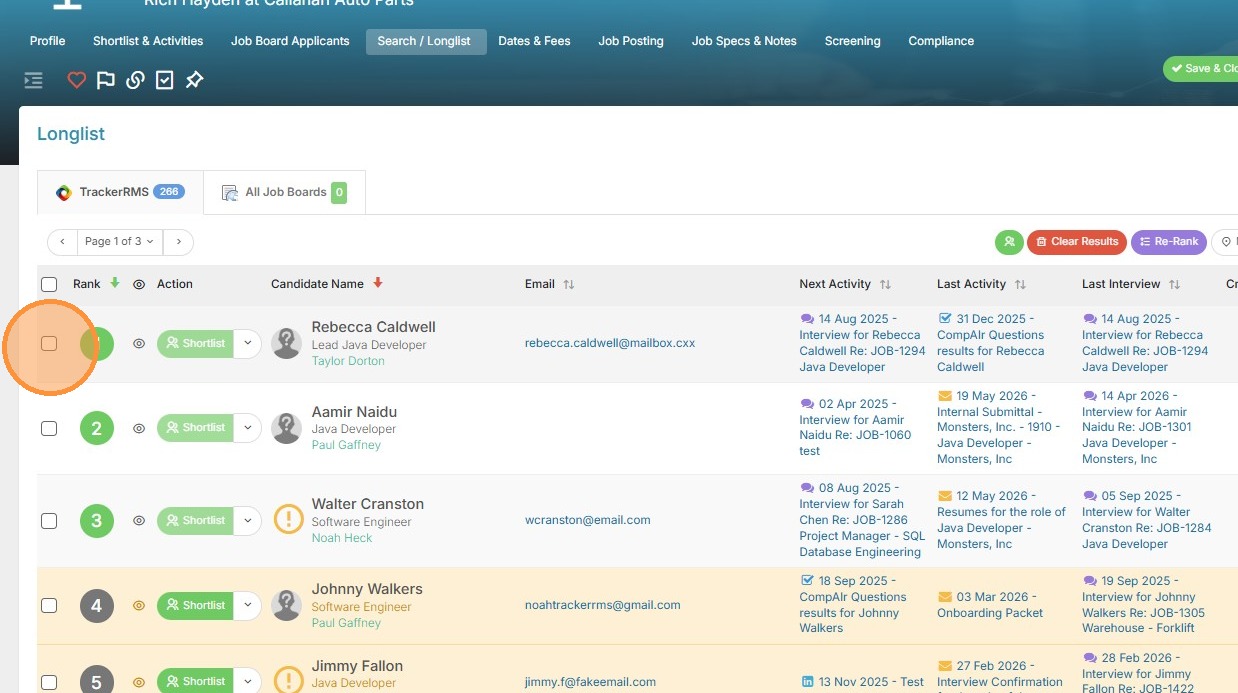

12. Select the candidates you wish to screen from the list.
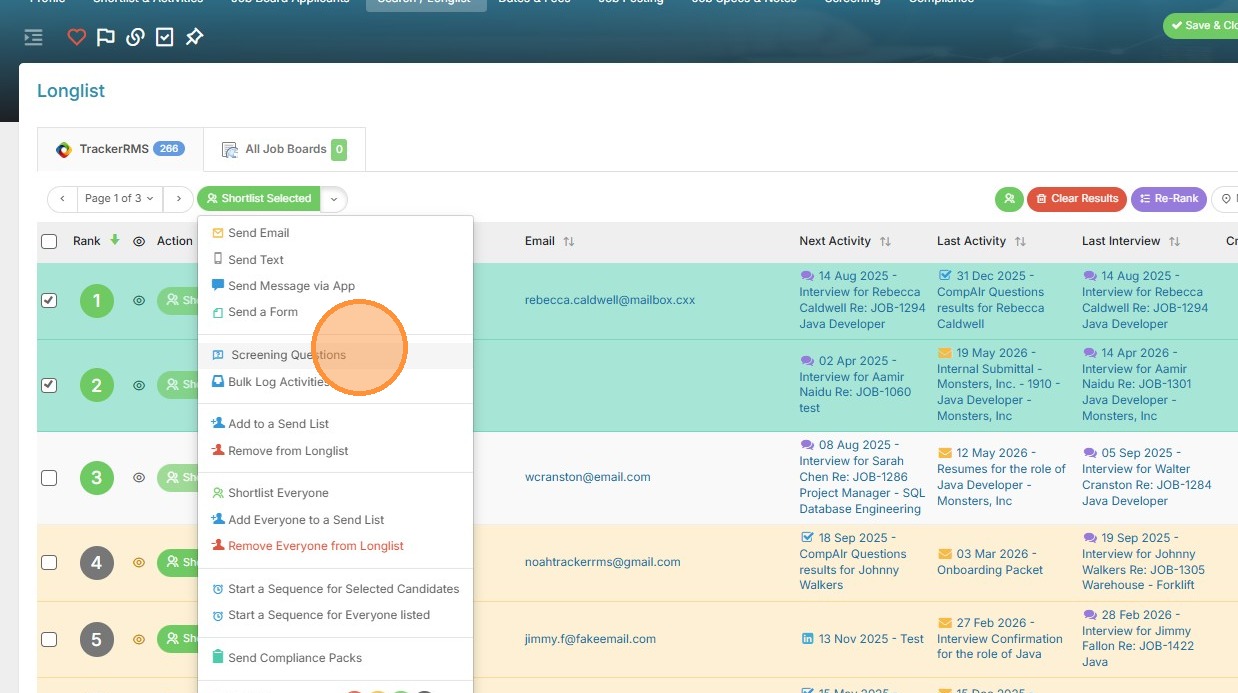
13. Select 'Screening Questions' from the bulk actions dropdown.

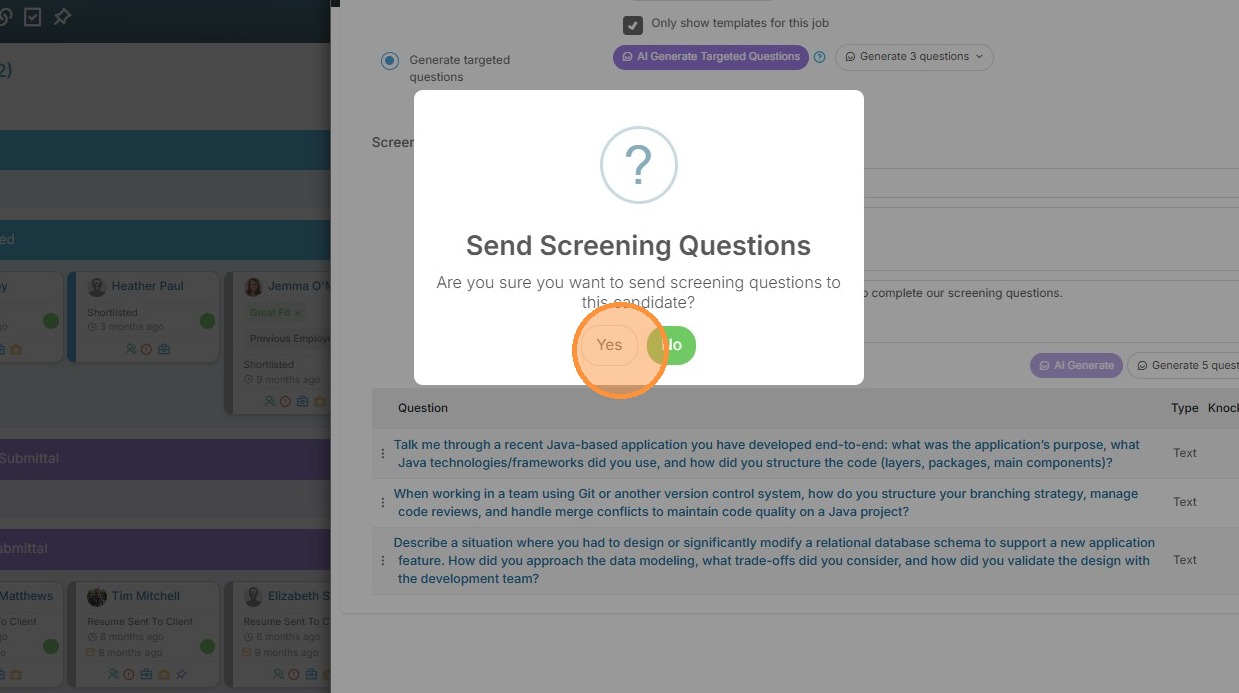
14. Click 'Send' and confirm the bulk screening request.
Targeted Candidate Screening
15. Navigate to the Shortlist if you prefer to send the questions from here.
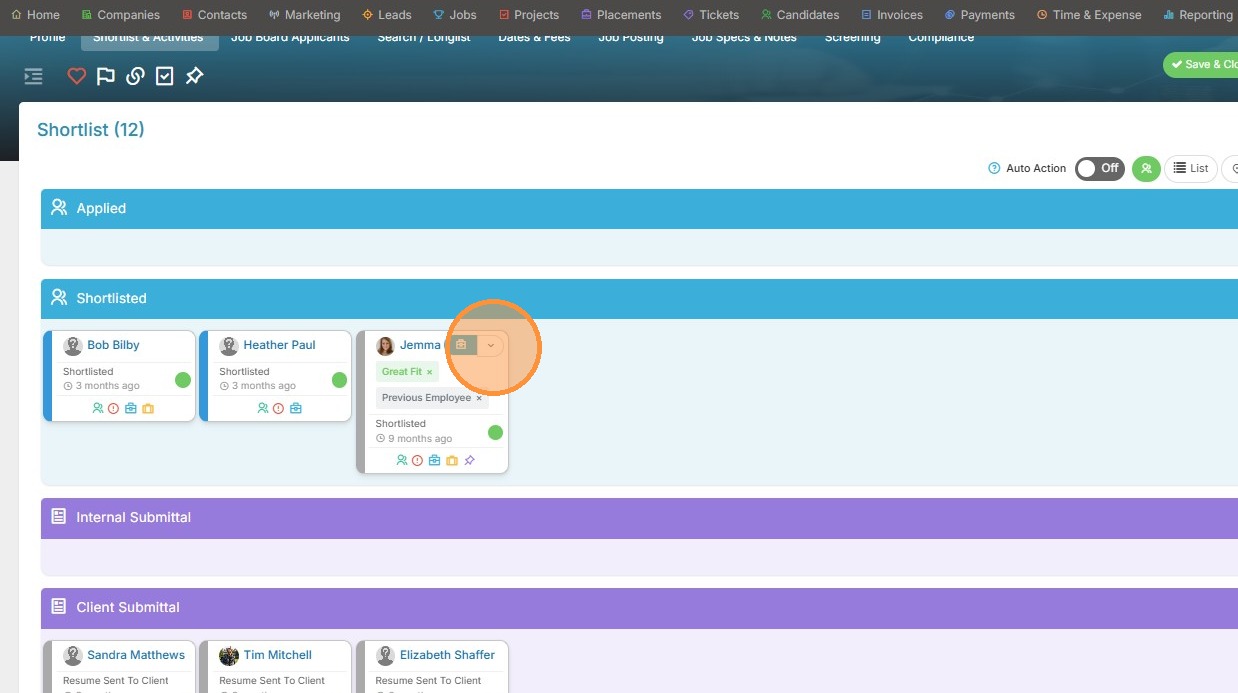
16. Click 'Workflow' on the candidate card.
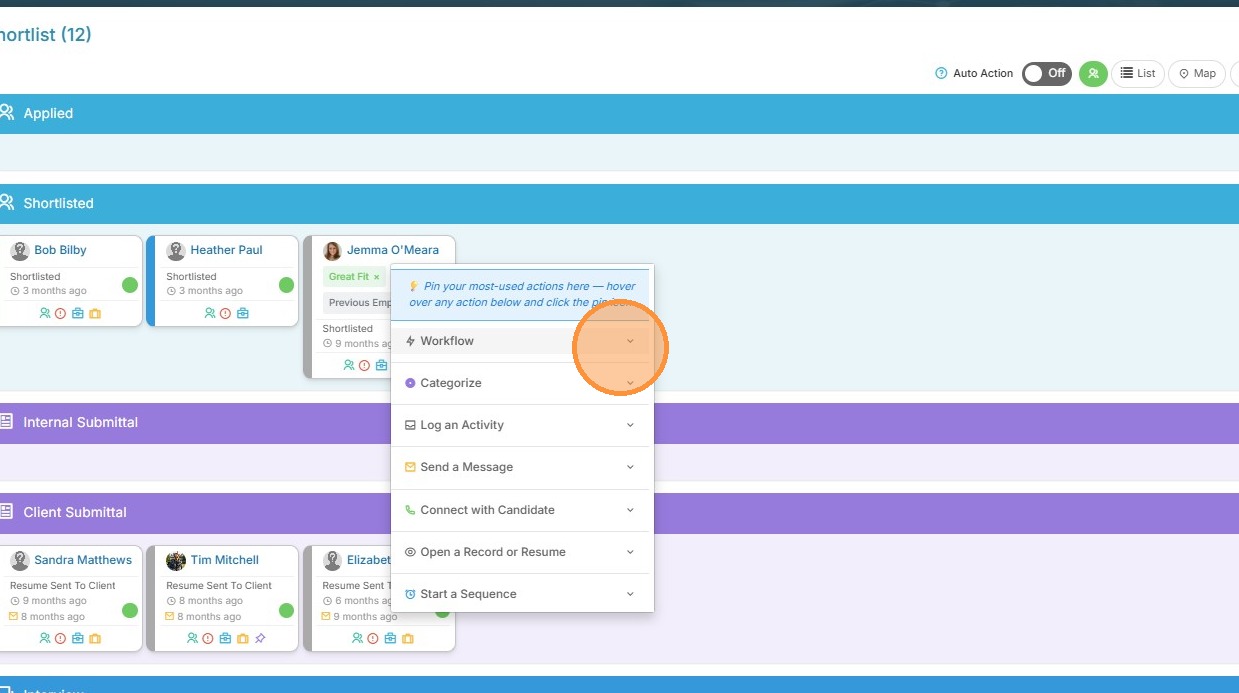
17. Select 'Screening Questions' from the workflow menu.
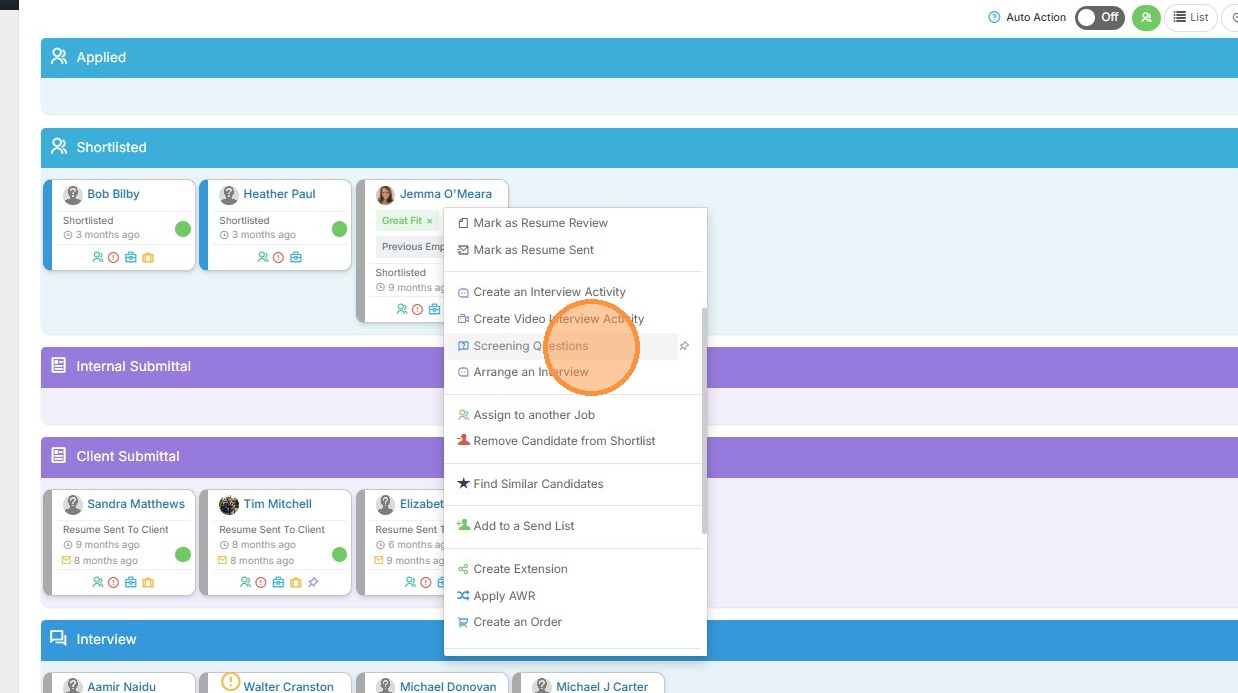
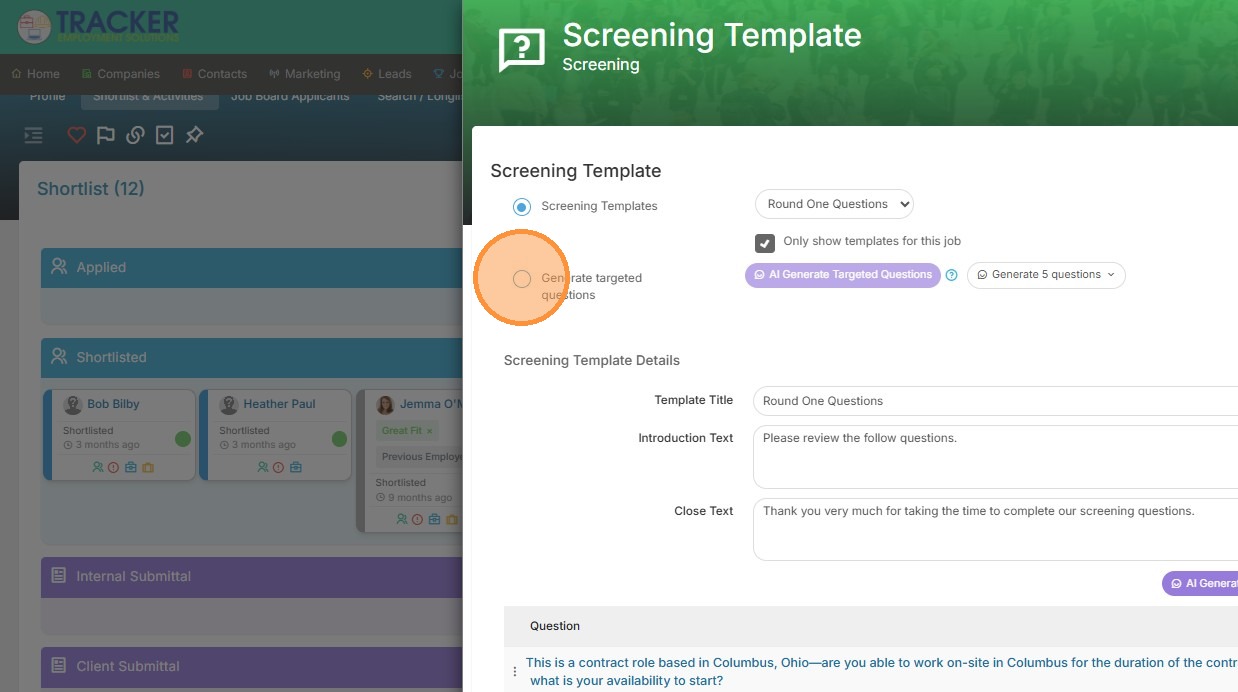
18. Select the 'Generate targeted questions' option if you want to use questions specific to that candidate's resume against the job description.
19. Select the number of questions.
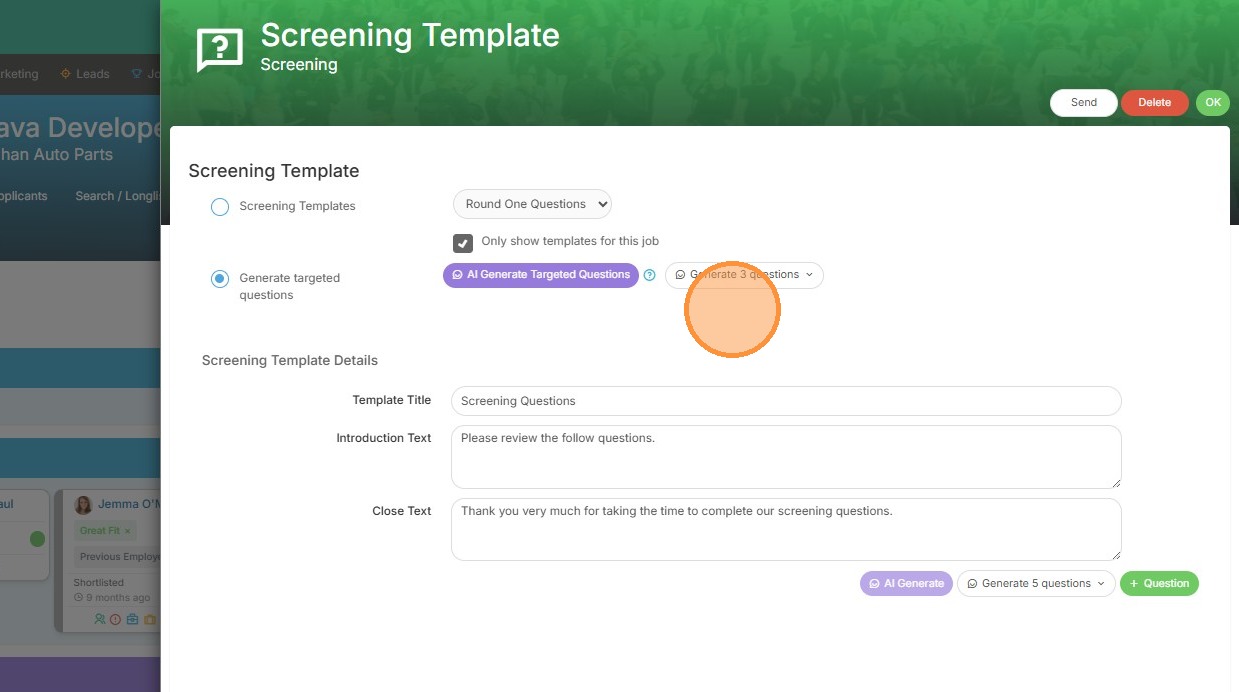
20. Click "AI Generate Targeted Questions"
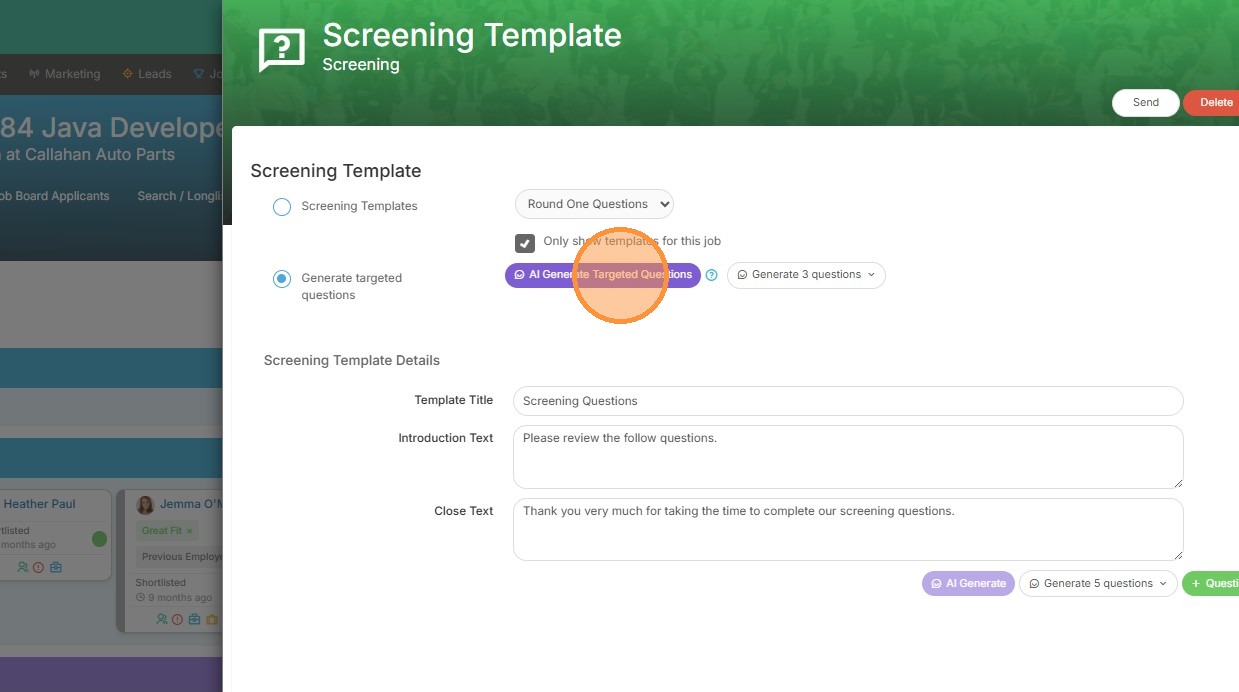
21. Click 'Send' to deliver the questions to the candidate.
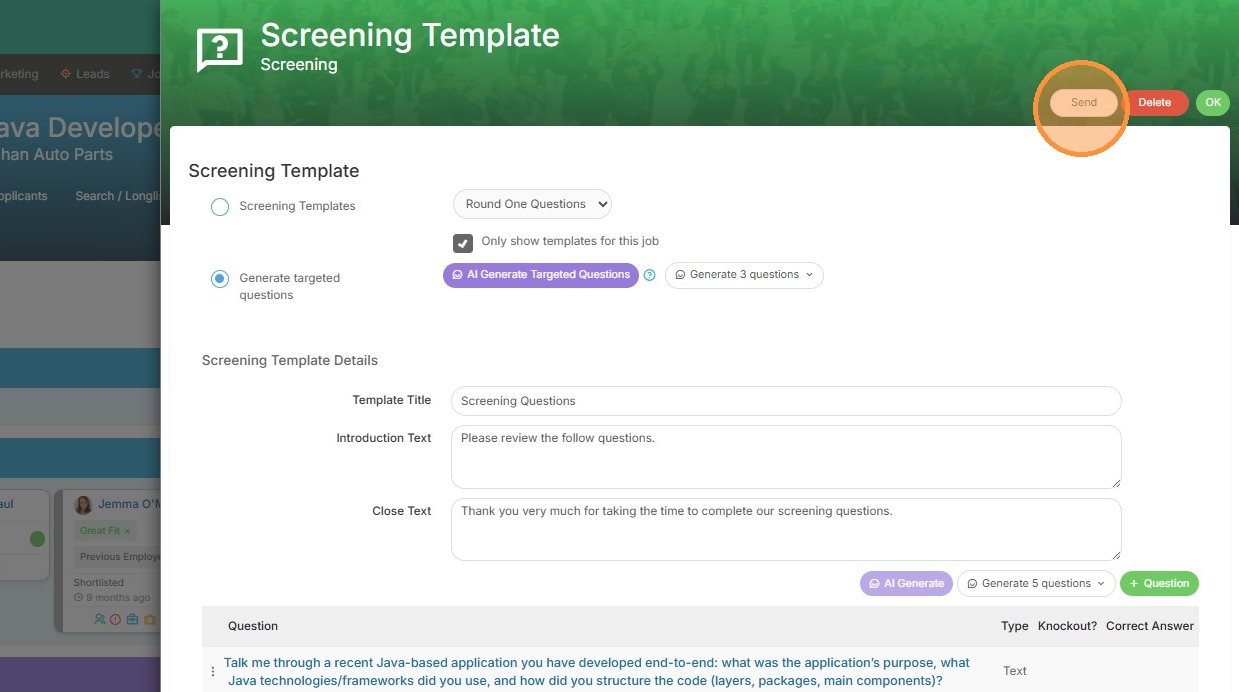
22. Click "Yes"
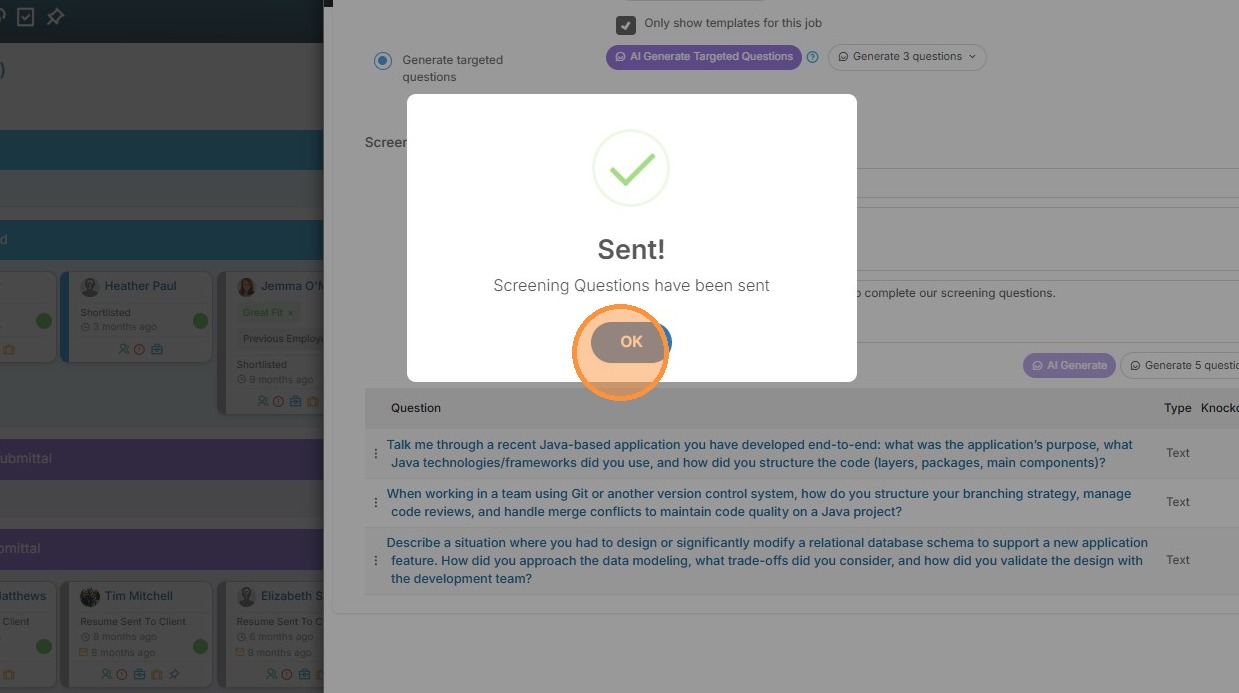
23. Click "OK"
Candidate Submission and Review

24. From the candidate's end, they will, click 'Submit Answers' and confirm the submission.
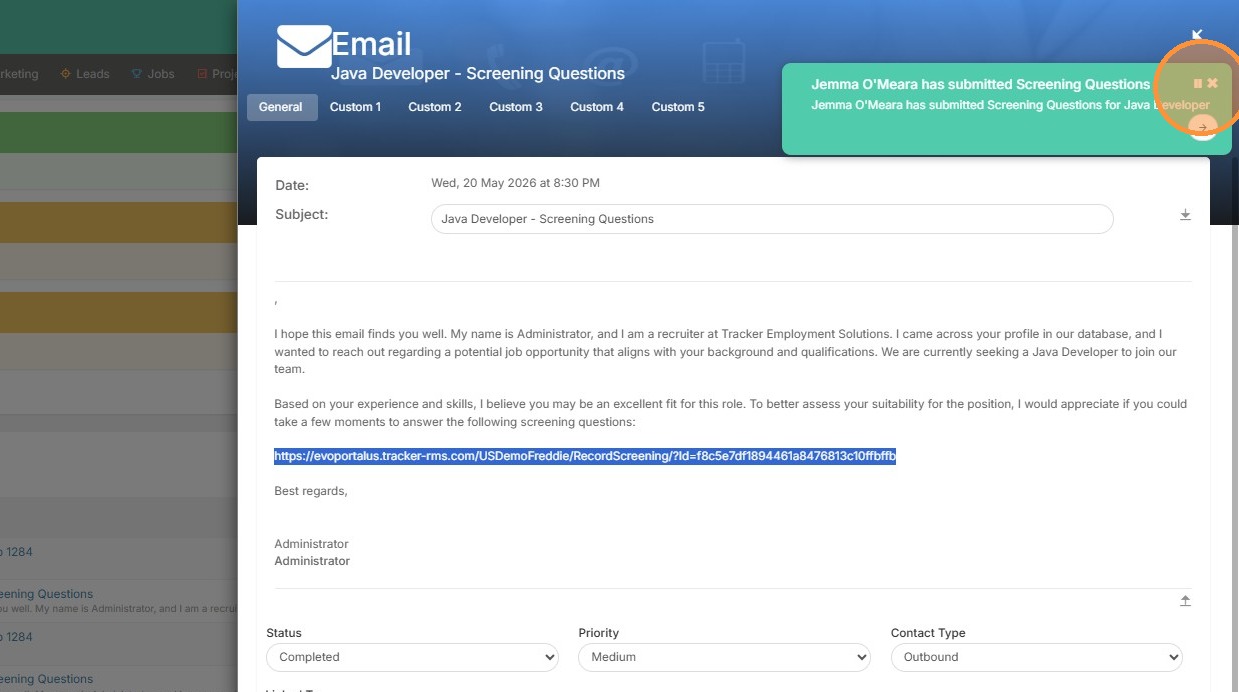
25. You will receive a notification in Tracker when they have submitted those answers. You can click on the job or candidate record to review their answers.
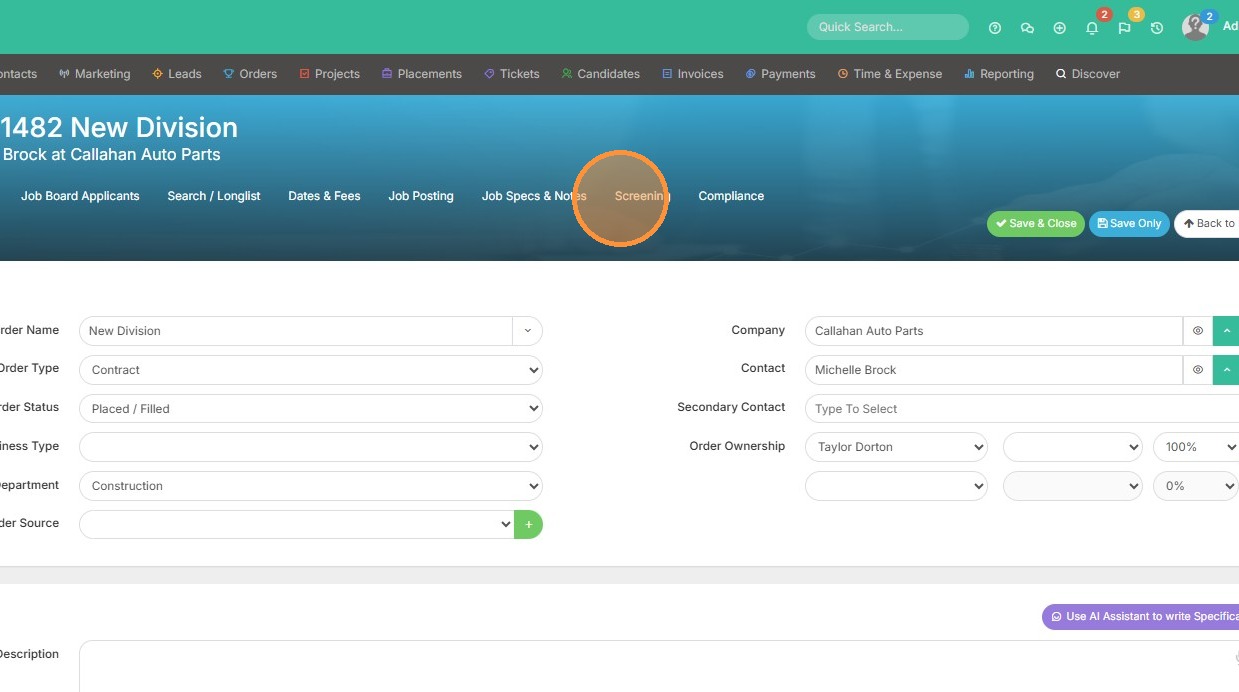
26. Click "Screening"
27. Click here to review.
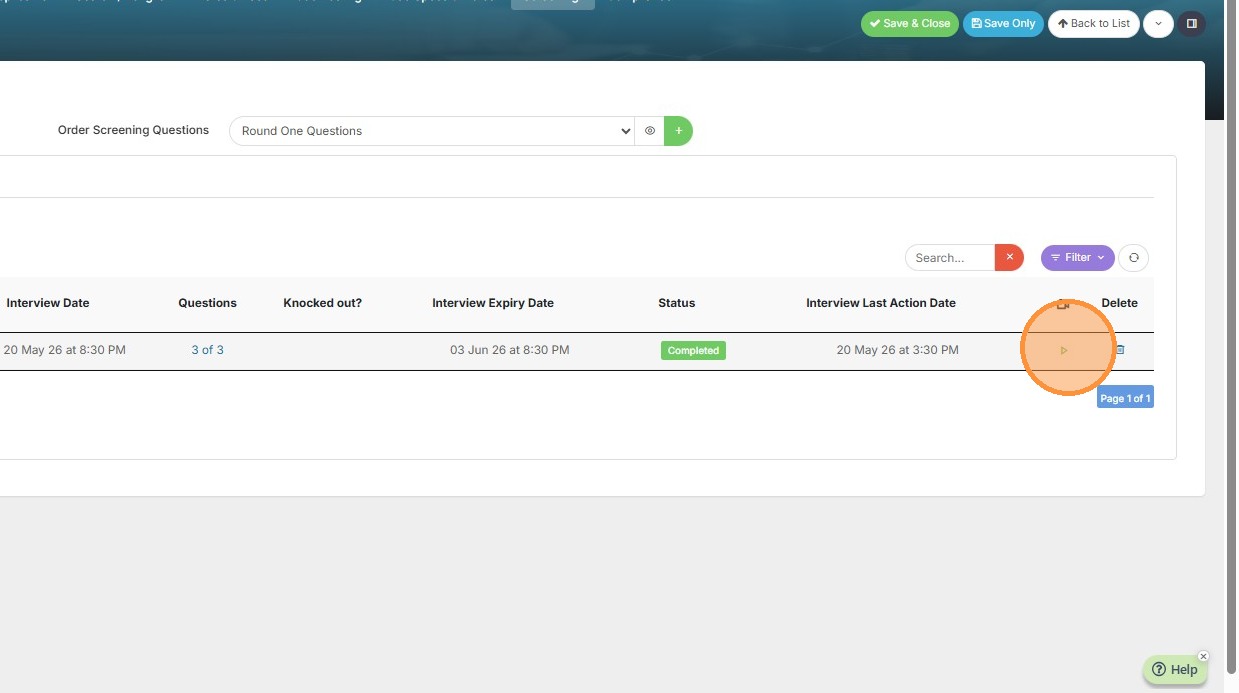
28. Click on a question response to open the review interface. You will see their response on the right. You can comment, or rate their response if you wish.
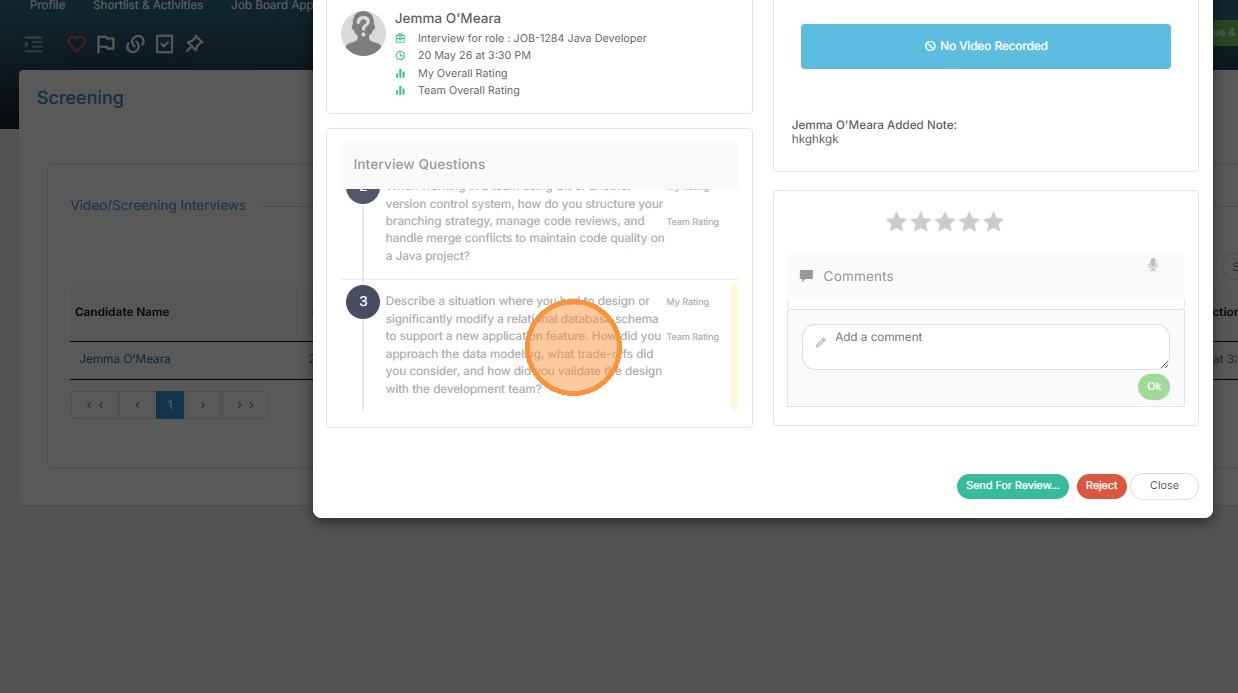
29. Otherwise, you can send the results for review.
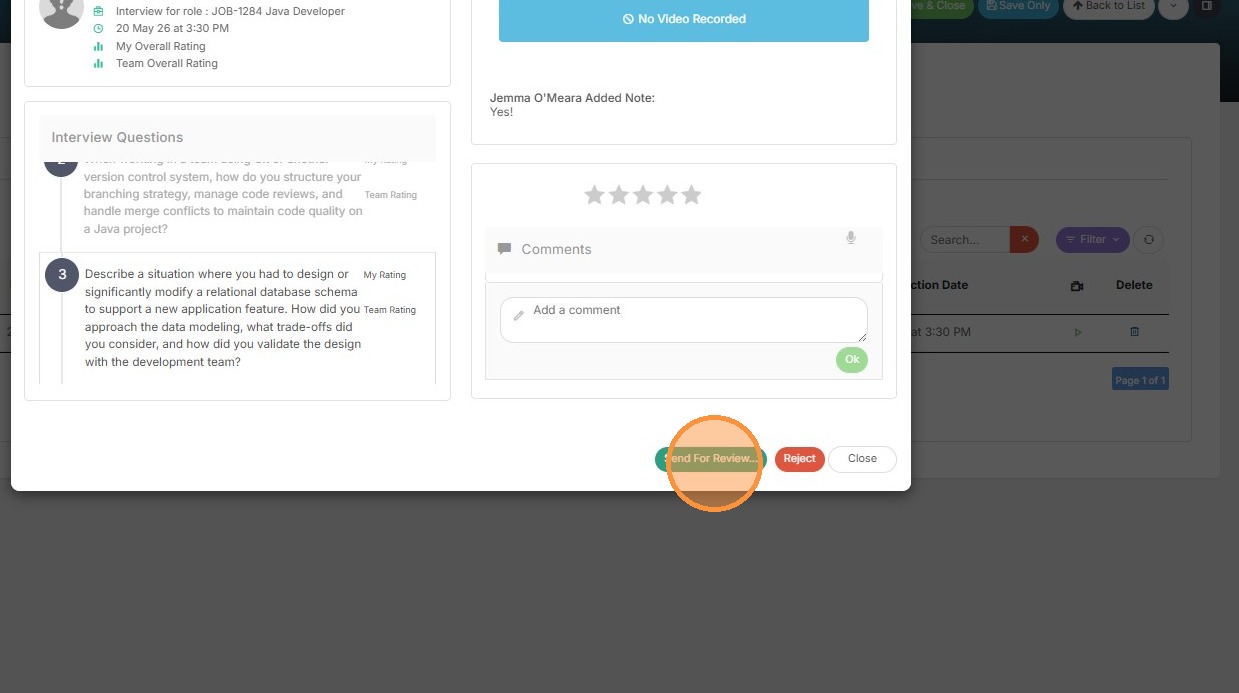
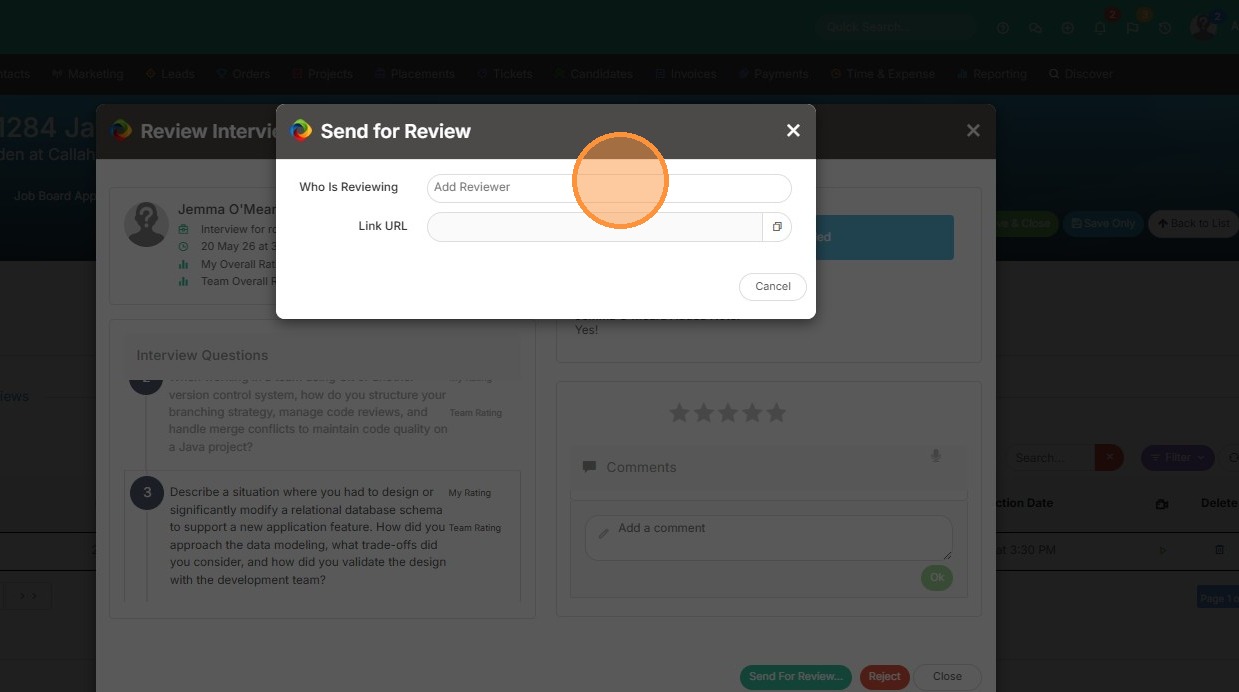
30. Enter a name or email in the 'Who Is Reviewing' field.